
Estimated reading time: 11 minutes
Key Takeaways
- Advancements in hardware allow heavy AI and Machine Learning work on laptops, no longer requiring cloud computing or workstations.
- The article reviews the top 5 laptops for AI and ML in 2026, focusing on performance, power, and portability.
- Key models include Lenovo Legion Pro 7i for local training, Apple MacBook Pro 16-inch for LLMs, and ASUS ROG Zephyrus G16 for hybrid workflows.
- Users should prioritize at least 32GB RAM and adequate VRAM for effective local AI work, and consider built-in NPUs for energy efficiency tasks.
- The verdict suggests choosing Lenovo Legion Pro 7i for CUDA performance and MacBook Pro M5 Max for NLP and battery life.
Table of contents
Look, let’s be honest. Training a heavy deep learning model or running a local 70B LLM on a regular laptop used to be a fast track to a melted chassis and a crashed system. For a long time, the unwritten rule was: “Do everything in the cloud, or buy a massive desktop workstation.” But things have changed insanely fast. If you’re searching for the Best Laptops for AI and ML, you’ll be happy to know that thanks to the latest silicon breakthroughs, dedicated NPUs (Neural Processing Units), and desktop-class mobile GPUs, you can actually do serious, heavy-duty AI and Machine Learning work right from a coffee shop.
Whether you’re a data science student needing a reliable machine for Kaggle competitions, or a senior AI engineer prototyping local neural networks with PyTorch and CUDA, your hardware demands are extreme. You need maximum VRAM, a fierce processor, and tons of system memory.
We’ve put the absolute best laptops of 2026 through the ringer, testing them with real-world local workloads, heavy containerization, and data pipeline processing. Here are the top 5 laptops that actually deliver without breaking a sweat.
Quick Comparison: The Heavy Hitters at a Glance
| Laptop Model | Best For | Top-Tier Spec Option | Key Highlight |
| Lenovo Legion Pro 7i (Gen 10) | Local Heavy Training | Intel Core Ultra 9 + RTX 5090 | Best raw CUDA performance |
| Apple MacBook Pro 16-inch (M5 Max) | Massive LLMs & Battery | M5 Max (18-Core) + 128GB RAM | Unified memory is a cheat code |
| ASUS ROG Zephyrus G16 | Hybrid Workflows & Travel | Core Ultra 9 + RTX 5070 Ti | Perfectly balances power & weight |
| Razer Blade 16 (2026) | Pure Premium Power | Core Ultra 9 + RTX 5090 | Gorgeous screen, zero compromise |
| Dell XPS 16 (9640) | Data Science & Clean Aesthetic | Core Ultra 9 + RTX 4070/5060 | Premium build, great for analytics |
The Top 5 Laptops for AI & Machine Learning
1. Lenovo Legion Pro 7i Gen 10 (2025/2026) — The Local Training King
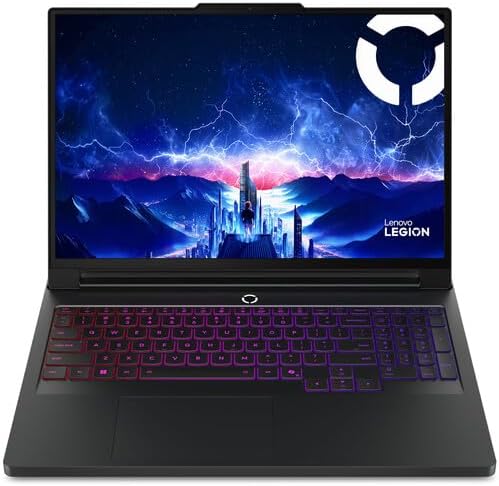
If you aren’t relying entirely on cloud compute and need to run heavy local training runs, you need an NVIDIA card with maximum VRAM. The Lenovo Legion Pro 7i is an absolute beast that offers desktop-level performance without the workstation price inflation.
Key Specifications
- Processor: Intel Core Ultra 9 275HX (Latest architecture)
- Graphics: NVIDIA GeForce RTX 5090 Mobile (16GB GDDR7 VRAM)
- Memory: Up to 64GB DDR5 Dual-Channel RAM
- Storage: Up to 2TB PCIe Gen 4 NVMe SSD
- Display: 16-inch WQXGA, 240Hz refresh rate
The Good
- Insane CUDA Performance: The RTX 5090 mobile chip handles parallel computing, TensorFlow, and PyTorch like a dream.
- Fantastic Thermal Management: Lenovo’s Coldfront cooling keeps the keyboard comfortable and prevents thermal throttling during long epochs.
- Upgradability: Unlike thin-and-light ultrabooks, you can actually swap out the RAM and storage down the line.
The Bad
- Battery Life is a Joke: Don’t expect to work away from a wall outlet for more than 2-3 hours.
- Bulky Charger: The power brick feels like a literal brick in your backpack.
2. Apple MacBook Pro 16-inch (M5 Max) — The LLM Playground
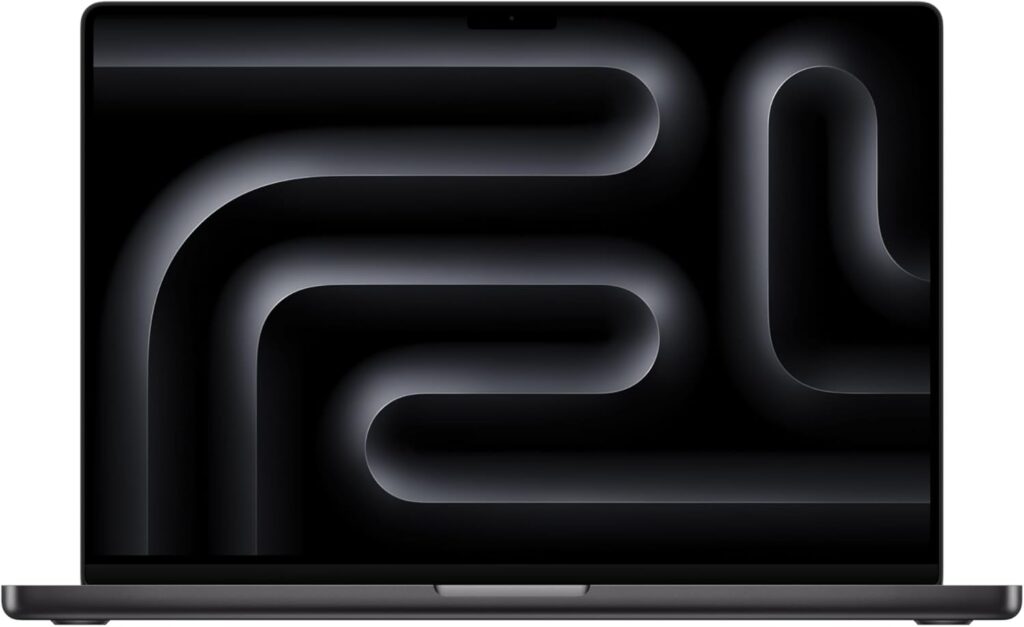
Apple’s unified memory architecture is basically a cheat code for running Large Language Models (LLMs) locally. Because the CPU and GPU share the same massive pool of memory, you can load quantized 70B parameters models that would completely choke a standard 16GB VRAM Windows GPU.
Key Specifications
- Processor: Apple M5 Max (18-core CPU, 40-core GPU)
- Graphics: Integrated 40-core Apple Silicon GPU
- Memory: Up to 128GB Unified Memory
- Storage: 1TB to 4TB Superfast SSD
- Display: 16.2-inch Liquid Retina XDR
The Good
- Unified Memory Advantage: Being able to allocate up to 128GB of memory directly to your models is revolutionary for AI research.
- Silent and Cool: Even under full load, the fans are barely audible, and the machine doesn’t become a stovetop.
- Legendary Battery Life: Easily get 12+ hours of coding and data exploration on a single charge.
The Bad
- No Native CUDA Support: You have to rely on Apple’s Metal Performance Shaders (MPS) framework. While PyTorch supports this well now, some legacy libraries still expect an NVIDIA GPU.
- Eye-Watering Price: Maxing out the RAM on a MacBook Pro will hurt your bank account severely.
3. ASUS ROG Zephyrus G16 (2026) — The Ultimate Hybrid Companion
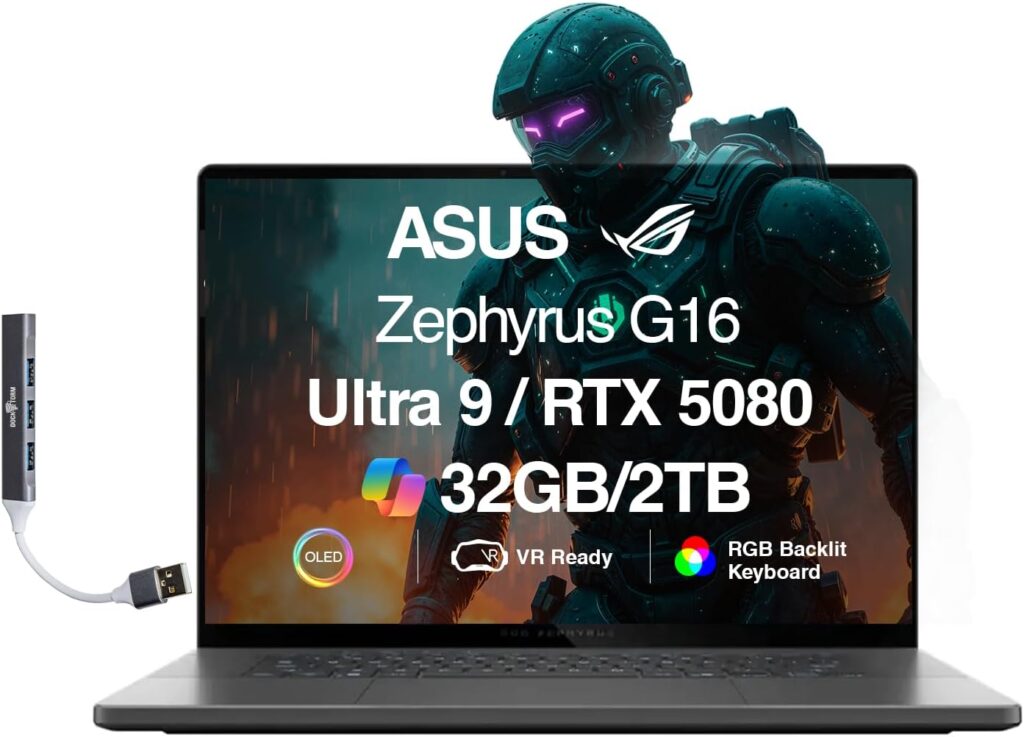
If you are a hybrid engineer—meaning you code locally, run your heavy training in AWS or Google Cloud, but still want enough local horsepower to test code and play games—this is your machine. It drops the aggressive “gamer” look for a sleek, MacBook-adjacent aluminum shell.
Key Specifications
- Processor: Intel Core Ultra 9 285H (Arrow Lake)
- Graphics: NVIDIA GeForce RTX 5070 Ti / 5080 Mobile
- Memory: 32GB or 64GB LPDDR5X (Soldered)
- Storage: 1TB NVMe SSD
- Display: 16-inch 2.5K OLED Display
The Good
- Ultra-Premium, Thin Design: It looks completely professional in a corporate meeting or a research lab.
- Stunning OLED Display: Perfect for deep work sessions, data visualization, and accurate color grading.
- Great Balance of Portability and Power: Weighs significantly less than standard gaming rigs but still packs a punch.
The Bad
- Soldered RAM: You must buy the 32GB or 64GB configuration right out of the gate; you cannot upgrade it later.
- Runs Warm: Because it’s thin, the chassis can get quite warm to the touch under sustained loads.
4. Razer Blade 16 (2026) — No Compromises Mobile Workstation
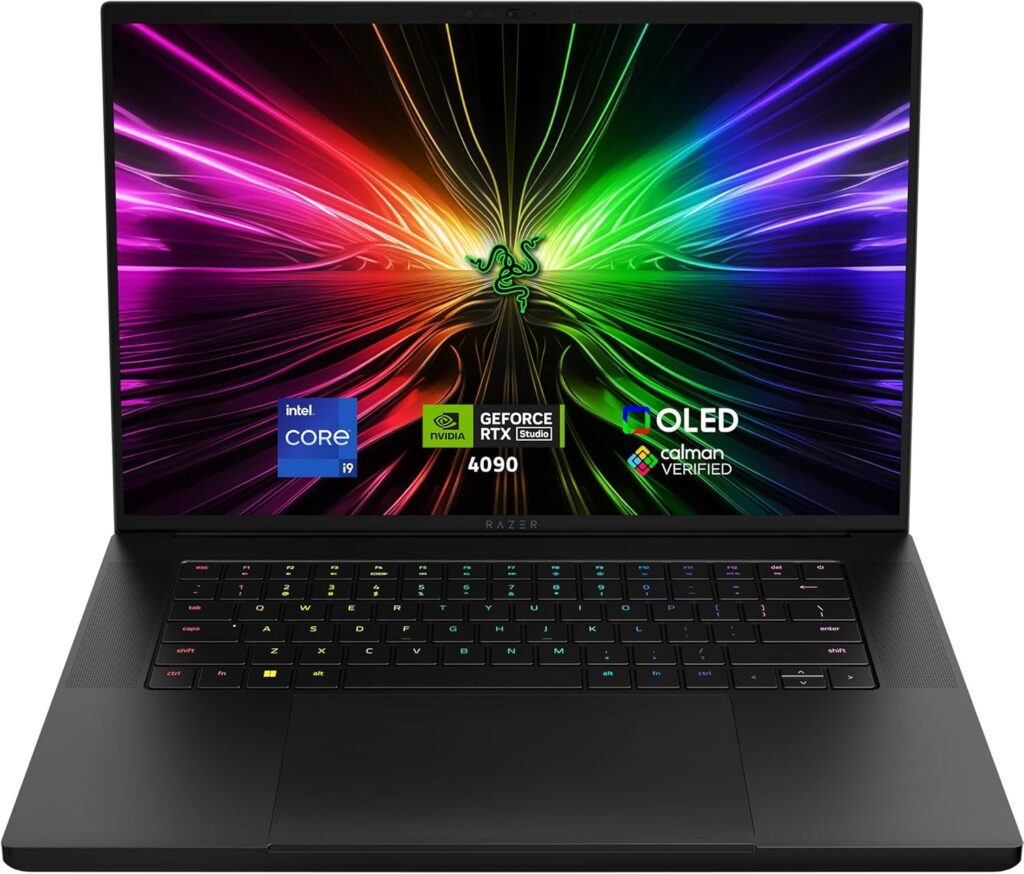
The Razer Blade 16 is for the developer who wants Windows flexibility, raw NVIDIA CUDA power, and luxury build quality all wrapped into one. It’s an expensive machine, but it provides desktop-grade components inside a clean, black-anodized aluminum frame.
Key Specifications
- Processor: Intel Core Ultra 9 High-Performance Processor
- Graphics: NVIDIA GeForce RTX 5090 Mobile (16GB VRAM)
- Memory: 64GB DDR5 RAM
- Storage: 2TB NVMe SSD (Dual slots available)
- Display: 16-inch Dual-Mode Mini-LED (Switch between 4K and FHD+)
The Good
- Top-Tier Build Quality: Easily the best-built Windows laptop on the market. Zero flex, gorgeous finish.
- Dual-Mode Display: Great for shifting between ultra-crisp 4K code text and lower-res, high-refresh processing tasks.
- Maximum Performance: Razer pushes high wattage to the components, ensuring you get every ounce of speed.
The Bad
- Very Expensive: You are paying a massive premium for the brand name and aesthetics.
- Battery Life Drainage: Even with modern power management, that Mini-LED screen and high-power GPU drain power fast.
5. Dell XPS 16 (9640) — The Data Analyst’s Dream
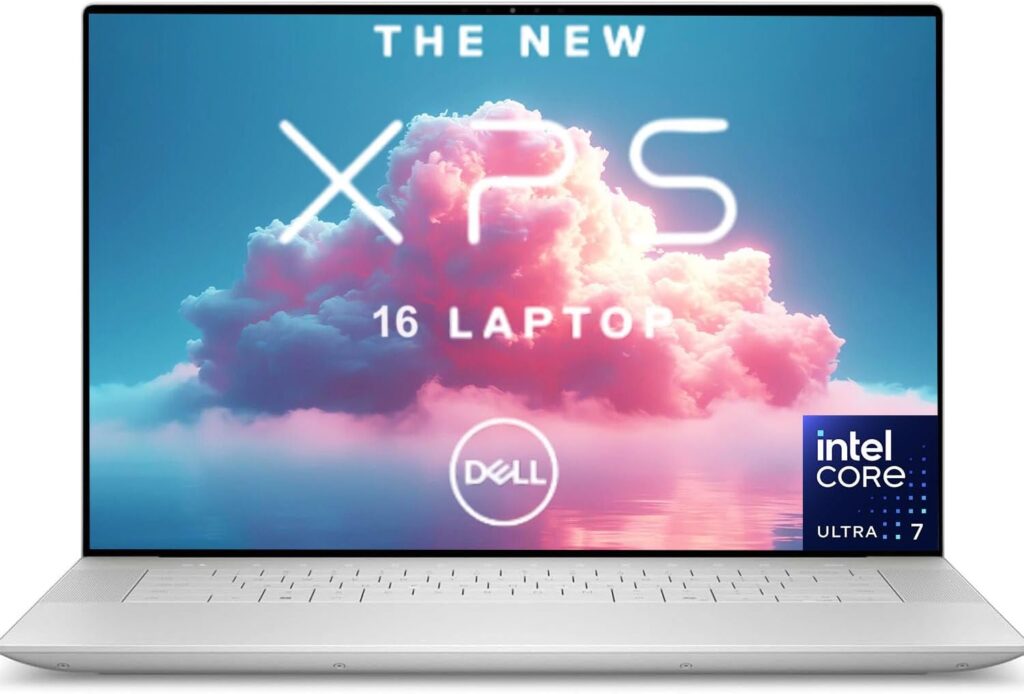
Not everyone in AI is training heavy computer vision neural networks from scratch. If your work leans more toward data science, data preprocessing, engineering feature pipelines, and hybrid cloud execution, the Dell XPS 16 is a phenomenal choice.
Key Specifications
- Processor: Intel Core Ultra 7 or Ultra 9
- Graphics: NVIDIA GeForce RTX 4070 / 5060 Mobile
- Memory: Up to 64GB LPDDR5X
- Storage: 1TB to 2TB SSDs
- Display: 16.3-inch InfinityEdge Touch OLED
The Good
- Gorgeous Minimalist Aesthetic: The seamless glass touchpad and haptic function row look incredibly futuristic.
- Excellent CPU Performance: Phenomenal at processing massive Pandas DataFrames and data manipulation tasks locally.
- Great Speakers and Display: Perfect for long hours of focus and video conferencing.
The Bad
- Mid-tier GPU Configurations: You can’t get an RTX 5080 or 5090 here, meaning local deep learning training runs will take longer.
- Dongle Life: The port selection is highly limited, meaning you’ll need adapters for standard USB-A devices.
What Actually Matters When Buying an AI/ML Laptop in 2026
If you’re still undecided, keep these simple, real-world hardware rules in mind:
- RAM is Your Lifeblood: Do not buy a 16GB laptop for AI development. Period. 32GB is the absolute bare minimum for local work, but 64GB (or higher on Mac) is the sweet spot if you plan on running multiple Docker containers, massive Jupyter notebooks, and local LLMs simultaneously.
- VRAM vs. System RAM: If you’re using Windows, your local training speed depends entirely on your GPU’s VRAM. Look for an NVIDIA card with at least 8GB VRAM (like an RTX 4070/5060) for basic experimentation, or 16GB VRAM (RTX 4090/5090) for serious model tuning.
- The NPU Factor: Modern Intel, AMD, and Apple chips feature built-in NPUs. These don’t train big models, but they are incredible for saving battery while handling inference tasks—like running local AI coding assistants (Copilot), on-device voice transcription, or image generation filters.
The Verdict
If you want the absolute fastest local model training speeds and rely heavily on traditional CUDA libraries, go grab the Lenovo Legion Pro 7i. It’s a pure performance workhorse.
If you are focusing heavily on natural language processing, local LLM deployment, or want a machine that can actually run all day on a flight without needing an outlet, the 16-inch MacBook Pro M5 Max is simply unmatched right now.
What does your current AI stack look like? Are you team local GPU training or team cloud-first development? Drop your thoughts below!
How to Set Up Your New Laptop for AI & Machine Learning
Time needed: 5 minutes
Getting a powerhouse machine is only half the battle; setting it up correctly so you don’t run into library dependency nightmares is the real trick. Here is the exact 3-step blueprint to turn your fresh machine into an optimized AI sandbox.
- Isolate Your Environments with Miniconda
Never install your machine learning libraries directly into your global system Python. Download and install Miniconda (a lightweight version of Anaconda), which allows you to create isolated environments for different projects. This ensures that a package update for an NLP project won’t accidentally break your computer vision pipelines.
- Configure Your Compute Accelerators (CUDA or MPS)
Make sure your code actually talks to your high-end hardware. If you’re on a Windows machine with an NVIDIA card, download the correct toolkit version from the NVIDIA CUDA Zone and verify it using
nvcc --versionin your terminal. If you’re on a Mac, you don’t need to download extra drivers, but you must ensure your PyTorch script targets the Metal Performance Shaders (MPS) backend by settingdevice = torch.device("mps"). - Containerize with Docker for Seamless Deployment
Install Docker Desktop and configure it to use your GPU (using the NVIDIA Container Toolkit for Windows). Containerization allows you to wrap your datasets, code, and specific library versions into a single package. This guarantees that your model will run exactly the same way on your laptop as it will when you deploy it to a massive cloud cluster later.
FAQs
Honestly? You can, but you’ll hit a wall much faster than you think. If you’re just learning Python syntax, basic regressions, or playing with small datasets in Pandas, 16GB is fine. But the moment you start spinning up Docker containers, handling image datasets, or running local LLMs alongside your web browser and code editor, 16GB will cause your system to swap memory and crawl. If you’re buying a machine to last the next few years, treat 32GB as your actual baseline.
Yes, but don’t expect it to train your models. NPUs are designed for low-power inference, not heavy lifting. Think of it this way: your NVIDIA GPU or Apple Max chip is there for the heavy-duty model training and massive data matrix math. The NPU is there to quietly handle background tasks—like running your AI coding assistant, blurring your background on Zoom calls, or handling local voice-to-text—without draining your battery. It’s a nice efficiency booster, but your primary focus should still be the GPU and VRAM.
This really comes down to your daily workflow. If your work involves training deep learning models locally, tweaking neural networks from scratch, or using cutting-edge research repositories that rely heavily on native CUDA, Windows (via WSL2) or a dedicated Linux setup is still the gold standard.
However, if your work leans heavily toward working with Large Language Models, generative AI, and mobile app deployment, the Apple M-series chips are incredible because of their unified memory. Being able to load a massive model into system memory on a laptop that doesn’t need to be plugged into a wall all day is a massive quality-of-life upgrade.

Hi, my name is Burak. I am a mechanical engineer. I have been writing laptop reviews for the Engineering Laptops website since 2020. Please feel free to contact me if you have any questions.





