Table of contents
- Quick Picks
- Why Nuclear Engineering Breaks the Usual Laptop Advice
- How I Put This Together
- Best Laptop for Nuclear Engineering Students in 2026: 5 Picks, Backed by Real Lab Data
- 1. Lenovo ThinkPad P16 Gen 3 — Best Overall for Nuclear Engineering
- 2. Dell Pro Max 16 Plus — Best Sustained Throughput
- 3. Apple MacBook Pro 16″ (M5 Max) — Best Battery, Quietest Machine
- 4. ASUS ProArt P16 (late-2025 refresh) — Best Power-to-Weight
- 5. HP ZBook Ultra G1a 14 — The Memory Trick Nobody Else Does
- Head-to-Head
- The 2026 Buying Guide
- Five Mistakes I See Nuclear Engineering Students Make
- Frequently Asked Questions
- Bottom Line
- Sources and Disclosure
I’ve spent more of my life than I’d like to admit staring at a progress bar while a Monte Carlo run grinds through a few billion particle histories. So when a nuclear engineering student asks me which laptop to buy, my first answer is never “get the biggest GPU you can afford.” It’s a question: what are you actually going to run on it?
That question matters more in this major than in almost any other, and here’s the reason nobody seems to say out loud.
Almost every “best laptop for engineering students” article you’ll find was written with mechanical and civil students in mind. Those guides tell you to prioritize a discrete NVIDIA GPU, because SolidWorks and Revit like one. Perfectly good advice for them. But the two codes you’ll live inside as a nuclear engineering student, MCNP and Serpent, don’t touch your RTX 5090 at all. Not a little. Not sometimes. Not at all.
I’ll show you the documentation on that in a second, along with measured numbers from published lab testing: Cinebench loops, Geekbench, colorimeter readings, battery rundowns, SSD throughput, fan noise, thermals. Every figure below comes from a named source, and I tell you which lab produced it so you can go check my homework.
Here’s the short version first.
Quick Picks
| Pick | Best for | Core hardware | Weight | Price |
|---|---|---|---|---|
| Lenovo ThinkPad P16 Gen 3 | Best overall for nuclear engineering | Core Ultra 9 285HX (24C), RTX PRO 3000 Blackwell, up to 192 GB DDR5 across 4 SO-DIMM slots | 2.74 kg | From ~$3,500 |
| Dell Pro Max 16 Plus | Best sustained throughput and biggest GPU | Core Ultra 9 285HX, RTX PRO 5000 Blackwell 24 GB, 128 GB CAMM2, 3× PCIe Gen5 SSD slots | 2.85 kg | From $3,700 |
| Apple MacBook Pro 16″ (M5 Max) | Battery life, silence, Unix workflow | M5 Max 18-core CPU / 40-core GPU, up to 128 GB unified | 2.14 kg | $4,499 as tested |
| ASUS ProArt P16 (late-2025 refresh) | Best power-to-weight, best-in-class screen | Ryzen AI 9 HX 370, RTX 5070 Ti / 5080 / 5090, 4K 120 Hz Tandem OLED | 1.93 kg | $3,999 top spec |
| HP ZBook Ultra G1a 14 | Enormous memory pool in a small bag | Ryzen AI Max+ PRO 395 (16C/32T), Radeon 8060S, 128 GB unified LPDDR5X | 1.54 kg | From $2,599 |
If you only read one line: buy the ThinkPad P16 Gen 3 and put every spare dollar into RAM. Nothing else here reaches 192 GB, and memory is the wall you hit first in reactor physics.
Why Nuclear Engineering Breaks the Usual Laptop Advice
This is the part I wish someone had sat me down and explained. Let me walk through the four things you’ll actually be handed.
MCNP does not use your GPU. At all.
From Los Alamos National Laboratory’s own MCNP FAQ: the code runs only on CPUs and has no GPU acceleration. It’s a large, mature codebase, adapting it for GPUs would mean substantial redevelopment, and there are no plans to do it. Parallelism comes from OpenMP for threads inside one machine and MPI for spreading work across processes.
Read that twice, because it wipes out most of the buying advice you’ll find elsewhere. If your coursework is shielding, criticality safety, detector response, or dose modeling, the several hundred dollars you’d spend jumping from an RTX 5070 to an RTX 5080 buys you exactly zero extra particle histories per second.
What does buy you histories: physical core count, sustained all-core clock speed, and enough RAM to hold your cross-section data without touching the page file.
Serpent is a Linux citizen, and it eats memory
VTT’s Serpent 2 ships as C source you compile yourself. It was developed on Linux and macOS, uses OpenMP threading with optional MPI, and installation guidance recommends at least 16 GB of RAM for realistic reactor calculations, plus roughly 10 to 20 GB of disk just for nuclear data libraries depending on which evaluations you install.
Here’s the detail that catches people out. Under MPI, each process keeps its own copy of the nuclear data. So an eight-process run doesn’t use eight times the CPU and one times the memory. It can use close to eight times the memory as well. That’s the single biggest reason I keep pushing RAM over GPU in this article.
On Windows, the practical route is WSL2, which delivers near-native speed. A full Linux virtual machine costs you noticeably more.
OpenMC is the same story with a friendlier front door
OpenMC uses a hybrid MPI and OpenMP model, builds on Linux and macOS, and ships a Python API that makes it by far the easiest of the three to pick up for coursework. Still CPU-bound in its standard build.
Ansys is where a GPU finally earns its keep, with an asterisk
Ansys 2026 R1 supports 64-bit Windows and Linux. macOS is not supported and Ansys cannot be installed on it.
For the Ansys products that do offer GPU acceleration, the installation guide recommends a card with at least 16 GB of on-board memory before you’ll see meaningful acceleration, and notes that only cards with significant double-precision (FP64) throughput are recommended.
That asterisk matters. Consumer GeForce cards are deliberately weak at FP64. So even in the one place a GPU genuinely helps, a gaming laptop’s headline GPU isn’t doing what the box implies.
The Apple Silicon problem nobody puts in a buying guide
I like MacBooks. There’s one in this list. But you need to know this before you spend four thousand dollars.
MCNP’s own release documentation states that its recommended macOS compilers and dependencies are tailored to the Apple Intel (x86_64) architecture, and that build workflows for Apple Silicon (arm64) are provided as unsupported courtesy instructions for people trying to get started. Not beta. Not coming soon. Unsupported.
Now layer Apple’s own timeline on top. Rosetta 2, the translation layer that runs x86 binaries on Apple Silicon, stays available through macOS 27. From macOS 28 onward, Apple says Rosetta will only cover certain older, unmaintained games. Your fallback has an expiry date on it.
Add that Ansys won’t install on macOS at all, and the honest picture for a Mac in this specific major looks like this: superb for Python, MATLAB, OpenMC, LaTeX, Git, SSH into the department cluster, and writing your thesis. Risky as your only machine if your program expects you to run MCNP or Ansys locally.
How I Put This Together
I want to be straight with you, because there’s a flood of laptop content out there quoting suspiciously round benchmark numbers that nobody ever measured.
What I did not do: I did not personally run Cinebench on all five of these machines in a temperature-controlled room. Almost nobody writing a five-laptop roundup does, and anyone claiming otherwise is probably making it up.
What I did do:
- Pulled measured figures from named labs and tracked which lab produced which number. My main sources are Notebookcheck (ThinkPad P16 Gen 3, Dell Pro Max 16 Plus, MacBook Pro 16 M5 Max, ASUS ProArt P16 RTX 5090), StorageReview (battery rundowns, ZBook Cinebench), Ultrabookreview (ProArt P16 thermals and workstation benchmarks), AEC Magazine and Laptop Mag (ZBook Ultra G1a), Trusted Reviews and IT Pro (Dell battery and HDR brightness), and Macworld for Apple battery runtime.
- Checked every platform claim against primary documentation, not against other review sites. MCNP claims come from LANL, Serpent from VTT and RSICC, Ansys from Ansys’s own 2026 R1 platform-support material.
- Derived two metrics you won’t see elsewhere, both computed from published numbers with the arithmetic shown, because a peak benchmark score tells you almost nothing about a six-hour depletion run.
Derived metric 1: sustained retention
A Monte Carlo job isn’t a ten-second benchmark. It’s a thermal endurance event. What I want to know is: after twenty minutes of the fans howling, how much of the machine’s peak throughput is still there?
A long Cinebench R15 loop is the closest widely published proxy. Retention = loop average ÷ best single run.
| Laptop | Peak R15 multi | Loop average | Retention | Lab |
|---|---|---|---|---|
| Dell Pro Max 16 Plus | 5,427 | 4,879 | 90% | Notebookcheck |
| Lenovo ThinkPad P16 Gen 3 | 5,627 | 4,690 | 83% | Notebookcheck |
| ASUS ProArt P16 (RTX 5090) | 3,466 | ~3,300 | ~95% | Ultrabookreview |
Two honest caveats. The ProArt number comes from a different lab with a different room and loop cadence, so treat it as indicative rather than head-to-head. And that ProArt review unit was a pre-production sample the reviewer explicitly flagged as running hotter than expected, hitting 95 to 97 °C where earlier P16 units had stayed in the high 80s.
The other two machines don’t loop Cinebench R15 in their reviews, so instead of inventing a percentage I’ll give you what their labs actually measured:
- MacBook Pro 16 M5 Max: Notebookcheck measured the M5 Max drawing up to 75 W briefly and settling at 70 W under sustained load, calling the performance very stable. On the 14-inch chassis they saw fluctuating CPU and GPU performance even in High Power mode. Same chip, different cooling, different machine.
- HP ZBook Ultra G1a: AEC Magazine logged 3.5 to 3.7 GHz all-core across hours of CPU rendering in KeyShot, V-Ray, Corona and Cinebench, with fan noise they described as acceptable and consistent throughout.
Derived metric 2: the unplugged penalty
Half your runs will happen in a library carrel with no outlet. Here’s what each machine gives up on battery, using whatever like-for-like measurement its lab published:
| Laptop | Measured drop on battery | Lab |
|---|---|---|
| HP ZBook Ultra G1a | Geekbench 6 multi down nearly 50%; Cinebench and 3DMark down ~20%; SSD read collapses from 7 GB/s to 3.5 GB/s; all-core clocks fall from 3.5–3.7 GHz to about 2.5 GHz | Moor Insights & Strategy, AEC Magazine |
| ASUS ProArt P16 | CPU package power drops from about 75 W to about 45 W | Ultrabookreview |
| Lenovo ThinkPad P16 Gen 3 | Cinebench R23 multi falls from 34,998 to 27,728 (−26%); 3DMark 11 GPU falls 23% to 37,978 | Notebookcheck |
| Dell Pro Max 16 Plus | Not separately published, but the machine ships with a 280 W adapter and only lasted 2 h 37 m in a PCMark 10 Modern Office rundown at 150 nits | Trusted Reviews |
| Apple MacBook Pro 16 M5 Max | None. Notebookcheck states the benchmark results are identical on battery power | Notebookcheck |
That ZBook row is the most useful single data point in this whole article, and I’d wager you haven’t seen it in another buying guide. A machine that loses half its multi-core throughput the second you unplug it is a fundamentally different machine from the one on the spec sheet.
Best Laptop for Nuclear Engineering Students in 2026: 5 Picks, Backed by Real Lab Data
1. Lenovo ThinkPad P16 Gen 3 — Best Overall for Nuclear Engineering
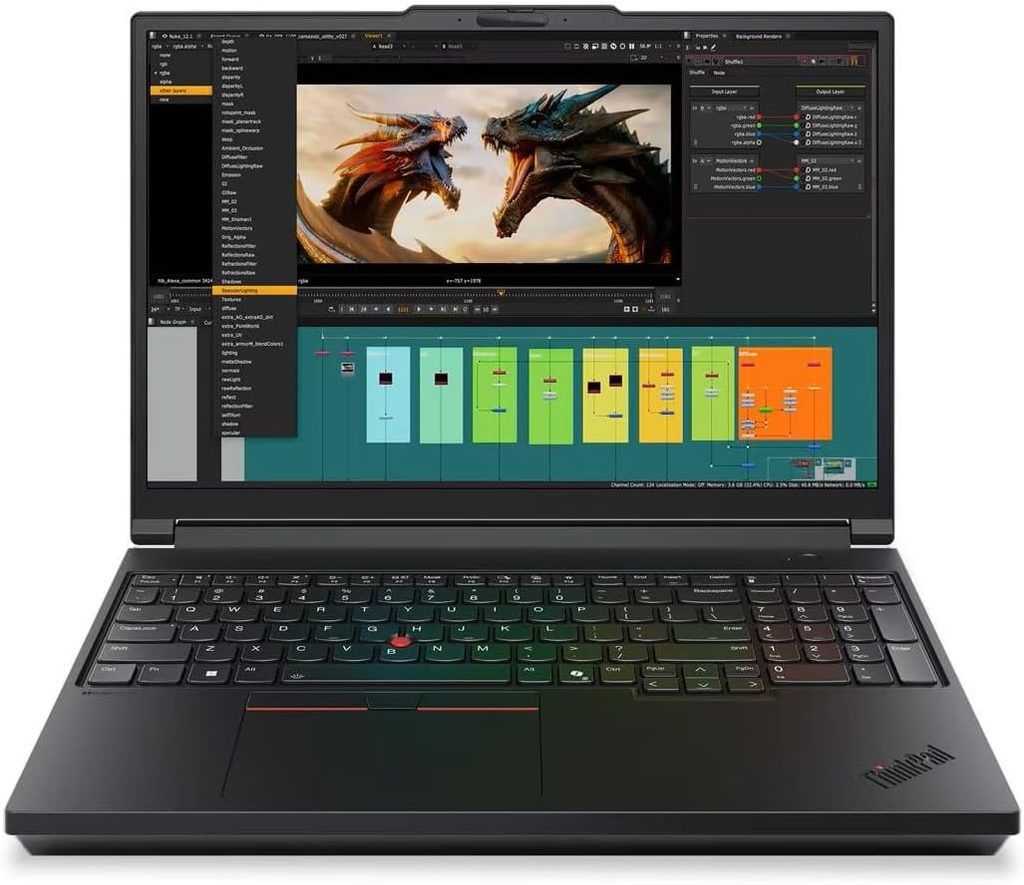
This is the one I’d buy with my own money. Not because it wins every benchmark, because it doesn’t. Because it’s the only machine here that solves the problem that actually derails nuclear engineering students: running out of memory halfway through a burnup calculation at two in the morning.
Specifications as tested by Notebookcheck
- CPU: Intel Core Ultra 9 285HX, 24 cores / 24 threads (8 Lion Cove P-cores to 5.5 GHz, 16 Skymont E-cores to 4.6 GHz), Arrow Lake-HX
- Power limits: 110 W sustained (PL1), 160 W burst (PL2) in Best Performance mode
- GPU: NVIDIA RTX PRO 3000 Blackwell, 12 GB GDDR7, 105 W TGP, MUX switch
- Memory: 96 GB DDR5-5600 as tested, four SO-DIMM slots, up to 192 GB
- Storage: 2 TB Samsung PM9E1 PCIe 5.0, three M.2 2280 slots (one Gen5, two Gen4)
- Display options: 16-inch 16:10 in three flavours: 1920×1200 IPS at 500 nits, 3200×2000 Tandem OLED at 120 Hz, or 3840×2400 IPS at 800 nits
- Ports: 2× Thunderbolt 5, 1× Thunderbolt 4, 2× USB-A, HDMI, 2.5 GbE, SD Express 8.0, smartcard reader
- Battery: 99 Wh, 180 W USB-C GaN charger
- Weight: 2.736 kg (6.03 lb)
- Other: MIL-SPEC tested, Wi-Fi 7 (Intel BE200), optional 5G, 36-month warranty
Measured performance
| Test | Result | Notes |
|---|---|---|
| Cinebench R23 multi | 34,998 | Single core 2,228, highest in its comparison group |
| Cinebench R23 multi, on battery | 27,728 | −26% |
| Cinebench R15 loop | Ø4,690 (peak 5,627, floor 4,290) | 83% retention |
| Cinebench R20 | 13,152 multi / 857 single | Best single-core in group |
| Geekbench 6.7 | 18,212 multi / 2,989 single | Notebookcheck |
| Blender BMW27, CPU only | 103 seconds | Dell managed 98 s |
| 7-Zip compression | 99,260 MIPS | |
| HWBOT x265 4K | 35.4 fps | |
| Battery, PCMark 10 Modern Office | ~7 hours | StorageReview, best of the three big workstations they tested |
| Wi-Fi 7, 6 GHz receive | 1,729 Mbit/s | iperf3 |
| Display (1200p IPS), brightness | 532 cd/m² centre, 497 cd/m² average, 88% uniformity | X-Rite i1Pro 3 |
| Contrast | 1716:1 (black level 0.31 cd/m²) | |
| Colour coverage | 95.2% sRGB, 66.6% AdobeRGB, 64.9% DCI-P3 | |
| Colour accuracy | ΔE 4.4 out of the box, 1.1 after calibration | |
| PWM flicker | None detected at any brightness level |
Notebookcheck rated it 89% overall, praising the build, inputs, upgradeability and screen brightness while flagging the undersized charger and the low GPU power limit.
Why it wins here
192 GB of upgradeable memory in real SO-DIMM slots. In 2026 this is worth far more than it was two years ago, and I explain why in the buying guide further down. Every other laptop in this article solders its memory to the board. The P16 lets you buy 32 GB now and add capacity when a research project demands it.
Three SSD slots. Nuclear data libraries alone are 10 to 20 GB before you’ve written a single input deck. Add Windows, WSL2, an Ansys install and your own output, and a 512 GB drive is gone by spring. Being able to drop in a second and third drive later is a genuinely different ownership experience.
No PWM flicker on the base IPS panel. I flag this because you’ll stare at output files for four years, and a real share of people get headaches from flicker-dimmed screens. The colour gamut on this panel is mediocre, but you’re not grading film.
Roughly seven hours in StorageReview’s PCMark 10 Modern Office rundown, which they noted comfortably beat the competing 18-inch Dell and HP workstations, both of which came in under five hours.
Pros
- The only machine here that reaches 192 GB, and it does it with user-accessible SO-DIMM slots
- Three M.2 slots, one PCIe Gen5
- Highest Cinebench R23 single-core in its class, which matters for the serial pre- and post-processing stages of nearly every code
- Flicker-free base panel at 532 nits with excellent post-calibration accuracy (ΔE 1.1)
- Best battery life of the full-size Windows workstations at roughly 7 hours
- Thunderbolt 5, 2.5 GbE, 36-month warranty
- One of the best keyboards on any laptop, with a numpad
Cons
- The 180 W charger is undersized for a CPU that wants 110 W sustained next to a 105 W GPU, and you can see it in that 83% retention figure
- 105 W GPU power limit is low for the class. Notebookcheck measured it trailing the Dell by about 24% in both SPECviewperf and 3DMark
- 2.736 kg plus a 521 g power supply is a real commitment to carry across campus
- The base 1920×1200 panel is 60 Hz and covers only 66.6% AdobeRGB, which is thin for a $3,500 machine
- Expensive
The configuration I’d order
Core Ultra 7 255HX or Core Ultra 9 275HX, RTX PRO 2000, 32 GB in a single SO-DIMM to start so three slots stay free, 1 TB SSD, and the 1920×1200 matte IPS panel. That keeps you clear of the worst of the pricing and leaves every upgrade path open. Skip the OLED unless you also do photo or video work.
2. Dell Pro Max 16 Plus — Best Sustained Throughput
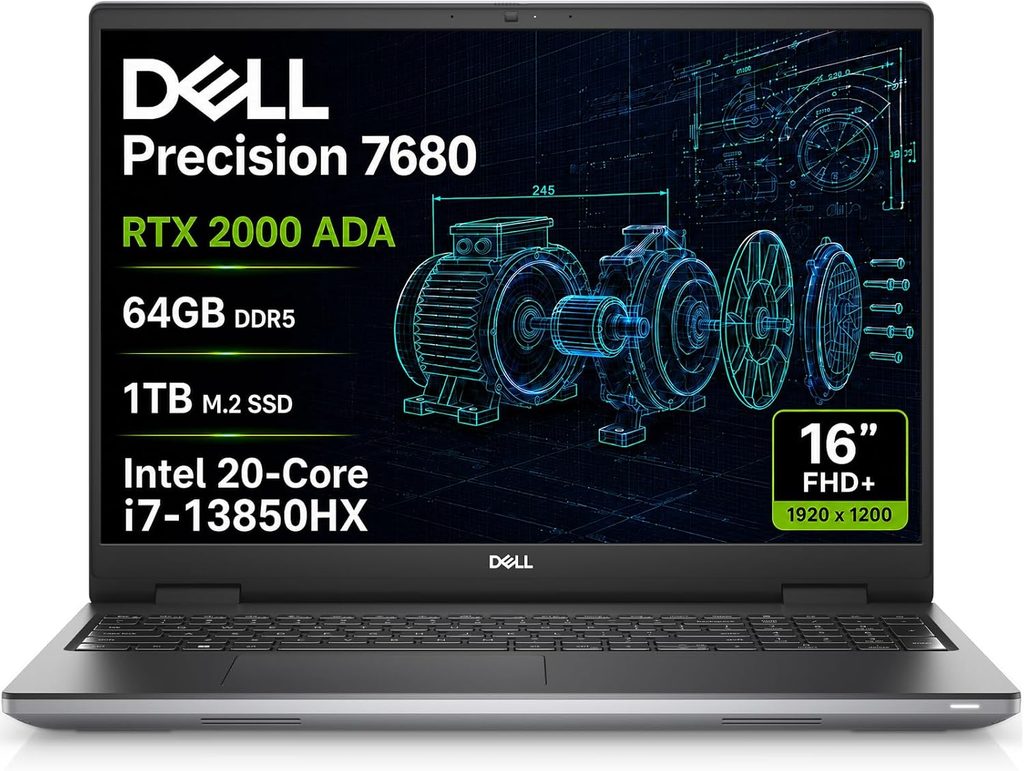
If your work is genuinely GPU-accelerated, meaning CFD in Fluent, large-mesh visualization, or training surrogate models on simulation output, this is the more capable machine. It also holds its performance better under sustained load than anything else here that I have loop data for.
Specifications as tested by Notebookcheck
- CPU: Intel Core Ultra 9 285HX, 24 cores
- GPU: NVIDIA RTX PRO 5000 Blackwell, 24 GB GDDR7 at 896 GB/s, 175 W TGP
- Memory: 128 GB CAMM2, a modular module rather than soldered
- Storage: 2 TB PCIe Gen5, three M.2 slots, all Gen5 x4
- Display: 16-inch 3840×2400 OLED touchscreen, 120 Hz
- Ports: modular user-replaceable USB-C ports, Thunderbolt 5, HDMI, Ethernet, smartcard
- Battery: 96 Wh, 280 W power supply
- Weight: 2.845 kg (6.27 lb)
Measured performance
| Test | Result |
|---|---|
| Cinebench R23 | 35,165 multi / 2,057 single |
| Cinebench R15 loop | Ø4,879, best retention in this roundup at 90% |
| Cinebench R20 | 13,758 multi / 799 single |
| Geekbench 6.7 | 20,630 multi / 2,907 single |
| Blender BMW27, CPU | 98 seconds, fastest CPU render here |
| 7-Zip | 106,470 MIPS |
| Battery, PCMark 10 Modern Office at 150 nits | 2 h 37 m (Trusted Reviews) |
| Battery, light video rundown at 170 cd/m², radios off | 5 h 18 m (IT Pro) |
| Charge time | 50% in 45 minutes, full in 100 minutes (Trusted Reviews) |
| Display brightness | 530.9 cd/m² centre, 540 cd/m² average, 95% uniformity |
| HDR peak brightness, 2% window | 1,088 cd/m² (IT Pro) |
| Colour | 100% sRGB, 97.3% DCI-P3, 88.8% AdobeRGB |
| Colour accuracy | ΔE 2.42 out of the box, 0.7 calibrated; greyscale ΔE 0.8 |
| Response time | 0.89 ms black to white |
| PWM | Detected at 479.9 Hz |
Notebookcheck scored it 88.4%. Across five published reviews it averages 82.08%.
That PWM line deserves a second look
479.9 Hz is a low flicker frequency by 2026 standards. If you’re PWM-sensitive, this panel will find out and let you know, probably around week three of finals. It’s a gorgeous screen in every other respect, and that combination is exactly the kind of thing that gets dropped from spec-sheet roundups and then ruins someone’s semester.
Pros
- Best sustained CPU throughput here at 90% retention, and the fastest Blender CPU render
- The RTX PRO 5000 with 24 GB is the most capable GPU in this article by a wide margin, and it clears Ansys’s 16 GB on-card recommendation on its own
- Three PCIe Gen5 SSD slots
- Modular, user-replaceable USB-C ports, a repairability feature I wish every maker copied
- Superb OLED panel: 0.89 ms response, ΔE 0.7 calibrated, 97.3% DCI-P3, over 1,000 nits HDR
- 128 GB CAMM2 memory is serviceable, unlike soldered LPDDR5X
Cons
- PWM at 479.9 Hz
- No ECC memory option, which Notebookcheck called out. That matters if you’re doing very long scientific runs where a silent bit flip corrupts a result you’ll never notice
- Battery life is genuinely poor: 2 h 37 m in PCMark 10 Modern Office and 5 h 18 m in a light video rundown
- 2.845 kg makes it the heaviest machine here, and the 280 W brick is not small
- The numpad-driven keyboard layout splits opinion sharply. Try it in a store
- A fully loaded unit lands near $5,000
The configuration I’d order
Core Ultra 7, RTX PRO 2000 or 3000, 64 GB CAMM2, 1 TB Gen5. Base configurations start at $3,700. Only step up to the RTX PRO 5000 if you can name the GPU-accelerated workflow that justifies it.
3. Apple MacBook Pro 16″ (M5 Max) — Best Battery, Quietest Machine
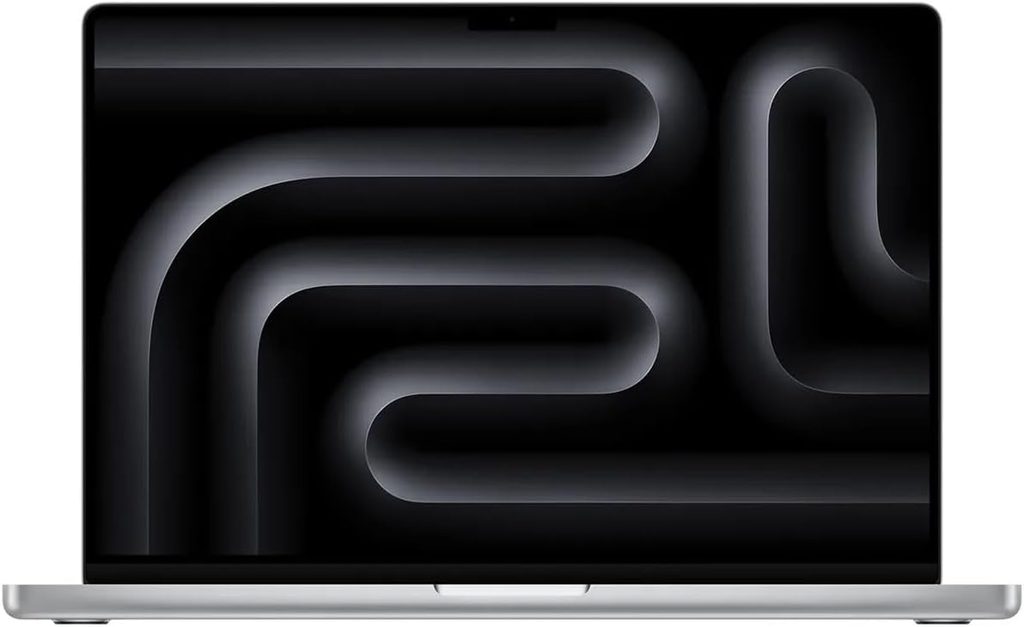
Buy the 16-inch. Not the 14. I’ll defend that with numbers below.
Specifications as tested by Notebookcheck
- SoC: Apple M5 Max, 18 cores (6 S-cores at 4.6 GHz, 12 P-cores at 4.4 GHz), 70 W sustained / 75 W burst
- GPU: 40-core, 72 W
- Memory: 48 GB LPDDR5X-9600 as tested, up to 128 GB unified
- Storage: 2 TB PCIe 5.0 Apple SSD, up to 8 TB
- Display: 16.2-inch 3456×2234 Mini-LED, 120 Hz, matte option available
- Ports: three Thunderbolt 5 (120 Gbps), HDMI, SDXC, MagSafe, headphone jack
- Battery: 99.6 Wh
- Weight: 2.144 kg (4.73 lb)
- Networking: Wi-Fi 7 (160 MHz only), Bluetooth 6
- Released: March 11, 2026
Measured performance
| Test | Result | Source |
|---|---|---|
| Geekbench 6.7 | 30,057 multi / 4,336 single | Notebookcheck |
| Cinebench 2024 multi | 2,490 (single 199) | Notebookcheck |
| Cinebench 2024 multi, 14-inch M5 Max | 2,073 | Notebookcheck |
| Cinebench 2026 | 9,194 multi / 734 single | Notebookcheck |
| Cinebench R15 multi | 4,529 | Notebookcheck |
| 3DMark Steel Nomad | 4,386 (16-inch) vs 3,924 (14-inch) | Notebookcheck |
| CrossMark overall | 3,231 | Notebookcheck |
| SSD throughput | up to 17 GB/s write, 13 GB/s read | Notebookcheck |
| Wi-Fi receive | 1,933 Mbit/s | Notebookcheck iperf3 |
| Battery, web browsing at 150 nits (16-inch M5 Pro) | 21 h 10 m | Macworld |
| Display brightness | 710 cd/m² max, 681.7 average, 93% uniformity, infinite contrast | X-Rite i1Pro 3 |
| SDR brightness with ambient sensor | 1,164 nits | Notebookcheck |
| HDR brightness | 1,737 nits peak, 1,325 nits full white | Notebookcheck |
| Colour | 100% sRGB, 99.3% DCI-P3, 88.2% AdobeRGB | |
| Colour accuracy | ΔE 1.1 ColorChecker, ΔE 2.7 greyscale (CalMAN) | |
| PWM | 14,880 Hz, high enough that it shouldn’t bother anyone | Notebookcheck |
| Fan noise | 24.8 dB(A) Low Power, 40.9 dB(A) Auto, 53.9 dB(A) High Power | Notebookcheck |
| Performance on battery | Identical to plugged in | Notebookcheck |
Notebookcheck rated it 92%, though their headline is worth repeating: Apple’s fastest laptop is starting to show its age. The cooling system can only handle 70 W, and the bundled adapter is insufficient. Under full load the battery drains about 12% per hour even with a more powerful supply attached.
The 14 versus 16 gap is real, and it’s thermal
Notebookcheck’s 14-inch M5 Max review found fluctuating CPU performance even in High Power mode, plus unstable graphics performance. On the 16-inch chassis they measured 2,490 in Cinebench 2024 multi against 2,073 on the 14, no performance fluctuation at all, and quieter fans. Same chip. Better cooling.
If you’re spending Max money, the 14-inch throws away performance you already paid for.
Pros
- 21 hours and 10 minutes of measured web browsing on the 16-inch M5 Pro. You genuinely will not carry a charger to class
- Full performance on battery, which nothing else in this article can claim
- The fastest single-thread performance in any laptop by a wide margin, which speeds up the serial phases of nearly every code
- Unified memory to 128 GB at very high bandwidth, ideal for large NumPy datasets and local model work
- 17 GB/s SSD writes, the fastest storage here
- Brilliant display: 710 nits SDR, 1,737 nits HDR, ΔE 1.1, essentially flicker-free at 14.9 kHz
- Nearly silent in everyday use at 24.8 dB(A)
Cons
- MCNP’s macOS build guidance targets Intel x86_64; arm64 is explicitly unsupported, with only courtesy workflows offered
- Rosetta 2’s general availability ends after macOS 27, so the x86 fallback has a clock on it
- Ansys does not run on macOS at all
- Cooling caps out at 70 W, which Notebookcheck argues is no longer enough for this chip
- Bundled power adapter is insufficient; battery drains ~12% per hour under full load even with a stronger PSU
- Slow panel response times (41.2 ms black to white) and no touchscreen
- Wi-Fi 7 limited to 160 MHz, so throughput caps around 2 Gbps
- Nothing is upgradeable. Buy your final RAM and SSD on day one
- 12-month standard warranty, the shortest here
- $4,499 as tested with 48 GB and 2 TB
Who should actually buy this
If your program leans on OpenMC, Python, MATLAB, Julia, and thermal-hydraulics work you submit to a departmental cluster over SSH, this is a fantastic four-year machine and the battery life is a real quality-of-life change.
If your program hands you MCNP6 and Ansys and expects you to run them on your own hardware, don’t make this your only computer.
Ask your department before you buy. Policies vary sharply. Some engineering schools support Windows, macOS and Linux and provide remote Windows access; others explicitly exclude macOS and ARM systems for incoming students. A five-minute email saves you a very expensive mistake.
The configuration I’d order
M5 Pro, 48 GB, 1 TB. The M5 Max is a rendering and GPU-compute chip. For simulation plus writing, the Pro is the sensible spend, and Macworld’s 21-hour result was measured on the M5 Pro anyway.
4. ASUS ProArt P16 (late-2025 refresh) — Best Power-to-Weight
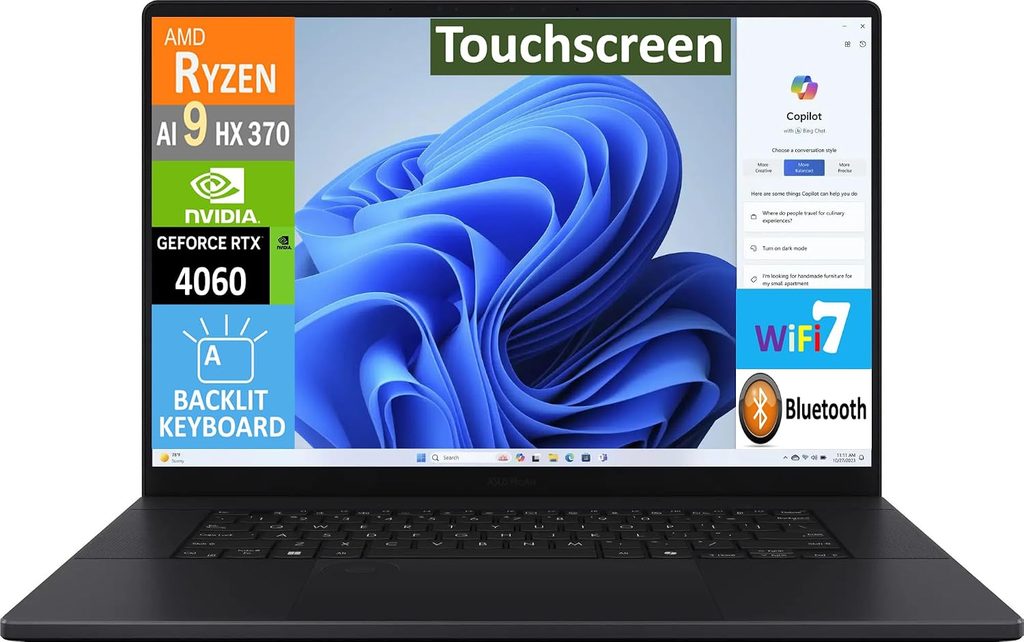
Buy the refreshed model. That’s the one with an RTX 5070 Ti, 5080 or 5090, a vapor chamber, and the 120 Hz Lumina Pro Tandem OLED. The older chassis with a 5060 or 5070 and a 60 Hz panel is still on shelves and looks nearly identical from the outside. They are not the same laptop.
Specifications (H7606WX, tested by Ultrabookreview and Notebookcheck)
- CPU: AMD Ryzen AI 9 HX 370, 12 cores / 24 threads (4 Zen 5 + 8 Zen 5c), up to 80 W sustained
- GPU: RTX 5090 24 GB running 115–120 W as tested; 5070 Ti and 5080 also offered
- Memory: 64 GB LPDDR5X-7500, soldered
- Storage: two M.2 PCIe Gen4 slots, 2× 2 TB as tested, no Gen5 support
- Display: 16-inch 3840×2400 Lumina Pro Tandem OLED, 120 Hz VRR
- Battery: 90 Wh, 240 W adapter, 100 W USB-C charging
- Weight: 1.93 kg (4.25 lb)
- Cooling: vapor chamber, dual fan
Measured performance
| Test | Result | Source |
|---|---|---|
| Cinebench R23 | 23,142 best run, 23,332 over 10 minutes, 2,007 single | Ultrabookreview |
| Cinebench R15 | 3,466 multi / 306 single; loop settles ~3,300 at 75 W | Ultrabookreview |
| Cinebench 2024 | 1,242 multi / 116 single | Notebookcheck |
| Geekbench 6.7 | 15,567 multi / 2,919 single | Notebookcheck |
| CrossMark overall | 1,956 | Notebookcheck |
| Blender BMW, CPU | 1 min 44 s (OptiX GPU: 5.34 s) | Ultrabookreview |
| Blender Classroom, CPU | 4 min 23 s (OptiX GPU: 11.78 s) | Ultrabookreview |
| 3DMark Time Spy | 16,163 (Steel Nomad 4,897, Port Royal 12,492) | Ultrabookreview |
| SPECviewperf 2020 Energy | 66.82 | Ultrabookreview |
| SPECviewperf 2020 SNX-04 | 38.20 (Creo 118.92, Catia 100.64, SW-07 360.60) | Ultrabookreview |
| V-Ray | 16,134 CPU / 3,367 RTX | Ultrabookreview |
| Display brightness | 661 cd/m² centre, 663 average, 99% uniformity | Notebookcheck |
| HDR peak | 1,600 cd/m² | Notebookcheck |
| Colour | 100% sRGB, 98.9% DCI-P3, 88.6% AdobeRGB | Notebookcheck |
| Colour accuracy | ΔE 0.5 ColorChecker, ΔE 0.6 greyscale | Notebookcheck |
| Response time | 0.45 ms black to white | Notebookcheck |
| PWM | 480 Hz | Notebookcheck |
| Fan noise | ~48 dBA Performance, under 35 dBA Whisper | Ultrabookreview |
| CPU temps under load | 95–97 °C on the pre-production sample, flagged as abnormal | Ultrabookreview |
| Battery, browsing at ~120 nits | 5–9 hours in Whisper mode | Ultrabookreview |
I called out the SPECviewperf 2020 Energy result on purpose. That viewset is built on subsurface and seismic visualization, and it’s the closest standardized graphics benchmark there is to the sort of volumetric field data nuclear engineers actually look at. You almost never see it quoted in a student buying guide.
Pros
- 1.93 kg for this much compute is the best ratio here by a distance
- That Tandem OLED is the most accurate screen in this article: ΔE 0.5, 98.9% DCI-P3, 661 nits SDR and 1,600 nits HDR
- 0.45 ms response time, so no smearing when you scroll through long output files
- Cinebench R23 barely moves between a single run and a 10-minute loop, showing how gracefully the AMD platform scales between 50 and 80 W
- 90 Wh battery with 100 W USB-C charging, so a compact GaN brick covers you for a day of classes
- Genuinely excellent keyboard and six-speaker audio
- The cheapest way into a modern 16-inch machine here if you take the 5070 Ti instead of the 5090
Cons
- Memory is soldered. 64 GB is your permanent ceiling
- 12 cores against 24 on the Intel HX workstations, and Cinebench R23 multi of roughly 23,300 versus about 35,000. For Monte Carlo work, that gap is more or less your wall-clock time
- Storage is PCIe Gen4 only
- 48 dBA under load is loud, and the power profiles are poorly separated
- PWM at 480 Hz, same flicker concern as the Dell
- The lid only opens to about 130 degrees
- The touch layer adds visible grain at low brightness
- OLED brings burn-in risk with static interface elements
- Webcam is poor
- $3,999 for the top configuration
The configuration I’d order
RTX 5070 Ti, 64 GB, 2 TB. The 5090 costs a small fortune for GPU performance MCNP will never call.
5. HP ZBook Ultra G1a 14 — The Memory Trick Nobody Else Does

A quick disclosure, because I’d rather be honest than tidy. This is HP’s 2025-generation Ultra. HP announced the ZBook 8 G2a, ZBook 8 G2i and ZBook X G2i at HP Imagine in March 2026, with the X G2i arriving through spring 2026 on Panther Lake and RTX PRO Blackwell. HP has not yet replaced the Ultra line specifically, and the G1a remains the only laptop shipping with this particular AMD part. It was still being benchmarked head-to-head against Panther Lake machines in March 2026. So it stays on the list, with your eyes open.
Specifications as tested
- CPU: AMD Ryzen AI Max+ PRO 395 (Strix Halo), 16 Zen 5 cores / 32 threads to 5.1 GHz, 66 W sustained / 81 W burst, configurable 45–120 W
- GPU: Radeon 8060S, 40 compute units, integrated
- Memory: 128 GB LPDDR5X-8533, quad-channel, unified between CPU and GPU
- Storage: 2 TB PCIe SSD
- Display: 14-inch 2880×1800 OLED, 120 Hz, touch
- Battery: 74.5 Wh, 140 W USB-C supply
- Weight: 1.54 kg (3.4 lb)
- Price: from $2,599, $4,049 as tested
Measured performance
| Test | Result | Source |
|---|---|---|
| Cinebench R23 multi | 29,112 | StorageReview |
| Cinebench 2024 multi | 1,643 (single 112.6) | Notebookcheck |
| Geekbench 6 | 17,721 multi / 2,837 single | Laptop Mag |
| Geekbench 6 (second lab) | 17,562 multi / 2,825 single | StorageReview |
| V-Ray 6 CPU | 33,285 | AEC Magazine |
| Blender Monster scene | 661.50 samples/min (Junkshop 341.92, Classroom 333.26) | StorageReview |
| 3DMark Time Spy | 10,114 (Steel Nomad 1,992, Fire Strike 23,459) | Laptop Mag |
| Sustained all-core clock | 3.5–3.7 GHz on AC, ~2.5 GHz on battery | AEC Magazine |
| Peak package draw under Prime95 | just over 100 W | Notebookcheck |
| SSD on AC power | 7 GB/s read, 5 GB/s write | Moor Insights |
| SSD on battery | 3.5 GB/s read, 3.3 GB/s write | Moor Insights |
| 3DMark Storage | 1,649 points, ~280 MB/s average bandwidth | Laptop Mag |
| Battery life | 6 h 45 m | Laptop Mag |
| Display brightness | 368 nits measured | Laptop Mag |
| Colour | 197.6% sRGB, 139.9% DCI-P3 | Laptop Mag |
| Colour accuracy | ΔE 0.31 | Laptop Mag |
The genuinely unusual bit
AEC Magazine allocated 64 GB of the 128 GB pool directly to the Radeon 8060S, and the platform allows up to 96 GB. No discrete GPU on earth gives you that. The RTX PRO 5000 in the Dell tops out at 24 GB, and that’s the best money can buy.
For a nuclear engineering student, that lands in two specific places: unstructured-mesh visualization of very large geometries, and running local machine-learning surrogates on simulation output without renting cloud time.
AEC also made a comparison I keep coming back to. Against a desktop Ryzen 9 9950X pulling 230 W versus this chip’s roughly 70 W peak, the desktop part was only 39% faster in Cinebench, 45% faster in V-Ray, 44% faster in KeyShot and 50% faster in Corona Render. That’s remarkable efficiency for a 1.54 kg machine.
Pros
- 128 GB unified memory with up to 96 GB assignable to the GPU, unmatched by anything else here
- 16 full Zen 5 cores and a Cinebench R23 multi of 29,112 in a 14-inch, 1.54 kg body
- Charges from a 140 W USB-C supply, so one brick covers laptop and phone
- Best colour accuracy in this article at ΔE 0.31
- Vapor chamber cooling that reviewers consistently describe as quiet and steady across multi-hour renders
- $2,599 entry price is the lowest here
Cons
- The unplugged penalty is brutal: Geekbench multi down nearly 50%, Cinebench and 3DMark down about 20%, SSD read speed halved
- 6 h 45 m battery life against HP’s suggested 10 to 12 hours
- Memory is soldered. What you buy is what you keep for four years
- No discrete GPU, so no CUDA. If any of your courses or research assume CUDA, that’s disqualifying
- 368 nits is the dimmest screen here
- A fully specified unit runs past $4,000
- The next ZBook generation is landing, so watch for discounts
The configuration I’d order
64 GB and 1 TB, which AEC Magazine noted saves roughly $950 against the fully loaded price. 128 GB only makes sense if you can name the workload that needs it.
Head-to-Head
| ThinkPad P16 G3 | Dell Pro Max 16 Plus | MacBook Pro 16 M5 Max | ASUS ProArt P16 | HP ZBook Ultra G1a | |
|---|---|---|---|---|---|
| Cores / threads | 24 / 24 | 24 / 24 | 18 / 18 | 12 / 24 | 16 / 32 |
| Geekbench 6 multi | 18,212 | 20,630 | 30,057 | 15,567 | 17,721 |
| Geekbench 6 single | 2,989 | 2,907 | 4,336 | 2,919 | 2,837 |
| Cinebench R23 multi | 34,998 | 35,165 | 4,529 (R15 multi) | 23,142 | 29,112 |
| Max memory | 192 GB | 128 GB | 128 GB | 64 GB | 128 GB |
| Memory upgradeable | Yes, 4 SO-DIMM slots | Yes, CAMM2 module | No | No | No |
| SSD slots | 3 (one Gen5) | 3 (all Gen5) | 0 | 2 (Gen4) | 1 |
| GPU memory available | 12 GB | 24 GB | Unified to 128 GB | 24 GB | Up to 96 GB shared |
| Battery capacity | 99 Wh | 96 Wh | 99.6 Wh | 90 Wh | 74.5 Wh |
| Measured runtime | ~7 h (PCMark 10 MO) | 2 h 37 m (PCMark 10 MO, 150 nits) | 21 h 10 m (web, 150 nits, M5 Pro) | 5–9 h (browsing, 120 nits) | 6 h 45 m |
| Performance on battery | −26% | Heavily reduced | No loss | ~−40% CPU power | −50% multi-core |
| Measured SDR brightness | 532 nits | 531 nits | 710 nits | 661 nits | 368 nits |
| Colour accuracy (ΔE) | 4.4 / 1.1 calibrated | 2.42 / 0.7 calibrated | 1.1 | 0.5 | 0.31 |
| Flicker risk | None (IPS, no PWM) | High (480 Hz PWM) | Very low (14,880 Hz) | High (480 Hz PWM) | Present (OLED dimming) |
| Weight | 2.74 kg | 2.85 kg | 2.14 kg | 1.93 kg | 1.54 kg |
| Runs Ansys locally | Yes | Yes | No | Yes | Yes |
| Native MCNP support | Yes | Yes | arm64 unsupported | Yes | Yes |
Sources by machine: ThinkPad P16 Gen 3, Dell Pro Max 16 Plus, MacBook Pro 16 M5 Max and ASUS ProArt P16 measurements from Notebookcheck except where noted. ThinkPad battery from StorageReview, Dell battery from Trusted Reviews, MacBook battery from Macworld, ProArt battery and Cinebench R23 from Ultrabookreview, ZBook Cinebench R23 from StorageReview and remaining ZBook figures from Laptop Mag and AEC Magazine. The MacBook row shows Cinebench R15 multi because Maxon’s R23 suite is no longer run on current Apple silicon by these labs.
The 2026 Buying Guide
Memory prices changed the rules this year
I’d normally tell you to buy the cheapest RAM configuration and upgrade later. In 2026 that advice is wrong.
TrendForce put global DRAM contract price increases at roughly 90 to 95% quarter over quarter in Q1 2026, followed by a projected 58 to 63% in Q2. Industry tracking through mid-2026 puts the cumulative DRAM rise at about 170% over the course of 2025. Gartner has projected a combined DRAM and SSD surge near 130% by the end of 2026 against 2025, pushing PC prices up roughly 17%. Memory went from about 16% of a PC’s component bill of materials to about 23%. Lenovo, Dell, HP, Acer and ASUS have all signalled 15 to 20% price increases, with high-end configurations projected higher. SK Hynix’s CEO has publicly described 2027 as potentially the worst supply year in the industry’s history.
Three things follow from that.
Buy the memory you need at purchase. The aftermarket premium may not come back down inside your degree.
Watch for shrinkflation. Analysts explicitly predict makers quietly trimming specs to hold price points. A machine that looks identical to last year’s model may ship with less memory or a dimmer panel. Read the configuration, not the model name.
Upgradeable memory just became a financial feature. The ThinkPad P16 Gen 3’s four SO-DIMM slots let you buy modestly now and add capacity when prices normalize. That’s a different risk profile from a soldered 64 GB machine, and it’s the main reason it’s my top pick.
Sizing the machine to your actual coursework
| What you’ll run | RAM | CPU | GPU | Storage |
|---|---|---|---|---|
| Undergrad core, MATLAB, Python, MCNP tutorials | 32 GB | 8+ cores | Anything | 1 TB |
| Serious MCNP or Serpent with your own models | 64 GB minimum | 16+ cores, high sustained clocks | Largely irrelevant | 1–2 TB |
| Ansys Mechanical or Fluent thermal-hydraulics | 64 GB | 16+ cores | 8 GB VRAM minimum, 16 GB for real acceleration | 2 TB |
| Multi-physics research, large unstructured meshes | 128 GB+ | 24 cores | 16–24 GB VRAM | 2 TB+ |
Keep the MPI memory multiplication in mind. If you plan to run eight MPI processes locally, you may need close to eight copies of your nuclear data resident at once.
Windows, Linux or macOS
Realistically, Windows 11 Pro with WSL2 is the highest-compatibility setup for this degree. You get Ansys and any Windows-only departmental software natively, plus a near-native Linux environment for Serpent, OpenMC and your build toolchain. Serpent installation guidance specifically recommends WSL2 over a full virtual machine, which carries a noticeable performance penalty.
Dual-booting native Linux is faster again and worth it if you’re comfortable, but you lose Ansys.
Five Mistakes I See Nuclear Engineering Students Make
1. Buying GPU instead of RAM. The single most common error. The RTX 5090 in the ProArt costs roughly what 64 extra gigabytes of memory would, and MCNP will never call it.
2. Buying a 14-inch flagship. Notebookcheck’s 14 versus 16-inch M5 Max comparison is the clearest evidence you’ll ever see that chassis size determines sustained performance. The 16-inch delivered 2,490 against 2,073 in Cinebench 2024 multi with the same silicon, and ran quieter doing it.
3. Ignoring the charger. The ThinkPad’s 83% retention traces straight back to a 180 W supply feeding a machine that wants 110 W on the CPU and 105 W on the GPU. Check adapter wattage against those two numbers before you order.
4. Underbuying storage. Nuclear data libraries alone run 10 to 20 GB. A 512 GB drive is full before your second semester.
5. Not asking the department first. Programs differ enormously on whether macOS and ARM systems are supported. It’s a free five-minute check that prevents a very expensive mistake.
Frequently Asked Questions
Do I need a discrete GPU for nuclear engineering? Not for the core codes. LANL states that MCNP runs only on CPUs, with no GPU acceleration and no plans to add it. Serpent and OpenMC both parallelize through OpenMP and MPI on the CPU. A GPU helps with Ansys visualization, certain GPU-accelerated Ansys solvers, and any machine learning you layer on top. Prioritize cores and RAM first.
Is a MacBook Pro good enough for nuclear engineering? It depends on your program. It’s excellent for OpenMC, Python, MATLAB and writing, and the battery life is unmatched at 21 hours measured. But MCNP’s macOS build guidance targets Intel x86_64 with Apple Silicon listed as unsupported, Rosetta 2’s general availability ends after macOS 27, and Ansys does not run on macOS at all. Confirm with your department before committing.
How much RAM does a nuclear engineering student really need? 32 GB is the floor for coursework. 64 GB is the safe four-year number if you’ll build your own MCNP or Serpent models, partly because MPI runs keep a separate copy of the nuclear data for every process. 128 GB and above is research territory.
Can I run MCNP on Windows? Yes. The MCNP6 distribution from RSICC includes precompiled executables for Linux, macOS and Windows. Serpent is more Linux-oriented and is best run through WSL2 on a Windows machine.
Which laptop here has the best battery life? The 16-inch MacBook Pro, by a wide margin. Macworld measured 21 hours and 10 minutes of continuous web browsing at 150 nits on the M5 Pro, and Notebookcheck found benchmark results identical on battery power. Nothing running x86 comes close.
Is it worth waiting for a newer model? Given DRAM and NAND pricing through 2026 and into 2027, current inventory built earlier in 2026 still reflects older, cheaper memory contracts. If a machine you want is in stock at a pre-hike price, waiting is more likely to cost you than save you.
What about ECC memory? The ThinkPad P16 Gen 3 supports ECC in some configurations. Notebookcheck specifically flagged the absence of ECC options on the Dell Pro Max 16 Plus as a drawback. For very long-running scientific computation, ECC is real insurance against silent data corruption, though most undergraduates will never need it.
Does screen flicker actually matter? For some people, yes, and this is the detail most buying guides skip. The Dell Pro Max 16 Plus and ASUS ProArt P16 both dim using PWM at roughly 480 Hz, which is low enough to cause eye strain or headaches in sensitive users. The ThinkPad’s base IPS panel showed no PWM at any brightness. The MacBook’s Mini-LED flickers at 14,880 Hz, high enough that it shouldn’t be an issue. If you’ve had trouble with a screen before, this row matters more than the colour gamut.
Bottom Line
Buy the Lenovo ThinkPad P16 Gen 3 if you want one machine to carry you through a nuclear engineering degree without regret. The 192 GB ceiling and four SO-DIMM slots are the right answer to the real bottleneck in this field, and in a year when memory prices have gone vertical, an upgrade path is a financial hedge as much as a technical one.
Buy the Dell Pro Max 16 Plus if you have genuine GPU-accelerated work, want the machine that holds its throughput best under sustained load, and are confident you aren’t sensitive to 480 Hz flicker.
Buy the MacBook Pro 16-inch if your department supports it, your codes are OpenMC and Python, and you value battery life and silence over local Windows compatibility.
Buy the ASUS ProArt P16 in its 5070 Ti trim, refreshed chassis, if you’ll carry it every single day and 64 GB is truly enough for you.
Buy the HP ZBook Ultra G1a if you need a very large unified memory pool in the smallest package available and you’ll mostly work plugged in.
Whatever you pick, ask your department first, and put the money into memory.
Sources and Disclosure
The benchmark figures in this article come from published testing by named outlets. I did not run these benchmarks myself, and every number is labelled with its source so you can verify it independently.
Hardware testing: Notebookcheck (Lenovo ThinkPad P16 Gen 3 review by Benjamin Herzig, April 22, 2026; Dell Pro Max 16 Plus review by Allen Ngo; Apple MacBook Pro 16 2026 M5 Max review by Andreas Osthoff, August 27, 2026; ASUS ProArt P16 RTX 5090 review) · StorageReview (ThinkPad P16 Gen 3, Dell Pro Max 16 Plus, HP ZBook Ultra G1a 14, and the 2026 laptop battery life leaderboard) · Ultrabookreview (ASUS ProArt P16 Tandem OLED / RTX 5090 review by Andrei Girbea) · AEC Magazine (HP ZBook Ultra G1a workstation review) · Laptop Mag and Moor Insights & Strategy (HP ZBook Ultra G1a) · Trusted Reviews and IT Pro (Dell Pro Max 16 Plus battery and HDR brightness) · Macworld, MacRumors and 9to5Mac (Apple M5 Max benchmarks and battery).
Software and platform documentation: Los Alamos National Laboratory (MCNP FAQ and MCNP6.3.1 release documentation) · VTT Technical Research Centre of Finland and RSICC (Serpent 2 distribution and platform notes) · OpenMC project documentation · Ansys 2026 R1 installation guides and platform support documentation · Apple support documentation on Rosetta 2 availability.
Market data: TrendForce, Gartner, Consumer Reports and Tom’s Hardware on 2026 DRAM and NAND pricing.
Prices are accurate as of September 2026 and move constantly, particularly in the current memory market. Specifications vary by configuration and region. Always confirm your own department’s supported platforms before purchasing.

Hi, my name is Burak. I am a mechanical engineer. I have been writing laptop reviews for the Engineering Laptops website since 2020. Please feel free to contact me if you have any questions.