
Last updated: November 8, 2026
Table of contents
- Quick Answer: My Top Pick
- Quick Picks at a Glance
- CLO3D Laptop Comparison Table
- What CLO 3D Officially Asks For in 2026
- My CLO3D Laptop Buying Framework (The Part Other Guides Skip)
- How I Chose and Evaluated These Laptops
- The 5 Best Laptops for CLO3D in 2026
- 1. Lenovo Legion Pro 7i Gen 11 : Best Overall Laptop for CLO3D
- 2. Razer Blade 16 (2026) : Best Portable Laptop for CLO3D
- 3. Alienware 16X Aurora (2026) : Best Value Laptop for CLO3D
- 4. ASUS ROG Zephyrus G16 (2026) : Best Thin-and-Light Laptop for CLO3D
- 5. Apple MacBook Pro 16-inch with PROLED XDR Display (M5 Max) : Best Mac for CLO3D
- Laptops I Considered but Left Out
- Frequently Asked Questions About Laptops for CLO3D
- Final Verdict: Which CLO3D Laptop Should You Buy?
- Sources
Picture a wool coat that doesn’t exist yet.
You drafted every panel by hand. You sewed the sleeve caps, set the lining, layered it over a chunky knit, and layered that over a crisp cotton shirt. Then you hit Simulate, lean back, and wait for the moment of truth.
And the coat just… hangs there. Frozen in midair, like it’s thinking about whether gravity is worth the trouble. The fans scream. The cursor stutters. Somewhere in the back of your head a small, nagging voice asks the question every CLO user eventually asks:
Is it my pattern, or is it my laptop?
Here’s something most people don’t realize until they’ve lost a few evenings to it. CLO isn’t like other design software. Photoshop forgives an average laptop. Illustrator barely notices. But CLO solves a physics problem every time your garment moves, over and over, many times a second. Every extra layer multiplies the work. Every finer particle distance multiplies it again. And when you finally send that look off for a photoreal render, your graphics memory suddenly matters as much as your talent.
That’s why I wrote this guide. Not to throw “the fastest gaming laptops” at you, but to answer a narrower and much more useful question: which laptops actually meet what CLO itself asks for in 2026, and which of them would I trust with a real collection deadline?
The timing is good. CLO refreshed its official system requirements in September 2026. NVIDIA’s laptop GPUs now go up to 24GB of video memory. And for the first time, Mac users get real GPU simulation on Apple Silicon. The timing is also tricky, because memory prices have pushed premium laptops to painful levels, which means a wrong configuration is an expensive mistake.
So let’s not make one.
Quick Answer: My Top Pick
If you only read one line, make it this one: the Lenovo Legion Pro 7i Gen 11 with an RTX 5090 (24GB VRAM) is the best laptop for CLO3D right now. It doubles CLO’s 12GB video memory requirement, it runs on the NVIDIA CUDA platform CLO is built around, and it posted record-breaking performance in independent testing this year.
Quick Picks at a Glance
- Best overall for CLO3D: Lenovo Legion Pro 7i Gen 11 (Core Ultra 9 290HX Plus, RTX 5090 24GB)
- Best portable powerhouse: Razer Blade 16 (2026) (Core Ultra 9 386H, RTX 5090 24GB)
- Best value for students and freelancers: Alienware 16X Aurora (2026) (Core Ultra 9 290HX Plus, RTX 5070 Ti 12GB)
- Best thin-and-light all-rounder: ASUS ROG Zephyrus G16 (2026) (Core Ultra 9 386H, RTX 5080 16GB)
- Best for Mac users: Apple MacBook Pro 16-inch with PROLED XDR Display (M5 Max)
CLO3D Laptop Comparison Table
| Laptop | Best for | CPU | GPU (VRAM) | Display (measured) | Battery (measured) | Weight | US price |
|---|---|---|---|---|---|---|---|
| Lenovo Legion Pro 7i Gen 11 | Heavy simulation and rendering at a desk | Core Ultra 9 290HX Plus (24 cores) | RTX 5090 (24GB) or RTX 5080 (16GB) | 509.8 nits, 100% DCI-P3, max ΔE 1.47 (PCWorld, same OLED panel) | 4:37 (Tom’s Hardware, same 99.9Wh chassis) | About 6 lb, 400W brick | $4,099 to $4,499 (RTX 5090); about $3,399 to $3,699 (RTX 5080) |
| Razer Blade 16 (2026) | Studio power on the move | Core Ultra 9 386H (16 cores) | RTX 5090 (24GB), 175W | 408.2 nits, 90% DCI-P3 (Tom’s Hardware) | 12:46 (Tom’s Hardware) | 4.71 lb | $3,499.99 to $4,899.99 |
| Alienware 16X Aurora (2026) | Students, freelancers, upgraders | Core Ultra 9 290HX Plus (24 cores) | RTX 5070 Ti (12GB), 115W | 390 nits SDR, 99.6% DCI-P3, ΔE 3.27 (Notebookcheck) | About 4 hours on the 2025 model (LaptopMedia); longer on 2026 (Notebookcheck) | 5.71 lb | About $3,000 as tested |
| ASUS ROG Zephyrus G16 (2026) | Slim, quiet, all-day battery | Core Ultra 9 386H (16 cores) | RTX 5080 (16GB) | 515 nits, 91.7% DCI-P3, ΔE 1.5 (Notebookcheck) | 13:45 (Tom’s Guide) | 4.3 lb | $3,699 to $4,799 |
| MacBook Pro 16 PROLED XDR (M5 Max) | Mac-committed designers | M5 Max (18 cores) | 40-core GPU, unified memory | 542.6 nits SDR, 1,964 nits HDR (Tom’s Hardware) | 15:57 (Tom’s Hardware) | 4.1 lb | From $3,399 (M5 Pro); $7,399 as tested |
What CLO 3D Officially Asks For in 2026
Before we get into the laptops, let’s look at what CLO Virtual Fashion actually says. Its system requirements page was updated in September 2026, and a few lines on it matter more than any spec sheet.
CLO 3D System Requirements for Windows
| Component | Minimum | Recommended |
|---|---|---|
| Operating system | Windows 11 64-bit (24H2) | Windows 11 64-bit (25H2) |
| Processor | AMD Ryzen 3000 / Intel 8th Gen | AMD Ryzen 9000 or newer / Intel Core i9 14th Gen or newer |
| Memory (RAM) | 16GB | 64GB |
| Graphics | AMD, Intel or NVIDIA GPU with OpenGL support | NVIDIA GeForce RTX 4000 series or newer, or RTX A / RTX Ada / RTX Pro Blackwell |
| Storage | SSD with 10GB free | SSD with 20GB free |
The footnotes are where the real buying advice hides:
- CLO runs its GPU acceleration on NVIDIA CUDA. CLO’s own wording is simple: “For optimal performance, an Nvidia GPU is highly recommended.”
- 12GB of VRAM is the line. CLO states that high-quality V-Ray rendering and complex simulations need a GPU with at least 12GB of video memory, with 4GB as the bare minimum for basic use.
- RAM scales with ambition. CLO treats 16GB as the starting point, says 32GB gives smoother operation, and asks for 64GB or more for very heavy garments, animation and ultra-high-quality rendering.
- V-Ray needs AVX2. Every current Intel and AMD laptop chip supports it, so this only matters if you’re shopping for something very old.
- Windows 10 is finished. CLO notes that Windows 10 support ended on October 14, 2025.
CLO 3D System Requirements for macOS
| Component | Minimum | Recommended |
|---|---|---|
| Mac | Apple Silicon M1 | Apple Silicon M2, M3, M4, M5 |
| macOS | Sonoma 14 | Sequoia 15, Tahoe 26 |
| Memory | 16GB | 64GB |
| Storage | SSD with 10GB free | SSD with 20GB free |
Two changes made this year a turning point for Mac users:
- Since CLO 2025.0, V-Ray rendering with GPU acceleration through Apple’s Metal is supported on Apple Silicon.
- Since CLO 2026.1, GPU simulation works on Apple Silicon Macs as well.
CLO also warns that Intel-based Macs lose support starting with macOS 28 in 2027. If you’re still nursing an Intel MacBook Pro, consider this your sign.
A bit of history helps here. For years, CLO’s own support staff told Mac users in the community forum that CLO only used the CPU on Macs. That’s no longer true, and it’s great news. But NVIDIA’s CUDA path has years of CLO-specific tuning behind it, while Metal simulation is brand new. The UK site Fashion Toolbox, which tracks CLO features closely, makes the same point: in its experience, a PC with a decent NVIDIA card still simulates complex files more predictably than even a well-specced Apple Silicon Mac.
My CLO3D Laptop Buying Framework (The Part Other Guides Skip)
Most “best laptop for 3D” lists treat CLO like a video game. Buy the biggest GPU you can afford, done. But CLO doesn’t care about frame rates. It cares about memory, physics and patience. Here’s how I actually filter laptops for it.
Step 1: Use VRAM as a gate, not a tiebreaker
CLO’s 12GB VRAM line is the single most important number in this article, because it quietly rules out a lot of laptops sold as “creator” machines.
| 2026 laptop GPU | VRAM | Meets CLO’s 12GB line? | My CLO verdict |
|---|---|---|---|
| RTX 5060 Laptop | 8GB | No | Fine for learning, frustrating on real projects |
| RTX 5070 Laptop | 8GB on most models, 12GB on a newer variant | Only the 12GB version | Read the spec sheet carefully |
| RTX 5070 Ti Laptop | 12GB | Yes, exactly | The sensible floor for serious work |
| RTX 5080 Laptop | 16GB | Yes | Comfortable for multi-layer looks and renders |
| RTX 5090 Laptop | 24GB | Yes, with lots of headroom | Studio grade: full collections, animation, big scenes |
Here’s the trap I see people fall into. “RTX 5070” sounds like a solid upper-midrange choice, but most RTX 5070 laptops ship with only 8GB. NVIDIA’s own spec page now lists both 8GB and 12GB versions, and HotHardware reported that the 12GB variant arrived in late April 2026, first showing up in the Lenovo LOQ 17 and ThinkBook 16p. If you go that route, confirm you’re getting the 12GB version before you pay.
Step 2: Know what actually eats your hardware in CLO
- Particle distance. A lower particle distance gives you a finer mesh and a more realistic drape, and it makes the simulation work much harder. Long, flowing garments at fine particle distance are where a strong GPU earns its keep.
- Layers and collisions. Every layer adds collision checks against every other layer. A three-layer outfit doesn’t feel like three times the work. It often feels like a lot more.
- GPU simulation. Click and hold the Simulate button in CLO and you can switch to GPU simulation. On NVIDIA hardware that’s the CUDA path; on Apple Silicon running CLO 2026.1 or newer, it’s Metal.
- Rendering. V-Ray GPU rendering leans hard on GPU power and VRAM. On a PC without an NVIDIA card, CLO falls back to the CPU. The final image looks the same, but you’ll wait longer.
- System RAM. High-resolution fabric textures, avatars, animation, colorways, and Photoshop or Illustrator open in the background all eat memory. That’s exactly why CLO’s recommendation jumped to 64GB.
Step 3: Match RAM and GPU to how you actually work
| Your CLO life | System RAM | GPU (VRAM) | My pick from this list |
|---|---|---|---|
| Student or learner (single garments, coursework, simple renders) | 32GB (16GB is CLO’s bare minimum) | RTX 5070 Ti 12GB | Alienware 16X Aurora |
| Freelancer or technical designer (multi-layer looks, client renders, colorways) | 32GB to 64GB | RTX 5080 16GB or better | Zephyrus G16 or Blade 16 |
| Studio or 3D lead (full collections, animation, heavy V-Ray, many apps open) | 64GB or more | RTX 5090 24GB | Legion Pro 7i Gen 11 |
| Mac-committed designer | 64GB unified memory | M5 Max, 40-core GPU | MacBook Pro 16 PROLED |
Step 4: The “which laptop for which CLO job” matrix
These star ratings are my own judgment, based on the published test data in this article and on how CLO uses hardware.
| CLO job | Legion Pro 7i Gen 11 | Blade 16 (2026) | Alienware 16X Aurora | Zephyrus G16 (2026) | MacBook Pro 16 M5 Max |
|---|---|---|---|---|---|
| Heavy GPU simulation (many layers, fine particle distance) | ★★★★★ | ★★★★½ | ★★★½ | ★★★★ | ★★★½ |
| V-Ray rendering | ★★★★★ | ★★★★★ | ★★★½ | ★★★★ | ★★★★ |
| Working away from an outlet | ★★ | ★★★★★ | ★★½ | ★★★★★ | ★★★★★ |
| Judging fabric color on the built-in screen | ★★★★½ | ★★★★ | ★★★★ | ★★★★½ | ★★★★★ |
| Future upgrades (RAM and SSD) | ★★★½ | ★★½ | ★★★★★ | ★★ | ★ |
| Budget friendliness | ★★★ | ★★ | ★★★★ | ★★½ | ★½ |
Step 5: My 60-second CLO laptop checklist
- NVIDIA RTX GPU with 12GB or more of VRAM, or an Apple Silicon Mac running CLO 2026.1 or newer
- 32GB of RAM at minimum, 64GB if you work on collections, animation or heavy renders
- If the RAM is soldered (the Blade, the Zephyrus and every MacBook), buy the memory you’ll need three years from now, today
- At least a 1TB SSD, because projects, fabric libraries and render outputs pile up fast
- A 16:10 screen at 2560 x 1600 or higher so the 3D window and 2D pattern window both breathe
- Windows 11 24H2 or newer, or macOS Sonoma 14 or newer
- An Intel or AMD Windows laptop, or an Apple Silicon Mac. CLO’s Windows requirements only list Intel and AMD processors, so I wouldn’t bet a deadline on the new Windows-on-Arm “RTX Spark” laptops until CLO officially supports them
- A three-button mouse. Trust me on this one. Orbiting and panning the avatar on a trackpad gets old in about ten minutes
How I Chose and Evaluated These Laptops
I want to be completely upfront about how this list was built, because you deserve to know where every number comes from.
I didn’t run these five machines through my own lab. Instead, I spent a long time going through independent lab reviews from outlets that publish their testing methods: Tom’s Hardware, Tom’s Guide, Notebookcheck, PCWorld, MakeUseOf, tbreak, Jarrod’s Tech, Macworld, PC Gamer, Gizmodo, LaptopMedia, HotHardware, The Verge and others. Every benchmark, temperature, battery and screen figure in this guide is credited to the outlet that measured it. The CLO workflow analysis, the star ratings and the recommendations are mine.
Here’s the filter I applied:
- CLO’s own rules first. I started from CLO’s September 2026 requirements: NVIDIA RTX graphics, at least 12GB of VRAM, 64GB of RAM for heavy work, and the new Apple Silicon notes.
- VRAM as a hard gate. No 8GB laptop made the main list.
- Newest models only. Each pick is the current version of its line: the Legion Pro 7i Gen 11 rather than Gen 10, the 2026 Blade 16, the 2026 16X Aurora, the 2026 Zephyrus G16, and the PROLED MacBook Pro Apple introduced in October 2026.
- One laptop per brand, five brands in total.
- Measured data over marketing claims. Where a manufacturer claim and a lab measurement disagree, I use the lab number and say so.
- Apples to apples. Reviewers use different battery tests and different benchmark versions (Geekbench 6 versus Geekbench 7, Cinebench 2024 versus Cinebench 2026), so I only compare scores within the same test. Please do the same when you read the numbers below.
The 5 Best Laptops for CLO3D in 2026
1. Lenovo Legion Pro 7i Gen 11: Best Overall Laptop for CLO3D
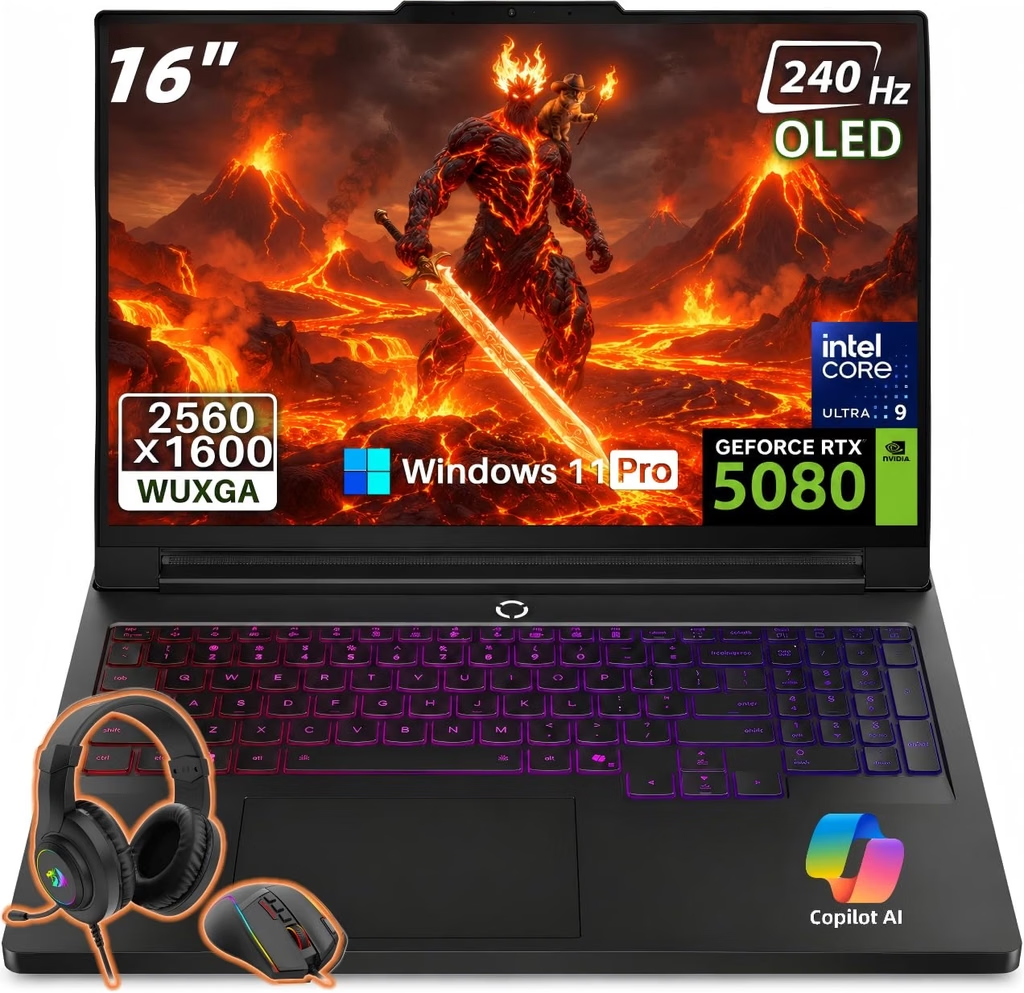
If CLO is your job and not your hobby, this is the laptop I’d buy. The Legion Pro 7i has been one of the most respected big-screen performance laptops for years, and the 2026 Gen 11 refresh drops Intel’s new Core Ultra 9 290HX Plus into the same excellent chassis, paired with up to an RTX 5090 and 24GB of VRAM. That’s double CLO’s requirement. In practical terms, it means dense multi-layer garments and big V-Ray scenes without bumping into the memory ceiling halfway through a fitting.
Key specs
- CPU: Intel Core Ultra 9 290HX Plus (24 cores, 24 threads)
- GPU: NVIDIA GeForce RTX 5090 Laptop (24GB GDDR7, up to 175W) or RTX 5080 (16GB)
- RAM: 32GB DDR5 standard, with 64GB configurations available
- Storage: up to 2TB, with two M.2 slots; tested units used PCIe 5.0 drives
- Display: 16-inch 2560 x 1600 OLED, 240Hz, 16:10, glossy, DisplayHDR True Black 1000
- Ports: Thunderbolt 4, USB4, USB-C, HDMI 2.1, USB-A, Ethernet
- Battery and power: 99.9Wh battery, 400W adapter
- Operating system: Windows 11
Benchmark results
Jarrod’s Tech, one of the most thorough laptop testers around, reported in its June 2026 review that the refreshed Legion Pro 7i set new records for gaming performance in its testing. That’s a strong signal for GPU-heavy CLO work, too.
MakeUseOf tested an RTX 5080 configuration (175W, 32GB DDR5-6400, PCIe 5.0 storage):
- Geekbench 7: 2,885 single-core, 23,920 multi-core, 173,036 OpenCL GPU
- Cinebench 2026: 561 single-thread, 6,818 multi-core, 77,691 GPU
- 3DMark Steel Nomad: 3,940 in Hybrid and Balanced mode, rising to 4,883 in dGPU and Performance mode (about 24% faster)
tbreak tested an RTX 5090 configuration with 64GB of RAM and two 1TB SSDs:
- Geekbench 7: 2,883 single-core, 26,023 multi-core, 246,640 OpenCL, 348,996 CUDA
- 3DMark: Time Spy Extreme 12,483, Port Royal 17,346, Speed Way 6,428, Fire Strike Ultra 17,234
- Cyberpunk 2077 at native 1600p: 108 fps on Ultra, 49 fps on RT Ultra
That CUDA score is the one I’d circle in red for CLO users, because CUDA is exactly the engine CLO’s GPU simulation and rendering run on.
SSD performance
MakeUseOf measured 12,430.61 MB/s sequential reads and 13,206.25 MB/s sequential writes in CrystalDiskMark (SEQ1M Q8T1). That’s PCIe 5.0 speed, the fastest storage result in this guide on the Windows side. Big project files and texture-heavy fabric libraries open quickly.
Display measurements
The Gen 11 refresh keeps the same 16-inch 2560 x 1600 240Hz OLED as last year’s Legion Pro 7i, and that panel has been measured thoroughly. PCWorld recorded a peak brightness of 509.8 nits, 100% DCI-P3 coverage and a maximum ΔE of 1.47, which it described as accurate enough for professional work. Tom’s Hardware measured 465 nits and 138.9% of DCI-P3 by color volume on the same panel. Lenovo also includes X-Rite color software to help keep it calibrated over time. For judging whether a burgundy reads as burgundy and not brick red, this screen is excellent.
Thermals and noise
In MakeUseOf’s Baldur’s Gate 3 run in Hybrid mode, the GPU stayed around 58°C and the CPU around 76°C, though Performance mode made the chassis uncomfortably hot. tbreak saw the RTX 5090 at 73 to 77°C while drawing roughly 150 to 155W, with the CPU at 80 to 85°C and brief spikes to 90°C. The keyboard deck stayed cool, but the fans got very loud. For long simulation sessions, plan on headphones.
Battery life
This is a plugged-in machine, and I won’t pretend otherwise. Tom’s Hardware’s standardized test (web browsing, video streaming and OpenGL work at 150 nits) lasted 4 hours 37 minutes on the same 99.9Wh chassis. On the Gen 11 model, MakeUseOf’s light browsing test on Battery Saver went from 100% to 12% in about 3 hours, and tbreak got roughly 4 to 5 hours of real use. One bright spot: MakeUseOf saw it recharge from 12% to 65% in just 30 minutes.
Price
According to price tracking from gaminglaptop.deals, the RTX 5090 model with 32GB and a 2TB SSD sells for $4,499 at B&H (down from $5,999), the RTX 5090 model with a 1TB SSD has hit a record low of $4,099, and RTX 5080 versions sit around $3,399 to $3,699. Prices in 2026 swing wildly because of the memory shortage, so never pay list price.
Pros
- RTX 5090 with 24GB of VRAM gives you twice CLO’s requirement
- Record-setting performance in Jarrod’s Tech testing
- Massive CUDA compute, which is exactly what CLO uses
- PCIe 5.0 storage that measured over 12 GB/s
- Bright, color-accurate 240Hz OLED (max ΔE 1.47 in PCWorld’s test)
Cons
- Short battery life, so it’s really a desk machine
- Loud fans under sustained load
- Bulky 400W power brick
- Glossy screen reflects bright studio lights
- The 32GB base configuration falls short of CLO’s 64GB recommendation for heavy work
Who it’s for: Studio 3D leads, technical designers building full collections, and anyone who renders a lot in V-Ray.
The configuration I’d buy: RTX 5090, 64GB of RAM, 2TB SSD. If the budget forces a choice, keep the RTX 5090 and add RAM later, since this machine uses standard DDR5 modules.
2. Razer Blade 16 (2026): Best Portable Laptop for CLO3D
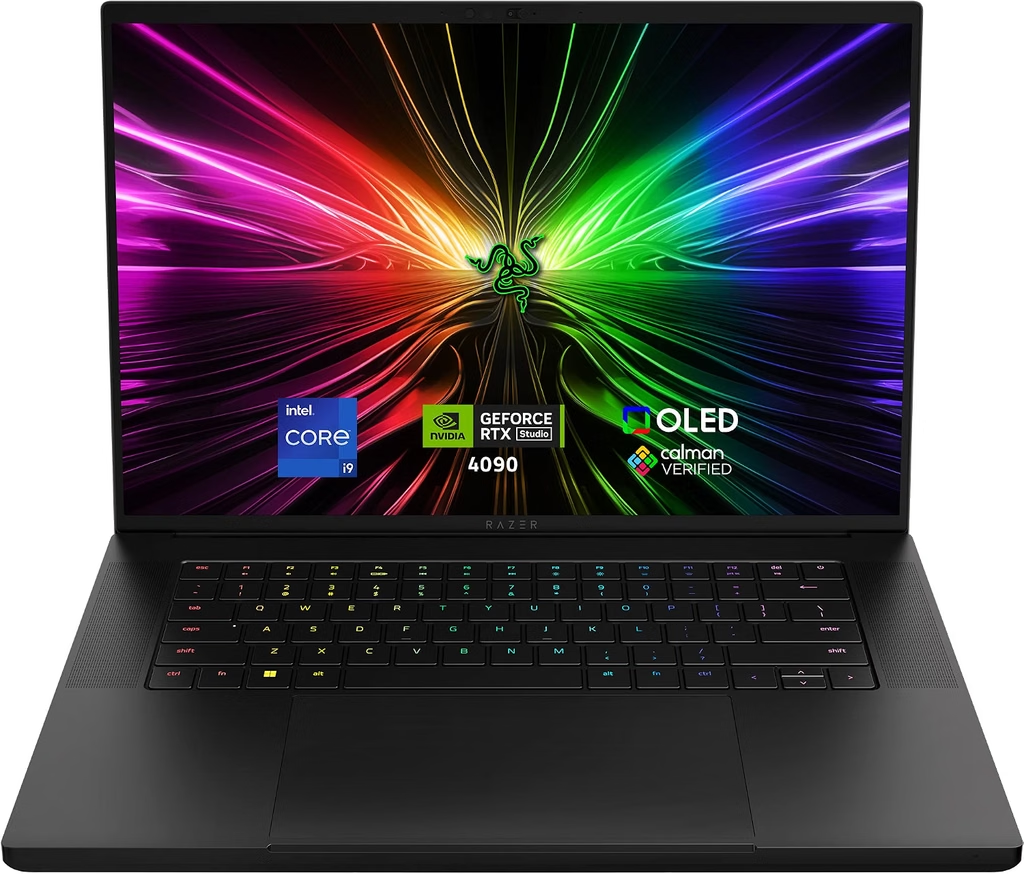
The Blade 16 is the laptop I’d hand to a freelance technical designer who bounces between a home desk, a coworking space and client fittings. It squeezes the same flagship RTX 5090 with 24GB of VRAM into a body just 0.69 inches thick and 4.71 pounds. And thanks to Intel’s efficient Core Ultra 9 386H, it lasts far longer away from the wall than anything this powerful has a right to.
Key specs
- CPU: Intel Core Ultra 9 386H (16 cores, up to 4.9GHz)
- GPU: NVIDIA GeForce RTX 5090 Laptop (24GB GDDR7, 175W max TGP)
- RAM: 32GB LPDDR5X-9600 (soldered; a 64GB version is also sold)
- Storage: 2TB PCIe 4.0 NVMe (Lexar NM790), plus an empty second M.2 2280 slot
- Display: 16-inch 2560 x 1600 OLED, 240Hz, 16:10, factory calibrated
- Ports: Thunderbolt 5, Thunderbolt 4, three USB-A, HDMI 2.1, UHS-II SD card reader, 3.5mm audio
- Battery and power: 90Wh battery, 280W adapter
- Size and weight: 13.98 x 9.86 x 0.69 inches, 4.71 lb
Benchmark results
Tom’s Hardware measured:
- Geekbench 6: 2,895 single-core, 16,971 multi-core
- Cyberpunk 2077 (Ray Tracing Ultra): 65 fps at 1080p, 42 fps at 1600p
- Handbrake 4K-to-1080p transcode: 3 minutes 17 seconds, compared with 1:51 for an MSI Raider running the 290HX Plus
Gizmodo’s Blender CPU render of the BMW scene took 1 minute 57 seconds, about a minute slower than a rival Alienware.
What does that mean for CLO? GPU simulation and V-Ray will fly, because the RTX 5090 is the same top-tier chip found in much heavier laptops. CPU-bound jobs, on the other hand, run a bit slower than on the HX-class machines like the Legion and Alienware.
SSD performance
Tom’s Hardware’s 25GB file transfer test ran at 1,735.09 MBps. The Lexar drive is plenty for CLO projects, and that spare M.2 slot is a gift for fabric libraries and render archives.
Display measurements
Tom’s Hardware measured 408.2 nits of brightness, 90% of DCI-P3 and 127% of sRGB by color volume. Razer claims 100% DCI-P3 coverage, and Can Buy or Not confirmed the panel ships factory calibrated. It’s a lovely screen for reviewing colorways, though not quite as bright as the Zephyrus or the Mac.
Thermals and noise
During Tom’s Hardware’s Metro Exodus stress test, the keyboard reached 102°F, the touchpad 92°F and the hottest spot underneath 130°F. The CPU averaged 75.3°C and the RTX 5090 hit 87°C. The reviewer also found the fans very loud under gaming loads. For long simulations, keep it on a hard desk, not your lap.
Battery life
This is the headline. Tom’s Hardware’s battery test lasted 12 hours 46 minutes, more than five hours longer than the previous Blade 16. Tom’s Guide got a similar 12 hours 36 minutes in its own web browsing test. Of course, battery life drops sharply once the RTX 5090 starts simulating, but for pattern edits, client calls and travel days, it’s superb.
Price
$3,499.99 with an RTX 5070 Ti, 32GB and 1TB; $3,999.99 with an RTX 5080; and $4,899.99 as tested with the RTX 5090 and 2TB. Amazon has also listed a 64GB, 1TB model at $4,699.99.
Pros
- RTX 5090 with 24GB of VRAM in a 4.71 lb, 0.69-inch body
- Outstanding 12:46 battery life in Tom’s Hardware’s test
- Factory-calibrated 240Hz OLED
- Thunderbolt 5, SD card reader and a spare M.2 slot
- Clean, understated design that looks right at home in a client meeting
Cons
- Expensive, close to $5,000 as tested
- Soldered LPDDR5X memory, so you pick your RAM once
- Multi-core CPU performance trails HX-class rivals
- Loud fans and a hot underside under heavy load
- Only a one-year warranty at this price
Who it’s for: Freelancers and traveling designers who need studio-grade GPU power away from the studio.
The configuration I’d buy: RTX 5080 or RTX 5090 with 64GB of RAM. Skip the 32GB version for serious CLO work, because you can never add memory later.
3. Alienware 16X Aurora (2026): Best Value Laptop for CLO3D
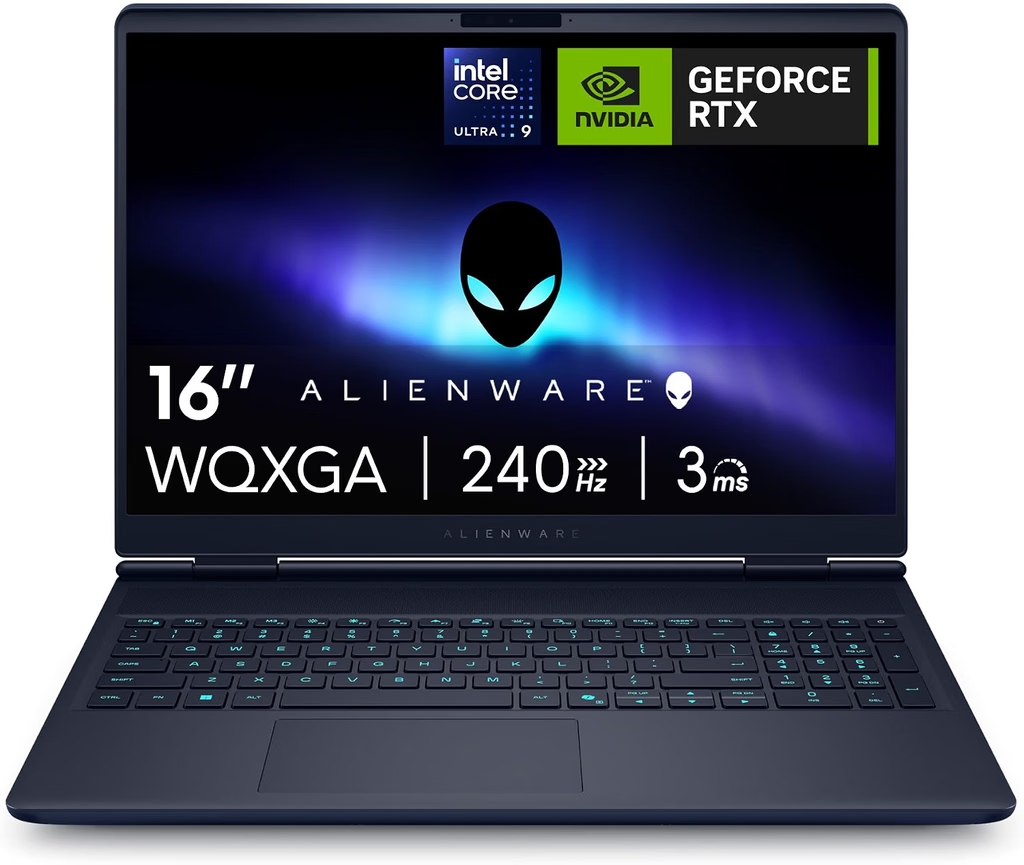
This is the laptop I’d recommend to most fashion design students and newer freelancers. The 2026 refresh added the two things last year’s model was missing: an RTX 5070 Ti with 12GB of VRAM, which lands exactly on CLO’s requirement, and an anti-glare OLED screen. Even better, it keeps two standard SODIMM memory slots, which is a lifesaver while RAM prices are this high. Buy 32GB now, go to 64GB later when prices calm down.
Key specs
- CPU: Intel Core Ultra 9 290HX Plus (24 cores)
- GPU: NVIDIA GeForce RTX 5070 Ti Laptop (12GB GDDR7, 115W including Dynamic Boost)
- RAM: 32GB DDR5-5600, dual channel, two SODIMM slots (upgradeable)
- Storage: Kioxia BG7 SSD, two M.2 2230 slots
- Display: 16-inch 2560 x 1600 matte OLED, 240Hz, HDR, G-Sync
- Ports: Thunderbolt 4, USB-C with DisplayPort, HDMI 2.1, USB-A, Gigabit Ethernet, 3.5mm audio
- Connectivity: Wi-Fi 7, Bluetooth 5.4
- Battery: 96Wh
- Weight: 5.71 lb (the power adapter adds 2.05 lb)
Benchmark results
Notebookcheck measured:
- Cinebench R23: 37,038 multi-core, 2,330 single-core
- Cinebench 2024: 1,954 multi-core, 137 single-core
- Cinebench R15: 5,617 multi-core, 340 single-core
Interestingly, Notebookcheck found the new 290HX Plus is only up to about 5% faster than last year’s 275HX, which scored 35,478 in Cinebench R23. The real upgrade is the GPU. Notebookcheck says the RTX 5070 Ti runs noticeably faster than last year’s RTX 5070, and for CLO, the jump from 8GB to 12GB of VRAM matters even more than the speed bump.
SSD performance
Notebookcheck measured roughly 6,777 MB/s sequential reads and 6,381 MB/s sequential writes in CrystalDiskMark, and noted the SSD throttling problem from last year’s model is gone. One catch from LaptopMedia: the slots only take the short M.2 2230 drives, so your upgrade options are narrower than on a typical 2280 laptop.
Display measurements
Notebookcheck measured 390 nits in SDR (about 609 nits in HDR), 100% sRGB, 99.6% DCI-P3 and 93.9% AdobeRGB, with effectively infinite contrast. ColorChecker ΔE was 3.27 out of the box and 1.1 after calibration, and grayscale ΔE was just 1.0. The matte coating cuts glare but adds a little graininess. The panel does use PWM dimming, but at a high 1,439.8Hz, which most people won’t notice. My advice: calibrate it once and it’s an excellent screen for fabric color work.
Thermals
This is the main caveat. Notebookcheck recorded CPU temperatures above 95°C under load, getting close to 100°C in its Prime95 stress test, although core temperatures while gaming ran slightly cooler than on the 2025 model. LaptopMedia’s earlier testing of the 16X Aurora chassis showed the GPU holding a steady 2,528MHz at 111W through an hour-long gaming run. In short: the GPU side stays composed, the CPU runs hot.
Battery life
LaptopMedia measured roughly 4 hours of battery life on the 2025 version of this chassis, and Notebookcheck reports that the 2026 model lasts longer than its predecessor. Either way, this is a 5.7 lb performance laptop, so plan on staying near an outlet for real CLO sessions.
Price
Dell was selling Notebookcheck’s tested configuration (290HX Plus, RTX 5070 Ti, OLED) for about $3,000. Notebookcheck pointed out that’s roughly $600 more than the 2025 configuration for around 15% more gaming performance, and that the RTX 5070 Ti can only be paired with the pricier 290HX Plus. For CLO users, though, that 12GB of VRAM is worth more than the gaming math suggests.
Pros
- RTX 5070 Ti 12GB meets CLO’s VRAM requirement for far less than RTX 5080 and 5090 machines
- Upgradeable SODIMM RAM, so you can start at 32GB and move to 64GB later
- Two SSD slots
- Excellent color coverage (99.6% DCI-P3) and near-perfect grayscale accuracy
- Rigid, premium aluminum and magnesium build
Cons
- 12GB of VRAM is CLO’s floor, not a luxury, so very heavy collections will push it
- CPU runs hot, above 95°C under load
- Matte OLED is dimmer than rivals at 390 nits
- Heavy at 5.71 lb, plus a 2 lb power brick
- Only accepts compact M.2 2230 SSDs
Who it’s for: Students, early-career freelancers, and anyone who wants to hit CLO’s recommended GPU tier without paying flagship prices.
The configuration I’d buy: RTX 5070 Ti with 32GB to start, upgraded to 64GB yourself later. Avoid the RTX 5060 and 8GB RTX 5070 configurations for CLO.
4. ASUS ROG Zephyrus G16 (2026): Best Thin-and-Light Laptop for CLO3D
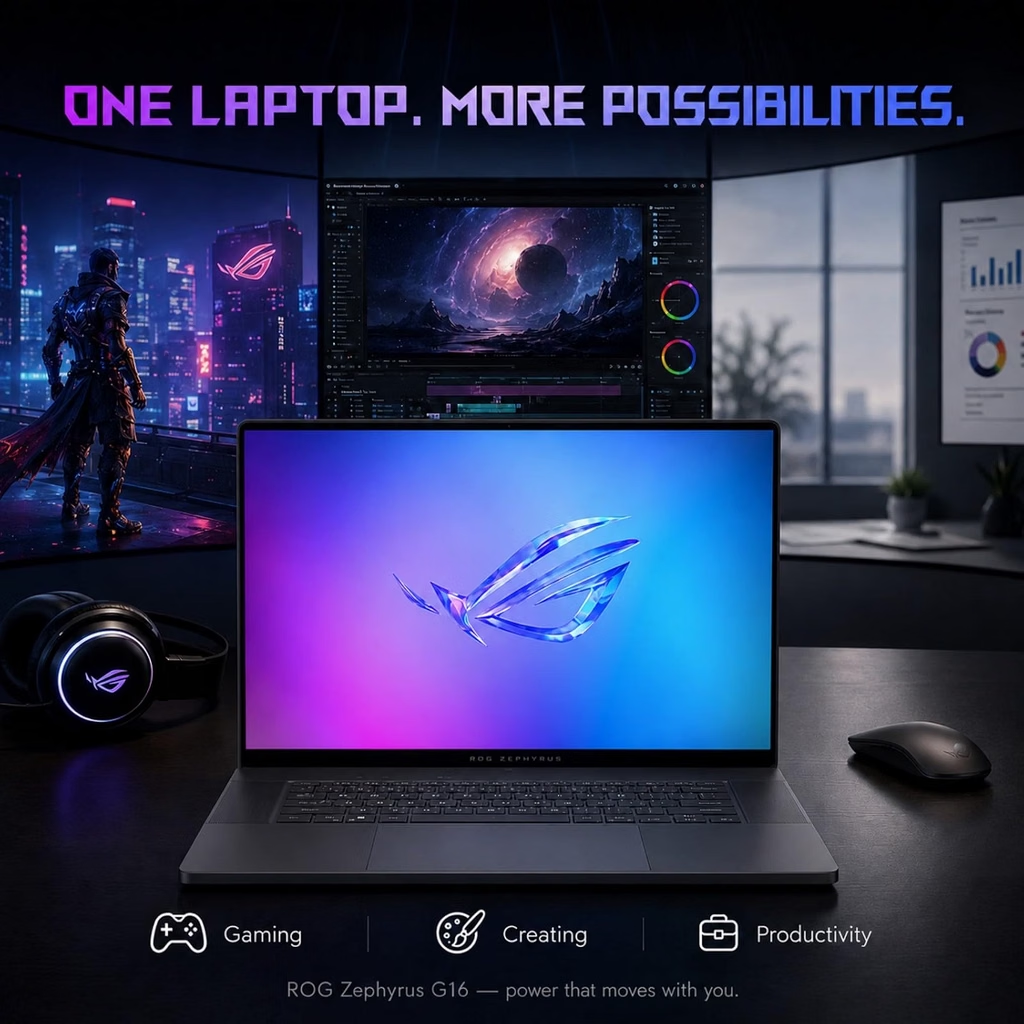
The Zephyrus G16 is for the designer who wants a laptop that looks like a creative tool, not a gaming rig, and that lasts a full workday away from the charger. The 2026 model pairs Intel’s efficient Core Ultra 9 386H with up to an RTX 5080 and 16GB of VRAM, a comfortable tier for multi-layer CLO looks. It also fixes the two biggest complaints about last year’s model: battery life and fan noise. Notebookcheck gave it a 90% “very good” rating.
Key specs
- CPU: Intel Core Ultra 9 386H (16 cores)
- GPU: NVIDIA GeForce RTX 5080 Laptop (16GB); LaptopMedia’s unit ran it at 160W
- RAM: 32GB or 64GB LPDDR5X (soldered)
- Storage: 1TB or 2TB PCIe 4.0 SSD
- Display: 16-inch 2560 x 1600 OLED (Samsung ATNA60HU06), 240Hz, Pantone Validated
- Ports: Thunderbolt 4, USB-C, two USB-A, HDMI 2.1, SD card reader, 3.5mm audio
- Connectivity: Wi-Fi 7, Bluetooth
- Battery and power: 90Wh battery, 250W adapter
- Weight: 4.3 lb (5.6 lb with the charger), 0.59 to 0.70 inches thick
Benchmark results
Tom’s Guide measured:
- Geekbench 6: 2,877 single-core, 16,960 multi-core, essentially tied with the Razer Blade 16 and ahead of the MSI Stealth 16 AI+ (15,170)
- Handbrake transcode: 3 minutes 9 seconds
- Cyberpunk 2077 at QHD, RT Ultra, no DLSS: 30 fps, right in line with last year’s RTX 5080 Legion Pro 7i (31 fps)
For CLO, that means RTX 5080-class GPU simulation and rendering in a body that’s much easier to carry.
SSD performance
91mobiles measured 6,230.5 MB/s reads and 5,509.7 MB/s writes in CrystalDiskMark on the 2026 Zephyrus G16. That’s healthy PCIe 4.0 performance, quick enough that file loads won’t slow down your workflow.
Display measurements
Notebookcheck measured an average of 515 nits (522 nits peak) with 98% uniformity, a 51,200:1 contrast ratio, 97.5% sRGB, 91.7% DCI-P3 and 84.8% AdobeRGB. ColorChecker ΔE came in at an excellent 1.5, with grayscale ΔE at 2.3. HDR peak brightness reached 1,138 nits. Tom’s Guide, using its own method, recorded 469 nits and 80.4% DCI-P3, which shows how much lab methods can differ. Either way, this is one of the brightest, most accurate screens on the Windows side of this list. Like most OLEDs, it uses PWM dimming, here at 1,440Hz.
Thermals and noise
PC Gamer reports that the fan noise problem from the 2025 model is fixed. ASUS uses liquid metal on the CPU, three fans and a vapor chamber, according to CGMagazine. That’s a big deal for CLO, where a long simulation can keep the fans spinning for a while.
Battery life
This is where the Zephyrus shines. Tom’s Guide recorded 13 hours 45 minutes of web browsing, an hour longer than the Razer Blade 16 in the same test and more than three times last year’s Legion Pro 7i. Heavy GPU work on battery is another story: Tom’s Guide measured 55 minutes in its gaming test, while PC Gamer got 117 minutes in its own. Simulate plugged in, sketch and review on battery.
Price
$3,699 to start (RTX 5070 Ti, 32GB, 1TB) and $4,799 as reviewed (RTX 5080, 64GB). Tom’s Guide and PC Gamer both felt the memory crisis pushed the price too high, and I agree it’s not cheap. But if you want 16GB of VRAM in a 4.3 lb laptop that runs all day, this is the one.
Pros
- RTX 5080 with 16GB comfortably clears CLO’s 12GB line
- 13:45 battery life in Tom’s Guide’s web test
- Slim, light CNC aluminum chassis at 4.3 lb
- Bright, accurate OLED (515 nits, ΔE 1.5 in Notebookcheck’s test)
- Fan noise problem fixed, according to PC Gamer
Cons
- Expensive at $4,799 as reviewed
- Soldered RAM, so buy 64GB up front
- Bulky 1.3 lb proprietary charger
- Keyboard feels underwhelming, according to Tom’s Guide
- Short battery life under heavy GPU load
Who it’s for: Freelancers and designers who care about portability, quiet operation and all-day battery more than squeezing out every last bit of GPU power.
The configuration I’d buy: RTX 5080 with 64GB of RAM. That’s the version Tom’s Guide tested, and it’s the one that makes sense for CLO.
5. Apple MacBook Pro 16-inch with PROLED XDR Display (M5 Max): Best Mac for CLO3D

For years, recommending a Mac for CLO felt like recommending a sports car for moving furniture. That changed in 2026. CLO 2026.1 brought GPU simulation to Apple Silicon, V-Ray GPU rendering through Metal has been supported since CLO 2025.0, and Apple’s newest 16-inch MacBook Pro has the best display Tom’s Hardware says it has ever tested on a laptop.
A quick note on “newest,” because Apple’s lineup got confusing in October 2026. The base 14-inch MacBook Pro moved to the M6 chip, but the PROLED XDR models use the M5 Pro and M5 Max, which remain Apple’s most powerful laptop chips. So the 16-inch PROLED with M5 Max is the most capable Mac laptop you can buy for CLO today.
Key specs
- Chip: Apple M5 Max (18-core CPU with 6 super cores and 12 performance cores, 40-core GPU)
- Memory: up to 128GB unified memory (as tested by Tom’s Hardware)
- Storage: 2TB SSD as tested
- Display: 16.3-inch tandem OLED PROLED XDR, 3472 x 2266, 254 ppi, 10 to 120Hz ProMotion, touch
- Ports: three Thunderbolt 5, HDMI, SD card reader, MagSafe 3, 3.5mm audio
- Battery and power: 99.6Wh battery, 140W adapter
- Weight: 4.1 lb, down from 4.7 lb on the mini-LED model
Benchmark results
Tom’s Hardware measured:
- Geekbench 6: 4,353 single-core, 29,430 multi-core, far ahead of every Windows laptop in this guide
- Cinebench 2026 stress test: Automatic mode started at 9,080 and settled in the 8,050s; High Power mode started at 9,647 and never dropped below 9,479 across ten runs
- 3DMark Steel Nomad: 4,355
- Handbrake transcode: 1 minute 43 seconds
Macworld’s review of the M5 Max 16-inch recorded Cinebench 2024 scores of 722 single-core, 9,426 multi-core and 94,035 GPU. And Notebookcheck’s PugetBench creator tests found the M5 Pro and M5 Max beating an RTX 5090 in several Adobe and DaVinci Resolve workloads.
SSD performance
Tom’s Hardware’s 25GB file copy on the 2TB model ran at 1,917.69 MBps. The Verge measured the 16-inch M5 Max with a 4TB SSD at 13.6 GB/s reads and 17.8 GB/s writes, which is extraordinary.
Display measurements
Tom’s Hardware measured 542.6 nits in SDR, 1,964 nits in a 40% HDR window, 83.6% of DCI-P3 and 118% of sRGB by color volume. The screen also includes reference modes and a built-in calibrator. For approving fabric colorways on the go, this is the best built-in screen in this guide by a wide margin.
Thermals
In the Cinebench 2026 stress test, Tom’s Hardware measured the keyboard at 106.6°F, the touchpad at 88°F and the underside at 107°F. Warm, yes, but much cooler underneath than the RTX 5090 Windows laptops, and far quieter.
Battery life
Tom’s Hardware measured 15 hours 57 minutes, the best result in this group.
The honest CLO reality check
The Mac’s raw CPU power is incredible, and I love this screen. But CLO’s GPU simulation on Apple Silicon only arrived with version 2026.1, while NVIDIA’s CUDA path has years of refinement behind it. The M5 Max’s GPU also shares memory with the rest of the system. That can be an advantage for big scenes, but only if you buy enough of it, because nothing inside is upgradeable. And many studios and plugin workflows still standardize on Windows and NVIDIA.
Price
The 16-inch PROLED starts at $3,399 with an M5 Pro (18-core CPU, 20-core GPU, 24GB, 1TB). The M5 Max version starts at $4,799 with a 32-core GPU, and the full 40-core GPU adds another $300. Tom’s Hardware’s 128GB, 2TB review unit came to $7,399. If you don’t need OLED and touch, the mini-LED 16-inch with the same chips costs $400 less.
Pros
- The best display in this guide (542.6 nits SDR, 1,964 nits HDR)
- The highest CPU scores here (Geekbench 6 multi-core 29,430)
- 15:57 battery life with cool, quiet operation
- CLO now supports GPU simulation (2026.1) and Metal V-Ray rendering (2025.0) on Apple Silicon
- Lightest 16-inch pick at 4.1 lb
Cons
- No CUDA, and GPU simulation on Apple Silicon is still new in CLO
- Very expensive once you add 64GB or more of memory
- Nothing is upgradeable
- Many studios still standardize on Windows and NVIDIA
- The touchscreen adds cost but little for CLO
Who it’s for: Designers who already live in macOS, need the best possible screen for color approvals, and accept that CUDA is still CLO’s most mature path.
The configuration I’d buy: M5 Max with the 40-core GPU and at least 64GB of unified memory, matching CLO’s recommendation.
Laptops I Considered but Left Out
I looked closely at a few other well-known machines before settling on these five.
- HP HyperX Omen Max 16 (RTX 5090): Strong CPU results, with Geekbench 6 scores of 3,182 single-core and 17,989 multi-core in Tom’s Hardware’s testing. But that same review was disappointed by its gaming results at $4,699.99, and it ships with a hefty 460W adapter. The Legion is the better buy.
- ASUS ProArt P16 with NVIDIA RTX Spark: Notebookcheck found it very expensive but impressive overall, and PCWorld saw its 128GB of unified memory beat an RTX 5090 desktop in a huge AI workload. The problem is that RTX Spark laptops run Windows on Arm, and CLO’s official Windows requirements only list Intel and AMD processors. Until CLO says otherwise, I can’t recommend it for a CLO deadline.
- Base MacBook Pro 14 (M6): Lovely machine, but its 12-core GPU and 32GB memory ceiling sit below what serious CLO work deserves.
Frequently Asked Questions About Laptops for CLO3D
What are the CLO 3D system requirements in 2026? CLO’s September 2026 requirements call for Windows 11 64-bit (24H2 minimum, 25H2 recommended), at least an AMD Ryzen 3000 or Intel 8th Gen processor (Ryzen 9000 or Intel Core i9 14th Gen or newer recommended), 16GB of RAM minimum and 64GB recommended, and an NVIDIA GeForce RTX 4000-series or newer GPU as the recommendation. CLO says at least 12GB of VRAM is required for high-quality rendering and complex simulation, with 4GB as the minimum for basic use.
Does CLO3D need an NVIDIA graphics card? On Windows, effectively yes if you want good performance. CLO uses NVIDIA CUDA for GPU acceleration. Without an NVIDIA card, simulation and rendering fall back to the CPU. The results look the same, but they take longer.
How much VRAM do I need for CLO3D? At least 12GB, according to CLO. Among 2026 laptops, that means an RTX 5070 Ti (12GB), RTX 5080 (16GB) or RTX 5090 (24GB). RTX 5060 laptops have only 8GB, and so do most RTX 5070 laptops, although a 12GB RTX 5070 variant arrived in late April 2026.
How much RAM do I need for CLO3D? CLO lists 16GB as the minimum, 32GB for smoother operation, and 64GB or more for heavy garments, animation and ultra-high-quality rendering. I recommend 32GB for students and 64GB for professionals.
Can I run CLO3D on a MacBook? Yes. CLO supports Apple Silicon Macs, with M1 as the minimum and M2 through M5 recommended. V-Ray GPU rendering through Metal has been supported since CLO 2025.0, and GPU simulation since CLO 2026.1. NVIDIA’s CUDA path is still the more mature option.
Is a gaming laptop good for CLO3D? Very often, yes. High-end gaming laptops have the NVIDIA RTX graphics, generous VRAM and strong cooling that CLO’s simulation and rendering need. Just check the VRAM and RAM configuration carefully before you buy.
Does CLO3D use multiple GPUs? CLO’s GPU features are built around a single NVIDIA GPU. On a laptop, one powerful GPU with plenty of VRAM is what counts.
Will CLO3D run on Windows on Arm laptops like RTX Spark or Snapdragon models? CLO’s official Windows requirements list only Intel and AMD processors. I’d avoid Arm-based Windows laptops for CLO until CLO officially supports them.
What’s the cheapest laptop that properly meets CLO’s recommendation? Among my picks, the Alienware 16X Aurora with an RTX 5070 Ti (12GB), at about $3,000 in the configuration Notebookcheck tested. Its upgradeable RAM lets you start at 32GB and grow to 64GB later.
Is an OLED screen good for CLO3D? Yes, especially for judging fabric color and contrast. Four of my five picks use OLED panels. Just calibrate before final color approvals, and know that OLEDs use PWM dimming, which a small number of people are sensitive to.
Final Verdict: Which CLO3D Laptop Should You Buy?
If I could buy only one laptop for CLO in late 2026, it would be the Lenovo Legion Pro 7i Gen 11 with an RTX 5090. It has the most VRAM headroom, record-setting performance in Jarrod’s Tech’s testing, PCIe 5.0 storage, a color-accurate OLED, and the CUDA muscle CLO was built around. The battery life is short and the fans are loud, but when a collection deadline is breathing down your neck, that’s a trade I’ll happily make.
If you’re always on the move, the Razer Blade 16 (2026) gives you the same 24GB RTX 5090 in a sleek 4.71 lb body with nearly 13 hours of battery. If you’re a student or just starting out, the Alienware 16X Aurora (2026) with its RTX 5070 Ti is the smartest way to meet CLO’s 12GB line without paying flagship prices, and you can upgrade the RAM yourself later. The ASUS ROG Zephyrus G16 (2026) is the quiet, slim, all-day RTX 5080 option with one of the most accurate screens here. And if your heart belongs to macOS, the MacBook Pro 16 with PROLED XDR (M5 Max) has finally become a genuine CLO machine, with the best display of the bunch.
Whatever you pick, remember the three rules I keep coming back to: 12GB of VRAM or more, 32GB to 64GB of RAM, and be generous with soldered memory. Get those right and your laptop stops being the bottleneck. Your patterns, your drape and your ideas get to be the stars again. That coat from the beginning of this article? It’s finally going to fall the way you imagined it.
Sources
- CLO system requirements (September 2026), CLO Help Center
- CLO system requirements (March 2026 version), CLO Help Center
- System requirements for CLO software (2020), CLO Help Center
- Mac users: does CLO use the AMD GPU?, CLO Community
- iMac or high-end Windows desktop, CLO Community
- Best specs for CLO 3D, CLO Community
- Mac vs PC for CLO3D, Fashion Toolbox
- Lenovo Legion Pro 7i 16 Gen 11 reviews and specs, Notebookcheck
- Lenovo Legion Pro 7i (2026) review, Jarrod’s Tech
- Lenovo Legion Pro 7i review, MakeUseOf
- Lenovo Legion Pro 7i review (Core Ultra 9 290HX Plus, RTX 5090), tbreak
- Lenovo Legion Pro 7i (2026) price tracking, gaminglaptop.deals
- Lenovo Legion Pro 7i 16 Gen 10 review, PCWorld
- Lenovo Legion Pro 7i Gen 10 review, Tom’s Hardware
- Lenovo Legion Pro 7i 16 Gen 10 review, Notebookcheck
- Lenovo Legion Pro 7i Gen 10 review, Windows Central
- Razer Blade 16 (2026) review, Tom’s Hardware
- Razer Blade 16 (2026) review, Tom’s Guide
- Razer Blade 16 (2026) review, Gizmodo
- Razer Blade 16 (2026) review, Can Buy or Not
- Alienware 16X Aurora 2026 review, Notebookcheck
- Alienware 16X Aurora 2026 test (German edition with full measurements), Notebookcheck
- Alienware 16X Aurora (AC16251) review, LaptopMedia
- Alienware 16X Aurora (AC16251) series overview, LaptopMedia
- Alienware 16X Aurora review, HotHardware
- Asus ROG Zephyrus G16 (2026) review, Tom’s Guide
- Asus ROG Zephyrus G16 (2026) test, Notebookcheck
- Asus ROG Zephyrus G16 (2026) review, PC Gamer
- ASUS ROG Zephyrus G16 (2026) review, CGMagazine
- ASUS ROG Zephyrus G16 (GU606, 2026) review, LaptopMedia
- CrystalDiskMark scores for laptops, 91mobiles
- Apple MacBook Pro with PROLED XDR Display review, Tom’s Hardware
- Apple unveils MacBook Pro with PROLED XDR Display, Apple Newsroom
- 16-inch MacBook Pro (M5 Max) review, Macworld
- MacBook Pro M5 Pro and M5 Max reviews roundup, MacRumors
- M5 Pro and M5 Max PugetBench results, Notebookcheck
- MacBook Pro buyer’s guide, MacRumors
- Apple MacBook Pro M6 review, Tom’s Guide
- HyperX Omen Max 16 review, Tom’s Hardware
- Asus ProArt P16 RTX Spark review verdict, Notebookcheck
- Asus ProArt P16 RTX Spark review, PCWorld

Hi, my name is Burak. I am a mechanical engineer. I have been writing laptop reviews for the Engineering Laptops website since 2020. Please feel free to contact me if you have any questions.