
Updated September 3, 2026
Table of contents
- The five picks at a glance
- How I put this together
- Four things that changed this year
- The numbers, side by side
- Something I noticed that nobody’s talking about
- Best Laptops for DaVinci Resolve in 2026: 5 Machines, Tested and Measured
- The Resolve Dollar
- Things I’d tell a friend that the spec sheets won’t
- So which one should you actually buy
- What I’d skip
- Frequently asked questions
- Sources
I’ve been cutting and grading in Resolve long enough to remember when you needed a Decklink card just to get clean output to a monitor. In that time I’ve watched a lot of people buy the wrong laptop, and it’s almost never because they were careless. It’s because the spec sheet lied to them, quietly, in a way that only shows up at 2 a.m. when the timeline starts dropping frames and the client review is at nine.
So this piece is my attempt to fix that. Five machines, one per brand, every number in it measured by somebody with a colorimeter and a stopwatch, and I tell you who.
Let me give you the punchline first, because your time matters.
The fastest DaVinci Resolve laptop you can buy in 2026 is the 16-inch MacBook Pro with M5 Max. In Notebookcheck’s head-to-head PugetBench for DaVinci Resolve Studio run, where every machine used the identical Resolve build and identical benchmark version, the M5 Max MacBook Pro 16 scored 127.09 on the Standard preset. The RTX 5090-equipped Asus ProArt P16 scored 85.11. That’s a 49% gap in favor of the laptop with no discrete GPU in it.
But fastest and right-for-you are different questions, and the rest of this article is about the difference.
The five picks at a glance
| You are… | Buy |
|---|---|
| A working editor who wants maximum throughput and doesn’t care which OS | Apple MacBook Pro 16 (M5 Max) |
| A colorist on Windows who needs the panel to be right out of the box | Asus ProArt P16 (RTX 5090) |
| Deep in Fusion, 6K/8K, or long CPU-bound renders | MSI Raider 16 Max HX |
| Cutting on location, in hotels, in the back of a van | Razer Blade 16 (2026) |
| Trying to get the most Resolve per dollar on Windows | Lenovo Legion Pro 7i (16IAX10H) |
How I put this together
I want to be straight with you about something, because I think it’s the difference between a review you can act on and one you can’t.
I did not run these benchmarks myself. What I did was pull every published independent lab measurement I could find for these five machines and read them against each other, then work out what the numbers actually mean for someone sitting in front of a Resolve timeline.
The measurements come from Notebookcheck (display readings on an X-Rite i1Pro 3 with CalMAN, power draw, thermals, storage throughput), Tom’s Hardware (battery runs, Geekbench, file transfers), HotHardware, PCWorld, PC Gamer, LaptopMedia, and Puget Systems. Every figure below is attributed inline.
What I bring is the interpretation. Which of these numbers predicts smooth playback, which ones are marketing noise, and where the spec sheet is being economical with the truth. That’s the part I’ve earned the right to have an opinion about.
If a reviewer makes up a benchmark result, everything else they write becomes worthless. So none of these are made up.
Four things that changed this year
Before the picks, some ground has shifted that most buying guides haven’t caught up with.
Resolve 21 dropped Intel Macs completely
DaVinci Resolve 21 shipped in June 2026. The current 21.0.4 build needs Apple Silicon and macOS 15 Sequoia or newer. On Windows it wants Windows 10 Creators Update or later, a GPU with at least 4 GB of VRAM, CUDA 12.8 or OpenCL 1.2, and 16 GB of system RAM, bumped to 32 GB the moment you touch Fusion.
Those are the numbers that let the app open. They are not the numbers that let you work.
Resolve now fails hard when it runs out of VRAM
This is the single most important hardware fact in this article and hardly anybody writes about it.
When Resolve exhausts VRAM it doesn’t slow down gracefully. It stutters, it freezes, or it throws an error and stops. A timeline that plays perfectly while sitting at 7.8 GB of VRAM usage becomes unusable the second you add the node that pushes past your card’s ceiling. There’s no warning slope. It’s a cliff.
Resolve 21 sharpened this. Blackmagic’s own engineering staff have confirmed on the company forum that several of the new AI tools, including IntelliSearch analysis and AI Motion Blur removal, carry a hard minimum VRAM requirement just to load the model. If your system doesn’t meet it, Resolve tells you so and refuses. That’s the same behavior 20.3.2 introduced for training custom Voice Clone models on lower-end machines.
What that means in practice: 12 GB of VRAM is the realistic floor for 4K work. 24 GB is where you stop thinking about it. This is why a 24 GB RTX 5090 laptop and a 48 GB unified-memory MacBook are in a different conversation from an 8 GB RTX 5070, whatever the frame rates say.
“RTX 5090” tells you almost nothing on its own
Every RTX 5090 laptop here runs the same silicon. GB203 die, 10,496 CUDA cores, 24 GB of GDDR7. It’s closer to a desktop RTX 5080 than a desktop 5090, which is worth knowing before you hand over flagship money.
The bigger problem is power. Same GPU, wildly different wattage depending on the chassis it lands in:
| Laptop | Measured RTX 5090 TGP | Source |
|---|---|---|
| Asus ProArt P16 | 120 W (includes 25 W Dynamic Boost) | Notebookcheck |
| Razer Blade 16 (2026) | ~160 W | Notebookcheck |
| MSI Raider 16 Max HX | 175 W | Tom’s Hardware, HotHardware |
| Lenovo Legion Pro 7i | 175 W | Notebookcheck spec sheet |
That’s a 46% spread on identical hardware. In a GPU-bound Resolve render, you feel every watt of it. Never buy a creator laptop on the GPU model name. Find the measured TGP.
Apple quietly changed how the M5 Max behaves under long loads
If you already own one, go check your power profile right now. A macOS update changed the rules and it’s costing people render time. Full details in the MacBook section below.
The numbers, side by side
Everything in this table is a measured figure from a named source. Nothing is estimated.
| MacBook Pro 16 M5 Max | Asus ProArt P16 | MSI Raider 16 Max HX | Razer Blade 16 (2026) | Lenovo Legion Pro 7i | |
|---|---|---|---|---|---|
| CPU | M5 Max, 18 cores | Ryzen AI 9 HX 370, 12C/24T | Core Ultra 9 290HX Plus, 24C | Core Ultra 9 386H, 16C | Core Ultra 9 275HX / 290HX Plus, 24C |
| GPU | M5 Max 40-core, 72 W | RTX 5090, 120 W | RTX 5090, 175 W | RTX 5090, ~160 W | RTX 5090, 175 W |
| Graphics memory | 48 GB unified (to 128 GB) | 24 GB GDDR7 | 24 GB GDDR7 | 24 GB GDDR7 | 24 GB GDDR7 |
| System RAM ceiling | 128 GB (soldered) | 64 GB (soldered) | 128 GB (SO-DIMM) | 64 GB (soldered) | 64 GB (SO-DIMM) |
| Panel | 16.2″ mini-LED, 3456×2234, 120 Hz | 16″ tandem OLED, 3840×2400, 120 Hz | 16″ OLED, 2560×1600, 240 Hz | 16″ OLED, 2560×1600, 240 Hz | 16″ OLED, 2560×1600, 240 Hz |
| Measured SDR brightness | 710 cd/m² (1,164 with sensor) | 666 cd/m² | 487 cd/m² | 473 cd/m² | 507 cd/m² |
| Measured HDR peak | 1,737 nits (1,325 full white) | 1,600 nits (~850 full white) | 1,100 nits at 10% window (614 full white) | ~1,000 nits | 1,065 nits at 8% window (598 full white) |
| ΔE ColorChecker, out of box | 1.1 | 0.5 | 0.62 | 3.03 (0.6 calibrated) | 3.2 (0.84 calibrated) |
| ΔE greyscale | 2.7 | 0.6 | 0.7 | 0.6 | 1.0 |
| Display P3 coverage | 99.3% | 98.9% | 99.3% | 99.7% | 99.5% |
| AdobeRGB coverage | 88.2% | 88.6% | 87.5% | 93.5% | 94.4% |
| Geekbench 6 multi-core | 30,057 | 15,567 | 20,656 | 16,971 | 19,388 |
| Geekbench 6 single-core | 4,336 | 2,919 | 3,231 | 2,895 | 3,122 |
| Battery capacity | 99.6 Wh | 90 Wh | 91.8 Wh | 90 Wh | 99.9 Wh |
| Measured runtime | 18h 30m Wi-Fi @150 nits | 7h 40m video | 8h 34m video | 12h 46m mixed use @150 nits | ~6h video @250 nits |
| Weight | 2.14 kg | 1.95 kg | 2.6 kg | ~2.2 kg | 2.32 kg |
| Price as configured | $4,399 | $3,999 | $4,099 | $4,899 | $2,699 (5070 Ti) |
Sources. Display figures: Notebookcheck, X-Rite i1Pro 3 + CalMAN, except MSI HDR (PCWorld) and Lenovo HDR (LaptopMedia). Geekbench: Tom’s Hardware for MSI and Razer, Notebookcheck for MacBook and Asus, NanoReview aggregate for Lenovo. Runtime: Notebookcheck (Apple), NoobFeed (Asus), HotHardware (MSI, 514 minutes video playback), Tom’s Hardware (Razer), PCWorld (Lenovo).
Something I noticed that nobody’s talking about
Look at the MSI and the Lenovo rows again. Both are 16-inch 2560×1600 240 Hz OLEDs. What the spec sheets don’t say is that Notebookcheck identified the exact same panel in both machines, the Samsung ATNA60HU01-0.
Same glass. And yet the MSI measures ΔE ColorChecker 0.62 out of the box, while the Lenovo measures 3.2.
That gap is entirely factory calibration. Lenovo’s panel cleans up to 0.84 once you calibrate it yourself, so the hardware is fine. But if you’re buying a laptop to grade on and you don’t own a probe, MSI is handing you a screen that’s roughly five times more accurate on day one for free.
This is the kind of thing that never shows up in a spec comparison and matters enormously if the display is part of your job.
Best Laptops for DaVinci Resolve in 2026: 5 Machines, Tested and Measured
1. Apple MacBook Pro 16 (M5 Max) — Best Overall
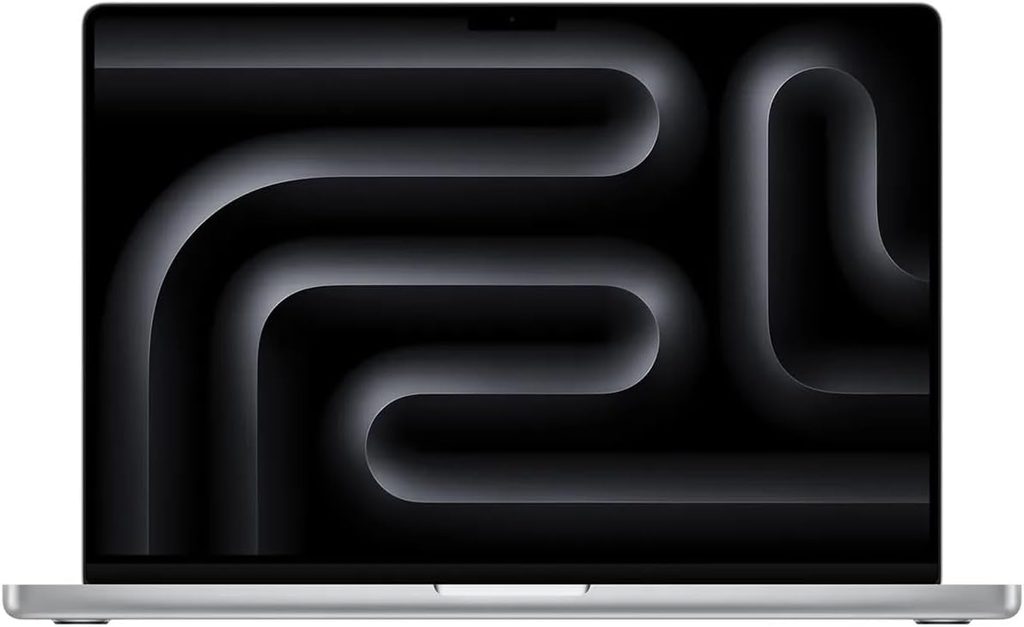
Let me get the awkward part out of the way. A laptop with no discrete GPU is currently the fastest DaVinci Resolve machine you can carry, and I’ve watched Windows people refuse to accept this for two solid years.
Notebookcheck ran PugetBench for DaVinci Resolve Studio 20.3 across a fleet of current creator laptops using identical app and benchmark builds, which is the only way these scores mean anything at all. Here’s how that landed:
| Laptop | Resolve Standard | Resolve Extended |
|---|---|---|
| MacBook Pro 16, M5 Max 40-core | 127.09 | 88.70 |
| MacBook Pro 14, M5 Max 40-core | 115.17 | 82.71 |
| Asus ProArt P16, RTX 5090 | 85.11 | 63.91 |
| MacBook Pro 16, M5 Pro 20-core | 83.56 | 58.88 |
| Samsung Galaxy Book6 Ultra, RTX 5070 | 70.53 | 50.52 |
| Asus ROG Zephyrus G14, RTX 4090 | 68.31 | 50.94 |
| Asus ROG Z13, Ryzen AI Max+ 8060S | 53.74 | 36.07 |
Read that fourth row again. The M5 Pro MacBook, which starts at $2,699, sits level with a $4,000 RTX 5090 machine on the Standard preset.
Specifications
- CPU: Apple M5 Max, 18 cores. Six super cores at 4.6 GHz, twelve performance cores at 4.4 GHz
- Measured power: 75 W burst, 70 W sustained
- GPU: M5 Max 40-core, 72 W, 614 GB/s memory bandwidth
- Memory: 48 GB LPDDR5X-9600 as tested, up to 128 GB unified
- Storage: 2 TB PCIe 5.0. Notebookcheck measured 17 GB/s write and 13 GB/s read. Up to 8 TB
- Display: 16.2″ mini-LED, 3456×2234, 254 PPI, 120 Hz ProMotion, matte nano-texture option
- Ports: 3× Thunderbolt 5, HDMI, SDXC, MagSafe 3, 3.5 mm
- Wireless: Wi-Fi 7 via Apple’s N1 chip, Bluetooth 6
- Battery: 99.6 Wh
- Weight: 2.14 kg / 4.73 lb
- From: $2,699 (M5 Pro, 24 GB, 1 TB). $4,399 as tested (M5 Max 40-core, 48 GB, 2 TB)
Measured performance
| Benchmark | Result |
|---|---|
| Cinebench 2024 multi-core | 2,490 |
| Cinebench 2024 single-core | 199 |
| Cinebench 2026 multi-core | 9,194 |
| Cinebench 2026 single-core | 734 |
| Cinebench R15 multi-core | 4,529 |
| Geekbench 6.7 multi-core | 30,057 |
| Geekbench 6.7 single-core | 4,336 |
| CrossMark overall | 3,231 |
| 3DMark Steel Nomad | 4,386 |
For scale on that Cinebench 2024 multi figure: the ProArt P16 manages 1,242 and the Samsung Galaxy Book6 Ultra 1,232. Notebookcheck’s summary is blunt. Against direct Windows competition the M5 Max can be twice as fast, and unlike any Windows laptop here, it holds that performance on battery.
The display, actually measured
- 710 cd/m² center brightness in SDR, 682 average, 93% uniformity
- 1,164 cd/m² SDR with the ambient light sensor active
- 1,737 cd/m² HDR peak, and 1,325 cd/m² on a full white field
- ΔE ColorChecker 1.1, ΔE greyscale 2.7, gamma 2.0, CCT 6760 K
- 100% sRGB, 99.3% Display P3, 88.2% AdobeRGB
- Black level 0 cd/m², so contrast is effectively infinite
- PWM at 14,880 Hz, high enough that flicker sensitivity is a non-issue
Notebookcheck’s verdict is that this mini-LED still keeps pace with the best tandem OLEDs on the market for brightness, image quality and color accuracy. After several years on the same panel. That’s rare praise for a laptop screen.
One thing to know before you panic about calibration: macOS clamps brightness when you work in the sRGB color space. That’s intended behavior, not a fault.
Three things nobody tells you
The power profile trap. In August 2026 Notebookcheck investigated user reports that a macOS update had quietly reduced M5 Max performance. They confirmed it, and the detail matters.
| macOS | Profile | Sustained TDP | Cinebench 2024 multi | Steel Nomad 20-min retention |
|---|---|---|---|---|
| 26.3.1 | Automatic | 78 → 65 W | 2,437 | 98.5% |
| 26.6.2 | Automatic | 75 → 60 → 54 W | 2,312 | 87.3% |
| 26.6.2 | High Power | 75 → 70 W | 2,490 | 98.4% |
On the older build, Automatic and High Power were effectively identical and the chip held 98.5% of its performance through a twenty-minute stress test. On the current build, Automatic sags to 54 W and holds only 87.3%.
If you’re rendering, switch to High Power. You lose about 5% on a job of a few minutes and 13% on a long one otherwise. Fan noise didn’t change between macOS versions, so you’re giving up performance for nothing.
The 140 W adapter can’t keep up. Under a combined CPU and GPU load the machine draws up to 150 W and settles around 130 to 140 W. The bundled 140 W brick isn’t enough, and the battery drops from 100% to 88% in one hour while plugged in. Notebookcheck tried a 180 W supply and got the same result, because the limit is inside the laptop. If you’re leaving an overnight render going on location, plan for it.
Buy the 16, not the 14. The MacBook Pro 14 with the same M5 Max runs roughly 15% slower on both CPU and GPU and its performance is unstable, because the smaller body can’t move the heat. Notebookcheck’s 14-inch review lists severe thermal throttling and inconsistent CPU performance even in High Power mode as explicit negatives. The 16-inch review lists neither. Same chip, genuinely different machine.
What’s good
- Fastest measured DaVinci Resolve performance of any laptop, by a wide margin
- Holds full performance on battery, which nothing else here does
- 18 hours 30 minutes of Wi-Fi runtime at 150 nits, and still close to 7 hours at maximum SDR brightness
- Unified memory to 128 GB sidesteps the VRAM cliff entirely
- The brightest and one of the most accurate panels here, with a matte option
- 17 GB/s PCIe 5.0 storage makes cache and scratch a non-issue
- Effectively silent during normal editing
What’s not
- The 140 W adapter can’t sustain full load, so the battery drains while charging
- Automatic power profile now throttles on long renders, so you have to remember High Power
- Wi-Fi 7 capped at 160 MHz, giving about 2 Gbps where rivals reach 3 to 4
- SDXC reader is not SD Express. Measured 180 MB/s against 531 MB/s on a ThinkPad with an SD 8.0 card
- 12-month warranty, essentially zero serviceability, everything soldered
- Slow panel response times at 43 ms grey-to-grey, which is irrelevant for grading but obvious if you game
Notebookcheck score: 92%.
2. Asus ProArt P16 (RTX 5090) — Best Windows Creator Laptop
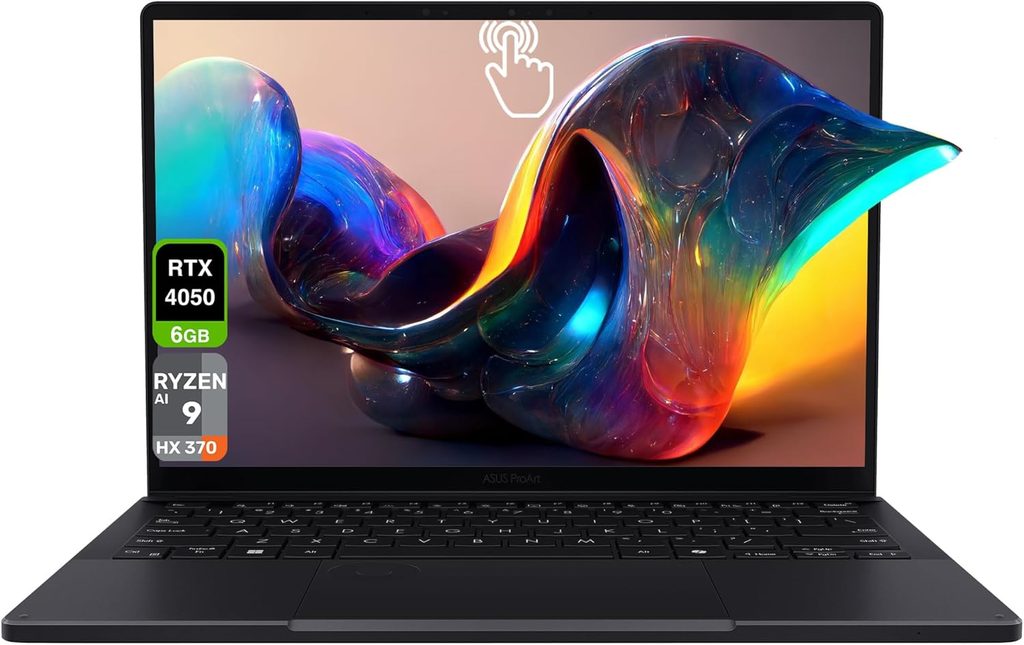
If you need Windows, whether that’s because your studio runs a Windows pipeline or because Resolve is only half your workload, this is where I’d point you. Notebookcheck calls it the best creator laptop available in the Windows world and I’m not going to argue.
Specifications
- CPU: AMD Ryzen AI 9 HX 370, 12C/24T. Four Zen 5 cores at 5.1 GHz, eight Zen 5c at 3.3 GHz, 80 W sustained
- GPU: RTX 5090 Laptop, 24 GB GDDR7, 120 W TDP including 25 W Dynamic Boost
- Memory: 64 GB LPDDR5X-7500, soldered
- Storage: 2× 2 TB M.2, but the second slot is only PCIe 4.0 ×2
- Display: 16″ ASUS Lumina Pro tandem OLED, 3840×2400, 283 PPI, 120 Hz, touch and pen
- Battery: 90 Wh, 240 W adapter (730 g)
- Weight: 1.95 kg / 4.3 lb
- Warranty: 24 months
- Price: $3,999 MSRP as reviewed
The panel is the reason to buy this
Measured on CalMAN with an i1Pro 3:
- ΔE ColorChecker 0.5, maximum 1.4. The best figure of any laptop in this article
- ΔE greyscale 0.6, gamma 2.19, CCT 6565 K
- 666 cd/m² SDR with 99% uniformity
- 1,600 nits HDR peak, around 850 nits on full white
- 100% sRGB, 98.9% Display P3, 88.6% AdobeRGB
- 0.45 ms black-to-white response
Notebookcheck tried to improve the P3 and sRGB profiles with their own calibration and couldn’t. That’s the compliment you want on a grading panel. Out of the box, in the right profile, this thing is closer to correct than a lot of people’s calibrated externals.
The generational jump is worth noting too. The previous ProArt P16 managed around 360 cd/m² SDR and 430 nits HDR. Asus roughly doubled the first number and nearly quadrupled the second.
Where it gives ground
That 120 W GPU ceiling. Even in Manual mode the RTX 5090 in this chassis will not pull more than 120 W:
| Profile | CPU power | Cinebench 2024 multi | GPU power | 3DMark Time Spy Graphics | Fan noise |
|---|---|---|---|---|---|
| Whisper | 60/45 W | 1,153 | 55 W | 11,915 | 42.2 dB(A) |
| Standard | 70/65 W | 1,194 | 105 W | 18,123 | 47.6 dB(A) |
| Performance | 80 W | 1,242 | 120 W | 19,403 | 53.2 dB(A) |
53.2 dB(A) is loud. If you grade in a quiet room with a client next to you, run Whisper and eat the 7% Cinebench hit. You’re mostly GPU-bound in Resolve anyway.
There’s an interesting wrinkle in its Resolve results. The ProArt beats the M5 Pro MacBook by 8.5% on the Extended preset (63.91 against 58.88) while the two are basically level on Standard. Extended leans harder on Resolve’s AI tooling, and that’s exactly where CUDA plus 24 GB of dedicated VRAM earns its money.
What’s good
- Best measured color accuracy in this group at ΔE 0.5, and excellent uncalibrated
- 4K tandem OLED with 1,600-nit HDR and touch and pen support
- 24 GB of VRAM puts every Resolve 21 AI tool within reach
- 64 GB of RAM and two SSD slots as standard
- 1.95 kg, genuinely portable for what’s inside
- Two-year warranty, double Apple’s
- Excellent speakers, keyboard and trackpad
What’s not
- RTX 5090 hard-capped at 120 W, so you pay flagship money for a power-limited flagship
- 53.2 dB(A) under full load
- RAM is soldered, so 64 GB is your permanent ceiling
- Second SSD slot is PCIe 4.0 ×2, which will bottleneck a fast cache drive
- PWM flicker at 480 Hz below 50% brightness, with DC dimming only covering 80% to 50%
- 7 hours 40 minutes of video playback is mediocre
- The CPU is a generation behind the HX-class chips in the MSI and Lenovo
Notebookcheck score: 90%.
3. MSI Raider 16 Max HX — Best for Fusion and Heavy CPU Work
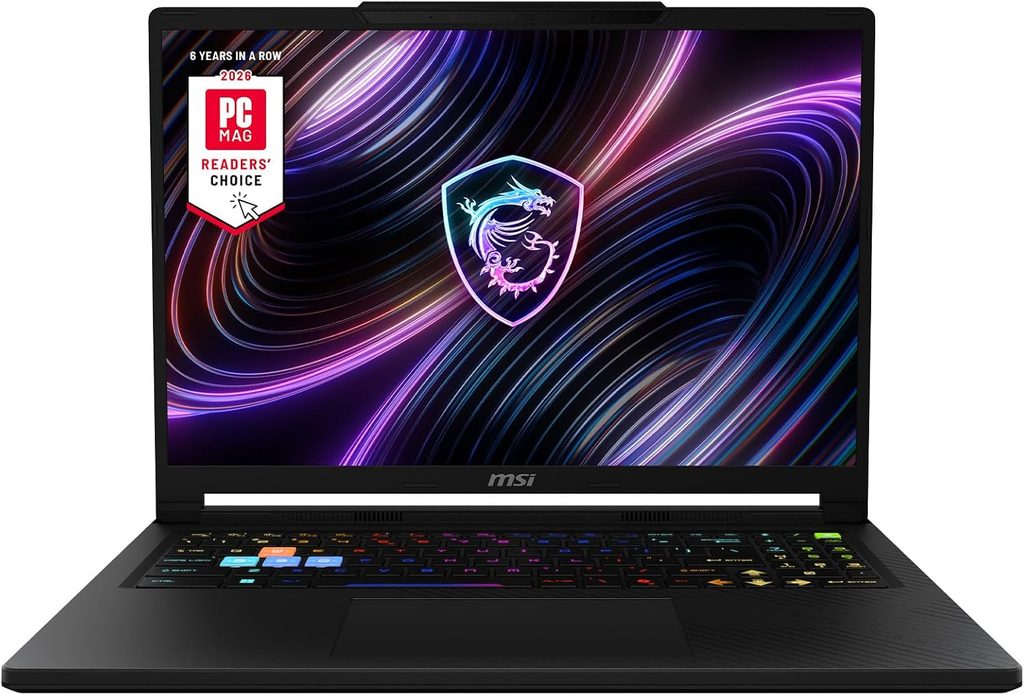
Here’s a distinction most Resolve guides miss entirely. The Color and Edit pages are GPU-dominant. Fusion is not. Fusion behaves differently from the rest of Resolve and leans hard on CPU. If you build comps, do heavy tracking, or run node graphs that would make a compositor wince, the CPU is your bottleneck and no amount of GPU fixes it.
That’s this machine’s whole argument.
Specifications
- CPU: Intel Core Ultra 9 290HX Plus, 24 cores, the 2026 Arrow Lake-HX refresh
- GPU: RTX 5090 Laptop, 24 GB GDDR7 at the full 175 W TGP
- System power ceiling: 300 W via MSI’s OverBoost Ultra
- Memory: 32 GB DDR5-6400 as tested, up to 128 GB in SO-DIMM slots
- Storage: two M.2 slots, one of them PCIe Gen 5
- Display: 16″ Samsung ATNA60HU01-0 OLED, 2560×1600, 240 Hz, DisplayHDR True Black 1000
- Connectivity: 2× Thunderbolt 4, 3× USB-A, HDMI 2.1, SD reader, 2.5 GbE
- Battery: 91.8 Wh
- Weight: 2.6 kg, 400 W adapter
- Price: from $2,999, around $4,099 for the RTX 5090 configuration
Measured performance
Tom’s Hardware’s Geekbench 6 numbers put the gap in perspective. The Raider’s 290HX Plus scored 3,231 single-core and 20,656 multi-core. The Razer Blade 16’s Panther Lake chip in the same review managed 2,895 and 16,971. That’s a 22% multi-core advantage to the MSI, and multi-core is precisely what Fusion renders and CPU-bound encodes care about.
HotHardware measured 514 minutes of video playback, about eight and a half hours, which is genuinely respectable for a 300 W system.
The 128 GB memory ceiling is the other quiet advantage. Blackmagic’s guidance for 6K and 8K workflows starts at 128 GB of system RAM, and this is one of very few 16-inch machines that gets there.
The display
Notebookcheck’s CalMAN measurements: 487.2 cd/m² maximum, 481.4 average, 98% uniformity, ΔE ColorChecker 0.62, ΔE greyscale 0.7, 99.9% sRGB, 99.3% Display P3, 87.5% AdobeRGB, gamma 2.16, CCT 6535 K. PCWorld measured HDR at 614 nits on a full white window and 1,100 nits on a 10% window.
That ΔE of 0.62 out of the box is the second-best figure in this entire article, behind only the ProArt. On a gaming laptop. Nobody expects that.
The catch is the glossy overlay and the lack of G-Sync. If you work near a window, you’ll fight reflections.
The power profile catch
PCWorld found the 290HX Plus is capped at 45 W in the default Balanced profile, where it actually loses to the older 275HX in the Lenovo. Switch to Apex mode and the CPU gets up to 125 W, at which point it pulls clear of everything else.
Same story on the GPU. Multiple reviewers noted you need Apex or Cooler Boost enabled to reach the full 175 W. Configure this laptop before you benchmark it, or you’ll conclude it’s slower than it is.
HotHardware measured it beating several physically larger laptops carrying the same GPU, which suggests MSI’s cooling is doing real work. Tom’s Hardware found it stays cool and quiet under load, which is unusual at this power class.
What’s good
- Highest multi-core CPU performance here at 20,656 Geekbench 6 multi
- RTX 5090 at the full 175 W, not a power-limited version
- Up to 128 GB of user-upgradeable DDR5, the only machine here that reaches Blackmagic’s 8K guidance
- 300 W combined system power
- Two M.2 slots including PCIe Gen 5
- ΔE 0.62 panel accuracy with no calibration needed
- 2.5 GbE, which matters if you pull media off a NAS
- Stays cool and quiet given the power it’s handling
What’s not
- The default power profile leaves a lot of performance on the table
- Reviewers consistently flag the plastic chassis and the lack of a PCIe 5.0 boot drive as poor value at this price
- Very glossy panel, so glare is a real problem in bright rooms
- 2.6 kg plus a 400 W brick
- No Thunderbolt 5 and no G-Sync
4. Razer Blade 16 (2026) — Best for Location Work
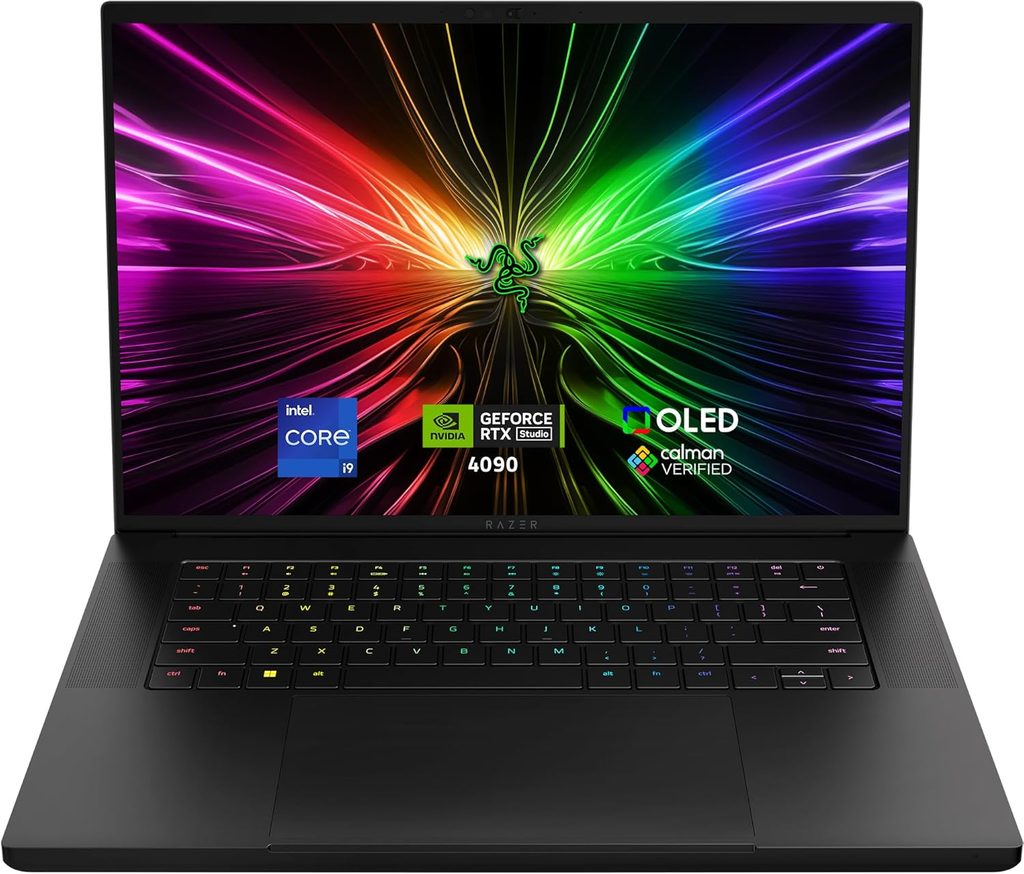
I’ve cut on location. A laptop that’s fast on paper and dead at two in the afternoon is worse than a slower one that’s still running. Razer solved a real problem this year, and I’d argue they did it slightly by accident.
Specifications
- CPU: Intel Core Ultra 9 386H (Panther Lake), 16 cores split 4P/8E/4 LP-E, 4.9 GHz max, 25 W sustained, 80 W max boost, 50 TOPS NPU
- GPU: RTX 5090 Laptop, 24 GB GDDR7, around 160 W measured
- Memory: 32 GB LPDDR5X-9600 soldered, 64 GB option
- Storage: 2 TB PCIe 4.0, dual M.2, expandable to 8 TB
- Display: 16″ Samsung ATNA60HU06-0 OLED, 2560×1600, 240 Hz, factory calibrated
- Ports: Thunderbolt 5, Thunderbolt 4, 3× USB-A, HDMI 2.1, UHS-II SD reader, 3.5 mm
- Cooling: vapor chamber, roughly 0.7 inches thick
- Battery: 90 Wh
- Price: $4,899.99 as tested
The battery figure is the story
Tom’s Hardware’s standard mixed-use test, which combines web browsing, video streaming over Wi-Fi and OpenGL workloads at 150 nits, returned 12 hours and 46 minutes. That’s the longest result they’ve ever recorded from an RTX 5090 laptop. It beats the previous Ryzen-based Blade 16 by more than five hours, the MSI Raider 16 Max HX by more than four, and the Alienware 16 Area-51 by more than nine.
Hardware Canucks measured 17 hours and 20 minutes in a browsing-only test, a 70% improvement over the 2025 model.
The mechanism is simple. The 386H’s 25 W sustained ceiling means the CPU sips power during non-GPU work. Trimming a proxy timeline in a hotel room is exactly that load profile.
Be clear-eyed about the trade though. Once the GPU spins up for a real render, endurance falls back to normal gaming-laptop territory. This is a productivity and travel advantage, not a rendering one.
The display
Notebookcheck measured 472.9 cd/m² maximum, 464.9 average, 97% uniformity, 100% sRGB, 99.7% Display P3 (the widest P3 coverage in this group), 93.5% AdobeRGB, gamma 2.2, CCT 6452 K.
Here’s where I have to be honest with you: ΔE ColorChecker came in at 3.03 out of the box, which is the weakest factory calibration here despite Razer marketing the panel as factory calibrated. The good news is that it drops to 0.6 after calibration, so the panel itself is excellent. But if you’re buying this to grade on and you don’t own a probe, budget for one.
Razer did improve HDR this year, up from 500 to 1,000 nits by Notebookcheck’s account, with Razer rating it at 1,100. Still, at 473 nits SDR this is the dimmest screen in the group by a clear margin. In a bright room you’ll notice.
Where else it gives ground
The same 25 W ceiling that buys the battery life costs multi-threaded performance. Geekbench 6 multi-core lands at 16,971 against 20,656 for the MSI. On a long Fusion render or a CPU-bound encode, you’ll feel that 22%.
What’s good
- 12 hours 46 minutes mixed-use runtime, the best of any RTX 5090 laptop tested
- RTX 5090 at around 160 W in a 0.7-inch chassis with vapor chamber cooling
- Thunderbolt 5 plus a UHS-II SD reader, which is a genuinely good ingest setup
- 99.7% Display P3, the widest coverage here, and 93.5% AdobeRGB
- Dual M.2 slots supporting up to 8 TB
- 50 TOPS NPU for Resolve’s AI features
- Doesn’t look like a gaming laptop when a client walks in
What’s not
- $4,899.99, the most expensive machine here by a distance
- ΔE 3.03 out of the box, so plan on calibrating it
- 473 nits is the dimmest panel in this group
- Weakest multi-core CPU of the Windows options
- 32 GB soldered on the standard configuration, so 64 GB is a permanent decision at checkout
- PCIe 4.0 storage rather than Gen 5
5. Lenovo Legion Pro 7i (16IAX10H) — Best Value
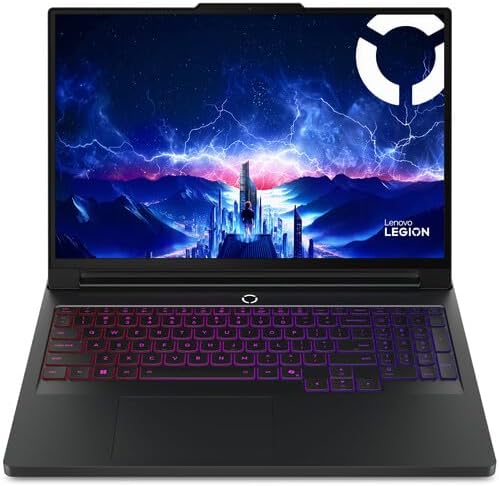
This is the least glamorous pick here and probably the smartest one for most people reading.
Specifications
- CPU: Core Ultra 9 275HX or 290HX Plus, 24C/24T, up to 5.4 GHz
- GPU: RTX 5090 at the full 175 W, with RTX 5080 and 5070 Ti options
- Memory: up to 64 GB DDR5-6400 in two user-replaceable CSODIMM slots
- Storage: dual M.2, one PCIe Gen 4 and one Gen 5
- Display: 16″ Samsung ATNA60HU01-0 OLED, 2560×1600, 240 Hz
- Battery: 99.9 Wh, the largest here alongside the MacBook
- Weight: 2.32 kg, 400 W adapter
- Price: $2,699.99 with RTX 5070 Ti, around $3,599 with RTX 5080
The case for it
PC Gamer called the RTX 5080 version the best high-performance gaming laptop they’ve tested. PCWorld, reviewing the MSI Raider 16 Max HX, concluded outright that the Legion Pro 7i is the better buy for most people. That’s a competing publication saying it about a machine that costs over a thousand dollars less.
Notebookcheck’s sustained Cinebench R15 loop is where you see why it holds up under long renders: the Legion Pro 7i averaged Ø5,698 points across the run, against Ø3,489 for the 2025 Blade 16 and Ø3,112 for the Zephyrus G16. Sustained multi-core throughput is exactly what a long Fusion render or an H.265 export is asking for.
The display
Notebookcheck measured 507.3 cd/m² maximum, 497.8 average, 97% uniformity, 100% sRGB, 99.5% Display P3, 94.4% AdobeRGB (the widest here), gamma 2.24, CCT 6373 K. LaptopMedia measured HDR at 1,065 nits on an 8% window and 598 nits on full white.
Out of the box, ΔE ColorChecker is 3.2, which as I mentioned earlier is disappointing given the MSI hits 0.62 on identical glass. Calibrate it and it drops to 0.84. Do that on day one.
Which GPU to actually buy
This is where the money decision lives. The RTX 5080 carries 16 GB of VRAM against the 5090’s 24 GB. For 4K work with a sane node count, 16 GB is comfortable. For 6K or 8K, heavy noise reduction, or the Resolve 21 AI tools with hard VRAM floors, it isn’t, and that’s the specific case where paying up makes sense.
The two user-replaceable SO-DIMM slots also mean you can buy 32 GB now and go to 64 GB later. Every machine here except the MSI makes that call permanent at checkout.
What’s good
- Best price-to-performance ratio on Windows by a comfortable margin
- RTX 5090 at the full 175 W, same as the far more expensive MSI
- User-upgradeable RAM, which is rare and genuinely valuable
- Dual M.2 including PCIe Gen 5
- 99.9 Wh battery, the largest in the Windows group
- 94.4% AdobeRGB, the widest coverage here
- Ø5,698 sustained Cinebench R15, well ahead of the thin-and-light competition
- Configurations from RTX 5070 Ti all the way to 5090
What’s not
- ΔE 3.2 out of the box on a panel that measures 0.62 in a rival machine
- Around six hours of video playback, the shortest runtime here
- 400 W power brick is heavy and awkward to travel with
- Looks like a gaming laptop, because it is one
- 64 GB memory ceiling against the MSI’s 128 GB
- Only one Thunderbolt port
The Resolve Dollar
Here’s a way of looking at this I haven’t seen anyone else use. Take the published PugetBench for DaVinci Resolve Studio Standard score, divide the price by it, and you get dollars per point of Resolve performance.
| Laptop | Price | Resolve Standard | $ per point |
|---|---|---|---|
| MacBook Pro 16, M5 Pro (20-core, 24 GB, 1 TB) | $2,699 | 83.56 | $32.30 |
| MacBook Pro 16, M5 Max (40-core, 48 GB, 2 TB) | $4,399 | 127.09 | $34.61 |
| Asus ProArt P16, RTX 5090 (64 GB, 4 TB) | $3,999 | 85.11 | $46.99 |
Two honest caveats. The ProArt is carrying 4 TB of storage and 64 GB of RAM, which inflates its price against the MacBooks, and a like-for-like configuration would narrow that gap. And this only works for machines Notebookcheck ran through the same Resolve benchmark, which is these three.
But the finding survives both caveats. The base M5 Pro MacBook Pro 16 is the most cost-efficient Resolve laptop currently measurable, and it costs $1,300 less than the RTX 5090 machine it matches on the Standard preset.
If you don’t need CUDA and you don’t need Windows, that’s the number I’d think hardest about.
As for the MSI, the Razer and the Lenovo, nobody has published a PugetBench Resolve score for them yet, so I’m not going to invent one. What I can tell you with confidence is that all three run the RTX 5090 at 160 to 175 W against the ProArt’s 120 W, so the ProArt’s 85.11 should be treated as the floor for RTX 5090 laptops rather than the ceiling. That’s inference from measured power, not a measurement, and I’d rather label it honestly than dress it up.
Things I’d tell a friend that the spec sheets won’t
Check the card reader before you commit. Everyone ignores this and then loses twenty minutes per card. The MacBook Pro’s SDXC reader managed 180 MB/s on Notebookcheck’s copy test with an Angelbird AV Pro V60. A Lenovo ThinkPad with SD Express support hit 531 MB/s with the right card. The MacBook doesn’t support SD Express at all. Over a shoot week that’s hours of your life.
PWM flicker is a genuine occupational issue. You’ll stare at this panel for ten hours straight. The MacBook’s mini-LED flickers at 14,880 Hz, high enough that essentially nobody perceives it. The ProArt’s OLED uses PWM at 480 Hz below 50% brightness, with DC dimming only between 80% and 50%. If you’re sensitive, keep it above 50% or use Asus’s flicker-free dimming option.
No laptop panel is a grading reference. Not the 1,737-nit mini-LED, not the ΔE 0.5 tandem OLED. Both are excellent previews. If you’re delivering broadcast or theatrical you still need a calibrated external through a Decklink or UltraStudio. What a good laptop panel buys you is the confidence to make decisions on location that you won’t have to redo later.
Free versus Studio changes your GPU math. The free edition of Resolve is limited to a single GPU no matter how many you have. Studio can address up to eight, though Puget Systems finds performance typically peaks around three or four. More relevant for laptop users, Studio includes GPU-accelerated H.264 encode and decode, which is often a large speedup on that footage. If you shoot H.264, Studio pays for itself in render time.
Buy your RAM and storage at checkout. The MacBook, the ProArt and the Razer all use soldered memory. Only the MSI and the Lenovo let you add later. Decide your five-year ceiling now, not in eighteen months.
On the M6 question. Apple put the M6 in the refreshed Mac mini in August 2026, alongside an M5 Ultra Mac Studio. The MacBook Pro line hasn’t moved to M6 yet. If you can wait a cycle, waiting is defensible. If you need a machine this quarter, the M5 Max isn’t going to feel slow to you.
So which one should you actually buy
You cut ProRes, BRAW or H.265 and want the fastest thing that exists. MacBook Pro 16 with M5 Max. Set the power profile to High Power before you render anything long.
Your budget is tight and macOS is acceptable. MacBook Pro 16 with M5 Pro at $2,699. It matches a $4,000 RTX 5090 laptop on PugetBench Resolve Standard. This is the best value in the entire category and it isn’t close.
Your studio runs Windows and color accuracy is the job. Asus ProArt P16. ΔE 0.5 out of the box, 4K tandem OLED, 24 GB of VRAM. Live with the 120 W GPU and the fan noise.
You build heavy Fusion comps or work in 6K and 8K. MSI Raider 16 Max HX with the RAM you’ll actually need. Enable Apex mode on day one or you’re wasting your money.
You edit on location. Razer Blade 16 (2026). Twelve hours and forty-six minutes is a different working life. Budget for a colorimeter.
You want the most Resolve per dollar on Windows. Lenovo Legion Pro 7i. Take the RTX 5080 for 4K work. Step up to the 5090 only if you genuinely need the 24 GB. Calibrate the screen immediately.
What I’d skip
Anything with 8 GB of VRAM, if you work above 1080p. The VRAM cliff is a cliff, not a slope. You’ll be fine right until you aren’t, and then you’re stuck.
14-inch machines with flagship chips. The MacBook Pro 14 with M5 Max runs about 15% slower than the 16 and throttles. You’re paying flagship money for a chip the chassis can’t feed.
Last-generation M4 Max deals at near-current prices. The gap to M5 Max is real but not enormous, around 14 to 15% multi-core, so a steep discount can be rational. Just don’t pay close to new money for it.
Intel Macs, full stop. Resolve 21 doesn’t run on them. That door is shut.
Frequently asked questions
Is DaVinci Resolve better on Mac or Windows in 2026? On measured performance, Mac, by a wide margin. In identical-version PugetBench for DaVinci Resolve Studio testing, the M5 Max MacBook Pro 16 scored 127.09 Standard against 85.11 for an RTX 5090 Asus ProArt P16. Windows still wins on CUDA-specific plugins, hardware upgradeability, and some AI-tool workloads where 24 GB of dedicated VRAM helps.
How much VRAM do I need for DaVinci Resolve? The official Resolve 21 minimum is 4 GB. Practically, 12 GB is the floor for comfortable 4K work and 24 GB removes the question entirely. Several Resolve 21 AI tools, including IntelliSearch analysis and AI Motion Blur removal, carry hard VRAM minimums and will refuse to load the model if you don’t meet them.
How much system RAM do I need? Resolve 21 requires 16 GB on Windows, or 32 GB if you use Fusion. For real 4K production, target 64 GB. For 6K and 8K, Blackmagic’s guidance points to 128 GB.
Does DaVinci Resolve 21 run on Intel Macs? No. Resolve 21 requires Apple Silicon and macOS 15 Sequoia or later.
Is an RTX 5090 laptop worth it over an RTX 5080 for Resolve? Only if you need the VRAM. The 5090 laptop GPU carries 24 GB against the 5080’s 16 GB. For standard 4K timelines, 16 GB is fine and the money is better spent on RAM or storage. For 6K and 8K, heavy noise reduction, or Resolve 21’s AI tools, the 24 GB matters.
Why is my RTX 5090 laptop slower than someone else’s RTX 5090 laptop? TGP. The same GPU runs at 120 W in the Asus ProArt P16 and 175 W in the MSI Raider 16 Max HX, a 46% difference. Check measured TGP, not the model name. Then check your power profile, because MSI’s default Balanced mode caps the CPU at 45 W against 125 W in Apex.
Do I need Resolve Studio, or is the free version enough? Studio adds GPU-accelerated H.264 encode and decode, multi-GPU support, and the Neural Engine AI tools. If you shoot H.264 or use AI features, the speedup is substantial. The free edition is limited to a single GPU regardless of what’s in your machine.
Is the MacBook Pro 14 with M5 Max a bad buy? It runs about 15% slower than the 16-inch model on both CPU and GPU, with less stable sustained performance, because the chassis can’t move the heat. It’s still faster than any comparably sized Windows machine. But if you can carry the 16, carry the 16.
Which of these laptops has the most accurate screen out of the box? The Asus ProArt P16 at ΔE ColorChecker 0.5, followed closely by the MSI Raider 16 Max HX at 0.62. The Razer (3.03) and the Lenovo (3.2) both need calibrating, though both clean up well once you do.
Should I wait for an M6 MacBook Pro? Apple shipped the M6 in the Mac mini as of August 2026 but hasn’t updated the MacBook Pro line. If you can wait a cycle, that’s a reasonable call. If you need a machine now, the M5 Max is not going to disappoint you.
Sources
Every measurement above is attributed. The primary sources:
- Notebookcheck — display measurements on X-Rite i1Pro 3 with CalMAN, power and thermal measurements, battery runtime, storage and card-reader throughput, sustained Cinebench loops, and the cross-platform PugetBench for DaVinci Resolve Studio comparison run on Resolve Studio 20.3 with PugetBench 2.0.0 across identical builds
- Tom’s Hardware — battery runtime, Geekbench 6, file transfer and gaming benchmarks for the Razer Blade 16 (2026) and MSI Raider 16 Max HX
- HotHardware — video playback runtime and sustained performance testing on the MSI Raider 16 Max HX
- PCWorld — HDR brightness measurement and power-profile testing on the MSI Raider 16 Max HX, battery testing on the Lenovo Legion Pro 7i
- LaptopMedia — HDR and SDR brightness measurements on the Lenovo Legion Pro 7i
- Hardware Canucks — browsing battery runtime on the Razer Blade 16 (2026)
- Puget Systems — DaVinci Resolve hardware recommendations, PugetBench methodology, multi-GPU and Free-versus-Studio scaling
- Blackmagic Design — Resolve 21 system requirements and forum statements from Blackmagic engineering regarding AI-tool VRAM floors
- NoobFeed, PC Gamer, Macworld, AppleInsider, NanoReview — supporting benchmark, runtime and pricing data
Prices are US MSRP or as-configured figures at time of writing and they move constantly. Check before you buy.
Spotted an error, or got a lab result I should include? Let me know. I keep this updated as new measurements get published.

Hi, my name is Burak. I am a mechanical engineer. I have been writing laptop reviews for the Engineering Laptops website since 2020. Please feel free to contact me if you have any questions.





