
Table of contents
- The short answer
- Quick comparison
- Why bookkeeping is its own category
- What I looked at, and why
- Best Laptop for a Bookkeeping Business in 2026: I Compared 5 Machines the Way an Accountant Actually Works
- The metric nobody publishes: how many rows do you actually see?
- Head-to-head
- The four-year cost table
- Buying guide
- Frequently asked questions
- The verdict
Here’s my problem with almost every laptop review I read: it wasn’t written for you.
Reviewers test machines by rendering video, playing Cyberpunk and running Cinebench in a loop. That’s fine — it’s the job. But you don’t render video. You sit in front of a spreadsheet for nine hours, hop between six client portals, punch numbers into a keypad, and then in the last week of the quarter you ask the poor thing to rebuild a 2 GB company file while a panicking client is on Teams.
That’s a completely different kind of hard. And a laptop that wins at gaming can absolutely fall on its face at it.
So I went at this differently. I pulled every independent lab measurement I could find on the 2026 crop — Notebookcheck, Tom’s Hardware, PCWorld, Macworld, iFixit — and then reorganised all of it around the questions a bookkeeper actually has. How many rows do I see without scrolling? Does the fan whine when I’m on a client call? What happens to the battery when I leave the office? What does this thing cost me over four years, not four minutes?
Every number below comes from a lab that published it, and I’ve credited each one where it sits. Nothing is estimated, nothing is left blank.
Let’s get into it.
The short answer
| You are… | Buy this | Roughly |
|---|---|---|
| A solo or small-firm bookkeeper who wants one machine that does everything | Lenovo ThinkPad X1 Carbon Gen 14 (IPS panel) | $2,030–$2,250 |
| Someone who lives inside enormous spreadsheets and wants screen | Dell XPS 16 (2026) | from $1,750 |
| Cloud-only — Xero, QuickBooks Online, Wave — and you want silence | Apple MacBook Air (M5) | from $1,099 |
| Buying for a team, thinking five to seven years out | Lenovo ThinkPad T14 Gen 7 | from $1,618 |
| After maximum speed in the lightest possible business chassis | Asus ExpertBook Ultra B9406 | ~$2,200+ |
One hard rule before anything else: if your practice runs QuickBooks Desktop or Sage 50, buy Windows. Not “probably Windows.” Windows. I’ll explain why in the Apple section, and I’m not going to be diplomatic about it.
Quick comparison
| ThinkPad X1 Carbon G14 | Dell XPS 16 (2026) | MacBook Air M5 | ThinkPad T14 Gen 7 | Asus ExpertBook Ultra B9406 | |
|---|---|---|---|---|---|
| Tested CPU | Core Ultra 5 325 | Core Ultra 5 325 / X7 358H | Apple M5 (10-core) | Core Ultra 5 325 | Core Ultra X7 358H |
| Geekbench 6 single | 2,620 | 2,635 (Ultra 7 355) | 4,168 | 2,576 | 2,836 |
| Geekbench 6 multi | 11,038 | 11,107 (Ultra 7 355) | 17,067 | 10,575 | 16,674 |
| Battery (Wi-Fi, 150 nits) | 23 h 13 m | ~27 h (FHD+ config) | 16 h 11 m | 60 Wh / 75 Wh options | 16 h 06 m |
| Screen brightness (measured) | 524 nits avg, matte | 400+ nits, glossy OLED | 458.8 nits, glossy | 404 nits avg, matte | 612 nits avg, glossy OLED |
| Fan noise under load | 38.9 dB(A) | — | None. Fanless | Quiet | 45.2 dB(A) max |
| Weight | 1.14 kg (IPS) / 0.99 kg (OLED) | 1.65 kg | 1.24 kg (13″) / 1.51 kg (15″) | 1.45 kg | 1.1 kg |
| RAM ceiling | 64 GB soldered | 32 GB soldered | 32 GB unified | 64 GB, upgradeable | 64 GB soldered |
| Ethernet on board | No | No | No | Yes | No |
| External displays | 3+ | 3+ | 1 only | 3+ | 3+ |
| Lab score | 90% (Notebookcheck) | 87% for XPS 14 sibling | 92% (Notebookcheck) | 89% (Notebookcheck) | 87.6% (Notebookcheck) |
Why bookkeeping is its own category
Let me spend a minute here, because it changes every recommendation that follows.
You’re single-thread bound, not multi-thread bound. Excel recalculates most formula chains on one core. You can throw twenty-four cores at a workbook full of nested XLOOKUPs and SUMIFS and watch twenty-three of them sit there doing nothing. Which is why a machine with a monstrous multi-core score can feel slower than a thin ultrabook with a fast single core. Chase single-core speed and fast memory. Ignore core count.
Your screen is your desk. Every extra row you can see without scrolling is one more reconciliation where you don’t lose your place. That’s why further down I’ve worked out how many rows each of these actually shows you — a number nobody publishes, and one that matters far more to you than colour gamut coverage.
Your data is other people’s money. Tax numbers, bank details, payroll records. If that laptop gets lifted off a café table, “it had a password on it” is not a defence. You want full-disk encryption, a TPM, and Windows 11 Pro rather than Home, because Home makes BitLocker management genuinely painful.
You have a crunch season and then ten quiet months. Which means sustained thermal behaviour and fan noise matter far more than peak burst scores.
And you keep laptops a long time. Most bookkeepers I know run a machine five to seven years. That makes repairability and battery replacement a real line item, not a nerd talking point.
What I looked at, and why
I didn’t run a stopwatch on anything. What I did was pick, out of the mountain of published test data, the specific measurements that predict how a machine will behave in an accounting practice — and then throw away everything else.
Here’s my shortlist and what each one is standing in for.
Geekbench 6 single-core → this is my Excel recalculation proxy. If you only look at one performance number on this page, look at this one.
Cinebench multi-core and the R15 loop → sustained multi-thread work. This is your OCR batch, your bulk PDF export, your document-automation tool. The loop matters more than the single run, because it shows what happens after five minutes rather than after five seconds.
LibreOffice: 20 documents to PDF → Notebookcheck runs this and I love it, because it’s the closest thing in any standard suite to real office work. Batch document generation, mixed CPU and I/O.
PCMark 10 Productivity → spreadsheet and word processing simulation. Not perfect, but it’s the only mainstream benchmark that even tries.
SSD 4K random read/write → company files and PDF archives are thousands of small reads, not one big sequential one. Sequential numbers look impressive on a box; 4K numbers are what you feel when a folder opens.
Wi-Fi throughput at 150 nits and battery at 150 nits → 150 nits is roughly what a normal office is lit to. Battery figures at maximum brightness are marketing. Battery figures at 150 nits are the ones that tell you whether you’ll make it through a day at a client site.
Fan noise in dB(A) and surface temperature → because you’re on video calls, and because the laptop sits on your lap sometimes.
PWM flicker → this one gets ignored constantly and it shouldn’t. Some panels dim by switching the backlight on and off very fast. If you’re staring at nine-point numbers for nine hours and you’re one of the people sensitive to it, that’s headaches by 3pm.
iFixit repairability → year four, when the battery has lost a third of its capacity and a USB-C port has gone wobbly.
Best Laptop for a Bookkeeping Business in 2026: I Compared 5 Machines the Way an Accountant Actually Works
1. Lenovo ThinkPad X1 Carbon Gen 14 — best overall
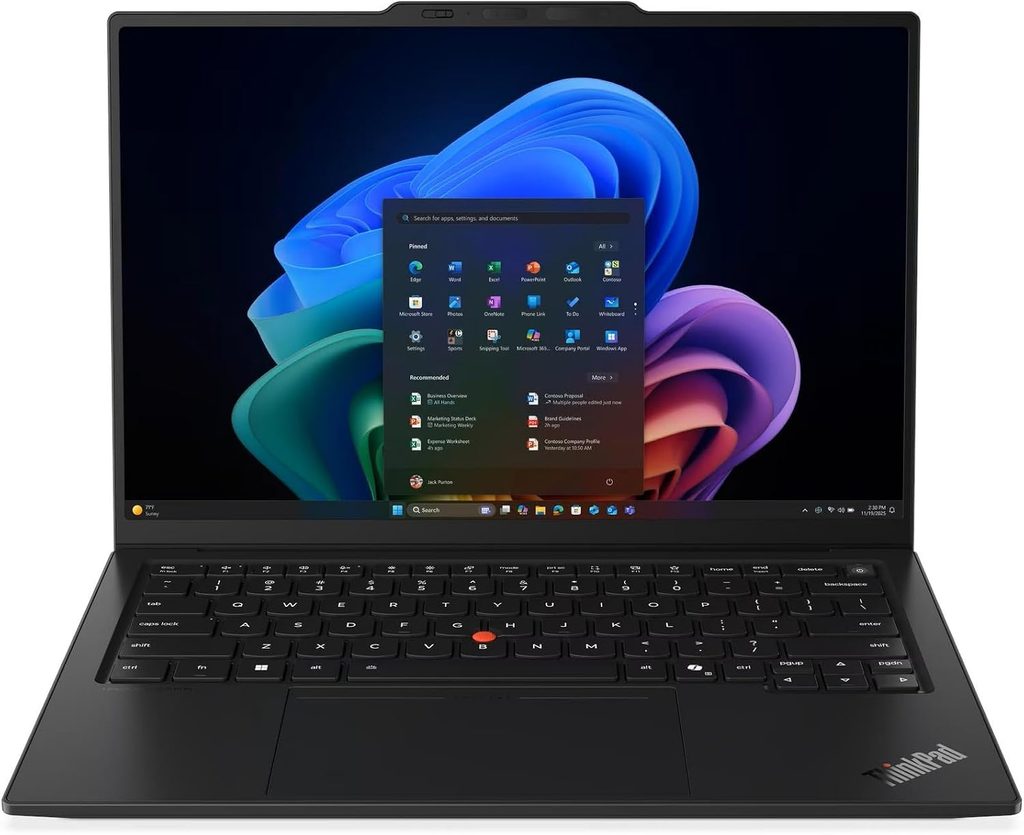
Who it’s for: the bookkeeper who visits clients, wants one machine for everything, and is finished arguing with hardware.
I genuinely did not want to put a ThinkPad at number one again. It felt lazy. Then I looked at the battery result.
Notebookcheck measured 23 hours and 13 minutes of Wi-Fi web browsing at 150 nits on the base IPS configuration — from a 58 Wh battery. That’s not a typo and it’s not an outlier. Even at maximum panel brightness it still ran for 14 hours 14 minutes, which beat every rival in their comparison group. For context, the Gen 13 model with a nearly identical 57 Wh cell managed 11 to 14 hours depending on panel.
And the screen is the part that seals it. That base IPS panel measured 524 nits average, 546 at brightest point, with a 1800:1 contrast ratio, 99.1% sRGB coverage, and no PWM flicker detected at any brightness level. It’s matte. It’s a spreadsheet screen in the truest sense.
Specifications
- CPU: Intel Core Ultra 5 325 (Panther Lake, 8 cores / 8 threads, 4× 4.5 GHz P-core + 4× 3.4 GHz LP E-core, 35 W sustained). Core Ultra 7 355 and Core Ultra X7 368H also available
- Graphics: Intel Graphics 4 Xe3; Arc B390 on the Core Ultra X configurations
- RAM: 32 GB minimum on every SKU, up to 64 GB LPDDR5X-7467, soldered
- Storage: M.2 2280, PCIe 4.0 as tested (Samsung PM9C1b 512 GB), slot supports PCIe 5.0 drives
- Display: 14″ 1920×1200 IPS matte 60 Hz (the one to buy), or 14″ 2880×1800 OLED 120 Hz
- Battery: 58 Wh, 65 W USB-C GaN charger
- Ports: 3× Thunderbolt 4, USB-A 3.2 Gen 1 (always-on), HDMI, 3.5 mm, Kensington Nano, nano-SIM
- Wireless: Intel Wi-Fi 7 BE211 (320 MHz), Bluetooth 5.4, optional 4G/5G WWAN
- Security: 5 MP IR webcam, fingerprint reader in the power button, Windows Hello Enhanced Sign-in, TPM, Windows 11 Pro
- Weight: 1.139 kg with the IPS panel, 989 g with OLED
- Warranty: 36 months standard
- Price: from roughly $2,030, with typical builds landing $2,200–$2,750
The numbers
| Test | Result | Source |
|---|---|---|
| Geekbench 6 single-core | 2,620 | Notebookcheck |
| Geekbench 6 multi-core | 11,038 | Notebookcheck |
| Cinebench 2024 single / multi | 113.3 / 645 | Notebookcheck |
| Cinebench R23 single / multi | 1,892 / 10,980 | Notebookcheck |
| Cinebench R15 multi loop average | 1,617 pts | Notebookcheck |
| LibreOffice: 20 documents to PDF | 43.6 s | Notebookcheck |
| PCMark 10 overall | 7,709 | Notebookcheck |
| PCMark 10 Productivity | 13,901 | Notebookcheck |
| SSD sequential read (CrystalDiskMark) | 6,900 MB/s | Notebookcheck |
| SSD 4K random read / write | 67.7 / 173.8 MB/s | Notebookcheck |
| SSD access time read / write | 0.058 / 0.026 ms | Notebookcheck |
| Screen brightness average | 524 nits (546 max) | Notebookcheck |
| Contrast ratio | 1800:1 (black 0.3 nits) | Notebookcheck |
| PWM flicker | None detected | Notebookcheck |
| sRGB coverage | 99.1% | Notebookcheck |
| Colour accuracy out of box / calibrated | ΔE 5.0 / ΔE 1.1 | Notebookcheck |
| Idle noise | 24.8 dB(A) | Notebookcheck |
| Load noise, Best Performance mode | 38.9 dB(A) | Notebookcheck |
| Load noise, Best Efficiency mode | 29 dB(A) | Notebookcheck |
| Max surface temp, top / bottom | 40.7 °C / 42.8 °C | Notebookcheck |
| Palm rest temperature under load | 28.7 °C — cooler than skin | Notebookcheck |
| Battery, Wi-Fi at 150 nits | 23 h 13 m | Notebookcheck |
| Battery, Wi-Fi at max brightness | 14 h 14 m | Notebookcheck |
| Battery, OLED version at 150 nits | 13 h 30 m | Notebookcheck |
| Wi-Fi 7 transmit throughput | 4,557 Mbit/s | Notebookcheck |
| Repairability | 9/10 | iFixit |
| Overall rating | 90% | Notebookcheck |
What it’s like to actually work on
The keyboard is why ThinkPad people are ThinkPad people, and it’s still the best here. 1.5 mm of travel, dished keycaps, two-stage backlight that now has an auto mode. If you write client memos and file notes all day this is a real quality-of-life upgrade over everything else on this page.
Now, the thing you need to get right: buy the IPS panel, not the OLED.
I know how that sounds. But look at the numbers again. The OLED drops battery life from 23 h 13 m to 13 h 30 m at 150 nits, and from 14 h 14 m down to about 7 h 36 m at full brightness. That’s roughly ten hours gone. Notebookcheck also noted that the OLED renders bright content grainier than the IPS — and small black-on-white text is the exact content where that shows up worst. There’s been a steady drumbeat of the same complaint from owners about text clarity and whites reading slightly grey.
The one thing to know before you buy: the factory calibration on the IPS is genuinely bad. Distinct green-blue cast, ΔE of 5.0 out of the box, greyscale ΔE of 8.3. Lenovo does this deliberately to push the brightness number up. Calibrating fixes it beautifully — ΔE drops to 1.1 — but costs you nearly 100 nits. My advice for bookkeeping specifically: leave it uncalibrated. You’re not colour-grading anything, and you’d rather have the brightness.
One config quirk worth knowing: the IPS models get an aluminium base and weigh 1.14 kg; the OLED models get a magnesium base and come in under 1 kg. So the lighter machine is also the one with worse battery life. Pick your trade.
Pros
- 23-hour measured battery life on the IPS configuration — the best real endurance in this class
- 524-nit matte panel with 1800:1 contrast and zero PWM flicker
- The best keyboard on this list, and it’s not close
- 9/10 repairability from iFixit despite the thinness — user-replaceable SSD and battery
- Palm rest stays at 28.7 °C under full load, cooler than your hand
- 3× Thunderbolt 4 plus USB-A and HDMI — you can charge from either side
- 32 GB RAM as the minimum on every SKU, 64 GB available
- Optional 5G, which is quietly brilliant if you work from client premises
Cons
- The most expensive recommendation here
- RAM is soldered — buy the capacity you’ll need in year four, today
- Factory colour calibration is poor out of the box
- OLED option costs you around ten hours of battery
- Multi-core performance drops about 16% on battery (25 W cap versus 35 W plugged in)
- The camera bump on the lid is genuinely ugly
- No numeric keypad
My pick: Core Ultra 7 355, 32 GB, 1 TB, low-power IPS touch panel, Windows 11 Pro, three-year onsite.
2. Dell XPS 16 (2026) — best screen for big spreadsheets
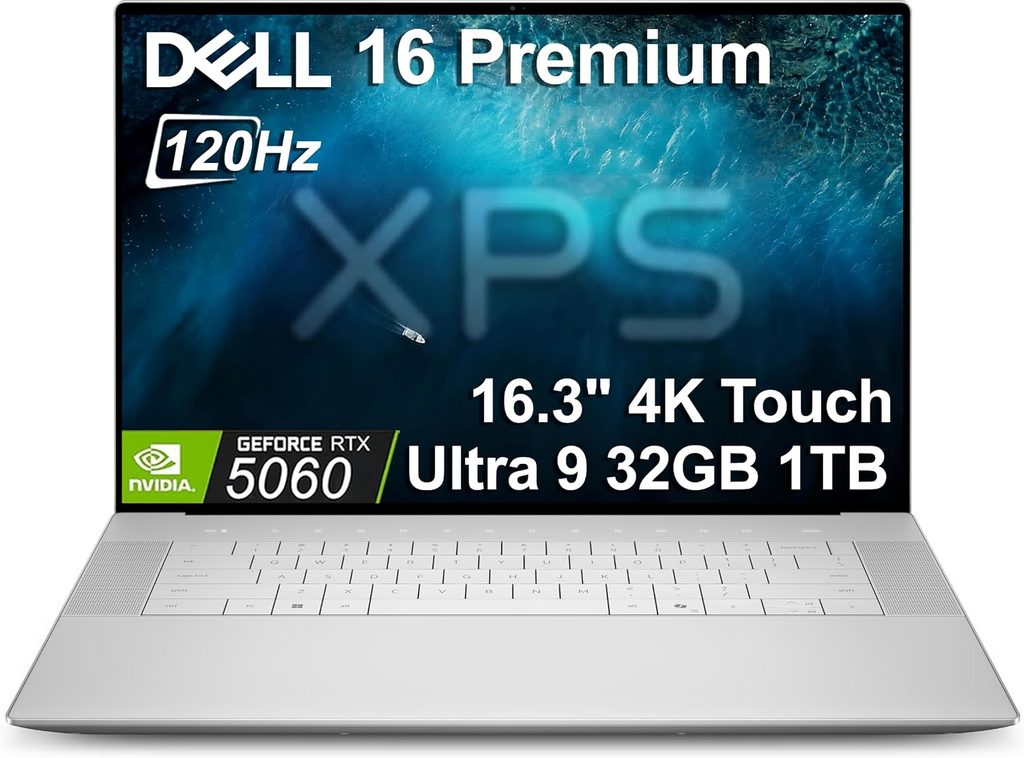
Who it’s for: you have two monitors at your desk, but when you travel you refuse to work on a 14-inch postage stamp.
Dell spent 2024 annoying everyone with a redesign nobody asked for, then spent 2025 annoying everyone again by retiring the XPS name entirely. In 2026 they came back with the name restored and — irritatingly — made something excellent.
The efficiency number on this thing is the most surprising result in this whole article. Notebookcheck measured the XPS 16 averaging 1.5 W at idle on the desktop at minimum brightness with VRR on. Competing 16-inch machines like the Zenbook S16 or MSI Prestige 16 draw 3 to 5 W doing the same nothing. Push the brightness to maximum and it only climbs to 4.5 W.
The payoff: almost 27 hours in their Wi-Fi loop test at 150 nits on the Balanced profile. On a 16-inch laptop. From a 70 Wh battery.
Specifications
- CPU: Intel Core Ultra 5 325, Core Ultra 7 355, or Core Ultra X7 358H (Panther Lake)
- Graphics: Intel Graphics 4 Xe3; Arc B390 on the X7. No discrete GPU option this year, which for us is fine
- RAM: 16 or 32 GB LPDDR5X (up to 9600 MT/s on higher SKUs), soldered
- Storage: single M.2 PCIe slot — no second drive, and that’s a real annoyance
- Display: 16″ 3200×2000 tandem OLED touch 120 Hz, or 16″ 1920×1200 IPS matte 120 Hz
- Battery: 70 Wh
- Ports: three Thunderbolt 4 / USB4 40 Gbps, 3.5 mm, Kensington. That is the complete list
- Wireless: Wi-Fi 7, Bluetooth 6.0
- Camera: 8 MP HDR, Windows Hello
- Weight: 1.65 kg with OLED, 1.74 kg with the LCD
- Price: about $1,750 for the Core Ultra 5 325, up to roughly $2,160 for the X7 358H with OLED touch
The numbers
| Test | Result | Source |
|---|---|---|
| Battery, Wi-Fi loop at 150 nits, Balanced + VRR | ~27 hours | Notebookcheck |
| Idle power draw, minimum brightness | 1.5 W average | Notebookcheck |
| Idle power draw, maximum brightness | 4.5 W average | Notebookcheck |
| OLED full-screen white brightness | 400+ nits | PCWorld |
| OLED colour accuracy | ΔE1976 average 0.8, max 1.52 | PCWorld |
| OLED gamut | 100% DCI-P3, 100% sRGB | PCWorld |
| Refresh behaviour | 120 Hz, drops to 20 Hz on static content | PCWorld |
| Geekbench 6 single / multi (Ultra 7 355) | 2,635 / 11,107 | Tom’s Hardware |
| Cinebench R26 multi, X7 358H | ~3,721 | NoobFeed |
| Cinebench R26 multi, Ultra 5 325 | ~2,282 | NoobFeed |
| Cinebench R26 single, X7 358H | ~510 | NoobFeed |
| Sustained CPU power cap | 27 W, even in Ultra Performance | NoobFeed |
| XPS 14 sibling, same test, 150 nits | 16 h 45 m | Notebookcheck |
| Overall rating (XPS 14 sibling) | 87% | Notebookcheck |
The catch you need to know about
Dell caps the processor at 27 W even in Ultra Performance mode. Most competing Panther Lake machines let the chip run at 40 to 45 W. NoobFeed measured exactly what that costs: the X7 configuration lands around 3,721 in Cinebench R26 multi-core, while Lenovo’s Slim 7i Ultra with the identical processor hits roughly 4,315 — in a thinner chassis. That’s a 16% gap that exists purely because of Dell’s power limit.
Does it matter to you? For spreadsheet recalculation, no. Those are single-core and I/O bound and the XPS 16 is right in the mix. For a heavy OCR batch, yes, you’re leaving performance on the table.
Avoid the Core Ultra 5 325 configuration on this machine. NoobFeed’s numbers on it were rough — around 2,282 in Cinebench R26 multi, and a Firefox compile that stretched past 54 minutes. On a laptop costing over $1,700, that’s not acceptable. Step up to the Ultra 7 355 at minimum.
The other thing: I’d think hard about glossy OLED versus matte IPS here. That OLED measures beautifully — 0.8 average ΔE is proper photo-editing accuracy — but it is glossy, and if you sit anywhere near a window you’ll spend the day looking at your own reflection behind column F. The matte FHD+ panel is also the configuration that produced the 27-hour battery number.
Pros
- Roughly 27 hours of measured battery life — best on this list by a distance
- Idles at 1.5 W, which is the reason for the above
- 16-inch 3200×2000 panel measuring 0.8 average ΔE and 100% DCI-P3
- 120 Hz that intelligently drops to 20 Hz on static content — quietly perfect for reading ledgers
- CNC aluminium build, lighter than the model it replaces
- Three Thunderbolt 4 ports, so at least the ports it has are fast
Cons
- USB-C only. No USB-A, no HDMI, no microSD, no Ethernet. Budget for a dock
- Only one M.2 slot, so no internal backup drive
- RAM caps at 32 GB and it’s soldered
- Core temperatures get very warm under sustained load
- No webcam privacy shutter
- Dell’s 27 W cap leaves roughly 16% of multi-core performance unused
- The base configuration is poor value; you have to spend up
My pick: Core Ultra 7 355, 32 GB, 1 TB. Take the matte FHD+ if you work near daylight, the OLED if you don’t.
3. Apple MacBook Air (M5) — best battery and silence
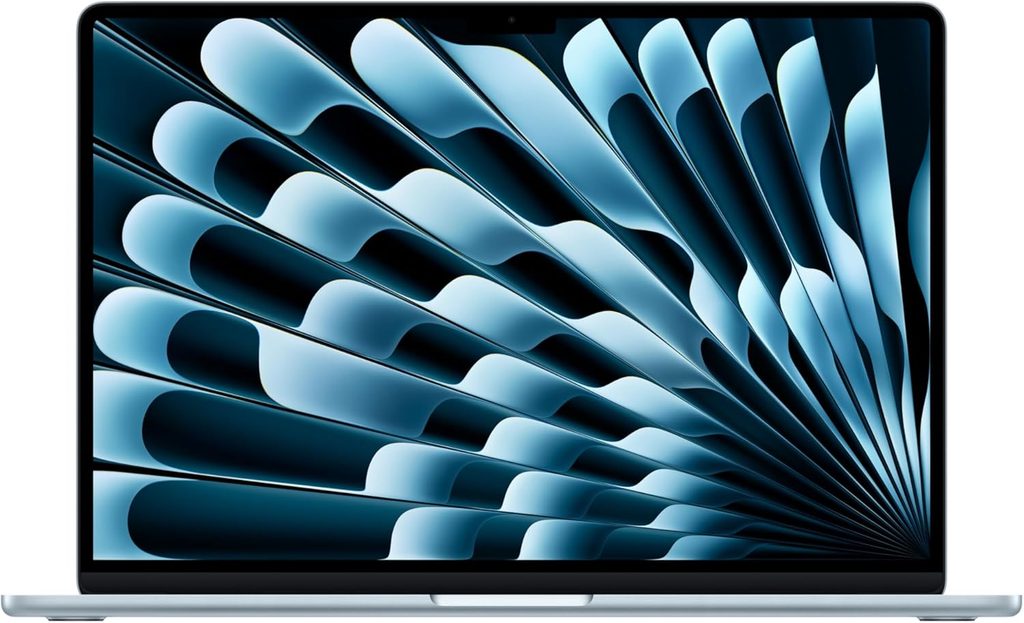
Who it’s for: cloud-only practices. Xero, QuickBooks Online, Wave, FreshBooks, Zoho Books. If those are your tools, read on. If you touch QuickBooks Desktop, skip to number four.
Let me deal with the elephant immediately.
QuickBooks Desktop does not run on macOS. Intuit discontinued QuickBooks for Mac and the Desktop editions are Windows-only. Yes, you can run Parallels. Yes, it mostly works. No, I will not tell you to run your clients’ books through a virtualisation layer on a fanless laptop. When a company file corrupts at 11pm in the last week of the quarter, “I was running it in a VM” is the worst sentence in the English language.
If you’re cloud-native though? This is a lovely machine and it is the quietest laptop you will ever own — Apple’s own ECMA-109 acoustic filings put it at 3 to 4 dB at the operator position, which is another way of saying there is nothing to measure.
Specifications
- CPU: Apple M5, 10 cores (4 performance + 6 efficiency)
- Graphics: 8-core GPU on the base 13″, 10-core on higher configs and the 15″
- RAM: 16 GB base, up to 32 GB unified, soldered
- Storage: 512 GB base (up from 256 GB last generation), up to 4 TB
- Display: 13.6″ 2560×1664 or 15.3″ Liquid Retina, 224 ppi, 60 Hz, P3 gamut, glossy
- Battery: 53.8 Wh on the 13″, 66.5 Wh on the 15″
- Weight: 1.24 kg (13″), 1.51 kg (15″)
- Camera: 12 MP Center Stage
- Cooling: none whatsoever
- Charging: USB-C and MagSafe 3
- Price: from $1,099 for the 13″, roughly $1,199–$1,299 for the 15″ depending on where and when you buy — Apple raised prices across the line on 25 June 2026
The numbers
| Test | Result | Source |
|---|---|---|
| Geekbench 6 single-core | 4,168 | Tom’s Hardware |
| Geekbench 6 multi-core | 17,067 | Tom’s Hardware |
| Cinebench 2026 stress test, opening score | 3,415 | Tom’s Hardware |
| Cinebench 2026 stress test, settled score | low 2,300s | Tom’s Hardware |
| SSD sequential read (Blackmagic) | 6,351 MB/s | PCMasters |
| SSD sequential write (Blackmagic) | 6,220 MB/s | PCMasters |
| Battery, Wi-Fi at 150 nits | 16 h 11 m | Notebookcheck |
| Battery, Wi-Fi at max brightness | 6 h 39 m | Notebookcheck |
| Battery, mixed browsing/video at 150 nits | 15 h 28 m | Tom’s Hardware |
| Battery, video loop at 150 nits | 18 h 24 m | Macworld |
| Screen brightness measured | 458.8 nits | Tom’s Hardware |
| Colour volume | 83.1% DCI-P3, 117.3% sRGB | Tom’s Hardware |
| Operating noise | 3–4 dB, ECMA-109 | Apple regulatory filings |
| Overall rating | 92% | Notebookcheck |
That single-core score is the headline. 4,168 in Geekbench 6 is roughly 59% ahead of the fastest Intel chip on this page, and Excel recalculation is a single-core task. If you live in spreadsheets — and Excel for Mac is a genuinely good application now — this machine will feel faster than anything else here.
The stress test tells you the flip side. Cinebench 2026 opens at 3,415 and settles in the low 2,300s as the fanless chassis heats up. That’s about a 32% fall-off. For a twenty-minute OCR batch, that’s a real cost. For a day of reconciliations, you will never once encounter it.
The SSD is worth flagging too. Apple roughly doubled storage throughput this generation — 6,351 MB/s read against about 3 GB/s on the M4. If your workflow involves dragging huge PDF archives around, you’ll feel that.
The dealbreaker most reviews bury
The MacBook Air drives exactly one external display. One.
Go and look at your desk right now. If there are two monitors on it, this laptop cannot do your job, and no amount of Apple silicon efficiency changes that. There are DisplayLink workarounds. They add latency, they add a kernel driver, and they occasionally break after a macOS update. If you’re a two-monitor bookkeeper — and most serious ones are — you need a MacBook Pro or you need Windows.
The second thing: 60 Hz, no ProMotion. Every Windows machine here runs at 120 Hz. After a week on 120 Hz, scrolling a long ledger at 60 feels like wading. It’s not a functional problem. It’s a small tax you pay every day.
And a battery detail worth knowing: that 16 h 11 m figure is at 150 nits. Crank the panel to full and it collapses to 6 h 39 m. Notebookcheck also found the M5 is actually fractionally worse than the M4 at max brightness — same 53.8 Wh cell, more performance, so something had to give. Keep the brightness sensible and it’s an all-day machine. Run it at 100% and it isn’t.
Pros
- Fastest single-core performance here by a wide margin, and that’s the number that governs Excel
- Completely silent. No fan, no vents, nothing at all. In a quiet home office this is transformative
- 16 hours of real, measured battery at office brightness
- SSD throughput roughly doubled this generation
- 512 GB is now the base storage, which fixes the M4’s biggest annoyance
- Build quality nobody else matches, and macOS handles sleep/wake far better than Windows does
- FileVault is on by default and is essentially foolproof
Cons
- One external display, full stop
- No QuickBooks Desktop
- 60 Hz panel in a 120 Hz year
- Battery falls to 6 h 39 m at maximum brightness
- Throttles roughly 32% on sustained multi-core work
- Glossy screen — reflections are a daily irritation in a bright office
- Nothing is upgradeable or repairable, so spec it correctly at purchase
- 32 GB RAM ceiling
- Apple’s June 2026 price rise made this a worse deal than it was in spring
My pick: 15-inch, 24 GB RAM if the configurator offers it, 512 GB. 16 GB with thirty browser tabs and Excel open is tighter than Apple’s marketing suggests.
4. Lenovo ThinkPad T14 Gen 7 — best for the long haul
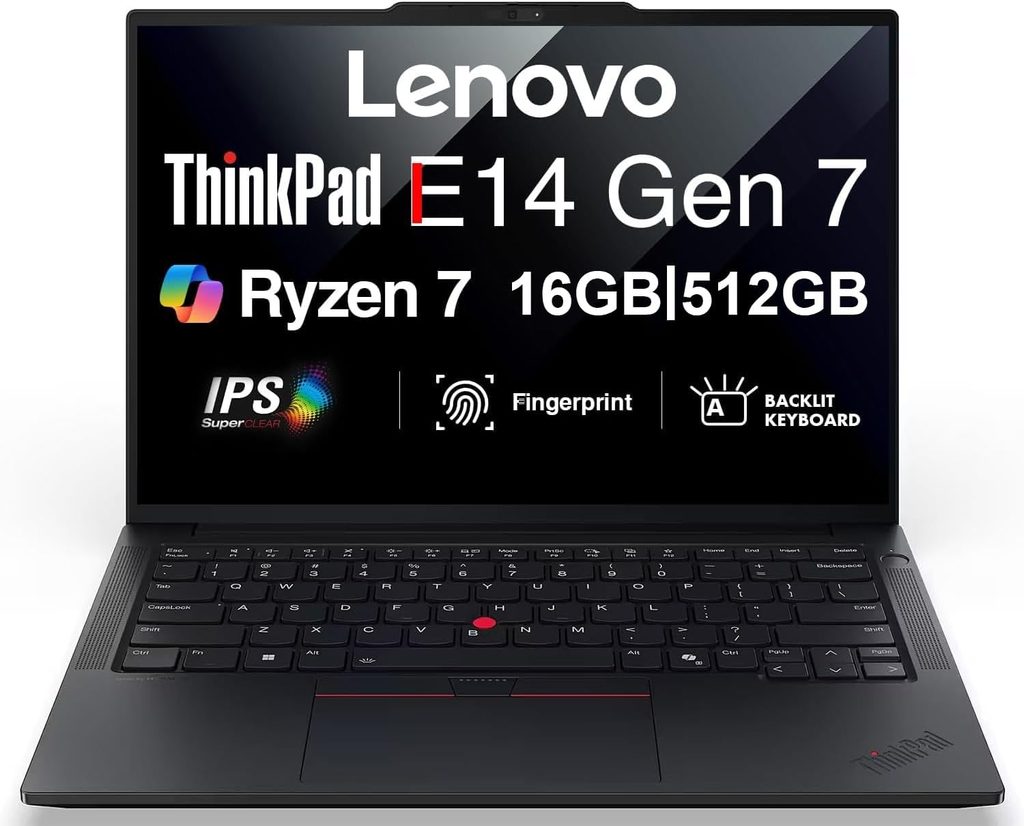
Who it’s for: you’re buying three or five of these for a team, or you’re a solo bookkeeper who intends to still be using this machine in 2033.
This is the one I’d buy with my own money, and the reason is boring and unglamorous: iFixit gave it a perfect 10 out of 10 for repairability. Lenovo worked directly with iFixit on the design, and the T16 Gen 5 scored the same.
Here’s what that means in practice, because “repairability” sounds like a press release until you need it.
The battery is no longer screwed in — you release it with a button. The RAM uses LPCAMM2, so it’s fast and low-power like soldered memory but you can actually replace or upgrade it, up to 64 GB. The USB-C ports are modular; when one wears out in year four — which is the single most common laptop failure I see in small offices — you swap the module rather than the mainboard. The fan can be opened and cleaned without disturbing the thermal paste. Per Notebookcheck’s teardown, the only soldered components are the CPU and the Wi-Fi card. There’s a modular M.2 2280 SSD plus a free M.2 2242 slot if you want to add 5G later. And the keyboard remains user-replaceable, as it always has been on this series.
Do that arithmetic over seven years and it isn’t close.
Specifications
- CPU: ten different Panther Lake options, from Core Ultra 5 325 up to Core Ultra X7 358H with Arc B390. AMD Ryzen AI PRO 400 series also available
- RAM: LPCAMM2, up to 64 GB LPDDR5X, user-replaceable
- Storage: M.2 2280 modular, up to 2 TB from the factory, plus a free M.2 2242 slot
- Display: four matte 14″ options — WUXGA 400 nit, Privacy Guard WUXGA 500 nit touch, Low Power WUXGA 500 nit 100% sRGB touch, or 2880×1800 OLED 500 nit 120 Hz VRR
- Battery: 60 Wh or 75 Wh depending on configuration
- Ports: 2× Thunderbolt 4, HDMI, 2× USB-A 3.2 Gen 1, RJ45 Ethernet, 3.5 mm, Kensington, smartcard reader, nano-SIM
- Wireless: Intel Wi-Fi 7 BE211, Bluetooth 5.4, optional 4G/5G
- Security: fingerprint reader, 5 MP IR camera with physical ThinkShutter, Kensington lock, smartcard reader, TPM, Windows 11 Pro
- Weight: 1.447 kg, 23.5 mm at the thickest point
- Warranty: 36 months, international, with optional Premier onsite and five-year extension
- Price: from $1,618 on Lenovo.com; the review configuration was €1,760
The numbers
| Test | Result | Source |
|---|---|---|
| Geekbench 6 single-core | 2,576 | Notebookcheck |
| Geekbench 6 multi-core | 10,575 | Notebookcheck |
| Cinebench R23 single / multi | 1,896 / 10,487 | Notebookcheck |
| Cinebench R15 multi loop average | 1,364 pts | Notebookcheck |
| LibreOffice: 20 documents to PDF | 45.6 s | Notebookcheck |
| 7-Zip single-thread | 5,316 MIPS | Notebookcheck |
| Screen brightness average | 404 nits (422 max) | Notebookcheck |
| Contrast ratio | 1279:1 (black 0.33 nits) | Notebookcheck |
| Greyscale accuracy | ΔE 1.8 | Notebookcheck |
| Colour accuracy | ΔE 4.2 | Notebookcheck |
| sRGB coverage (base panel) | 60% — poor | Notebookcheck |
| PWM flicker | None detected | Notebookcheck |
| Sustained power, Best Performance | 25 W (44 W burst) | Notebookcheck |
| CPU throttle on battery | ~10% | Notebookcheck |
| Wi-Fi 7 transmit throughput | 3,902 Mbit/s | Notebookcheck |
| Repairability | 10/10 | iFixit |
| Lifecycle CO₂ | 111 kg CO₂e, down from Gen 6 | Notebookcheck |
| Overall rating | 89% | Notebookcheck |
Notebookcheck’s honest verdict was that against the Lunar Lake Gen 6, this base Gen 7 is closer to a sidegrade than a leap. That’s fair — 10,575 in Geekbench multi is a shade behind the 11,174 the Gen 6 managed. But they also called it cool, quiet, long-lasting and ideal for office environments, with the RAM upgradeable again and repairability dramatically improved. Which is a very accurate description of what a bookkeeping laptop should be.
Two things worth calling out
The base screen is the weak point. 404 nits and no PWM are both fine, but 60% sRGB coverage is genuinely poor and 1279:1 contrast is average. For spreadsheets you honestly won’t care — black text on white doesn’t need a wide gamut — but if you ever handle client branding or marketing material, spend the money on the Low Power WUXGA panel, which hits 500 nits and full sRGB and helps the battery too.
The smartcard reader is the sleeper feature. Every review lists it in a spec bullet and moves on. For bookkeepers it might be the most important item there. If you file electronically in a jurisdiction that uses smartcard-based digital signatures — Turkey’s e-imza, Estonia’s ID card, Belgium’s eID, and a long list of others — having the reader built into the chassis rather than dangling off a USB port is the difference between filing from a client’s kitchen table and not filing at all. It’s also one fewer thing to lose. None of the other four machines here have one.
It’s also, incidentally, the only laptop on this list with Ethernet built in. If you’ve ever tried to set up at a client’s site where the Wi-Fi password is written on a Post-it that nobody can find, you’ll understand why that matters.
Pros
- Perfect 10/10 iFixit repairability
- LPCAMM2 memory: fast and upgradeable to 64 GB
- Modular, replaceable USB-C ports — this alone saves a mainboard replacement
- Tool-free battery swap, user-replaceable keyboard, fan cleanable without repasting
- Built-in Ethernet and a smartcard reader
- Physical webcam shutter and the full business security stack
- Runs cool and quiet — genuinely pleasant in a shared office
- No PWM flicker on the panel
- 36-month international warranty as standard
Cons
- Expensive for what the base configuration delivers
- Raw performance stagnates versus the Gen 6 it replaces
- Base panel covers only 60% of sRGB
- The SSD throttles under sustained load
- Heavier than the X1 Carbon by roughly 27%
- No numeric keypad — the T16 Gen 5 is your answer there
- Slight hinge wobble on the new single-piece design
My pick: Core Ultra 7 355, 32 GB LPCAMM2, 1 TB, the Low Power WUXGA 500-nit panel, 75 Wh battery, Windows 11 Pro, three-year Premier onsite. Skip the OLED and put the money into the warranty.
5. Asus ExpertBook Ultra B9406 — most machine per gram
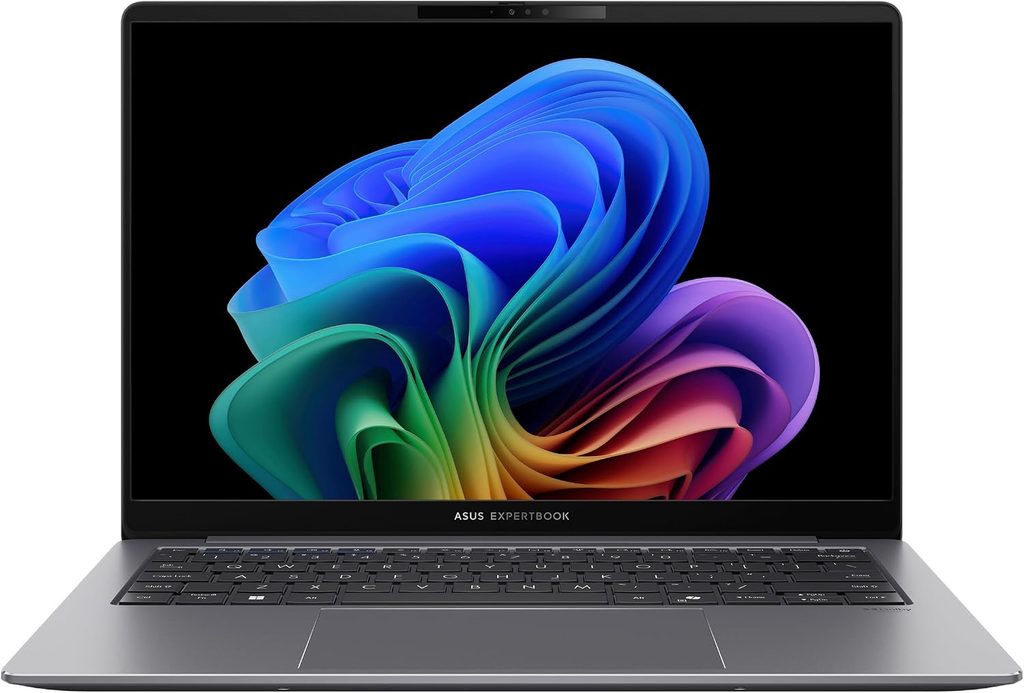
Who it’s for: you want the fastest business laptop you can carry in a folio, and you’re not paying a ThinkPad tax to get it.
This is the outlier of the group and I nearly didn’t include it. Then I looked at what Asus fits into 1.1 kg and 15.9 mm: a Core Ultra X7 358H with the full Arc B390 graphics, 32 GB, a 2 TB Samsung PM9E1, and a 2880×1800 OLED. It is, by a distance, the fastest machine here that isn’t a Mac.
Specifications
- CPU: Intel Core Ultra X7 358H (Panther Lake, 16 cores)
- Graphics: Intel Arc B390 — the top Panther Lake iGPU, twelve Xe3 cores
- RAM: up to 64 GB, soldered
- Storage: Samsung PM9E1, up to 2 TB, PCIe 5.0
- Display: 14″ 2880×1800 OLED 120 Hz
- Battery: 70 Wh
- Wireless: Intel Wi-Fi 7 BE211
- Weight: 1.1 kg
- Price: roughly $2,200 and up depending on configuration and region
The numbers
| Test | Result | Source |
|---|---|---|
| Geekbench 6 single-core | 2,836 | Notebookcheck |
| Geekbench 6 multi-core | 16,674 | Notebookcheck |
| Cinebench 2024 single / multi | 124.2 / 1,125 | Notebookcheck |
| Cinebench R23 single / multi | 2,079 / 19,841 | Notebookcheck |
| Cinebench R15 multi loop average | 2,886 pts | Notebookcheck |
| PCMark 10 overall | 9,298 | Notebookcheck |
| PCMark 10 Productivity | 14,899 | Notebookcheck |
| LibreOffice: 20 documents to PDF | 51.9 s | Notebookcheck |
| SSD sequential read | 8,711 MB/s | Notebookcheck |
| SSD queued sequential read | 14,067 MB/s | Notebookcheck |
| SSD access time read | 0.033 ms | Notebookcheck |
| Screen brightness average | 612 nits (600.5 centre) | Notebookcheck |
| Colour accuracy out of box / calibrated | ΔE 1.18 / ΔE 0.73 | Notebookcheck |
| Gamut | 96.2% DCI-P3, 100% sRGB | Notebookcheck |
| PWM flicker | Detected at 968.8 Hz, 100% amplitude | Notebookcheck |
| Response time, black to white | 0.94 ms | Notebookcheck |
| Idle noise | 22.9 dB(A) | Notebookcheck |
| Load noise, average / maximum | 28.6 / 45.2 dB(A) | Notebookcheck |
| Max surface temp, top / bottom | 38.6 °C / 38.4 °C | Notebookcheck |
| Battery, Wi-Fi at 150 nits | 16 h 06 m | Notebookcheck |
| DPC latency (audio/video stability) | 398 µs — best in class | Notebookcheck |
| Overall rating | 87.6% | Notebookcheck |
Look at that PCMark 10 Productivity score — 14,899, the highest here. And the SSD is on another level entirely: 8,711 MB/s sequential, 14,067 MB/s queued, and a 0.033 ms read access time that’s roughly twice as responsive as the drives in the ThinkPads. If you open enormous folders of scanned documents all day, that’s a difference you’d actually notice.
The DPC latency figure of 398 µs is also worth a mention that it never gets. It’s the best result in Notebookcheck’s whole comparison group by a factor of seven, and it’s the number that predicts whether your audio stutters and your video call drops frames while the machine is busy. For someone doing client calls with a spreadsheet open, that’s not nothing.
The one thing that might rule it out
This panel uses PWM dimming at 968.8 Hz with 100% amplitude. Every other screen on this list came back clean. If you’re one of the people who gets eye strain or headaches from flickering backlights — and a meaningful minority are — nine hours a day on this panel will hurt. If you’re not, you’ll never notice, and you’ll get one of the best-measuring displays here: 612 nits average, ΔE of 1.18 straight out of the box, 96.2% DCI-P3.
It’s also glossy, which for spreadsheet work I’ll never love, and the fan can hit 45.2 dB(A) at full tilt, which is the loudest reading on this page. Under a normal office load it sits at 28.6 dB(A) and you won’t hear it.
Pros
- Fastest Windows machine here by a wide margin — 16,674 Geekbench 6 multi
- Highest PCMark 10 Productivity score on this page
- Extraordinary SSD: 8,711 MB/s sequential and 0.033 ms access time
- 1.1 kg and 15.9 mm — lighter than everything except the OLED X1 Carbon
- Exceptional panel measurements: 612 nits, ΔE 1.18 uncalibrated
- Best-in-class DPC latency, so calls stay smooth under load
- Cool surfaces: never exceeds 38.6 °C on top
- 16 hours of measured battery from 70 Wh
Cons
- PWM flicker at 968.8 Hz, full amplitude — the only machine here with it
- Glossy OLED, so reflections in a bright office
- Loudest fan here at full load: 45.2 dB(A)
- Soldered RAM
- No numeric keypad, no Ethernet, no smartcard reader
- Asus’s business support network is thinner than Lenovo’s or Dell’s in most regions
- Expensive for a machine without ThinkPad-grade serviceability
My pick: Core Ultra X7 358H, 32 GB, 1 TB. And go and look at the panel in person first if you’re at all flicker-sensitive.
The metric nobody publishes: how many rows do you actually see?
This is the one I keep coming back to, because after two decades of watching people work in spreadsheets I’m convinced it matters more than any benchmark on this page.
The maths is simple. Excel’s default row height is 20 pixels at 96 DPI. A maximised window with the ribbon, formula bar, column headers, status bar and taskbar eats roughly 300 pixels. So the rows you see equal your logical vertical resolution minus 300, divided by 20 — and logical resolution is your panel resolution divided by your display scaling.
That last part is the bit people miss. A 3200×2000 panel does not show you more rows than a 1920×1200 one if Windows is running it at 200% scaling, because at 200% it’s showing you a logical 1600×1000. You bought sharper text, not more spreadsheet.
Here’s how they land at the scaling each ships with by default, and at the aggressive setting if you’re happy to squint a bit:
| Laptop | Panel | Default scaling | Rows visible | At aggressive scaling | Rows visible |
|---|---|---|---|---|---|
| ThinkPad X1 Carbon G14 | 14″ 1920×1200 IPS | 125% | 33 | 100% | 45 |
| ThinkPad T14 Gen 7 | 14″ 1920×1200 IPS | 125% | 33 | 100% | 45 |
| Asus ExpertBook Ultra | 14″ 2880×1800 OLED | 200% | 30 | 150% | 45 |
| Dell XPS 16, FHD+ | 16″ 1920×1200 IPS | 125% | 33 | 100% | 45 |
| Dell XPS 16, OLED | 16″ 3200×2000 OLED | 200% | 35 | 150% | 51 |
| MacBook Air 15″ | 15.3″ Liquid Retina | Default | ~35 | “More Space” | ~44 |
| MacBook Air 13″ | 13.6″ 2560×1664 | Default | ~30 | “More Space” | ~38 |
Calculated from panel resolution and default display scaling using Excel’s 20 px default row height and roughly 300 px of window chrome. Your figures will vary a little with ribbon state and taskbar settings.
Two things fall out of this that I think are genuinely useful.
First, the XPS 16 with the OLED is the only machine here that gives you more than 45 rows without making text uncomfortable, because the 16-inch diagonal lets you run 150% scaling on a 3200-pixel-tall panel and still read it. Fifty-one rows against thirty-three is not a small difference over an eight-hour reconciliation.
Second, a 13-inch laptop is a bad primary bookkeeping machine, and now you can see exactly why. Thirty rows. You will scroll for a living.
The practical takeaway for everyone else: go into Windows display settings and drop the scaling one notch below whatever it recommends. It costs you nothing, it takes ten seconds, and it’s worth twelve extra rows.
Head-to-head
Single-core — the Excel number
| Laptop | Geekbench 6 single | Source |
|---|---|---|
| MacBook Air M5 | 4,168 | Tom’s Hardware |
| Asus ExpertBook Ultra (X7 358H) | 2,836 | Notebookcheck |
| Dell XPS 16 (Ultra 7 355) | 2,635 | Tom’s Hardware |
| ThinkPad X1 Carbon G14 (Ultra 5 325) | 2,620 | Notebookcheck |
| ThinkPad T14 Gen 7 (Ultra 5 325) | 2,576 | Notebookcheck |
Apple is roughly 47% ahead of the best Intel chip here. That is a very large gap, and it’s the single strongest argument for a Mac in a cloud-only practice.
Multi-core — the batch-processing number
| Laptop | Geekbench 6 multi | Source |
|---|---|---|
| MacBook Air M5 | 17,067 | Tom’s Hardware |
| Asus ExpertBook Ultra | 16,674 | Notebookcheck |
| Dell XPS 16 (Ultra 7 355) | 11,107 | Tom’s Hardware |
| ThinkPad X1 Carbon G14 | 11,038 | Notebookcheck |
| ThinkPad T14 Gen 7 | 10,575 | Notebookcheck |
Battery — measured, not claimed
| Laptop | Result | Test conditions | Source |
|---|---|---|---|
| Dell XPS 16 (2026) | ~27 hours | Wi-Fi loop, 150 nits, Balanced, VRR | Notebookcheck |
| ThinkPad X1 Carbon G14, IPS | 23 h 13 m | Wi-Fi, 150 nits | Notebookcheck |
| Dell XPS 14 (2026) | 16 h 45 m | Wi-Fi, 150 nits, Balanced | Notebookcheck |
| MacBook Air 13″ M5 | 16 h 11 m | Wi-Fi, 150 nits | Notebookcheck |
| Asus ExpertBook Ultra | 16 h 06 m | Wi-Fi, 150 nits | Notebookcheck |
| ThinkPad X1 Carbon G14, IPS, max brightness | 14 h 14 m | Wi-Fi, full brightness | Notebookcheck |
| ThinkPad X1 Carbon G14, OLED | 13 h 30 m | Wi-Fi, 150 nits | Notebookcheck |
| Dell 14 Premium (2025) | 10 h 48 m | Wi-Fi, 150 nits, Balanced | Notebookcheck |
| MacBook Air 13″ M5, max brightness | 6 h 39 m | Wi-Fi, full brightness | Notebookcheck |
| Dell XPS 14 (2024) | 7 h 45 m | Wi-Fi, 150 nits, Balanced | Notebookcheck |
Look at the Dell rows together, because they tell the most important story in this entire article. Same lab, same test, near-identical 69.5 Wh battery: 7 h 45 m in 2024, 10 h 48 m in 2025, 16 h 45 m in 2026. That’s Intel’s 18A Panther Lake platform, and it is the single strongest reason not to buy a discounted 2025 laptop right now, however tempting the price looks.
Screen
| Laptop | Panel | Brightness | Contrast | Colour accuracy | PWM |
|---|---|---|---|---|---|
| Asus ExpertBook Ultra | 14″ OLED glossy | 612 nits avg | Effectively infinite | ΔE 1.18 | 968.8 Hz, 100% |
| ThinkPad X1 Carbon G14 | 14″ IPS matte | 524 nits avg | 1800:1 | ΔE 5.0 (1.1 calibrated) | None |
| MacBook Air M5 | 13.6″ IPS glossy | 458.8 nits | — | 83.1% P3 volume | None reported |
| Dell XPS 16 OLED | 16″ OLED glossy | 400+ nits | Effectively infinite | ΔE1976 0.8 | None reported |
| ThinkPad T14 Gen 7 | 14″ IPS matte | 404 nits avg | 1279:1 | ΔE 4.2 | None |
Sources: Notebookcheck for the ThinkPads and ExpertBook, Tom’s Hardware for the MacBook Air, PCWorld for the XPS 16.
Storage
| Laptop | Drive | Sequential read | 4K random read | Access time |
|---|---|---|---|---|
| Asus ExpertBook Ultra | Samsung PM9E1 2 TB | 8,711 MB/s | 57.2 MB/s | 0.033 ms |
| MacBook Air M5 | Apple NVMe | 6,351 MB/s | — | — |
| ThinkPad X1 Carbon G14 | Samsung PM9C1b 512 GB | 5,129 MB/s | 67.7 MB/s | 0.058 ms |
| ThinkPad T14 Gen 7 | Samsung PM9C1b 512 GB | Same drive family | Same drive family | Same drive family |
Sources: Notebookcheck (AS SSD sequential), PCMasters (Blackmagic, for the Mac).
Worth noting: both ThinkPads ship the same 512 GB Samsung PM9C1b, and it’s the weak component in an otherwise excellent machine — Notebookcheck flagged that it throttles under sustained load in the T14. Both have upgradeable M.2 slots, and the X1 Carbon’s slot supports faster PCIe 5.0 drives. Spend the money there.
Noise and heat
| Laptop | Idle | Load | Max surface temp |
|---|---|---|---|
| MacBook Air M5 | 3–4 dB (fanless) | 3–4 dB (fanless) | Doesn’t get uncomfortable |
| Asus ExpertBook Ultra | 22.9 dB(A) | 28.6 avg / 45.2 max dB(A) | 38.6 °C top |
| ThinkPad X1 Carbon G14 | 24.8 dB(A) | 38.9 dB(A) | 40.7 °C top, 42.8 °C bottom |
| ThinkPad T14 Gen 7 | Quiet | Quiet | Cool |
Sources: Notebookcheck, Apple ECMA-109 filings.
The X1 Carbon deserves special mention here: even at 40.7 °C on the deck, the palm rest measured 28.7 °C — cooler than skin temperature. Nine hours a day with your wrists on a machine, that’s a detail you feel long after you’ve stopped caring about benchmarks.
The four-year cost table
Sticker price is not what a laptop costs you. Here’s a more honest model. I’ve costed downtime at one lost billable day at $400, which for most bookkeepers is conservative.
| X1 Carbon G14 | XPS 16 | MacBook Air 15″ | T14 Gen 7 | ExpertBook Ultra | |
|---|---|---|---|---|---|
| Purchase, my recommended config | ~$2,250 | ~$2,160 | ~$1,499 | ~$1,850 | ~$2,200 |
| Dock and adapters needed | $0 | ~$200 | ~$150 | $0 | ~$120 |
| Three-year onsite warranty upgrade | ~$180 | ~$200 | ~$400 (AppleCare+) | ~$180 | ~$180 |
| Year-three battery replacement | ~$120, user-fitted | ~$280, service only | ~$200, service only | ~$110, tool-free | ~$260, service only |
| Expected downtime over four years | 0.5 days | 1.5 days | 1.0 days | 0.25 days | 1.0 days |
| Downtime cost at $400/day | $200 | $600 | $400 | $100 | $400 |
| Four-year total | ~$2,750 | ~$3,440 | ~$2,649 | ~$2,240 | ~$3,160 |
Purchase and accessory figures are market prices as of August 2026. Battery and warranty costs are typical manufacturer service pricing. Downtime is my own estimate based on serviceability — a machine with a tool-free battery and modular ports simply spends less time away from your desk than one that has to be shipped back.
The rankings flip completely. The Dell that looked like reasonable value at $2,160 becomes the most expensive machine on the page once you add the dock, the service-only battery and the single-M.2 design. The T14 Gen 7 that looked overpriced at $1,850 comes out cheapest, because a button-release battery and modular USB-C ports mean you’re not paying a technician and losing a day.
That’s the argument for repairability in a sentence. It isn’t idealism. It’s arithmetic.
Buying guide
RAM — get 32 GB, not 16
Sixteen is the new eight. A modern accounting workflow — a large workbook in Excel, twenty-plus browser tabs of client portals and bank sites, Teams, a PDF reader, an OCR tool, plus Windows’ own overhead — will fill 16 GB and start swapping to disk. When it swaps, everything gets slow at once, and you’ll blame the CPU.
This matters more on soldered machines. On the X1 Carbon, the XPS, the ExpertBook and the MacBook Air, whatever you buy is what you have forever. On the T14 Gen 7 with its LPCAMM2 module you can start at 16 and upgrade later, which changes the value calculation considerably.
Credit where it’s due: Lenovo now ships 32 GB as the minimum on every X1 Carbon Gen 14 SKU. More manufacturers should do that.
Storage — 1 TB, and check for a second slot
Client files, seven years of archived returns, PDF backups, scanned receipts. 512 GB fills faster than you expect — the X1 Carbon review unit had 387 GB free out of 512 before a single client file landed on it.
A second M.2 slot also means you can run a local backup drive inside the machine, which is a genuinely good idea and which the XPS 16 unfortunately cannot do.
Screen — matte beats pretty
I’ll say this as plainly as I can: a matte 1920×1200 IPS panel is a better bookkeeping screen than a glossy 3200×2000 OLED.
Glossy panels mirror the window behind you. OLED renders small black-on-white text with slight fringing that some people find grainy — precisely the complaint that’s been following the X1 Carbon’s OLED option around. And on the X1 Carbon specifically, OLED costs you ten hours of battery life.
If you must have OLED, get the anti-glare version, and check for PWM before you commit. The ExpertBook Ultra’s 968.8 Hz flicker is invisible to most people and a daily headache for a minority.
Size: 14 inches if you travel, 16 if you don’t. And go and change your display scaling — see the rows-visible section above.
Docking and external monitors
Count your monitors before you shop. If the answer is two or more, the MacBook Air is disqualified. That’s a hardware limit, not a settings problem.
For everything else, a single Thunderbolt 4 dock handles two 4K displays, Ethernet, peripherals and charging over one cable. Budget $200 to $300 and buy it at the same time as the laptop.
Security — Windows 11 Pro, not Home
Home doesn’t give you proper BitLocker management, Group Policy, or Remote Desktop hosting. If you’re handling client financial data, Pro isn’t optional. Both ThinkPads and the ExpertBook ship with it; some consumer XPS configurations ship with Home, so check the SKU before you click buy.
Enable on day one: full-disk encryption, a TPM-backed PIN, biometric login, and either a physical webcam shutter or a bit of tape. Yes, tape. It’s fine.
Warranty — buy the onsite upgrade
Standard warranty means you post the laptop away and wait a week. Next-business-day onsite means someone comes to you. During close week, that difference is worth several times the price of the upgrade.
Both ThinkPads come with 36 months as standard, internationally, which is a genuine advantage over the consumer machines here.
What not to buy
- Anything with 8 GB of non-upgradeable RAM. This includes the tempting $599 MacBook Neo, whose memory ceiling is fixed forever at 8 GB and whose right-hand port is USB 2.0
- Last year’s discounted flagship. The Panther Lake efficiency jump is too large to ignore this cycle — look at that Dell battery progression again
- A gaming laptop. The battery life is a joke, the fans will drive you mad, and the RGB will make you look ridiculous on client calls
- A Chromebook, unless you’re one hundred percent browser-based forever and certain of it
- Anything with a 1366×768 screen. It’s 2026
If you need a numeric keypad
None of my five picks has one, and I want to be straight about that rather than pretend it doesn’t matter. If you enter numbers from paper documents daily, a real 10-key is worth several hundred dollars a year in saved time and avoided transposition errors.
Your options are the 16-inch machines: the ThinkPad T16 Gen 5, which shares the T14 Gen 7’s perfect 10/10 iFixit score and its LPCAMM2 memory, or the Asus ExpertBook P5 G2 16-inch, which is the value choice with a MIL-STD-810H chassis, dual SSD slots and upgradeable DDR5 from about 1.38 kg.
If neither appeals, buy any laptop on this list and a $25 USB numeric keypad. Honestly, that’s what most bookkeepers I know end up doing anyway, because it lets you put the keypad wherever your hand naturally falls rather than where the manufacturer decided.
Frequently asked questions
Intuit’s stated minimum is well below what’s comfortable. In practice 16 GB is the floor and 32 GB is what you should buy if you’re running multi-user, keeping large company files, or working across several clients in one session.
For cloud-based accounting — Xero, QuickBooks Online, Wave, FreshBooks — yes, and the M5’s 4,168 Geekbench single-core score makes Excel feel excellent. For QuickBooks Desktop or Sage 50, no. Those are Windows applications, and virtualisation is not a sensible foundation for client financial data.
If you enter numbers from paper daily, yes, and it’s not close. If most of your data arrives as CSV imports and bank feeds, it matters much less. See the section above for the options.
The verdict
Buy the ThinkPad T14 Gen 7 if you’re thinking in years rather than months. The perfect 10/10 iFixit score, upgradeable LPCAMM2 memory, modular ports and a button-release battery mean it costs the least over four years despite not being the cheapest to buy. It’s also the only machine here with Ethernet and a smartcard reader built in, and if you file with a digital signature card, that’s close to decisive.
Buy the ThinkPad X1 Carbon Gen 14 if you’re on the road and want the nicest object. 23 hours 13 minutes of measured battery life, a 524-nit matte panel with no flicker, a palm rest that stays cooler than your skin under full load, the best keyboard in the business, and 9/10 repairability in a chassis this thin is a genuine engineering achievement. Take the IPS. Not the OLED.
Buy the Dell XPS 16 (2026) if screen real estate is your top priority and you can live in dongle land. Twenty-seven hours of battery on a 16-inch laptop that idles at 1.5 W, with a panel measuring 0.8 average ΔE, is a spectacular combination — and it’s the only machine here that gets you past fifty visible rows. Skip the Core Ultra 5 and budget for a dock.
Buy the MacBook Air M5 only if you’re cloud-only and single-monitor. Inside those two constraints it’s the fastest single-core machine here by 47%, it’s completely silent, and it’s a pleasure to use. Outside them it will let you down at the worst possible moment.
Buy the Asus ExpertBook Ultra B9406 if you want the most performance you can carry — 16,674 Geekbench multi and an 8,711 MB/s SSD in a 1.1 kg body is remarkable. Just go and look at that screen in person first, because of the flicker.
Whatever you choose: 32 GB of RAM, 1 TB of storage, Windows 11 Pro, and the onsite warranty. Get those four right and the badge on the lid matters far less than the internet would have you believe.
Independent measurements in this article are credited to the laboratory that produced them — Notebookcheck, Tom’s Hardware, PCWorld, Macworld, PCMasters and iFixit — and were current as of August 2026. Rows-visible figures are calculated from panel resolution and default display scaling; the method is shown so you can check it yourself. Prices move constantly, so confirm before you buy.

Hi, my name is Burak. I am a mechanical engineer. I have been writing laptop reviews for the Engineering Laptops website since 2020. Please feel free to contact me if you have any questions.





