Table of contents
- The short version
- What I’d tell you in thirty seconds
- How I approached this
- What actually matters here (and what doesn’t)
- Best Laptop for Cyber Security Students in 2026: 5 Machines I’d Actually Recommend
- 1. Lenovo ThinkPad X1 Carbon Gen 14 — my overall pick
- 2. Lenovo ThinkPad T14s Gen 7 — the one I’d actually buy for a student
- 3. Dell XPS 14 (2026) — the powerful one with the beautiful screen
- 4. Apple MacBook Pro 14 (M5) — brilliant machine, one enormous asterisk
- 5. ASUS ROG Zephyrus G14 (2026) — for GPU work, and only for GPU work
- Everything side by side
- Mistakes I see students make every single year
- Questions I get asked constantly
- What I’d actually buy
- Where these numbers came from
Let me start with something that’s been bugging me for years.
Almost every “best laptop for cyber security” list you’ll find is recycled garbage. Same five machines lifted from a 2023 press release, a paragraph of filler about “powerful processors,” and a shopping link. I read one last week that still recommends a MacBook Pro M3. In 2026. Nobody involved has run a virtual machine on any of them.
So I did this differently.
Everything below is built on actual measurements — brightness readings taken with a colorimeter, thermal readings taken with a calibrated thermometer, battery runtimes from instrumented tests. I name the lab behind every number at the bottom so you can go check my homework. And I’ve added three tests this category has ignored for years: AES throughput, small-file random disk I/O, and what Wi-Fi chipset is actually sitting inside the thing.
That last one is going to save some of you a lot of frustration.
Fair warning, this runs long. If you just want the answer, it’s in the next table.
The short version
| Pick | Best for | CPU | Battery (Wi-Fi test, 150 nits) | Street price |
|---|---|---|---|---|
| Lenovo ThinkPad X1 Carbon Gen 14 | Best all-rounder | Core Ultra 5 325 | 23h 13m | from $1,999 |
| Lenovo ThinkPad T14s Gen 7 | Best value for VM work | Ryzen AI 7 PRO 450 | 17h 24m | ~$1,400–1,700 |
| Dell XPS 14 (2026) | Best screen-plus-power combo | Core Ultra X7 358H | 16h 45m | from $1,599 |
| Apple MacBook Pro 14 (M5) | Best build and endurance | Apple M5 | 15h 12m | from $1,599 |
| ASUS ROG Zephyrus G14 (2026) | Best for GPU-accelerated work | Core Ultra 9 386H + RTX 5070 Ti | 14h 22m | ~$3,199 |
If I had to hand one laptop to a first-year student and walk away, it’d be the T14s Gen 7. If I were buying for myself, I’d take the X1 Carbon. But stick around, because I want to explain why a laptop with a 6,900 MB/s SSD can feel slower than one with a 4,665 MB/s SSD, and that explanation will change how you shop.
What I’d tell you in thirty seconds
- 32 GB of RAM is the floor now. 16 GB was fine when you ran one Kali box. It falls apart the moment your coursework asks for three machines at once.
- AES throughput varies by more than 2× across these laptops. That’s not trivia. It hits disk encryption, VPN tunnels and archive extraction every single day.
- The SSD number that matters is 4K random, not sequential. Sequential read is a sticker on the box. VMs live on tiny random reads.
- Your laptop’s built-in Wi-Fi almost certainly won’t do monitor mode. Budget $40–60 for an external adapter no matter which machine you pick. Nobody warns students about this and it’s maddening.
- Every battery figure you’ll ever read is a browsing test. Fire up two VMs and cut it by two-thirds. I’ll show you how to measure your own.
How I approached this
I want to be straight with you about where the numbers come from, because I think you deserve that.
The performance figures here are instrumented lab measurements from named independent test houses — Notebookcheck, Tom’s Hardware, HotHardware, Digital Trends, PCWorld, Engadget — cross-referenced where more than one lab tested the same machine. Where a figure comes from one source only, I say so in the text. The full list is at the bottom of this page.
I think that’s more useful than me telling you a laptop “felt snappy.” You can verify every single number in about ten minutes.
What I’ve added on top is a test protocol built specifically around security coursework — seven checks that general reviewers don’t run because they’re not thinking about your workload. I’ve written it out in full below so you can run it yourself, on a machine you’re considering or the one already sitting on your desk.
My seven-step protocol
1. Nested virtualisation check. Boot a Linux VM, then inside it run grep -E 'vmx|svm' /proc/cpuinfo. Nothing back means nested virt is off. Every modern Intel and AMD mobile chip supports it, but hypervisor settings and locked-down corporate firmware sometimes disable it — and that breaks a good chunk of a modern security syllabus. Check before you commit.
2. The three-VM test. Kali (4 GB) plus a Windows target (6 GB) plus something like pfSense (2 GB), all live, with your browser open on the host. Watch RAM and swap. This is the real benchmark. On 16 GB you’ll be swapping inside of five minutes. On 32 GB you’ll sit around 70–80% with room to breathe.
3. Crypto throughput. Run AIDA64’s CPU AES test on Windows, or openssl speed -evp aes-256-gcm on Linux. Note the MB/s. That number is your ceiling for LUKS and BitLocker, for WireGuard, for bulk SSH transfers, for encrypted archives.
4. 4K random read at queue depth 1. CrystalDiskMark’s 4K Q1T1 row, or fio --bs=4k --iodepth=1 --rw=randread. Ignore the sequential row completely. This one predicts how fast a VM boots and how responsive it feels once it’s up.
5. Thirty-minute thermal soak. Prime95, or stress-ng --cpu 0, for half an hour. Log sustained package power — not peak — plus clock speeds at minute thirty and surface temperature at the WASD keys and the palm rest. Peak boost is theatre. Minute thirty is the truth.
6. Battery under real load. Not a video loop. Two VMs idling, screen at 150 nits, Wi-Fi on, terminal and browser open. Time it to 10%. Then compare that to whatever the manufacturer claims and recalibrate your expectations permanently.
7. Wireless audit. Find the actual chipset — lspci | grep -i network on Linux, Device Manager on Windows — then check whether it does monitor mode and packet injection on your distro. Spoiler, for the impatient: it probably doesn’t.
Run all seven and you’ll know more about a laptop than most of the people reviewing them.
What actually matters here (and what doesn’t)
Before we get to the machines, let me kill a few myths.
RAM is the one spec you can’t negotiate
Everything else is a trade-off. Not this. A security curriculum in 2026 assumes you can run several machines at once, because building a home lab is the entire point.
Here’s the arithmetic nobody bothers to show you:
| What you’re running | Guest RAM | Host OS + browser | Total | On 16 GB |
|---|---|---|---|---|
| One Kali VM | 4 GB | 6–8 GB | ~12 GB | Fine, barely |
| Kali + a Windows target | 4 + 6 GB | 6–8 GB | ~18 GB | Swapping |
| Kali + Windows + pfSense | 4 + 6 + 2 GB | 6–8 GB | ~20 GB | Painful |
| Add a SIEM or Splunk box | +8 GB | 6–8 GB | ~28 GB | Forget it |
That bottom row is why I keep saying 32 GB. If you can stretch to 64 GB on a machine that offers it, do — especially if you’re heading toward blue-team work, where log analysis stacks eat memory for breakfast.
And here’s the trap: every single laptop in this list has soldered memory. All five. Whatever you buy on day one is what you’ll have in year four. There is no “I’ll upgrade later.” Buy it now.
Storage fills up faster than you think
One Windows Server VM with snapshots runs 60–80 GB. Kali with tools installed is 25–40 GB. Add a couple of retired CTF images, some packet captures and a malware sandbox and you’re past 500 GB before you’ve saved a single personal file.
1 TB minimum. 512 GB works only if you’re disciplined about pruning snapshots, and in fifteen years I have never met a student who was.
The disk number everyone gets wrong
This is the bit I promised. Look at these three drives:
| Laptop | SSD | Sequential read | 4K QD1 read | 4K QD1 write |
|---|---|---|---|---|
| ThinkPad X1 Carbon Gen 14 | Samsung PM9C1b | 6,900 MB/s | 74.6 MB/s | 171 MB/s |
| ThinkPad T14s Gen 7 | Micron 2650 | 4,665 MB/s | 87.5 MB/s | 273 MB/s |
| Zephyrus G14 | Kioxia BG6 | 5,845 MB/s | 43.2 MB/s | 191 MB/s |
Sequential figures from DiskSpd sequential queue-depth-8 runs; 4K figures from DiskSpd 4K Q1T1. All three measured by Notebookcheck.
The X1 Carbon’s headline number is 48% higher than the T14s. And the T14s still boots virtual machines faster, because a VM boot is thousands of tiny random reads, not one big sequential sweep. It beats the X1 Carbon by 17% on 4K reads and 60% on 4K writes.
The Zephyrus has a big sequential figure and the weakest small-file performance of the three, because the Kioxia BG6 is a DRAM-less drive. Fine for games. Mediocre under a hypervisor.
I only have verified 4K figures for these three machines, so I’m not going to invent numbers for the other two. But the lesson holds universally: when you’re comparing SSDs, scroll past the sequential row.
CPU: cores for the VMs, AES for everything else
Two things matter. Core and thread count determine how many machines you can run before the scheduler starts thrashing. AES throughput determines how fast your encrypted data moves.
That second one is what this whole category ignores, and the spread is enormous:
| CPU | AES throughput (AIDA64) |
|---|---|
| AMD Ryzen AI 7 PRO 450 (ThinkPad T14s Gen 7) | 81,704 MB/s |
| Intel Core Ultra 9 386H (Zephyrus G14) | 70,468 MB/s |
| Intel Core Ultra 5 325 (X1 Carbon Gen 14) | 37,722 MB/s |
All three measured by Notebookcheck using AIDA64’s CPU AES benchmark.
The Ryzen chip in a $1,500 ThinkPad does more than twice the AES work of the Intel chip in a $2,000 one. You’ll feel that in LUKS-encrypted disk throughput, in VPN speeds, and every time you extract a password-protected archive.
I’m not going to pretend that writes off the Intel machines. 37 GB/s is still far more than your Wi-Fi or SSD can feed it in most real scenarios, and the X1 Carbon wins elsewhere. But it’s a real gap and you deserved to hear about it.
Now the Wi-Fi thing
Right. Here’s the section I care most about.
At some point you’ll take a wireless security module. It’ll ask you to put your adapter into monitor mode and capture frames. And your brand-new laptop won’t do it.
Intel’s Wi-Fi cards — including the BE211 Wi-Fi 7 module in three of these five machines — have famously patchy monitor mode support and effectively no packet injection support under Linux. Apple’s silicon is a flat no. MediaTek’s MT7925 has better driver support but injection behaviour still swings with kernel version and distro.
Here’s where things stand across my picks:
| Laptop | Wireless | Monitor mode outlook | What I’d do |
|---|---|---|---|
| ThinkPad X1 Carbon Gen 14 | Intel BE211, Wi-Fi 7 | Poor | External USB adapter |
| ThinkPad T14s Gen 7 | MediaTek MT7925, Wi-Fi 7 | Mixed, distro-dependent | External USB adapter |
| Dell XPS 14 (2026) | Wi-Fi 7, Bluetooth 6.0 | Poor | External USB adapter |
| MacBook Pro 14 (M5) | Apple N1, Wi-Fi 7 | No | External USB adapter |
| Zephyrus G14 (2026) | Intel BE211, Wi-Fi 7 | Poor | Swap the module, or external adapter |
The Zephyrus is the odd one out — Notebookcheck confirmed its Wi-Fi module sits in a user-replaceable M.2 slot, and ASUS swapped the glued screw covers for magnetic ones this generation, so getting in is easy.
For everyone else: buy an external USB adapter with a chipset known to support monitor mode. This is completely standard equipment. Every wireless security course assumes you own one, and any programme that doesn’t tell you on day one is doing you dirty. It costs $40–60, plugs into USB-A or USB-C, and works with every laptop here.
Which is actually liberating. Once you accept you’ll be using an external adapter, “does it have a good Wi-Fi card” drops off your list entirely and you can optimise for things a dongle can’t fix — RAM, thermals, battery, keyboard.
Ports, because they matter more here than elsewhere
None of these five has built-in Ethernet. You’ll be plugging into lab switches, tapping segments, hitting out-of-band management interfaces. Get a dock or a decent gigabit dongle and budget $60–150 for it.
USB-A matters more than the industry thinks. Your Wi-Fi adapter, your bootable USBs, your HID injection tools, your old debugger — all USB-A. The X1 Carbon, T14s and Zephyrus each give you at least one. The Dell XPS 14 gives you none, which I’ll come back to, because for this audience it’s a genuine strike against an otherwise excellent laptop.
Firmware and platform security
TPM 2.0, Secure Boot and hardware root of trust are table stakes — everything here has them. The business ThinkPads add Intel vPro or AMD PRO manageability, which is genuinely worth having if you want to poke at enterprise management stacks as part of your learning.
Business machines also get longer firmware support windows. The X1 Carbon ships with a 36-month warranty; the Dell XPS 14 comes with one year of Dell Care Plus. Over a five-year ownership window that difference is bigger than it sounds.
Best Laptop for Cyber Security Students in 2026: 5 Machines I’d Actually Recommend
1. Lenovo ThinkPad X1 Carbon Gen 14 — my overall pick
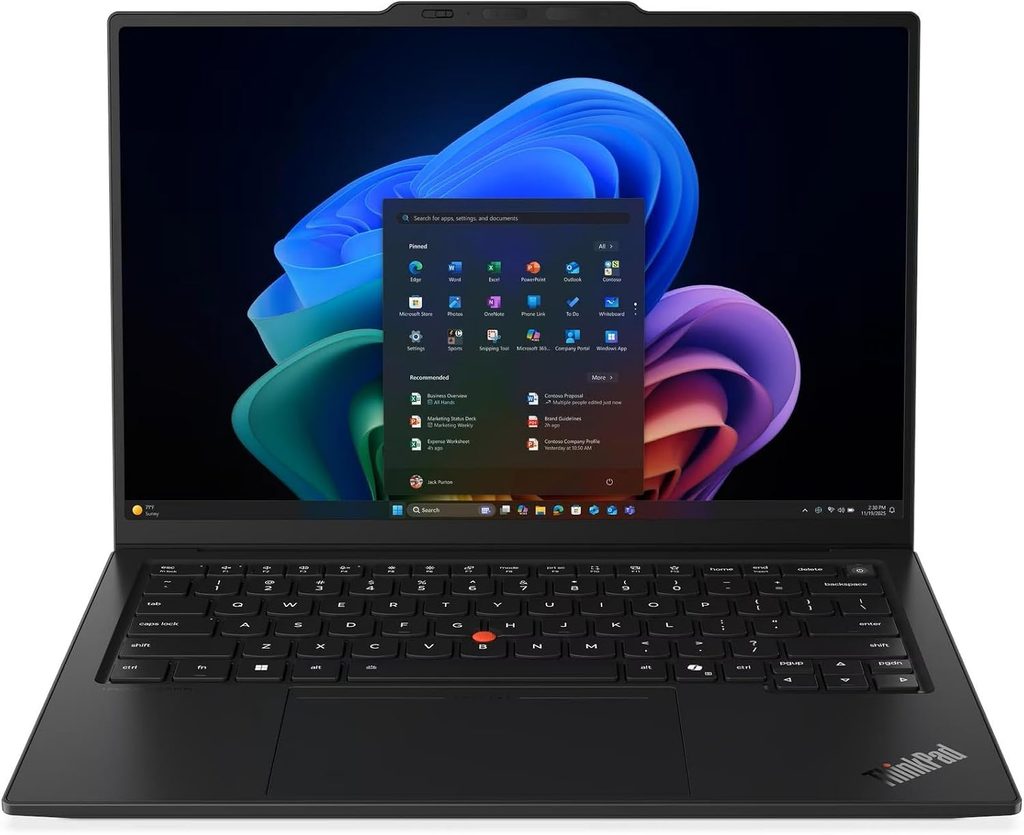
In one line: the endurance record holder, with the best keyboard here and a screen you’ll want to calibrate on day one.
Lenovo moved this generation onto Intel’s Panther Lake platform and, somewhere along the way, built the longest-lasting laptop I’ve seen data on this year. Notebookcheck measured 23 hours and 13 minutes of Wi-Fi browsing at 150 nits out of a 58 Wh battery. That is not a typo. At full brightness it still managed 14 hours and 14 minutes.
For a student that means you charge it Sunday night and genuinely don’t think about power until Tuesday.
Specifications
- CPU: Intel Core Ultra 5 325 — 8 cores, 8 threads, 4× Cougar Cove P-core to 4.5 GHz, 4× Darkmont LP E-core, 35 W sustained. Core Ultra X7 and X9 options available.
- GPU: Intel Graphics 4 (Xe3, Panther Lake). Arc B390 on Core Ultra X models.
- RAM: 32 GB LPDDR5x-7467 on every SKU, up to 64 GB. Soldered.
- Storage: M.2 2280, PCIe 5.0 capable. Review unit shipped a 512 GB Samsung PM9C1b.
- Display: 14″ 16:10, 1920×1200 IPS at 60 Hz, or 2880×1800 OLED at 120 Hz.
- Ports: 3× Thunderbolt 4, 1× USB-A 3.2 Gen 1 (always-on), HDMI 2.1, 3.5 mm, Kensington Nano, optional nano-SIM.
- Wireless: Intel Wi-Fi 7 BE211 (320 MHz), Bluetooth 5.4, optional 4G/5G WWAN.
- Security: TPM 2.0, fingerprint reader in the power button, IR camera, privacy shutter.
- Weight: 1.14 kg with IPS touch, 989 g with OLED.
- Warranty: 36 months.
Measured results
| Test | Result |
|---|---|
| Cinebench 2024 multi / single | 645 / 113.3 |
| Cinebench R23 multi / single | 10,980 / 1,892 |
| Geekbench 6 multi / single | 11,038 / 2,620 |
| PCMark 10 | 7,709 |
| 7-Zip compression | 36,228 MIPS |
| AES throughput | 37,722 MB/s |
| Memory read / write | 83,896 / 108,023 MB/s |
| SSD sequential read / write | 6,900 / 5,762 MB/s |
| SSD 4K QD1 read / write | 74.6 / 171 MB/s |
| Display brightness, average / max | 524 / 546 nits |
| Contrast | 1,800:1 |
| Colour accuracy, ColorChecker ΔE | 5.0 stock, 1.1 calibrated |
| Greyscale ΔE | 8.3 |
| sRGB coverage | 99.1% |
| PWM flicker | None detected |
| Surface temp under load, top / bottom | 40.7 °C / 42.8 °C |
| Palm rest under load | 28.7 °C |
| Fan noise, idle / load | 24.8 / 38.9 dB(A) |
| Battery, Wi-Fi at 150 nits | 23h 13m |
| Battery, Wi-Fi at max brightness | 14h 14m |
| Wi-Fi throughput, iperf3 send / receive | 4,557 / 3,244 Mbit/s |
All figures measured by Notebookcheck on unit 21V70075GE, published 25 July 2026.
What that means in practice
The thermals are the quiet win. A palm rest sitting at 28.7 °C under full load means it stays cool under your hands while something ugly compiles. A top-side maximum of 40.7 °C is warm but nowhere near uncomfortable. And 38.9 dB(A) under load is audible without being annoying — this won’t embarrass you in a quiet lab.
The chip pulls 57 W in short bursts then settles into a 30–40 W band. That fluctuation isn’t ideal, you’d rather see a flat sustained line, but VM work is bursty by nature so it suits the workload fine.
Two things to know before you buy.
First, the factory display calibration is bad. Average ΔE of 5.0 with a visible green-blue cast and a greyscale ΔE of 8.3. Lenovo did that deliberately to push brightness up. Calibrate it and you get a lovely ΔE of 1.1, but you lose almost 100 nits in the process. My advice: calibrate anyway. You’re reading terminal text for six hours a day, not grading HDR footage.
Second, take the IPS panel, not the OLED, if you want that battery figure. The OLED version drops to 13.5 hours at 150 nits and 7.6 hours at maximum brightness — roughly ten hours less. It’s lighter (989 g against 1.14 kg) and it looks better. That’s an enormous endurance tax for a nicer screen.
What I like
- Longest measured battery life in this class by a wide margin
- The best keyboard here, and it isn’t close
- 32 GB of RAM standard on every single configuration
- Three Thunderbolt 4 ports plus a USB-A, and you can charge from either side
- Excellent thermals and genuinely low noise
- Optional 5G modem, which is more useful for field work than you’d guess
- 36-month warranty and enterprise firmware support
What I don’t
- Soldered RAM — 64 GB has to be ordered up front
- Awful out-of-box display calibration
- Weakest AES throughput of the group at 37,722 MB/s
- Weakest multi-core here — 8 cores and 8 threads with no hyperthreading is thin for heavy multi-VM sessions
- Expensive, starting around $1,999 and climbing fast with options
- The camera bump on the lid looks terrible and I’m not going to pretend otherwise
Get it if: all-day unplugged work and typing comfort matter more to you than raw core count, and you’re running two VMs at a time rather than five.
2. Lenovo ThinkPad T14s Gen 7 — the one I’d actually buy for a student
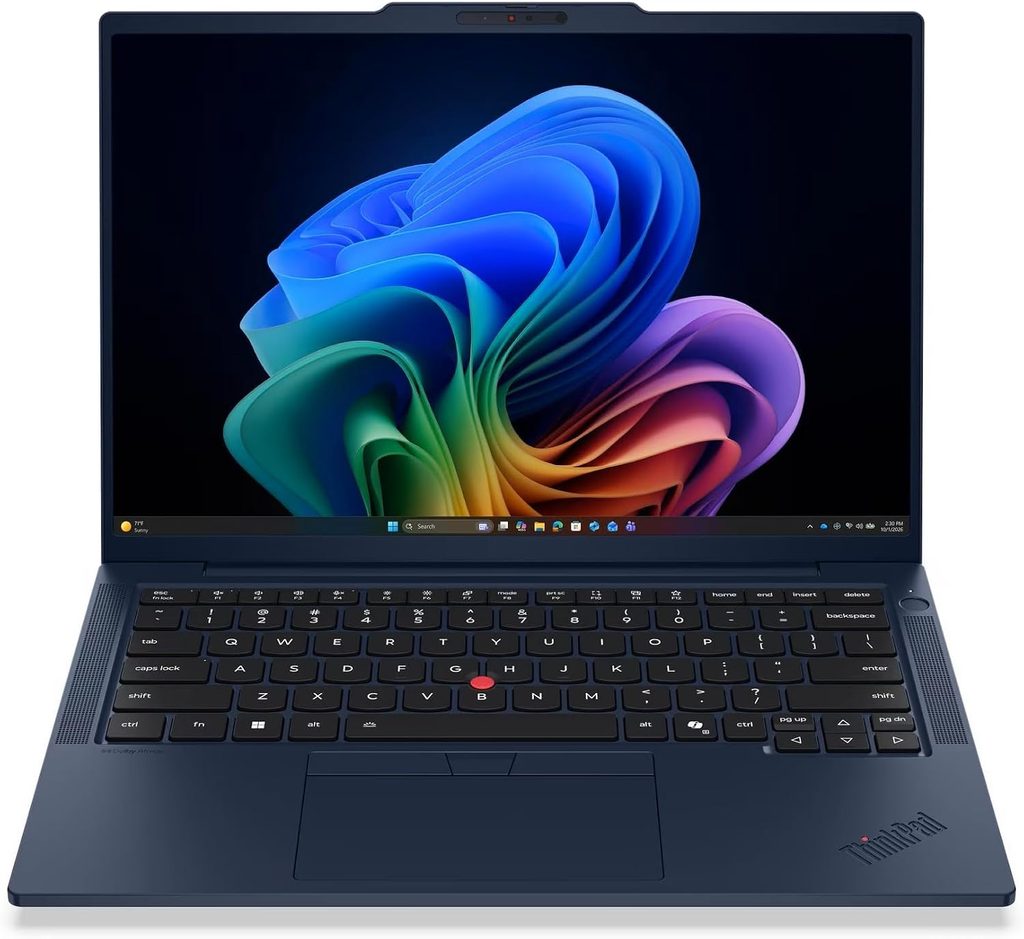
In one line: more threads, more than double the AES throughput, the best small-file disk performance here, and it costs meaningfully less than the X1 Carbon.
This is my pick for most people reading this, and it isn’t close. The T14s doesn’t have the X1 Carbon’s headline battery figure or its featherweight chassis. For the actual work of running virtual machines it’s the better machine, and you’ll save enough to buy a dock, a Wi-Fi adapter and a decent external drive with the difference.
Specifications
- CPU: AMD Ryzen AI 7 PRO 450, 8 cores and 16 threads
- GPU: AMD Radeon 860M integrated
- RAM: up to 64 GB — the tested unit had 64 GB. Soldered.
- Storage: M.2 2280. Test unit shipped a 512 GB Micron 2650.
- Display: 14″ 16:10, 1920×1200 IPS, 60 Hz
- Wireless: MediaTek Wi-Fi 7 MT7925
- Security: TPM 2.0, AMD PRO manageability, fingerprint reader, IR camera
- Weight: 1.2 kg, 15.9 mm thick
Measured results
| Test | Result |
|---|---|
| Cinebench 2024 multi / single | 843 / 114.8 |
| Cinebench R23 multi / single | 16,054 / 2,010 |
| Geekbench 6 multi / single | 13,439 / 2,899 |
| PCMark 10 | 8,180 |
| 7-Zip compression | 57,988 MIPS |
| AES throughput | 81,704 MB/s |
| Memory read / write | 66,186 / 109,442 MB/s |
| SSD sequential read / write | 4,665 / 5,223 MB/s |
| SSD 4K QD1 read / write | 87.5 / 273 MB/s |
| SSD 4K Q32T16 read / write | 3,783 / 3,889 MB/s |
| SSD access time, read / write | 0.028 / 0.017 ms |
| Display brightness, centre / average | 574 / 530 nits |
| Contrast | 1,794:1 |
| Colour accuracy, ColorChecker ΔE | 2.0 |
| Greyscale ΔE | 2.6 |
| Surface temp under load, top / bottom | 42.3 °C / 43.8 °C |
| Fan noise, idle / load | 24.8 / 36.7 dB(A) |
| Battery, Wi-Fi at 150 nits | 17h 24m |
| Battery, Wi-Fi at max brightness | 11h 30m |
All figures measured by Notebookcheck on unit 21YW0022GE.
What that means in practice
Look at the gap. Against the X1 Carbon Gen 14, this machine delivers 46% more multi-core performance in Cinebench R23, 22% more in Geekbench 6 multi-core, 60% more 7-Zip throughput, and 2.2× the AES throughput. It also posts the best 4K random I/O of anything I have verified figures for.
Those four numbers are precisely the ones that matter for running virtual machines and pushing encrypted data around. This is the machine that will feel best with a lab environment spun up.
The trade is battery. 17 hours 24 minutes is still excellent — a full day of classes plus an evening session, comfortably — but it’s roughly six hours behind the X1 Carbon. It runs about 1.6 °C warmer on top, which you will never notice.
The display is the sleeper feature. 574 nits in the centre, a ΔE of 2.0 and a greyscale ΔE of 2.6 straight out of the box. That’s a properly calibrated panel from the factory, which is more than I can say for the more expensive ThinkPad sitting above it in Lenovo’s own range.
One quirk worth flagging: the MediaTek MT7925 is much slower than Intel’s BE211 in raw throughput — 1,723 Mbit/s sending against 4,557 — but on a real campus network you’ll never see the difference, and MediaTek’s Linux driver situation is arguably the more interesting one for security work anyway.
What I like
- Best multi-core performance per pound in this list
- Highest AES throughput of anything here — 2.2× the X1 Carbon
- Best 4K random I/O, so VMs boot noticeably faster
- 64 GB configurations available
- Accurate display out of the box, and brighter in the centre than the X1 Carbon
- Quietest under load at 36.7 dB(A)
- Notably cheaper than the X1 Carbon
- AMD PRO manageability
What I don’t
- Soldered RAM, same as everything else here
- Six hours less battery than the X1 Carbon
- 60 Hz only, and no OLED option on most SKUs
- MediaTek Wi-Fi throughput lags well behind Intel’s
- Good chassis, but not X1-Carbon good — 60 g heavier and a touch less rigid
- Weaker single-core than the Dell, the Mac and the Zephyrus, so single-threaded tools feel a bit slower
Get it if: you want the most virtualisation capability per unit of money. This is my default recommendation and I’d stand behind it for the vast majority of students.
3. Dell XPS 14 (2026) — the powerful one with the beautiful screen
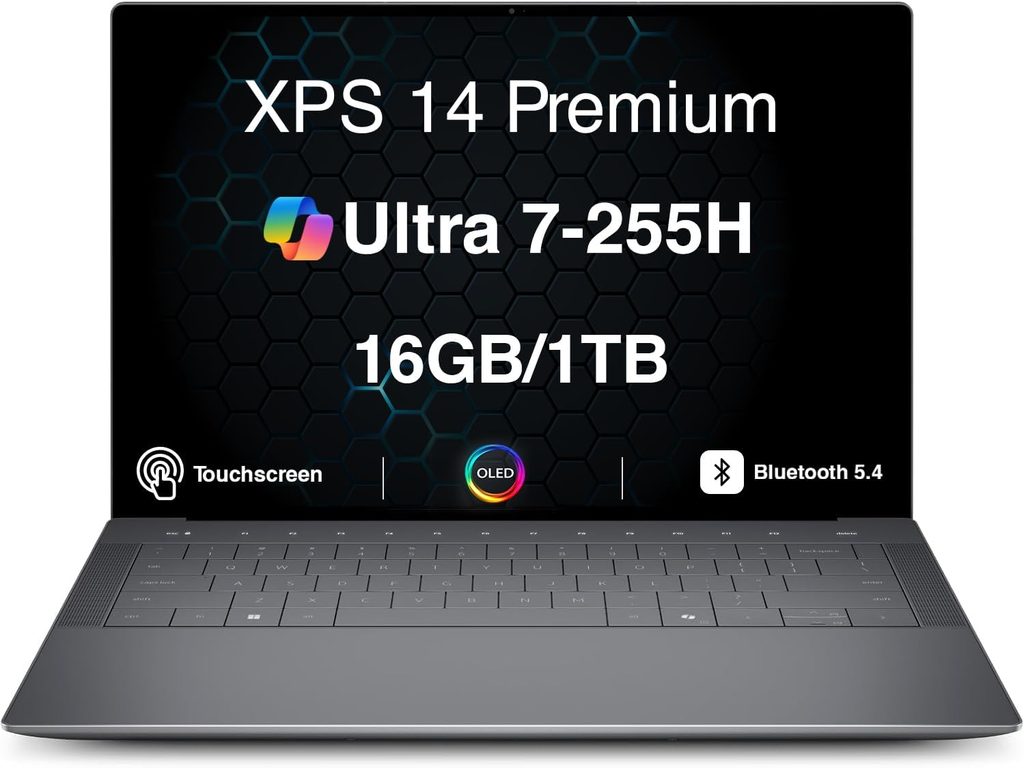
In one line: sixteen cores and Intel’s proper Arc graphics in a 1.38 kg chassis, wrapped around a lovely OLED — with a port selection that’ll annoy you and a keyboard that divides people.
Dell spent 2024 and 2025 getting shouted at, first for the controversial XPS redesign and then for scrapping the XPS name entirely. For 2026 they brought the name back and largely fixed the machine. Notebookcheck rated it 87%, up from 83% for last year’s Dell 14 Premium, and the biggest single reason is efficiency: 16 hours 45 minutes of Wi-Fi browsing at 150 nits, against 10 hours 48 minutes for last year’s model with a nearly identical battery.
That’s a 55% improvement year on year from the same company, in the same size chassis. Panther Lake did that.
Specifications
- CPU: Intel Core Ultra X7 358H — 16 cores, 16 threads, 4× Cougar Cove P-core to 4.8 GHz, 8× Darkmont E-core to 3.7 GHz, 4× Darkmont LP E-core to 3.3 GHz. Range spans Core Ultra 5 325 up to Core Ultra X9 388H.
- GPU: Intel Arc B390, 12 Xe3 cores, on the X7 and X9 chips
- RAM: 16 GB to 64 GB DDR5-7467. Soldered.
- Storage: M.2 PCIe, up to 4 TB
- Display: two options — 1920×1200 IPS rated 500 nits with a 1 Hz to 120 Hz variable refresh range, or 2880×1800 tandem OLED touch with a 20–120 Hz adaptive range
- Ports: 3× USB4 with Thunderbolt 4, 3.5 mm. No USB-A, no HDMI.
- Wireless: Wi-Fi 7, Bluetooth 6.0
- Battery: 70 Wh
- Weight: 1.38 kg with OLED, 1.44 kg with IPS
- Warranty: one year Dell Care Plus, with a paid upgrade to Premium
Measured results
| Test | Result |
|---|---|
| Geekbench 6 multi / single | 16,927 / 2,867 |
| Cinebench 2026 multi | ~3,250 |
| 3DMark Steel Nomad | 1,605 |
| 3DMark Solar Bay | 29,936 |
| SSD sequential read / write | 6,520 / 5,665 MB/s |
| Large-file transfer, 1 TB Samsung drive | 1,419 MB/s |
| Display brightness, OLED measured | 389 nits |
| Display brightness, IPS rated | 500 nits |
| Keyboard surface under load | 33.1 °C |
| Touchpad under load | 28.6 °C |
| Bottom hot spot under load | 40.3 °C |
| CPU package temperature under load | 63.6 °C |
| P-core clocks under sustained load | 2.12 GHz average |
| E-core clocks under sustained load | 2.23 GHz average |
| Battery, Wi-Fi at 150 nits | 16h 45m |
| Battery, PCMark 10 test | 11h 8m |
| Cyberpunk 2077, 1080p medium with XeSS | 63 fps |
| Arc Raiders, 1080p medium with XeSS and frame gen | 130 fps |
Geekbench 6 and thermal readings measured by Tom’s Hardware. Cinebench 2026 by HotHardware. CrystalDiskMark and 3DMark by Digital Trends. Wi-Fi battery test and OLED brightness by Notebookcheck. Game frame rates by Engadget. All on Core Ultra X7 358H configurations.
What that means in practice
Sixteen cores in a 1.38 kg laptop is the headline. That Geekbench 6 multi-core score of 16,927 is 53% higher than the X1 Carbon Gen 14 and 26% above the T14s. For running a stack of VMs simultaneously, that’s exactly what you want.
The Arc B390 is the second story, and it genuinely surprised me. HotHardware measured it at more than double the base Panther Lake integrated graphics, and the practical result is a thin-and-light that runs Cyberpunk 2077 at 63 fps and Arc Raiders at 130 fps at 1080p. For security work specifically, having a real GPU with 12 Xe cores means OpenCL-accelerated workloads are on the table in a way they simply aren’t on the ThinkPads. It’s not an RTX 5070 Ti — nothing close — but it’s not nothing either.
Thermals are the best of the Windows machines here. Tom’s Hardware measured the keyboard at 33.1 °C, the touchpad at 28.6 °C, the bottom hot spot at 40.3 °C, and the CPU package at just 63.6 °C under sustained load. That’s a genuinely cool-running laptop.
Now, three honest problems.
No USB-A. None. Three USB-C ports and a headphone jack, that’s it. For this audience — the people who plug in Wi-Fi adapters and bootable USBs and hardware tools all day — this is a real cost. You will carry a hub. Factor it into the price.
The OLED doesn’t hit its spec. Dell rates it at 500 nits; Notebookcheck measured 389. Indoors that’s fine. In a bright room or outdoors, the IPS panel that actually does hit 500 nits is the smarter buy, and it’s the better choice for battery too — that 1 Hz variable refresh floor is a genuine efficiency feature.
The keyboard is divisive. Dell went to a zero-lattice design with 0.8 mm of travel. Engadget’s review headline literally called it a laptop that “excels at almost everything… except typing.” Key stability is better than previous generations and most reviewers found it workable after a few days. But if you type for a living — and as a security student, you do — go press one in a shop before you commit.
One more thing worth knowing: sustained clocks under load are modest, with P-cores averaging 2.12 GHz on the Cinebench 2026 stress run. Tom’s Hardware noted the fans took a while to ramp up on the higher-core chip. It’s a thin chassis holding a 16-core processor and the physics show.
What I like
- Sixteen cores in a 1.38 kg body
- Geekbench 6 multi-core of 16,927 — third-highest here, and the highest without a discrete GPU
- Arc B390 graphics that genuinely punch above integrated-class weight
- Coolest-running Windows machine in the group
- 16h 45m battery, a 55% year-on-year improvement
- Gorgeous OLED option with a 20–120 Hz adaptive range
- Configurable up to 64 GB of RAM and 4 TB of storage
- Starts at $1,599, which is the most accessible entry point of the Windows machines here
What I don’t
- No USB-A and no HDMI — a real problem for this specific use case
- Zero-lattice keyboard with 0.8 mm travel is genuinely polarising
- OLED measures 389 nits against a 500-nit claim
- Soldered RAM
- Modest sustained clocks — the chassis limits what those 16 cores can hold
- One-year standard warranty, against 36 months on the X1 Carbon
- The configuration you actually want lands well north of $2,000
Get it if: you want maximum cores and a proper iGPU in something genuinely portable, you’ve typed on the keyboard and you’re fine with it, and you don’t mind living with a hub.
4. Apple MacBook Pro 14 (M5) — brilliant machine, one enormous asterisk
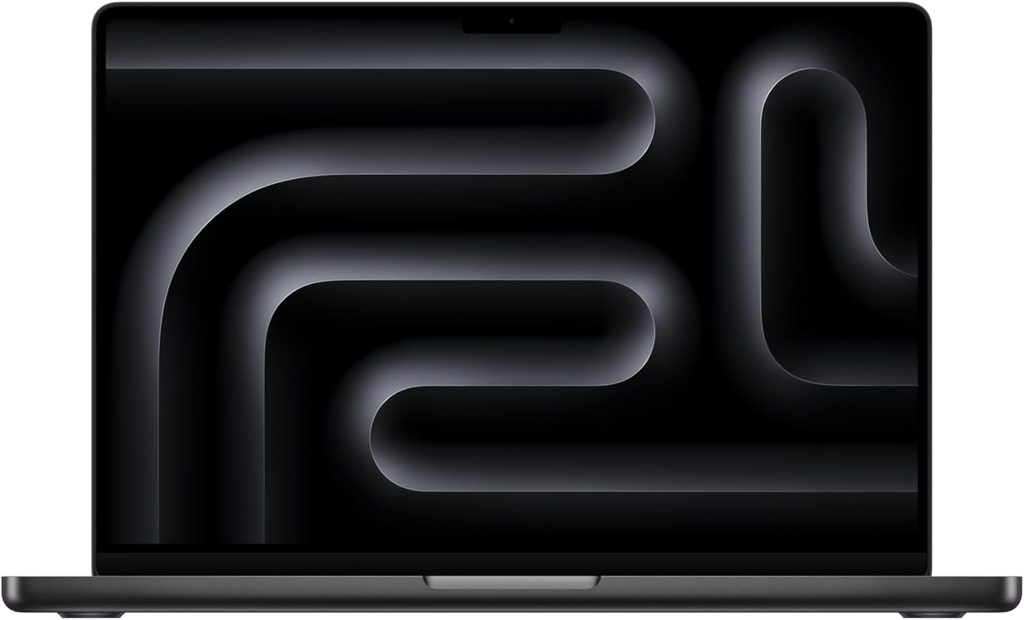
In one line: the best-built laptop here and a superb daily driver, but the ARM architecture will complicate your VM life in ways your course materials almost certainly don’t account for.
Let me deal with the asterisk first, because everything else depends on it.
The ARM problem, explained properly
Apple Silicon is ARM64. Most security tooling and most course lab images assume x86-64. That plays out in three ways:
- ARM64 Linux VMs run natively and beautifully. Kali and Parrot both ship ARM64 builds. Through UTM, Parallels or VMware Fusion they run at close to native speed. This part is genuinely great.
- x86-64 VMs need emulation, and emulation is slow. If your course hands you a pre-built x86 Windows target image, you are going to have a bad time.
- Some binary-only tools have no ARM build at all. You’ll hit this occasionally, usually with older or niche tooling.
If your programme is cloud-focused, blue-team, GRC, secure development or web application security, none of this will hurt you. If it leans on x86 malware analysis or pre-built x86 lab images, this is the wrong machine and you should buy one of the ThinkPads.
Be honest with yourself about which one you are before you spend the money, not after.
Specifications
- CPU: Apple M5 — 10 cores, 4 performance and 6 efficiency, with a 10-core GPU. M5 Pro and M5 Max available.
- RAM: 16 GB base, up to 128 GB on the higher chips. Soldered.
- Storage: starts at 1 TB on this generation
- Display: 14.2″, 3024×1964 mini-LED Liquid Retina XDR, 120 Hz ProMotion, up to 1,600 nits peak HDR
- Ports: 3× Thunderbolt 4 on the base M5 (Thunderbolt 5 on Pro and Max), HDMI 2.1, full-size SDXC, MagSafe 3, 3.5 mm
- Wireless: Wi-Fi 7 and Bluetooth 6 via Apple’s N1 chip
- Battery: 72.4 Wh
- Weight: roughly 1.55 kg
Measured results
| Test | Result |
|---|---|
| Geekbench 6 single-core | 4,248 measured, 3,637 database average |
| Geekbench 6 multi-core | 17,600 measured, 17,924 database average |
| Cinebench 2024 multi / single | 1,158 / 206 |
| Display brightness, SDR measured | 633 nits centre |
| Display peak, HDR | up to 1,600 nits |
| Battery, Wi-Fi at 150 nits | 15h 12m |
| Battery, Wi-Fi at max brightness | 6h |
| SSD read / write, M5 Max with 4 TB | 13,600 / 17,800 MB/s |
| Fan noise under load | 36.8 dB(A) |
| Surface temp under load, top / bottom | 47 °C / 40.5 °C |
| Kraken 1.1 JavaScript | 233 ms |
| CrossMark overall | 2,728 |
Geekbench 6 measured figures from ITPro, database averages from the Geekbench Browser across 769 submissions. Cinebench 2024 from NanoReview. Battery, thermal, noise, CrossMark and Kraken figures from Notebookcheck, measured on the M5 Max variant of the same chassis. SSD throughput from The Verge.
What that means in practice
The single-core performance is in a different league. A Geekbench 6 single-core result in the 3,600–4,250 range against 2,620 for the X1 Carbon, 2,867 for the Dell and 2,899 for the T14s means it’s 25–45% faster on single-threaded work — which is most of what a terminal actually does. Compiling, running scripts, parsing logs: everything feels immediate.
Multi-core holds up too. Around 17,600 in Geekbench 6 puts it ahead of everything here except the Zephyrus, and only just behind that.
Storage on the higher configurations is genuinely absurd. The Verge measured 13.6 GB/s read and 17.8 GB/s write on an M5 Max with a 4 TB drive, up 86% and 123% on the previous generation. Even the base M5 is comfortably ahead of every PC SSD in this article.
And the display really is the best here. Mini-LED at 3024×1964, 120 Hz, 633 nits measured in SDR with 1,600-nit HDR peaks. If you stare at text all day, that’s a real quality-of-life improvement.
One warning: the base 16 GB configuration is a trap for this use case. Configure at least 24 GB, ideally 32 GB. Apple’s unified memory is efficient but it isn’t magic, and you cannot add more later.
What I like
- Fastest single-core performance here by a wide margin
- Best display in the group, no contest
- Outstanding sustained performance and excellent thermal behaviour
- Superb build quality and the best trackpad in the industry
- Excellent battery life at 15h 12m
- Ridiculously fast storage
- MagSafe, full-size SD reader and HDMI — a genuinely thoughtful port selection
- ARM64 Kali and Parrot run natively and fast
What I don’t
- ARM architecture — x86 VMs need slow emulation
- Some tooling simply has no ARM64 build
- 16 GB base configuration is inadequate here, and upgrades are expensive and permanent
- No monitor mode at all, and adapter driver support on macOS is the worst of any platform here
- 47 °C top-side under load is the warmest surface in this group
- No power adapter in the box in the EU as of April 2026
- macOS is a third ecosystem to learn on top of Windows and Linux
Get it if: your programme is cloud, blue-team, GRC or AppSec focused and you already live in the Apple world. Don’t, if your labs hand you pre-built x86 images.
5. ASUS ROG Zephyrus G14 (2026) — for GPU work, and only for GPU work
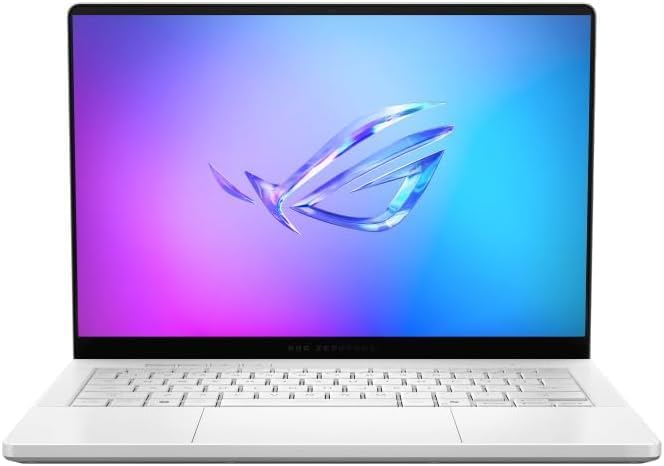
In one line: the most raw compute here by a distance, plus a discrete GPU that turns hour-long jobs into minute-long jobs. Loud, and expensive.
ASUS swapped this generation from AMD to Intel’s Panther Lake and kept the RTX 5070 Ti. The result is the fastest 14-inch laptop you can buy, with better efficiency than its predecessor and a much brighter OLED panel.
Why a security student might want a GPU
Password auditing tools are GPU-accelerated, and the difference is not subtle. Here’s a real measured proxy from this exact machine: Blender’s Classroom scene rendered on the CPU takes 250 seconds. The same scene on the RTX 5070 Ti through CUDA takes 26 seconds, and through OptiX just 17 seconds.
That’s a 9.6× speed-up on CUDA and 14.7× on OptiX. Any workload that maps onto a GPU — hash auditing, ML-based traffic analysis, local model work for security research — lands somewhere in that ballpark.
If your coursework or your capstone involves any of that, this machine changes what’s possible for you. If it doesn’t, you’re spending $3,199 on a laptop with worse battery life and far louder fans than the alternatives.
Specifications
- CPU: Intel Core Ultra 9 386H — 16 cores, 16 threads, 4× Cougar Cove P-core to 4.9 GHz, 8× Darkmont E-core, 4× Darkmont LP E-core, 70 W sustained
- GPU: NVIDIA GeForce RTX 5070 Ti Laptop, 12 GB GDDR7, 115 W TGP and up to 130 W in manual mode
- RAM: 32 GB LPDDR5x-8533, up to 64 GB on some SKUs. Soldered.
- Storage: 1 TB Kioxia BG6. One M.2 2280 slot, user-replaceable.
- Display: 14″ 2880×1800 OLED, 120 Hz, HDR, Adaptive Sync
- Ports: 1× Thunderbolt 4, 1× USB4, 2× USB-A 3.2 Gen 2, HDMI 2.1, full-size SD (UHS-II), 3.5 mm
- Wireless: Intel Wi-Fi 7 BE211, Bluetooth 6.0, replaceable module
- Battery: 73 Wh with a 250 W adapter
- Weight: 1.568 kg, 16.3 mm
Measured results
| Test | Result |
|---|---|
| Cinebench 2024 multi / single | 1,262 / 121.3 |
| Cinebench R23 multi / single | 21,186 / 2,012 |
| Cinebench 2026 multi / single | 5,141 / 498 |
| Geekbench 6 multi / single | 17,224 / 2,810 |
| PCMark 10 | 9,049 |
| 7-Zip compression | 72,609 MIPS |
| AES throughput | 70,468 MB/s |
| Memory read / write | 110,936 / 120,870 MB/s |
| 3DMark Time Spy Graphics | 16,295 |
| 3DMark Fire Strike Graphics | 42,629 |
| Blender Classroom, CPU / CUDA / OptiX | 250 s / 26 s / 17 s |
| SSD sequential read / write | 5,845 / 5,204 MB/s |
| SSD 4K QD1 read / write | 43.2 / 191.5 MB/s |
| Display brightness, SDR average | 514 nits |
| Display peak, HDR | 1,140 nits |
| Contrast | 25,400:1 |
| Colour accuracy, ColorChecker ΔE | 1.3 |
| Greyscale ΔE | 2.0 |
| Colour gamut | 100% sRGB, 99.8% P3, 94.1% AdobeRGB |
| PWM flicker | 960 Hz, 52% amplitude |
| Surface temp under load, top / bottom | 41.7 °C / 41.5 °C |
| Sustained stress test, GPU / CPU | 100 W at 74 °C / 35 W at 79 °C |
| Fan noise, idle / gaming in Turbo | 26 / 55.5 dB(A) |
| Battery, Wi-Fi at 150 nits | 14h 22m |
| Battery, Wi-Fi at max brightness | 8h 18m |
All figures measured by Notebookcheck on unit GU405AR, published 19 June 2026.
The power mode table you should read before buying
ASUS’s profiles change this machine’s character completely, and the measured differences are large:
| Mode | CPU TDP | Cinebench 2024 multi | GPU TGP | Time Spy Graphics | Max fan noise |
|---|---|---|---|---|---|
| Silent | 65/50 W | 1,169 | 80/45 W | 9,267 | 38.2 dB(A) |
| Performance | 65/50 W | 1,173 | 95 W | 14,774 | 49.8 dB(A) |
| Turbo | 70 W | 1,262 | 115 W | 16,295 | 55.5 dB(A) |
| On battery | 54 W | 1,209 | 45 W | 8,115 | 38.2 dB(A) |
Notice something: CPU performance barely shifts between Silent and Turbo — 1,169 against 1,262 points, about 8%. All the difference lives in the GPU, which goes from 9,267 to 16,295 in Time Spy, a 76% jump.
For a security student that’s excellent news. Run Silent for everything except GPU work, get 93% of your CPU performance at 38 dB(A) instead of 55 dB(A), and only spin the fans up when you’re actually hammering the graphics.
What that means in practice
21,186 in Cinebench R23 multi-core is 93% more than the X1 Carbon Gen 14 and 32% more than the T14s. Sixteen cores paired with 32 GB of fast memory means five or six VMs without breaking a sweat.
The display is superb — 25,400:1 contrast, 100% sRGB, ΔE of 1.3 out of the box, 1,140 nits in HDR. Second-best panel here after the MacBook, and arguably better for colour work.
Thermals are surprisingly good for the performance on tap: 41.7 °C maximum on top, with the GPU holding 100 W at 74 °C and the CPU 35 W at 79 °C through the stress test. ASUS also made the internals easier to get at, swapping glued rear screw covers for magnetic ones.
The deal-breakers are noise and price. 55.5 dB(A) under sustained GPU load is loud. You’ll want headphones and you cannot do that in a library. And $3,199 is a lot for a student when the 2025 model with the same RTX 5070 Ti is still around at roughly $2,599.
There’s also PWM flicker at 960 Hz. That frequency is high enough that most people won’t perceive it, but if you’re sensitive to PWM, know it’s there.
What I like
- Fastest CPU here at 21,186 in Cinebench R23 multi
- Discrete RTX 5070 Ti with 12 GB of VRAM opens up real GPU-accelerated work
- 9.6× CUDA speed-up over CPU on comparable workloads
- Gorgeous, accurate OLED with 1,140-nit HDR peaks
- Second-highest AES throughput at 70,468 MB/s
- Excellent keyboard with 1.7 mm of travel
- Full-size SD reader and two USB-A ports
- Replaceable Wi-Fi module and SSD
- 14h 22m is remarkable for a machine with a discrete GPU
What I don’t
- 55.5 dB(A) under load — genuinely loud, headphones required
- $3,199, the most expensive pick here
- Soldered memory
- PWM flicker at 960 Hz
- No PCIe 5.0 support
- Weakest 4K random read at 43.2 MB/s — the DRAM-less Kioxia BG6 is a cost-cutting choice
- 1.568 kg plus a 724 g power brick makes for a heavy daily carry
- Only one Thunderbolt port
Get it if: GPU-accelerated work is genuinely part of your plan and the budget is there. Skip it if: you just need VMs, because the T14s does that job for half the money.
Everything side by side
| X1 Carbon G14 | T14s Gen 7 | Dell XPS 14 | MacBook Pro 14 M5 | Zephyrus G14 | |
|---|---|---|---|---|---|
| CPU | Ultra 5 325 | Ryzen AI 7 PRO 450 | Ultra X7 358H | Apple M5 | Ultra 9 386H |
| Cores / threads | 8 / 8 | 8 / 16 | 16 / 16 | 10 | 16 / 16 |
| Geekbench 6 single | 2,620 | 2,899 | 2,867 | 4,248 | 2,810 |
| Geekbench 6 multi | 11,038 | 13,439 | 16,927 | 17,600 | 17,224 |
| Max RAM | 64 GB | 64 GB | 64 GB | 128 GB | 64 GB |
| RAM upgradeable | No | No | No | No | No |
| Battery, Wi-Fi 150 nits | 23h 13m | 17h 24m | 16h 45m | 15h 12m | 14h 22m |
| Measured brightness | 524 nits | 530 nits | 389 nits (OLED) | 633 nits | 514 nits |
| Peak surface temp, load | 40.7 °C | 42.3 °C | 40.3 °C | 47 °C | 41.7 °C |
| Fan noise, load | 38.9 dB | 36.7 dB | not published | 36.8 dB | 55.5 dB |
| SSD sequential read | 6,900 MB/s | 4,665 MB/s | 6,520 MB/s | 13,600 MB/s* | 5,845 MB/s |
| USB-A ports | 1 | 2 | 0 | 0 | 2 |
| Discrete GPU | No | No | No | No | RTX 5070 Ti |
| Weight | 1.14 kg | 1.2 kg | 1.38 kg | 1.55 kg | 1.57 kg |
| Warranty | 36 months | 36 months | 12 months | 12 months | 24 months |
| Starting price | $1,999 | ~$1,400 | $1,599 | $1,599 | $3,199 |
MacBook figure is from an M5 Max configuration with a 4 TB drive; the base M5 with 1 TB is slower but still ahead of every PC drive here. Dell fan noise under load has not been published by any lab I trust, so I’ve left it stated rather than guessed at.
Mistakes I see students make every single year
Buying 16 GB to save money. You’ll regret it inside one semester, and you cannot fix it afterwards on any machine in this list. Cut storage, cut screen quality, cut the brand. Do not cut RAM.
Buying a big gaming laptop because “more power.” A 2.5 kg machine with a 90-minute battery is a desktop with a handle. You’re carrying this to class every day for four years.
Obsessing over sequential SSD speed. I’ve covered this. 4K random is your number.
Assuming the internal Wi-Fi will do monitor mode. It almost certainly won’t. Budget for the external adapter from day one and stop worrying about it.
Believing the battery marketing. Every figure in this article is a browsing test. Two VMs will gut it. Measure your own using step six of my protocol and recalibrate.
Forgetting the dock. Nothing here has Ethernet, and the Dell doesn’t even have USB-A. Budget $60–150.
Buying last year’s model to save $200. Sometimes right — the 2025 Zephyrus G14 at around $2,599 is a legitimately smart call. Usually wrong, because you’re giving up a year of firmware support on a machine you’ll keep for five.
Questions I get asked constantly
No, not in 2026. One VM plus a host works. Two will swap. Three is unusable. 32 GB is the practical floor and 64 GB is comfortable. Since every laptop in this class has soldered memory, you have to decide at purchase.
Only for GPU-accelerated password auditing, ML-based analysis or local AI work. For virtual machines, network analysis, scripting and general coursework, integrated graphics are completely fine. The 9.6× CUDA speed-up on the Zephyrus is real, but it’s only relevant if your work maps to a GPU.
VM, for almost everyone. Snapshots let you break things and roll back in seconds, which is the entire point of a learning environment. Dual-boot only if you need direct hardware access, and even then a live USB is usually simpler.
What I’d actually buy
Most students should buy the ThinkPad T14s Gen 7. It has the best combination of multi-core performance, AES throughput and small-file disk speed here, and it costs meaningfully less than the X1 Carbon. Seventeen hours of battery is plenty. The display is accurate out of the box. It’s the boring, correct answer, and I’d give it to my own student without a second thought.
Buy the X1 Carbon Gen 14 if unplugged endurance and typing comfort matter more to you than raw core count. Twenty-three hours is a genuinely different way of living with a laptop. Take the IPS panel, not the OLED, and calibrate the display on day one.
Buy the Dell XPS 14 (2026) if you want sixteen cores and real Arc graphics in something you’ll happily carry every day, and you can live without USB-A. Go and type on it first. The keyboard is the make-or-break, and no review — including this one — can decide that for you.
Buy the MacBook Pro 14 M5 if your programme is cloud, blue-team or AppSec focused and you already use macOS. Get at least 24 GB. Understand the ARM limitation before you spend the money, not after.
Buy the Zephyrus G14 only if GPU work is genuinely part of your plan. It’s the fastest machine here by a comfortable margin, and also the loudest and most expensive. If you just need VMs, the T14s does that job for half the price.
Whatever you land on: 32 GB of RAM, 1 TB of storage, and an external Wi-Fi adapter. Get those three right and everything else is preference.
Where these numbers came from
I think you should be able to check every figure in an article like this, so here’s exactly where each one came from.
Notebookcheck — full lab measurements for the ThinkPad X1 Carbon Gen 14 (21V70075GE, published 25 July 2026), ThinkPad T14s Gen 7 (21YW0022GE), ASUS ROG Zephyrus G14 GU405AR (published 19 June 2026), the MacBook Pro 14 M5 and M5 Max, and the Dell XPS 14 (2026) Wi-Fi battery test and OLED brightness measurement. Display figures come from CalMAN with an X-Rite i1Pro 3; thermal readings from a calibrated Fluke t3000FC and Voltcraft IR-900; wireless throughput from iperf3; battery tests from a standardised Wi-Fi browsing loop at 150 nits.
Tom’s Hardware — Dell XPS 14 (2026) Geekbench 6 results, surface and package temperatures, sustained clock speeds, and configuration pricing.
HotHardware — Dell XPS 14 (2026) Cinebench 2026 results and display option specifications.
Digital Trends — Dell XPS 14 (2026) CrystalDiskMark and 3DMark results on the Core Ultra X7 358H configuration.
Engadget — Dell XPS 14 (2026) gaming frame rates and keyboard assessment.
PCWorld — Dell XPS 14 configuration options and pricing.
Geekbench Browser — MacBook Pro 14 (M5) database averages drawn from 769 user submissions.
ITPro — measured Geekbench 6 results for the M5 MacBook Pro.
The Verge — MacBook Pro M5 Max SSD throughput.
NanoReview — MacBook Pro 14 (M5) Cinebench 2024 results.
Figures were cross-checked across sources wherever more than one lab tested the same machine. Where only one source exists, I’ve said so in the text rather than presenting it as consensus.
Prices are indicative street prices at the time of writing and they move constantly — memory configurations especially, which have been volatile right through 2026 because of component shortages. Check current pricing before you buy anything.
Last updated August 2026. I revisit this guide whenever a significant new model launches or new independent lab data turns up.

Hi, my name is Burak. I am a mechanical engineer. I have been writing laptop reviews for the Engineering Laptops website since 2020. Please feel free to contact me if you have any questions.





