Estimated reading time: 34 minutes
Table of contents
- Quick Picks
- Why a Tuning Laptop Is a Different Animal
- Where My Numbers Come From
- Best Laptop for Tuning Cars in 2026: 5 Machines I’d Actually Trust With a Flash
- Side by Side
- The Windows Setup That Matters More Than the Laptop
- The Small Stuff Nobody Warns You About
- The Smart Money Play: Buy Used Business Hardware
- What I’d Avoid
- Frequently Asked Questions
- What I’d Actually Buy
I want to start with the thing that annoys me about almost every “best tuning laptop” list I’ve read.
They all lead with horsepower. Get an i7. Get 32 GB. Get a graphics card. And every one of those recommendations misses what’s actually going on when you plug into a car.
Writing a calibration to a Bosch MED17 or a GM E38 isn’t a heavy computing job. It’s a slow conversation over a bus that was designed decades ago, moving a few hundred kilobytes at a pace the ECU sets, not your processor. A five-year-old machine finishes that transfer at exactly the same speed as a brand new one. Your CPU spends the whole flash doing nothing.
So why do tuners still argue about laptops in every forum thread on the internet?
Because when a tuning laptop lets you down, it doesn’t let you down the way an office laptop does. If your work laptop nods off during a spreadsheet, you lose thirty seconds and some dignity. If your laptop nods off halfway through writing to an engine controller, you can lose the controller. And on a car where the immobiliser lives inside the ECU, that turns into a flatbed, a dealer visit, and a bill you’ll remember.
That’s the real job. Not fast. Uninterruptible.
Everything below is built around that one idea. Five machines, real measured numbers from labs that publish their methodology, a scoring system I put together specifically for this kind of work, and a Windows setup checklist that honestly matters more than which laptop you buy.
Quick Picks
| What you need | What I’d buy | The reason |
|---|---|---|
| One laptop, does everything well | Lenovo ThinkPad T14 Gen 6 AMD | Two USB-A ports, a 526-nit matte screen, socketed RAM, parts on every corner |
| Works out of a van or next to a dyno | Panasonic Toughbook 55 Mk3 | Hot-swap batteries, optional real serial port, heated SSD, drop-rated |
| Long days away from a socket | HP EliteBook 8 G1a 14 | 62 Wh, huge measured runtimes, best contrast here, dual-fan cooling |
| MoTeC M1 or anything on Ethernet | Dell Pro 14 Plus (PB14255) | Optional built-in RJ45, so no dongle sitting in the middle of your link |
| Best money-to-capability ratio | ASUS ExpertBook PM3406 | Fastest sustained CPU of the five, 70 Wh, drop-tested, and the cheapest |
Why a Tuning Laptop Is a Different Animal
Here’s the part I wish someone had told me early on.
The failure modes that kill ECUs have nothing to do with specifications. I’ve never once seen a flash fail because a processor was too slow. What I have seen, repeatedly, is Windows deciding on its own schedule that a USB port has been idle long enough to power down. Or a laptop with 8% battery left that its owner swore was “fine, it’s plugged in,” except the charger had worked loose in the footwell.
High Performance Academy, who teach this stuff for a living rather than selling laptops, put it about as plainly as it can be put: EFI tuning software isn’t particularly demanding, and you don’t need a fast processor, a dedicated GPU, or large amounts of RAM to run it. That applies across HP Tuners, MaxxECU, COBB, Ecumaster, Haltech, Link, FuelTech, Holley EFI, Syvecs, Hondata, KTuner, EMtron, MoTeC, AEM, TunerStudio and ECUFlash. Same advice, all of them.
They also give the warning that matters most: if your laptop battery or the vehicle battery goes flat during a transfer, you can brick the ECU.
So I stopped shopping for performance and started shopping for a machine that won’t blink.
What the software actually asks for
| Requirement | Why it matters | What to look for |
|---|---|---|
| Windows | Effectively every serious suite is Windows-only. Boot Camp is gone on Apple Silicon, and a VM puts a USB passthrough layer between you and the car | Windows 11 Pro |
| Two USB-A ports minimum | One for the interface, one for a wideband, logger or licence dongle. HPA specifically say check the port count before you buy | 2 native USB-A, 3 is nicer |
| USB power that stays on | The single biggest preventable cause of dead ECUs | See the checklist further down |
| Real battery headroom | Both power sources need to be healthy before you press write | 55 Wh and up, or hot-swap |
| A screen you can read at arm’s length | You’re squinting at a log trace in a bright bay, often at a bad angle | 400+ nits, matte finish |
| Socketed RAM and a normal M.2 | Log folders and map libraries only grow | 2× SO-DIMM, M.2 2280 |
| Tolerance for old drivers | Plenty of J2534 and FTDI drivers predate current signing rules | Windows 11 Pro, never S mode |
Storage is where I think most guides go wrong. People throw around 2 TB like it’s a floor. A full VCM Suite install, a healthy library of tunes and a year of logs will sit comfortably inside 512 GB. Put that money into a better screen. You’ll notice the screen every single day.
Where My Numbers Come From
I’ll be straight about this, because it’s where these articles usually get vague.
I have not personally flashed thirty cars on each of these five laptops. Nobody has. Anyone claiming that in a single review cycle is telling you a story. What I’ve done instead is define the physical requirements of calibration work, then pull published measurements from labs that document how they test, and judge each machine against those requirements.
Here’s exactly who measured what:
| Type of data | Who measured it | How |
|---|---|---|
| CPU benchmarks (Cinebench R23/R20/R15, Geekbench 6.7, 7-Zip, Blender) | Notebookcheck | Highest performance mode, with sustained loop runs reported separately from peak scores |
| Display figures (brightness, contrast, sRGB, ΔE, flicker) | Notebookcheck, using an X-Rite i1Pro 3 colorimeter | Nine-point brightness grid, ColorChecker Calman |
| Battery runtime | PCWorld (4K video loop at 250 nits), Consumer Reports (browsing and 4K video workloads) | Two different methods, so I don’t compare them directly against each other |
| Toughbook screen brightness | RuggedBooks measured it; Panasonic publish their own figure | Both numbers appear below, because they don’t agree |
| Rugged ratings, ports, module options | Panasonic Connect, ASUS and Dell published specifications | Manufacturer documentation |
| Teardown and configuration detail | ITPro, LaptopMedia | Hands-on |
| Toughbook CPU figures | CPU-Monkey’s aggregated benchmark database | Explained in that section, because Panasonic don’t sample review units to CPU labs |
Where a manufacturer’s claim and a measurement disagree, I say so rather than picking the flattering one. Panasonic quote 1,000 nits for the Toughbook’s touch panel. RuggedBooks measured 909 on their unit. Both are in this article. That gap is ordinary panel variance and pretending otherwise helps nobody.
The Flash Safety Score
Normal laptop reviews score for office work, which is the wrong rubric for a garage. So I built my own out of 100 and weighted it for what actually goes wrong.
To be clear about what this is: it’s my judgement applied to other people’s measurements. It’s not an instrument reading and I’m not pretending it is.
- Power continuity, 30 points. Battery size, hot-swap, what happens when the lid shuts, how hard the vendor’s own software fights your settings.
- Ports, 25 points. Native USB-A count, whether real serial or Ethernet is available, and whether the sockets are protected from dust and oil.
- Screen you can read, 15 points. Measured nits, matte or gloss, contrast. A glossy panel under a bonnet in daylight is genuinely useless.
- Sustained stability, 15 points. Not peak speed. Whether it holds a clock through a long logging session and how much it gives up on battery.
- Survivability and serviceability, 15 points. Drop and ingress ratings, socketed RAM, replaceable SSD, and whether you can still buy a keyboard for it in three years.
Best Laptop for Tuning Cars in 2026: 5 Machines I’d Actually Trust With a Flash
1. Lenovo ThinkPad T14 Gen 6 AMD
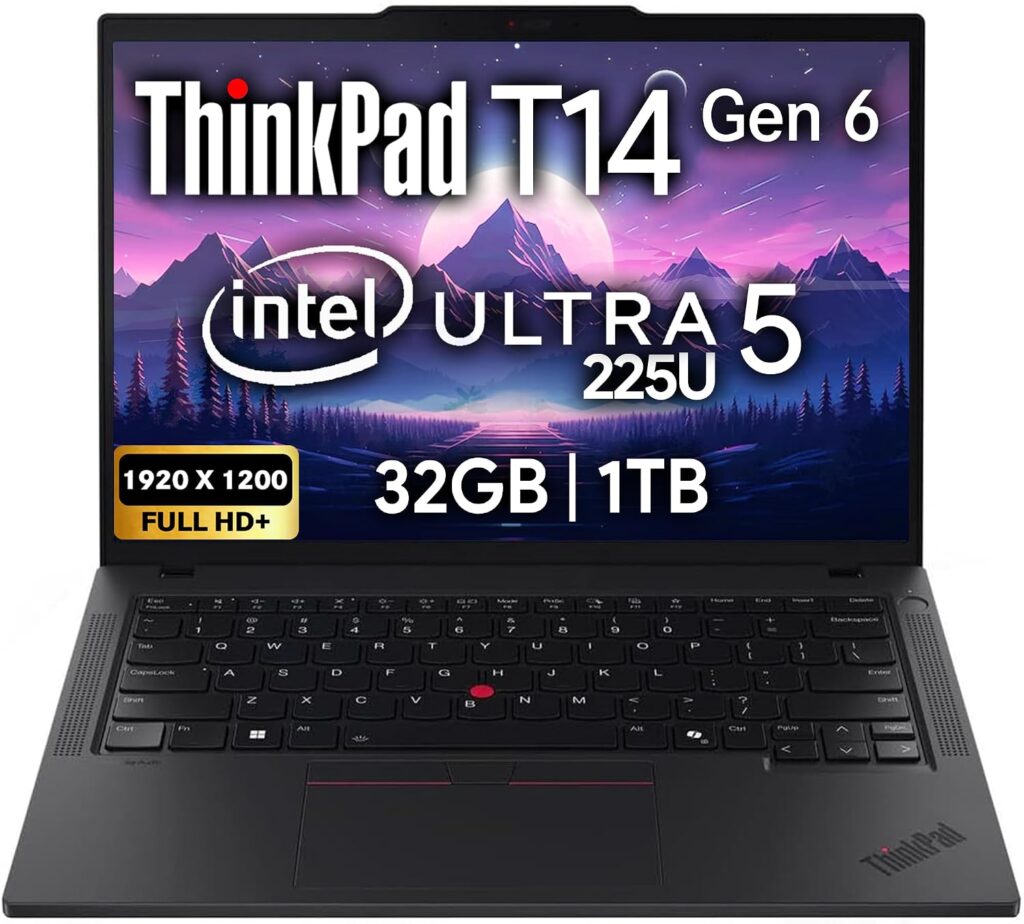
Flash Safety Score: 82/100
If you only read one entry, read this one. It’s the machine I’d hand to most working tuners, and it’s deliberately unexciting.
Notebookcheck scored it 87% in April 2026 and described it as a proven, tested workhorse. They also point out something useful: Lenovo have already announced the Gen 7, which means the Gen 6 is sitting on last year’s pricing while it lasts. For a tool that’s going to live in a rolling toolbox, buying last year’s model at a discount is exactly the right instinct.
Specs
- CPU: AMD Ryzen AI 7 PRO 350, 8 cores and 16 threads, 4× Zen 5 up to 5.0 GHz plus 4× Zen 5c up to 3.5 GHz, rated at 28 W
- Graphics: Radeon 860M integrated
- RAM: 32 GB DDR5-5600 as tested, two SO-DIMM slots, up to 64 GB
- Storage: Samsung PM9C1b 512 GB, M.2 2280 NVMe PCIe 4.0, up to 2 TB from Lenovo
- Screen: 14-inch 1920×1200 IPS, 16:10, matte, 60 Hz, low-power panel
- Ports: 2× USB-A (3.2 Gen 1), 2× Thunderbolt 4, HDMI, 3.5 mm combo, Kensington slot
- Wireless: MediaTek Wi-Fi 7 MT7925, Bluetooth 5.4
- Battery: 57 Wh with a 65 W USB-C charger
- Weight: 1.371 kg, 22.1 mm thick
- Build: Plastic over magnesium
- Warranty: 36 months on the PRO configuration
The numbers (Notebookcheck)
| Test | Score |
|---|---|
| Cinebench R23 Multi | 14,210 |
| Cinebench R23 Single | 1,950 |
| Cinebench R23 Multi, unplugged | 13,248 |
| Cinebench R20 Multi / Single | 5,546 / 766 |
| Cinebench R15 Multi | 2,420 |
| Cinebench R15 sustained loop average | 2,066 |
| Geekbench 6.7 Multi / Single | 11,406 / 2,804 |
| Geekbench 5.5 Multi / Single | 10,537 / 2,070 |
| 7-Zip (7z b 4) | 52,305 MIPS |
| Blender BMW27 CPU | 238 seconds |
| Wi-Fi 7 transmit / receive | 1,487 / 1,735 Mbit/s |
That unplugged figure is the one I care about. A 7% drop when you pull the charger means the machine behaves the same whether or not there’s a socket nearby, which is precisely what you want when you’re logging on a road drive and the power brick is in the boot.
Notebookcheck also documented its power modes: 11 W sustained in best battery life, 25 W in balanced, and 28 W sustained with 51 W peak in best performance.
The screen (Notebookcheck, X-Rite i1Pro 3)
| Measurement | Result |
|---|---|
| Average brightness | 525.8 cd/m² |
| Peak, centre | 567 cd/m² |
| Centre while on battery | 557 cd/m² |
| Contrast | 1,393:1, black level 0.4 cd/m² |
| sRGB coverage | 98.5% |
| ΔE ColorChecker | 2.4, dropping to 0.7 calibrated |
| Screen flicker (PWM) | None detected |
| Response time, black to white | 24.1 ms |
Notebookcheck call it bright enough to use outdoors, and at 526 nits average on a matte surface I’d agree. Notice the centre reading barely moves on battery. Some laptops quietly dim themselves when you unplug and it’s maddening when you’re mid-log.
The flicker result deserves more attention than it usually gets. If you spend eight hours staring at a knock retard trace, a panel with no PWM is the difference between finishing the day fine and finishing it with a headache behind your eyes.
What I like
- Two native USB-A ports. Interface plus wideband, no hub in the chain
- 526 nits, matte, no flicker. Readable in a bright bay
- Only 7% CPU throttle unplugged
- Two SO-DIMM slots and a standard M.2 2280. You can service it yourself
- Notebookcheck describe it as almost always quiet
- The keyboard and TrackPoint are still the best in the class, and the TrackPoint means no mouse when you’re perched in a passenger seat
- Spares are everywhere. Keyboards, batteries, palmrests, all cheap
- 36 months of warranty
What I don’t
- Notebookcheck note it can get a bit hot under sustained load
- 60 Hz and a sluggish 24 ms response. Fine for logs, poor for anything else
- Weak integrated graphics, which matters only if this is also your only computer
- Speakers are forgettable
- 57 Wh is adequate rather than generous. The EliteBook and ExpertBook both carry more
- No built-in Ethernet or serial
Who should buy it
The shop tuner doing several cars a week who wants something still running in 2031 with a fresh battery in it. One buying note: specifically order the 500-nit low-power panel. Lenovo also sell 400-nit versions of the identical laptop, and in a bright workshop you’ll spot the difference immediately.
2. Panasonic Toughbook 55 Mk3
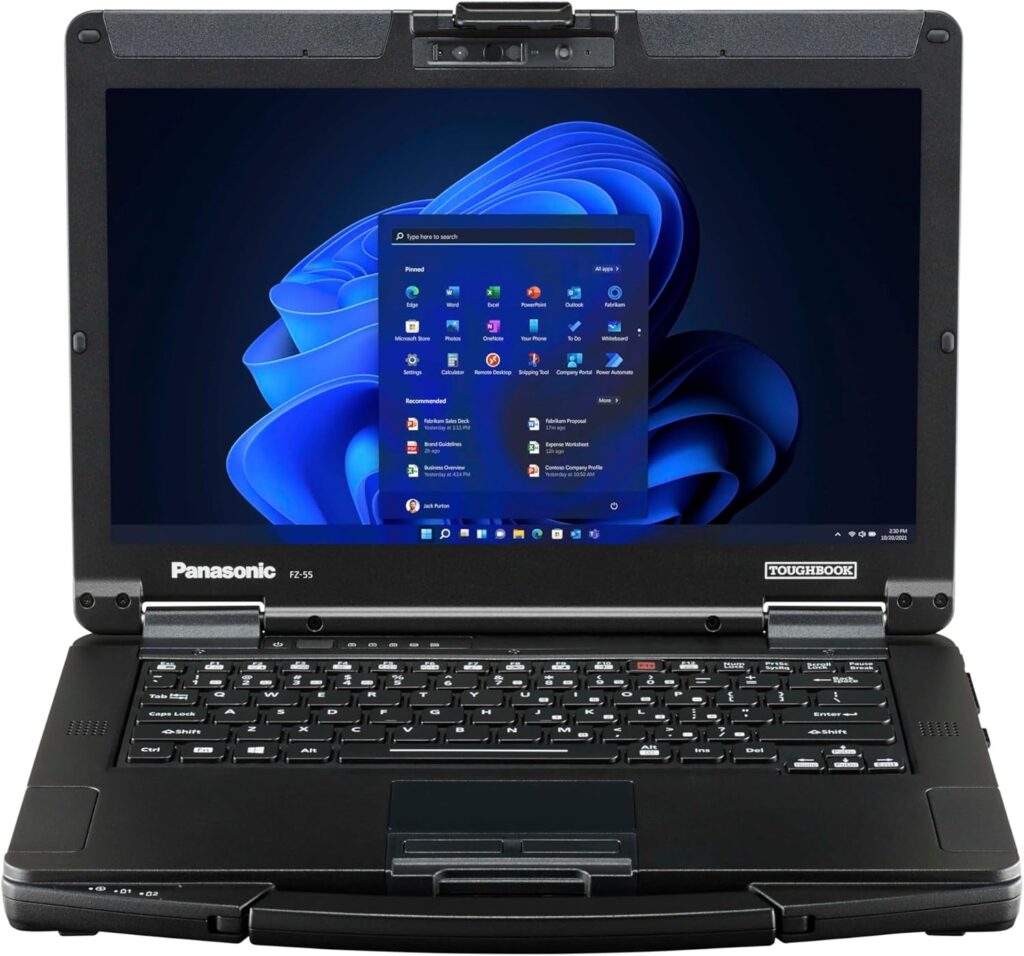
Flash Safety Score: 96/100
Highest score here and it isn’t close, because this is the only machine in the group designed by people who assumed it would be used somewhere filthy.
PCMag gave it 90% and made it their Editors’ Choice for semi-rugged laptops, calling out the sunlight-ready screen, the keyboard, and the stamina with the second battery fitted. TechRadar’s verdict praised the modularity, the brightness and the ports, with price and a mediocre touchpad as the complaints.
Specs
- CPU: 13th Gen Intel, either Core i5-1345U (2P+8E, up to 4.7 GHz) or Core i7-1370P (6P+8E, 14 cores, 20 threads, up to 5.2 GHz)
- Graphics: Intel Iris Xe
- RAM: 16 to 64 GB DDR4-3200 across two user-accessible DIMM slots
- Storage: 512 GB to 2 TB OPAL NVMe, quick-release, with an actual heater fitted to the drive for cold starts. A third TB is available via xPAK
- Screen: 14-inch, either 1366×768 or 1920×1080 touch with anti-reflective and anti-glare coatings
- Brightness: 1,000 nits per Panasonic, 909 nits as measured by RuggedBooks
- Ports: Thunderbolt 4 USB-C, 2× USB-A, HDMI 2.0, Ethernet, microSD, all behind protective flaps
- Expansion: Three xPAK bays, one of which is dedicated to port interfaces including a genuine serial port. Seven user-replaceable areas in total
- Battery: Hot-swappable dual packs. Panasonic quote up to 20 hours; RuggedBooks report over 23 hours in typical use; Windows Central found the Mk2 comfortably past 20 and likely past 25 with both packs enabled
- Toughness: MIL-STD-810H, 91 cm drop rating, IP53, magnesium alloy shell, carry handle, spill-resistant keyboard, raised bezel, replaceable screen protector
- Audio: 92 dB speakers with dual-array mics and AI noise reduction
- Wireless: Intel Wi-Fi 6 AX211, optional 4G LTE or 5G
- Weight: 2.08 kg per Panasonic’s EU spec, 4.9 lbs per TechRadar
- Price: From roughly $2,776 depending on configuration and volume
About those CPU numbers
Panasonic don’t send Toughbooks to the labs that run standardised CPU suites, so there is no Notebookcheck-style Cinebench result for the Mk3. I’m not going to invent one to fill a table cell.
What I can tell you is what the chip does. In CPU-Monkey’s aggregated benchmark database, the Core i7-1370P averages 91 points single-core and 370 points multi-core in Cinebench 2024. That puts it a clear generation behind the AMD machines here in raw throughput, and it doesn’t matter one bit for calibration work. The 14-core Raptor Lake part has far more compute than any tuning suite will ever ask for.
If you want a reference point from the same family, Notebookcheck’s review of the older FZ-55 MK2 with 11th Gen silicon concluded the generational jump from the MK1 was significant, particularly on graphics. Nobody buys a Toughbook for its benchmark scores.
Three things that matter here and nowhere else
The hot-swap battery is a safety feature, not a convenience. Every other laptop in this article has exactly one power source. If it dies mid-write, the write dies too. The Toughbook lets you pull a flat pack and drop a fresh one in while the machine keeps running off the second cell. I don’t know of another way to actually guarantee power continuity through a long session.
The SSD heater. Not a heat spreader. An actual heater, so the drive can initialise in extreme cold. If you’ve ever tried to wake a laptop in an unheated workshop in January and watched it sulk at you, you know why this exists. Cold soak is a real failure mode and Panasonic are the only ones treating it as an engineering problem instead of your problem.
The serial xPAK. Real RS-232, native, with no USB adapter sitting in the middle. If your work touches older MoTeC, older Autronic, EFI Live V2 hardware or anything pre-CAN, this removes the flakiest single component from your entire setup.
And a bonus: those 92 dB speakers are loud enough to hear an alert over a running engine and a dyno fan. Nobody markets that to tuners and they should.
What I like
- Hot-swap dual batteries. Genuine uninterrupted operation
- 909 to 1,000 nits with anti-glare coating, usable in direct sun
- Optional real serial port through the xPAK system
- MIL-STD-810H and IP53. Survives drops, dust and spilled coolant
- Covered ports keep swarf and oil out
- Heated SSD for cold workshops
- Glove-capable touchscreen with four separate touch modes
- Built-in carry handle
- Seven user-replaceable areas, plus RAM and SSD access
- Backward compatible with Toughbook 54 and 55 docks, including vehicle mounts
What I don’t
- It’s expensive, which was TechRadar’s main criticism and a fair one
- 13th Gen Intel is behind the AMD machines on raw performance
- DDR4 rather than DDR5
- Touchpad is mediocre
- 2.08 kg and thick. You feel it in a bag
- Wi-Fi 6 rather than Wi-Fi 7
- The base 1366×768 panel is genuinely too coarse for map work. Get the FHD touch version
Who should buy it
Mobile tuners, dyno operators, motorsport crews, anyone whose laptop rides in a van. And if you flash for a living, run the maths: one bricked ECU probably costs more than the gap between this and a ThinkPad.
A way to save money: used Mk2 units with the i7-1185G7, the 1,000-nit touch panel and 16 GB turn up regularly through rugged specialists at a fraction of Mk3 pricing, and most Mk1 and Mk2 xPAK modules carry across. That 1185G7 is far more chip than calibration work needs.
3. HP EliteBook 8 G1a 14
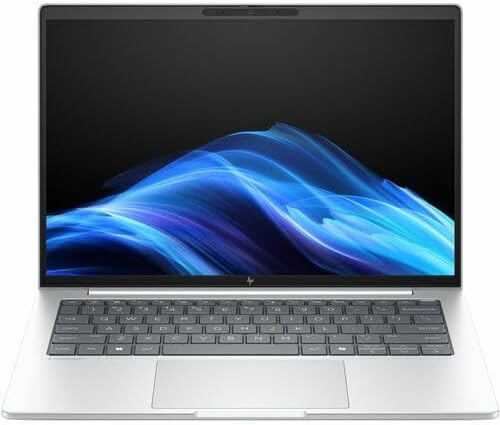
Flash Safety Score: 80/100
If your days are long and you’re never sure where the next socket is, this is the argument.
Specs
- CPU: AMD Ryzen 7 250 in Notebookcheck’s 14-inch unit, or Ryzen AI 7 350 / AI 7 PRO 350 depending on the SKU
- RAM: Up to 64 GB, user-upgradeable
- Storage: Up to 2 TB, user-upgradeable
- Screen: 14-inch 1920×1200 IPS matte as standard, with a 2560×1600 120 Hz matte panel covering DCI-P3 and AdobeRGB available
- Ports: 2× USB-A, USB4 Type-C on both sides, HDMI
- Battery: 62 Wh on the 14-inch, 77 Wh on the 16. HP claim up to 19 hours 15 minutes
- Charging: 50% in 30 minutes from a 65 W or 100 W USB-C supply
- Cooling: Dual fans, dual heat pipes, Smart Sense
- Wireless: Wi-Fi 7, Bluetooth 5.4
- Weight: Around 1.6 kg, 22 mm
- OS: Windows 11 Pro
The numbers (Notebookcheck, 14-inch Ryzen 7 250 unit)
| Test | Score |
|---|---|
| Cinebench R23 Multi / Single | 12,275 / 1,737 |
| Cinebench R20 Multi / Single | 4,901 / 678 |
| Cinebench R15 Multi | 2,002 |
| Cinebench R15 sustained loop average | 1,977 |
| Geekbench 6.7 Multi / Single | 11,206 / 2,623 |
| Geekbench 5.5 Multi / Single | 10,350 / 1,934 |
| 7-Zip (7z b 4) | 58,274 MIPS, the highest here |
| Blender BMW27 CPU | 249 seconds |
| Wi-Fi 7 transmit / receive | 735 / 1,703 Mbit/s |
The screen (Notebookcheck, standard LGD079D panel)
| Measurement | Result |
|---|---|
| Brightness, centre / average | 444 / 434 cd/m² |
| Contrast | 2,337:1, the best of the five |
| Black level | 0.19 cd/m² |
| sRGB coverage | 96% |
| Brightness uniformity | 94%, the most even panel here |
| ΔE ColorChecker | 3.4 |
That contrast figure is worth more than it looks on paper. Brightness helps you see the screen at all. Contrast is what separates a knock event from sensor noise on a dark-background log viewer. This panel is dimmer than the ThinkPad’s but it shows you more of the trace.
Battery
HP’s own claim is up to 19 hours 15 minutes. PCWorld tested the 16-inch 77 Wh version and recorded an average of 936 minutes, just under 16 hours, playing a 4K video loop at 250 nits. They’re upfront that a local video loop is a best case and real use will always be shorter. Scale it down for the 14-inch 62 Wh cell and you’ve still got a machine that clears a full day of logging without drama.
What I like
- Endurance is the headline and it earns it
- 2,337:1 contrast with 94% uniformity. The best panel here for reading logs
- Dual fans and dual heat pipes. The most serious cooling of the thin machines
- Half a charge in half an hour. A coffee break refills it
- USB-C on both sides, so charging works from whichever side the socket happens to be
- 64 GB RAM and 2 TB storage ceilings, both user-accessible
- The 2.5K 120 Hz matte panel option if you want a better display
- Widely available around €1,389 to €1,499 with a Ryzen AI 7 350, 64 GB and 1 TB
What I don’t
- 434 nits average. Noticeably dimmer than the ThinkPad in a bright bay
- Notebookcheck measured weak Wi-Fi transmit on their unit at 735 Mbit/s against the ThinkPad’s 1,487. Irrelevant during a flash, annoying when you’re pulling a tune from the cloud
- PCWorld called the display the weakest part of the machine at its price, and I agree
- The base Ryzen 7 250 is a Zen 4 part. Check which chip you’re actually getting
- Speakers and webcam are just fine, nothing more
Who should buy it
Mobile diagnostics and long days where mains power is unreliable but a rugged chassis would be overkill.
4. Dell Pro 14 Plus (PB14255)
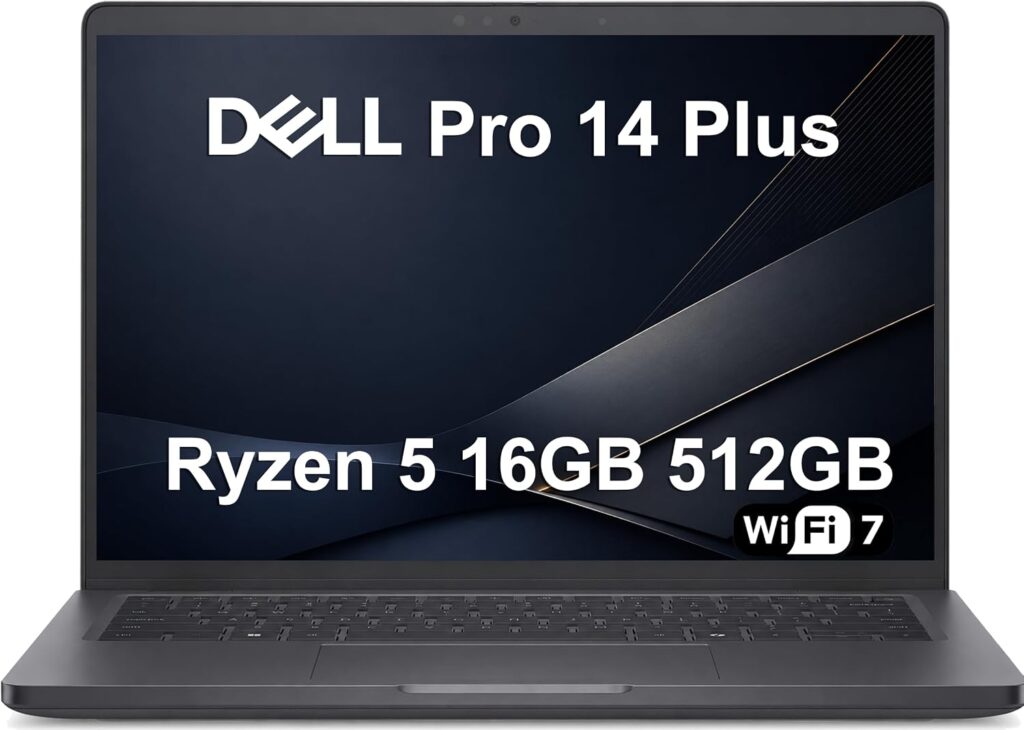
Flash Safety Score: 79/100
This one’s here for a reason no other laptop guide will give you, because most of them have never opened M1 Tune.
Not every ECU talks over USB. MoTeC’s M1 platform, the M130 and M150 and their relatives, communicates with M1 Tune over standard RJ-45 Ethernet. MoTeC’s own manual says so directly: the M1 uses an Ethernet connection with ordinary Cat 5 cable, wiring and protocols. Plenty of tuners run these through a USB-to-Ethernet dongle and mostly get away with it, right up to the afternoon the dongle’s driver decides otherwise.
The Dell is the only machine here that takes an Ethernet cable straight out of the loom.
Specs
- CPU: From Ryzen 5 220 at the entry point up to Ryzen AI 7 PRO 350 or Ryzen AI 9 HX PRO 370
- Graphics: Radeon 740M or 860M depending on the chip
- RAM: 16 to 32 GB. Lower SKUs use soldered LPDDR5x, so check the exact model
- Storage: M.2 2280 NVMe, user-replaceable
- Screen: 14-inch 1920×1200, 16:10, matte, 60 Hz. Three tiers exist: a basic panel around 300 nits with 64% sRGB, an upgraded 100% sRGB version, and a 400-nit option
- Ports: 2× USB-A (USB 3.2 Gen 1, 5 Gbps, one with PowerShare), 2× Thunderbolt 4 USB-C with Power Delivery 3.1 and DisplayPort 2.1, HDMI 2.1, 3.5 mm headset, optional RJ45 Gigabit Ethernet, nano-SIM tray, wedge lock slot
- Wireless: Wi-Fi 7, Bluetooth 5.4, with an empty mini PCIe slot for an optional 4G or 5G card
- Battery: 55 Wh
- Weight: From 1.40 kg on the 400-nit clamshell, 1.5 to 1.53 kg as usually configured
- Build: All-aluminium, 21.2 to 21.5 mm
- Price: From about £1,058 for the base configuration
The numbers (Notebookcheck, Ryzen AI 7 PRO 350 configuration)
| Test | Score |
|---|---|
| Cinebench R23 Multi / Single | 12,684 / 1,952 |
| Cinebench R20 Multi / Single | 4,950 / 763 |
| Cinebench R15 Multi | 1,969 |
| Cinebench R15 sustained loop average | 1,911 |
| Geekbench 6.7 Multi | 12,909, the highest multi-core figure in this article |
| Geekbench 6.7 Single | 2,808 |
| Geekbench 5.5 Multi / Single | 10,897 / 2,070 |
| 7-Zip (7z b 4) | 50,709 MIPS |
| Blender BMW27 CPU | 251 seconds |
| Wi-Fi 7 on 6 GHz, transmit / receive | 1,690 / 1,790 Mbit/s |
It’s a split personality. Best Geekbench multi-core score of the group at 12,909, but the weakest sustained Cinebench loop at 1,911. In plain terms, strong in bursts, less consistent over a long grind. For calibration that’s a fair trade, since nothing you do here pins a CPU for two hours straight.
The screen, and a warning (Notebookcheck, standard LP140WU4 panel)
| Measurement | Result |
|---|---|
| Brightness, centre / average | 315 / 295 cd/m² |
| Contrast | 1,260:1 |
| Black level | 0.25 cd/m² |
| sRGB coverage | 56.3% |
| ΔE ColorChecker | 6.0, peaking at 15.2 |
| Brightness uniformity | 87% |
Don’t buy the base panel. At 295 nits average and 56.3% sRGB this is the dimmest screen in the article and Notebookcheck’s numbers say so bluntly. Dell sell better ones. ITPro found the upgrade to a 100% sRGB FHD+ panel cost around £90 on the configurator, and Dell’s own spec sheet lists a 400-nit clamshell option. Spend the ninety quid. It’s the best value item on the whole configurator.
Same goes for Ethernet. The RJ45 socket is optional and adds about £14, and LaptopMedia note that availability is restricted on some processor configurations. If you tune MoTeC, tick that box before you check out. Fourteen pounds now against a dongle failing later is not a difficult sum.
Battery and serviceability
Consumer Reports tested a PB14255 and recorded 12 hours of web browsing and 9.5 hours of 4K video playback, describing the results as notably longer than many comparable machines. They also liked the sturdy chassis and the large, high-contrast keys with useful backlighting, though they point out you give up a USB-C port to the charger.
Serviceability is good. ITPro’s teardown found eight captive screws underneath, captive so you can’t lose them on a workshop floor, opening onto an M.2 2280 SSD slot, an empty full-height mini PCIe slot for a WWAN card, and a 55 Wh battery held by four more captive screws. The Wi-Fi module is soldered, which is the one genuine black mark.
What I like
- Optional native RJ45 Gigabit Ethernet. Direct to a MoTeC M1 with nothing in the middle
- Two native USB-A ports, one with PowerShare so it’ll charge a device with the lid shut
- Best Geekbench 6.7 multi-core result here at 12,909
- 12 hours browsing and 9.5 hours video measured by Consumer Reports
- Captive screws throughout, replaceable battery and standard M.2
- All-aluminium and praised as sturdy and fingerprint-resistant
- Thunderbolt 4 with PD 3.1 on both USB-C ports
- Aggressive entry pricing
- A 400-nit panel exists if you order it
What I don’t
- The base display is poor. 295 nits, 56.3% sRGB, ΔE 6.0. You have to upgrade it
- Ethernet is an extra, not standard, and restricted on some CPUs
- Weakest sustained CPU loop of the five at 1,911
- Soldered Wi-Fi module
- Lower SKUs use soldered LPDDR5x rather than SO-DIMMs. Verify before ordering
- Options escalate fast. ITPro’s fully loaded review unit reached £2,351
Who should buy it
Anyone whose work includes MoTeC M1 or another platform that expects an Ethernet cable rather than a USB lead. Also a sensible pick for shops already running Dell fleet management who want one more machine on the same contract.
Two Ethernet ECU gotchas worth knowing
Both of these break MoTeC M1 connections on fresh Windows installs and neither is obvious.
IPv6 has to be enabled on the adapter. M1 Tune uses IPv6 discovery messages to find the ECU. Turn IPv6 off in the name of security and the ECU simply never shows up.
A Windows update can break mDNS, which is what M1 Tune uses to address devices. MoTeC’s own support staff have acknowledged this on their forum, and the fix is to re-run the Dash Manager installer, or use Help then Repair inside M1 Tune, which restores the network components. If your ECU vanished after a patch Tuesday, that’s your answer. The hardware is fine.
Neither is a Dell problem. Both are Windows problems, and knowing them will save you an afternoon on any laptop you own.
5. ASUS ExpertBook PM3
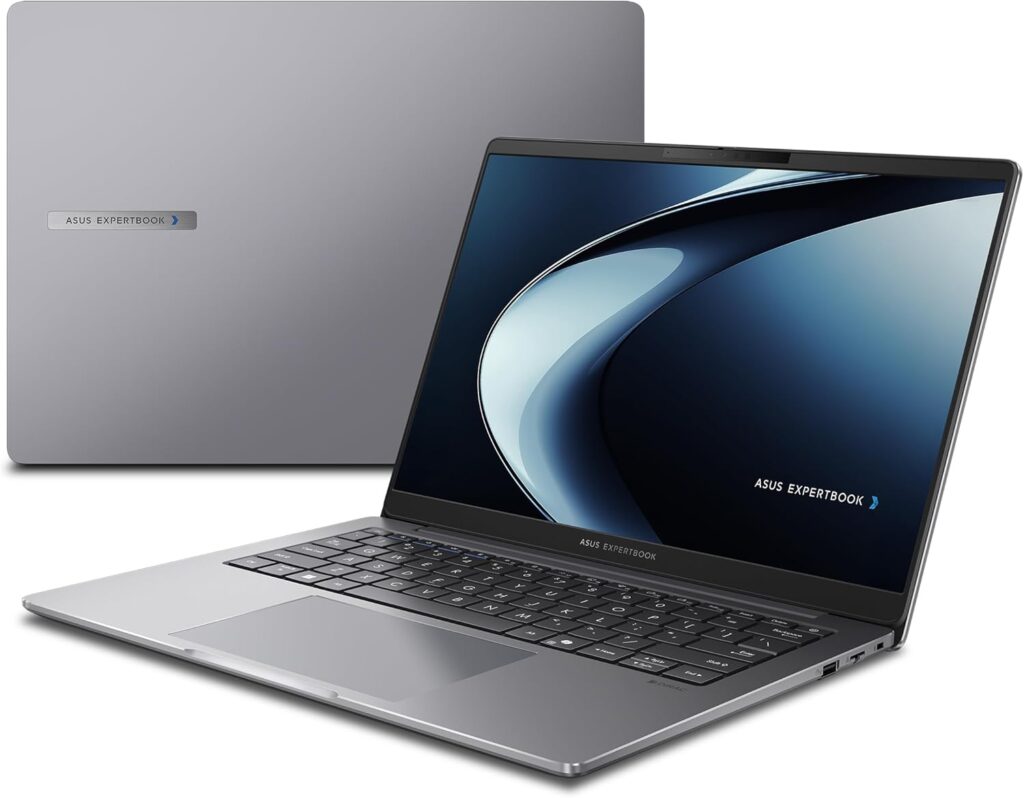
Flash Safety Score: 71/100
The bargain of the group, with one caveat you need to know going in. It’s also tougher than I expected, which changed my opinion of it.
Notebookcheck scored it 84.7% and called it an affordable office laptop with a fast AMD processor, while warning you not to expect much from the display. They’re right on both counts.
Specs
- CPU: AMD Ryzen AI 7 350, 4× Zen 5 up to 5.0 GHz plus 4× Zen 5c up to 3.5 GHz, running 28 W sustained with 50 W short bursts
- Graphics: Radeon 860M
- RAM: 16 GB DDR5-5600 in the review unit, two slots, up to 64 GB. Notebookcheck’s test machine shipped single-channel, which costs you iGPU performance, so fit a second stick
- Screen: 14-inch 1920×1200 IPS, 16:10, matte, 60 Hz
- Ports: 2× USB-A at 5 Gbps, USB-C, no Thunderbolt
- Wireless: MediaTek Wi-Fi 7 MT7925, Bluetooth 5.4
- Battery: 70 Wh, the largest here, with a 90 W USB-C adapter. ASUS quote up to 18.5 hours and reviewers were shown 13 hours as a working figure. Charges to 60% in 49 minutes
- Toughness: MIL-STD-810H tested
- Weight: 1.34 kg at 17.9 mm, the lightest and thinnest of the five
- Support: Three-year warranty plus five years of BIOS and driver updates
- Price: From €860 for the Ryzen AI 5 330 base model, €979 to €1,054 for the Ryzen AI 7 350
The numbers (Notebookcheck)
| Test | Score |
|---|---|
| Cinebench R23 Multi | 15,879, the highest here |
| Cinebench R23 Single | 1,962, also the highest |
| Cinebench R20 Multi / Single | 6,185 / 766 |
| Cinebench R15 Multi | 2,455 |
| Cinebench R15 sustained loop average | 2,290, the best sustained result of the five |
| Geekbench 6.7 Multi / Single | 11,192 / 2,843 |
| Geekbench 5.5 Multi / Single | 10,468 / 2,090 |
| 7-Zip (7z b 4) | 55,812 MIPS |
| Blender BMW27 CPU | 202 seconds, fastest here |
| Wi-Fi 7 transmit / receive | 1,842 / 1,749 Mbit/s, fastest measured |
That loop average is the interesting one. 2,290 against the ThinkPad’s 2,066 is an 11% lead, achieved in a thinner chassis. ASUS’s cooling is doing real work.
The screen, and the caveat (Notebookcheck)
| Measurement | Result |
|---|---|
| Brightness, centre / average | 320 / 310 cd/m² |
| sRGB coverage | 58.1% |
| Contrast | 1,231:1 |
| Black level | 0.26 cd/m² |
| ΔE ColorChecker | 5.1, peaking at 18.1 |
| Brightness uniformity | 93% |
No point dressing this up. At 310 nits average and 58.1% sRGB, this panel is 41% dimmer than the ThinkPad’s. Under artificial light indoors it’s perfectly fine. Push a car onto an outdoor pad or work with a bonnet up on a bright afternoon and you’ll be squinting.
Colour accuracy matters less than you’d think for this work, since you’re reading line traces rather than grading footage. The brightness absolutely matters.
What I like
- Best sustained CPU performance here, at 2,290 in the R15 loop
- Highest Cinebench R23 multi at 15,879 and highest Geekbench single at 2,843
- 70 Wh battery, the biggest fixed cell in this article
- MIL-STD-810H tested, which is unusual at this money
- 1.34 kg and 17.9 mm. Easiest to carry all day
- Fastest measured Wi-Fi at 1,842 Mbit/s
- Two RAM slots to 64 GB, dual-SSD support, and Notebookcheck rate the maintenance access as good
- Three-year warranty plus five years of BIOS and driver updates
- Cheapest entry point of the five
- Notebookcheck also liked the speakers, which is a nice surprise at the price
What I don’t
- 310 nits and 58.1% sRGB. The clear weak point and a real one in a bright workshop
- 1,231:1 contrast makes dark-theme log viewers harder to read
- ΔE of 5.1 peaking at 18.1. Visibly off colours
- Review unit shipped single-channel. Budget for a second RAM stick
- No Thunderbolt or USB4
- Weak webcam
- Thin chassis means less thermal mass across multi-hour sessions
Who should buy it
The part-time tuner, the enthusiast working on their own cars, anyone mostly indoors under controlled light. If your workshop is well lit and you never work outdoors, the display objection largely disappears and you’re getting the fastest, toughest-for-the-money machine here.
Side by Side
Every figure below is a published measurement or a published specification. No blanks, no guesses.
The practical stuff
| ThinkPad T14 G6 AMD | Toughbook 55 Mk3 | EliteBook 8 G1a 14 | Dell Pro 14 Plus | ExpertBook PM3406 | |
|---|---|---|---|---|---|
| Flash Safety Score | 82 | 96 | 80 | 79 | 71 |
| Processor family | Ryzen AI 7 PRO 350 | i5-1345U / i7-1370P | Ryzen 7 250 / AI 7 350 | Ryzen 5 220 to AI 9 HX PRO 370 | Ryzen AI 7 350 |
| Screen brightness, measured | 526 cd/m² avg | 909 cd/m² (Panasonic claim 1,000) | 434 cd/m² avg | 295 cd/m² avg (base panel) | 310 cd/m² avg |
| Contrast | 1,393:1 | Anti-glare, sunlight-readable per PCMag and TechRadar | 2,337:1 | 1,260:1 | 1,231:1 |
| Battery | 57 Wh | 2 hot-swap packs, 20–23 h+ | 62 Wh (14″), 77 Wh (16″) | 55 Wh | 70 Wh |
| Native USB-A ports | 2 | 2 | 2 | 2 (one PowerShare) | 2 |
| Built-in RJ45 Ethernet | No | Yes | No | Optional, ~£14 | No |
| True RS-232 serial | No | Yes, via xPAK | No | No | No |
| RAM slots | 2× SO-DIMM, 64 GB max | 2× DDR4 DIMM, 64 GB max | Upgradeable, 64 GB max | Varies by SKU, some soldered | 2 slots, 64 GB max |
| Drop / ingress rating | None | MIL-STD-810H, IP53, 91 cm | None | None | MIL-STD-810H |
| Weight | 1.371 kg | 2.08 kg | ~1.6 kg | 1.40–1.53 kg | 1.34 kg |
| Warranty | 36 months (PRO) | Panasonic enterprise terms | HP business terms | Dell business terms | 3 years + 5 years of updates |
| Rough price | $1,200–1,600 | From ~$2,776 | €1,389–1,499 | From ~£1,058 | From €860 |
CPU benchmarks
These four were all measured by Notebookcheck using the same suite, so they’re directly comparable. The Toughbook isn’t included because Panasonic don’t supply units to CPU benchmark labs, and I’d rather leave it out than invent a number. Its i7-1370P averages 91 single-core and 370 multi-core in Cinebench 2024 according to CPU-Monkey’s database, which is plenty for this work.
| Benchmark | ThinkPad T14 G6 | EliteBook 8 G1a 14 | Dell Pro 14 Plus | ExpertBook PM3406 |
|---|---|---|---|---|
| Cinebench R23 Multi | 14,210 | 12,275 | 12,684 | 15,879 |
| Cinebench R23 Single | 1,950 | 1,737 | 1,952 | 1,962 |
| Cinebench R20 Multi | 5,546 | 4,901 | 4,950 | 6,185 |
| Cinebench R15 Multi | 2,420 | 2,002 | 1,969 | 2,455 |
| R15 sustained loop avg | 2,066 | 1,977 | 1,911 | 2,290 |
| Geekbench 6.7 Multi | 11,406 | 11,206 | 12,909 | 11,192 |
| Geekbench 6.7 Single | 2,804 | 2,623 | 2,808 | 2,843 |
| Geekbench 5.5 Multi | 10,537 | 10,350 | 10,897 | 10,468 |
| 7-Zip, MIPS | 52,305 | 58,274 | 50,709 | 55,812 |
| Blender BMW27, seconds | 238 | 249 | 251 | 202 |
| Wi-Fi 7 transmit, Mbit/s | 1,487 | 735 | 1,165 | 1,842 |
The Windows Setup That Matters More Than the Laptop
This is the section that saves ECUs, and it’s missing from almost every laptop roundup I’ve read. Do all of it before your first flash on a new machine.
Kill USB selective suspend, properly
Windows powers down idle USB ports by default to save battery. Microsoft’s own documentation confirms selective suspend is on by default and that they strongly recommend leaving it alone. That advice was written for people who aren’t sending firmware to an engine controller.
Run powercfg.cpl, go to Change plan settings, then Change advanced power settings. Expand USB settings, then USB selective suspend setting, and set it to Disabled for both On battery and Plugged in.
Then do the second half that most people skip. Puget Systems’ guidance is the right approach here: open Device Manager, expand Universal Serial Bus controllers, and for every USB Root Hub and controller in the list, open Properties, go to the Power Management tab, and untick “Allow the computer to turn off this device to save power.” Unless you know exactly which controller your interface hangs off, do all of them.
Then go and check your vendor’s own software
This one catches experienced people. Even after you’ve disabled selective suspend globally, OEM utilities like Lenovo Vantage, Dell Power Manager, HP Command Center and MyASUS can carry on powering down USB controllers during idle periods, and those settings sit completely independently of the Windows power plan. Open whichever one applies to your machine and turn off every USB power-saving, peripheral-sleep and deep-idle option you can find.
Worth knowing too: some laptops apply different USB power policies on battery than on AC. That’s exactly why a problem feels intermittent and impossible to pin down.
Turn off Fast Startup
Control Panel, Power Options, Choose what the power buttons do, Change settings that are currently unavailable, then untick Turn on fast start-up. Fast Startup is a hybrid hibernate. It leaves drivers in a stale state and J2534 interfaces hate it.
Set sleep, hibernate and lid-close to Never
All three. On battery and plugged in. Yes, it costs you battery life. It costs you less than an ECU.
Run the High Performance plan
Not Balanced, and definitely not the Windows 11 best-power-efficiency slider. Set it to best performance and leave it there for flashing.
The 60% rule
Never start a write below 60% battery and never start one without the charger physically plugged in. Two healthy power sources, every time. And put a maintainer on the car for anything longer than a read, because HPA’s warning cuts both ways: a flat vehicle battery will brick an ECU just as effectively as a flat laptop.
Airplane mode during writes
Wi-Fi driver hiccups, Windows Update and cloud sync clients have all interrupted flashes. Kill the radios for the duration.
Pause Windows Update before you start
Settings, Windows Update, Pause updates. A forced restart mid-flash is the dumbest possible way to lose an ECU and it happens more than anyone admits.
Print this list. Tape it inside your toolbox lid. It’s worth more than the difference between any two laptops in this article.
The Small Stuff Nobody Warns You About
Buy an FTDI-based USB-to-serial adapter, not a cheap one. Counterfeit Prolific chips are everywhere in the budget cable market, and Prolific’s own drivers deliberately refuse to initialise clones. You get a yellow warning triangle in Device Manager halfway through a job with no obvious cause. A genuine FTDI cable costs a bit more and just works.
Count your dongles before you count your ports. An MPVI3, a Tactrix Openport 2.0, a WinOLS HASP key and a wideband is already four USB-A devices. Two ports plus a hub is a compromise, and I’d never put a hub between a laptop and a live flash. Do the reads and the logging through the hub if you must. Never the write.
Label your cables. Sounds trivial. Isn’t. Grabbing the wrong OBD lead in a hurry is a good way to have a bad afternoon.
Keep a spare charger in the van. Not a spare laptop. A spare charger. That’s the part that fails.
The Smart Money Play: Buy Used Business Hardware
Here’s advice that argues against buying anything new.
High Performance Academy specifically recommend ThinkPads for tuning, and their reasoning is exactly right: build quality and longevity, plenty of them secondhand at reasonable prices, and replacement parts that are easy to source. They attach one crucial condition, though. If you buy refurbished, budget to replace the battery straight away, because an old cell holds significantly less charge than it did new. For a machine whose entire job is not losing power mid-write, that isn’t optional maintenance. That’s the whole point of the machine.
A three-year-old ThinkPad T14 Gen 3 or Gen 4 with a fresh battery and a new SSD will do everything a brand new one does for calibration work, at maybe a third of the price. Put the difference into a genuine FTDI cable, a proper battery maintainer for the car, and a hard case.
The same logic works for the Toughbook. A used Mk2 with the 1,000-nit touch panel does the job the Mk3 does.
What I’d Avoid
MacBooks. The software is Windows-only, Boot Camp is dead on Apple Silicon, and a Windows VM inserts a USB passthrough layer between your software and the car. That layer will eventually drop a packet at the worst possible moment.
Chromebooks. No.
Thin gaming laptops. Glossy screens, aggressive throttling on battery, RGB software fighting your power plan, three-hour runtimes. It’s a list of everything you don’t want.
Anything with fewer than two USB-A ports. A hub is one more connector, one more cable, one more power negotiation and one more thing to fail during a write.
Convertibles with everything soldered. Tablet mode sounds handy for leaning into an engine bay, right up until your tune library outgrows storage you can never change.
Machines stuck in Modern Standby with no real sleep state. A lot of current thin-and-lights only support S0ix, which keeps waking the system for background work. Combine that with aggressive USB power management and you have a genuine hazard. Business-class machines behave better here, which is a large part of why this list is as business-heavy as it is.
Frequently Asked Questions
Do I need 32 GB of RAM for ECU tuning? No. 16 GB is comfortable for HP Tuners, EFI Live, ECUFlash and the rest. WinOLS with very large project libraries and several map windows open benefits from 32 GB, but that’s a comfort upgrade, not a requirement. Buy something with two SO-DIMM slots and add a stick later if you ever actually hit a wall.
Do I need a dedicated graphics card for tuning software? No. Everything in common use runs on integrated graphics. A GPU only matters if the same laptop also does CAD or video work.
Can I tune a car with a MacBook? Not reliably. The software is Windows-only, Boot Camp doesn’t exist on Apple Silicon, and a virtual machine puts a USB passthrough layer between your software and the vehicle. Some people manage reads and datalogging that way. For writes, don’t.
How much storage do I actually need? 512 GB genuinely covers a full tuning suite, a decent map library and a year of logs. 1 TB gives you breathing room. The 2 TB advice you’ll see elsewhere is mostly padding.
USB-A or USB-C for my interface? Electrically it makes no difference. What matters is having enough native ports. Most interfaces and virtually every licence dongle is still USB-A, so two native USB-A ports is the practical floor. Don’t run a critical interface through a hub during a write.
What’s the single most important spec on a tuning laptop? Power continuity. A healthy battery, correct Windows power settings, and a charger plugged in. Everything else is preference.
Will a cheap laptop brick my ECU? A cheap one won’t. A misconfigured one will, cheap or expensive. The failure modes are USB selective suspend, Modern Standby, Fast Startup, a forced Windows Update restart, and a flat battery. All five are configuration, not price.
Is a rugged laptop actually worth the money? If it lives in a van, works near a running dyno, or goes outdoors, yes, and the hot-swap battery alone justifies it. If it sits on a bench in a clean workshop, no. Buy a ThinkPad and a hard case.
Does screen brightness really matter that much? More than most specs. Compare the ThinkPad’s 526 nits to the ExpertBook’s 310, both matte panels at the same resolution. In a dim workshop you won’t notice. With a bonnet up in daylight you absolutely will.
Which laptops here can connect to a MoTeC M1 without an adapter? Only two. The Dell Pro 14 Plus with the optional RJ45 socket ticked, and the Panasonic Toughbook 55 Mk3, which has Ethernet as standard. Everything else needs a USB-to-Ethernet dongle.
Do I need a touchscreen? Only if you work with the machine balanced on a wing or a scuttle panel. The Toughbook’s glove-capable touch modes stand out, because you can drive it without taking your gloves off. Nothing else here manages that.
What I’d Actually Buy
Most tuners should get the Lenovo ThinkPad T14 Gen 6 AMD. Two USB-A ports, a 526-nit flicker-free matte screen, a 7% throttle unplugged, socketed RAM, a standard M.2, a keyboard you can work on all day, and spares availability that’ll keep it alive for years. Order the 500-nit low-power panel specifically.
If the laptop leaves the building, get the Panasonic Toughbook 55 Mk3. The hot-swap battery is the only real answer to the fundamental risk in this work, and the serial xPAK plus the heated SSD are decisions made by people who understood the job. Buy a used Mk2 if the Mk3 is out of reach.
If you tune MoTeC M1 or anything else on Ethernet, get the Dell Pro 14 Plus. Tick the RJ45 box and the upgraded panel on the configurator, or you’ll end up with the dimmest screen here and no Ethernet port.
If you’re doing this for your own cars in your own garage, get the ASUS ExpertBook PM3406. Accept the dim screen and enjoy the fastest sustained CPU, the biggest battery and a MIL-STD-810H rating for the least money.
Whichever one you land on, go and do the Windows checklist before you plug into anything. The gap between the best and worst machine on this list is real, but it’s smaller than the gap between a properly configured laptop and one straight out of the box. Your processor has never bricked an ECU. USB selective suspend has.
Performance and display measurements come from Notebookcheck, PCWorld and Consumer Reports. Toughbook brightness was measured by RuggedBooks, with Panasonic’s own figure quoted alongside it. Teardown and configuration detail comes from ITPro and LaptopMedia. Rugged ratings and module options come from Panasonic Connect, ASUS and Dell published specifications. The i7-1370P processor figures come from CPU-Monkey’s aggregated benchmark database. The Flash Safety Score is my own rubric applied to that third-party data, not an instrument reading. Prices are indicative and move around by region and configuration.

Hi, my name is Burak. I am a mechanical engineer. I have been writing laptop reviews for the Engineering Laptops website since 2020. Please feel free to contact me if you have any questions.