Table of contents
- The Short Version
- What Design Space Actually Asks of Your Computer
- Three Hard Stops. Read These Before You Buy Anything.
- How I Put This Together
- The Craft Score: A Model Built for Design Space
- Best Laptop for Cricut Design Space in 2026: I Dug Through the Lab Data So You Don’t Have To
- Everything Side by Side
- Why I Didn’t Recommend a Single Snapdragon Laptop
- Ports and Connectivity: The Bit Everyone Gets Wrong
- How Much RAM Do You Actually Need?
- Screen: Size Beats Sharpness for This Kind of Work
- Thermals and Noise: The Craft Room Factor
- Buying Mistakes I See Over and Over
- Your First-Day Setup Checklist
- Frequently Asked Questions
- The Verdict
I want to start with the thing that took me an embarrassingly long time to work out.
Cricut Design Space is not a demanding program. Honestly, it isn’t. Cricut’s own published minimum is 4GB of RAM and an Intel dual-core processor, which is a spec sheet from about a decade ago. And yet, spend ten minutes in any Cricut Facebook group and you’ll see the same posts on a loop:
“Why is Design Space so slow?” “It froze during Prepare and I lost the whole project.” “I just bought a brand new laptop and it STILL lags.”
That last one is the one that bothered me. Brand new laptop. Still lags. How?
Here’s the answer, and it’s the single most useful thing I can tell you before you spend a penny: Design Space is an Electron app. It’s basically Chromium wearing a costume. The desktop version you download from Cricut isn’t some lean, purpose-built program — it’s a web browser with the Cricut interface running inside it. You can check this yourself if you’re the curious type. Crack open the Mac app bundle and the ElectronAsarIntegrity keys are sitting right there in the Info.plist, plain as day.
That one fact changes everything about which laptop you should buy.
Because Electron apps live or die on single-core CPU speed and RAM. They don’t spread nicely across sixteen cores. They barely touch your graphics card. So all those glowing 2026 reviews raving about a 16-core Panther Lake chip and an Arc GPU that plays games at 1080p? For Design Space, most of that is expensive dead weight.
So I did the work. I pulled published lab measurements from Tom’s Hardware, Notebookcheck, Tom’s Guide, Macworld and Engadget. I read Cricut’s official documentation properly, including the comment threads at the bottom of the support pages, which turned out to be a goldmine. Then I built a scoring model weighted around what Design Space actually uses instead of what looks impressive in a spec sheet.
The results genuinely surprised me. The laptop sitting at the top of nearly every “best laptop of 2026” list right now lands fourth on mine. And a convertible you can find for around $650 beats a $2,200 flagship.
Let’s get into it.
The Short Version
| Rank | Laptop | Best For | Craft Score | Street Price |
|---|---|---|---|---|
| 1 | Apple MacBook Air 13″ (M5) | Almost everyone | 8.2 / 10 | From $1,099 |
| 2 | HP OmniBook X Flip 14 (2026) | Designing by touch and pen | 7.7 / 10 | From ~$650 |
| 3 | Acer Swift Go 16 AI | Biggest canvas, every port you need | 7.6 / 10 | $799–$1,149 |
| 4 | Dell XPS 14 (2026) | Windows users who want the best screen | 7.3 / 10 | From $1,599 |
| 5 | Apple MacBook Neo | Tight budgets, simple projects | 6.0 / 10 | From $599 |
If you want the really short version: buy the MacBook Air M5. It wins on the number that matters most, it makes zero noise, and it’ll still be perfectly fine five years from now.
If you want to know why, and which one actually suits your craft room, keep reading. This is the long version, and I’ve tried to make every paragraph earn its place.
What Design Space Actually Asks of Your Computer
Let me be precise here, because the rest of this article hangs on it.
The official requirements
Straight from Cricut’s support site, current as I write this:
| Requirement | Windows | macOS |
|---|---|---|
| Operating system | Windows 10 or later | macOS 12 or later |
| CPU | Intel Dual-Core or equivalent AMD | 1.83 GHz |
| RAM | 4GB | 4GB |
| Free disk space | 2GB | 2GB |
| Connection | USB port or Bluetooth | USB port or Bluetooth |
| Display | 1024 × 768 minimum | 1024 × 768 minimum |
| Internet, download | 2–3 Mbps minimum | 2–3 Mbps minimum |
| Internet, upload | 1–2 Mbps minimum | 1–2 Mbps minimum |
Cricut adds a line that’s very easy to skim right past: some features are not supported at minimum system requirements. Translation: the minimum will get the app to open. It won’t necessarily get your project cut.
What those requirements don’t tell you
This is where it gets interesting. Scroll to the bottom of Cricut’s own system requirements page and read the comments. There’s one from a member named Joshua, dated May 2025, asking Cricut to update the page because 4GB “just does not seem to be cutting it any more.” He asks them to raise the stated minimum to 8–16GB. Ten people upvoted it. The page still says 4GB.
There’s another from a member named Kenny pointing out that the listed macOS 12 minimum is stale, since Apple dropped support for macOS 12 back in November 2024 — and by his September 2025 update, macOS 13 was out of support too.
So the official page is behind reality. Community reports and independent troubleshooting guides all converge on the same practical figure: 4GB to launch it, 8GB to be comfortable with larger projects. I’d go further and say 16GB in 2026, and I’ll show you why further down.
The three ways Design Space eats your resources
It redraws your canvas constantly. Every layer, every node, every welded shape gets re-rendered in real time. Complex SVGs with hundreds of layers are where it falls over. Troubleshooting guides specifically flag the Prepare screen — the mat layout view — as the moment intricate files cause lag or a hard crash.
It’s talking to the cloud the whole time. It’s pulling project files down, syncing your library, and managing the machine connection all at once. That’s why “it got slow after the update” is such a common complaint. Your local install and Cricut’s servers have to agree on a version before anything works properly.
It’s a browser, so it hoards memory. And it does not autosave the way you probably assume. It saves to the cloud every few minutes, not every few seconds. If it crashes at the wrong moment, that work is gone. Which is exactly why RAM headroom is a safety feature, not a luxury.
Two more practical limits worth knowing: uploads over 12MB frequently fail, and file names containing special characters like #, % or & can break the upload entirely. Supported formats are SVG, PNG, JPG, GIF, BMP, DXF and HEIC.
Three Hard Stops. Read These Before You Buy Anything.
I’ve watched people buy the wrong machine over each of these. All three come from Cricut’s official documentation, not from forum rumours.
Chromebooks do not work. At all.
Cricut states it plainly and repeatedly: Design Space is not supported on Chromebooks. Not “works with limitations.” Not supported. There’s no Chrome OS build, and the browser version won’t drive your machine.
This one stings, because Chromebooks are cheap and they’re everywhere in back-to-school sales, and they look like exactly what a casual crafter needs. If you already own one and you’re eyeing up a Cricut, budget for a second computer. There is no software fix.
Linux and Unix do not work either.
Same page, same sentence. No build, no support.
Windows in S Mode does not work.
This is the sneaky one. Loads of budget Windows laptops ship in S Mode, which locks you to Microsoft Store apps only. Design Space isn’t a Store app, and Cricut explicitly says S Mode systems aren’t supported.
The fix is free and takes about two minutes through Windows Settings. But it is one-way and permanent — you cannot switch back. If you’re buying a budget Windows laptop for Cricut, do this on day one before you install anything else.
Two bonus gotchas while I’m here:
If Windows tells you your OS is “unsupported” even though it obviously meets the requirements, Design Space is probably running in compatibility mode for Windows 8 or earlier. Right-click the shortcut, go to Properties, then the Compatibility tab, and untick the compatibility mode box. Cricut documents this exact fix.
And your Cricut holds one Bluetooth connection at a time. If your phone grabbed the slot last, your laptop simply won’t see the machine. Disconnect the phone first.
How I Put This Together
I want to be straight with you about where the numbers come from, because a lot of “best laptop for X” articles are deliberately vague about this.
The hardware measurements are published lab results from named independent testing outlets, each using a documented, repeatable methodology. I’ve named the source and the test conditions for every single figure so you can go and verify any of them yourself. Where two labs tested the same machine and got different answers — and that happens far more than you’d expect — I’ve shown you both numbers instead of quietly picking the flattering one.
The Cricut-specific work is mine. The scoring model, the workflow weighting, the compatibility research, the port analysis and the conclusions about what actually matters for Design Space. That’s the part you won’t find anywhere else, and it’s the reason this article exists.
Here’s what each test tells you and why I care about it:
| Test | What it measures | Why it matters for Cricut |
|---|---|---|
| Geekbench 6, single-core | Speed of one CPU core in short bursts | The most predictive number here. Electron apps are main-thread bound |
| Geekbench 6, multi-core | All cores working together | Mostly irrelevant to Design Space. Useful if you also run Photoshop |
| Cinebench 2026, 10-loop stress | Sustained load and throttling behaviour | Shows whether a thin laptop collapses during a long batch session |
| 25GB file transfer | Real-world SSD throughput | Loading big SVG libraries and project files |
| Battery at 150 nits | Runtime at a fixed, honest brightness | Crafting away from a plug socket |
| Measured brightness in nits | Actual peak output, not the marketing figure | Craft rooms are bright. Dim screens are miserable |
| sRGB and DCI-P3 coverage | Colour gamut accuracy | Matching vinyl and HTV to what you see on screen |
| Surface temperature | Skin-contact heat under load | Your wrists live on this thing for hours |
| 3DMark Steel Nomad | Integrated GPU power | Included for completeness. Design Space barely touches it |
Two notes on rigour, because I’d want to know if I were reading this.
Brightness figures are labelled “measured” or “rated.” Manufacturer claims and lab readings often disagree badly. The Dell XPS 14’s OLED is the perfect example: Tom’s Hardware read 466 nits, Notebookcheck read 389 nits on the same panel type, and Dell rates it at 500. That’s a huge gap and I’ve shown all three.
One thermal reading needs an asterisk. Tom’s Hardware published the Acer Swift Go 16 AI’s surface temperatures labelled in Celsius — 87° on the touchpad, 114° on the underside. But the same review lists the CPU’s internal average at 66.9°C, and a 114°C laptop underside would cause instant burns. A reader flagged it in the comments too. These are Fahrenheit figures with a unit typo, and I’ve reported them as Fahrenheit and told you why rather than quietly copying the error.
The Craft Score: A Model Built for Design Space
Standard laptop reviews weight raw performance heavily and treat ports as an afterthought. For Cricut work that’s backwards, so I built a weighted model around what Design Space actually consumes.
| Factor | Weight | Why |
|---|---|---|
| Single-core CPU speed | 25% | Chromium is main-thread bound. This is the whole ballgame |
| RAM headroom | 20% | Sets your project complexity ceiling and your crash resistance |
| Canvas real estate | 20% | Screen size, brightness, colour, touch support |
| Connectivity | 15% | USB-A vs USB-C, Bluetooth version, adapters needed |
| Battery life | 10% | Nice to have. Most crafting happens at a desk |
| Thermals and noise | 10% | Long sessions, and fan whine in a quiet craft room grates |
Notice what’s missing. GPU performance carries zero weight. Design Space doesn’t meaningfully use your graphics card. Any modern integrated GPU renders the canvas fine. If a buying guide tells you to get a laptop for Cricut because of its strong integrated graphics, that guide didn’t check.
Here’s how the five scored:
| Laptop | Single-core | RAM | Canvas | Ports | Battery | Thermals | Total |
|---|---|---|---|---|---|---|---|
| MacBook Air M5 | 10.0 | 8.0 | 6.5 | 7.0 | 8.5 | 9.0 | 8.2 |
| HP OmniBook X Flip 14 | 7.0 | 8.5 | 7.0 | 8.5 | 8.0 | 7.5 | 7.7 |
| Acer Swift Go 16 AI | 6.5 | 7.5 | 9.0 | 10.0 | 5.0 | 7.0 | 7.6 |
| Dell XPS 14 (2026) | 8.0 | 6.5 | 7.5 | 5.5 | 8.5 | 8.5 | 7.3 |
| MacBook Neo | 8.5 | 3.0 | 5.5 | 5.0 | 6.0 | 8.0 | 6.0 |
Best Laptop for Cricut Design Space in 2026: I Dug Through the Lab Data So You Don’t Have To
1. Apple MacBook Air 13″ (M5) — Best Overall
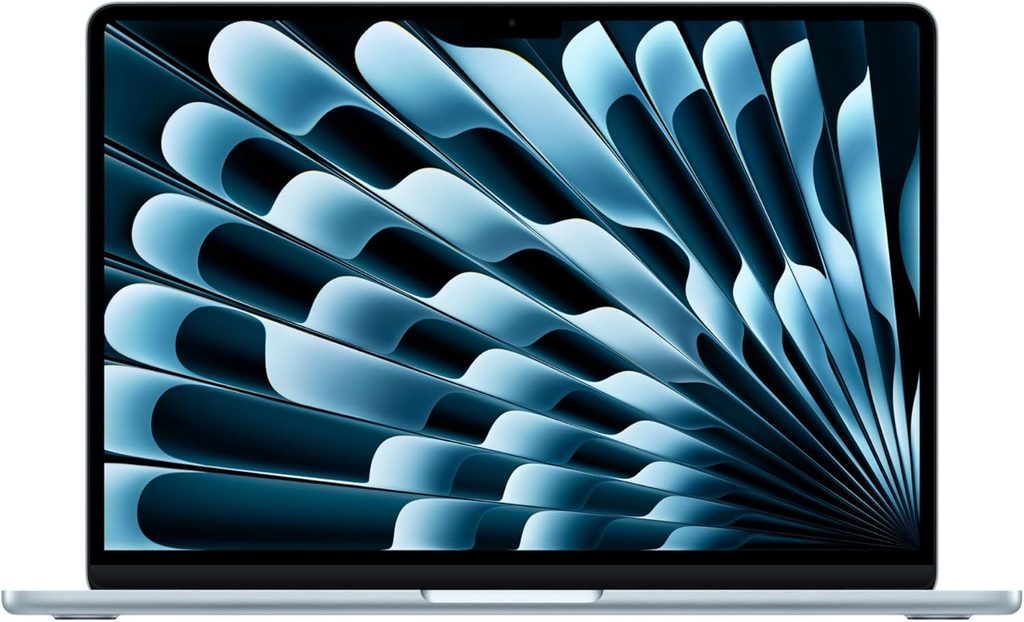
Craft Score: 8.2 / 10
I’ll be honest with you, I didn’t want the answer to be “buy the MacBook.” It’s the boring pick. Every list says MacBook Air. But when the deciding factor is single-core speed and silence, Apple currently has no competition, and pretending otherwise would just be lying to you.
Specifications
| Component | Detail |
|---|---|
| CPU | Apple M5, 10-core |
| GPU | 10-core integrated (8-core on the base model) |
| RAM | 16GB unified minimum, up to 32GB |
| Storage | 512GB base, up to 4TB |
| Display | 13.6″, 2560 × 1664 Liquid Retina IPS, True Tone |
| Ports | MagSafe 3, 2× Thunderbolt 4 (USB-C), 3.5mm headphone |
| Wireless | Apple N1 chip: Wi-Fi 7, Bluetooth 6, Thread |
| Battery | 53.8 Wh |
| Charger | 40W Dynamic Power Adapter, 60W max |
| Weight | 2.7 lb (1.23 kg) |
| Dimensions | 11.97 × 8.46 × 0.44 in |
| Operating system | macOS 26 “Tahoe” |
| Price | $1,099 to start, $1,299 as tested |
Measured results
| Benchmark | Result | Source and conditions |
|---|---|---|
| Geekbench 6 single-core | 4,168 | Tom’s Hardware |
| Geekbench 6 multi-core | 17,067 | Tom’s Hardware |
| Cinebench 2026, first run | 3,415 | Tom’s Hardware, 10-loop stress |
| Cinebench 2026, settled | ~2,300 | Tom’s Hardware, after throttling |
| Estimated clocks under load | 4.3 GHz single / 3.6 GHz multi | Tom’s Hardware, via Cinebench |
| 25GB file transfer | 1,924.84 MB/s | Tom’s Hardware |
| Handbrake 4K to 1080p | 4 min 41 sec | Tom’s Hardware |
| 3DMark Steel Nomad | 1,005 | Tom’s Hardware |
| Battery, mixed use | 15 hr 28 min | Tom’s Hardware, 150 nits |
| Battery, video loop | 18 hr 24 min | Macworld, 150 nits, downloaded film |
| Brightness, measured | 458.8 nits | Tom’s Hardware |
| DCI-P3 coverage | 83.1% | Tom’s Hardware |
| sRGB coverage | 117.3% | Tom’s Hardware |
| Keyboard temp, centre | 105.1°F | Tom’s Hardware, Cinebench stress |
| Touchpad temp | 96°F | Tom’s Hardware, Cinebench stress |
| Underside temp, hottest | 107.9°F | Tom’s Hardware, Cinebench stress |
| SoC temperature | 63.24°C | Tom’s Hardware, via TG Pro |
| Overall review rating | 92% | Notebookcheck |
Why it wins for Cricut
That 4,168 single-core score is the highest here by a country mile, and single-core is the number Design Space actually makes you feel. When you drag a shape and the canvas redraws instantly instead of stuttering, that’s this figure doing its job.
It has no fan. I can’t overstate how much this matters in a craft room. Your Cricut is already making noise. Your heat press is already making noise. Adding a laptop fan that spins up every time Design Space renders a complicated mat is genuinely wearing over a four-hour session. The Air is silent. Always. No exceptions.
And it stays cool while being silent. 105.1°F in the centre of the keyboard under a full Cinebench stress test is warm, not uncomfortable — and in real Design Space use you’ll never get anywhere near that load.
The 16GB minimum is the other quiet win. Apple killed the 8GB base model, so even the cheapest M5 Air has enough headroom to keep Design Space, a browser full of Pinterest tabs and your Etsy dashboard open at once without the app deciding to fall over.
Bluetooth 6 through Apple’s new N1 chip is the newest wireless stack in this roundup, which quietly matters given how much grief Bluetooth pairing causes Cricut users.
The honest downsides
There’s no USB-A port. Two Thunderbolt 4 ports and that’s your lot. The good news is that the Cricut Maker 4 and Explore 4 both ship with a USB-C cable, so those plug straight in. But if you’ve got a Maker 3, an Explore Air 2 or an older Joy, check your cable. Cricut’s own quick-start guides tell you to verify your computer has a compatible port and warn that “an adapter will be needed” if it doesn’t. Budget $15 for a hub and move on with your life.
It thermally throttles. That Cinebench score sliding from 3,415 down to roughly 2,300 across ten loops is the fanless design hitting its ceiling. For Design Space this genuinely doesn’t matter — you’ll never sustain that load. For long Illustrator exports or video work, it does.
13.6 inches is small for canvas work. This is my biggest reservation. Design Space has a layers panel pinned to the right and a toolbar across the top, and your actual design gets squeezed into what’s left. On a 13″ screen you’ll be zooming and panning constantly. If you do intricate multi-layer work, look at the 15″ Air or one of the 16″ options below.
RAM and storage are soldered. Buy what you need on day one, because that’s what you’ve got forever.
Pros
- Fastest single-core performance available, which is exactly what Design Space wants
- Completely silent — no fan, ever
- 16GB RAM and a 512GB SSD as standard
- Bluetooth 6 and Wi-Fi 7, the newest wireless here
- 458.8 measured nits handles a bright craft room easily
- 15 hr 28 min of real mixed-use battery
- 2.7 lb, genuinely easy to take to craft fairs and classes
- Holds its resale value better than anything else on this list
Cons
- No USB-A port, so older Cricut cables need an adapter
- 13.6″ gets cramped on complex multi-layer canvases
- No touchscreen at all — macOS doesn’t support it
- Throttles under sustained heavy load
- Soldered RAM and storage, zero upgrade path
- Starting price went up from $999 to $1,099
- The display notch is still there and still a bit odd
Get this one if you want the smoothest Design Space experience with the least fuss, you value silence, and 13.6 inches is enough screen for the projects you actually make.
2. HP OmniBook X Flip 14 (2026) — Best for Touch and Pen
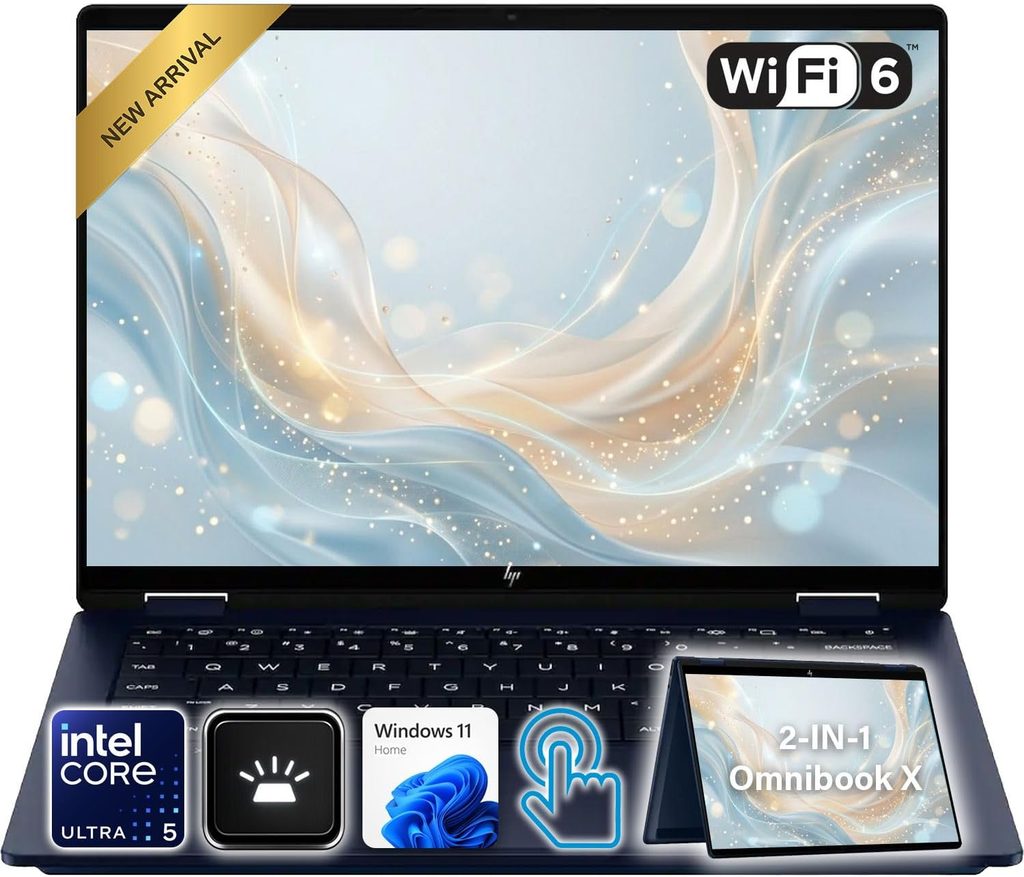
Craft Score: 7.7 / 10
Here’s my first properly counter-intuitive finding, and I want to walk you through the reasoning because it cuts against every general laptop ranking you’ll read.
This machine is not the second-fastest laptop here. It’s mid-pack. Tom’s Hardware summed up their review as “premium design, middling performance,” and they’re right. But for Cricut specifically it does three things nothing else here does at the same time: it folds flat into a tablet, it takes a pen, and you can spec it with 32GB of RAM.
Specifications
| Component | Detail |
|---|---|
| CPU | AMD Ryzen AI 9 465, 10 cores / 20 threads (as tested) |
| GPU | AMD Radeon 880M integrated |
| RAM | 16GB base; 32GB LPDDR5X-8533 from the Ryzen AI 7 445 up |
| Storage | 512GB to 2TB |
| Display | 14″, 1920 × 1200 OLED touch, 60Hz (2880 × 1800 / 120Hz optional) |
| Ports | 2× USB4, 1× USB-A 3.2 Gen 2 (10 Gbps), HDMI 2.1, audio |
| Wireless | Wi-Fi 7, Bluetooth 5.4 |
| Battery | 59 Wh (70 Wh with the 2880 × 1800 panel) |
| Charger | 65W USB-C |
| Weight | 3.09 lb (1.4 kg) |
| Dimensions | 12.32 × 8.6 × 0.57 in |
| Durability | MIL-STD-810H rated |
| Price | $1,399.99 list from HP; street configs from around $650 |
Measured results
| Benchmark | Result | Source and conditions |
|---|---|---|
| Geekbench 6 multi-core | 13,734 | Tom’s Hardware |
| Cinebench 2026, first run | 3,465 | Tom’s Hardware, 10-loop stress |
| Cinebench 2026, lowest point | 3,070 | Tom’s Hardware, 5th loop |
| Cinebench 2026, final run | 3,306 | Tom’s Hardware, recovered |
| Average clock under load | 2.79 GHz | Tom’s Hardware |
| 25GB file transfer | 1,477.3 MB/s | Tom’s Hardware |
| Handbrake 4K to 1080p | 4 min 56 sec | Tom’s Hardware |
| Battery, mixed use | 14 hr 53 min | Tom’s Hardware, 150 nits |
| Brightness, measured | 266 nits | Tom’s Hardware, 1920 × 1200 OLED |
| Brightness, rated (2.8K panel) | 500 nits SDR / 1,100 HDR | HP specification |
| Colour gamut | Highest sRGB and DCI-P3 in its test group | Tom’s Hardware |
| Touchpad temp | 79°F | Tom’s Hardware, Cinebench stress |
| Keyboard temp, G–H keys | 109°F | Tom’s Hardware, Cinebench stress |
| Underside temp | 113°F | Tom’s Hardware, Cinebench stress |
| CPU temp, all-core average | 69°C | Tom’s Hardware |
| Typing test | 120 wpm, perfect accuracy | Tom’s Hardware, MonkeyType |
Why it ranks this high
That 360° hinge changes how you work. Fold it flat and you’re arranging your mat layout by touch instead of nudging things around with a trackpad. If you’ve ever spent an hour trying to line up fifteen small decals on a 12×12 mat, you already know why this isn’t a gimmick. It’s the difference between fighting the interface and working with it.
It takes an MPP 2.0 pen, which HP sells for $30. Design Space isn’t a drawing app, but for grabbing tiny nodes and dragging small elements precisely, a pen tip beats a fingertip and absolutely destroys a trackpad.
You can get 32GB of RAM, and it comes automatically the moment you step up to a Ryzen AI 7 445 or above. That’s the most memory headroom in this entire roundup, and given everything I said earlier about Design Space and memory, it’s the single biggest reason this scores as well as it does.
The ports are sensible. One USB-A at 10 Gbps means your older Cricut cable plugs straight in. HDMI 2.1 means you can throw the canvas onto a big external monitor, which is honestly the best Design Space upgrade money can buy.
It stays cool where it counts. 79°F on the touchpad under a full stress test is genuinely remarkable — that’s exactly where your palm sits. The underside gets to 113°F, so don’t work with it on your lap for hours, but the typing surface stays comfortable.
And it’s MIL-STD-810H rated. In a room full of glitter, vinyl offcuts, a hot press and the occasional knocked-over mug, a durability-rated chassis isn’t nothing.
The honest downsides
The standard 1920 × 1200 OLED is too dim. 266 nits measured is genuinely low, and Tom’s Hardware called it out as the weak point of an otherwise lovely laptop. In a sunlit craft room you will absolutely notice.
The fix costs $80. Step up to the 2880 × 1800 OLED and you get a rated 500 nits in SDR, 1,100 in HDR, and 120Hz instead of 60Hz. Every other panel option is locked to 60Hz. I’d call this upgrade mandatory rather than optional — don’t buy this laptop without it.
Performance really is middling. 13,734 multi-core puts it behind the XPS 14 and the MacBook Air. For Design Space that barely registers, but if you also run Illustrator or Photoshop, know what you’re getting into.
The pricing is chaos. HP lists it at $1,399.99. Street prices for 512GB configs hover around $798 to $849. Best Buy has been selling a Ryzen AI 5 430 with 16GB near $650. Tom’s Hardware’s fully loaded 32GB / 2TB review unit rang up at $2,599.99. Shop the configuration, not the model name.
Battery drops with the better screen. The 59 Wh cell managed 14 hr 53 min, but the 2.8K panel draws more power. HP does pair that panel with a bigger 70 Wh battery, which softens the blow.
Pros
- Folds flat to a tablet, which genuinely helps with mat layout work
- Pen support via MPP 2.0, a $30 accessory
- Up to 32GB RAM, the most headroom in this group
- USB-A port for older Cricut cables, plus HDMI 2.1 for a monitor
- 14 hr 53 min of mixed-use battery
- Touchpad stays at 79°F even under full load
- MIL-STD-810H durability rating
- SSD, Wi-Fi card and battery are all user-replaceable
- Discounted hard and often
Cons
- The base OLED measured just 266 nits, which is too dim
- Only the $80 2.8K upgrade gets you real brightness and 120Hz
- Middling CPU performance for the list price
- Confusing configuration matrix and wildly swinging prices
- RAM is soldered
- Only one USB-A port
- Bluetooth 5.4 rather than 6.0
Get this one if you design by touch, you work with fiddly multi-layer projects, and you’ll spend the extra $80 on the better screen. Which you should.
3. Acer Swift Go 16 AI — Best Canvas, Best Ports
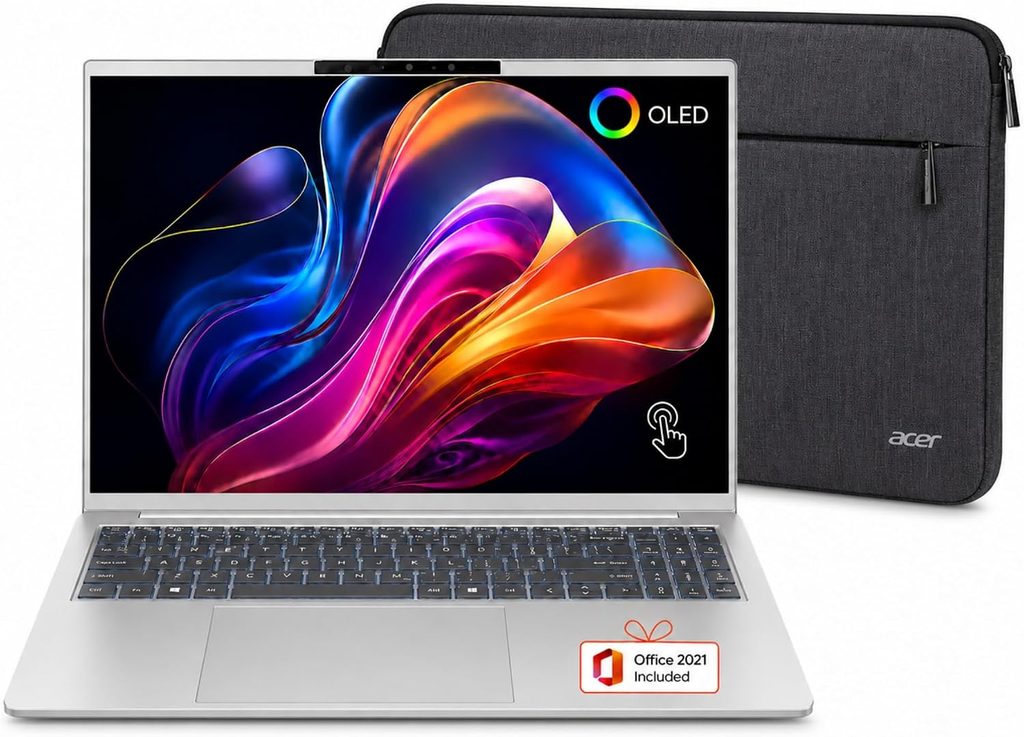
Craft Score: 7.6 / 10
If someone handed me a blank sheet of paper and said “design the port layout for a Cricut laptop,” I’d draw the Acer Swift Go 16 AI’s almost exactly. Two USB-A. Two USB-C. HDMI. microSD. It’s the only machine here where nothing ever needs an adapter.
Pair that with a 16-inch touchscreen and you’ve got the most comfortable Design Space machine in the roundup, even though it’s nowhere near the fastest.
Specifications
| Component | Detail |
|---|---|
| CPU | AMD Ryzen AI 7 445 (Gorgon Point), 6 cores / 12 threads |
| Core layout | 2× Zen 5 + 4× Zen 5c |
| GPU | AMD Radeon 840M integrated |
| NPU | 50 TOPS, Copilot+ certified |
| RAM | 16GB LPDDR5X (32GB on the Ryzen 9 465 config) |
| Storage | 1TB PCIe Gen 4 SSD |
| Display | 16″, 1920 × 1200 IPS touchscreen, 120Hz |
| Ports | 2× USB4 Type-C, 2× USB 3.2 Gen 1 Type-A, HDMI 2.1, microSD, headset |
| Wireless | Wi-Fi 7, Bluetooth 5.4 |
| Battery | 65 Wh |
| Charger | 100W USB-C |
| Weight | 3.53 lb |
| Dimensions | 14 × 9.89 × 0.63 in |
| Price | $799 on sale, $1,149 MSRP |
Measured results
| Benchmark | Result | Source and conditions |
|---|---|---|
| Cinebench 2026, first run | 2,315 | Tom’s Hardware, 10-loop stress |
| Cinebench 2026, peak | 2,487 | Tom’s Hardware, 4th loop |
| Cinebench 2026, final run | 2,480 | Tom’s Hardware — no throttling at all |
| Average clock under load | 3.47 GHz | Tom’s Hardware |
| Cinebench R23 sustained (CPU) | Ø1,638 points | Notebookcheck, Ryzen AI 7 445 loop test |
| 25GB file transfer | 847.88 MB/s | Tom’s Hardware |
| 3DMark Steel Nomad | 234 | Tom’s Hardware |
| Battery, mixed use | 9 hr 30 min | Tom’s Hardware, 150 nits |
| Brightness, measured | 336 nits | Tom’s Hardware |
| sRGB coverage | 121.8% | Tom’s Hardware |
| DCI-P3 coverage | 86.3% | Tom’s Hardware |
| Touchpad temp | 87°F* | Tom’s Hardware, Cinebench stress |
| Keyboard temp, G–H keys | 100.5°F* | Tom’s Hardware, Cinebench stress |
| Underside temp | 114°F* | Tom’s Hardware, Cinebench stress |
| CPU temp, all-core average | 66.9°C | Tom’s Hardware |
| Webcam resolution | 2560 × 1600 in the Camera app | Tom’s Hardware |
*Published as Celsius by the source; these are Fahrenheit figures with a unit typo. See my methodology note above.
Why it works so well for Cricut
Sixteen inches of touchscreen. This is the biggest canvas here and the difference hits you immediately. Design Space’s layers panel eats a fixed slice of horizontal space no matter what size your screen is, so on a 16″ display you get dramatically more room for the design itself. Less zooming, less panning, fewer misplaced layers.
The colour is the best in this roundup. 121.8% sRGB and 86.3% DCI-P3 beats both the Dell and the MacBook Air. If you’re matching vinyl swatches or HTV colours against what’s on screen, this panel is more trustworthy than screens costing twice as much.
It doesn’t throttle. At all. Look at that Cinebench curve again. It starts at 2,315, climbs to 2,487, and finishes at 2,480. Under a punishing ten-loop stress test it got faster and then held there. For long batch sessions that consistency beats a faster chip that collapses halfway through.
Every port you’ll ever need. Two USB-A means your Cricut cable and your wireless mouse dongle both plug in with room spare. HDMI for a second screen. microSD for shuffling SVG files around. Nothing needs a dongle.
The 7-inch touchpad is huge, covered in Gorilla Glass, and genuinely pleasant for dragging things around the canvas when you don’t fancy lifting your hand to the screen.
And at $799 on sale, it’s the value pick of the whole roundup.
The honest downsides
Battery is the weak spot. 9 hr 30 min is the shortest here by a fair margin. That’s still a full working day, and realistically a 16″ laptop is a desk machine anyway, but if you teach Cricut classes or sell at fairs, pack the charger.
The SSD is slow. 847.88 MB/s in the 25GB transfer test is less than half what the competition manages. Tom’s Hardware reckoned you’re unlikely to notice in normal use, and for Design Space that’s fair — but it stings on a machine advertising PCIe Gen 4.
The CPU is a bit of a rebadge. Notebookcheck was blunt about this: the Ryzen AI 7 445 is “arguably a rebrand of last year’s less expensive Ryzen AI 5 340 with almost no performance benefits,” and in their testing it was barely faster than the older Core Ultra 7 256V. Don’t let the “AI 7” branding fool you into thinking you’re buying a big step up.
Bloatware, and a lot of it. Forge of Empires, Elvenar, Amazing Block Blast, Booking.com, Dropbox, ExpressVPN, WhatsApp. Set aside an hour on day one to strip it all out.
The lid attracts smudges that won’t come off. The reviewer tried a damp cloth and some elbow grease and couldn’t shift them. Purely cosmetic, but annoying on a machine that otherwise feels premium.
Check the Intel version first. There’s a Core Ultra 5 322 variant with an OLED panel that’s been selling as low as $699 — cheaper, better screen, half the storage. If OLED matters more to you than 1TB, that’s arguably the smarter buy.
And one genuinely bizarre quirk: the lid sensor is unusually sensitive to magnets. The reviewer’s magnetic watch clasp repeatedly triggered the screen to blank and boot him back to the login screen. If you wear a watch with a magnetic band, that’s a real consideration.
Pros
- 16″ touchscreen, by far the most canvas space here
- Best colour accuracy in the roundup at 121.8% sRGB and 86.3% DCI-P3
- Two USB-A and two USB-C, plus HDMI and microSD — zero adapters
- No throttling whatsoever across a 10-loop stress test
- 120Hz refresh makes canvas scrolling lovely and smooth
- Enormous 7″ Gorilla Glass touchpad
- Regularly $799 or below
- 100W USB-C charging
Cons
- 9 hr 30 min battery, shortest in this group
- Slow SSD for a claimed PCIe Gen 4 drive
- Heavy bloatware load out of the box
- 336 nits is adequate, not bright
- Lid smudges that won’t wipe off
- The Ryzen AI 7 445 is close to a rebadged previous-gen chip
- Soldered RAM
- Magnetic watch bands can trigger the lid sensor
- The $1,149 MSRP is poor value; only buy this on sale
Get this one if you work at a desk, you do detailed multi-layer projects, and you want the biggest, most colour-accurate canvas with no adapter faff. Wait for the sale price.
4. Dell XPS 14 (2026) — Best Windows Screen, Wrong Priorities
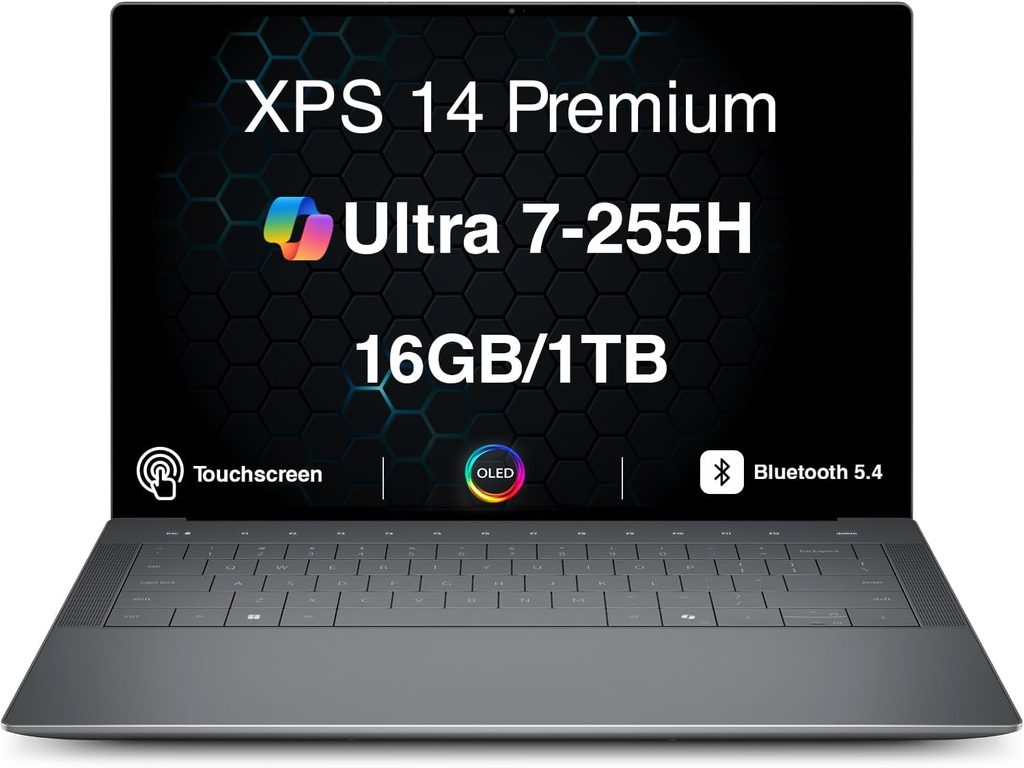
Craft Score: 7.3 / 10
This is the one I expect people to argue with me about. The Dell XPS 14 (2026) is, by most measures, one of the best Windows laptops released this year. Tom’s Guide titled their review “Call it a comeback.” Notebookcheck scored it 87%, up from 83% for last year’s model. It’s a genuinely excellent machine.
It’s also, for Cricut specifically, over-specified and under-connected. Let me show you why.
Specifications
| Component | Detail |
|---|---|
| CPU | Intel Core Ultra X7 358H (Panther Lake), 16 cores / 16 threads |
| Core layout | 4× Cougar Cove P at 4.8GHz, 8× Darkmont E at 3.7GHz, 4× Darkmont LP-E at 3.3GHz |
| Power limits | 69W PL2 short burst, 30W PL1 sustained |
| GPU | Intel Arc B390, 12 Xe3 cores at 2.0 GHz |
| RAM | 16GB base, up to 32GB LPDDR5X-9600 (soldered) |
| Display | 14″ 16:10 — 1920 × 1200 LCD (1–120Hz VRR) or 2880 × 1800 tandem OLED, 120Hz, VRR, HDR |
| Ports | 3× USB4 40 Gbps / Thunderbolt 4, 3.5mm combo |
| Wireless | Wi-Fi 7, Bluetooth 6.0 |
| Battery | 70 Wh |
| Weight | 3.00 lb (1.38–1.44 kg) |
| Dimensions | 12.19 × 8.26 × 0.6 in |
| Build | CNC-machined aluminium, 75% recycled content |
| Price | $1,599.99 to start, $2,199 as tested |
Measured results
| Benchmark | Result | Source and conditions |
|---|---|---|
| Geekbench 6 multi-core | 16,927 | Tom’s Hardware |
| Handbrake 4K to 1080p | 4 min 30 sec | Tom’s Hardware |
| 25GB file transfer | 1,419.76 MB/s | Tom’s Hardware |
| 3DMark Steel Nomad, X7 chip | 1,446 | Tom’s Hardware — highest here |
| 3DMark Steel Nomad, Ultra 7 355 chip | 532 | Tom’s Hardware |
| Battery, Ultra 5 325 + 1200p LCD | 20 hr 41 min | Tom’s Guide, 150 nits web browsing |
| Battery, X7 + OLED | 16 hr 45 min | Notebookcheck, 150 nits WLAN, Balanced |
| Battery, X7 + OLED | 12 hr 23 min | Tom’s Hardware, 150 nits mixed |
| Battery, PCMark 10 Modern Office | 10 hr 21 min | Engadget |
| Brightness, measured (OLED) | 466 nits | Tom’s Hardware |
| Brightness, measured (OLED) | 389 nits | Notebookcheck |
| Brightness, rated (1200p LCD) | 500 nits | Dell specification |
| DCI-P3 coverage (OLED) | 89.7% | Tom’s Hardware |
| DCI-P3 coverage (1200p LCD) | 71.4% | Tom’s Hardware |
| sRGB coverage (1200p LCD) | 100.8% | Tom’s Hardware |
| Keyboard temp | 91.5°F | Tom’s Hardware, stress test |
| Touchpad temp | 83.5°F | Tom’s Hardware, stress test |
| Underside temp, hottest | 104.5°F | Tom’s Hardware, stress test |
| CPU temperature | 63.57°C | Tom’s Hardware |
| Overall review rating | 87% | Notebookcheck |
The battery story is a whole lesson on its own
Look at those figures again. 20 hr 41 min, 16 hr 45 min, and 12 hr 23 min. Same laptop model, three respected labs, all testing at 150 nits.
They’re not contradicting each other. They tested different configurations:
- 20 hr 41 min — Core Ultra 5 325 with the 1920 × 1200 LED panel (Tom’s Guide)
- 16 hr 45 min — Core Ultra X7 358H with OLED, Balanced power profile (Notebookcheck)
- 12 hr 23 min — Core Ultra X7 358H with OLED, mixed-workload test (Tom’s Hardware)
That’s a 67% swing between best and worst on the same laptop. The cheaper chip with the “worse” LCD nearly doubles the runtime of the fancy OLED config.
This is the most important buying lesson in the whole article and it applies to every laptop, not just this one: the configuration you pick matters more than the model you pick. When you see “20 hours of battery life” in a headline, go and find out exactly which config they tested before you get excited.
For Cricut work the cheaper LCD config is the better buy anyway — and here’s something slightly heretical: Dell rates that 1920 × 1200 LCD at 500 nits, which is brighter than the OLED measured in either lab. For a sunlit craft room, the “worse” screen is the more practical one.
Why it only lands fourth
The ports. USB-C and Thunderbolt 4, and that’s it. No USB-A. No HDMI. No microSD. Reviewers have been vocal about this and rightly so. For a Cricut user with an older machine cable, a wireless mouse dongle and an SD card full of SVGs, that’s three adapters for one laptop.
You’re paying for a GPU you’ll never touch. That Steel Nomad score of 1,446 is the best in this roundup by a wide margin. The Arc B390 is a genuinely impressive integrated GPU that plays real games at 1080p. Design Space will use approximately none of it. You are paying a premium for silicon your craft software ignores completely.
RAM upgrades are hostage to the CPU tier. Dell ties memory to processor tier, which reviewers have criticised repeatedly. Want more RAM? Buy a faster chip you didn’t need.
The keyboard divides people. The zero-lattice design offers 0.8mm of travel. Most reviewers adapt within a few days; a decent minority find it too shallow and say so bluntly. If you write long product descriptions for Etsy listings, try one in a shop first.
No fingerprint reader. Minor, but it’s an odd omission at $1,599 in 2026.
What it does brilliantly
Credit where it’s due. The physical function row is back. Previous XPS models used a capacitive touch strip that everyone hated. Real keys have returned and you can change the volume without looking at it.
The tandem OLED hits 89.7% DCI-P3, the widest gamut here. The Panther Lake efficiency story is genuinely remarkable — Notebookcheck measured a 55% battery improvement over the 2025 Dell 14 Premium and a 216% improvement over the 2024 XPS 14 using the same size battery. And the trackpad is large, precise and haptic, with new etched border markers that fix the discoverability problem of the last generation.
It also runs the coolest of anything here: 91.5°F on the keyboard and 83.5°F on the touchpad under a full stress test.
Pros
- Beautiful tandem OLED with 89.7% DCI-P3 coverage
- Outstanding battery on the right configuration, up to 20 hr 41 min
- Panther Lake is genuinely efficient — 216% better than the 2024 model
- Physical function row is finally back
- Best integrated GPU here at 1,446 Steel Nomad
- Large, precise haptic trackpad
- Bluetooth 6.0 and Wi-Fi 7
- Coolest surface temperatures in the roundup
Cons
- USB-C only. No USB-A, no HDMI, no microSD
- You’re paying for GPU power Design Space never uses
- RAM upgrades locked behind CPU upgrades
- Battery swings 67% depending on configuration
- Shallow 0.8mm key travel splits opinion sharply
- No fingerprint reader
- Base configuration isn’t a touchscreen
- Expensive — the tested config came to $2,199
Get this one if you want a premium Windows laptop that happens to run Cricut well and you’re happy carrying a USB-C hub. Buy the cheaper LCD configuration.
5. Apple MacBook Neo — Best Budget, With Real Limits
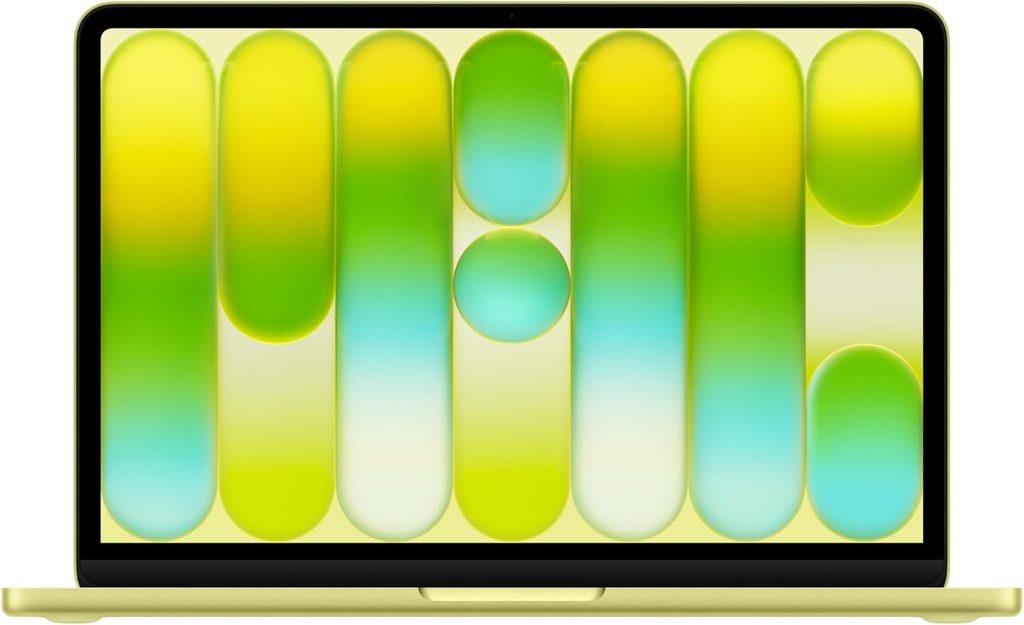
Craft Score: 6.0 / 10
The MacBook Neo is the most interesting laptop of 2026 and the most complicated recommendation in this article. It launched on 11 March 2026 at $599, the cheapest Mac ever, and instead of an M-series chip it runs the A18 Pro — the same processor from the iPhone 16 Pro.
That sounds like a compromise. The benchmarks say otherwise.
Specifications
| Component | Detail |
|---|---|
| CPU | Apple A18 Pro, 6 cores / 6 threads |
| Core layout | 2× 4.0 GHz P-cores, 4× 2.4 GHz E-cores |
| Power limits | 6W PL2 short burst, 3.8W PL1 sustained |
| RAM | 8GB LPDDR5-6400 — hard ceiling, no upgrade option |
| Storage | 256GB base |
| Display | 13″, 2408 × 1506 Liquid Retina IPS, 60Hz, sRGB (not P3), no True Tone |
| Ports | 2× USB-C — left port USB 3, right port USB 2.0 |
| Thunderbolt | None |
| Charging | 20W, no fast charge, no MagSafe |
| Battery | 36.5 Wh |
| Cooling | Fanless |
| Repairability | 6/10 from iFixit — most repairable Mac in 14 years |
| Weight | 2.7 lb |
| Dimensions | 11.71 × 8.12 × 0.5 in |
| Price | $599 at launch ($499 education); base raised to $699 in June 2026 |
Measured results
| Benchmark | Result | Source and conditions |
|---|---|---|
| Geekbench 6 single-core | 3,461 | MacRumors, published March 2026 |
| Geekbench 6 single-core | 3,535–3,569 | Independent testing, cold 3-run average |
| Geekbench 6 multi-core | 8,668 | MacRumors |
| Geekbench 6 multi-core | 8,920 | Tom’s Hardware |
| Geekbench Metal (GPU) | 31,286 | MacRumors |
| Handbrake 4K to 1080p | 9 min 57 sec | Tom’s Hardware |
| Battery, mixed use | 13 hr 28 min | Tom’s Hardware, 150 nits |
| Battery, 4K video loop | 13 hr 57 min | CNN Underscored |
| Battery, light load, high brightness | 7 hr 48 min | Dave2D |
| Brightness, measured | 452.6 nits | Tom’s Hardware |
| Brightness, measured | 480 nits | Tom’s Guide lab test |
| Brightness, measured | 516 nits | Notebookcheck |
| Hottest surface point under stress | 97.6°F (36.4°C) | Independent IR thermometer testing |
| Internal chip temp under stress | 105°C | Independent testing |
| Single-core loss under sustained stress | 87% | Independent testing |
| Power draw, single-core | 6.6W | Independent analysis |
| Efficiency | ~524 Geekbench points per watt | Independent analysis |
| Charging speed | 22% in 30 min, 44% in 60 min | Tom’s Hardware, 20W charger |
Why it’s genuinely good for Cricut
3,461 single-core at this price is extraordinary. That’s 47% faster than the M1, ahead of both the M2 and the M3, and within 6–7% of the M4. Against Windows competition in the same bracket it beats Intel’s Lunar Lake Core Ultra 5 226V by roughly 38% and the Snapdragon X Plus by 43%.
Remember what I said at the top: single-core is the number Design Space cares about. A $599 laptop with the second-highest single-core score in this entire roundup is a remarkable proposition for a crafter on a budget.
It’s fanless and silent, exactly like the Air.
The screen is genuinely bright. Three separate labs measured it at 452.6, 480 and 516 nits. That’s a properly good panel at this price, even if it’s sRGB rather than P3.
And it’s repairable. iFixit rated it 6/10 — the most repairable Mac in fourteen years, with a screwed-in battery, modular ports and no parts pairing. For a machine that’s going to live in a craft room next to a hot press, that matters more than it does for an office laptop.
It also stays remarkably cool. Independent IR testing found the hottest external point under peak stress was 97.6°F, barely above body temperature — because the aluminium chassis acts as a heat spreader rather than a heat dissipater.
Why it only scores 6.0
The 8GB RAM ceiling. This is the whole problem, and there is no fix at any price.
Go back to the beginning of this article. Cricut’s official minimum is 4GB. Their own community members are publicly asking them to raise it to 8–16GB. Independent troubleshooting guides say 4GB to launch and 8GB to be comfortable “with larger projects.”
So 8GB puts you exactly on the comfortable line with absolutely no headroom. Design Space plus a browser plus your Etsy dashboard plus a music tab and you’re into swap. For simple vinyl decals and single-layer HTV, totally fine. For a 200-layer mandala with a print-then-cut background, you’re gambling — and remember, Design Space doesn’t autosave often enough to bail you out.
The right-hand port is USB 2.0. Not a typo. If you’re connecting a Cricut over USB, use the left one.
That cool chassis has a price, and it’s paid in clock speed. Independent testing found the chip hits 105°C internally and sheds 87% of its single-core performance under sustained stress. For Design Space that’s fine — you’ll never sustain that load. For anything heavier, it’s a hard ceiling.
No Thunderbolt. No proper docking, no external display above 4K at 60Hz.
The battery drains fast when you push it. 13 hr 28 min in Tom’s Hardware’s controlled test at 150 nits, but 7 hr 48 min under light real-world use at higher brightness. Notebookcheck flagged the small 36.5 Wh battery as the Neo’s one real flaw.
sRGB only, not P3. Colour matching for vinyl will be less accurate than on the Air or the Acer.
No keyboard backlight. Touch ID is reserved for the pricier SKU. 20W charging.
And the price went up. It launched at $599; the base configuration was raised to $699 in June 2026 as the industry-wide RAM shortage bit.
Pros
- 3,461 single-core — second-fastest here at a third of the price
- Completely silent, fanless design
- Most repairable Mac in 14 years, 6/10 from iFixit
- Genuinely bright screen: 452.6 to 516 nits depending on the lab
- Full macOS, not a locked-down OS like Chrome OS
- $499 with education pricing
- Excellent build quality for the money
- No display notch — thicker bezel instead
- Stays at 97.6°F externally even under peak stress
Cons
- 8GB RAM ceiling with no upgrade path. This is the deciding limitation
- Right-hand USB port is USB 2.0 only
- Sheds 87% of single-core performance under sustained load
- No Thunderbolt, no MagSafe, 20W charging only
- sRGB display, not P3 — weaker colour matching
- 36.5 Wh battery drains quickly at higher brightness
- No keyboard backlight, and no Touch ID on the base model
- Slow Handbrake time of 9 min 57 sec
- Price rose from $599 to $699
Get this one if your budget is genuinely tight, your projects are straightforward, and you’ll keep other apps closed while Design Space is open. Don’t get it if you do complex multi-layer work or run a Cricut business — spend the extra and get the Air’s 16GB.
Everything Side by Side
| Spec | MacBook Air M5 | OmniBook X Flip 14 | Swift Go 16 AI | XPS 14 (2026) | MacBook Neo |
|---|---|---|---|---|---|
| Craft Score | 8.2 | 7.7 | 7.6 | 7.3 | 6.0 |
| CPU | Apple M5 | Ryzen AI 9 465 | Ryzen AI 7 445 | Core Ultra X7 358H | Apple A18 Pro |
| Cores / threads | 10 / 10 | 10 / 20 | 6 / 12 | 16 / 16 | 6 / 6 |
| RAM, base to max | 16GB–32GB | 16GB–32GB | 16GB–32GB | 16GB–32GB | 8GB–8GB |
| Screen size | 13.6″ | 14″ | 16″ | 14″ | 13″ |
| Resolution | 2560 × 1664 | 1920 × 1200 | 1920 × 1200 | 2880 × 1800 | 2408 × 1506 |
| Panel type | IPS | OLED | IPS | Tandem OLED | IPS |
| Refresh rate | 60Hz | 60Hz | 120Hz | 120Hz | 60Hz |
| Touchscreen | No | Yes, plus pen | Yes | Optional | No |
| Brightness, measured | 458.8 nits | 266 nits | 336 nits | 466 / 389 nits | 452.6 / 480 / 516 nits |
| sRGB coverage | 117.3% | Best in its test group | 121.8% | 100.8% (LCD) | Full sRGB, no P3 |
| DCI-P3 coverage | 83.1% | Best in its test group | 86.3% | 89.7% (OLED) | Not covered |
| Battery, tested | 15 hr 28 min | 14 hr 53 min | 9 hr 30 min | 12 hr 23 min – 20 hr 41 min | 13 hr 28 min |
| Battery capacity | 53.8 Wh | 59 Wh | 65 Wh | 70 Wh | 36.5 Wh |
| Keyboard temp under load | 105.1°F | 109°F | 100.5°F | 91.5°F | 97.6°F (hottest point) |
| Touchpad temp under load | 96°F | 79°F | 87°F | 83.5°F | 97.6°F (hottest point) |
| USB-A ports | 0 | 1 | 2 | 0 | 0 |
| HDMI | No | Yes | Yes | No | No |
| microSD | No | No | Yes | No | No |
| Bluetooth | 6.0 | 5.4 | 5.4 | 6.0 | Standard |
| Wi-Fi | 7 | 7 | 7 | 7 | 7 |
| Cooling | Fanless | Active | Active | Active | Fanless |
| Weight | 2.7 lb | 3.09 lb | 3.53 lb | 3.00 lb | 2.7 lb |
| Starting price | $1,099 | ~$650 street | $799 on sale | $1,599 | $599–$699 |
Why I Didn’t Recommend a Single Snapdragon Laptop
If you’ve been reading 2026 laptop coverage you’ll have noticed Snapdragon X2 Elite machines dominating the recommendations, and for good reason. The Lenovo Yoga Slim 7x posted a Geekbench 6 multi-core score of 20,563 and ran for 19 hours 25 minutes on battery in Tom’s Hardware testing. Those are spectacular numbers.
I didn’t recommend any of them. Here’s my reasoning.
Design Space is listed as compatible on Windows on ARM. The community compatibility database Works on WoA marks it as compatible from version 8.21.54, with the report last updated in September 2024. So it runs. That much is settled.
But it runs the way most x86 software runs on ARM Windows: through Microsoft’s emulation layer, not natively. Design Space is an Electron app compiled for x64. Emulation costs performance and, more importantly for a memory-hungry Chromium app, it costs efficiency. On a benchmark that hammers every core at once, ARM chips look phenomenal. On a single-threaded emulated app, the picture is much murkier — and nobody publishes Design Space benchmarks.
There’s also a documented failure mode that I find genuinely concerning. A user posted to Microsoft’s official Q&A forum describing his wife’s ARM-based Windows laptop running Design Space so badly it froze solid, despite meeting the minimum specs with nothing else running. The cause he tracked down: Windows was forcing Design Space’s sub-processes into Efficiency Mode, parking them on the low-power cores. Manually disabling Efficiency Mode for each Design Space process in Task Manager produced what he described as significant improvement.
That’s exactly the trap I mentioned right at the top. Brand new laptop, meets the specs, still lags — because a scheduler decided your craft software was a background task.
Efficiency Mode isn’t unique to ARM; modern x86 chips have E-cores too. But ARM Windows designs lean harder on low-power cores and add an emulation layer on top. Two variables instead of one.
So here’s my position: if you already own a Snapdragon laptop, don’t panic. Design Space will run, and the Task Manager fix above is worth knowing about. But I’m not going to recommend one for Cricut when there are x86 and Apple Silicon options with no asterisks attached.
I’ll happily revisit this the moment Cricut ships a native ARM64 build.
Ports and Connectivity: The Bit Everyone Gets Wrong
This section exists because I’ve watched too many people buy a gorgeous thin laptop and then discover they can’t plug their Cricut into it.
USB: check your cable, not your machine
Here’s where things actually stand:
- Cricut Maker 4 and Explore 4 ship with a USB-C cable. These plug directly into any modern laptop. No adapter needed.
- Older machines — Maker 3, Explore Air 2, Explore 3, Joy — generally use cables that terminate in USB-A at the computer end.
Cricut’s own quick-start documentation puts it plainly: check your computer has a compatible USB port, and if it doesn’t, an adapter will be needed.
So the practical rule is dead simple: look at the cable in your box, not the model name on your machine. If it ends in USB-A and your new laptop is all USB-C, buy a hub before the laptop arrives, not after.
For the record, only two laptops here have USB-A built in: the Acer Swift Go 16 AI with two, and the HP OmniBook X Flip 14 with one.
Bluetooth: it works, but learn the rules
Every laptop here has Bluetooth, so it’s never a dealbreaker. But three things trip people up constantly:
One connection at a time. Your Cricut maintains exactly one active Bluetooth connection. If your phone connected last, your laptop won’t find the machine. Disconnect the phone.
The device name might not show up properly. Cricut documents that Windows and macOS sometimes list the machine as “Bluetooth Device” or “Generic” rather than its proper ID like Explore4-XXXX. Connect to it anyway — the correct name appears once it’s paired.
The passcode is 0000 if you get asked for one.
Cricut also warns that a specific Windows 11 cumulative update, KB5027231, caused Bluetooth discovery and pairing problems affecting Cricut machines and other peripherals.
My honest advice: use USB whenever you can. Experienced crafters say the same thing — a wired connection is more reliable and faster than Bluetooth for sending cut jobs. Bluetooth is for convenience. USB is for when it absolutely has to work.
Internet: modest, but non-negotiable at setup
Cricut asks for 2–3 Mbps down and 1–2 Mbps up. Any broadband connection clears that without breaking a sweat.
But you must be online to download, install and sign in. After that, Design Space for Desktop has an offline mode on Windows, macOS and iOS. The Android app has no offline mode at all.
How Much RAM Do You Actually Need?
Cricut says 4GB. I’ve spent this whole article arguing that’s wrong for 2026. Here’s my practical breakdown by the kind of work you actually do:
| Your projects | RAM | The honest reality |
|---|---|---|
| Simple text decals, single-layer vinyl, ready-made projects | 8GB | Workable. Keep everything else closed. This is MacBook Neo territory |
| Multi-layer HTV, print-then-cut, uploaded SVGs, browser open alongside | 16GB | The 2026 sweet spot. Every laptop here except the Neo starts at 16GB |
| Complex mandalas, 100+ layer files, layered paper art, running a Cricut business with Photoshop open too | 32GB | Available on the OmniBook X Flip 14, the higher Acer config, and the XPS 14 |
A few things worth burning into your brain:
Design Space is a browser, so browser tabs compete directly with it. Troubleshooting guides specifically recommend switching from the web version to the desktop app for exactly this reason, and closing every other application before you open a big project.
Complex SVGs are the real memory hog. Files with hundreds of nodes and layers are what tip it over the edge, particularly during the Prepare phase.
Almost all modern laptop RAM is soldered. Every single machine in this roundup has non-upgradeable memory. Whatever you buy on day one, you live with for the life of that laptop. Given the industry-wide RAM shortage that’s already pushed prices up across the board — including Apple’s — this is really not a decision to get wrong.
Screen: Size Beats Sharpness for This Kind of Work
I want to push back on something the general laptop press gets wrong for this specific use case.
Reviews obsess over resolution and OLED contrast. For Design Space, what actually matters is how many square inches of canvas you can see at once.
The interface has a fixed-width layers panel on the right and a toolbar across the top. Those don’t shrink on a small screen — they just swallow a bigger proportion of it. Which means the gap between a 13″ and a 16″ display isn’t 23% more screen. In usable canvas area, it’s substantially more than that.
My ranked priorities for a Cricut screen:
- Physical size. 16″ beats 14″ beats 13″. This is the big one by a distance.
- Brightness. Craft rooms are often bright, sometimes with a window right there. 300 nits is the floor, 450+ is comfortable. The MacBook Air’s measured 458.8 nits and the Neo’s 452–516 nits are the standouts. The OmniBook’s base panel at 266 nits is the cautionary tale.
- Colour accuracy. Matters when you’re matching vinyl against the screen. The Acer’s 121.8% sRGB and 86.3% DCI-P3 lead the group.
- Touch. Genuinely useful for mat layout. You get it on the Acer, the OmniBook, and optionally on the XPS.
- Resolution. Honestly, last. Design Space’s interface is vector-based and looks perfectly fine at 1920 × 1200.
And the single best upgrade for anyone doing serious Cricut work isn’t a laptop at all — it’s an external monitor. Design Space on a 27″ screen is a completely different experience. Which is one more reason the HDMI ports on the Acer and the HP are worth more than their spec-sheet significance suggests.
Thermals and Noise: The Craft Room Factor
Nobody writes about this and I think that’s a mistake.
You’re going to sit at this laptop for hours. Your Cricut will be cutting. Maybe a heat press is cycling in the background. Adding a laptop fan that spins up every time Design Space renders a complicated mat makes the whole room feel busier and more stressful than it needs to be.
Here are the measured skin temperatures under full stress load:
| Laptop | Keyboard | Touchpad | Underside | Internal CPU |
|---|---|---|---|---|
| Dell XPS 14 (2026) | 91.5°F | 83.5°F | 104.5°F | 63.57°C |
| MacBook Neo | 97.6°F (hottest point) | 97.6°F (hottest point) | 97.6°F (hottest point) | 105°C |
| Acer Swift Go 16 AI | 100.5°F | 87°F | 114°F | 66.9°C |
| MacBook Air M5 | 105.1°F | 96°F | 107.9°F | 63.24°C |
| HP OmniBook X Flip 14 | 109°F | 79°F | 113°F | 69°C |
Important context: these are worst-case figures from Cinebench stress tests, not from Design Space. Cricut work will never generate these temperatures. I’m showing you the ceiling so you know each machine’s limits.
What I take from this:
Both Macs are fanless. Absolute silence, always. In a craft room that’s a real quality-of-life advantage no benchmark captures.
The Dell runs coolest overall at 91.5°F on the keyboard and 83.5°F on the touchpad.
The OmniBook’s 79°F touchpad is exceptional — that’s precisely where your palm rests, and it stays properly cool even while the keyboard hits 109°F.
The MacBook Neo’s chassis is doing clever work. 97.6°F externally while the chip runs at 105°C internally tells you the aluminium is spreading heat rather than venting it. Your hands stay comfortable; the clock speed pays for it.
The Acer’s fans are audible under load, but it doesn’t throttle at all. That’s the trade-off, and for batch work it’s arguably the right one.
Buying Mistakes I See Over and Over
Buying a Chromebook. Not supported, full stop. Cricut says so directly. It’s the most expensive mistake on this list because there’s no software fix.
Not checking for S Mode. Budget Windows laptops ship in S Mode and Design Space won’t install. The switch is free but permanent.
Buying for multi-core benchmarks. Design Space is main-thread bound. A 16-core chip that wins every review chart can feel no faster than an 8-core one.
Buying for the GPU. Design Space barely uses it. The XPS 14’s excellent Arc B390 is money spent on capability you’ll never touch.
Trusting a battery headline without checking the configuration. The XPS 14 tested anywhere between 12 hr 23 min and 20 hr 41 min depending on chip and panel. Same model name on the lid.
Buying 8GB in 2026. Cricut’s own community is asking them to raise the official minimum. Don’t buy at a floor that’s already being disputed.
Forgetting to check the cable. Look inside your Cricut box before you commit to an all-USB-C laptop.
Buying a tiny screen for detailed work. 13″ gets genuinely cramped in Design Space. If you do layered projects, go bigger or plan for an external monitor.
Assuming OLED is automatically better. The OmniBook’s base OLED measured 266 nits. The Dell’s LCD is rated at 500. Brighter beats prettier in a sunlit craft room.
Your First-Day Setup Checklist
Once the laptop arrives, do these in this order:
- Check for S Mode (Windows only). Settings, then System, then Activation. Switch out before you install anything else.
- Run every OS update. Get it out of the way before you try to troubleshoot anything.
- Download Design Space from
design.cricut.com— the desktop app, not the browser version. Cricut recommends the desktop app, and on Mac the browser version doesn’t support Bluetooth at all. - Check it isn’t in compatibility mode. Right-click the shortcut, Properties, Compatibility tab, make sure the box is unticked.
- Connect via USB first. Get one successful cut done before you add Bluetooth as a variable.
- Then pair Bluetooth if you want it. Disconnect your phone from the machine first. Passcode is
0000. - Strip the bloatware if you bought the Acer. There’s a lot of it.
- Turn off Efficiency Mode for Design Space if things feel sluggish. Task Manager, Details tab, right-click each Design Space process, disable Efficiency Mode.
- Get in the habit of Ctrl+S or Cmd+S. Design Space saves to the cloud every few minutes, not every few seconds. Name your project immediately and save manually after every meaningful change.
Frequently Asked Questions
No. Cricut explicitly states that Design Space is not supported on Chromebooks. There’s no Chrome OS version and the browser version can’t drive your machine. If you own a Chromebook and want a Cricut, you need a second computer — there’s no workaround.
Cricut’s official minimum is 4GB, but that’s widely regarded as outdated. One of their own community members publicly asked them to raise it to 8–16GB, and independent guides say 4GB to launch and 8GB to be comfortable with larger projects. For 2026 I’d treat 16GB as the sensible target and 8GB as the absolute floor for simple projects only.
Both work well. Apple currently has a clear lead in single-core CPU performance, which is what Design Space is most sensitive to, and both Macs here are fanless and silent. Windows laptops win on ports, touchscreens and screen size options. The MacBook Air M5 is my overall pick; the Acer Swift Go 16 AI is the better choice if you want a big touchscreen and no adapters.
The Verdict
If you take one idea away from all of this, make it this one: Design Space is a browser wearing a costume. That means single-core speed and RAM matter enormously, while multi-core scores and GPU benchmarks matter almost not at all.
Once you accept that, the buying decision gets much simpler — and usually much cheaper — than the general laptop press would have you believe.
Buy the MacBook Air M5 if you want the best experience with the fewest compromises. The 4,168 single-core score is untouchable here, it’s silent, 16GB is standard, and 458.8 measured nits handles a bright room. Add a $15 USB-C hub if your Cricut cable ends in USB-A.
Buy the HP OmniBook X Flip 14 if you want to design by touch and pen — and take the $80 upgrade to the 2880 × 1800 panel. That’s not optional. The base OLED at 266 nits is the machine’s one real flaw, and 32GB of RAM makes this the most future-proof option here for complex work.
Buy the Acer Swift Go 16 AI on sale if you work at a desk and want the biggest, most colour-accurate canvas with zero adapters. Two USB-A ports, HDMI, microSD, a 16″ touchscreen and no throttling for $799 is the best value in this roundup. Just know the battery is short and the bloatware is real.
Buy the Dell XPS 14 (2026) if you want a premium Windows machine and you’ll happily carry a hub. Get the cheaper LCD configuration — it’s rated brighter than the OLED measured in either lab, and it nearly doubles the battery life.
Buy the MacBook Neo only if money is genuinely tight and your projects are simple. That 3,461 single-core score at $599 is remarkable, and it’s the most repairable Mac in fourteen years. But the 8GB ceiling is permanent, and it sits exactly on the line where Design Space starts getting uncomfortable.
And whatever you end up buying: check for S Mode, steer clear of Chromebooks entirely, use USB when it matters, and hit Ctrl+S far more often than feels necessary.
Happy cutting.
Sources and Test Conditions
Hardware measurements in this article are published results from independent testing laboratories. Battery tests are listed with their brightness setting and workload. Where multiple labs measured the same model, every result is shown.
Tom’s Hardware — MacBook Air 13″ M5 review (23 March 2026); MacBook Neo review (10 March 2026); Acer Swift Go 16 AI review (10 August 2026); HP OmniBook X Flip 14 review (26 July 2026); Dell XPS 14 (2026) DA14260 review. Battery test: web browsing, OpenGL tests and video streaming at 150 nits over Wi-Fi. Stress test: 10 sequential Cinebench 2026 loops.
Tom’s Guide — Dell XPS 14 (2026) review; MacBook Neo review. Battery test: continuous web browsing over Wi-Fi at 150 nits.
Notebookcheck — Dell XPS 14 (2026) review, 87% rating; MacBook Air 13 M5 review, 92% rating; MacBook Neo 256GB review; AMD Ryzen AI 7 445 benchmark analysis. Battery test: WLAN browsing at 150 nits, Balanced profile.
Macworld — 13-inch MacBook Air (M5) review. Battery test: looped downloaded video at 150 nits.
Engadget — Dell XPS 14 (2026) review. Battery test: PCMark 10 Modern Office.
CNN Underscored, Dave2D and MacRumors — MacBook Neo battery and Geekbench figures.
Cricut Help Center — System Requirements (Design Space), Design Space FAQ, Bluetooth and USB Connection Help, Cricut Maker 4 and Explore 4 Quick Start Guides.
Works on WoA — Windows on ARM application compatibility database.
Microsoft Q&A — user-documented Efficiency Mode throttling of Design Space processes.
iFixit — MacBook Neo repairability assessment.
Prices move around a lot at the moment, particularly given the memory shortage affecting the whole industry through 2026. All prices are indicative at the time of writing.

Hi, my name is Burak. I am a mechanical engineer. I have been writing laptop reviews for the Engineering Laptops website since 2020. Please feel free to contact me if you have any questions.