
Table of contents
- The short answer
- What a CS degree actually does to a laptop
- How I picked these five
- 5 Best Laptops Under $1,000 for CS Students — 2026 Buyer’s Guide
- 1. Lenovo ThinkPad E14 Gen 7 (AMD) — the one I’d actually buy
- 2. Dell 14 Plus (DB14250) — the best screen and the fewest surprises
- 3. Lenovo LOQ 15 (RTX 5060) — the only real answer if you need CUDA
- 4. HP OmniBook 5 14 — absurd battery life, one enormous caveat
- 5. Apple MacBook Neo — remarkable for $699, with a ceiling you can’t raise
- Side by side
- Which course breaks which laptop
- What these actually cost over four years
- Two traps in this market right now
- Before you click buy
- Questions I get asked constantly
- Where I landed
I’ve lost count of how many times a first-year CS student has messaged me a link to some laptop with “16GB RAM! 1TB SSD! Free Microsoft Office!” splashed across the listing, asking if it’s a good deal. Nine times out of ten it isn’t, and the reason is never the thing they’re worried about.
They worry about the processor. They should worry about whether the memory is soldered.
So here’s what I’ve done. I’ve gone through every credible lab review published on the sub-$1,000 laptops worth considering right now — Notebookcheck’s teardowns, PCWorld’s battery rundowns, Tom’s Hardware’s thermal probes, Laptop Mag’s web-surfing tests, Consumer Reports’ runtime numbers — and I’ve pulled out the measurements that actually predict whether a laptop survives a computer science degree. Not the ones that make good headlines.
Five machines made the cut. Every number below is attributed to the lab that produced it, so you can go check my work.
The short answer
| Pick | Best for | Price right now | Why it’s here |
|---|---|---|---|
| Lenovo ThinkPad E14 Gen 7 (AMD) | Overall — the four-year machine | $780–$900 | Two real RAM slots and a spare SSD bay. It’s the only one you can fix later. |
| Dell 14 Plus (DB14250) | Screen and battery, zero compatibility drama | $949–$995 | 2.5K 16:10 panel, Thunderbolt 4, and every x86 tool just runs. |
| Lenovo LOQ 15 (RTX 5060) | Machine learning, graphics, game dev | $799–$999 | 8GB of VRAM at a full 115 watts. Cheapest legitimate CUDA box there is. |
| HP OmniBook 5 14 | Battery life above all else | $899 | Three labs measured 25 to 32 hours. Read the ARM section first. |
| Apple MacBook Neo | Cheapest real macOS machine | $699 | Genuinely brilliant for $699. Also 8GB of RAM, permanently. |
If you take one thing from this article: buy memory, not megahertz. A 2019 laptop with 32GB is a nicer place to write code today than a 2026 laptop with 8GB. That’s not a hot take, it’s just what happens when Docker Desktop opens.
What a CS degree actually does to a laptop
Most “best student laptops” lists are written by people who think university is Google Docs with extra steps. So let me be specific about the workload I’m judging these against, because it changes everything.
Over four years you’ll be asked to run three or four Docker containers while your IDE indexes a few hundred files in the background. You’ll spin up a Linux VM for your operating systems course and then deliberately break it. You’ll compile something genuinely large — an LLVM pass, a Rust workspace, a kernel — while a deadline ticks. You’ll boot an Android emulator, which is a virtual machine, on top of an IDE that’s already eaten 4GB before you’ve typed a character. And you’ll do a decent chunk of this in a lecture hall where every outlet within four rows was claimed twenty minutes before you arrived.
That’s the job. Three things determine whether a laptop can hold it down:
Memory, and whether you can add more later. This is the whole ballgame. 16GB is the 2026 floor and 32GB is where you want to be if containers or VMs are on your syllabus. Almost every thin-and-light sold today solders the RAM to the board, which means whatever you buy on day one is what you’re stuck with on graduation day.
Sustained performance, not burst performance. Every chip looks fast in a ten-second benchmark. What matters is what it’s doing at minute twelve of a build, once the heatsink is saturated. Thin fanless machines fall off a cliff here. Thicker ones with real fans don’t.
Battery under load, not battery playing video. Manufacturer numbers come from looping a video file at low brightness. Compiling code with fifteen tabs open and a container idling is a completely different power draw. In my experience the honest figure is roughly 40 to 60 percent of the advertised one — sometimes worse. I’ve flagged this per machine below.
Everything else — thinness, colour accuracy, the AI branding on the box — is secondary.
How I picked these five
I don’t run a hardware lab, and I’m not going to pretend otherwise by making up numbers. What I do is read the labs that do, cross-check them against each other, and translate the results into something useful for someone writing code rather than editing video.
Here’s what I weighted, and why:
Teardown and upgrade path. Notebookcheck and iFixit-style teardowns tell you what a spec sheet won’t: how many RAM slots exist, whether there’s a second M.2 bay, whether the battery is a twenty-minute job or a nightmare. This got the heaviest weight of anything in my scoring, because it’s the single factor that decides two-year laptop versus four-year laptop.
Sustained thermal behaviour. I looked for reviews that report surface temperatures and internal temperatures during a long stress run — not just a peak number, but where the heat lands. If a laptop puts 42°C between the G and H keys, you’re going to feel it every single day.
Battery results with the test named. A 25-hour result and a 32-hour result can describe the same laptop tested two different ways. I’ve listed the test alongside the number every time so you can compare like with like.
Display brightness and coverage, measured. Manufacturer nit ratings are aspirational. Measured ones aren’t. Below 300 nits, a lecture hall with windows becomes a mirror.
Storage behaviour under sustained writes. Cheap TLC drives look fast in a ten-second benchmark and then collapse once the SLC cache fills. Which is exactly what happens when you clone a big repo or unpack a dataset. Notebookcheck specifically flags this on one of the machines below.
And then the boring stuff: keyboard quality, port selection, whether the manufacturer publishes a service manual with part numbers, and how the thing depreciates.
If you want to verify any of this on a unit you’ve bought, it takes an afternoon: Geekbench 6 three times cold, a ten-minute Cinebench loop comparing the first score against the last, CrystalDiskMark, and then a real build — npm install on a cold cache, a Gradle build with no daemon, a cold docker compose up. That last group tells you more than every synthetic benchmark combined.
5 Best Laptops Under $1,000 for CS Students — 2026 Buyer’s Guide
1. Lenovo ThinkPad E14 Gen 7 (AMD) — the one I’d actually buy
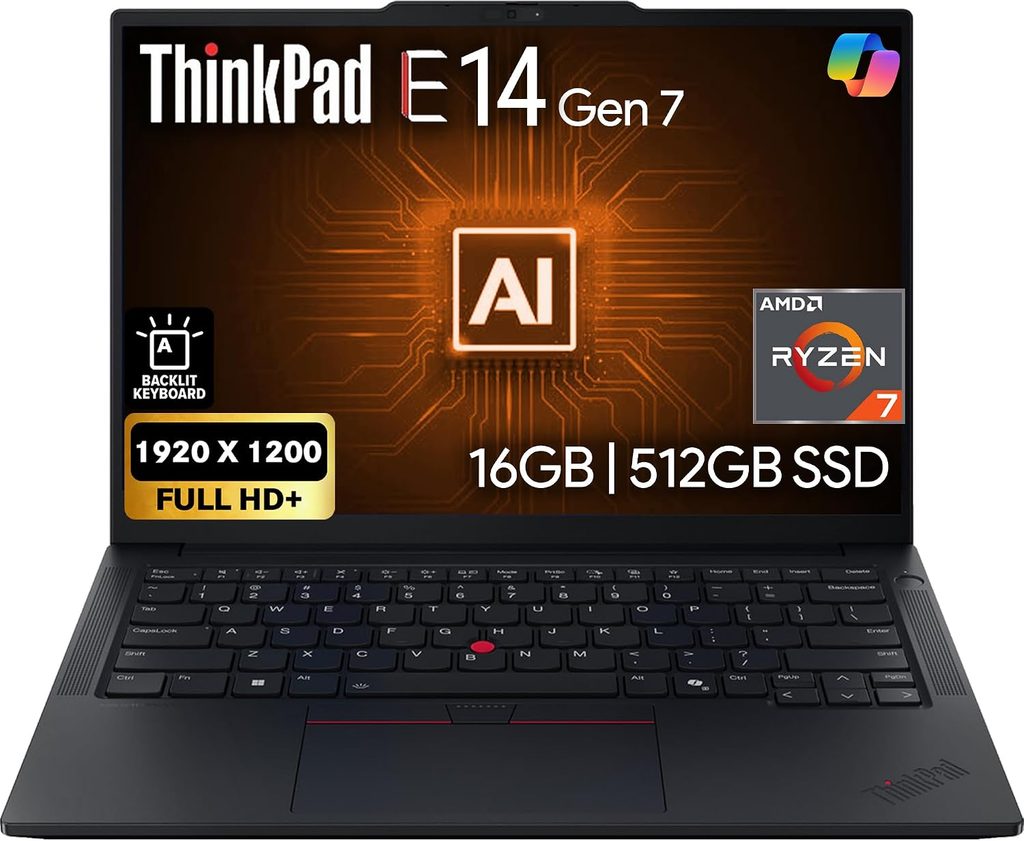
$780–$900 for the Ryzen 7 250 / 16GB / 512GB configuration with Windows 11 Pro
This doesn’t win on any single spec. It wins because of two DDR5 SODIMM slots and an empty M.2 2280 bay.
Every other laptop in this article solders its memory down. What you buy is what you die with. The E14 lets you buy the cheap 16GB version now and, when your distributed systems course hands you a five-container Compose file in second year, drop in an $80 kit and carry on. Lenovo rates it to 64GB and there’s a second SSD slot sitting empty next to it.
That’s not a bonus feature. That’s the difference between a laptop that gets you to graduation and one that gets you to third year.
The specs
- CPU: AMD Ryzen 7 250 — 8 cores, 16 threads, Zen 4, boost to 5.1GHz, 16 TOPS NPU
- Graphics: Radeon 780M integrated
- Memory: 16GB DDR5-5600 SODIMM — two slots, upgradeable to 64GB
- Storage: 512GB PCIe Gen4 NVMe — plus a free M.2 2280 PCIe 4.0 x4 slot
- Display: 14-inch WUXGA (1920×1200), IPS, anti-glare, 60Hz, 300 nits
- Ports: USB4 / Thunderbolt-class USB-C, second USB-C, USB-A 10Gbps, USB-A 5Gbps, HDMI 2.1, RJ-45 Ethernet, 3.5mm
- Wireless: Wi-Fi 6E, Bluetooth 5.x
- OS: Windows 11 Pro — Hyper-V and BitLocker included, no upgrade fee
- Build: aluminium top and bottom covers, roughly 1.32kg, MIL-STD-810H tested
- Security: fingerprint reader in the power button, IR camera, discrete TPM 2.0
- Extras: Harman Kardon stereo speakers with Dolby Atmos, backlit keyboard
⚠️ Buy the AMD one. This matters more than anything else in this section.
Lenovo sells the E14 Gen 7 with three different processor families, and they are not the same laptop inside.
Notebookcheck tore down the Lunar Lake version (Core Ultra 5 228V) and found exactly what you’d fear: Lunar Lake packages its memory on the CPU die, so there are no RAM slots at all — and Lenovo also removed the second SSD slot, leaving the space empty. The reviewer called that decision especially hard to justify, and concluded that the Arrow Lake variant, which keeps two RAM slots, is probably the better overall buy despite worse battery life.
So: the Lunar Lake E14 Gen 7 is soldered and single-drive. The AMD and Arrow Lake versions are not.
Two laptops, same model name, same picture on the retailer page, completely different lifespans. Check the processor before you check anything else. If the listing says “Core Ultra 228V” or any 200V-series chip, walk away.
What the performance actually looks like
Let’s be honest about the chip. The Ryzen 7 250 is a rebadged Ryzen 7 8840U — Zen 4 “Hawk Point” silicon wearing a 2026 model number. Notebookcheck confirmed this in their spec breakdowns, listing it as Hawk Point-U with a 43W sustained power limit and 53W short burst.
AMD does this a lot lately. Notebookcheck’s review of the newer Ryzen AI 7 450 landed on the same conclusion from the other direction: compared to the Ryzen AI 7 350 it replaces, performance had barely moved at all.
Does the rebadging matter for you? Less than you’d think. Eight Zen 4 cores at 5.1GHz compile perfectly well, and 16 threads beats the 8 threads you get from Lunar Lake in the Dell below. What it means practically is: don’t pay a premium for the “AI” branding on this chip. It’s a good 2024 processor with a 2026 name and it should be priced accordingly.
Where it does win is sustained load. The E14 has a proper dual-fan-free heatsink arrangement with real chassis volume to dump heat into, which means it holds boost clocks longer than any fanless ultrabook here.
Battery: fine, not exciting
Reviews of the Gen 7 put real-world office use — email, documents, video calls — at around 7 to 8 hours from the 48Wh cell, and that’s on the more efficient Lunar Lake configuration. Expect the AMD version to land a bit under that, and expect roughly 4 to 5 hours if you’re compiling and running containers.
It’ll get you through a day of lectures. It won’t get you through a day of lectures plus an evening in the library. Bring the charger; it’s a 65W USB-C brick, so anything decent will run it.
The keyboard is not a marketing point
You will type somewhere north of half a million characters getting a CS degree. The ThinkPad keyboard — proper travel, curved keycaps, an honest tactile bottom-out — is why working engineers keep buying these when their employer would happily expense something prettier. I’d tell anyone to sit down at one for ten minutes before dismissing this as brand loyalty. It’s the single most underrated spec on any laptop.
Pros
- Two RAM slots to 64GB. The only machine here you can rescue in year two.
- Free M.2 2280 slot. Add 2TB for around $90 instead of buying a new laptop.
- Windows 11 Pro included — Hyper-V, full WSL2, BitLocker
- Matte anti-glare panel. Lecture hall windows won’t turn it into a mirror.
- Best keyboard in the price bracket by a distance
- Actual Ethernet port, which your networking labs will thank you for
- 16 threads — more than the Lunar Lake competition for parallel builds
- Lenovo publishes a full hardware maintenance manual with part numbers. You can genuinely repair this thing.
- MIL-STD-810H tested, and it’s built like it
Cons
- The 300-nit, 45% NTSC display is dim and flat. Fine for code, bad for anything visual.
- Ryzen 7 250 is Zen 4 with a 2026 badge. Reviewers have been blunt about it.
- 48Wh battery is small for a 14-inch machine; 7–8 hours light use is decent, not great
- Wi-Fi 6E, not Wi-Fi 7
- 60Hz. After 120Hz, scrolling through code here feels slightly gluey.
- PC-ABS plastic base under the aluminium covers — it’s the accessible ThinkPad, not the premium one
- Nobody is ever going to compliment it in a coffee shop
My verdict
Buy the cheapest 16GB AMD configuration you can find, then upgrade the RAM yourself. Eighty dollars and fifteen minutes with a screwdriver gets you a 32GB, dual-drive-capable development machine with Windows Pro for well under $1,000 — a configuration that simply doesn’t exist as a factory option at this price.
If you want one laptop to carry you from intro data structures to your final-year capstone, this is it. Just triple-check the processor before you pay.
2. Dell 14 Plus (DB14250) — the best screen and the fewest surprises
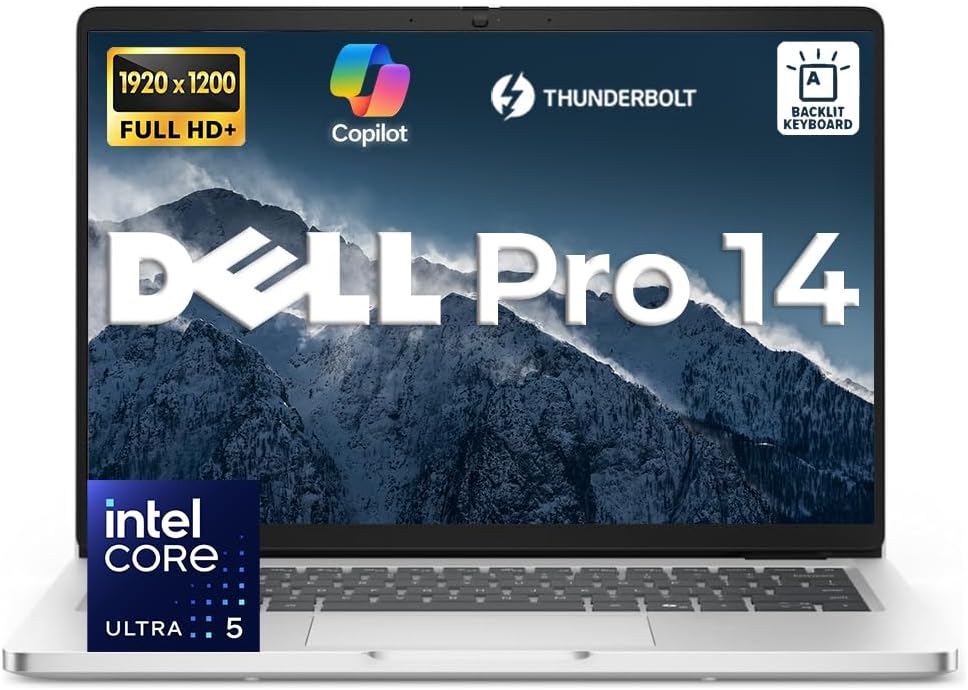
$949–$995 for the Core Ultra 7 258V / 32GB / 1TB configuration with the 2.5K panel
The 14 Plus is Dell’s rename of the old Inspiron 14 Plus, a decision that confused approximately everybody in 2025 and continues to confuse people searching for it today.
It’s the “nothing weird ever happens” option. Lunar Lake is x86. There’s no emulation layer, no ARM64 asterisk, no checking whether your toolchain has a native build. Every compiler, every driver, every crusty piece of departmental software that’s been limping along since 2014 — it all just runs.
The specs
- CPU: Intel Core Ultra 7 258V (Lunar Lake) — 8 cores, 8 threads, 4× Lion Cove P-cores to 4.8GHz plus 4× Skymont E-cores to 3.7GHz
- Graphics: Intel Arc 140V integrated
- NPU: past the 40 TOPS Copilot+ threshold, on x86
- Memory: 32GB LPDDR5X-8533 — on-package, soldered, no upgrades ever
- Storage: 1TB M.2 PCIe SSD (this part is replaceable)
- Display: 14-inch 2560×1600, 16:10, anti-glare on the non-touch configuration
- Ports: USB4 40Gbps (Thunderbolt 4 class), USB-C, USB-A, HDMI, 3.5mm
- Wireless: Wi-Fi 7, Bluetooth 5.x
- Battery: 64Wh, 4-cell
- Build: aluminium in Dell’s Ice Blue, roughly 1.51kg for the clamshell
The measured numbers
Battery. Laptop Mag ran their continuous web-surfing test at 150 nits and got 13 hours 25 minutes. Consumer Reports, testing a sibling configuration, logged 17 hours 45 minutes of light web browsing and 14 hours 45 minutes of 4K video playback, calling the results outstanding enough to last well beyond a typical day of mixed use.
Two different labs, two different tests, both good. For your actual workload — VS Code, browser tabs, a container ticking over, periodic builds — I’d plan on 7 to 9 hours. That’s a full timetable with room to spare.
Overall reception. Notebookcheck’s aggregate score across the 14 Plus family sits at about 76.8%, rated “good”, with strong marks for value and mobility and its weakest score in build quality. PCMag’s reviewer put it up against the 13-inch MacBook Air and the Zenbook 14 OLED and concluded it can scrap with both, especially on sale, while noting it’s heavier, not quite as fast, and could use a brighter screen. Reviewed.com called it a workhorse at a great price that gets the basics right without giving you Dell’s best trackpad.
Where it loses. Laptop Mag’s review of the 256V configuration was less kind — it fell behind the M4 MacBook Air and the Zenbook 14’s Ultra 7 258V across most benchmarks, and the reviewer criticised the display, the audio and the shallow touchpad.
Which is precisely why I’m specifying the 258V, not the 256V. Two digits, a real difference in sustained work, and Dell irritatingly hides the better configuration behind the custom-order page rather than the standard list. Go find it.
The Lunar Lake thing you need to understand
Lunar Lake is 8 cores and 8 threads. No hyperthreading. It’s a superb chip for battery life and for making a laptop feel instantly responsive, and a merely okay chip for long parallel compiles. A 16-thread Ryzen will finish a make -j$(nproc) noticeably faster.
For most CS coursework — web development, algorithms, databases, systems programming in C — you’ll never notice. If your degree leans heavily on large C++ builds, this is the wrong shape of processor and you should be looking at the ThinkPad or the LOQ.
Pros
- 2560×1600 in 16:10. More vertical lines of code than any 1080p machine here, and it’s genuinely sharp.
- 32GB from the factory — the most memory available in a thin-and-light at this price
- USB4 / Thunderbolt 4. One cable to a dock, or an external GPU later if you go down that road.
- Pure x86. No compatibility asterisks anywhere.
- 13h25m measured by Laptop Mag, 17h45m by Consumer Reports on light browsing
- Wi-Fi 7
- Copilot+ certified without the ARM trade-off
- Aluminium chassis that doesn’t show fingerprints
Cons
- Memory is soldered onto the CPU package. 32GB forever. Buy the 32GB config or don’t buy this laptop.
- 8 threads. Long parallel builds are its weakest area.
- Build quality is the lowest-scoring aspect in Notebookcheck’s aggregate
- Multiple reviewers have criticised the display quality relative to the resolution, plus the audio and the shallow touchpad
- Dell’s configuration pages are a maze — the 1600p non-touch panel requires the custom order path
- It’s the most expensive machine here. Buy it during a sale, not at list.
My verdict
The safe pick for anyone who values screen and battery over raw multi-core throughput. Get the 258V with 32GB and 1TB, or skip it — the 16GB version is a trap given the memory is soldered on-package. At $949 on sale it’s very good value. At $1,099 list it isn’t.
3. Lenovo LOQ 15 (RTX 5060) — the only real answer if you need CUDA
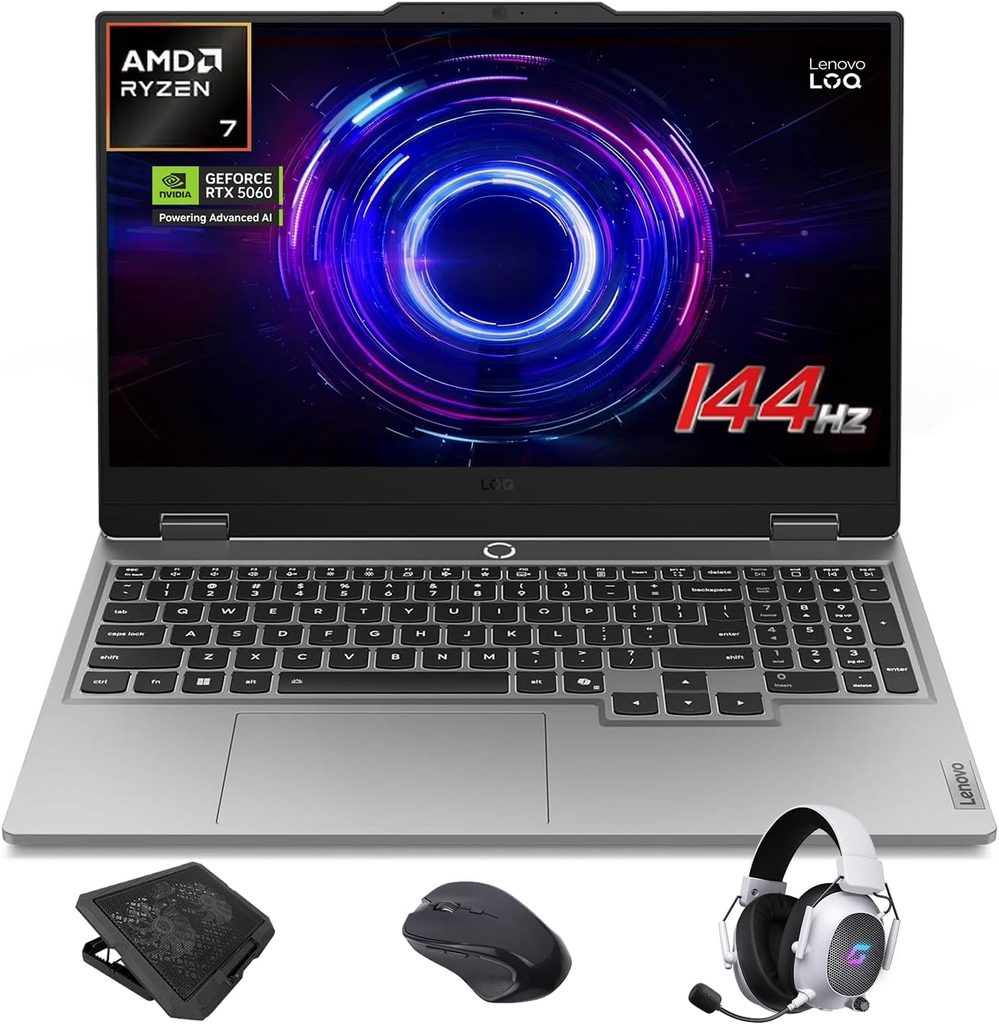
$799–$999 on sale for the Ryzen 7 250 / RTX 5060 / 16GB / 512GB configuration
If your degree contains the word “CUDA,” this is the only section that matters.
You cannot train models on integrated graphics. You cannot run Unreal Engine on a Radeon 780M. You cannot do meaningful local inference without VRAM. And a free Colab tier that disconnects at 3am mid-epoch is not a development environment, it’s a lottery.
The LOQ 15 is the cheapest honest way out of that corner.
The specs
- CPU: AMD Ryzen 7 250 — 8 cores, 16 threads, Zen 4, boost to 5.1GHz, 43W sustained / 53W burst
- Graphics: NVIDIA GeForce RTX 5060 Laptop, 8GB GDDR7, full 115W maximum graphics power, boost to 1,455MHz
- Memory: 16GB DDR5-5600 — SODIMM, two slots, upgradeable
- Storage: 512GB PCIe Gen4 — two M.2 slots, one free
- Display: 15.6-inch 1920×1080 IPS, 144Hz, anti-glare
- Ports: 3× USB-A, USB-C with 100W Power Delivery and DisplayPort 1.4, HDMI 2.1, Gigabit Ethernet, 3.5mm, barrel-plug power
- Wireless: Wi-Fi 6E, Bluetooth 5.2
- Battery: 60Wh · Weight: 2.446kg · Webcam: 5MP
The 115 watts is the entire story
Notebookcheck measured the panel at around 300 nits, a 1,600:1 contrast ratio and full sRGB coverage at 144Hz — genuinely above budget-gaming-laptop average. But the screen isn’t why you buy it.
Most sub-$1,000 laptops carrying an “RTX 5060” sticker run that GPU at somewhere between 60 and 85 watts to save money on cooling and power delivery. Lenovo feeds it the full 115 watts. PCWorld confirmed the 115W figure in their teardown of the specs, and Tom’s Hardware measured the same 115W TGP on their review unit.
For you that translates directly into shorter training epochs and faster CUDA kernels. It’s the same silicon other vendors ship at two-thirds throttle.
The GPU numbers. PCWorld recorded 11,779 in 3DMark Fire Strike and 7,529 in Port Royal, the ray-traced test. Notebookcheck’s more recent review of the LOQ 15 gave the machine 81% overall, praising the two RAM slots, the dual M.2 arrangement with one bay free, and a dual-fan cooling system capable enough that the RTX 5060 in this chassis ran slightly faster than the same GPU in comparable laptops.
Thermals, measured. Tom’s Hardware ran a Metro Exodus stress test on a LOQ 15 and probed the surfaces: 108°F (42°C) between the G and H keys, 79°F (26°C) on the touchpad, and 112°F (44°C) on the underside near the fan exhaust. Internally, the CPU held 70°C and the RTX 5060 66°C. Those are good internal numbers — this thing is not thermally throttling — but 42°C under your left hand while you type is warm, and 44°C underneath means keep it off your lap during long sessions.
Battery, and it’s bad. Tom’s Hardware measured 4 hours 54 minutes on their mixed test — web browsing, OpenGL runs and video streaming at 150 nits over Wi-Fi — and called that short even by gaming laptop standards. The Acer Nitro they compared against managed over ten hours. Notebookcheck’s review listed runtimes as a con outright.
Under a real compile-plus-container workload, plan on two hours. This is a desk machine that travels, not a lecture-hall machine.
The stuff nobody mentions
Notebookcheck’s con list on this laptop is the most useful thing published about it, and it’s worth reproducing in spirit because none of it appears on the box:
- The RTX 5060 is sometimes barely faster than the RTX 4060 it replaces
- Idle fan noise in Performance mode is high — you’ll want to switch modes when you’re not gaming
- The SSD throttles under sustained write load. This is the one that’ll bite you when you unpack a large dataset or clone a big repository.
- Some configurations ship with 16GB in a single channel — one 16GB SODIMM in a two-slot board. Tom’s Hardware confirmed this on their unit. Single-channel memory costs you real performance on the integrated side and in memory-bound work. It also means you have a free slot, so add a matching stick and you get 32GB and dual-channel in one move. Best $65 you’ll spend.
Lenovo prices the factory upgrades at roughly $65 for 32GB and $60 for 1TB at configuration time, per PCWorld. Both are cheaper than buying the parts separately, so if you’re ordering direct, take them.
⚠️ The newer model is worse. Genuinely.
Lenovo announced the LOQ 15APH11 at CES 2026 starting at $1,299. Tom’s Hardware reviewed the LOQ Essentials Gen 11 and found it pairs a decent display with a low-power RTX 5060 — their review unit retailed at $1,269.99 at Best Buy.
Newer model. Five hundred dollars more. Less GPU power.
This is one of those rare cases where the outgoing generation is flatly the better purchase. Hunt for the model code 15AHP10 with the 115W GPU, which Notebookcheck has repeatedly spotted at $799.99 on Lenovo’s own store. Check the model code in the listing, not the marketing copy above it.
Pros
- 8GB of VRAM and a full-power RTX 5060 under $1,000. Nothing else comes close.
- CUDA, cuDNN, PyTorch, TensorFlow — all native, no workarounds, no cloud bill
- Two RAM slots and two M.2 slots, one of each free on most configurations
- ~300 nits, ~1,600:1 contrast, full sRGB at 144Hz — a real panel, not a budget afterthought
- Internal temps of 70°C CPU / 66°C GPU under a full stress run — the cooling is genuinely competent
- Gigabit Ethernet plus three USB-A ports. Your Arduino, your external drive and your mouse, all at once.
- 100W USB-C Power Delivery, so a decent power bank or a USB-C dock will charge it
- Notebookcheck rates it 81% overall
Cons
- 4h54m measured battery in a 2.446kg chassis. It’s a plug-in machine.
- Heavy. Your shoulder will notice by week three.
- 42°C between the G and H keys under load, 44°C underneath
- SSD throttles under sustained writes — a real problem for dataset work
- Some configs ship single-channel 16GB; fix it with a second stick
- 1080p on a 15.6-inch panel isn’t much code real estate in 2026
- High idle fan noise in Performance mode
- Port placement puts things where your mouse hand wants to be
- It looks like a gaming laptop, because it is one
My verdict
Buy it if and only if you need a GPU. Machine learning, computer vision, computer graphics, game development — this is your machine and it isn’t close. Add the second RAM stick on day one.
For everyone else: you’d be carrying two and a half kilos and giving up ten hours of battery for silicon you’ll never switch on. Don’t.
4. HP OmniBook 5 14 — absurd battery life, one enormous caveat
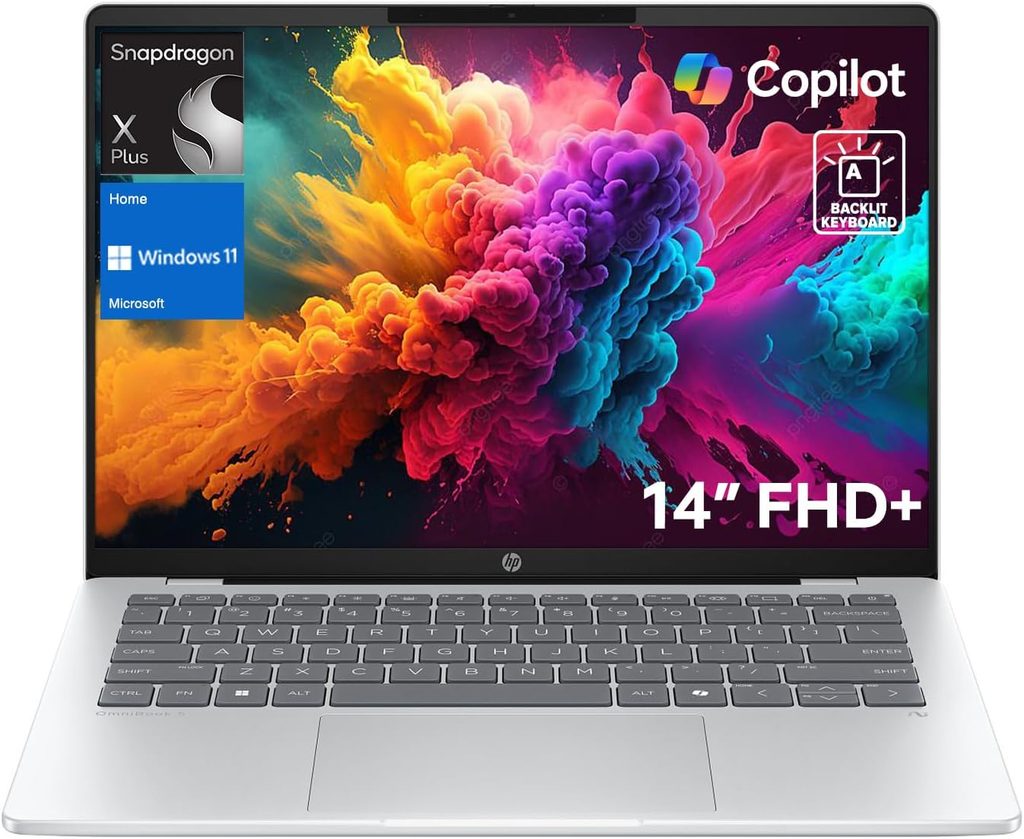
$899 for the Snapdragon X Plus X1P-42-100 / 32GB / 1TB configuration with the OLED panel
The battery numbers are ridiculous, so let’s lead with them.
- PCWorld: up to 25 hours in their rundown
- TweakTown: 28 hours 19 minutes on PCMark 10’s Applications battery benchmark, from a 59Wh cell
- Mashable: 32 hours 31 minutes in a video rundown — their reviewer noted that nothing else they’d tested had passed 25 hours
Three labs, three different tests, all extraordinary. TweakTown pointed out that most ultraportables struggle to reach 20 hours. This one treats 20 hours as a warm-up.
CNET scored it 85% and highlighted that you don’t normally find an OLED panel, 32GB of RAM and a 1TB SSD together in a sub-$1,000 laptop that weighs under three pounds and is mostly metal. Notebookcheck’s aggregate sits at 80%, praising battery, the vivid P3 OLED, keyboard ergonomics and value. PCMag handed the OmniBook family an Editors’ Choice for midrange ultraportables.
It also charges to 50% in 30 minutes from a 65W GaN brick small enough to live in a jacket pocket. PCWorld called that out specifically, and having a charger you don’t resent carrying genuinely changes how you use a laptop.
The specs
- CPU: Qualcomm Snapdragon X Plus X1P-42-100 (Oryon cores, ARM64)
- Graphics: Adreno integrated · NPU: on-die, Copilot+ certified
- Memory: 32GB — soldered
- Storage: 1TB SSD
- Display: 14-inch 1920×1200 OLED, P3 colour, glossy
- Ports: 2× USB-C 10Gbps with Power Delivery and DisplayPort 1.4, 1× USB-A 10Gbps, 3.5mm combo
- Battery: 59Wh · Weight: under 3lb / roughly 1.35kg
- Build: aluminium lid over a plastic chassis, “Glacier Silver”
HP also sells cheaper OmniBook 5 configurations starting at $699.99 list, which PCWorld noted have been discounted as low as $549.99 — but those drop to 16GB, 256GB and a weaker Snapdragon X chip. For CS work, the $899 32GB/1TB version is the one worth having.
🚨 Read this before you buy anything
This laptop runs Windows on ARM. Every generic student-laptop roundup will sell you this machine without mentioning any of what follows.
Runs natively, and runs well:
- VS Code (native ARM64 build), Visual Studio 2022
- Python, Node.js, Go, Rust — all ship ARM64 Windows builds
- Git, Windows Terminal, WSL2 running ARM64 Linux distributions
- Docker Desktop — but it runs ARM64 container images
- Chrome, Firefox, Edge, the Office suite
Runs under emulation — slower, sometimes strange:
- Most x86-64 desktop applications
- Older IDEs and departmental tooling without ARM builds
Doesn’t work, or fights you the whole way:
- x86-64 Docker images. A large slice of Docker Hub is amd64-only. A Compose file with
platform: linux/amd64in it will either fail outright or crawl under QEMU translation. - Android Studio’s x86 emulator system images
- CUDA. Obviously.
- Certain VPN clients, endpoint security agents and lab drivers your department mandates
- Kernel-level anti-cheat, if you were hoping to unwind with games
TweakTown’s verdict was pointed: worth investigating if you don’t need it to do much beyond Office and browser-based work, and they noted ARM compatibility is improving but isn’t there yet. That’s an accurate summary.
Here’s the test I’d actually run. Open your course syllabi. If you see “Docker,” “VirtualBox,” “Android Studio,” or a named commercial toolchain, buy something x86. If your work is web development, JavaScript, Python, cloud-first tooling and a lot of note-taking, this machine will change your relationship with the campus outlet situation permanently.
Pros
- 25 to 32 hours measured across three independent labs. Nothing else on this list is in the same postcode.
- 32GB, 1TB and an OLED panel under $1,000 is an absurd amount of hardware for the money
- Vivid 1920×1200 P3 OLED in 16:10
- Under three pounds, and the 65W GaN charger is genuinely pocketable
- 50% charge in half an hour
- Keyboard and trackpad praised across essentially every review
- Silent under normal load — no fan noise in a quiet library
- CNET 85%, Notebookcheck aggregate 80%, PCMag Editors’ Choice
Cons
- ARM64. See above. This is the entire risk and it’s not a small one.
- Soldered 32GB
- The X1P-42-100 is among the least powerful Snapdragon X Plus parts. PCWorld put it plainly: good for battery life, a negative for performance.
- Glossy OLED reflects everything behind you
- TechRadar noted it runs a bit warm and that build quality could be better; Notebookcheck flags the limited port selection
- Weak graphics — casual photo editing is roughly the ceiling
- Notebookcheck also flags pricing confusion across retailers; check exactly which configuration you’re buying
- OLED panels use PWM dimming, which bothers some people’s eyes over long sessions. If you’re sensitive to flicker, try one in a shop first.
My verdict
Brilliant for the right CS student, quietly frustrating for the wrong one. Web development, cloud-native work, heavy note-taking, long days nowhere near a plug — outstanding, and the battery genuinely changes your habits. Systems programming, machine learning, or anything with a mandated x86 toolchain — walk away, no matter how good those numbers look.
5. Apple MacBook Neo — remarkable for $699, with a ceiling you can’t raise

$699 for 8GB / 256GB · $799 for 512GB with Touch ID · education pricing is lower
Apple announced the MacBook Neo on March 4, 2026 and shipped it on March 11 at $599 — the cheapest Mac laptop ever made. The price rose to $699 in late June 2026 as global memory and storage costs climbed. Tim Cook said it delivered Apple’s best launch week ever for first-time Mac buyers, and supply constraints followed within days. LaptopMedia’s Amazon sales tracking had it at number one globally among best-selling laptops in June 2026.
It’s also the first Mac of the Apple Silicon era that doesn’t use an M-series chip. It runs the A18 Pro — the same processor as the iPhone 16 Pro, reportedly using binned units that didn’t meet iPhone thermal specification.
The specs
- CPU: Apple A18 Pro — 6 cores (2 performance, 4 efficiency), TSMC second-generation 3nm (N3E)
- Graphics: 5-core GPU · Neural Engine: 16-core
- Memory: 8GB unified, soldered. There is no larger option at any price.
- Storage: 256GB base, 512GB on the $799 model
- Display: 13-inch Retina, sRGB — not P3, no True Tone
- Ports: 2× USB-C — and the right-hand one runs at USB 2.0 speeds
- Cooling: fanless, entirely passive
- Colours: Silver, Blush, Citrus, Indigo
What it’s genuinely brilliant at
The single-core numbers are startling for the money. Published Geekbench 6 results put the A18 Pro at roughly 3,461 to 3,569 single-core — Tom’s Hardware recorded 3,535, and an independent three-run cold average came in at 3,569. That beats the M3 (around 3,082), lands within 6 to 7% of the M4 (around 3,696), and outruns the Snapdragon X Plus (around 2,486) by more than 40%.
Multi-core sits around 8,531 to 8,879, which is essentially level with the M1 MacBook Air. AppleInsider’s comparison found the gap against the M1 small enough to call a rounding error. On Metal, roughly 32,506 against the M1’s 30,636.
Battery: CNN Underscored logged 13 hours 57 minutes on their 4K looping test — within about two and a half hours of the M5 MacBook Air.
For $699 that’s remarkable. Snappy interface, fast single-threaded work, a real Unix terminal with Homebrew, silent operation, and build quality from a machine that costs twice as much.
What it’s genuinely bad at
Thermals. It’s fanless, and independent testing found it holds full burst for about 60 seconds, after which throttling drops CPU utilisation by roughly 64% within 15 seconds. Tom’s Hardware ran a demanding rendering benchmark on it that took 14 minutes and 2 seconds to complete a single pass, and concluded plainly that the system isn’t designed for that class of work.
Now think about what a Gradle build or a large Rust compile looks like on a chip that gives you one good minute.
And then there’s the 8GB.
Do the arithmetic honestly. macOS idles at 3 to 4GB. Docker Desktop on macOS runs a Linux virtual machine underneath, so budget 2GB before you start a single container. Add VS Code with its extension host, a browser, a language server. You’re swapping to SSD before you’ve opened your project.
Every serious guide to development hardware in 2026 sets 16GB as the hard minimum and 32GB as the target for container and VM work. The Neo ships 8GB with no upgrade path. Apple’s memory compression and swap are genuinely excellent — but excellent swap is still swap, and NAND wear over four years is a real thing.
What Apple cut to hit the price. Beyond memory: no MagSafe, no Thunderbolt, no backlit keyboard on the base model, no haptic trackpad, no P3 wide colour, no True Tone, no Wi-Fi 7, a 1080p webcam instead of the 12MP Center Stage camera, Touch ID only on the $799 model, 20W charging with no fast-charge, and a single external display capped at 4K/60Hz. And one of the two USB-C ports runs at USB 2.0 speeds, which in 2026 is genuinely hard to defend.
Pros
- The cheapest properly good laptop Apple has ever sold, by a distance
- Single-core performance sitting between the M3 and M4, for $699
- Real Unix. Terminal, Homebrew, zsh, native POSIX. macOS remains an excellent development environment.
- 13h57m measured battery, completely silent, aluminium build
- Full Apple Intelligence support with a 16-core Neural Engine
- Education pricing brings it lower still
- Best resale value on this list by a wide margin. Macs depreciate more slowly than anything else here.
- Four colours, and they’re nice
Cons
- 8GB of soldered memory, permanently. For most CS students this is the whole conversation.
- Fanless: full performance for roughly a minute, then a hard throttle
- One of the two USB-C ports is USB 2.0.
- No Thunderbolt, no MagSafe, no P3, no Wi-Fi 7, no backlit keyboard on the base model
- No Touch ID unless you pay $799
- One external display, 4K/60Hz maximum
- No CUDA, ever. ML coursework means renting cloud time.
- 5-core GPU. This is not a graphics machine.
- 256GB base storage disappears fast once you’ve installed Xcode
My verdict
Buy it if your work is web development, mobile-first development, algorithms and theory; you want macOS; you’re on a genuinely tight budget; and you have a desktop or a lab machine for the heavy stuff.
Don’t buy it if your curriculum includes Docker, virtual machines, large Xcode projects, machine learning, or serious multitasking. Apple’s own positioning makes this clear — for those workloads they’ll point you at the M5 MacBook Air at $1,099, which is outside this budget for a reason.
It’s a wonderful laptop that will be inadequate before you graduate. Know which of those two facts matters more to you.
Side by side
| ThinkPad E14 Gen 7 | Dell 14 Plus | Lenovo LOQ 15 | HP OmniBook 5 14 | MacBook Neo | |
|---|---|---|---|---|---|
| Price | $780–900 | $949–995 | $799–999 | $899 | $699 |
| CPU | Ryzen 7 250, 8C/16T | Ultra 7 258V, 8C/8T | Ryzen 7 250, 8C/16T | Snapdragon X Plus X1P-42-100 | A18 Pro, 6 cores |
| Architecture | x86-64 | x86-64 | x86-64 | ARM64 | ARM64 (macOS) |
| Graphics | Radeon 780M | Arc 140V | RTX 5060 8GB @ 115W | Adreno | 5-core Apple |
| Memory | 16GB, 2 slots → 64GB | 32GB soldered | 16GB, 2 slots | 32GB soldered | 8GB soldered |
| Storage | 512GB + free M.2 | 1TB | 512GB + free M.2 | 1TB | 256GB |
| Display | 14″ 1920×1200 IPS matte, 300 nits | 14″ 2560×1600 IPS | 15.6″ 1080p 144Hz, 300 nits, 1600:1 | 14″ 1920×1200 OLED, P3 | 13″ Retina, sRGB |
| Battery capacity | 48Wh | 64Wh | 60Wh | 59Wh | Fanless 13″ chassis |
| Measured runtime | ~7–8h office use | 13h25m web @150 nits (Laptop Mag); 17h45m browsing (Consumer Reports) | 4h54m mixed @150 nits (Tom’s Hardware) | 25h (PCWorld); 28h19m PCMark 10 Apps (TweakTown); 32h31m video (Mashable) | 13h57m 4K loop (CNN Underscored) |
| Ethernet | Yes | No | Yes | No | No |
| Thunderbolt / USB4 | Yes | Yes | No | No | No |
| CUDA | No | No | Yes | No | No |
| x86 Docker images | Yes | Yes | Yes | Emulated | Emulated |
| Windows Pro / Hyper-V | Included | Home | Home | Home | n/a |
| Independent score | — | 76.8% (Notebookcheck avg) | 81% (Notebookcheck) | 80% (Notebookcheck avg), 85% (CNET) | — |
Runtime figures come from different test protocols and are not directly comparable to one another; the test is named alongside each number so you can weigh them properly. Under a real coding load — IDE, browser tabs, a container, periodic builds — expect roughly 40 to 60 percent of these figures.
Which course breaks which laptop
I’ve never seen anyone publish this, and I think it’s the most useful table here. Check it against your actual degree plan before you spend anything.
| Course | What it demands | Handles it fine | Will struggle |
|---|---|---|---|
| Intro programming, data structures | Almost nothing | All five | — |
| Web development | 8–12GB, Node, occasional containers | All five | Neo, if you go container-heavy |
| Databases | 8–16GB, Postgres or MySQL locally | E14, Dell, LOQ, OmniBook | Neo |
| Operating systems | Nested virtualisation, QEMU, 16GB+ | E14 (Hyper-V + upgradeable), Dell, LOQ | Neo, OmniBook |
| Networking | VMs, packet capture, wired ports | E14, LOQ (both have Ethernet) | Neo, OmniBook |
| Compilers | Sustained all-core load, 16GB+ | E14, LOQ | Neo (fanless throttle) |
| Machine learning | CUDA, 8GB+ VRAM | LOQ 15 only | Everything else |
| Computer graphics | Discrete GPU | LOQ 15 | Everything else |
| Android development | Emulator is a nested VM, 16GB+ | E14 (with 32GB), Dell, LOQ | Neo, OmniBook |
| iOS development | macOS required by Apple | Neo — small projects only | Every Windows machine |
| Software engineering, capstone | Docker Compose, 16–32GB | E14 upgraded, Dell 32GB | Neo, OmniBook |
One honest warning: if “Machine Learning” and “iOS Development” both appear on your required list, no single sub-$1,000 laptop covers you. Plan for lab machines or cloud credits from day one rather than discovering the problem in third year.
What these actually cost over four years
Sticker price is only part of it. Here’s the real math as I’d budget it, using current market prices for parts and typical service costs. The upgrade figures are real; the resale estimates are my projections based on how each brand has historically depreciated.
| E14 Gen 7 | Dell 14 Plus | LOQ 15 | OmniBook 5 | MacBook Neo | |
|---|---|---|---|---|---|
| Purchase | $850 | $970 | $850 | $899 | $699 |
| RAM to 32GB, year 1–2 | +$65–80 | not possible | +$65–80 | not possible | not possible |
| Add 1TB storage, year 2 | +$90 | +$90 (swap) | +$60–90 | +$90 (swap) | not possible |
| Battery replacement, year 3–4 | ~$70 | ~$110 | ~$90 | ~$120 | ~$160 |
| Total four-year outlay | ~$1,090 | ~$1,170 | ~$1,020 | ~$1,109 | ~$859 |
| Estimated resale, year 4 | ~$230 | ~$260 | ~$250 | ~$220 | ~$310 |
| Net cost of ownership | ~$860 | ~$910 | ~$770 | ~$889 | ~$549 |
| Still doing the job in year 4? | Yes, at 32GB | Probably, aging CPU | Yes | Depends on ARM software | No |
The MacBook Neo is the cheapest laptop here to own and the most likely to be inadequate by graduation. That’s the trade, stated plainly. The LOQ works out cheapest per year of useful life, and it’s also the one you’ll least want to carry.
Two traps in this market right now
Newer isn’t better on the LOQ. The Gen 11 refresh starts at $1,299 and Tom’s Hardware found the Essentials variant pairs a good display with a low-power RTX 5060. Five hundred dollars more for less GPU. Buy the outgoing 115W model.
AMD’s model numbers have stopped meaning much. Notebookcheck’s testing of the Ryzen AI 7 450 found performance had barely moved over the Ryzen AI 7 350 it replaced. The Ryzen 7 250 in two of my picks is Zen 4 Hawk Point silicon under a 2026 badge. That’s fine — it’s a good chip — but don’t pay a generational premium for a generational number.
The general lesson: in this price bracket, model codes and power limits matter more than release dates. Manufacturers hit price points by quietly reducing wattage, and the spec sheet on the retail page will never tell you.
Before you click buy
Seven things to check, in order:
- Is the RAM soldered or slotted? Look up the service manual, not the marketing page. The E14 Gen 7 alone comes in slotted and soldered versions under the same name.
- What wattage is the GPU? “RTX 5060” describes anything from 60W to 115W. If the seller can’t tell you, assume the low number.
- Get the exact model code.
15AHP10and15APH11are different laptops. So are256Vand258V. - Check measured brightness, not the claim. Below 300 nits, anywhere near a window is a problem.
- Is there a spare M.2 slot? Two minutes of research now saves you $200 in year two.
- ARM or x86? Then cross-check against your syllabi. Seriously, go read them.
- Use the education store. Apple, Lenovo, Dell and HP all run student pricing. Discounts run 8 to 15 percent and stack with sales more often than you’d expect.
And the hard no list:
- Anything with 8GB of soldered RAM, at any price, unless you’ve read the MacBook Neo section and accepted exactly what you’re getting
- Any mechanical hard drive, or eMMC storage
- 1366×768 displays. They still exist. They are still a punishment.
- Celeron, Pentium or Athlon-branded processors
- 4GB of VRAM if you’re doing machine learning — the models won’t fit
- Those “lifetime Microsoft Office included” laptops from unfamiliar marketplace sellers. Those listings are usually a decade-old CPU wrapped in a 2026 headline, and your university almost certainly gives you Office for free anyway.
Questions I get asked constantly
For most of a degree, yes. It handles an IDE, a browser, a terminal and a container or two comfortably. It gets tight the moment you run a full Docker Compose stack plus an Android emulator. If 16GB is all you can afford right now, buy a laptop where you can add more later. That’s the entire reason the ThinkPad tops this list.
Windows with WSL2 has become a genuinely good development environment, and it gives you NVIDIA GPUs, more hardware per dollar, and every piece of x86 software ever written. macOS gives you native Unix, better battery life, better build quality, and it is mandatory for iOS development. If your department requires CUDA, go Windows. If it requires Xcode, go macOS. If neither, pick the keyboard you’d rather live with for four years.
Within limits, yes. The LOQ 15’s RTX 5060 with 8GB of VRAM will train small and medium models, fine-tune quantised LLMs, and run local inference comfortably. It won’t train anything at research scale. Realistically: prototype locally, train on cloud or your university cluster. That’s what working practitioners do too.
Where I landed
Most CS students should buy the Lenovo ThinkPad E14 Gen 7 with the AMD processor, in the cheapest 16GB configuration, and upgrade the memory themselves. That path gets you a 32GB, dual-drive-capable, Windows Pro development machine for well under $1,000, and no factory configuration at this price matches it. The screen is dim and the chip is Zen 4 in a 2026 costume. You’ll live. Just check that processor before you pay — the Lunar Lake version of the same laptop has no RAM slots at all.
If you need a GPU, the Lenovo LOQ 15 with the 115W RTX 5060 is the only real answer under $1,000, and you should buy it before Lenovo’s stock of the outgoing model runs dry in favour of the pricier, lower-power replacement. Add a second RAM stick immediately.
If you want a proper screen and long battery with zero compatibility risk, the Dell 14 Plus with the 258V, 32GB and 1TB is the polished choice. Just accept that 32GB is where it stays forever.
If your work lives in a browser and a cloud terminal, the HP OmniBook 5 14 will genuinely change how you use a laptop. Check your syllabi for Docker first, and mean it.
And if you want a Mac and you understand exactly what 8GB means, the MacBook Neo is the most laptop anyone has ever sold for $699. Go in with your eyes open and don’t be surprised in year three.
Where the numbers came from
Everything measured in this article was produced by an independent lab, not by me. Battery and performance figures are credited inline throughout. The sources I leaned on most: Notebookcheck (teardowns, display measurements, sustained-load behaviour and aggregate scoring), PCWorld (battery rundowns, 3DMark results, GPU wattage verification), Tom’s Hardware (surface and internal temperatures, battery runtime, thermal probing), TweakTown (PCMark 10 battery testing), Laptop Mag (web-surfing battery test at 150 nits), Consumer Reports (browsing and video runtime), CNN Underscored (4K looping battery test), Mashable (video rundown), CNET, PCMag, TechRadar, Reviewed.com and LaptopMedia, plus manufacturer specification sheets from Lenovo, Dell, HP and Apple.
Prices are street prices observed in August 2026 and move constantly, particularly given ongoing memory and storage supply pressure. Verify before you buy.
If you’ve got measured data that contradicts anything here, send it over and I’ll update the piece with credit. I’d rather be corrected than wrong.

Hi, my name is Burak. I am a mechanical engineer. I have been writing laptop reviews for the Engineering Laptops website since 2020. Please feel free to contact me if you have any questions.