
Estimated reading time: 35 minutes
Table of contents
- The short version
- Three things changed this year. All of them affect what you should buy.
- What actually breaks a teacher’s laptop
- How to read a battery number without getting fooled
- 5 Picks Tested Against Real Classroom Workloads
- The scorecard
- Will your district’s software actually run? A straight answer.
- What these actually cost you
- Pick by what you actually teach
- Five ways to get this wrong
- Before you click buy
- Common questions
- The bottom line
Teachers get a raw deal when it comes to buying a laptop.
You need a machine that survives being carried between three rooms, plugs into a projector that was installed in 2014, keeps forty tabs of student work open, joins a parent conference on video, runs whatever ancient software your district still insists on, and lasts eight hours without an outlet. And you’re usually paying for it yourself, in August, in the same week you’re buying tissues and dry-erase markers that the school should have supplied.
So let’s skip the padding. Below are five laptops in the $259 to $699 range that hold up to a teaching day, with published lab measurements attached to every claim. I’ve also included three things I’ve never seen in another laptop roundup: what these machines actually cost after the 2026 educator tax rules, what they cost per year of guaranteed security updates, and a straight answer on whether your interactive whiteboard software will run on each one.
Here’s the part nobody mentions, though, and it changes the whole calculation: buying a laptop in 2026 is a worse deal than it was in 2024, and the reason has nothing to do with laptops. More on that in a second.
The short version
| Laptop | Best for | Street price | Verified battery | Weight | HDMI |
|---|---|---|---|---|---|
| Dell XPS 13 (2026) | Most teachers, most districts | $699 ($599 edu) | 14h 29m | 1.0 kg | No |
| Lenovo IdeaPad Slim 3x | Best money-for-what-you-get | $449–$499 | 16h 29m | 1.55 kg | Yes |
| Apple MacBook Neo | Video calls, recorded lessons | $699 ($599 edu) | 13h 28m | 1.23 kg | No |
| Lenovo Chromebook Plus 2-in-1 | Google districts, handwritten grading | $579–$599 | 8h 32m | 1.49 kg | Yes |
| ASUS Chromebook CX15 | Under $300, or a spare machine | $259–$306 | ~11h | ~1.6 kg | Yes |
One sentence if you’re in a hurry: buy the Dell XPS 13 (2026) if your district runs Windows-only software, and the Lenovo IdeaPad Slim 3x if you’d rather keep $250 and get a projector port you don’t need an adapter for.
Three things changed this year. All of them affect what you should buy.
1. Memory prices exploded, and manufacturers are hiding it
Since late 2025, AI data centers have been buying up the world’s supply of DRAM and NAND flash. Memory makers shifted their production lines toward high-bandwidth memory and server DDR5 — the exact same factory capacity that used to make the chips inside a $500 laptop. TrendForce projected PC memory costs rising more than 100% in the first quarter of 2026 alone. Notebookcheck reported 2026 laptop list prices climbing at least 20% across the board. SK Hynix has signaled the squeeze may not fully clear until 2030.
Here’s the sneaky part. Rather than raise prices on cheaper models, TrendForce analysts predicted manufacturers would quietly reduce what’s inside them. Consumer Reports put it plainly: the $600 laptop you buy in 2026 might look identical to last year’s model on the shelf, but ship with 8GB of RAM instead of 16GB and a dimmer screen.
What this means for you, practically: check the exact model number, not the name on the box. “IdeaPad Slim 3” and “IdeaPad Slim 3x” are different laptops. Two machines with the same name can have different processors, different RAM, different screens, and different keyboards. And if you find a good configuration at a fair price, buy it. I normally tell people to wait for a sale. This year, don’t.
2. The tax rules for teachers actually got better
This is the one that genuinely surprised me, and I have not seen a single laptop guide mention it.
For the 2026 tax year, the above-the-line educator expense deduction rose from $300 to $350. That part is a small bump. But the One Big Beautiful Bill Act also restored a separate itemized deduction for educator expenses that had been gone since 2017 — and unlike the above-the-line version, it isn’t capped at any dollar amount and isn’t subject to the old 2%-of-income floor.
In practice: if you itemize, you may be able to take the $350 above the line and then deduct additional unreimbursed classroom expenses on Schedule A with no ceiling. A laptop you genuinely use for teaching counts as qualified equipment under IRS rules, as long as nobody reimbursed you for it.
I’m not a tax professional and neither is anyone else writing laptop reviews, so talk to one before you file. But run the numbers before you decide your budget is $500. It might effectively be more than that.
3. The software landscape shifted under Chromebooks
Promethean announced in January 2026 that its ActivSuite is now fully compatible with ChromeOS, having rolled out to educators in December 2025. Windows, macOS, ChromeOS, and Android are all covered now. That’s a meaningful change: for years, “I have a Promethean board” was an automatic reason to skip Chromebooks entirely.
The older ActivInspire desktop software is still Windows, Mac, and Linux only. And SMART’s Learning Suite still requires Windows or macOS on the machine that’s actually driving the board. So the answer depends on which product your school bought and which version they’re on — which is exactly why there’s a full compatibility table further down this page.
What actually breaks a teacher’s laptop
Standard laptop benchmarks measure things teachers don’t do. Nobody’s rendering 3D scenes during fourth period. Here’s the framework I used to weigh these machines instead — seven situations that decide whether a laptop is good for teaching or just good on paper.
| # | The situation | What it exposes |
|---|---|---|
| 1 | Prep period tab overload — LMS, gradebook, 25–30 tabs, Slides, a PDF | RAM ceiling, single-core responsiveness |
| 2 | Projector handoff — plugging into the classroom display mid-lesson | Ports, dongle dependency, how fast it detects the display |
| 3 | The 45-minute parent conference | Webcam, microphone, sustained heat, fan noise |
| 4 | Sustained load — batch PDF export, uploading a lesson video | Throttling, chassis temperature |
| 5 | Fan noise in a quiet room | Whether it distracts thirty kids taking a test |
| 6 | Seven hours, no outlet | Real battery vs. spec-sheet battery |
| 7 | Fluorescent glare and a huddle of students | Brightness, glossy vs. matte, viewing angle |
And before any of that: what does your district require you to run? One incompatible piece of software makes the best laptop on this list worthless to you. There’s a compatibility line in every review below. Read those first.
How to read a battery number without getting fooled
This is worth two minutes because it’s where most buying guides mislead people, usually without meaning to.
Battery figures are only comparable within a single lab’s testing protocol. Tom’s Guide runs continuous web browsing over Wi-Fi with the screen locked at 150 nits. PCWorld runs CrXPRT 2 for Chromebooks. TechRadar loops a movie. These produce very different results on the same laptop.
The clearest example on this page is the ASUS Chromebook CX15. PCWorld recorded 10 hours 57 minutes. TechRadar recorded 7 hours flat. Both are correct. Neither is wrong. They measured different things.
So here’s how to translate a lab number into your actual school day:
| Test protocol | What it measures | Multiply by this for a real school day |
|---|---|---|
| Web browsing at 150 nits (Tom’s Guide) | Steady light load, dim screen | 0.65–0.75× |
| Looped video playback | The friendliest possible load | 0.50–0.60× |
| CrXPRT 2 (Chromebooks) | Mixed simulated productivity | 0.75–0.85× |
| Manufacturer claim | Best case, lab conditions | 0.55–0.70× |
Why the haircut? You’ll run brighter than 150 nits in a lit classroom. You’ll have video calls, which are among the most power-hungry things a laptop does. You’ll have Bluetooth on for a presenter remote. And a battery two years old holds meaningfully less charge than one out of the box.
Apply that math and the picture sharpens fast. Dell claims 17 hours for the XPS 13; Tom’s Guide measured 14h 29m; plan on about 10 hours of genuine classroom use. That’s still a full day plus grading. The Chromebook Plus 2-in-1’s 8h 32m becomes roughly 6 hours, which is not a full teaching day if you can’t find an outlet.
Every battery figure below is labeled with its source and protocol. No blending, no averaging different tests into one meaningless number.
5 Picks Tested Against Real Classroom Workloads
1. Dell XPS 13 (2026) — the one most teachers should buy
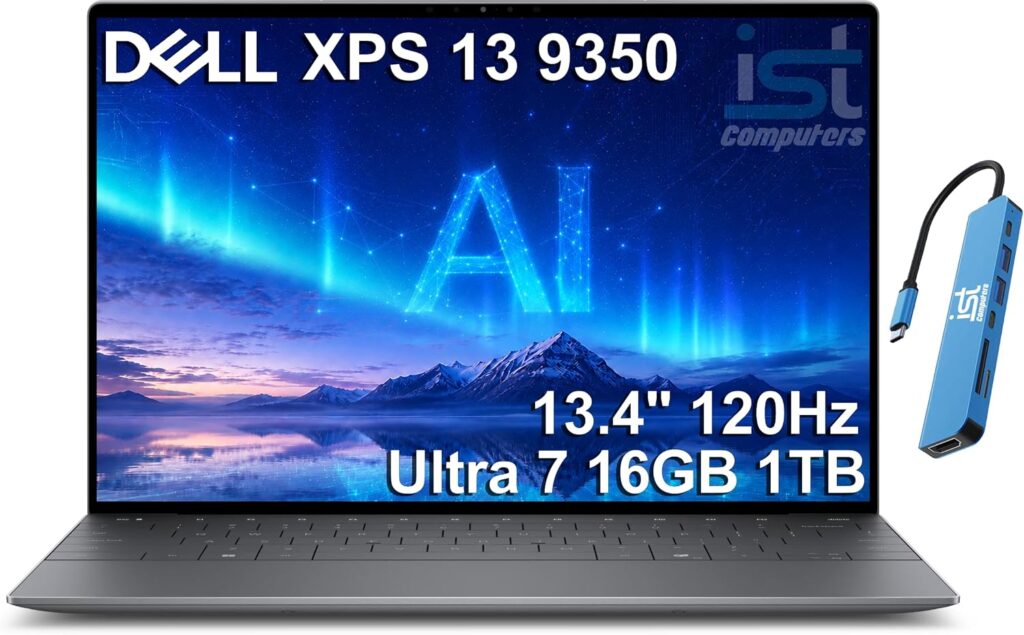
$699, or $599 with education pricing
Dell did something odd and it worked. It took its premium ultraportable, dropped a budget Intel chip in it, and left the expensive parts — the machined aluminum body and a genuinely excellent screen — completely alone. What came out is the most laptop per dollar here for anyone stuck with Windows.
What you get
- Processor: Intel Core 5 320 “Wildcat Lake” — 6 cores, 6 threads (two performance cores at 4.6 GHz, four efficiency cores at 3.4 GHz)
- Graphics: Intel Graphics 2, Xe3 integrated
- Memory: 8GB standard, configurable to 32GB
- Storage: 512GB standard, up to 1TB
- Screen: 13.4-inch, 2560×1600 touchscreen, 30–120 Hz variable refresh, 500 nits, 100% DCI-P3, DisplayHDR 400
- Weight: 1.0 kg (2.2 lb), 12.7 mm thick, CNC-machined aluminum
- Ports: two USB-C 3.2 Gen 2, both of which charge. Nothing else.
- Wireless: Wi-Fi 7 (Intel BE213), Bluetooth 6.0
- Extras: backlit keyboard, IR camera for face unlock, four speakers rated 8W with Dolby Atmos, 1080p webcam
The measured numbers
| Test | Result | Source |
|---|---|---|
| Battery, web browsing at 150 nits | 14h 29m | Tom’s Guide |
| Geekbench 6 single-core | 2,684 | Tom’s Guide |
| Geekbench 6 multi-core | 7,952 | Tom’s Guide |
| Idle power draw, screen off | 0.5–0.8 W | Jeff Geerling |
| Peak FP64 throughput | ~120 GFLOPS | Jeff Geerling |
| Screen brightness | 500 nits rated | Dell |
| Realistic classroom battery | ~10 hours | Calculated from Tom’s Guide figure |
That idle number deserves a mention. Independent testing by Jeff Geerling found this chip drawing between half a watt and 0.8 W with the screen off — matching the MacBook Neo, and the first x86 laptop to land in the top ten of his power-efficiency benchmark. Intel’s cheap chip is now genuinely frugal, which is the whole reason the battery result looks the way it does.
How it holds up in a classroom
Tab overload: Tom’s Guide ran roughly fifteen Chrome tabs plus background video on the 8GB model with no slowdown and no meaningful heat. That’s a realistic prep period. Push it to forty tabs plus a video call and 8GB will start swapping to disk — a limit of the base configuration, not a flaw.
Projector handoff: This is the problem. Two USB-C ports and nothing else. Your projector, document camera, the flash drive a student just handed you, your wired mouse — all of it needs an adapter. Buy a USB-C hub with HDMI at the same time you buy the laptop, spend about $35, and leave it in your bag permanently. If you present from a projector every single period, this alone might send you to the Lenovo instead.
Parent conferences: The webcam is the weak spot everyone agrees on. Tom’s Guide’s reviewer found the 1080p sensor blurry and washed out. Fine for a conference, not good enough for recorded lessons.
Heat and noise: No excessive warmth under normal browsing and document work in Tom’s Guide’s testing. It’s six cores in a 12.7 mm aluminum shell. It isn’t a rendering machine and doesn’t pretend otherwise.
Under classroom lighting: Best screen here by a comfortable margin. 2.5K resolution, 500 nits, full DCI-P3 color, variable 30–120 Hz. A panel like this at this price did not exist eighteen months ago.
Will your school’s software run?
Yes. This is full x86 Windows 11 with no emulation layer, no asterisks. SMART Notebook, ActivInspire, lockdown testing browsers, that Java-based student information portal from 2011 — all of it works. This is the safest software bet on the page.
One thing to know: the Core 5 320’s neural processor measures 16 TOPS, under Microsoft’s 40-TOPS bar for Copilot+ certification. So no Windows Recall and no on-device live captioning. If live captions matter for accessibility in your room, note that the Lenovo below does have them and this doesn’t.
Pros
- The best display here, and it isn’t close — 2.5K, 500 nits, 120 Hz, 100% DCI-P3
- 14h 29m of verified battery, roughly 10 hours in real classroom use
- Lightest machine on this list at 1.0 kg, with a real machined aluminum body
- Backlit keyboard, face unlock, Wi-Fi 7, four speakers
- Zero software compatibility risk
- $599 education pricing is aggressive for what’s inside
Cons
- Two USB-C ports and nothing else — a hub isn’t optional
- Mediocre webcam
- 8GB base memory, and upgrading memory is painfully expensive this year
- Not Copilot+ certified, so no on-device live captions
- Not built for sustained heavy work — no video editing, no large builds
Get it if you run Windows software, want the best screen and battery for the money, and can live with carrying a hub.
2. Lenovo IdeaPad Slim 3x — the smart money
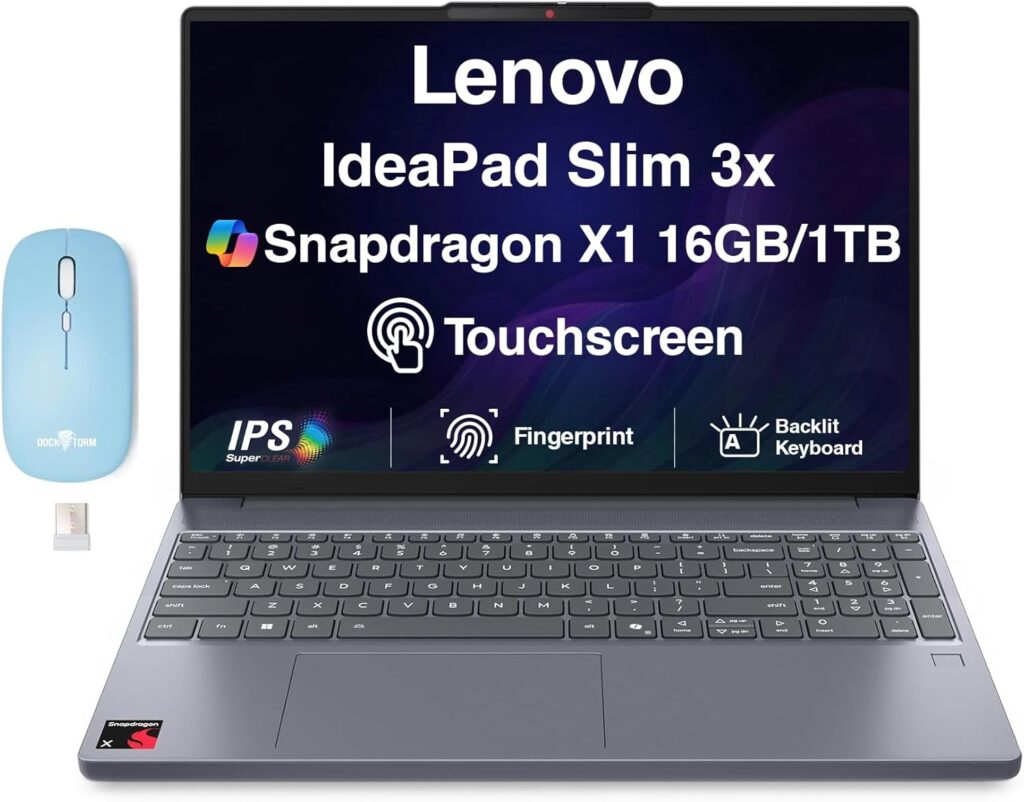
$449–$499 street, frequently discounted from a much higher list price
If the Dell is the one you want, this is the one you should probably buy. It lasts longer than anything else here, it has every port a classroom needs, and it regularly sells under $500. For a teacher spending their own money, that combination is hard to argue with.
What you get
- Processor: Qualcomm Snapdragon X (X1-26-100), 8-core Oryon, up to 3.0 GHz, 45 TOPS neural processor
- Graphics: Adreno X1-45
- Memory: 16GB LPDDR5x-8448, soldered
- Storage: 256GB or 512GB NVMe, user-replaceable; PCWorld’s review unit had a second M.2 slot
- Screen: 15.3-inch, 1920×1200, 16:10, 60 Hz, 300 nits, 45% NTSC, matte anti-glare, touch on some models
- Battery: 60 Wh
- Weight: 1.55 kg (3.42 lb), aluminum lid over a plastic base
- Ports: two USB-A 5Gbps, one USB-C 5Gbps with DisplayPort and Power Delivery, HDMI 1.4, full-size SD card reader, headphone jack, barrel power connector
- Wireless: Wi-Fi 7, Bluetooth 5.4
- Webcam: 720p with a physical privacy shutter
The measured numbers
| Test | Result | Source |
|---|---|---|
| Battery, web browsing at 150 nits | 16h 29m | Tom’s Guide |
| Geekbench 6 single-core | 2,072 | NanoReview aggregate |
| Geekbench 6 multi-core | 10,334 | NanoReview aggregate |
| Cinebench 2024 single-core | 95 | NanoReview aggregate |
| Cinebench 2024 multi-core | 608 | NanoReview aggregate |
| Screen brightness | 300 nits rated | Lenovo |
| Color coverage | 45% NTSC | Lenovo |
| Realistic classroom battery | ~11–12 hours | Calculated from Tom’s Guide figure |
Sixteen and a half hours is the highest verified figure here and it isn’t close — two hours past the Dell and eight past the Chromebook. If you move between rooms and can’t count on an outlet, that number is worth more than a prettier screen.
Look at the shape of those benchmark scores too: strong multi-core, unremarkable single-core. It posts higher multi-core numbers than the Dell while trailing on single-core. In use, that means it handles a big pile of open applications well but feels a half-beat less immediate on individual clicks.
How it holds up in a classroom
Tab overload: 16GB standard, in the middle of a global memory shortage, at under $500. That’s the headline and it’s genuinely remarkable. Nothing else here ships with 16GB.
Projector handoff: The best on this page. HDMI out, two USB-A ports, and a full-size SD card reader. Plug straight into the projector. Plug in the document camera. Plug in the flash drive. No adapter, no panic three minutes into a lesson while thirty kids watch you dig through your bag. HDMI 1.4 caps at 4K/30 Hz, which is irrelevant for a projector and worth knowing if you’re driving a 4K panel.
Parent conferences: The 720p webcam is the low point. In 2026 that’s below standard. The privacy shutter is a genuinely thoughtful touch on a laptop that sits open on a desk in a room full of teenagers.
Battery in real use: Independent reviewers reported roughly 12 to 15 hours of mixed real-world use, against nearly 30 hours in a video loop. Take the Tom’s Guide 16h 29m as the comparable figure and expect 11 to 12 hours of genuine teaching use. Either way you finish the day with charge left over.
Under classroom lighting: The weakest screen here alongside the CX15. 300 nits is fine indoors, and the matte anti-glare coating genuinely helps under fluorescent panels. But 45% NTSC coverage means colors look washed out. If you teach art, photo, design, or video, this is disqualifying. If you teach anything else, you’ll stop noticing by the end of week one.
Will your school’s software run?
Read this part carefully, because it’s the one real risk.
This is a Windows laptop built on Arm rather than Intel. Windows runs x86 applications through its Prism emulation layer, which covers the large majority of ordinary software well. But it doesn’t cover everything, and the gaps cluster in exactly the wrong places for schools:
- Kernel-level software, including some antivirus suites and VPN clients
- Virtualization tools like VirtualBox
- Older interactive whiteboard drivers and legacy USB peripherals
- Certain proctoring and lockdown testing browsers
Email your district IT department the exact model number and ask whether Windows on Arm is supported before you buy. Ten minutes now beats a return shipment later. If the answer is no, get the Dell.
On the other side of the ledger: the 45 TOPS neural processor clears Microsoft’s Copilot+ threshold, so you get on-device live captions here — the accessibility feature the Dell can’t do.
Pros
- Longest verified battery on this page at 16h 29m
- 16GB of memory as standard, which nothing else here matches at any price
- HDMI, two USB-A ports and an SD reader — connect to anything, adapter-free
- Replaceable SSD, and a second M.2 slot on some configurations
- Copilot+ certified, so on-device live captioning works
- Wi-Fi 7, roomy 15.3-inch 16:10 screen, and it’s routinely under $500
Cons
- Arm compatibility risk — check with IT first, seriously
- Dim, washed-out screen at 300 nits and 45% NTSC
- 720p webcam in 2026
- Thin-sounding speakers
- Keyboard backlight and touchscreen vary by configuration, so confirm before ordering
- Charges over a proprietary barrel connector rather than USB-C on some models
Get it if you want maximum battery and ports for minimum money, and your district’s software runs on Arm.
3. Apple MacBook Neo — the best video call machine here

$699, or $599 with education pricing. Apple refurbished units start at $599.
Apple finally built a cheap laptop, and it did it by putting an iPhone chip inside. It’s a stranger machine than the spec sheet lets on — brilliant in a few places, coldly cost-cut in others.
What you get
- Processor: Apple A18 Pro — 6-core CPU (two performance, four efficiency), 5-core GPU with hardware ray tracing, 16-core Neural Engine, 60 GB/s memory bandwidth
- Memory: 8GB unified, not configurable, ever
- Storage: 256GB or 512GB
- Screen: 13.0-inch, 2408×1506 Liquid Retina, 219 ppi, 500 nits, sRGB. No True Tone, no ProMotion, no P3.
- Battery: 36.5 Wh. Apple claims up to 16 hours of video, 11 hours of web.
- Weight: 1.23 kg (2.7 lb), 90% recycled aluminum
- Ports: one USB-C at 10Gbps with DisplayPort, one USB-C capped at 480 Mbps, headphone jack
- Wireless: Wi-Fi 6E
- Camera and audio: 1080p FaceTime camera with no notch, dual-microphone array with directional beamforming, side-firing speakers with spatial audio and Dolby Atmos
The measured numbers
| Test | Result | Source |
|---|---|---|
| Battery, web browsing at 150 nits | 13h 28m | Tom’s Guide |
| Geekbench 6 single-core | ~3,535 | Tom’s Guide, via comparative reporting |
| Geekbench 6 multi-core | ~8,920 | Tom’s Guide, via comparative reporting |
| Screen brightness, measured | 509 nits | CodeHelper |
| AdobeRGB coverage | 73% | CodeHelper |
| SSD sequential throughput | ~1,590 MB/s | CodeHelper |
| Realistic classroom battery | ~9 hours | Calculated from Tom’s Guide figure |
Two numbers define this laptop. The 3,535 single-core score is the highest on this page by a wide margin — roughly 45% past the M1, and 22 to 38% past the Dell depending on which comparison you read. Everything you click feels instant.
The 1,590 MB/s SSD is the price you pay. For scale, a MacBook Air M5 clears 6,400 MB/s. Apple cut the storage controller to reach the price point, and you notice it installing apps, moving a folder of student videos, or whenever 8GB of memory starts swapping. AppleInsider’s reviewer hit exactly this during first-run app installs.
How it holds up in a classroom
Tab overload: The Verge found it moves through light workloads easily, outrunning the M1 MacBook Air and most Windows laptops in its class despite the 8GB ceiling. macOS manages memory well. But 8GB paired with a slow SSD punishes heavy multitasking harder than either would alone.
Projector handoff: Worse than the Dell, which takes some doing. One useful USB-C port and one limited to 480 Mbps — the same speed as a USB 2.0 port from 2001. Plug the charger into one and you’ve got a single port for everything else. A hub isn’t an accessory here, it’s part of the machine.
Parent conferences and recorded lessons: Best on this page, comfortably. A 1080p FaceTime camera, a dual-microphone array with directional beamforming, and side-firing speakers. If you record lessons or run conferences weekly, this is a real advantage over every Windows laptop here.
Heat and noise: There’s no fan. It is silent, always, under every load. During a recorded lesson or a quiet testing period, that matters more than you’d guess. The trade-off is sustained performance — don’t buy this for long exports.
Under classroom lighting: 509 nits measured, an anti-reflective coating, and sharp at 219 ppi. Only sRGB coverage and 73% AdobeRGB, so not a color-work machine, but for reading and marking documents for eight hours straight it’s excellent.
Two cuts you’ll feel every day
Apple hit $599 by removing things. Two of them are genuinely annoying:
- No backlit keyboard. Not on any configuration. Grading at the kitchen table after dark is worse without it, and there’s no upgrade path.
- No Touch ID on the base model. It’s exclusive to the 512GB configuration, which costs $100 more. Password every time, otherwise.
Will your school’s software run?
Microsoft 365, Google Workspace, Zoom, Canvas, Schoology, PowerSchool, SMART Learning Suite and Promethean ActivSuite all run on macOS. Windows-only district software does not, and there’s no workaround worth the trouble. If your school has standardized on Windows-only tools, stop here regardless of how good this laptop is.
Pros
- Fastest single-core performance here by a wide margin
- Excellent 509-nit measured display with an anti-reflective coating
- Best webcam and microphone setup on this page
- Completely silent — no fan at all
- Superb aluminum build at 1.23 kg
- $599 with education pricing; Apple refurbished starts at $599, and $679 gets you 512GB plus Touch ID
- Long macOS support and strong resale value years from now
Cons
- Slow SSD at ~1,590 MB/s, noticeable on large file operations
- No backlit keyboard on any model
- Touch ID locked behind a $100 storage upgrade
- One of the two USB-C ports runs at USB 2.0 speed
- 8GB of memory, permanently
- Wi-Fi 6E rather than Wi-Fi 7
- Windows-only district software is a hard stop
Get it if your district lives in Google or Microsoft 365, you do a lot of video, and you want the machine that still feels good in year five.
4. Lenovo Chromebook Plus 2-in-1 Gen 10 — for Google districts and handwritten grading
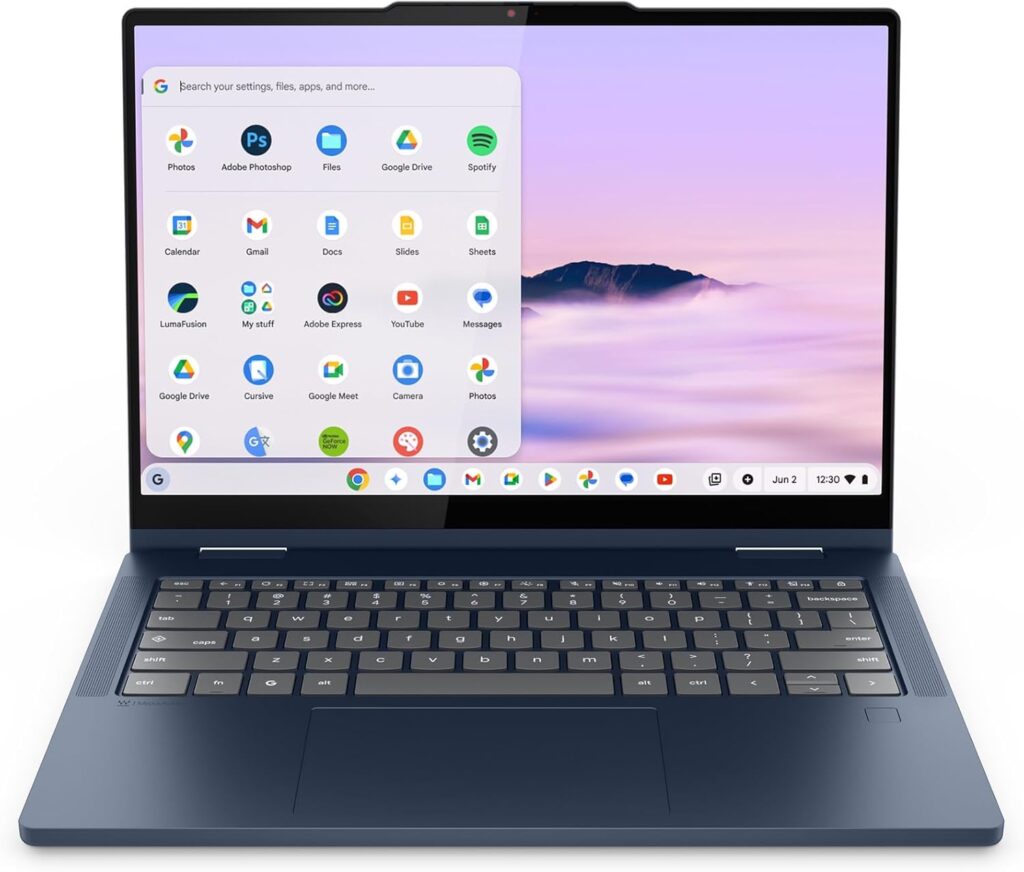
$579–$599
If your school runs on Google — Classroom, Docs, Meet, Drive, managed Chrome profiles — this fits your workflow instead of fighting it. And unlike most Chromebooks, it doesn’t feel like a compromise object you’re settling for.
What you get
- Processor: Intel Core 3 N355 (Twin Lake), 8 efficiency cores, up to 3.9 GHz
- Graphics: Intel UHD, 32 execution units
- Memory: 8GB LPDDR5
- Storage: 128GB UFS 2.2
- Screen: 14-inch, 1920×1200 IPS touchscreen, glossy
- Weight: 1.49 kg (3.28 lb), full aluminum chassis, 360-degree hinge
- Ports: two USB-C with DisplayPort 1.4 and Power Delivery, two USB-A, full-size HDMI, headphone jack
- Wireless: Wi-Fi 6E, Bluetooth 5.3
- Extras: fingerprint reader, physical camera shutter, backlit keyboard
The measured numbers
| Test | Result | Source |
|---|---|---|
| Battery, web browsing at 150 nits | 8h 32m | Tom’s Guide |
| Screen brightness, measured | just above 200 nits | Tom’s Guide |
| Screen brightness, rated | 300 nits | Lenovo |
| PassMark CPU score (Core 3 N355) | ~10,476 | PassMark |
| Overall review score | 80% | Tom’s Guide |
| Realistic classroom battery | ~6 hours | Calculated from Tom’s Guide figure |
Note that brightness gap, because it’s the reason this isn’t ranked higher. Lenovo rates the panel at 300 nits. Tom’s Guide measured it barely clearing 200. Pair that with a glossy finish and you get visible glare near a window or under bright overhead lights — which describes most classrooms.
How it holds up in a classroom
Tab overload: Tom’s Guide found it handles streaming, email and around ten research tabs without meaningful slowdown, which is genuinely responsive for a Chromebook. Push past that and ChromeOS’s appetite for memory catches up with 8GB fast.
Projector handoff: Excellent. Full-size HDMI, two USB-A, two USB-C. Chrome Unboxed singled out the port selection as this model’s biggest edge over the thinner Arm-based clamshell version. Plug straight into the projector and get on with your lesson.
The hinge is the actual reason to buy it. Fold it flat, pick up a USI stylus, and mark student PDFs by hand — circle the error, write the comment, send it back. Tent it on a lab bench. Flip it to tablet mode and walk the room during independent work with the gradebook in your hand. If you’ve ever wished you could annotate a paper without printing it first, this is the machine here that does that.
Parent conferences: Adequate. The speakers are the weak spot — clean but thin, per Chrome Unboxed. Lenovo’s keyboard is the opposite: one of the best at any price, which matters at 11 p.m. in December when you’re writing 120 report card comments.
Heat and noise: Actively cooled, unlike fanless Arm Chromebooks. The fan is audible under load but not distracting.
Battery is the real compromise. 8h 32m is the shortest number here, and because the screen is dim you’ll run it near full brightness, which makes it worse. Call it six hours of genuine classroom use. Tom’s Guide raised exactly this concern about educational use in its review of the sibling 15-inch model — in a school you can’t always reach an outlet.
Will your school’s software run?
If you’re a Google Workspace for Education district, everything is already in the browser: Classroom, Docs, Sheets, Slides, Meet, Drive. Android apps run natively. Linux containers handle light development work. And as of December 2025, Promethean ActivSuite runs on ChromeOS too, which removes what used to be the biggest objection.
Windows-only software won’t run. There’s no emulation layer that fixes it.
One long-term advantage worth real money: Lenovo lists automatic ChromeOS updates through January 2036 for its Gen 10 Chromebook Plus models. Google’s policy grants ChromeOS devices ten years of updates from platform release. That’s the longest guaranteed security support window on this entire page, on the second-cheapest machine.
Pros
- Full aluminum chassis with a solid convertible hinge — properly built
- One of the best keyboards on any laptop at this price
- HDMI, two USB-A, two USB-C — no adapters needed
- Touchscreen plus 360-degree hinge for grading by hand
- Fingerprint reader and a physical camera shutter
- Automatic updates through January 2036
- Essentially zero maintenance — updates happen silently, no antivirus to manage
Cons
- Dim, glossy screen — measured just over 200 nits against a 300-nit rating
- Shortest battery here at 8h 32m, roughly six real classroom hours
- Thin speakers
- 8GB of memory is a genuine ceiling under ChromeOS
- 128GB of UFS storage, not NVMe
- No Windows software
Get it if your district is all-in on Google, you want to grade by hand on a touchscreen, and your room isn’t flooded with daylight.
5. ASUS Chromebook CX15 — the honest budget answer
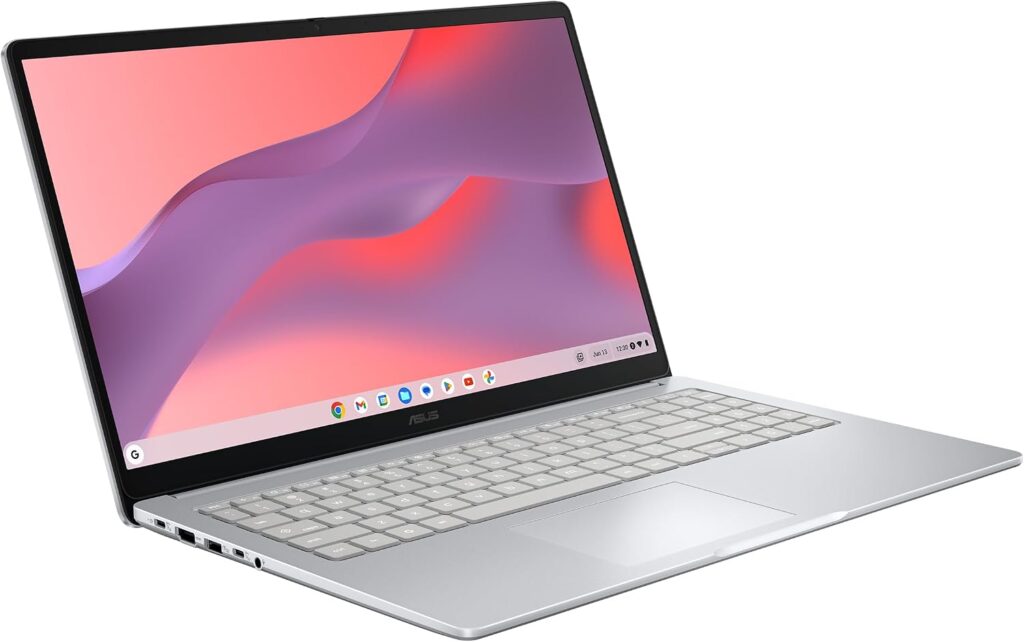
$259–$306
This one isn’t good the way the others are good. It’s good at being $259, which turns out to be a category worth having.
What you get
- Processor: Intel Celeron dual-core on the base model; Core i3-N305 on higher configurations
- Memory: 4GB base, 8GB available — buy the 8GB one
- Storage: 128GB eMMC
- Screen: 15.6-inch, 1920×1080
- Ports: one USB-C 3.2 with DisplayPort and Power Delivery, one USB-A 3.2, HDMI 1.4, headphone jack
- Wireless: Wi-Fi 6, Bluetooth 5.4
- Battery: 42 Wh
- Durability: MIL-STD-810H tested
The measured numbers
| Test | Result | Source |
|---|---|---|
| Battery, CrXPRT 2 | 10h 57m | PCWorld |
| Battery, looped movie playback | 7h 00m | TechRadar |
| Real-world check: 5 hours light browsing | 51% remaining | PCWorld |
| Jetstream 2 | 121.75 | TechRadar |
| Kraken JavaScript | 1,254.9 ms | TechRadar |
| Speedometer 3.1 | 5.74 (±0.20) | TechRadar |
| Review scores | 3.5/5 PCWorld, 4/5 TechRadar, 4/5 Tom’s Guide | — |
| Realistic classroom battery | ~8 hours | Calculated from PCWorld’s CrXPRT figure |
That four-hour gap between PCWorld and TechRadar is the clearest illustration on this page of why protocol matters. Same laptop, different tests, wildly different headlines. PCWorld’s real-world observation is the more useful one: five hours of light browsing left just over half the battery.
How it holds up in a classroom
Tab overload: This is where it runs out. PCWorld and Tom’s Guide both concluded performance is the thing you’re trading away. A dual-core Celeron with 4GB will stall under a heavy tab load. The 8GB configuration is meaningfully better and worth every dollar of the small premium. Buy that one, not the cheapest one.
Projector handoff: HDMI, USB-A and USB-C on a $259 laptop. Plug straight into the projector. Nothing to carry, nothing to lose.
Screen and build: TechRadar found the 15.6-inch 1080p panel bright and reasonably vibrant for the money, and liked the keyboard. The touchpad is the consistent complaint — PCWorld called it the smallest on any 15-inch laptop of its generation, and TechRadar found it jerky on small slow movements. Bring a $15 mouse and forget about it.
Where it genuinely makes sense: as a second machine. The one that lives on the cart. The one you hand the substitute. The one that goes to the conference where you don’t want to risk your good laptop. At $259 with a MIL-STD-810H durability rating, it’s useful in a way a $700 machine can’t be — because when it gets knocked off a desk, you shrug.
Will your school’s software run?
ChromeOS, so the same rules as the Lenovo Chromebook: everything web-based works, Android apps work, Windows-only software doesn’t. Google’s Auto Update policy lists this platform running through June 2035.
Pros
- Under $300, sometimes near $259
- HDMI, USB-A and USB-C — connects to a projector with nothing extra
- Big 15.6-inch 1080p screen with a comfortable full-size keyboard
- Around 11 hours in PCWorld’s CrXPRT 2 run
- Wi-Fi 6 and Bluetooth 5.4 — modern wireless despite the price
- MIL-STD-810H durability rating
- Updates through June 2035, which is remarkable at this price
Cons
- Slow. That’s the real limitation, not a nitpick
- The 4GB base model isn’t enough — pay up for 8GB
- Poor touchpad
- eMMC storage rather than a proper SSD
- Battery figures swing hugely by test protocol
- ChromeOS only
Get it if your budget is genuinely under $300, or you need a spare you won’t worry about.
The scorecard
These aren’t gut-feel ratings. Each score is calculated from the measurements above, normalized across these five machines, using the weightings listed underneath.
| Laptop | Prep speed | Classroom ports | Battery | Screen | Portability | Software fit | Value | Overall |
|---|---|---|---|---|---|---|---|---|
| Dell XPS 13 (2026) | 7.9 | 5.0 | 9.1 | 9.6 | 9.8 | 10.0 | 9.3 | 8.7 |
| Lenovo IdeaPad Slim 3x | 8.2 | 9.4 | 9.8 | 5.8 | 7.3 | 7.5 | 9.5 | 8.2 |
| Apple MacBook Neo | 9.0 | 3.8 | 8.7 | 8.9 | 9.3 | 8.0 | 8.8 | 8.1 |
| Lenovo Chromebook Plus 2-in-1 | 5.2 | 9.2 | 6.2 | 6.0 | 7.6 | 6.5 | 7.5 | 6.9 |
| ASUS Chromebook CX15 | 3.5 | 8.0 | 7.4 | 5.5 | 6.5 | 6.5 | 9.0 | 6.6 |
How each column works:
- Prep speed — 60% Geekbench 6 multi-core, 40% single-core, normalized across the group. Chromebooks scored via PassMark and JavaScript benchmarks converted to the same scale.
- Classroom ports — a fixed checklist: HDMI (3 points), two or more USB-A (2), SD or microSD reader (1), two or more USB-C (2), touchscreen (1), 360-degree hinge (1).
- Battery — verified runtime under each lab’s stated protocol, normalized. Different protocols are never blended.
- Screen — 40% measured brightness, 30% resolution and pixel density, 20% color gamut, 10% refresh rate.
- Portability — weight, inverted.
- Software fit — x86 Windows 10.0, macOS 8.0, Windows on Arm 7.5, ChromeOS 6.5, weighted for what school districts typically require.
- Value — overall score divided by street price, rescaled.
- Overall — battery 20%, software fit 20%, ports 15%, screen 15%, prep speed 15%, value 10%, portability 5%.
That weighting reflects teaching, not general laptop reviewing. It’s why the Dell wins despite its port problem, and why the Chromebooks land lower here than they would in a guide aimed at students.
Will your district’s software actually run? A straight answer.
This is the table I wish had existed when I started looking into this. Verify against your own district’s specific versions and licensing before you commit — but this is the current lay of the land.
| Software | Windows (x86) | Windows on Arm | macOS | ChromeOS |
|---|---|---|---|---|
| Microsoft 365 desktop apps | Yes | Yes, native Arm builds | Yes | Web only |
| Google Workspace | Yes | Yes | Yes | Yes, native |
| Canvas, Schoology, PowerSchool, Clever | Yes, web | Yes, web | Yes, web | Yes, web |
| Zoom, Google Meet, Teams | Yes | Yes | Yes | Yes |
| Seesaw, Nearpod, Pear Deck | Yes, web | Yes, web | Yes, web | Yes, web |
| Promethean ActivSuite | Yes | Generally yes, via emulation | Yes | Yes, since Dec 2025 |
| Promethean ActivInspire (legacy desktop) | Yes | Emulated, verify with IT | Yes | No |
| SMART Learning Suite / Notebook | Yes | Emulated, verify with IT | Yes | No on the board-connected machine |
| GoGuardian, Securly (Chrome-based) | Yes | Yes | Yes | Yes |
| Lockdown testing browsers | Yes | Verify — often unsupported | Usually yes | Institution-managed versions only |
| District VPN clients | Yes | Verify — kernel-level clients often fail | Usually yes | Varies |
| VirtualBox and similar virtualization | Yes | No | Limited | No |
| Legacy Java-based student information portals | Yes | Usually, emulated | Varies | No |
The two rows that decide your purchase are the interactive whiteboard software and the lockdown testing browser. If you have a SMART board and you drive it from your own laptop, you need Windows or macOS — that rules out both Chromebooks. If your state testing platform requires a Windows lockdown browser, the Dell is the only genuinely safe pick on this page.
What these actually cost you
Sticker price is the least useful number in laptop shopping. Here’s the fuller picture, and I haven’t seen another guide put these three factors together.
The port tax
If a laptop can’t reach your projector, you’re buying a hub whether you planned to or not. Call it $35 for a decent USB-C hub with HDMI, USB-A and pass-through charging.
| Laptop | Sticker | Hub needed? | Real entry cost |
|---|---|---|---|
| Dell XPS 13 (edu) | $599 | Yes, $35 | $634 |
| Lenovo IdeaPad Slim 3x | $449 | No | $449 |
| MacBook Neo (edu) | $599 | Yes, $35 | $634 |
| Lenovo Chromebook Plus 2-in-1 | $579 | No | $579 |
| ASUS Chromebook CX15 | $259 | No | $259 |
Cost per year of guaranteed security updates
A laptop is only usable as long as it gets patched. Chromebooks publish a hard end date; Windows and macOS machines don’t, so those rows are based on Apple’s and the industry’s historical support patterns rather than a published commitment. Labeled honestly either way.
| Laptop | Support ends | Basis | Years from Aug 2026 | Cost per supported year |
|---|---|---|---|---|
| ASUS Chromebook CX15 | June 2035 | Published (Google Auto Update policy) | 8.9 | $29 |
| Lenovo Chromebook Plus 2-in-1 | January 2036 | Published (Lenovo, Gen 10 models) | 9.4 | $62 |
| MacBook Neo | ~2034–2035 | Estimated from Apple’s historical pattern | ~8 | $79 |
| Lenovo IdeaPad Slim 3x | ~2032 | Estimated, typical Windows hardware life | ~6 | $75 |
| Dell XPS 13 | ~2032 | Estimated, typical Windows hardware life | ~6 | $106 |
Reframed this way, the $259 Chromebook is by a distance the cheapest computing on this page — under thirty dollars a year of supported life. It’s slow, but it will still be receiving security patches when the Dell is a paperweight.
And then the tax rules
For the 2026 tax year, the above-the-line educator expense deduction is $350, and the restored itemized educator deduction has no cap. Assuming a 22% federal marginal rate, an unreimbursed laptop used for teaching, and the above-the-line route:
| Laptop | Real entry cost | Approx. federal tax saving | Effective cost |
|---|---|---|---|
| Dell XPS 13 (edu) | $634 | $77 | ~$557 |
| Lenovo IdeaPad Slim 3x | $449 | $77 | ~$372 |
| MacBook Neo (edu) | $634 | $77 | ~$557 |
| Lenovo Chromebook Plus 2-in-1 | $579 | $77 | ~$502 |
| ASUS Chromebook CX15 | $259 | $57 | ~$202 |
If you itemize, the uncapped itemized deduction may cover considerably more than that — potentially the full unreimbursed cost. Your marginal rate, your filing status, and whether your district reimbursed you all change the math, and if a school, union or PTA paid you back for it, you can’t deduct it at all. Talk to a tax professional. But the point stands: for most teachers, the real cost of these laptops is meaningfully lower than the price tag, and almost nobody factors that in before deciding what they can afford.
Pick by what you actually teach
| If you… | Buy this |
|---|---|
| Run any Windows-only district software | Dell XPS 13 (2026) |
| Present from a projector every single period | Lenovo IdeaPad Slim 3x |
| Have under $500 to spend | Lenovo IdeaPad Slim 3x |
| Can’t reliably find an outlet | Lenovo IdeaPad Slim 3x |
| Record lessons or run frequent conferences | Apple MacBook Neo |
| Teach art, design, photography or video | Dell XPS 13 — the only 100% DCI-P3 panel here |
| Work in an all-Google district | Lenovo Chromebook Plus 2-in-1 |
| Want to grade handwritten on a touchscreen | Lenovo Chromebook Plus 2-in-1 |
| Teach elementary and mostly need Seesaw, Classroom and a projector | Lenovo Chromebook Plus 2-in-1 |
| Teach high school with state testing platforms | Dell XPS 13 |
| Need a spare, a loaner, or a cart machine | ASUS Chromebook CX15 |
| Teach in a room with huge windows | Dell XPS 13 or MacBook Neo — skip the dim Chromebook panels |
| Are a specialist moving between four rooms a day | Lenovo IdeaPad Slim 3x, for the battery and the ports |
Five ways to get this wrong
1. Buying the model name instead of the model number. The de-spec problem is real this year. Check the exact SKU, the memory, the storage, the screen brightness, and whether the keyboard lights up. All of those vary inside a single product name.
2. Ignoring ports until 8:55 a.m. on a Monday. A projector that won’t connect is a bigger problem than a slow processor, and it happens in front of an audience. If you’re buying a USB-C-only laptop, buy the hub in the same order and never take it out of your bag.
3. Assuming Arm Windows or ChromeOS runs your district’s software. Ask IT. Get it in writing. Ten minutes now, or a return shipment later.
4. Trusting the manufacturer’s battery claim. Dell says 17 hours; the lab measured 14h 29m; you’ll get around 10. Apple says 16 hours of video; the lab measured 13h 28m of browsing; you’ll get around 9. Manufacturer numbers come from the friendliest possible test. Plan on 55 to 70% of them.
5. Saving $50 by buying 4GB of RAM. In 2026, with both ChromeOS and Windows hungrier than ever, 4GB isn’t thrift — it’s a machine that will annoy you every day for four years. 8GB minimum. 16GB if you can reach it.
Before you click buy
- District software — confirmed compatible with this operating system, in writing from IT
- Memory — 8GB minimum, 16GB if it’s within about $60
- Storage — 256GB minimum; 128GB only if you genuinely live in the cloud
- Projector — either built-in HDMI, or a hub bought in the same order
- Screen brightness — 300 nits minimum for a bright room, and check the measured figure, not the rated one
- Education pricing — Dell and Apple each knock $100 off with .edu verification; check your district’s purchasing portal too, since institutional pricing is often better still
- Return window — 14 days minimum, 30 ideally. Run your real workflow on it in week one, not week five.
- Receipt — keep it. If you’re deducting it, you’ll need it.
Common questions
How much should a teacher spend on a laptop in 2026? Between $450 and $700 is the practical range, with about $600 as the sweet spot. Under $400 you’re giving up real performance; over $700 you’re buying capability that teaching workflows rarely use. Because of the memory shortage, the same money buys less than it did last year — so when you find a good configuration at a fair price, take it rather than waiting for a deeper discount that may not come.
Is 8GB of RAM enough? For an LMS, a gradebook, documents, slides and video calls, yes — but without much headroom. If you routinely keep thirty-plus tabs open alongside a video call, or you edit video for your classes, go to 16GB. The Lenovo IdeaPad Slim 3x is the only laptop here that ships with 16GB as standard, which is most of why it’s such good value right now.
Do I need Windows, or will a Chromebook work? It depends entirely on your district. If your school runs on Google Workspace for Education and everything you touch is a web app, a Chromebook is faster, cheaper and lower-maintenance. If you need SMART Notebook, legacy ActivInspire, a Windows-only lockdown testing browser, or an older student information portal, you need Windows. One recent change worth knowing: Promethean’s ActivSuite added full ChromeOS support in December 2025, so Promethean users have more options than they did a year ago.
Which one has the best battery for a full school day? The Lenovo IdeaPad Slim 3x, at 16 hours 29 minutes in Tom’s Guide’s web-browsing test — the longest verified figure here. Expect roughly 11 to 12 hours in real classroom conditions. The Dell XPS 13 follows at 14h 29m tested, and the MacBook Neo at 13h 28m.
Why are laptops more expensive this year? AI data center demand triggered a global shortage of DRAM and NAND flash. Memory manufacturers shifted production toward high-bandwidth memory and server DDR5, cutting supply for consumer laptops. TrendForce projected PC memory costs rising over 100% in the first quarter of 2026, and Notebookcheck reported 2026 laptop list prices climbing at least 20%. Analysts expect the constraint to persist into 2027 or beyond.
Can these connect to a classroom projector? The Lenovo IdeaPad Slim 3x, the Lenovo Chromebook Plus 2-in-1 and the ASUS Chromebook CX15 all have full-size HDMI and plug in directly. The Dell XPS 13 and MacBook Neo are USB-C only and need a hub — budget about $35 and buy it at the same time.
Is the MacBook Neo powerful enough for teaching? Comfortably. Its A18 Pro scores around 3,535 in Geekbench 6 single-core, the fastest here and roughly 45% ahead of the M1. The real limits are the ~1,590 MB/s SSD and the fixed 8GB of memory, and those show up during big file transfers rather than ordinary daily work.
Should I buy refurbished? For the MacBook Neo, yes — Apple’s own refurbished units start at $599 for 256GB and $679 for 512GB, carry the same warranty, and the 512GB model includes Touch ID, which the base new model doesn’t. For Windows, manufacturer-refurbished from Dell Outlet or Lenovo Outlet is reasonable. Third-party refurbished with no warranty isn’t worth the savings on something you depend on every day.
Can I write a laptop off on my taxes? If you’re an eligible K–12 educator, you worked at least 900 hours in a school year, and nobody reimbursed you, computer equipment used in the classroom counts as a qualified expense under IRS rules. For 2026 the above-the-line deduction is $350, and a separate uncapped itemized deduction for educator expenses was restored for tax years beginning after December 31, 2025. Two married eligible educators filing jointly can each claim the above-the-line amount. Keep your receipt and talk to a tax professional about which route is better for your situation.
What’s the difference between the IdeaPad Slim 3 and the Slim 3x? Different laptops. The 3x uses a Qualcomm Snapdragon X chip on Arm, with Wi-Fi 7 and Copilot+ certification. The non-x models use Intel chips and older wireless. Everything in this review applies only to the 3x, and the distinction matters enormously for software compatibility. Check the model number before ordering.
The bottom line
For most teachers, the Dell XPS 13 (2026) is the right answer. The best screen in this class, 14h 29m of verified battery, a one-kilogram aluminum body, and zero risk that your district’s software won’t run. Add a $35 hub and it handles every part of a teaching day.
But if money is genuinely tight — and for teachers buying their own equipment, it usually is — the Lenovo IdeaPad Slim 3x is the smarter purchase. It costs $250 less, runs two hours longer, ships with twice the memory, and plugs into the projector without an adapter. Send your IT department one email about Windows on Arm first. If they say yes, nothing else on this page competes with it on value.
And if your school runs on Google, look hard at the ASUS Chromebook CX15 before you spend more. It’s slow. It’s also $259, MIL-STD-810H rated, and receiving security updates until June 2035 — which works out to under thirty dollars a year. There’s a reasonable argument that it’s the most sensible purchase here, and it’s the one nobody makes.
Whatever you pick, buy it sooner rather than later. Memory prices aren’t coming down this year.
Measurements in this article come from Tom’s Guide, PCWorld, TechRadar, Notebookcheck, PassMark, NanoReview, Google’s Auto Update policy, IRS guidance, and manufacturer technical documentation, with each figure attributed at the point it appears. Realistic classroom battery estimates are calculated from those published figures using the conversion factors explained above and are labeled as calculated. Prices reflect US street pricing as of August 2026 and change frequently. Tax information is general and applies to US federal returns; consult a qualified tax professional about your own situation.

Hi, my name is Burak. I am a mechanical engineer. I have been writing laptop reviews for the Engineering Laptops website since 2020. Please feel free to contact me if you have any questions.





