Estimated reading time: 18 minutes
Key Takeaways
- Choosing the best laptops for STEM majors involves considering CPU cores, RAM, and GPU needs based on specific fields.
- The article recommends five top laptops for STEM students: Apple MacBook Pro 14″ (Best Overall), Acer Nitro V 16 AI (Best Value with GPU), ASUS Zenbook 14 OLED (Best Ultraportable), Lenovo ThinkPad P16 Gen 3 (Best for CAD), and ASUS ProArt P16 (Best Premium All-Rounder).
- For optimal performance, buy at least 16GB of RAM, prioritize display quality, and check software requirements for your major before purchase.
- Budget options exist like the Acer Nitro for graphics needs, while MacBook is ideal for coding and data-heavy tasks without Windows requirements.
- Always consider battery life, portability, build quality, and upgradeability to meet evolving academic demands.
Table of contents
- What STEM Students Actually Need in a Laptop (And What’s Just Marketing)
- The 5 Best Laptops for STEM Majors in 2026
- Comparison Table: All 5 Laptops at a Glance
- Quick Recommendations by Major
- Frequently Asked Questions
- Is a MacBook good for engineering students?
- How much RAM do I really need for a STEM degree?
- Do I need a dedicated GPU for computer science?
- Should I buy a gaming laptop for engineering school?
- Is 512GB of storage enough for a STEM student?
- When is the best time to buy a laptop for college?
- Will these laptops last all four years?
- The Bottom Line
Let me guess. You’ve got a mile-long syllabus, a MATLAB license you haven’t activated yet, and a laptop that sounds like a jet engine every time you open Chrome with more than six tabs. If you’re searching for the best laptops for STEM majors, believe me, I’ve been there.
Picking a laptop for a STEM degree is genuinely harder than picking one for almost anything else. Your English-major roommate can write essays on a ten-year-old Chromebook and never notice. You, on the other hand, might be compiling code at 2 a.m., running SolidWorks assemblies that make weaker machines cry, or training a small neural network for a class project — sometimes all in the same week.
I’ve spent a lot of time digging through spec sheets, real-world benchmarks, and honest owner feedback to narrow 2026’s crowded laptop market down to five machines that actually make sense for engineering, computer science, physics, math, and life-science students. Not the flashiest ones. Not the ones with the biggest marketing budgets. The ones that will still be fast and reliable when you’re a senior.
Here’s the short version, if you’re in a hurry:
- Best overall: Apple MacBook Pro 14″ (M5)
- Best value with a real GPU: Acer Nitro V 16 AI
- Best ultraportable: ASUS Zenbook 14 OLED
- Best for CAD and heavy simulation: Lenovo ThinkPad P16 Gen 3
- Best premium all-rounder: ASUS ProArt P16
Now let’s get into why — and figure out which one is right for your major, because that matters more than any ranking.
What STEM Students Actually Need in a Laptop (And What’s Just Marketing)
Before we talk about specific machines, a quick reality check. Laptop marketing in 2026 is drowning in “AI PC” buzzwords, and most of it doesn’t matter for your coursework. Here’s what does.
CPU: Cores matter more than clock speed
Compiling code, running simulations, and crunching data in Python or R are all tasks that love CPU cores. A modern 10–16 core chip from Intel (Core Ultra 200 series), AMD (Ryzen AI 300 series), or Apple (M5) will chew through anything undergrad coursework throws at it. Don’t obsess over GHz numbers — architecture and core count win.
RAM: 16GB is the floor, 32GB is the sweet spot
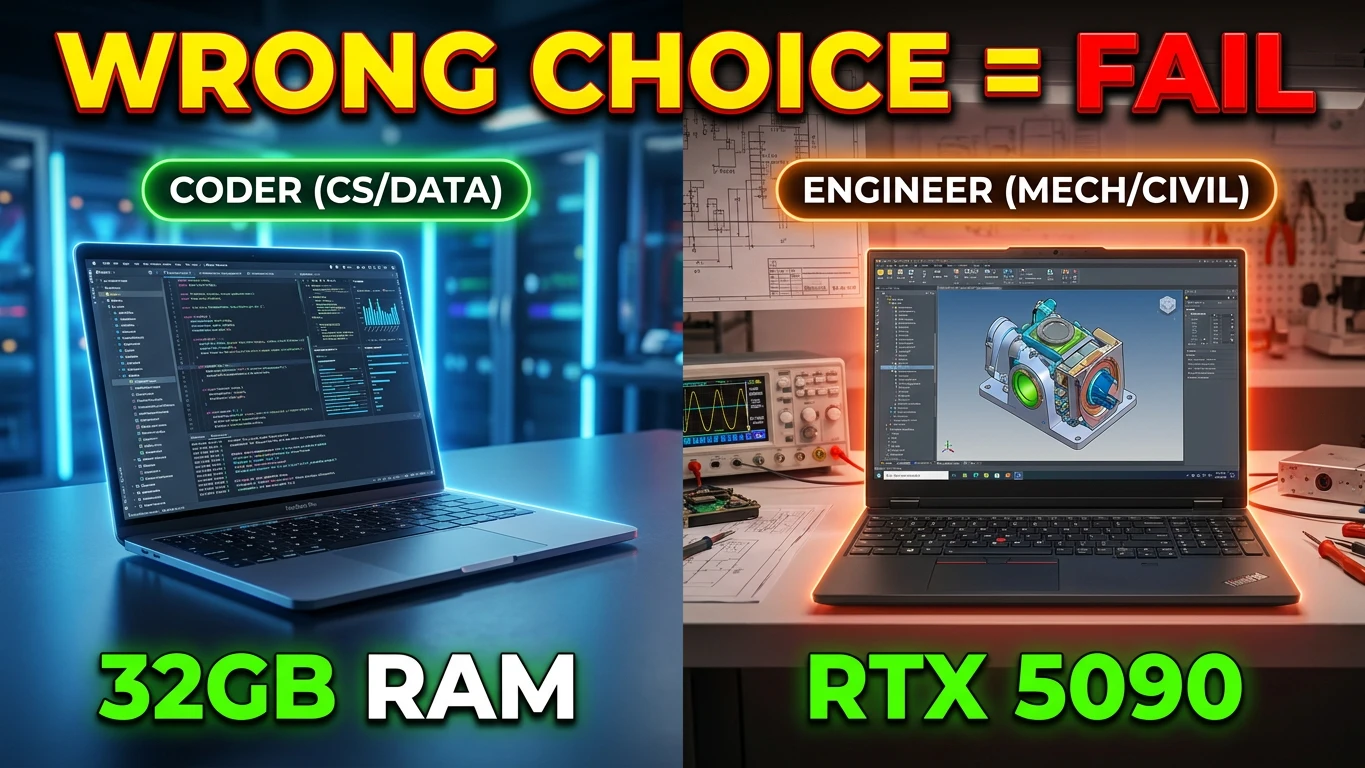
I’ll be blunt: do not buy an 8GB laptop in 2026 for a STEM degree. Between a browser full of documentation, an IDE, a virtual machine for that one class that requires Linux, and whatever simulation you’re running, 16GB fills up fast. If your budget allows, 32GB means you’ll never think about memory again — and since many thin laptops now solder RAM to the board, you can’t upgrade later. Buy what you’ll need in year four, not year one.
GPU: Depends entirely on your major
This is where majors split:
- CS, math, data science: You can live happily on integrated graphics unless you’re doing serious machine learning locally (and even then, most coursework uses cloud GPUs anyway).
- Mechanical, civil, aerospace engineering: A dedicated GPU genuinely helps. SolidWorks, ANSYS, Fusion 360, and Revit all lean on it for viewport performance.
- Anyone doing local ML/AI work: An NVIDIA GPU with at least 8GB of VRAM saves you real headaches thanks to CUDA support, which most frameworks still favor.
Display: Your eyes will thank you
You will stare at this screen for thousands of hours. A sharp panel (1200p or better), decent brightness (400+ nits), and a 16:10 aspect ratio for extra vertical space make a bigger daily difference than most spec-sheet items. OLED is gorgeous for the money now, though it costs you some battery life.
Battery: Can it survive a full day of classes?
Lecture halls never have enough outlets. That’s just a law of the universe. Anything that genuinely lasts 10+ hours of real work (not manufacturer fantasy numbers) frees you from outlet-hunting anxiety.
Ports and build: The boring stuff that saves you
An HDMI port for lab projectors, at least one USB-A for that ancient lab equipment your department refuses to replace, and a chassis that survives four years of backpack abuse. MIL-SPEC durability testing isn’t a gimmick when your laptop is your entire academic life.
One more thing before the picks: check your program’s software requirements first. If your engineering department requires SolidWorks — which is Windows-only — no amount of MacBook love will save you. Five minutes on your department’s website can prevent a very expensive mistake.
The 5 Best Laptops for STEM Majors in 2026
1. Apple MacBook Pro 14″ (M5) — Best Overall
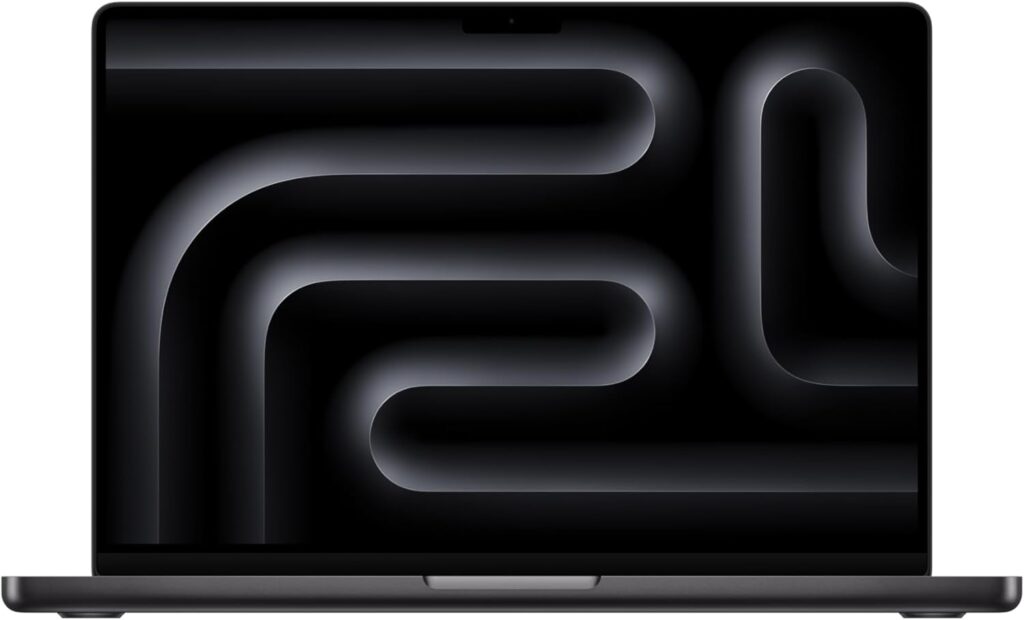
If I could only recommend one laptop to a random STEM student and I didn’t know their major, this would be it. The M5 MacBook Pro is the rare machine that’s simultaneously fast, quiet, cool, and lasts basically forever on a charge.
The M5 chip is a monster for the kind of work most STEM students do daily: compiling code, running data analysis in Python, juggling Jupyter notebooks, virtual environments, and forty browser tabs of Stack Overflow. And because Apple Silicon is so efficient, it does all this without the fans screaming or the battery draining. We’re talking real-world all-day battery — close your laptop after your last class and it still has juice left for the library that evening.
The 14-inch Liquid Retina XDR display is one of the best screens on any laptop, period. Mini-LED, sharp, incredibly bright, and great for everything from reading dense PDFs to editing lab presentations.
Key specs:
- CPU/GPU: Apple M5 (10-core CPU, 10-core GPU)
- RAM: 16GB unified memory (configurable to 24GB or 32GB)
- Storage: 512GB SSD (configurable up to 4TB)
- Display: 14.2″ Liquid Retina XDR, 3024×1964, 120Hz ProMotion, ~1600 nits peak HDR
- Battery: Up to 22+ hours of video playback; realistically a full day of mixed work
- Weight: ~1.55 kg (3.4 lbs)
- Ports: 3× Thunderbolt 4, HDMI, SDXC card slot, MagSafe 3, headphone jack
- Price: From around $1,599 (education pricing brings this down — always use your .edu discount)
Pros:
- Best-in-class battery life; genuinely lasts through a full day of classes and then some
- Silent and cool under loads that make Windows laptops sound like hairdryers
- Outstanding display, keyboard, trackpad, and speakers — the whole package feels premium
- Unix-based macOS is excellent for programming, scripting, and anything terminal-heavy
- Holds resale value better than any Windows laptop, which matters when you upgrade after graduation
Cons:
- Can’t run Windows-only engineering software natively — SolidWorks, ANSYS, and Revit are off the table without cloud workarounds
- RAM and storage upgrades are expensive and must be chosen at purchase (nothing is upgradeable later)
- No CUDA support, which complicates some machine learning workflows
- Base 16GB config feels tight if you plan to run heavy VMs
Who it’s for: CS majors, data science students, math and physics folks, and anyone in the life sciences. If your software list is code editors, browsers, MATLAB, R, and Office — this is the one.
Who should skip it: Mechanical, civil, and aerospace engineers whose curriculum is built around Windows-only CAD tools. Check your department’s software list before falling in love.
2. Acer Nitro V 16 AI — Best Value With a Real GPU
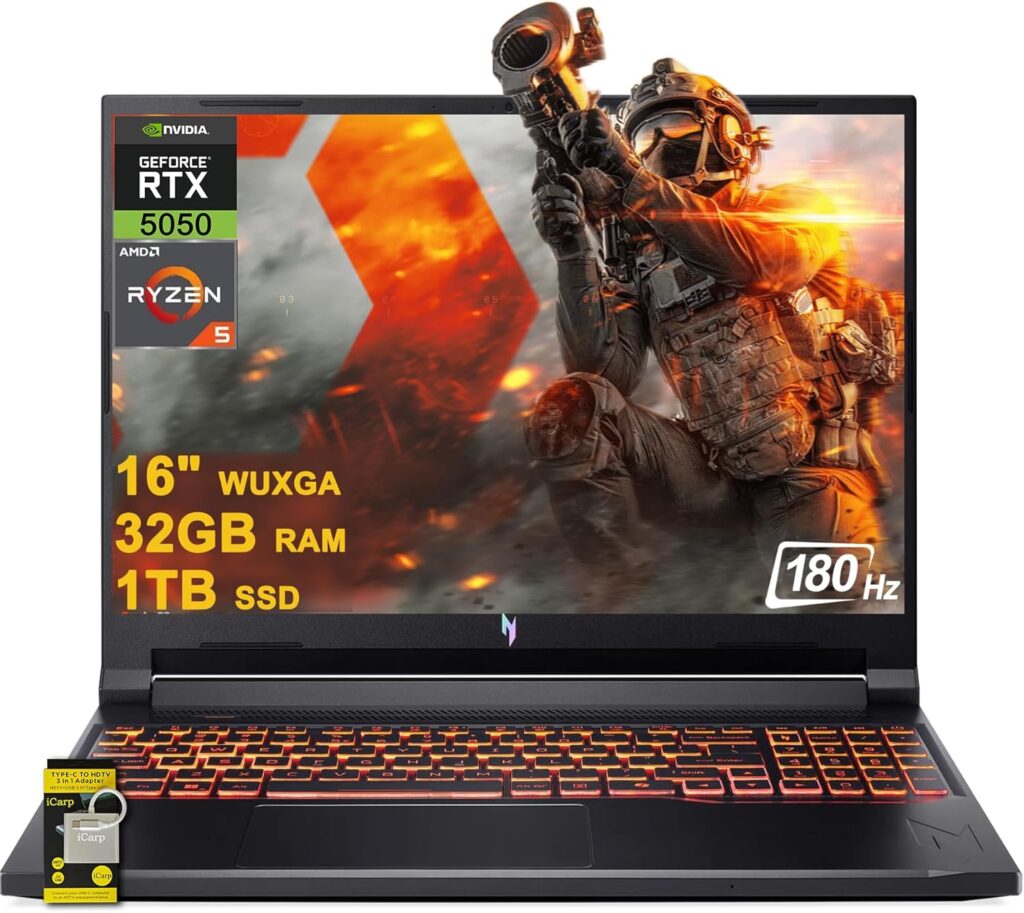
Here’s the thing nobody tells you about “budget” STEM laptops: most of them cut the one component you might actually need — the GPU. The Nitro V 16 AI doesn’t. For well under a grand on sale, you get a genuine RTX GPU, a modern AMD processor, and a big 16-inch screen. It’s the best bang-for-buck combination I’ve found for students who need graphics power without a gaming-laptop price tag.
Yes, it looks a bit like a gaming laptop, because it is one. The build is plasticky, the battery life is unremarkable, and it’s not something you’d call thin. But the internals punch way above the price, and crucially, both the RAM and SSD are user-upgradeable — a rarity in 2026 that extends this machine’s useful life considerably.
The RTX 5050’s 8GB of VRAM handles student-level CAD assemblies, renders, and even local machine learning experiments with CUDA support. That’s a capability set that usually costs $400–600 more.
Key specs:
- CPU: AMD Ryzen AI 7 350 (8 cores / 16 threads)
- GPU: NVIDIA GeForce RTX 5050 (8GB GDDR6)
- RAM: 16GB DDR5 (upgradeable — two SODIMM slots)
- Storage: 512GB or 1TB NVMe SSD (upgradeable)
- Display: 16″ IPS, 1920×1200, 180Hz refresh rate
- Battery: Roughly 6–8 hours of light use; much less under load
- Weight: ~2.6 kg (5.7 lbs)
- Ports: USB-C (with DisplayPort), multiple USB-A, HDMI 2.1, Ethernet, headphone jack
- Price: Typically $899–$999, frequently on sale below that
Pros:
- Unbeatable price-to-performance for anything GPU-accelerated: CAD, rendering, ML with CUDA
- User-upgradeable RAM and storage — throw in 32GB later for cheap
- 180Hz display is a nice bonus for after-hours gaming (let’s be honest, it’ll happen)
- Full port selection including Ethernet — great for dorm networks and lab equipment
- Handles SolidWorks and Fusion 360 coursework without complaint
Cons:
- Battery life is mediocre; this machine wants to live near an outlet
- Heavy and bulky for daily campus carry at 2.6 kg
- Build quality is functional plastic, not inspiring aluminum
- Display covers the basics but won’t win any color-accuracy awards
- Fans get loud when the GPU wakes up
Who it’s for: Engineering students on a budget who need real GPU muscle for CAD and simulation, or CS students who want to dabble in local machine learning without spending $2,000.
Who should skip it: Anyone who prioritizes portability and battery life over raw power. If you carry your laptop across campus five times a day, the weight will wear on you.
3. ASUS Zenbook 14 OLED — Best Ultraportable
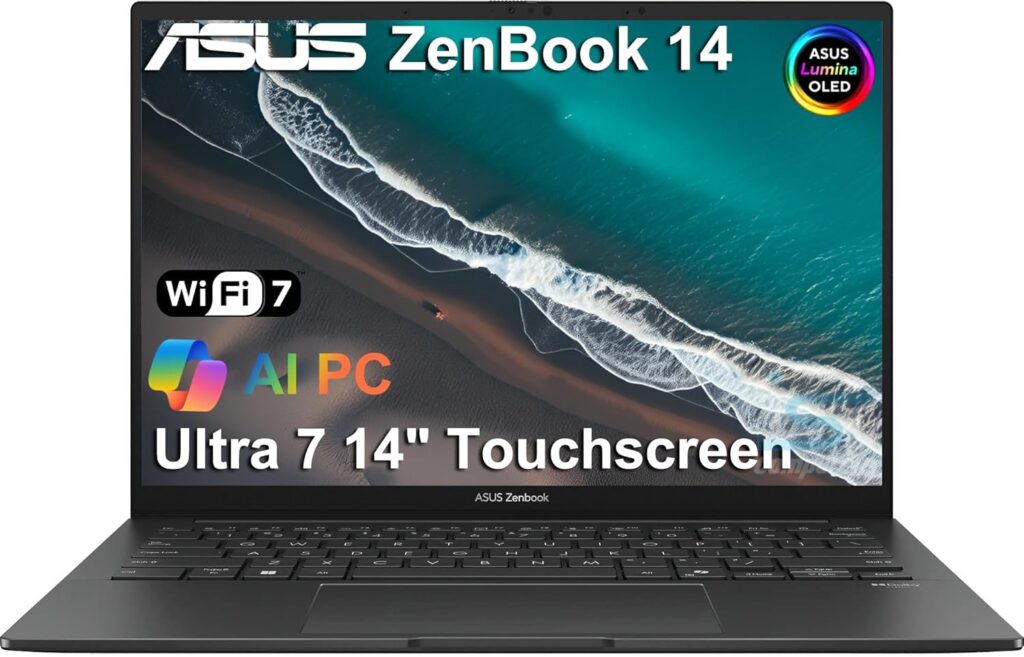
Some students need a workstation. Others need a laptop that disappears into a backpack, lasts through a triple-lecture day, and still handles a coding project that evening. The Zenbook 14 OLED is that second laptop, and it’s spectacular at the job.
At 1.2 kg, you’ll genuinely forget it’s in your bag. The 14-inch 3K OLED screen is the kind of display that makes you not want to go back to regular IPS panels — perfect blacks, punchy colors, and text so crisp that reading 60-page lecture PDFs becomes almost pleasant. Almost.
Intel’s Core Ultra 7 chip handles the full non-GPU STEM workload — programming, statistics in R, MATLAB, circuit simulation, LaTeX, all of it — while sipping power. Real-world battery life lands in the 12–16 hour range depending on what you’re doing, which means you can leave the charger at home. On purpose.
Key specs:
- CPU: Intel Core Ultra 7 258V (8 cores)
- GPU: Intel Arc integrated graphics
- RAM: 32GB LPDDR5X (soldered — buy the 32GB config)
- Storage: 1TB NVMe SSD
- Display: 14″ 3K (2880×1800) OLED, 120Hz, 100% DCI-P3
- Battery: 12–16 hours of real-world mixed use
- Weight: ~1.2 kg (2.7 lbs)
- Ports: 2× Thunderbolt 4, USB-A, HDMI 2.1, headphone jack
- Price: Around $1,099–$1,299 depending on configuration
Pros:
- Featherweight and slim — the easiest laptop on this list to live with daily
- Gorgeous 3K OLED display that makes everything look better
- Outstanding battery life that survives the longest campus days
- 32GB RAM configuration at this price is genuinely rare and future-proofs the machine
- Quiet operation; you can use it in a silent library without shame
Cons:
- Integrated graphics only — this is not a CAD or ML machine
- RAM is soldered, so what you buy is what you’re stuck with
- OLED brings a small (mostly theoretical) burn-in risk with static content over years
- Limited port selection compared to bulkier machines
Who it’s for: CS, math, statistics, biology, and chemistry majors whose workload is code, data, writing, and research. Also perfect as a second “campus” laptop if you keep a desktop at home for heavy lifting.
Who should skip it: Anyone whose degree requires 3D modeling or GPU-accelerated anything. Integrated graphics have improved a lot, but physics is physics.
4. Lenovo ThinkPad P16 Gen 3 — Best for CAD and Heavy Simulation
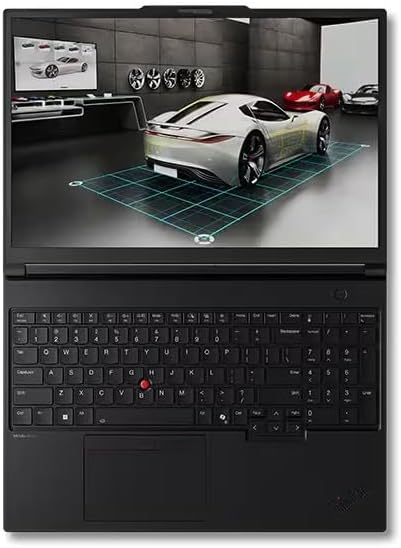
Let’s talk about the students the other laptops on this list quietly fail: mechanical engineers running full ANSYS simulations, aerospace students meshing CFD models, civil engineers with Revit files the size of small planets. For you, a “good enough” laptop isn’t good enough. You need a certified workstation, and the ThinkPad P16 is the gold standard.
The difference between this and a gaming laptop with similar specs comes down to two things: ISV certification and reliability. Lenovo works directly with software vendors like Dassault (SolidWorks), Autodesk, and ANSYS to certify that the P16’s hardware and drivers work flawlessly with their software. When your simulation has been running for nine hours, “flawlessly” is not a luxury — it’s the whole point.
It’s built like a tank because it’s tested like one, passing MIL-SPEC durability standards. The keyboard remains the best in the business — ThinkPad keyboards have been making other laptops jealous for thirty years, and that hasn’t changed.
Key specs:
- CPU: Intel Core Ultra 9 285HX (24 cores)
- GPU: NVIDIA RTX PRO 3000 Blackwell generation (professional-grade, up to higher tiers available)
- RAM: 32GB DDR5 (configurable to 192GB — yes, really)
- Storage: 1TB NVMe SSD (multiple slots, easily expandable)
- Display: 16″ up to 4K, optional touch, excellent color accuracy options
- Battery: 5–7 hours of light use; this machine assumes an outlet exists
- Weight: ~2.9 kg (6.4 lbs)
- Ports: Everything. Thunderbolt 5, USB-A, HDMI, Ethernet, SD card reader
- Price: Starts around $2,200; realistic configurations run $2,500–$3,500
Pros:
- ISV-certified for SolidWorks, ANSYS, AutoCAD, Revit, MATLAB, and more — guaranteed compatibility
- Absurd upgradeability: RAM to 192GB, multiple SSD slots, all user-accessible
- Professional GPU drivers that prioritize stability over gaming frame rates
- Legendary ThinkPad keyboard and MIL-SPEC build quality
- Will outlast your degree and probably your first job
Cons:
- Expensive, and gets more expensive fast when you configure it up
- Heavy — nearly 3 kg means you’ll feel it in your backpack every single day
- Battery life is an afterthought; treat it as a portable desktop
- Complete overkill for the first two years of most programs
Who it’s for: Upper-year mechanical, civil, and aerospace engineering students, grad students running serious simulations, and anyone whose department’s software list reads like an ISV certification catalog.
Who should skip it: First-year students and anyone in a code-and-data major. You’d be paying workstation prices for capability you’ll never touch.
5. ASUS ProArt P16 — Best Premium Windows All-Rounder
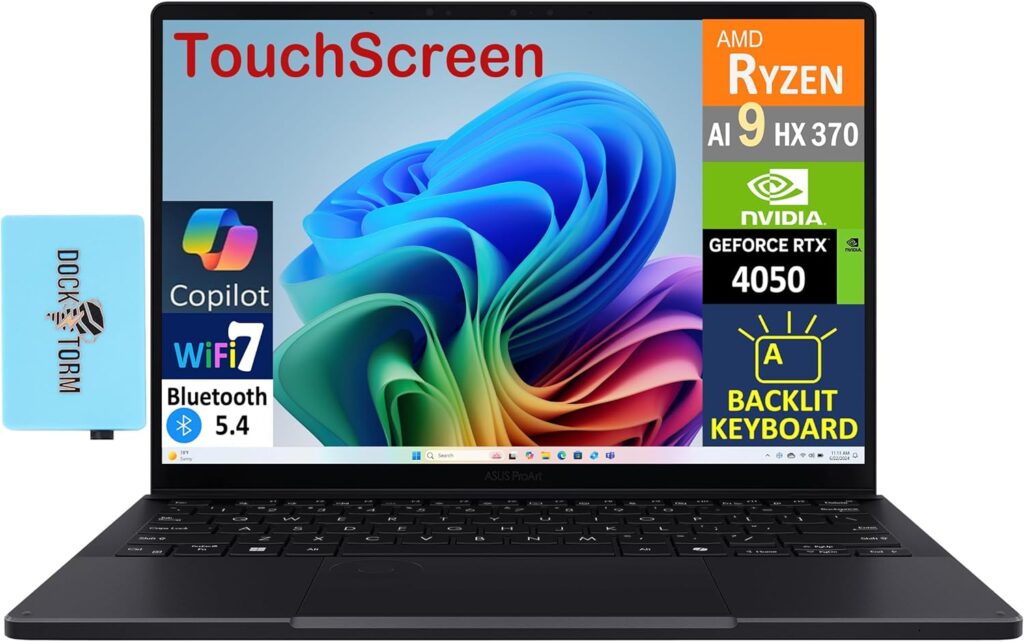
The ProArt P16 answers a question a lot of students ask me: “I want MacBook-level polish, but I need Windows and a real NVIDIA GPU. What do I buy?” This. You buy this.
It packs AMD’s flagship Ryzen AI 9 HX 370 and up to an RTX 5090 laptop GPU into a chassis that’s shockingly thin — under 2 kg for this class of hardware. The 16-inch 4K OLED touchscreen is stunning and color-accurate enough for professional work, which matters if your STEM path involves any visualization, rendering, or content creation alongside the engineering.
What makes it special is the lack of compromise. It runs Windows-only engineering software. It has CUDA for machine learning. The battery is genuinely decent for the power on tap. And it doesn’t look or feel like a gaming laptop, which — fair or not — matters in internship interviews and research lab settings.
Key specs:
- CPU: AMD Ryzen AI 9 HX 370 (12 cores / 24 threads)
- GPU: NVIDIA GeForce RTX 5070 to RTX 5090 laptop GPU (config dependent)
- RAM: 32GB LPDDR5X (64GB available; soldered)
- Storage: 1TB or 2TB NVMe SSD
- Display: 16″ 4K (3840×2400) OLED touchscreen, 100% DCI-P3
- Battery: 8–10 hours of light work; solid for this hardware class
- Weight: ~1.95 kg (4.3 lbs)
- Ports: USB4, USB-A, HDMI 2.1, SD Express card reader, headphone jack
- Price: From around $2,199; higher-GPU configs approach $3,000+
Pros:
- Rare combination of thin-and-light design with serious GPU horsepower
- Handles everything: CAD, simulation, machine learning, rendering, and daily coursework
- Beautiful, color-accurate 4K OLED touchscreen
- Professional aesthetic that fits labs, internships, and client presentations
- Respectable battery life given the hardware inside
Cons:
- Premium price that stings on a student budget
- RAM is soldered — configure carefully at purchase
- Thin chassis means fans work hard (and audibly) under sustained heavy loads
- 4K OLED takes a bite out of battery life when you push brightness
Who it’s for: Students who genuinely span disciplines — the robotics major doing CAD, code, and ML in the same semester; the computational engineering student; anyone who wants one machine to do everything well for four years.
Who should skip it: Anyone whose actual workload is covered by the Zenbook or Nitro at half the price. Don’t pay for versatility you won’t use.
Comparison Table: All 5 Laptops at a Glance
| MacBook Pro 14″ (M5) | Acer Nitro V 16 AI | ASUS Zenbook 14 OLED | ThinkPad P16 Gen 3 | ASUS ProArt P16 | |
|---|---|---|---|---|---|
| Best for | Overall / CS & data | Value + GPU | Portability | CAD & simulation | Premium do-it-all |
| CPU | Apple M5 (10-core) | Ryzen AI 7 350 | Core Ultra 7 258V | Core Ultra 9 285HX | Ryzen AI 9 HX 370 |
| GPU | 10-core (integrated) | RTX 5050 8GB | Intel Arc (integrated) | RTX PRO 3000 | RTX 5070–5090 |
| RAM | 16–32GB | 16GB (upgradeable) | 32GB | 32–192GB | 32–64GB |
| Display | 14.2″ mini-LED 120Hz | 16″ IPS 180Hz | 14″ 3K OLED 120Hz | 16″ up to 4K | 16″ 4K OLED touch |
| Battery (real-world) | 14–18 hrs | 6–8 hrs | 12–16 hrs | 5–7 hrs | 8–10 hrs |
| Weight | 1.55 kg | 2.6 kg | 1.2 kg | 2.9 kg | 1.95 kg |
| Windows CAD software | ❌ No | ✅ Yes | ⚠️ Light only | ✅ Certified | ✅ Yes |
| CUDA / local ML | ❌ No | ✅ Yes | ❌ No | ✅ Yes | ✅ Yes |
| Starting price | ~$1,599 | ~$899 | ~$1,099 | ~$2,200 | ~$2,199 |
Quick Recommendations by Major
Still torn? Here’s the cheat sheet:
- Computer science / software engineering: MacBook Pro M5 or Zenbook 14 OLED. Your bottleneck is your brain, not your GPU.
- Mechanical / civil / aerospace engineering: Acer Nitro V 16 on a budget, ThinkPad P16 if your simulations are serious, ProArt P16 if you want power without the bulk.
- Data science / statistics: MacBook Pro M5, unless you’re committed to local deep learning — then grab something with an NVIDIA GPU.
- Electrical engineering: Zenbook or MacBook for circuits and code; step up to the Nitro if your program leans on GPU-heavy simulation tools.
- Physics / math: Zenbook 14 OLED. Light, long-lasting, and more than enough compute for Mathematica, LaTeX, and numerical work.
- Biology / chemistry / pre-med: Zenbook 14 OLED or MacBook. Portability and battery win when your day is labs and lectures.
Frequently Asked Questions
Is a MacBook good for engineering students?
It depends entirely on your specific program. For software engineering, data work, and general coursework, MacBooks are excellent — arguably the best. But core Windows-only tools like SolidWorks, ANSYS, and Revit don’t run natively on macOS, and virtualization workarounds are clunky at best. Email your department or check the program’s software requirements page before buying. Seriously. This is the single most common laptop regret among engineering students.
How much RAM do I really need for a STEM degree?
16GB is the practical minimum in 2026, and 32GB is the smart buy if your laptop’s memory is soldered (most thin ones are). The moment you run a virtual machine, a large dataset, or a heavy simulation next to your normal browser-and-IDE setup, 16GB starts feeling cramped. Nobody has ever regretted having too much RAM.
Do I need a dedicated GPU for computer science?
For coursework? No. Compilers, IDEs, databases, and web development don’t care about your GPU. The exception is machine learning — and even then, most university courses provide cloud GPU access through services like Google Colab or department clusters. Buy a dedicated NVIDIA GPU only if you know you’ll be training models locally and often.
Should I buy a gaming laptop for engineering school?
You can, and plenty of students do — the Acer Nitro on this list is proof the value can be great. Just go in with open eyes: expect shorter battery life, more weight, louder fans, and a design that stands out in a lecture hall. If those trade-offs don’t bother you, gaming laptops offer some of the best raw performance per dollar available.
Is 512GB of storage enough for a STEM student?
Usually, yes — as a starting point. Code, documents, and datasets for coursework fit comfortably. Where it gets tight is when you add large software installs (a full SolidWorks or Visual Studio setup eats space fast), virtual machines, and recorded lectures. If the laptop’s SSD is upgradeable, start at 512GB and expand later. If it’s not, spring for 1TB now.
When is the best time to buy a laptop for college?
Back-to-school season (July–September) and Black Friday reliably bring the deepest discounts. Also, never skip education pricing: Apple, Lenovo, Dell, and ASUS all offer student discounts, and Apple’s back-to-school promos often bundle in gift cards or accessories. Stack a student discount on a seasonal sale and you can save several hundred dollars.
Will these laptops last all four years?
Every machine on this list should comfortably survive a four-year degree if you treat it reasonably. The keys to longevity: buy enough RAM upfront (especially if it’s soldered), use a padded sleeve, and don’t cheap out on the spec you’ll grow into. The ThinkPad and Nitro have an edge here since you can upgrade their internals mid-degree.
The Bottom Line
If you’ve read this far, you probably already know which laptop is yours. But let me make it explicit:
Most STEM students — the coders, the data crunchers, the equation solvers — will be happiest with the MacBook Pro 14″ M5 or the ASUS Zenbook 14 OLED. They’re fast where it counts, last all day, and are a pleasure to actually live with.
Engineering students who need Windows and GPU power should start with the Acer Nitro V 16 AI and only climb to the ThinkPad P16 or ProArt P16 when their coursework — not their imagination — demands it.
And whatever you choose: check your department’s software requirements, buy your RAM upfront, use your student discount, and get a decent sleeve for your bag. Your future 2 a.m., deadline-facing self will thank you.
Got questions about a specific major or a laptop that didn’t make the list? Drop a comment below — I read all of them.

Hi, my name is Burak. I am a mechanical engineer. I have been writing laptop reviews for the Engineering Laptops website since 2020. Please feel free to contact me if you have any questions.