
Estimated reading time: 25 minutes
Key Takeaways
- The best laptops for biology majors include the MacBook Air M5, ThinkPad X1 Carbon Gen 14, and Framework Laptop 13 based on varied needs.
- Generally, 16 GB of RAM is the bare minimum, while 32 GB is recommended for extensive tasks in biostatistics or bioinformatics.
- For lab work, consider the ThinkPad X1 Carbon Gen 14 for its compatibility and long battery life; it supports up to 64 GB of memory.
- The Framework Laptop 13 stands out for its socketed memory, allowing future upgrades as your needs change in bioinformatics.
- For budget-conscious students, the Acer Aspire 14 AI provides 16 GB and satisfactory performance at a lower price point.
Table of contents
Ask ten people what laptop a biology student needs and you’ll get ten versions of the same shrug. “Something with 16 gigs?” “A MacBook, probably?” Nobody’s really thought about it, because from the outside a biology degree looks like reading and writing with some pipetting mixed in.
Then you actually start the degree.
You’re in a dark microscopy room at nine on a Thursday night, dragging a 4 GB confocal stack into Fiji, and your laptop just sits there with the beachball spinning. Or you’re running a DESeq2 analysis on a count matrix and RStudio quietly dies halfway through. Or — and this one hurts the most — you show up to your first real lab rotation with a beautiful two-port ultrabook and discover the plate reader wants USB-A and the vendor software only exists for Windows.
That’s the actual job. It’s a strange one: memory-hungry, allergic to bad battery life, mostly indifferent to graphics cards, and quietly obsessed with ports in a way no buying guide bothers to mention.
I’ve spent the last few months going through published lab testing on this year’s machines and lining it up against the software biology departments genuinely run. Here’s what holds up, and where each one lets you down — because every single one of them does, somewhere.
The short version
If you don’t want to read 4,000 words: buy the MacBook Air M5 with 24 GB of memory if your department has its own workstations for instrument control. Buy the ThinkPad X1 Carbon Gen 14 if you’ll be plugging your own laptop into lab equipment. Buy the Framework Laptop 13 if you’re heading toward bioinformatics and want memory you can upgrade later.
Whatever you do, don’t buy 8 GB.
| Category | Laptop | Why | Price |
|---|---|---|---|
| Best overall | Apple MacBook Air (M5) | Silent, all-day battery, real Unix shell | From $1,099 |
| Best for lab instruments | Lenovo ThinkPad X1 Carbon Gen 14 | Windows, 64 GB ceiling, ~24 h battery, repairable | From ~$2,032 |
| Best screen for imaging | Acer Swift 16 AI | 16″ OLED, 32 GB and 1 TB standard | ~$1,299–1,499 |
| Best for bioinformatics | Framework Laptop 13 | Socketed RAM to 64 GB, native Linux | From ~$1,199 |
| Best budget | Acer Aspire 14 AI | 16 GB and 14 real hours under $550 | ~$459–549 |
What a biology degree actually does to a laptop
This is the part the generic guides skip, and it’s the part that decides whether you’re still happy in year three.
Memory is the bottleneck. Not the processor.
Almost every genuinely frustrating computing moment in an undergrad biology degree traces back to RAM.
Fiji — which is ImageJ with all the useful plugins pre-installed, and which you will use constantly — runs on Java. When you open a multi-channel z-stack it wants the whole thing sitting in memory. A fairly ordinary 2048×2048, 40-slice, 3-channel 16-bit stack is about a gigabyte before you’ve touched it. Run a maximum-intensity projection, then a deconvolution, and you’re past 4 GB on one dataset.
R has a different flavour of the same problem. It holds objects in memory and copies them constantly. A 500 MB CSV can swell to two or three gigabytes as a data frame, and that’s before you merge it with anything. Anyone who’s watched RStudio fall over mid-script knows exactly what I mean.
The bioinformatics community has been saying this for years, bluntly. The recurring advice on Biostars and in published hardware guidance for the field is that 8 GB simply isn’t viable for anything touching sequencing data, and that 32 GB is where you stop fighting your machine. One widely-referenced bioinformatics computing guide puts it flatly: base 8 GB configurations are too little for many tools, and 32 GB gives you room for standard next-generation sequencing work — variant calling, RNA-seq against a reference genome, QIIME2 microbiome analysis.
So: 16 GB is your floor in 2026. 24 or 32 GB is what you should buy if there’s any way to stretch. And on most machines here the memory is soldered to the board, so this isn’t a decision you get to revisit. You’re making it once, for six years.
Single-core speed beats core count
Sounds backwards, but it’s true for most of what you’ll run. R’s base operations are largely single-threaded. So is a lot of Fiji’s core processing. So is much of Prism and SPSS.
Sixteen cores do nothing if the software only asks for one. What helps is a chip that holds a high clock for a long time — and “holds” is the important word. A processor that boosts to 5 GHz for eleven seconds and then sags to 3.2 will feel worse on a long script than one that sits at 4.2 forever. This is why thermals matter more than the spec sheet suggests.
Multi-core does earn its money in a few places: sequence alignment (Bowtie2, BWA and HISAT2 all parallelise nicely), Fiji batch macros, and anything you run under WSL2 with a thread count flag.
The graphics card question has a narrow answer
For the overwhelming majority of biology, integrated graphics are fine. Intel’s Arc B390 in this year’s chips and Apple’s M5 GPU both run PyMOL and ChimeraX smoothly on ordinary structures.
A dedicated GPU only starts to matter in three situations:
- Big structural work. Spinning a ribosome or a viral capsid with surface representation and ambient occlusion on will bring integrated graphics to a crawl.
- Local machine learning. If your lab runs cell segmentation models like Cellpose or StarDist locally, you need CUDA and at least 8 GB of video memory.
- Cryo-EM preprocessing. Uncommon at undergrad level, but if it’s coming, plan for it.
If none of that is you, put the money into RAM instead. You’ll be happier and your battery will thank you.
Ports. Please think about ports.
This is where I’ve seen more students get burned than anywhere else, and it’s the thing nobody mentions.
Lab equipment does not know it’s 2026. Microscope cameras, plate readers, thermal cyclers, gel imagers, flow cytometers, spectrophotometers — they ship with USB-A. Some come with physical licence dongles. Some run vendor software written for Windows 7 that hasn’t been touched since.
Buy a two-port ultrabook and you’ll spend three years hunting for the departmental USB hub that someone has always just walked off with. CNN Underscored makes the same point in its Windows laptop guide: if you want USB-A and HDMI without carrying an adapter, you’re looking at the thicker business-class notebooks from Lenovo, HP and Acer.
Minimum you actually want: one USB-A, HDMI or a hub that lives permanently in your bag, and an SD reader if your department does camera-based imaging.
macOS, Windows or Linux?
Here’s the compatibility picture, and it’s the single biggest fork in the road.
| Software | macOS | Windows | Linux |
|---|---|---|---|
| Fiji / ImageJ | Yes | Yes | Yes |
| R, RStudio, Bioconductor | Yes | Yes | Yes |
| GraphPad Prism | Yes | Yes | No |
| SPSS | Yes | Yes | Limited |
| PyMOL / ChimeraX | Yes | Yes | Yes |
| BLAST, samtools, QIIME2 | Native | Via WSL2 | Native |
| Zeiss ZEN, Leica LAS X, Nikon NIS-Elements | No | Yes | No |
| FlowJo | Yes | Yes | No |
| Most instrument control software | Rarely | Yes | No |
The pattern is clean once you see it. macOS is superb for analysis and useless for driving instruments. Windows is the reverse — a slightly clumsier Unix experience, though WSL2 has closed most of that gap, but it runs everything your department’s hardware needs. Linux is brilliant for pipelines and can’t run Prism at all.
Most students end up splitting it: personal laptop for analysis and writing, departmental machine for instrument control. If that describes your programme, macOS is a great call. If you’re expected to bring your own machine into the lab, buy Windows and stop agonising over it.
How I picked these
Synthetic scores tell you almost nothing about whether Fiji will choke on a stack. So the ranking below weights six things against what a biology degree actually demands:
- Memory headroom — 25%
- Sustained single-thread performance — 20%
- Real battery life — 20%
- Display quality for image work — 15%
- Software and port compatibility — 15%
- Upgradeability — 5%
Every hard number quoted below — battery runtimes, benchmark scores, thermal behaviour — comes from an independent testing outlet and is attributed where it appears. Manufacturer claims are labelled as manufacturer claims, because the gap between the two is usually 20 to 30 percent. Some links here earn a commission. None of them changed the order.
Best Laptops for Biology Majors in 2026
1. Apple MacBook Air (M5) — best all-rounder
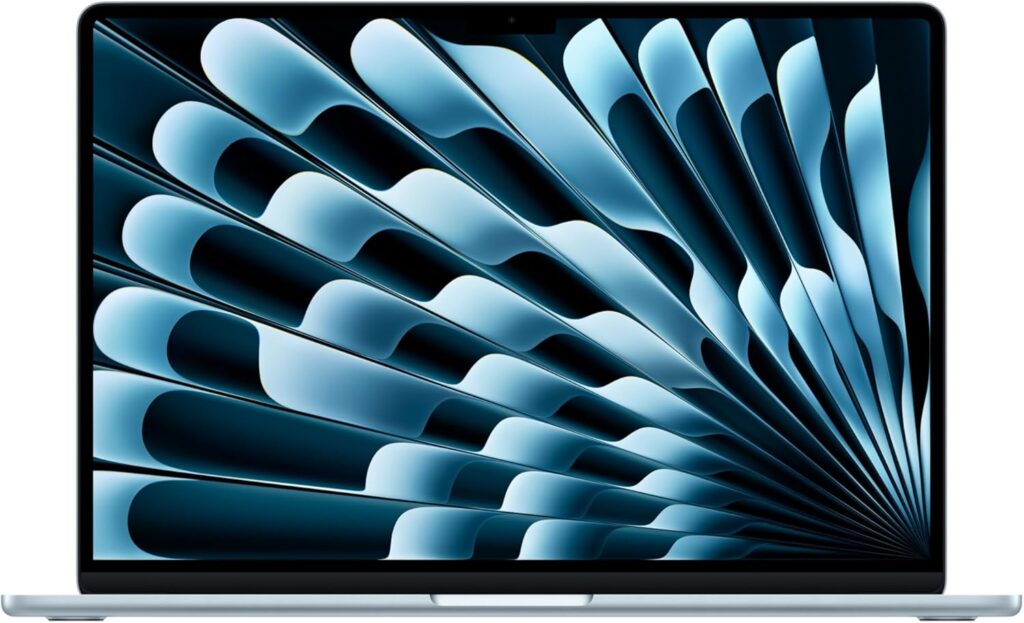
The Air keeps winning this category, and the reasons have less to do with raw speed than with the shape of a student’s day.
You’re in a lecture, then a lab, then the library, then a café, and at no point in that sequence do you reliably pass an outlet. The Air just doesn’t run out. Tom’s Hardware measured 15 hours 28 minutes on their mixed browsing-and-video test at 150 nits. CNET got just over 17 hours on a YouTube streaming rundown. CNN Underscored recorded 16 hours 38 minutes on a 4K looping video test, about 14% better than last year’s M4. Forbes ran it as a normal work machine and was fifteen hours in before it needed a socket, still with 12% left. Apple’s own claim is up to 18 hours, and for once that’s not fantasy.
The second reason is one nobody puts on a spec sheet: there’s no fan. Not a quiet fan. None. In a silent reading room, in a lab where someone’s recording, in a 200-seat lecture theatre, that’s a genuinely different experience. Every Windows laptop on this list will spin up audibly during a long alignment job. This one physically cannot.
Third, macOS is BSD Unix underneath. brew install blast samtools bowtie2 and you’re working — no compatibility layer, no filesystem translation penalty, no path weirdness. If you’re heading anywhere near bioinformatics, that’s a real head start.
Specifications (13-inch)
- Apple M5 — 10-core CPU, 10-core GPU, 16-core Neural Engine
- 16 GB unified memory standard, configurable to 24 or 32 GB
- 512 GB SSD standard, double last year’s base
- 13.6″ Liquid Retina, 2560×1664, 500 nits (15.3″ version also available)
- Wi-Fi 7, two Thunderbolt 4 ports, MagSafe, headphone jack
- 12 MP Center Stage camera
- 2.7 lb / 1.24 kg
How it performs. Tom’s Hardware’s Cinebench 2026 stress loop is the revealing one. The M5 opened at 3,415, decayed over the first few runs, and settled in the low 2,300s — roughly a third off its peak. That’s the cost of going fanless. For bursty work, which is most of what you do, it’s irrelevant. For a ninety-minute batch job, it’s real. On the same publication’s Xcode compile test it took 165 seconds against the MacBook Pro’s 145. CNET found graphics now sit level with the M5 MacBook Pro and comfortably ahead of last year’s M4 Pro on 3DMark Solar Bay Extreme.
One piece of configuration advice, and I’d put it in bold if I could say it twice. The 16 GB base is adequate, not generous, and Apple solders it. If there’s any imaging or bioinformatics in your future, spend the extra $200 on 24 GB. There is no upgrade path. Ever.
What’s good
- Battery genuinely covers a full campus day, confirmed by four separate labs
- Completely silent under every load
- Native Unix for command-line work
- 500-nit display stays readable in bright rooms
- Holds resale value far better than any Windows machine here
- Light enough that you’ll actually carry it every day
What’s not
- Won’t run Zeiss ZEN, Leica LAS X, NIS-Elements or most instrument software — this is the dealbreaker if your lab expects you to bring your own laptop
- Throttles around 30% under sustained load (Tom’s Hardware)
- Two Thunderbolt ports, no USB-A, so a hub isn’t optional
- Memory and storage soldered — get it right on day one
- Chassis design unchanged since 2022, and you can tell
Get it if you’re in molecular, cell, computational or general biology, your department provides workstations for instrument control, and you want something that vanishes into a bag and never needs charging mid-day.
Don’t if you’ll be plugging your own machine into lab hardware.
2. Lenovo ThinkPad X1 Carbon Gen 14 — best for lab work
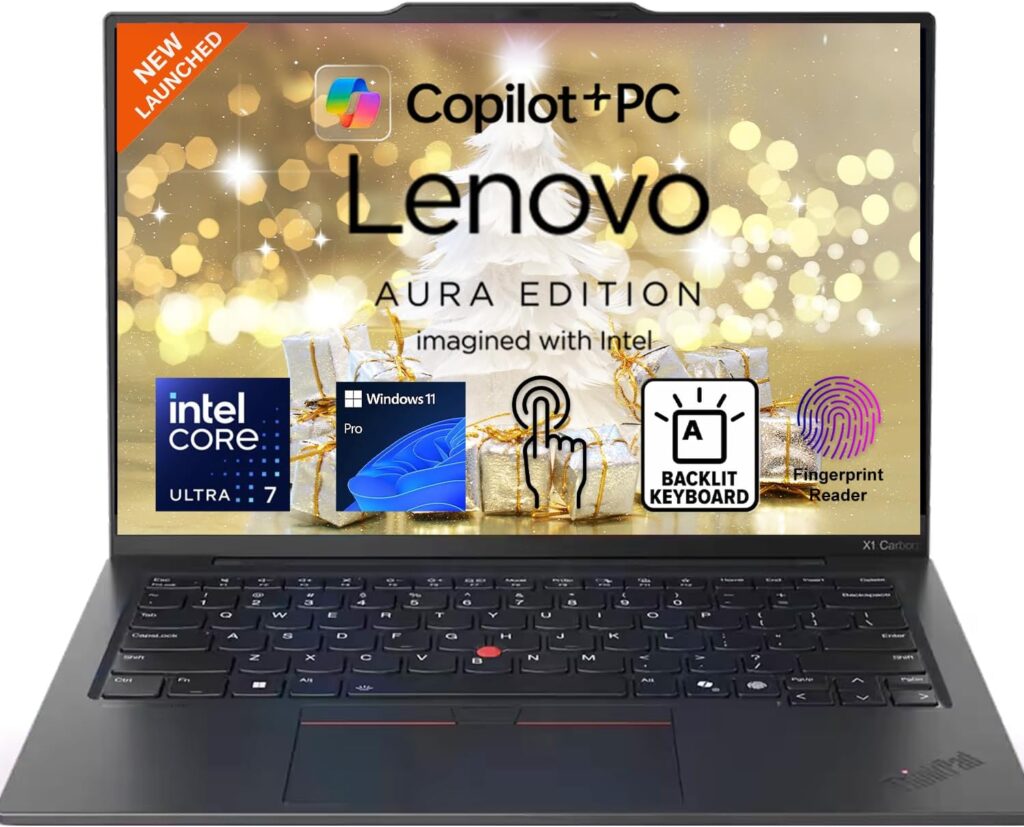
If that compatibility gap is a problem for you, this is the answer, and this year it’s a very good one.
Gen 14 is a much bigger change than the incremental name suggests. Gen 13 was a Lunar Lake machine with modest cooling and a hard 32 GB memory ceiling. Gen 14 moves to Intel’s Panther Lake platform with reworked thermals and a redesigned internal chassis Lenovo calls the Space Frame — a double-sided mainboard that’s 20% physically smaller and far easier to service. Thurrott’s review singles out the repairability and self-service upgrades as the headline change, and Lenovo pulled it off while keeping the thing at 2.15 pounds, under a kilogram.
For our purposes the big news is simple: memory now goes to 64 GB. That old 32 GB ceiling was the Gen 13’s real limitation for anyone doing serious data work, and it’s gone.
Specifications (as reviewed by The Gadgeteer)
- Intel Core Ultra 7 355 (Panther Lake) — 4 performance + 4 efficiency cores, 4.7 GHz max turbo
- Intel Arc integrated graphics, up to 12 Xe cores; 50 TOPS NPU
- 32 GB LPDDR5X-7467, configurable to 64 GB
- 512 GB PCIe 4.0 NVMe
- 14″ 2.8K OLED at 120 Hz, or a low-power IPS option
- Optional 5G with nano-SIM, optional Intel vPro
- 58 Wh battery
- 2.15 lb / 0.97 kg
The battery number is the surprise. Notebookcheck’s review is built around it: just under 24 hours on the low-power IPS touchscreen configuration. That’s extraordinary from a 58 Wh cell, and it comes down to Panther Lake’s efficiency plus an unusually frugal panel.
Big caveat, and this is a genuine fork in the road. That figure is the IPS model. Choose the 2.8K OLED and you get far less — XDA, testing the OLED variant in ordinary mixed use, reported five to eight hours of screen-on time. The IPS panel is dimmer and flatter but will carry you through a twelve-hour field day. The OLED is gorgeous for looking at micrographs and won’t.
On the processor. Notebookcheck tested the entry-level Core Ultra 5 325 — 8 cores, 4.5 GHz, drawing 35 W under load — and found it modestly ahead of last year’s Lunar Lake Core Ultra 7 258V across their suite. Capable for office work, not a powerhouse. Lenovo offers flagship Panther Lake chips like the Core Ultra X7 368H if you want more, and those bring the Arc B390 graphics. Worth knowing: on battery the machine caps at 25 W, so a long unplugged R session runs noticeably slower than the same job on mains power.
The keyboard is still the best in the business. 1.5 mm of travel, spill-resistant, TrackPoint with three real buttons. If you write for a living — and as a biology student, you do — that matters more than any benchmark on this page.
What’s good
- Runs every piece of Windows-only lab software your department owns
- 64 GB ceiling; the limitation that mattered is fixed
- Nearly 24 hours on the IPS panel (Notebookcheck)
- Genuinely repairable and upgradeable, by you or by IT
- Under a kilogram, and it feels absurd in the hand
- The best keyboard on any laptop, full stop
- Optional 5G for field sites with no Wi-Fi
What’s not
- Expensive. It starts around $2,032 and climbs quickly
- The great battery figure is IPS-only; OLED drops you to 5–8 hours real-world (XDA)
- 25 W cap on battery throttles sustained work when unplugged
- Notebookcheck disliked the bulky camera bump, and they’re right
- 512 GB base fills fast once imaging data lands on it
Get it if you’ll be connecting to lab instruments, you need 64 GB, or you want something that survives four years of being thrown into a rucksack and can be fixed rather than replaced.
3. Acer Swift 16 AI — best screen for image analysis
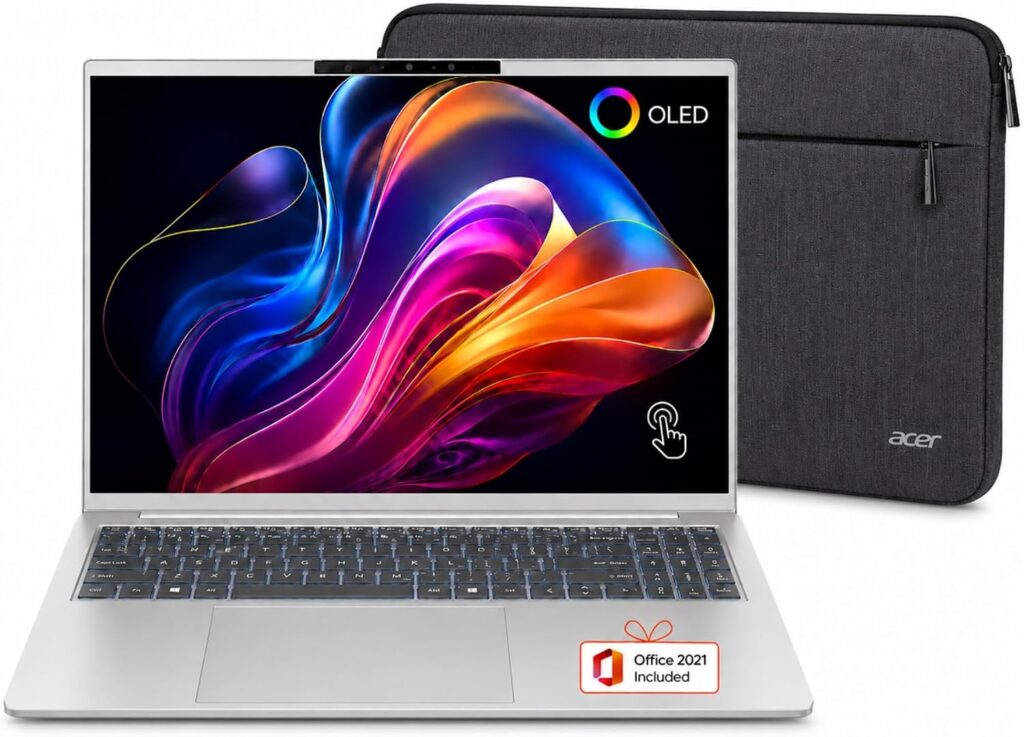
Here’s an underrated truth: for microscopy and multi-window statistical work, screen space beats nearly every other upgrade you could buy.
Fiji is a windowing nightmare. Toolbar, image window, ROI manager, results table, log — five floating windows before you’ve done anything. On a 13-inch display you spend your life shuffling them around. On a 16-inch 2880×1800 panel they all sit open at once and the way you work genuinely changes.
PCWorld named this their best pick for most people this year, and their reasoning transfers well. They measured a PCMark 10 score of 10,474 and got around 18 hours on their video playback battery test, which is a startling result for a 16-inch OLED laptop.
Specifications
- Intel Core Ultra X7 358H (Panther Lake) with Arc B390 graphics
- 32 GB LPDDR5X
- 1 TB PCIe Gen 5 SSD
- 16″ 2880×1800 OLED touchscreen, 120 Hz
- Roughly 18.5 hours in PCWorld’s testing
- 3.42 lb / 1.55 kg
The configuration is the real story. 32 GB and 1 TB as standard, not as a paid upgrade. Match that on a MacBook Air and you’re paying considerably more; match it on the ThinkPad and you’re starting from $2,032. For a student who needs memory headroom and somewhere to put raw imaging files, this is the most sensible specification-per-pound on the list.
The Arc B390 is also the strongest integrated graphics Intel has shipped. PyMOL and ChimeraX run comfortably on it for anything short of enormous complexes.
The catch, and PCWorld flagged it directly: the glossy OLED throws reflections and it does get annoying. In a lab with overhead fluorescent lighting — so, every lab — you’ll notice. They also found the speakers forgettable, which matters much less.
What’s good
- 16″ 2880×1800 OLED at 120 Hz, outstanding for microscopy and multi-window work
- 32 GB and 1 TB PCIe Gen 5 as standard
- About 18.5 hours in PCWorld’s testing, remarkable for the size
- Arc B390 is the best integrated GPU going
- Considerably cheaper than a comparably specified MacBook or ThinkPad
What’s not
- Glossy panel reflects badly under overhead lights (PCWorld)
- Mediocre speakers
- 3.42 lb is noticeably heavier than the Air or the X1 Carbon
- Soldered memory, so 32 GB is a permanent ceiling
- Consumer build quality; it’s not a ThinkPad
Get it if imaging is central to your work, you want maximum specification for the money, and you don’t mind a slightly heavier bag.
4. Framework Laptop 13 — best for bioinformatics
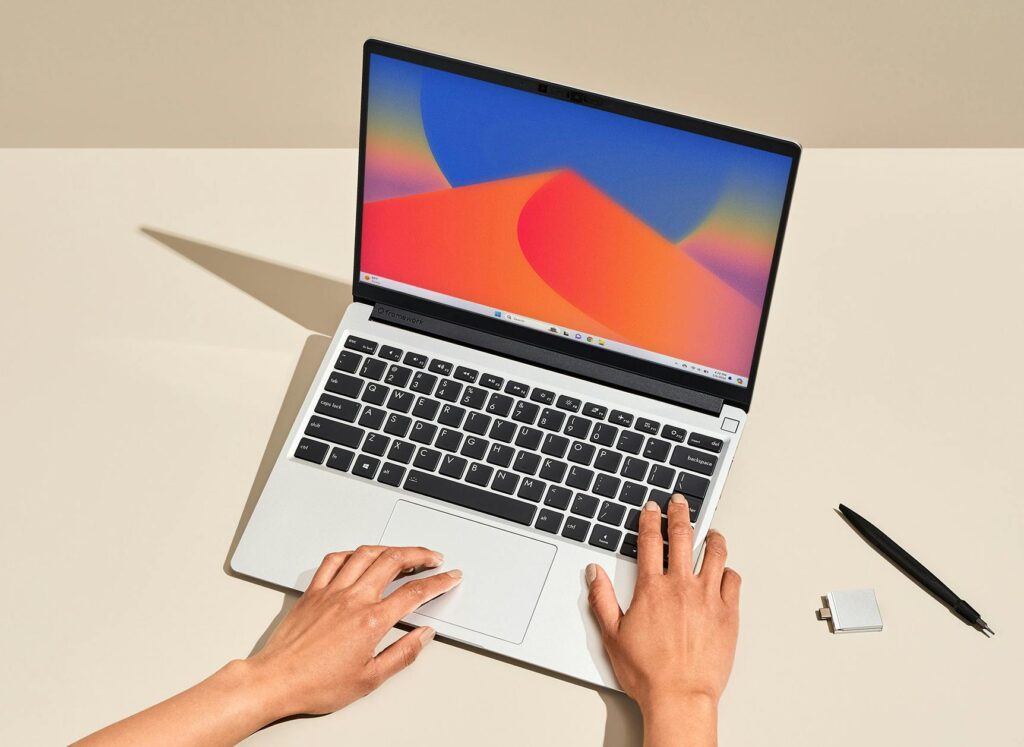
If you’re heading toward computational biology, this is the most rational purchase here, and it comes down to one thing above all.
The memory is socketed. Ordinary DDR5 modules. Buy 16 GB as a second-year because that’s what you can afford, discover in your final year that your RNA-seq project wants 64 GB, and spend about $120 and ten minutes rather than $2,000 and a whole new machine. Nothing else on this list offers that. Every other laptop here makes memory a permanent decision at checkout.
For a degree where your computational needs are genuinely unpredictable at the start, that flexibility is worth real money.
Specifications (the configuration I’d recommend)
- AMD Ryzen AI 7 350 or Ryzen AI 9 HX 370 with Radeon 890M
- 32 GB DDR5-5600, socketed, up to 64 GB
- 1 TB or 2 TB standard M.2 NVMe, user-replaceable
- 13.5″ 2.2K matte or 2.8K 120 Hz display
- User-chosen Expansion Card ports — build your own mix of USB-A, HDMI, Ethernet, SD
The Expansion Card system quietly solves the port problem. Remember the USB-A issue from earlier? On a Framework you just fit two USB-A cards and an HDMI card and it’s handled. Off to a field site with wired-only networking? Swap in the Ethernet card that morning. Nothing else lets you reshape the ports to the task in front of you.
Linux support is first-class here, not an afterthought. Official Fedora and Ubuntu support, upstream kernel contributions, firmware updates through LVFS. Community assessments this year consistently put Framework alongside ThinkPads and System76 as the top Linux laptop choices. If your pipelines want a native Unix environment and you don’t need Prism, this is the cleanest route there is.
One naming trap to avoid. Framework introduced a separate, pricier Laptop 13 Pro in 2026 — CNC-machined aluminium, 13.5″ touchscreen, haptic touchpad, 74 Wh battery, Intel Core Ultra Series 3, LPCAMM2 memory, Ubuntu preinstalled, Wi-Fi 7, PCIe 5.0. It starts at $1,199 for the DIY edition and $1,499 prebuilt. Gizmodo called it the best version of this design yet, and it is a nicer machine. But LPCAMM2 modules are still awkward to source outside Framework’s own store, and one comparison found the Core Ultra 5 configuration scoring roughly 9,155 on Geekbench 6 multi-core against about 17,076 for the MacBook Air M5 — a big gap. For pure value and upgrade flexibility, the standard Laptop 13 remains the smarter student buy.
What’s good
- Socketed DDR5 — go to 64 GB whenever your work demands it, for about $120
- Standard M.2 storage you can swap yourself
- Configurable ports kill the lab dongle problem entirely
- Ubuntu and Fedora officially supported; QR-coded repair guides on the internals
- Battery, screen, keyboard and mainboard are all individually replaceable
- The DIY edition is the cheapest honest route to 32 GB here
What’s not
- Fans are audible under sustained load
- Weak webcam
- Battery life trails the Air and the X1 Carbon meaningfully
- No dedicated GPU option
- No enterprise support contract when something breaks two days before a deadline
- Install Linux and you lose GraphPad Prism — check your department’s stats requirements first
Get it if you’re heading for bioinformatics, you want Linux, or you simply don’t want the memory ceiling decided on the day you buy.
5. Acer Aspire 14 AI — best budget option
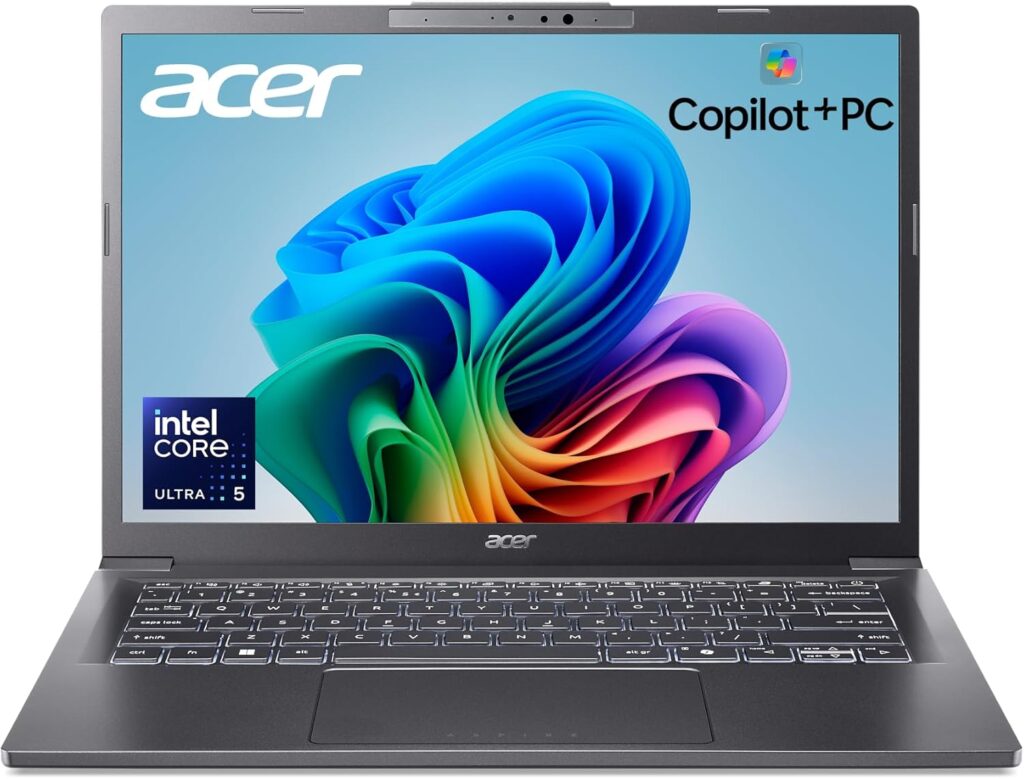
Not everyone has $1,500. Most people don’t. And the honest truth is that a well-chosen cheap laptop covers the large majority of an undergraduate biology degree without complaint.
The Aspire 14 AI runs an Intel Core Ultra 5 or 7 with 16 GB of LPDDR5X and a 14-inch touchscreen. Battery is the headline — claimed figures run from 14 to 22 hours depending on the test, with real-world use landing around 14-plus. At 3.05 pounds it disappears into a bag. It sells for $459 to $549 on sale against a $700–830 list price.
16 GB of LPDDR5X under $550 is the whole argument. Most laptops at this price still ship 8 GB, which as we covered is genuinely not enough. That single spec is what puts this machine on the list and keeps the cheaper alternatives off it.
Specifications
- Intel Core Ultra 5 or Ultra 7 (Lunar Lake)
- 16 GB LPDDR5X
- 512 GB SSD
- 14″ touchscreen
- 14+ hours real-world battery
- 3.05 lb / 1.38 kg
Where it gives ground, plainly: the display. Reviewers consistently describe washed-out colours and limited brightness. For papers, PDFs, R scripts and spreadsheets it’s perfectly fine. For judging a micrograph or doing anything where colour fidelity matters, it isn’t. If you’re doing histology or fluorescence work, either budget for an external monitor or step up to the Swift 16 AI.
Speakers are unremarkable and there’s no dedicated graphics, neither of which should shock anyone at this price.
What’s good
- 16 GB LPDDR5X, genuinely rare under $550
- 14-plus hours in real use
- 3.05 lb, easy to carry all day
- Touchscreen included
- Runs Fiji, R, Prism and everything coursework throws at it
What’s not
- Washed-out, dim display — that’s the real compromise
- Forgettable speakers
- No dedicated GPU
- Soldered 16 GB is a hard ceiling
- 512 GB disappears fast if you keep imaging data locally
Get it if budget is the binding constraint and your work is coursework, statistics and writing rather than image evaluation.
Side by side
| MacBook Air M5 | ThinkPad X1C Gen 14 | Acer Swift 16 AI | Framework 13 | Acer Aspire 14 AI | |
|---|---|---|---|---|---|
| Processor | Apple M5, 10-core | Core Ultra 7 355 | Core Ultra X7 358H | Ryzen AI 7 / 9 | Core Ultra 5 / 7 |
| RAM (max) | 16 GB (32) | 32 GB (64) | 32 GB (32) | 32 GB (64, socketed) | 16 GB (16) |
| Storage | 512 GB | 512 GB | 1 TB Gen 5 | 1–2 TB, swappable | 512 GB |
| Display | 13.6″ 2560×1664 | 14″ 2.8K OLED or IPS | 16″ 2880×1800 OLED | 13.5″ 2.2K or 2.8K | 14″ FHD |
| Battery (lab-tested) | 15.5–17 h | ~24 h IPS / 5–8 h OLED | ~18.5 h | ~10–12 h | ~14 h |
| Weight | 2.7 lb | 2.15 lb | 3.42 lb | ~2.9 lb | 3.05 lb |
| USB-A | No | Yes | Yes | Configurable | Yes |
| Windows lab software | No | Yes | Yes | Yes | Yes |
| Upgradeable memory | No | No | No | Yes | No |
| Price | $1,099+ | $2,032+ | ~$1,299 | ~$1,199+ | ~$499 |
Scored against what biology needs
Using the weightings set out earlier — memory 25%, sustained performance 20%, battery 20%, display 15%, compatibility 15%, upgradeability 5%.
| Laptop | Memory | Sustained perf. | Battery | Display | Compatibility | Upgrade | Overall |
|---|---|---|---|---|---|---|---|
| ThinkPad X1 Carbon Gen 14 | 9.5 | 8.4 | 9.2 | 8.8 | 9.6 | 8.5 | 9.1 |
| Acer Swift 16 AI | 8.8 | 8.6 | 9.0 | 9.2 | 8.9 | 3.0 | 8.6 |
| Framework Laptop 13 | 9.8 | 7.8 | 6.8 | 7.6 | 9.3 | 10.0 | 8.4 |
| MacBook Air M5 | 7.5 | 7.2 | 9.4 | 8.9 | 6.5 | 2.0 | 7.8 |
| Acer Aspire 14 AI | 6.5 | 6.8 | 8.2 | 5.4 | 8.7 | 2.5 | 7.0 |
Worth being upfront about something: the Air scores lower here than its general reputation, and that’s entirely down to the compatibility and upgradeability weightings, which matter unusually much in this field. For a general-purpose student it would top this table without breaking a sweat. For a biology student whose lab expects a Windows machine, it can’t.
Which one fits your corner of biology?
Molecular and cell biology. Heavy Fiji use, some sequence work, Prism for statistics. Go for the Acer Swift 16 AI for the screen, or the MacBook Air M5 with 24 GB if your department handles instrument control itself.
Ecology and field biology. Long days away from power, QGIS, R for community analysis, occasional rough handling. ThinkPad X1 Carbon Gen 14 with the IPS panel. The 24-hour figure and the optional 5G are worth more out there than an OLED ever will be.
Computational biology and bioinformatics. Pipelines, Linux, memory needs that will grow in ways you can’t predict yet. Framework Laptop 13. Buy 16 GB now, upgrade to 64 GB when your project demands it.
Pre-med and general biology. Coursework, statistics, writing, endless PDFs. Acer Aspire 14 AI. Don’t overspend. Put the difference toward an external monitor and a decent chair.
Structural biology and heavy imaging. None of the five, honestly. Look at the ASUS ProArt P16 — Ryzen AI 9 HX 370, RTX 5070 or 5090, up to 64 GB and 4 TB of storage in a 1.85 kg body, from $1,699. Two things to know before you commit: PCWorld found the RTX 5070 configuration throttles in that slim chassis and lands at the lower end of what a mobile 5070 should deliver, and TechRadar flagged loud fans and a glossy screen. It’s a workstation and it behaves like one.
Five mistakes worth avoiding
Buying 8 GB. It will cost you more in wasted evenings than the upgrade would have cost in money. This is the single most common regret in the field.
Paying for a GPU you’ll never use. Unless you’re in one of the three scenarios above, a discrete graphics card buys you less battery, more weight, more fan noise and nothing else.
Thinking about ports in week two of your first lab rotation. Check what your department’s equipment uses before you buy, not after.
Assuming you need a workstation. Serious sequencing runs on institutional clusters or cloud instances, not on laptops. Your machine’s job is to write code, visualise results and submit jobs — not to assemble a genome. Buy for the interface, not the compute.
Paying list price. Every laptop here goes on sale. August and September pricing is real, and student store discounts usually stack on top.
Common questions
Is 16 GB of RAM enough for a biology major? For coursework, statistics and writing, yes. For confocal image stacks or local RNA-seq work it’s tight — bioinformatics practitioners consistently point to 32 GB as the practical minimum for sequencing workflows. If the machine has soldered memory, paying for 24 or 32 GB up front is money well spent.
MacBook or Windows for biology? It comes down to one question: will you plug your own laptop into lab instruments? If yes, Windows — microscope and instrument control software is overwhelmingly Windows-only. If your department provides machines for that, macOS gives you a better analysis environment, a native Unix shell and much better battery life.
Do I need a dedicated graphics card? Almost certainly not. Integrated graphics handle PyMOL, ChimeraX and Fiji fine. You need one only for large structural visualisation, local machine learning, or cryo-EM work.
Can I get by with a Chromebook? Not as your only machine. Fiji, RStudio Desktop, Prism and essentially all instrument software won’t run on ChromeOS. Fine as a second device for lectures and notes.
How much storage do I need? 512 GB is the floor, 1 TB is better if you’re keeping raw imaging or sequencing data locally — one confocal session can easily produce 10 to 50 GB. External SSDs are cheap. Keep archives there and only active projects on the internal drive.
Is a touchscreen worth it? Genuinely handy for annotating figures and marking up papers. Not essential. Don’t pay a big premium for it.
Will these last four years? The ThinkPad and the Framework are built to, and the Framework can be upgraded rather than replaced. The MacBook Air will stay quick but its fixed memory eventually becomes the limit. The Aspire is realistically a two-to-three-year machine at that price, and that’s a fair trade.
The verdict
For most biology majors, the MacBook Air M5 with 24 GB. Independently verified 15 to 17 hour battery life, complete silence, a native Unix environment for command-line work, and a display you can read anywhere. Configure it with more memory than the base model, and check first that your department isn’t expecting you to run instrument software yourself.
If you’ll be plugging into lab equipment, the ThinkPad X1 Carbon Gen 14 with the IPS panel. Nearly 24 hours of battery, a 64 GB ceiling, and it runs everything. It’s expensive, and it earns it.
If you’re heading for bioinformatics, the Framework Laptop 13. The socketed memory means the choice you make today isn’t the one you’re stuck with in three years, and that’s worth more than any benchmark on this page.
If money is tight, the Acer Aspire 14 AI. 16 GB and fourteen real hours under $550 covers most of an undergraduate degree without ever getting in your way.
Whichever way you go, the advice is the same. Buy more memory than you think you need. Check your department’s software list before you spend anything. And don’t let anyone talk you into a gaming graphics card for a statistics module.
Independent measurements referenced here come from Notebookcheck (ThinkPad X1 Carbon Gen 14 battery and processor testing), Tom’s Hardware (MacBook Air M5 battery, Cinebench 2026 sustained-load and Xcode compile testing), CNET and CNN Underscored (MacBook Air M5 battery and graphics), Forbes (MacBook Air M5 real-world endurance), PCWorld (Acer Swift 16 AI PCMark 10 and battery; ASUS ProArt P16 graphics testing), XDA Developers (X1 Carbon Gen 14 real-world battery), Thurrott and The Gadgeteer (X1 Carbon Gen 14 design and configuration), Gizmodo (Framework Laptop 13 Pro) and TechRadar (ASUS ProArt P16). Bioinformatics hardware guidance draws on Biostars community discussion and published bioinformatics computing specifications.
Last updated August 2026. Prices were accurate at the time of writing and change frequently.

Hi, my name is Burak. I am a mechanical engineer. I have been writing laptop reviews for the Engineering Laptops website since 2020. Please feel free to contact me if you have any questions.