Estimated reading time: 0 minutes
Key Takeaways
- The article outlines the best ThinkPad for engineering in 2026, recommending the ThinkPad P1 Gen 8 as the top choice.
- It emphasizes selecting laptops based on specific engineering tasks rather than just specs.
- The guide provides insights into five ThinkPads: P1 Gen 8, P16 Gen 3, X1 Carbon Gen 14, P14s Gen 6, and E14 Gen 7, detailing their strengths and weaknesses.
- Certified ISV drivers and strong Linux support make ThinkPads popular in engineering offices.
- The author advises against paying full retail price and suggests waiting for sales to get significant discounts.
Table of contents
- The Short Answer, If You’re in a Hurry
- Why ThinkPads Keep Showing Up in Engineering Offices
- What Actually Matters, Depending on What You Do
- Best ThinkPad for Engineering in 2026: 5 Machines That Actually Survive Real Work
- Side by Side: All Five
- Should You Even Buy a ThinkPad? An Honest Comparison
- How to Not Overpay (This Section Is Worth Money)
- Three Mistakes I See Constantly
- Frequently Asked Questions
- Two Things to Check Before You Buy
- So Which One?
I’ve watched a lot of engineers buy the wrong laptop. Usually it goes like this: someone reads a spec sheet, sees a big number next to “GPU,” pulls the trigger, and then spends the next three years wondering why SolidWorks still stutters when they open a 400-part assembly.
The frustrating part is that the fix is rarely more money. It’s usually just different money — spent on the right things.
So this is the guide I wish someone had handed me. Five ThinkPads that make sense for engineering work in 2026, what each one is genuinely good at, where each one falls apart, and how to avoid paying Lenovo’s list price (which, honestly, nobody should ever pay).
Let’s get into it.
The Short Answer, If You’re in a Hurry
| Your situation | Buy this | Rough street price |
|---|---|---|
| You want one machine that does almost everything well | ThinkPad P1 Gen 8 | $1,700 – $2,500 on sale |
| Heavy FEA, CFD, rendering, or local AI training | ThinkPad P16 Gen 3 | $1,700 – $6,000+ |
| Software, electrical, or data engineering — no pro GPU needed | ThinkPad X1 Carbon Gen 14 | $1,880 – $2,300 |
| Portable CAD without the workstation bulk | ThinkPad P14s Gen 6 | $1,800 – $3,100 |
| Engineering student on a real budget | ThinkPad E14 Gen 7 | $890 – $1,200 |
If you only read one line: the P1 Gen 8 is the best all-around ThinkPad for engineers in 2026. It’s a four-pound workstation with a proper NVIDIA RTX PRO GPU, upgradeable memory, a gorgeous Tandem OLED panel, and the ISV certifications that keep your CAD vendor’s support desk from hanging up on you.
But “best overall” and “best for you” aren’t the same thing, and that’s really what the rest of this article is about.
Why ThinkPads Keep Showing Up in Engineering Offices
Walk through any mechanical design shop, any structural firm, any hardware startup’s back room, and you’ll see the same black rectangles. There’s a reason for that, and it isn’t nostalgia.
Certified drivers. Lenovo’s P-series machines carry ISV certification for the big CAD and CAE packages — SolidWorks, CATIA, Siemens NX, Revit, Ansys, AutoCAD, the whole list. That means Dassault and Autodesk have actually tested that hardware and driver combination. When something breaks at 11 PM before a deadline, being on a certified config is the difference between a support ticket and a shrug.
Linux that just works. This one matters more than most spec sheets admit. Lenovo publishes Ubuntu and Red Hat certifications per model. If your simulation stack, your embedded toolchain, or your ML pipeline lives on Linux, you can install and get on with your life instead of hunting for Wi-Fi firmware at midnight.
The keyboard. Yes, really. If you write code, type equations, or annotate drawings eight hours a day, the ThinkPad keyboard is a legitimate productivity feature. Nobody who’s used one for a year goes back happily.
You can open them. Most of these still take a screwdriver and a spare SSD without drama. The new X1 Carbon Gen 14 even has user-replaceable USB-C ports, which is a genuinely wild thing for a two-pound ultrabook.
They go on sale constantly. This is the underrated one. Lenovo’s list prices are fantasy. Their actual prices, especially around the big sale windows, routinely make a configured ThinkPad cheaper than an equivalent Dell or HP.
What Actually Matters, Depending on What You Do
Before the picks, spend thirty seconds here. This table has saved more people money than any review I’ve written.
| Discipline | The spec that matters most | The spec people overspend on |
|---|---|---|
| Mechanical CAD (SolidWorks, Inventor, Creo) | High single-core boost clock | Core count above 12 |
| FEA / CFD (Ansys, Abaqus, Nastran) | Core count + RAM (64 GB+, ideally ECC) | Display resolution |
| Civil / BIM (Revit, Civil 3D, Navisworks) | Single-thread speed + VRAM for big federated models | Ultra-fast SSDs |
| Electrical / PCB (Altium, KiCad, Cadence) | Screen real estate + single-thread | Discrete workstation GPU |
| Software / DevOps | RAM, battery, keyboard, Linux support | Any discrete GPU at all |
| Data / ML engineering | CUDA cores + VRAM (16–24 GB) | Thin-and-light chassis |
| Students | Reliability, RAM headroom, warranty | Everything else |
The big one people get wrong: most CAD modeling is single-threaded. Rotating a model, rebuilding a feature tree, dragging a sketch — that’s one core doing all the work. A 24-core monster doesn’t make your SolidWorks feel faster. It makes your simulation faster. If you never run simulations, you just paid $1,500 for cores that idle.
Second one people get wrong: RAM is where assemblies die. Once Windows starts paging a large assembly to disk, no CPU on earth saves you. 32 GB is the modern floor. 64 GB is where you stop thinking about it.
Best ThinkPad for Engineering in 2026: 5 Machines That Actually Survive Real Work
1. ThinkPad P1 Gen 8 — The One Most Engineers Should Buy
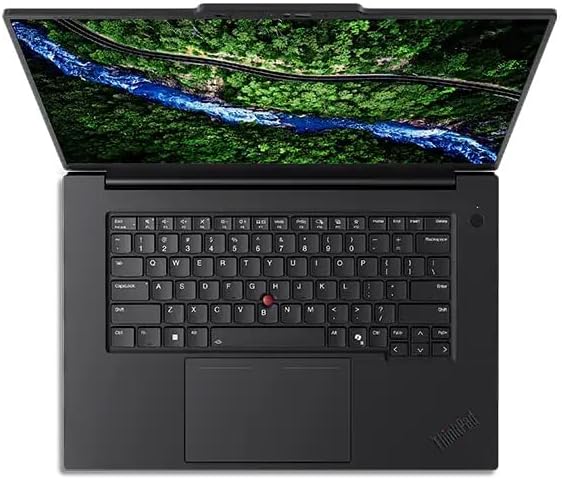
If I could only recommend one machine in this entire article, it’s this one. The P1 Gen 8 landed in September 2025 and it’s the closest thing to a “no compromises” mobile workstation that you can still throw in a backpack without hating your life. It starts at 1.84 kg — the OLED unit weighs about 1.9 kg — which is genuinely remarkable for something with a discrete pro GPU inside.
Specifications
- CPU: Intel Arrow Lake-H — Core Ultra 5 235H, Ultra 7 255H, Ultra 7 265H (vPro), Ultra 9 285H (vPro). Up to 16 cores. The 255H runs 6 P-cores up to roughly 5.1 GHz alongside 8 E-cores and 2 low-power cores, with a 120 W burst and around 101 W sustained.
- GPU: NVIDIA RTX PRO 1000 (8 GB) or RTX PRO 2000 Blackwell. The PRO 2000 packs 3,328 CUDA cores and 8 GB of GDDR7 at roughly 75 W. Real-world graphics performance lands around RTX 4060 territory, which is plenty for viewport work.
- RAM: LPDDR5X-7467 on a single LPCAMM2 module — user-upgradeable, not soldered. Maximum 64 GB. No ECC.
- Storage: Two M.2 2280 slots, up to 8 TB, RAID 0/1 supported. The review unit’s Samsung PM9E1 hit around 5,316 MB/s read and 4,728 MB/s write.
- Display options: 16″ WUXGA IPS matte at 500 nits and 100% sRGB; 16″ 3.2K (3200×2000) Tandem OLED touch at 120 Hz with VRR, roughly 600 nits SDR and 1,500 nits peak HDR; or 16″ WQUXGA (3840×2400) IPS at 800 nits. Measured OLED numbers came in around 566 nits SDR, 98.8% DCI-P3, 97.5% AdobeRGB.
- Ports: 2× Thunderbolt 5, 1× Thunderbolt 4, USB-A 10 Gbps, HDMI 2.1, SD Express 7.0 reader, 3.5 mm combo jack, Kensington Nano lock.
- Wireless: Wi-Fi 7 (Intel BE201), Bluetooth 5.4.
- Battery: 90 Wh with a 140 W USB-C GaN charger. 80% in about an hour.
- Weight: From 1.84 kg (4.05 lb).
How It Actually Performs
Numbers first, then the honest version.
| Benchmark | Result (Core Ultra 7 255H / RTX PRO 2000) |
|---|---|
| Cinebench R23 multi-core | ~22,191 |
| Cinebench R23 single-core | ~1,999 |
| Geekbench 6 single-core | ~2,719 |
| Geekbench 6 multi-core | ~16,899 |
| SPECviewperf 15 — solidworks-08 | 73.04 |
| SPECviewperf 15 — catia-07 | 56.04 |
| Battery (light workload) | 12 hr 59 min |
| Sustained load throttle | ~13% drop |
Those SPECviewperf scores are the ones to care about if you live in CAD. They’re strong. The Siemens NX result in particular is excellent.
The honest version: 13 hours of battery is a light-workload figure. Push it with real work and you’re looking at closer to six, and the OLED panel eats more than the IPS options do. Also, there’s a quirk worth knowing — under sustained heavy load, charging basically stalls, because the 140 W adapter is running at its limit just feeding the system. Lenovo dropped the charger from 170 W on the previous generation, and you can feel it.
Pros
- Excellent balance of workstation power and genuine portability at 1.84 kg
- The 3.2K Tandem OLED is one of the best panels on any work laptop, period
- LPCAMM2 memory means you can upgrade RAM later — increasingly rare
- Thunderbolt 5 for fast external storage and multi-monitor docking
- ISV certified with strong Linux support
- Two SSD slots with RAID support
- Scored 92% at Notebookcheck and 8.5/10 at XDA
Cons
- One RAM slot, 64 GB ceiling, no ECC. For a machine called a workstation, that stings.
- One-year base warranty, down from three. Budget for the upgrade.
- Charging can’t keep up under full sustained load
- The SD card reader is slow — around 85 MB/s despite the “Express” branding
- Some units show visible graininess on white backgrounds with the OLED
- List pricing is genuinely absurd
The Price Situation
Lenovo lists the base around $2,189. The reviewed configuration — OLED plus RTX PRO 2000 — runs $3,525 on Lenovo’s site, and once you push to 64 GB and 4 TB you’re past $4,305. Max it out with the 285H and you’re over $6,700.
Do not pay that. The same P1 with an RTX dGPU and 4K panel has been seen around $1,739 during sales. That’s a roughly 60% drop from list. Patience here is worth well over a thousand dollars.
Buy It If
You do mechanical CAD, civil/BIM work, or a mix of design and light simulation, and you actually carry your laptop places. Configure it with the Ultra 7 255H or 265H, RTX PRO 2000, 64 GB, and the Tandem OLED. Add the three-year warranty. Then wait for a sale.
2. ThinkPad P16 Gen 3 — When the Job Is Genuinely Heavy
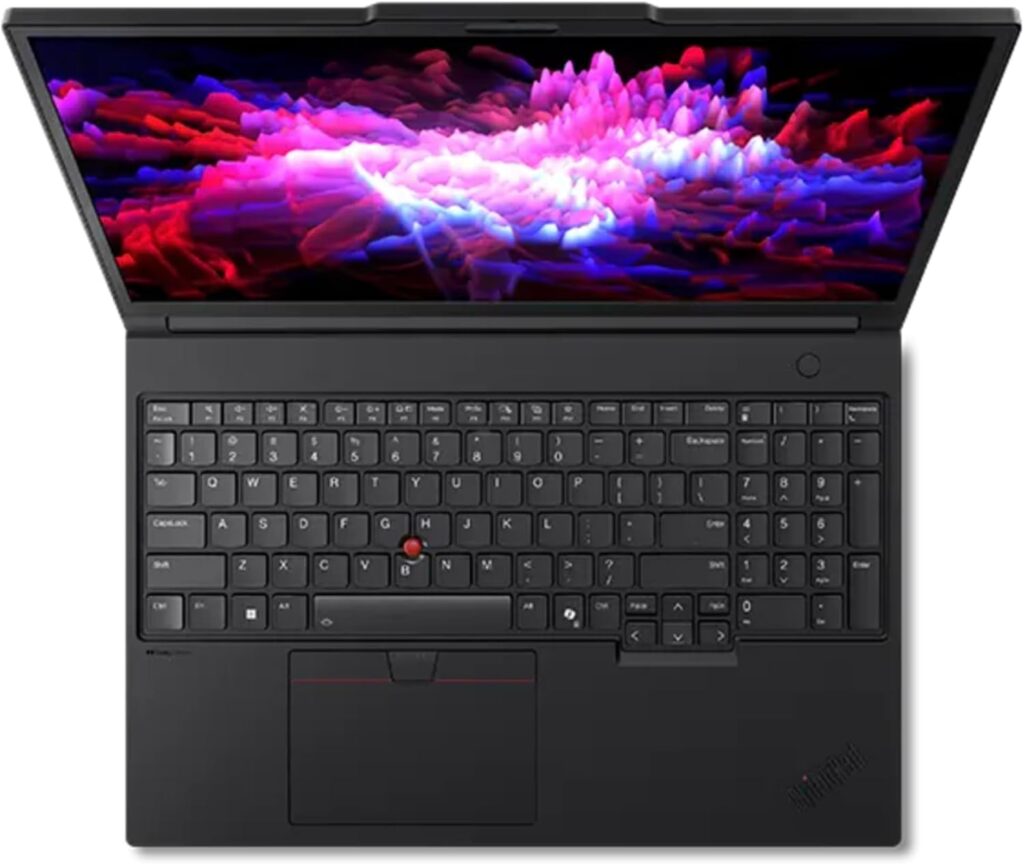
Some work doesn’t care about your back. If you’re running overnight CFD, rendering photoreal assemblies, or fine-tuning models locally, you need a desktop that happens to fold. That’s the P16 Gen 3, reviewed in March 2026, weighing in around 2.7 kg.
Specifications
- CPU: Intel Core Ultra 200HX (Arrow Lake-HX), up to Ultra 9 285HX. The reviewed 275HX brings 24 cores — 8 performance cores up to 5.4 GHz plus 16 efficiency cores up to 4.6 GHz — with 36 MB of L3 cache.
- GPU: NVIDIA RTX PRO Blackwell, ranging from 1000 up to RTX PRO 5000 with 24 GB of GDDR7 and 10,496 CUDA cores.
- RAM: Up to 192 GB DDR5-5600 across four SO-DIMM slots, with ECC support on select HX chips. This is the headline feature.
- Storage: Three M.2 2280 slots — one PCIe 5.0 x4 and two PCIe 4.0 x4 — up to 12 TB total.
- Display: Up to 16″ 3200×2000 Tandem OLED touch at 120 Hz with VRR, 600 nits, 100% DCI-P3. Also WUXGA IPS at 400/500 nits and WQUXGA 3840×2400 IPS at 800 nits with HDR 400. All X-Rite factory calibrated.
- Ports: 2× Thunderbolt 5, 1× Thunderbolt 4, 2× USB-A, HDMI 2.1 (8K capable), SD Express 8.0, 2.5 GbE Ethernet.
- Battery: 99.9 Wh, charged over 180 W USB-C PD 3.1 — finally replacing the old proprietary barrel connector.
The One Thing You Need to Know
Lenovo caps GPU power lower than its rivals. The RTX PRO 3000 is limited to 105 W and even the RTX PRO 5000 sits at 95 W. Dell’s Pro Max runs up to 175 W and HP’s ZBook Fury goes as high as 200 W with the same class of silicon.
In practice that gap works out to roughly 24% less GPU performance in SPECviewperf and 3DMark against those competitors. If your work is GPU-bound and lives on a desk, that’s a real argument for shopping elsewhere. If you value the keyboard, the four upgradeable SO-DIMM slots, and being able to actually move the thing, the P16 still makes sense.
Pros
- 192 GB RAM ceiling with ECC — nothing else in the ThinkPad line comes close
- 24-core HX silicon, roughly 43% faster than the previous P16 generation
- Three SSD slots including PCIe Gen 5
- Real Ethernet, real ports, real 8K HDMI output
- Standard USB-C charging at last
Cons
- Heavy, at roughly 5.6 lb before the charger
- GPU is power-limited compared to Dell and HP equivalents
- Loud under sustained load — this is not a quiet machine
- Performance drops around 26% when running on battery
- Configured prices climb fast
The Price Situation
Realistically $2,300 to $6,000+ depending on configuration. But a 255HX with RTX PRO 2000, 32 GB, and 1 TB was spotted at $1,689 during a sale — around 27% off. Again: watch the sales.
Buy It If
You run simulations, render, or train models locally. Get at least the RTX PRO 4000 with 16 GB; go to the PRO 5000 with 24 GB if you’re doing serious local AI work. Take 64 GB minimum, 192 GB with ECC for heavy FEA and CFD, and put a Gen 5 drive in the fast slot.
3. ThinkPad X1 Carbon Gen 14 — For Engineers Who Don’t Need a Pro GPU
Here’s a thing nobody says out loud enough: a huge number of engineers don’t need a workstation GPU at all. Software engineers. Most electrical engineers. Data engineers who train in the cloud. Controls engineers. If that’s you, buying a P-series is spending thousands of dollars on weight you’ll carry but never use.
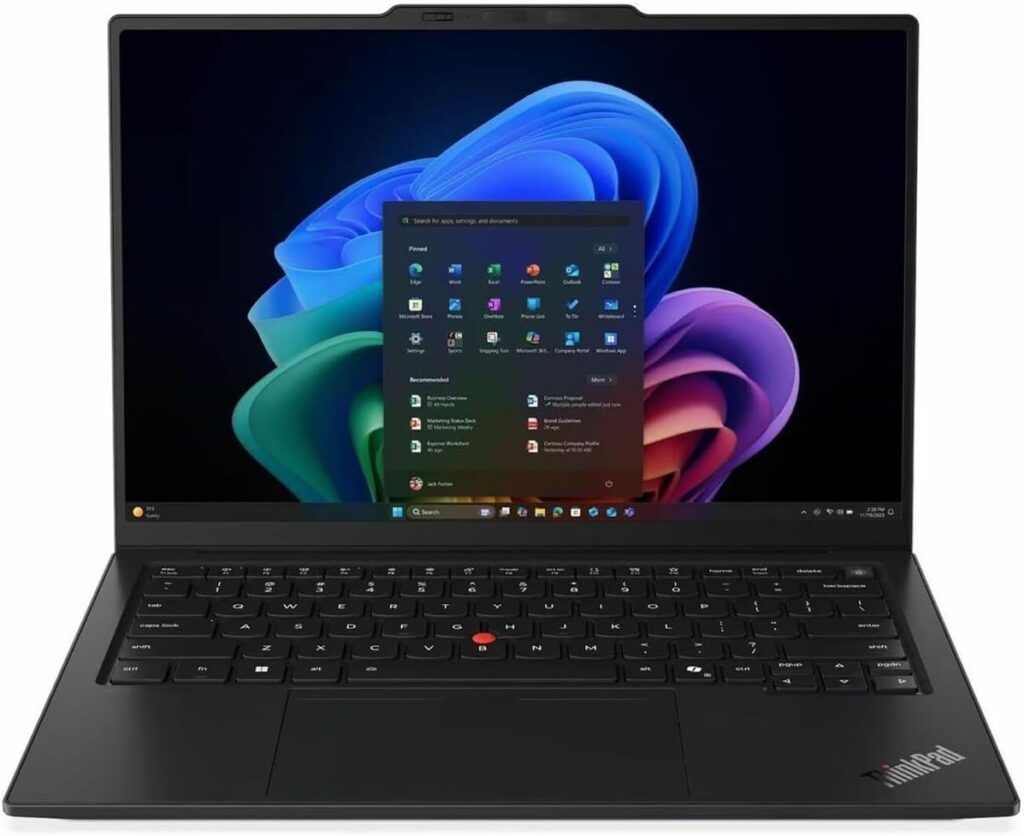
The X1 Carbon Gen 14, announced at CES 2026 and shipping in March (US availability in April), is what you want instead. It’s a full redesign built on Intel’s Panther Lake, and it weighs 2.15 lb — 977 grams.
Specifications
- CPU: Intel Core Ultra Series 3 — Ultra 5 335, Ultra 7 355, Ultra 7 365 (vPro), with higher-core 356H and 366H options. The Ultra 7 355 has 8 cores hitting 4.7 GHz, a 50-TOPS NPU, and up to 12 Xe Arc graphics cores. The redesigned chassis raises sustained TDP to around 30 W, up from roughly 22.5 W on Gen 13.
- RAM: Up to 64 GB LPDDR5X-9600, soldered. That’s double the previous generation’s 32 GB ceiling and the single most important upgrade here.
- Storage: One M.2 2280 slot, up to 2 TB.
- Display: 14″ 2.8K (2880×1800) OLED touch at 120 Hz with VRR, 500 nits, 100% DCI-P3 — or a WUXGA IPS option.
- Build: “Space Frame” magnesium construction with modular, user-replaceable USB-C ports and keyboard. Leaked repairability scoring put it at 9/10.
- Camera: 10 MP webcam.
- Ports: Dual Thunderbolt 4, an additional USB-C, USB-A, HDMI 2.1, 3.5 mm.
Battery Life Is the Whole Story
The Gen 13 managed 20 hours and 45 minutes in a standard video rundown test. Notebookcheck’s Gen 14 review is literally titled around “almost 24 hours of battery life.” That’s not a marketing number — that’s the reviewed result.
For anyone who codes on trains, sits in long design reviews, or works on client sites, this changes how you work. You stop planning around outlets.
| Benchmark | Gen 14 (Ultra 7) |
|---|---|
| Geekbench 6 single-core | ~2,621 |
| Geekbench 6 multi-core | ~11,211 |
Those are solid — a real generational jump over Lunar Lake — but not class-leading. This machine is about endurance and feel, not raw throughput.
Pros
- Around 24 hours of real battery life
- 977 grams, which you notice every single day
- 64 GB RAM ceiling finally makes it viable for heavy dev work and VMs
- Best-in-class repairability for an ultrabook, including swappable ports
- The best keyboard on this list
- Excellent Linux support
Cons
- Soldered RAM — configure it right the first time
- No discrete GPU, so CAD and simulation are off the table
- Single SSD slot, 2 TB max
- Multi-core performance trails the workstations by a wide margin
- Premium price for a non-workstation
The Price Situation
Starts around $1,884 with the Ultra 7 355 and 16 GB. Around $2,139 for the Ultra 5 335 vPro with 32 GB and 256 GB. The reviewed configuration was about $2,255.
Worth knowing: the Gen 13 is still excellent and is being discounted hard — often $1,500 to $1,900. If 32 GB is enough for you, that’s the value play of the year.
Buy It If
You write code, design circuits, wrangle data, or travel constantly. Take the Ultra 7 355, 64 GB, and the OLED. Rent GPU time in the cloud on the rare occasions you need it, and enjoy never carrying a brick.
4. ThinkPad P14s Gen 6 — Real CAD, Half the Bulk
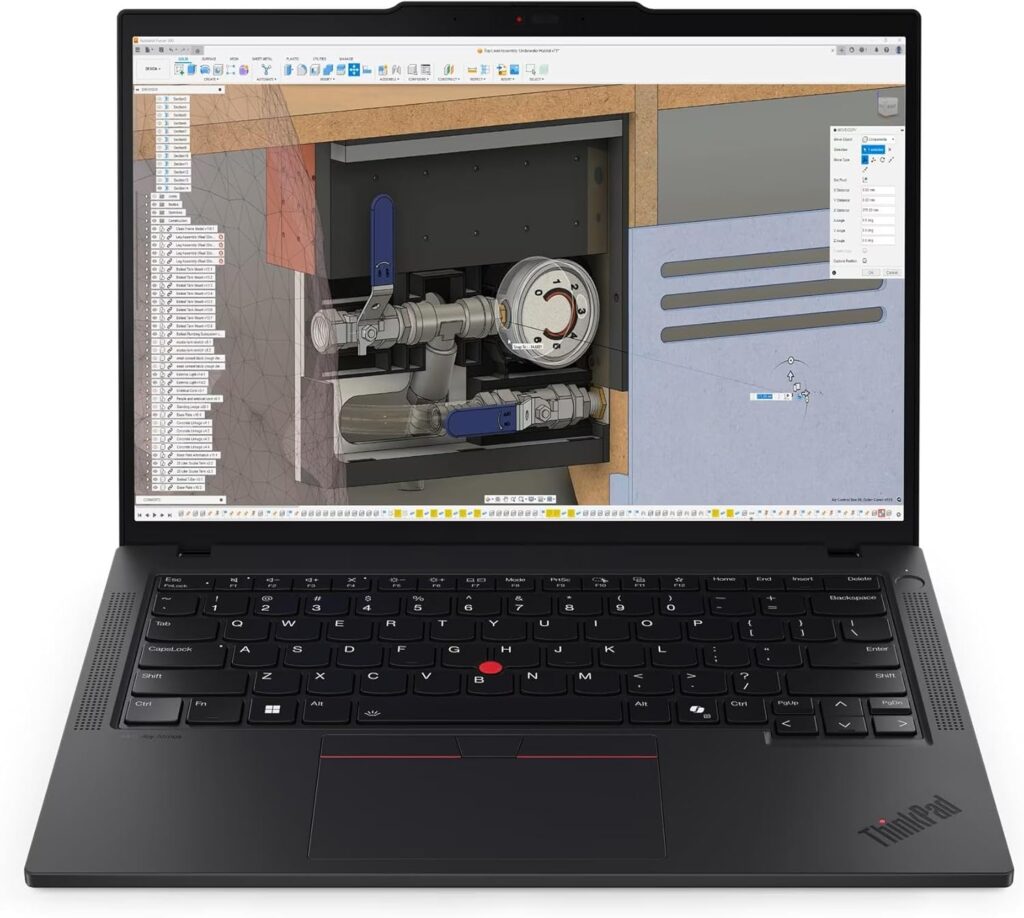
This is the compromise machine, and I mean that as a compliment. The P14s Gen 6 is a genuine mobile workstation in a 14.5-inch body, around 1.5 to 1.7 kg. It’s the machine for the field engineer, the consultant, the person who does CAD but also spends half their week in meetings and airports.
Specifications
- CPU: Intel Arrow Lake-H (Ultra 7 255H / 265H vPro) or AMD Ryzen AI variants. The Intel 265H brings 16 cores — 6 performance plus 8 efficiency — running up to 50 W in configurations without a discrete GPU.
- GPU: Intel Arc 140T integrated, or NVIDIA RTX PRO 500 (6 GB) / RTX PRO 1000 (8 GB) Blackwell.
- RAM: Up to 96 GB DDR5 via SO-DIMM on the Intel version — upgradeable. The AMD variant uses soldered memory.
- Storage: M.2 2280, PCIe 4.0 x4, Gen 5 drives compatible.
- Display: 14.5″ WUXGA IPS, 2.5K at 90 Hz, or 3K (3072×1920) at 120 Hz.
- Camera: 5 MP with IR.
- Battery: 57 Wh or 75 Wh, Rapid Charge to 80% in an hour, 100 W USB-C adapter.
- Ports: 2× Thunderbolt 4, USB-A, HDMI. Wi-Fi 7.
Pros
- ISV certified — Altair, Ansys, Barco and others — in a genuinely portable body
- 96 GB RAM ceiling on the Intel model, which beats the far more expensive P1
- SO-DIMM slots mean cheap third-party upgrades
- Excellent 3K 120 Hz panel option
- Considerably lighter than a 16-inch workstation
Cons
- RTX PRO 500 is entry-level graphics — don’t expect miracles with large assemblies
- Smaller battery than the flagships
- Single SSD slot
- The AMD version is the weaker buy despite tempting pricing
The Price Situation
Roughly $2,300 to $3,100 configured, with base models dipping to around $1,800 on sale.
Buy It If
You do real CAD but the 16-inch machines are too much laptop for your life. Get the Intel version, not the AMD one — reviewers consistently favor it for efficiency and for how it pairs with the discrete GPU. Take the RTX PRO 1000 over the 500 if your budget allows, and buy RAM cheaply from a third party afterward.
5. ThinkPad E14 Gen 7 — The Honest Student Pick
Let’s be realistic about engineering school. You’re running AutoCAD in 2D, some MATLAB, a lot of Python, Excel, and whatever your department’s licensing office coughs up. You do not need a $3,000 workstation, and anyone who tells a first-year student otherwise is selling something.
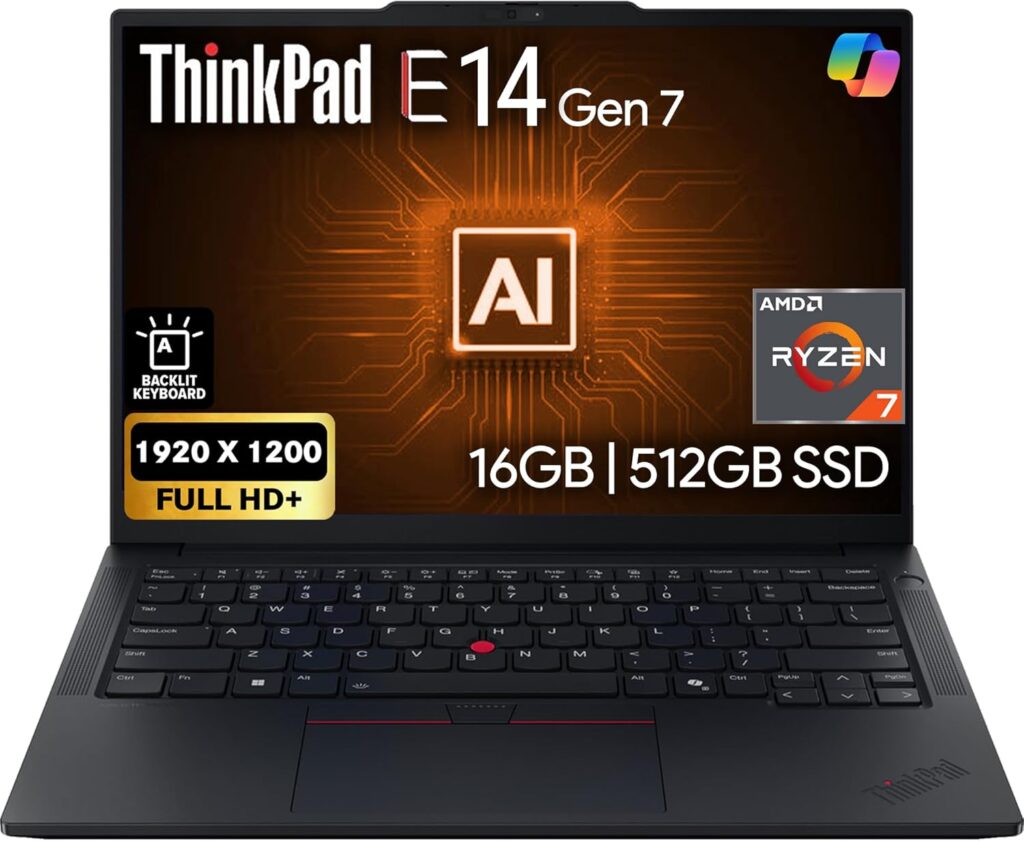
The E14 Gen 7 launched in March 2025 at around 1.41 kg with an aluminum top cover, and it’s the sensible answer.
Specifications
- CPU: Intel Arrow Lake-H (Core Ultra 5 / Ultra 7) or AMD Hawk Point Ryzen. The Intel option is the stronger and more efficient choice.
- Graphics: Integrated only — Intel Arc or AMD Radeon.
- RAM: Up to 32–64 GB DDR5 via SO-DIMM, fully upgradeable.
- Storage: Two M.2 slots — genuinely unusual at this price.
- Display: 14″ WUXGA IPS. The base panel is the weak point at around 45% NTSC and 300 nits. A 2.8K 120 Hz option exists in the line.
- Ports: USB-C with Thunderbolt on Intel models, USB-A, HDMI. 65 W USB-C charging.
Pros
- Around $890 to $1,200 for a machine that will last four years
- Upgradeable RAM and two SSD slots — buy cheap, expand later
- Real ThinkPad build quality and keyboard feel at entry pricing
- Handles coding, MATLAB, 2D CAD and light 3D without complaint
Cons
- Ships with Windows Home, not Pro — plan on the upgrade
- Base display is mediocre and you’ll stare at it for years
- Courier or carry-in warranty rather than on-site
- No ISV certification and no discrete GPU
- Keyboard is a step below the premium ThinkPads
Buy It If
You’re a student, an intern, or anyone whose engineering work is more math and code than geometry. Take the Intel version, 32 GB, and pay for the Windows Pro upgrade. If your program is CAD-heavy from year one, stretch to the P14s instead.
Side by Side: All Five
| P1 Gen 8 | P16 Gen 3 | X1 Carbon Gen 14 | P14s Gen 6 | E14 Gen 7 | |
|---|---|---|---|---|---|
| Screen | 16″ up to 3.2K OLED | 16″ up to 3.2K OLED | 14″ 2.8K OLED | 14.5″ up to 3K | 14″ WUXGA |
| CPU class | Arrow Lake-H | Arrow Lake-HX | Panther Lake | Arrow Lake-H | Arrow Lake-H |
| Max cores | 16 | 24 | 8 (up to H-series) | 16 | 16 |
| GPU | RTX PRO 2000 | RTX PRO 5000 | Integrated Arc | RTX PRO 1000 | Integrated |
| Max RAM | 64 GB LPCAMM2 | 192 GB (ECC) | 64 GB soldered | 96 GB SO-DIMM | 64 GB SO-DIMM |
| SSD slots | 2 | 3 | 1 | 1 | 2 |
| Weight | 1.84 kg | ~2.7 kg | 0.98 kg | ~1.6 kg | 1.41 kg |
| Battery | 90 Wh | 99.9 Wh | ~24 hr rated | 57/75 Wh | 65 W class |
| ISV certified | Yes | Yes | No | Yes | No |
| Best for | All-round engineering | Simulation & AI | Code & circuits | Portable CAD | Students |
Should You Even Buy a ThinkPad? An Honest Comparison
I like ThinkPads. I’m still going to tell you when something else is better.
Dell Pro Max 16/18 (the renamed Precision line) runs the same 285HX and RTX PRO 5000 silicon but pushes the GPU to 175 W, supports CAMM2 memory up to 256 GB, charges at 300 W over USB-C, and includes a three-year warranty as standard in the US. If you want maximum performance and the machine lives on a desk, Dell wins on paper. The P16 answers with the better keyboard and four user-replaceable SO-DIMM slots.
HP ZBook Fury G1i is the outright performance king — 200 W of GPU power, triple-fan cooling, four M.2 slots and four SO-DIMM slots. On identical silicon it lands just behind the Dell but runs cooler. It is also, unambiguously, a desk machine.
MacBook Pro M5 Max is the efficiency champion. The 18-core M5 Max scored 29,233 multi-core, beating the Mac Studio’s M3 Ultra at 27,726, with 4,268 single-core — the fastest Apple silicon yet — plus up to 128 GB unified memory and battery life nothing x86 matches. But it cannot natively run SolidWorks, Revit, Inventor, or Siemens NX. For mechanical and civil engineers that’s the end of the conversation. For software, data, and some visualization work, it’s superb.
Framework wins repairability outright but has no ISV certification and no workstation GPUs. It’s a wonderful machine for a software engineer and a risky one for a CAD professional.
Where ThinkPad actually wins: the balance. Best keyboard, strong Linux certification, real serviceability, ISV coverage across the P-series, and — critically — Lenovo’s discounting habit, which regularly makes a configured ThinkPad the cheapest way to get certified hardware.
How to Not Overpay (This Section Is Worth Money)
Never pay list price. I want to be blunt. Lenovo’s list prices exist to make the discounts look dramatic. P-series and X1 machines routinely see 40–60% off.
When the deals land:
| Window | What to expect |
|---|---|
| Memorial Day (late May) | Deep workstation discounts |
| Back to school (July–Aug) | Best E-series and T-series pricing |
| Black Friday / Cyber Monday | The biggest P-series drops of the year |
| Holiday season (December) | Strong, plus year-end clearance |
Doorbuster deals run year-round but generally don’t stack with coupon codes. Workstation-specific coupons — the ones aimed at P-series and ThinkStation buyers — periodically knock around 20% off, and cart-threshold codes can make a warranty upgrade nearly free.
Students and teachers: Lenovo’s education store adds another 5–10% after ID.me verification, valid for a year.
Configure vs. upgrade later. Here’s the rule. Anything soldered or single-slot — CPU, GPU, display panel, and memory on the X1 Carbon or P1 — must be right at purchase. Anything with a spare slot, especially SSDs, should be bought minimally from Lenovo and expanded with your own parts. Lenovo’s storage upsells are among the worst value in the industry. Buy the 512 GB, add a 2 TB drive yourself, keep the difference.
Warranty. The P1’s base warranty dropped to one year. On a machine you use eight hours a day for four years, the three-year Premier Support upgrade is not optional in my view. It’s the single best money you’ll spend on the configuration page.
Refurbished and off-lease. Lenovo’s outlet and clearance sections hide serious value in P-series machines. Just verify the exact GPU and panel SKU before you commit — listings are frequently vague about which display you’re getting.
Three Mistakes I See Constantly
Buying core count for CAD work. Covered above, but it bears repeating because it’s the most expensive mistake on this list. Check whether your primary application is single- or multi-threaded before you spend $1,500 on cores.
Skipping RAM to afford a better GPU. Backwards. A GPU bottleneck slows your viewport. A RAM bottleneck freezes your machine. 64 GB with a mid-tier GPU beats 16 GB with a top-tier one for almost every engineering workload.
Assuming a consumer GeForce card is the same thing. It isn’t, and the difference isn’t the silicon — it’s the driver. Certified pro drivers are what your CAD vendor tested against. Under warranty, under an audit, or under deadline pressure, that distinction becomes very real very quickly.
Frequently Asked Questions
Is the P1 Gen 8 or the P16 Gen 3 better for SolidWorks? For modeling, the P1 — SolidWorks leans heavily on single-thread performance and the P1’s Arrow Lake-H chips boost well. For large assemblies over roughly 5,000 components, or if you run Simulation, the P16’s RAM ceiling and bigger GPU pull ahead.
Do I need ECC memory? Only if you run long simulations where a silent bit-flip would corrupt days of computation, or if your industry requires it. For CAD modeling, drafting, and general development, it’s not worth restricting yourself to the P16 to get it.
Can I run Linux on these? Yes, and this is one of the better reasons to choose ThinkPad. Lenovo publishes Ubuntu and Red Hat certifications per model — check the exact machine on their support site, since certification is model and SKU specific.
Is 32 GB of RAM enough in 2026? For coding, MATLAB, 2D CAD and small 3D models, yes. For large assemblies, BIM models, simulation, VMs, or local AI work, no. And on machines with soldered memory, you cannot fix this later.
Should I wait for the next generation? A Panther Lake P-series refresh is likely later in 2026. If your current machine works, waiting is reasonable. If it doesn’t, the discounts on current stock will probably beat launch pricing on the next generation anyway.
Are ThinkPads still well built? Broadly yes, with the caveat that the premium models have gotten thinner and the base warranties have gotten shorter. The E-series is decent but not comparable to the P and X lines.
Two Things to Check Before You Buy
Prices are unusually unstable right now. Lenovo, Dell, HP, Acer and Asus have all warned clients about tougher conditions, confirming 15–20% price hikes and contract resets as an industry-wide response to component shortages. IDC forecasts PC average selling prices rising 18.3% across 2026. Treat every number in this article as directional and verify at checkout.
There are unresolved spec conflicts on the P1 Gen 8. Lenovo’s own PSREF documentation lists the M.2 slots as PCIe 4.0 x4 while reviews and marketing materials describe Gen 5. Separately, the Tandem OLED coating is described as both matte and glossy across sources — likely SKU dependent. If either matters to you, confirm the exact part number before ordering.
Benchmark figures cited here are configuration-specific. The P1 numbers come from a Core Ultra 7 255H unit; a 285H runs roughly 5–10% higher on CPU tasks. GPU results reflect Lenovo’s conservative power limits, which sit below Dell and HP equivalents.
So Which One?
If you want the honest, no-hedging version:
Most engineers should buy the P1 Gen 8 — Ultra 7 265H, RTX PRO 2000, 64 GB, Tandem OLED, three-year warranty — during a sale, targeting $2,000 to $2,500. It does 90% of engineering work brilliantly and it doesn’t punish you for carrying it.
Buy the P16 Gen 3 if simulation, rendering, or local model training is your actual daily job and you need 192 GB or 24 GB of VRAM.
Buy the X1 Carbon Gen 14 if you write code or design circuits and have been talked into thinking you need a workstation. You don’t. Take the battery life instead.
Buy the P14s Gen 6 if you need certified CAD hardware but the 16-inch machines don’t fit your life.
Buy the E14 Gen 7 if you’re a student. Put the savings toward a decent external monitor, which will improve your daily work more than any spec bump on this page.
And whatever you choose — wait for the sale. Every single one of these machines will be significantly cheaper within eight weeks of you reading this. That’s not cynicism about Lenovo. That’s just how they price things, and there’s no reason not to use it.

Hi, my name is Burak. I am a mechanical engineer. I have been writing laptop reviews for the Engineering Laptops website since 2020. Please feel free to contact me if you have any questions.