Table of contents
- The short version
- Why two review sites can test the same laptop and land nine hours apart
- The five at a glance
- The Best Laptop for Travel and Work in 2026: 5 Picks, and the Battery Math Nobody Shows You
- Four things the testing taught me that changed how I shop
- Heat and noise, measured
- Do the port math before you buy
- Should you buy an Arm laptop in 2026?
- How to choose, in four questions
- Frequently asked questions
- My verdict
- Where these numbers come from
I’ve written most of what I’ve published this year from places that were never designed for laptops. Gate B12 with one working outlet. A hotel desk mounted three inches too low. A café table where the sun hits your screen at 2 p.m. and stays there.
That experience taught me something the spec sheets never mention: the laptop you buy and the laptop you carry are two different objects. The one you carry is a laptop plus a charger plus a cable, running at whatever brightness the room forces on you, doing forty minutes of continuous work instead of a ten-second benchmark burst, sitting on your actual legs.
So that’s how I built this guide. Five laptops, one per brand, all currently shipping as of September 2026. I skipped the machines that get recommended out of habit and picked the ones the numbers actually support.
One more thing before we start, because I think you deserve it: I don’t have all five of these on my desk. What I do have is every published measurement from the labs that ran them through calibrated equipment — Notebookcheck’s CalMAN colorimeter readings, Tom’s Hardware’s thermal probes, Ultrabookreview’s power-draw logs — cross-checked against each other. Every number below is attributed and linked. Where two labs disagree, I show you both and explain the gap, because that disagreement usually teaches you more than either number on its own.
The short version
- Best for most people: Apple MacBook Air 13-inch (M5), $1,099
- Longest battery life, by hours: Lenovo ThinkPad X1 Carbon Gen 14 — the IPS model, not the OLED
- Lightest machine that still does real work: ASUS Zenbook A14 (2026), 0.98 kg
- Best screen and fastest storage: HP OmniBook Ultra 14 (2026)
- Best value, not close: Dell XPS 13 (2026), $899 for the 16 GB version
Why two review sites can test the same laptop and land nine hours apart
If you take one thing from this article, take this. Battery numbers are not comparable across websites, and treating them as though they are is how people end up disappointed.
Here’s what different labs measured on identical machines:
| Laptop | One lab’s result | Another lab’s result | What explains the gap |
|---|---|---|---|
| MacBook Air 13″ M5 | 15 h 28 m — Tom’s Hardware, web browsing + video + light OpenGL at 150 nits | 18 h 24 m — Macworld, looping a downloaded movie at 150 nits | Local video decode is nearly free on Apple silicon. Live browsing keeps the radio and CPU working |
| ThinkPad X1 Carbon Gen 14 (IPS) | 23 h 13 m — Notebookcheck, Wi-Fi browsing at 150 nits | 14 h 14 m — same lab, same unit, screen at maximum brightness | Brightness alone cost roughly nine hours |
| ThinkPad X1 Carbon Gen 14 (OLED) | 13 h 30 m — Notebookcheck, Wi-Fi at 150 nits | ~7 h 30 m — same lab, maximum brightness | Same laptop, same battery, different panel |
| HP OmniBook Ultra 14 | 13 h 27 m — Tom’s Hardware, web + video + WebGL at 150 nits | ~22 h — Windows Central, their own controlled loop | The WebGL component in the Tom’s test is genuinely punishing |
| Dell XPS 13 (2026) | 14 h 26 m — Tom’s Guide, Wi-Fi browsing at 150 nits | 19 h 30 m — Reviewed, VLC video loop at 40% brightness | Offline video at reduced brightness is the friendliest test that exists |
| Zenbook A14 (2026) | ~20 h — Ultrabookreview, 1080p video, measured at 3.5 W draw | 13–14 h — Digital Trends, two weeks of heavy browser work at ~50% brightness | Synthetic loop versus somebody’s actual job |
Compare within a single lab’s chart. Never across. And assume your real number lands between the two, closer to the lower one if your day is browser tabs and video calls.
The five at a glance
| MacBook Air 13″ M5 | ThinkPad X1 Carbon G14 | Zenbook A14 (2026) | HP OmniBook Ultra 14 | Dell XPS 13 (2026) | |
|---|---|---|---|---|---|
| Starting price | $1,099 | $2,032 | $1,349 | $1,249 | $699 |
| As-tested price | $1,299 | $2,217 | $1,799 | $2,880 | $899 |
| Chip | Apple M5, 10 cores | Intel Core Ultra 7 355 (Panther Lake) | Snapdragon X2 Elite X2E-88-100, 18 cores | Snapdragon X2 Elite X2E-90-100, 18 cores | Intel Core 5 320 (Wildcat Lake), 6 cores |
| Weight | 2.7 lb / 1.23 kg | 2.15 lb OLED, 2.51 lb IPS touch | 2.17 lb / 0.98 kg | 2.81 lb / 1.27 kg | 2.2 lb / 1.0 kg |
| Battery | 53.8 Wh | 58 Wh | 70 Wh | 70 Wh | 52 Wh |
| Measured brightness | 458.8 nits | 524 nits avg IPS / 473 nits OLED | 407 nits | 414 nits | Just under 400 nits |
| Geekbench 6 single / multi | 4,168 / 17,067 | 2,635 / 11,107 | 3,660 / 20,192 | 3,942 / 20,075 | 2,078 / 7,213 |
| Ports | 2× Thunderbolt 4, MagSafe, headphone | 3× Thunderbolt 4, USB-A, HDMI 2.1, headphone, nano-SIM | 2× USB4-C, USB-A, HDMI 2.1, headphone | 3× USB4-C, headphone | 2× USB-C |
| Cooling | Fanless | Single fan | Dual fan | Dual fan, vapor chamber | Dual fan |
| Included charger | 40 W dynamic (60 W peak) | 65 W nano GaN | 100 W two-piece | 65 W GaN | 65 W folding-prong, detachable cable |
The Best Laptop for Travel and Work in 2026: 5 Picks, and the Battery Math Nobody Shows You
1. Apple MacBook Air 13-inch (M5)
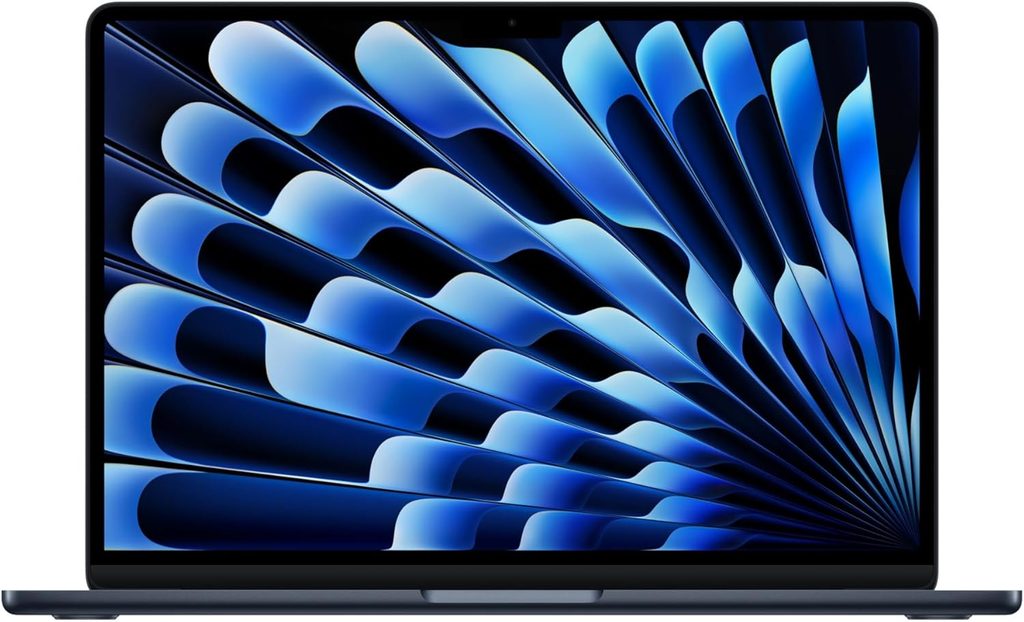
Best for: almost everyone
If you handed me a stranger who travels for work and told me to pick one machine without asking questions, this is what I’d hand back. It isn’t the longest-lasting. It isn’t the fastest. It isn’t the lightest. It’s the one with the fewest ways to let you down at 11 p.m. in a hotel room.
What you get
- Apple M5 with a 10-core CPU and 10-core GPU (the $1,099 base drops to an 8-core GPU)
- 16 GB unified memory and a 512 GB SSD as the new minimum, which quietly kills the old “never buy the base model” advice
- 13.6-inch Liquid Retina IPS at 2560 × 1664 with True Tone
- 2.7 lb (1.23 kg), 11.97 × 8.46 × 0.44 inches
- 53.8 Wh battery, 40 W dynamic power adapter that peaks at 60 W
- MagSafe 3, two Thunderbolt 4 ports, headphone jack
- Apple N1 wireless: Wi-Fi 7, Bluetooth 6, Thread
- 12 MP Center Stage webcam
- macOS Tahoe, one-year warranty
The numbers
Tom’s Hardware recorded 4,168 single-core and 17,067 multi-core in Geekbench 6. Gizmodo’s separate unit landed at 4,172 and 17,157, so that’s two labs agreeing closely. The generational jump is real: aggregated user submissions have settled around 17,276 multi-core against roughly 14,731 for M4.
Storage is the upgrade nobody talks about and everybody feels. Tom’s Hardware moved 25 GB of files at 1,924.84 MB/s. Macworld reported that Apple roughly doubled SSD throughput in a single generation after years of it sitting still. If you empty camera cards or shuffle project folders on the road, that’s a daily difference.
Now the honest part, and it matters for exactly the workload travelers care about. On a Cinebench 2026 stress run, the Air opened at 3,415 points and settled into the low 2,300s — about a 32% drop once the chassis heat-soaked. That’s the price of no fan. Perfect for a two-minute export, less so for a two-hour one. Handbrake took 4 minutes 41 seconds to transcode a 4K clip to 1080p; the air-cooled M5 MacBook Pro did the same job in 3:31.
Heat stays civilized. Tom’s Hardware measured 105.1 °F (41 °C) at the keyboard center, 96 °F (36 °C) on the touchpad, and 107.9 °F (42 °C) at the hottest point underneath, with the chip itself at 63.2 °C. Warm, never alarming, and completely silent throughout.
The display measured 458.8 nits with 83.1% DCI-P3 and 117.3% sRGB — the second-brightest panel in this guide, and bright enough for most window seats.
What I like
- It makes no noise. Ever. In a shared office or a quiet carriage, that’s worth more than a benchmark point
- 16 GB and 512 GB as the floor removes the biggest old objection
- The trackpad is still the best in the business, and it isn’t a close race
- The 12 MP webcam is the most underrated travel feature on this entire list. You will be on camera more than you expect
- MagSafe means a yanked cable takes the cable and leaves the laptop on the desk
What I don’t
- Sustained multi-core throughput falls around 32% under long loads. It throttles because physics says it must
- Two data ports. Budget for a hub and remember to pack it
- RAM and storage are soldered. Buy what you’ll want in three years, today
- The notch is still there and still slightly odd
- The $999 entry price is gone
Buy it if
You live in a browser, a document, and a video call. Skip it if your work depends on Windows-only software, or if you run long renders on battery.
2. Lenovo ThinkPad X1 Carbon Gen 14
Best for: people whose calendar is mostly airports
This is what I’d buy if my job involved flights longer than six hours. There’s a trap in the configurator, though, and it’s the single most expensive mistake available on this list.
What you get
- Intel Panther Lake, from Core Ultra 5 325 up through Core Ultra 7 365, with Core Ultra X7 options
- 32 GB LPDDR5x on most SKUs, up to 64 GB; M.2 2280 SSD you can replace yourself
- 14-inch 16:10 display: 1920 × 1200 IPS at 60 Hz, or 2880 × 1800 OLED at 120 Hz, both available with touch
- 989 g (2.15 lb) for the OLED model with a magnesium base, or 1.14 kg (2.51 lb) for the IPS touch model with an aluminum base
- 58 Wh battery, 65 W nano GaN adapter that weighs 275 g
- Three Thunderbolt 4 ports, USB-A, HDMI 2.1, headphone, nano-SIM slot
- Optional 4G or 5G WWAN, Wi-Fi 7, IR webcam with a physical privacy shutter, TrackPoint
- Three-year warranty on many configurations
The numbers
The battery result is genuinely remarkable. Notebookcheck measured 23 hours 13 minutes of Wi-Fi browsing at 150 nits on the low-power IPS model, out of a battery that’s only 58 Wh. At full brightness it still ran 14 hours 14 minutes, beating every rival in their comparison group at any brightness setting.
Then the trap. The same lab tested the OLED version of the same laptop: 13 hours 30 minutes at 150 nits, and roughly 7 hours 30 minutes at maximum. That’s a 42% cut for choosing a prettier screen. I’ll come back to this properly further down.
The IPS panel isn’t a consolation prize, either. Notebookcheck’s CalMAN readings: 524 nits average brightness, 546 nits peak, 1800:1 contrast, 99.1% sRGB, 72% Adobe RGB, and no PWM flicker at all. That’s the brightest screen in this guide. The catch is factory calibration, measured at ΔE 5.0 on the ColorChecker and 8.3 on greyscale, which is poor. Calibrating drops that to ΔE 1.1 but costs nearly 100 nits. Lenovo pushes the panel hard out of the box to win the brightness number.
Performance is mid-pack and honest about it. The Core Ultra 5 325 posted 645 points in Cinebench 2024 multi-core, 113.3 single-core, 10,980 in Cinebench R23 multi, and Geekbench 6 scores of 11,038 / 2,620. Tom’s Hardware’s Core Ultra 7 355 unit hit 11,107 / 2,635 and, more importantly, held between 2,500 and 2,600 points across all ten Cinebench 2026 loops. That’s the most stable sustained result here. It gives up peak speed to Apple and Qualcomm, then simply refuses to fall over.
The details that don’t make spec sheets:
- Noise: 24.8 dB(A) at idle, 38.9 dB(A) at full load in Best Performance, 36 dB(A) in Balanced, and 29 dB(A) in Best Efficiency — effectively inaudible
- Surface temperature: peaks at 40.7 °C (105 °F) on top and 42.8 °C (109 °F) underneath, with the palm rests staying below skin temperature at 28.7 °C (84 °F)
- Wi-Fi 7: 4,557 Mbit/s transmit and 3,244 Mbit/s receive on iperf3, the strongest wireless result I found in this class
- Storage: the 512 GB Samsung PM9C1b hit 6,900 MB/s sequential read and 5,762 MB/s write in CrystalDiskMark, with no throttling across a sustained read loop
- Speakers: measured at 84.7 dB with linear response across mids and highs, which is absurd for a business laptop
What I like
- The best real-world battery life here by hours, not minutes
- The brightest screen here, and it’s matte
- The only pick with an optional built-in 5G modem, which changes how you work in transit more than any benchmark
- Three Thunderbolt 4 ports split across both sides, so you charge from whichever side the outlet is on
- SSD, battery, keyboard and I/O board are all user-replaceable; Lenovo cites a 9/10 iFixit score
- Keyboard is still the best on any Windows laptop, full stop
What I don’t
- Around $2,000 before you add a thing
- The OLED option roughly halves the battery life. This is the whole ballgame
- Out-of-box color accuracy is poor and needs a profile
- Soldered RAM
- The camera bump on the lid is ugly, and Notebookcheck said so too
- Weight, thickness and chassis material all change depending on the display, so compare the exact SKU rather than the model name
Buy it if
You’re a consultant, auditor, sales engineer or journalist who lives out of a carry-on. Configure it with the 1920 × 1200 IPS panel unless you have a specific colour-critical reason not to.
3. ASUS Zenbook A14 (UX3407, 2026)
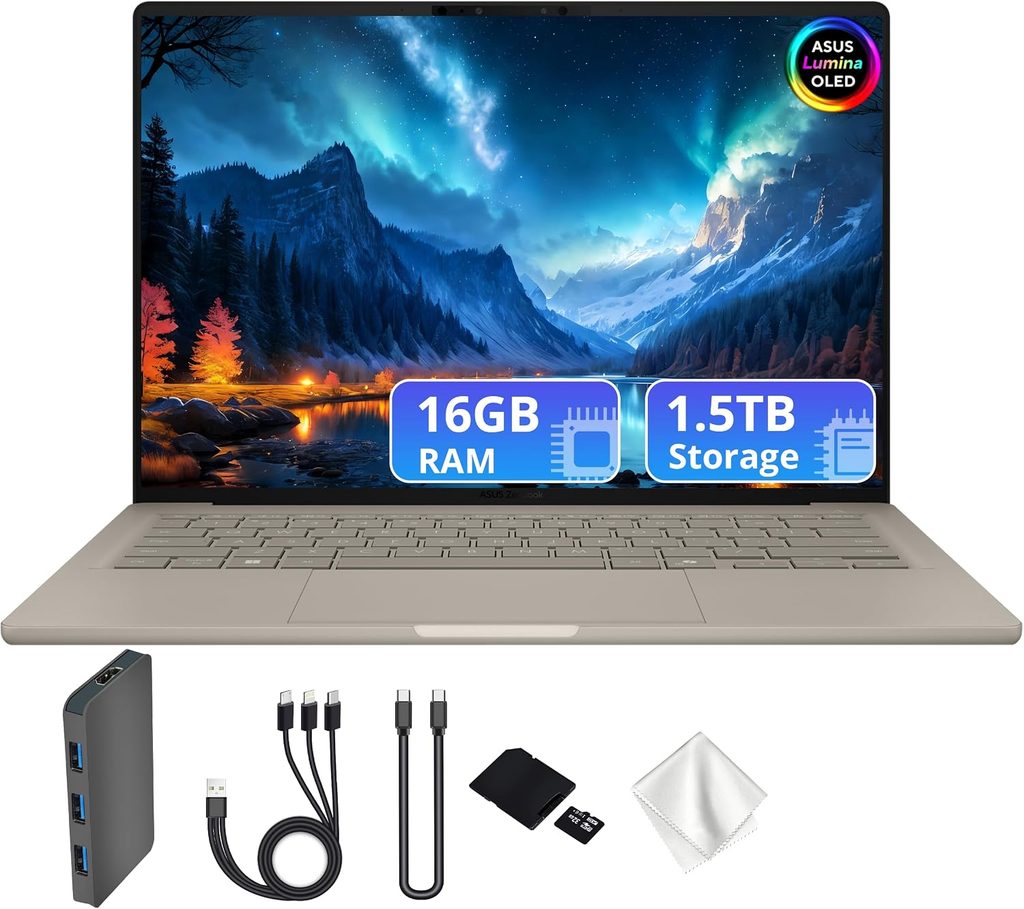
Best for: people who genuinely count grams
The 2025 Zenbook A14 was a lovely featherweight that ran out of breath. The 2026 refresh drops in Qualcomm’s Snapdragon X2 Elite and fixes the breathing without touching the weight.
What you get
- Snapdragon X2 Elite X2E-88-100, 18 cores, Adreno X2-90 GPU at 1.7 GHz, Hexagon NPU rated around 80 TOPS
- Up to 32 GB LPDDR5x-9523 at 152 GB/s, 1 TB PCIe 4.0 SSD in a replaceable M.2 2280 slot
- 14-inch OLED, 1920 × 1200, 60 Hz, 100% DCI-P3, VESA DisplayHDR True Black 600, non-touch
- 0.98 kg (2.17 lb), or 2.4 lb for the glass-covered Best Buy variant
- Ceraluminum chassis, an aluminum alloy with a ceramic coating
- 70 Wh battery, 100 W two-piece USB-C charger
- Two USB4-C, USB-A 3.2 Gen 2, HDMI 2.1, headphone jack
- 1080p IR camera with Windows Hello. No fingerprint reader
- $1,349 for 16 GB / 512 GB, $1,799 for 32 GB / 1 TB
The numbers
Ultrabookreview ran the most thorough test I found. In Performance mode: Geekbench 6 at 20,192 multi-core and 3,660 single-core, Cinebench 2026 ARM at 5,931 multi-thread over a ten-minute run and 642 single-thread, and a Blender BMW render in 1 minute 30 seconds. Memory bandwidth measured 123,185 MB/s read at 7.0 ns latency. In 3DMark: Time Spy 4,077, Fire Strike 9,632, Steel Nomad Light 4,820.
More useful than the peaks: the laptop held its clocks through a twenty-loop 3DMark stress test with no measurable degradation, flat on a desk or raised off it. Sustained work doesn’t collapse here.
But Performance mode isn’t the one you’ll use. It runs the fans at 42–45 dB(A), too loud for a shared table. Standard mode drops to 35 dB(A) and still returns 19,706 / 3,531 in Geekbench 6 and 5,014 in Cinebench 2026 multi-thread, roughly 80–85% of full speed. Whisper mode goes below 30 dB(A). CPU temperatures stayed around 65–70 °C in all three profiles, with the warmest external spot at 43–45 °C (109–113 °F) under load and the surfaces you actually touch in the mid-30s °C.
The display: Windows Central’s colorimeter recorded 407 nits full-screen maximum, with 100% sRGB, 100% DCI-P3 and 94% Adobe RGB. Trusted Reviews measured 379.4 nits SDR, a 29,500:1 contrast ratio and a 6600 K colour temperature straight out of the box, which is close to reference without touching anything.
Battery was logged by power draw rather than a single headline, which I find more honest: roughly 3.5 W streaming 1080p video (about 20 hours), 5 W in a browser-based text editor (about 14 hours), and 5–8 W browsing in Standard mode (9–14 hours). Idle draw stayed under 3 W. Digital Trends used one as a daily driver for two weeks and reported 13–14 hours of mixed work at around 50% brightness, which lines up neatly.
What I like
- Under one kilogram, and it still has HDMI and USB-A. That combination barely exists at this weight
- Ceraluminum resists scratches and hides fingerprints better than any aluminum laptop I’ve handled
- A 70 Wh battery inside a sub-1 kg body is an unusually generous ratio
- Sustained performance is genuinely flat, no throttling cliff
- The SSD is user-replaceable, which is rare at this weight
What I don’t
- 60 Hz at 1920 × 1200. On a laptop starting at $1,349 in 2026, that’s hard to defend, and every reviewer said so
- Glossy and reflective, which is bad news for outdoor work
- The included 100 W charger is a bulky two-piece unit that undermines the whole premise. The chip only sustains 25–30 W, so a compact 65 W GaN brick does the job and saves you the bulk
- Both USB-C ports sit on the left, so you charge from one side only
- No fingerprint reader
- Some lid flex; use the included sleeve
Buy it if
You do multi-city trips with carry-on only, or you walk a lot between meetings and feel every gram. Skip it if you edit photos on the road, if a 60 Hz panel would irritate you daily, or if your critical software is niche x86.
4. HP OmniBook Ultra 14 (2026)
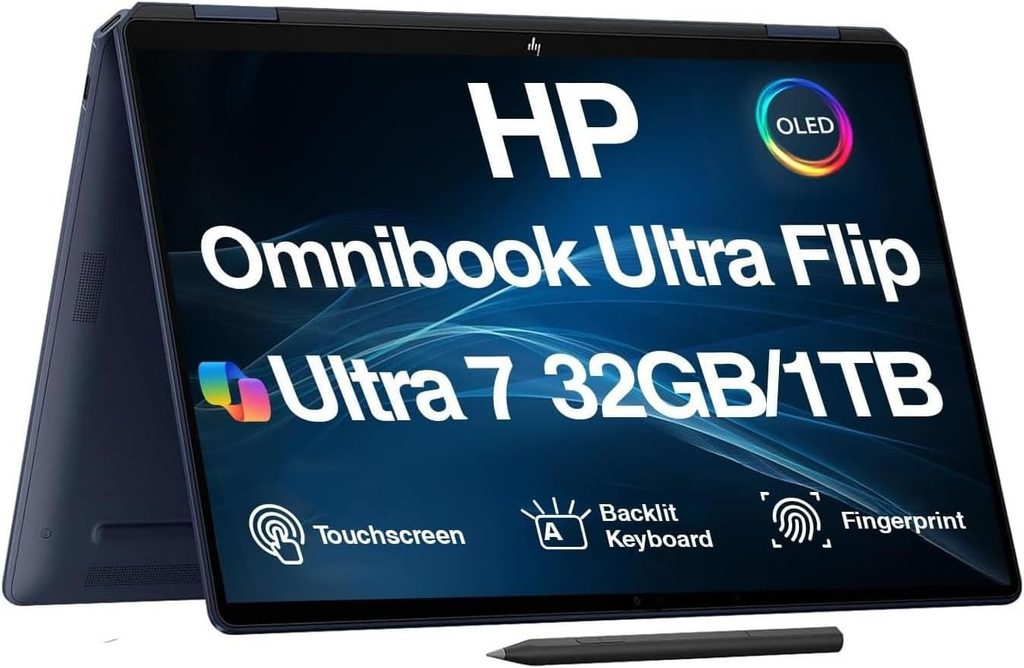
Best for: people who stare at the screen all day and want it to be beautiful
If the Zenbook is the minimalist, this is the maximalist. HP put a 3K 120 Hz OLED touchscreen and a PCIe 5.0 SSD in a 14-inch body and asked a fair question: how much do you actually care about the thing you look at for eight hours?
What you get
- Snapdragon X2 Elite X2E-90-100, 18 cores up to 5.0 GHz, Hexagon NPU up to 85 TOPS
- Up to 64 GB LPDDR5x-9523 and up to 2 TB PCIe Gen 5 NVMe
- 14-inch OLED, 2880 × 1800, 120 Hz, multi-touch, glossy glass
- 2.81 lb (1.27 kg), 0.42 inches thick, forged aluminum with polished edges
- 70 Wh battery, 65 W USB-C GaN charger
- Three USB4 Type-C ports at 40 Gbps with DisplayPort 1.4 and PD 3.1, plus a headphone jack. No Thunderbolt, no USB-A
- A 5.4 × 3.4-inch haptic trackpad, which is enormous
- Qualcomm FastConnect 7800 Wi-Fi 7 and Bluetooth 5.4. No cellular option
- $1,249 entry (X2 Plus, 16 GB, 512 GB, FHD+ OLED), $1,719 for X2 Elite with 32 GB and the 3K OLED, $2,880 fully loaded
The numbers
Tom’s Hardware put it near the top of nearly every productivity chart: 3,942 single-core and 20,075 multi-core in Geekbench 6, second only to the MacBook Air on single-core in their group. Windows Central’s separate unit landed at 3,687 / 20,448 and added 4,646 multi-core in Cinebench 2026 with 632 single-core, plus a CrossMark score of 1,993.
Two results really matter for travel work:
Storage. Tom’s Hardware moved 25 GB of files at 2,620.91 MB/s, the fastest in their comparison set and well ahead of the MacBook Air’s 1,924.84 MB/s. Windows Central’s CrystalDiskMark run recorded 10,407 MB/s read and 7,226 MB/s write. If you shuttle video or RAW files, that’s a real daily gain.
Transcoding. It converted a 4K file to 1080p in Handbrake in 2 minutes 11 seconds. The MacBook Air took 4:41 on the same job.
The screen measured 87% DCI-P3, 122% sRGB and 414 nits, topping Tom’s Hardware’s colour chart. Brightness-wise it sits behind the MacBook Air and well behind the ThinkPad’s IPS panel, which matters more than gamut coverage if you work near windows.
Sustained behaviour over ten Cinebench 2024 loops: 1,099 on the first run, settling between 920 and 950, roughly a 15% falloff. That’s better than the fanless Air’s 32%. The 12 Prime cores averaged 4.03 GHz. HP built a compact vapor chamber into the cooling system this generation, and both Windows Central and Thurrott described the machine as staying quiet and cool even under sustained load. Independent power logging by ExcelDisc put the Snapdragon version at roughly 27 W sustained, versus about 31 W for the Intel variant.
Thermals from Tom’s Hardware: 95 °F (35 °C) between the G and H keys, 118 °F (48 °C) at the hottest point on the bottom rear near the exhaust, and 77 °F (25 °C) on the touchpad, which was room temperature.
Battery came in at 13 hours 27 minutes in the Tom’s Hardware test — the shortest headline figure here, though that’s a 3K 120 Hz OLED panel doing the work. Windows Central’s own loop returned roughly 22 hours on the same machine.
What I like
- The best display here for colour work: 87% DCI-P3, 3K, 120 Hz, touch
- The fastest storage measured in this guide by a wide margin
- A huge haptic trackpad that clicks anywhere on its surface, with no dead zone near the top
- Four screws and you’re inside; the battery and SSD are both easy to reach
- Quad speakers that stayed clean above 80% volume
- It ships with a compact 65 W GaN charger rather than a brick
What I don’t
- No Thunderbolt and no USB-A. Three USB-C ports and a headphone jack is the entire selection
- The 5 MP webcam is merely adequate, which is hard to swallow on a laptop that can cost $2,880
- A lot of preinstalled HP utilities and third-party trial software to clean out
- No fingerprint reader this generation; face unlock only
- The top configuration is not defensible at its price. Stay near the $1,719 tier
- No cellular option at all
Buy it if
You’re a designer or editor, or you simply refuse to spend eight hours a day looking at a mediocre panel. Configure it at $1,719 and it makes real sense. Skip it if you rely on Thunderbolt docks or legacy USB-A gear.
5. Dell XPS 13 (2026)
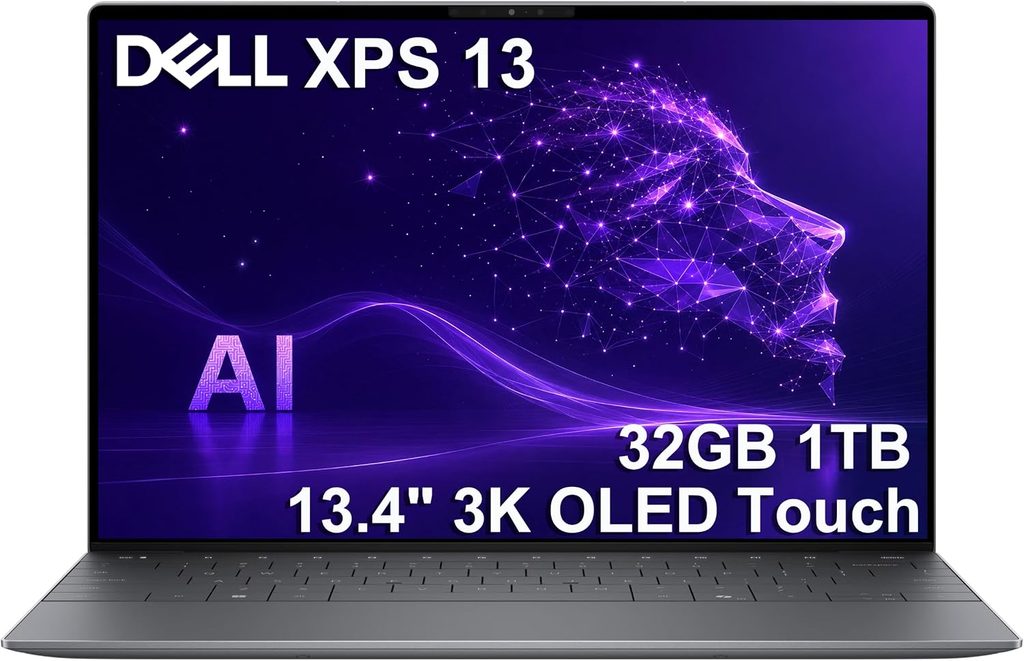
Best for: anyone who wants to spend under $900 and not feel it
Dell brought the XPS name back and pointed it squarely at the budget end. At $699 this is the surprise of the year, and for a big slice of travellers it’s genuinely enough laptop.
What you get
- Intel Series 3 Core 5 320 (Wildcat Lake): two P-cores to 4.6 GHz, four E-cores to 3.4 GHz, Intel Graphics with two Xe cores
- 8 GB or 16 GB single-channel LPDDR5-7467, 512 GB SSD
- 13.4-inch touchscreen at 2560 × 1600 with 30–120 Hz variable refresh
- 2.2 lb (1.0 kg), 0.5 inches thick, CNC aluminum
- 52 Wh battery, 65 W charger with folding prongs and a detachable cable
- Two USB-C ports at 10 Gbps with DisplayPort 2.1 and charging on both. No headphone jack
- 1080p IR webcam, correctly centred in the top bezel
- Quad speakers with 8 W of output
- $699 for 8 GB, $899 for 16 GB
The numbers
Let’s be blunt about performance: it’s the slowest machine here. Reviewed measured 2,078 single-core and 7,213 multi-core in Geekbench 6, with an OpenCL score of 12,215. In 3DMark Steel Nomad, the 16 GB model managed 369 points and the 8 GB model wouldn’t complete the test at all.
But the sustained behaviour is genuinely interesting. Across ten Cinebench 2026 loops, Tom’s Hardware saw the 16 GB unit open at 1,443, dip to 1,374, then climb to 1,701 and hold in the high 1,600s as the fans spun up. It gets faster under load rather than slower. Core temperatures averaged 87.5 °C with the P-cores occasionally touching 100 °C, so there is throttling, but the dual-fan cooling keeps it working.
Buy the 16 GB model. This isn’t a preference, it’s a measurement. Tom’s Hardware found the 8 GB unit scored lower on nearly every Cinebench loop despite an identical CPU, because Cinebench 2026 pages to virtual memory below roughly 8.5 GB of RAM. In everyday use with fifteen Chrome tabs open, the 8 GB machine’s animations stuttered and tab switching flashed white before repainting. That $200 is the highest-leverage upgrade on this entire list.
The display cleared 100% sRGB and roughly 75% DCI-P3, topping out just under 400 nits. Worth knowing: Dell multi-sources panels. The two review units had different panels, one from Sharp and one from LG, with visibly different black levels and viewing angles despite nearly identical measurements. Same with the SSD — one unit shipped an SK hynix PVC10, the other a Kioxia BG7, and the hynix drive was about 350 MB/s faster on the file transfer test.
Battery: both configurations cleared 14 hours in Tom’s Hardware’s test, with the 16 GB unit running about 30 minutes longer. Tom’s Guide measured 14 hours 26 minutes. Reviewed got 19.5 hours looping video at 40% brightness. Engadget recorded 15 hours 56 minutes in PCMark 10’s Modern Office run.
Thermals: keyboard top row at 104 °F (40 °C), deck at 88.5 °F (31 °C), touchpad at 87 °F (31 °C), underside at 108.5 °F (43 °C). The fans are audible as a soft whir, and Tom’s Hardware only really noticed them during the extended stress test.
One small thing I want to praise loudly: the included charger is a compact folding-prong unit with a removable cable, about the size of a phone charger. After a decade of laptop bricks, that’s the correct answer, and I’d like every manufacturer to copy it immediately.
What I like
- $699 buys an aluminum chassis, a 2560 × 1600 touchscreen and 14+ hours of battery
- 2.2 lb, which is lighter than the MacBook Air
- The best included charger of any laptop in this guide
- A surprisingly clean Windows install with barely any bloatware
- Quad speakers that reviewers described as genuinely good, not “good for the price”
- Both USB-C ports support charging and DisplayPort, so either side works
What I don’t
- Avoid the 8 GB model unless it’s strictly a secondary machine for email and documents
- Two Xe graphics cores means no meaningful gaming or GPU-accelerated editing
- No headphone jack, and only two ports total
- Single-channel soldered memory
- The panel and SSD are multi-sourced, so units vary
- The bottom panel is stubbornly difficult to open
Buy it if
You’re a student or an early-career freelancer, or you want a light, good-looking machine for writing, spreadsheets and calls that you won’t panic about losing. Spend the $899.
Four things the testing taught me that changed how I shop
1. The OLED tax is the most expensive checkbox on any configurator
I keep coming back to this because it’s the clearest actionable finding in the whole dataset. Same laptop. Same 58 Wh battery. Same chip family.
| ThinkPad X1 Carbon Gen 14 | At 150 nits | At max brightness | Weight |
|---|---|---|---|
| 1920 × 1200 IPS, low-power | 23 h 13 m | 14 h 14 m | 1.14 kg (touch) |
| 2880 × 1800 OLED, 120 Hz | 13 h 30 m | ~7 h 30 m | 0.989 kg |
Choosing OLED costs roughly 42% of your battery at normal brightness and about 47% at full brightness, and buys back 150 g and a much prettier picture. Notebookcheck also noted the OLED panel looked slightly grainier on bright backgrounds than the IPS one, which isn’t the trade-off anyone expects to make.
This isn’t a Lenovo problem. It’s how OLED works: power draw scales with how much white is on screen, and productivity work is mostly white documents and white browser backgrounds. All three OLED machines here post lower runtimes than their capacity and brightness suggest they should.
My rule: if the laptop is mainly for working on the move, choose IPS. If it’s mainly for looking at images and video, choose OLED and accept that the charger comes with you.
2. Peak scores are the first five seconds. Look at run number eight.
| Laptop | Test | First run | Where it settled | Change |
|---|---|---|---|---|
| ThinkPad X1 Carbon G14 | Cinebench 2026 × 10 | 2,581 | 2,500–2,600 | Essentially flat |
| Zenbook A14 | 3DMark stress × 20 | — | No measurable degradation | Flat |
| Dell XPS 13 (16 GB) | Cinebench 2026 × 10 | 1,443 | High 1,600s | Improves |
| HP OmniBook Ultra 14 | Cinebench 2024 × 10 | 1,099 | 920–950 | −15% |
| MacBook Air 13″ M5 | Cinebench 2026 stress | 3,415 | Low 2,300s | −32% |
Read this alongside the peak numbers, not instead of them. The MacBook Air still finishes most real tasks faster than the ThinkPad even after throttling; the gap just narrows a lot on long jobs. If your work is bursty — documents, browsing, short exports — throttling is irrelevant to you. If you render, compile or transcode for twenty minutes at a stretch, buy something with a fan.
3. Your bag weight isn’t your laptop weight
Two labs published charger weights, and the difference is bigger than you’d guess. The ThinkPad’s 65 W nano GaN adapter weighs 275 g. The Zenbook’s 100 W two-piece charger with its long cables comes in around 400 g.
So the sub-1 kg Zenbook lands at roughly 1.38 kg packed, and the “heavier” 1.14 kg ThinkPad lands at roughly 1.41 kg. The weight advantage almost entirely evaporates.
Two conclusions. Always compare total carry weight. And on any of these, you can swap the included charger for a compact 65 W GaN unit and save 100–200 g for about $30. The Zenbook only sustains 25–30 W on the chip, so 65 W is plenty. Dell and HP already ship compact chargers, Apple and Lenovo ship reasonable ones, and ASUS is the one genuinely worth replacing.
4. Brightness is the spec that decides whether you can work outside
Measured peak brightness, highest to lowest:
- ThinkPad X1 Carbon Gen 14 (IPS): 524 nits average, 546 peak — though calibrating it costs nearly 100 nits
- MacBook Air M5: 458.8 nits
- ThinkPad X1 Carbon Gen 14 (OLED): 473 nits
- HP OmniBook Ultra 14: 414 nits
- Zenbook A14: 407 nits (379.4 nits in a second lab’s SDR test)
- Dell XPS 13: just under 400 nits
Anything under about 400 nits with a glossy finish will fight you next to a window or on a sunny terrace. The ThinkPad’s matte IPS panel is the only one here I’d call comfortably usable outdoors.
Heat and noise, measured
Nobody puts these in a buying guide, and they’re two of the three things you’ll notice every single day.
| Laptop | Warmest keyboard area | Warmest underside | Touchpad / palm rest | Fan noise |
|---|---|---|---|---|
| MacBook Air 13″ M5 | 105.1 °F / 41 °C | 107.9 °F / 42 °C | 96 °F / 36 °C | Silent — no fan exists |
| ThinkPad X1 Carbon G14 | 105 °F / 40.7 °C | 109 °F / 42.8 °C | 84 °F / 28.7 °C | 24.8 dB idle, 38.9 dB load, 29 dB in Best Efficiency |
| Zenbook A14 | 109–113 °F / 43–45 °C hotspot | Mid-90s °F / mid-30s °C at contact points | Mid-90s °F / mid-30s °C | 42–45 dB Performance, 35 dB Standard, under 30 dB Whisper |
| HP OmniBook Ultra 14 | 95 °F / 35 °C | 118 °F / 48 °C | 77 °F / 25 °C | Vapor-chamber cooling; reviewers reported it stayed quiet under sustained load |
| Dell XPS 13 (2026) | 104 °F / 40 °C top row, 88.5 °F / 31 °C deck | 108.5 °F / 43 °C | 87 °F / 31 °C | Dual fans; audible as a soft whir only during extended CPU stress |
Two notes. The Lenovo and ASUS figures are meter readings; the HP and Dell acoustic descriptions are reviewer observations, because no lab I found published a decibel figure for those two.
And here’s the practical bit almost nobody acts on: both Windows machines with published noise data have a quiet profile that runs under 30 dB(A) while still delivering 80% or more of full-speed work. Set your default power mode to the quiet one and switch up only when you need to. You’ll lose very little and gain hours of battery plus silence.
Do the port math before you buy
- MacBook Air M5 — two Thunderbolt 4 plus MagSafe. Charging doesn’t eat a data port, so you keep both
- ThinkPad X1 Carbon G14 — three Thunderbolt 4 split across both sides, plus USB-A, HDMI 2.1 and a SIM slot. Comfortably the most flexible
- Zenbook A14 — two USB4-C (both on the left), USB-A and HDMI 2.1. Charging eats one, leaving one
- HP OmniBook Ultra 14 — three USB4-C, no Thunderbolt, no USB-A. Charging leaves two
- Dell XPS 13 — two USB-C, no headphone jack. Charging leaves one
If you present from your laptop regularly, the built-in HDMI on the ThinkPad and Zenbook saves you a dongle you will eventually leave in a hotel.
Should you buy an Arm laptop in 2026?
Two of these five run Qualcomm’s Snapdragon X2 Elite, and the performance is no longer up for debate. The Zenbook A14 and OmniBook Ultra posted the highest multi-core scores in this guide, beating every x86 machine here.
Compatibility is the remaining question, and it’s a smaller one than it was. Native Arm builds exist for the major browsers, Microsoft 365, Teams, Adobe’s main applications, Blender and DaVinci Resolve. Reviewers still hit rough edges: Ultrabookreview saw older benchmark suites refuse to run on the Zenbook A14, some games threw errors about missing graphics hardware, and Qualcomm’s GPU driver support isn’t yet complete everywhere.
My advice is simple. Write down the five pieces of software you genuinely cannot work without. Check each one for a native Arm build. If all five are covered, buy the Snapdragon machine and enjoy the battery life. If even one is a niche VPN client, an old accounting package, a specific plugin or something from a small vendor, buy Intel or Apple and stop thinking about it.
How to choose, in four questions
- Do you need Windows? No, go with the MacBook Air M5 and stop reading. Yes, keep going.
- Is your budget under $1,000? Dell XPS 13, the 16 GB model at $899.
- Do flights and outlet anxiety define your working life? ThinkPad X1 Carbon Gen 14 with the IPS panel.
- Weight or screen? Weight, the Zenbook A14. Screen, the HP OmniBook Ultra 14 at the $1,719 tier.
Frequently asked questions
What’s the best laptop for travel and work in 2026? For most people it’s the 13-inch MacBook Air with M5. It weighs 2.7 lb, runs 15 to 18 hours depending on the workload, makes no noise at all, and now starts with 16 GB of RAM and 512 GB of storage. If you need Windows, the ThinkPad X1 Carbon Gen 14 with the IPS display is the strongest alternative and lasts considerably longer on a charge.
Which of these has the longest real battery life? The ThinkPad X1 Carbon Gen 14 with the 1920 × 1200 IPS panel: 23 hours 13 minutes of Wi-Fi browsing at 150 nits in Notebookcheck’s test. The OLED version of the identical laptop managed 13 hours 30 minutes in the same test, so the panel you choose matters more than the model name on the lid.
Is 16 GB of RAM enough in 2026? Yes for browsing, documents, video calls and light editing. 8 GB is not. Tom’s Hardware found the 8 GB Dell XPS 13 stuttered with fifteen Chrome tabs and scored lower than the identical 16 GB unit in CPU benchmarks purely because of memory paging. Since RAM is soldered on every laptop here, buy 16 GB minimum, and 32 GB if the budget stretches.
Should I get an OLED screen for a travel laptop? Usually not. On the ThinkPad X1 Carbon Gen 14, choosing OLED over IPS cut measured battery life by about 42% at 150 nits. OLED is the right call for colour-critical visual work. IPS is the right call if you work unplugged.
Are Snapdragon laptops good enough for professional work now? On performance, comfortably. The two Snapdragon X2 Elite machines here posted the highest multi-core scores in this guide. On compatibility, mainstream software runs natively while niche and legacy Windows applications may not. Check your specific tools first.
How much does the charger really matter? More than you’d think. Lenovo’s 65 W adapter weighs 275 g while the ASUS 100 W two-piece unit is around 400 g, which erases most of the Zenbook’s headline weight advantage once it’s in your bag. A compact third-party 65 W GaN charger fixes this on any of these laptops for around $30.
Which has the best webcam? The MacBook Air’s 12 MP Center Stage camera, and it isn’t close. The ThinkPad’s is also sharp and adds an IR sensor and a physical privacy shutter. The HP OmniBook Ultra’s 5 MP camera was described as merely adequate by reviewers, which is a fair complaint given the price.
Which one is best for a digital nomad specifically? If you move constantly with carry-on only, the Zenbook A14 at 0.98 kg paired with a compact 65 W charger. If you also need connectivity everywhere, the ThinkPad X1 Carbon Gen 14 with the 5G WWAN module is the only pick here that offers a built-in cellular modem.
Can any of these handle video editing on the road? The HP OmniBook Ultra 14 is the strongest choice: it transcoded 4K to 1080p in 2 minutes 11 seconds and moved 25 GB of files at 2,620 MB/s. The MacBook Air will do it too but throttles about 32% on long exports. The Dell XPS 13 will not; two Xe graphics cores is not a video editing machine.
Is it worth paying for Thunderbolt? If you use a single-cable dock at your desk, yes, and that rules out the HP OmniBook Ultra, which has USB4 but no Thunderbolt certification. If you plug in one monitor and a couple of peripherals directly, USB4 at 40 Gbps with DisplayPort will serve you fine.
My verdict
There is no single best travel laptop, but there is a clear best answer for each kind of traveller, and this year the data makes those answers unusually easy to see.
The MacBook Air M5 wins on the widest margin of “nothing about this will annoy you.” The ThinkPad X1 Carbon Gen 14 wins on battery and connectivity, provided you resist the OLED upsell. The Zenbook A14 wins on the scale. The OmniBook Ultra 14 wins on the screen and on moving big files. The XPS 13 wins on money, and it isn’t remotely close.
What I’d tell a friend over coffee: work out whether you’re optimising for weight, screen, battery or budget, because you don’t get all four. Then buy the machine that wins that one category outright, and configure it with the boring display and the extra RAM. That’s the whole trick.
Where these numbers come from
Every measurement in this article is from a published third-party laboratory test with a stated methodology. Nothing here is estimated, extrapolated or reproduced from a manufacturer’s marketing material. Where I’ve given a range or noted disagreement between labs, that disagreement is real and I’ve explained the cause.
- Tom’s Hardware — MacBook Air 13-inch M5 review; ThinkPad X1 Carbon Gen 14 Aura Edition review; HP OmniBook Ultra 14 review; Dell XPS 13 (2026) review
- Notebookcheck — ThinkPad X1 Carbon Gen 14 full lab review, including CalMAN display measurements, iperf3 wireless throughput, CrystalDiskMark and AS SSD storage results, calibrated decibel readings and thermal imaging
- Ultrabookreview — Zenbook A14 UX3407NA (2026) review, including power-draw logging and 20-loop 3DMark stress testing
- Macworld — 13-inch MacBook Air (M5) review, battery and SSD testing
- Gizmodo — M5 MacBook Air review, independent Geekbench and Blender results
- Windows Central — HP OmniBook Ultra 14 (2026) Snapdragon X2 review and ASUS Zenbook A14 (2026) review, including colorimeter and CrystalDiskMark measurements
- Trusted Reviews — ASUS Zenbook A14 (2026) review, colorimeter measurements
- Digital Trends — ASUS Zenbook A14 (2026) two-week daily-driver review
- Tom’s Guide — Dell XPS 13 (2026) review, battery testing
- Reviewed — Dell XPS 13 DX13260 review, Geekbench and video-loop battery testing
- Engadget — Dell XPS 13 (2026) review, PCMark 10 Modern Office battery testing
- Thurrott — HP OmniBook Ultra 14 (Snapdragon X2) review, cooling and connectivity assessment
Prices are US MSRP as of September 2026 and move constantly, particularly with current memory and storage pricing. Check live listings before you buy.

Hi, my name is Burak. I am a mechanical engineer. I have been writing laptop reviews for the Engineering Laptops website since 2020. Please feel free to contact me if you have any questions.