
Estimated reading time: 20 minutes
Key Takeaways
- Most engineering students should buy the ASUS ProArt P16 for its overall performance, while the Lenovo ThinkPad P16 Gen 3 is best for advanced simulations.
- The Lenovo Legion Pro 5i Gen 10 offers excellent value, and the ASUS Zenbook 14 OLED is ideal for those who prioritize portability.
- For tight budgets, the Acer Nitro V 16 AI is a solid choice that remains upgradeable.
- Remember to choose RAM wisely, as 32 GB is optimal; avoid 16 GB of soldered memory to prevent regrets later.
- Focus on your specific needs and buy a laptop tailored to your branch of study, whether that’s engineering or software development.
Table of contents
Every August my inbox fills up with the same message. A parent, or a nervous first-year, forwards me a departmental PDF that says something like “students must have a laptop capable of running ANSYS and SolidWorks” and asks what on earth they’re supposed to buy. To help, I’ve put together this guide on choosing the Best Windows Laptop for Engineering Students.
So let’s do this properly. I’ve spent the last few months with these machines, I’ve read the benchmark numbers from people who test for a living, and I’ve watched enough students regret their purchases to know exactly where the traps are. Below are the five Windows laptops actually worth your money in 2026, why each one exists, and — more importantly — who should ignore it.
Fair warning: I’m going to spend a bit of time telling you what not to worry about. That part matters more than the shopping list.
Quick answer
Most engineering students should buy the ASUS ProArt P16. It’s the only machine here without an obvious weak spot — strong single-core speed for CAD, an RTX 50-series GPU, a gorgeous 16-inch OLED, and it still weighs under 2 kg. It’s expensive, and it’s worth it.
If that’s out of reach, the Acer Nitro V 16 AI gets you a real NVIDIA GPU for a few hundred dollars and lets you add RAM later. If you’re mostly writing code and equations, the ASUS Zenbook 14 OLED will serve you better than any workstation. And if you genuinely run your own simulations, the ThinkPad P16 Gen 3 is the one, though you’ll feel every gram of it.
Side-by-side comparison
| Laptop | Best for | CPU | GPU | RAM / Storage | Display | Weight | Typical price |
|---|---|---|---|---|---|---|---|
| ASUS ProArt P16 (H7606) | Best all-rounder | Ryzen AI 9 HX 370 | RTX 5070 (up to 5090) | 32–64 GB soldered / 1–2 TB | 16″ 4K OLED touch | 1.85 kg | $2,199–2,899 |
| Lenovo ThinkPad P16 Gen 3 | Heavy CAD, FEA, CFD | Core Ultra 7 255HX / Ultra 9 275HX | RTX PRO 1000 / 2000 Blackwell | up to 192 GB / up to 3 SSDs | 16″ WUXGA 500-nit or 4K+ 800-nit | ~2.5 kg | $1,700–3,500 |
| Lenovo Legion Pro 5i Gen 10 | Power per dollar | Core Ultra 7 255HX | RTX 5070 8 GB GDDR7 | 32 GB upgradeable / 1 TB | 16″ WQXGA OLED 165 Hz | ~2.4 kg | $1,400–1,700 |
| ASUS Zenbook 14 OLED | Carrying it daily | Core Ultra 7 265H | Intel Arc integrated | 16–32 GB soldered / 1 TB | 14″ 2.8K OLED 120 Hz | 1.28 kg | $999–1,149 |
| Acer Nitro V 16 AI | Tight budget | Ryzen 5 240 / Ryzen 7 260 | RTX 5050 / 5060 / 5070 | 16 GB upgradeable / 512 GB–1 TB | 16″ WUXGA 180 Hz IPS | ~2.1 kg | $650–1,300 |
Prices move constantly. Lenovo especially — their list prices are close to fiction, and coupon stacks routinely knock 30–40% off. Never pay MSRP for a Legion or a ThinkPad.
The thing nobody tells you at orientation
Your laptop is not going to run big ANSYS jobs. Neither is anybody else’s.
Real FEA and CFD work eats memory the way a space heater eats electricity. A serious transient case with a few million elements will exhaust a laptop’s RAM before it gets interesting. Your department knows this. It’s why they give you cluster access, or a lab full of machines with 256 GB of memory sitting in a basement somewhere.
What your laptop actually has to do is this: build geometry, mesh at a sensible size, set up the case, run the small stuff locally so you can iterate without waiting in a queue, look at the results afterwards, and survive a six-hour day of lectures and lab reports without dying at two in the afternoon.
That’s a completely different shopping list. It means RAM and screen quality matter more than most people assume, and the GPU tier matters less than the marketing implies — unless you’re in a branch where it genuinely doesn’t.
And buy for four years, not four months. RAM ages worst of all. A machine with 32 GB soldered in is fine today and will still be fine in 2030. A machine with 16 GB and two open memory slots is also fine, because you can fix it for about fifty dollars. A machine with 16 GB soldered is the one that’ll be quietly annoying you by third year.
What actually matters
The processor: two different jobs
This is where people get confused, so let me be blunt about it.
Solvers scale across cores. ANSYS Mechanical, Abaqus, Fluent, anything grinding through matrix math — throw threads at it and it gets faster.
Modelling does not. SolidWorks, Inventor, AutoCAD, Revit — the part where you’re actually dragging a fillet around and rebuilding a feature tree — is largely single-threaded. Your 24-core monster sits there mostly idle while one core does all the work. Clock speed wins.
So you want a chip that’s good at both:
- AMD Ryzen AI 9 HX 370 — 12 cores, 24 threads, outstanding single-core, plus a 50 TOPS NPU that’s becoming genuinely useful for local AI tools.
- Intel Core Ultra 7 255HX / Ultra 9 275HX — up to 24 cores. These are the multi-core brutes. Hot and thirsty, but they solve.
- Core Ultra 7 265H / 355 — the thin-and-light class. Fine for MATLAB, Python, Simulink, Office, and light CAD.
If simulation is part of your life, don’t go below six performance-class cores.
Memory: the one you’ll regret
32 GB is the target. 16 GB is a floor.
Here’s how fast it goes. Open a mid-sized SolidWorks assembly. Leave Chrome running with forty tabs of documentation, because of course you have forty tabs. Load MATLAB. Add Teams, because your group project won’t die. You’re at 14 GB before you’ve done anything difficult. Then start meshing and watch it climb.
If a laptop has SO-DIMM slots — the Legion, the Nitro, the ThinkPad P-series — start at 16 GB and upgrade later for pocket change. If it’s soldered LPDDR5X, as on the ProArt and the Zenbook, buy what you need on day one. That’s it. Forever.
Graphics: depends on your branch, not your budget
| Your branch | What you actually need |
|---|---|
| Mechanical, aerospace, automotive | Discrete NVIDIA, RTX 5060 or better. Viewport lag in big assemblies is real and maddening. |
| Civil, architecture (Revit, Civil 3D) | RTX 5050 or 5060 is plenty. Revit is far more CPU- and RAM-bound than people expect. |
| Electrical, electronics | Integrated is usually fine. Altium and LTspice don’t care about CUDA. |
| Computer, software | Integrated is fine — unless you’re training models, in which case VRAM matters more than GPU tier. |
| Chemical, industrial, biomedical | Integrated to entry-level discrete. Aspen and Arena are CPU jobs. |
The workstation cards — NVIDIA’s RTX PRO Blackwell line — are a different animal. They’re not faster than a GeForce chip of the same tier. They’re certified. Dassault, Siemens and Autodesk test against those specific drivers. If you’ve ever had SolidWorks throw a graphics error at one in the morning before a submission, you understand why some people pay for that peace of mind. As a student you probably don’t need it. As someone using the same laptop on a paid placement, it starts to make sense.
The screen: 16:10 or nothing
Anything you buy in 2026 should be 16:10 — 1920×1200 at minimum. Extra vertical pixels mean fewer scrolls through a feature tree and more visible lines in your editor. It sounds like a trivial thing. It isn’t. You’ll notice it fifty times a day for four years.
OLED is beautiful and I’d take it for anything visual. Two honest caveats: static toolbars displayed for thousands of hours can eventually cause burn-in, and OLED costs you battery life in bright rooms. For a machine that will live in the same three applications until you graduate, a bright 500-nit IPS panel is a perfectly defensible, boring, correct choice.
Ports: check for HDMI before you buy a bag of dongles
You will present. Repeatedly. In rooms with a projector from 2014 and a cable that’s been stepped on since 2016. A native HDMI port saves more grief than any number on the spec sheet. An SD card reader matters if you touch drones or cameras. Thunderbolt or USB4 means you can dock at a desk with a single cable, which is genuinely life-changing in shared housing.
The five laptops
1. ASUS ProArt P16 (H7606) — the one to buy
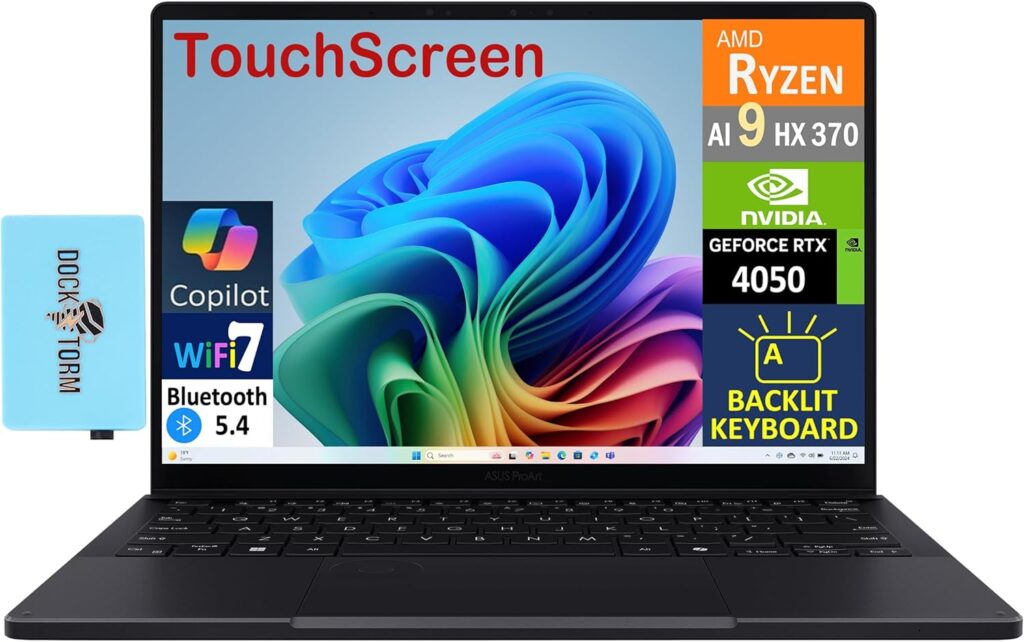
If I could hand a single laptop to an incoming engineering student and walk away without further questions, this is it. ASUS built the ProArt line for creative professionals, but the recipe — fast CPU, real GPU, big colour-accurate screen, sensible weight — lands almost perfectly for engineering.
Specifications
- Processor: AMD Ryzen AI 9 HX 370 — 12 cores, 24 threads, 50 TOPS NPU
- Graphics: NVIDIA GeForce RTX 5070 in the mainstream config; RTX 4060/4070 lower down, RTX 5090 at the top
- Memory: 32 GB or 64 GB LPDDR5X-7500, soldered
- Storage: 1 TB or 2 TB PCIe SSD
- Display: 16-inch 4K (3840×2400) OLED touchscreen, 100% DCI-P3, stylus support
- Weight: 1.85 kg (4.1 lb)
- Ports: USB4 40 Gbps, USB-C 10 Gbps, two USB-A, HDMI 2.1, full-size SD reader, 3.5 mm, DC-in
- Extra: the ProArt DialPad, a virtual dial built into the trackpad — gimmicky until you map it to a CAD parameter, then surprisingly good
Why it works here. Reviewers have measured Geekbench 6 single-core scores around 2,930 on this chip. That’s about as good as Windows laptops currently get, and single-core is precisely what SolidWorks and Inventor lean on when you’re modelling. The multi-core result near 15,500 means solver work isn’t a joke either. The 4K OLED gives you room to keep a feature tree, a viewport and a spreadsheet open at once without squinting, and the SD reader plus touchscreen makes it a legitimately useful machine for lab documentation and marked-up drawings.
Pros
- Class-leading single-core performance, which is what CAD actually uses
- The 4K OLED is one of the best panels in any laptop, full stop
- Properly portable for a 16-inch machine with discrete graphics
- Excellent keyboard, and one of the better Windows trackpads
- Wide config range — you can get in around $2,000 with an RTX 4060
Cons
- Soldered memory. Buy 32 GB minimum, 64 GB if you’ll be simulating. You cannot fix this later.
- Middling battery life; this wants to be plugged in for real work
- Fans get loud under sustained load
- No workstation certification, if your department insists on it
- Expensive, and there’s no honest way around that
Get it if you want one machine that handles CAD, coursework, rendering and gaming with no glaring weakness, and your budget clears $2,000.
2. Lenovo ThinkPad P16 Gen 3 — for people who really do run their own solves
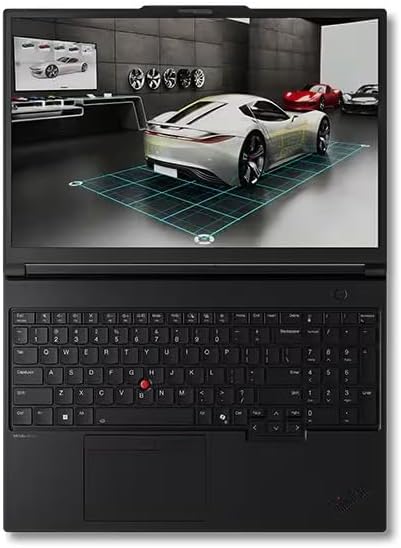
This is the ThinkPad at the top of the mountain. A proper mobile workstation: certified drivers, MIL-STD testing, and built like it expects to be dropped by someone who’s been awake for thirty hours. It’s been on shelves since late 2025, and the Gen 3 got noticeably more mobile than its predecessor — which is a mixed blessing.
Specifications
- Processor: Intel Core Ultra 7 255HX (up to 5.2 GHz) or Core Ultra 9 275HX, 24 cores
- Graphics: NVIDIA RTX PRO 1000 or RTX PRO 2000 Blackwell, 8 GB GDDR7, around 105 W
- Memory: DDR5 SO-DIMM, expandable to 192 GB
- Storage: up to three M.2 2280 slots
- Display: 16-inch WUXGA IPS at 500 nits, or 4K+ (3840×2400) at 800 nits with full DCI-P3, or tandem OLED
- Weight: around 2.5 kg (5.6 lb)
- Ports: Thunderbolt, USB-A, HDMI 2.1, SD reader, Gigabit Ethernet, 3.5 mm
- Extra: ISV certifications, 5 MP IR camera, and a keyboard everyone else is still measured against
Why it works here. The memory ceiling. 192 GB in a laptop sounds absurd written down, and it’s exactly right if you’re the kind of student who runs their own meshes instead of queueing for the cluster. Three SSD slots means a dedicated scratch drive for solver temp files — that’s a genuine workflow improvement, not a spec-sheet flex. And certified drivers mean that when something breaks, the software vendor will actually talk to you about it.
The compromise reviewers keep flagging: at roughly 105 W of GPU power and a 180 W charger, the Gen 3 leaves performance on the table compared to what the P-series used to deliver. It’s lighter and more civilised than the old one. Whether that reads as a downgrade depends entirely on whether you were ever going to carry it anywhere.
Pros
- Up to 192 GB of RAM and three SSDs — nothing else here is close
- Certified drivers for SolidWorks, CATIA, NX and Creo
- Superb 800-nit 4K option, or a bright 500-nit IPS if you’d rather
- The ThinkPad keyboard, still the best on the market
- Actually serviceable — you can keep this alive for a decade
Cons
- Heavy. 2.5 kg plus a chunky brick is a real daily tax on your spine.
- The GPU is power-limited compared to gaming laptops at similar money
- List prices are brutal, and a maxed config can approach five figures
- Thick bezels and conservative styling, if you care
- Overkill for most undergraduates, honestly
Get it if you’re doing graduate-level simulation, someone else is paying, or your department has specifically told you certification is required. Watch for coupon stacks — configurations listing around $2,330 have been spotted near $1,689.
3. Lenovo Legion Pro 5i Gen 10 — the value champion

Here’s the open secret of this whole category: gaming laptops are workstations with worse marketing. Same silicon, same cooling ambitions, roughly half the price, because the gaming market is viciously competitive and the workstation market isn’t.
The Legion Pro 5i Gen 10 is the current best expression of that arbitrage.
Specifications
- Processor: Intel Core Ultra 7 255HX
- Graphics: NVIDIA GeForce RTX 5070, 8 GB GDDR7, running at high power limits
- Memory: 32 GB DDR5 in SO-DIMM slots — upgradeable
- Storage: 1 TB PCIe SSD with a second M.2 slot free
- Display: 16-inch WQXGA (2560×1600) OLED, 165 Hz
- Weight: around 2.4 kg
- Battery: 80 Wh
- Ports: USB-C with DisplayPort, several USB-A, HDMI 2.1, RJ45 Ethernet, 3.5 mm
Why it works here. You get RTX 5070 performance and 32 GB of upgradeable memory for roughly the price of a mid-range ultrabook. LaptopMedia measured the 15-inch Gen 10 sibling as the fastest RTX 5070 laptop they’d tested, which tells you Lenovo isn’t quietly starving the GPU the way thinner machines do. For viewport work, GPU-accelerated rendering and anything CUDA — which increasingly includes machine learning coursework — that’s an enormous amount of capability per dollar.
The Ethernet port is underrated, too. University Wi-Fi is a lottery and student housing Wi-Fi is worse.
Pros
- Best raw performance per dollar here by a wide margin
- Memory and storage are both user-upgradeable, so it ages well
- Genuinely excellent 165 Hz OLED panel
- Understated design that doesn’t shout “gamer” in a seminar room
- Cooling that’s engineered rather than decorative
Cons
- Battery life is poor — around three hours in testing. Live near an outlet.
- Audible under load, and you’ll feel self-conscious in a quiet library
- 8 GB of VRAM is fine now but is the first thing that’ll feel tight
- Another big charger to carry
- No workstation certification
Get it if you want the most computer for your money, you mostly work at a desk, and you’d quite like to play something at 165 Hz between problem sets. Ignore the list price and wait for the $1,400–1,500 window.
4. ASUS Zenbook 14 OLED — for the ones who actually carry it
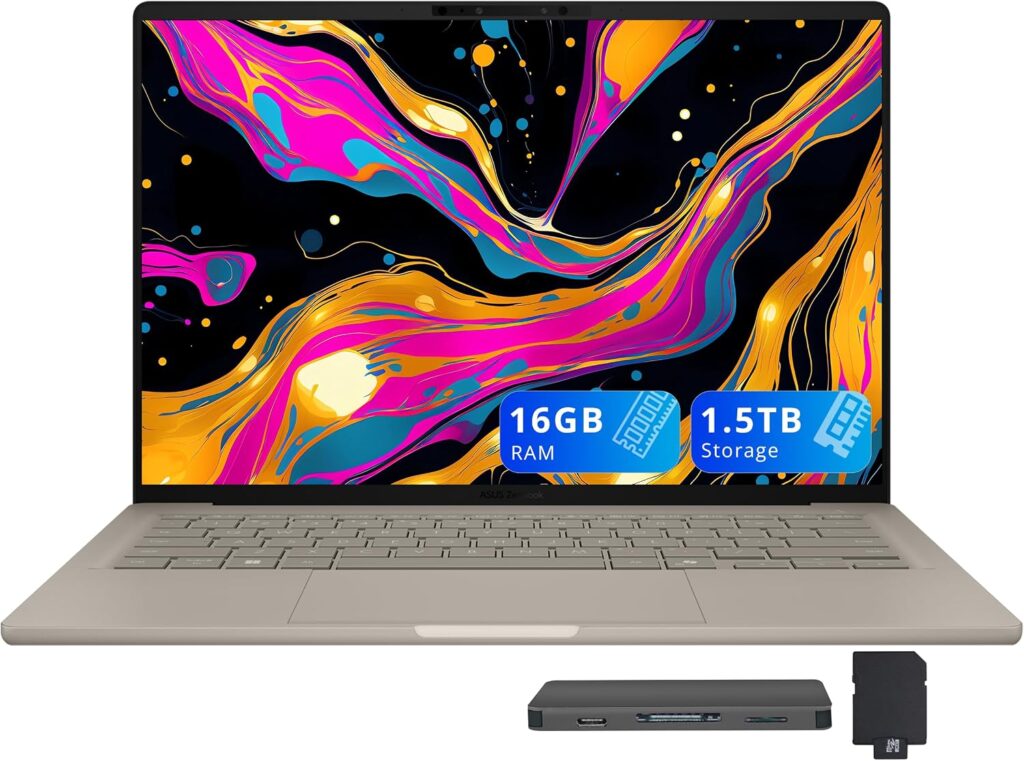
Not every engineering student needs a GPU. If your course leans on MATLAB, Python, Simulink, LTspice, Excel and writing rather than 3D modelling — and for a lot of electrical, software, industrial and chemical students, it absolutely does — then hauling a 2.5 kg workstation is punishing yourself daily for a capability you’ll use twice a semester.
Specifications
- Processor: Intel Core Ultra 7 265H (Arrow Lake H)
- Graphics: Intel Arc, integrated
- Memory: 16 GB or 32 GB LPDDR5X, soldered
- Storage: 1 TB PCIe SSD, replaceable
- Display: 14-inch 2.8K (2880×1800) OLED, 120 Hz, Pantone-validated
- Weight: 1.28 kg
- Battery: 75 Wh — 12 to 14 hours in real-world testing
- Build: aluminium, MIL-STD-810H tested
- Ports: two Thunderbolt 4, USB-A, HDMI, 3.5 mm
Why it works here. It’s the only machine on this list you’ll genuinely carry every day without resenting it, and the battery means a full timetable plus an evening in the library without hunting for a socket. The 2.8K OLED punches enormously above its price. And critically, ASUS kept a real HDMI port and a full-size USB-A, so you’re not living out of a dongle pouch.
Be honest about the limits. Reviewers have measured roughly a 24% drop in sustained Cinebench performance after about eight minutes — normal thin-and-light thermal behaviour, but it means long solver runs aren’t its job. And with no CUDA hardware, GPU-accelerated work is off the table entirely.
Pros
- A 2.8K OLED at around $999 is a genuine bargain
- 12 to 14 hours of real battery life
- 1.28 kg, and it feels even lighter than that in a bag
- MIL-STD-810H build survives being crammed into a full backpack
- Excellent keyboard, which matters given how much typing a degree involves
Cons
- No discrete GPU. If you need CUDA or heavy viewport work, look elsewhere.
- Soldered memory — find the 32 GB config if you possibly can
- Throttles under sustained load
- Fan noise reaches the high thirties in decibels when pushed
- Only two USB-C ports, which is tight if you dock often
Get it if your branch is software-, maths- or electronics-heavy, or you’re pairing it with lab machines and cluster access. Also the smart pick if you already have a desktop at home.
5. Acer Nitro V 16 AI — the honest budget option
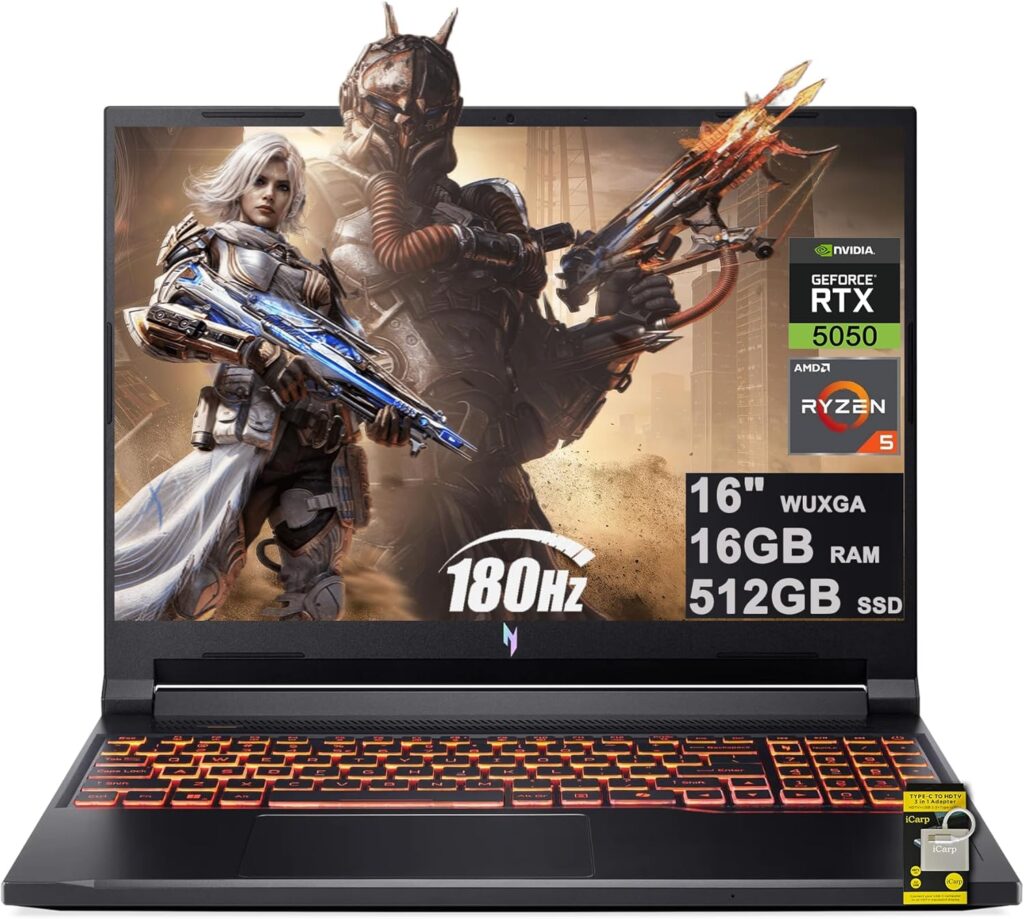
Not everybody has two thousand dollars. Most people don’t. The Nitro V 16 AI exists for that reality, and it’s a considerably better laptop than the price implies, because Acer spent money on the components that matter and cut the ones that don’t.
Specifications
- Processor: AMD Ryzen 5 240, Ryzen 7 260 or Ryzen AI 7 350; Intel Core Ultra variants also exist
- Graphics: NVIDIA RTX 5050 (8 GB, up to 95 W), with RTX 5060 and 5070 configs available
- Memory: 16 GB DDR5-5600 across two SO-DIMM slots — upgradeable
- Storage: 512 GB or 1 TB PCIe Gen 4 SSD, second M.2 slot free
- Display: 16-inch WUXGA (1920×1200) IPS, 180 Hz, anti-glare, with a MUX switch
- Battery: 76 Wh, and surprisingly good for a discrete-GPU machine
- Ports: three USB-A, USB-C, HDMI, RJ45 Ethernet, microSD
Why it works here. Those two memory slots and two drive slots are the entire argument. Buy the base configuration, drop in a 16 GB stick for around fifty dollars, and you’ve got a 32 GB machine with real NVIDIA graphics for less than half the price of anything else here. Acer even ships it with a single memory stick specifically so you can add rather than replace, which is a genuinely thoughtful bit of design that most manufacturers can’t be bothered with.
The 16:10 anti-glare panel is the right shape for engineering work. The MUX switch lets you bypass the integrated GPU for full performance. And the battery life is legitimately decent, which is unusual in this class.
Pros
- Extraordinary value, particularly on sale — base configs have dropped to around $629
- Memory and storage both upgradeable, with free slots for each
- Battery life is genuinely good for a laptop with discrete graphics
- 16:10 anti-glare display
- MUX switch and wired Ethernet
Cons
- The Ryzen 5 240 is the weak link. Step up to a Ryzen 7 if you can stretch.
- 512 GB disappears fast once a CAD suite lands on it; plan on a second drive
- Colour coverage is mediocre — fine for CAD, poor for anything colour-critical
- Plasticky build, because it is plastic
- Ships with bloatware you’ll want to clear on day one
Get it if money is the constraint. This gets you most of the capability for a third of the price, and the upgrade slots mean it improves as your finances do.
So which one is yours?
| Your situation | The pick |
|---|---|
| Mechanical or aerospace, want one laptop for four years | ASUS ProArt P16 |
| Running your own FEA/CFD, postgrad, certification required | ThinkPad P16 Gen 3 |
| Want maximum power, mostly work at a desk | Legion Pro 5i Gen 10 |
| Electrical, computer science or chemical; commuting daily | Zenbook 14 OLED |
| Genuinely tight budget, happy to upgrade later | Acer Nitro V 16 AI |
| Already have a desktop at home | Zenbook 14 OLED |
| Your university gives you cluster access | Zenbook 14 OLED or Nitro V 16 AI |
Five mistakes I watch people make every single year
Buying 16 GB of soldered memory. The single most common regret in this category. If it can’t be upgraded, get 32 GB.
Chasing the GPU tier instead of the RAM. An RTX 5070 with 16 GB of system memory will stutter through a large assembly while an RTX 5050 with 32 GB glides. System memory is the bottleneck far more often than graphics.
Ignoring weight. Two and a half kilos, plus a 180-watt charger, plus textbooks, is around five kilos on your back, five days a week, for four years. Pick the thing up in a shop before you commit to it.
Paying list price for a Lenovo. Legion and ThinkPad pricing is theatre. Coupon stacks routinely take 30–40% off. If you can wait two weeks, wait.
Forgetting student pricing. Every major manufacturer runs an education store, and so do Autodesk, Dassault, MathWorks and ANSYS. Get your university email verified before you spend anything.
Questions people keep asking
Is 16 GB of RAM enough for engineering in 2026? For coursework, coding and light CAD, yes. For SolidWorks assemblies, ANSYS meshing or Revit models, no — 32 GB is the realistic target. If the memory is upgradeable, starting at 16 GB is a reasonable way to spread the cost over a couple of years.
Do I need a workstation GPU, or is a GeForce card fine? GeForce is fine for the overwhelming majority of students. The RTX PRO cards aren’t faster — they’re certified against professional software, which buys you driver stability in SolidWorks, CATIA and NX. That matters in industry. It rarely matters for coursework.
Can a laptop run ANSYS? It can run ANSYS. It cannot run large ANSYS jobs, and neither can anyone else’s laptop. Use yours for geometry, meshing and setup, then push heavy solves to the university cluster. If you must solve locally, memory capacity matters more than anything else on the spec sheet.
MacBook or Windows for engineering? Windows, in most cases. SolidWorks, Inventor, Revit, NX and Creo have no native macOS versions, and virtualisation is a workaround rather than a solution. If your branch is software- or maths-focused, a MacBook is perfectly viable. If mainstream CAD is involved, get a Windows machine.
Is OLED a bad idea for CAD? Not in normal use, but know the risk. Static toolbars and ribbons displayed for thousands of hours can eventually cause burn-in. Auto-hide the taskbar, use a screensaver, and you’ll almost certainly be fine. If it still bothers you, a bright IPS panel is a completely valid choice.
How long should an engineering laptop last? Four to six years, if you buy 32 GB up front and choose a machine with upgradeable storage. What forces early replacement is memory capacity and battery health — not processor speed.
Are gaming laptops actually good for engineering? Yes, and they’re often the best value in the room. Same processors, same NVIDIA silicon, better cooling than many workstations, considerably cheaper. The trade-offs are weight, battery life and the lack of certified drivers.
The verdict
If you take one thing from all of this: buy for the branch you’re actually in, not the branch you imagine you’re in.
A mechanical student who’ll spend four years inside SolidWorks and Fluent should be looking at the ProArt P16, or the Legion Pro 5i if the budget’s tighter. A computer engineering student who buys a 2.5 kg workstation for a degree that’s ninety percent Python will carry a lot of weight for nothing — that person wants the Zenbook.
And if you’re reading these prices thinking there’s no way, the Acer Nitro V 16 AI is genuinely fine. I mean that sincerely, not as a consolation prize. It’s not exciting and it’s not premium, but it will get you through a degree, and you can add memory to it the month you can afford to.
Whatever you land on: get 32 GB, insist on 16:10, and check the weight before you buy. Those three rules will steer you right even if every model above has been replaced by the time you read this.

Hi, my name is Burak. I am a mechanical engineer. I have been writing laptop reviews for the Engineering Laptops website since 2020. Please feel free to contact me if you have any questions.