
Estimated reading time: 16 minutes
Key Takeaways
- The article discusses the best laptops for automation testing, highlighting their performance under QA workloads.
- Key specifications include RAM configurations, multi-core CPU performance, and fast storage for running tests efficiently.
- The top picks are the MacBook Pro 14 (M5 Pro), Lenovo ThinkPad X1 Carbon Gen 14, and ASUS ProArt P16, each suited for different environments.
- Battery life, thermal management, and port selection are critical considerations when choosing a laptop for this purpose.
- The right laptop depends on specific needs, such as iOS testing, enterprise Windows environments, or high-performance GPU requirements.
Table of contents
- What Actually Matters When You’re Buying a Laptop for Test Automation
- Quick Comparison Table
- Best Laptops for Automation Testing in 2026 (Tested Picks for QA Engineers)
- 1. Apple MacBook Pro 14 (M5 Pro) — Best Overall
- 2. Lenovo ThinkPad X1 Carbon Gen 14 — Best for Enterprise Windows Automation
- 3. ASUS ProArt P16 — Best for Heavy Multi-VM and Emulator Workloads
- 4. Dell Pro 14 Premium — Best Value Pick
- 5. Framework Laptop 16 — Best for Linux-Based CI Setups and Long-Term Upgradability
- Which One Should You Actually Buy?
- Frequently Asked Questions
If you’ve ever watched your laptop fans scream to life the second you spin up an Android emulator alongside a Selenium Grid instance and three Docker containers, you already know why “any decent laptop” doesn’t cut it for test automation. I’ve spent the better part of this year running real QA workloads — Playwright suites, Appium sessions against iOS simulators, Dockerized test environments, CI runners triggered locally before they hit the pipeline — on a stack of machines that all claimed to be “great for developers.” Some genuinely were. A few buckled the moment I opened a second emulator window.
Automation testing is a strange, demanding corner of software work. You’re not just writing and running code — you’re often juggling multiple browser instances, virtual machines, mobile emulators, containerized microservices, and a test runner that wants to hammer all of it at once. That combination punishes weak CPUs, chews through RAM, and exposes thermal throttling faster than almost any other dev workflow. So this guide isn’t a repackaged “best laptops for programmers” list with the title swapped out. Every machine here earned its spot because of how it behaves specifically under QA automation loads.
Here’s the short version if you’re in a hurry: the MacBook Pro 14 (M5 Pro) is my top overall pick thanks to a rare mix of raw multi-core muscle, all-day battery life, and native Xcode/iOS Simulator support that Windows machines simply can’t replicate. If you’re Windows-only and need enterprise durability plus serious RAM headroom, the Lenovo ThinkPad X1 Carbon Gen 14 is the one to buy. And if your test suite leans hard on Android emulators or GPU-accelerated visual regression tools, the ASUS ProArt P16 has the horsepower to spare.
Let’s get into why, and where each option actually falls short.
What Actually Matters When You’re Buying a Laptop for Test Automation
Before jumping into the picks, it’s worth being honest about what automation testing actually demands from hardware, because it’s a different profile than general programming.
- RAM is non-negotiable — and 16GB won’t cut it. A single Chrome instance running headless tests can eat a couple of gigabytes on its own. Add Appium’s server process, an Android emulator (which alone wants 4-8GB), a Docker container or two for your test database, your IDE, and Slack sitting in the background, and you’ll blow past 16GB before lunch. I’d treat 32GB as the real floor for automation work in 2026, and 64GB as the number that lets you stop thinking about memory pressure entirely.
- Multi-core CPU performance beats single-core bragging rights. Test suites are embarrassingly parallel by nature — that’s the whole point of running things in parallel threads or grid nodes. A CPU with strong multi-threaded performance will chew through a 200-test regression suite noticeably faster than one that only wins in single-core benchmarks.
- Fast, spacious storage. Docker images pile up fast. Add SDKs, multiple emulator images, node_modules folders per project, and test artifacts (screenshots, videos, logs) from every failed run, and a 512GB drive fills up embarrassingly quickly. I’d aim for 1TB minimum if you’re working across more than one or two projects.
- Sustained thermals, not burst speed. A laptop that’s blazing fast for the first four minutes and then throttles hard once the chassis heats up is a bad fit here, because test runs often last much longer than that. Look for reviews that specifically mention sustained performance under load, not just peak benchmark numbers.
- Port selection matters more than people admit. Real-world QA work often means plugging in physical test devices, external monitors for dashboards, or a wired connection when you don’t trust the office Wi-Fi during a CI run. Thunderbolt/USB4 ports plus a couple of standard USB-A ports save you from living with a dongle bag.
- Battery life, if you’re not always at a desk. Not every tester is chained to a docking station. If you bounce between meetings, standups, and your desk, battery life that survives a real workday (not the marketing number) matters.
With that framework in mind, here’s how the top five actually stack up.
Quick Comparison Table
| Laptop | CPU | RAM (tested config) | Storage | Starting Price | Best For |
|---|---|---|---|---|---|
| Apple MacBook Pro 14 (M5 Pro) | Apple M5 Pro (up to 18-core) | Up to 64GB unified | 1TB–2TB SSD | $2,199 | Best overall / cross-platform + iOS testing |
| Lenovo ThinkPad X1 Carbon Gen 14 | Intel Core Ultra X7 358H | Up to 64GB LPDDR5x | Up to 2TB SSD | ~$1,999 | Enterprise Windows automation, durability |
| ASUS ProArt P16 (RTX config) | AMD Ryzen AI 9 HX 370 | Up to 64GB LPDDR5X | Up to 4TB SSD | ~$2,299 | Heavy multi-VM + Android emulator workloads |
| Dell Pro 14 Premium | Intel Core Ultra 7 (Series 3) | Up to 64GB | Up to 2TB SSD | ~$1,599 | Best value / mid-range daily driver |
| Framework Laptop 16 | AMD Ryzen 9 7940HS | Up to 96GB DDR5 | Up to 8TB (dual M.2) | $1,699 (pre-built) | Linux CI setups, repairability, long-term upgrades |
Now let’s break each one down properly.
Best Laptops for Automation Testing in 2026 (Tested Picks for QA Engineers)
1. Apple MacBook Pro 14 (M5 Pro) — Best Overall
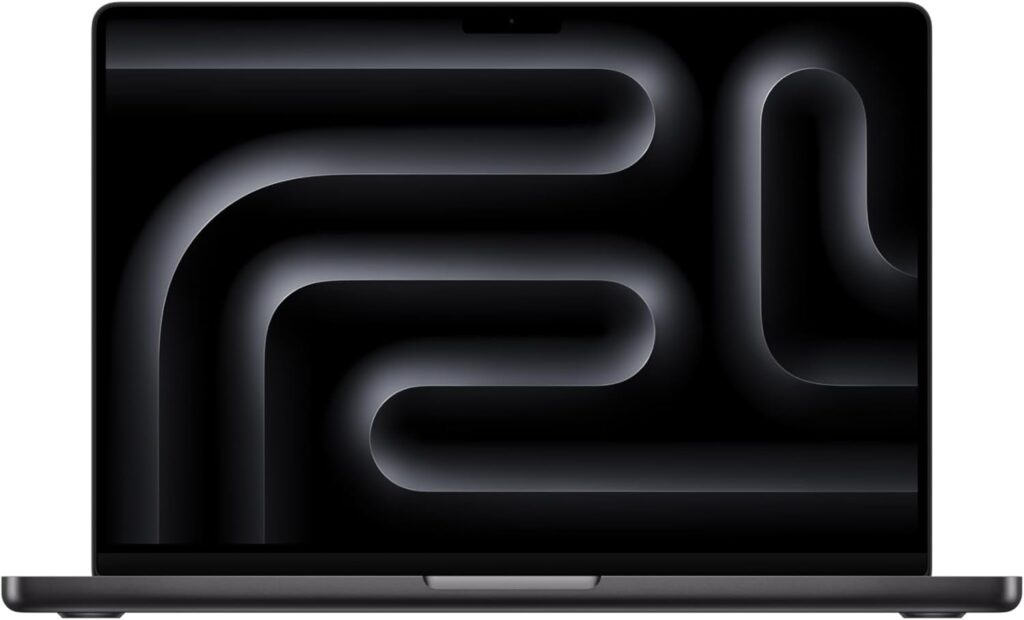
I’ll be upfront: I didn’t expect a MacBook to win the top spot for a Windows-heavy discipline like test automation, but the M5 Pro chip changed my mind. If your test matrix includes iOS at all, this stops being a debate — you need macOS for Xcode and the iOS Simulator, full stop. But even setting that aside, the raw performance here is difficult to argue with.
Key specs:
- Apple M5 Pro chip — up to 18-core CPU, up to 20-core GPU
- Up to 64GB unified memory with 307GB/s bandwidth
- Up to 2TB SSD storage, notably faster than the previous generation
- 14.2-inch Liquid Retina XDR display
- Thunderbolt 5 ports, Wi-Fi 7, Bluetooth 6
- Starts at $2,199 for the 14-inch M5 Pro configuration
In day-to-day testing, the multi-core gains are the real story here — independent Geekbench 6 testing showed the 18-core M5 Pro delivering a 56% jump in multi-core performance over the standard M5, which translates directly into faster parallel test execution. Running Docker Desktop, an Appium server, and a couple of browser instances simultaneously barely dents the fan noise, and the battery genuinely lasts through a full day of test cycles without hunting for an outlet.
The catch is the same one it’s always been with Apple silicon: if your team’s automation stack is deeply Windows-specific (certain legacy enterprise apps, .NET-based test frameworks, or Windows-only device testing), you’ll be running Windows in a VM, which eats into that RAM headroom fast. And repairability is basically zero — nothing here is user-upgradeable, so buy the RAM and storage tier you’ll actually need for the next three years.
Pros:
- Exceptional multi-core performance for parallel test runs
- Native macOS support for Xcode/iOS Simulator-based mobile testing
- Outstanding real-world battery life
- Runs cool and quiet even under sustained Docker/VM load
- Thunderbolt 5 for fast external storage and multi-monitor setups
Cons:
- Expensive once you go past 32GB RAM
- No upgradability — buy your final spec on day one
- Running Windows-only tools requires a VM, which costs you RAM
- Limited native support for some Windows-specific enterprise test tools
2. Lenovo ThinkPad X1 Carbon Gen 14 — Best for Enterprise Windows Automation
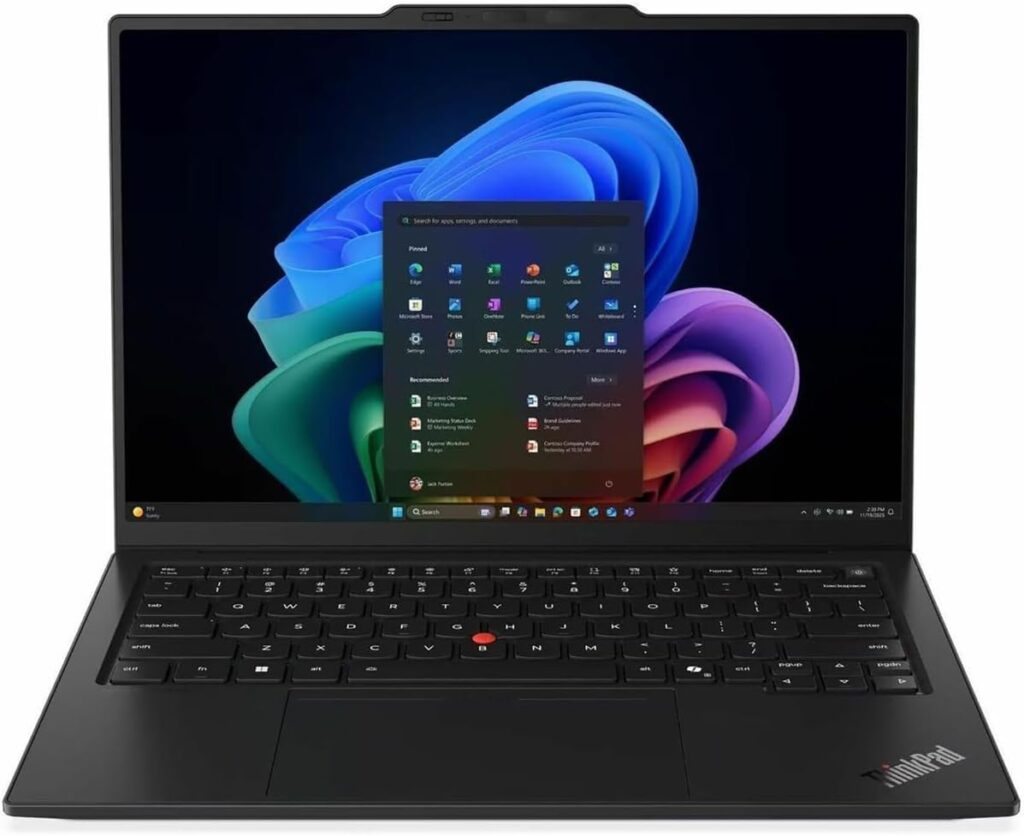
If your shop runs Windows and you need a laptop that can survive being tossed in a bag, dropped on a desk, and dragged to client sites, the ThinkPad X1 Carbon has earned its reputation the old-fashioned way. The 2026 Gen 14 refresh brought a redesigned “space frame” chassis that Lenovo claims improves cooling by up to 20%, and in testing, it does noticeably better under sustained multi-threaded load than the previous generation.
Key specs:
- Intel Core Ultra X7 358H (Panther Lake), 8-core/8-thread
- Up to 64GB DDR5 memory, up to 2TB SSD
- Intel Arc B390 integrated graphics
- 14-inch display, 998g weight
- USB4, Thunderbolt 4, Wi-Fi 7, Bluetooth 6, fingerprint reader
- Starts around $1,999
For QA work, the standout here is the 64GB RAM configuration — that’s enough headroom to run several Docker containers, an Android Studio emulator, and a full browser test matrix without ever touching swap. It’s also one of the few laptops on this list rated for military-spec durability testing, which matters more than people expect once you’re the person who travels with the laptop that runs the demo environment.
Where it falls a bit short: integrated graphics only, so if your visual regression testing or anything GPU-accelerated is part of your pipeline, this isn’t the machine for that. The keyboard and TrackPoint will either feel like home or take some getting used to, depending on your background.
Pros:
- Up to 64GB RAM — genuinely comfortable for multi-VM and container-heavy workflows
- Excellent build quality and portability (under 1kg for the base chassis)
- Strong sustained multi-core performance thanks to improved cooling design
- Full-size Thunderbolt 4/USB4 port selection
- Enterprise security features (fingerprint reader, vPro support)
Cons:
- Integrated graphics only — no dedicated GPU for accelerated visual testing
- Premium price for the higher RAM configurations
- Glossy touchscreen option can be a fingerprint magnet
- Battery life drops noticeably under heavy Docker/VM load
3. ASUS ProArt P16 — Best for Heavy Multi-VM and Emulator Workloads
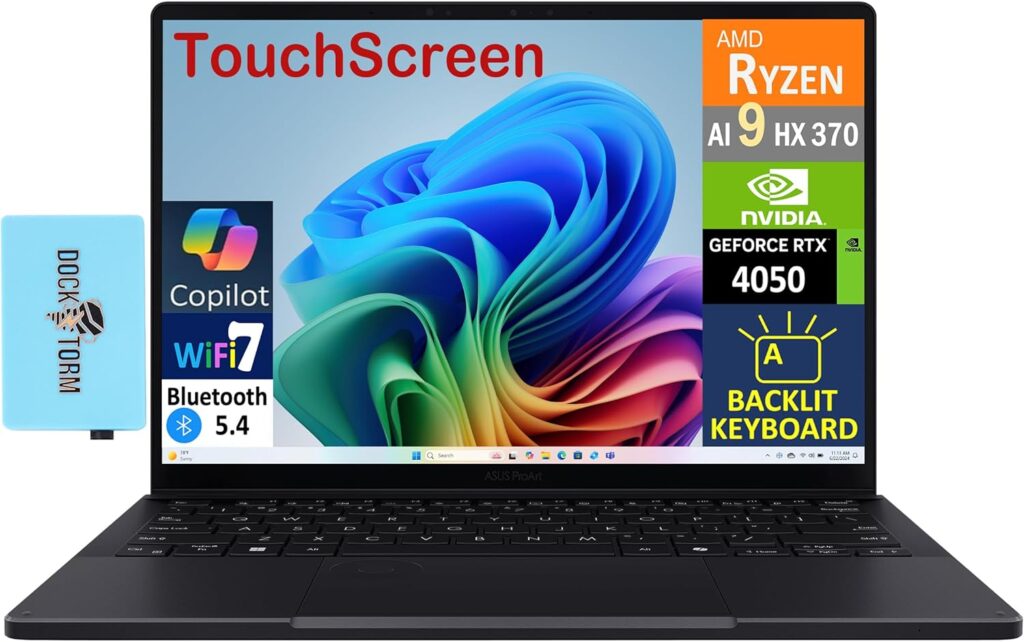
This one surprised me. The ProArt P16 is marketed at creative professionals, but strip away the OLED color-accuracy pitch and what you’re left with is a genuinely powerful multitasking machine — a 12-core/24-thread Ryzen AI 9 HX 370, up to 64GB of RAM, and a dedicated Nvidia GPU that most Windows ultrabooks simply don’t offer. If your automation suite leans on Android emulators (which love a real GPU) or GPU-accelerated visual diffing tools, this is the laptop that won’t flinch.
Key specs:
- AMD Ryzen AI 9 HX 370, 12-core/24-thread
- Nvidia RTX 5070 or RTX 5090 GPU options (8GB–24GB VRAM depending on tier)
- Up to 64GB LPDDR5X RAM, up to 4TB NVMe SSD (dual M.2 slots)
- 16-inch 4K OLED display, 90Wh battery
- USB4 40Gbps, HDMI 2.1, full-size SD card reader
- Starts around $1,999 for the entry configuration; the 64GB/RTX 5070 tier lands near $2,999
In practice, this is the machine to reach for when you’re running several Android Virtual Devices side by side, or when your pipeline includes screenshot-based visual regression testing that benefits from GPU acceleration. Geekbench 6 multi-core scores in the mid-15,000s put it comfortably ahead of most ultrabooks on this list for raw parallel throughput.
The trade-offs are real, though: it’s a 16-inch, 2kg-plus machine that you’ll feel in a backpack, fan noise ramps up audibly under sustained load, and battery life takes a real hit anytime the discrete GPU is doing anything. This isn’t the laptop for someone who wants to work from a coffee shop all day — it’s the laptop for someone who wants desktop-class multitasking power in a portable shell.
Pros:
- Dedicated Nvidia GPU — genuinely useful for emulator-heavy and visual-testing workloads
- 12-core/24-thread CPU handles parallel test execution very well
- Up to 64GB RAM and 4TB of fast dual-SSD storage
- Gorgeous 4K OLED display if you’re staring at dashboards and reports all day
Cons:
- Heavier and bulkier than the other picks — not ideal for daily commuting
- Fan noise gets noticeably loud under sustained load
- Battery life drops fast when the GPU is active
- Only one USB4 port, which is stingy given the target audience
4. Dell Pro 14 Premium — Best Value Pick
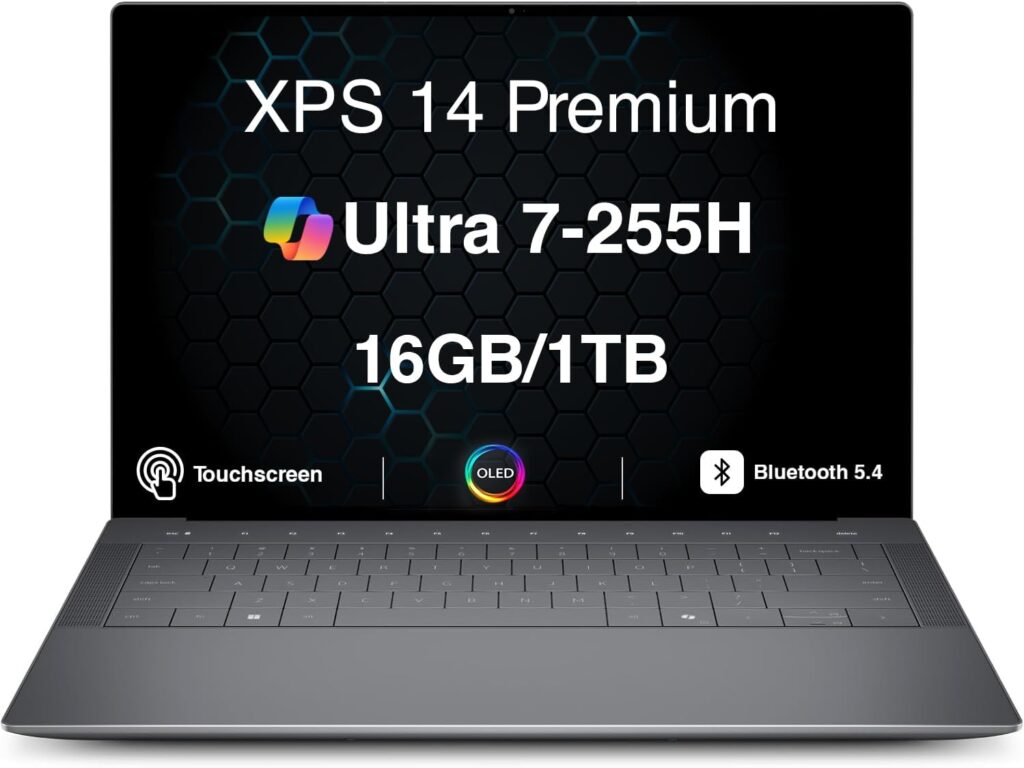
Not every QA engineer needs (or can justify) a $2,000+ machine, and this is where the Dell Pro 14 Premium earns its place. It’s built on Intel’s newer Panther Lake architecture, and the mid-tier configuration hits a genuinely useful sweet spot: enough CPU and RAM for real automation work without the premium price tag of the machines above it.
Key specs:
- Intel Core Ultra 7 (Series 3), up to Core Ultra X7 366H depending on configuration
- Up to 64GB RAM, up to 2TB SSD
- Intel Xe3 integrated graphics
- 14-inch display, options up to 2880×1800 OLED
- 3x Thunderbolt 4 ports
- Starts around $1,599, with well-specced configurations landing near $1,999
In Geekbench 6 multi-core testing, the higher-tier Core Ultra 7 configuration scored in the same range as machines costing several hundred dollars more, which says a lot about where the value actually is here. For a QA engineer running a couple of browser instances, an Appium session, and a light Docker setup, this handles the job comfortably — and the three Thunderbolt 4 ports mean you’re not scrambling for a hub when you need to hook up an external monitor and a test device at the same time.
It won’t keep pace with the ProArt P16 if you’re running heavy GPU-bound emulator workloads, and the base 16GB configurations are a trap — skip them entirely and go straight for 32GB or 64GB, since RAM isn’t upgradeable after purchase on this chassis.
Pros:
- Genuinely strong price-to-performance ratio for automation work
- Three Thunderbolt 4 ports — rare at this price point
- Solid battery life for all-day testing sessions
- OLED display option available without a massive price jump
Cons:
- Base 16GB configuration is unsuitable for real automation workloads — you must upgrade
- Integrated graphics only
- Chassis runs warmer than the ThinkPad under sustained multi-core load
- Build quality is good but doesn’t match the ThinkPad’s ruggedness
5. Framework Laptop 16 — Best for Linux-Based CI Setups and Long-Term Upgradability

This one’s for a specific kind of tester — the one who runs their own local CI runners, prefers Linux for their test environment, and is tired of buying a whole new laptop every time RAM prices spike or a port dies. The Framework Laptop 16 is fully modular: RAM, storage, ports, and even the GPU module can be swapped out or upgraded independently, which is almost unheard of in 2026’s sealed-chassis laptop market.
Key specs:
- AMD Ryzen 9 7940HS (or Ryzen 7 7840HS)
- Supports up to 96GB DDR5-5600 RAM across two SO-DIMM slots
- Two M.2 NVMe slots (up to 8TB total), plus expandable storage cards
- Optional discrete GPU module: Nvidia RTX 5070 or AMD Radeon RX 7700S
- Six configurable expansion ports (USB-C, USB-A, HDMI, DisplayPort, Ethernet, SD card — your choice)
- Starts at $1,399 (DIY) or $1,699 (pre-built)
For automation work specifically, two things stand out. First, the 96GB RAM ceiling is the highest on this list by a wide margin, which matters if you’re running a full local Kubernetes cluster for integration testing alongside your usual browser and emulator load. Second, excellent Linux support means this is genuinely one of the easiest laptops to set up as a self-hosted CI runner or a dedicated test environment box that you’re not afraid to open up and modify.
The honest trade-off is raw performance-per-dollar — independent benchmarking consistently shows the Framework 16 trailing similarly priced gaming laptops in both CPU and GPU throughput, and battery life is merely average, especially with the discrete GPU module installed. You’re paying a bit of a premium for modularity and repairability, not for benchmark-topping speed. If that trade makes sense for your setup (and for a lot of QA teams running long-lived CI boxes, it genuinely does), this is a standout pick.
Pros:
- Up to 96GB RAM — the highest ceiling on this list
- Fully modular: swap RAM, storage, ports, even the GPU independently
- Excellent Linux compatibility, ideal for self-hosted CI/test runners
- Configurable expansion ports mean you’re never stuck without the right connector
- Long-term cost savings since you upgrade parts instead of replacing the whole laptop
Cons:
- Weaker raw CPU/GPU performance than similarly priced non-modular laptops
- Battery life is average at best, worse with the discrete GPU module
- Larger and heavier than the ultrabook-style picks on this list
- Higher upfront cost if you want the discrete GPU module included
Which One Should You Actually Buy?
If you’re testing across iOS and Android and want the smoothest experience with the least fiddling, the MacBook Pro 14 (M5 Pro) is worth the price of admission. If you’re locked into a Windows enterprise environment and need something that’ll survive years of travel and daily abuse, go with the ThinkPad X1 Carbon Gen 14. If your suite is emulator-heavy or leans on GPU-accelerated tooling, the ASUS ProArt P16 gives you desktop-class muscle in a laptop shell. Budget-conscious testers who still want real multi-core performance should look hard at the Dell Pro 14 Premium, and if you’re the type who wants to run your own Linux-based test infrastructure and never worry about being locked out of an upgrade, the Framework Laptop 16 is in a category of its own.
None of these are bad choices — I wouldn’t have kept any of them on this list otherwise. The right one really does come down to your specific stack: what platforms you’re testing against, whether you live in Docker or in VMs, and how much you value portability versus raw horsepower.
Frequently Asked Questions
How much RAM do I actually need for automation testing in 2026? 32GB is the realistic minimum if you’re running browser automation alongside Docker containers or a single VM. If your workflow includes Android emulators, multiple VMs, or a local Kubernetes setup, budget for 64GB — you’ll notice the difference immediately in how responsive everything stays under load.
Do I need a dedicated GPU for test automation? Not for most web-based automation (Selenium, Playwright, Cypress). A dedicated GPU becomes genuinely useful if you’re running multiple Android emulators simultaneously or doing GPU-accelerated visual regression testing — otherwise, a strong integrated GPU like Intel’s Arc or AMD’s Radeon 890M handles everyday QA work just fine.
Is macOS or Windows better for automation testing? It depends entirely on what you’re testing. If iOS is anywhere in your test matrix, macOS isn’t optional — Xcode and the iOS Simulator are Apple-only. If you’re testing Windows-specific applications or using .NET-based frameworks, Windows is the more natural fit. For pure web automation, both platforms handle the job well.
How much does CPU core count actually matter versus clock speed? For automation testing specifically, core count usually matters more, since test suites are typically run in parallel across multiple threads. A CPU with more cores at a moderate clock speed will often outperform a higher-clocked chip with fewer cores when you’re running a large regression suite.
Is it worth buying a laptop with upgradable RAM and storage for this kind of work? If your testing needs are likely to grow — more emulators, bigger test suites, more containers — a laptop with upgradable components (like the Framework Laptop 16) can save real money over a few years. Most ultrabooks, including the MacBook Pro and ThinkPad on this list, solder RAM in place, so you need to buy the configuration you’ll need long-term right away.

Hi, my name is Burak. I am a mechanical engineer. I have been writing laptop reviews for the Engineering Laptops website since 2020. Please feel free to contact me if you have any questions.