
Estimated reading time: 25 minutes
Key Takeaways
- Most conventional lists for the Best Laptop for NETWORK Engineers lack practical insights and focus on specs over real-world performance.
- This guide provides lab-validated recommendations, emphasizing RAM as the key factor for running network simulations effectively.
- The Lenovo ThinkPad T14 Gen 6 is ideal for most users due to its balance of portability, affordability, and performance.
- Running labs on a separate server or mini PC often proves more efficient than local setups on laptops.
- Considerations include a real Ethernet port, multiple USB-A ports, adequate RAM, and an appropriate Windows version for optimal setup.
Table of contents
- Quick answer
- What actually matters (and what doesn’t)
- How to read the numbers below
- Independent benchmark comparison
- Best Laptop for Network Engineers 2026 — Real Lab Benchmarks Compared
- 1. Lenovo ThinkPad P16 Gen 3 — for labs that outgrew your laptop
- 2. Lenovo ThinkPad T14 Gen 6 — the one most people should buy
- 3. Asus TUF Gaming A16 — the budget lab machine
- 4. HP ZBook Fury 16 G11 — the discounted workstation
- 5. Apple MacBook Pro 14″ (M5 Pro) — brilliant hardware, one disqualifying caveat
- Which one should you actually buy?
- FAQ
- Sources and methodology
Most “best laptop for network engineers” lists are spec sheets with affiliate links stapled on. They tell you a CPU has 24 cores. Great. They never answer the thing you actually want to know: how many Cisco routers can I spin up before this machine starts swapping and my BGP adjacencies start flapping?
This guide does two things differently. First, every performance figure here comes from a named independent lab, and I say which one, so you can check my work. Second, the recommendations are sized around lab memory arithmetic rather than marketing tiers, because RAM is the thing that actually decides whether your topology runs.
Every machine in this list has been through a proper test lab. Nothing made the cut on manufacturer claims alone.
Quick answer
| Pick | Best for | The one-line reason |
|---|---|---|
| Lenovo ThinkPad P16 Gen 3 | Large EVE-NG labs, CCIE prep | 192 GB RAM ceiling across four slots, three SSD bays, 2.5 GbE |
| Lenovo ThinkPad T14 Gen 6 | Field work, daily driver | Built-in Gigabit RJ45, 19+ hour battery, genuinely light |
| Asus TUF Gaming A16 | Budget lab machine | 64 GB across two slots, Ethernet, three USB-A, half the workstation price |
| HP ZBook Fury 16 G11 | Discounted workstation | 64 GB, 27,130 Cinebench multi, last-gen pricing |
| Apple MacBook Pro 14″ (M5 Pro) | Automation, cloud, DevOps | Best display and battery here — but read the ARM warning |
Short version: most network engineers should buy a ThinkPad T14 Gen 6 and run heavy labs on a separate box. That advice saves the most money and almost nobody gives it, for reasons I’ll get into.
What actually matters (and what doesn’t)
RAM is the whole game
Your bottleneck is memory and it isn’t close. A GNS3 or EVE-NG lab doesn’t fall over because the CPU is slow — it falls over because you ran out of RAM, the hypervisor started swapping, and now your OSPF hellos are timing out for reasons that have nothing to do with your config. You’ll burn an hour debugging a network problem that is actually a hardware problem.
Here’s what nobody tells you: a node is not a node. “How many nodes can I run on 32 GB” has no answer, because images weigh wildly different amounts.
| Node type | Typical RAM each |
|---|---|
| VPCS / simple host | a few MB |
| Cisco IOL / IOU | 128–256 MB |
| Cisco vIOS router | 512 MB |
| Cisco vIOS-L2 switch | 768 MB – 1 GB |
| Cisco CSR1000v / Cat8000v | 4 GB+ |
| Palo Alto / FortiGate VM | 4–8 GB |
| Windows Server VM | 4 GB minimum, 8 GB realistic |
So “20 nodes” might mean 4 GB or 60 GB. Count your images, not your icons.
Calculated lab ceilings
These are arithmetic, not benchmarks — system RAM minus roughly 8 GB for Windows, browser, and tooling, divided by image weight. Real-world numbers land 20–30% lower once you account for hypervisor overhead and headroom, but it gives you a sizing floor:
| System RAM | Available for lab | vIOS routers (512 MB) | vIOS-L2 (1 GB) | CSR1000v (4 GB) |
|---|---|---|---|---|
| 16 GB | ~8 GB | ~16 | ~8 | ~2 |
| 32 GB | ~24 GB | ~48 | ~24 | ~6 |
| 64 GB | ~56 GB | ~112 | ~56 | ~14 |
| 96 GB | ~88 GB | ~176 | ~88 | ~22 |
| 192 GB | ~184 GB | ~368 | ~184 | ~46 |
Practical guidance from those numbers:
- 16 GB — Packet Tracer, Wireshark, a handful of IOL nodes. Fine for CCNA. Genuinely fine; don’t let anyone upsell you.
- 32 GB — the real starting point for CCNP work. vIOS topologies plus a couple of support VMs and a browser full of docs.
- 64 GB — comfortable. Mixed-vendor labs, a firewall VM, a Windows box, monitoring stack, all at once.
- 128 GB+ — CCIE lab rebuilds, multi-vendor SD-WAN, or you’re hosting the lab everyone else connects to.
Ethernet is not optional
Wi-Fi 7 is fast. It does not help you when you’re plugged into a management VLAN on a switch that has never seen a radio. You need a real RJ45, or a USB-C dongle you’ve tested and trust.
Built-in beats dongle for one boring reason: dongles get left in the other bag.
Check the controller too. Intel NICs — the I219 and I226 families — are the safe bet for VLAN tagging on the host, promiscuous mode, and PXE boot. Realtek works fine for general use and is occasionally quirky for anything beyond it.
USB-A ports, plural
Your console cable is USB-A. Your bootable stick is USB-A. That crusty FTDI adapter that talks to the 2009-vintage switch nobody wants to touch is USB-A. Two minimum, and ideally one on each side of the chassis so cables aren’t fighting each other when you’re balanced on a rack rail.
GPU: basically don’t care
Network work is CPU and RAM bound. The GPU does nothing for GNS3, nothing for Wireshark, nothing for Ansible. Every dollar moved from GPU to RAM is a dollar well spent. Exceptions: local LLM work for config generation, ML-based traffic analysis, or dual-use for something outside networking.
Windows 11 Pro, not Home
You need Hyper-V, BitLocker, RDP hosting, and domain join. Home gives you none of that properly. This matters for one machine on this list in particular — the TUF A16 ships with Home, so budget for the upgrade.
One gotcha that eats people: Windows 11’s Virtualization-Based Security and Memory Integrity will slow nested VMs noticeably, and in some combinations break VMware Workstation outright. Know the trade-off exists before you’re three hours into troubleshooting.
How to read the numbers below
Every figure is attributed. Where I write “Notebookcheck measured,” that’s their lab, their equipment, their methodology, on their specific review configuration — not mine, and not necessarily the config you’ll buy.
That last part matters more than people realise. Notebookcheck’s P16 Gen 3 sample had the base 1920×1200 IPS panel; if you buy the OLED, the brightness and colour numbers are different. Their T14 Gen 6 had the Core Ultra 7 258V; a Core Ultra 5 config scores lower. Their TUF A16 was the Ryzen 7 260 variant; the Ryzen 9 configurations are faster. Treat these as the shape of each machine, not a guarantee about your order.
Independent benchmark comparison
| Metric | P16 Gen 3 | T14 Gen 6 | TUF Gaming A16 | ZBook Fury 16 G11 | MBP 14″ M5 Pro |
|---|---|---|---|---|---|
| CPU (as tested) | Core Ultra 9 285HX | Core Ultra 7 258V | Ryzen 7 260 | Core i9-14900HX | M5 Pro |
| Cores / threads | 24c / 24t | 8c / 8t | 8c / 16t | 24c / 32t | up to 18 cores |
| Cinebench R23 multi | 34,998 | 10,946 | 17,277 | 27,130 | n/a (ARM) |
| Cinebench R23 single | 2,228 | 1,907 | 1,760 | 2,178 | n/a (ARM) |
| Cinebench R20 multi | 13,152 | 4,268 | 6,770 | 10,069 | n/a (ARM) |
| Geekbench 6 multi | 18,212 | 11,174 | 13,299 | 15,279 | ~22,800–28,600 |
| Geekbench 6 single | 2,989 | 2,781 | 2,673 | 2,924 | ~4,296 |
| SSD sequential read | 9,301 MB/s | PM9E1 (throttles) | SN5000S (Gen 4) | 5,640 MB/s | ~2× prior gen |
| SSD sequential write | 7,476 MB/s | PM9E1 (throttles) | SN5000S (Gen 4) | 3,611 MB/s | ~2× prior gen |
| Display peak brightness | 532 cd/m² | 554 cd/m² | 480 cd/m² | 458 cd/m² | 1,000 nits sustained |
| Contrast | 1716:1 | 2308:1 | 1500:1 | 1064:1 | 1,000,000:1 |
| sRGB coverage | 95.2% | 98.3% | 97.2% | 99.9% | P3 |
| ColorChecker ΔE | 4.4 | 1.5 | 1.4 | 2.78 | — |
| PWM flicker | none | none | none | — | — |
| Noise, idle | 23.6 dB(A) | cool and quiet | 39.3 dB(A) (Quiet) | 23.2 dB(A) | — |
| Noise, load | 42.7–53.9 dB(A) | cool and quiet | 46.7–57.1 dB(A) | 43–48.2 dB(A) | — |
| Max chassis temp | 50.8 °C top / 48 °C bottom | — | — | 42.2 °C top / 48 °C bottom | — |
| Battery capacity | 99 Wh | 57 Wh | 90 Wh | 95 Wh | ~72 Wh (14″) |
| Battery, web browsing | 11h 38m | 19h+ | long (see note) | 6h 42m | 18.5 h (14″) / 21h 10m (16″) |
| Max RAM | 192 GB, 4 slots | 32 GB, soldered | 64 GB, 2 slots | 64 GB | 128 GB, soldered |
| Ethernet | 2.5 GbE (Intel I226-LM) | 1 GbE (Intel I219-V) | 1 GbE (Realtek RTL8168) | RJ45 | none |
| USB-A ports | 2 | 2 (one per side) | 3 | yes | 0 |
| Wi-Fi | Wi-Fi 7 BE200 | Wi-Fi 7 BE201 | Wi-Fi 6E MT7922 | Wi-Fi 6E | Wi-Fi 7 (Apple N1) |
| Lab rating | 89% | 89% | 84% | 85.9% | — |
Sources. P16 Gen 3, T14 Gen 6, TUF Gaming A16, and ZBook Fury 16 G11 figures are all from Notebookcheck lab reviews, using X-Rite i1Pro 3 for display measurement, Fluke 62 Max+ for thermals, and standardised battery testing at 150 cd/m². MacBook Pro battery from Tom’s Guide (16-inch, 21h 10m at 150 nits) and Tom’s Hardware (14-inch, 18.5 h); SSD throughput observation from The Verge. Geekbench figures for the M5 Pro vary by core configuration — the 15-core config lands around 22,800 multi-core, the 18-core around 28,600.
Two notes on gaps in that table. Cinebench cells are blank for the MacBook by design: cross-architecture rendering comparison between ARM and x86 tells you very little about how a lab will actually run. And Notebookcheck listed long battery life among the TUF A16’s strengths without a figure I could cite, so I’ve left the number out rather than estimate it from the 90 Wh capacity.
Best Laptop for Network Engineers 2026 — Real Lab Benchmarks Compared
1. Lenovo ThinkPad P16 Gen 3 — for labs that outgrew your laptop
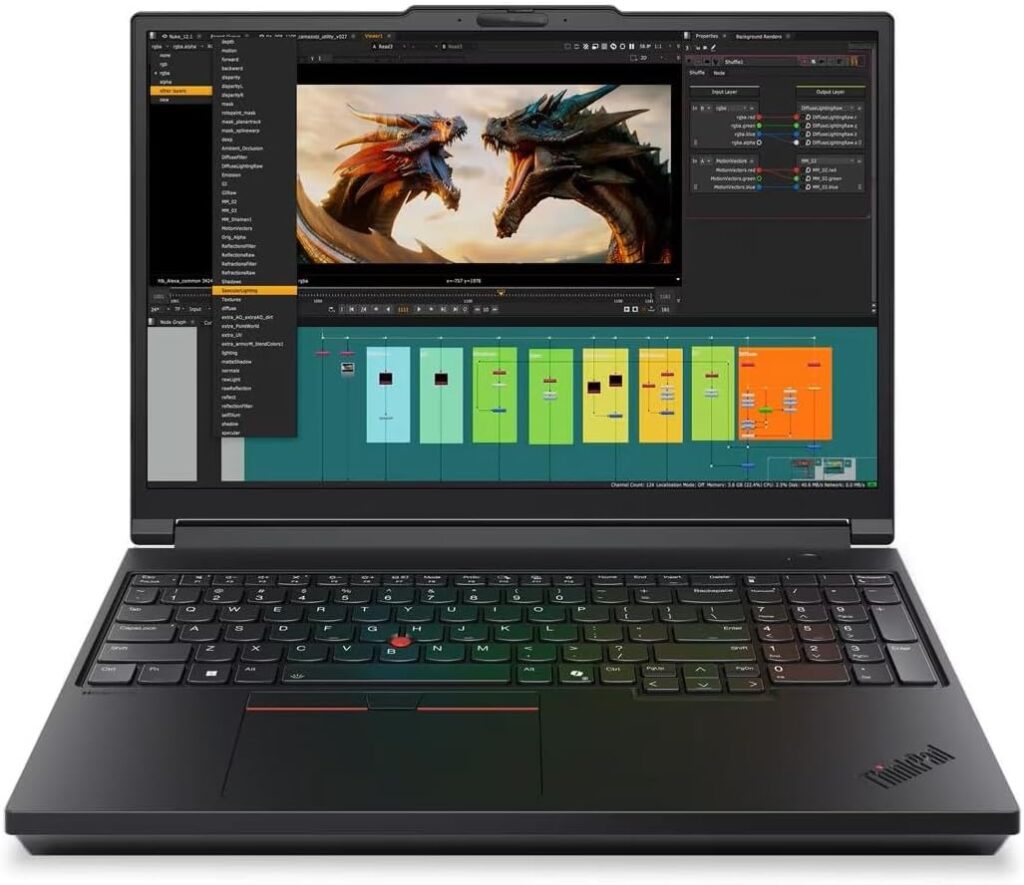
If your topologies no longer fit, this is the answer, and the reason is memory: four SO-DIMM slots, up to 192 GB of DDR5. Four slots means you can start at 64 GB and grow without throwing away sticks. Three M.2 PCIe Gen 5 bays up to 12 TB means you keep every vendor image, every snapshot, and a year of captures locally.
It also has 2.5 Gigabit Ethernet built in, increasingly relevant as access switches get 2.5G uplinks and you’d rather not be the bottleneck during a capture.
Key specs
- CPU: Intel Core Ultra Series 2 HX (Arrow Lake-HX), up to Core Ultra 9 285HX — 24 cores, 8 P-cores to 5.5 GHz, 16 E-cores. 110 W sustained, 160 W burst
- RAM: Up to 192 GB DDR5, four SO-DIMM slots, ECC available
- Storage: Up to 12 TB across three M.2 2280 slots (one Gen 5, two Gen 4)
- GPU: Up to RTX PRO 5000 Blackwell 24 GB (you almost certainly don’t need this)
- Display: 16″ 16:10 — WUXGA IPS 500 nits, 3.2K Tandem OLED, or 4K IPS 800 nits
- Ports: 2× Thunderbolt 5, Thunderbolt 4, 2× USB-A, HDMI 2.1, 2.5 GbE RJ45, SD Express, smartcard, nano-SIM
- Wireless: Wi-Fi 7, optional 5G WWAN, socketed Wi-Fi card again this generation
- Battery: 99 Wh, 180 W USB-C charging
- Weight: 2.7 kg, plus a 521 g power supply
- Price: from around $3,500
What the lab found
Notebookcheck’s review unit (Core Ultra 9 285HX, RTX PRO 3000, 96 GB, 2 TB Samsung PM9E1) scored 34,998 in Cinebench R23 multi-core and 2,228 single-core, with Geekbench 6 at 18,212 multi and 2,989 single. That’s roughly 43% faster than the Gen 2 in CPU work.
Storage is excellent: 9,301 MB/s sequential read and 7,476 MB/s write, though it throttles somewhat under sustained load. Snapshot restores and qcow2 imports will not be your bottleneck.
The base WUXGA panel measured 532 cd/m² peak with 1716:1 contrast and 95.2% sRGB, and uses no PWM dimming. It’s a working panel, not a colour-critical one — 64.9% DCI-P3 is modest and ColorChecker ΔE of 4.4 is the weakest here. For CLI work that’s fine.
Battery came in at 11 hours 38 minutes web browsing at 150 nits, strong for a workstation. Charging takes 86 minutes.
Two things to know before buying. First, performance drops about 26% on battery — Cinebench R23 multi fell to 27,728 unplugged. Second, it gets loud: 42.7 dB(A) average under load, peaking at 53.9 dB(A). Notebookcheck describe over 50 dB(A) as audible from other rooms. You will hear this on calls.
Thermals: 50.8 °C maximum on the upper surface, 48 °C on the bottom, at 21.6 °C ambient. Warm, but the palm rest stays at skin temperature.
Pros
- Four RAM slots to 192 GB — nothing else here is close
- Three SSD bays, no storage triage ever
- 2.5 GbE with an Intel I226-LM controller
- Fastest CPU and storage in this guide by a wide margin
- Wi-Fi 7 measured 1,680 Mbit/s receive on iperf3
- Linux certified (Ubuntu 24.04, RHEL 10) for EVE-NG on bare metal
- Best keyboard and TrackPoint here
Cons
- Heavy: 2.7 kg plus a half-kilo charger
- Loudest machine here at 53.9 dB(A) peak
- 26% CPU performance loss on battery
- The 180 W charger can’t keep up with peak draw — it can drain while plugged in
- RTX PRO GPU configurations are pure waste for networking work
- Expensive, and the base panel is underwhelming for the price
Buy it if: your labs regularly exceed 32 GB, you’re prepping for CCIE, or you host the lab others connect to.
2. Lenovo ThinkPad T14 Gen 6 — the one most people should buy
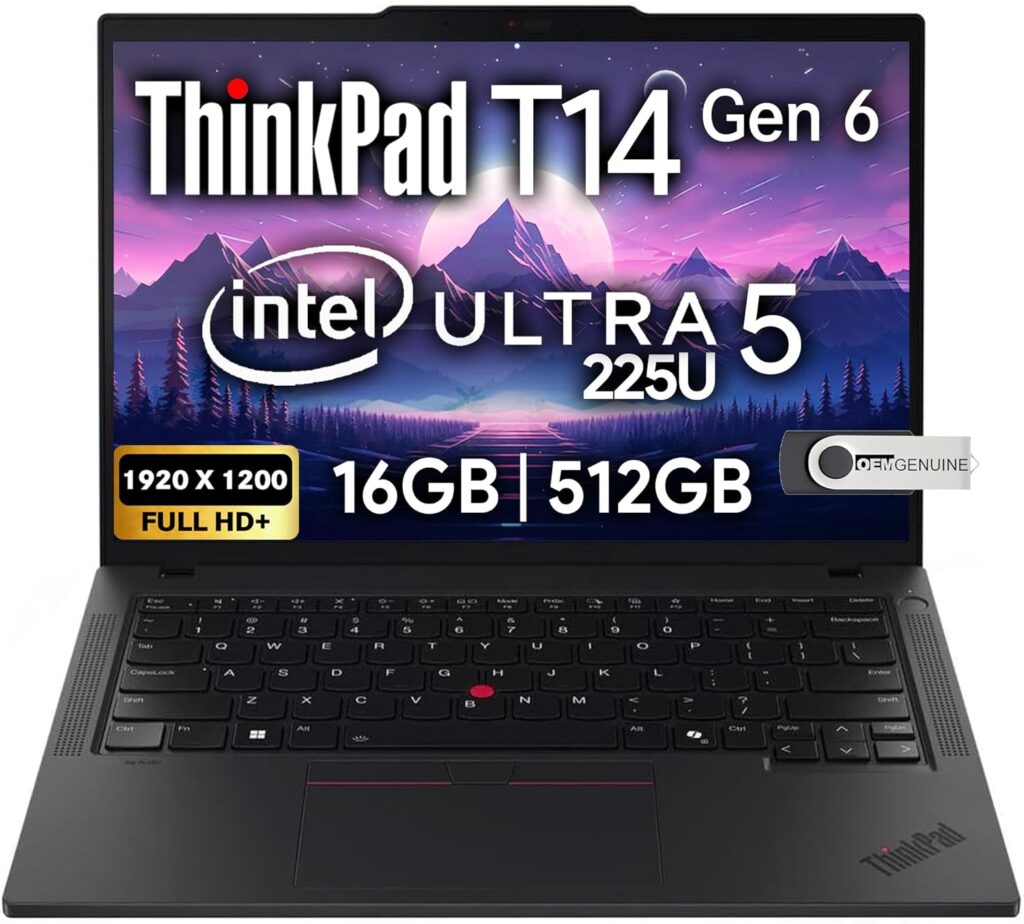
A 14-inch business laptop with the thing that makes it a network laptop: a real RJ45 Ethernet port on a machine light enough to carry all day. Two USB-A ports, split one per side, so your console cable and USB stick aren’t tangled.
Key specs
- CPU: Intel Lunar Lake, up to Core Ultra 7 268V — 8 cores / 8 threads, 22.5 W sustained
- RAM: Up to 32 GB LPDDR5X-8533, soldered on package — read the cons
- Storage: Single M.2 2280, PCIe Gen 5, user-replaceable
- Display: 14″ WUXGA IPS matte, four options including a 500-nit low-power panel and an ePrivacy version. No OLED with Lunar Lake
- Ports: 2× Thunderbolt 4, 2× USB-A 3.2 (one each side), HDMI, RJ45 Gigabit (Intel I219-V), 3.5 mm, smartcard, nano-SIM
- Wireless: Intel BE201 Wi-Fi 7, Bluetooth 5.4, WWAN-upgradeable (slot and antennas present)
- Battery: 57 Wh, 65 W USB-C charger
- Weight: 1.46 kg
- Price: from around $1,300
What the lab found
Notebookcheck measured 10,946 Cinebench R23 multi-core and 1,907 single-core, with Geekbench 6 at 11,174 multi and 2,781 single. Single-threaded performance is genuinely good — it beats several AMD competitors — but multi-core trails significantly. Lunar Lake is an efficiency platform and doesn’t pretend otherwise.
The display is the surprise. The low-power panel measured 554 cd/m² peak, exceeding its own 500-nit spec, with 2308:1 contrast, 98.3% sRGB, and a ColorChecker ΔE of 1.5. That’s the brightest panel of any Windows machine in this guide, it’s matte, and there’s no PWM. Outdoors it stays readable.
Battery ran over 19 hours in web browsing. The machine stays cool and quiet under load, and there was no throttling on battery at all — unlike the P16, unplugged performance holds.
The Intel I219-V is the right NIC: Gigabit, well-supported, handles host VLAN tagging without drama. Wi-Fi measured 1,466 Mbit/s receive.
Pros
- Built-in Gigabit Ethernet with a proper Intel controller
- Two USB-A ports, one per side
- 554 cd/m² matte display, brightest Windows panel here
- Over 19 hours of battery, no throttling unplugged
- Cool and quiet
- WWAN-upgradeable for buildings with no usable Wi-Fi
- Smartcard reader for CAC/PIV environments
- User-replaceable keyboard and easily replaceable battery
- Three-year warranty
Cons
- 32 GB soldered RAM ceiling. Lunar Lake puts memory on package. What you buy is what you have forever
- 8 cores / 8 threads, no hyperthreading — 10,946 Cinebench multi is under a third of the P16
- Notebookcheck flagged SSD throttling under sustained load
- Single M.2 slot
- 1 GbE, not 2.5
- Soldered USB-C ports and Wi-Fi module
- No OLED option on Lunar Lake configs
Buy it if: you’re in the field, in wiring closets, at client sites — or you just want a laptop that doesn’t punish you for carrying it.
Note: the T14 Gen 6 also ships in Arrow Lake and AMD variants that do have upgradeable RAM. If the 32 GB ceiling is the dealbreaker, look at those before dismissing the line.
The advice nobody gives you
You probably don’t need to run labs on your laptop at all.
Put EVE-NG or GNS3 on a server — an old desktop, a mini PC, a spare workstation, a cloud VM. Access it through the browser or the GNS3 client. Now your labs are limited by that box’s RAM, not your laptop’s, and they keep running when you close the lid.
A T14 Gen 6 plus a mini PC with 64 GB costs less than a maxed mobile workstation, runs larger labs, gives you a laptop you’ll enjoy carrying, and lets you lab from your phone. The only real reason to run locally is if you genuinely work offline — on planes, on ships, at sites with no connectivity.
3. Asus TUF Gaming A16 — the budget lab machine
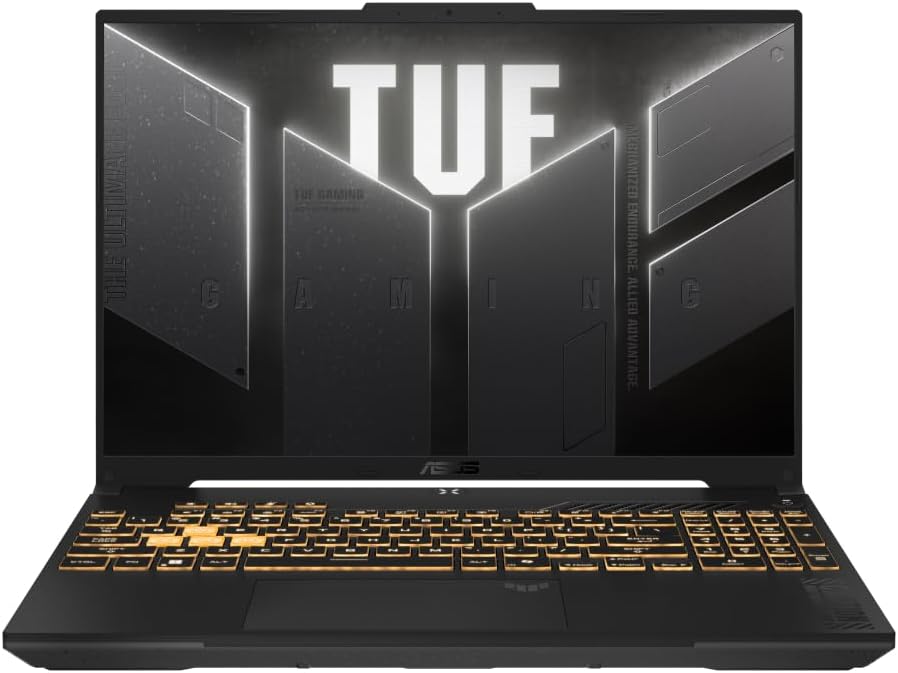
This is the pick nobody’s marketing department wants you to make, and it’s the smartest money on this list if you’re buying with your own.
Strip away the gaming label and look at what a network engineer actually gets: two SO-DIMM slots taking 64 GB, Gigabit Ethernet, three USB-A ports, two M.2 slots, and a removable battery — for less than half what the workstations cost. Notebookcheck specifically noted that the redesign fixed the previous model’s soldered RAM, which was its biggest flaw.
The chassis is also more discreet than you’d expect. Notebookcheck describe it as subdued black and grey with no RGB elements or large logos, and note it can fit into a professional environment without a problem.
Key specs
- CPU: AMD Ryzen 7 260 (Zen 4, Hawk Point), 8 cores / 16 threads to 5.1 GHz, 80 W sustained. Ryzen 9 8940HX (16-core) also available
- RAM: 32 GB DDR5-5600 as tested, two SO-DIMM slots, up to 64 GB
- Storage: WD PC SN5000S 1 TB, two M.2 slots
- GPU: RTX 5070 Laptop, 8 GB, 115 W (irrelevant for our work, and you’re paying for it)
- Display: 16″ 2560×1600 matte IPS, 165 Hz, G-Sync, no PWM
- Ports: Gigabit Ethernet, HDMI 2.1, 2× USB-C 3.2 Gen 2 (one with PD), 3× USB-A 3.2 Gen 2, 3.5 mm. No USB4 or Thunderbolt
- Wireless: MediaTek Wi-Fi 6E MT7922 — no Wi-Fi 7
- Battery: 90 Wh, 240 W PSU
- Weight: 2.21 kg, plus a 748 g power brick
- OS: Windows 11 Home — budget for the Pro upgrade
- Warranty: 24 months
- Price: €2,199 as tested; US Ryzen 9 configurations have listed around $1,779–$2,040
What the lab found
Notebookcheck measured 17,277 Cinebench R23 multi-core and 1,760 single-core, with Geekbench 6 at 13,299 multi and 2,673 single. That places it comfortably above the T14 Gen 6 in multi-threaded work — which is what spinning up a dozen VMs actually stresses — and roughly halfway to the P16.
Single-core is the weak spot: 1,760 is the lowest here, a consequence of the older Zen 4 architecture. Notebookcheck called the processor choice out directly as not making immediate sense at this price.
The display is genuinely good and underrated for our purposes. Matte 2560×1600, 480 cd/m² peak, 1500:1 contrast, 97.2% sRGB, ColorChecker ΔE of 1.4 — the most colour-accurate panel of the Windows machines here out of the box. Matte matters when you’re under fluorescent lighting, and 1600p on 16 inches means plenty of visible CLI lines. No PWM.
Ethernet is Realtek rather than Intel. Fine for general use; verify behaviour before relying on it for anything exotic.
Noise is the real trade-off. Notebookcheck measured maximum fan volume by profile: 39.3 dB(A) in Quiet, 46.7 dB(A) in Performance, and 57.1 dB(A) in Turbo. That Turbo figure is the loudest number in this entire guide. Run it in Quiet or Performance and it’s manageable; Turbo is unusable near other humans. For lab work you don’t need Turbo anyway.
Pros
- Two SO-DIMM slots to 64 GB — upgrade yourself, cheaply
- Gigabit Ethernet built in
- Three USB-A ports, more than anything else here
- Two M.2 slots, socketed Wi-Fi module, removable battery
- 17,277 Cinebench multi at roughly half the price of the workstations
- Most colour-accurate Windows panel here (ΔE 1.4), matte, no PWM
- Subdued chassis with no RGB
- Wi-Fi 6E measured 1,713 Mbit/s receive — the fastest 5 GHz result in this group
Cons
- 57.1 dB(A) in Turbo mode — loudest here by a margin
- Weakest single-core performance in the guide (1,760 Cinebench)
- Zen 4 is an older architecture, and you’re paying 2026 prices for it
- No USB4 or Thunderbolt, and no Wi-Fi 7
- Realtek NIC rather than Intel
- Ships with Windows 11 Home, not Pro
- 24-month warranty, no on-site business support option
- You’re paying for an RTX 5070 that does nothing for network work
Buy it if: you want 64 GB and real multi-core performance without workstation pricing, and you can live without enterprise support.
4. HP ZBook Fury 16 G11 — the discounted workstation
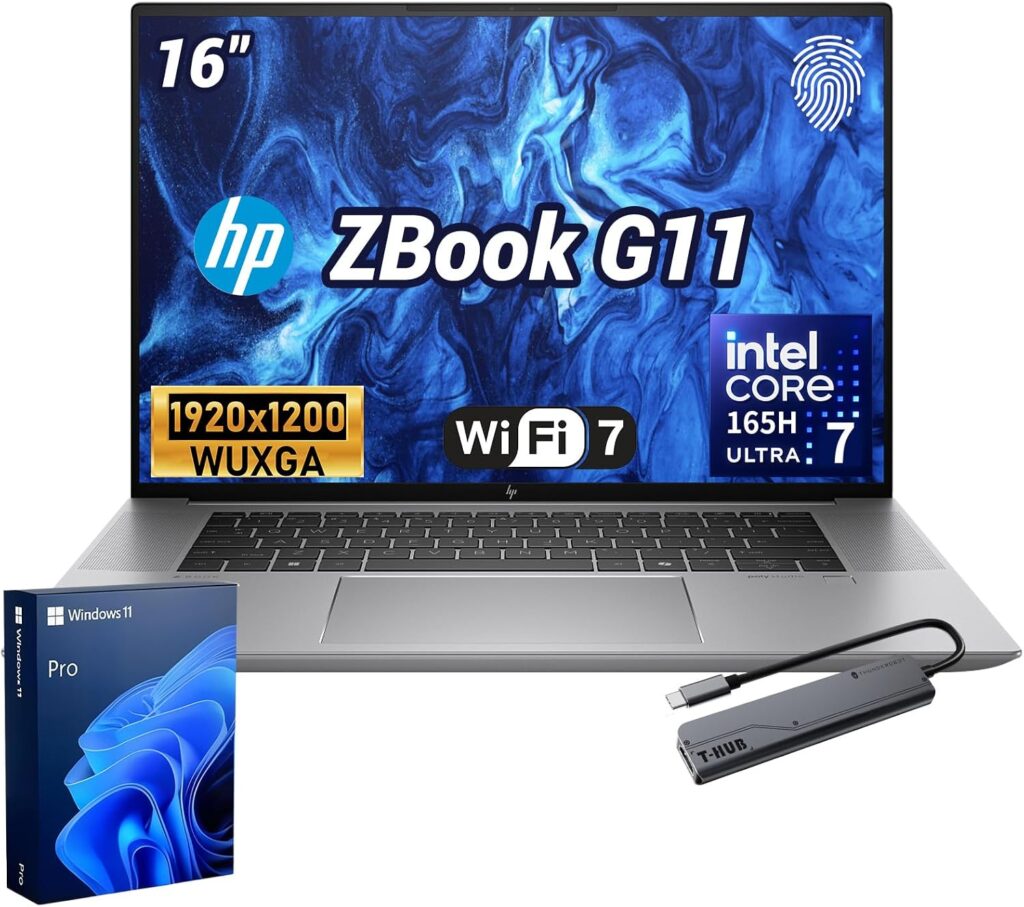
The Fury G11 is a generation behind current silicon, which is exactly why it’s on this list. It’s a full mobile workstation with 64 GB, real cooling, and RJ45, now selling well below its $3,300 list price as the G1i generation replaces it.
Key specs
- CPU: Intel Core i9-14900HX — 24 cores / 32 threads (Raptor Lake-HX)
- RAM: 64 GB as tested
- Storage: SK hynix PC801 1 TB
- GPU: RTX 3500 Ada, 12 GB
- Display: 16″ 3840×2400 IPS, 120 Hz
- Ports: RJ45 Ethernet, USB-A, Thunderbolt 4, HDMI
- Battery: 95 Wh
- Weight: 2.6 kg, 28.5 mm thick
What the lab found
Notebookcheck measured 27,130 Cinebench R23 multi-core and 2,178 single-core, with Geekbench 6 at 15,279 multi and 2,924 single. That’s the second-fastest multi-core result here — behind the P16 but comfortably ahead of the TUF A16 and more than double the T14.
Storage is the weak point relative to the P16: 5,640 MB/s sequential read and 3,611 MB/s write on the Gen 4 SK hynix drive, roughly 40–50% behind the P16’s Gen 5 Samsung.
The 4K panel covers 99.9% sRGB and 98.8% DCI-P3 with a ColorChecker ΔE of 2.78 — much wider gamut than the P16’s base panel — but peak brightness is only 458 cd/m² with a weak 1064:1 contrast ratio and 83% brightness distribution, the worst uniformity in this group.
Thermals are the standout. Maximum upper-surface temperature of 42.2 °C, meaningfully cooler than the P16’s 50.8 °C despite similar CPU class. Noise tops out at 48.2 dB(A), also below the P16.
Battery is the weak point: 6 hours 42 minutes web browsing, the shortest of any Windows machine here.
One measurement worth flagging: Notebookcheck recorded a maximum DPC latency of 11,167 μs, dramatically worse than every comparison machine (the P16 managed 2,426 μs). High DPC latency causes audio dropouts and can affect real-time capture work. If you do a lot of packet capture or VoIP testing, that’s a number to weigh seriously.
Wi-Fi is also mediocre: 852 Mbit/s receive on 5 GHz, roughly half the P16’s result.
Pros
- 27,130 Cinebench multi — second-fastest here
- 64 GB RAM and workstation cooling
- Coolest chassis under load at 42.2 °C max
- Quieter than the P16 at 48.2 dB(A) peak
- Widest colour gamut of the Windows machines (98.8% DCI-P3)
- Built-in RJ45 Ethernet
- Heavily discounted as the outgoing generation
- Full workstation warranty and ISV certifications
Cons
- 6h 42m battery — worst Windows result here
- DPC latency of 11,167 μs, a genuine concern for capture and real-time work
- Weak Wi-Fi: 852 Mbit/s receive, about half the P16
- Only 458 cd/m² brightness with poor 1064:1 contrast and 83% uniformity
- Storage roughly half the P16’s speed
- Previous-generation Raptor Lake silicon
- 2.6 kg and 28.5 mm thick
Buy it if: you want workstation multi-core and 64 GB at a discount, and you’re mostly plugged in.
5. Apple MacBook Pro 14″ (M5 Pro) — brilliant hardware, one disqualifying caveat
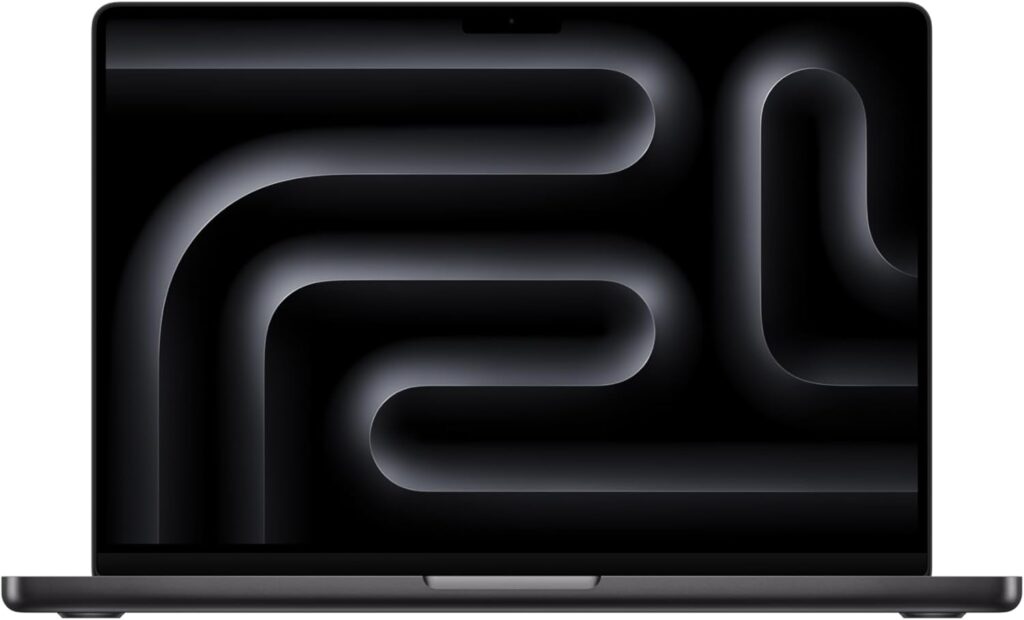
The caveat first, because it’s the whole story and most reviews bury it.
You cannot run Cisco IOS images natively on Apple Silicon. vIOS, IOL, CSR1000v — these are x86 binaries and Apple Silicon is ARM. QEMU emulation is technically possible and practically miserable: a topology that converges in under a minute on a ThinkPad takes many times longer, when it works at all.
If your job is building topologies in GNS3 with vendor images, buy a Windows laptop. I’m not softening that.
Still here? Good, because for a growing share of network engineers this is the best hardware on the list. If your work is automation — Python, Ansible, Terraform — or cloud networking on AWS and Azure, or SSH into real gear rather than emulating it, or containerlab with ARM-native images, or you run labs on a remote EVE-NG server anyway, the ARM problem evaporates.
Key specs
- CPU: Apple M5 Pro — up to 18 cores (6 “super” + 12 performance), 20-core GPU, 16-core Neural Engine
- RAM: Up to 128 GB unified — not upgradeable, configure at purchase
- Storage: From 1 TB, roughly 2× faster than the previous generation
- Display: 14.2″ Liquid Retina XDR, 3024×1964, 1000 nits sustained SDR, 1600 nits peak HDR, 120 Hz ProMotion, nano-texture option
- Ports: 3× Thunderbolt 5, HDMI, SDXC, 3.5 mm, MagSafe 3 — no Ethernet, no USB-A
- Wireless: Apple N1 chip, Wi-Fi 7, Bluetooth 6, Thread
- Weight: ~1.55 kg
What the labs found
Geekbench 6 single-core lands around 4,296 — currently the fastest single-core result in laptops, and roughly 44% ahead of the P16 Gen 3’s 2,989. Multi-core ranges from about 22,800 on the 15-core configuration to around 28,600 on the 18-core.
Battery is the headline. Tom’s Guide measured 21 hours 10 minutes on the 16-inch M5 Pro in continuous web surfing at 150 nits. Tom’s Hardware recorded 18.5 hours on the 14-inch. Crucially, Apple Silicon doesn’t throttle on battery the way Arrow Lake does — you keep full performance unplugged.
Storage is very fast. The Verge measured 13.6 GB/s read and 17.8 GB/s write on a 4 TB M5 Max configuration, an 86% and 123% improvement over the equivalent previous model.
The display is not a fair fight. 1000 nits sustained means you can work outdoors, in a bright van, next to a window — situations where every other laptop here is unreadable. The nano-texture option kills glare in fluorescent-lit facilities.
Pros
- Best display here: 1000 nits sustained, nano-texture option, superb text rendering
- Best battery: 18.5–21 hours, with no performance loss unplugged
- Fastest single-core CPU currently available in a laptop
- Excellent Unix environment for automation work
- Up to 128 GB unified memory for non-x86 VM work
- Thunderbolt 5 and extremely fast storage
Cons
- No native x86 virtualization. Cisco vIOS, IOL, and most vendor images won’t run usefully
- No Ethernet port. Dongle required — verify it handles VLAN tagging and promiscuous mode
- Zero USB-A ports. Every console cable needs an adapter
- Memory soldered, and Apple’s upgrade pricing is steep
- Expensive
- Some vendor management utilities are Windows-only
Buy it if: you’re automation-focused, cloud-focused, or you lab on a remote server.
Skip it if: you build local topologies with vendor images. Seriously.
Which one should you actually buy?
Studying for CCNA or CCNP with your own money: T14 Gen 6 with 32 GB, plus a used mini PC with 64 GB running EVE-NG. Costs less than one maxed workstation and gives you better labs.
Best value if it all has to be one machine: Asus TUF Gaming A16. 64 GB capacity, 17,277 Cinebench multi, Ethernet, three USB-A. Run it in Quiet or Performance mode and budget for Windows Pro.
Everything on one machine, labs are large: ThinkPad P16 Gen 3. Nothing else takes 192 GB.
Workstation multi-core at a discount: HP ZBook Fury 16 G11 — provided the DPC latency figure doesn’t affect your work and you’re mostly plugged in.
Automation, cloud, or you SSH into real gear: MacBook Pro 14″ M5 Pro — but only once you’ve internalised that x86 vendor images won’t run.
In the field most days: T14 Gen 6, no hesitation.
FAQ
How much RAM do I need for GNS3 and EVE-NG? It depends on which images you run, not how many nodes. Light IOL nodes cost a couple hundred MB each; a CSR1000v costs 4 GB or more. 16 GB handles CCNA-level work with light images. 32 GB is the realistic floor for CCNP topologies. 64 GB is comfortable for mixed-vendor labs with firewall and server VMs. Count your images before you buy.
Do I need a dedicated GPU? No. Network simulation, packet analysis, and automation tooling are CPU and memory bound. A discrete GPU adds cost, heat, noise, and battery drain for no benefit. This is worth remembering with the TUF A16 in particular — you’re paying for an RTX 5070 that will sit idle.
Can I use a gaming laptop for network engineering? Yes, and it’s often the best value. Gaming laptops give you SO-DIMM slots, multiple USB-A ports, Ethernet, and strong multi-core performance for far less than a mobile workstation. The trade-offs are noise, weight, battery, consumer warranties, and Windows Home instead of Pro. If you’re mostly at a desk, those are acceptable.
Can I use a MacBook for network engineering? For automation, cloud networking, containerlab, and SSH work — absolutely. For running Cisco vIOS, IOL, or CSR1000v locally in GNS3 — no. Those are x86 binaries and Apple Silicon is ARM. Many Mac users run a remote EVE-NG server, which works well and sidesteps the problem.
Do I really need a built-in Ethernet port? Strongly recommended. Wi-Fi doesn’t help on an isolated management VLAN. A USB-C dongle works if you buy a good one and verify it handles VLAN tagging and promiscuous mode — but built-in never gets left in the other bag.
Windows, Linux, or macOS? Windows 11 Pro is the safe default: broadest vendor tool support, Hyper-V, domain join. Linux is excellent if you’re comfortable with it and want EVE-NG on bare metal. macOS is great for automation and poor for x86 emulation.
Is 32 GB enough in 2026? For most working network engineers, yes — provided you’re honest about image sizes. Where 32 GB hurts is soldered-memory machines like Lunar Lake ThinkPads, because there’s no upgrade path. If you’re near the line, prioritise a laptop with SO-DIMM slots over one with more soldered RAM.
Should I run labs locally or on a server? On a server, if you can. A mini PC or old desktop with 64 GB running EVE-NG costs less than upgrading a laptop to equivalent capacity, runs larger labs, keeps running when you close the lid, and lets you lab from any device.
What about refurbished business laptops? Excellent value and underrated. Off-lease ThinkPad T-series, Dell Latitude, and HP EliteBook machines come off corporate fleets in bulk with plenty of life left. A three-year-old T-series with 32 GB will out-lab a new consumer laptop at half the price. Check battery health and confirm the RAM is socketed rather than soldered.
Why don’t you have your own benchmark numbers? Because I didn’t run them, and I’d rather tell you that than pass someone else’s lab work off as mine. Every figure above is attributed to the lab that produced it. Machines without published independent testing were left out of this guide entirely rather than filled in with manufacturer claims — if a review quotes precise temperatures and decibel readings for five laptops with no methodology section and no attribution, ask yourself where those numbers came from.
Sources and methodology
Every laptop in this guide has been through an independent test lab. Machines lacking published measurements were excluded rather than included on specification sheets.
- Notebookcheck — full lab reviews of the ThinkPad P16 Gen 3, ThinkPad T14 Gen 6, Asus TUF Gaming A16 (FA608UP), and HP ZBook Fury 16 G11. Display measurements via X-Rite i1Pro 3, thermals via Fluke 62 Max+, battery testing standardised at 150 cd/m², networking via iperf3.
- Tom’s Guide — MacBook Pro 16″ M5 Pro battery testing (21h 10m, continuous web surfing at 150 nits).
- Tom’s Hardware — MacBook Pro 14″ M5 battery testing (18.5 hours web browsing).
- The Verge — MacBook Pro M5 Max SSD throughput measurements.
Lab capacity figures in the sizing table are calculated from documented image memory requirements, not measured, and are labelled as such.
Configurations tested by these labs may differ from the configuration you buy. Panel options, CPU tiers, and memory fitment all change the numbers — the figures here describe the shape of each machine rather than guaranteeing your specific order.
Last updated: August 2026. Laptop lineups move quickly; specifications and pricing should be verified before purchase.

Hi, my name is Burak. I am a mechanical engineer. I have been writing laptop reviews for the Engineering Laptops website since 2020. Please feel free to contact me if you have any questions.





