
Estimated reading time: 1 minute
Key Takeaways
- In 2026, VRAM is crucial for AI video generation; 24GB is ideal while 16GB is workable.
- The best overall choice is the ASUS ROG Strix Scar 18 for its specs and upgradability.
- Gigabyte Aorus Master 16 Gen 2 offers portability without losing performance, making it a smart compromise.
- For editing, the MacBook Pro 16″ M5 Max shines but isn’t the best for generation tasks.
- The Lenovo Legion Pro 7i Gen 10 provides solid value at around $2,000, making it suitable for many users.
Table of contents
- The Short Version
- Why Most Laptop Advice Fails For This Workload
- The Four Things That Actually Matter
- What Doesn’t Matter (Despite What the Box Says)
- The Five Laptops
- Side by Side
- What Generation Times Actually Look Like
- Five Setup Tips That Save Real Hours
- Mistakes I Keep Watching People Make
- Local or Cloud? An Honest Comparison
- Common Questions
- The Bottom Line
Last month I watched somebody spend $3,400 on a laptop for AI video work, then discover it couldn’t run the model he bought it for. The GPU was fast. The screen was gorgeous. The reviews were glowing. And none of that mattered, because he had 12GB of VRAM and the workflow he needed wanted 24.
That’s the whole problem with buying a machine for this in 2026. The specs that sell laptops are not the specs that generate video.
So let me save you the $3,400 mistake. I’ll tell you exactly which numbers matter, why the marketing on the box is mostly noise, and which five machines I’d actually put my own money on right now — including the one I think most of you should buy, which is not the most expensive one on the list.
The Short Version
If you don’t want to read 3,000 words, here it is:
- VRAM decides everything. 24GB is the ceiling on laptops. 16GB is workable. 12GB will frustrate you.
- Best overall: ASUS ROG Strix Scar 18 (2026) — full-power RTX 5090, 128GB RAM ceiling, cooling that holds up.
- Best if you actually move your laptop: Gigabyte Aorus Master 16 Gen 2 — same 24GB, slim 16-inch body.
- Best for editing rather than generating: MacBook Pro 16″ M5 Max.
- Best value, and what I’d tell a friend to buy: Lenovo Legion Pro 7i Gen 10.
Now the reasoning.
Why Most Laptop Advice Fails For This Workload
Here’s what a typical gaming laptop review measures: frames per second in Cyberpunk, a three-minute stress loop, battery life while browsing.
Here’s what AI video generation actually looks like: the GPU pinned at 100% for forty minutes straight, memory completely saturated, drives thrashing as model weights load and unload, and one thermal hiccup meaning you lose a batch you’ve been waiting on since lunch.
These are different problems. A laptop that wins on gaming benchmarks can lose badly here, and vice versa. That’s why I’m going to spend the next section on the four specs that actually determine whether you’ll be happy — and be blunt about the ones that don’t matter at all.
The Four Things That Actually Matter
1. VRAM — and it isn’t close
Image models were forgiving. Video models are not.
When you generate video, you’re holding dozens of frames of latents in memory simultaneously, plus the text encoder, plus the VAE, all live during sampling. Blow past your VRAM and one of two things happens: you crash with an out-of-memory error, or the workflow starts offloading to system RAM and your ninety-second render becomes a twelve-minute one.
Here’s where the models people actually use in 2026 sit:
| Model | Size | Realistic VRAM Floor | What You Get |
|---|---|---|---|
| AnimateDiff | small | 8GB | Short loops, simple motion |
| CogVideoX | — | 12GB | ~6 second clips at 480p |
| HunyuanVideo 1.5 | 8.3B | ~14GB with offloading | 5–10s at 720p, easiest entry point |
| Wan 2.2 TI2V-5B | 5B | 8GB (happy at 12–16GB) | 720p at 24fps, genuinely good output |
| Wan 2.2 A14B (MoE) | 27B total, 14B active | 24GB, and it’s tight | Best motion quality in open weights |
| Wan 2.7 | 14B MoE | 24GB+ | 4K output, clips up to ~20 seconds |
| LTX-2 | ~19–22B | 24GB minimum | Synchronised audio and video in one pass |
Look at where 24GB lands on that table. It’s the line between running the good stuff and permanently quantising everything down to Q4 while hoping for the best.
The trap nobody warns you about: the RTX 5090 Laptop GPU has 24GB. The desktop RTX 5090 has 32GB. Same name, completely different chip. I’ve seen people order a laptop expecting 32GB and be genuinely confused when Windows reports 24. There is no laptop on the market with more than 24GB of dedicated VRAM. If you need more, your only options are Apple’s unified memory or renting a cloud GPU.
2. System RAM — the spec everybody cheaps out on
This is the one that bites.
When your workflow offloads the text encoder or spills latents to CPU, that data lands in system RAM. If you’ve only got 16GB, the offload itself becomes the bottleneck — and you’ll sit there watching a slow render, blaming your GPU, running benchmarks, getting nowhere.
32GB is the floor. 64GB is where you actually want to be. It’s also the cheapest meaningful upgrade you can make, and on most Windows laptops here you can do it yourself with a screwdriver for a couple of hundred dollars. Do that before you upgrade anything else.
3. Sustained power, not peak power
An RTX 5090 rated at 175W and an RTX 5090 rated at 130W in a thin ultrabook are not the same product, even though the spec sheet says the same words.
Video generation is a marathon. The GPU sits at maximum draw for the entire render. A machine that thermal-throttles after four minutes will lose to a chunkier one with worse paper specs, every single time.
This is why I keep pointing people at 18-inch chassis and thick 16-inch ones. It’s not snobbery about big laptops. It’s that the vapour chamber and the fan volume are doing real, measurable work over a forty-minute run. When you’re reading reviews, ignore the three-minute benchmark and find the thirty-minute stress test. That’s your workload.
4. Storage — you need more than you think
Model weights are enormous and they multiply fast.
A complete Wan 2.2 set with the VAE and text encoders will take 60–80GB. Add LTX-2. Add HunyuanVideo. Add a folder of LoRAs you’re testing. Add your raw generations before you’ve culled them. You’ll be at 500GB before you’ve made anything you’d actually publish.
1TB is the minimum. 2TB is the sane choice. Gen 5 NVMe also cuts model load times noticeably, which sounds trivial until you’re swapping between checkpoints twenty times in an afternoon.
What Doesn’t Matter (Despite What the Box Says)
The NPU. Every laptop in 2026 advertises a TOPS figure. For diffusion video work, the NPU sits there doing absolutely nothing. It handles background blur on video calls and some Windows features. It is not helping you generate video. Ignore it completely.
CPU tier. You want a competent CPU so preprocessing and VAE decode aren’t sluggish, but a Core Ultra 7 and a Core Ultra 9 will produce nearly identical generation times. Don’t pay $600 for the CPU bump. Put that money into VRAM or RAM where it actually does something.
Refresh rate. A 240Hz OLED is beautiful and I’d want one too. It has zero effect on how fast you generate. Buy it because you like looking at it, not because you think it’s helping.
One thing that quietly does matter: the RTX 50 series carries three NVENC encoders. If you’re running the full pipeline — generate, upscale, interpolate to 60fps, encode — that final export gets meaningfully faster. Over thirty clips, it adds up to real time saved.
The Five Laptops
1. ASUS ROG Strix Scar 18 — The One I’d Buy
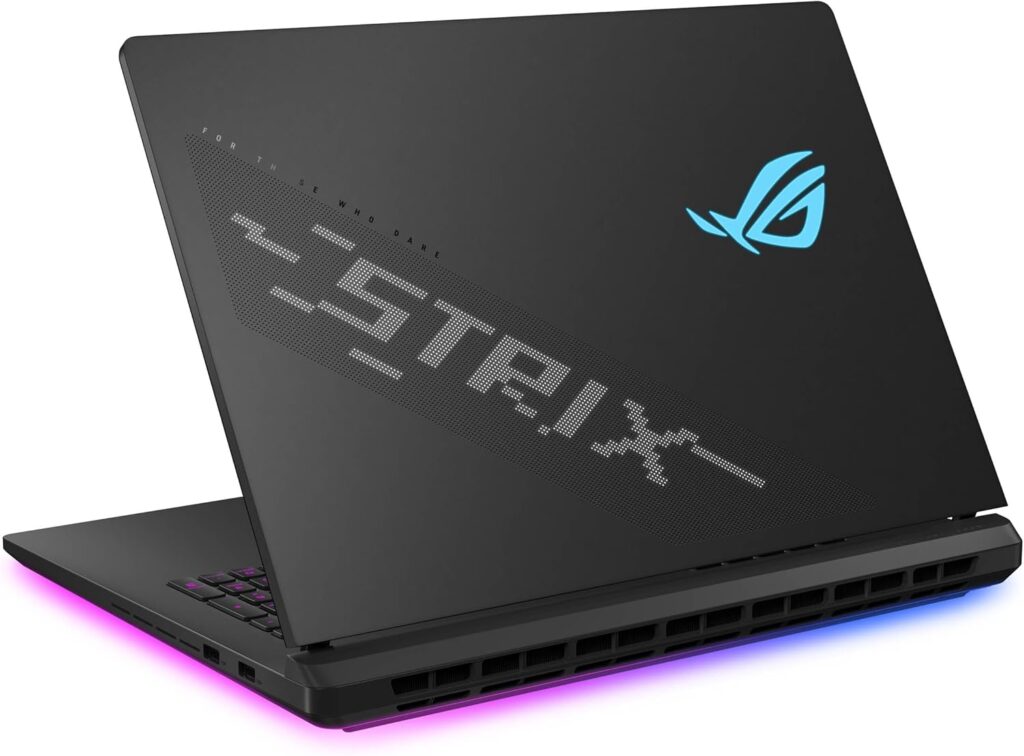
Roughly $4,999 for the RTX 5090 config
This is the machine I’d choose if budget weren’t the constraint. Not because it’s the fastest — several of these trade blows within single-digit percentages — but because it’s the most complete platform for this particular job.
Specifications
- CPU: Intel Core Ultra 9 290HX Plus — 8 performance cores up to ~5.5GHz, 16 efficiency cores
- GPU: RTX 5090 Laptop, 24GB GDDR7, up to 175W TGP
- RAM: 32GB DDR5-6400 standard, user-upgradeable to 128GB (64+64)
- Storage: 1TB standard, two slots, expandable to 8TB (4+4)
- Display: 18-inch mini-LED, 240Hz, exceptional peak brightness
- Cooling: vapour chamber, liquid metal, tri-fan
- Ports: 2× Thunderbolt 5, HDMI 2.1, 2.5G Ethernet, 3× USB-A
- Weight: ~3.3kg, with a 380W power brick
Why it takes the top spot
The 128GB memory ceiling. Nothing else near this price lets you take system RAM that high, and when you’re running offload-heavy workflows, that headroom is the difference between “works” and “works without you thinking about it.” Same story with 8TB of storage — model libraries grow, and swapping drives mid-project is miserable.
The cooling is the other half of the argument. Tom’s Hardware found it competitive across the board with the flagship Razer and Alienware machines, and in long sustained loads the liquid metal and vapour chamber combination holds the RTX 5090 at its full 175W without the clock decay you’ll see in slimmer bodies.
| Pros | Cons |
|---|---|
| Full 175W RTX 5090 with 24GB — the maximum available in a laptop | $5,000, and the base 32GB/1TB config still needs upgrading |
| 128GB RAM ceiling, user-upgradeable | 3.3kg plus a 380W brick — this is a desk machine, full stop |
| 8TB storage across two slots | Loud under sustained load; you’ll want headphones |
| Genuinely excellent sustained thermals | Battery life away from the wall is measured in minutes |
| Dual Thunderbolt 5 for fast external scratch drives | Keyboard deck ergonomics divide people |
| Mini-LED panel is superb for reviewing output | Availability varies by region |
Buy it if: you do this professionally, you have a desk, and you want a machine you won’t outgrow in eighteen months.
2. Gigabyte Aorus Master 16 Gen 2 (AM6J) — The Smart Compromise
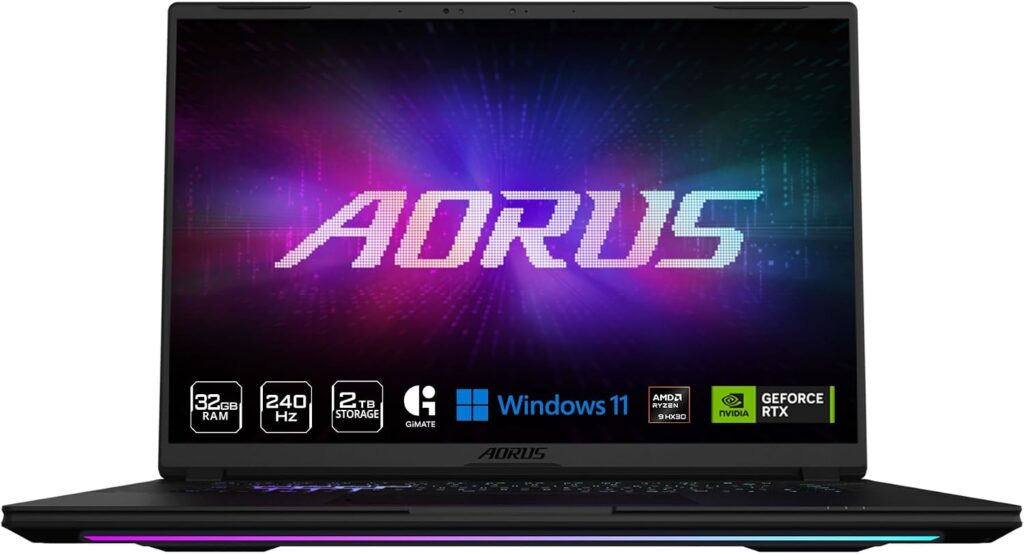
Roughly $4,299, and it’s been seen well under $3,000 on sale
The genuinely interesting one. Gigabyte fitted a full 175W RTX 5090 into a 16-inch chassis noticeably slimmer than the desktop-replacement crowd. That’s hard engineering, not a spec-sheet trick.
Specifications
- CPU: AMD Ryzen 9 9955HX3D with 3D V-Cache
- GPU: RTX 5090 Laptop, 24GB GDDR7, up to 175W with Dynamic Boost
- RAM: 32GB DDR5, upgradeable
- Storage: 1TB or 2TB configurations, dual M.2
- Display: 16-inch 2560×1600 OLED, 240Hz, 100% DCI-P3, HDR1000 True Black, Pantone validated, Dolby Vision
- Extras: MUX switch, USB-C top-up charging, microSD slot
- Ports: Thunderbolt 4 and 5, USB4, HDMI 2.1, GbE, microSD
Why it’s here
For anyone who actually carries their laptop, this is the sweet spot. You give up essentially nothing in generation performance against the 18-inch monsters — same 24GB, same 175W ceiling — and you get something that fits in a normal bag.
The panel deserves its own mention. If you’re generating video, you’re also watching video constantly, and a true-black HDR1000 OLED with full DCI-P3 coverage is a far better surface for judging your output than most gaming laptop screens. TechRadar’s reviewer specifically called it excellent for creative work.
The Ryzen 9 9955HX3D is a slightly odd pairing for this workload — 3D V-Cache is a gaming feature and does nothing for diffusion — but it’s a strong multicore chip and the cooling lets it work hard without obvious throttling.
| Pros | Cons |
|---|---|
| Full 175W RTX 5090 in a slim 16-inch body — genuinely rare | Fans are loud under load, louder than the bigger machines |
| Best display here for reviewing your output | Battery life is poor even by gaming laptop standards |
| MUX switch routes around the iGPU cleanly | Ports are usable but cramped |
| USB-C charging for light work away from the brick | 32GB base RAM will bottleneck heavy offload workflows |
| Often the cheapest route to 24GB when discounted | Regional availability is patchy |
Buy it if: you want maximum VRAM without committing to an 18-inch desk anchor.
3. MSI Titan 18 HX AI (A2XWJG) — The Overkill Option
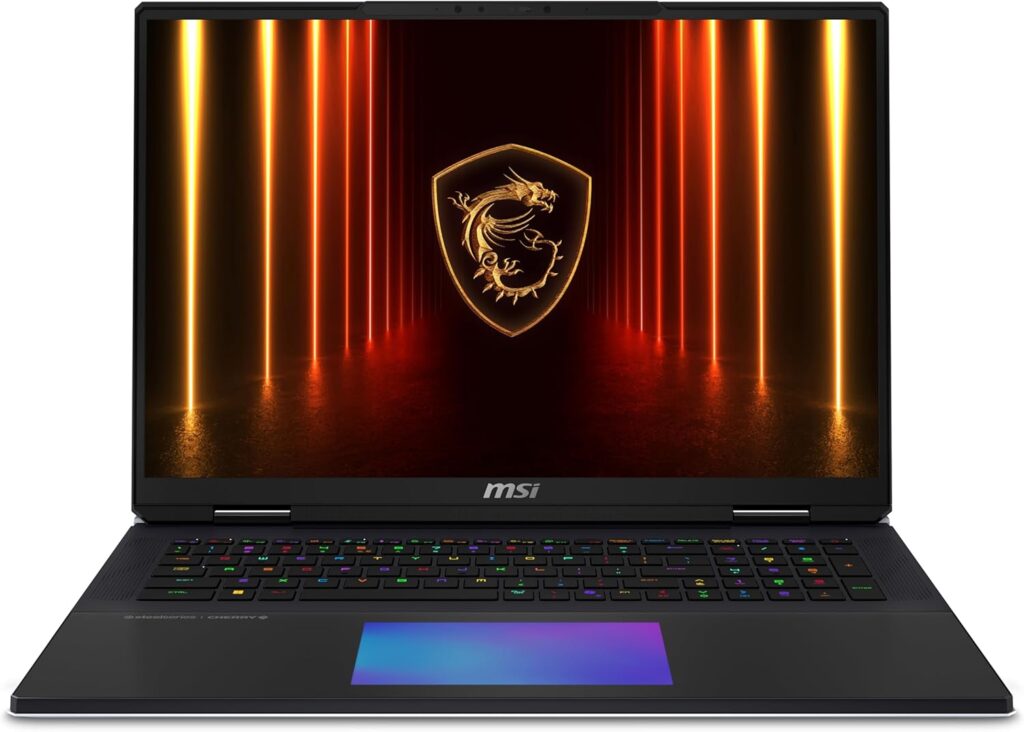
Roughly $4,899–5,500 depending on configuration
An absurd machine at an absurd price that is, occasionally, exactly the right answer.
Specifications
- CPU: Intel Core Ultra 9 285HX — 24 cores (8P + 16E)
- GPU: RTX 5090 Laptop, 24GB GDDR7, full 175W TGP; 270W combined CPU+GPU budget via MSI’s OverBoost
- RAM: 64GB DDR5-6400 standard, expandable to 96GB
- Storage: up to 6TB across three NVMe drives in RAID 0
- Display: 18-inch 3840×2400 mini-LED, 120Hz
- Keyboard: Cherry mechanical, per-key RGB, by SteelSeries
- Connectivity: Thunderbolt 5, Wi-Fi 7, Bluetooth 5.4, 2.5G Ethernet
- Weight: ~3.6kg
Why it earns a spot
The storage configuration, mostly. Three NVMe drives in RAID 0 presenting as a single 6TB volume means your model library, your LoRAs, your raw generations and your edit project all live on the same very fast pool. If you’ve ever waited on a 40GB checkpoint to crawl off a slow drive, you’ll understand.
64GB of RAM as standard also puts it ahead on offload headroom straight out of the box, and the 4K mini-LED panel is the sharpest thing here for judging fine detail — most gaming laptops stop at 1600p these days.
The honest caveat: reviewers have consistently noted mild thermal throttling in the highest performance mode. It’s better than previous Intel-based Titans and it’s not catastrophic, but a Scar 18 holds sustained clocks a touch more reliably.
| Pros | Cons |
|---|---|
| 64GB RAM standard, 96GB ceiling | Eye-watering price even among flagships |
| Up to 6TB RAID 0 NVMe — best storage in class | Mild thermal throttling at maximum performance |
| 4K mini-LED, the sharpest panel on this list | 3.6kg, the heaviest machine here |
| Cherry mechanical keyboard, genuinely the best on any laptop | Touchpad implementation is divisive |
| 270W combined CPU+GPU power budget | RAID 0 means no redundancy — back up religiously |
Buy it if: money truly isn’t the constraint and you want the largest memory and storage pool available in something portable.
4. Apple MacBook Pro 16″ (M5 Max) — Brilliant, With a Real Caveat
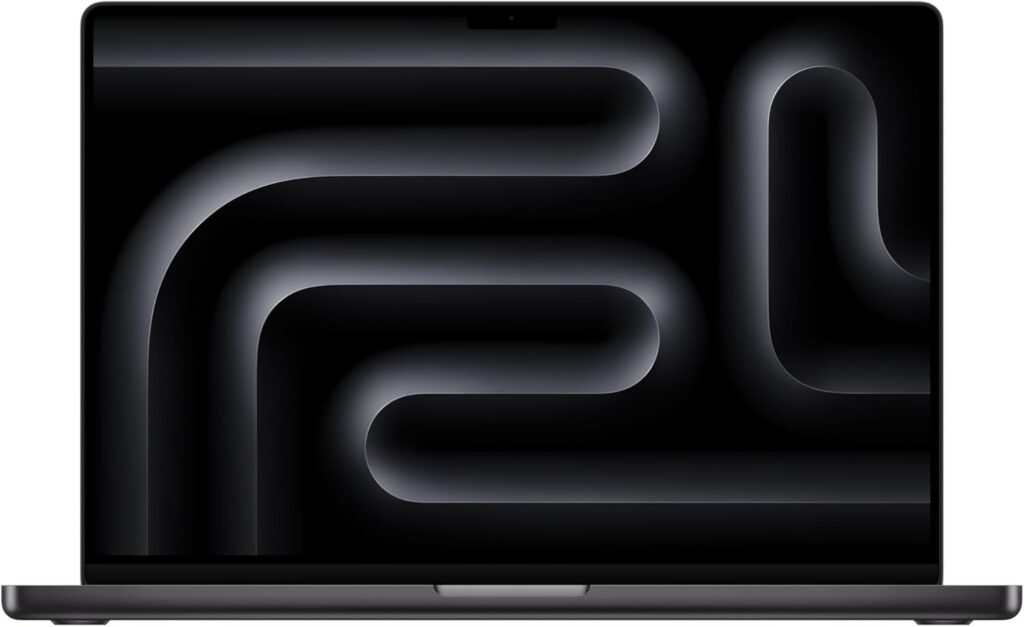
From roughly $3,899; loaded configurations push past $5,500
I want to be straight with you here, because a lot of guides aren’t.
Specifications
- Chip: Apple M5 Max — 18-core CPU, up to 40-core GPU with a Neural Accelerator in every GPU core
- Memory: up to 128GB unified, roughly 460–614 GB/s bandwidth
- Storage: 2TB minimum on M5 Max configs, up to 8TB
- Display: 16.2-inch Liquid Retina XDR, optional nano-texture finish
- Connectivity: Thunderbolt 5, Wi-Fi 7, Bluetooth 6 via Apple’s N1 chip
- Battery: rated up to around 24 hours
- Launched: March 2026
Where it’s brilliant
Unified memory. 128GB accessible to the GPU walks straight past the 24GB VRAM wall that constrains every Windows machine on this list. For large language models this is transformative — it runs 70B-class models at usable speeds while drawing a fraction of the power an RTX rig needs.
Raw compute is no joke either. Gizmodo’s reviewer clocked a Blender BMW render in under four seconds, against 26 seconds on a Ryzen AI Max+ 395 with comparable memory.
Where it isn’t
The video diffusion ecosystem is CUDA-first and that isn’t changing this year. ComfyUI runs on Apple Silicon through MPS, but plenty of custom nodes assume CUDA, quantisation support is patchier, and per-step generation for Wan or LTX-2 lags well behind an RTX 5090 despite all that memory. You’ll spend more time troubleshooting and more time waiting.
So there’s one scenario where this is clearly the right buy: you generate in the cloud or on a second machine, and you edit locally. With 24-hour battery, a reference-grade display, near-silent operation and superb timeline performance, it’s the best editing laptop made. It is not the best generation laptop.
| Pros | Cons |
|---|---|
| Up to 128GB unified memory — no conventional VRAM ceiling | CUDA ecosystem gap is real; most workflows target NVIDIA first |
| Astonishing performance per watt, near-silent under load | Slower per-step diffusion than a 5090 despite the memory |
| ~24 hour battery means you genuinely work untethered | Apple’s memory and storage upgrade pricing is brutal |
| Best-in-class display for colour work | Zero upgradeability after purchase |
| Superb for LLMs, editing, 3D and grading | Chassis unchanged from the M4 generation |
Buy it if: editing and battery life are your priorities and generation is either cloud-based or secondary.
5. Lenovo Legion Pro 7i Gen 10 — What I’d Actually Recommend to a Friend
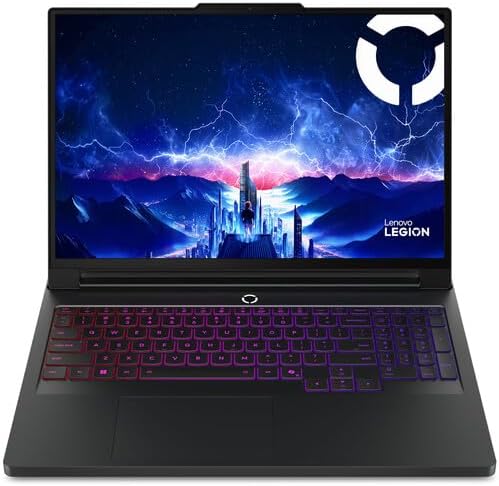
Roughly $2,619 at list, frequently discounted to around $2,000–2,200
Slightly unpopular opinion: most people reading this should buy this laptop, not one of the $5,000 machines above.
Specifications
- CPU: Intel Core Ultra 9 275HX, 24 cores
- GPU: RTX 5080 Laptop, 16GB GDDR7, full 175W TGP (RTX 5070 Ti 12GB and RTX 5090 24GB configs also exist)
- RAM: 32GB DDR5-6400, upgradeable to 64GB
- Storage: 1TB Gen4/Gen5 NVMe, two slots
- Display: 16-inch 2560×1600 OLED, 240Hz, 100% DCI-P3, HDR 1000 True Black, 500 nits
- Build: premium metal chassis
- Ports: Thunderbolt 4, USB-C 3.2 Gen 2, 2× USB-A, HDMI, Ethernet
The argument
At around $2,000 on sale you get 16GB of VRAM at a full 175W. That runs Wan 2.2 5B beautifully, runs Wan 2.2 14B through Q5 GGUF quantisation at 720p, and handles HunyuanVideo 1.5 comfortably. You aren’t locked out of anything — you’re just making quality-versus-speed trade-offs the 24GB crowd doesn’t have to.
Then consider that you saved roughly $2,800. That buys a lot of cloud GPU time for the handful of jobs where you genuinely need 48GB — rented 48GB cards start around $0.35 an hour on budget providers. Run that maths honestly before you spend five figures on a laptop.
Tom’s Hardware called it an outstanding 16-inch machine, and the OLED panel and metal chassis punch well above the price. Its real flaws are minor: no fingerprint reader or IR camera, mediocre battery, and some bundled software nagging you.
| Pros | Cons |
|---|---|
| By far the best price-to-VRAM ratio on this list | 16GB means quantisation and offloading for the biggest models |
| Full 175W on the RTX 5080 — no power-limited compromises | No biometric login options |
| Excellent 240Hz OLED and premium metal build | Middling battery life |
| RAM and storage both user-upgradeable | Ships with bloatware and in-software ads |
| Discounted often and heavily | The 12GB RTX 5070 Ti base config is a trap for this use case |
Buy it if: you’re serious but not made of money, and you’d rather spend the difference on cloud time or a second monitor.
Side by Side
| Scar 18 | Aorus Master 16 | Titan 18 HX AI | MacBook Pro 16 | Legion Pro 7i | |
|---|---|---|---|---|---|
| GPU | RTX 5090 | RTX 5090 | RTX 5090 | M5 Max 40-core | RTX 5080 |
| VRAM / memory pool | 24GB | 24GB | 24GB | up to 128GB unified | 16GB |
| Max GPU power | 175W | 175W | 175W (270W total) | ~65–100W SoC | 175W |
| CPU | Ultra 9 290HX Plus | Ryzen 9 9955HX3D | Ultra 9 285HX | M5 Max 18-core | Ultra 9 275HX |
| RAM ceiling | 128GB | 64GB | 96GB | 128GB (fixed) | 64GB |
| Storage ceiling | 8TB | 4TB | 6TB RAID 0 | 8TB (fixed) | 4TB |
| Display | 18″ mini-LED 240Hz | 16″ OLED 240Hz | 18″ 4K mini-LED 120Hz | 16.2″ XDR 120Hz | 16″ OLED 240Hz |
| Weight | ~3.3kg | ~2.5kg | ~3.6kg | ~2.1kg | ~2.7kg |
| Real-world battery | Poor | Poor | Poor | Outstanding | Below average |
| Upgradeable | Yes | Yes | Yes | No | Yes |
| Price | ~$4,999 | ~$4,299 | ~$4,899+ | ~$3,899+ | ~$2,000–2,600 |
What Generation Times Actually Look Like
These shift with sampler, step count, resolution and quantisation, so treat them as ballparks rather than gospel. Five-second clip, 24fps, ComfyUI:
| Setup | 480p | 720p | Notes |
|---|---|---|---|
| RTX 5090 24GB — Wan 2.2 5B | ~40–70s | ~2–4 min | Comfortable, no offloading |
| RTX 5090 24GB — Wan 2.2 14B FP8 | ~2 min | ~6–9 min | Tight but workable |
| RTX 5080 16GB — Wan 2.2 5B | ~60–90s | ~3–5 min | Perfectly fine |
| RTX 5080 16GB — Wan 2.2 14B Q5 GGUF | ~3 min | ~10–14 min | Offloading required |
| RTX 5070 Ti 12GB | ~4 min | Frequent OOM | Q4 plus sequential offload; expect pain |
| M5 Max via MPS | Slower per step, no memory wall | — | Ecosystem gaps are the real cost |
Notice the pattern: the gap between tiers widens sharply as resolution climbs. At 480p almost everything is survivable. At 720p and above, VRAM decides whether you’re working or waiting.
Five Setup Tips That Save Real Hours
1. Turn on sequential CPU offload before you change anything else. The majority of out-of-memory crashes during sampling are solved by this one ComfyUI setting. Try it before you drop resolution or switch quantisation.
2. Install Wan2GP alongside ComfyUI. It wraps the low-VRAM tricks for you and targets cards as small as 6GB. Even on a 24GB machine it’s handy for quick tests when you don’t want to wire up a node graph.
3. Generate small, then upscale. Render at 480p or 720p, then run RealESRGAN for a 2× upscale and RIFE to interpolate 24fps up to 60. Perceived quality goes up substantially, generation time goes down dramatically. This is the single biggest efficiency win available to you and most people skip it.
4. Match the VAE to the model variant. Wan 2.2’s TI2V-5B uses a different high-compression VAE than the MoE A14B models. Mismatch them and you’ll get black frames or coloured mush, then spend an hour convinced your GPU is dying. Check the model card every time.
5. Undervolt the CPU. On these machines the CPU and GPU share a power budget. Freeing up 15–20W from the CPU gives the GPU room to hold its boost clock through a long render. Costs nothing, takes ten minutes.
Mistakes I Keep Watching People Make
Saving $400 by taking the 12GB GPU. The RTX 5070 Ti is a fine gaming card and a painful video generation card. This is far and away the most common regret purchase in this category.
Ordering 16GB of system RAM. You’ll hit the offload bottleneck immediately and blame the wrong component. 32GB minimum, no exceptions.
Buying for the NPU. The TOPS number on the box is marketing. It does nothing for diffusion.
Assuming laptop and desktop GPUs match. The laptop RTX 5090 has 24GB. The desktop card has 32GB and far more bandwidth. Same badge, different silicon.
Reading the three-minute benchmark instead of the thirty-minute stress test. Your workload is the long one.
Planning to work unplugged. These ship with 330–400W adapters and need them connected for full performance. If your fantasy involves generating video in a café, buy the Mac and use the cloud.
Local or Cloud? An Honest Comparison
Worth thinking about seriously before you spend five thousand dollars.
Cloud wins if: you work in bursts, you occasionally need 48GB or more for large models at full precision, and you’re comfortable uploading assets to someone else’s hardware. Rented 48GB cards start around $0.35 an hour on budget providers; heavier instances cost considerably more.
Local wins if: you generate most days, you iterate constantly and cloud latency destroys your rhythm, your work is confidential, or you’re building LoRAs and fine-tunes where a hundred quick experiments beat five big ones.
The rough break-even: if you’re generating more than about 15–20 hours a month consistently, local pays for itself inside two years and you own hardware at the end. Below that, rent.
Plenty of working professionals do both — a Legion Pro 7i for daily iteration, a rented instance for final high-resolution passes. That isn’t a compromise. It’s just sensible.
Common Questions
What’s the minimum VRAM for AI video generation in 2026? 8GB will run Wan 2.2 5B and AnimateDiff. 12GB opens up CogVideoX and quantised 14B models with heavy offloading. 16GB is the practical minimum for a pleasant experience. At 24GB the constraints mostly disappear.
Is the laptop RTX 5090 the same as the desktop version? No. The laptop GPU has 24GB of GDDR7; the desktop card has 32GB and substantially more memory bandwidth. They share a name and very little else.
Can a MacBook do AI video generation? Yes, with caveats. Unified memory is a genuine advantage for model size, but the ComfyUI ecosystem targets CUDA first and Apple Silicon support lags behind. Outstanding for editing, second-tier for generating.
How much system RAM should I buy? 32GB minimum. 64GB if you’re doing serious offload-heavy work. It’s the cheapest upgrade with the biggest practical payoff.
Is 16GB of VRAM enough for Wan 2.2? For the 5B variant, comfortably yes. For the 14B MoE models, yes through Q5 GGUF quantisation and offloading — but expect noticeably longer renders and be ready to drop to 480p when things get tight.
Do I need Thunderbolt 5? Not for generation itself, but it’s genuinely useful for fast external storage, and you’ll need external storage sooner than you’re planning for.
Will an external GPU enclosure help? Rarely worth it here. Thunderbolt bandwidth becomes the bottleneck and you lose most of the benefit. Put the money into the internal GPU instead.
Does the CPU matter much? Less than you’d think. A mid-tier modern CPU and a flagship one produce nearly identical generation times. Spend the difference on memory.
The Bottom Line
If you’re generating video locally and seriously, buy 24GB. The ASUS ROG Strix Scar 18 (2026) is my pick because the 128GB RAM ceiling and 8TB storage capacity mean you won’t hit a wall in eighteen months. If you need to actually carry the thing, the Gigabyte Aorus Master 16 Gen 2 delivers effectively the same performance in a body that fits a normal bag.
If you’re editing more than you’re generating, the MacBook Pro 16″ M5 Max has no real competition — just don’t expect it to replace an RTX card for diffusion work.
And if you’re honest with yourself about how often you’ll genuinely need 24GB, the Lenovo Legion Pro 7i Gen 10 is the smart money. Sixteen gigabytes at full power for around two thousand dollars, with the savings sitting there for cloud time when a job demands it.
One rule survives every hardware generation: buy VRAM first, RAM second, cooling third. Everything else is negotiable.

Hi, my name is Burak. I am a mechanical engineer. I have been writing laptop reviews for the Engineering Laptops website since 2020. Please feel free to contact me if you have any questions.