Last updated: September 9, 2026
Table of contents
- The ARM Trap: Do Not Buy a Snapdragon Laptop
- Your Laptop Is a Flash-Safety Device, Not an Office Machine
- How I Ranked These
- The Short Answer
- Best Laptop for HP Tuners in 2026: 5 Picks, Real Lab Numbers, and the One Spec That Can Cost You an ECM
- 1. Lenovo ThinkPad X1 Carbon Gen 14 — Best Overall Laptop for HP Tuners
- 2. Dell 14S (2026) — Best Value and the Best Port Layout Here
- 3. ASUS ExpertBook Ultra B9406CAA — For Heavy Logging and Math Parameter Work
- 4. HP EliteBook X G2i — The Lightest One, and the Easiest to Fix After You Spill Something on It
- 5. Panasonic Toughbook 40 MK3 — For the Shop Floor, the Dyno Cell and Mobile Tuning
- Head to Head
- The Power Budget Nobody Talks About: Running Off an Inverter
- What to Skip, and How to Buy Smart
- Set Up Windows Before Your First Flash
- What the MPVI4 Changes
- Frequently Asked Questions
- The Bottom Line
- Sources
I’ve lost count of how many times I’ve seen this thread. Somebody buys a slick new ultrabook, gets it home, plugs in their MPVI, and VCM Suite either refuses to install or behaves like it’s running underwater. Then twenty guys pile in with “just get a used ThinkPad off eBay, bro.”
That advice isn’t wrong. It’s just lazy, and it skips the part that actually matters. A laptop sitting in a driver’s seat with an OBD-II cable running out of it is doing a job that has almost nothing to do with what laptop reviewers normally test for. Nobody benchmarks “will this survive a twelve-minute ECM write on battery power in a hot car.”
So here’s how I put this together, and I want to be straight with you about it up front. I didn’t re-run Cinebench in my garage. I don’t own a calibrated colorimeter or a sound-isolated room, and I’m not going to pretend otherwise. Every performance figure below comes from a named lab with a published, repeatable methodology, mostly Notebookcheck’s calibrated measurements, Tom’s Hardware’s benchmark suite, and StorageReview’s test bench. Where a number is a manufacturer rating rather than an independent measurement, I say so in the table.
What I did do is throw out the usual ranking criteria and re-sort those measurements around six things that decide whether a laptop is good at tuning: sustained CPU behavior, screen brightness under garage lighting, real battery runtime with the screen cranked, DPC latency, thermal throttling under long loads, and whether the thing has ports you can actually plug something into.
Let’s start with the spec that trips up more people than everything else combined.
The ARM Trap: Do Not Buy a Snapdragon Laptop
This is the most important paragraph on this page.
HP Tuners publishes system requirements for VCM Scanner, and one line is not a suggestion:
2 GHz x86 CPU (ARM processors are NOT supported)
That’s straight from the HP Tuners documentation site. The same page lists 4 GB of RAM as the floor, Windows 10 or newer, and Microsoft .NET Framework 8. It also states plainly that running Windows on Mac or Linux computers is not supported.
Here’s why that matters right now. Walk into any big-box store in 2026 and a huge chunk of the “AI laptop” wall is Qualcomm Snapdragon X and X2 silicon. Those are ARM chips. They’re genuinely good machines for email and video calls. They’re also exactly what HP Tuners tells you not to buy. Yes, Windows on ARM has an x86 emulation layer. Yes, somebody on a forum has gotten VCM Suite to launch on one. “It launched” and “I trust it to write a calibration to a $1,900 ECM” are very different sentences, and only one of them gets you a support ticket that goes anywhere.
Watch out for this specifically when you’re shopping business laptops, because several manufacturers now sell the exact same chassis in Intel, AMD and Qualcomm flavors with model names one letter apart. Read the CPU line, not the model name.
Same story with MacBooks. Parallels, an old Intel Mac with Boot Camp, whatever your buddy swears by. Unsupported. When a write fails halfway through, you don’t want to be explaining that you were running it in a virtual machine.
Rule one: Intel Core Ultra or AMD Ryzen. x86 only. Windows 11. No exceptions. Every laptop below passes that test.
Your Laptop Is a Flash-Safety Device, Not an Office Machine
Read HP Tuners’ own flashing instructions and the warnings are blunt. Make sure the vehicle battery is fully charged. Keep a charger on it during the process. If the module loses power while critical components are being written, the VCM may become unrecoverable. Don’t power down the VCM during a write failure. Restart VCM Editor and rewrite using the same file.
The shop guides that walk customers through the same procedure add a line most people scroll right past: avoid using the vehicle battery to power or charge the laptop, and put a maintainer on the car rated for at least 10 amps.
Put those together and you get the real requirement. During a flash, your laptop has to run on its own internal battery, reliably, possibly for several minutes, with the screen on, in a hot car, without sleeping, without a USB port dropping out, and without the CPU throttling into a stall.
That’s the job. That’s the whole job.
Which is why “how many hours does it browse the web at 150 nits” is a soft metric, and “how many hours does it last at maximum brightness” is the one I care about. You’ll see both where the labs published both.
How I Ranked These
I limited myself to machines that are current 2026 models, not last year’s leftovers sitting on clearance, and one laptop per brand. Five total. Then I scored them on metrics that map to actual tuning work rather than to spreadsheet work.
| Tuning task | What it stresses | Benchmark that predicts it |
|---|---|---|
| VCM Editor: opening and comparing large cal files, table math | Single-core speed, memory bandwidth | Cinebench single-core, Geekbench single-core |
| VCM Scanner: high channel counts, stacked math parameters | Sustained multi-core, interrupt handling | Cinebench multi-core loops, DPC latency (LatencyMon) |
| Long dyno pulls and back-to-back logging sessions | Sustained clocks, throttling behavior | 10-run Cinebench stress test, surface and core temps |
| Writing a flash on battery in a driveway | Runtime at high brightness, power stability | Wi-Fi or Modern Office runtime tests, load wattage |
| Reading anything outdoors or in a bright bay | Actual measured panel output | Lab-measured nits, not the spec sheet number |
| Storing months of logs, moving files around | SSD throughput | AS SSD, DiskSpd, Blackmagic Disk Speed Test, 25 GB file copy |
| Plugging in an MPVI2, a wideband, a flash drive | Port inventory | Physical port count and type |
DPC latency deserves a note, because I’ve never seen another laptop buying guide mention it and it might be the most tuning-relevant number on this page. Deferred Procedure Call latency measures how long one driver can hog the system before another driver gets serviced. High DPC latency is the classic cause of dropped frames in audio recording, and of gaps and dropped samples in USB serial data logging. Notebookcheck publishes maximum DPC latency under a mixed web, YouTube and Prime95 load. Lower is better, and I’m using it where it exists.
The Short Answer
| Pick | Best for | Why it wins | Starting price |
|---|---|---|---|
| Lenovo ThinkPad X1 Carbon Gen 14 | Best overall tuning laptop | 14h 14m measured runtime at full screen brightness | $2,249 direct, from about $1,699 street |
| Dell 14S (2026) | Best value and best port layout | Two USB-A ports plus HDMI plus two Thunderbolt 4, at $1,269 | $1,269 |
| ASUS ExpertBook Ultra B9406CAA | Heavy logging and math parameters | 398 µs DPC latency and 16,674 Geekbench 6 multi | About $3,599 reported at launch |
| HP EliteBook X G2i | Lightest machine, easiest to repair after a spill | Screwless keyboard swap, 18,859 PCMark 10 Productivity | About $2,999 street |
| Panasonic Toughbook 40 MK3 | Shop floor, dyno cell, mobile tuning | Hot-swap batteries and a 1,200-nit sunlight-readable panel | $4,699 territory |
Best Laptop for HP Tuners in 2026: 5 Picks, Real Lab Numbers, and the One Spec That Can Cost You an ECM
1. Lenovo ThinkPad X1 Carbon Gen 14 — Best Overall Laptop for HP Tuners
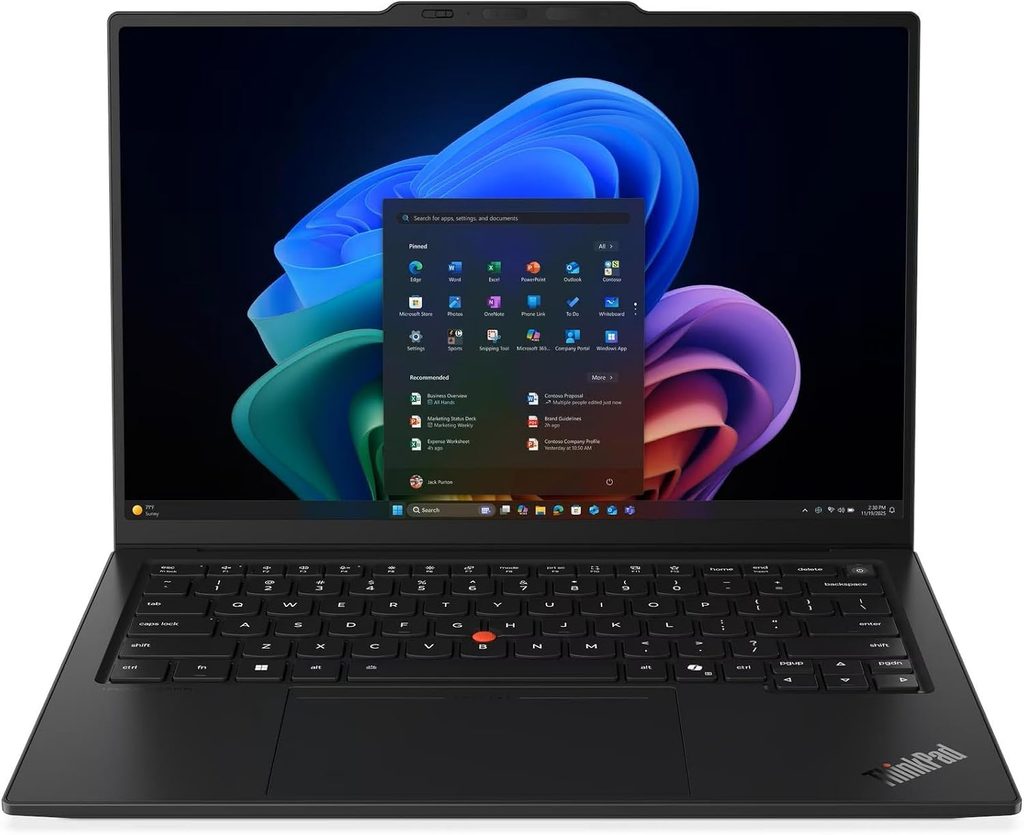
If somebody put a gun to my head and made me pick one laptop for a guy who does a mix of shop work, driveway work and road tuning, this is my answer, and it isn’t close.
Notebookcheck reviewed it in July 2026 and scored it 90% overall, leading with a headline about battery life. That’s exactly the right instinct for what we’re doing.
Specifications as tested
- CPU: Intel Core Ultra 5 325 (Panther Lake), 8 cores and 8 threads, four Cougar Cove P-cores at 4.5 GHz plus four Darkmont low-power E-cores at 3.4 GHz, 35 W PL1 and PL2
- Higher configurations: up to Core Ultra X7 368H with Arc B390 graphics
- Memory: 32 GB LPDDR5x-7467, soldered, up to 64 GB on the Core Ultra X chips
- Storage: Samsung PM9C1b 512 GB PCIe 4.0, in an M.2-2280 slot that supports PCIe 5.0 drives
- Display: 14-inch 1920 × 1200 IPS touchscreen, 60 Hz, low-power panel. A 2.8K 120 Hz OLED is optional
- Ports: three Thunderbolt 4, one USB-A 3.2 Gen 1 with always-on charging, HDMI 2.1, 3.5 mm combo, nano-SIM, Kensington Nano lock
- Wireless: Intel Wi-Fi 7 BE211, Bluetooth 5.4, optional 4G or 5G WWAN with pre-installed antennas
- Battery: 58 Wh with a 65 W USB-C adapter
- Weight: 1.139 kg (2.51 lb) for the IPS touch model, 989 g for the OLED model
- Warranty: 36 months on the reviewed SKU
The measured numbers
| Test | Result | Source of measurement |
|---|---|---|
| Cinebench 2024, multi / single | 645 / 113.3 | Notebookcheck lab |
| Cinebench R23, multi / single | 10,980 / 1,892 | Notebookcheck lab |
| Cinebench R15, multi | 1,670 | Notebookcheck lab |
| Geekbench 6.7, multi / single | 11,038 / 2,620 | Notebookcheck lab |
| PCMark 10 overall | 7,709 | Notebookcheck lab |
| 3DMark Fire Strike / Time Spy | 6,384 / 3,208 | Notebookcheck lab |
| SSD sequential read (DiskSpd Q8T1) | 6,949 MB/s | Notebookcheck lab |
| SSD sequential write (DiskSpd Q8T1) | 5,863 MB/s | Notebookcheck lab |
| SSD 4K write (AS SSD) | 173.8 MB/s | Notebookcheck lab |
| Screen brightness, average / center | 524 / 540 nits | Notebookcheck, X-Rite i1Pro 3 |
| Contrast ratio / black level | 1800:1 / 0.3 cd/m² | Notebookcheck, X-Rite i1Pro 3 |
| sRGB / AdobeRGB coverage | 99.1% / 72% | Notebookcheck, Argyll 3D |
| PWM flicker | None detected | Notebookcheck lab |
| Wi-Fi battery test at 150 nits | 23h 13m | Notebookcheck lab |
| Wi-Fi battery test at maximum brightness | 14h 14m | Notebookcheck lab |
| Power draw, idle / maximum load | 1.6–4.9 W / 64.2 W | Notebookcheck, Metrahit Energy |
| Fan noise, idle / load | 24.8 / 38.9 dB(A) | Notebookcheck, Earthworks M23R |
| Surface temperature, top / bottom maximum | 40.7 °C / 42.8 °C | Notebookcheck, Fluke t3000FC |
| Palm rest temperature under load | 28.7 °C | Notebookcheck, Fluke t3000FC |
| DPC latency, maximum | 3,000 µs | Notebookcheck, LatencyMon |
| Wi-Fi 7 transmit throughput (iperf3) | 4,557 Mbit/s | Notebookcheck lab |
| CPU core temperature, 10-loop stress (Ultra 7 355 unit) | 91 °C average | Tom’s Hardware lab |
| Keyboard surface temperature, stress test | 94 °F between G and H | Tom’s Hardware lab |
Why I’d buy this for tuning
Stare at that 14-hour figure at maximum brightness for a second. Every other laptop’s battery claim falls apart when you crank the panel, because that’s where the watts go. Notebookcheck measured 14 hours 14 minutes with the screen pinned. The average for the office-laptop class in the same test sits under 10 hours.
Translate that to a Saturday. Hood up, sun overhead, screen at full tilt, scanner logging. You are not going to run out of laptop. You’re going to run out of daylight.
The 524-nit measured average is genuinely usable outdoors too. Not Toughbook usable, but usable.
Then there’s a detail I appreciate more than I expected to: the palm rests stayed at 28.7 °C under full load, cooler than skin temperature. That reads like trivia until you’ve balanced a laptop on your thigh in a closed car in July while a write runs.
What I don’t like
The factory display calibration is bad, and I mean measurably bad. Notebookcheck recorded a ColorChecker deviation of 5.0 and a grayscale deviation of 8.3, with a visible green-blue cast. Lenovo did that deliberately to buy brightness. Calibrate it properly and color accuracy becomes excellent at dE 1.1, but you give up almost 100 nits. For our purposes, keep the brightness and live with the cast. You’re reading VE tables, not grading a film.
RAM is soldered. Whatever you order is what you own forever, so order 32 GB.
Skip the OLED. Same review, updated in August 2026: the OLED version drops to 13.5 hours at 150 nits and 7.6 hours at maximum brightness. That’s roughly half. The lighter chassis is not worth it, not for this job.
And 3,000 µs DPC latency is fine, not exceptional. The ASUS below is nearly eight times better.
Pros
- Best measured runtime at full screen brightness of anything here, by a wide margin
- 524-nit measured panel that holds up in a bright bay
- Cool palm rests and quiet fans under sustained load
- Three Thunderbolt 4 ports plus a real USB-A port
- M.2 slot accepts PCIe 5.0 drives for a future upgrade
- Optional WWAN for road tuning without tethering to your phone
- Still the best keyboard in the business for typing notes between pulls
Cons
- Expensive, roughly $1,700 to $2,700 depending on configuration
- Soldered memory
- Poor out-of-box color calibration
- The OLED option guts battery life, so avoid it
- The camera bump is genuinely ugly
Buy this if you tune more than occasionally and you want one machine that does everything without a compromise you’ll actually notice.
2. Dell 14S (2026) — Best Value and the Best Port Layout Here
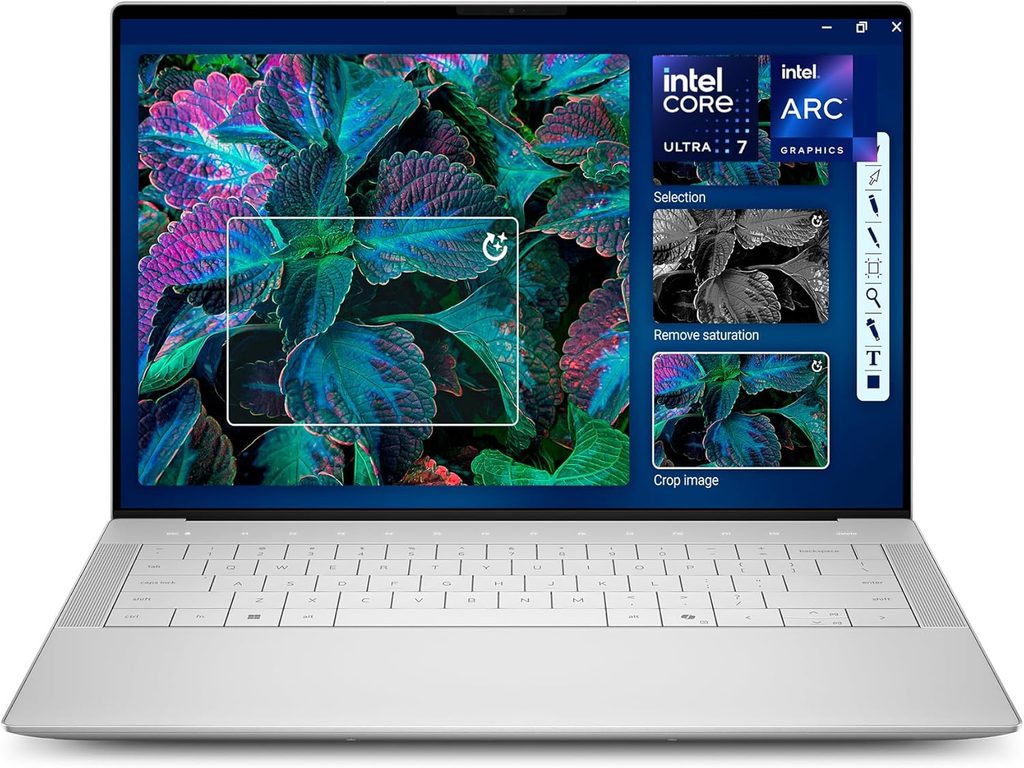
This is the pick for the guy who tunes his own stuff and a few friends’ cars, doesn’t want to spend two grand, and wants to plug things in without carrying a dongle bag.
Tom’s Hardware reviewed it in July 2026, and the port section is the part that made me put it on this list.
Specifications as tested
- CPU: Intel Core Ultra 7 355, four performance cores plus four low-power efficient cores, 4.7 GHz maximum turbo
- Other configurations: Core Ultra 5 322, Core Ultra X7 358H with Arc graphics, Core Ultra 9 386H
- Memory: 16 GB LPDDR5x-7467 onboard, 32 GB available
- Storage: 512 GB Kioxia M.2 2230 PCIe 4.0, in a slot that accepts full-length 2280 drives
- Display: 14-inch 1920 × 1200 OLED touchscreen at 60 Hz, with IPS and non-touch options
- Ports: two Thunderbolt 4, two USB-A 3.2 Gen 1, HDMI 2.1, 3.5 mm combo
- Wireless: Intel BE213 Wi-Fi 7, Bluetooth 5.4
- Battery: 70 Wh with a 65 W USB-C charger
- Weight and size: 3.28 lb (1.49 kg), 12.35 × 8.82 × 0.61 inches
- Warranty: one year of Dell Basic Onsite Service, with optional accidental damage cover
The measured numbers
| Test | Result | Source of measurement |
|---|---|---|
| Geekbench 6, multi / single | 11,064 / 2,704 | Tom’s Hardware lab |
| Cinebench 2026, 10-run stress range | 1,465 to 1,735, settling 1,550–1,650 | Tom’s Hardware lab |
| P-core average clock under stress | 2.61 GHz | Tom’s Hardware, HWInfo |
| Low-power E-core average clock under stress | 2.45 GHz | Tom’s Hardware, HWInfo |
| 3DMark Steel Nomad | 505 | Tom’s Hardware lab |
| Handbrake, 4K to 1080p transcode | 7 min 22 s | Tom’s Hardware lab |
| 25 GB mixed file copy | 1,378.71 MB/s | Tom’s Hardware lab |
| Battery test at 150 nits | 20h 41m | Tom’s Hardware lab |
| Screen brightness, measured average | 269 nits (Dell rates the panel at 300) | Tom’s Hardware light meter |
| DCI-P3 / sRGB coverage | 84.5% / 119.3% | Tom’s Hardware lab |
| Keyboard temperature, stress test | 106 °F between G and H | Tom’s Hardware lab |
| Touchpad temperature, stress test | 82 °F | Tom’s Hardware lab |
| Bottom panel hotspot | 108 °F | Tom’s Hardware lab |
| CPU temperature under stress | 88 °C | Tom’s Hardware, internal sensors |
| Typing speed on the review keyboard | 87 wpm at 97% accuracy | Tom’s Hardware, Keyhero |
Why it’s on the list
Two USB-A ports plus HDMI plus two Thunderbolt 4 ports on a $1,269 laptop is a rare combination in 2026. Most machines at this price gave up USB-A years ago. If you’re still running an MPVI2, a USB wideband, an old flash drive full of stock files and a USB-to-serial widget for something ancient, this is the machine that doesn’t make you haul a hub into the car.
Twenty hours and forty-one minutes on a 70 Wh pack is excellent, and that was with the OLED panel, which normally costs you runtime. Tom’s Hardware noted an IPS-equipped unit would likely do better still.
It’s also serviceable in the ways that matter. Six screws get the bottom panel off. The battery is replaceable. The SSD is a standard M.2 you can swap for something bigger, and the Wi-Fi card is socketed too. For a machine that’s going to live in a shop and eventually take a coffee to the keyboard, that’s worth more than a fancy trackpad.
What I don’t like
The screen is dim. 269 measured nits is the weak point of this laptop for our use case, full stop. Dell rates the panel at 300 and the lab came in under that. Under bright shop lights or with sun coming through a bay door, you’ll squint. If you tune outdoors regularly, look at the ASUS or the Toughbook instead.
Multi-core performance is at the back of its price class. Perfectly fine for VCM Suite. Not fine if you also edit video on the same machine.
512 GB is stingy at $1,469. Budget for an SSD swap or spec the 1 TB from the start.
Single fan, and the CPU sat at 88 °C under sustained load. Not alarming, but don’t expect it to hold peak clocks through a marathon logging session.
Pros
- Two USB-A ports, HDMI 2.1 and two Thunderbolt 4, the best legacy support here
- 20h 41m measured runtime on a 70 Wh battery
- $1,269 entry price with a genuine aluminum chassis
- Replaceable battery and a standard M.2 slot that takes 2280 drives
- Optional Core Ultra X7 358H with Arc graphics if you want more headroom later
Cons
- 269-nit measured display, the dimmest on this list
- Mediocre multi-core performance for the money
- 512 GB of storage at the tested price
- Single fan, 88 °C under sustained load
- Top-hinged trackpad with a dead zone at the upper edge
Buy this if you want the most tuning capability per dollar and you mostly work indoors or in the shade.
3. ASUS ExpertBook Ultra B9406CAA — For Heavy Logging and Math Parameter Work
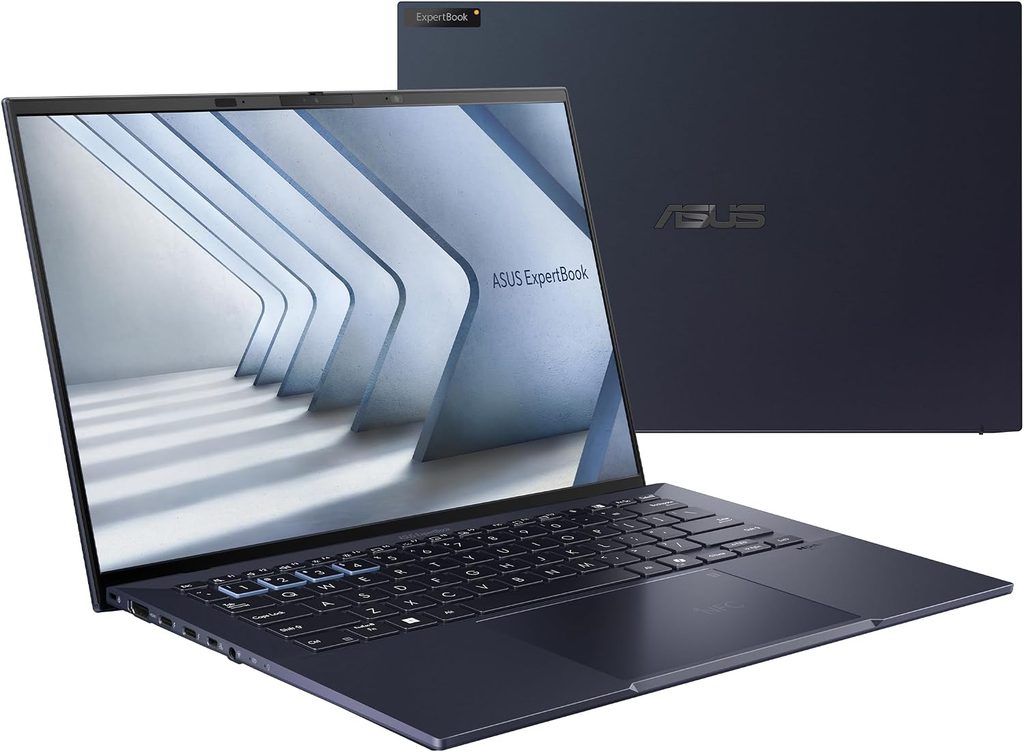
This is the one I’d buy if VCM Scanner is where I live. Huge channel counts, stacked math parameters, long sessions, and I want the laptop to never be the bottleneck.
Notebookcheck’s lab data on the Core Ultra X7 358H version puts it at the top of the office-laptop class in nearly every CPU chart they run.
Specifications as tested
- CPU: Intel Core Ultra X7 358H (Panther Lake) with Intel Arc B390 graphics, 12 Xe3 cores
- Memory: 32 GB LPDDR5X
- Storage: Samsung PM9E1 PCIe Gen 5, 2 TB in the tested unit
- Display: 14-inch 2880 × 1800 tandem OLED, 120 Hz, matte finish, touch, with Corning Gorilla Glass
- Ports: USB-A, USB-C and HDMI
- Wireless: Intel Wi-Fi 7 BE211, Bluetooth 6.0
- Battery: 70 Wh
- Weight: 0.99 kg (2.18 lb) in the lightest configuration; Notebookcheck’s 2 TB test unit weighed 1.1 kg
- Build: magnesium-aluminum chassis, which ASUS rates to withstand 100 kg of static load
The measured numbers
| Test | Result | Source of measurement |
|---|---|---|
| Cinebench 2024, multi / single | 1,125 / 124.2 | Notebookcheck lab |
| Cinebench R23, multi / single | 19,841 / 2,079 | Notebookcheck lab |
| Cinebench R15, multi | 3,039 | Notebookcheck lab |
| Geekbench 6.7, multi / single | 16,674 / 2,836 | Notebookcheck lab |
| PCMark 10 overall | 9,298 | Notebookcheck lab |
| 3DMark Fire Strike / Time Spy | 17,054 / 6,679 | Notebookcheck lab |
| SSD sequential read (AS SSD) | 8,710 MB/s | Notebookcheck lab |
| SSD sequential read (DiskSpd Q8T1) | 14,067 MB/s | Notebookcheck lab |
| Screen brightness, average / center | 612 / 600.5 nits | Notebookcheck, X-Rite i1Pro 3 |
| Color accuracy, ColorChecker dE 2000 | 1.18 | Notebookcheck, CalMAN |
| Grayscale dE 2000 | 1.0 | Notebookcheck, CalMAN |
| sRGB / DCI-P3 coverage | 100% / 96.2% | Notebookcheck, Argyll 3D |
| Panel response time, black to white | 0.94 ms | Notebookcheck lab |
| Wi-Fi battery test at 150 nits | 16h 06m | Notebookcheck lab |
| DPC latency, maximum | 398 µs | Notebookcheck, LatencyMon |
| Fan noise, average load / maximum | 28.6 / 45.2 dB(A) | Notebookcheck, Earthworks M23R |
| Surface temperature, top / bottom maximum | 38.6 °C / 38.4 °C | Notebookcheck, Fluke t3000FC |
Why it matters for tuning
Look at that DPC latency figure again. 398 microseconds, against 3,000 µs for the ThinkPad and 5,706 µs for one of the Dell business machines in the same comparison group. That’s the best interrupt-handling result Notebookcheck recorded across that entire set, and it’s the number most directly tied to whether a high-rate USB logging session drops samples on you.
Then look at multi-core. 1,125 in Cinebench 2024 is 74% ahead of the ThinkPad’s Core Ultra 5 configuration. If you’re running heavy math parameters behind a wall of gauges, that headroom is real, not theoretical.
And 612 measured nits on a matte OLED is a combination that basically doesn’t exist anywhere else. Matte kills the reflection of a shop’s overhead lights. High brightness handles sun through a bay door. Together they make this the most garage-friendly conventional screen I found, and the brightest independently measured panel in this group.
Under one kilogram, too. It disappears in a bag.
What I don’t like
Price. Notebookcheck reported a $3,599 launch price, though regional pricing varies wildly. It launched in Malaysia at roughly half that in USD-equivalent terms, so shop hard and check your market.
OLED at 100% brightness will eat that 70 Wh pack faster than the ThinkPad’s low-power IPS panel does. The 16-hour figure is at 150 nits. Expect meaningfully less with the screen cranked.
The port selection is thin. USB-A, USB-C, HDMI, and that’s about it.
Pros
- Fastest CPU here by a wide margin, at 1,125 Cinebench 2024 multi and 16,674 Geekbench 6 multi
- 398 µs DPC latency, the best measured in its class
- 612-nit measured matte OLED, the brightest independently measured panel on this list
- Gen 5 SSD hitting 8,710 MB/s sequential read
- Under 1 kg in the lightest configuration
- Very quiet under load at 28.6 dB(A) average
- Cool running, with a 38.6 °C top surface maximum
Cons
- Expensive, around $3,599 as reported at launch
- Limited port selection
- OLED brightness costs battery runtime
- Overkill for a weekend tuner running one car
Buy this if tuning is your job and VCM Scanner is open more hours per week than VCM Editor.
4. HP EliteBook X G2i — The Lightest One, and the Easiest to Fix After You Spill Something on It
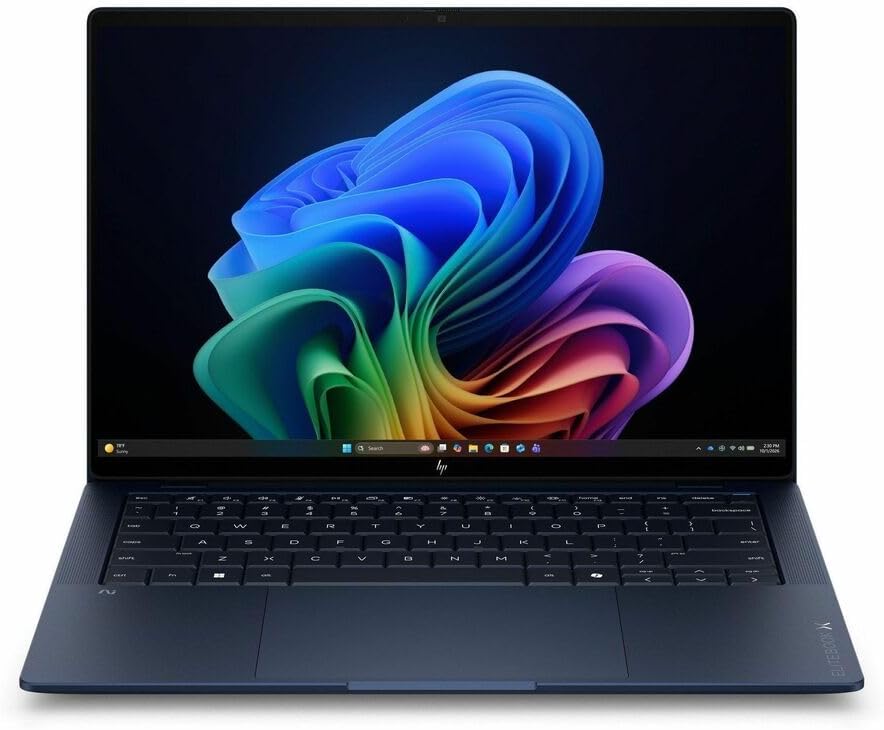
I’ll be honest, I didn’t expect an EliteBook to earn a slot here. What got it in wasn’t the benchmark sheet, though that’s strong. It was the repair story, and if you’ve ever killed a laptop keyboard with brake cleaner overspray or a knocked-over coffee, you’ll understand why.
The keyboard on this thing is top-mounted and comes out in three steps with no screws at all. HP says the swap takes about ten minutes, and it sells a standalone keyboard kit in the $100 to $150 range. There’s a QR code engraved on the bottom cover that takes you straight to parts ordering. The trackpad is its own replaceable module. The battery swaps easily and there’s a worldwide replacement kit for it. On most premium ultrabooks a spilled drink means a mainboard-out teardown or a new laptop. Here it means a coffee break and a hundred bucks.
StorageReview put a full benchmark suite through it in August 2026, so we have real numbers to go with the story.
Specifications as tested
- CPU: Intel Core Ultra 7 366H vPro (Panther Lake, Series 3), 16 cores and 16 threads, up to 4.8 GHz, with a 50 TOPS Intel AI Boost NPU
- Other configurations: Core Ultra X7 358H with 12-core Arc B390 graphics
- Memory: 32 GB LPDDR5x at 8533 MT/s, soldered, with a 64 GB option in the lineup
- Storage: 1 TB SK hynix PCB01, PCIe Gen 5 NVMe, accessible under a shield
- Display as tested: 14-inch 3K (2880 × 1800) OLED, 120 Hz, anti-glare, 500 nits, 100% DCI-P3
- Other panels in the same chassis: WUXGA LCD tiers running up to an 800-nit Sure View touch panel, plus a 700-nit tandem OLED touch option
- Ports: HDMI 2.1, two Thunderbolt 4 (40 Gbps, USB PD 3.0, DisplayPort 2.1), one USB-C 10 Gbps, one powered USB-A 5 Gbps, headset jack, nano security lock, optional nano-SIM
- Wireless: Intel Wi-Fi 7 BE211 2×2, Bluetooth 6
- Battery: 68 Wh long-life 6-cell, 100 W GaN adapter, 50% charge in 30 minutes
- Cooling: two fans, with motion sensing that adjusts underside temperature for lap versus desk use
- Weight: from 0.99 kg; the tested clamshell weighed 1.088 kg (2.4 lb)
- Durability and certifications: MIL-STD 810H tested, ENERGY STAR, EPEAT Climate+ Gold
The measured numbers
| Test | Result | Source of measurement |
|---|---|---|
| PCMark 10 overall | 9,209 | StorageReview lab |
| PCMark 10 Productivity | 18,859, the highest StorageReview has recorded in this class | StorageReview lab |
| PCMark 10 spreadsheet sub-score | 23,502 | StorageReview lab |
| PCMark 10 Essentials | 10,760 | StorageReview lab |
| PCMark 10 Digital Content Creation | 10,445 | StorageReview lab |
| Geekbench 6, multi / single | 16,390 / 2,804 | StorageReview lab |
| Geekbench 7, multi / single | 17,345 / 2,527 | StorageReview lab |
| Cinebench 2026, multi / single | 4,060 / 494 | StorageReview lab |
| 3DMark CPU Profile, max threads / 1 thread | 9,179 / 1,108 | StorageReview lab |
| 7-Zip 24.09 total rating | 87.724 GIPS | StorageReview lab |
| y-cruncher, Pi to 1 billion digits | 34.920 s | StorageReview lab |
| Blender 5.2 CPU, Classroom scene | 57.45 samples/min | StorageReview lab |
| SSD write (Blackmagic Disk Speed Test) | 8,949.2 MB/s, fastest in its comparison group | StorageReview lab |
| SSD read (Blackmagic Disk Speed Test) | 7,919.3 MB/s | StorageReview lab |
| 3DMark Storage | 3,156 | StorageReview lab |
| SPECworkstation 4 storage subsystem | 1.65 | StorageReview lab |
| Battery, PCMark 10 Modern Office, Balanced mode at 50% brightness | 17h 13m | StorageReview lab |
| Same test, Flip sibling with the lower-power panel | 21h 20m | StorageReview lab |
| Battery leaderboard placement | #9 on StorageReview’s laptop battery life leaderboard | StorageReview |
| Tested weight, clamshell | 1.088 kg (2.4 lb) | StorageReview lab |
| Panel specification | 500 nits, anti-glare, 100% DCI-P3 | HP specification sheet |
Why it matters for tuning
That 18,859 PCMark 10 Productivity score is the single most relevant number on this page for VCM Editor work, and it’s easy to underrate. Productivity in PCMark 10 is spreadsheet and document work: lots of cells, lots of recalculation, lots of scrolling through dense tables. That is almost exactly what a calibration file feels like to a CPU. The spreadsheet sub-score alone was 23,502, and StorageReview called the overall Productivity result the highest they’ve recorded from this class of machine, roughly 35% ahead of both Dell Pro comparison units.
The 800-nit Sure View touch panel option is the other thing worth knowing about. It’s a WUXGA LCD rather than the OLED that came on the review unit, so you trade resolution for brightness, and that’s the right trade for a laptop that lives outdoors. HP’s own numbers show the panel is the battery decision on this platform too: about 31 hours of video playback on the 300-nit OLED versus about 23 hours on the 500-nit one, per HP’s internal testing. That pattern held in the independent test as well, where the Flip variant with a lower-power screen ran four hours longer than the clamshell on identical silicon.
Two more things I like for this job. The USB-A port is powered, which matters more than it sounds when you’re running an older interface or a hub off it. And the chassis is MIL-STD 810H tested at 2.4 pounds, which is a rare pairing. Most of the machines that carry that certification weigh a lot more.
The SSD is quick, too. 8,949 MB/s on the write side was the fastest in its comparison group. If you archive giant log sets, you’ll notice.
What I don’t like
Lid flex. StorageReview specifically flagged noticeable give when pressing the center of the closed lid on the clamshell, and noted the heavier convertible resists it better. For a laptop that’s going to get tossed into a truck between jobs, that’s a real concern and I’d put it in a padded sleeve every single time.
The single-thread result is the weak spot on the spec sheet. Cinebench 2026 single thread came in at 494, at the back of a pack separated by 7%, and the 3DMark CPU Profile scaling trailed the workstation-class reference at every thread count. It’s a thin chassis running a 16-core chip, so sustained thermal headroom is the limiting factor. For VCM Suite this is irrelevant. It’s just worth knowing what you’re paying for.
Pricing is a mess right now because HP doesn’t have a live configurator for it. The closest in-stock clamshell was listed at $6,270 and selling for $3,399 on sale, and the Flip version of the tested build runs $2,999. HP list prices carry permanent heavy discounts, so treat the street number as the real one and never the sticker.
Memory is soldered, and the 32 GB configuration did hit a wall in the heaviest memory-bound benchmark in the test suite. Not something you’ll ever see in VCM Suite, but if you spec this machine, take the 64 GB option if you can.
Pros
- Screwless top-mounted keyboard, swappable in about ten minutes with a $100 to $150 kit
- Replaceable trackpad module and an easy battery swap, with a QR code on the base for parts
- 18,859 PCMark 10 Productivity, the highest recorded in its class
- 2.4 lb tested weight with MIL-STD 810H testing, a rare combination
- An 800-nit Sure View touch panel is available in the same chassis
- Powered USB-A port alongside two Thunderbolt 4 and HDMI 2.1
- Fastest SSD write speed in its comparison group at 8,949 MB/s
- 17h 13m in an independent full-system battery test, and 50% charge in 30 minutes
Cons
- Noticeable lid flex on the clamshell, flagged by the reviewing lab
- Single-thread performance at the back of its comparison group
- Confusing pricing with no live configurator, street price around $2,999 to $3,399
- Soldered memory, and 32 GB is the common configuration
- The OLED panel that ships on most units costs you runtime versus the LCD options
Buy this if your laptop lives in a working environment, you want the lightest machine here, and you’d rather replace a $120 keyboard than a $3,000 laptop the first time something gets spilled.
5. Panasonic Toughbook 40 MK3 — For the Shop Floor, the Dyno Cell and Mobile Tuning
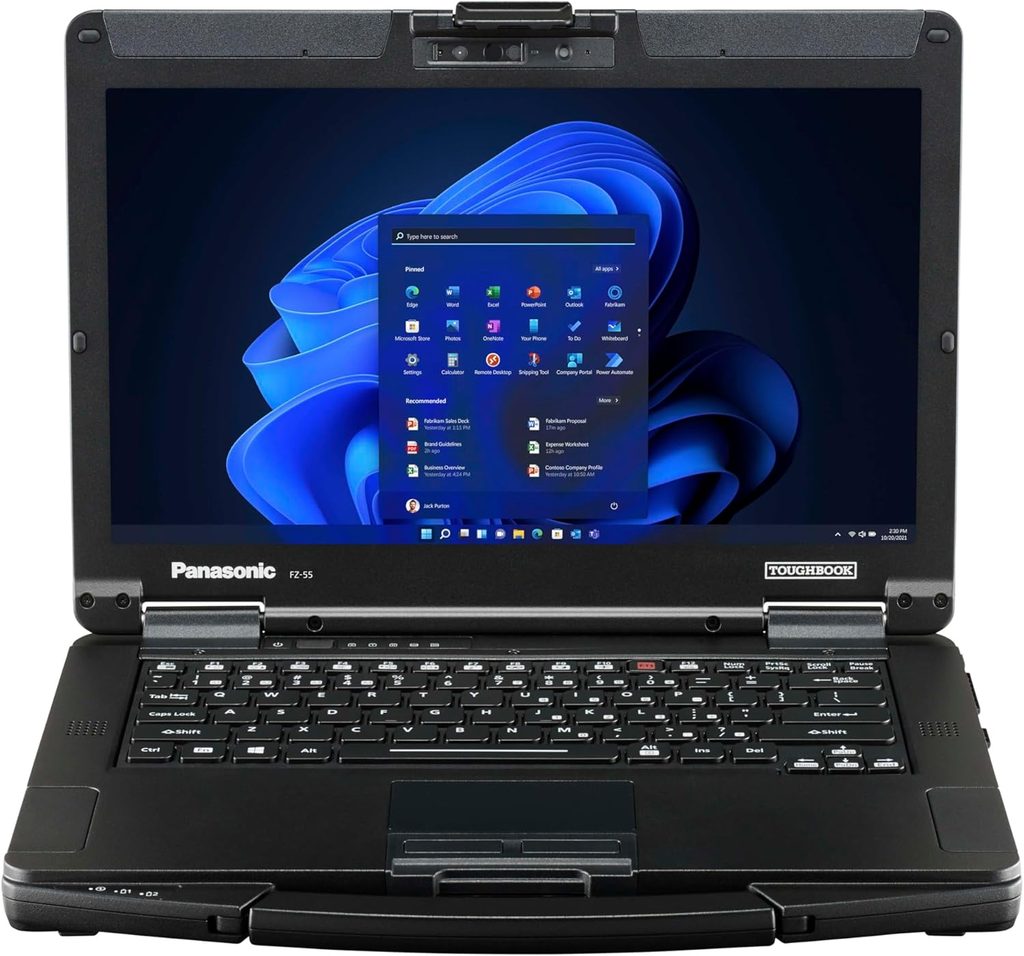
Every list like this ends with a Toughbook, and most of them never explain why a tuner specifically would spend the money. So let me.
You are not buying the drop rating. You’re buying hot-swappable batteries and a 1,200-nit screen. Everything else is a bonus.
Specifications
- CPU: Intel Core Ultra 5 235H or Core Ultra 7 265H, both with vPro
- Graphics: Intel integrated, or an optional AMD Radeon Pro W7500M with 8 GB GDDR6, the first 8 GB discrete GPU offered in a rugged laptop
- Memory: up to 64 GB, user-changeable
- Storage: up to 4 TB, quick-release main SSD, optional OPAL encrypted drives
- Display: 14-inch 1920 × 1080 capacitive touchscreen, rated up to 1,200 cd/m², anti-reflective treatment, glove mode and rain mode
- Durability: IP66, MIL-STD-810H, MIL-STD-461G, 180 cm (6 ft) drop rating, −29 °C to +63 °C operating range
- Ports: Thunderbolt 4, two USB-A, HDMI, two gigabit Ethernet, microSD, headset jack, SIM
- Expansion: four xPAK areas, eight user-changeable modular areas in total including battery, memory, storage and keyboard
- Wireless: Wi-Fi 7, Bluetooth 5.3, optional 4G or 5G modem
- Security: Windows 11 Pro Secured-core PC, vPro, also certified for Red Hat Enterprise Linux 10
- Weight: 3.35 kg (7.4 lb)
The numbers
| Test or rating | Result | Source |
|---|---|---|
| Cinebench 2024, multi / single (Core Ultra 7 265H) | 1,150 / 125 | NanoReview aggregated database |
| Geekbench 6, multi / single (Core Ultra 7 265H) | 16,018 / 2,895 | NanoReview aggregated database |
| PassMark CPU, multi / single (Core Ultra 7 265H) | 34,309 / 4,352 | PassMark, 827 submitted samples |
| Battery, single pack | Up to 12 hours | Panasonic, MobileMark 25 at 250 nits |
| Battery, with second-battery xPAK | Up to 24 hours | Panasonic, MobileMark 25 at 250 nits |
| Battery, older benchmark for reference | 21.5 hours single, 43 hours with long-life packs | Panasonic, MobileMark 2014 at 150 nits |
| Battery pack capacity | 6300 mAh at 10.8 V, roughly 68 Wh, hot-swappable | Panasonic specification sheet |
| Display brightness | Rated up to 1,200 cd/m² | Panasonic specification sheet |
| Drop rating | 180 cm (6 ft) | Independent MIL-STD-810H testing |
| Ingress protection | IP66 dust and water jets | Independent certification |
| Operating temperature range | −29 °C to +63 °C | Panasonic specification sheet |
| Speaker output | 95 dB | Panasonic specification sheet |
| Previous-generation editorial rating (MK2) | 90%, Editors’ Choice among fully rugged laptops | PCMag review |
One honesty note on that brightness figure: it’s a manufacturer rating, not an independent lab measurement, and a rugged-hardware specialist that reviews these machines regularly observed the MK2 panel falling short of the advertised 1,200 nits indoors. Even discounted, it’s still comfortably brighter than anything else here.
Why a tuner would actually want it
Hot-swap batteries. Nothing else on this list has them. You can be twenty minutes into a logging session, pull a dead pack, click in a fresh one, and never stop logging. If you’ve ever had a session die because you forgot to plug in, you know what that’s worth.
1,200 rated nits with an anti-reflective coating. Full sun, no hand cupped over the screen.
Glove mode and rain mode. The touchscreen tracks with mechanic’s gloves on and with water sitting on the glass. Anybody who’s tried to poke a normal touchscreen with nitrile gloves and grease on their fingertips understands the problem immediately.
A quick-release SSD. Pull the drive in seconds. For a shop handling customer calibration files and VINs, that’s a legitimate data-security workflow, not a gimmick.
Two gigabit Ethernet ports plus Thunderbolt 4. Dyno controllers, networked equipment, whatever your cell runs.
It survives the environment. An unheated shop in Michigan in January and a closed truck cab in Arizona in August are both comfortably inside that −29 °C to +63 °C window.
What I don’t like
It’s 7.4 pounds and about two inches thick with a briefcase handle. This is not a machine you carry to a coffee shop. It lives in a truck or on a bench.
The silicon is a generation behind. MK3 runs Intel Core Ultra Series 2 while everything else here is on Series 3. That’s normal for rugged gear, because certification cycles are long, but you are paying flagship money for last-generation performance. For VCM Suite specifically it’s a non-issue. A Core Ultra 7 265H clears the 2 GHz x86 minimum by an absurd margin.
1080p on a 14-inch panel looks coarse next to the 2.8K and 3K screens elsewhere on this page.
And it’s expensive. The MK2 launched in the US at $4,699, and MK3 configurations sit in the same territory. xPAK modules are sold separately and run from about $120 to over $1,000 for a 2 TB OPAL SSD.
Pros
- Hot-swappable dual batteries, up to 24 hours rated runtime
- 1,200-nit rated anti-reflective sunlight-readable touchscreen
- Glove mode and rain mode that work with real shop gloves
- IP66, MIL-STD-810H, 6-foot drop rating, −29 °C to +63 °C operating range
- Quick-release SSD and eight user-serviceable modular areas
- Thunderbolt 4, two USB-A, HDMI and dual gigabit Ethernet
- Optional 8 GB Radeon Pro W7500M
- Holds resale value and refurbishes well
Cons
- 7.4 lb and roughly two inches thick
- Around $4,700 and up, with xPAK modules extra
- Core Ultra Series 2 silicon, a generation behind the rest of this list
- 1080p resolution on a 14-inch panel
- Complete overkill for a home tuner
Buy this if tuning is your business, your laptop lives in a work truck or a dyno cell, and downtime costs you money.
Head to Head
| Metric | ThinkPad X1 Carbon G14 | Dell 14S | ASUS ExpertBook Ultra | HP EliteBook X G2i | Toughbook 40 MK3 |
|---|---|---|---|---|---|
| CPU referenced | Core Ultra 5 325 | Core Ultra 7 355 | Core Ultra X7 358H | Core Ultra 7 366H | Core Ultra 7 265H |
| Geekbench 6 single-core | 2,620 | 2,704 | 2,836 | 2,804 | 2,895 |
| Geekbench 6 multi-core | 11,038 | 11,064 | 16,674 | 16,390 | 16,018 |
| Screen brightness | 524 nits measured | 269 nits measured | 612 nits measured | 500 nits rated, 800-nit option | 1,200 nits rated |
| Panel finish | Glossy IPS touch | Glossy OLED touch | Matte OLED touch | Anti-glare OLED | Anti-reflective touch |
| Battery capacity | 58 Wh | 70 Wh | 70 Wh | 68 Wh | 68 Wh per pack, up to two |
| Independent battery result | 23h 13m (Wi-Fi, 150 nits) | 20h 41m (mixed, 150 nits) | 16h 06m (Wi-Fi, 150 nits) | 17h 13m (Modern Office, 50% brightness) | 21.5h rated (MobileMark 2014) |
| USB-A ports | 1 | 2 | 1 | 1, powered | 2 |
| Weight | 2.51 lb | 3.28 lb | 2.18 lb | 2.40 lb | 7.4 lb |
| Keyboard replaceable by the owner | No, service required | No, service required | No, service required | Yes, screwless, about 10 minutes | Yes, modular |
| Hot-swap battery | No | No | No | No | Yes |
| Starting price | $2,249 direct | $1,269 | About $3,599 | About $2,999 street | About $4,699 |
Two notes on that table so you know exactly what you’re reading. The Toughbook CPU figures are aggregated database results for the Core Ultra 7 265H rather than one lab’s measurement of that exact chassis, because nobody has published a full lab suite on the MK3 yet. And the battery column mixes methodologies: three of those are 150-nit runtime tests, HP’s is a full-system PCMark 10 Modern Office run at 50% brightness, and Panasonic’s is a manufacturer MobileMark figure. They’re not interchangeable, so I’ve labeled each one instead of pretending they line up.
The Power Budget Nobody Talks About: Running Off an Inverter
If you tune away from an outlet, sooner or later you’ll want to run the laptop off the car. Here’s the honest math using measured figures instead of marketing.
The ThinkPad X1 Carbon Gen 14 drew a maximum of 64.2 W under a combined Prime95 and FurMark stress load, and Notebookcheck noted it settles to 45 to 55 W over the course of the test. It ships with a 65 W adapter, as does the Dell 14S. The HP EliteBook X G2i ships with a 100 W GaN adapter, which tells you what its ceiling looks like when it’s charging and working at the same time.
So for a modern 14-inch x86 laptop:
- 150 W inverter: enough for one laptop charging while you work. Tight but workable.
- 300 W inverter: comfortable headroom for the laptop plus a phone plus a work light. This is the sweet spot.
- Under 100 W: don’t bother. Efficiency losses and surge draw will trip it.
Two caveats, both straight from HP Tuners guidance and the shop procedures that follow it:
- Don’t run the laptop off the vehicle battery during a flash. Run the laptop on its own internal battery, and put a proper maintainer on the car. This is precisely why max-brightness runtime is the metric I keep coming back to.
- Use a real charger on the car, rated for at least 10 amps, not a trickle charger. Voltage sag during a write is how modules die.
What to Skip, and How to Buy Smart
Skip Chromebooks. ChromeOS cannot run VCM Suite. There’s no workaround.
Skip anything ARM. Snapdragon X, Snapdragon X2, and any “Copilot+ PC” running Qualcomm silicon. Check the CPU before you check the price, especially in business lineups where the Intel and Qualcomm versions share a chassis and a model name.
Skip Macs. HP Tuners explicitly does not support Windows running on Mac hardware.
Skip 4 GB machines. Yes, 4 GB is the documented minimum. No, you don’t want it. Windows 11 plus VCM Scanner plus a browser full of forum tabs will crawl. Sixteen gigabytes is the practical floor in 2026, thirty-two if you plan to keep the machine five years.
Skip mechanical hard drives. Anything still shipping a spinning drive in 2026 is a machine you shouldn’t buy anyway. SSDs are faster and they don’t care about vibration, which matters when the laptop is riding shotgun over railroad tracks.
Skip gaming laptops. No dedicated GPU is required. That money buys you better battery life and a brighter screen instead. A big RTX laptop with three hours of runtime is a worse tuning tool than a boring business ultrabook.
Skip the display upgrade, usually. The most consistent finding across all the lab data on this page is that a fancier panel costs you runtime. The ThinkPad’s OLED variant lost nearly ten hours versus the low-power IPS panel in the same test. HP’s own figures show about 31 hours of video playback on its 300-nit OLED against about 23 hours on the 500-nit one, and the independent test showed the same platform running four hours longer with a lower-power screen. Unless the upgrade is also brighter and matte, like the ASUS panel or HP’s 800-nit Sure View option, take the LCD.
On buying used: the classic forum advice about a refurbished business machine isn’t bad, it’s just incomplete. Last-generation business laptops are great tuning tools and they’re cheap. What you’re giving up is battery capacity, since used cells are typically down 20 to 40% from new, and that is exactly the spec that keeps a flash alive. If you go used, budget for a fresh battery on day one and skip any machine where the battery isn’t user-replaceable.
Set Up Windows Before Your First Flash
Buying the right laptop is half of it. These settings prevent most of the failures people blame on hardware.
- Set the machine to never sleep on battery. Settings, then System, then Power & battery, then Screen and sleep. Set both battery and plugged-in sleep to Never. A laptop that sleeps mid-write is how modules get bricked.
- Disable USB selective suspend. Control Panel, Power Options, Change plan settings, Advanced, USB settings, USB selective suspend setting, Disabled. This is the single most common cause of “the interface randomly disconnected.”
- Turn off Fast Startup. It leaves drivers in odd states after shutdown. Control Panel, Power Options, Choose what the power buttons do, then uncheck Turn on fast startup.
- Install .NET Framework 8. VCM Suite needs it. Grab it from the HP Tuners downloads page if the installer complains.
- Pause Windows Update before a tuning session. Set active hours or pause updates for a week. A forced restart during a write is exactly the disaster you’re avoiding.
- Charge to 100% before you flash. Turn off the battery conservation modes that cap charging at 60% on many business machines before a tuning day.
- Turn off any power-saving display mode that dims automatically. HP’s Battery Extender and similar modes trade brightness and refresh rate for runtime. Great on a plane, bad when you’re trying to read a table in a sunny driveway.
- Plug the interface into the laptop before the vehicle. HP Tuners’ own procedure specifies that order.
- Keep both the stable and beta VCM Suite installed. HP Tuners confirms both versions coexist on the same PC without interfering, and you’ll need the beta for newly supported vehicles.
- Exclude the VCM Suite folders from real-time antivirus scanning, then test the whole chain in your own driveway before you promise a customer anything.
What the MPVI4 Changes
HP Tuners’ newest interface deserves a paragraph, because it shifts the laptop calculus slightly.
The MPVI4 carries a dual-core 1.7 GHz processor with 1 GB of RAM, roughly thirty times the memory of the MPVI3, plus 8 GB of onboard storage, Bluetooth 5.2, and Wi-Fi 802.11 a/b/g/n at up to 150 Mbps that activates with a future firmware update. It connects to the laptop over USB-C and requires VCM Suite 5.2 or later. Standalone logging is substantially better, with HP Tuners describing wireless performance comparable to a wired connection.
Practically, that means USB-C is now the primary connection, so every machine on this list works natively without an adapter. If you’re still on an MPVI2, USB-A matters more, and the Dell 14S with its two ports is the easiest fit.
One caution before you upgrade. Certain legacy controllers aren’t supported on the MPVI4 yet, including Ford EEC-V and various Mopar JTEC and NGC controllers, along with some 2003 to 2007 Cummins applications. Check the compatibility list against what you actually work on before you spend the money.
Frequently Asked Questions
Do I need a powerful laptop for HP Tuners?
No. HP Tuners lists a 2 GHz x86 CPU and 4 GB of RAM as the minimum, and every laptop here clears that by an enormous margin. What you’re really paying for is battery runtime, screen brightness, sustained thermals and reliability, not raw speed.
Will HP Tuners run on a Snapdragon or ARM laptop?
No. The documentation states explicitly that ARM processors are not supported. Don’t buy a Snapdragon X or X2 machine for tuning.
Can I run HP Tuners on a Mac?
It isn’t supported. The system requirements state that running Windows on Mac or Linux computers is not supported. Get a Windows x86 laptop.
How much RAM do I need for VCM Suite?
The documented minimum is 4 GB. In practice I’d call 16 GB the realistic floor for Windows 11 plus VCM Scanner in 2026, and 32 GB if you want the machine to still feel fine in five years.
Do I need a dedicated graphics card?
No. VCM Editor and VCM Scanner are CPU and memory workloads. Integrated Intel Arc or Intel Graphics is plenty. Put the money into battery life and screen brightness instead.
What happens if my laptop dies mid-flash?
Per HP Tuners’ documentation, if the module loses power while critical components are being written, the VCM may become unrecoverable. Don’t power down the VCM, restart VCM Editor, and rewrite using the same file, then contact support. Prevention is the whole game: a full laptop battery, sleep disabled, and a proper 10-amp-plus maintainer on the vehicle.
Should I keep a battery charger on the car while tuning?
Yes. HP Tuners’ instructions say to make sure the vehicle battery is fully charged and to keep a charger connected during the process to prevent power interruptions.
Is a rugged laptop worth it for tuning?
Only if tuning pays your bills. The Toughbook’s real value for a tuner is the hot-swappable batteries and the sunlight-readable screen, not the drop rating. For a home tuner it’s a lot of money for capability you’ll use twice a year.
Is a used business laptop a good idea?
It’s a legitimate budget path with one caveat. Used batteries have typically lost 20 to 40% of their capacity, and battery reliability is the most safety-critical spec for flashing. Buy a machine with a user-replaceable battery and replace it on day one.
Does the screen resolution matter for VCM Editor?
Less than the aspect ratio does. Calibration tables are tall, so a 16:10 panel shows noticeably more rows without scrolling than a 16:9 screen of the same size. Every laptop on this list except the Toughbook is 16:10, and that’s a real daily quality-of-life difference.
What’s the most repairable laptop on this list?
The Toughbook 40 MK3 by a mile, with eight user-changeable modular areas including the keyboard, battery, memory and storage. Among normal-sized machines it’s the HP EliteBook X G2i, whose keyboard comes off with no screws in about ten minutes and whose trackpad is its own replaceable module.
The Bottom Line
For most people reading this, the answer is the Lenovo ThinkPad X1 Carbon Gen 14. Fourteen hours of measured runtime at maximum screen brightness is a number nothing else in the mainstream market touches right now, and that’s the number that decides whether a flash finishes.
If the price stings, the Dell 14S at $1,269 gives you two USB-A ports, twenty-plus hours of runtime and honest build quality. Just go in knowing the screen is dim.
If you’re a professional running heavy logging sessions all day, the ASUS ExpertBook Ultra B9406CAA has the CPU headroom, the lowest interrupt latency measured in its class, and the brightest independently measured screen here.
If your laptop works for a living and takes abuse, the HP EliteBook X G2i is the lightest machine on this list and the only conventional one you can put a new keyboard into yourself over a coffee break.
And if your laptop lives in a truck, a dyno cell, or somebody’s driveway in February, the Panasonic Toughbook 40 MK3 is the only machine here with hot-swap batteries and a sunlight-readable panel, and it’ll still be running when the rest of these are in a landfill.
Whatever you buy: x86, Windows 11, 16 GB minimum, sleep disabled, charger on the car. Do those five things and the laptop stops being the risky part of the job.
Sources
HP Tuners official documentation
- VCM Scanner System Requirements — HP Tuners Docs
- System Requirements for VCM Scanner — HP Tuners Support
- How to Read, License, and Flash an ECM — HP Tuners Support
- Getting Started with VCM Suite — HP Tuners
- Write VCM — VCM Editor Help
- Installing the Software — VCM Suite Documentation
- MPVI4 — HP Tuners
- HP Tuners Software Downloads
Laboratory measurements and reviews
- Lenovo ThinkPad X1 Carbon Gen 14 Review — Notebookcheck
- Lenovo ThinkPad X1 Carbon Gen 14 Aura Edition review — Tom’s Hardware
- Dell 14S review — Tom’s Hardware
- HP EliteBook X G2i Review — StorageReview
- Laptop Battery Life Leaderboard — StorageReview
- Best Laptops 2026 — Tom’s Hardware
- Panasonic Toughbook series review index — Notebookcheck
- Asus ExpertBook Ultra B9406CAA long-term review — Ultrabook Review
- The complete list of Intel Panther Lake laptops — Ultrabook Review
- ASUS ExpertBook Ultra B9406CAA review — Review Central ME
- HP EliteBook X G2i hands-on — ITPro
- Panasonic Toughbook 40 MK3 Review (2026) — Rugged Books
- Panasonic Toughbook 40 MK2 Review — Rugged Books
Processor benchmark databases
- Intel Core Ultra 7 265H benchmarks and specifications — NanoReview
- Intel Core Ultra 7 265H benchmark — PassMark CPU Benchmark
- Intel Core Ultra 7 265H specifications and benchmark tests — LaptopMedia
Product and specification sources
- TOUGHBOOK 40 — Panasonic North America
- TOUGHBOOK 40 specifications — Panasonic
- HP EliteBook X G2i product page — HP
- HP Tuners MPVI4 features, specs and vehicle compatibility — HP Academy
- HP Tuners MPVI4 technical specifications — PowerLabs Tuning
Field procedure references
- Read, License, Flash with HP Tuners VCM Editor — Aftermarket Assassins
- OBD2 Flash Tuning Interface Read & Write Instructions — Tuner Depot

Hi, my name is Burak. I am a mechanical engineer. I have been writing laptop reviews for the Engineering Laptops website since 2020. Please feel free to contact me if you have any questions.