
Table of contents
- First, a reality check about what CAD actually does to a computer
- Where these numbers come from
- The most useful thing in this article: the same GPU is not the same GPU
- The five, side by side
- Best Laptop for Mechanical Design Engineers in 2026 Compared
- 1. Dell Pro Max 16 Plus — the one I’d buy with my own money
- 2. HP ZBook Fury G1i 16 — the simulation machine
- 3. Lenovo ThinkPad P16 Gen 3 — the one you can still repair in 2031
- 4. Lenovo ThinkPad P1 Gen 8 — the one that actually leaves the building
- 5. Apple MacBook Pro 16 (M5 Max) — read this warning first
- Two more worth knowing about
- Configurations I’d talk you out of
- How to size the machine you actually need
- Twelve checks to run before your return window closes
- What ISV certification actually buys you
- Questions I get asked constantly
- The bottom line
- Sources
I’ve been watching people buy the wrong laptop for CAD work for about fifteen years now, and the mistakes have barely changed. Someone spends four thousand euros on a machine with twenty-four cores and then wonders why dragging a sketch line still stutters. Someone else saves money on a gaming laptop and spends the next two years explaining graphics glitches to their manager.
So let me get to the point.
If you design mechanical parts for a living and you want one machine that gets nearly everything right, buy the Dell Pro Max 16 Plus. If your week involves the phrase “mesh convergence,” buy the HP ZBook Fury G1i 16 with ECC memory. If you actually carry the thing to suppliers and customer sites, buy the ThinkPad P1 Gen 8.
Everything below is me explaining why, with the measurements to back it up.
First, a reality check about what CAD actually does to a computer
Mechanical design is a strange workload, and almost nobody writing buying guides seems to understand it.
Rebuilding a parametric model is a single-thread job. The solver walks your feature tree in order, one feature at a time, because feature 400 depends on feature 399. Twenty-four cores do nothing for you here. Clock speed and cache do everything.
Spinning that model in the viewport is a GPU and driver job. Not a raw horsepower job. A driver job. This is the one place where the certified professional cards genuinely earn their premium, and I’ll explain exactly how further down.
Meshing and solving an FEA study, running CFD, or rendering in KeyShot are the only parts of your day that want every core you own. For most design engineers that’s maybe 10% of the working week.
And opening a 6,000-component assembly out of a PDM vault is a storage and network problem that literally nobody benchmarks.
Which is why a laptop can look spectacular on a Cinebench chart and still feel sluggish in SolidWorks. That gap is the reason this article runs long.
Where these numbers come from
I don’t believe in unsourced benchmark tables, so here’s how this works.
Every measured figure below is attributed to the lab that published it. That means Notebookcheck (X-Rite i1Pro 3 colorimeter, Earthworks M23R microphone at 15 cm, Fluke 62 IR thermometer, DiskSpd 2.0.17), StorageReview (SPECviewperf 15, Procyon), ServeTheHome, LaptopMedia, XDA, Macworld, plus the manufacturers’ own engineering documentation — HP’s QuickSpecs operating-power tables and Lenovo’s PSREF specification sheets, which contain a lot of uncomfortable detail the marketing pages leave out.
Where two labs disagreed, I say so instead of picking whichever number made a prettier chart. Full source list is at the bottom, and I’d encourage you to go check me.
The most useful thing in this article: the same GPU is not the same GPU
Three of the machines here can be ordered with an “NVIDIA RTX PRO 5000 Blackwell Laptop GPU, 24 GB GDDR7.” Same name. Same line on the purchase order your finance department signs.
They do not run at the same speed. Not even close.
| Machine | Power adapter | RTX PRO 5000 running power | Source |
|---|---|---|---|
| Dell Pro Max 16 Plus | 280 W | Rated 175 W, measured to settle at 121–125 W | Notebookcheck stress logging |
| HP ZBook Fury G1i 16 | 280 W | 115 W | HP QuickSpecs c09153575 |
| HP ZBook Fury G1i 18 | 330 W | 115 W, in a much bigger chassis | HP QuickSpecs |
| Lenovo ThinkPad P16 Gen 3 | 180 W | 95 W | StorageReview |
That’s roughly a 30% spread on identical silicon. The 18-inch Fury exists largely because the 16-inch one can’t feed the chip properly.
There’s a second layer to this. Lenovo dropped the P16 from a 230 W brick in Gen 2 to a 180 W USB-C adapter in Gen 3. Carrying a 430 g charger instead of a boat anchor is lovely. But 180 W has to cover a 45 W-rated CPU that boosts well past that, a 95 W GPU, three NVMe drives, a 600-nit display, and any battery charging happening at the same time. DEVELOP3D flagged this at launch and they were right.
Here’s the rule I use: divide the adapter wattage by the sum of CPU sustained power and GPU TDP. If it’s under 1.0, something throttles when you load both at once. Ask a vendor for that number and watch them change the subject.
The five, side by side
| Dell Pro Max 16 Plus | HP ZBook Fury G1i 16 | ThinkPad P16 Gen 3 | ThinkPad P1 Gen 8 | MacBook Pro 16 (M5 Max) | |
|---|---|---|---|---|---|
| Best for | Everything, honestly | FEA, CFD, ECC work | Serviceability, 5-year fleets | Actually carrying it | Fusion 360, Onshape, Rhino |
| Top CPU | Core Ultra 9 285HX, 24C/24T | Core Ultra 9 290HX Plus, 24C/24T | Core Ultra 9 285HX, 24C/24T | Core Ultra 9 285H, 16C | M5 Max, 18C |
| Top GPU | RTX PRO 5000, 24 GB | RTX PRO 5000, 24 GB | RTX PRO 5000, 24 GB | RTX PRO 2000, 8 GB | 40-core integrated |
| Max RAM | 128 GB CAMM2, no ECC | 256 GB, 4 slots, ECC | 192 GB non-ECC / 128 GB ECC, 4 slots | 64 GB soldered | 128 GB unified |
| Max storage | 12 TB, 3× M.2 Gen 5 | 16 TB, 4× M.2 | 12 TB, 3× M.2 Gen 5, RAID 0/1/5 | 8 TB, 2× M.2 Gen 5 | 8 TB soldered |
| Adapter | 280 W USB-C, 755 g | 280 W | 180 W USB-C, 430 g | 140 W USB-C, 398 g | 140 W USB-C |
| Battery | 96 Wh | 99 Wh | 99.9 Wh | 90 Wh | 99.6 Wh |
| Weight | 2.845 kg | 2.43 kg | 2.54 kg | 1.909 kg | 2.14 kg |
| Panel high point | 4K 120 Hz OLED, 557 nits measured | 4K 120 Hz IPS, 100% Adobe RGB | 3.2K Tandem OLED, 600 nits SDR | 3.2K Tandem OLED, 600 nits SDR | Liquid Retina XDR mini-LED |
| Warranty | 3 years | 3 years | 3 years on-site | 3 years | 1 year |
| Runs SolidWorks | Yes | Yes | Yes | Yes | No |
Best Laptop for Mechanical Design Engineers in 2026 Compared
Which laptop is actually right for CAD in 2026? Measured benchmarks, thermals, VRAM sizing by assembly size, and the 12 checks to run before your return window.
1. Dell Pro Max 16 Plus — the one I’d buy with my own money
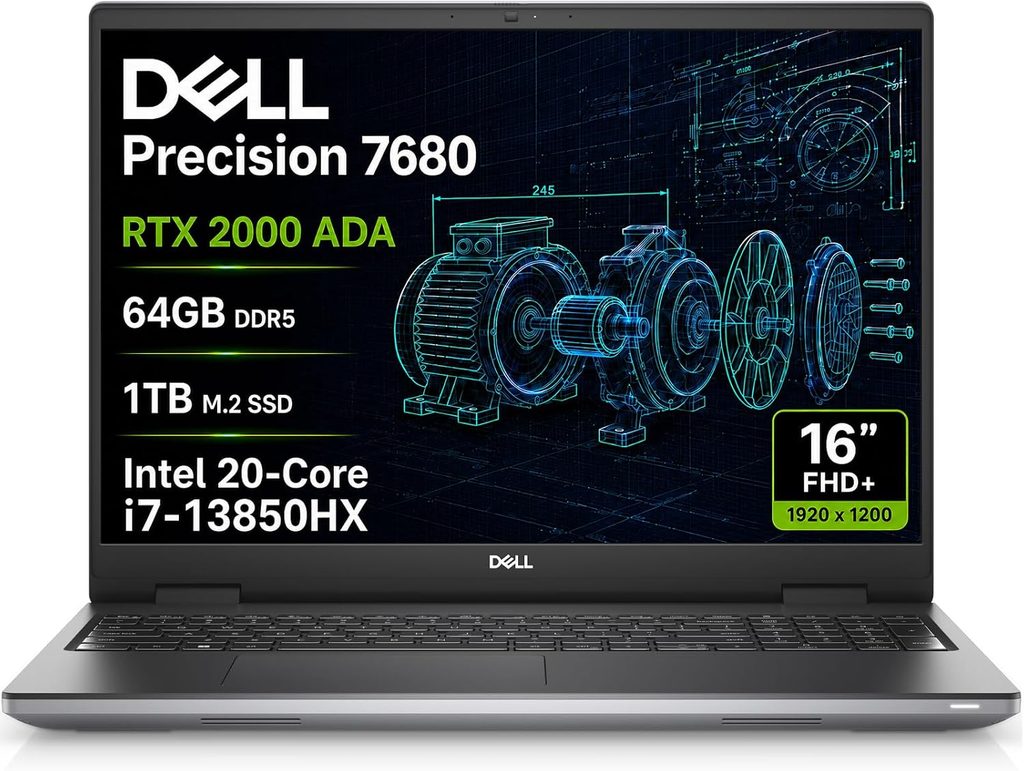
Dell killed the Precision name and this replaced the 7680. The branding is nonsense. The machine is not.
Notebookcheck tested the loaded configuration and scored it 89%. Here’s what’s in it.
Specifications
- CPU: Intel Core Ultra 9 285HX — 8 Lion Cove P-cores to 5.5 GHz, 16 Skymont E-cores to 4.6 GHz, 36 MB cache, 90 W sustained / 159 W burst
- GPU: NVIDIA RTX PRO 5000 Blackwell, 24 GB GDDR7, on a removable DGFF card
- Memory: Up to 128 GB DDR5-6400 on a single CAMM2 module. No ECC option
- Storage: Three M.2 2280 slots, PCIe Gen 5, up to 12 TB
- Displays: 1920×1200 60 Hz 300 nits; 1920×1200 120 Hz 500 nits DCI-P3; 3840×2400 120 Hz OLED touch
- Ports: 2× Thunderbolt 5 (80 Gbps), 1× Thunderbolt 4, 2× USB-A, HDMI 2.1, 2.5 GbE, SD reader, optional smart card
- Body: 360 × 258.6 × 30.9 mm, 2.845 kg, 90% recycled magnesium, MIL-STD-810H
- Power: 280 W USB-C adapter, 96 Wh battery, 3-year warranty
CPU numbers (Notebookcheck)
| Test | Score |
|---|---|
| Cinebench R23 multi | 35,165 |
| Cinebench R23 single | 2,057 |
| Cinebench 2024 multi | 1,907 |
| Cinebench 2024 single | 126.3 |
| Geekbench 6.7 multi | 20,630 |
| Geekbench 6.7 single | 2,907 |
| Blender BMW27 (CPU) | 98 seconds |
| 7-Zip multi-thread | 106,470 MIPS |
| HWBOT x265 4K | 36.5 fps |
That multi-core figure is roughly double what a Core Ultra 9 185H managed in last year’s Precision 5690, and about 41% ahead of the i7-14700HX in the previous ThinkPad P16.
Now the part that matters more. Run Cinebench R15 on a loop and it peaks at 5,427 points but averages 4,879 — about a 10% decline as it heats up. That’s respectable. But under sustained Prime95, Notebookcheck logged the CPU hitting 3.8 GHz at 159 W and 105 °C, then settling at 3.1 GHz, 90 W, and 96 °C. Those are hot numbers. Within spec, and the machine behaves itself, but if the idea of a chip living in the high nineties bothers you, now you know.
Viewport performance — SPECviewperf 2020
These are recorded traces from the actual applications, which makes them worth ten times any game benchmark.
| Viewset | 1080p | 4K |
|---|---|---|
| SolidWorks (solidworks-07) | 462.0 fps | 218.3 fps |
| Siemens NX (snx-04) | 737.2 fps | 545.6 fps |
| Creo (creo-03) | 243.8 fps | 175.6 fps |
| CATIA (catia-06) | 169.6 fps | 104.0 fps |
| 3ds Max (3dsmax-07) | 244.0 fps | 153.1 fps |
| Medical (medical-03) | 209.2 fps | 95.3 fps |
| Energy (energy-03) | 165.3 fps | 58.6 fps |
Against the outgoing RTX 5000 Ada generation, Blackwell PRO lands 35 to 50% ahead. Against the RTX 4000 Ada in the previous ThinkPad P16, it’s 26% faster in the SolidWorks viewset at 1080p and 31% faster at 4K.
Storage
The SK hynix PCB01 Gen 5 drive managed 16,102 MB/s sequential read at queue depth 8 and 9,556 MB/s write in DiskSpd. Over a ten-minute sustained read loop it averaged 15,311 MB/s and never dropped below 13,268 MB/s. In CrystalDiskMark it showed 11,918 MB/s read and 6,118 MB/s write.
That sustained number is the one that matters when you pull a heavy assembly out of PDM. Burst speeds are marketing.
Display
Measured with an X-Rite i1Pro 3 on the 4K OLED panel:
- 556.8 nits maximum, 540.1 nits average, 95% brightness uniformity
- 100% sRGB, 97.3% DCI-P3, 88.8% Adobe RGB
- Greyscale ΔE 0.8, ColorChecker ΔE 2.42 out of the box against P3, dropping to 0.7 after calibration
- Gamma 2.23, colour temperature 6,488 K
- Response time 0.89 ms black-to-white, 0.63 ms grey-to-grey
- Peak HDR brightness around 1,066 nits
It ships properly calibrated, which is rare and worth money.
One warning, and it’s real for some people: this panel uses PWM dimming at 479.9 Hz at every brightness setting including 100%. That frequency is high enough that most people never notice, but if you’re one of the unlucky ones who gets headaches from OLED flicker, order the 500-nit IPS instead.
Thermals and noise
- Idle: 26.7 / 30.5 / 34 dB(A)
- Load average: 39.8 dB(A)
- Load maximum: 54.3 dB(A) in Performance mode, dropping to about 49 dB(A) in Balanced
- Keyboard deck peaks at 40.4 °C, underside at 45.6 °C, power brick at 52.2 °C
- Palm rests stay around 33 °C
Your wrists are fine. Your lap is not, and neither is the person next to you in a quiet meeting room.
What I like
- The fastest all-round machine here, and in viewport traces it isn’t a close contest
- CAMM2 memory and a removable graphics card. In three years you can upgrade this thing instead of replacing it
- Modular USB-C ports. When a port wears loose, you swap the port, not the motherboard
- The 4K 120 Hz OLED is the best display shipping on any mobile workstation, and it’s calibrated out of the box
- Thunderbolt 5, 2.5 GbE, HDMI 2.1, SD, smart card. Nothing is missing
- Three years of warranty as standard, and Dell’s on-site network is genuinely good
What I don’t
- CPU package sits at 96–105 °C under sustained load
- No ECC memory, at any price. If your quality process requires it, this machine is disqualified
- 2.845 kg plus a 755 g brick is 3.6 kg in your bag
- Real battery life doing CAD is two to three hours, and that’s being kind
- The GPU is sold as a 175 W part and runs at about 121–125 W here
- Wi-Fi throughput measured well below rivals with the same Intel BE200 card — 693 Mbit/s transmit against 1,433 for the ThinkPad P1
- Loud. 54.3 dB(A) is not a machine you use in a library
- Expensive. Loaded units have been reported between £6,450 and £7,170
Buy it if
You live in large assemblies, render occasionally, simulate occasionally, and want one machine that never gives you an excuse. If you’re choosing off this list and you don’t have a specific reason to pick something else, pick this.
2. HP ZBook Fury G1i 16 — the simulation machine
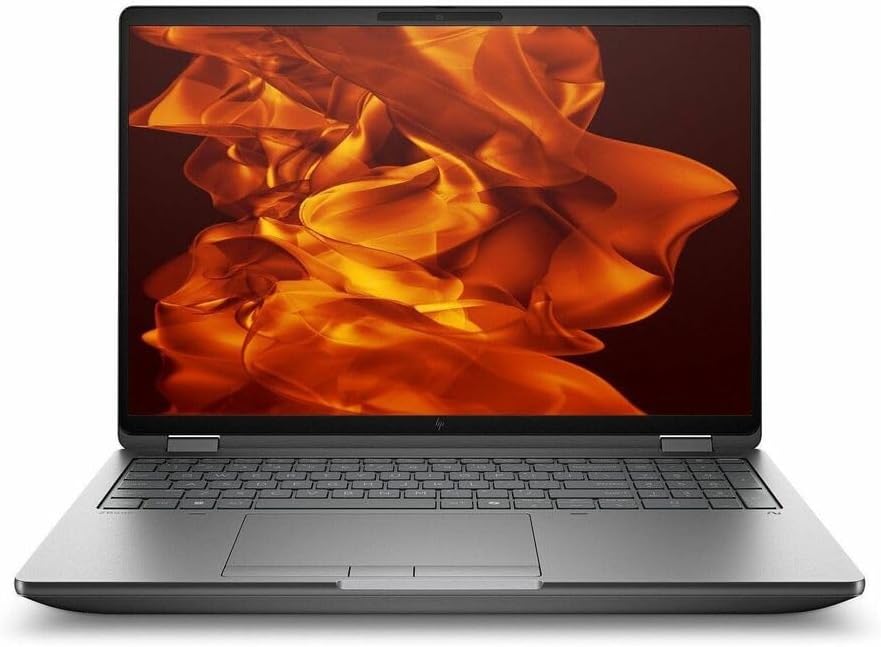
This is what you buy when the deliverable is a solved model rather than a pretty picture.
HP refreshed the Fury G1i 16 globally in August 2026 with Intel’s Arrow Lake HX Plus chips, so current stock carries the Core Ultra 7 270HX Plus and Core Ultra 9 290HX Plus. If a reseller is quoting you a 285HX unit at full list price right now, push back.
Specifications
- CPU: Up to Intel Core Ultra 9 290HX Plus, 24 cores, 5.5 GHz
- GPU: RTX PRO Blackwell 1000 / 2000 / 3000 / 4000 / 5000. HP’s own operating-power table lists the 5000 and 4000 at 115 W, the 3000 at 105 W, the 2000 and 1000 at 60 W
- ECC: Supported with the PRO 3000, 4000 and 5000
- Memory: Up to 256 GB across four SODIMM slots
- Storage: Up to 16 TB across four M.2 bays, Gen 5 available
- Displays: 1920×1200 IPS; 2560×1600 120 Hz IPS; 3840×2400 120 Hz IPS with 100% Adobe RGB
- Ports: 2× Thunderbolt 5, Thunderbolt 4, HDMI 2.1, RJ-45, full-size SD, 10 Gbps USB-A
- Body: 2.43 kg, tool-free internal access
- Power: Under 280 W maximum operating power, 99 Wh battery, 400 nits on the standard panel, 3-year warranty
- Price: Starts at $3,499. StorageReview’s fully configured 18-inch review unit came to $11,687
Why it wins for analysis work
Three reasons. All boring. All decisive.
Four slots and 256 GB. Nothing else this size goes that high. Nonlinear contact problems, explicit dynamics and CFD meshes run out of memory long before they run out of compute, and when a solver starts spilling to disk your job time doesn’t rise 20%, it rises 400%.
ECC. A single-bit flip in a forty-hour transient solve is not a hypothetical. If your results feed a regulated submission, ECC isn’t optional — and the Dell doesn’t offer it at all.
Four M.2 bays. Give the solver a dedicated Gen 5 scratch drive that isn’t also running Windows and your I/O-bound phases speed up measurably.
Performance
StorageReview tested the 18-inch sibling with a 285HX and the same RTX PRO 5000, which gives a fair reference. In Procyon AI Computer Vision it scored 890 overall against 1,032 for the Dell Pro Max 18 Plus. Under TensorRT the gap widened, 1,014 against 1,609. Individual workloads split: HP edged ahead in DeepLab V3 at 12.78 ms versus 13.05 ms, while Dell led ResNet 50 by 28%, Inception V4 by 37%, YOLO V3 by 20% and Real-ESRGAN by 12%.
Read that as a philosophy, not a defeat. HP tunes conservatively. It gives up peak throughput and gets back thermal headroom and quieter fans across an eight-hour solve. That’s the right trade for this machine and the wrong one if you want the biggest number on a chart.
On the CPU refresh, Intel claims the 290HX Plus delivers about 7% better single-thread performance in Cinebench 2026 and 8% better gaming performance than the 285HX, coming from faster die-to-die interconnect and the new Binary Optimization Tool rather than any new architecture. Independent testing of the 290HX Plus in a Legion Pro 7i found roughly 14% better multi-core Geekbench than a 275HX with a much narrower single-core gap, which fits exactly what a refresh should look like.
Aggregated database figures for the Fury G1i 16 put it at 3,078 Geekbench 6 single-core, 15,383 multi-core, 140 in Cinebench 2024 single and 1,600 multi, with a 3DMark Steel Nomad Lite score of 7,062.
What I like
- 256 GB of ECC-capable memory across four slots. Nobody else in this size class comes near
- Four M.2 bays, 16 TB, and genuinely tool-free access. This machine wants to be opened
- Current silicon as of right now, with the HX Plus refresh already on shelves
- The 4K 120 Hz IPS panel with full Adobe RGB is excellent, and being IPS there’s no PWM question at all
- Conservative tuning means steadier, quieter long jobs
- HP’s ISV certification programme is the most thorough in the business, and the support path actually works
What I don’t
- A few percent behind the Dell everywhere on identical silicon
- The RTX PRO 5000 is capped at 115 W here against roughly 121–125 W in the Dell
- Configured pricing is brutal. That $3,499 start is a Core Ultra 5 with integrated graphics
- No OLED option, so if you also do product visualisation you’ll notice the contrast
- Thicker and heavier than the P1 by a wide margin
- The base panel is only 400 nits, so specify up
Buy it if
You run simulation full-time, you have an ECC requirement in writing, or your solver licences are worth more than your laptop.
3. Lenovo ThinkPad P16 Gen 3 — the one you can still repair in 2031
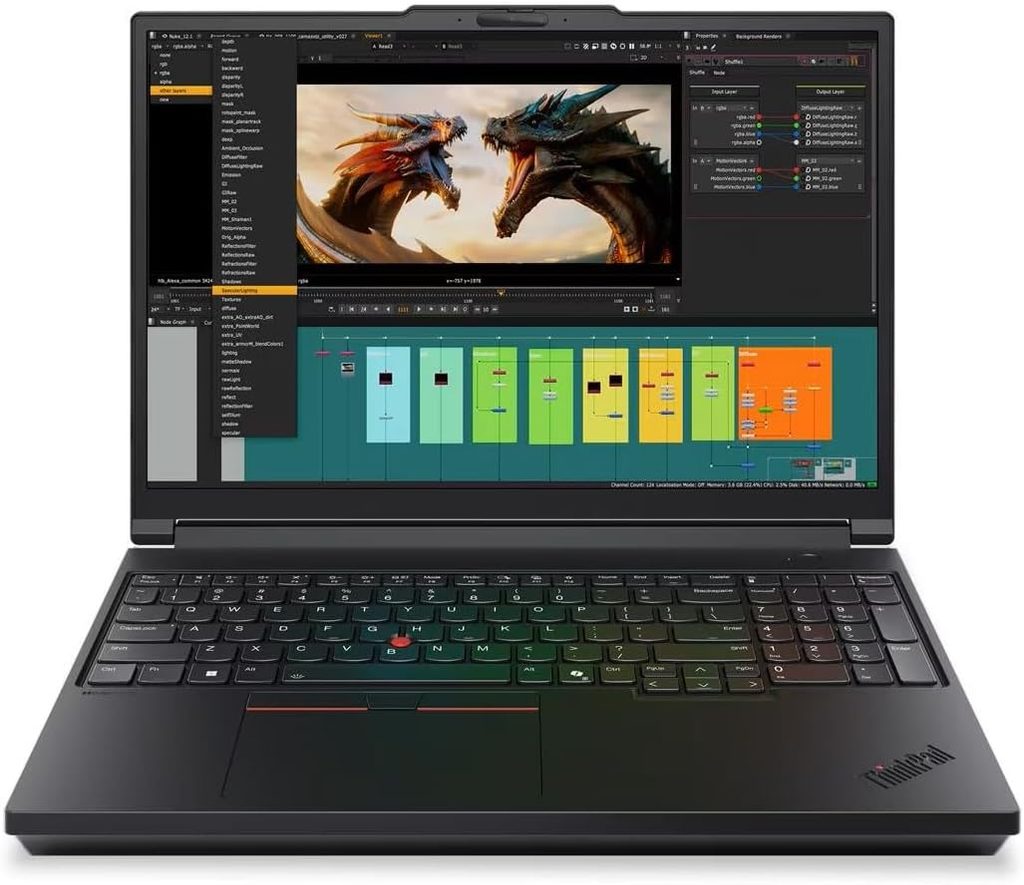
Lenovo redesigned the P16 for Gen 3, made it thinner and lighter, and moved it to USB-C charging. Lenovo’s own PSREF sheet for this machine is unusually detailed, and it reveals a few things the product page doesn’t.
Specifications
- CPU: Intel Core Ultra HX-series, 45 W base. Ultra 5 245HX (4P+8E, 14 threads, 24 MB) up to Ultra 9 285HX (8P+16E, 24 threads, 36 MB, 5.5 GHz)
- GPU: RTX PRO Blackwell 1000 through 5000, running at 95 W in the top configuration
- Memory: Four SODIMM slots. 192 GB non-ECC, but only 128 GB with ECC — ECC is available on 16 GB and 32 GB modules only
- Storage: Three M.2 2280 slots, Gen 5 up to 4 TB each, 12 TB total, with RAID 0/1/5 selectable in BIOS
- Displays: 1920×1200 IPS 60 Hz 500 nits 100% sRGB; 3840×2400 IPS 60 Hz 800 nits 100% DCI-P3 HDR400; 3200×2000 Tandem OLED touch 40–120 Hz VRR, 600 nits SDR / 1,500 nits HDR, 100,000:1, HDR600. All three X-Rite factory calibrated
- Ports: 2× Thunderbolt 5, 1× Thunderbolt 4, 2× USB-A 10 Gbps, HDMI 2.1 (8K60), SD Express 8.0, 2.5 GbE, optional smart card, optional 5G WWAN
- Body: 362 × 252 × 15.8–29.8 mm, 2.54 kg, MIL-810G tested, 23 screws to fully service
- Power: 180 W USB-C PD 3.1 adapter (430 g), 99.9 Wh battery, 0–80% charge in 57 minutes powered off
- OS: Windows 11 Pro, plus certified Ubuntu 24.04 and RHEL 10.0 support
- Warranty: 3 years on-site as standard
The trap nobody writes about
Lenovo’s spec sheet quietly says this: DDR5 runs at a native 5,600 MT/s, but actual speed is up to 4,400 MT/s in most configurations, and drops to 4,000 MT/s if you fill all four slots with 32 GB or 48 GB modules.
Read that again. Buying 128 GB as 4×32 GB costs you roughly 29% of your memory bandwidth compared to the native rate. If you need 128 GB, that’s the price. But if you need 64 GB, buying 2×32 GB instead of 4×16 GB keeps two slots free and keeps you at the higher speed. Bandwidth matters enormously for FEA solves. I have never seen a single review mention this.
The GPU ladder, from Lenovo’s own documentation
This table is the clearest comparison of the current professional laptop GPUs I’ve found anywhere, and it applies to every Windows machine on this list.
| PRO 1000 | PRO 2000 | PRO 3000 | PRO 4000 | PRO 5000 | |
|---|---|---|---|---|---|
| CUDA cores | 2,560 | 3,328 | 5,888 | 7,680 | 10,496 |
| VRAM | 8 GB | 8 GB | 12 GB | 16 GB | 24 GB |
| Bus width | 128-bit | 128-bit | 192-bit | 256-bit | 256-bit |
| Bandwidth | 384 GB/s | 384 GB/s | 672 GB/s | 896 GB/s | 896 GB/s |
| FP32 (TFLOPS) | 13.6 | 17.7 | 29.1 | 38.7 | 49.8 |
| AI (TOPS) | 440 | 572 | 992 | 1,334 | 1,824 |
| ECC VRAM | No | No | Yes | Yes | Yes |
Notice the jump from PRO 2000 to PRO 3000. That’s where the bus widens from 128-bit to 192-bit and VRAM ECC arrives. It’s the single biggest step in the range and it’s the one most people skip past.
What I like
- Four memory slots, three Gen 5 storage slots with hardware RAID, and 23 screws between you and every serviceable part
- The best keyboard shipping on any laptop. 1.5 mm travel, 19.05 mm pitch, full numpad. The TrackPoint is genuinely useful for nudging dimensions
- 99.9 Wh is the largest battery here, and it charges 0–80% in 57 minutes
- USB-C PD charging means one brick for the laptop, the dock, and everything else you own
- SD Express 8.0, which is rare and fast, plus an optional 5G modem that nothing else here offers
- Five simultaneous displays supported
- Proper Ubuntu and RHEL certification, which matters more than people admit when your solver licence is tied to a Linux host
- Three years on-site, and the machine is MIL-810G tested
What I don’t
- The 180 W adapter. Down from 230 W, feeding a CPU that boosts past 45 W and a 95 W GPU at the same time. Something gives
- The PRO 5000 runs at 95 W here versus 115 W in the HP and 121–125 W in the Dell. Same invoice line, less machine
- Both IPS panels are 60 Hz. If you want high refresh you’re forced onto the OLED, which is glossy and touch-only
- ECC caps at 128 GB, not the headline 192 GB
- Filling all four DIMM slots costs you memory bandwidth, as above
- 2.54 kg is still a lot to carry
Buy it if
Your IT department thinks in five-year cycles. This machine is designed to have its SSD replaced twice and its memory upgraded once. And in this chassis I’d take the PRO 4000 over the PRO 5000 every time — the power ceiling means you give up very little real performance, you save a serious amount of money, and you run cooler.
4. Lenovo ThinkPad P1 Gen 8 — the one that actually leaves the building
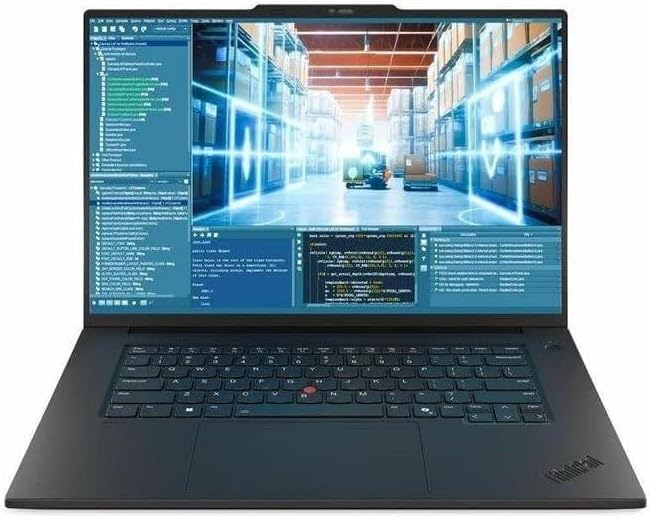
Notebookcheck scored this 91.6%, the highest rating of anything in this article. It’s also the machine I’d personally choose.
Specifications
- CPU: Intel Arrow Lake-H, from Ultra 5 235H vPro up to Ultra 9 285H. Tested unit: Ultra 7 255H, 16 cores, 6 P-cores at 5.1 GHz, 101 W sustained / 120 W burst
- GPU: NVIDIA RTX PRO 2000 Blackwell, 8 GB GDDR7, 75 W TDP, 3,328 CUDA cores
- Memory: Up to 64 GB LPDDR5X-7467, soldered
- Storage: Up to 8 TB across two M.2 PCIe Gen 5 slots
- Displays: 1920×1200 IPS 500 nits; 3840×2400 IPS 800 nits DCI-P3 HDR400; 3200×2000 Tandem OLED touch, 40–120 Hz VRR, DisplayHDR 600
- Ports: 2× Thunderbolt 5, Thunderbolt 4, USB4, HDMI, SD reader
- Body: 354 × 241 × 9.9–15.8 mm, 1.909 kg, 86.9% screen-to-body ratio
- Power: 140 W USB-C adapter (398 g), 90 Wh battery
- Camera: 5 MP with mechanical shutter
- Price: From $2,189 in the US at launch
Performance
Notebookcheck’s tested Ultra 7 255H unit, against the previous generation:
| Test | P1 Gen 8 (255H) | P1 Gen 7 (155H) | Change |
|---|---|---|---|
| Cinebench R20 multi | 8,651 | 7,234 | +20% |
| Cinebench R20 single | 760 | 689 | +10% |
| Cinebench R15 multi | 3,388 | 2,880 | +18% |
| Cinebench R15 single | 302 | 266 | +14% |
| Blender BMW27 CPU | 166 s | 175 s | 5% faster |
The interesting part: Gen 8 is faster than Gen 7 despite shipping a 140 W adapter instead of 170 W. Notebookcheck’s reading is that Gen 7 never fully exploited its higher ceiling anyway. What the smaller brick does cost you is charging speed — under load this machine already draws 120–140 W, essentially the whole adapter, so charging while you work slows to a crawl.
StorageReview ran SPECviewperf 15 and found the P1 leading its comparison group in professional graphics traces, scoring 31.52 in 3ds Max against 20.84 and 8.50 for the two Dell Pro Max configurations tested alongside it, with similar leads across Blender, CATIA and Maya. In Geekbench 6 single-core it scored 2,719, marginally behind the Dell machines at 2,844 and 2,875, then recovered in multi-core.
Display
The Tandem OLED is the headline and it deserves to be. Notebookcheck measured 600 nits in SDR and 1,500 nits peak in HDR with an X-Rite colorimeter. Tandem OLED stacks two emissive layers, which gets you that brightness without the current density that ages a conventional panel, and without the halo effect you get on mini-LED. Contrast is effectively 1,000,000:1, refresh is variable 40–120 Hz, coverage is 100% DCI-P3. All three panel options ship X-Rite factory calibrated.
At 600 nits you can genuinely use this in a sunlit meeting room, which I cannot say about most workstations.
Battery
XDA measured 7.69 hours in the Procyon productivity battery test — more than three hours better than the HP ZBook X G1i managed on the same test. For a machine carrying a discrete workstation GPU, that’s remarkable. Heavy CAD on battery will be far shorter, obviously, but a day of drawings, email and meetings is comfortably within reach.
What I like
- 1.909 kg and a 398 g charger. You’ll actually take this places, which is the whole point
- Nearly eight hours of real-world battery life from an ISV-certified workstation
- The Tandem OLED at 600 nits SDR is the most usable display here in bright rooms
- Best keyboard on this list by a distance
- Two Gen 5 M.2 slots, so 8 TB of vault cache travels with you
- Thunderbolt 5 for a clean single-cable desk
What I don’t
- 8 GB of VRAM is the ceiling. The PRO 2000 is the top option, and 8 GB starts hurting somewhere around 3,000–5,000 components with RealView and shadows enabled
- 64 GB memory ceiling and it’s soldered. No upgrade path, ever
- No ECC, on memory or VRAM
- Thin chassis means audible fans and a warm deck under sustained load
- European street pricing is well above the US figure
- Glossy OLED. If you sit near a window, take the IPS
Buy it if
You split your week between the CAD seat, the shop floor, supplier visits and meeting rooms. For the majority of working mechanical design engineers who aren’t running simulation, this is the correct answer, and it’s the one I’d pick for myself.
5. Apple MacBook Pro 16 (M5 Max) — read this warning first
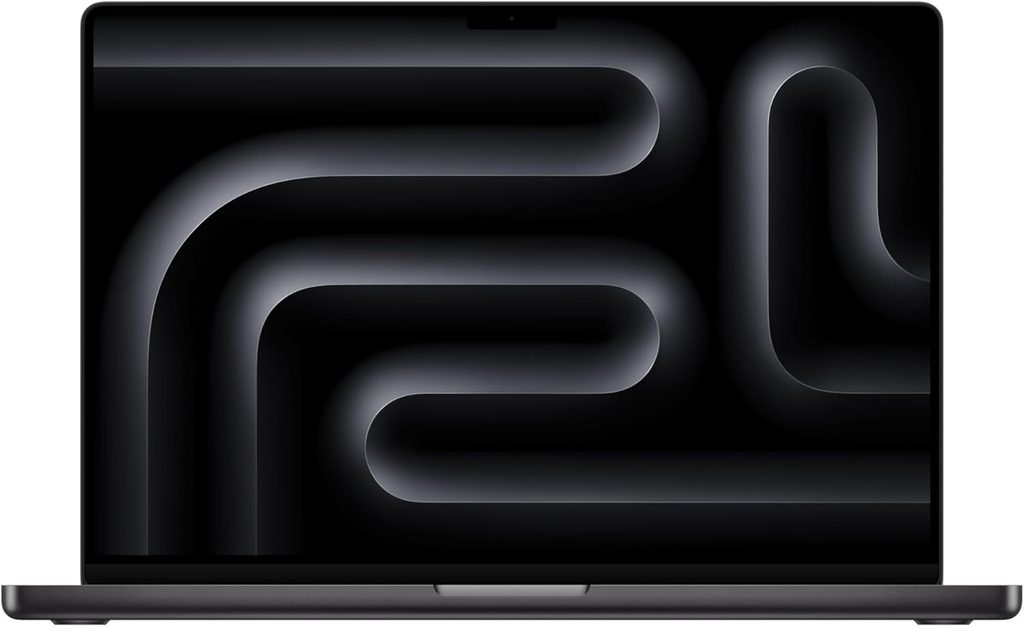
I’m including this because engineers keep asking me, not because I think most of you should buy it.
SolidWorks does not run on macOS. Neither does Siemens NX, Creo, Inventor, or CATIA. Nothing in this section changes that. If you work in a SolidWorks shop, skip to the next heading.
Where it does make sense: Fusion 360, Onshape, Rhino, Alias, Shapr3D, and anyone whose CAD lives in a browser tab.
Specifications
- SoC: Apple M5 Max, 18-core CPU, 40-core GPU, dual-die design with a neural accelerator on each GPU core
- Memory: Up to 128 GB unified
- Storage: Up to 8 TB, soldered
- Display: 16.2-inch Liquid Retina XDR mini-LED
- Battery: 99.6 Wh
- Weight: 2.14 kg
- Warranty: 12 months standard, the shortest here by two full years
Performance
- Geekbench 6: 4,268 single-core, 29,233 multi-core. That multi-core figure beat the 32-core M3 Ultra in the Mac Studio and topped every other consumer processor in the Geekbench database at launch, sitting 14–15% ahead of the M4 Max
- Cinebench 2026 (Macworld, 16-inch M5 Max): 722 single-CPU, 9,426 multi-CPU, 94,035 GPU
- Generation over generation: +12% multi-core and +7% single-core versus M4 Max
- HandBrake, 4K to 1080p: just under one minute, roughly ninety seconds faster than AMD’s top Strix Halo chip
- Storage: on the M5 generation, Blackmagic Disk Speed Test results roughly doubled versus M4, to about 6,620 MB/s read and 6,518 MB/s write
- Battery: Apple quotes up to 22 hours of video playback and 14 hours of wireless web. Independent testing found a full nine-hour working day realistic under mixed load
Look at that single-core figure in context. 4,268 against 2,907 for the Core Ultra 9 285HX is a 47% lead. Parametric CAD is a single-thread workload. This is the fastest chip in the world for the thing SolidWorks does most, and it can’t run SolidWorks. I find that genuinely annoying.
What I like
- The fastest single-thread performance in any laptop, which is precisely what parametric modelling wants
- Battery life nothing on the Windows side approaches
- Silent under most loads and the chassis stays cool
- No discrete GPU means no Optimus switching bugs, no driver conflicts, no performance collapse the moment you unplug
- Excellent display, speakers and trackpad, as always
What I don’t
- No SolidWorks, NX, Creo, Inventor or CATIA. Disqualifying for most mechanical engineers
- No ISV certification for any mechanical CAD package
- 12-month warranty against three years everywhere else here
- Sustained heavy GPU load has shown throttling in independent testing
- Memory and storage soldered. What you buy is what you keep for six years
- Expensive at the configurations worth having
Buy it if
You’re an industrial designer, a Fusion 360 or Onshape user, or a consultant who models lightly and presents constantly.
Two more worth knowing about
HP ZBook X G2i 16. Announced at HP Imagine in March 2026 and now shipping, this is HP’s thin workstation on Intel’s Panther Lake platform — up to a Core Ultra 9 386H, with RTX PRO 500, 1000 or 2000 Blackwell options, 64 GB of RAM, 2 TB of storage and a 96 Wh battery. US pricing starts around $3,609. It’s the newest platform here and I expect it to be excellent, but there isn’t enough independent testing yet for me to rank it against machines that have been measured properly.
ASUS ProArt P16. The value pick if you don’t need certification. Ryzen AI 9 HX 370 with an RTX 5070, a 2880×1800 120 Hz OLED, 1.85 kg, from around $2,399. IT Pro measured 2,925 single-core and 15,192 multi-core in Geekbench 6 and 8,191 in PCMark 10 Modern Office, comfortably ahead of an HP ZBook Power G11 at 2,397 and 11,906. PCWorld measured 8,017 in PCMark 10 on their unit. It’s a lovely laptop and I like it a lot. It’s also a GeForce card with consumer drivers, and when SolidWorks throws a graphics artifact at four o’clock on a Friday, nobody at ASUS is picking up.
Configurations I’d talk you out of
| Configuration | Why |
|---|---|
| RTX PRO 5000 in the ThinkPad P16 Gen 3 | The 180 W adapter can’t feed it and Lenovo caps it at 95 W. Take the PRO 4000 and keep the difference |
| 4×32 GB in the ThinkPad P16 Gen 3 | Drops memory to 4,000 MT/s. Use 2×32 GB if 64 GB is enough |
| 16 GB of RAM in any of these | You’ll hit the pagefile on your first serious assembly. 32 GB is the floor |
| 8 GB of VRAM above ~5,000 components | Turn on RealView and shadows and you’ll run out. See the sizing table below |
| A single 512 GB SSD | PDM cache plus Windows plus your CAD install eats it inside a month |
| 4K panels for CAD-only machines | Windows scaling in older CAD dialogs is still a mess. 2560×1600 is often the better working resolution |
| OLED, if you’re PWM-sensitive | The Dell’s panel flickers at 479.9 Hz at every brightness level |
| Any GeForce card, if you have an enterprise support contract | You’re throwing away the one thing you’re paying for |
| Last year’s RTX 5000 Ada “at a great discount” | Blackwell PRO is 35–50% faster in CAD viewport traces. The discount is never that good |
| The Dell Pro Max, if you need ECC | It doesn’t offer it. Go to HP or Lenovo |
How to size the machine you actually need
VRAM against assembly size
Rough guidance for SolidWorks, Inventor and Creo with shading, shadows and ambient occlusion on. Wireframe and lightweight modes need far less.
| Assembly size | Minimum | Comfortable | GPU tier |
|---|---|---|---|
| Parts and small assemblies, under 500 components | 4 GB | 8 GB | RTX PRO 1000 |
| 500–2,000 components | 8 GB | 8 GB | RTX PRO 2000 |
| 2,000–8,000 components | 8 GB | 12 GB | RTX PRO 3000 |
| 8,000–25,000 components | 12 GB | 16 GB | RTX PRO 4000 |
| 25,000+, GPU rendering, or local AI | 16 GB | 24 GB | RTX PRO 5000 |
Which part of your day uses which chip
| Task | Bottleneck | Spend money on |
|---|---|---|
| Sketching, dimensioning, mating | Single-thread CPU, cache | Highest clock speed available |
| Rebuilding the feature tree | Single-thread CPU | Same |
| Opening a large assembly | Storage, then RAM | Gen 5 SSD, 64 GB+ |
| Rotating and panning the viewport | GPU plus certified driver | RTX PRO, not GeForce |
| Drawing views and section views | Single-thread, then GPU | Clock speed |
| FEA meshing | Mixed, partly single-thread | Balanced machine |
| FEA and CFD solving | Multi-thread CPU, RAM capacity | Cores and 128 GB ECC |
| Photoreal rendering | GPU, CUDA and OptiX | VRAM capacity |
| PDM check-in and check-out | Network, then storage | 2.5 GbE, Gen 5 SSD |
What four years actually costs
| Line | Typical |
|---|---|
| Well-specified 16-inch workstation | €3,500–6,500 |
| Extending warranty to four years, next-business-day on-site | €300–700 |
| Thunderbolt dock | €250–400 |
| Second SSD around year two | €150–300 |
| One day of lost productivity per unplanned failure | €400–800 |
That last line is why on-site warranty and ISV certification are worth more than five percentage points on a benchmark chart. Every Windows machine here ships with three years standard. Extend it and stop thinking about it.
Twelve checks to run before your return window closes
If you take one practical thing from this article, take this. It’s about three hours of work and it will tell you more than any review, including this one.
| # | Check | Tool | What you’re looking for |
|---|---|---|---|
| 1 | Single-thread CPU | Cinebench 2024 or R23, single | Proxy for rebuild and mate-solve speed |
| 2 | Multi-thread CPU | Cinebench 2024 or R23, multi | Proxy for FEA solve and CPU render |
| 3 | Sustained multi-thread | Cinebench R15 or R23, 30-minute loop | Compare run 1 to run 20. This is the real number |
| 4 | Viewport | SPECviewperf 2020 or 15 — solidworks, snx, creo, catia | Recorded traces from the actual apps |
| 5 | Storage burst | CrystalDiskMark | The marketing number |
| 6 | Storage sustained | DiskSpd, queue depth 8, 10-minute read loop | Where the SLC cache runs dry and PDM slows |
| 7 | Display | Any colorimeter — i1Display, SpyderX | Peak nits, uniformity, ΔE, and whether it uses PWM |
| 8 | Thermals | HWiNFO64 logging with Prime95 and FurMark, 30 min | Clock floor, package temperature, power floor |
| 9 | Noise | SPL app at 40 cm, seated | dB(A) at your ears, not at 15 cm |
| 10 | Real battery | An actual CAD session, screen at 150 nits | Divide the manufacturer’s claim by about three |
| 11 | The unplugged penalty | Repeat check 4 on battery | Some machines lose over 40% of GPU performance |
| 12 | The three o’clock test | Model normally for three hours, then check clocks | Cold benchmarks lie |
Checks 3, 6, 11 and 12 are the four that almost nobody publishes, and they’re the four that decide whether you still like the machine in month six.
What ISV certification actually buys you
People throw this phrase around without explaining it, so here it is plainly.
What it is: the CAD vendor and the hardware vendor jointly test one specific laptop model, with one specific GPU, on one specific driver build, against a regression suite. When it passes, that combination goes on a published certified list, and NVIDIA maintains a separate slower-moving production-branch driver line for those cards.
What you get:
- A driver that changes about four times a year instead of every fortnight
- A vendor who can’t tell you “that’s a driver problem, call NVIDIA,” because they signed off on the combination
- An escalation path that reaches an engineer with the same hardware on their desk
What you don’t get:
- More frames per second. A GeForce RTX 5070 will often beat an RTX PRO 2000 in raw viewport throughput
- Protection from your own habits. No certification saves an assembly with 400 in-context references
- Coverage for everything. Check the list for your application at your version
Worth paying for when you have a support contract, a deadline, and a manager who’ll ask why the CAD seat is down. Not worth paying for when you’re a student or a freelancer and an afternoon of driver rollback is annoying rather than expensive.
Questions I get asked constantly
32 GB is the practical floor for parametric CAD in 2026. 64 GB is the sensible target if you work above a few thousand components or run occasional simulation. 128 GB and beyond belongs to full-time FEA and CFD, where the solver’s footprint sets the requirement, not your model.
In raw frame rate, sometimes. The PRO 5000 Blackwell is built on the same GB203 silicon as the mobile RTX 5090 without the gaming optimisations, and Notebookcheck found its gaming performance broadly comparable to a mobile RTX 5080. What the professional card gives you is 24 GB of ECC-capable VRAM, certified drivers, and someone to call. For a professional seat, that’s the whole point.
Only above roughly 25,000 components, or if you do GPU rendering, or run local AI models. Most mechanical engineers are well served by 12 or 16 GB, which means the PRO 3000 or 4000, and those cost dramatically less.
The bottom line
If I had to hand you one recommendation and walk away, it’s the Dell Pro Max 16 Plus with an RTX PRO 4000, 64 GB of memory, and the 500-nit 120 Hz IPS panel. That’s the sweet spot. You keep CAMM2 upgradeability, the removable graphics card, Thunderbolt 5 and three years of warranty, and you skip the two things that cost the most and matter the least for most engineers — a top GPU the chassis can’t fully feed, and an OLED panel you didn’t need.
Run simulation? The ZBook Fury G1i 16 with ECC. Carry it every day? The ThinkPad P1 Gen 8. CAD in a browser? The MacBook Pro M5 Max is the nicest laptop on this list by some margin.
Whatever you buy, run those twelve checks before the return window shuts. A cold benchmark tells you what a machine can do for ninety seconds. Checks 3 and 12 tell you what it’ll do at four o’clock on a Thursday, which is the only time it has ever mattered.
Sources
Every measured figure above is traceable to one of these:
- Notebookcheck — Dell Pro Max 16 Plus review (Allen Ngo, 89%); ThinkPad P1 16 Gen 8 review (91.6%); ThinkPad P1 Gen 8 power adapter analysis; Tandem OLED brightness measurements; Arrow Lake HX Plus and ZBook Fury G1i launch coverage. Instruments: X-Rite i1Pro 3, Earthworks M23R at 15 cm, Fluke 62 Mini IR thermometer, DiskSpd 2.0.17, iperf3.
- StorageReview — ThinkPad P16 Gen 3, ThinkPad P1 Gen 8, HP ZBook Fury G1i 18, Dell Pro Max 16 Plus reviews. SPECviewperf 15, Procyon AI Computer Vision, LuxMark.
- ServeTheHome — Dell Pro Max 16 Plus and ThinkPad P16 Gen 3 hardware analysis.
- XDA Developers — ThinkPad P1 Gen 8 Procyon battery testing.
- Macworld and Gizmodo — MacBook Pro 16 M5 Max, Cinebench 2026 and HandBrake results.
- MacRumors — first published M5 Max Geekbench 6 results.
- TechRadar — M5 generation Blackmagic Disk Speed Test figures.
- IT Pro and PCWorld — ASUS ProArt P16 benchmarks and configuration pricing.
- DEVELOP3D — ThinkPad P16 Gen 3 launch analysis and the 180 W power supply observation.
- Lenovo PSREF (ThinkPad P16 Gen 3, version 4.0, 13 May 2026) — memory speeds, ECC limits, display specifications, GPU comparison table, battery and charging figures.
- HP QuickSpecs (document c09153575) — ZBook Fury G1i 16 operating power and GPU TDP tables.
- NanoReview and LaptopMedia — aggregated ZBook Fury G1i configuration data.
- Intel and VideoCardz — Core Ultra 200HX Plus launch specifications.
Where Notebookcheck and StorageReview both tested the same GPU, absolute figures differ because of chassis power limits and driver versions. I’ve named the chassis in each case rather than averaging across them, because averaging would hide exactly the effect this article is about.
If you run those twelve checks on a machine that isn’t listed here, send me the numbers and I’ll add it.

Hi, my name is Burak. I am a mechanical engineer. I have been writing laptop reviews for the Engineering Laptops website since 2020. Please feel free to contact me if you have any questions.