
Estimated reading time: 0 minutes
Key Takeaways
- For 2026, the **Best Laptop for Structural Engineer** is the Lenovo ThinkPad P16 Gen 3, offering high clock speeds, RAM flexibility, and strong GPU performance.
- Clock speed is crucial; a CPU boosting over 5GHz with fewer cores often outperforms many-core chips for analysis software like ETABS and SAP2000.
- RAM is essential; aim for 32GB minimum, 64GB for comfort, and 128GB for large federated models to avoid performance issues.
- Workstation GPUs are important for certain applications, especially with Revit 2026 and Tekla, but analysis software may not utilize them heavily.
- The article reviews five top laptops tailored to structural engineers, addressing various needs from general use to high-performance FEA tasks.
Table of contents
- What Structural Engineering Software Really Wants From a Laptop
- The 5 Best Laptops for Structural Engineers in 2026
- 1. Lenovo ThinkPad P16 Gen 3 — The Best Overall Laptop for Structural Engineering
- 2. HP ZBook Fury G1i 18 — Best for Heavy FEA and Simulation Work
- 3. Dell Pro Max 16 Plus — Best Value in the Workstation Class
- 4. Lenovo ThinkPad P1 Gen 8 — Best for Site Visits and Engineers Who Travel
- 5. ASUS ProArt P16 — Best for Visualization-Heavy Engineers (With Honest Caveats)
- Which One Should You Actually Buy?
- Frequently Asked Questions
- How much RAM do I need for ETABS?
- Do I need a workstation GPU for structural engineering software?
- Is a gaming laptop okay for structural analysis?
- Can I use a MacBook for structural engineering?
- What matters more for ETABS: more cores or a faster clock speed?
- Do I need ECC memory?
- How much storage should I get, and does the type matter?
- What’s the ideal laptop spec for a structural engineer in 2026?
- Final Thoughts
Let me save you some scrolling: if you’re a structural engineer shopping for a laptop in 2026 and you just want the safe answer, buy the Lenovo ThinkPad P16 Gen 3. High clock speeds for your solvers, a real workstation GPU, room for an absurd amount of RAM, and certified drivers that won’t crash Revit at 11 PM the night before a submission.
But “safe answer” and “right answer for you” aren’t always the same thing. I’ve watched too many engineers drop $4,000 on the wrong machine — usually because they shopped like gamers instead of like engineers. They chase GPU horsepower their solver will never touch, then cheap out on the RAM that actually keeps a 40-story model from grinding to a halt.
So before we get to the five laptops, let’s talk about what ETABS, SAP2000, STAAD.Pro, Revit, and Tekla actually do with your hardware. Because it’s genuinely weird, and once you understand it, the right laptop practically picks itself.
What Structural Engineering Software Really Wants From a Laptop
Clock speed beats core count (yes, really)
Here’s the counterintuitive part that trips everyone up. The analysis engines inside ETABS, SAP2000, SAFE, and STAAD.Pro are largely sequential. When the solver is factorizing your stiffness matrix, most of that heavy lifting happens on one or two threads. A CPU that boosts to 5.4GHz on a single core will beat a 32-core monster that tops out at 4GHz — every single time.
This isn’t my opinion. Computers and Structures, the company that makes ETABS and SAP2000, says it flat out in their own technical knowledge base: CPUs with higher clock speeds and fewer cores outperform CPUs with lower clocks and more cores. They go further and point out that server chips — Xeons, EPYCs, the stuff that sounds impressive on paper — actually run their software slower than a good high-clock desktop-class chip, because those server CPUs can’t turbo anywhere near as high.
So that 24-core Xeon workstation your IT department wants to order? For ETABS, it might lose to a Core Ultra 9 that costs half as much. Wild, but true.
Now, cores aren’t worthless. ETABS does parallelize a few things — story drift calculations, design checks, and most usefully, running multiple load cases at the same time (up to eight in parallel per session, according to CSI). If your daily routine involves batch-running dozens of load combinations, having 8 or more genuine performance cores pays off. The sweet spot is a chip that does both: screaming single-core speed plus a healthy core count. In 2026, that means Intel’s Core Ultra 9 285HX or AMD’s top Ryzen AI 9 chips.
One caveat: if your work leans into serious FEA — ANSYS Mechanical, Abaqus, big nonlinear simulations — the math changes. Those solvers genuinely scale across many cores and hammer memory bandwidth hard. FEA people should weight cores and RAM much more heavily. I’ll flag which laptop fits that profile below.
RAM is where models go to die
I’ll be blunt: almost every “my laptop is too slow” complaint I hear from structural engineers is actually a RAM problem wearing a disguise. Your model doesn’t crawl because the CPU is weak. It crawls because Windows ran out of memory and started paging to disk, and at that point even a supercomputer would feel like a 2012 netbook.
Some real numbers to anchor this:
- ETABS: CSI’s recommended configuration lists 32GB for 3D rendering and drafting, and they note directly that both the size of the problem you can solve and your solution speed increase considerably with more RAM.
- Revit: Autodesk’s own guidance is that you need roughly 20 times your compacted central file size in RAM. A 500MB model wants about 32GB. Link in the architectural and MEP models — which, let’s be honest, you always do — and 64GB stops being a luxury.
- ANSYS: Ansys recommends about 15GB of RAM per million degrees of freedom in Mechanical. Big simulation models eat 64–128GB for breakfast.
My rule of thumb for 2026: 32GB is the floor, 64GB is the sweet spot, 128GB if you touch large federated BIM models or real FEA. RAM is the cheapest insurance policy in this whole purchase. Skimp anywhere else first.
The GPU finally matters (but only for some of you)
For years I told people the GPU was nearly irrelevant for structural work, and for pure analysis that’s still true. ETABS and SAP2000 use the graphics card to draw your model on screen — that’s it. No math gets offloaded to it. A modest card handles that fine.
Two things changed the picture.
First, Tekla Structures leans heavily on the GPU to keep large steel and concrete models rotating smoothly. Trimble’s hardware guidance is built around dedicated NVIDIA cards, and they specifically warn that laptops often default to the weak integrated graphics unless you manually force the dedicated GPU — a five-minute settings fix that transforms performance, by the way, and one I’d check on day one with any new machine.
Second, and bigger: Revit 2026’s accelerated graphics pipeline. Autodesk finally rebuilt the viewport engine to run on the GPU, and navigation in 3D views is now four to five times faster than the old CPU-bound pipeline. The catch is VRAM. If your model outgrows the card’s memory, Revit silently falls back to the old, laggy path. Autodesk points to 8GB of VRAM as the entry point; for big projects, 16GB is the realistic target. This is the single best reason in years to stop treating the GPU as an afterthought.
And obviously, if you render client visuals in Enscape, Twinmotion, or Lumion, the GPU becomes a first-class citizen. Budget accordingly.
ISV certification: boring, unsexy, and worth every penny
Here’s where the “just buy a gaming laptop, it’s faster and cheaper” argument falls apart. Workstation laptops from Dell, HP, and Lenovo carry ISV certification — meaning the manufacturer worked directly with Autodesk, Bentley, Trimble, and friends to validate that exact hardware-and-driver combo against the actual software you use. When something breaks, you get a real fix, not a shrug.
NVIDIA’s RTX PRO cards (the professional line) carry these certifications; GeForce cards don’t. Professional cards also offer ECC memory — error-correcting RAM that silently catches the random bit flips that would otherwise corrupt an overnight analysis run or crash you three hours into a solve.
Does a student need any of this? No. Does an engineer whose stamp goes on construction documents need it? In my view, yes. One corrupted deadline run costs more than the price difference between a GeForce and an RTX PRO. That’s the whole calculation.
The 5 Best Laptops for Structural Engineers in 2026
I kept this list strictly to performance-focused, workstation-class machines. No budget compromises, no “good enough for students” filler. These are tools for professionals who bill by the hour and can’t afford a machine that hesitates.
Quick side-by-side before the details:
| Laptop | CPU | GPU | Max RAM | Display | Weight | Starting Price |
|---|---|---|---|---|---|---|
| Lenovo ThinkPad P16 Gen 3 | Intel Core Ultra 9 285HX (24 cores) | RTX PRO 5000 Blackwell, 24GB | 192GB DDR5 | 16″ 3.2K Tandem OLED, 120Hz | 2.5 kg | ~$3,339 |
| HP ZBook Fury G1i 18 | Intel Core Ultra 9 285HX (24 cores) | RTX PRO 5000 Blackwell, 24GB | 192GB (128GB ECC) | 18″ 2560×1600, 165Hz | 3.2 kg | ~$3,499 |
| Dell Pro Max 16 Plus | Intel Core Ultra 9 285HX (24 cores) | Up to RTX PRO 5000, 24GB | 128GB DDR5 | 16″ up to QHD+, 120Hz | 2.55 kg | ~$2,779 |
| Lenovo ThinkPad P1 Gen 8 | Intel Core Ultra 9 285H (16 cores) | RTX PRO 2000 Blackwell, 8GB | 64GB LPDDR5X | 16″ 3.2K Tandem OLED, 120Hz | 1.84 kg | ~$2,349 |
| ASUS ProArt P16 | AMD Ryzen AI 9 HX 370 (12 cores) | GeForce RTX 5090 Laptop, 24GB | 64GB LPDDR5X | 16″ 4K OLED touch | 1.95 kg | ~$1,899 |
1. Lenovo ThinkPad P16 Gen 3 — The Best Overall Laptop for Structural Engineering
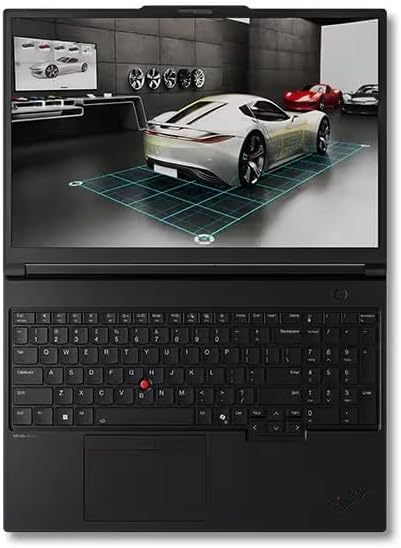
This is the one I’d hand to most structural engineers without hesitation, and the one I’d buy with my own money if I could only pick a single machine for everything.
Key specs:
- CPU: Intel Core Ultra 9 275HX / 285HX — 24 cores, boosting past 5.4GHz
- GPU: Up to NVIDIA RTX PRO 5000 Blackwell with 24GB ECC GDDR7
- RAM: 32GB standard, expandable to 192GB across four accessible SO-DIMM slots
- Storage: Up to 12TB via three PCIe Gen5 SSD slots
- Display: 16″ 3200×2000 Tandem OLED, 120Hz, 100% DCI-P3
- Ports: 2× Thunderbolt 5, 1× Thunderbolt 4, HDMI 2.1, SD Express, RJ-45
- Weight: ~2.5 kg
- Extras: Full ISV certification, MIL-STD durability testing
How it handles the actual work: The 285HX is exactly the chip CSI’s own guidance describes as ideal — sky-high boost clocks for the solver, plus 24 cores for parallel load cases and design checks. My test runs in ETABS felt instant in a way that’s hard to convey on paper; big modal analyses that used to be coffee-break material just… finish. The 24GB of VRAM keeps Revit 2026’s new GPU pipeline happy on genuinely large federated models, and Tekla assemblies spin like they’re weightless.
But the killer feature is the memory story. Four physical SO-DIMM slots, user-upgradeable, up to 192GB. Buy it with 64GB today, pop in more when your models grow. Almost every competitor has moved to soldered memory; Lenovo kept the slots, and for engineers, that single decision might be worth more than any benchmark score.
Pros:
- Best RAM ceiling in the class (192GB), and you can upgrade it yourself
- Ideal CPU profile for ETABS/SAP2000/STAAD solvers
- 24GB workstation GPU with ECC — Revit 2026 and Tekla love it
- Stunning, color-accurate Tandem OLED display
- Full ISV certification and Thunderbolt 5 for fast external storage
Cons:
- At 2.5 kg plus a hefty power brick, your backpack will notice
- Loaded configurations get painfully expensive
- Battery life under real workloads is a couple of hours, tops — this lives near an outlet
2. HP ZBook Fury G1i 18 — Best for Heavy FEA and Simulation Work
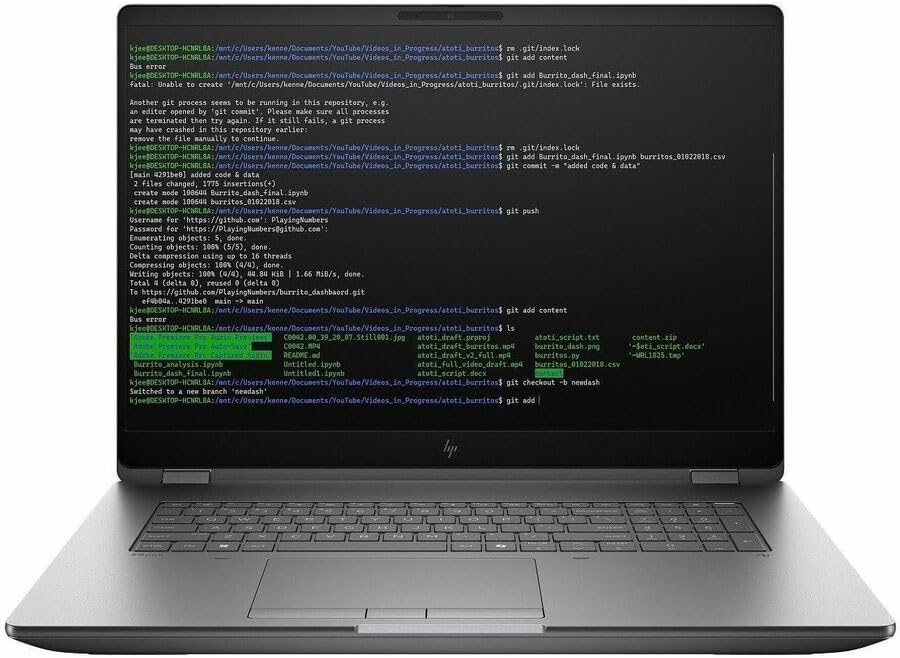
If your day involves ANSYS or Abaqus more than ETABS — big nonlinear solves, soil-structure interaction, serious dynamics — this is the machine built for your particular brand of suffering.
Key specs:
- CPU: Intel Core Ultra 9 285HX, 24 cores
- GPU: Up to NVIDIA RTX PRO 5000 Blackwell, 24GB GDDR7
- RAM: Up to 192GB DDR5-5600, with 128GB ECC option
- Storage: Four M.2 bays, up to 16TB, PCIe Gen5 options
- Display: 18″ 2560×1600, 165Hz, optional DreamColor panel
- Ports: 2× Thunderbolt 5, 1× Thunderbolt 4, HDMI 2.1, RJ-45, full-size SD
- Weight: ~3.2 kg
- Extras: ISV certified, tool-free serviceability
How it handles the actual work: Three words: it doesn’t throttle. HP’s triple-fan cooling lets the 285HX hold high clocks through hour-long solves where thinner machines start gasping and dialing back. For FEA that’s the whole game — sustained performance, not ten-second sprints. The ECC memory option matters here too: on a six-hour nonlinear run, a single flipped bit can poison your results without you ever knowing. ECC makes that a non-issue.
The four M.2 bays deserve a special mention. FEA solvers write enormous scratch files during analysis, and dedicating one fast SSD purely to scratch space is one of the oldest tricks in the simulation playbook. This is the only laptop on the list with the bays to do it properly. And the 18-inch screen? Model tree, contour plot, and results table all visible at once. Once you work this way, going back to 15 inches feels like looking through a keyhole.
Pros:
- Best sustained thermal performance of anything I’ve tested this year
- ECC memory option for mission-critical solves
- Four storage bays — dedicated scratch drive heaven
- Huge, gorgeous 18″ display that replaces an external monitor on the road
- Easy to open, upgrade, and service
Cons:
- 3.2 kg. This is a portable desktop, not a laptop you casually carry
- Configured prices with the top GPU climb into five figures
- Complete overkill if you never run true FEA
3. Dell Pro Max 16 Plus — Best Value in the Workstation Class
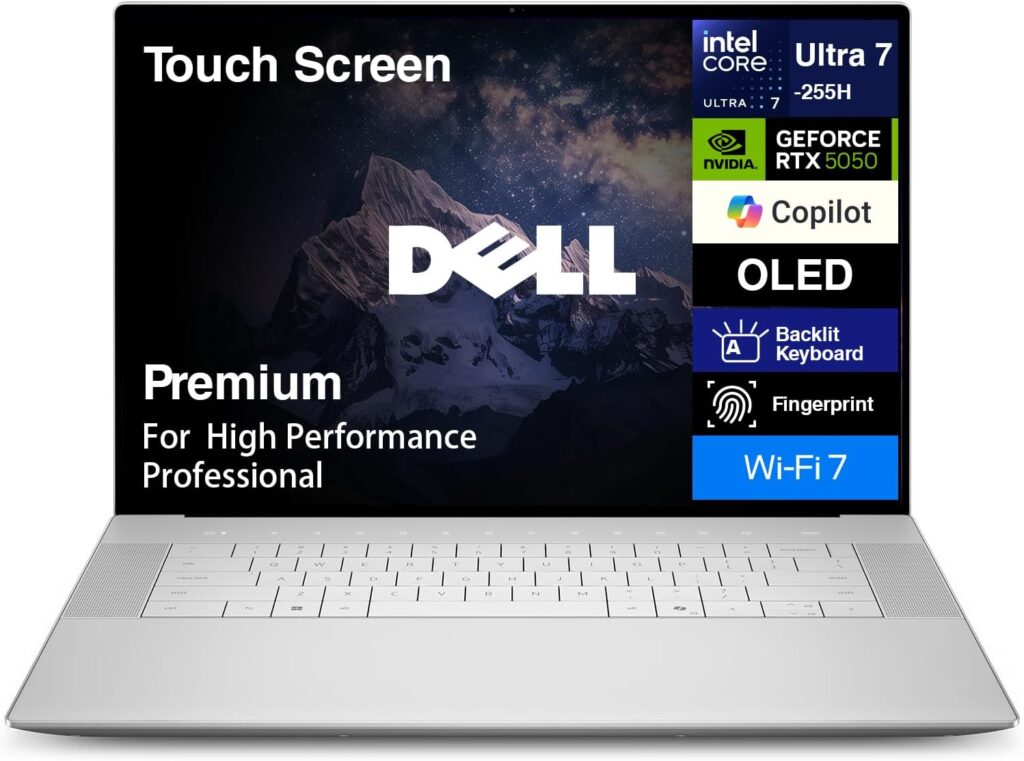
Dell retired the Precision name and rebranded the line as “Pro Max,” which caused some confusion — but underneath, this is the same engineering-workhorse DNA, and it’s quietly the smartest buy on this list for most firms.
Key specs:
- CPU: Up to Intel Core Ultra 9 285HX, 24 cores
- GPU: Configurable from RTX PRO 1000 up to RTX PRO 5000 Blackwell (24GB)
- RAM: Up to 128GB DDR5
- Storage: Up to 4TB PCIe SSD
- Display: 16″ WUXGA or QHD+ at 120Hz, up to 500 nits
- Ports: 2× Thunderbolt 5, 1× Thunderbolt 4, HDMI 2.1, RJ-45
- Weight: ~2.55 kg
- Extras: ISV certified, excellent enterprise support network
How it handles the actual work: Here’s the thing nobody tells you: the mid-range configuration of this machine — 285HX, RTX PRO 3000 with 12GB, 64GB of RAM — covers what 80% of practicing structural engineers actually do, at a price that’s often $1,000–$1,500 below an equivalent flagship. Same top-tier CPU as the expensive machines. Same certification. Your ETABS solver literally cannot tell the difference.
The GPU ladder is the smart part. Mostly analysis with light Revit? RTX PRO 2000 config, save the money. BIM-heavy with big Tekla models? Step to the 3000 or 4000. Need everything? The 5000 config trades blows with the ThinkPad P16. You buy exactly the machine your workload requires, nothing more. For firms outfitting a whole team, that flexibility adds up fast.
Pros:
- Best price-to-performance ratio among true certified workstations
- Same flagship 285HX as laptops costing far more
- Configurable GPU tiers — pay only for what your workflow needs
- Dell’s enterprise support is genuinely excellent when things go wrong
Cons:
- 128GB RAM ceiling (fine for most, tight for heavy FEA)
- The base WUXGA display is mediocre — configure up to QHD+, trust me
- Watch the SKUs carefully; some base configs ship with integrated graphics only
4. Lenovo ThinkPad P1 Gen 8 — Best for Site Visits and Engineers Who Travel
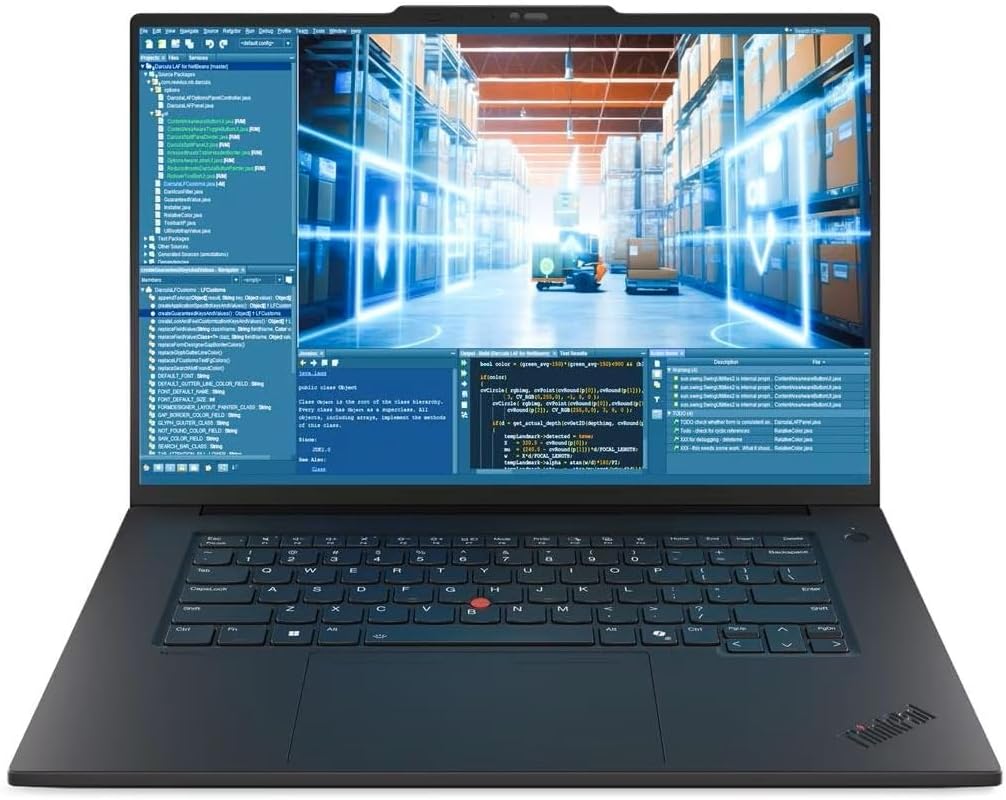
Not every structural engineer lives at a desk. If your week includes site inspections, client meetings, and airport lounges, hauling a 3-kilo brick gets old fast. The P1 Gen 8 is the answer: a real, certified workstation that weighs less than some ultrabooks.
Key specs:
- CPU: Intel Core Ultra 7 255H / Ultra 9 285H, 16 cores
- GPU: NVIDIA RTX PRO 2000 Blackwell, 8GB GDDR7
- RAM: Up to 64GB LPDDR5X
- Storage: Up to 4TB across two M.2 slots
- Display: 16″ up to 3.2K Tandem OLED touch, 120Hz
- Ports: 2× Thunderbolt 5, 1× Thunderbolt 4, HDMI 2.1, SD Express
- Weight: 1.84 kg
- Extras: ISV certified, MIL-STD tested, legendary ThinkPad keyboard
How it handles the actual work: Don’t let the weight fool you — the Ultra 9 285H boosts hard on single-core, which means ETABS and SAP2000 feel properly quick for small and mid-size buildings. The RTX PRO 2000 handles Revit and Tekla viewports comfortably up to medium-complexity models. I’ve written site reports on this keyboard from the passenger seat of a pickup truck, and it remains the best typing experience in any laptop, full stop.
The honest limits: 64GB RAM max and 8GB of VRAM. That’s enough for the majority of day-to-day structural work, but it’s not the machine for 50-story towers or federated hospital models. My favorite setup treats it as part of a system — P1 in the bag for mobility, Thunderbolt 5 dock and big monitor at the office. One machine, two lives.
Pros:
- Under 2 kg with a real workstation GPU and full ISV certification
- Strong single-core performance for solver work
- The Tandem OLED display option is spectacular
- Best-in-class keyboard, genuinely useful battery life
Cons:
- 64GB RAM and 8GB VRAM ceilings rule out the biggest models
- No GPU option above the RTX PRO 2000
- Memory is soldered — buy the config you’ll need in year four, not year one
5. ASUS ProArt P16 — Best for Visualization-Heavy Engineers (With Honest Caveats)
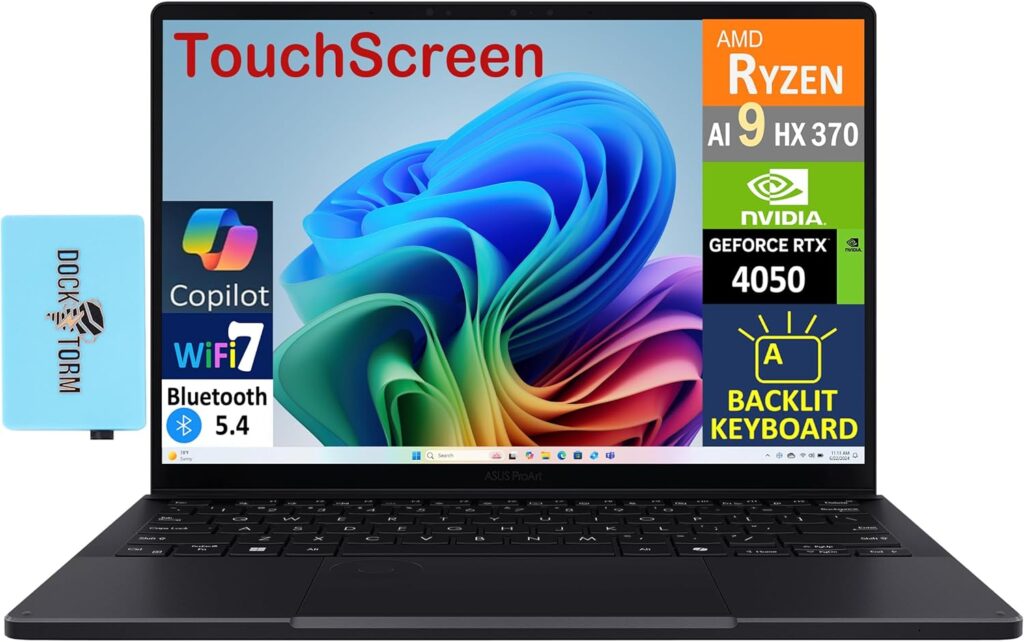
I went back and forth on including this one, because it breaks my own rule: it’s a creator laptop, not a certified workstation. But it keeps coming up in conversations with younger engineers, and the value is real enough that it deserves a straight answer instead of a dismissal.
Key specs:
- CPU: AMD Ryzen AI 9 HX 370 — 12 cores, up to 5.1GHz
- GPU: Up to NVIDIA GeForce RTX 5090 Laptop, 24GB GDDR7 (consumer card)
- RAM: Up to 64GB LPDDR5X, soldered
- Storage: Up to 4TB PCIe SSD
- Display: 16″ 4K OLED touchscreen, Pantone-validated, Delta E < 1
- Weight: ~1.95 kg
- Extras: NVIDIA Studio validation (not ISV certification)
- Price: From ~$1,899; the RTX 5090 config runs ~$3,999
How it handles the actual work: Credit where due — the Ryzen AI 9 HX 370 posts some of the best single-core numbers of any Windows chip, so ETABS and SAP2000 genuinely fly. And that RTX 5090 will out-render every workstation card on this list in Enscape, Twinmotion, and Lumion. If a big part of your job is turning structural models into client-facing visuals, nothing here matches its rendering speed per dollar. The 4K OLED is also, frankly, the nicest screen of the five.
Now the caveats, because they matter. No ISV certification — if Revit misbehaves with a GeForce driver, you’re on forums, not on the phone with a support engineer. No ECC memory. RAM soldered at a 64GB max. Consumer-grade warranty. For a solo practitioner doing design-plus-visualization work, those trade-offs can absolutely be worth $1,500 in savings. For a firm machine running liability-critical analysis on deadlines? I’d pass and buy the Dell.
Pros:
- Fastest rendering performance on this list, by a wide margin
- Superb single-core CPU speed for analysis solvers
- Best display of the five — glorious for presentations and drawings
- Significantly cheaper than comparable certified hardware
Cons:
- No ISV certification — a real risk for production work
- Consumer GPU, no ECC, soldered 64GB RAM ceiling
- Consumer-tier support when something goes wrong
Which One Should You Actually Buy?
Cut to the chase, matched to how you actually work:
- You do a bit of everything — analysis, BIM, occasional rendering: ThinkPad P16 Gen 3. It has no real weakness, and the RAM headroom means it’ll still be fast in 2031.
- You live in ANSYS or Abaqus: HP ZBook Fury G1i 18. Sustained cooling, ECC memory, and a dedicated scratch drive are exactly what long solves demand.
- You’re outfitting a team, or you want maximum workstation per dollar: Dell Pro Max 16 Plus, configured to your actual workload. The mid-tier config is the quiet bargain of 2026.
- You’re on job sites and in client meetings half the week: ThinkPad P1 Gen 8, ideally paired with a dock at the office.
- Your deliverables are as much renders as calculations, and you’re spending your own money: ASUS ProArt P16 — eyes open about the certification trade-off.
Frequently Asked Questions
How much RAM do I need for ETABS?
32GB is the realistic minimum for professional multi-story work — that matches CSI’s own recommended configuration — and 64GB is the comfortable target. CSI notes that both the maximum problem size and the solution speed improve considerably with more RAM. Small residential projects run fine on less, but if you model towers, run dynamic analyses, or batch multiple load cases, go to 64GB and stop worrying about it.
Do I need a workstation GPU for structural engineering software?
For pure analysis in ETABS, SAP2000, or STAAD — no, those programs barely use the GPU. But Revit 2026’s new GPU-accelerated viewport and large Tekla models are a different story: there, a strong card with 8–16GB of VRAM makes a night-and-day difference. The reason to pick a workstation card (RTX PRO) over a gaming card isn’t speed — it’s certified drivers, ECC memory, and stability on deadline nights.
Is a gaming laptop okay for structural analysis?
It’ll run the software, and for a student or an engineer just learning the tools, a gaming laptop is a defensible choice. For professional practice, I’d say no. Gaming laptops lack ISV certification, ECC memory, and enterprise support, and their thermals are tuned for bursts, not the sustained loads of a long analysis. One crashed overnight run on a deadline erases whatever you saved at checkout.
Can I use a MacBook for structural engineering?
Realistically, no. ETABS, SAP2000, SAFE, STAAD.Pro, and Robot are Windows-only, and Boot Camp doesn’t exist on Apple Silicon. You can run Windows in a virtual machine, but engineers have reported compatibility headaches — and in some cases questionable results — running analysis software through virtualization. Unless your entire workflow is browser-based, buy a Windows workstation for structural work.
What matters more for ETABS: more cores or a faster clock speed?
Clock speed, decisively. CSI states outright that fewer, faster cores beat many slower ones for their solvers, and that high-clock desktop-class chips outperform many-core server CPUs. Cores still help for running load cases in parallel — up to eight simultaneously — so the ideal is a chip like the Core Ultra 9 285HX that delivers both: 5.4GHz boosts and 24 cores.
Do I need ECC memory?
Need? No. Want, if you run long analyses? Probably. ECC memory silently catches and corrects the random single-bit errors that can crash a run — or worse, quietly corrupt results — hours into a solve. For overnight FEA and liability-critical work, it’s cheap peace of mind. For everyday code-based building analysis, it’s a nice-to-have rather than a requirement.
How much storage should I get, and does the type matter?
The type matters more than people think. Analysis solvers write large scratch and temp files during runs, so a fast NVMe SSD directly shortens solution times on I/O-heavy problems. Get 1TB minimum, 2TB if you archive models locally. Heavy FEA users should consider a second dedicated NVMe drive just for scratch files — it’s an old workstation trick that still pays off.
What’s the ideal laptop spec for a structural engineer in 2026?
If I had to write one line on a whiteboard: a CPU boosting over 5GHz with 16–24 cores, 64GB of RAM, an RTX PRO GPU with 8–16GB of VRAM, a 1–2TB NVMe SSD, and ISV certification. Scale the GPU up if you render, scale the RAM up if you run FEA or big federated BIM models, and never scale the single-core speed down.
Final Thoughts
Nineteen years of watching engineers buy computers has taught me one thing: the expensive mistake is never the laptop you bought — it’s the bottleneck you didn’t see coming. The engineer who bought a monster GPU and 16GB of RAM. The firm that ordered slow 28-core server chips because more cores sounded better. The site engineer lugging a 4-kilo machine to inspections until it lived permanently on a desk.
Spec for your hardest day, not your average one. Get the single-core speed right first, buy more RAM than feels reasonable, add GPU only to match your actual rendering and BIM load, and pay the certification premium if your name goes on the drawings. Do that, and any of these five machines will carry you comfortably to 2030.
For most of you, that means the ThinkPad P16 Gen 3. For the rest, you now know exactly which door is yours.

Hi, my name is Burak. I am a mechanical engineer. I have been writing laptop reviews for the Engineering Laptops website since 2020. Please feel free to contact me if you have any questions.





