
Last updated: September 15, 2026
Table of contents
- The short version
- How I put this together
- Five things I wish someone had told me before I bought a work laptop
- 1. The battery number on the box was measured in a dark room
- 2. Two labs can test the same laptop and get wildly different battery results
- 3. Peak performance is a headline, sustained performance is your life
- 4. Palm rest temperature is a real spec and nobody publishes it
- 5. In a quiet house, fan noise is louder than you think
- Best Laptop for Working From Home in 2026: My 5 Picks, and the Lab Numbers Behind Them
- All five, side by side
- The thing nobody wants to talk about: RAM and SSD prices
- What I looked at and passed on
- Questions I get asked a lot
- Where I’d land
- Sources
I’ve read a lot of “best work from home laptop” lists this year, and most of them tell you the same three things. It’s fast. It’s thin. It has good battery life. Then they send you to a buy button.
Nobody tells you how hot the palm rest gets at 3pm. Nobody tells you that the same laptop can score 12 hours on one battery test and 18 on another. Nobody warns you that picking the pretty screen option on one of these machines will cut your unplugged time roughly in half.
So that’s what I’ve done here. Five laptops, one per brand, all 2026 models. Every number you’re about to read comes from a published measurement by an independent lab, and I name the lab that produced it every single time. What I’ve added on top is the part I actually care about: a way of reading those numbers that’s built around a normal workday at a normal desk in a normal house.
Let’s get into it.
The short version
| If this is you | Buy this | Street price |
|---|---|---|
| You just want the safest choice | Apple MacBook Air 13″ (M5) | from $1,099 |
| Your calendar is nothing but meetings | Lenovo ThinkPad X1 Carbon Gen 14 | from about $2,249 |
| You want two screens without buying a monitor | Asus Zenbook Duo (2026, UX8407) | from $2,099 |
| You live in spreadsheets and need room | Acer Swift 16 AI (SF16-71T) | from about $1,449 |
| You want cheap that doesn’t feel cheap | Dell XPS 13 (2026) | from $699 |
Prices are moving around a lot this year, and there’s a reason for that. I get into it near the end, and it genuinely should change how you buy.
How I put this together
I want to be honest with you about method, because I think that matters more than another paragraph of adjectives.
I did not personally run a thermal camera over five laptops for this article. What I did was pull the complete measurement sets from the outfits that did. Tom’s Hardware, Notebookcheck, PCWorld, Tom’s Guide, Engadget. Then I lined them up, normalized what could be normalized, flagged what couldn’t, and re-ranked everything around home office priorities instead of generic laptop-reviewer priorities.
Here’s the weighting I used, roughly:
Unplugged endurance under mixed load, about 30%. Not a video playback loop. Browsing, streaming, and light graphics together, because that’s closer to a workday.
Sustained performance, about 25%. Your laptop doesn’t do a two-second burst and stop. It sits at moderate load for six hours with Chrome, Teams, Excel, and Spotify all open. Where a chip settles matters far more than where it starts.
Call hardware, about 20%. Webcam sensor, speaker measurements, microphone-adjacent stuff. You’re on camera far more often than you’re rendering video.
Eight-hour comfort, about 15%. Palm rest temperature in Fahrenheit. Fan noise in dB(A). Key travel. Measured typing speed.
Desk integration, about 10%. Ports, external monitor support, whether it charges from both sides, whether you’ll need a dock on day one.
Two hard rules. Only current models, so if a brand shipped a 2026 refresh, the older generation was out. And one machine per brand, which forces real decisions instead of stacking three MacBooks at the top.
One caveat I’ll say plainly: benchmark suites are mid-transition right now. Maxon shipped a Cinebench 2026 edition, and different labs are at different stages of moving over from the 2024 edition and from R15 and R23. I only put numbers next to each other when they came from the same suite on the same test. Where I couldn’t do that, I say so instead of quietly mixing them and hoping you don’t notice.
Five things I wish someone had told me before I bought a work laptop
If you read nothing else here, read this part.
1. The battery number on the box was measured in a dark room
Almost every lab battery test runs the screen at 150 nits. That is dim. Cave dim. If you work anywhere near a window, you’re running at or close to maximum brightness, and the difference is not small.
We have a clean measurement of exactly how big it is. Notebookcheck ran the ThinkPad X1 Carbon Gen 14 through the same Wi-Fi browsing test twice. At 150 nits it lasted 23 hours and 13 minutes. At maximum brightness, same laptop, same test, it lasted 14 hours and 14 minutes.
That’s a 39% cut from one slider.
So my rule, and it’s based on that measurement rather than a hunch: if your room is bright, mentally knock about a third off any published battery figure. A laptop that reviews at 12 hours is an 8-hour laptop for you. Still a full day, but not the number you were sold.
2. Two labs can test the same laptop and get wildly different battery results
This one trips up a lot of people. Take the Acer Swift 16 AI, which is on this list.
Tom’s Hardware measured 12 hours 12 minutes on a mixed test that combines web browsing, video streaming, and OpenGL graphics loops at 150 nits. PCWorld measured around 18 hours on a video playback loop.
Both are right. Neither made a mistake. They measured different things. Video playback runs almost entirely on the media decode block, which barely sips power. Browsing hammers the CPU with JavaScript. Add a graphics loop and now the GPU is awake too.
Your Tuesday looks like the Tom’s Hardware test. Marketing copy looks like the PCWorld test. Once you know that, “up to 20 hours” stops being a mystery.
3. Peak performance is a headline, sustained performance is your life
Cinebench stress tests run the same benchmark ten times back to back. The first score is the headline. The tenth score is what you actually live with.
All three of these were tested by Tom’s Hardware using Cinebench 2026, so this comparison is apples to apples.
| Laptop | First run | Where it settled | Retention |
|---|---|---|---|
| Asus Zenbook Duo (2026) | 3,871.93 | mid 3,800s | about 98% |
| Apple MacBook Air 13″ (M5) | 3,415 | low 2,300s | about 68% |
| Dell XPS 13 (2026, 16GB) | 1,443 | high 1,600s | about 118% |
The Apple number isn’t a fault. The MacBook Air has no fan. It physically cannot hold peak clocks, and Apple knows that. For email and spreadsheets you will never see it. For a 40-minute video export you absolutely will.
The Dell going up is my favorite result here. It starts cold and cautious, the fans spin up, and it settles higher than it began. That’s good tuning in a very small chassis.
4. Palm rest temperature is a real spec and nobody publishes it
Nobody puts this in a buying guide. Everybody notices it on a warm afternoon. Here are measured skin temperatures under stress.
| Laptop | Keyboard / deck | Touchpad / palm rest | Hottest bottom spot | Measured by |
|---|---|---|---|---|
| Lenovo ThinkPad X1 Carbon Gen 14 | 105 °F max on the top surface | 83.7 °F max, cooler than skin | 109 °F | Notebookcheck |
| Acer Swift 16 AI | 92 °F between G and H | 78 °F | 95 °F | Tom’s Hardware |
| Dell XPS 13 (2026) | 104 °F top row, 88.5 °F deck | 87 °F | 108.5 °F | Tom’s Hardware |
| Apple MacBook Air 13″ (M5) | 105.1 °F center | 96 °F | 107.9 °F | Tom’s Hardware |
| Asus Zenbook Duo (2026) | keyboard is a separate slab, stays cool | keyboard is a separate slab | 104 °F under the kickstand | Tom’s Hardware |
The ThinkPad wins this and it isn’t close. Notebookcheck specifically flagged that its palm rest stays below skin temperature at 28.7 °C even while the chip is working hard. The Acer is the runner-up with that 78 °F touchpad.
5. In a quiet house, fan noise is louder than you think
An open-plan office masks a lot of noise. Your spare bedroom doesn’t. Notebookcheck’s sound level readings on the X1 Carbon: 24.8 dB(A) at idle, 38.9 dB(A) under full load in Best Performance mode, 36 dB(A) in Balanced, and 29 dB(A) in Best Efficiency.
Under 30 dB(A) is effectively silent in any room with ambient noise. Around 39 dB(A) is a soft whir your colleagues will hear on a call. If you take a lot of meetings, drop the Windows power slider to Balanced. You keep most of the performance and lose most of the noise.
Best Laptop for Working From Home in 2026: My 5 Picks, and the Lab Numbers Behind Them
1. Apple MacBook Air 13″ (M5, 2026)
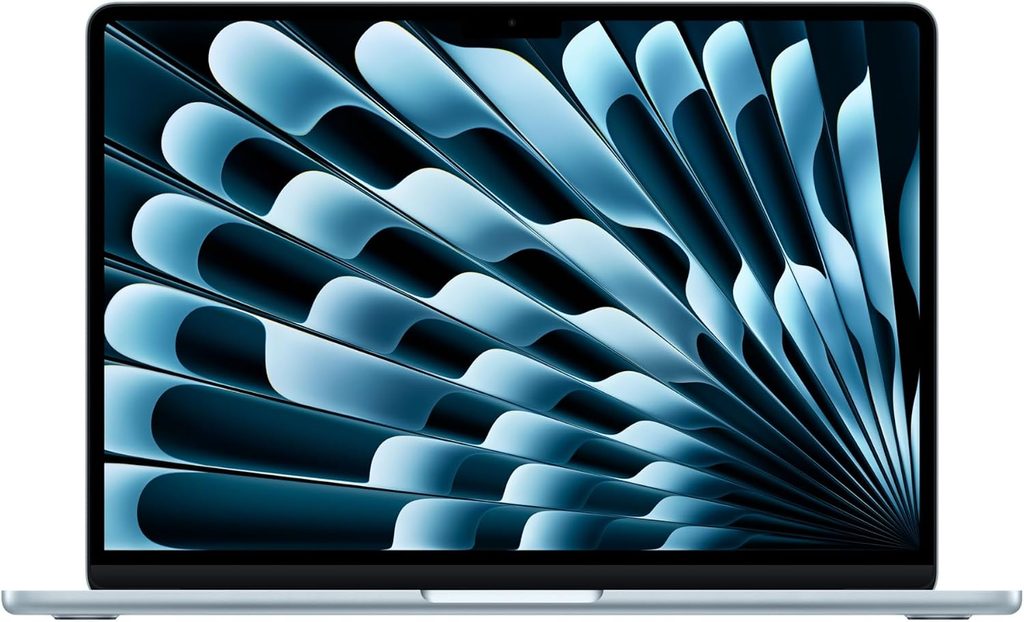
Best overall for most people working from home
If you’re not locked into Windows by your employer’s software, this is the one I’d hand a friend without asking a single follow-up question.
Apple didn’t reinvent anything this year. Same aluminum shell it’s been using since the M2. Same notch, which I still find mildly irritating. What changed is that the base configuration finally stopped being a trap. 16GB of RAM and a 512GB SSD are the floor now. For years the entry MacBook Air was a memory-starved machine you had to upgrade your way out of. That’s over, and it’s the single best thing about this generation.
Specs
- Chip: Apple M5, 10-core CPU, 10-core GPU
- Memory: 16GB unified minimum. 24GB is a $200 upgrade, 32GB is $400
- Storage: 512GB base, up to 1TB and beyond
- Display: 13.6-inch, 2560 × 1664 Liquid Retina IPS, True Tone
- Battery: 53.8 Wh with a 40W Dynamic Power Adapter rated to 60W max
- Ports: MagSafe 3, two Thunderbolt 4, 3.5 mm headphone jack with high-impedance support
- Camera: 12MP Center Stage with Desk View
- Wireless: Apple N1 silicon, Wi-Fi 7, Bluetooth 6, Thread
- Size and weight: 11.97 × 8.46 × 0.44 in, 2.7 lb (1.23 kg)
- OS: macOS 26 “Tahoe”
- Price: from $1,099 for the 13-inch, from $1,299 for the 15-inch
The measurements
Everything below is from Tom’s Hardware’s March 2026 review of an M5 / 16GB / 1TB unit.
| Test | Result |
|---|---|
| Geekbench 6 single-core | 4,168 |
| Geekbench 6 multi-core | 17,067 |
| Cinebench 2026 stress, start to settle | 3,415 to low 2,300s |
| Handbrake 4K to 1080p transcode | 4 min 41 sec |
| Xcode large codebase compile | 165 seconds |
| 25GB file transfer | 1,924.84 MB/s |
| 3DMark Steel Nomad | 1,005 |
| Display brightness | 458.8 nits |
| Display color | 117.3% sRGB, 83.1% DCI-P3 volume |
| Battery, mixed load at 150 nits | 15 hours 28 minutes |
| SoC temperature under load | 63.24 °C |
| Typing test (Monkeytype) | 114 wpm at 98% accuracy |
Three things jump out at me.
That 4,168 single-core score is the highest in this entire guide by a country mile. The closest Windows chip here, Intel’s Core Ultra X9 388H, managed 3,031. Single-core is what you feel when you click a thing and wait for it. Apps open faster on this machine than on anything else here, and it is not a subtle difference.
The 1,924.84 MB/s file transfer is also the fastest result in the group, which matters more than people expect when you’re syncing a fat OneDrive or Dropbox folder in the morning.
And the battery. 15 hours 28 minutes on a mixed workload from only 53.8 Wh of capacity. Divide it out and that’s 17.2 minutes of runtime per watt-hour, the best efficiency of any traditional clamshell on this page.
Living with it
The reviewer hit 114 words per minute at 98% accuracy on this keyboard, close to his personal best. Apple’s haptic trackpad is still the one component no Windows manufacturer has genuinely matched, and after eight hours a day you notice.
The 12MP Center Stage webcam is the best on this list on paper and in practice. It picked up individual hairs and fine skin texture in testing, which is either great news or a personal attack depending on how your morning went.
Speakers are good for something 0.44 inches thick. Less bass than a MacBook Pro but there is some, which is rare in a chassis this thin.
What I like
- Fastest single-core performance here by a wide margin, which is what daily responsiveness actually rests on
- 15:28 of mixed-use battery from a tiny 53.8 Wh cell, the efficiency champion among clamshells
- 16GB RAM and 512GB storage as the starting point, finally
- Completely silent. No fan. Ever
- The best trackpad in the industry, and it’s not a close race
- MagSafe, so tripping over the cable doesn’t launch your laptop across the kitchen
- 12MP webcam that makes you look like you own a real camera
What I don’t
- Fanless means it throttles hard on long jobs, only about 68% retention across a ten-run Cinebench 2026 stress test
- It doesn’t start at $999 anymore
- RAM and storage are soldered, so what you buy is what you own forever
- The notch is still there and still a bit awkward
- Two Thunderbolt ports total, so a dock is likely if you run multiple monitors
- $400 to get to 32GB
Who should buy it
Most people. Writers, project managers, analysts, marketers, developers who aren’t compiling all day. If your work lives in a browser and a handful of apps, and your employer doesn’t force Windows on you, start here and stop reading.
What to configure
The $1,099 base with the 8-core GPU, 16GB, and 512GB is genuinely fine for office work. The 10-core GPU is a $100 upgrade and it’s also the gate to going above 16GB. If you edit photos or run a lot of containers, take the 24GB. Skip 32GB unless you know exactly why you need it.
2. Lenovo ThinkPad X1 Carbon Gen 14
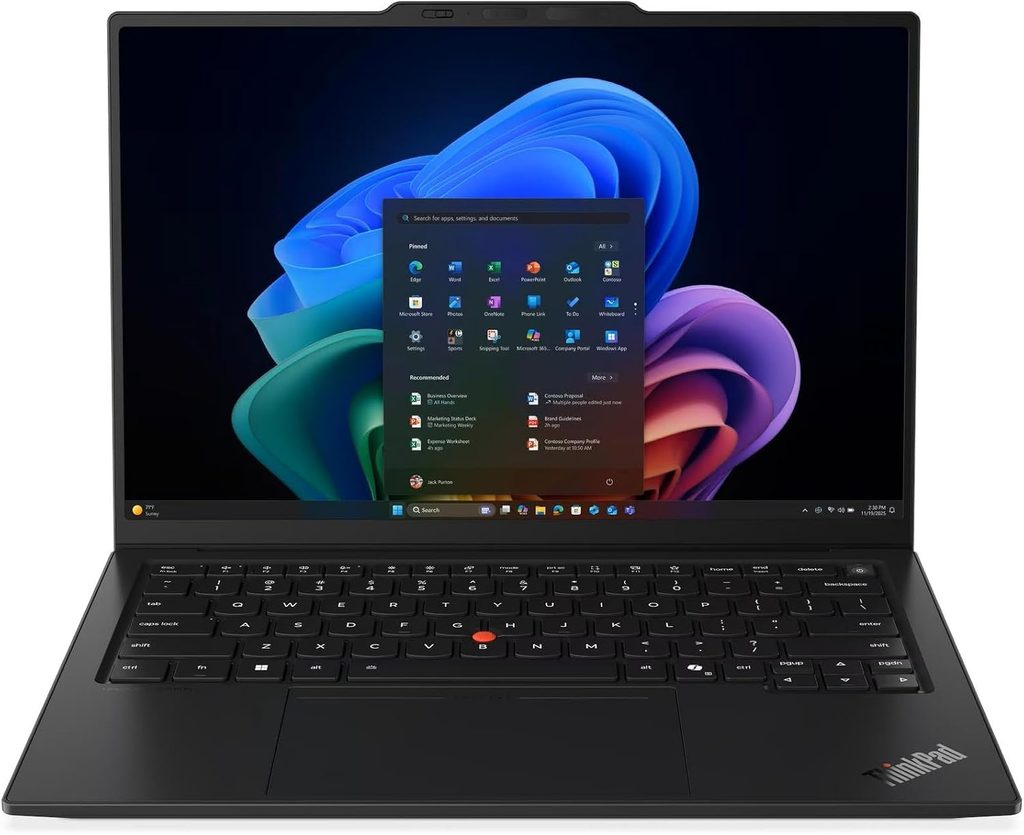
Best for meeting-heavy days and genuinely all-day unplugged work
This is what I’d buy if my calendar looked like a Tetris board.
Lenovo rebuilt the chassis this generation and moved to Intel’s Panther Lake platform, and the result is a little absurd. Notebookcheck measured 23 hours and 13 minutes of Wi-Fi web browsing from a 58 Wh battery. That works out to 24 minutes of runtime per watt-hour, the highest figure anywhere in this guide by a large margin.
There is a catch, and it’s a big one. I’ll get to it.
Specs (as tested by Notebookcheck, model 21V70075GE)
- CPU: Intel Core Ultra 5 325 (Panther Lake), 8 cores and 8 threads. Four Cougar Cove P-cores to 4.5 GHz, four Darkmont LP E-cores to 3.4 GHz, 35W sustained
- Graphics: Intel Graphics 4 Xe3. Core Ultra X7 368H configurations get the much stronger Arc B390
- Memory: 32GB LPDDR5x-7467, soldered, up to 64GB on the X-series chips
- Storage: 512GB Samsung PM9C1b (PCIe 4.0). The slot supports PCIe 5.0 drives
- Display: 14-inch 16:10, 1920 × 1200 low-power IPS touch at 60 Hz. Optional 2.8K OLED at 120 Hz
- Battery: 58 Wh, 65W adapter
- Ports: three Thunderbolt 4 (two left, one right), one always-on USB-A 3.2 Gen 1, HDMI 2.1, 3.5 mm, nano-SIM, Kensington Nano
- Camera: 5MP with IR
- Wireless: Intel Wi-Fi 7 BE211 at 320 MHz, Bluetooth 5.4, optional 4G or 5G WWAN
- Size and weight: 12.34 × 8.63 × 0.66 in, 2.51 lb (1.139 kg) as tested. OLED models weigh 989 g
- Durability: MIL-STD-810H, 36-month warranty on this SKU
- Price: from about $2,249 configured direct, around $2,749 with the Core Ultra 7 355
The measurements
Notebookcheck unless noted otherwise.
| Test | Result |
|---|---|
| Geekbench 6.7 single / multi | 2,620 / 11,038 |
| Cinebench 2024 single / multi | 113.3 / 645 |
| Cinebench R23 single / multi | 1,892 / 10,980 |
| Cinebench R15 multi-core loop average | 1,617 (range 1,604 to 1,670) |
| PCMark 10 overall | 7,709 |
| PCMark 10 Productivity | 13,901 |
| CrossMark overall | 1,675 |
| 3DMark Time Spy | 3,208 |
| 3DMark Fire Strike | 6,384 |
| 3DMark Steel Nomad | 519 |
| SSD sequential read (CrystalDiskMark) | 6,900 MB/s |
| SSD sequential write | 5,762 MB/s |
| SSD 4K random read / write | 67.7 / 173.8 MB/s |
| AS SSD total score | 3,647 |
| Display brightness, average / max | 524 / 546 nits |
| Contrast ratio | 1800:1 (black level 0.30) |
| Color coverage | 99.1% sRGB, 72% AdobeRGB, 69.8% DCI-P3 |
| ColorChecker ΔE, out of box / calibrated | 5.0 / 1.1 |
| Wi-Fi 7 throughput, iperf3 send / receive | 4,557 / 3,244 Mbit/s |
| Noise, idle / full load | 24.8 / 38.9 dB(A) |
| Power draw, idle / peak load | 1.6 W / 64.2 W |
| Battery at 150 nits | 23 h 13 min |
| Battery at max brightness | 14 h 14 min |
| Battery, PCMark 10 Modern Office (Engadget) | 16 h 00 min |
Look at that PCMark 10 Productivity score of 13,901. It beats machines here with far beefier CPUs, because PCMark Productivity is spreadsheets and writing, and this laptop is tuned for exactly that kind of work.
Also worth a second look: 4,557 Mbit/s on the Wi-Fi 7 send test. That’s roughly three times what the previous generation managed. If you’re on a modern router and pushing big files around, you’ll feel it.
The OLED trap
This is the single most important buying decision in this whole guide, and I’ve barely seen anyone mention it.
The X1 Carbon Gen 14 is effectively three different laptops depending on the screen you tick.
| 1920×1200 IPS touch | 2.8K OLED at 120 Hz | |
|---|---|---|
| Base material | Aluminum | Magnesium |
| Weight | 1.139 kg | 989 g |
| Battery at 150 nits | 23 h 13 min | about 13 h 30 min |
| Battery at max brightness | 14 h 14 min | about 7 h 30 min |
| Refresh rate | 60 Hz | 120 Hz |
Choosing OLED costs you close to ten hours of runtime at 150 nits, and roughly half your battery at full brightness. It also makes the laptop 150 grams lighter and the screen much prettier.
Notebookcheck flagged something else that surprised me: the OLED panel actually looked slightly grainier than the IPS in their testing. That’s the opposite of what most people expect.
My take is simple. If you work unplugged, take the IPS. The 23-hour figure is the entire reason to buy this laptop. If you’re always at a desk with a charger and you want a beautiful panel, the OLED is lovely and lighter. Just go in knowing what you’re trading away.
One more display note. The IPS panel ships badly calibrated, with a green-blue cast and a ColorChecker ΔE of 5.0. Notebookcheck’s own profile drops that to 1.1 and makes the screen genuinely usable for photo work, but costs you almost 100 nits of peak brightness. Lenovo pushed the calibration off-target on purpose so it could advertise a bigger brightness number. I’d take the calibration and lose the nits.
What I like
- The best unplugged endurance of anything here, full stop. 23 h 13 min at 150 nits and 14 h 14 min at maximum brightness
- A palm rest that stays cooler than your skin under full load, measured at 28.7 °C
- Three Thunderbolt 4 ports, and you can charge from either side of the machine
- A 5MP webcam that Engadget said looks close to a dedicated camera on calls
- Speakers Notebookcheck rated on par with the best in the business-laptop class, 84.7 dB with linear mids and highs
- The keyboard is still the keyboard. 1.5 mm travel, TrackPoint, backlight that switches on by itself
- 32GB of RAM is the minimum across every configuration
- MIL-STD-810H, a 36-month warranty on many SKUs, and an optional 5G modem
- Easy internal access to the SSD and the WWAN module
What I don’t
- It’s expensive. Configured pricing realistically starts around $2,249 and climbs fast
- RAM is soldered
- Factory calibration is poor at ΔE 5.0, and fixing it costs you about 100 nits
- The OLED option cuts battery life nearly in half
- The base panel is 60 Hz, which feels dated next to 120 Hz rivals
- The rear camera bump is genuinely ugly
- Integrated graphics on the Core Ultra 5 are weak. 20.8 fps in Cyberpunk at 1080p Ultra tells you everything
Who should buy it
Anyone whose day is meetings. Consultants, account managers, sales teams, anyone who works from the sofa after lunch and a coffee shop on Thursday. Also the right answer if your IT department cares about manageability, MIL-STD durability, or cellular.
What to configure
Core Ultra 7, 32GB, 1TB, and the low-power WUXGA IPS panel. That combination is what produces the 23-hour number. If you need real GPU work, step up to the Core Ultra X7 368H for the Arc B390, but expect the battery figure to come down with it.
3. Asus Zenbook Duo (2026, UX8407)
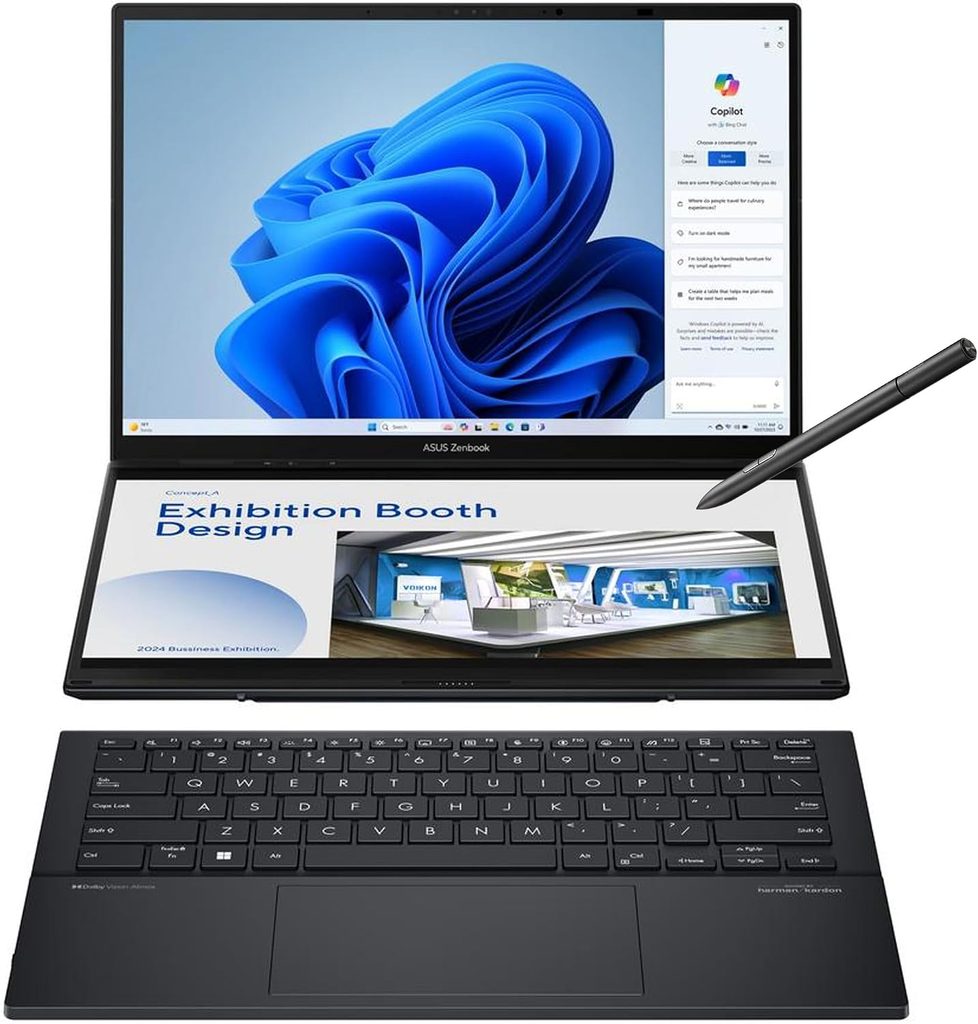
Best for multitasking without buying a second monitor
Here’s a genuinely different idea. Instead of a laptop plus an external monitor plus a stand, buy a laptop that is two monitors.
Asus has shipped a Zenbook Duo every year since 2024, and every one of them had some awkwardness you had to forgive. The 2026 model is the first one I’d recommend without a paragraph of apologies attached.
Specs
- CPU: Intel Core Ultra X9 388H (Panther Lake), 16 cores, 5.1 GHz max turbo, built on Intel 18A
- Graphics: Intel Arc B390 with 12 Xe3 cores
- Memory: 32GB LPDDR5x-9600
- Storage: 1TB PCIe Gen 4 M.2 2280, user-replaceable behind a two-screw door
- Displays: two 14-inch 2880 × 1800 Lumina Pro OLED touchscreens, 48 to 144 Hz, HDR True Black 1000
- Battery: 99 Wh, 100W USB-C adapter
- Ports: two Thunderbolt 4, USB-A 3.2 Gen 2, HDMI 2.1, 3.5 mm
- Camera: 1080p with IR
- Wireless: Wi-Fi 7, Bluetooth 5.4
- Size and weight: 12.21 × 8.21 × 0.92 in, 3.64 lb with the keyboard, 2.98 lb without
- Chassis: “Ceraluminum,” aluminum with a ceramic-like surface
- Price: $2,299.99 as tested, $2,099.99 for the Core Ultra 9 386H version
The measurements
Tom’s Hardware, January 2026.
| Test | Result |
|---|---|
| Geekbench 6 single / multi | 3,031 / 17,283 |
| Cinebench 2026 stress, start to settle | 3,871.93 to mid 3,800s |
| P-core / E-core / LP E-core clocks under stress | 2.86 / 2.70 / 2.45 GHz |
| Handbrake 4K to 1080p | 4 min 22 sec |
| 25GB file transfer | 1,531.30 MB/s |
| 3DMark Fire Strike | 13,581 |
| 3DMark Steel Nomad | 1,483 |
| Top screen color | 123.1% sRGB, 87.2% DCI-P3 |
| Bottom screen color | 118% sRGB, 83.6% DCI-P3 |
| Top / bottom screen brightness | 435.2 / 455.6 nits |
| Battery, one screen active | 14 h 23 min |
| Battery, both screens mirrored | 11 h 05 min |
| CPU package temp under stress | 74.29 °C average |
| Hottest surface | 104 °F, under the kickstand |
| Flight Simulator 2024 at 1920×1200, low | 44 to 52 fps |
| Typing, keyboard attached | 102 wpm at 99% accuracy |
| Typing, keyboard detached on a desk | 79 wpm at 93% accuracy |
The headline for me is that 98% retention figure. This machine starts at 3,871.93 and stays in the mid 3,800s across ten consecutive Cinebench 2026 runs. Essentially no throttling. In a guide where a fanless MacBook falls to 68%, that’s real thermal engineering.
The 13,581 Fire Strike score is also the highest here by a huge margin. The next best integrated GPU in that comparison set managed 8,557. Tom’s Guide separately clocked Cyberpunk 2077 at close to 70 fps at 1080p on this chip. That’s an integrated graphics result that would have needed a discrete GPU eighteen months ago.
Living with it
The dual-screen thing works better than you’d guess. Asus shrank the gap between the panels and hid the hinge, so dragging a window from top to bottom feels natural instead of like crossing a canyon. The ScreenXpert software handles the Windows plumbing.
The battery result deserves credit and a footnote. 14 hours 23 minutes with one screen is excellent for an OLED machine. But it’s coming from a 99 Wh battery, which is gaming-laptop territory. Normalize it and you get about 8.7 minutes per watt-hour, roughly half the MacBook Air’s efficiency. Asus won this round with capacity, not efficiency. That’s a perfectly legitimate way to win, since you get the hours either way, but it’s exactly why the thing weighs 3.64 lb.
Typing is the weak point. The keyboard is a separate slab. Attached to the laptop, the reviewer managed 102 wpm at 99% accuracy. Detached on a desk it fell to 79 wpm at 93%. If you plan to use this in desk mode all day, budget for a proper Bluetooth keyboard.
What I like
- Two 14-inch 3K 144 Hz OLED panels. This genuinely replaces a portable monitor
- Effectively zero sustained throttling, about 98% retention across ten Cinebench 2026 runs
- The fastest integrated graphics here by a wide margin at 13,581 Fire Strike
- 14 h 23 min of real mixed-use battery on a dual-screen OLED machine is a small miracle
- A six-speaker system, four woofers and two tweeters, that fills a room
- The SSD is replaceable behind two Torx screws, which is rare at this level
- Ceraluminum resists smudges and light scratches
- The kickstand lets you go portrait or side by side without buying a stand
What I don’t
- $2,299.99 as tested makes it the most expensive machine here
- A genuinely excessive amount of preinstalled software and promotional junk for a $2,000+ laptop
- Detached typing drops to 79 wpm, so get a separate keyboard for desk use
- The 1080p webcam produced soft images in testing and doesn’t auto-rotate in portrait mode
- 3.64 lb with the keyboard, and 0.92 inches thick
- The small gap between the screens collects dust in a bag if you travel without the keyboard
- One-year warranty
Who should buy it
People who live in windows. Developers with a terminal and docs open at once. Analysts with a model on one screen and a source document on the other. Anyone who currently hauls a portable monitor around and resents it. The GPU also makes it fine for light creative work.
What to configure
Take the Core Ultra X9 388H version. The standard Core Ultra 9 386H drops the Arc B390 for basic Intel Graphics, and that $200 gap is buying you roughly double the GPU. Set aside the first hour after unboxing for uninstalling things.
4. Acer Swift 16 AI (SF16-71T)
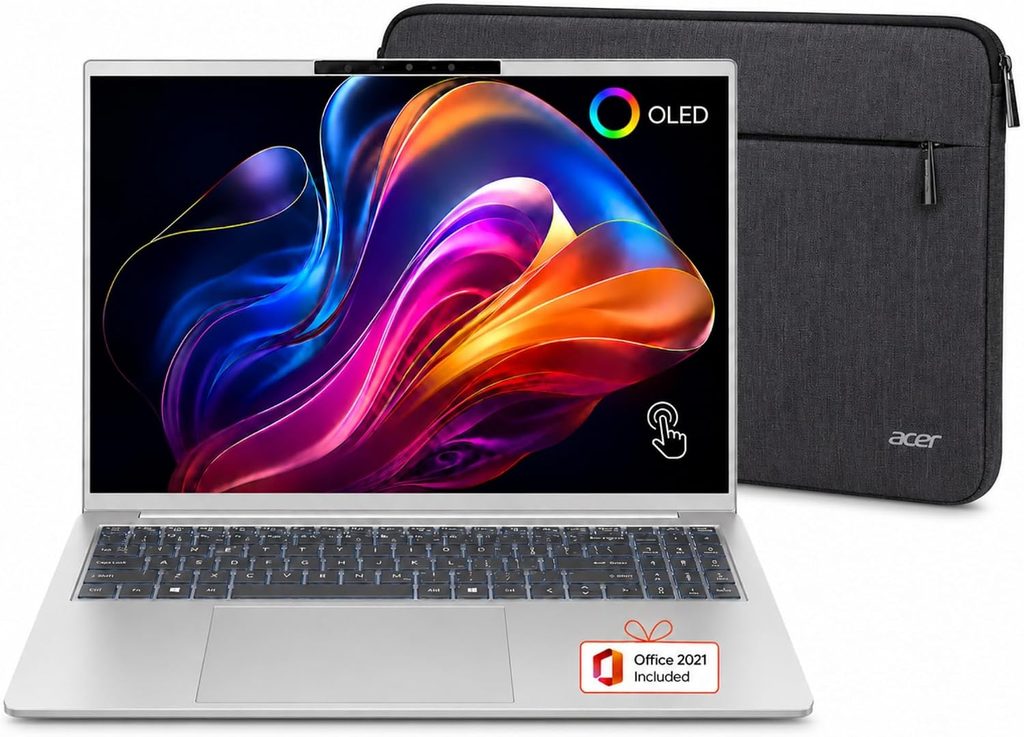
Best big screen for spreadsheets, timelines, and anything wide
Some work just needs surface area. If your day is wide spreadsheets, Gantt charts, video timelines, or a six-column dashboard, a 13-inch screen is a tax you pay every hour.
The Swift 16 AI gives you a 16-inch 3K OLED in a 3.42-pound body. For context, that’s only marginally heavier than a 15-inch MacBook Air and well over a pound lighter than Dell’s 16-inch premium machine.
Specs
- CPU: Intel Core Ultra X7 358H (Panther Lake), 16 cores. Four Performance, eight Efficient, four Low-Power Efficient
- Graphics: Intel Arc B390
- Memory: 32GB LPDDR5X-7467, or 16GB on the cheaper SKU
- Storage: 1TB WD PC SN5000S
- Display: 16-inch 16:10, 2880 × 1800 OLED touch, 120 Hz, drops to 60 Hz on battery to save power
- Battery: 70 Wh, 100W USB-C
- Ports: two Thunderbolt 4, USB-A 3.2 Gen 1, USB-A 3.2 Gen 2, HDMI 2.1, 3.5 mm, microSD reader
- Camera: 1080p with IR and a physical privacy shutter
- Wireless: Killer Wi-Fi 7 BE1775s, Bluetooth 5.4
- Touchpad: 6.9 × 4.3 inches, haptic, MPP stylus included
- Size and weight: 13.99 × 9.66 × 0.59 in, 3.42 lb
- Durability: Acer says it passes MIL-STD-810 for temperature, humidity, vibration, and moderate drops
- Price: around $1,449 to $1,549 for 16GB, $1,699 to $1,799 for 32GB, $1,899 with the Core Ultra X9
The measurements
| Test | Result | Measured by |
|---|---|---|
| Geekbench 6 single / multi | 2,789 / 15,926 | Tom’s Hardware |
| PCMark 10 | 10,474 | PCWorld |
| Cinebench 2024 stress, start to settle | 948 to about 900 | Tom’s Hardware |
| Handbrake 4K to 1080p | 4 min 25 sec | Tom’s Hardware |
| 25GB file transfer | 1,745 MB/s | Tom’s Hardware |
| Display color | 100% DCI-P3 | Tom’s Hardware |
| Display brightness | 364 nits average | Tom’s Hardware |
| Battery, mixed test at 150 nits | 12 h 12 min | Tom’s Hardware |
| Battery, video playback loop | about 18 hours | PCWorld |
| CPU temp under stress | 80 °C average | Tom’s Hardware |
| Keyboard / touchpad / bottom temps | 92 / 78 / 95 °F | Tom’s Hardware |
| Typing test (Monkeytype) | about 114 wpm at 100% accuracy | Tom’s Hardware |
That PCMark 10 score of 10,474 is the highest in this guide. PCMark 10 is a whole-system office benchmark. App launches, spreadsheets, a video conferencing simulation, web browsing. It’s arguably the single most work-from-home-relevant number on this page, and the Acer tops it.
The 100% DCI-P3 coverage also beats everything else here. The Zenbook’s panels hit 87.2%, the MacBook Air 83.1%. If color accuracy matters to your work, this is the screen.
The 12 hours 12 minutes on the mixed battery test is the weakest result in the group, and Tom’s Hardware called it out as a disappointment. Normalized, that’s 10.5 minutes per watt-hour. A 16-inch OLED panel is simply expensive to light. The 18-hour PCWorld figure is real, it’s just measuring video playback, which is why I spent a section on that earlier.
Thermals are excellent, though. 92 °F between the G and H keys and 78 °F on the touchpad are the coolest numbers here after the ThinkPad, and the fans stay quiet.
Living with it
The keyboard is very good. The reviewer hit about 114 wpm with perfect accuracy on his first try, which is a strong result for a laptop keyboard.
The touchpad is 6.9 by 4.3 inches, which Acer calls the world’s largest haptic touchpad. It’s roughly the size of an iPad mini. In practice the size is mostly a curiosity, because your fingers stay in the middle anyway. The included stylus that works on the touchpad is, honestly, a gimmick. Palm rejection was inconsistent and writing felt imprecise. Don’t buy this laptop for the stylus.
Ports are a genuine advantage. Two USB-A ports, HDMI 2.1, and a microSD reader on a premium thin laptop in 2026 is close to unheard of. If you’ve got a wired mouse, an old headset dongle, and a camera card, you can plug all three in without touching a dock.
What I like
- The highest PCMark 10 score here at 10,474, on the most office-relevant benchmark in the set
- Full 100% DCI-P3 coverage on a gorgeous 16-inch 3K OLED
- Best port selection on this list by far
- Excellent thermals. A 78 °F touchpad, 92 °F keyboard, and quiet fans
- 3.42 lb for a 16-inch machine is genuinely light
- Fast storage, 1,745 MB/s on the 25GB transfer, the best Windows result here
- Arc B390 graphics handle real work and casual gaming
- Comfortable keyboard, a hinge that opens flat to 180 degrees, and a physical privacy shutter
What I don’t
- The weakest real-world battery here at 12 h 12 min on the mixed test
- 364 nits average is modest, and the glossy OLED is reflective
- The stylus and the giant touchpad are a solution looking for a problem
- Some lateral chassis flex, so don’t pick it up by one corner
- The 1080p webcam is merely okay
- Trial software preinstalled on a premium laptop, which shouldn’t happen
- One-year warranty
Who should buy it
Financial analysts, project managers living in Gantt charts, editors doing light video work, developers who want a big canvas, and anyone currently squinting at 13 inches. Best if you work near an outlet.
What to configure
The 16GB model around $1,449 to $1,549 is the value pick if you’re mostly in Office and a browser. Go 32GB if you run VMs, big datasets, or Adobe apps. Skip the Core Ultra X9 upgrade unless you specifically want extra GPU headroom, because the X7 already has the Arc B390 and that’s the part that matters.
5. Dell XPS 13 (2026)
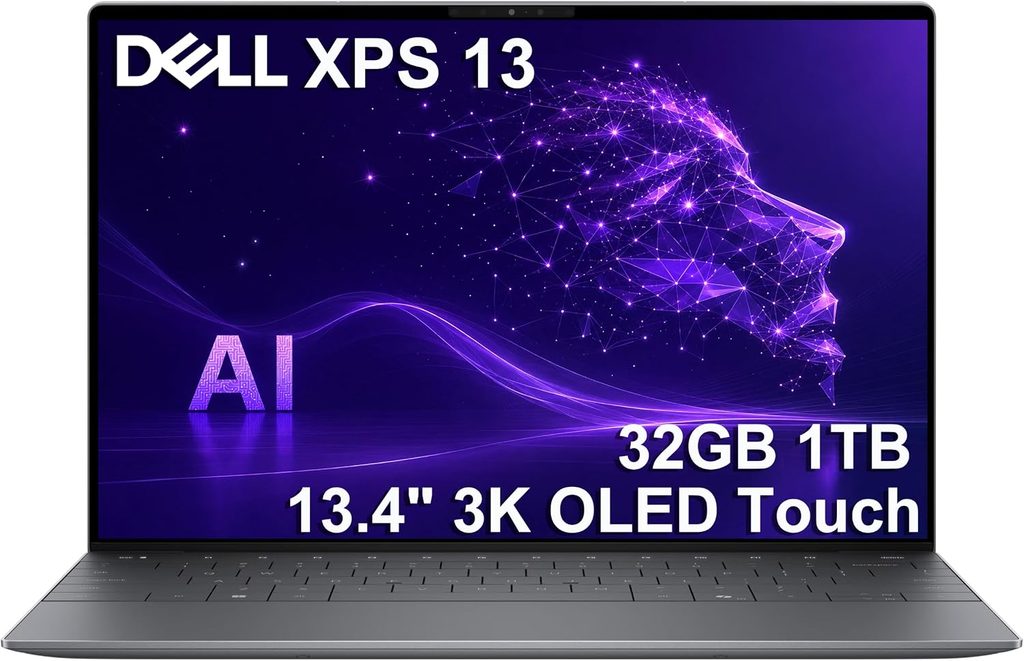
Best cheap laptop that doesn’t feel cheap
Dell killed the XPS consumer brand in 2025, then brought it back at CES 2026. Meanwhile Apple dropped a genuinely cheap MacBook and rewrote everyone’s pricing math.
The result of all that chaos is this: a $699 aluminum laptop that weighs 2.2 pounds and gets over fourteen hours of real battery life. Five years ago that combination didn’t exist at any price.
Specs
- CPU: Intel Series 3 Core 5 320 “Wildcat Lake.” Two Performance cores to 4.6 GHz, four Efficient cores to 3.4 GHz, six threads total
- Graphics: Intel Graphics with two Xe cores
- Memory: 8GB or 16GB, single-channel LPDDR5-7467
- Storage: 512GB, and that’s the only option
- Display: 13.4-inch, 2560 × 1600 touch, 30 to 120 Hz variable refresh
- Battery: 52 Wh with a compact 65W USB-C charger that has folding prongs and a detachable cable
- Ports: two USB-C 10 Gbps with DisplayPort 2.1 and charging. No headphone jack
- Camera: 1080p with IR, mounted in the top center where it belongs
- Wireless: Intel Wi-Fi 7 BE213, Bluetooth 6.0
- Audio: quad speakers, 8W peak
- Size and weight: 11.69 × 7.9 × 0.5 in, 2.2 lb (1 kg)
- Price: $699 for 8GB, $899 for 16GB
The measurements
| Test | Result | Measured by |
|---|---|---|
| Geekbench 6 single / multi | 2,684 / 7,952 | Tom’s Guide |
| Cinebench 2026 stress, 16GB | 1,443 start, 1,374 dip, 1,701, then high 1,600s | Tom’s Hardware |
| Average clock during stress | 3.13 GHz | Tom’s Hardware |
| 3DMark Steel Nomad, 16GB | 369 | Tom’s Hardware |
| 3DMark Steel Nomad, 8GB | would not run | Tom’s Hardware |
| Display color | over 100% sRGB, about 75% DCI-P3 | Tom’s Hardware |
| Display brightness | just under 400 nits | Tom’s Hardware |
| Battery, mixed test at 150 nits | over 14 hours, 8GB about 30 min less | Tom’s Hardware |
| Battery, web surfing at 150 nits | 14 h 26 min | Tom’s Guide |
| Battery, PCMark 10 Modern Office | 15 h 56 min | Engadget |
| CPU core temp under stress | 87.49 °C average, P-cores spiking to 100 °C | Tom’s Hardware |
| Surface temps, keyboard top / deck / touchpad / bottom | 104 / 88.5 / 87 / 108.5 °F | Tom’s Hardware |
The 8GB question, with actual evidence
I want to be direct here, because that $200 jump from 8GB to 16GB feels like a rip-off and it isn’t.
Tom’s Hardware tested both models side by side. Three findings.
The 8GB model scored lower than the 16GB model on nine of ten Cinebench 2026 runs, despite having an identical CPU. Maxon’s own explanation is that the benchmark needs more than 8.5GB of RAM, and below that Windows starts paging to disk, which tanks performance.
3DMark Steel Nomad wouldn’t run at all on the 8GB model.
And with fifteen identical Chrome tabs open, the 16GB machine’s animations stayed fluid and tab switching was faster. The 8GB machine’s browser regularly flashed white before redrawing a page.
If this is your work machine and your work involves a browser, which it does, pay the $200. The $699 model is a fine laptop for a student or a second machine for the sofa. It is not a good primary work computer in 2026.
The configuration lottery, and why you should care
Here’s something I almost never see written about. Tom’s Hardware tested two XPS 13 units and found they weren’t the same laptop inside.
The 16GB unit shipped an SK hynix PVC10 SSD. The 8GB unit shipped a Kioxia BG7. Both are DRAMless drives, but the hynix one was about 350 MB/s faster in the file transfer test.
The two units also had different display panels from different manufacturers, one Sharp and one LG. The 8GB unit’s screen had deeper blacks but visible backlight glow along letterbox bars. The 16GB unit had worse viewing angles. Measured specs were close. Subjective quality was not.
Dell confirmed to Tom’s Hardware that it multi-sources panels and that each one is expected to meet XPS 13 spec. That’s an honest answer, and it’s also how essentially every large PC maker operates now. What it means for you is that the specific unit you receive may not match the unit a reviewer tested. Keep your return window in mind and give your screen a hard look in the first week.
Living with it
The chassis is the surprise. All aluminum, only slight flex, rounded edges, and it feels better in the hand than a MacBook Neo despite costing the same. At 2.2 lb it’s a half pound lighter, too.
The speakers are the second surprise. Quad speakers, 8W peak, and they fill a home office without distorting at full volume. On a sub-$1,000 laptop that’s unusual.
The bundled charger deserves a mention. It’s a small brick with folding prongs and a removable cable, more like a phone charger than a laptop brick. Every manufacturer should do this.
The webcam is 1080p, center-mounted, handles window backlight reasonably well, and gets a little grainy full screen. Fine for a daily standup.
Windows is refreshingly clean here. A WhatsApp shortcut, a LinkedIn shortcut, and two Dell utilities. That’s the lot.
What I like
- $699 gets you a real aluminum chassis at 2.2 lb
- Over 14 hours of genuine mixed-use battery from a 52 Wh cell
- Excellent quad speakers for the price
- Almost no preinstalled junk
- A 2560 × 1600 touch display with 30 to 120 Hz variable refresh and over 100% sRGB
- A compact folding-prong charger with a detachable cable
- Center-mounted 1080p webcam
- Sustained performance that actually improves across a stress run
What I don’t
- Wildcat Lake is a genuinely limited CPU. Don’t buy it for video editing or rendering
- The 8GB model is not adequate for a Windows work machine, and 16GB costs $200 more
- Only two USB-C ports, and no headphone jack
- 512GB is the only storage option
- Integrated graphics with just two Xe cores
- P-cores hit 100 °C during stress testing, which means real thermal throttling
- Single-channel memory limits bandwidth
- Panel and SSD vary between units
Who should buy it
Anyone who needs a clean, light, long-lasting machine for email, documents, browsers, and calls, and doesn’t want to spend four figures. Also a great second laptop, or a first work machine for a new remote hire.
What to configure
The $899 16GB model. I know. Buy it anyway.
All five, side by side
| MacBook Air 13″ M5 | ThinkPad X1 Carbon G14 | Zenbook Duo 2026 | Acer Swift 16 AI | Dell XPS 13 2026 | |
|---|---|---|---|---|---|
| Starting price | $1,099 | about $2,249 | $2,099 | about $1,449 | $699 |
| Chip | Apple M5 | Core Ultra 5 325 | Core Ultra X9 388H | Core Ultra X7 358H | Core 5 320 |
| Screen | 13.6″ IPS | 14″ IPS or 2.8K OLED | two 14″ 3K OLED 144 Hz | 16″ 3K OLED 120 Hz | 13.4″ touch 120 Hz |
| Measured brightness | 458.8 nits | 524 nits average | 435.2 / 455.6 nits | 364 nits average | just under 400 nits |
| Color coverage | 83.1% DCI-P3 | 99.1% sRGB, 69.8% DCI-P3 | 87.2% DCI-P3 | 100% DCI-P3 | about 75% DCI-P3 |
| Battery capacity | 53.8 Wh | 58 Wh | 99 Wh | 70 Wh | 52 Wh |
| Measured battery | 15 h 28 m | 23 h 13 m* | 14 h 23 m | 12 h 12 m | 14 h 26 m** |
| Minutes per Wh | 17.2 | 24.0* | 8.7 | 10.5 | 16.7** |
| Geekbench 6 single | 4,168 | 2,620 | 3,031 | 2,789 | 2,684 |
| Geekbench 6 multi | 17,067 | 11,038 | 17,283 | 15,926 | 7,952 |
| Webcam | 12MP | 5MP | 1080p | 1080p | 1080p |
| USB-A ports | none | one | one | two | none |
| HDMI | no | yes | yes | yes | no |
| Headphone jack | yes | yes | yes | yes | no |
| Weight | 2.7 lb | 2.51 lb | 3.64 lb | 3.42 lb | 2.2 lb |
| Base RAM | 16GB | 32GB | 32GB | 16GB | 8GB |
| Fan | none | yes | yes | two | two |
* Notebookcheck’s Wi-Fi browsing test at 150 nits. ** Tom’s Guide’s web surfing test at 150 nits. The MacBook Air, Zenbook Duo, and Acer figures are Tom’s Hardware’s mixed test, which adds OpenGL loops and is more demanding. So the ThinkPad and Dell numbers aren’t perfectly comparable to the other three. Both are excellent either way, but I’d rather tell you than let a table imply more precision than exists.
About that “minutes per watt-hour” column
That one is mine, not a lab’s. It’s just measured battery life divided by battery capacity, and it strips out the advantage of simply carrying a bigger cell.
Here’s why it’s useful. The Zenbook Duo and the MacBook Air post battery numbers that look similar on paper, but the Asus needs a 99 Wh battery to get there while Apple does it on 53.8 Wh. That’s precisely why one weighs 3.64 lb and the other weighs 2.7 lb.
Ranked: MacBook Air 17.2, Dell XPS 13 16.7, Acer Swift 16 10.5, Zenbook Duo 8.7, with the ThinkPad at 24.0 on its own more forgiving test. Apple’s silicon efficiency lead is still real, and it’s the reason their laptops stay thin and silent while everyone else adds battery.
The thing nobody wants to talk about: RAM and SSD prices
You need to know this before you buy anything, because it changes the math.
Memory prices have gone vertical. TrendForce reported global DRAM contract prices rising an estimated 90 to 95% quarter over quarter in Q1 2026, followed by a projected 58 to 63% in Q2, with a further 10 to 15% forecast for Q3. NAND flash, which is what your SSD is made of, was forecast to rise roughly 53 to 58% in Q1. The cause is AI data centers eating manufacturing capacity for high-bandwidth memory, which pushes consumer DRAM and NAND to the back of the queue.
The downstream effect is exactly what you’d expect. Lenovo, Dell, HP, Acer, and Asus have all signaled PC price increases in the 15 to 20% range for 2026. Apple raised Mac prices. Dell launched the XPS 13 at $699 with 8GB instead of a more generous base. Apple quietly retired the MacBook Air’s $999 price point.
Three practical takeaways.
Buy the RAM you need at purchase. Every laptop on this list has soldered memory, so there is no upgrade path later. That’s not a design choice you can work around.
8GB is no longer a viable base spec for Windows work. Scroll back to the Dell section for the measured evidence of what actually happens.
Don’t wait for prices to fall. Analysts don’t expect meaningful relief before 2027, and some are pointing at 2028. If you need a laptop now, buying now is the rational move. I don’t enjoy saying that, but it’s where the data sits.
What I looked at and passed on
Fair question, so here’s the honest answer.
Dell XPS 14 and XPS 16 (2026). Both excellent, and the XPS 14 posts over 20 hours of battery in Tom’s Hardware testing. But the XPS 13 was the more interesting Dell for this particular use case, and one brand means one pick.
HP OmniBook 7 Aero. Genuinely appealing at $949.99 with an AMD chip, 16GB, and a 512GB SSD. If the Dell’s two-port limitation bothers you, this is worth a look.
Samsung Galaxy Book 6 Ultra. Same Panther Lake silicon as the Acer at around $2,400, which is roughly $600 more for comparable performance.
Apple MacBook Neo. The budget MacBook that reset the whole market this year. Lovely machine. But the Air’s 16GB of RAM, better speakers, MagSafe, haptic trackpad, and backlit keyboard make it the better work laptop, and that’s what we’re doing here.
Questions I get asked a lot
How much RAM do I actually need for working from home in 2026?
16GB. Not 8GB. Tom’s Hardware tested the 8GB and 16GB Dell XPS 13 side by side and the 8GB model scored lower on nine of ten Cinebench 2026 runs with an identical CPU, couldn’t run 3DMark Steel Nomad at all, and visibly stuttered with fifteen Chrome tabs open. Windows plus a modern browser plus a video call app eats 8GB fast. Go to 32GB if you run virtual machines, large datasets, or Adobe apps.
Do I need a laptop with a fan?
Depends on your workload. The fanless MacBook Air M5 dropped from 3,415 to the low 2,300s across a ten-run Cinebench 2026 stress test, about 68% retention. That’s invisible during email and spreadsheets and very visible during a long export. If your heaviest task takes under two minutes, fanless is a luxury rather than a compromise.
Is OLED worth it on a work laptop?
Usually not, if you work unplugged. The clearest evidence comes from Lenovo’s own lineup. The ThinkPad X1 Carbon Gen 14 with the IPS panel ran 23 hours 13 minutes in Notebookcheck’s Wi-Fi test. The OLED version of the same laptop ran about 13 hours 30 minutes. At maximum brightness the gap widens to roughly 14 hours versus 7.5. OLED is beautiful and it’s the right call if you sit at a desk with a charger, but the battery cost is real and it’s large.
How many hours of battery do I actually need?
Take the published figure and cut it by about a third if you work in a bright room. That’s not a guess, it’s the measured difference between 150-nit and maximum-brightness testing on the ThinkPad, 23 hours 13 minutes versus 14 hours 14 minutes. So a laptop reviewed at 12 hours is realistically an 8-hour laptop for you. For a standard workday plus a buffer, target a reviewed figure of 12 hours or more on a mixed-use test.
Which of these has the best webcam for video calls?
On sensor specs, the MacBook Air M5 with its 12MP Center Stage camera. On the Windows side, the ThinkPad X1 Carbon Gen 14’s 5MP sensor is the standout. Engadget described it as looking close to a dedicated camera, especially with Windows Studio Effects portrait blur turned on. The Acer, Asus, and Dell all use 1080p sensors that are fine but unremarkable.
MacBook or Windows for remote work?
Check your company’s software stack first, because that usually decides it before any spec does. If both are genuinely open to you, the MacBook Air M5 wins on responsiveness, with a 4,168 Geekbench single-core score against 2,620 to 3,031 for the Windows machines here, plus efficiency, trackpad quality, and silence. Windows wins on ports, touchscreens, price flexibility, and enterprise manageability.
Do I still need an external monitor?
If you’re on a 13-inch machine and you work in spreadsheets or code, yes, or buy a bigger laptop. The Acer Swift 16 AI’s 16-inch panel and the Zenbook Duo’s dual 14-inch screens are both legitimate monitor replacements. If you already own a monitor, check the ports before you buy. The ThinkPad gives you three Thunderbolt 4 ports and charges from either side. The Dell XPS 13 gives you two USB-C ports total, one of which is going to be your charger.
Are laptop prices going to come down?
Not soon. DRAM contract prices rose an estimated 90 to 95% quarter over quarter in Q1 2026 according to TrendForce, and the major PC makers have signaled 15 to 20% increases. Analysts generally don’t expect meaningful relief before 2027, with some pointing to 2028. If you need a machine now, buy now.
Where I’d land
If you want one answer and no debate: buy the MacBook Air M5. Best single-core performance here, best efficiency, silent, excellent webcam, and 16GB of RAM at the base price. For most home office work, nothing on this list is a better default.
If your days are meetings and you hate being tethered to an outlet: the ThinkPad X1 Carbon Gen 14 with the IPS panel. Twenty-three hours at 150 nits, fourteen at full brightness, the coolest palm rest in the group, and a keyboard that’s still the best in the business. It costs a lot. It earns it.
If you’re tired of alt-tabbing all day: the Asus Zenbook Duo. Two OLED screens, almost no throttling, and the fastest integrated GPU here.
If you need room to actually work: the Acer Swift 16 AI. Highest PCMark 10 score on this page, full DCI-P3 coverage, and the port selection everyone else forgot about.
If budget is the constraint: the Dell XPS 13, 16GB model. $899 for a 2.2-pound aluminum laptop with over 14 hours of battery is the best value here, and it isn’t particularly close.
Whatever you end up with, do three things. Buy the RAM up front, because you can’t add it later. Check your screen carefully inside the return window, because panels vary between units. And cut any battery claim by a third if you sit near a window. Those three habits will serve you better than any spec sheet.
Sources
Every measurement cited above comes from one of the following published reviews and reports. Figures are attributed in the text to the lab that produced them.
Apple MacBook Air 13″ (M5)
- Tom’s Hardware, Apple MacBook Air (13-inch, M5) review: https://www.tomshardware.com/laptops/macbooks/apple-macbook-air-13-inch-m5-review
- Macworld, 13-inch MacBook Air (M5) review: https://www.macworld.com/article/3086162/13-inch-macbook-air-m5-review.html
Lenovo ThinkPad X1 Carbon Gen 14
- Notebookcheck, Lenovo ThinkPad X1 Carbon Gen 14 review: https://www.notebookcheck.net/Flagship-business-laptop-with-almost-24-hours-of-battery-life-Lenovo-ThinkPad-X1-Carbon-Gen-14-Review.1332558.0.html
- Engadget, Lenovo ThinkPad X1 Carbon Gen 14 review: https://www.engadget.com/2252512/lenovo-thinkpad-x1-carbon-gen-14-review/
Asus Zenbook Duo (2026, UX8407)
- Tom’s Hardware, Asus Zenbook Duo (2026) review: https://www.tomshardware.com/laptops/gaming-laptops/asus-zenbook-duo-2026-review
- Tom’s Guide, Asus Zenbook Duo (2026) review: https://www.tomsguide.com/computing/laptops/asus-zenbook-duo-2026-review
Acer Swift 16 AI (SF16-71T)
- Tom’s Hardware, Acer Swift 16 AI review: https://www.tomshardware.com/laptops/ultrabooks-ultraportables/acer-swift-16-ai-review-appremium-contender-with-a-curious-twist
- PCWorld, Acer Swift 16 AI review: https://www.pcworld.com/article/3080969/acer-swift-16-ai-review-2.html
- PCWorld, Best laptops 2026: https://www.pcworld.com/article/436674/best-pc-laptops.html
- Tom’s Guide, Acer Swift 16 AI review: https://www.tomsguide.com/computing/laptops/acer-swift-16-ai-2026-review
Dell XPS 13 (2026)
- Tom’s Hardware, Dell XPS 13 (2026) review: https://www.tomshardware.com/laptops/dell-xps-13-2026-review
- Tom’s Guide, Dell XPS 13 (2026) review: https://www.tomsguide.com/computing/laptops/dell-xps-13-2026-review
- Engadget, Dell XPS 13 (2026) review: https://www.engadget.com/2231708/dell-xps-13-2026-review/
- Notebookcheck, first Intel Core 5 320 Wildcat Lake benchmarks: https://www.notebookcheck.net/Our-first-Intel-Core-5-320-Wildcat-Lake-benchmarks-are-in-and-they-re-okay.1367979.0.html
Memory and storage pricing
- Insight, 2026 RAM shortage analysis with TrendForce DRAM and NAND contract price data: https://www.insight.com/en_US/campaigns/insight/2026-ram-shortage.html
- Windows Central, why RAM prices are rising: https://www.windowscentral.com/hardware/ram-price-crisis-what-need-know
- TechRadar, experts warn PC prices could rise even more in 2026: https://www.techradar.com/pro/experts-warn-pc-prices-could-rise-even-more-in-2026-as-ram-costs-set-to-soar-higher
- Notebookcheck, RAM crisis and Q1 memory price increases: https://www.notebookcheck.net/RAM-crisis-gets-worse-Memory-to-get-110-more-expensive-in-Q1-as-SSD-prices-go-up-by-60.1219093.0.html
Also referenced
- TechRadar, best laptops launched so far in 2026: https://www.techradar.com/computing/laptops/ive-reviewed-hundreds-of-laptops-these-are-the-best-ones-that-have-launched-so-far-in-2026
- CNN Underscored, best laptops of 2026: https://www.cnn.com/cnn-underscored/reviews/best-laptops

Hi, my name is Burak. I am a mechanical engineer. I have been writing laptop reviews for the Engineering Laptops website since 2020. Please feel free to contact me if you have any questions.





