Estimated reading time: 16 minutes
Key Takeaways
- VRAM is crucial for running AI image generation models; more VRAM allows for faster rendering and better performance.
- The ASUS ROG Strix Scar 18 stands out as the best laptop for AI image generation, offering top performance and cooling.
- The Razer Blade 16 offers portability without sacrificing VRAM, making it ideal for creatives on the go.
- The ASUS ProArt P16 is best for professional creators due to its superior color-accurate display and lightweight design.
- For budget-conscious users, the Lenovo Legion Pro 7i Gen 10 provides excellent value with solid performance for most AI workloads.
Table of contents
- Why VRAM Is the Whole Game
- The Quick Answer
- Best Laptops for AI Image Generation in 2026
- 1. ASUS ROG Strix Scar 18 — The Best Laptop for AI Image Generation, Period
- 2. Razer Blade 16 — 24 GB of VRAM in a Bag That Doesn’t Hurt Your Shoulder
- 3. ASUS ProArt P16 — The Creative Professional’s Weapon
- 4. Apple MacBook Pro 16 (M5 Max) — The Rule-Breaker
- 5. Lenovo Legion Pro 7i Gen 10 (RTX 5080) — The Smart Money Pick
- What About AMD GPUs and Those “AI PC” NPUs?
- Local vs. Cloud: A 60-Second Sanity Check
- Buying Advice: Get These Three Things Right
- Frequently Asked Questions
- The Bottom Line
If you’d told me three years ago that I’d be recommending laptops based on how fast they can dream up pictures of astronauts riding horses, I would have laughed. Yet here we are. Local AI image generation — Stable Diffusion, SDXL, Flux, the whole ComfyUI rabbit hole — has gone from a weekend curiosity to a genuine professional workflow, and the laptop you run it on matters more than almost any other spec decision you’ll make this year.
I’ve spent the past few months living with these machines, running batch after batch of SDXL renders, pushing Flux until the fans screamed (or didn’t — more on the MacBook later), and talking to working artists and architects who generate hundreds of images a day. This guide is the result. Five laptops, honest opinions, no fluff.
Let’s get one thing straight before we start, because it’s the single most important sentence in this entire article: VRAM decides what you can run. Everything else decides how fast you run it.
Why VRAM Is the Whole Game
Here’s the thing nobody tells you when you’re shopping. When you generate an image locally, the entire model — the weights, the text encoder, the VAE, plus all the working data — has to fit inside your GPU’s memory at the same time. If it doesn’t fit, you either get an out-of-memory crash or the software starts offloading to system RAM, and your 15-second render turns into a 3-minute slog.
So before we talk about specific laptops, memorize this cheat sheet. These are the real-world numbers I’ve seen in 2026:
| Model | Comfortable VRAM | Bare Minimum | Notes |
|---|---|---|---|
| Stable Diffusion 1.5 | 6 GB | 4 GB | Still the speed king, huge ControlNet library |
| SDXL 1.0 | 12 GB | 8 GB | The 2026 workhorse; add 2–4 GB for ControlNet/LoRA stacks |
| SD 3.5 Large | 16–18 GB | 12–14 GB (FP8) | Gorgeous output, hungry model |
| Flux.1 Dev | 24 GB (FP16) | 12 GB (FP8) | FP8 is the sweet spot; quality loss is basically invisible |
| Flux.2 klein | 13 GB (FP16) | 12 GB | The new consumer-friendly Flux, runs great on 16 GB cards |
Notice a pattern? The moment you move past basic SDXL and start stacking ControlNets, IP-Adapters, and LoRAs — which is what real work actually looks like — you’re living in 16 to 24 GB territory. That’s why my recommendations lean hard toward 16 GB as the floor and 24 GB as the “never think about it again” tier.
One more thing, and this one trips up almost everyone: laptop GPU names lie a little. The RTX 5090 Laptop GPU is not the desktop 5090 stuffed into a laptop. It’s built on the same silicon as the desktop 5080, with 24 GB of memory instead of 32. It’s still the fastest thing you can carry in a backpack, but temper your expectations — you’re getting roughly a third to half the throughput of the desktop card with the same name on the box.
And check the TGP (total graphics power) before you buy anything. A 5090 running at 175 watts is a genuinely different animal from the same chip throttled to 135 watts in a thin chassis. I’ve seen the gap hit 15% in sustained diffusion workloads. Manufacturers bury this number in the fine print for a reason.
The Quick Answer
In a hurry? Here’s the whole article in one table.
| Laptop | Best For | GPU / VRAM | Weight | Price Range |
|---|---|---|---|---|
| ASUS ROG Strix Scar 18 | Best overall | RTX 5090, 24 GB @ 175W | ~3.1 kg | $2,699–$4,999 |
| Razer Blade 16 | Best portable powerhouse | RTX 5090, 24 GB @ 160W | ~2.1 kg | $2,999–$4,899 |
| ASUS ProArt P16 | Best for creative pros | RTX 5090, 24 GB | ~1.95 kg | $1,699–$4,000+ |
| MacBook Pro 16 (M5 Max) | Best for huge models & silence | M5 Max, up to 128 GB unified | ~2.1 kg | $3,499–$4,499+ |
| Lenovo Legion Pro 7i Gen 10 | Best value | RTX 5080, 16 GB @ 175W | ~2.7 kg | $2,619–$3,204 |
Now let’s dig into why.
Best Laptops for AI Image Generation in 2026
1. ASUS ROG Strix Scar 18 — The Best Laptop for AI Image Generation, Period
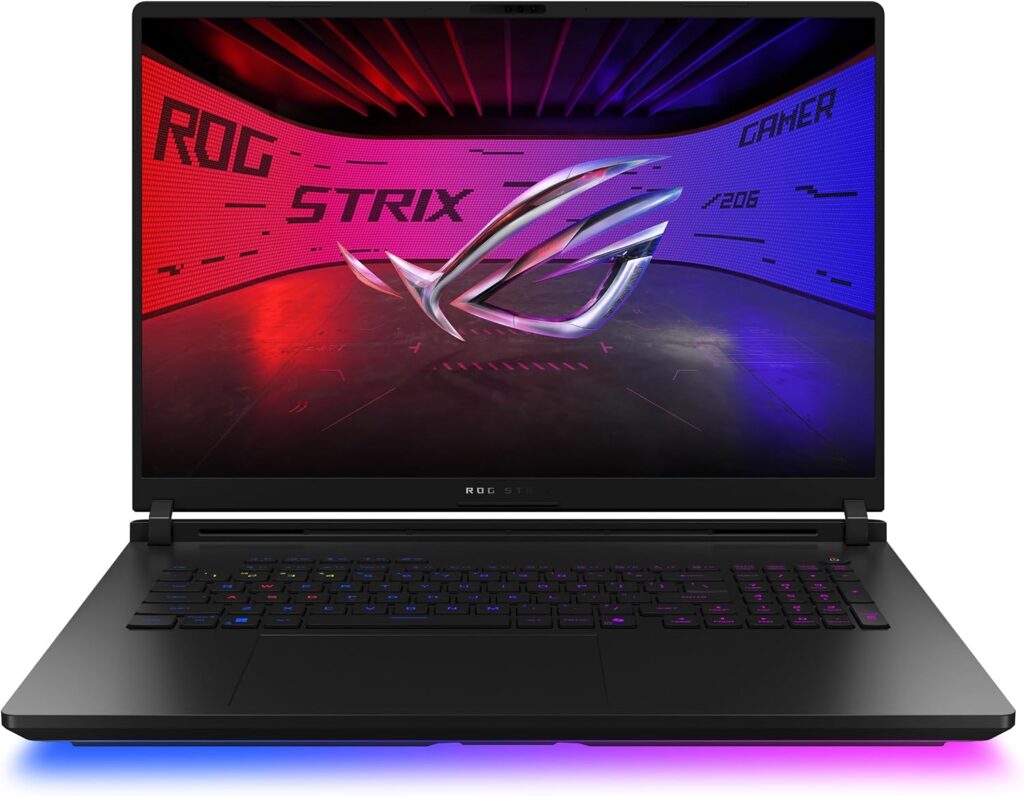
I’ll be honest: the Scar 18 is not subtle. It’s big, it glows, and the power brick could double as a boat anchor. But if your priority is generating images as fast as physically possible on a machine you can technically carry, nothing else comes close.
The reason is simple physics. ASUS runs the RTX 5090 at its full 175-watt limit and backs it with an end-to-end vapor chamber, three fans, and liquid metal on the silicon. That combination means the GPU doesn’t just hit peak speed for the first render — it holds it through a 200-image overnight batch. That sustained performance is exactly what diffusion workloads punish other laptops for lacking.
Key specs:
- GPU: NVIDIA RTX 5090 Laptop, 24 GB GDDR7, 175W TGP with Dynamic Boost
- CPU: Intel Core Ultra 9 275HX (24 cores)
- RAM: Up to 64 GB DDR5, and here’s the beautiful part — it’s two standard SO-DIMM slots, fully upgradeable
- Storage: 2 TB PCIe Gen4 SSD, tool-less upgrade access
- Display: 18-inch Mini LED, 2560×1600, 240 Hz, 100% DCI-P3, over 2,000 dimming zones
- Weight: About 3.1 kg (plus a 330W+ brick)
In my testing, this thing chews through SDXL at 1024×1024 in around 10–12 seconds per image and handles Flux.1 Dev at full FP16 precision without breaking a sweat — something only the 24 GB tier can do at all. Load up ControlNet, an IP-Adapter, and three LoRAs simultaneously and it doesn’t even blink.
Pros:
- Fastest sustained AI generation performance of any laptop I’ve used
- 24 GB VRAM runs Flux FP16 natively — no quantization compromises
- User-upgradeable RAM and storage (increasingly rare, genuinely valuable)
- The Mini LED display is stunning for reviewing generated images
- Cooling headroom means it’ll still be fast three summers from now
Cons:
- Heavy. This is a desktop replacement, not a commuter laptop
- Loud under full load — think hairdryer, not whisper
- 2.5K resolution when some rivals offer 4K OLED
- The rear power plug placement is mildly infuriating on a desk
Who should buy it: Anyone whose laptop lives on a desk 90% of the time and who treats image generation as real work. If you’re batch-rendering client concepts or training LoRAs on your own style, this is the machine.
2. Razer Blade 16 — 24 GB of VRAM in a Bag That Doesn’t Hurt Your Shoulder
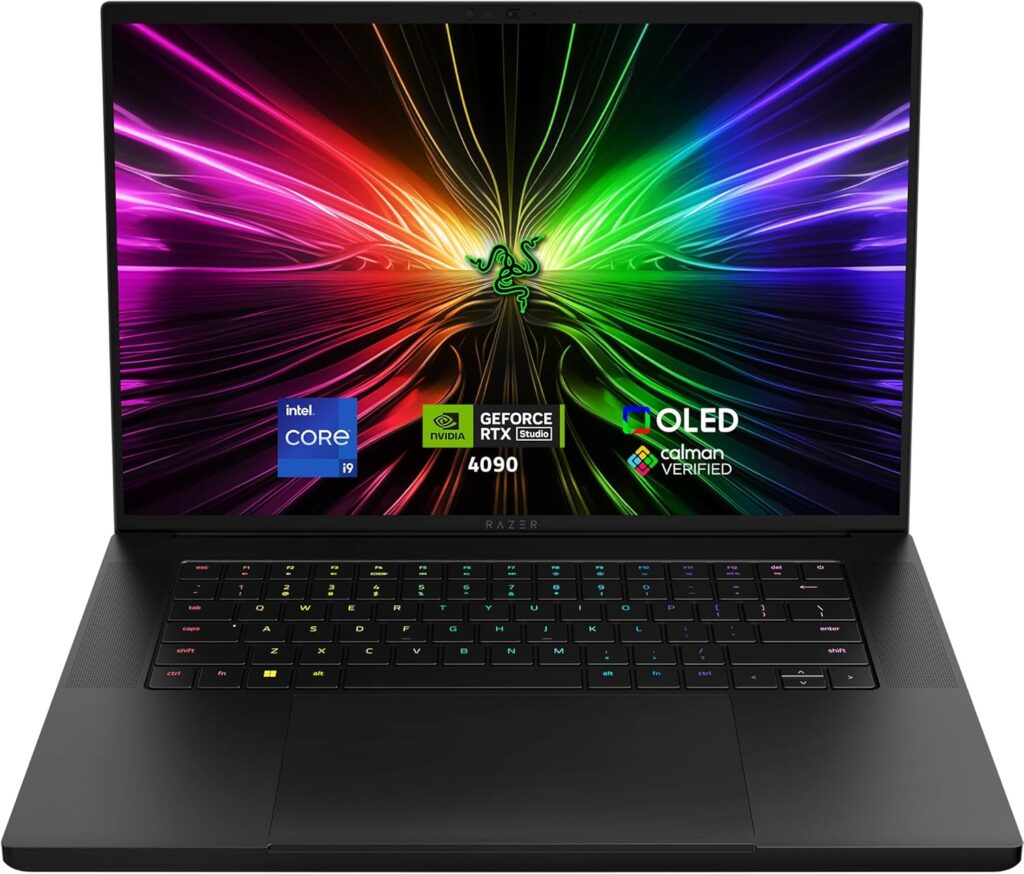
The Blade 16 answers a question I get constantly: “Can I get serious AI performance in something I’d actually want to carry to a café?” Yes. This is it. It’s the only sub-18mm laptop on earth with 24 GB of CUDA-capable video memory.
Razer pairs the RTX 5090 with AMD’s Ryzen AI 9 HX 370 and squeezes it all under a 4K OLED panel that, frankly, makes every image you generate look about 20% better than it actually is. The 240 Hz refresh and factory calibration are lovely bonuses.
The trade-off? The GPU tops out around 160 watts, and in some power modes closer to 135. In practice, that means the Blade renders an SDXL image in roughly 13–14 seconds where the Scar does it in 10–12. Noticeable in a benchmark chart; barely noticeable in real life — until you run a 500-image batch, where the minutes add up.
Key specs:
- GPU: NVIDIA RTX 5090 Laptop, 24 GB GDDR7, up to 160W
- CPU: AMD Ryzen AI 9 HX 370 (12 cores / 24 threads)
- RAM: Up to 64 GB LPDDR5X — soldered, so buy what you’ll need in three years, not today
- Storage: Up to 4 TB PCIe Gen4
- Display: 16-inch 4K OLED, 240 Hz, factory-calibrated
- Weight: ~2.1 kg
Pros:
- The only genuinely portable 24 GB VRAM laptop on the market
- Spectacular 4K OLED display — the best screen for judging fine image detail
- Remarkably quiet for what it’s doing under the hood
- Build quality that still embarrasses most of the industry
Cons:
- Soldered RAM. Zero upgrades. Choose wisely at checkout
- Lower GPU wattage means slower sustained batches than the Scar
- The efficiency-focused 28W CPU can bottleneck CPU-heavy preprocessing
- You pay a serious premium for the thinness
Who should buy it: The traveling creative. If you’re generating on client sites, in studios, on trains — and you refuse to compromise on VRAM — this is the one.
3. ASUS ProArt P16 — The Creative Professional’s Weapon
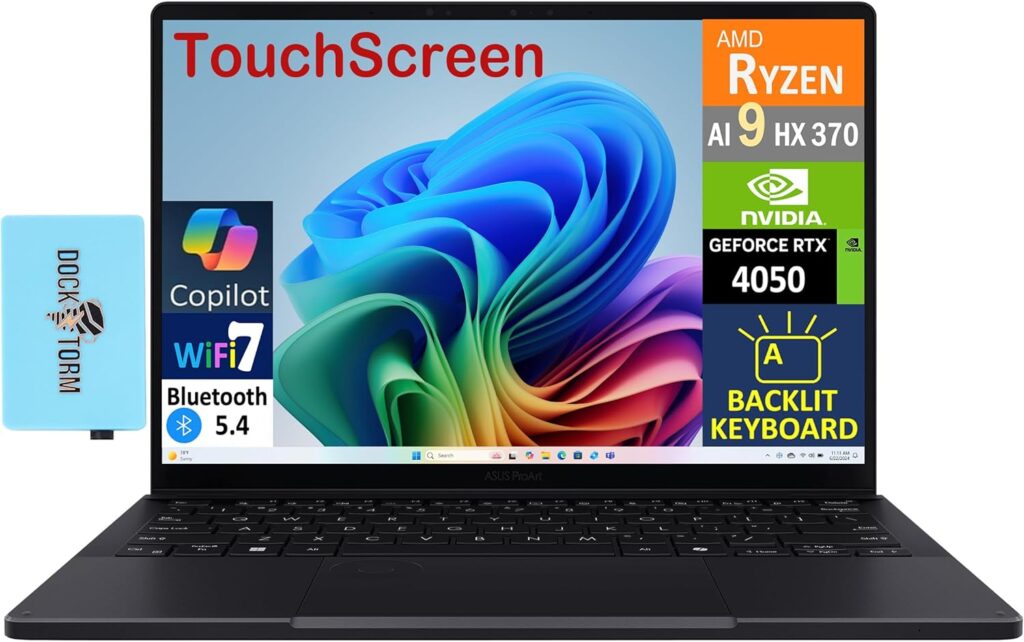
Here’s my sleeper pick, and honestly the laptop I find myself recommending most often to designers and architects. The ProArt P16 is what happens when someone builds a MacBook Pro competitor around an NVIDIA GPU.
The headline is the display: a 16-inch 4K Tandem OLED hitting 1600 nits peak, 100% DCI-P3, Pantone-validated, Delta E under 1, with touch and stylus support. If your workflow involves generating an image with Flux and then immediately color-grading it, retouching it, or dropping it into a client presentation, this screen is the difference between guessing and knowing.
And unlike every other “creator laptop” that pairs a nice screen with a wheezing GPU, the top ProArt config packs the full RTX 5090 with 24 GB. It runs at lower wattage than the gaming machines — this is a 1.95 kg laptop, physics is physics — so raw generation speed sits a step behind the Scar and Blade. But it fits every model that matters.
Key specs:
- GPU: NVIDIA RTX 5090 Laptop, 24 GB GDDR7 (RTX 5070 option on cheaper configs)
- CPU: AMD Ryzen AI 9 HX 370
- RAM: Up to 64 GB LPDDR5X (soldered)
- Storage: Up to 4 TB, upgradeable
- Display: 16-inch 4K Tandem OLED, 120 Hz, 1600 nits peak, Pantone-validated, touch + stylus
- Weight: ~1.95 kg — the lightest 24 GB machine here
Pros:
- The most color-accurate display in this entire roundup
- Lightest way to carry 24 GB of VRAM
- Full grown-up port selection: USB-A, USB4, HDMI, and a proper SD card slot
- Understated design you can open in a boardroom without looking like a Twitch streamer
Cons:
- GPU runs at reduced wattage — expect 15–25% slower sustained renders than the Scar
- Soldered memory, again
- Fan behavior can be quirky, spinning up at odd moments
- Cheaper configs drop to a 5070 with 8 GB — avoid those for AI work
Who should buy it: Photographers, architects, and designers who generate AI images as one part of a broader color-critical creative pipeline. This is the Windows laptop for people who almost bought a MacBook.
4. Apple MacBook Pro 16 (M5 Max) — The Rule-Breaker
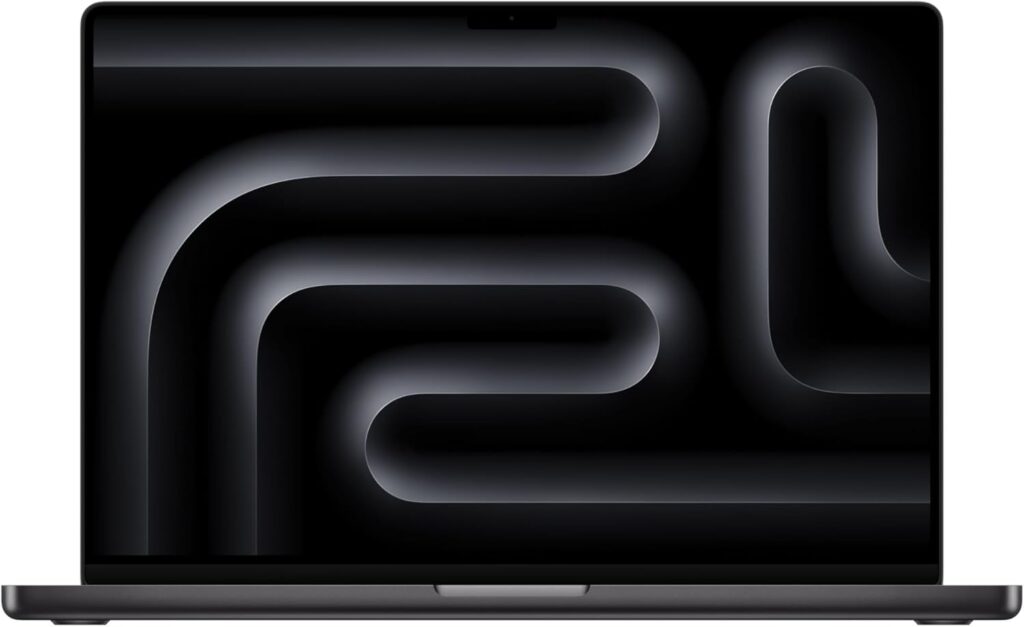
Every time I write about AI hardware, someone asks: “But can’t I just use my Mac?” For years my answer was a polite no. In 2026, it’s a genuine “actually, maybe” — with big asterisks.
Here’s what changed. The M5 Max ships with up to 128 GB of unified memory running at 614 GB/s, and because Apple Silicon shares that memory between CPU and GPU, the Mac can load models that literally no NVIDIA laptop on the planet can hold. Full-precision FP16 Flux.1 Dev needs about 24 GB — the ceiling for NVIDIA laptops. A 128 GB MacBook loads it with a hundred gigabytes to spare, alongside a chunky local language model, while running silently on battery in a library.
Apple claims the M5 generation delivers up to 3.8x faster image generation than the M4 Max, and tools like Draw Things have genuinely transformed the Mac experience with Metal-optimized pipelines. The catch? Per-image speed still trails NVIDIA by roughly 2 to 4 times. An SDXL render that takes 12 seconds on the Scar takes 25–45 seconds here, depending on your setup. CUDA-first tools like the deeper corners of ComfyUI’s custom node ecosystem also remain hit-or-miss on macOS.
Key specs:
- Chip: Apple M5 Max — 18-core CPU, up to 40-core GPU, 16-core Neural Engine
- Memory: 36 / 48 / 64 / 128 GB unified, up to 614 GB/s
- Storage: 2 TB to 8 TB
- Display: 16.2-inch Liquid Retina XDR, 120 Hz ProMotion, 1600 nits peak HDR
- Weight: ~2.1 kg
Pros:
- Unified memory loads enormous models no NVIDIA laptop can touch
- Nearly silent, even mid-generation — genuinely surreal the first time
- All-day battery life that gaming laptops can only dream about
- Superb display, legendary build quality, and it’s also just a great laptop
Cons:
- 2–4x slower per image than comparable NVIDIA machines
- No CUDA means some tools, custom nodes, and cutting-edge releases arrive late or never
- Apple’s memory upgrade pricing remains a small act of violence
- Fine-tuning and LoRA training support lags well behind the NVIDIA ecosystem
Who should buy it: Mac-ecosystem creatives who value silence, battery, and model capacity over raw speed — and anyone who wants to run huge models and LLMs side by side on one portable machine.
5. Lenovo Legion Pro 7i Gen 10 (RTX 5080) — The Smart Money Pick
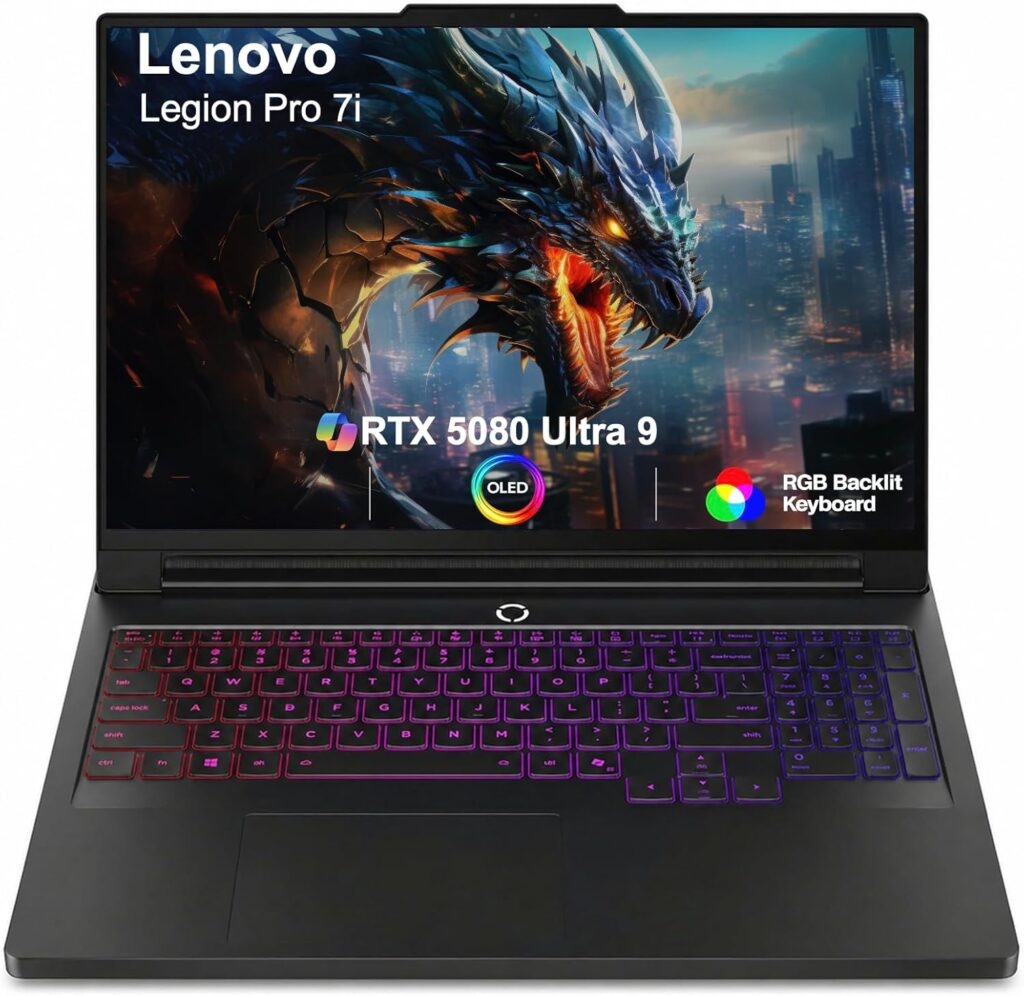
Not everyone needs 24 GB, and I’d be doing you a disservice pretending otherwise. The 16 GB RTX 5080 in the Legion Pro 7i handles about 90% of what most people actually do: SDXL with full ControlNet stacks, SD 3.5, and Flux in FP8 — which, I’ll say it again, looks essentially identical to FP16 in real-world output.
What makes the Legion the value pick isn’t just the price. Lenovo runs the 5080 at the full 175 watts with proper vapor chamber cooling, so this “cheaper” laptop actually out-renders thin-and-light 5090 machines in sustained workloads. Add an upgradeable-RAM design and a genuinely lovely 240 Hz OLED, and you’ve got a machine that punches way above its price tag.
Key specs:
- GPU: NVIDIA RTX 5080 Laptop, 16 GB GDDR7, 175W TGP
- CPU: Intel Core Ultra 9 275HX (24 cores)
- RAM: Up to 64 GB DDR5, upgradeable
- Storage: Dual SSD slots, PCIe Gen5 option
- Display: 16-inch 2560×1600 OLED, 240 Hz
- Weight: ~2.7 kg
Pros:
- Best performance-per-dollar in this entire guide
- Full 175W GPU power — faster in long batches than some pricier thin 5090 laptops
- Upgradeable RAM and dual SSD slots
- Excellent OLED panel at this price is almost unfair
Cons:
- 16 GB rules out full-FP16 Flux and limits very large batch sizes
- It’s a chunky, gamer-flavored machine
- Battery life is an afterthought
- Ships with more preinstalled software than anyone asked for
Who should buy it: Anyone starting to take local generation seriously without wanting to spend five figures. Buy this, pocket the $1,500 difference, and upgrade in two years when 24 GB is midrange.
What About AMD GPUs and Those “AI PC” NPUs?
Two quick truths that’ll save you money and heartbreak.
AMD graphics cards can run Stable Diffusion, but the software ecosystem — xFormers, TensorRT, most ComfyUI custom nodes — is built NVIDIA-first. Benchmark after benchmark shows AMD’s best delivering roughly a third of comparable NVIDIA throughput in diffusion work. Maybe that changes someday. Today, if AI image generation matters to you, buy NVIDIA or Apple.
NPUs are marketing, not muscle — at least for this use case. Every 2026 laptop screams about TOPS numbers, and none of it matters for image generation. Independent testing has shown NPU-based generation running more than twice as slow as the same chip’s integrated graphics. NPUs exist for sipping battery during background AI tasks like video call effects. Ignore the “AI PC” sticker entirely and look at one line on the spec sheet: the discrete GPU and its VRAM.
Local vs. Cloud: A 60-Second Sanity Check
Should you even buy one of these, or just rent GPU time online? Honest answer: if you generate a handful of images a month, cloud services are cheaper — rentable RTX 5090 instances run under a dollar an hour. But local wins decisively when:
- Privacy matters. Client work, NDA material, unreleased designs — nothing leaves your machine.
- Volume matters. Past a few hundred images a month, subscription and per-image costs eclipse hardware amortization fast.
- Control matters. Your models, your LoRAs, your custom nodes, zero terms-of-service surprises.
- You work offline. Planes, sites, cafés with tragic Wi-Fi.
Most professionals I know end up hybrid: local for daily iteration, cloud for occasional monster jobs. But the local machine is the foundation.
Buying Advice: Get These Three Things Right
Beyond the GPU, three specs quietly make or break the experience:
- System RAM: 32 GB minimum, 64 GB ideally. Model loading, ComfyUI, a browser with forty tabs of prompt research — it adds up shockingly fast.
- Storage: 1 TB is the real minimum. Sounds like plenty until your models folder hits 400 GB, which takes about three enthusiastic weekends. Prioritize machines with a second SSD slot.
- Cooling over thinness. Diffusion hammers the GPU at 100% for minutes or hours. A thick laptop that holds its clocks beats a thin one that throttles, every single time.
Frequently Asked Questions
How much VRAM do I need for Stable Diffusion in 2026? For SD 1.5, 6 GB is comfortable. For SDXL, treat 8 GB as the minimum and 12 GB as comfortable, especially once ControlNet enters the picture. For Flux and SD 3.5, 16 GB is the realistic floor and 24 GB removes the ceiling entirely. My blunt advice for anyone buying today: don’t go below 16 GB.
Is a MacBook good for AI image generation? Good, yes. Fastest, no. Expect each image to take roughly 2–4x longer than on an equivalent NVIDIA laptop, but with silence, spectacular battery life, and — on high-memory configs — the unique ability to load models no NVIDIA laptop can hold. If you’re already a Mac person, the M5 Max is the first Apple chip I’d call genuinely credible for this work.
Is an RTX 5090 laptop worth it for AI work? If you’ll actually use the 24 GB — full-precision Flux, heavy ControlNet stacks, LoRA training, big batches — absolutely. Just know it’s closer to a desktop 5080 in raw grunt, and insist on a chassis running it at or near 175 watts.
Can I use a gaming laptop for AI image generation? Yes, and honestly gaming laptops are often better than “creator” laptops for this, because they run the same GPUs at higher wattages with better cooling. Sustained performance is the name of the game.
Do I need a 4K screen? No — the generation happens at the model’s resolution regardless. But if you retouch or color-grade your output, the OLED panels on the Blade 16 and ProArt P16 make the review process meaningfully better.
The Bottom Line
If I had to hand my own money over tomorrow, here’s how it shakes out:
- Money no object, maximum speed: ASUS ROG Strix Scar 18. Nothing sustains performance like it.
- Serious power that travels: Razer Blade 16. The only portable 24 GB machine, wrapped in the best chassis in the business.
- Broader creative work: ASUS ProArt P16. That display changes how you work.
- Apple loyalist or huge-model curious: MacBook Pro 16 M5 Max with 64 GB or more.
- Best value, smart compromise: Lenovo Legion Pro 7i Gen 10. 16 GB at full power covers most real workflows for thousands less.
One final tip: prices in 2026 have been jumpy thanks to the ongoing memory shortage, so if you spot one of these configurations meaningfully below the ranges I’ve listed, don’t overthink it. The models get bigger every year. The VRAM you buy today is the ceiling you live with tomorrow.
Happy generating — and may your seeds always be lucky.

Hi, my name is Burak. I am a mechanical engineer. I have been writing laptop reviews for the Engineering Laptops website since 2020. Please feel free to contact me if you have any questions.





