Estimated reading time: 12 minutes
Key Takeaways
- In 2026, you can find affordable laptops that handle AutoCAD tasks effectively without overspending.
- Look for key specifications like a Ryzen 5/7 or Intel i5/i7 processor, 16GB of RAM, and a dedicated GPU, like the Nvidia RTX 4050.
- Top budget laptops for AutoCAD include the Lenovo LOQ 15 Gen 10, Acer Nitro V 16 AI, HP Victus 15, ASUS TUF Gaming A15, and Apple MacBook Air M2.
- Focus on performance features like thermal management, battery life, and display quality to get the best value.
- Keep your laptop plugged in, enable hardware acceleration in AutoCAD, and consider future upgrades for optimal performance.
Table of contents
Let’s be honest: AutoCAD has a reputation for being an absolute resource hog. If you’re searching for budget laptops for AutoCAD, there are now plenty of solid choices. For years, if you told anyone you were looking for a laptop to handle complex 3D modeling or heavy 2D drafting, the standard response was, “Well, get ready to drop three grand on a bulky mobile workstation.” But it’s 2026, and things have changed. Thanks to massive leaps in budget-friendly processors and entry-level dedicated graphics cards, you can easily get a machine that handles smooth panning, complex rendering, and multi-layered DWG files without living on ramen noodles for the next year.
If you are an engineering student, an architect starting a freelance gig, or just someone looking for a solid secondary machine, you’re in the right place. We have rounded up the top 5 best budget laptops for AutoCAD in 2026 that hit that sweet spot between price and raw performance.
What Actually Matters for AutoCAD in 2026?
Before jumping into the list, let’s clear up a common misconception: AutoCAD isn’t a modern AAA video game. It relies heavily on single-core CPU performance. While a good graphics card is essential for 3D modeling and keeping your viewport smooth, a blazing-fast processor and plenty of RAM are what stop the software from freezing mid-project.
Here is the bare minimum you should look for this year:
- Processor: AMD Ryzen 5/7 (7000 series or higher) or Intel Core i5/i7 (13th Gen or Ultra series).
- RAM: 16GB is the absolute baseline now. Don’t even look at 8GB machines.
- Graphics (GPU): Dedicated Nvidia RTX 4050, 5050, or equivalent. Integrated graphics work for light 2D work, but a dedicated GPU keeps things lag-free.
- Storage: At least a 512GB NVMe SSD. AutoCAD files and external references (Xrefs) load terribly on old-school hard drives.
Quick Comparison: The Best Cheap CAD Laptops at a Glance
| Laptop Model | Core CPU / GPU | RAM / Storage | Best Used For | Price Range |
| Lenovo LOQ 15 Gen 10 | Ryzen 7 8845HS / RTX 4060 or 5050 | 16GB DDR5 / 512GB SSD | Best Overall Value & Thermals | $750 – $900 |
| Acer Nitro V 16 AI | Ryzen 7 8845HS / RTX 5050 | 16GB DDR5 / 1TB SSD | Best for Storage & 3D Work | $800 – $950 |
| HP Victus 15 | Intel Core i5-13420H / RTX 3050 or 4050 | 16GB DDR4 / 512GB SSD | The Absolute Cheapest Option | $600 – $700 |
| ASUS TUF Gaming A15 | Ryzen 5 7535HS / RTX 4050 | 16GB DDR5 / 512GB SSD | Best for Battery Life & Durability | $700 – $800 |
| Apple MacBook Air (M2) | Apple M2 (8-Core CPU / 10-Core GPU) | 16GB Unified / 512GB SSD | Best for 2D Drafting & Portability | $900 – $1,000 |
Detailed Reviews: Top 5 Budget AutoCAD Laptops for 2026
1. Lenovo LOQ 15 Gen 10 (AMD) — The Undisputed Budget King
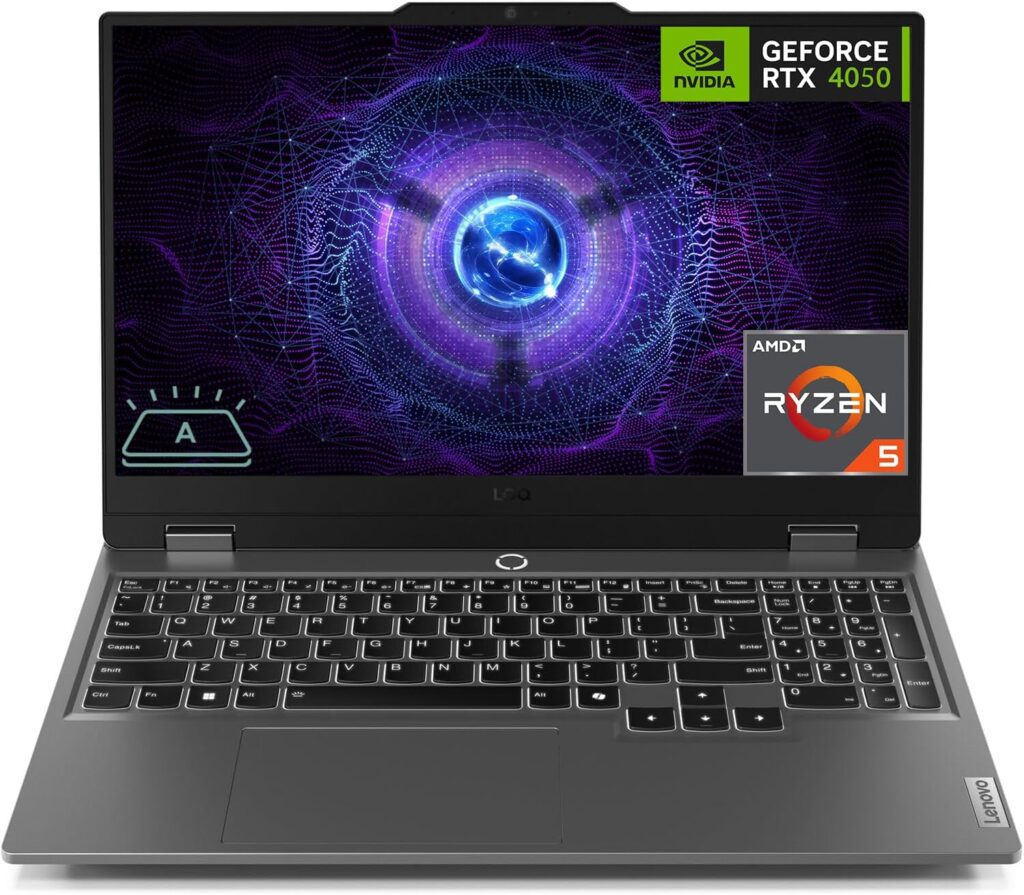
Verdict: If you want a laptop that feels like a premium workstation but carries a budget price tag, this is the one to beat.
Lenovo basically took everything that made their legendary Legion series amazing and stripped away the luxury price tag to create the LOQ line. The Gen 10 model features top-tier thermal management, meaning when you’re rendering a massive 3D model, the laptop won’t sound like a jet engine taking off or thermal-throttle itself into a stuttering mess.
The single-core clock speeds on the AMD Ryzen chips handle complex AutoCAD scripts with ease, and pairing it with a budget RTX card gives you all the viewport fluidness you’ll ever need.
Key Specifications:
- Processor: AMD Ryzen 7 8845HS (Up to 5.1 GHz)
- Graphics: NVIDIA GeForce RTX 4060 or RTX 5050 (6GB VRAM)
- Memory: 16GB DDR5 RAM (Up to 32GB expandable)
- Storage: 512GB NVMe M.2 SSD
- Display: 15.6-inch FHD (1920 x 1080) IPS, 144Hz
Pros:
- Fantastic cooling system keeps the hardware performing at its max peak.
- The legendary Lenovo keyboard makes typing out long command lines comfortable.
- Highly upgradeable; you can easily pop the back cover off to add more RAM or an extra SSD later.
Cons:
- The plastic body feels a bit chunky and heavy to carry around all day.
- Battery life is pretty mediocre under CAD loads (expect around 3–4 hours off the charger).
2. Acer Nitro V 16 AI — Best Storage & Work Balance
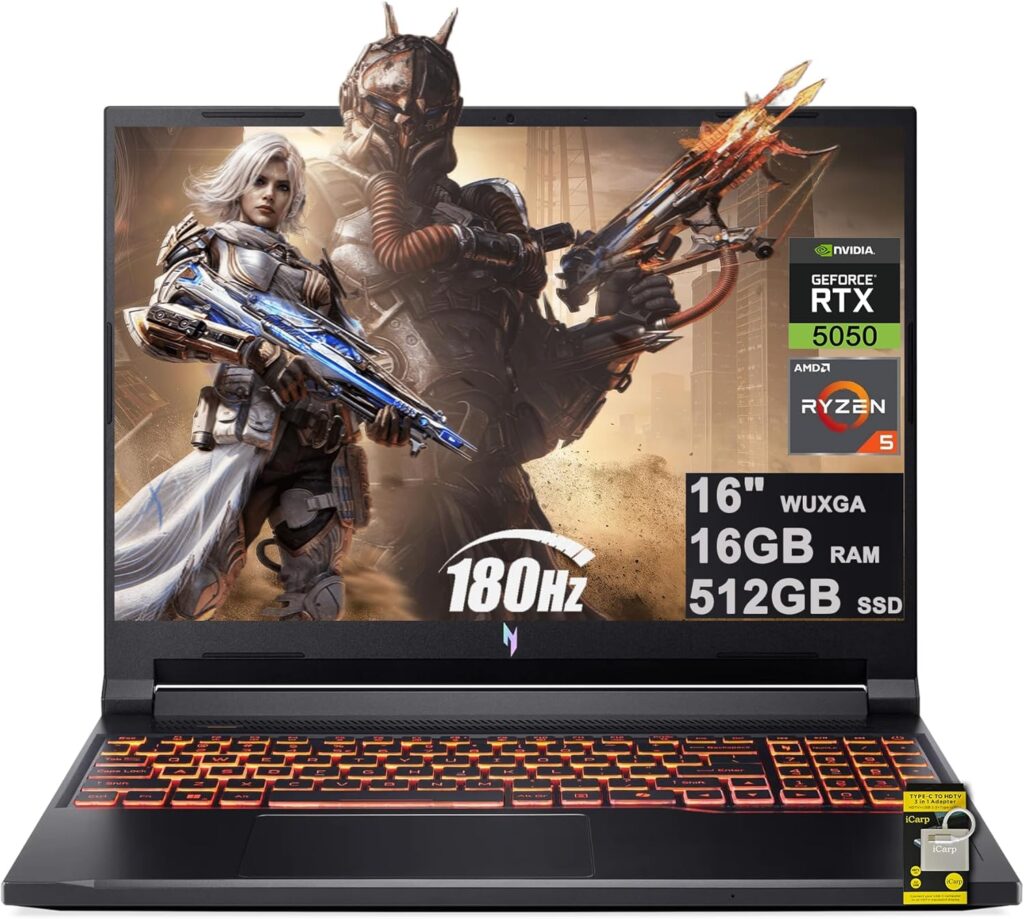
Verdict: A brilliant creator-focused budget machine that gives you a larger screen real estate and modern AI features.
Acer’s Nitro line used to be aggressively “gamery” with flashing red accents, but the Nitro V 16 AI dials it back into something you wouldn’t be ashamed to pull out during a corporate client meeting. What makes this model stand out for AutoCAD users is the slightly taller 16-inch display, which gives you more vertical space to view your drawing layouts. Plus, it usually ships with a full 1TB of SSD storage out of the box, giving you plenty of space for massive project archives.
Key Specifications:
- Processor: AMD Ryzen 7 8845HS
- Graphics: NVIDIA GeForce RTX 5050 (6GB GDDR7)
- Memory: 16GB DDR5 RAM
- Storage: 1TB PCIe Gen 4 SSD
- Display: 16-inch WUXGA (1920 x 1200) IPS, 165Hz, 16:10 aspect ratio
Pros:
- 16:10 aspect ratio screen lets you see more of your workspace and toolbars.
- Generous 1TB of speedy storage right from the get-go.
- Large, highly responsive touchpad makes panning without a mouse surprisingly doable.
Cons:
- The display colors are a bit washed out; not ideal if you do high-end color accuracy work on the side.
- Fans can get loud under heavy load.
3. HP Victus 15 — The Ultimate Wallet Saver
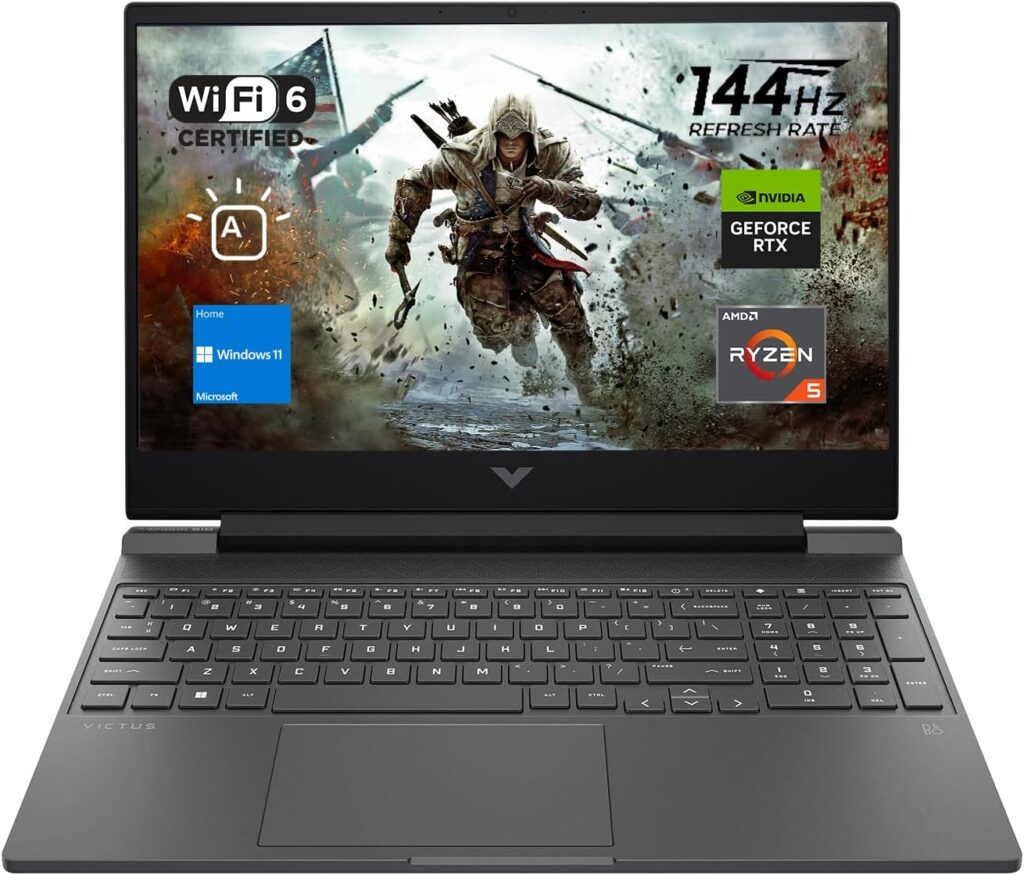
Verdict: The absolute lowest entry price for a laptop that can still legitimately run AutoCAD without crying.
If your budget is razor-thin and you absolutely cannot cross the $700 mark, the HP Victus 15 is your lifesaver. It cuts corners in places that don’t hurt your performance—like using a slightly older chassis design and DDR4 memory instead of DDR5. However, it still packs a punch where it matters. The combination of an Intel Core i5 and a dedicated RTX graphics card ensures that your 2D blueprints and medium-sized 3D projects load up fast and run smooth.
Key Specifications:
- Processor: Intel Core i5-13420H (Up to 4.6 GHz)
- Graphics: NVIDIA GeForce RTX 3050 or 4050 (4GB/6GB VRAM)
- Memory: 16GB DDR4 RAM
- Storage: 512GB PCIe NVMe SSD
- Display: 15.6-inch FHD (1920 x 1080) IPS, 144Hz
Pros:
- Unbeatable price-to-performance ratio.
- Clean, minimalist design looks very professional.
- Great selection of side ports (HDMI, USB-C, RJ-45 Ethernet).
Cons:
- The screen hinge is notoriously a little wobbly if you work in moving environments like trains.
- DDR4 RAM means it’s slightly less future-proof than DDR5 alternatives.
4. ASUS TUF Gaming A15 — Built Like a Tank with Great Battery
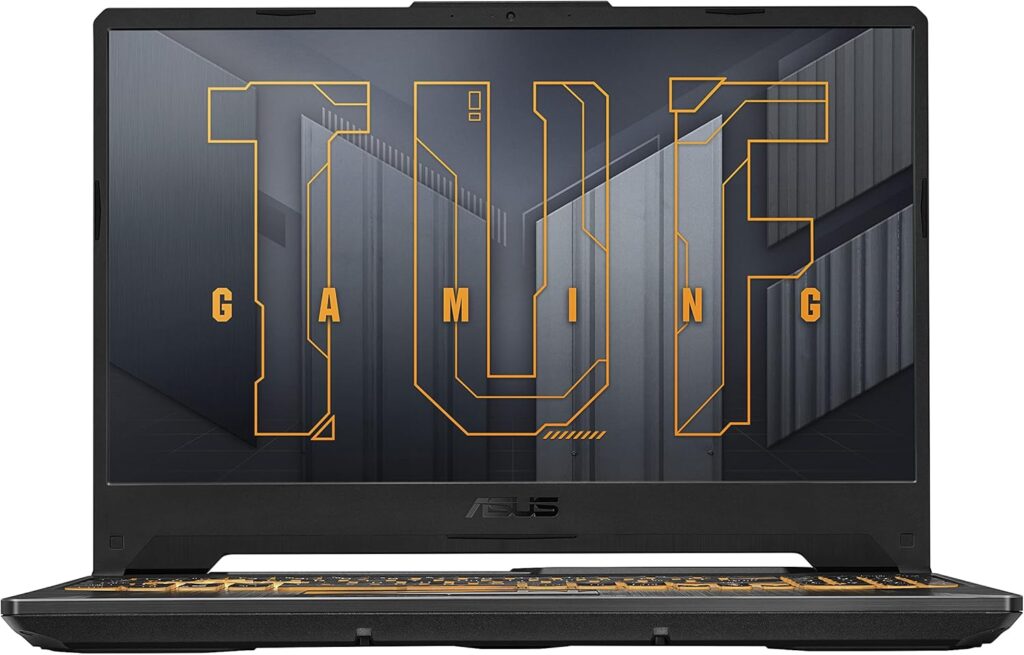
Verdict: The perfect rugged option for site engineers who need a durable laptop with great battery longevity.
If your job requires you to take your laptop onto actual construction sites or dusty field offices, you need something that can survive a bump or two. The ASUS TUF A15 passes military-grade durability standards. Even better, while most budget laptops fail hard when it comes to battery life, the massive battery pack inside the TUF A15 can easily get you through an entire day of lighter office tasks and 2D CAD adjustments without hunting for an outlet.
Key Specifications:
- Processor: AMD Ryzen 5 7535HS
- Graphics: NVIDIA GeForce RTX 4050 (6GB VRAM)
- Memory: 16GB DDR5 RAM
- Storage: 512GB NVMe M.2 SSD
- Display: 15.6-inch FHD (1920 x 1080) IPS, 144Hz
Pros:
- Outstanding battery life for a laptop with a dedicated graphics card.
- Military-grade (MIL-STD-810H) structural chassis durability.
- Very efficient cooling that keeps the palm-rest areas completely cold.
Cons:
- The industrial design screams “gaming laptop” quite a bit.
- The base Ryzen 5 processor handles 2D incredibly well, but might lag slightly behind Ryzen 7 alternatives on complex 3D rendering scripts.
5. Apple MacBook Air (M2) — Best for Light 2D Work & Portability
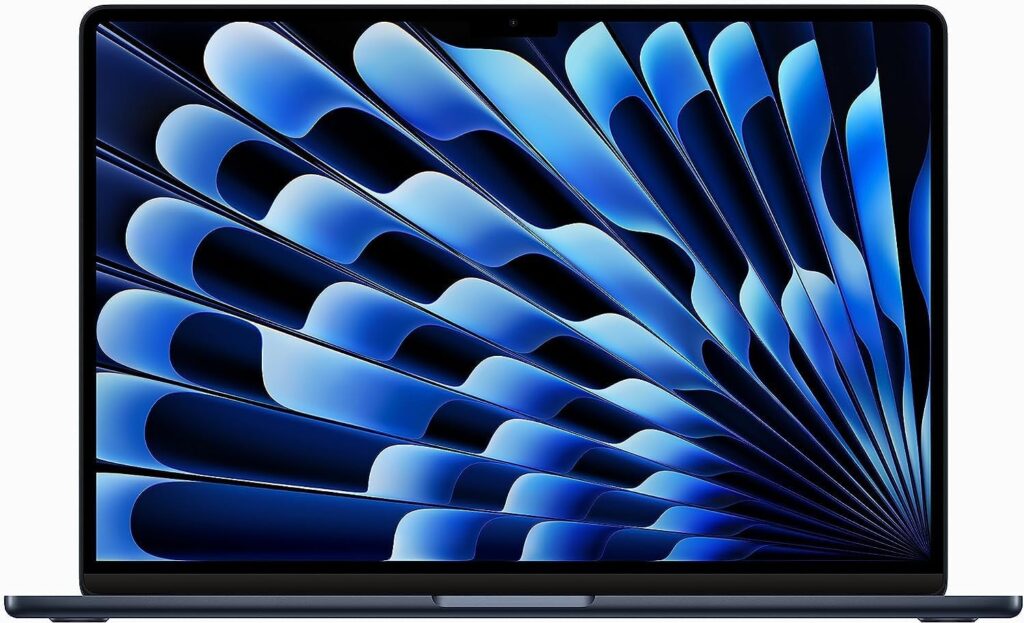
Verdict: If you only do 2D drafting and prioritize build quality, battery life, and a flawless screen, this is a premium budget workaround.
Before the Mac purists start arguing: Yes, AutoCAD runs fine on macOS now, but it is heavily optimized for 2D workflows. If you are an interior designer or a civil engineer who deals exclusively with flat layouts, floor plans, and vector lines, the MacBook Air M2 is an incredible luxury choice on a budget. Thanks to Apple’s unified memory architecture, even the basic M2 chip slices through 2D pans and zoom commands instantly. Plus, you get a beautiful, bright screen and a battery that literally lasts up to 15 hours.
Key Specifications:
- Processor: Apple M2 System-on-Chip (8-Core CPU)
- Graphics: Integrated 10-Core Apple GPU
- Memory: 16GB Unified RAM (Make sure to buy the 16GB version!)
- Storage: 512GB Apple SSD
- Display: 13.6-inch Liquid Retina Display (2560 x 1664)
Pros:
- The most portable, lightweight, and premium build quality on this list.
- Absolutely jaw-dropping battery life that leaves Windows laptops in the dust.
- Dead silent operation because it has no internal fans.
Cons:
- Not ideal for heavy 3D rendering. If you rely on specialized 3D plugins or extensive 3D modeling, stick to Windows.
- Zero component upgradeability down the line. What you buy is what you’re stuck with.
Final Quick Tips: Getting the Most Out of Your Budget CAD Laptop
Whichever option you pick from this list, keep these quick tips in mind to maximize your performance:
- Keep it Plugged In: Laptops automatically throttle their CPU and GPU speeds when running on battery to save juice. For maximum smoothness in AutoCAD, always plug into the wall outlet when doing heavy work.
- Turn on Hardware Acceleration: Go into your AutoCAD settings (
GRAPHICSCONFIGcommand) and make sure Hardware Acceleration is toggled ON. This forces the software to use your dedicated Nvidia GPU rather than struggling on integrated graphics. - Upgrade Later: If you buy a 512GB SSD model to save money now, don’t worry. Models like the Lenovo LOQ and Acer Nitro allow you to add a cheap $60 secondary SSD a year from now when you have more cash.
How to Instantly Optimize AutoCAD to Run Smoothly on a Budget Laptop
Time needed: 5 minutes
If you’ve just unboxed a budget machine, you don’t have to settle for laggy viewports. Follow these three quick steps to get every ounce of power out of your hardware right away.
- Force AutoCAD to Use Your Powerful Dedicated GPU
By default, Windows sometimes tries to save power by running AutoCAD on your weak, integrated processor graphics. Type “Graphics Settings” into your Windows search bar, click browse, and locate your
acad.exefile. Once added, click on it, select Options, change the setting to High Performance, and hit save. This ensures your Nvidia or AMD card does the heavy lifting every time the software opens. - Toggle on Hardware Acceleration Inside the Software
Open up any drawing project, look down at the bottom right corner of your screen, and find the hardware acceleration icon (it looks like a tiny computer graphic card). Right-click it and open Graphics Performance. Toggle the main switch to ON and make sure “Advanced Material Effects” and “Full Shadow Display” are checked if you plan to do any 3D view switching.
- Switch Your Windows Power Plan to Max Performance
Never try to edit a heavy blueprint while your laptop is trying to save battery. Plug your laptop into the wall outlet, click your battery icon on the bottom taskbar, and slide the power mode over to “Best Performance.” This tells your cooling fans and processor that it’s time to unlock their full clock speeds, eliminating those annoying micro-stutters when you zoom in and out of complex layouts.
FAQs
We get a ton of questions from students and professionals trying to stretch their budget. Here are the top three things people always ask us when they’re shopping for a cheap CAD machine:
For about 85% of people, 16GB is the sweet spot. It handles everyday 2D drafting, multi-layered layouts, and moderate 3D modeling without breaking a sweat. However, if you are the type of person who keeps 40 Chrome tabs open, has Spotify playing in the background, and works on massive city-planning Xrefs all at the same time, you might feel a pinch. Luckily, laptops like the Lenovo LOQ or ASUS TUF let you buy the cheaper 16GB model now and easily pop in another stick of RAM later down the road when your budget allows.
Yes, but only if you are strictly doing 2D blueprints. Modern integrated graphics (like AMD Radeon or Intel Iris Xe) have gotten surprisingly decent. But here is the catch: the moment you turn on a 3D isometric view, apply textures, or try to render a shadow, an integrated chip will start to chug and stutter. If you want a frustration-free experience that lasts you the next few years, we always recommend spending just a tiny bit extra to get a laptop with a dedicated graphics card (like an RTX 4050).
We totally get it—not everyone wants a laptop that looks like a spaceship with flashing RGB lights during a serious client meeting. If you want to fly under the radar, look closely at the HP Victus 15 or the Acer Nitro V 16. Both of these brands have dialed back the “gamer aesthetic” significantly. They feature clean matte finishes, minimal branding, and standard white backlit keyboards, meaning they look just like high-end business laptops while packing all that hidden graphical muscle inside.

Hi, my name is Burak. I am a mechanical engineer. I have been writing laptop reviews for the Engineering Laptops website since 2020. Please feel free to contact me if you have any questions.