Estimated reading time: 10 minutes
Key Takeaways
- EPLAN Electric P8 requires strong single-core CPU performance and ample RAM to function efficiently.
- The article reviews the top 5 best laptops for EPLAN Electric P8, focusing on their specs and suitability for engineering tasks.
- Key models include Lenovo ThinkPad P16 Gen 2 for heavy-duty use, Dell Precision 5690 for premium design, and HP ZBook Fury 16 G11 for upgradability.
- Quick buying tips emphasize the importance of 32 GB RAM, a 16-inch screen, and adequate port selection for multitasking and external monitors.
- Consider factors like portability and weight to choose the right laptop for your specific engineering needs.
Table of contents
If you are an electrical engineer, automation specialist, or control cabinet designer, you already know the deal: EPLAN Electric P8 is not your average CAD program. It doesn’t just draw lines; it manages massive, interconnected databases, handles automatic cross-referencing, and compiles heavy bills of materials (BOM) on the fly. When choosing the best laptops for EPLAN Electric P8, it’s important to consider these unique hardware demands. And if you are dipping your toes into EPLAN Pro Panel for 3D cabinet layouts, your hardware demands skyrocket instantly.
Running this kind of heavy CAE software on an underpowered laptop is a recipe for daily frustration. Lagging schematics, frozen screens during report generation, and long project loading times will destroy your productivity.
You need a machine that can handle complex data structures without breaking a sweat. To save you the trial and error, we have rounded up the top 5 best laptops for EPLAN Electric P8 in 2026, spanning heavy-duty mobile workstations to portable field-ready setups.
EPLAN Electric P8 System Requirements (The Reality Check)
Before looking at the machines, let’s talk about what EPLAN actually cares about. EPLAN is highly dependent on single-core CPU performance and RAM speed. While multi-core processors are great for multitasking, the core drafting and database updates in EPLAN rely heavily on how fast a single core can push data.
A Quick Warning on MacBooks: EPLAN Electric P8 is natively designed for Windows. While you can run it via Parallel Desktop or Boot Camp on a Mac, it’s a massive headache for licensing, database connections, and hardware acceleration. Save yourself the stress—stick to Windows for industrial automation.
Here is a quick look at what you should aim for:
| Component | Minimum Requirements | Recommended (Power User / 3D Pro Panel) |
| Processor (CPU) | Intel Core i5 or AMD Ryzen 5 (Recent Gen) | Intel Core i7/i9 (HX-Series) or AMD Ryzen AI 9 |
| System Memory (RAM) | 16 GB DDR5 | 32 GB or 64 GB DDR5 |
| Storage | 512 GB NVMe SSD | 1 TB to 2 TB NVMe PCIe Gen 4/5 SSD |
| Graphics (GPU) | Integrated Intel Iris Xe / AMD Radeon | NVIDIA RTX Ada Generation or GeForce RTX 40/50 Series |
| Display | 15.6″ Full HD (1920×1080) | 16″ QHD+ (2560×1600) with dual external monitor support |
The 5 Best Laptops for EPLAN Electric P8
1. Lenovo ThinkPad P16 Gen 2 – The Ultimate Heavy-Duty Workhorse
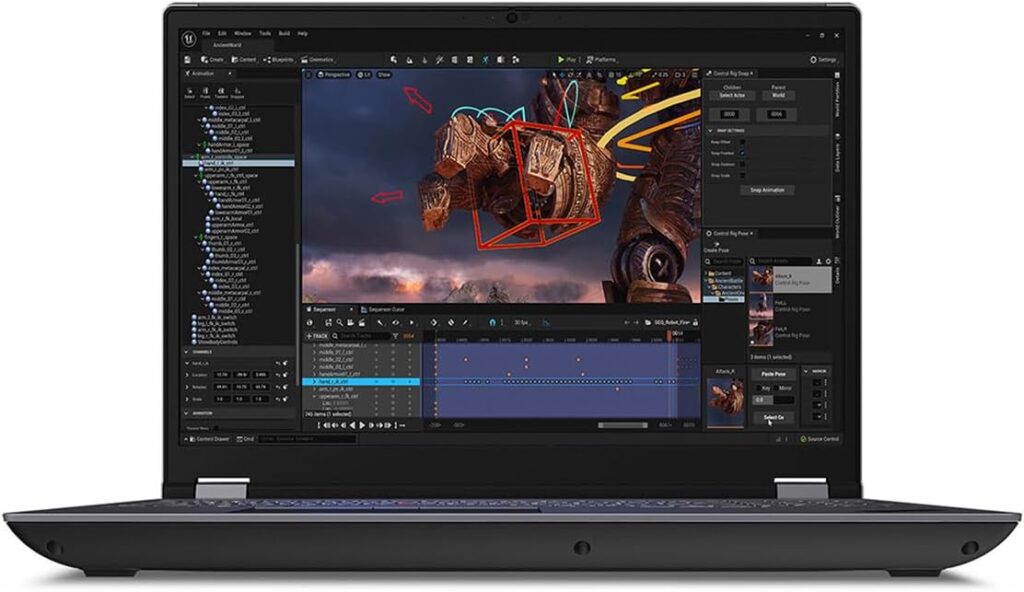
If you want a laptop that feels like a desktop workstation disguised as a briefcase, the ThinkPad P16 Gen 2 is the gold standard for engineering. Built with industrial-grade materials, this machine is certified by independent software vendors (ISV), meaning its drivers are fine-tuned to handle heavy engineering databases like EPLAN and TIA Portal without crashing.
- Processor: Intel Core i9-14900HX (Up to 5.8 GHz, 24 Cores)
- RAM: 32 GB DDR5 (ECC supported, expandable up to 128 GB)
- Graphics: NVIDIA RTX 2000 Ada Generation (8GB VRAM)
- Storage: 1 TB NVMe PCIe Gen 4 SSD
- Display: 16-inch WQXGA (2560 x 1600) IPS, Anti-Glare, 500 nits
Pros:
- Elite thermal cooling; the laptop rarely throttles under heavy database generation.
- Massive upgradeability with 4 RAM slots and 2 M.2 SSD slots.
- The legendary ThinkPad keyboard makes data entry a breeze.
- Exceptional port selection (HDMI 2.1, Thunderbolt 4, SD Card reader) for multi-monitor setups.
Cons:
- Heavy and bulky (around 6.5 lbs / 2.95 kg).
- The power brick is massive, making it tough for frequent field travel.
2. Dell Precision 5690 – The Premium Corporate Muscle
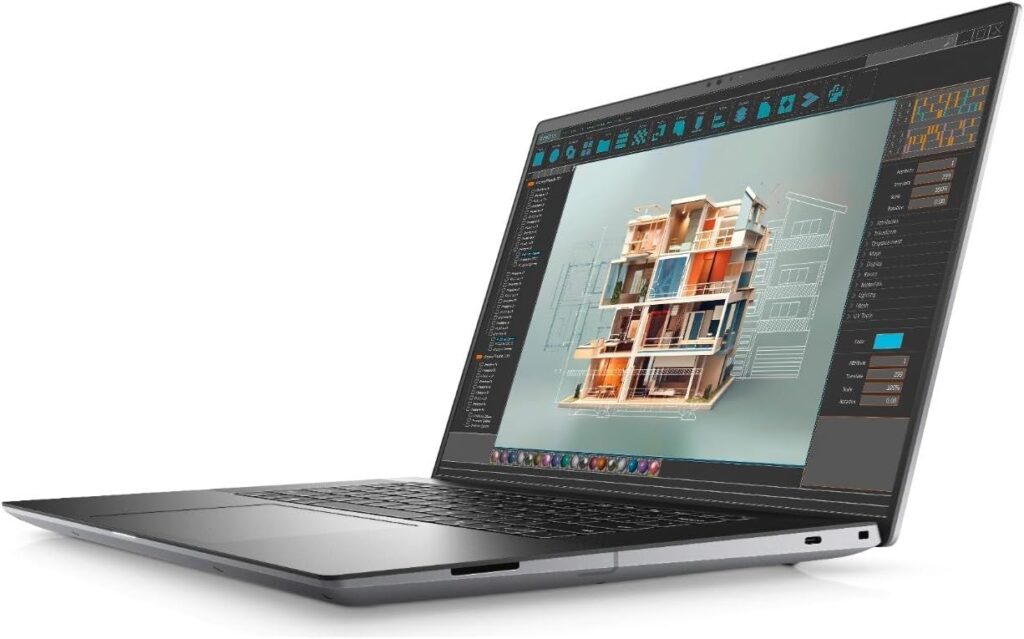
Want the raw power of a workstation but refuse to carry around a block of plastic? The Dell Precision 5690 strikes a brilliant balance. It packs professional-grade hardware into a sleek, premium chassis that looks great in corporate boardrooms but has the muscle to crunch through thousands of EPLAN schematics.
- Processor: Intel Core Ultra 7 165H (Up to 5.0 GHz, 16 Cores) with built-in AI NPU
- RAM: 32 GB LPDDR5x (Dual-Channel)
- Graphics: NVIDIA RTX A2000 Ada Generation (8GB VRAM)
- Storage: 1 TB PCIe Gen 4 NVMe SSD
- Display: 16-inch OLED UHD+ (3840 x 2400) Touch Display
Pros:
- Striking, high-quality build that rivals the MacBook Pro in design.
- The OLED display is incredibly crisp, minimizing eye strain during long hours of circuit tracing.
- Surprisingly good battery life for a professional workstation.
Cons:
- The RAM is soldered to the motherboard, so you cannot upgrade it later. Buy what you need upfront!
- Limited native ports; you will rely on USB-C/Thunderbolt dongles for older industrial interfaces.
3. HP ZBook Fury 16 G11 – The Expandable Industry Standard
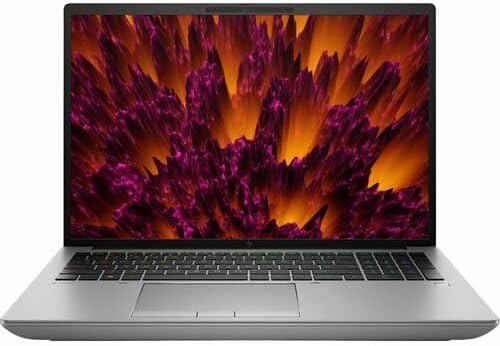
HP’s ZBook line is a staple in automation departments worldwide. The ZBook Fury 16 G11 is designed for longevity and effortless maintenance. If your company likes to keep laptops for 4–5 years and upgrade components over time, this is the machine to get. It can handle massive EPLAN project trees while simultaneously running PLC simulators in the background.
- Processor: Intel Core i7-14700HX (Up to 5.5 GHz, 20 Cores)
- RAM: 32 GB DDR5 (Upgradable to 128 GB)
- Graphics: NVIDIA RTX 3500 Ada Generation (12GB VRAM)
- Storage: 1 TB NVMe PCIe Gen 4 SSD
- Display: 16-inch WUXGA (1920 x 1200) Anti-Glare, 400 nits
Pros:
- Toolless chassis access makes upgrading RAM or storage incredibly easy.
- Top-tier graphics card options, perfect if you heavily utilize EPLAN Pro Panel 3D.
- Built to withstand harsh factory environments (MIL-STD 810H certified).
Cons:
- Fans can get quite loud when executing large report generations.
- The baseline screen option is a bit dull compared to OLED competitors.
4. ASUS ROG Zephyrus G16 (2026) – The Stealth Powerhouse
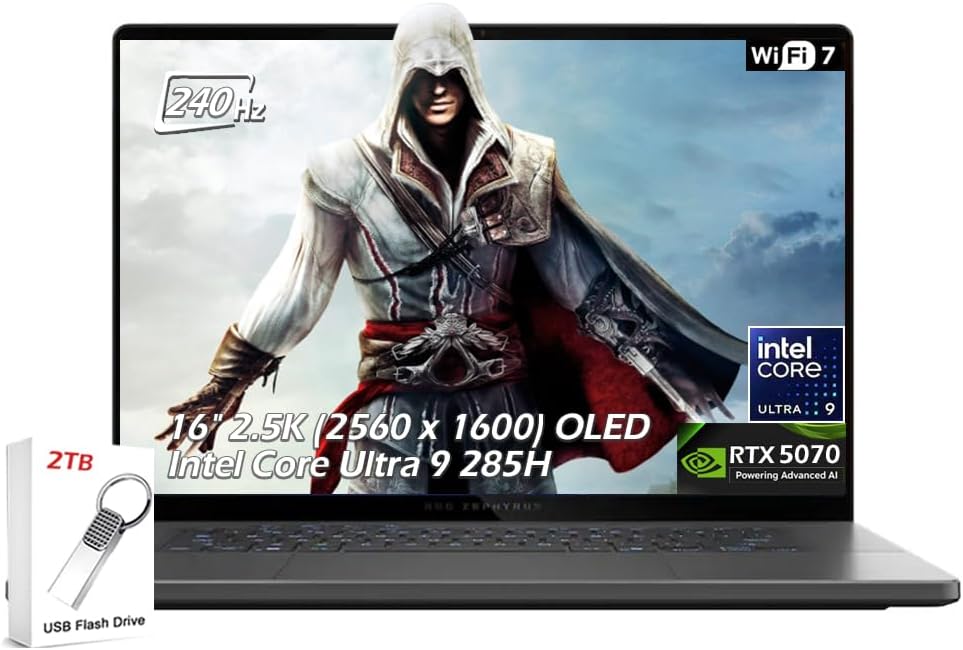
Who says you can’t mix business with pleasure? While the ASUS ROG Zephyrus G16 is technically marketed as a gaming laptop, engineering communities love it. It offers incredible single-core processing speeds and top-tier consumer graphics cards at a much lower price point than dedicated enterprise workstations.
- Processor: AMD Ryzen AI 9 HX 370 (Up to 5.1 GHz, 12 Cores / 24 Threads)
- RAM: 32 GB LPDDR5X
- Graphics: NVIDIA GeForce RTX 4070 (8GB VRAM)
- Storage: 1 TB NVMe PCIe 4.0 SSD
- Display: 16-inch 2.5K (2560 x 1600) ROG Nebula OLED, 240Hz
Pros:
- The AMD Ryzen AI processor delivers blistering single-core speeds and stays incredibly power efficient.
- Lightweight (under 4.2 lbs / 1.9 kg) and thin, making it easy to slide into a backpack.
- Beautiful, clean aluminum aesthetic that doesn’t scream “gamer” in the office.
Cons:
- Lacks ISV-certified drivers (though standard GeForce drivers run EPLAN perfectly fine).
- No native Ethernet port, which is an annoyance if you need to plug directly into a PLC on the factory floor.
5. Lenovo ThinkPad P16s Gen 4 AMD – The On-Site Field Champion
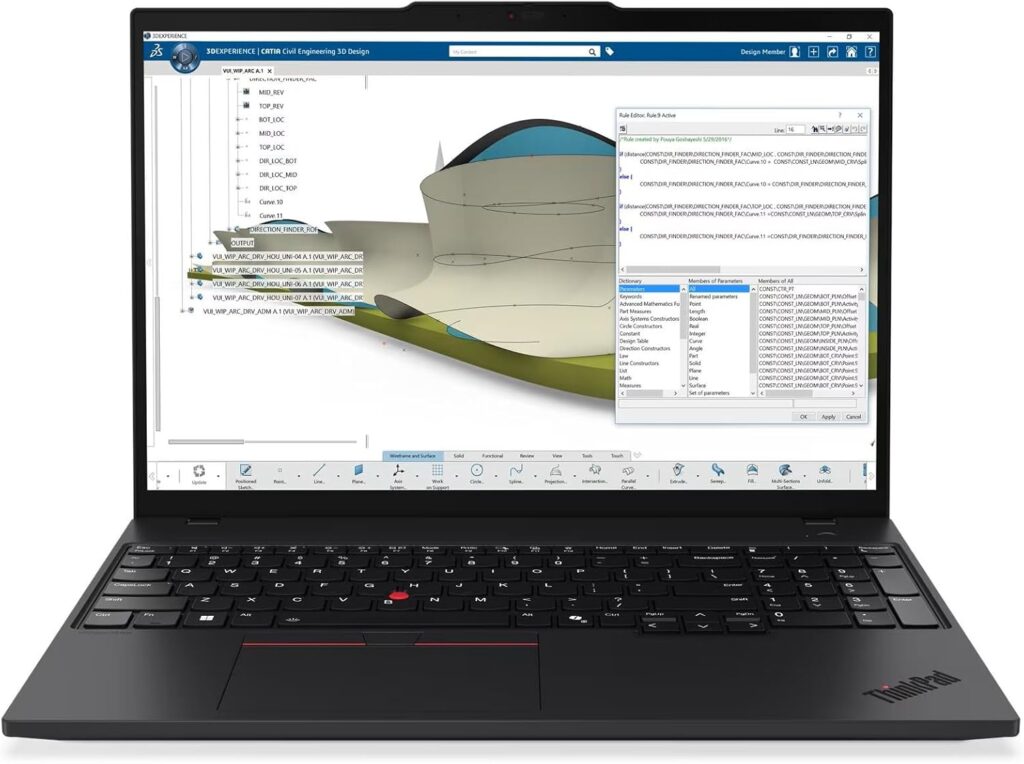
If your job involves walking around factory floors, commissioning systems, and making quick on-site modifications to EPLAN schematics, you don’t want a heavy workstation pulling down your shoulder. The ThinkPad P16s Gen 4 AMD is a lightweight version of the P series designed specifically for mobility, long battery life, and field resilience.
- Processor: AMD Ryzen 7 PRO 8840U (Up to 5.1 GHz, 8 Cores)
- RAM: 32 GB LPDDR5x
- Graphics: AMD Radeon 780M (Integrated)
- Storage: 512 GB / 1 TB NVMe SSD
- Display: 16-inch WUXGA (1920 x 1200) IPS, Low Power, 400 nits
Pros:
- Exceptional battery life—can easily last a full workday on site without searching for an outlet.
- Extremely lightweight and portable for a 16-inch laptop.
- Includes a built-in Ethernet (RJ-45) port, which is crucial for field communication.
Cons:
- Uses integrated graphics, so while it crushes 2D EPLAN Electric P8, it will struggle with complex, heavy 3D Pro Panel layouts.
- Soldered RAM limits future-proofing.
What to Look For: Quick Buying Tips for Engineers
Before signing off on that purchase order, keep these quick tips in mind:
- Prioritize 32 GB of RAM: EPLAN relies heavily on virtual memory when handling extensive device catalogs and parts management databases. 16 GB works for small projects, but 32 GB ensures you don’t run into memory bottlenecks.
- Get a 16-inch Screen (or larger): Reading tiny device tags, terminal numbers, and complex wiring paths on a 14-inch screen will give you an absolute headache. Go for a 16-inch screen with a 16:10 aspect ratio for extra vertical workspace.
- Check the Ports: Make sure your laptop has enough video outputs (HDMI or DisplayPort over USB-C). Designing schematics on a laptop screen alone is tough; most engineers prefer running at least two external monitors back at the office.
Which One Should You Choose?
If you want the absolute best stability, upgradeability, and pure engineering pedigree, go with the Lenovo ThinkPad P16 Gen 2. If you spend half your time travelling or doing on-site commissioning, the Lenovo ThinkPad P16s AMD or the sleek ASUS Zephyrus G16 will save your back without sacrificing the performance required to keep your project timelines on track.
How to Choose the Perfect Laptop for EPLAN Electric P8
Time needed: 5 minutes
Finding the right engineering laptop doesn’t have to be a guessing game. Follow these three practical steps to make sure your next machine handles heavy electrical databases and 3D cabinet designs without breaking a sweat.
- Prioritize Single-Core CPU Speed Over Core Count
Don’t get tricked by flashy marketing boasting about 24-core processors. Because EPLAN Electric P8 relies heavily on single-threaded performance for database updates and generating reports, you want a processor with a high clock speed (aim for a boost speed of 5.0 GHz or higher), such as an Intel HX-series or a high-end AMD Ryzen chip.
- Lock In at Least 32 GB of DDR5 RAM
EPLAN is a memory-hungry application, especially when you are cross-referencing massive parts catalogs or managing thousands of schematic pages. While 16 GB is fine for basic editing, upgrading to 32 GB of fast DDR5 RAM ensures smooth multitasking and prevents the software from freezing during complex project evaluations.
- Match Your Graphics Card to Your 3D Workflow
If you only design traditional 2D schematics, standard integrated graphics or an entry-level GPU will do the job perfectly. However, if your team is moving toward 3D panel layouts using EPLAN Pro Panel, you absolutely need a dedicated graphics card—like an NVIDIA RTX Ada Generation or a GeForce RTX 40-series—to render components smoothly without lag.
FAQs
You absolutely can, and honestly, a lot of engineers do! High-end gaming laptops pack incredible single-core CPU speeds and powerful graphics cards, which EPLAN loves. The only real trade-off is that they lack “ISV certification.” This just means the software isn’t officially tested on those specific gaming drivers, so on rare occasions, you might run into minor visual quirks. But if you are on a budget and want great performance, a premium gaming laptop like the ASUS Zephyrus is a fantastic shortcut.
It depends entirely on your daily workflow. If you are strictly working on 2D schematics, loops, and terminal diagrams, you don’t need a beefy graphics card at all—integrated graphics will handle it just fine. However, if you are using EPLAN Pro Panel to build 3D control cabinets, route wires virtually, and check for component collisions, a dedicated graphics card (like an NVIDIA RTX) is non-negotiable if you want to avoid a frustratingly laggy screen.
It’s not that MacBooks are bad computers—they are amazing—but EPLAN is built from the ground up natively for Windows environments. Trying to run EPLAN on a Mac requires using virtual machines like Parallels, which can cause a massive headache when it comes to dongle licensing, sharing multi-user databases on a local network, or getting the software to properly use the Mac’s graphics hardware. To save yourself the tech-support nightmares, it’s best to stick with Windows for industrial automation.

Hi, my name is Burak. I am a mechanical engineer. I have been writing laptop reviews for the Engineering Laptops website since 2020. Please feel free to contact me if you have any questions.