Estimated reading time: 21 minutes
Key Takeaways
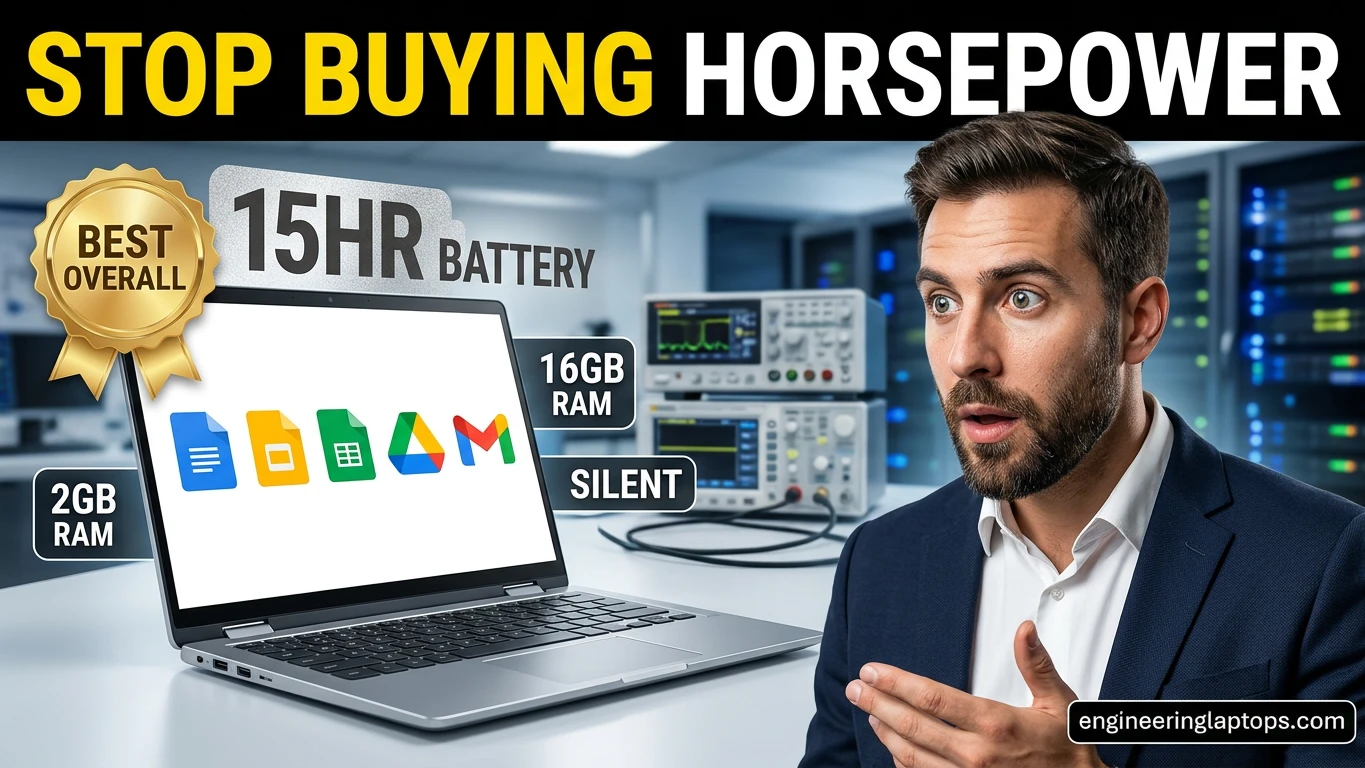
- The article discusses the best laptops for Google Workspace, emphasizing the importance of RAM and battery life over raw horsepower.
- Top picks include the Lenovo Chromebook Plus 14 for overall performance, the Apple MacBook Air for premium users, and the Acer Chromebook Plus 514 for budget-conscious buyers.
- Key features for a Google Workspace laptop include a good webcam, long battery life, and a comfortable keyboard.
- Browser-based tasks don’t require high-end specs, so look for laptops that handle Chrome smoothly.
- Overall, prioritize 8GB or 16GB of RAM and seek a laptop with a battery life that lasts through a full workday.
Table of contents
- Best Google Workspace Laptops in 2026
- 1. Lenovo Chromebook Plus 14 — The Best Laptop for Google Workspace, Period
- 2. Apple MacBook Air 13″ (M5) — The Best Premium Pick
- 3. Acer Chromebook Plus 514 — The Best Budget Google Workspace Laptop
- 4. Asus Zenbook 14 OLED — The Best Windows Laptop for Google Workspace
- 5. Acer Chromebook Plus Spin 714 — The Best 2-in-1 for Google Workspace
- What Actually Matters in a Google Workspace Laptop
- Which One Should You Buy?
- Frequently Asked Questions
- How much RAM do I need for Google Workspace?
- Are Chromebooks good for Google Workspace?
- Can I use Google Workspace offline?
- Do I need a great webcam for Google Meet?
- Is a MacBook overkill for Google Workspace?
- How much should I spend on a laptop for Google Workspace?
- Windows or ChromeOS for Google Workspace?
I’ve spent the better part of a decade living inside Google’s ecosystem. Gmail pinned in the first tab, three Docs drafts fighting for attention, a Sheet that’s honestly grown too big for its own good, and a Meet call that always seems to start the exact moment I’ve got forty tabs open. So when friends and readers ask me which laptop they should buy for a Workspace-heavy life, I don’t point them at the flashiest gaming rig or the most expensive ultrabook on the shelf. I point them at the machine that keeps Chrome happy, survives a full day away from an outlet, and makes them look like a functioning adult on video calls.
Here’s what most buying guides get wrong: Google Workspace barely cares about raw horsepower. Gmail, Docs, Sheets, Slides, Drive, Calendar, and Meet all run in the browser, and the heavy lifting mostly happens on Google’s servers, not on your lap. What actually matters is RAM (Chrome eats memory for breakfast), battery life, a screen that doesn’t tire your eyes, a webcam and mic that don’t make you sound like you’re calling from a submarine, a keyboard you can type on for hours, and Wi-Fi that doesn’t drop mid-sentence during a client call.
Over the past few months I’ve lived with a stack of machines across every price point and operating system to figure out which ones genuinely make Workspace feel effortless. Five made the cut: three Chromebooks (because, no surprise, ChromeOS runs Google’s own apps better than anything else), one MacBook, and one Windows laptop. Let’s get into it.
Best Google Workspace Laptops in 2026
| Laptop | Best For | RAM | Display | Real-World Battery | Webcam | Weight | Price |
|---|---|---|---|---|---|---|---|
| Lenovo Chromebook Plus 14 | Best overall | 16GB | 14″ OLED, 400 nits | 15+ hours | 5MP + slider | 2.78 lb | ~$649–749 |
| Apple MacBook Air 13″ (M5) | Best premium | 16GB | 13.6″ Liquid Retina | 13–16 hours | 12MP Center Stage | 2.7 lb | from $1,099 |
| Acer Chromebook Plus 514 | Best budget | 8GB | 14″ IPS touch, 300 nits | ~12 hours | 1080p + shutter | 3.1 lb | ~$399 |
| Asus Zenbook 14 OLED | Best for Windows | 16GB | 14″ OLED, up to 3K 120Hz | ~9 hours | 1080p IR + shutter | 2.84 lb | ~$880–1,300 |
| Acer Chromebook Plus Spin 714 | Best 2-in-1 | 8GB | 14″ touch, 360° hinge | 12–15 hours | 1440p + shutter | 3.2 lb | ~$699 |
1. Lenovo Chromebook Plus 14 — The Best Laptop for Google Workspace, Period
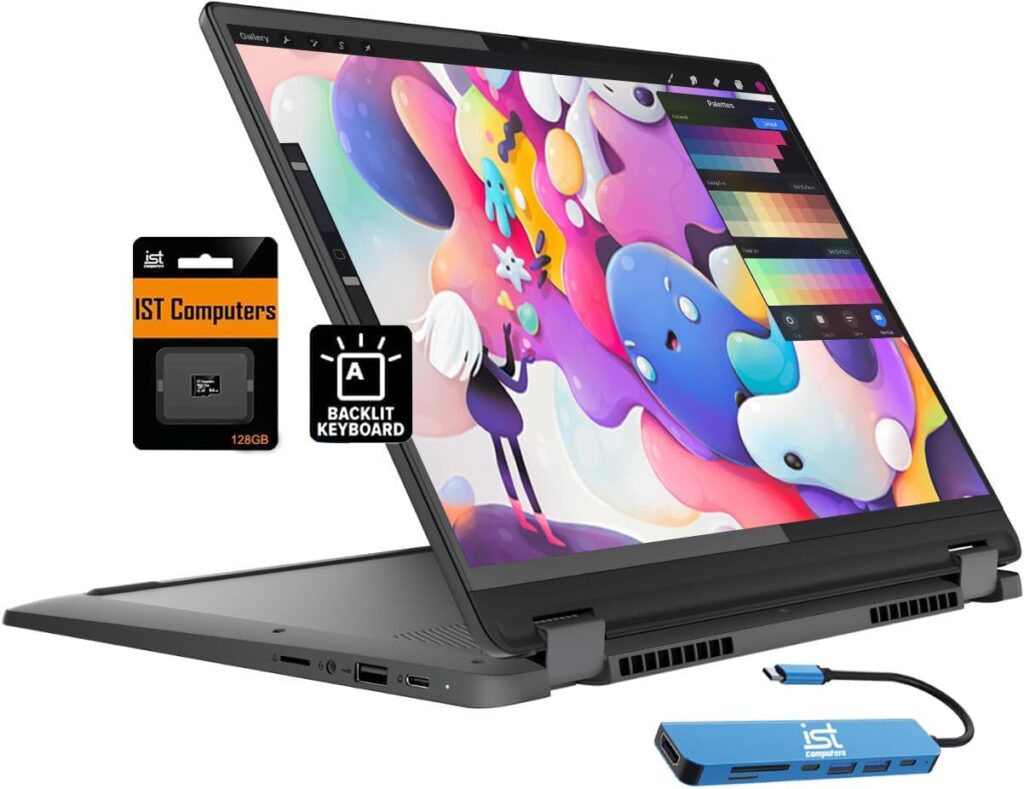
I’ll be honest with you: I used to roll my eyes at Chromebooks. For years they were flimsy plastic slabs with 4GB of RAM and screens that looked like wet newspaper. The Lenovo Chromebook Plus 14 is the machine that finally changed my mind, and it’s now the first laptop I recommend to anyone who genuinely lives in Google Workspace.
Key Specs
- CPU: MediaTek Kompanio Ultra 910 (8-core Arm chip with a 50 TOPS NPU)
- RAM: 16GB LPDDR5X
- Storage: 256GB UFS (a cheaper 128GB config exists — skip it if you can)
- Display: 14-inch 1920×1200 OLED touchscreen, 400 nits, 100% DCI-P3
- Battery: 60Wh, rated up to 17 hours
- Webcam: 5MP with a physical privacy slider
- Ports: 2× USB-C 3.2, 1× USB-A 3.2, headphone jack
- Connectivity: Wi-Fi 7
- Weight: 2.78 lb, aluminum body
- Price: roughly $649–749
How It Handles Google Workspace
This is the first Chromebook I’ve used that never once made me think about the hardware underneath. That’s the highest compliment I can give a work machine. I had thirty-something Chrome tabs open — Gmail, a monster of a Sheet, three Docs, Calendar, Drive, plus the usual pile of half-read articles — with a Google Meet call running in the corner, and the whole thing stayed buttery smooth. The 16GB of RAM is the hero here. It’s the difference between Chrome quietly juggling everything in the background and Chrome throwing a tantrum, dumping tabs from memory, and forcing a reload every time you switch back.
Meet calls are where ChromeOS quietly flexes. There’s nothing to install, no drivers, no plugin nonsense — you open the call and you’re in. Chromebook Plus models also get these handy little controls right on the taskbar, so you can kill your mic or camera with one click without hunting for the call window. There’s automatic framing too, which keeps you centered if you’re the type who leans and fidgets on calls (guilty). And the 5MP webcam is a real, visible step up from the grainy 1080p sensors most laptops still ship with. Colleagues actually commented that I looked sharper. On a work call. That never happens.
The OLED screen is the other showstopper. Bright, punchy, and genuinely pleasant for reading long documents or picking apart a Slides deck. My one gripe: it’s glossy, so if you like working next to a sunny window or in a bright café, you’ll fight some reflections.
Battery life borders on ridiculous. I regularly cleared a full working day — calls, docs, music, the works — and still had comfortable double-digit percentages left in the evening. Fifteen-plus hours of mixed browsing is realistic, not marketing fiction. And because that Arm chip barely breaks a sweat, the whole machine is fanless. Total silence. Once you work on a silent laptop for a week, fan noise starts to feel like an insult.
Offline work is sorted, too. Flip on Drive’s offline sync and the Docs offline mode, and you can write on a plane with everything syncing the second you land and reconnect.
Pros
- 16GB of RAM keeps dozens of tabs and a Meet call running without a hiccup
- Gorgeous, bright OLED display
- Genuinely all-day battery — 15+ hours of real use
- Completely silent, fanless design
- Excellent 5MP webcam with a physical privacy slider
- Light, premium aluminum build with Wi-Fi 7
Cons
- Glossy screen struggles in direct sunlight
- ChromeOS can’t run heavy Windows or Mac desktop software
- A few Android apps (looking at you, Netflix) behave better in the browser than in app form
Who Should Buy It
Anyone whose work truly lives in the browser. Remote workers, writers, students, managers, small-business owners — if your day is Gmail, Docs, Sheets, and Meet, this is the best Google Workspace laptop you can buy, and it costs a fraction of a MacBook.
2. Apple MacBook Air 13″ (M5) — The Best Premium Pick
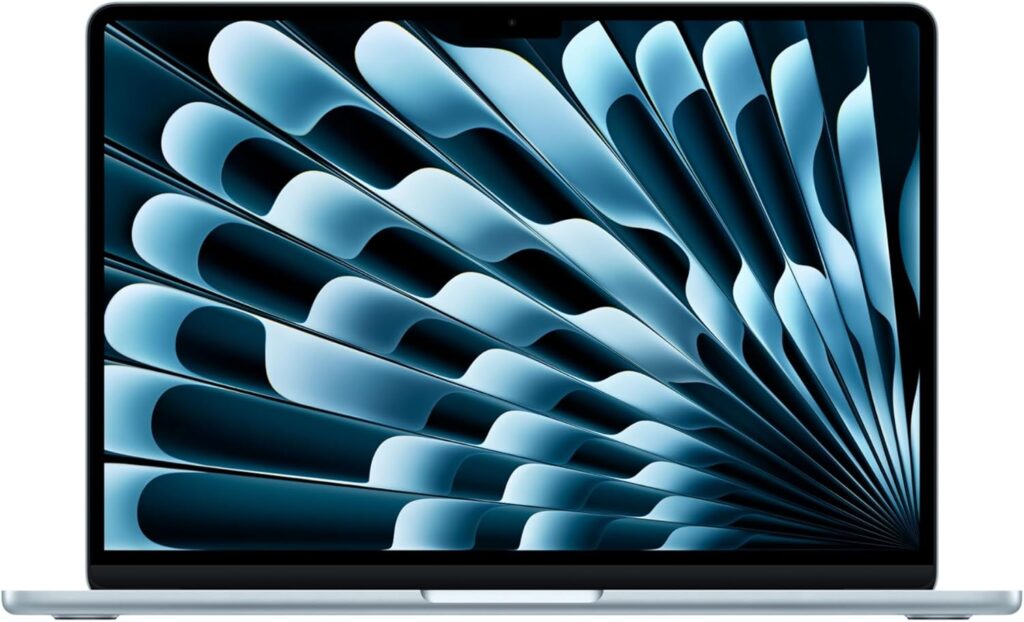
If you want one laptop that nails Google Workspace and everything else — photo editing, a bit of video work, years of software updates — the M5 MacBook Air is the safe, excellent answer. It’s the machine I’d hand to someone who says “I just want the best, and I don’t want to think about laptops again for five years.”
Key Specs
- CPU: Apple M5 (10-core)
- GPU: 8- or 10-core with neural accelerators
- RAM: 16GB unified memory (up to 32GB)
- Storage: 512GB SSD standard, up to 4TB
- Display: 13.6-inch Liquid Retina, 2560×1664, around 500 nits
- Battery: 66.5Wh
- Webcam: 12MP Center Stage
- Ports: 2× Thunderbolt 4, MagSafe charging, headphone jack
- Connectivity: Wi-Fi 7, Bluetooth 6
- Weight: 2.7 lb
- Price: from $1,099
How It Handles Google Workspace
Let me set expectations first: buying a MacBook to run Google Workspace is a bit like buying a sports car to fetch groceries. It’ll do it beautifully — you’re just paying for a lot of capability you may never touch.
That said, what a lovely way to fetch groceries. The M5 chip is absurdly overpowered for browser work, which in practice means Chrome stays instant no matter how recklessly you pile on tabs. I wrote most of this guide on the Air with fifty-odd tabs spread across two browsers, and it never blinked. Not once. There’s a particular kind of calm that comes from knowing your laptop will never be the bottleneck, and Apple sells it by the pound.
The 12MP Center Stage webcam is the best camera in this entire roundup, and it’s not close. It’s genuinely flattering on Meet calls, it keeps you framed as you shift around, and the three-mic array picks up your voice cleanly even in a noisy room. If video calls make up a serious chunk of your workday, this camera alone is a legitimate reason to spend the extra money.
Battery life is the other headline. In my normal mixed use — tabs, calls, docs, a bit of YouTube over lunch — I comfortably cleared thirteen hours, and lighter days stretched well past that. I kept forgetting the charger at home on purpose, just to see if it would bite me. It never did. Like the Lenovo, it’s fanless and silent; unlike the Lenovo, it can warm up and slow down under sustained heavy loads, since there’s no fan to bail it out. For Workspace, you will never, ever hit that ceiling.
The usual Apple trade-offs apply: two ports, no touchscreen, and a notch at the top of the display. None of them bothered me day to day. The price did, a little.
Pros
- Best webcam and microphones in this roundup — a genuine gift for Meet-heavy jobs
- Effortlessly fast; Chrome never stutters, ever
- 13+ hours of real mixed use, completely silent
- Premium build that holds its resale value for years
- 512GB of storage standard, plus Wi-Fi 7
Cons
- Overkill — and overpriced — if all you do is Workspace
- Only two ports, no touchscreen
- Can throttle under sustained heavy workloads (irrelevant for browser work)
Who Should Buy It
Professionals who want Workspace to be one part of a much more capable machine, who care about looking and sounding their best in meetings, and who plan to keep one laptop for a long time.
3. Acer Chromebook Plus 514 — The Best Budget Google Workspace Laptop
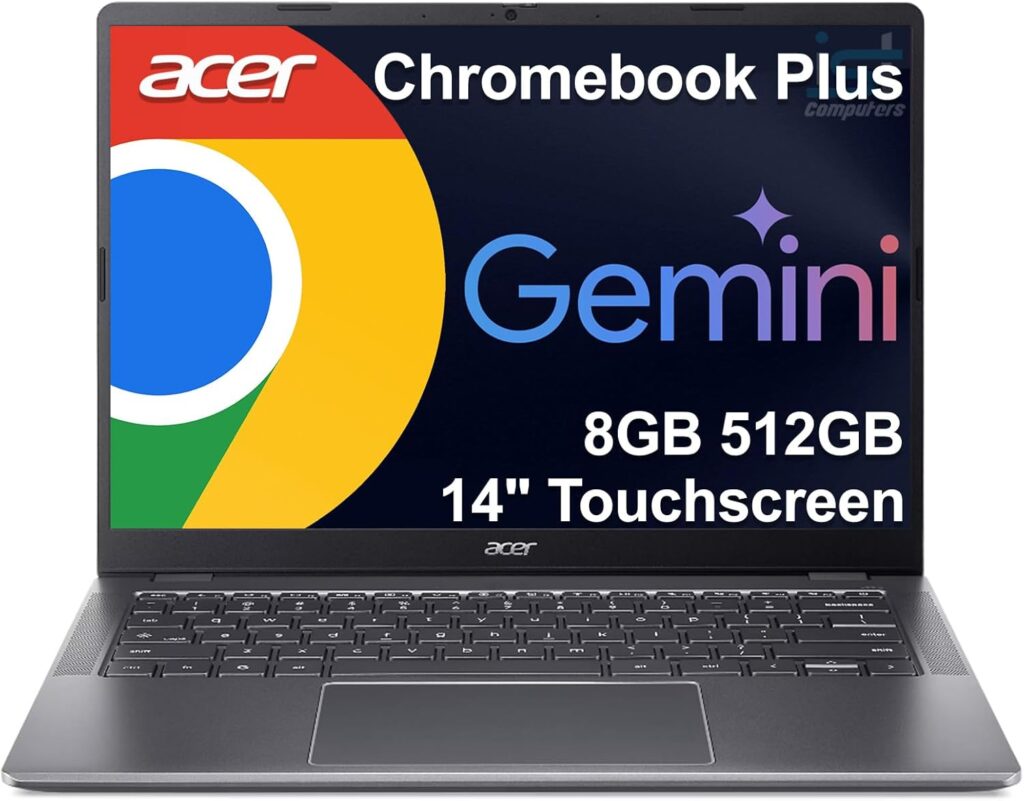
Not everyone wants to spend four figures to answer emails and update a spreadsheet. Honestly, nobody should have to. The Acer Chromebook Plus 514 is the machine I point budget shoppers toward, because it nails the fundamentals for around $399 — and it dips even lower on sale with satisfying regularity.
Key Specs
- CPU: Intel Core i3-N305 / Core 3 N355 (8 efficiency cores)
- RAM: 8GB LPDDR5
- Storage: 512GB SSD (yes, really, at this price)
- Display: 14-inch 1920×1200 IPS touchscreen, 300 nits, anti-glare
- Battery: 53Wh, around 12 hours in light use
- Webcam: 1080p with a privacy shutter
- Ports: 2× USB-C 3.2, 2× USB-A 3.2, HDMI, headphone jack
- Connectivity: Wi-Fi 6E
- Weight: about 3.1 lb
- Price: ~$399, often less
How It Handles Google Workspace
Here’s what genuinely surprised me: this thing pairs 8GB of RAM with a huge 512GB SSD at a price where most competitors hand you 4GB and a miserable 64GB of storage. Those two corners are exactly the ones cheap laptops always cut, and Acer just… didn’t.
In daily Workspace use it’s perfectly pleasant. The low-power Intel chip handles Gmail, Docs, Sheets, Slides, and a reasonable stack of tabs without complaint. Push it hard — forty tabs plus a video call — and you’ll feel the 8GB of RAM start to sweat, with the occasional pause while things shuffle around in memory. But for the way most people actually work, meaning a dozen tabs, a document, and a call or two, it’s smooth and unfussy.
Meet runs natively, of course, and the AI noise cancellation built into ChromeOS is shockingly good for a $399 machine. I tested it with music playing loudly in the same room and the person on the other end heard none of it. The 1080p webcam is acceptable rather than great — colors run a touch faded — but it’s on par with cameras in laptops costing three times as much, and the built-in video effects clean it up nicely.
The screen is the honest weak spot. It’s a sharp, comfortable 16:10 panel with an anti-glare finish I appreciate, but at 300 nits it’s dim, and I wouldn’t pick a fight with bright sunlight. Battery gets you through a full workday with room to spare, and the port selection is genuinely generous: HDMI for a monitor or projector, plus two old-school USB-A ports for whatever mouse or flash drive you already own. No dongles. Bless.
Pros
- Outstanding value: 8GB RAM and 512GB of storage for around $399
- Full workday of battery life
- Excellent port selection, including HDMI and dual USB-A
- Surprisingly good noise cancellation for Meet calls
- Anti-glare screen and a build that shrugs off daily abuse
Cons
- Dim 300-nit display — not one for bright rooms
- 8GB RAM and a modest chip limit heavy multitasking
- Plastic body flexes a little if you go looking for it
Who Should Buy It
Students, families, and anyone whose day is email, documents, and the occasional video call. If you want the best cheap laptop for Google Workspace, stop scrolling — this is it.
4. Asus Zenbook 14 OLED — The Best Windows Laptop for Google Workspace
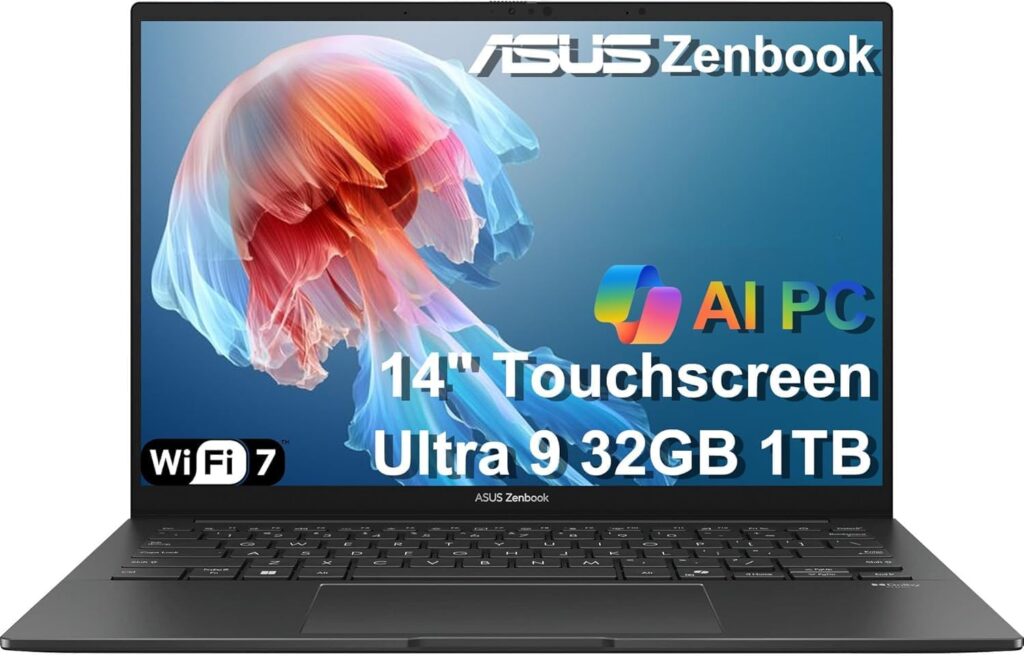
Some people need Windows, full stop. A company VPN client, a niche desktop app, Excel macros that refuse to move to Google Sheets — I get it. If that’s your situation, the Asus Zenbook 14 OLED is where I’d steer you. It’s a genuinely premium ultrabook that undercuts most of its rivals and wraps the flexibility of full Windows around one of the prettiest screens in the business.
Key Specs
- CPU: Intel Core Ultra 7 255H (16 cores); Ultra 5 and Ultra 9 options exist
- GPU: Intel Arc integrated graphics
- RAM: 16GB LPDDR5X (32GB option) — soldered, so choose wisely
- Storage: 512GB or 1TB PCIe 4.0 SSD
- Display: 14-inch OLED — either FHD+ at 60Hz or a 3K panel at 120Hz, 100% DCI-P3
- Battery: 75Wh
- Webcam: 1080p with IR face login and a physical shutter
- Ports: 2× Thunderbolt 4, 1× USB-A 3.2, HDMI 2.1, headphone jack
- Connectivity: Wi-Fi 7, Bluetooth 5.4
- Weight: 2.84 lb
- Price: roughly $880–1,300 depending on configuration
How It Handles Google Workspace
The Zenbook’s party trick is that OLED display, and it earns every bit of the hype. Deep blacks, punchy colors, and text so crisp that staring at Docs and Sheets for eight hours straight is genuinely easy on the eyes. One thing to watch when you buy: there are two panel options. The 3K version runs at a silky 120Hz and scrolls like a dream; the more common FHD+ version is still lovely, just a standard 60Hz. If you can stretch to the 120Hz panel, do it — smooth scrolling is one of those upgrades you don’t appreciate until you can’t go back.
For Workspace itself, the Core Ultra 7 and 16GB of RAM are more than enough. Chrome flies, tabs stay loaded, and there’s plenty of headroom left for whatever desktop apps dragged you to Windows in the first place. That’s the real pitch here: your browser life and your legacy-software life on one machine, no compromises on either.
The 1080p webcam is fine — a bit grainy in dim light, nothing embarrassing — but it earns points for the IR sensor that logs you into Windows with your face and the physical shutter for peace of mind. The mic noise cancellation held up well on my Meet calls.
Battery is where the Zenbook asks for a compromise. A full-power Windows machine driving a bright OLED simply can’t sip electricity the way a Chromebook or a MacBook does. On the top-spec 120Hz configuration I saw around nine hours of continuous browsing — enough for a workday if you’re disciplined with brightness, but a clear step behind everything else on this list. The lower-power configs with the 60Hz panel stretch meaningfully further. On the plus side, the port selection is rich (HDMI! USB-A! On a thin laptop!), and at 2.84 lb it disappears into a bag.
Pros
- Stunning OLED display, with a 120Hz option worth paying for
- Full Windows flexibility for the apps Google can’t replace
- 16GB of RAM and a fast chip keep Chrome snappy
- IR face login plus a physical webcam shutter
- Great ports and Wi-Fi 7 in a light, well-built body
Cons
- Battery trails every other pick here — about nine hours on the top config
- Base model’s screen is only 60Hz
- RAM is soldered, so buy what you’ll need up front
Who Should Buy It
People who love Google Workspace but need Windows for work software, and who want a beautiful screen and a premium build without paying flagship money.
5. Acer Chromebook Plus Spin 714 — The Best 2-in-1 for Google Workspace
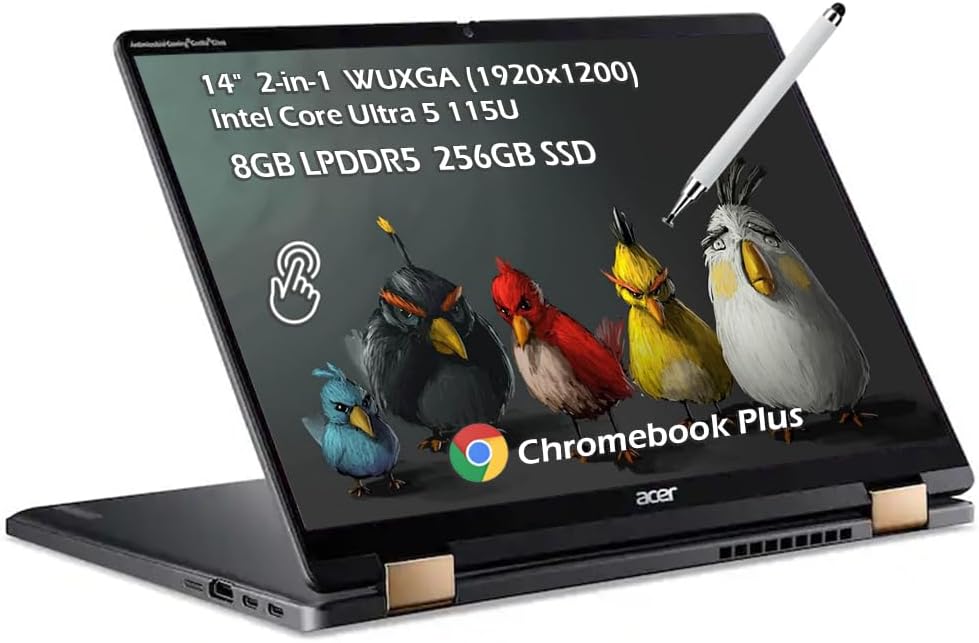
Sometimes you want a laptop that bends over backwards for you. Literally. The Spin 714 has a 360-degree hinge, so it folds into a tablet for reading a long Doc on the couch, or tents up for following a webinar in the kitchen. It’s my pick for anyone who wants flexibility layered on top of a genuinely great Workspace experience.
Key Specs
- CPU: Intel Core Ultra 5 115U
- RAM: 8GB LPDDR5
- Storage: 256GB PCIe SSD
- Display: 14-inch 1920×1200 touchscreen with Gorilla Glass, 360° convertible hinge
- Battery: all-day, realistically 12–15 hours depending on load
- Webcam: 1440p (QHD) with a privacy shutter
- Ports: 2× Thunderbolt 4, 1× USB-A 3.2, HDMI, headphone jack
- Connectivity: Wi-Fi 6E, Bluetooth 5.2
- Weight: 3.2 lb, aluminum
- Price: around $699
How It Handles Google Workspace
Of the three Chromebooks here, this one feels the most expensive in the hand. All-aluminum body, a keyboard I could happily type on all day, and Thunderbolt 4 ports — a rarity on ChromeOS that means one cable can drive your monitor, charge the laptop, and connect your desk peripherals. The Core Ultra 5 with 8GB of RAM handles Workspace comfortably; I threw a big pile of tabs, Spotify, and a chat app at it and only caught the faintest hesitation at the extremes.
The 1440p webcam is a genuine highlight. It’s a clear cut above the standard 1080p fare — my video on Meet looked noticeably crisper — and it plugs into the same smart framing and background tricks as the Lenovo. Between this camera and the shutter, Acer clearly understands that video calls are half the job now.
Battery life is excellent: I got through full workdays with plenty left over, and lighter browsing days stretched toward the fifteen-hour mark. The glossy touchscreen is the main tax on that figure, so keep the brightness sensible.
And then there’s the hinge, which is the whole reason to pick this over a regular clamshell. Flipping into tablet mode to read and annotate a long document is genuinely pleasant, and since ChromeOS runs Android apps, tablet mode has real touch-friendly software behind it rather than feeling like an afterthought. The trade-offs are modest: at 3.2 lb it’s the heaviest machine here (hinges cost weight), the speakers are forgettable, and 8GB of RAM means it can’t quite match the Lenovo’s tab-hoarding stamina.
Pros
- Flexible 360° design with a smooth, tough touchscreen
- Premium aluminum build and a superb keyboard
- Excellent 1440p webcam for Meet calls
- Thunderbolt 4 ports — rare and genuinely useful on a Chromebook
- Strong all-day battery life
Cons
- 8GB of RAM caps extreme multitasking
- Glossy screen and mediocre speakers
- Slightly heavier than the rest at 3.2 lb
Who Should Buy It
Note-takers, presenters, and anyone who likes shifting between laptop and tablet through the day. If the convertible form factor speaks to you, this is the one.
What Actually Matters in a Google Workspace Laptop
After months of this, a clear hierarchy of priorities emerged. Here’s what I’d tell a friend to look for — and what to ignore.
RAM Comes First
Because Workspace lives in the browser, and because Chrome hoards memory like a dragon hoards gold, RAM is the single most important spec on the sheet. Every open tab holds its page, scripts, and unsaved work in memory, and a Meet call stacks real pressure on top. My rule of thumb: 8GB is the floor for light use — a dozen tabs, a doc, the occasional call. 16GB is the sweet spot if you’re a heavy multitasker or simply want the laptop to feel fast three years from now. If you’re the forty-tabs-and-three-docs type, do not cheap out here. You’ll feel it every single day.
Battery Life for a Real Workday
Manufacturer battery claims are optimistic fiction, so look for real-world numbers and aim for a machine that clears a genuine eight-hour day with margin. Chromebooks and the MacBook Air dominate here because efficient chips and lightweight software sip power; full-fat Windows machines with bright OLED panels work harder and drain faster. Fast charging — half a tank in about thirty minutes — is a lovely safety net.
A Webcam and Mic That Respect You
If Meet is part of your routine, stop treating the webcam as an afterthought. A 1080p sensor is the bare minimum in 2026; the 1440p and 12MP cameras on the Spin 714 and MacBook Air are visibly better. The microphone and its noise cancellation matter just as much — nobody remembers your video quality, but everyone remembers the guy whose mic picked up the blender. One cheap upgrade that beats any camera: face a window or a lamp. Lighting does more than megapixels ever will.
Screen, Keyboard, and Wi-Fi
Insist on at least a 1920×1200 resolution in the taller 16:10 shape — you’ll see meaningfully more of a document or spreadsheet without scrolling. OLED is a treat, though glossy panels pick fights with sunlight. For brightness, 300 nits works indoors; 400 and up buys you flexibility. A keyboard you enjoy matters enormously if words are your job. And modern Wi-Fi (6E or 7) genuinely helps keep Meet calls stable and Drive syncing fast on a busy network.
ChromeOS, Windows, or macOS?
This is the real fork in the road, so let me make it simple. ChromeOS is Google Workspace’s native home. Everything runs instantly in the browser, updates install themselves, security is excellent, the machine boots in seconds, and you get bonus Meet controls and camera tricks the other platforms don’t. It’s the best pure-Workspace experience, and usually the cheapest. Pick Windows if you need desktop software Google can’t replace — a corporate VPN, specialized business tools, spreadsheet power features. Pick macOS if you want one premium machine for Workspace plus creative work and half a decade of longevity, and the price doesn’t scare you.
Which One Should You Buy?
- You live in the browser and want the best value: Lenovo Chromebook Plus 14. My overall winner — 16GB of RAM, a gorgeous OLED, absurd battery life, and a friendly price.
- You want one premium laptop for everything: MacBook Air M5. The best webcam, effortless speed, and years of life ahead of it.
- You’re on a tight budget: Acer Chromebook Plus 514. Around $399 with specs that embarrass laptops twice its price.
- You need Windows: Asus Zenbook 14 OLED. A beautiful, fairly priced ultrabook that runs Chrome brilliantly and everything else too.
- You want a tablet-laptop hybrid: Acer Chromebook Plus Spin 714. Premium, flexible, and a standout camera.
- You’re a heavy multitasker with constant Meet calls: Go 16GB — the Lenovo or the MacBook Air. Your future self will thank you.
Frequently Asked Questions
How much RAM do I need for Google Workspace?
For light use — a dozen tabs, a document, occasional Meet calls — 8GB is genuinely fine. But if you keep piles of tabs and several documents open while jumping on video calls, 16GB is the sweet spot and will keep the machine feeling fast for years. Chrome uses memory aggressively, so more RAM directly means fewer tab reloads and smoother switching. It’s the one spec I’d never compromise on.
Are Chromebooks good for Google Workspace?
They’re the best platform for it, full stop. ChromeOS is built around the Chrome browser, so Gmail, Docs, Sheets, Slides, Drive, and Meet run natively with nothing to install, boot times measured in seconds, and security updates that handle themselves. Chromebook Plus models add extra Meet perks like one-click camera and mic controls plus automatic framing. The only real limitation: ChromeOS can’t run heavyweight Windows or Mac desktop software.
Can I use Google Workspace offline?
Yes. Switch on offline access in Google Drive’s settings and enable Docs offline mode (Chromebooks handle this automatically), and you can create and edit Docs, Sheets, and Slides with no internet at all — everything syncs the moment you reconnect. You can also mark specific Drive files for offline access and turn on offline mail in Gmail. It works on Windows and Mac too, through Chrome.
Do I need a great webcam for Google Meet?
A better camera helps, but it’s not the whole story. Treat 1080p as the baseline; the 1440p and 12MP cameras on my premium picks are noticeably nicer. Good lighting matters more than megapixels — face a window or a lamp and even a modest camera looks respectable. And don’t overlook the microphone and noise cancellation, which shape how people experience you on a call at least as much as the video does.
Is a MacBook overkill for Google Workspace?
For pure Workspace use? Honestly, yes — the M5 chip has far more power than browser apps will ever ask of it. But it stops being overkill the moment Workspace is only part of your day. If you also edit photos, want the best webcam in the business for meetings, or simply want a premium laptop that stays fast and holds its value for five-plus years, the Air earns its price.
How much should I spend on a laptop for Google Workspace?
You can get a genuinely excellent experience for $399–749 with a Chromebook, and that’s where I’d tell most people to shop. Budget $900–1,300 if you need Windows with a premium screen, or start at $1,099 for a MacBook if you want one machine for everything. There is no reason on earth to spend $2,000+ just to run Google’s apps.
Windows or ChromeOS for Google Workspace?
ChromeOS if your work truly lives in the browser — it’s faster to start, more secure, cheaper, and it’s the native home for Google’s apps. Windows if you also depend on desktop software Google can’t replace: a corporate VPN, industry-specific tools, advanced Excel features. Both run Workspace perfectly well. The decision comes down to everything else you need the laptop to do.
That’s the field in 2026. If you take one thing from this whole guide, make it this: buy RAM and battery, not gigahertz. Google’s servers do the heavy lifting — your laptop just needs to keep the browser fed and the camera flattering. The Lenovo Chromebook Plus 14 does both better than anything near its price, and it’s the machine I keep reaching for even with pricier options sitting on the same desk.

Hi, my name is Burak. I am a mechanical engineer. I have been writing laptop reviews for the Engineering Laptops website since 2020. Please feel free to contact me if you have any questions.





