
Estimated reading time: 8 minutes
Key Takeaways
- Choosing the right laptop is crucial for PCB design, focusing on CPU, RAM, display, and storage.
- Top laptops for PCB design include Apple MacBook Pro 14, ASUS ProArt P16, Lenovo ThinkPad P1, Dell Precision 5690, and ASUS Zenbook 14 OLED.
- MacBook Pro is best for KiCad users, while ASUS ProArt serves as an excellent all-rounder for Altium users.
- Prioritize at least 16GB RAM and an SSD for smooth performance during PCB design tasks.
- Knowing your workflow helps in selecting a laptop that best fits your needs for PCB design.
Table of contents
Designing a PCB is not just drawing lines and placing components. You’ve got schematics, 3D previews, simulation tools, datasheets open in 15 tabs… and somehow your laptop has to keep up without turning into a jet engine. In this post, we’ll look at how to choose the best laptops for PCB design to handle all of these tasks smoothly.
If you’re using tools like Altium Designer or KiCad, the truth is simple: a balanced, reliable laptop beats a flashy one every time. You don’t need the most expensive machine on the market—but you do need the right one.
So instead of throwing random specs at you, I picked 5 laptops that actually make sense for real-world PCB design work in 2026.
What Actually Matters for PCB Design?
Before jumping into the list, let’s keep it real. These are the things that make or break your experience:
- CPU (Processor): Fast single-core performance matters more than you think
- RAM: 16GB is the bare minimum, 32GB is where things feel smooth
- Display: High resolution = less eye strain, more precision
- Storage: SSD only. 1TB recommended if you work on multiple projects
- Ports: USB-C, HDMI, and ideally an SD card slot
- Battery: Optional, but useful if you don’t want to live next to a wall
Comparison Table
| Laptop | Best For | RAM | Display | Weight |
|---|---|---|---|---|
| MacBook Pro 14 (M5 Pro) | Mac users / KiCad | Up to 64GB | 14″ Retina XDR | ~1.6 kg |
| ASUS ProArt P16 | Creators & power users | Up to 64GB | 16″ 3K OLED | ~1.8–2 kg |
| ThinkPad P1 Gen 7 | Workstation users | Up to 64GB | 16″ OLED 4K | ~1.8 kg |
| Dell Precision 5690 | Enterprise / pro work | Up to 64GB | 16″ UHD+ | ~2 kg |
| Zenbook 14 OLED | Lightweight option | Up to 32GB | 14″ 3K OLED | ~1.3–1.5 kg |
Best Laptops for PCB Design in 2026
1. Apple MacBook Pro 14 (M5 Pro) — Best Overall (Mac)
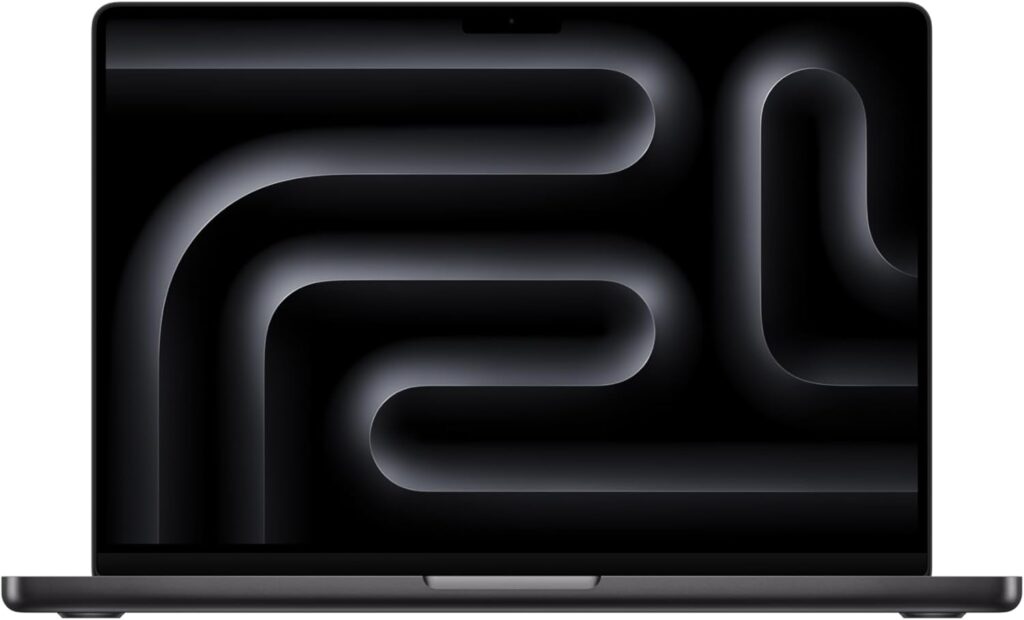
If your workflow is built around KiCad or cross-platform tools, this machine just feels right. Smooth, silent, powerful—and most importantly, consistent.
Key Specs
- Apple M5 Pro / M5 Max chip
- Up to 64GB unified memory
- 14.2” Liquid Retina XDR (super sharp)
- Thunderbolt 5, HDMI, SD card slot
- Outstanding battery life
What I Like
- Ferociously good display for detailed board work
- Battery lasts all day without stress
- Super stable, no random slowdowns
- Quiet even under load
What Could Be Better
- No Altium Designer (Windows only)
- Expensive, no way around it
- Not upgradeable after purchase
👉 Bottom line: If you’re in the Apple ecosystem and using KiCad, this is one of the cleanest experiences you can get.
2. ASUS ProArt P16 — Best Windows All-Rounder

This is the kind of laptop that feels like it was built for engineers and creators at the same time.
Key Specs
- AMD Ryzen AI 9 HX processor
- Up to 64GB RAM
- 16” 3K OLED display (gorgeous)
- RTX GPU options
- Strong port selection (USB4, HDMI, SD)
What I Like
- That OLED screen makes a huge difference
- Handles heavy multitasking easily
- Great balance of power and portability
- Solid build quality
What Could Be Better
- Price climbs fast with upgrades
- Battery is decent, not amazing
- Slightly heavier than ultrabooks
👉 Bottom line: If you’re using Altium and want something modern, powerful, and well-balanced, this is a safe bet.
3. Lenovo ThinkPad P1 Gen 7 — Real Workstation Feel
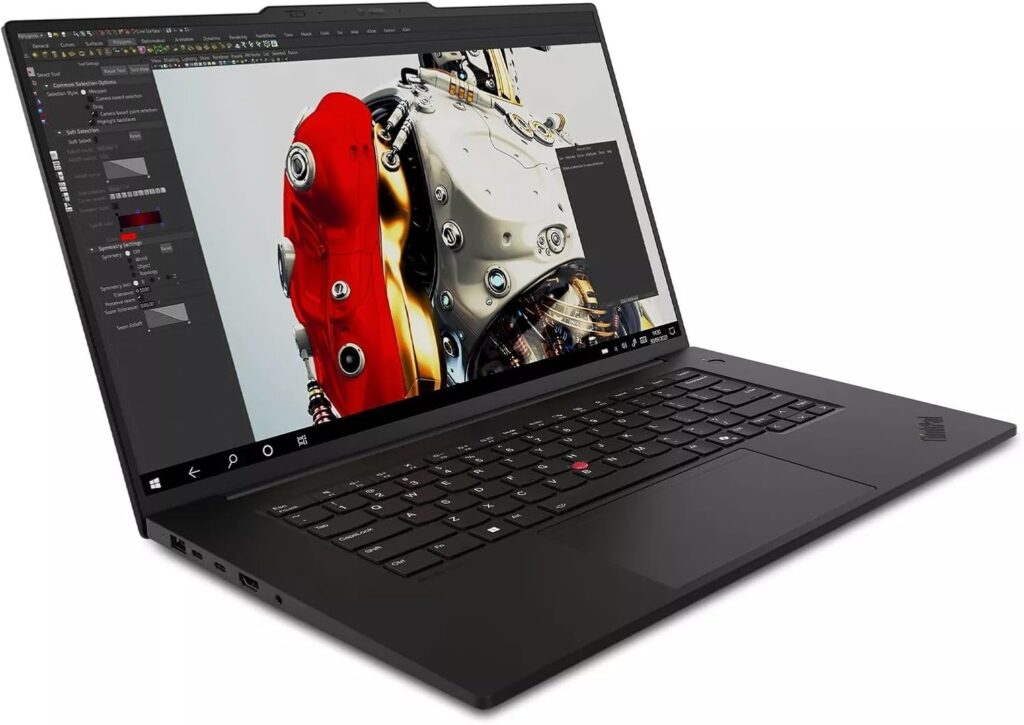
This one is for people who don’t want compromises. It’s not flashy, but it gets serious work done.
Key Specs
- Intel Core Ultra 9 processor
- Up to 64GB RAM
- NVIDIA RTX workstation GPUs
- 16” OLED 4K display
- Classic ThinkPad keyboard (still one of the best)
What I Like
- Feels like a proper engineering machine
- Excellent keyboard for long sessions
- Reliable under heavy workloads
- Tons of configuration options
What Could Be Better
- Price gets high quickly
- Not the lightest option
- Battery life is average
👉 Bottom line: If you want a no-nonsense workstation that just works, this is it.
4. Dell Precision 5690 — Enterprise Powerhouse
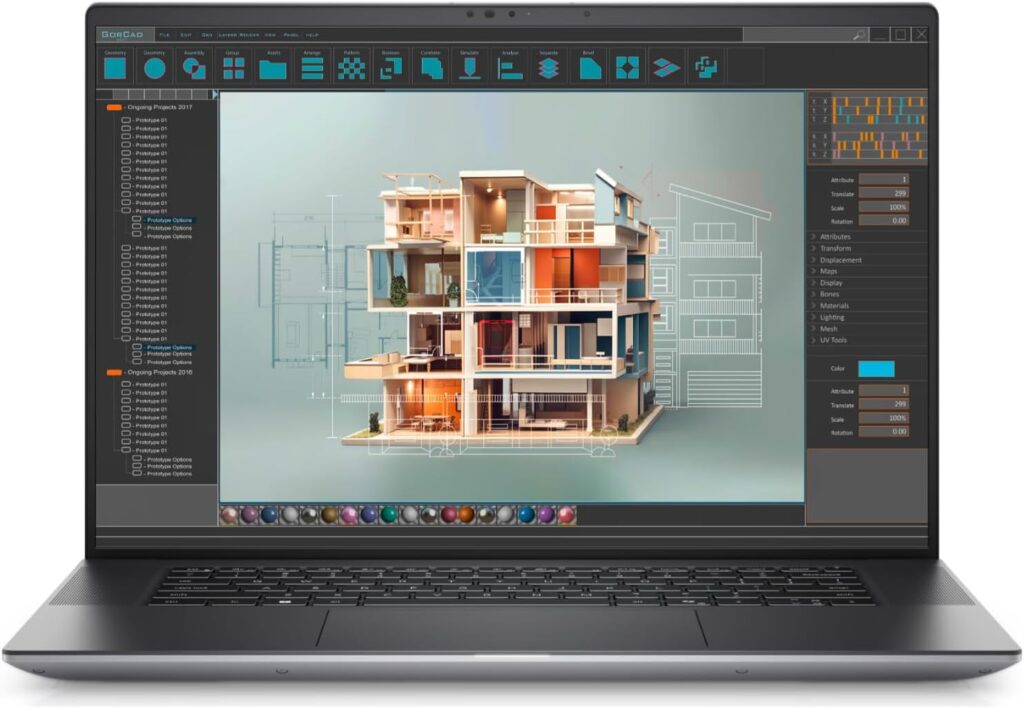
This is the laptop companies hand out to engineers—and there’s a reason for that.
Key Specs
- Intel Core Ultra CPUs
- Up to RTX 5000 Ada GPU
- Up to 64GB RAM
- 16” UHD+ display
- Premium build quality
What I Like
- Extremely stable and reliable
- Great for long-term professional use
- High-end GPU options if you need them
- Clean, premium design
What Could Be Better
- Very expensive
- Overkill for light users
- Base model storage is small
👉 Bottom line: If your work is serious and you want something future-proof, this machine won’t disappoint.
5. ASUS Zenbook 14 OLED — Best Lightweight Option

Not everyone needs a heavy workstation. If you’re doing moderate PCB work, this is a smart, portable choice.
Key Specs
- Intel Core Ultra processors
- Up to 32GB RAM
- 14” 3K OLED display
- Lightweight and compact
- Good port selection
What I Like
- Easy to carry anywhere
- Display quality is excellent
- Good performance for its size
- More affordable than others on this list
What Could Be Better
- No dedicated GPU
- Not ideal for heavy simulations
- Limited upgrade options
👉 Bottom line: Perfect if you want something light, clean, and capable without spending a fortune.
Final Thoughts
Choosing a laptop for PCB design is less about chasing specs and more about knowing your workflow.
- Using Altium Designer? → Go Windows (ProArt P16 or ThinkPad P1)
- Using KiCad or cross-platform tools? → MacBook Pro is a great choice
- Need portability? → Zenbook 14 OLED
- Want maximum power? → ThinkPad P1 or Dell Precision
At the end of the day, the best laptop is the one that doesn’t get in your way.
One Last Thing
You’ve seen the options.
Now I’m curious:
Would you rather carry a heavier workstation that never struggles… or a lightweight laptop that’s easier to live with every day?
How to Choose the Right Laptop for PCB Design
Time needed: 5 minutes
- Know your software first
Before anything else, decide what you’ll actually use. If you’re on Altium, you’ll need a Windows machine. If it’s KiCad or similar tools, you’ve got more flexibility, including macOS.
- Focus on the specs that matter
Don’t get distracted by flashy features. Aim for at least 16GB RAM (32GB if you can), a fast processor, and a sharp display. These will make a bigger difference than RGB lights or ultra-high GPU power.
- Pick a laptop that fits your daily routine
Think about how you actually work. If you’re always on the move, go lightweight. If you sit at a desk and run heavy projects, a workstation-style laptop will save you headaches in the long run.
FAQs
Not always. If you’re working on small or mid-sized projects, a solid mid-range laptop will do just fine. But once your designs get more complex—or you start multitasking heavily—you’ll definitely feel the difference with a stronger machine.
For most people, not really. PCB tools rely more on CPU and RAM. A dedicated GPU only starts to matter if you’re doing heavy 3D work, simulations, or using other demanding software alongside your PCB tools.
If you choose wisely, easily 3–5 years. The key is not to go too cheap on RAM and storage upfront. A slightly higher investment now usually saves you from needing an upgrade way sooner than expected.

Hi, my name is Burak. I am a mechanical engineer. I have been writing laptop reviews for the Engineering Laptops website since 2020. Please feel free to contact me if you have any questions.





