
Estimated reading time: 8 minutes
Key Takeaways
- Choosing the best laptops for Tekla Structures requires powerful CPUs, strong GPUs, ample RAM, and efficient cooling.
- Top picks include Lenovo ThinkPad P16 Gen 3 for performance, HP ZBook Fury G1i 16 for maximum power, and Dell Pro Max 16 Plus for balanced reliability.
- Consider your project size and whether you need portability or high power to match your workflow.
- For those on a budget, the Lenovo ThinkPad P16v Gen 2 offers great value without sacrificing performance.
Table of contents
If you’ve ever tried running Tekla Structures on a weak laptop, you already know the pain—lags, crashes, and that feeling like your machine is fighting you every step of the way.
Tekla isn’t light. It’s one of those programs that pushes your system hard, especially when you’re working on large models, steel detailing, or complex BIM workflows. So choosing the right laptop isn’t just about “good specs”—it’s about getting something that won’t slow you down when it matters most.
In this guide, I’ll walk you through the best laptops for Tekla Structures in 2026. These are real, practical picks—machines that engineers, designers, and students can actually rely on.
What Kind of Laptop Do You Need for Tekla?
Before jumping into the list, let’s keep it simple:
- CPU matters a lot → Go for Intel Core Ultra 7/9 or equivalent
- GPU is critical → NVIDIA RTX (preferably workstation-class)
- RAM is key → 32 GB minimum, 64 GB if you’re serious
- Storage → Fast SSD (Gen4/Gen5 preferred)
- Cooling → Underrated, but extremely important
If your projects are small, you can get away with less. But if you’re dealing with heavy models, connections, or large assemblies, you need real power.
Comparison Table
| Laptop | CPU | GPU | RAM | Weight | Best For |
|---|---|---|---|---|---|
| Lenovo ThinkPad P16 Gen 3 | Core Ultra 9 | RTX PRO 5000 | Up to 192GB | 2.5 kg | Heavy projects |
| HP ZBook Fury G1i 16 | Core Ultra 9 HX | RTX PRO 5000 | Up to 128GB+ | 2.4 kg | Max performance |
| Dell Pro Max 16 Plus | Core Ultra 7 HX | RTX PRO 3000 | Up to 64GB | 2.5 kg | Balanced power |
| Lenovo ThinkPad P1 Gen 7 | Core Ultra 7/9 | RTX 4070 | Up to 64GB | 1.8 kg | Portability |
| Lenovo ThinkPad P16v Gen 2 | Core Ultra 7 | RTX PRO 2000 | Up to 96GB | 2.1 kg | Value pick |
Best Laptops for Tekla Structures in 2026
1. Lenovo ThinkPad P16 Gen 3 — Best Overall for Tekla
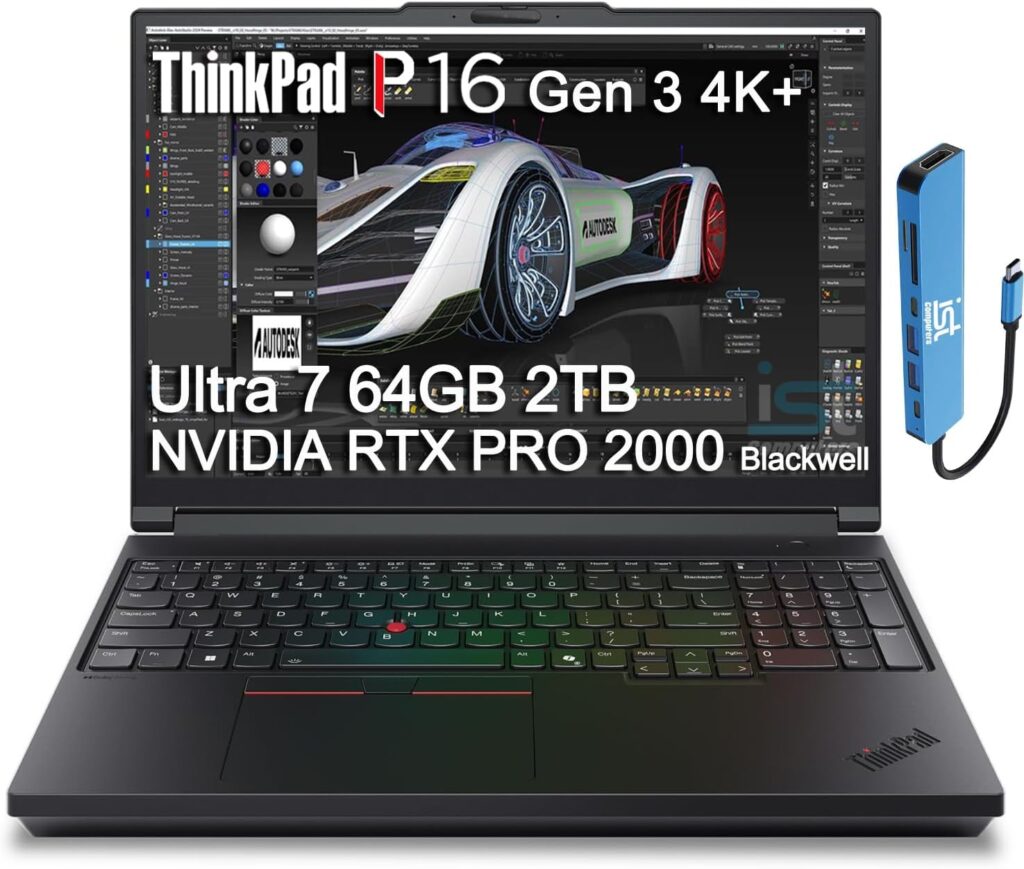
This is the kind of laptop you buy when you don’t want to think twice about performance.
It’s powerful, reliable, and built like a tank. If Tekla is your main tool, this machine will handle anything you throw at it.
Key Specs
- Intel Core Ultra 9 processor
- NVIDIA RTX PRO 5000 GPU
- Up to 192GB RAM
- Multiple SSD slots (PCIe Gen5)
- 16” high-brightness display
What I like
- Handles massive models without choking
- Amazing RAM capacity
- Built for long-term professional use
What I don’t like
- Heavy and bulky
- Expensive
👉 Best for: Engineers working on large-scale, complex projects daily
2. HP ZBook Fury G1i 16 — Maximum Power, No Compromises
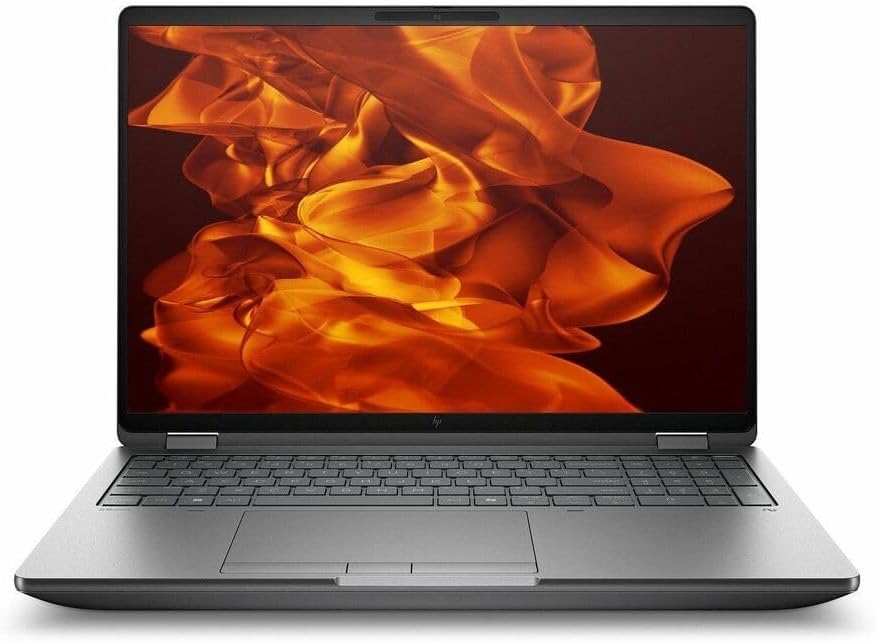
This is basically a desktop replacement. If performance is your top priority, this one delivers.
You can push it hard all day—and it won’t complain.
Key Specs
- Intel Core Ultra 9 HX
- NVIDIA RTX PRO 5000
- Up to 128GB+ RAM
- DreamColor display
- Thunderbolt 5 support
What I like
- Extremely powerful CPU + GPU combo
- Great upgrade options
- Premium display quality
What I don’t like
- Price is high
- Not very portable
👉 Best for: Professionals who want the absolute best performance on the go
3. Dell Pro Max 16 Plus — Balanced and Reliable
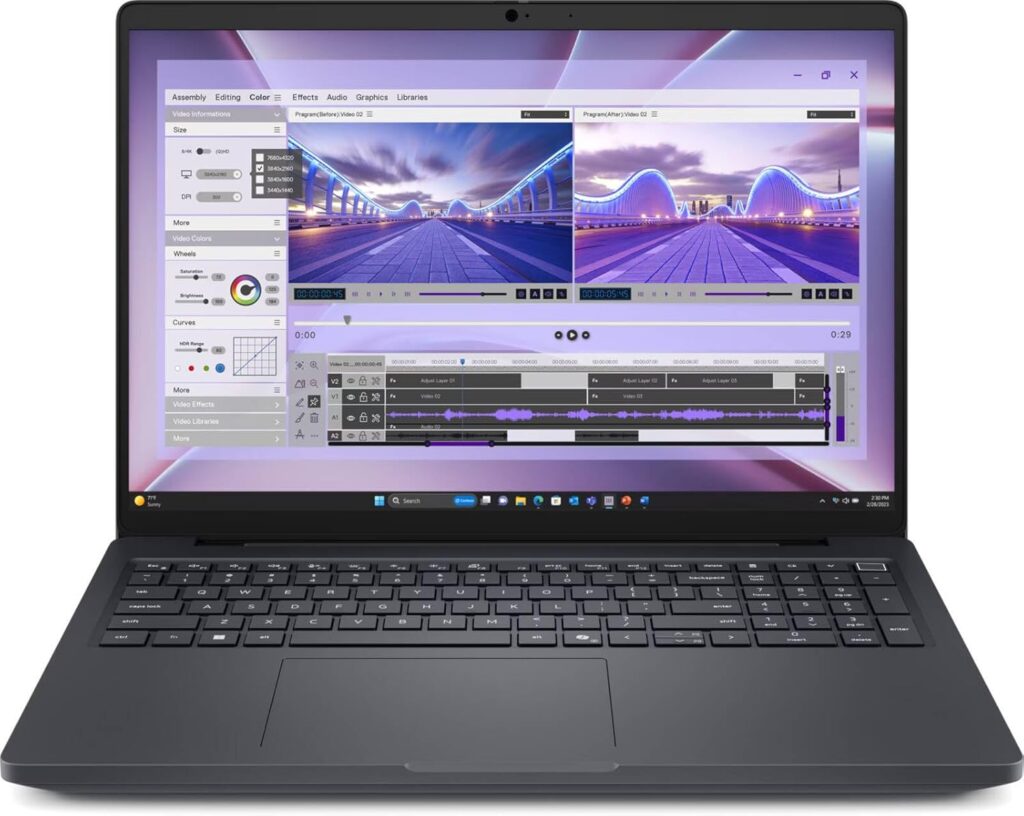
Dell did a good job here. This laptop sits right in the middle—not too extreme, not too basic.
If you want solid Tekla performance without going unbelievable on budget, this is a safe pick.
Key Specs
- Intel Core Ultra 7 HX
- NVIDIA RTX PRO 3000
- Up to 64GB RAM
- Strong port selection
- 16” display
What I like
- Good balance of power and price
- Reliable build quality
- Plenty of ports (great for office setups)
What I don’t like
- Display is just okay
- Not the most exciting design
👉 Best for: Engineers who want stable performance without overspending
4. Lenovo ThinkPad P1 Gen 7 — Best Lightweight Option
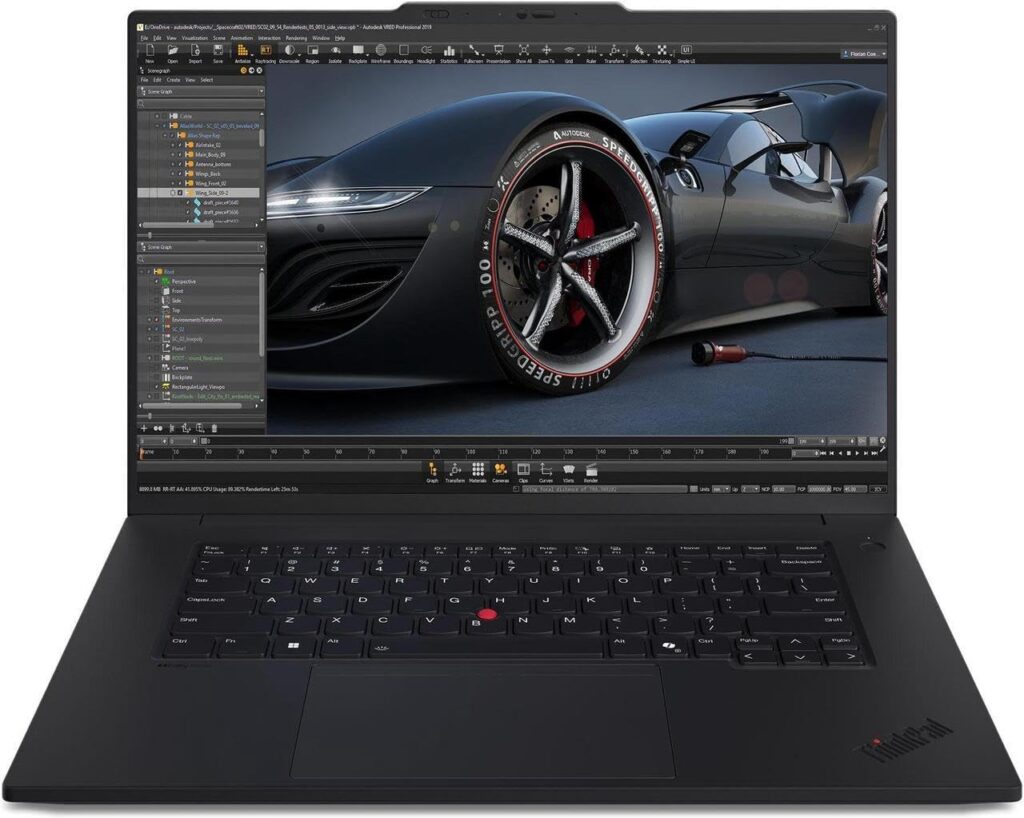
Not everyone wants to carry a brick.
If you move around a lot but still need solid Tekla performance, this one hits a sweet spot.
Key Specs
- Intel Core Ultra 7 / 9
- RTX 4060 / 4070
- Up to 64GB RAM
- Slim and lightweight (1.8 kg)
- OLED display option
What I like
- Easy to carry
- Still powerful enough for most Tekla work
- Premium feel
What I don’t like
- Limited RAM compared to bigger workstations
- Not ideal for very large projects
👉 Best for: Students and mobile professionals
5. Lenovo ThinkPad P16v Gen 2 — Best Value for Money
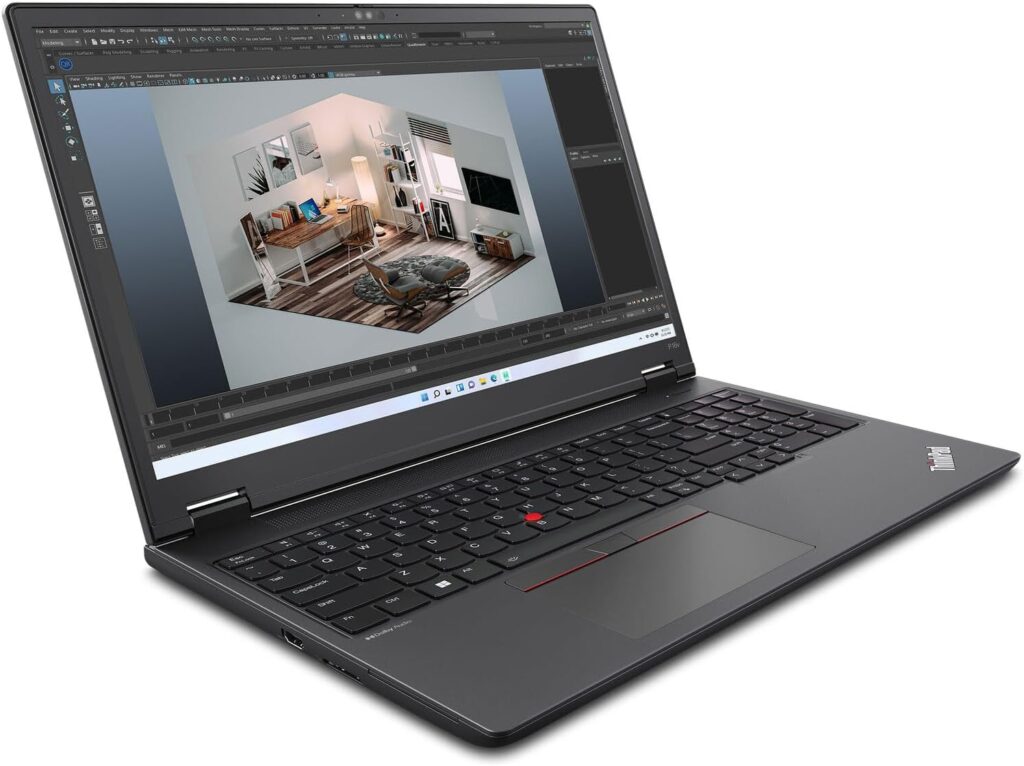
This one is underrated.
It gives you real workstation power without the inexplicable price tag.
Key Specs
- Intel Core Ultra 7
- RTX PRO 2000
- Up to 96GB RAM
- Dual SSD support
- 16” display
What I like
- Great price/performance ratio
- High RAM ceiling for the price
- Solid all-around performance
What I don’t like
- Still a bit heavy
- Base models are not very strong
👉 Best for: Budget-conscious professionals who still need serious power
Final Thoughts
Here’s the truth: there’s no “one-size-fits-all” laptop for Tekla.
- If you want zero compromises, go for ThinkPad P16 Gen 3 or ZBook Fury
- If you want balance, pick the Dell Pro Max 16 Plus
- If you want portability, go with ThinkPad P1 Gen 7
- If you want value, the P16v Gen 2 is hard to beat
At the end of the day, the best laptop is the one that matches your workflow, your projects, and your budget.
Now I’m curious:
Are you working on small Tekla models, or are you dealing with massive, heavy projects that push your system to the limit?
How to Choose the Right Laptop for Tekla Structures
Time needed: 5 minutes
Picking a laptop for Tekla isn’t just about numbers on paper. It’s about finding a machine that can keep up with your workflow without slowing you down. Here’s a simple way to make the right choice without overthinking it.
- Focus on the Core Hardware (CPU, GPU, RAM)
Start with the essentials. Tekla relies heavily on CPU performance and benefits a lot from a strong NVIDIA RTX GPU. Aim for at least 32GB RAM—this is where things start to feel smooth, especially on bigger models.
- Think About Your Project Size
Be honest with yourself here. If you’re working on small to medium projects, you don’t need a monster machine. But if your models are large and detailed, investing in higher RAM and a workstation GPU will save you a lot of time and frustration later.
- Balance Power, Portability, and Budget
Not everyone needs a heavy workstation. If you’re always on the move, a lighter model might make more sense. If you mostly work at a desk, go for raw power. The sweet spot is finding something that fits your daily routine without pushing your budget too far.
FAQs
Yeah, it can—but not all gaming laptops are a good fit. If it has a strong RTX GPU and enough RAM (at least 32GB), you’ll be fine for most tasks. That said, workstation laptops are usually more stable for long, heavy sessions.
Honestly, it’s the bare minimum. You can run Tekla with 16GB, but once your models get bigger, you’ll start to feel the limits. If possible, go for 32GB or more—it just makes everything smoother.
Not always. For smaller projects, a regular RTX 4060 or 4070 can do the job. But if you’re working on complex models every day, a workstation GPU is more reliable and better optimized for this kind of work.

Hi, my name is Burak. I am a mechanical engineer. I have been writing laptop reviews for the Engineering Laptops website since 2020. Please feel free to contact me if you have any questions.





