Last updated: September 5, 2026
Table of contents
- The short version
- How I put this together
- What your program is actually going to run
- Best Laptop for Radiology Tech Students in 2026: 5 I’d Actually Buy
- 1. Apple MacBook Air 13″ (M5) — the one I’d hand to most students
- 2. Lenovo ThinkPad X1 Carbon Gen 14 — for schedules that don’t let up
- 3. HP OmniBook Ultra 14 (2026) — the best all-round Windows machine
- 4. Dell XPS 14 (2026) — best color accuracy, fastest chip
- 5. ASUS Zenbook S14 (2026) — the best screen, and near-silence on demand
- All five, measured side by side
- The thing nobody tests: screen flicker
- The second thing nobody tests: grayscale accuracy
- What actually matters when you’re shopping
- Mac or Windows?
- The setup I’d actually build
- Questions I get asked a lot
- Where I’d land
- Sources
Every “best student laptop” list I read assumes the same student. Business major. Sits in a lecture hall. Opens a browser. Goes home. Charges at a desk.
That’s not you.
You’re up at 5 a.m. for a clinical rotation forty minutes away. You spend eight hours on your feet in a department where every outlet is behind a portable or occupied by something you’re definitely not allowed to unplug. You log competencies into Trajecsys between patients. Then you get home, open a 900-page scanned copy of Merrill’s, and grind through positioning critiques until your eyes give out. Twenty-one months of that.
So the specs that matter to you are strange ones. Honest battery life, not the number on the box. A screen you can read in a corridor lit like an operating room and again at midnight in a dark bedroom without your head pounding. A chassis that survives a backpack full of lead markers and a metal water bottle.
I’ve spent the past few weeks pulling every published lab measurement I could find on this year’s 14-inch laptops and re-scoring them against what a rad tech program actually asks of a machine. Five picks below, one per brand, all current 2026 models. Every number I quote comes from a named testing lab and I link to all of them at the bottom.
The short version
| Pick | Best for | The number that sold me | Price |
|---|---|---|---|
| Apple MacBook Air 13″ (M5) | Most students | 16h 11m battery at 150 nits, zero screen flicker | $1,099 |
| Lenovo ThinkPad X1 Carbon Gen 14 | Brutal clinical schedules | 23h 13m battery from a 58 Wh cell | ~$2,249 |
| HP OmniBook Ultra 14 (2026) | Best all-round Windows machine | 25 hours in XDA’s looped test | $1,699 |
| Dell XPS 14 (2026) | Best color accuracy and raw speed | ΔE 1.27 out of the box, 974 Cinebench 2024 | $1,599 |
| ASUS Zenbook S14 (2026) | Best OLED, quietest running | ΔE 1.0 panel, 28 dB(A) in Whisper mode | $1,899 |
If you want one sentence: buy the MacBook Air M5 unless your program requires Windows software, and check that before you spend a dollar.
How I put this together
Let me be straight with you about where these numbers come from, because you deserve to know.
I don’t have a $3,000 colorimeter and a soundproofed test room. What I do have is a lot of experience reading laboratory results and knowing which ones are trustworthy. So I pulled published, repeatable measurements from labs that use standardized equipment and publish their methodology, then re-weighted everything for one specific person: a radiologic technology student.
The hard data comes from Notebookcheck (X-Rite i1Pro 3 display measurements, CalMAN calibration analysis, Wi-Fi battery runtime locked to 150 nits, Fluke t3000FC thermal readings, Earthworks M23R noise measurement at 15 cm), Tom’s Hardware, Engadget, PCWorld, Macworld, Gizmodo and XDA. All linked at the end.
What I brought to it is the weighting. I scored these on:
- Battery at a fixed, realistic brightness. 150 nits, not 100 nits with the keyboard backlight off.
- Measured brightness, not the number printed on the spec sheet. One of these five is 111 nits dimmer than advertised.
- PWM flicker. The thing almost nobody tests and everybody in imaging should care about.
- Grayscale accuracy. Radiographs are gray. Not “mostly gray.” Gray. Every review on earth reports color gamut coverage, which tells you nothing useful here.
- Fan noise floor. Quiet rooms are a real thing in this field.
- Weight including the charger, because that’s what you actually carry.
- Warranty length and build standards, because 21 months is a long time and this thing is going to get dropped.
One thing I want to say plainly before we start. None of these is a diagnostic display. Primary interpretation happens on FDA-cleared, DICOM Part 14 GSDF-calibrated medical monitors that get QC’d on a schedule. Nothing on this page replaces that and you shouldn’t want it to. What you need is a study machine that’s good enough that when you’re holding your AP axial next to a textbook reference, the anatomy is clear and the contrast isn’t lying to you.
What your program is actually going to run
This is the section that decides whether you overspend by $800.
Clinical documentation. Trajecsys is the one most programs use, and it typically runs you $150 to $200 for the two years. E-Value is the other common one. Both are browser-based. Neither is a reason to buy a fast laptop.
Your LMS. Canvas, Blackboard, Brightspace. Browser. Also not demanding.
Registry review software. Here’s where it gets specific, and here’s where people get burned. A lot of programs require a mock-registry package or a standardized exam suite, and some of those are Windows-only desktop applications, or they use a locked-down proctoring browser that has spotty macOS support. Email your program director and ask, in writing, exactly what you’ll be required to install and whether it runs on Mac. Do this before you buy anything. I’ve watched too many students discover the problem in week three.
Remote PACS. Some clinical sites hand students read-only PACS access through Citrix or a VPN client. Citrix Workspace runs on macOS and Windows both, so this is usually fine. Ask anyway.
DICOM viewers for self-study. Free options are Horos and Weasis on Mac, RadiAnt and Weasis on Windows. All of them run comfortably on any laptop in this article with 16 GB of RAM.
The actual heavy lifter: PDFs. This surprises people every time. Your Merrill’s, your Bontrager, your image analysis text — these are enormous, image-dense scanned files. Scrolling a big atlas hammers a laptop harder than anything else in the curriculum, and it’s exactly what makes a cheap machine feel miserable by month four.
Storage. Between textbooks, recorded lectures, your own study images and the OS, 256 GB gets tight fast. 512 GB is the floor. Good news for 2026 buyers: Apple finally made 512 GB standard on the Air, and most Windows machines at this tier ship with 512 GB or 1 TB.
RAM. 16 GB. Don’t accept 8 GB. Don’t pay for 32 GB unless you’re editing video on the side or planning to keep this machine through a CT or MRI advanced program. Four of the five laptops here solder the memory, so what you buy on day one is what you have forever.
Best Laptop for Radiology Tech Students in 2026: 5 I’d Actually Buy
1. Apple MacBook Air 13″ (M5) — the one I’d hand to most students
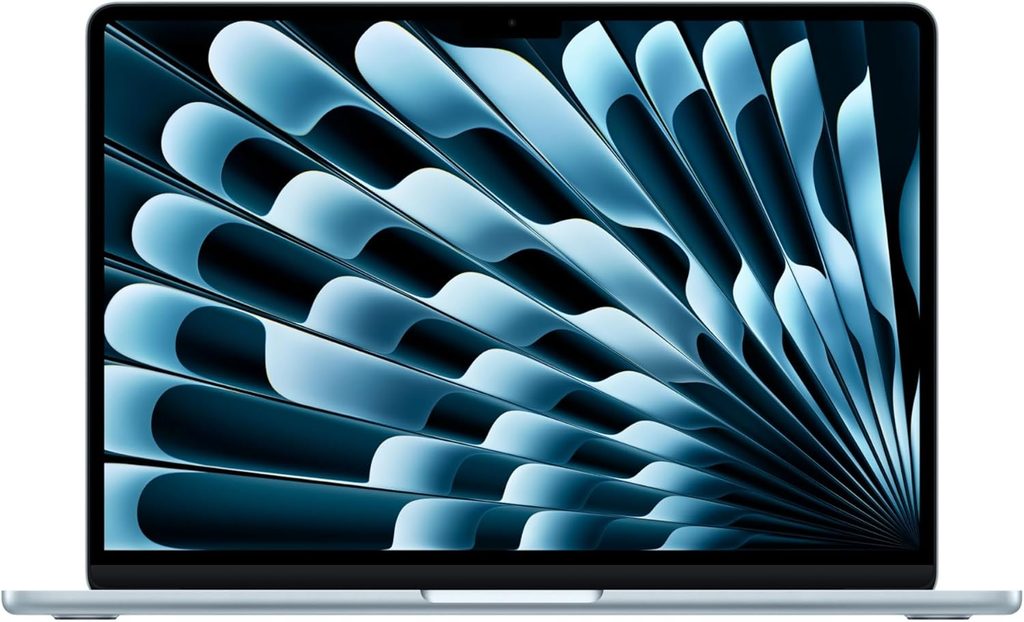
Verdict: silent, cool, absurdly efficient, and finally configured sensibly at the base price. This is the default answer.
Apple launched the M5 Air on March 11, 2026, and the important change wasn’t the chip. It was storage. The base model now ships with 16 GB of unified memory and a 512 GB SSD for $1,099, up from 256 GB last generation. That single move took this from “nice if you can afford it” to “the one I recommend.”
Specifications
| Chip | Apple M5, 10-core CPU / 8-core GPU (10-core GPU on higher configs) |
| Memory | 16 GB unified, 24 GB optional |
| Storage | 512 GB PCIe 4.0 SSD, up to 1 TB |
| Display | 13.6″ Liquid Retina IPS, 2560 × 1664, 60 Hz |
| Battery | 53.8 Wh |
| Weight | 1.24 kg (2.73 lb) |
| Cooling | Fanless |
| Camera | 12 MP Center Stage |
| Ports | 2× Thunderbolt 4, MagSafe, 3.5 mm |
| Warranty | 1 year |
| Price | From $1,099; street prices have dipped to $899–$950 |
What the labs measured
Battery. Notebookcheck’s Wi-Fi test at a fixed 150 nits ran 16 hours 11 minutes. At maximum brightness that collapses to 6 hours 39 minutes, which is a useful reminder that brightness is the single biggest lever on any laptop’s runtime. Macworld ran a looped downloaded movie at 150 nits and got 18 hours 24 minutes. Tom’s Hardware’s mixed browsing, streaming and light OpenGL test at 150 nits landed at 15 hours 28 minutes. Three labs, three protocols, all comfortably past a full clinical day.
Performance. Notebookcheck recorded Geekbench 6.7 at 4,185 single-core and 17,072 multi-core, with Cinebench 2024 at 200 single-core and 957 multi-core. Gizmodo independently got 4,172 / 17,157 in Geekbench 6, which is close enough to call it confirmed. That 200-point Cinebench single-core figure is the headline: it’s 62% ahead of the Core Ultra 9 386H in the ASUS Zenbook S14 and 77% ahead of the ThinkPad’s Core Ultra 5. Single-core speed is what you feel when you scroll a huge PDF or a heavy page loads.
Storage. Macworld noted that Apple roughly doubled SSD throughput this generation, moving from around 3 GB/s to about 6 GB/s. In practice, big files open instantly.
Where it gives ground. It’s fanless, so it throttles on sustained loads. Tom’s Hardware watched the Cinebench 2026 stress test start at 3,415 and settle into the low 2,300s over repeated runs. For coursework, DICOM viewing and video lectures you’ll never see this. If you were exporting video for eight straight hours, you’d want a Pro.
Display. Notebookcheck measured 546 nits at center, 519 nits average, 1437:1 contrast, with 98.6% sRGB and 98.1% DCI-P3 coverage. Grayscale accuracy came in at ΔE 3.3 and ColorChecker at ΔE 2.1, with a slightly cool 7127 K white point. Critically for this audience: Notebookcheck found no PWM flicker at any brightness. Their own verdict called out that they don’t mind the IPS panel precisely because it isn’t affected by flicker.
Thermals. Tom’s Hardware measured the keyboard center at 105.1 °F (40.6 °C), the touchpad at 96 °F and the hottest point on the bottom at 107.9 °F, with the M5 chip itself at 63.24 °C. Notebookcheck’s numbers agree: 44.1 °C top, 42.4 °C bottom at full load, drawing a maximum of 30.4 watts.
Charging. It ships with Apple’s 40 W Dynamic Power Adapter, which Macworld found charges at close to 60 W until about 80%. It supports fast charging but needs a 70 W or larger brick to hit it.
What’s good
- Fastest single-core performance here by a wide margin, which is the number that matters for your workload
- No PWM flicker. One of only two machines on this list where that’s true
- Genuinely silent. No fan means nothing to whine at you in a library or a reading room
- 16 GB / 512 GB at $1,099, regularly discounted to around $900
- Draws a maximum of 30.4 W, so a tiny 35 W GaN brick charges it. Real weight saved in your bag every day
- 12 MP Center Stage camera is the best webcam in this comparison
- Holds resale value better than anything else here
What’s not
- 60 Hz display. The only laptop here without a high-refresh option, and it feels dated when you scroll
- macOS compatibility risk. This is the real one. Verify your registry-prep and proctoring software first
- Only two Thunderbolt ports and MagSafe. You’ll want a hub
- One-year warranty. Shortest here by a mile
- RAM and SSD are soldered. No upgrades ever
- Only 6 hours 39 minutes at full brightness, so use the ambient light sensor
In a clinical week
This is the machine that goes in the bag and stops being a thought. Under 2.8 pounds, dead silent, and 16 hours of measured runtime means you leave the charger home on rotation days. The 13.6-inch footprint is genuinely more comfortable to work on in a cramped break room than a 14-inch Windows machine.
The one thing that stops me recommending it universally: if your mock registry software is Windows-only, everything above is irrelevant.
2. Lenovo ThinkPad X1 Carbon Gen 14 — for schedules that don’t let up
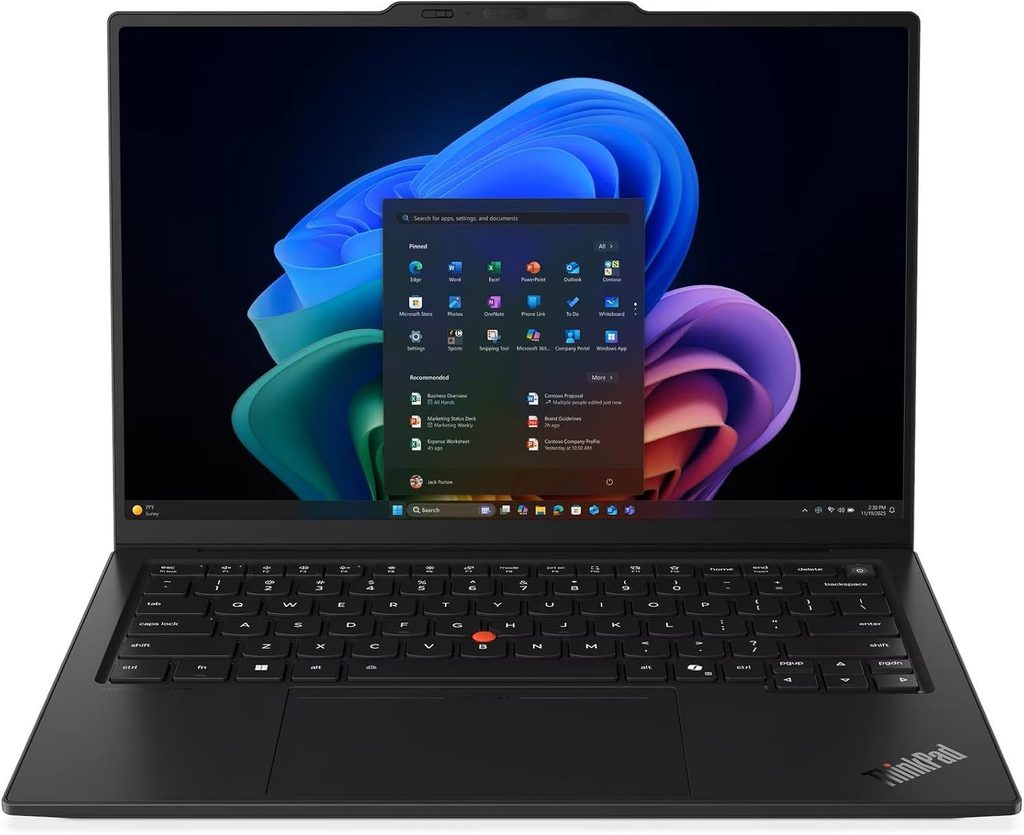
Verdict: the longest-running laptop here by roughly seven hours, and one of only two with a completely flicker-free screen. Expensive. Worth it if the budget’s there.
I’m going to say something that sounds backwards: buy the boring IPS screen, not the OLED. The measurements make that case emphatically.
Specifications
| CPU | Intel Core Ultra 5 325 (Panther Lake, 8C/8T, 35 W) up to Core Ultra X7 368H |
| Memory | 32 GB LPDDR5x-7467 minimum, up to 64 GB, soldered |
| Storage | 512 GB Samsung PM9C1b, replaceable M.2 2280, PCIe 5.0-capable slot |
| Display | 14″ 1920 × 1200 IPS touch, 60 Hz (2880 × 1800 120 Hz OLED optional) |
| Battery | 58 Wh |
| Weight | 1.139 kg (2.51 lb) IPS touch; 989 g for the OLED model |
| Ports | 3× Thunderbolt 4, USB-A 3.2, HDMI 2.1, 3.5 mm |
| Durability | MIL-STD-810H, carbon fiber lid |
| Extras | Optional 4G/5G modem, Wi-Fi 7, 5 MP IR webcam |
| Warranty | 36 months |
| Price | From ~$2,249 direct; street from ~$1,899 |
What the labs measured
Battery, and this is the whole story. Notebookcheck measured the IPS model at 23 hours 13 minutes in their Wi-Fi browsing test at 150 nits, and 14 hours 14 minutes at maximum brightness. From a 58 Wh battery. That’s the best result in this entire comparison and it isn’t close.
Now the OLED version. Same battery, same chassis: 13 hours 30 minutes at 150 nits, and roughly 7 hours 30 minutes at full brightness. You give up almost ten hours of runtime for a prettier panel. On a day where you’re charging in a car and a break room, that’s the difference between fine and dead at 3 p.m.
Display. The IPS panel measured 546 nits maximum, 524 nits average, 1800:1 contrast with a 0.3 cd/m² black level and 99.1% sRGB coverage. And Notebookcheck detected no PWM flicker at any brightness setting.
The catch, and I want to be honest about it: factory calibration is bad. ColorChecker came in at ΔE 5.0 and grayscale at ΔE 8.3, with a visible green-blue cast. Notebookcheck’s read is that Lenovo tuned it that way to inflate the brightness number. Their free ICC profile fixes it — calibrated ColorChecker drops to ΔE 1.1 — at the cost of nearly 100 nits. For studying grayscale anatomy I’d take that trade every time. It’s a five-minute download and it’s free.
Performance. The Core Ultra 5 325 config scored 645 Cinebench 2024 multi-core / 113.3 single-core, Cinebench R23 at 10,980 / 1,892, Geekbench 6.7 at 11,038 / 2,620, PCMark 10 at 7,709 and CrossMark at 1,675. Those are mid-pack numbers. This is the slowest laptop here and for rad tech coursework it does not matter in the slightest.
Storage. The Samsung PM9C1b hit 6,900 MB/s sequential read and 5,762 MB/s write in CrystalDiskMark, with a 0.058 ms read access time and no throttling across a sustained DiskSpd loop (average 6,954 MB/s).
Noise and heat. 24.8 dB(A) at idle, 38.9 dB(A) at full load in Best Performance, and just 29 dB(A) in Best Efficiency mode. Surfaces peaked at 40.7 °C on top and 42.8 °C on the bottom, with palm rests at a cool 28.7 °C.
Networking. Wi-Fi 7 pushed 4,557 Mbit/s transmit and 3,244 Mbit/s receive on a matching router. Fastest here.
What’s good
- 23 hours 13 minutes measured. Nothing else is remotely close
- No PWM flicker on the IPS panel
- MIL-STD-810H tested chassis, carbon fiber lid, built to survive a student’s daily carry
- Best keyboard on any laptop, 1.5 mm travel, plus a haptic touchpad and TrackPoint
- 32 GB RAM is the minimum configuration
- Three Thunderbolt 4 ports plus USB-A and HDMI 2.1. No dongle needed, ever
- Optional 5G modem, so you can chart from a hospital parking lot with no Wi-Fi
- 36-month warranty as standard. Three times the MacBook’s
- Easy access to the SSD for later upgrades
What’s not
- Expensive. Realistically $1,900 to $2,300
- Grayscale ΔE 8.3 out of the box. You must install a calibration profile on day one
- Soldered RAM
- The camera bump on the lid is genuinely ugly
- Weakest CPU performance for the money by a distance
- Skip the OLED. It costs you ten hours of battery
In a clinical week
If your program bounces you between three sites with unpredictable outlet access, this is the machine. Charge it Sunday night and you might not plug in again until Wednesday. Add a keyboard that doesn’t punish you during a four-hour writing session and a chassis rated for real abuse, and the price starts reading as a four-year investment instead of a two-year one.
3. HP OmniBook Ultra 14 (2026) — the best all-round Windows machine
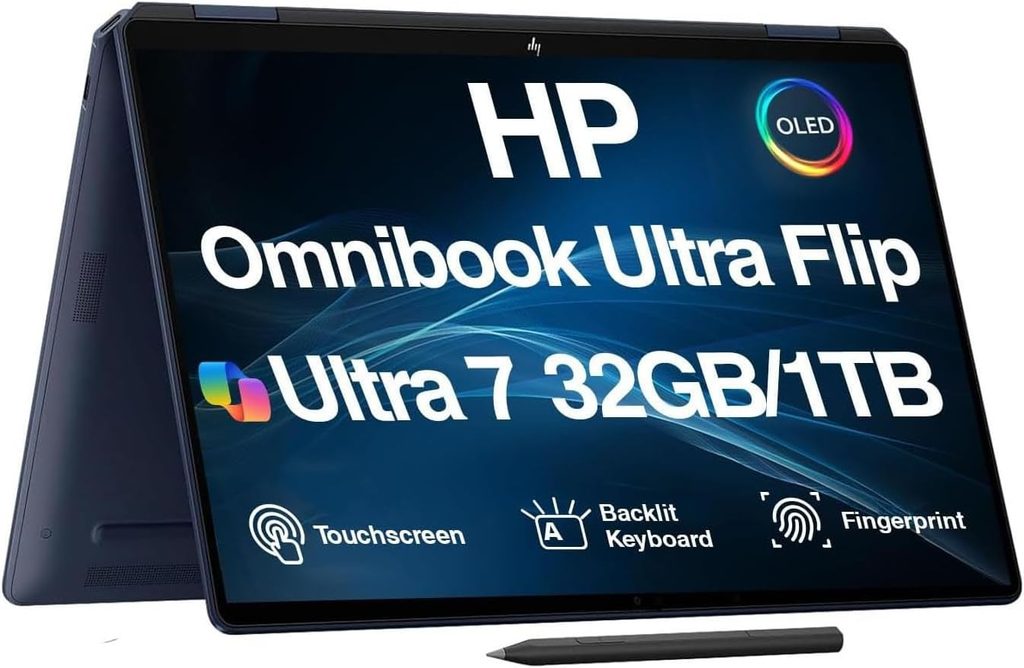
Verdict: HP redesigned this thing properly. Great OLED, huge battery, top-tier performance, high-frequency dimming. The price is the only argument against it, and there’s a cheaper sibling if that’s a problem.
Notebookcheck’s headline on the redesign was that it’s “fully redesigned and so much better than before.” The 2024 model got criticized for a 60 Hz IPS panel and a bulky body. For 2026 every configuration ships with a 120 Hz OLED in a 10.6 mm chassis.
Specifications
| CPU | Intel Core Ultra 5 338H / Core Ultra 7 356H / Core Ultra 9 386H / Core Ultra X9 388H |
| GPU | Intel Arc B390 (12 Xe3 cores) on X-series chips |
| Memory | Up to 64 GB LPDDR5x-9600 |
| Storage | M.2 PCIe Gen 5, up to 2 TB |
| Display | 14″ 2880 × 1800 OLED touch, 120 Hz VRR |
| Battery | 70 Wh, 65 W USB-C charging |
| Weight | 1.27 kg (2.8 lb), 10.6 mm thick |
| Ports | 3× USB4 / Thunderbolt 4, 3.5 mm |
| Camera | 5 MP with IR |
| Price | From $1,699.99; Core Ultra X9 / 32 GB / 1 TB listed at Best Buy for $2,199.99 |
What the labs measured
Battery. XDA ran their standard looped test at 200 nits and got 25 hours. Read that again: 25 hours at 200 nits, which is a brighter setting than most standardized tests use. PCWorld’s 4K video loop returned over 18 hours. Two independent labs, two protocols, both extraordinary.
Display. Notebookcheck measured the Samsung OLED at 446 nits center, 447 nits average, 99% uniformity, with 100% sRGB, 99.9% DCI-P3 and 92.3% AdobeRGB coverage. Accuracy is excellent out of the box: grayscale ΔE 2.3, ColorChecker ΔE 1.76, gamma 2.25, 6470 K white point. PWM measured at 927 Hz, which is high enough that most flicker-sensitive people won’t perceive it.
Performance. With the Core Ultra X9 388H, Notebookcheck recorded PCMark 10 at 9,939 — the highest Windows score in this comparison — plus Cinebench 2024 at 1,002 multi-core / 129 single-core, Cinebench R23 at 17,663 / 2,213, Geekbench 6.7 at 16,568 / 3,027 and CrossMark at 2,048. CGMagazine independently measured Cinebench 2024 at 1,025 on their unit.
Graphics. 3DMark Fire Strike Graphics at 16,347 and Time Spy Graphics at 6,288, from integrated graphics. Wildly more than you need, and useful if you drift toward 3D reconstruction work later.
Storage. The fastest drive here: 10,314 MB/s sequential read in DiskSpd at queue depth 8, 8,967 MB/s write, and an AS SSD total score of 6,029 with a 0.042 ms read access time.
Heat and power. Under full load the top hit 40.2 °C and the bottom 44.2 °C — the coolest top surface of any Windows machine here. Idle draw was 2.5 W, load average 49.8 W, maximum 68 W.
Speakers. Notebookcheck’s audio analysis put it at 85.3 dB(A) with balanced mids and highs, and ranked it better than 99% of all laptops they’ve tested in its class. Best speakers in this roundup by a clear margin, which matters more than you’d think for recorded lectures.
What’s good
- 25 hours in XDA’s looped test. Nothing else here touches that under a bright-screen protocol
- Excellent, well-calibrated OLED at grayscale ΔE 2.3 with no adjustment needed
- 927 Hz PWM, high enough for most flicker-sensitive users
- Fastest storage in this comparison by a huge margin
- Coolest-running top surface of any Windows laptop here at 40.2 °C
- Best speakers on the list
- 10.6 mm thick and 2.8 pounds despite a 70 Wh battery
- Haptic trackpad with no mechanical parts to wear out
What’s not
- $1,699.99 to start, and the X9 configuration is $2,199.99 at Best Buy
- Three USB-C ports and a headphone jack. That’s it. No HDMI, no USB-A, no SD reader. You will carry a dongle to clinicals
- XDA’s own advice is that the X9 chip isn’t worth its $810 premium over the Ultra 7, and they’re right
- The 5 MP webcam is fine, not great
- Soldered memory
The cheaper sibling worth knowing about
If $1,699 is out of reach, HP’s OmniBook X (2026) is the same idea for a lot less. Engadget scored it 9/10 and measured 18 hours 25 minutes in the PCMark 10 Modern Office battery benchmark, which is a genuinely demanding test rather than a video loop. It has the same 14-inch 3K OLED at 500 nits SDR and 1,100 nits HDR with 100% DCI-P3 coverage, at 120 Hz. It weighs 2.9 pounds, it’s 12.6 mm thick, and unlike the Ultra it has USB-C and USB-A on both sides plus HDMI. Engadget measured charging to 50% in 46 minutes with the bundled 65 W GaN brick. List price is $1,400, and at the time of their review it was on sale for $900 with a Core Ultra 5 and 16 GB.
For a rad tech student on a budget, that $900 configuration plus a $200 external monitor is a better setup than any single $2,000 laptop. I mean that.
4. Dell XPS 14 (2026) — best color accuracy, fastest chip
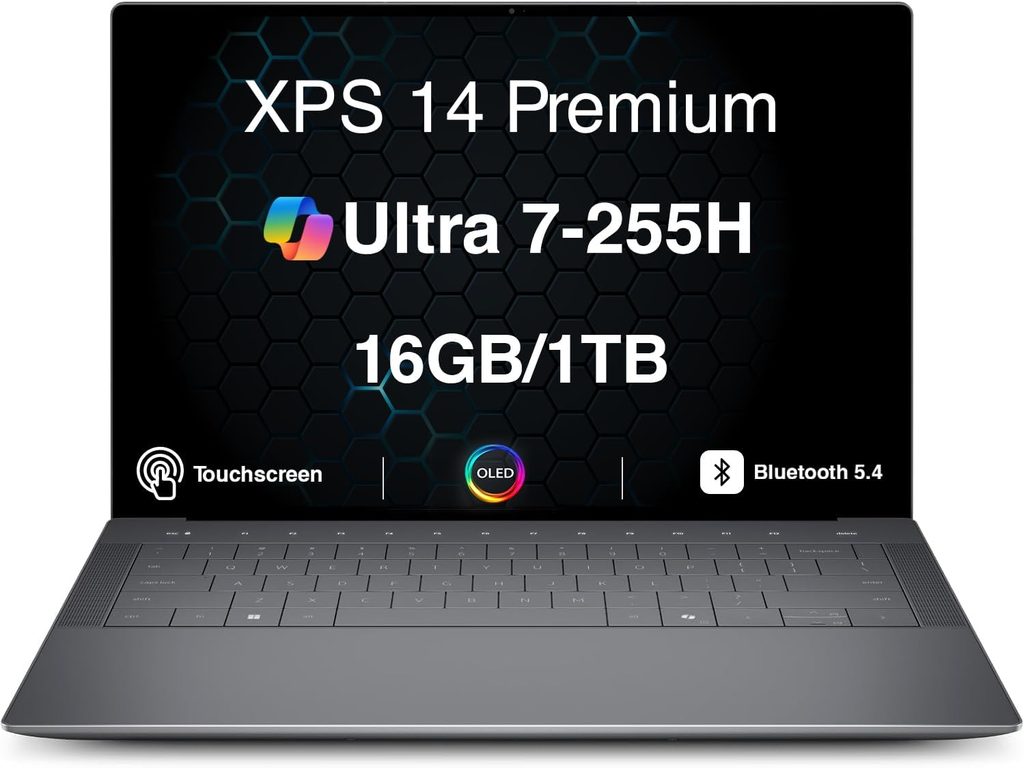
Verdict: a properly fixed XPS after a rough couple of years, and the most capable machine here. One measurement gives me real pause for this audience.
Notebookcheck scored it 87% and called it the most refined revision the series has had. Dell fixed the things people hated. The touch-sensitive function row is gone, replaced by actual keys. The invisible trackpad now has visible edges. The webcam went from 2 MP to 8.3 MP. The chassis is stiffer.
Specifications
| CPU | Intel Core Ultra 5 325 base, up to Core Ultra X7 358H / X9 388H |
| GPU | Intel Arc B390 (12 Xe3 cores) on X-series chips |
| Memory | 16 GB base, up to 32 GB LPDDR5x-9600 |
| Storage | 512 GB base, up to 1 TB Samsung PM9C1b |
| Display | 14″ 1920 × 1200 matte non-touch, 500 nits, 1–120 Hz or 2880 × 1800 glossy OLED touch, 20–120 Hz VRR |
| Battery | 70 Wh |
| Weight | 1.444 kg (3.18 lb) |
| Ports | 3× Thunderbolt 4, 3.5 mm |
| Camera | 8.3 MP / 4K with Windows Hello |
| Warranty | 12 months in the US |
| Price | $1,599 base; ~$2,199 as reviewed |
What the labs measured
Display accuracy. This is the best-calibrated panel in the group. Notebookcheck measured ColorChecker ΔE 1.27 and grayscale ΔE 2.0 straight out of the box, gamma 2.19, 6379 K white point, with 100% sRGB, 99.7% DCI-P3 and 98.2% AdobeRGB coverage. Their assessment was that calibrating it further would only improve things marginally. HDR peak brightness hit 1,104 nits.
But brightness is well under spec. Dell rates the OLED at 500 nits. Notebookcheck measured 396.1 nits maximum, 389 nits average. That’s a 111-nit gap and it makes this the dimmest screen in the comparison. Behind a glossy Gorilla Glass overlay, in a fluorescent-lit corridor, you’ll notice.
And the flicker. Notebookcheck detected PWM at 240.62 Hz with 29% amplitude, present at 100% brightness and below. Their standing warning at that frequency is that sensitive users will likely notice flickering and experience eyestrain. For someone who’s about to spend two years reading grayscale images eight hours a day, this is the single thing keeping the XPS out of my top spot. More on why in a minute.
Performance. Fastest laptop here. Cinebench 2024 at 974 multi-core / 125.5 single-core. Cinebench 2026 at 3,990 multi / 514 single-thread. Cinebench R23 at 18,932 / 2,086. Geekbench 6.7 at 17,121 / 2,927. PCMark 10 at 9,880. CrossMark at 1,955. 3DMark Time Spy hit 7,546 and Fire Strike 14,336, meaning the integrated Arc B390 roughly matches a discrete RTX 4050 from two years ago.
There is throttling. Notebookcheck found multi-thread performance dropped by as much as 25% across a looped Cinebench R15 run, averaging 2,340 points against a 3,135 peak. Irrelevant for coursework, worth knowing if you edit video.
Storage. Samsung PM9C1b at 7,094 MB/s sequential read and 5,109 MB/s write, with essentially zero throttling across a sustained read loop (average 7,012 MB/s). AS SSD total score 5,466.
Battery, and it depends entirely on which panel you pick:
- Notebookcheck, Wi-Fi test at 150 nits, OLED: 16 hours 45 minutes
- Tom’s Hardware, their battery test, 1920 × 1200 panel: 20 hours 41 minutes
- Tom’s Hardware, same test, 2880 × 1800 OLED: 12 hours 23 minutes
The pattern repeats across every laptop in this article. The 1200p panel buys you hours.
One trap: Tom’s Hardware flagged that Dell ships the XPS 14 with an adaptive charge mode that can stop charging at 80% if it’s plugged in for more than 12 hours, and changing it means going into the BIOS. Good for long-term battery health, confusing if nobody tells you.
Speakers. Notebookcheck measured 86.2 dB(A) from the quad array (3 W × 2 plus 2 W × 2) with linear response, ranking better than 98% of all laptops tested.
What’s good
- Best factory color calibration here. ΔE 1.27 with nothing to adjust
- Fastest CPU and by far the fastest integrated GPU
- Sustained 7 GB/s SSD with no throttling
- 8.3 MP 4K webcam with Windows Hello, second only to the MacBook
- Real function keys and a visible trackpad boundary. Dell listened
- 1–120 Hz variable refresh on both panels
- Excellent quad speakers at 86.2 dB(A)
- The 1920 × 1200 matte option is flicker-free and runs over 20 hours
What’s not
- 240 Hz PWM on the OLED. My main reservation for this specific audience
- 389 nits measured against a 500-nit rating on the OLED
- No HDMI, no SD reader, no USB-A. Three USB-C ports and that’s the lot
- Heaviest laptop here at 3.18 lb
- No physical webcam shutter
- Servicing now means pulling the keyboard deck instead of the bottom panel
- 12-month warranty, which is thin at this price
In a clinical week
If you’re planning to move into CT, MRI or sonography, or you edit video on the side, the XPS gives you headroom nothing else here matches. Buy it with the 1920 × 1200 matte non-touch panel: you get over 20 hours of battery, an anti-glare finish that fights hospital lighting, and no flicker concern at all. The OLED is stunning and I’d hesitate to put it in front of someone doing eight-hour study sessions.
5. ASUS Zenbook S14 (2026) — the best screen, and near-silence on demand
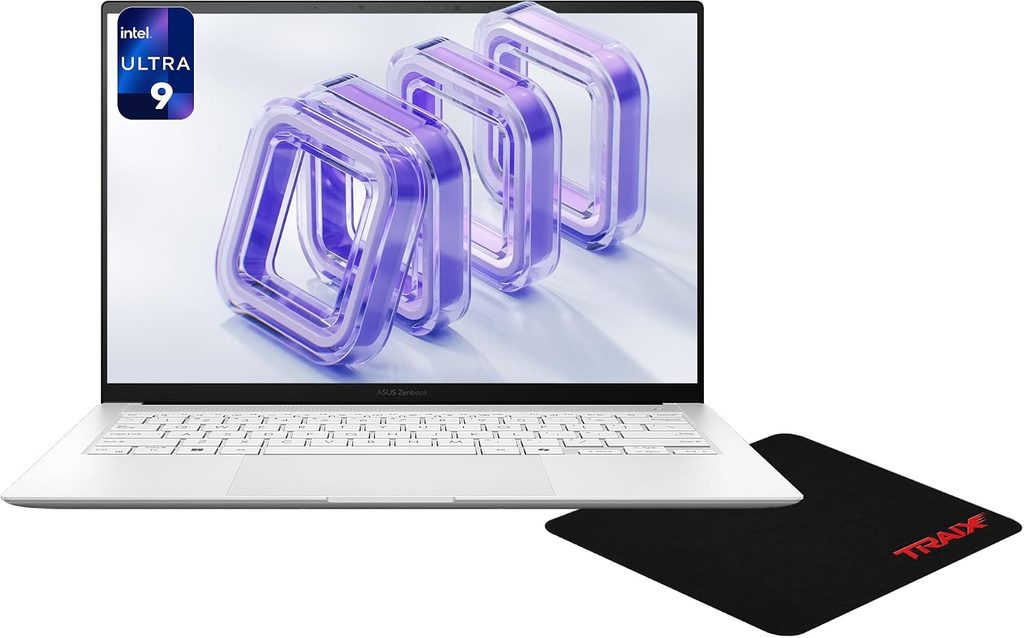
Verdict: the most accurate OLED here, in a 1.2 kg ceraluminum body, with the best power controls of any laptop in this comparison. Awkwardly priced.
Notebookcheck rated it 88%. ASUS went with the Core Ultra 9 386H, which is the CPU-heavy Panther Lake variant with the weaker integrated graphics instead of the Arc B390. For a rad tech student that’s a trade you can make happily.
Specifications
| CPU | Intel Core Ultra 9 386H (16C/16T, 57 W burst, 28 W sustained) |
| GPU | Intel Graphics 4 Xe3 |
| Memory | 32 GB LPDDR5x-8533, soldered |
| Storage | 1 TB Samsung PM9C1b, replaceable M.2 2280 |
| Display | 14″ 2880 × 1800 OLED touch, 120 Hz, HDR |
| Battery | 77 Wh |
| Weight | 1.205 kg (2.66 lb), 12.9 mm |
| Ports | 2× Thunderbolt 4, USB-A 3.2 Gen 2, HDMI 2.1, 3.5 mm |
| Build | Ceraluminum |
| Warranty | 24 months |
| Price | $1,899 |
What the labs measured
Display. Notebookcheck measured 459 nits maximum, 456.9 nits average, 98% uniformity, perfect blacks and infinite contrast. Accuracy is the best on this page: grayscale ΔE 1.8, ColorChecker ΔE 1.0, gamma 2.16, 6550 K white point, 99.9% sRGB and 98.3% DCI-P3. Their note was that they couldn’t improve on it with their own calibration. HDR peak hit 1,050 nits.
PWM at 960 Hz, 40% amplitude. That’s flicker, but Notebookcheck describes 960 Hz as high enough that most PWM-sensitive users shouldn’t notice it. Four times the frequency of the XPS 14’s panel.
One honest downside they flag: the touch layer makes bright surfaces look slightly grainy. If you live on white document backgrounds, see one in person before committing.
Battery. Over 16 hours in the Wi-Fi test at 150 nits and around 10 hours at maximum brightness, from the largest cell here at 77 Wh. That’s about two hours better than the previous Lunar Lake model.
Performance and the power profiles. This is my favourite thing about the Zenbook, and no other laptop here documents it this clearly. Notebookcheck published ASUS’s profiles with matching scores and noise levels:
| Profile | Power limits | Cinebench 2024 multi | 3DMark Time Spy Graphics | Max fan noise |
|---|---|---|---|---|
| Whisper | 35 W / 12 W | 476 | 1,991 | 28 dB(A) |
| Standard | 57 W / 17 W | 666 | 2,745 | 38.5 dB(A) |
| Performance | 57 W / 28 W | 969 | 3,048 | 49.1 dB(A) |
Look at that top row. In Whisper mode this laptop is effectively inaudible at 28 dB(A) and still scores 476 in Cinebench 2024, which is more than enough for everything a rad tech student does. Silence on demand. In Performance mode it’s genuinely loud at 49.1 dB(A), which is exactly why having Whisper matters.
Full figures in Performance mode: Cinebench 2024 at 969 / 123.1, Cinebench R23 at 18,553 / 2,066, Geekbench 6.7 at 16,882 / 2,899, PCMark 10 at 8,639, CrossMark at 2,143.
Storage. 7,071 MB/s read and 5,705 MB/s write in CrystalDiskMark, a stable 6,997 MB/s average across a sustained loop, and an excellent 0.047 ms read access time.
Heat. Under sustained load the top hit 43.5 °C and the bottom 47.1 °C, the hottest here. Palm rests stayed at 30 °C so you won’t feel it while typing, but this isn’t a great lap machine at full tilt.
Networking. Wi-Fi 7 at 4,549 Mbit/s transmit, effectively tied with the ThinkPad.
What’s good
- Best-calibrated screen here. Grayscale ΔE 1.8, ColorChecker ΔE 1.0, and Notebookcheck couldn’t improve it
- 960 Hz PWM, the safest OLED on this list for flicker-sensitive eyes
- Whisper mode at 28 dB(A) is the quietest usable state of any Windows laptop in this comparison
- 77 Wh battery, the biggest here, for 16+ hours measured
- Ceraluminum resists fingerprints and looks superb
- HDMI and USB-A and two Thunderbolt 4 ports
- 24-month warranty as standard
- User-replaceable M.2 2280 SSD
What’s not
- $1,899 is hard to justify when the OmniBook X does the core job for half that
- 49.1 dB(A) in Performance mode. Loud enough to be antisocial in a study room
- Slower integrated graphics than the XPS 14 or OmniBook Ultra
- Bottom reaches 47.1 °C under sustained load
- Slightly grainy image on bright backgrounds because of the touch layer
- Soldered RAM
- The 68 W adapter is undersized for peak load, and some regions ship without one
In a clinical week
The case for the Zenbook is specific. You want the most accurate screen you can buy, you want it near-silent, and you’ll pay for both. Whisper mode plus 16 hours of battery makes this a fantastic library machine. It’s what I’d pick if I were doing photography or design alongside my coursework.
All five, measured side by side
Every figure below is from Notebookcheck’s standardized test suite except the battery row, where I’ve labelled the lab and protocol for each.
| MacBook Air 13 M5 | ThinkPad X1C Gen 14 | OmniBook Ultra 14 | Dell XPS 14 | Zenbook S14 | |
|---|---|---|---|---|---|
| Panel | 13.6″ IPS, 60 Hz | 14″ IPS touch, 60 Hz | 14″ OLED touch, 120 Hz | 14″ OLED touch, 120 Hz | 14″ OLED touch, 120 Hz |
| Max brightness | 546 nits | 546 nits | 446 nits | 396 nits | 459 nits |
| Average brightness | 519 nits | 524 nits | 447 nits | 389 nits | 457 nits |
| Grayscale ΔE | 3.3 | 8.3 | 2.3 | 2.0 | 1.8 |
| ColorChecker ΔE | 2.1 | 5.0 | 1.76 | 1.27 | 1.0 |
| PWM flicker | None | None | 927 Hz | 240.6 Hz | 960 Hz |
| Battery | 16h 11m (NBC, 150 nits) | 23h 13m (NBC, 150 nits) | 25h 00m (XDA, 200 nits) | 16h 45m (NBC, 150 nits) | 16h+ (NBC, 150 nits) |
| Cinebench 2024 multi | 957 | 645 | 1,002 | 974 | 969 |
| Cinebench 2024 single | 200 | 113.3 | 129 | 125.5 | 123.1 |
| Geekbench 6 multi | 17,072 | 11,038 | 16,568 | 17,121 | 16,882 |
| Geekbench 6 single | 4,185 | 2,620 | 3,027 | 2,927 | 2,899 |
| CrossMark overall | 2,314 | 1,675 | 2,048 | 1,955 | 2,143 |
| Weight | 1.24 kg | 1.139 kg | 1.27 kg | 1.444 kg | 1.205 kg |
| Warranty | 12 months | 36 months | 12 months | 12 months | 24 months |
| Starting price | $1,099 | ~$2,249 | $1,699 | $1,599 | $1,899 |
Battery protocols differ between labs, so treat that row as five separate honest measurements rather than a ranked list. Everything else is directly comparable.
The thing nobody tests: screen flicker
This is the section I really wrote this article for.
Most laptop screens dim themselves by switching the backlight (or, on OLED, the pixels themselves) on and off very fast. That’s pulse-width modulation. Turn the brightness down and the screen spends more of each cycle off. If the switching frequency is high, nobody notices. If it’s low, a meaningful slice of people get headaches, eye strain and fatigue after a few hours and never work out why.
Notebookcheck measures this on every screen they test. Their own baseline is that 52% of all devices they’ve tested use no PWM at all, and among the ones that do, the average frequency sits around 7,600 Hz.
Here’s what they found on this year’s machines:
| Laptop | PWM frequency | Amplitude | Notebookcheck’s read |
|---|---|---|---|
| Apple MacBook Air 13 M5 (IPS) | None detected | — | No flicker at any brightness |
| ThinkPad X1 Carbon Gen 14 (IPS) | None detected | — | No flicker at any brightness |
| ASUS Zenbook S14 (OLED) | 960 Hz | 40% | High enough that most sensitive users won’t notice |
| HP OmniBook Ultra 14 (OLED) | 927 Hz | — | High frequency |
| Dell XPS 14 (OLED) | 240.6 Hz | 29% | Sensitive users will likely notice and experience eyestrain |
| Samsung Galaxy Book5 Pro 14 (OLED) | 240 Hz | 66% | Low frequency, high amplitude |
| ThinkPad X1 Carbon Gen 13 (IPS) | 968.8 Hz | 100% amplitude | Full-depth modulation |
Why does this matter more to you than to a business major? Because your whole career runs on reading grayscale images for hours at a stretch, and the habit starts now. Fatigue during a study session is annoying. Fatigue in a reading room is a patient safety question.
If you already get headaches from screens, or you’ve noticed certain phones bother your eyes at low brightness in a dark room, take this seriously.
What to do about it:
- If you’re PWM-sensitive, buy IPS. The MacBook Air M5 and the ThinkPad X1 Carbon Gen 14 both tested completely flicker-free, and Dell’s 1920 × 1200 IPS option for the XPS 14 sidesteps the problem too.
- If you want OLED and you’re unsure, the Zenbook S14 at 960 Hz and the OmniBook Ultra at 927 Hz are the safest OLEDs here.
- Several ASUS models offer a flicker-free or DC-dimming toggle in MyASUS. Turn it on.
- Test yourself, right now. Pull up a dark screen at low brightness in a dark room and wave your hand quickly in front of it. If you see distinct stroboscopic copies of your fingers instead of a smooth blur, that panel is flickering.
- Running an OLED at higher brightness reduces PWM depth on most panels. If you’re stuck with one, don’t run it dim in a dark room.
I have not found a single competing laptop guide for imaging students that mentions any of this. For you, it’s more important than half the numbers on the box.
The second thing nobody tests: grayscale accuracy
Radiographs are grayscale. Not mostly. Entirely. Which makes the most relevant display metric for you grayscale ΔE: how accurately a panel reproduces neutral tones from black to white without drifting green, blue or magenta.
Almost every laptop review reports color gamut coverage instead, because it’s easy to market. Gamut tells you how saturated colors can get. It tells you nothing about whether your grays are actually gray.
Here’s what the lab measured, best first:
| Laptop | Grayscale ΔE | ColorChecker ΔE | White point |
|---|---|---|---|
| ASUS Zenbook S14 | 1.8 | 1.0 | 6550 K |
| Dell XPS 14 (OLED) | 2.0 | 1.27 | 6379 K |
| HP OmniBook Ultra 14 | 2.3 | 1.76 | 6470 K |
| Apple MacBook Air 13 M5 | 3.3 | 2.1 | 7127 K |
| ThinkPad X1 Carbon G14, as shipped | 8.3 | 5.0 | 7068 K |
| ThinkPad X1 Carbon G14, calibrated | — | 1.1 | — |
A ΔE under about 3 is generally considered imperceptible to a trained eye. Under 2 is excellent. 8.3 is visible, and it’s why I keep hammering the point that ThinkPad buyers should install Notebookcheck’s free ICC profile the day the laptop arrives. Lenovo pushed the white point off neutral to squeeze out extra brightness. You can undo it in five minutes and it costs nothing.
The MacBook Air’s 7127 K white point is also a touch cool, so grays read slightly blue against a properly calibrated reference. Small thing, and macOS lets you adjust it, but worth knowing if you’re doing image critiques on it.
To repeat myself because it matters: none of these is a diagnostic display. You’re studying on them, not interpreting on them. But if you’re spending two years training your eye on grayscale anatomy, starting on a panel that renders neutral tones honestly is not a small advantage.
What actually matters when you’re shopping
Specs worth paying for
Battery at 150 nits, not “up to X hours.” Manufacturer claims come from absurdly low brightness with everything disabled. The spread on the honest number here is enormous: 16 hours for the MacBook Air, 23 for the ThinkPad’s IPS model, 13.5 for that same ThinkPad with OLED.
Measured brightness. Hospital corridors are lit aggressively. Under 400 nits will frustrate you. The XPS 14’s OLED measured 389 despite a 500-nit rating.
Matte versus glossy. Every OLED here is glossy. The ThinkPad’s IPS panel and the XPS 14’s 1920 × 1200 option are matte. In a bright clinical environment, matte wins.
512 GB minimum. Non-negotiable in 2026.
16 GB RAM minimum, and on four of these five it’s soldered, so there’s no fixing it later.
Weight including the charger. The MacBook Air peaks at 30.4 W, so a tiny 35 W GaN brick does the job. The Zenbook can pull 87 W. That’s real weight in your bag every single day.
A USB-A port. You will meet a USB-A flash drive in a hospital. You will meet a projector from 2014. The ThinkPad and the Zenbook have one. The XPS 14 and the OmniBook Ultra do not.
Warranty length. Look at that row in the comparison table again. Three years on the ThinkPad, two on the Zenbook, one on everything else. Over 21 months of hard use that’s not a footnote.
Specs that don’t matter
- Discrete graphics. Nothing in your curriculum touches it.
- Top-tier CPUs. The ThinkPad scores 645 in Cinebench 2024 against the XPS 14’s 974 and you will never once notice the difference doing coursework.
- NPU TOPS ratings. Nice to have. Not why you’re buying.
- 4K panels. They eat battery for a difference you can’t see at 14 inches.
- 32 GB of RAM, unless you’re doing something outside your program.
By budget
Under $1,000. HP OmniBook X (2026), Core Ultra 5, 16 GB, at its frequent ~$900 sale price. Or a MacBook Air M5 when it dips to $899–$950, if your program is Mac-friendly.
$1,000 to $1,500. MacBook Air M5 at $1,099 is the sweet spot of this whole list.
$1,500 to $2,000. Dell XPS 14 with the 1920 × 1200 matte panel at $1,599. Over 20 hours of battery, no flicker, matte finish, fastest hardware here. Or the HP OmniBook Ultra 14 at $1,699 if you want the OLED and that 25-hour battery result.
Over $2,000. ThinkPad X1 Carbon Gen 14 with the IPS touch panel. 23 hours, flicker-free, MIL-STD-810H, 36-month warranty, optional 5G. It’s the one you keep after you graduate.
Mac or Windows?
Straight answer: Windows is the safer choice, macOS is the nicer experience.
Go Windows if your program requires a Windows-only registry-review or proctoring application, your clinical site’s remote PACS uses a Windows client, you want RadiAnt specifically, or you want to spend under $1,000.
Go Mac if you’ve confirmed everything your program requires runs on macOS or in a browser, and battery life, silence and weight matter more to you than software flexibility. The iPhone integration during clinicals is genuinely useful too.
In practice, the compatibility risk is narrower than people assume. Horos and Weasis are excellent free DICOM viewers for macOS, Weasis is cross-platform, Citrix Workspace runs on both, and Trajecsys, E-Value, Canvas and Blackboard are all browser-based. But the risk is concentrated in exactly the software your grade depends on, which is why you ask first.
Safety valve: if you buy a Mac and hit a Windows-only requirement, Parallels Desktop with Windows 11 ARM handles most business applications. Budget around $130 a year and test it before you rely on it.
The setup I’d actually build
The laptop is one piece. If I were starting a program next month, here’s the whole kit:
- HP OmniBook X (Core Ultra 5, 16 GB, 3K OLED) at its sale price, roughly $990
- A 27-inch 1440p IPS monitor, around $200. Two windows side by side, your image on one and the reference atlas on the other, is genuinely transformative for positioning study
- A 65 W GaN charger with a six-foot cable that lives in the car, $30
- A 20,000 mAh USB-C PD power bank, $50. Hospitals have a shortage of accessible outlets and a surplus of long shifts
- Cloud backup or an external SSD, $60 to $100. Losing two semesters of notes in month eighteen is a thing that actually happens to people
- Night Shift on macOS or Night Light on Windows, free, and more useful than any pair of blue-light glasses you’ll be sold
About $1,330 all in, for a setup that will serve you better than a $2,300 laptop used alone.
Questions I get asked a lot
Do I need a powerful laptop for radiologic technology school? No. Your heaviest real workload is scrolling large image-dense PDFs and running browser-based clinical documentation. The ThinkPad X1 Carbon Gen 14 in this roundup scores 645 in Cinebench 2024, a third of the Dell XPS 14, and handles rad tech coursework identically. Spend the money on battery life, screen quality and storage instead.
How much storage do I need? 512 GB minimum. Between textbook PDFs, recorded lectures, study images and the operating system, 256 GB fills up before the end of your first year. Go to 1 TB if you record every lecture.
Can I use a MacBook for a radiology tech program? Usually yes, but verify first. Trajecsys, E-Value, Canvas and Blackboard are browser-based and work fine. The risk is your program’s mock-registry software or a proctoring application, some of which are Windows-only. Email your program director and ask specifically which applications you’ll be required to install.
Is OLED worth it for studying radiographic images? It’s a trade. OLED gives you perfect blacks and far better contrast, which genuinely helps when you’re evaluating density and detail. But every OLED here costs you battery — the ThinkPad X1 Carbon Gen 14 falls from 23 hours on IPS to 13.5 hours on OLED — and OLED panels dim by flickering, which some people find fatiguing over long sessions. For eight-hour study days, a good IPS panel is the safer call.
How much battery do I actually need for clinicals? Aim for a measured 12 hours at 150 nits. That covers an eight-hour rotation, the commute, and a couple of hours of evening study without hunting for an outlet. Every laptop here clears that except the Dell XPS 14 with the OLED panel, which Tom’s Hardware measured at 12 hours 23 minutes. Right on the line.
Should I get a touchscreen? It’s genuinely useful for annotating positioning diagrams and marking up PDFs with a stylus, and it costs you about 150 grams. On the ThinkPad X1 Carbon Gen 14 the touch version is 1.14 kg against 989 g for the non-touch OLED. Worth it if you annotate, skip it if you don’t.
What about a tablet instead of a laptop? Some programs allow either. An iPad with a keyboard handles Trajecsys, Canvas and PDF annotation beautifully and weighs less. But if your program requires any Windows desktop software a tablet won’t work, and writing a research paper on one is miserable. If you can only buy one device, buy the laptop.
Does the webcam matter? More than you’d think. Plenty of programs run didactic content online and some make-up sessions happen over video. The MacBook Air’s 12 MP Center Stage camera and the XPS 14’s 8.3 MP 4K sensor are the standouts here.
Will screen flicker really affect me? It affects some people and not others, and there’s no way to know which you are without testing. If you’ve never had trouble with screens, a 960 Hz OLED almost certainly won’t bother you. If you get headaches from certain phones in the dark, avoid the 240 Hz panels. Try the hand-wave test in a store before you commit.
How long should this laptop last? Plan for four years, not two. If you go on to a CT, MRI or sonography advanced program, or a bachelor’s completion track, you’ll want the same machine. That’s the real argument for build quality, and why the ThinkPad’s MIL-STD-810H chassis and 36-month warranty are worth what they cost.
Should I buy the extended warranty? On a laptop that’s going to live in a backpack for two years, accidental damage protection is one of the few extended warranties I think earns its price. Compare Apple’s AppleCare+ and Lenovo’s Accidental Damage Protection against the cost of one screen replacement and the math usually works out.
Where I’d land
Most students should buy the Apple MacBook Air M5. At $1,099 with 16 GB and 512 GB, silent operation, 16 hours 11 minutes of measured runtime, no screen flicker at all, and the fastest single-core performance on this page, it’s the least-compromised machine here. Check your program’s software requirements first, and if they clear it, stop reading and buy it.
If you need Windows and you want the best of it, buy the HP OmniBook Ultra 14 (2026). 25 hours in XDA’s test, a well-calibrated 927 Hz OLED, the fastest storage here at 10.3 GB/s, the coolest top surface of any Windows machine on the list, and the best speakers. Just accept that you’ll carry a USB-C hub.
If money is tight, buy the HP OmniBook X (2026) at its ~$900 sale price and spend $200 of what you saved on an external monitor. 18 hours 25 minutes on a demanding battery test, the same 3K 120 Hz OLED, and USB-A plus HDMI on board. Nothing else here is close on value.
If your rotations are punishing, buy the ThinkPad X1 Carbon Gen 14 with the IPS panel. 23 hours 13 minutes, zero flicker, MIL-STD-810H, three years of warranty, and the best keyboard in the industry. Install the calibration profile the day it arrives.
If you want the most capable machine, buy the Dell XPS 14 (2026) with the 1920 × 1200 matte screen. Over 20 hours of battery, no PWM, an anti-glare finish that fights hospital lighting, and the fastest hardware in this comparison for $1,599. Skip the OLED for this particular use case.
And if you want the prettiest, quietest machine here, the ASUS Zenbook S14 (2026) has a ΔE 1.0 panel and a Whisper mode that runs at 28 dB(A). You’re paying $1,899 for a screen and a chassis, and it’s a very good screen and chassis.
Whatever you land on, put the last $200 of your budget into a second monitor rather than a CPU upgrade. Two years from now you’ll remember the extra screen. You won’t remember the extra 300 Cinebench points.
Good luck with the registry.
Sources
Every measurement in this article is published and independently verifiable. Where two labs disagree, I’ve shown both.
- Notebookcheck — Apple MacBook Air 13 M5 review and M5 vs M4 battery comparison
- Notebookcheck — Lenovo ThinkPad X1 Carbon Gen 14 review
- Notebookcheck — Dell XPS 14 (2026) review
- Notebookcheck — ASUS Zenbook S14 (2026) review
- Notebookcheck — HP OmniBook Ultra 14 Core Ultra X9 review
- Tom’s Hardware — MacBook Air 13-inch (M5) review
- Tom’s Hardware — Dell XPS 14 (2026) review
- Macworld — 13-inch MacBook Air (M5) review
- Gizmodo — M5 MacBook Air review
- Engadget — HP OmniBook X (2026) review
- PCWorld — HP OmniBook Ultra 14 review
- XDA — HP OmniBook Ultra 14 (2026) review
- CGMagazine — HP OmniBook Ultra 14 review
A note on how I work
I don’t run a display lab. What I do is read them carefully, cross-check where more than one has tested the same machine, and translate the results for a specific reader. Every number above is attributed and linked so you can check my work, and I’ve flagged the places where labs disagree rather than picking whichever figure looked best. If a manufacturer’s claim and a measurement conflict, I’ve printed both.
Prices are US MSRP as of September 5, 2026 and change constantly. Testing protocols differ between publications, so figures are most meaningful compared within a single lab’s results rather than across labs. I’ve labelled the source on every battery figure for exactly that reason.

Hi, my name is Burak. I am a mechanical engineer. I have been writing laptop reviews for the Engineering Laptops website since 2020. Please feel free to contact me if you have any questions.