
Estimated reading time: 23 minutes
Key Takeaways
- Most people should buy the ASUS Zenbook 14 OLED with 32 GB of RAM as the Best Laptop for SimScale.
- For extensive use with SolidWorks or Fluent, opt for the Lenovo ThinkPad P16 Gen 3 due to its high RAM capacity.
- The MacBook Pro 14″ M5 Pro offers excellent performance and battery life, ideal for cloud-based workflows.
- Graphics matters less; prioritize RAM and a good display for SimScale use, while an internet connection is crucial.
- Remember to avoid overbuying on processor cores; SimScale operates primarily in the cloud, relieving your laptop’s CPU.
Table of contents
- The Short Version
- All Five Picks, Side by Side
- What SimScale Actually Asks of Your Hardware
- Target Specs by Budget
- Best Laptops for SimScale in 2026: What You Actually Need (And What You Don’t)
- 1. Lenovo ThinkPad P16 Gen 3 — The One That’ll Still Be Relevant in 2030
- 2. Dell Pro Max 16 Premium — Workstation Power You Can Actually Carry
- 3. MacBook Pro 14″ (M5 Pro, 2026) — The Best Machine to Actually Live In
- 4. ASUS ProArt P16 (H7606) — Most Machine for the Money
- 5. ASUS Zenbook 14 OLED — The One Most People Should Actually Buy
- Which One Fits You?
- Before You Spend Anything: Six Fixes That Cost Nothing
- Mistakes I See People Make
- Frequently Asked Questions
- The Bottom Line
Let me save you some money before you read another word. If you’re wondering what the Best Laptop for SimScale is, you’re in the right place.
If you’re shopping for a laptop to run SimScale, there’s a good chance you’ve been looking at the wrong machines. Search “best laptop for CFD” and you’ll get a wall of 3-kilogram mobile workstations with 24-core processors and $5,000 price tags. Perfectly good machines. Mostly the wrong answer for SimScale.
Here’s why: SimScale doesn’t solve anything on your laptop. The whole platform lives in the cloud. You open a browser tab, upload your geometry, set up your boundary conditions, hit run, and the actual number-crunching happens on rented compute somewhere in a data center. Your laptop sits there drawing triangles and waiting.
That single fact rewrites the entire shopping list.
I’m going to walk you through what genuinely matters for a SimScale workflow, then give you five machines that cover every budget from $999 to about $6,500. Some of them are workstations. One of them is a thin-and-light ultrabook that I think is the right call for more people than any of the expensive options.
The Short Version
Most people should buy the ASUS Zenbook 14 OLED with 32 GB of RAM. It’s around $999–$1,399, weighs 1.28 kg, and handles SimScale without breaking a sweat.
If SimScale is one tool among many — SolidWorks, Fluent, local ParaView, CATIA — get the Lenovo ThinkPad P16 Gen 3.
If you want the nicest machine to actually sit in front of all day, the MacBook Pro 14″ with M5 Pro is hard to beat.
Everything below explains why.
All Five Picks, Side by Side
| Model | Processor | Graphics | Max RAM | Screen | Weight | Price (approx.) | Best for |
|---|---|---|---|---|---|---|---|
| Lenovo ThinkPad P16 Gen 3 | Intel Core Ultra 200HX, up to 24 cores / 5.5 GHz | Up to RTX PRO 5000 Blackwell 24 GB | 192 GB DDR5 | 16″, up to 3.2K Tandem OLED 120 Hz | 2.95 kg | $3,339+ | Full-time simulation work |
| Dell Pro Max 16 Premium | Core Ultra 9 285H vPro, 45 W | Up to RTX PRO 3000 Blackwell 12 GB | 64 GB DDR5 | 16″ 4K Tandem OLED | 1.9 kg | $2,800–$4,500 | Power you can carry |
| MacBook Pro 14″ (M5 Pro) | Apple M5 Pro, up to 18 cores | Integrated, up to 20-core GPU | 128 GB unified | 14.2″ Liquid Retina XDR 120 Hz | 1.55 kg | $2,199+ | Battery, silence, browser work |
| ASUS ProArt P16 (H7606) | Ryzen AI 9 HX 370, 12C/24T | Up to RTX 5090 Laptop, 24 GB | 64 GB LPDDR5X | 16″ 4K 120 Hz OLED touch | 1.85 kg | $2,199–$2,899 | Most specs per dollar |
| ASUS Zenbook 14 OLED | Core Ultra 7 265H / Ultra 9 285H | Intel Arc integrated | 32 GB LPDDR5X | 14″ OLED, up to 2.8K 120 Hz | 1.28 kg | $999–$1,399 | Students and cloud-first users |
Prices are US figures and shift constantly. European and Turkish pricing runs higher, sometimes considerably.
What SimScale Actually Asks of Your Hardware
Let’s go component by component, because the conventional wisdom is wrong on almost every one.
The processor: matters less than you’d think
Your CPU does not run the solver. A Core Ultra 5 and a Core Ultra 9 will produce identical simulation times, because neither one is doing the math — the cloud is.
What your processor does handle is the browser itself. JavaScript execution, geometry parsing when you upload a CAD file, the UI thread that keeps the Workbench from feeling sluggish. That work is overwhelmingly single-threaded, which means single-core speed matters and core count mostly doesn’t.
This is why Apple silicon punches so far above its weight here, and why a 12-core Ryzen AI 9 HX 370 feels snappier in a browser than some 24-core Xeon-class chips. Look at single-core benchmarks. Ignore the core count bragging.
Memory: this is the real bottleneck
If you take one thing from this article, take this: 32 GB of RAM.
The browser holds your mesh geometry and result fields in memory. Every Chrome tab is its own process with its own footprint. Open the SimScale Workbench, two post-processing views, your CAD tool, Teams, and the twenty reference tabs you always have, and 16 GB evaporates.
The symptom is ugly, too. You don’t get a clean error. You get a viewport that stutters, then a tab that goes white and reloads, and sometimes a lost session. People blame the GPU. It’s almost never the GPU.
16 GB is survivable for small projects. 32 GB is the number. 64 GB only becomes necessary if you’re also running desktop CAD or heavy offline post-processing.
Graphics: you need a working GPU, not a fast one
SimScale’s 3D viewport runs on WebGL. Two things have to be true: your hardware and driver must support WebGL, and hardware acceleration must be switched on in your browser.
That’s it. That’s the requirement.
Intel Arc integrated graphics handle it. AMD’s Radeon 890M handles it. Apple’s integrated GPU handles it beautifully. An RTX 5090 handles it too, but no better in any way you’ll notice while orbiting a mesh.
Where a discrete GPU starts to matter:
- Very large meshes (10 million-plus cells) where you’re rotating and slicing constantly
- Driving two or three external 4K monitors while the Workbench is open
- Local post-processing in ParaView, which is the big one — if you download result files to make publication figures, all the normal workstation rules come back hard
If none of those describe you, integrated graphics are genuinely fine, and I’d rather you spend that money on RAM and a better screen.
Your internet connection is part of the spec sheet
This gets left out of every buying guide and it shouldn’t be. Mesh uploads go up the wire. Result data streams back down. The post-processor talks to SimScale’s servers over a secure WebSocket connection that hates packet loss.
A laptop with 2.5 Gbps Ethernet and Wi-Fi 7 is functionally better at SimScale than one with a faster processor. If your laptop has no Ethernet port — and most thin ones don’t — a €20 USB-C adapter is the cheapest meaningful upgrade you can make.
The screen: where you’ll feel the difference daily
SimScale needs at least 1366×768 to display properly, but that’s a floor, not a target. The Workbench packs a lot into one view: the simulation tree on the left, the viewport in the middle, properties on the right, the run log underneath.
On a 15.6-inch 1080p panel you’ll be scrolling and collapsing panels constantly. On a 16-inch 2560×1600 display everything breathes. The jump from 16:9 to 16:10 alone buys you noticeably more vertical room, which is exactly what a tree-and-log interface wants.
Contour plots are the other argument for a good panel. Reading a velocity field with subtle gradients on a washed-out TN screen is genuinely harder than it needs to be.
Storage and battery, briefly
512 GB is the minimum, 1 TB is comfortable. NVMe, obviously. Result downloads pile up faster than you expect.
Battery matters more than usual here for a funny reason: since your laptop isn’t solving anything, you’re not tethered to a wall socket the way you would be running a local solver. A machine with 12 hours of real battery genuinely changes how you work. A gaming laptop with three hours does not.
Target Specs by Budget
| Bare minimum | The sweet spot | No compromises | |
|---|---|---|---|
| CPU | Core Ultra 5 / Ryzen 5 | Core Ultra 7 / Ryzen 7 / Apple M5 Pro | Core Ultra 9 HX / Ryzen 9 / M5 Max |
| RAM | 16 GB | 32 GB | 64–128 GB |
| Graphics | Integrated with WebGL 2.0 | RTX 4050/5050 or RTX PRO 1000/2000 | RTX PRO 3000–5000 Blackwell |
| Storage | 512 GB NVMe | 1 TB PCIe 4.0 | 2 TB+ PCIe 5.0 |
| Display | 1920×1200, 14″ | 2560×1600, 16:10 | 4K OLED, 120 Hz, 16″ |
| Network | Wi-Fi 6 | Wi-Fi 6E / 7 | Wi-Fi 7 + 2.5 GbE |
| Battery | 55 Wh | 75 Wh | 90–100 Wh |
Aim at the middle column. Anything to the left of it will annoy you within a semester. Anything to the right is for workloads that go well beyond SimScale.
Best Laptops for SimScale in 2026: What You Actually Need (And What You Don’t)
1. Lenovo ThinkPad P16 Gen 3 — The One That’ll Still Be Relevant in 2030
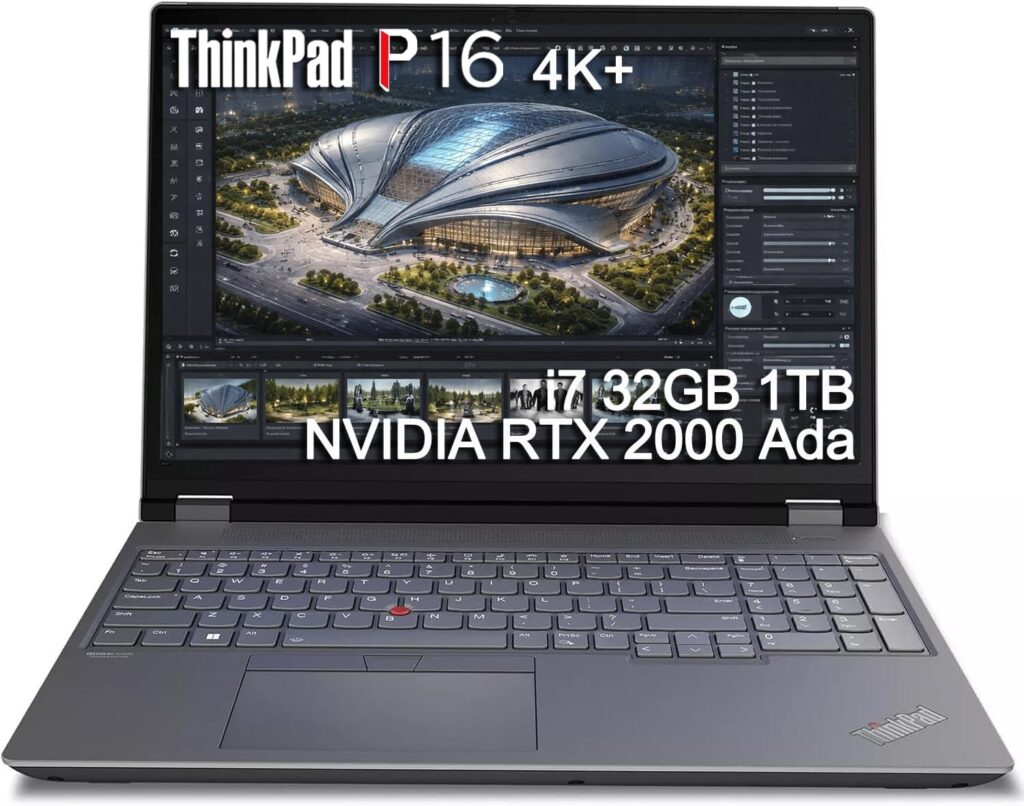
If simulation is your job description rather than a course requirement, this is the machine.
Lenovo took its time getting here. HP and Dell both shipped Core Ultra 9 285HX workstations before the P16 Gen 3 arrived, and Lenovo caught some grief for it. But what showed up has the most flexible configuration menu in the category, and one spec nothing else touches.
192 GB of RAM. Four SODIMM slots, user-accessible, upgradeable down the road. That’s desktop-workstation territory in a laptop chassis. Load a 20-million-cell result set into ParaView on a machine like that and it simply doesn’t complain.
For pure SimScale work that’s overkill and I’ll say so plainly. But almost nobody buying a P16 uses only SimScale. This is the laptop for people whose week includes Fluent on Monday, SolidWorks on Tuesday, and a cloud study on Wednesday.
Specifications
- Processor: Intel Core Ultra 200HX series, up to 24 cores, boost to 5.5 GHz
- Graphics: Up to NVIDIA RTX PRO 5000 Blackwell Laptop, 24 GB GDDR7
- Memory: Up to 192 GB DDR5-5600 across four upgradeable SODIMM slots
- Storage: Up to 12 TB across multiple M.2 bays, PCIe 5.0 support
- Display: 16-inch, up to 3.2K Tandem OLED, 600 nits, 40–120 Hz adaptive, 100% DCI-P3, touch option
- Ports: Thunderbolt 5, Thunderbolt 4, HDMI 2.1, 2.5 Gbps Ethernet, SD card reader
- Wireless: Wi-Fi 7, Bluetooth, optional 5G WWAN
- Security: Fingerprint reader, human presence detection, 5 MP camera with privacy shutter
- Power adapter: 180 W
- Weight: roughly 2.95 kg
- Starting price: $3,339
What’s good
- ✅ Memory ceiling nobody else comes close to, and it’s upgradeable later rather than soldered at the factory
- ✅ Full ISV certification, which means validated drivers rather than hopeful ones — and an easier conversation with corporate IT
- ✅ 2.5 Gbps Ethernet, the most underrated feature on this entire list for cloud simulation
- ✅ The Tandem OLED panel is genuinely superb for reading dense contour plots
- ✅ Thunderbolt 5 handles multi-monitor docking and eGPU setups without fuss
- ✅ Storage expansion up to 12 TB across multiple slots
- ✅ It’s a ThinkPad keyboard, and after eight hours of parameter sweeps you’ll care about that
What’s not
- ❌ Almost 3 kg before you pick up the charger — this is a desk laptop with occasional travel privileges
- ❌ Lenovo dropped the power supply from 230 W to 180 W this generation, and the top RTX PRO 5000 can pull up to 175 W on its own, so a maxed config leaves some peak performance unclaimed
- ❌ The configurator will happily take you past $6,000
- ❌ Battery life under real load is unremarkable
- ❌ Total overkill if SimScale genuinely is your only heavy application
Who it’s for
Mechanical, aerospace, automotive, and HVAC engineers who run cloud and desktop simulation side by side and need certified hardware for procurement sign-off.
How I’d configure it: Core Ultra 9 275HX, 64 GB in two slots (leaving two open for later), RTX PRO 3000 Blackwell, 2 TB SSD, the 3.2K OLED. Skip the RTX PRO 5000 unless you’re doing serious local rendering — for a browser-first workflow it’s money spent on nothing.
2. Dell Pro Max 16 Premium — Workstation Power You Can Actually Carry
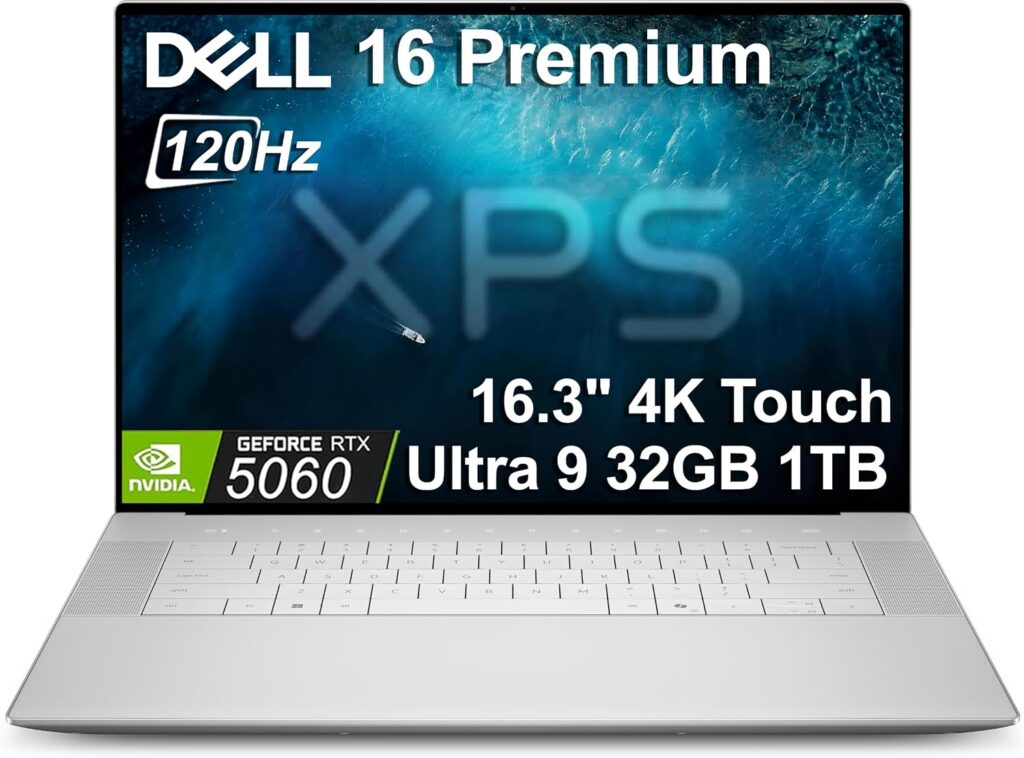
Dell retired the Precision name in favour of “Pro Max,” which is a naming decision I have opinions about, but the engineering underneath is sharp. At roughly 20 mm thick and 1.9 kg, this is the workstation that fits in a normal backpack without a chiropractor visit.
Dell made one call here that I think is smart and got criticised for anyway. The Premium tops out at the RTX PRO 3000 Blackwell with 12 GB, rather than pushing to the 5000-class the way the previous generation did. In a 20 mm chassis with a 64 GB memory ceiling, cramming in a 24 GB GPU would have been marketing, not engineering. The 12 GB card sits exactly where design visualisation work lives, and it’s still a full class above rivals like the HP ZBook X G1i and Lenovo ThinkStation P1 Gen 8, which stop at 8 GB.
Specifications
- Processor: Intel Core Ultra 9 285H vPro, 45 W, 16 cores
- Graphics: Up to NVIDIA RTX PRO 3000 Blackwell, 12 GB GDDR7
- Memory: Up to 64 GB DDR5
- Storage: Up to 4 TB NVMe
- Display: 16-inch 4K Tandem OLED, 16:10
- Ports: Dual Thunderbolt 5, HDMI, SD card reader
- Chassis: around 20 mm thick
- Weight: roughly 1.9 kg
- Price: approximately $2,800–$4,500 depending on configuration
What’s good
- ✅ Desktop-class processor performance in something you can carry every day without resenting it
- ✅ 12 GB of VRAM hits the right spot for viewport work and light local rendering
- ✅ Two Thunderbolt 5 ports make single-cable docking painless
- ✅ The 4K Tandem OLED is bright, accurate, and easier on tired eyes than the IPS panels it replaced
- ✅ vPro management and enterprise security that IT departments genuinely ask about
- ✅ Broad configuration range, so you can right-size instead of over-buying
What’s not
- ❌ 64 GB memory ceiling is fine for SimScale, tight for heavy local post-processing
- ❌ No path to an RTX PRO 5000 — you’d need the bulkier Pro Max 16 Plus for that
- ❌ Thin chassis means the fans work harder and you’ll hear them under sustained load
- ❌ Dell’s pricing is genuinely confusing and the list price is rarely the real price
Who it’s for
Consultants, field engineers, and anyone who opens their laptop in front of clients. It looks the part in a meeting room and still runs a full CAD-plus-simulation stack back at the hotel.
3. MacBook Pro 14″ (M5 Pro, 2026) — The Best Machine to Actually Live In
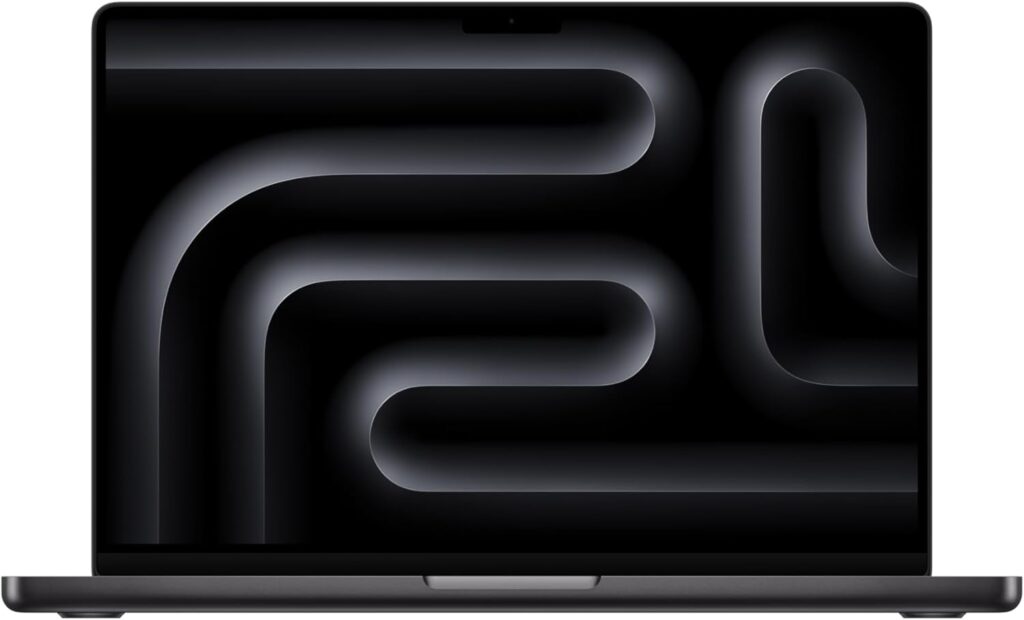
This is the pick that starts arguments, and I get it. Macs don’t run SolidWorks. They don’t run desktop ANSYS. They don’t run Siemens NX. If your workflow depends on any of those, skip ahead.
But SimScale doesn’t care what operating system you’re on. It’s platform-independent across Windows, Linux, and macOS, as long as your graphics hardware and driver support WebGL. And for a workflow that lives inside a browser tab all day, Apple silicon is quietly the best experience money buys.
The M5 Pro was a genuine architectural change, not a clock bump. Apple reorganised the CPU into what it calls “super cores” and “performance cores,” taking the core count up to 18 from a maximum of 14 on the M4 Pro, and claims roughly 30% faster CPU performance for professional workloads. Single-thread performance — the thing a JavaScript engine actually depends on — is class-leading right now.
Then there’s the memory architecture. Unified memory means the GPU addresses the whole pool. On a 48 GB M5 Pro, WebGL has vastly more headroom than a discrete GPU with 8 GB of dedicated VRAM. That’s not a talking point, it’s just how the silicon is wired.
Specifications
- Processor: Apple M5 Pro, up to 18 cores
- Graphics: Integrated, up to 20-core GPU with a Neural Accelerator in each core
- Memory: 24 GB unified standard, configurable to 128 GB
- Storage: 1 TB standard, up to twice the SSD speed of the previous generation
- Display: 14.2-inch Liquid Retina XDR, 3024×1964 at 254 ppi, 1,000 nits sustained and 1,600 nits peak HDR, ProMotion 120 Hz, optional nano-texture finish
- Ports: Three Thunderbolt 5, HDMI, SDXC card slot, MagSafe 3, headphone jack
- Wireless: Wi-Fi 7, Bluetooth 6, Thread, via Apple’s N1 chip
- External displays: up to three plus the built-in panel
- Weight: roughly 1.55 kg
- Starting price: $2,199
What’s good
- ✅ Best single-core performance in any laptop, which is precisely what browser-based tools lean on
- ✅ Battery that lasts a genuine working day, and performance that doesn’t collapse when you unplug
- ✅ Effectively silent under SimScale-type loads — the fans barely acknowledge you
- ✅ Unified memory gives the GPU far more usable memory than most discrete setups
- ✅ The XDR display remains the best panel on any laptop for reading fine mesh detail
- ✅ 1 TB base storage now, doubled from last generation
- ✅ Three Thunderbolt 5 ports and a real SD slot
What’s not
- ❌ No SolidWorks, no desktop ANSYS, no NX — audit your full software list before you commit
- ❌ Memory and storage are soldered, so configure it right the first time
- ❌ Apple’s upgrade pricing for RAM and SSD is still indefensible
- ❌ No Ethernet port, so wired uploads need a dock or dongle
- ❌ Same chassis design for a fourth year; the redesign is rumoured for the M6 generation
Who it’s for
Engineers whose stack is already cloud-native: SimScale plus Onshape, Fusion 360 (which runs natively on macOS), Python, Jupyter. Also excellent for consultants who travel constantly and value battery over wattage.
On the bigger models: the 16-inch M5 Pro is the same chip with better sustained thermals and more screen. The M5 Max is faster still, around 15% better multithreaded than the M4 Max, but for SimScale you’re buying headroom you’ll never touch.
4. ASUS ProArt P16 (H7606) — Most Machine for the Money
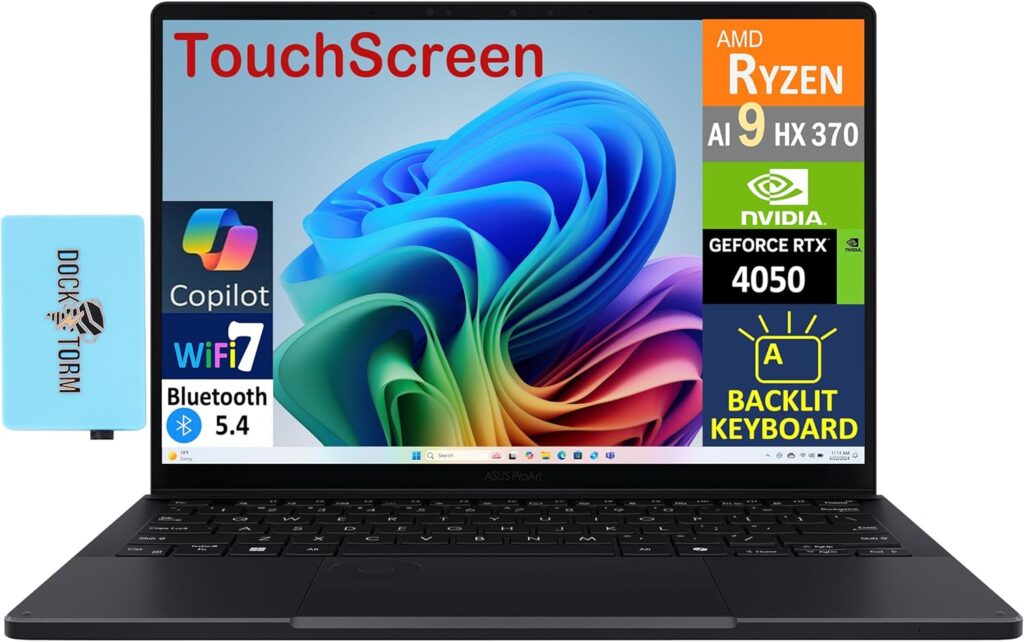
The ProArt P16 is what you buy when you want workstation-adjacent capability without paying the workstation tax. It skips ISV certification, which knocks a serious amount off the price — and for SimScale specifically, costs you literally nothing, because certification is about desktop CAD drivers and SimScale is a web app.
The Ryzen AI 9 HX 370 is a 12-core, 24-thread chip that boosts to 5.1 GHz. In Geekbench 6 it posts single-core scores around 2,930, among the highest of any Windows laptop currently sold. That’s the number that matters for browser responsiveness. Pair it with an RTX 5070 or 5090 Laptop GPU and 64 GB of memory and you’ve got something that handles the SimScale viewport, local ParaView, Fusion 360, and a Premiere timeline without flinching.
And it’s 14.9 mm thick at 1.85 kg, which for a 16-inch machine with that much silicon inside is a bit ridiculous.
Specifications
- Processor: AMD Ryzen AI 9 HX 370, 12 cores / 24 threads, up to 5.1 GHz, 50 TOPS NPU
- Graphics: NVIDIA GeForce RTX 5070, up to RTX 5090 Laptop with 24 GB GDDR7
- Memory: Up to 64 GB LPDDR5X-7500, soldered
- Storage: Up to 4 TB across two M.2 slots
- Display: 16-inch 4K (3840×2400) 120 Hz OLED touchscreen, 100% DCI-P3, Delta E under 1, Pantone-validated, up to 1,600 nits peak
- Ports: USB-C 4.0 40 Gbps, USB-C 3.2, two USB-A, HDMI 2.1, SD card reader, headphone jack
- Extra: ASUS DialPad integrated into the touchpad
- Weight: roughly 1.85 kg
- Price: approximately $2,199 (RTX 4060 base) to $2,899 (RTX 5090, 64 GB)
What’s good
- ✅ Excellent single-core performance, which is the metric that actually governs how the Workbench feels
- ✅ That 4K OLED is one of the best panels on any laptop, Pantone-validated with Delta E under 1
- ✅ Dramatically more GPU per dollar than any certified mobile workstation
- ✅ Genuinely portable for a 16-inch machine
- ✅ Two M.2 slots, so storage stays expandable even though RAM doesn’t
- ✅ The DialPad looks like a gimmick until you map it to viewport zoom, at which point it isn’t
What’s not
- ❌ No ISV certification, which is a paper problem if your employer mandates it
- ❌ Soldered LPDDR5X memory — buy the capacity you’ll need for the machine’s entire life
- ❌ OLED burn-in is a real consideration when you stare at a static sidebar eight hours a day (auto-hide the taskbar, set an aggressive screen timeout, and you’ll be fine)
- ❌ The hinge feels less solid than the price suggests
- ❌ GeForce drivers occasionally need hand-holding with professional applications in a way RTX PRO drivers don’t
Who it’s for
Freelancers, startup engineering teams, and postgraduate students spending their own money. Per euro or lira, nothing else here comes close.
5. ASUS Zenbook 14 OLED — The One Most People Should Actually Buy

Right. Back to the top of the article.
SimScale solves in the cloud. If you’re a mechanical engineering student, an architect running early-stage thermal and airflow studies, an HVAC designer, or an engineer whose CAD lives in Onshape — you do not need a discrete GPU. You need 32 GB of RAM, a fast SSD, a screen you can stand looking at, and battery that survives a full day of lectures or client meetings.
The Zenbook 14 OLED is exactly that, in a 1.28 kg CNC-machined aluminium body, starting around $999. Configurations with the Core Ultra 9 285H, 32 GB, and a 1 TB SSD have been showing up between $900 and $1,399 depending on the sale, which is a genuinely absurd amount of laptop for the money.
Is it perfect? No. It throttles under sustained load and the fans get audible. But sustained multi-core load is not what SimScale asks of your machine, so the weakness lands somewhere you won’t feel it.
Specifications
- Processor: Intel Core Ultra 7 265H or Core Ultra 9 285H (Arrow Lake H), 16 cores, up to 5.4 GHz
- Graphics: Intel Arc integrated
- Memory: 16 GB or 32 GB LPDDR5X, soldered
- Storage: Up to 1 TB M.2 NVMe PCIe 4.0
- Display: 14-inch OLED, from 1920×1200 60 Hz up to 2880×1800 120 Hz, 100% DCI-P3, Pantone-validated, HDR
- Ports: Two Thunderbolt 4, USB-A 10 Gbps, HDMI 2.1, headphone jack
- Wireless: Wi-Fi 7, Bluetooth 5.4
- Battery: 75 Wh, roughly 12–14 hours real-world on the efficient configurations
- Build: CNC-machined aluminium, MIL-STD tested
- Weight: roughly 1.28 kg
- Price: approximately $999–$1,399
What’s good
- ✅ OLED contrast and colour at a price where competitors are still shipping mediocre IPS
- ✅ 32 GB configurations exist, and that’s the single most important box to tick
- ✅ 12–14 hours of real battery life outlasts most premium ultrabooks
- ✅ 1.28 kg with an all-metal chassis and MIL-STD testing behind it
- ✅ Wi-Fi 7 and two Thunderbolt 4 ports
- ✅ Intel Arc graphics drive the WebGL viewport without complaint
What’s not
- ❌ No discrete GPU option at all, so serious local ParaView work will struggle
- ❌ Sustained multi-core performance drops around 24% after roughly eight minutes of continuous load
- ❌ Fans hit around 38–40 dB under load, which is noticeable in a quiet room
- ❌ Tight port selection — no Ethernet, no SD reader on most configurations
- ❌ Soldered memory, which makes the 16 GB version a trap
- ❌ The 60 Hz base panel feels dated next to the 120 Hz upgrade
Who it’s for
Students, cloud-first engineers, and anyone whose desktop CAD needs are met by a browser tool. Buy the 32 GB configuration. That’s the only decision you can get wrong with this laptop.
Which One Fits You?
| Your situation | The answer |
|---|---|
| SimScale plus SolidWorks, Fluent, and local ParaView, every week | Lenovo ThinkPad P16 Gen 3 |
| Serious power, but you travel with it constantly | Dell Pro Max 16 Premium |
| You live in a browser and want battery and silence | MacBook Pro 14″ M5 Pro |
| Maximum capability for your own money, certification optional | ASUS ProArt P16 |
| Student, or SimScale is your heaviest tool | ASUS Zenbook 14 OLED |
| Hard budget under $800 | Any 32 GB machine with a 2K+ 16:10 screen and Wi-Fi 6E |
Before You Spend Anything: Six Fixes That Cost Nothing
Honestly, a large share of “my laptop is too slow for SimScale” complaints are software problems. Try these first.
Check that hardware acceleration is switched on. In Chrome, go to chrome://settings, find “Use hardware acceleration when available,” make sure it’s on, and relaunch. This one toggle is responsible for an enormous proportion of viewport stutter. Firefox has its own equivalent, though it doesn’t strictly require it for WebGL.
Test WebGL directly before blaming your hardware. Load get.webgl.org and webglreport.com. If WebGL is disabled or has crashed, clearing your browser’s cached files and restarting usually brings it back.
Update your graphics driver properly. Not through Windows Update — go to Intel, NVIDIA, or AMD directly. Stale drivers cause far more WebGL crashes than weak hardware ever does. If you’re on an RTX PRO card, use the professional or Studio driver branch, not Game Ready.
Run a current 64-bit browser. WebGL keeps evolving and each browser release brings performance improvements that platforms like SimScale start using immediately.
Close your tabs. I know. But every tab is a process with a memory footprint, and if the Workbench is stuttering with forty tabs open, that’s a RAM problem dressed up as a graphics problem.
Plug in an Ethernet cable. Result streaming and the post-processor’s WebSocket connection are noticeably more stable wired. No port? A cheap USB-C adapter is the best performance-per-euro upgrade available to you.
Mistakes I See People Make
Buying a gaming laptop for the GPU. An RTX 5080 in a Legion or Strix chassis gives you nothing for SimScale that an RTX 4050 wouldn’t, and costs you two hours of battery and a kilogram of weight. Buy the GPU for your other software, not for this.
Buying 16 GB of soldered memory. This is the mistake with no recovery path. LPDDR5X can’t be upgraded afterwards. Pay the extra now.
Treating the screen as an afterthought. You’ll spend thousands of hours in this interface. A dim 1080p panel will cost you more daily frustration than any processor tier ever will.
Assuming ISV certification is mandatory. For SimScale it’s irrelevant — it’s a web application. It matters for SolidWorks, CATIA, and Siemens NX. Work out which camp you’re in before paying the premium.
Forgetting the charger exists. The P16’s 180 W brick is not a small object. If you commute, weigh the whole kit.
Chasing core count. More cores will not finish your simulation faster. Nothing on your laptop finishes your simulation. Repeat as needed.
Frequently Asked Questions
Do I need a dedicated graphics card for SimScale? No. The solvers run in the cloud, and the 3D viewport uses WebGL, which modern integrated graphics handle comfortably. A discrete GPU helps with very large meshes, multiple external displays, and local post-processing in ParaView, but it isn’t a requirement.
How much RAM do I need? 16 GB is the practical floor. 32 GB is what I’d recommend for regular use, because browser tabs, mesh data, and result fields stack up fast. Go to 64 GB only if you also run desktop CAD or heavy offline post-processing.
Can I run SimScale on a MacBook? Yes. SimScale works on Windows, Linux, and macOS as long as your graphics hardware and driver support WebGL. The M5 Pro MacBook Pro is one of the best machines you can use for it. Just confirm the rest of your software — SolidWorks especially — has a macOS route first.
Will a faster processor make my simulations finish sooner? No. Solve time depends on the cloud compute you allocate inside SimScale, not on your hardware. Your CPU affects interface responsiveness, geometry upload processing, and multitasking. That’s the full list.
Can I use a Chromebook? Technically yes, if it supports WebGL and clears the 1366×768 minimum resolution. Practically, a cheap Chromebook with 4 GB of RAM will be painful. A high-end Chromebook Plus with 16 GB is workable for smaller projects.
What internet speed do I need? There’s no official threshold beyond “broadband,” but I’d want at least 25 Mbps down with stable low latency, particularly for the post-processor’s WebSocket connection. Wired beats wireless every time for large result downloads.
Is a touchscreen worth paying for? Marginally. Orbiting and panning with touch works fine, but selecting individual faces and edges precisely is easier with a mouse. Don’t pay extra specifically for it.
Should I buy now or wait? The current Blackwell workstation GPUs delivered 35–50% gains over the previous Ada generation, so you’re buying at a good point in the cycle rather than a bad one. On the Apple side, the rumoured OLED MacBook Pro redesign isn’t expected before 2027. If you need a machine now, buy now.
Which single upgrade gives the biggest improvement? Memory, then screen resolution, then wired networking. In that order, every time.
The Bottom Line
For most people reading this, the honest answer is the ASUS Zenbook 14 OLED with 32 GB of RAM. It costs a fraction of the alternatives and it does the job, because the job is lighter than the marketing around “CFD laptops” would have you believe.
If SimScale sits inside a wider engineering stack with local solvers and desktop CAD, the Lenovo ThinkPad P16 Gen 3 is the machine that’ll still make sense in five years, mostly because you can put 192 GB of memory in it.
Between those two extremes: the ASUS ProArt P16 is the value champion, the Dell Pro Max 16 Premium is the one to carry, and the MacBook Pro 14″ M5 Pro is simply the nicest machine here to spend a working day with.
Buy for your hardest workload, not your average one. And whatever you end up choosing — get the 32 GB.

Hi, my name is Burak. I am a mechanical engineer. I have been writing laptop reviews for the Engineering Laptops website since 2020. Please feel free to contact me if you have any questions.