Estimated reading time: 7 minutes
Key Takeaways
- PSpice requires powerful hardware, focusing on CPU, RAM, SSD, and cooling for optimal performance.
- Top laptops for PSpice include Lenovo ThinkPad P1 Gen 7, Lenovo ThinkPad P16 Gen 2, HP ZBook Fury 16 G11, MSI Creator Z16 HX, and Lenovo ThinkPad P16v Gen 2.
- Prioritize an i7/i9 or Ryzen 7/9 CPU, at least 16GB RAM, an NVMe SSD, and good cooling to avoid lag and crashes.
- Choose based on your needs: lightweight for mobility or robust for heavy workloads.
- Avoid overspending by selecting a laptop that meets current and future project demands.
Table of contents
If you’re running PSpice, you already know—it’s not the kind of software that forgives weak hardware. Slow simulations, laggy interface, crashes during complex circuits… all of that usually comes down to one thing: your laptop just isn’t built for it. In this guide, we’ll help you find the Best Laptops for PSpice so you can run your simulations smoothly.
So instead of wasting money on the wrong machine, let’s keep it simple and real. In this guide, I’ll walk you through 5 laptops that actually make sense for PSpice, whether you’re a student, an engineer, or someone working on serious projects.
No fluff, no marketing nonsense—just solid recommendations.
What Kind of Laptop Do You Really Need for PSpice?
Before jumping into the list, here’s the honest truth:
- CPU matters the most → Go for i7 / i9 or Ryzen 7 / 9
- RAM is critical → 16GB minimum, 32GB recommended
- SSD is non-negotiable → NVMe only
- GPU helps (but not everything) → Useful for smoother rendering and multitasking
- Cooling matters more than you think → Long simulations = heat
If your laptop struggles in any of these areas, you’ll feel it.
Comparison Table
| Laptop | Best For | CPU Power | Max RAM | Weight |
|---|---|---|---|---|
| Lenovo ThinkPad P1 Gen 7 | Best overall | ⭐⭐⭐⭐☆ | 64GB | Light |
| Lenovo ThinkPad P16 Gen 2 | Maximum performance | ⭐⭐⭐⭐⭐ | 192GB | Heavy |
| HP ZBook Fury 16 G11 | Upgrade lovers | ⭐⭐⭐⭐⭐ | 128GB | Heavy |
| MSI Creator Z16 HX | Balanced performance | ⭐⭐⭐⭐☆ | 64GB | Medium |
| Lenovo ThinkPad P16v Gen 2 | Best value | ⭐⭐⭐⭐☆ | 64GB | Medium |
Best Laptops for PSpice in 2026
1. Lenovo ThinkPad P1 Gen 7 — Best Overall Pick
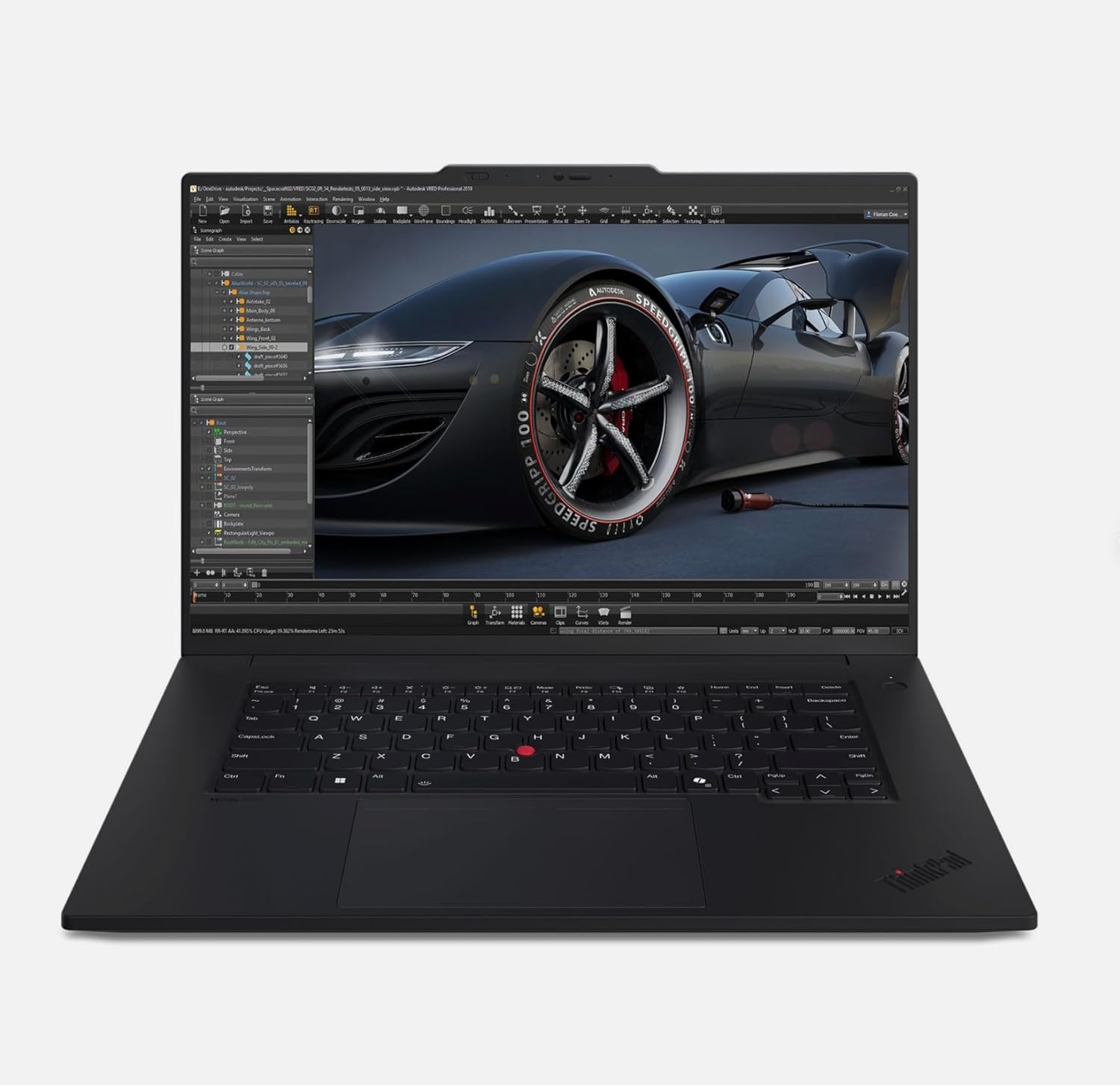
This is the kind of laptop most people should go for. It’s powerful, portable, and doesn’t feel like you’re carrying a brick in your bag.
Key Specs
- Intel Core Ultra 7 / 9 processors
- NVIDIA RTX 4070 or RTX Ada options
- Up to 64GB RAM
- Dual SSD support
- 16-inch high-resolution display
What I Like
- Strong performance without being bulky
- Premium build quality (classic ThinkPad feel)
- Great balance between work and mobility
Downsides
- Not cheap
- RAM is not as upgrade-friendly as bigger workstations
👉 Bottom line: If you want one laptop that does everything well, this is it.
2. Lenovo ThinkPad P16 Gen 2 — Power Beast
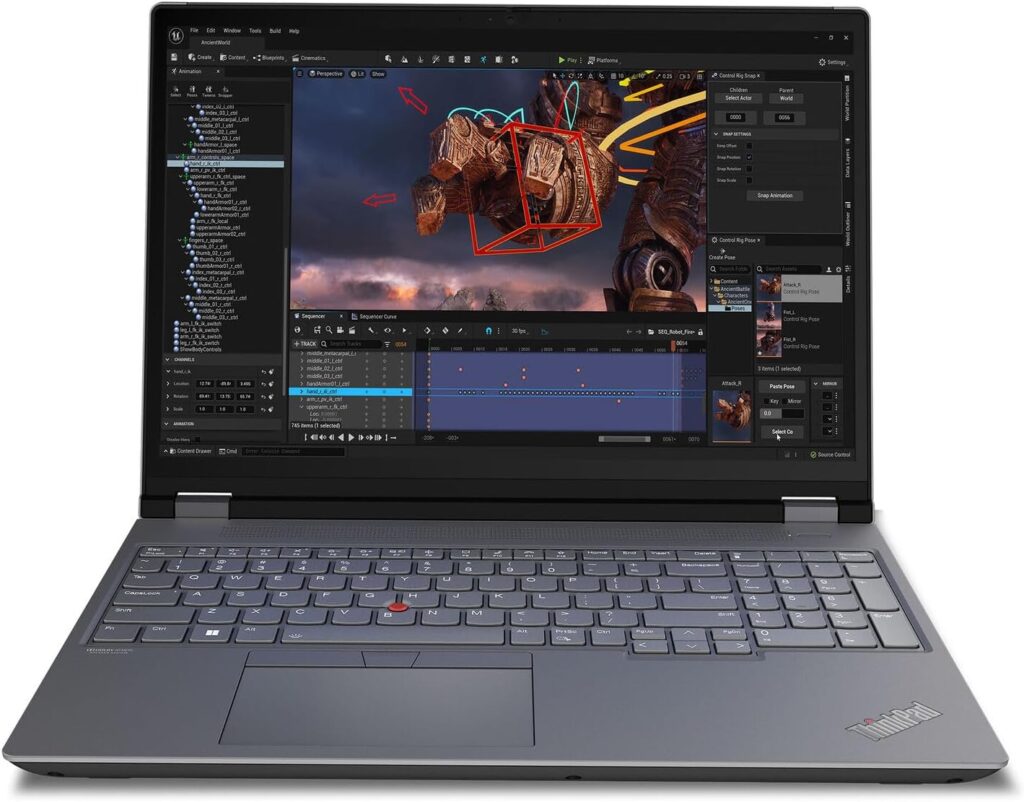
This one is a monster. If your projects are getting bigger and heavier, this machine won’t even flinch.
Key Specs
- Intel Core i7 / i9 HX processors
- NVIDIA RTX 5000 Ada GPU
- Up to 192GB RAM
- Massive storage options
What I Like
- Amazing performance headroom
- Perfect for heavy simulations
- Future-proof for years
Downsides
- Heavy and bulky
- Not ideal for daily carry
👉 Bottom line: This is basically a desktop disguised as a laptop.
3. HP ZBook Fury 16 G11 — Built for Professionals
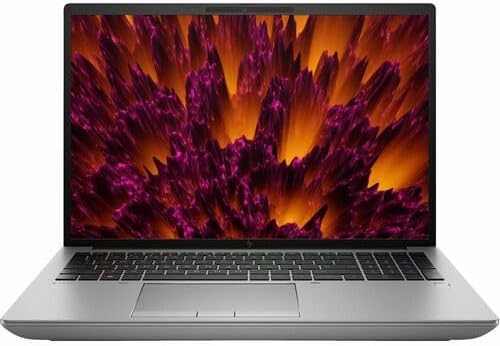
This is for people who want full control over their hardware. You can upgrade almost everything.
Key Specs
- Intel Core i9 HX processor
- RTX 5000 Ada GPU
- Up to 128GB RAM
- Huge storage capacity
What I Like
- Extremely upgradeable
- Rock-solid performance
- Built like a tank
Downsides
- Expensive
- Not very portable
👉 Bottom line: If you like upgrading your machine over time, this one makes sense.
4. MSI Creator Z16 HX Studio — Stylish Power
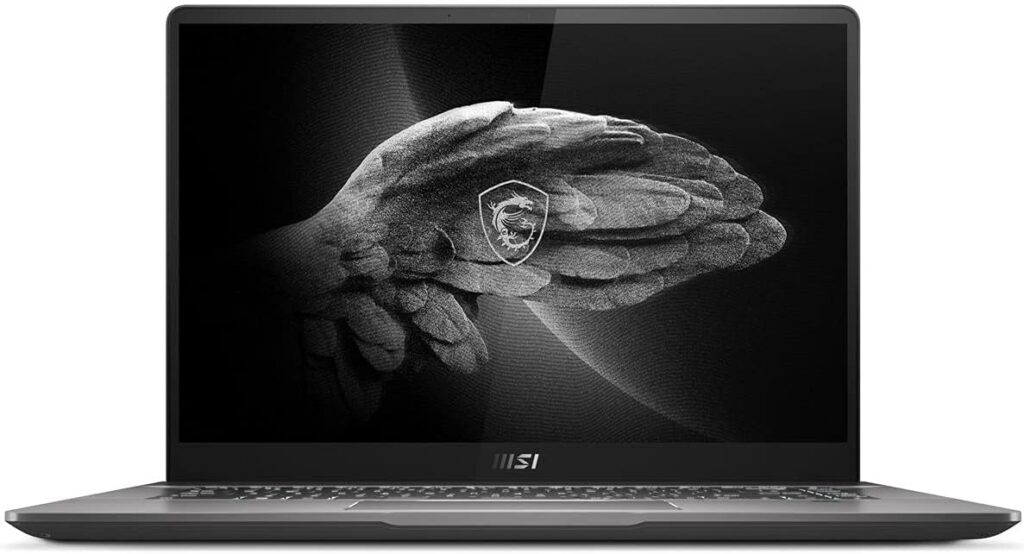
This one feels different. It’s powerful, but also looks clean and modern—not like a typical workstation.
Key Specs
- Intel Core i9 processor
- RTX 4070 GPU
- Up to 64GB RAM
- High refresh rate display
What I Like
- Great screen quality
- Good performance for the size
- More stylish than business laptops
Downsides
- Not as durable as ThinkPads
- Limited upgrade options
👉 Bottom line: A great mix of performance and design.
5. Lenovo ThinkPad P16v Gen 2 — Best Value Option
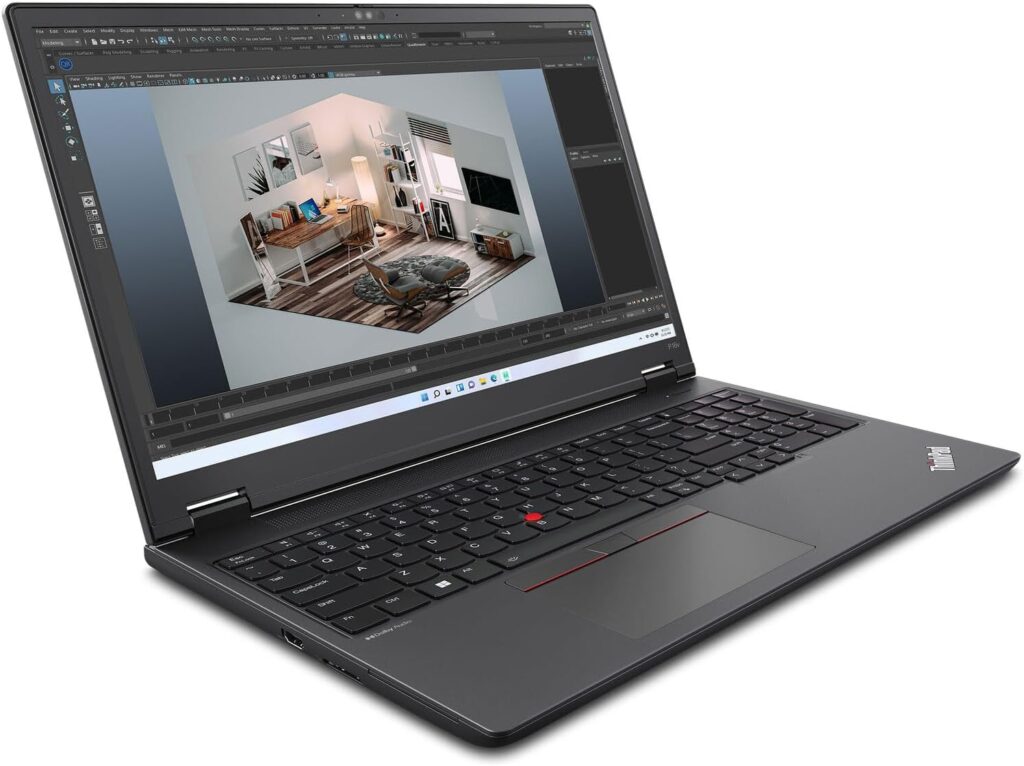
If you don’t want to spend a fortune but still need serious performance, this is the smart choice.
Key Specs
- Intel Core Ultra processors
- RTX Ada GPU options
- Up to 64GB RAM
- Solid 16-inch display
What I Like
- Strong performance for the price
- Reliable and practical
- Good for students and early-career engineers
Downsides
- Not as powerful as flagship models
- Build is more basic
👉 Bottom line: You get most of what you need without overspending.
Which One Should You Choose?
Let’s make it simple:
- Go with P1 Gen 7 → If you want balance
- Go with P16 Gen 2 → If you want max power
- Go with ZBook Fury → If you care about upgrades
- Go with MSI Z16 → If you want style + performance
- Go with P16v Gen 2 → If you’re on a budget
Final Thoughts
Choosing a laptop for PSpice isn’t about chasing the most expensive option—it’s about getting the right balance of CPU, RAM, and cooling for your workflow.
Buy something too weak, and you’ll regret it every day.
Buy something too powerful, and you might just waste money.
So here’s the real question:
👉 Are you buying a laptop for what you need today… or for what your projects will demand tomorrow?
How to Choose the Right Laptop for PSpice
Time needed: 5 minutes
Picking a laptop for PSpice doesn’t have to be complicated. Focus on a few key things, avoid common mistakes, and you’ll end up with a machine that actually keeps up with your work.
- Focus on CPU and RAM First
Start with the core performance. Go for at least an i7 or Ryzen 7 processor, and don’t settle below 16GB RAM (32GB if you can). This is what keeps your simulations smooth and frustration-free.
- Make Sure You Have an SSD and Good Cooling
An NVMe SSD is a must—no exceptions. Also, don’t ignore cooling. If the laptop overheats, performance drops, and PSpice will feel slow no matter how good the specs look on paper.
- Choose Based on Your Work Style
If you move around a lot, go for something lighter like the ThinkPad P1. If you mostly work at a desk, a heavier workstation like the P16 or ZBook Fury will give you more power and flexibility.
FAQs
It works, especially for smaller projects or student use. But if you’re planning to run bigger simulations or multitask a lot, 32GB just feels way more comfortable in the long run.
Not always, but it definitely helps. You’ll notice smoother performance, especially when working with more complex designs or switching between tools. It’s one of those “nice to have, but worth it” things.
Depends on your routine. If you’re always on the move, a lighter machine makes life easier. But if your laptop mostly stays on a desk, a heavier workstation will give you more power and room to grow.

Hi, my name is Burak. I am a mechanical engineer. I have been writing laptop reviews for the Engineering Laptops website since 2020. Please feel free to contact me if you have any questions.