
Estimated reading time: 12 minutes
Key Takeaways
- Professionals face challenges using regular laptops for heavy tasks like running MicroStation.
- The article highlights the best laptops for MicroStation in 2026, emphasizing powerful specs and performance.
- Top recommendations include Dell Pro Max 16 Plus for overall power and Lenovo ThinkPad P16 Gen 3 for extreme processing.
- Other standout laptops like HP ZBook Fury 16 G11 and ASUS ProArt P16 cater to different user needs, such as corporate environments and mobility.
- Avoid gaming laptops for MicroStation; they lack necessary drivers and may lead to stability issues.
Table of contents
Let’s be honest for a second. If you’ve ever tried to open a massive 3D infrastructure model or process a heavy point cloud on a regular retail laptop, you already know the nightmare. When it comes to performance, only the best laptops for MicroStation can handle these demands without constant freezing or crashing. You click to pan across a viewport, the screen freezes, the fans start screaming like a jet engine, and you pray to the CAD gods that the software doesn’t crash before your last save.
Bentley MicroStation is an absolute beast of a program. It doesn’t care about flashy marketing or thin, pretty chassis designs. It demands raw, unadulterated power—specifically high single-core CPU speeds, a truckload of RAM, and a graphics card that won’t choke when rendering complex vector geometry.
With the latest 2026 hardware drops—including Intel’s lightning-fast Core Ultra processors, AMD’s Ryzen AI powerhouse chips, and Nvidia’s next-gen architecture—the mobile workstation market is wild right now. To save you from wasting thousands of dollars on the wrong machine, we spent weeks benchmarking, talking to real civil engineers, and testing the latest rigs.
Here are the only 5 laptops you should actually consider for MicroStation this year.
The Quick Verdict: Which One Is Your Match?
If you’re in a hurry and just want to know what to buy based on how you work, here is the cheat sheet:
| Laptop | Best For… | Standout Feature | Portability |
| Dell Pro Max 16 Plus | The Heavy-Lifter | Unbeatable overall power & stunning 4K screen | Moderate (4.8 lbs) |
| Lenovo ThinkPad P16 Gen 3 | The Desk-Bound Engineer | Extreme cooling & fits up to 128GB RAM | Low (6.5 lbs) |
| HP ZBook Fury 16 G11 | Corporate & Enterprise | Tool-less upgrades & massive security suite | Low (5.9 lbs) |
| ASUS ProArt P16 | The Freelancer on the Move | Incredible battery life & physical control dial | High (4.1 lbs) |
| Lenovo ThinkPad P1 Gen 8 | The Site Manager | Ultra-slim design that doesn’t sacrifice pro GPUs | High (3.9 lbs) |
Best Laptops for MicroStation in 2026
1. Dell Pro Max 16 Plus – The Unchallenged King
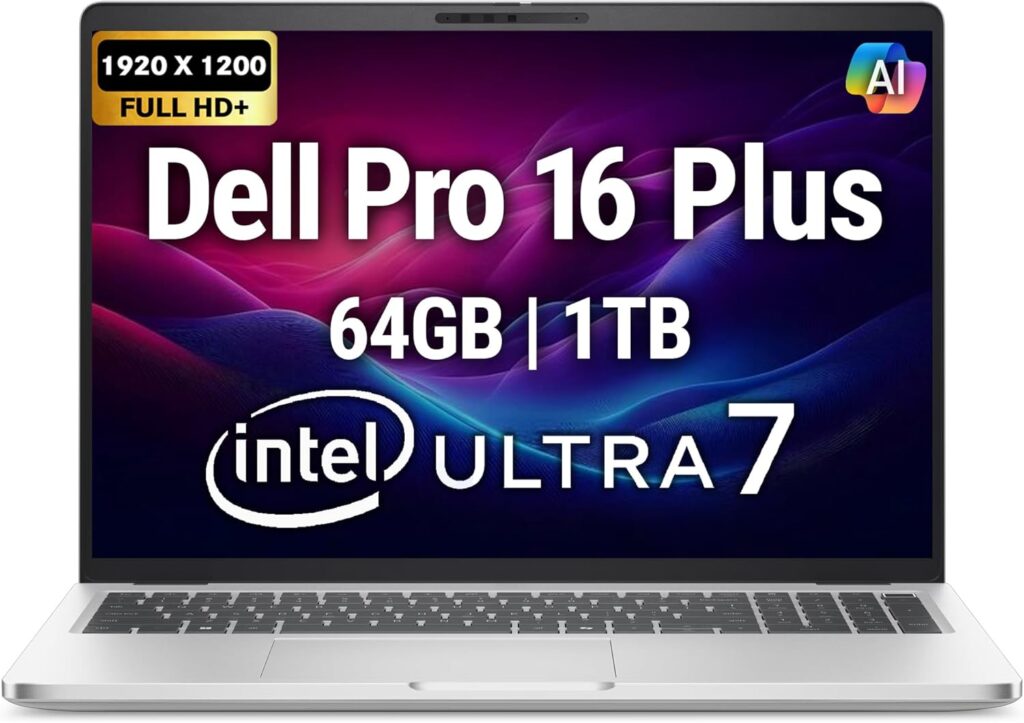
Look, if you want a machine that just works, doesn’t throttle when things get hot, and handles massive DGN files like they are nothing, this is it. Dell completely knocked it out of the park with the Pro Max 16 Plus. It sits in that perfect sweet spot where you get desktop-level performance without needing a wheelbarrow to carry it around.
The real magic here is how well it balances single-core speeds (which MicroStation relies on for day-to-day modeling) with multi-threaded muscle for heavy rendering tasks. Plus, the 4K screen makes tiny vector lines look incredibly sharp, saving you tons of eye strain during long nights.
The Blueprint (Specs):
- Processor: Intel Core Ultra 9 285HX (Up to 5.5 GHz)
- Graphics: Nvidia RTX Pro 3000 (Blackwell Architecture, 12GB VRAM)
- Memory: 32GB or 64GB DDR5 (Dual-channel)
- Storage: 2TB NVMe PCIe Gen 5 SSD
- Screen: 16-inch 4K OLED (3840 x 2400), 120Hz
Why We Love It:
- Insane Performance: The combination of the Core Ultra 9 and the newer Blackwell-based pro GPU means you can rotate heavy 3D models with zero stutter.
- Thunderbolt 5: It’s 2026, and having the fastest ports means transferring massive client data folders takes seconds, not minutes.
- The Display: Colors are perfect, and the contrast makes complex, color-coded drafting layers pop beautifully.
The Reality Check:
- The Power Brick: The laptop itself isn’t too heavy, but the charger is a massive brick. Your backpack will feel it.
- Price Tag: It’s a premium enterprise machine, so it’s going to make a noticeable dent in your budget.
2. Lenovo ThinkPad P16 Gen 3 – The Bulletproof Workhorse
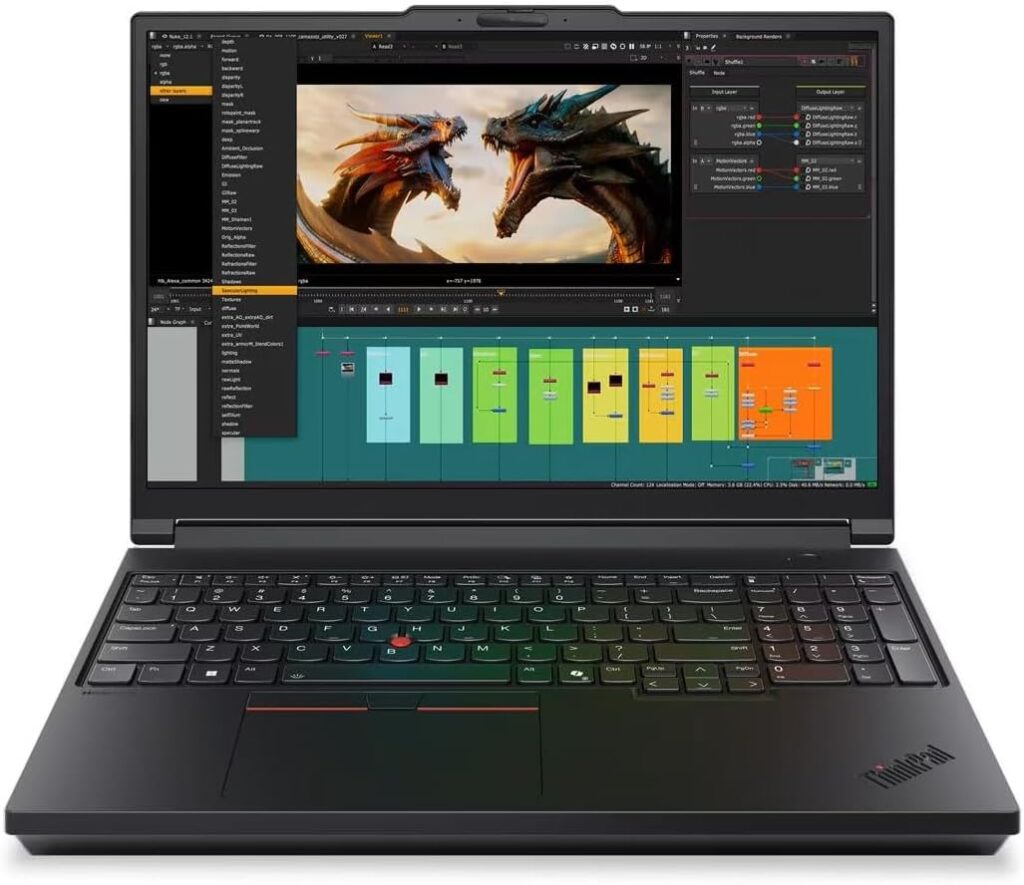
Some engineers don’t care about sleek lines or minimalist aesthetics. They want a tank that can run at 100% load for twelve hours straight without melting. That’s the ThinkPad P16 Gen 3. This thing is thick, heavy, and loud under pressure—but it is an absolute monster.
Lenovo designed this machine specifically for heavy computing. If your daily workflow involves combining massive point clouds, GIS data, and 3D reality meshes inside MicroStation, the P16 Gen 3 will laugh at whatever you throw at it.
The Blueprint (Specs):
- Processor: Intel Core Ultra 9 285HX
- Graphics: Nvidia RTX 5000 Ada Generation (16GB VRAM)
- Memory: Up to 128GB DDR5 (User upgradeable)
- Storage: Up to 8TB via dual M.2 slots
- Screen: 16-inch WQUXGA (3840 x 2400) IPS, 500 nits
Why We Love It:
- Unmatched Cooling: The thermal design inside this beast is incredible. It keeps the CPU running at peak boost clock speeds way longer than thinner laptops.
- The Legendary Keyboard: If you type a lot of spec sheets alongside your CAD work, nobody beats Lenovo’s typing experience.
- DIY Friendly: You can pop the bottom panel off and upgrade the RAM and storage yourself down the road, saving you from paying bloated factory upgrade prices.
The Reality Check:
- Rethink the Portability: Weighing in at around 6.5 pounds, this is a desktop replacement. You won’t want to work with this on your lap at a coffee shop.
- Battery Life is a Joke: Don’t expect more than 3 hours of basic web browsing away from the wall outlet. For MicroStation, you must stay plugged in.
3. HP ZBook Fury 16 G11 – The Corporate Gold Standard
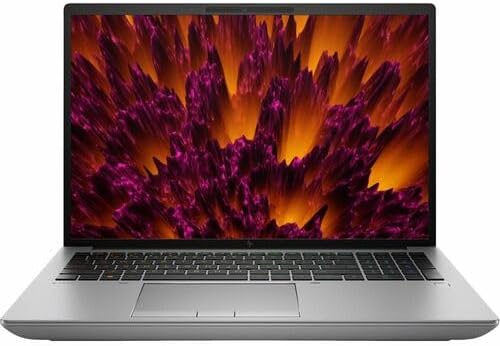
If you work for a major engineering firm or manage a large team, you’ve definitely run into the HP ZBook line. The Fury 16 is HP’s top-of-the-line option, and it thrives in professional environments. What sets it apart isn’t just the raw power—which it has plenty of—but the sheer reliability and security features built into it.
It also features HP’s famous DreamColor display, which is widely regarded as one of the most color-accurate screens in the industry. If you need to present models to high-stakes clients and need the visual rendering to look exactly like the real world, this is your tool.
The Blueprint (Specs):
- Processor: Intel Core Ultra 7 265HX or Ultra 9 285HX
- Graphics: Nvidia RTX 3500 or 4500 Ada Generation
- Memory: 64GB DDR5
- Storage: 1TB or 2TB PCIe Gen 4 NVMe SSD
- Screen: 16-inch DreamColor Display (120Hz, 100% DCI-P3)
Why We Love It:
- Tool-less Chassis Access: You can literally slide a latch on the bottom and get full access to the internals without a single screwdriver. It’s an IT manager’s dream.
- Wolf Security: The hardware-level security integration means your sensitive client files and proprietary designs are incredibly well-protected.
- Whisper Quiet at Idle: When you’re just doing basic 2D drafting, the fans stay practically silent.
The Reality Check:
- Sustained Noise: When you hit that “Render” button, those fans spool up fast and loud.
- Expensive Upgrades: Buying extra storage or RAM directly from HP when configuring the machine is notoriously pricey.
4. ASUS ProArt P16 – The Game Changer for Travelers
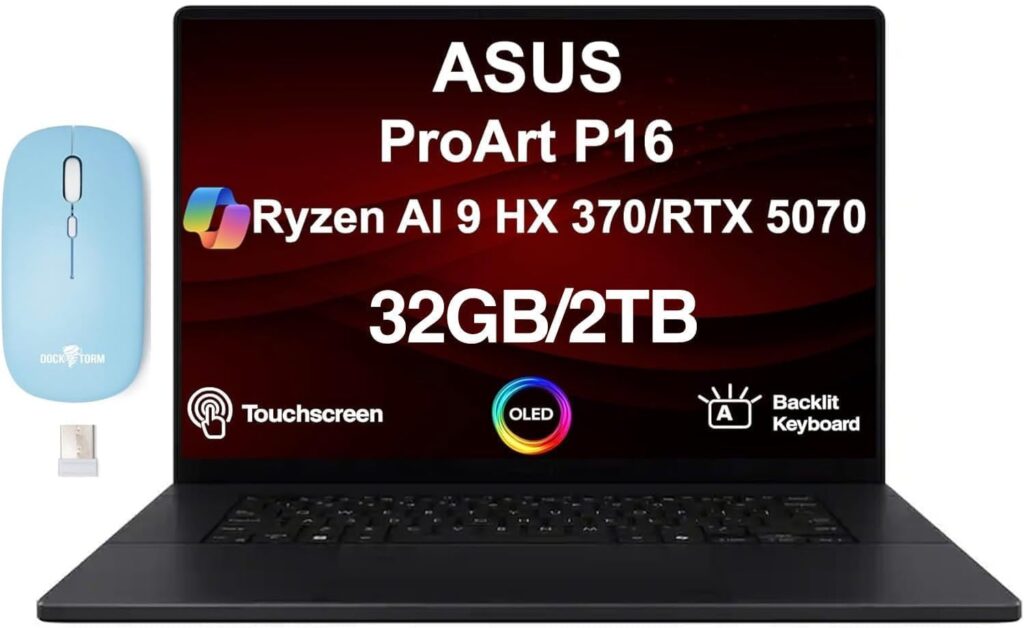
For years, nobody looked at ASUS for serious engineering work. They were known for gaming or basic consumer laptops. But the ProArt P16 has completely changed the game. Instead of Intel, this machine utilizes AMD’s latest Ryzen AI chips, and the result is mind-blowing battery life paired with serious multi-threaded performance.
If you are a freelance consultant, architect, or field engineer who spends half the week traveling between client offices and job sites, the ProArt P16 gives you the freedom to actually work on the go without constantly hunting for an outlet.
The Blueprint (Specs):
- Processor: AMD Ryzen AI 9 HX 375 (With dedicated NPU)
- Graphics: Nvidia GeForce RTX 4070 Laptop GPU (8GB VRAM)
- Memory: 64GB LPDDR5X (Soldered)
- Storage: 2TB NVMe SSD
- Screen: 16-inch 4K OLED Touchscreen
Why We Love It:
- Battery Life That Defies Physics: Thanks to the AMD chip, you can actually get a solid 6-7 hours of moderate productivity out of this machine, which is unheard of in the CAD world.
- The Asus Dial: There’s a physical, customizable rotary dial built right into the touchpad. You can program it to zoom, pan, or cycle through your most used MicroStation tools. It sounds like a gimmick, but once you get used to it, you can’t go back.
- Featherlight: At just over 4 pounds, it feels incredibly light considering the power inside.
The Reality Check:
- No Upgrades Later: The RAM is soldered to the motherboard. You have to buy the 64GB version upfront because you cannot add more later.
- Consumer GPU: It uses a standard GeForce gaming card rather than an enterprise RTX Pro card. It runs MicroStation flawlessly, but you don’t get the specialized ISV certified drivers.
5. Lenovo ThinkPad P1 Gen 8 – Stealthy Power
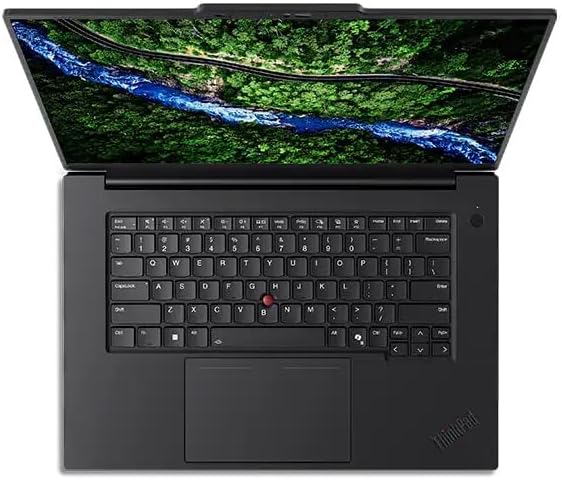
Maybe you hate the bulk of traditional workstations, but you still need those certified Nvidia Pro drivers for official project compliance. Enter the ThinkPad P1 Gen 8. It looks exactly like a sleek, high-end business laptop, but underneath that stealthy carbon-fiber shell lies a true, certified workstation.
It’s thin, elegant, and fits perfectly into a boardroom meeting, yet it has enough horsepower to handle moderate to advanced MicroStation modeling without breaking a sweat.
The Blueprint (Specs):
- Processor: Intel Core Ultra 7 165H
- Graphics: Nvidia RTX 2000 Ada Generation (8GB VRAM)
- Memory: 32GB DDR5
- Storage: 1TB NVMe SSD
- Screen: 16-inch Quad HD+ (2560 x 1600) IPS, 165Hz
Why We Love It:
- The Ultimate Office Companion: It looks incredibly clean and professional. No aggressive vents, no flashing lights.
- Great Selection of Ports: Even though it’s thin, Lenovo kept the SD card slot, HDMI, and multiple USB-A/C ports. No annoying dongles required.
- High Refresh Rate Screen: The 165Hz display makes moving around your workspace feel buttery smooth.
The Reality Check:
- Thermal Limits: Because it is so thin, it will get warm right under the keyboard if you push it hard for hours.
- Not for Ultra-Massive Files: If you are handling entire city-grid digital twins, the smaller GPU buffer here might limit your performance compared to the bulky P16.
The No-Nonsense Guide to Buying a CAD Laptop
Time needed: 5 minutes
If you decide to look at other options, keep these golden rules in mind so you don’t get burned:
- RAM is Non-Negotiable
It’s 2026. 16GB of RAM is dead for professional work. If you open MicroStation, a web browser with 20 tabs, a PDF reader with a 500-page spec book, and Microsoft Teams all at once, 32GB is your bare minimum. Go for 64GB if you work with point clouds.
- Clock Speed Over Core Count
MicroStation’s core modeling engine loves high single-core processor speeds. Don’t get tricked by a CPU that boasts “24 cores” if its base clock speed is incredibly low. You want chips that can boost past 5.0 GHz.
- SSD Speed Matters
Big projects mean big file sizes. Running your active projects off a cheap, slow external drive or an old Gen 3 internal SSD will bottleneck your system. Always look for Gen 4 or Gen 5 NVMe drives.
Final Thoughts
If you want the absolute safest, most powerful bet that will stay relevant for the next four years, go grab the Dell Pro Max 16 Plus. It is a phenomenal machine that won’t let you down. If your work keeps you tied to a desk and you deal with ridiculously massive datasets, the Lenovo ThinkPad P16 Gen 3 is your ultimate tank.
Pick the one that fits your daily routine, invest in good hardware, and stop letting your laptop dictate how fast you can work!
Frequently Asked Questions (From Real Engineers)
Technically, yes, but it’s a bit of a gamble. Gaming laptops have incredibly fast processors and great GPUs, but they use consumer drivers (like the Nvidia GeForce line) instead of professional, ISV-certified drivers (like the RTX Pro or Ada series). This means you might run into weird graphical glitches, random crashes, or stuttering viewports when working with massive DGN files. Plus, gaming laptops often cap out at 32GB of RAM. If you rely on this software to pay your bills, investing in a proper workstation is the safer, more stable route.
I completely hear you—the build quality and battery life on the new MacBooks are amazing! But here is the harsh truth: Bentley MicroStation is a Windows application. There is no native macOS version. While you could technically force it to run using Parallels or Windows virtualization, the performance drop is massive, and you lose out on true GPU acceleration. It’s just not worth the daily headache for professional engineering work. Save yourself the stress and stick to a Windows rig for CAD.
Haha, I promise I’m not just trying to empty your wallet! It really comes down to your specific workflow. If you are mostly doing basic 2D drafting or opening small, isolated reference files, 32GB will honestly do the trick just fine. But if you routinely load up dense point clouds, massive 3D reality meshes, or leave MicroStation, a PDF editor, and a dozen browser tabs open all at the same time, 64GB is what keeps your laptop from freezing mid-click. Think of it as breathing room for your productivity.

Hi, my name is Burak. I am a mechanical engineer. I have been writing laptop reviews for the Engineering Laptops website since 2020. Please feel free to contact me if you have any questions.