Estimated reading time: 0 minutes
Table of contents
- The short version, if you’re in a hurry
- Why Zwift breaks all the normal rules
- The bit almost nobody explains properly: profile vs. resolution
- The pain cave checklist you won’t find in a gaming review
- How I put this together
- The five laptops
- 1. Acer Nitro V 16S AI — the one I’d actually buy
- 2. Lenovo Legion Pro 5 (16″, Gen 10) — for racers who want the highest floor
- 3. Gigabyte Aero X16 — the fastest single-core Windows option here
- 4. Alienware 16 Aurora — the big-battery, big-screen pragmatist
- 5. Apple MacBook Air 13 (M5) — silent, and the fastest CPU on this page
- Everything measured, side by side
- What frame rate will you actually see?
- Setting it up properly
- Who shouldn’t buy a laptop at all
- Questions I get asked a lot
- Where I’d land
- Sources
I’ll start with the thing that cost me money years ago, so it doesn’t cost you money now.
When I first went shopping for a Zwift machine, I did what everybody does. I opened a few “best gaming laptop” lists, looked for the biggest graphics card I could stomach paying for, and assumed that was the end of it. Bigger GPU, better Zwift. Simple.
That is completely, embarrassingly wrong. And once I understood why, I couldn’t unsee it on every Zwift laptop guide I read afterwards. Almost all of them are gaming reviews with the word “Zwift” pasted on top, written by someone who has never watched their frame rate fall apart in a race pen with 400 riders around them.
So here’s what this is instead: the buying rules that actually apply to Zwift, five laptops you can buy right now in 2026 that fit those rules, and every number I could find from labs that publish their measurements. If I couldn’t find a real measured figure for something, I didn’t guess and I didn’t quietly leave a hole in a table. Everything below is attributed to whoever actually measured it.
Grab a coffee. This one’s long, but it’ll save you a few hundred quid.
The short version, if you’re in a hurry
| If you’re… | Get this | Roughly |
|---|---|---|
| A normal Zwifter who wants the most sense per dollar | Acer Nitro V 16S AI | ~$1,299 |
| Racing, and you want the highest frame rate floor | Lenovo Legion Pro 5 (16″, Gen 10) | ~$1,749+ |
| Using one laptop for Zwift and actual work | Gigabyte Aero X16 | ~$1,500 |
| Riding somewhere with no plug nearby | Alienware 16 Aurora | ~$1,187–1,499 |
| Sick of fan noise and Windows updates at 5:50 a.m. | Apple MacBook Air 13 (M5) | see below |
A warning on pricing: 2026 has been ugly. Tom’s Hardware has been tracking the memory shortage all year and flatly says the market below $1,000 has been decimated. Prices move week to week, so treat every figure here as a ballpark and check before you buy.
Why Zwift breaks all the normal rules
Zwift runs on OpenGL and the engine underneath it is old. It doesn’t spread work across a big pile of CPU cores the way a modern AAA game does. What it does instead is calculate the position, speed and draft physics of every rider near you — on your machine, not on Zwift’s servers — and then hand the drawing instructions to your graphics card.
Solo, in a quiet corner of Watopia, that’s nothing. Any dedicated GPU will hold 60 fps all day and your fans will barely spin.
Then you drop into a busy RoboPacer group, or the start pen of a race, and the floor falls out. Your CPU is suddenly grinding through hundreds of rider calculations per frame, your graphics card is sitting there underused, waiting to be told what to draw, and your frame rate tanks.
I want to be clear that this isn’t my theory. Dave Higgins, who has built over a hundred dedicated Zwift PCs and writes Zwift Insider’s PC guide, has demonstrated it repeatedly with log analysis: as the number of nearby riders climbs, frame rate falls — while GPU utilisation stays low. Low GPU usage with a dropping frame rate is the fingerprint of a CPU bottleneck. It’s not the graphics card struggling. It’s the graphics card waiting.
Three things follow from that, and they’re the whole reason this article exists.
Single-thread CPU speed beats core count. Eight fast cores will beat twenty-four slower ones here. Past four cores, Zwift stops caring.
The returns on GPU spending fall off a cliff. Zwift Insider puts it bluntly: nearly every consumer graphics card made since 2015 gets exactly the same level of visual detail in Zwift. A GTX 960 and an RTX 4090 draw the same picture. The expensive card only buys you the ability to hold 60 fps at higher resolutions in the densest foliage.
Neokyo is CPU-limited all the time. Zwift Insider flags the Makuri Islands world, and Neokyo in particular, as being CPU-bound even with nobody else around — behaviour that’s different from every other world in the game. If your frame rate collapses in Neokyo but Watopia is fine, that’s your processor talking.
So the rule I’d give a friend: fast CPU cores, a modest dedicated GPU, and spend what you saved on a decent screen and a chassis that doesn’t scream at you.
The bit almost nobody explains properly: profile vs. resolution
This trips up people who’ve been Zwifting for years. There are two separate graphics settings in Zwift and only one of them belongs to you.
| Graphics profile | Game resolution | |
|---|---|---|
| Controls | Foliage density, shadows, reflections, water, wildlife, texture detail | How sharp the picture is |
| Who picks it | Zwift HQ, based on your exact GPU model. You can’t change it | You, in the settings menu |
| Levels | Basic → Medium → High → Ultra | 576p / 720p / 1080p / 1440p / 2160p |
| How to move up | Own a GPU that’s on Zwift’s Ultra list | Just pick a bigger number |
Zwift Insider’s guide states it plainly: the profile is assigned automatically by the game based on your hardware’s graphical ability, and it cannot be changed. Machines running on integrated graphics almost always land on Basic — the same tier as phones, most tablets, and every Apple TV ever made.
The integrated-graphics trap
This is the most expensive mistake you can make in 2026, and I keep watching people walk into it.
You go and buy a beautiful slim ultrabook with one of the new high-end integrated GPUs. On paper it’s fast. Notebookcheck’s testing puts the Radeon 890M roughly on par with a GTX 1650 laptop chip — which, going by Zwift Insider’s own desktop guidance, is well past the bar for Ultra profile.
In practice, Zwift’s list hasn’t followed, and riders on Zwift’s own forums have been documenting it:
- December 2025: a rider with a mini PC running a Core Ultra 9 285H and Arc 140T reported being stuck on the Basic profile at 1080p.
- Another regular checked the crowd-sourced TrainerDX database and found that every logged result for the Arc 140T showed 1080p Basic, right up to game version 1.100.
- February 2026: a rider who switched to a Ryzen AI 9 HX 370 machine with Radeon 890M confirmed it again — still Basic.
Read that again, because it’s the single most useful thing in this article. A €1,200 ultrabook with cutting-edge integrated graphics renders Zwift at phone-level detail. A cheaper laptop with a modest RTX 5050 gets the full Ultra treatment. It has nothing to do with raw horsepower and everything to do with whether Zwift has put your specific GPU on a list.
Apple’s the exception. Since February 2025, Zwift has assigned Ultra profile to all M4 Macs, along with the Pro, Max and Ultra variants of M1 through M3. Base M1/M2/M3 machines stay on High. Apple silicon is the one place where integrated graphics get the top tier.
On Windows-on-ARM: I’d steer clear for Zwift. ARM-based Windows devices have historically been flagged as incompatible — the Surface Pro X was called out specifically — and there’s no advertised native ARM64 build of Zwift. Running your training platform through an emulation layer to save a few watts isn’t a trade I’d make. If you’re looking at a Snapdragon machine anyway, check Zwift’s compatibility page first and don’t assume.
The pain cave checklist you won’t find in a gaming review
Gaming laptop reviews are written for someone sitting at a clean desk. You’re going to sweat on this thing for ninety minutes at a stretch, three times a week, probably in a garage. Different rules.
One USB-A port, minimum. If you use ANT+, this is non-negotiable. Your trainer, power meter and heart rate strap all talk ANT+, and the receiver is a USB-A stick. Zwift Insider’s dongle guide recommends running it on an extension cable so it sits near the bike, and says that if you need to go beyond 3 metres you should use an active (powered) extension. Two USB-C ports and nothing else means a dongle, a hub, and one more thing that can fail mid-interval.
Matte beats OLED here, and I know that’s not what you want to hear. OLED panels are stunning. They’re also glossy. LaptopMedia measures screen reflectance in gloss units and rates anything above 70 GU as high gloss — the Legion Pro 5’s OLED came in at 151 GU, which they flag as a real eye-strain risk. In a garage with an LED strip overhead and your face sixty centimetres from the screen, a matte IPS panel is often the smarter buy.
Fan noise you can talk over. You’ll have music going, a fan blowing on you, maybe a group ride on Discord. The fastest laptop is frequently the wrong one for this room.
Don’t block the intakes. Most gaming laptops breathe through the base. Sitting one on a towel or a soft trainer mat chokes it. Hard surface, feet clear, always.
Sweat is salty and it kills laptops. Sweat getting into the keyboard and hinge is, in my experience, the number one killer of pain cave machines. A silicone keyboard cover costs almost nothing. Better still, put the laptop off to the side and run HDMI out to a TV so you’re not dripping on it at all.
HDMI 2.1 if you’re going to a TV. For variable refresh on a modern TV, Zwift Insider notes you need HDMI 2.1 and an RTX 3000-series card or newer. All five picks below clear the GPU side; just check the HDMI spec on the exact model you’re buying.
Adaptive sync is the real fix. Your frame rate will swing when it gets busy. That’s true on every machine at every price. A variable-refresh display smooths the swings instead of trying to brute-force them away, and on a 144 Hz-plus panel, Low Framerate Compensation covers you even at the bottom end. Zwift Insider calls this the smartest money you can spend and I completely agree.
How I put this together
I want to be straight with you about method, because “we tested” means wildly different things on different sites.
I don’t run a lab, and I’m not going to pretend otherwise. What I did was go through the published measurements from test houses that do — Tom’s Hardware, LaptopMedia, Notebookcheck, TechRadar and Zwift Insider — and pull out the figures that actually matter for indoor cycling. Every number in this article carries the name of whoever measured it. Where two labs disagree, I’ve said so rather than picking the flattering one.
I re-weighted everything for Zwift. A normal gaming review scores a laptop on 1440p frame rates in Cyberpunk. For our purposes that’s nearly irrelevant. Here’s what I actually weighted:
| What I looked at | Weight | Why it matters on Zwift |
|---|---|---|
| Single-thread CPU performance | 35% | The actual bottleneck in group rides and races |
| Sustained behaviour over 30–60 minutes | 25% | A Zwift session is a long load, not a benchmark burst |
| Noise and screen quality under pain cave conditions | 20% | You’ll stare at this, sweating, for hours |
| Ports, Ultra profile eligibility, battery | 20% | ANT+, graphics tier, rides away from a socket |
I cross-checked against real Zwift telemetry. This is the part I’ve never seen another roundup do. Zwift writes a log file for every ride recording your assigned profile, your resolution and your frame rate. Upload it to TrainerDX (it used to be called Zwiftalizer) and you get a picture of what real riders on that exact hardware are actually getting. That’s where the integrated-graphics evidence above comes from, and it’s the closest thing our sport has to an open benchmark database.
The 90-minute protocol — run it yourself
If you want to know what your own machine is really doing, here’s the routine I use. Do this and you’ll know more than any spec sheet will tell you.
1. Baseline (10 min). Fresh boot. Solo ride on Tempus Fugit in Watopia. Turn on the fps overlay. Note your steady-state frame rate and your assigned profile. That’s your ceiling.
2. CPU stress (20 min). Ride Neokyo. Still solo. Because Neokyo is CPU-limited even when it’s empty, a big drop here points straight at your processor and not your graphics card. This is the single most diagnostic thing you can do in Zwift.
3. Group load (30 min). Join the busiest RoboPacer you can find and sit in the bunch. Watch your minimum frame rate as the group fills in. That’s what a race start feels like.
4. Thermal soak (30 min). Keep riding. Log CPU and GPU clocks and temperatures with HWiNFO64 on Windows or Stats on macOS. Compare the last five minutes against the first five. More than about a 10% drop in sustained clocks means you’re throttling, and your frame rate floor will keep sinking on long endurance rides.
5. Noise. Phone with a sound meter app, 60 cm away, ear height, same hard surface. Anything over about 45 dB(A) is going to fight your music.
6. Upload the log to TrainerDX and see how you compare to everyone else on the same hardware.
If a review can’t tell you what happens at step 2 or step 3, it isn’t a Zwift review.
The five laptops
1. Acer Nitro V 16S AI — the one I’d actually buy
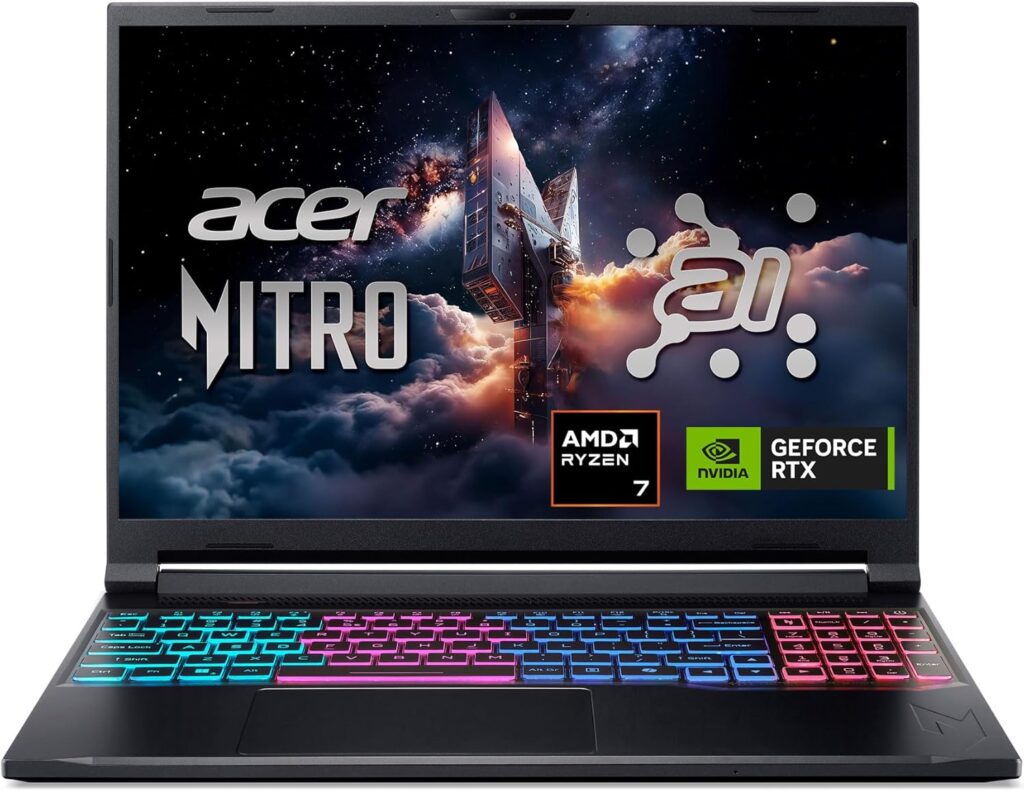
Bright matte screen, three USB-A ports, quiet, cool, and it does everything Zwift asks.
I know a laptop with an 85-watt graphics card feels like an anticlimax for a “best” pick. Stay with me, because for this specific job it’s close to perfect, and Tom’s Hardware’s measurements back that up across the board.
The specs
- CPU: AMD Ryzen 7 260 — 8 cores, 16 threads, 3.8 GHz base, 5.1 GHz boost
- GPU: NVIDIA GeForce RTX 5060 Laptop, 8 GB GDDR7, 85 W, 1,785 MHz max boost
- Memory: 32 GB DDR5-5600 (2 × 16 GB, both slots user-accessible)
- Storage: 1 TB WD SN5000S PCIe 4.0 NVMe, plus a second empty M.2 slot
- Display: 16-inch, 1920 × 1200, IPS, 16:10, 180 Hz, matte
- Ports: 3 × USB-A 3.2 Gen 2, 1 × USB-C, HDMI 2.1, Gigabit Ethernet, microSD, 3.5 mm
- Battery: 76 Wh · Weight: 4.55 lb (2.06 kg) · Wi-Fi 6E
- Zwift profile: Ultra
What the labs measured
- CPU: Geekbench 6 came in at 2,659 single-core / 12,837 multi-core (Tom’s Hardware). Tom’s Hardware notes the single-core result was comparable to its rivals; it was multi-core where it fell behind — and multi-core is the part Zwift ignores.
- Storage: it demolished its price group on Tom’s Hardware’s 25 GB file copy at 1,838.88 MBps, ahead of the Gigabyte Aorus 16X (1,500.98), MSI Katana 17 HX (1,224.05) and Alienware 16 Aurora (1,179.12).
- Display: measured peak brightness of 391.8 nits, with 77.4% DCI-P3 and 109.3% sRGB coverage. Tom’s Hardware describes the matte finish as reducing, though not eliminating, glare.
- Battery: 10 hours 17 minutes on Tom’s Hardware’s test (web browsing, video streaming, OpenGL, screen at 150 nits). That beat the Alienware 16 Aurora’s 9:41 and buried the Katana 17 HX’s 6:21.
- Thermals under sustained load: across a 15-run Metro Exodus stress test, the CPU package sat at 60 °C and the RTX 5060 averaged 1.92 GHz at 66.5 °C. Surface temperatures were 79 °F at the touchpad, 109 °F between the G and H keys, 110 °F on the underside and 127 °F at the hottest spot on the base.
- Noise: Tom’s Hardware says the fans spin up quickly but the output isn’t objectionable, and that even during the full Metro Exodus stress run, noise levels were low.
- Real gaming reference: 76.01 fps average at 1600p in Metro Exodus, 90 fps at 1200p Ultra in Indiana Jones and the Great Circle.
Why this wins for Zwift. Sixty degrees on the CPU package under a proper stress test is the number that sold me. Zwift is a far lighter load than Metro Exodus, so this thing will barely wake up during a ride — which means quiet fans and no throttling on hour two. Add a matte 391.8-nit panel, three USB-A ports for your ANT+ stick, Gigabit Ethernet, a microSD slot and ten hours off the plug, and you have a machine that was accidentally designed for a pain cave.
Pros
- ✅ Coolest and quietest of the Windows machines here under sustained load
- ✅ Matte 180 Hz panel at 391.8 measured nits — no fighting garage glare
- ✅ Three USB-A ports, HDMI 2.1, Ethernet and microSD
- ✅ Fastest storage of its price group in Tom’s Hardware’s testing
- ✅ 10h17m of measured battery life
- ✅ Two RAM slots and two M.2 slots, both easy to get at
Cons
- ❌ Multi-core performance trails its rivals (irrelevant for Zwift, relevant if you edit video)
- ❌ A dozen-plus preinstalled apps you’ll want gone on day one
- ❌ 720p webcam, no IR camera, no fingerprint reader — no biometric login at all
- ❌ Wi-Fi 6E rather than Wi-Fi 7
- ❌ One-year warranty
- ❌ 85 W GPU means it’s not the machine if you also want maxed-out AAA gaming
Who it’s for: almost everybody reading this. If you want me to make one recommendation and stop talking, it’s this one.
2. Lenovo Legion Pro 5 (16″, Gen 10) — for racers who want the highest floor
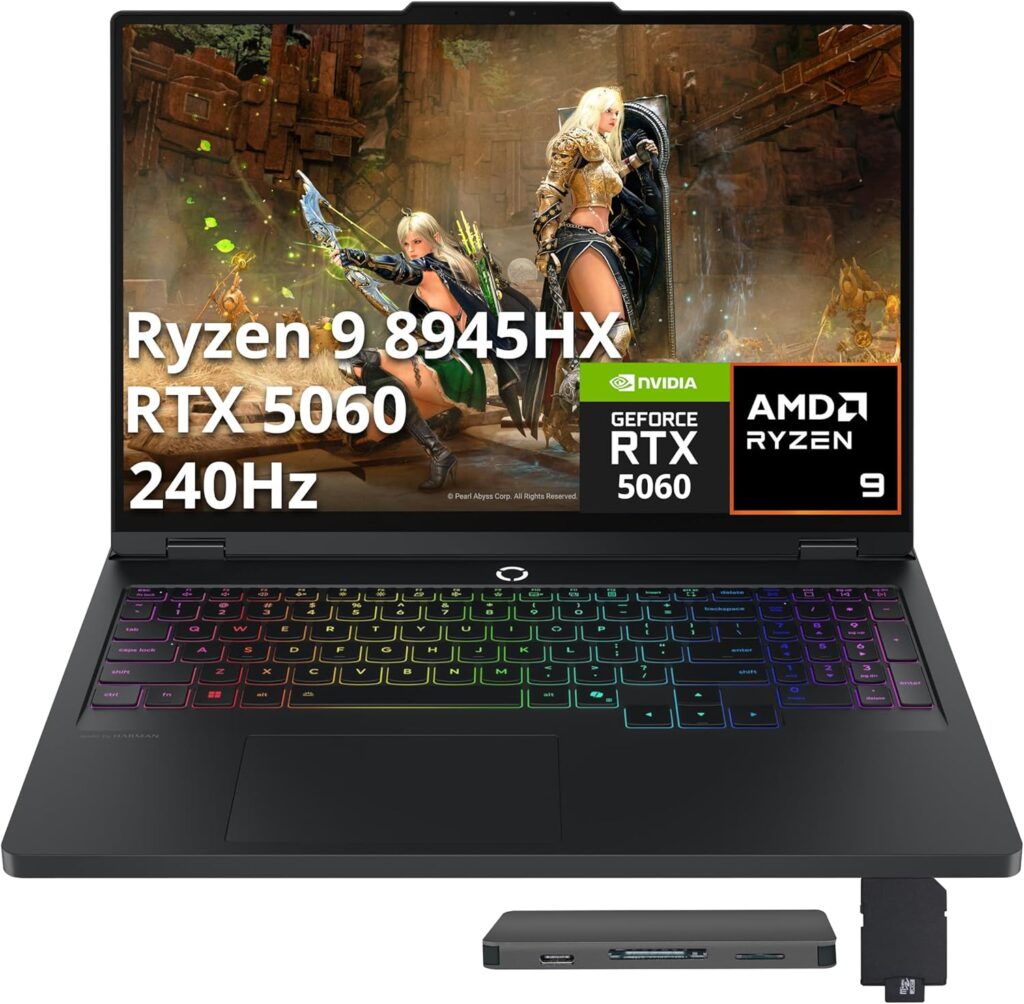
LaptopMedia called it the fastest RTX 5060 laptop they’ve ever tested. The cooling is genuinely special. The battery is genuinely awful.
If you race, or you’re the person who’s always in the 500-rider Tour de Zwift pen, this is where the extra money goes.
The specs
- CPU: AMD Ryzen 7 8745HX in LaptopMedia’s review unit; also available with Ryzen 9 8940HX, 8945HX and the Ryzen 9 9955HX, which sits at #4 in LaptopMedia’s overall laptop CPU ranking
- GPU: RTX 5050 / 5060 / 5070 / 5070 Ti depending on configuration
- Display: 16-inch WQXGA (2560 × 1600) — 165 Hz OLED, or a 240 Hz anti-glare IPS option
- Storage: Samsung PCIe 4.0 NVMe, two 2280 M.2 slots
- Memory: two DDR5 SO-DIMM slots, up to 64 GB
- Ports: 3 × USB-A (one at 10 Gbps with Always On), 2 × USB-C 10 Gbps (one with 65–100 W PD), HDMI 2.1, Gigabit Ethernet, 3.5 mm. No SD reader
- Battery: 80 Wh, user-replaceable · Weight: 2.3 kg OLED / 2.4 kg IPS
- Zwift profile: Ultra
What LaptopMedia measured
- CPU: Geekbench 6 2,810 single-core / 13,846 multi-core, Cinebench 2024 multi-core 993.
- Sustained CPU: over a 30-minute full-load run it held 4,572 MHz average at 92 °C and 85 W — a tiny drop from the 4,579 MHz it managed in the first ten seconds. Rock steady, but hot.
- One-hour gaming stability: this is the headline. 2,821 MHz average GPU clock at 75 °C, memory at 61 °C, drawing 113 W. For comparison, in the same test LaptopMedia recorded the Lenovo LOQ 17IRX10 at 2,742 MHz / 85 °C, the ASUS TUF Gaming A16 FA608 at 2,708 MHz / 84 °C, and the Acer Nitro V 16 AI at 2,575 MHz / 84 °C. Ten degrees cooler while clocking higher is proper engineering.
- Storage: 7.3 GB/s sequential read, 5.9 GB/s write, with temperatures staying in normal limits.
- Display (165 Hz OLED): 482 cd/m² in SDR at the centre, 481 averaged across the panel with only 2% deviation, 6340K colour temperature, 100% sRGB and 100% DCI-P3 coverage, and a factory colour accuracy of 1.2 dE before any calibration. In HDR it hits 1,060 cd/m² at 8% window. LaptopMedia also rates it PWM-free enough to be comfortable.
- The catch on that screen: reflectance measured 151 gloss units, which LaptopMedia classes as very high and flags for eye strain.
- Battery: 2 hours 40 minutes of video playback at 180 nits. LaptopMedia calls it the worst in their comparison group and notes Lenovo’s own claims suggest 5–6 hours.
- Idle: CPU package around 46 °C, with the machine cycling between silent and slightly audible.
- GPU benchmark: 12,907 in 3DMark Time Spy Graphics, the highest RTX 5060 result LaptopMedia has recorded. In Counter-Strike 2 at native 1600p on Very High it averaged 144 fps.
Why it matters for Zwift. That one-hour gaming stability figure is exactly the test that predicts hour three of an endurance ride, and this machine wins it outright while running the coolest. Pair a strong Ryzen HX chip with a 165 Hz OLED (or the 240 Hz IPS if you’re sensible about glare) and adaptive sync, and race-pen dips become something you barely register.
Pros
- ✅ Best sustained GPU clocks and coolest GPU temperatures LaptopMedia has measured on an RTX 5060
- ✅ Strong single-core performance, with a top-tier Ryzen 9 available if you want more
- ✅ 482-nit OLED with 100% DCI-P3 and 1.2 dE accuracy straight out of the box
- ✅ 240 Hz anti-glare IPS available if you’d rather not fight reflections
- ✅ 7.3 GB/s SSD
- ✅ Two RAM slots, two full-size M.2 slots, replaceable battery and Wi-Fi card
- ✅ Three USB-A, HDMI 2.1 and Ethernet
Cons
- ❌ 2h40m of battery. This laptop lives on a power cable and that’s that
- ❌ CPU averages 92 °C under sustained full load — stable, but hot
- ❌ 151 GU screen reflectance on the OLED, which is a real problem in a bright garage
- ❌ No fingerprint reader or IR camera
- ❌ No SD card reader
- ❌ Considerably more money than the Acer for performance Zwift can’t fully use
Who it’s for: racers, and people who genuinely game as well as ride. If Zwift is the only thing you’ll run on it, this is more laptop than you need.
3. Gigabyte Aero X16 — the fastest single-core Windows option here
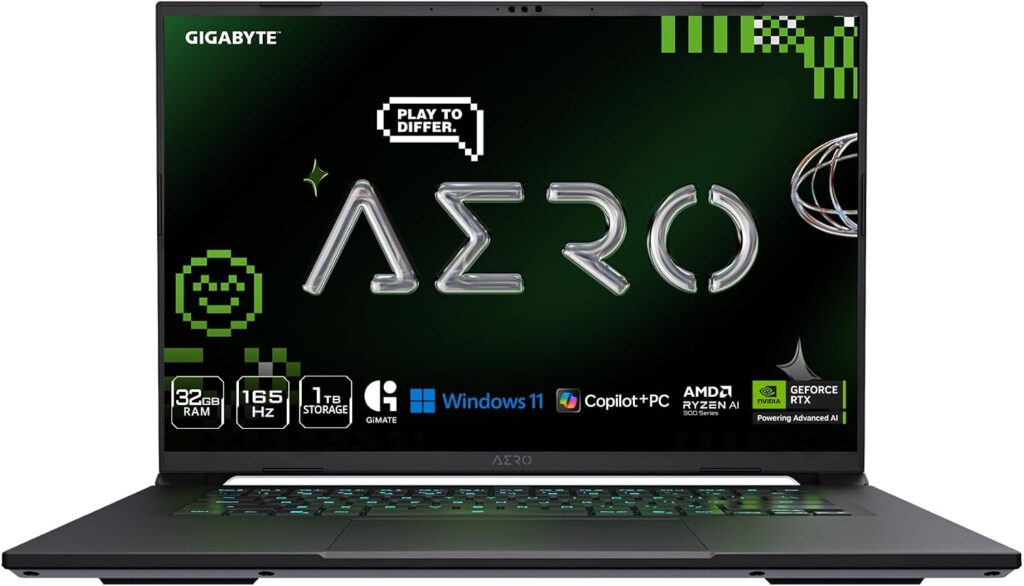
Zen 5, a matte 1600p panel, nine hours of battery, and the best Geekbench single-core score of any Windows machine on this list.
Remember that single-thread performance is Zwift’s actual currency. In Tom’s Hardware’s testing, the Aero X16’s Ryzen AI 7 350 posted the highest single-core score in its comparison group — and it does that in a thin chassis with a matte screen and real battery life.
The specs
- CPU: AMD Ryzen AI 7 350 (Zen 5, 8 cores / 16 threads)
- GPU: NVIDIA GeForce RTX 5070 Laptop at 85 W (RTX 5060 on some configurations)
- Memory: 32 GB DDR5 · Storage: 1 TB PCIe Gen4 NVMe
- Display: 16-inch, 2560 × 1600, IPS, 16:10, 165 Hz, matte, adaptive sync
- Ports: USB4 Type-C with DP and PD, 2 × USB-A 3.2 Gen 1, 1 × USB-A 2.0, HDMI 2.1, RJ45 Ethernet, 3.5 mm
- Battery: 76 Wh · Weight: ~4.2 lb (1.9–2.0 kg) · Wi-Fi 6E
- Webcam: 1080p with Windows Hello and a physical shutter
- Zwift profile: Ultra
What Tom’s Hardware measured
- CPU: Geekbench 6 2,916 single-core / 14,074 multi-core — the highest single-core score in its group, just ahead of a Framework machine running the same chip at 2,878, and comfortably clear of an MSI on a Core i7-14650HX (13,570 multi-core) and an Acer Predator Triton on a Core Ultra 9 288V (10,974 multi-core).
- Transcoding: 4K to 1080p in Handbrake in 3 minutes 54 seconds, beating the Framework’s 4:18, the MSI’s 4:30 and the Acer’s 6:03.
- Storage: 1,480.57 MBps on the 25 GB file copy — mid-pack.
- Display: peak brightness of 369 nits with 78.5% DCI-P3 coverage. Tom’s Hardware is honest that the colour coverage is a weak point given Gigabyte markets this at creators.
- Battery: 9 hours 13 minutes on their test at 150 nits.
- Their overall verdict: solid productivity performance, decent battery, comfortable input devices, welcome upgradeability — let down by a middling display, weak audio and no Wi-Fi 7.
Why it works for Zwift. Highest single-core score of the Windows machines, a matte 2560 × 1600 panel at 165 Hz with adaptive sync, Ethernet on board, three USB-A ports, and over nine hours unplugged. The 85 W RTX 5070 is far more graphics card than Zwift will ever ask for, which means it’ll idle along quietly during a ride. It also doesn’t look like a gaming laptop, which matters if it lives on your desk the rest of the week.
Pros
- ✅ Highest measured Geekbench 6 single-core score of any Windows laptop here
- ✅ Matte 1600p 165 Hz panel — right choice for a bright room
- ✅ 9h13m measured battery life
- ✅ Ethernet, HDMI 2.1, three USB-A ports and USB4
- ✅ 1080p webcam with Windows Hello (the only pick here with proper biometrics)
- ✅ Thin, light and understated for a machine with an RTX 5070
Cons
- ❌ 369 nits and 78.5% DCI-P3 is unremarkable — fine for Zwift, poor for colour work
- ❌ Wi-Fi 6E, not Wi-Fi 7, at this price
- ❌ Weak speakers, so plan on headphones or an external speaker
- ❌ Middling storage speed
- ❌ Ports sit toward the front edges, which gets in the way of a mouse
Who it’s for: people who want one machine for Zwift, work and the occasional game, and don’t want it to look like a spaceship.
4. Alienware 16 Aurora — the big-battery, big-screen pragmatist
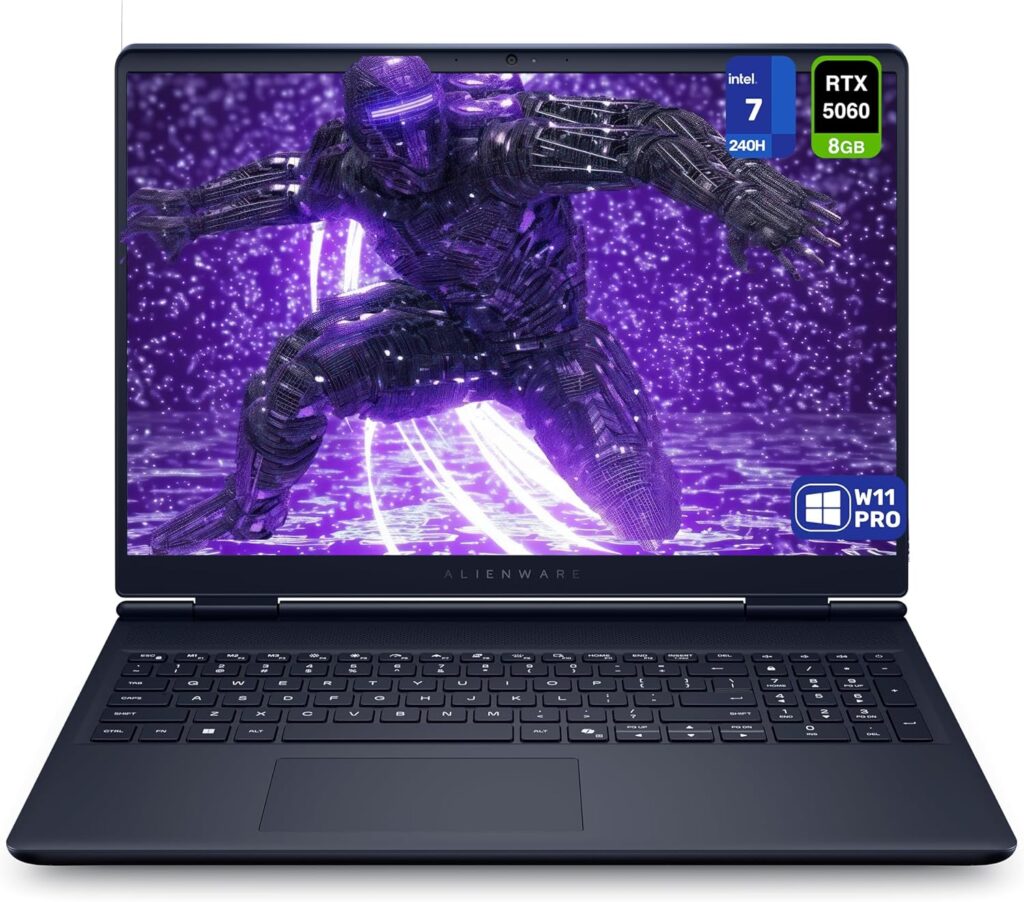
The lowest-power GPU on this list, and for Zwift that’s a feature, not a bug.
The 16 Aurora runs an 80-watt RTX 5060. Tom’s Hardware treats that as a limitation, and for AAA gaming they’re right. For us it means less heat, quieter fans and a 96 Wh battery that goes the distance — while still clearing the Ultra profile bar with room to spare.
The specs
- CPU: Intel Core 7 240H — 10 cores (6 performance + 4 efficiency), Raptor Lake architecture, no NPU
- GPU: NVIDIA GeForce RTX 5060 Laptop at 80 W (RTX 5050 and 5070 configurations also exist)
- Memory: 32 GB DDR5-5600 · Storage: 1 TB Micron 2650 NVMe
- Display: 16-inch, 2560 × 1600, IPS, 16:10, 120 Hz
- Battery: 96 Wh · Weight: 5.64 lb (2.56 kg) · Wi-Fi 7, Gigabit Ethernet
- Zwift profile: Ultra
What Tom’s Hardware measured
- CPU: Geekbench 6 2,699 single-core / 13,815 multi-core.
- Display: 312.2 nits peak brightness and 112% sRGB colour volume — which Tom’s Hardware described as brighter and far more vivid than the other budget machines in their comparison.
- Battery: 9 hours 41 minutes at 150 nits, which they singled out as remarkable for a gaming laptop.
- Storage: this is the weak spot. 1,170.12 MBps on the 25 GB copy, well behind the Katana 17 HX’s 1,224.05 and a long way behind the Nitro V 16S AI’s 1,838.88.
- Gaming reference: 99 fps in Shadow of the Tomb Raider at 1080p, 39 fps in Cyberpunk 2077 at medium, 83 fps in Borderlands 3 at Badass settings.
- Their criticisms, in full: the 80 W GPU limits gaming performance, storage is slow, and the webcam is 720p.
Why it works for Zwift. A 96 Wh battery and a low-power GPU mean you can genuinely do an hour unplugged, which matters more than you’d think if your trainer lives at the far end of a garage from the nearest socket. The 2560 × 1600 IPS panel is sharp, matte and bright enough, the chassis is understated, and an 80 W RTX 5060 is still vastly more graphics card than Zwift needs at 1440p. It’s also the only machine here with Wi-Fi 7, and network stability is the cause of far more Zwift dropouts than hardware ever is.
Pros
- ✅ 96 Wh battery, 9h41m measured — best endurance of the Windows machines here
- ✅ Low-TGP GPU runs cooler and quieter for an identical Zwift experience
- ✅ Sharp 2560 × 1600 IPS at 120 Hz, 312.2 nits and 112% sRGB
- ✅ Wi-Fi 7 plus Gigabit Ethernet
- ✅ Restrained design with no RGB light show
Cons
- ❌ Slowest storage in Tom’s Hardware’s comparison group — swappable, but it shouldn’t be necessary
- ❌ Heaviest machine here at 5.64 lb
- ❌ 720p webcam
- ❌ Raptor Lake CPU with no NPU, so no Copilot+ features
- ❌ 120 Hz is the lowest refresh rate of the Windows picks (still plenty for a 60 fps target)
Who it’s for: riders whose setup isn’t near a plug, and anyone who values a sharp, calm big screen over headline frame rates.
5. Apple MacBook Air 13 (M5) — silent, and the fastest CPU on this page
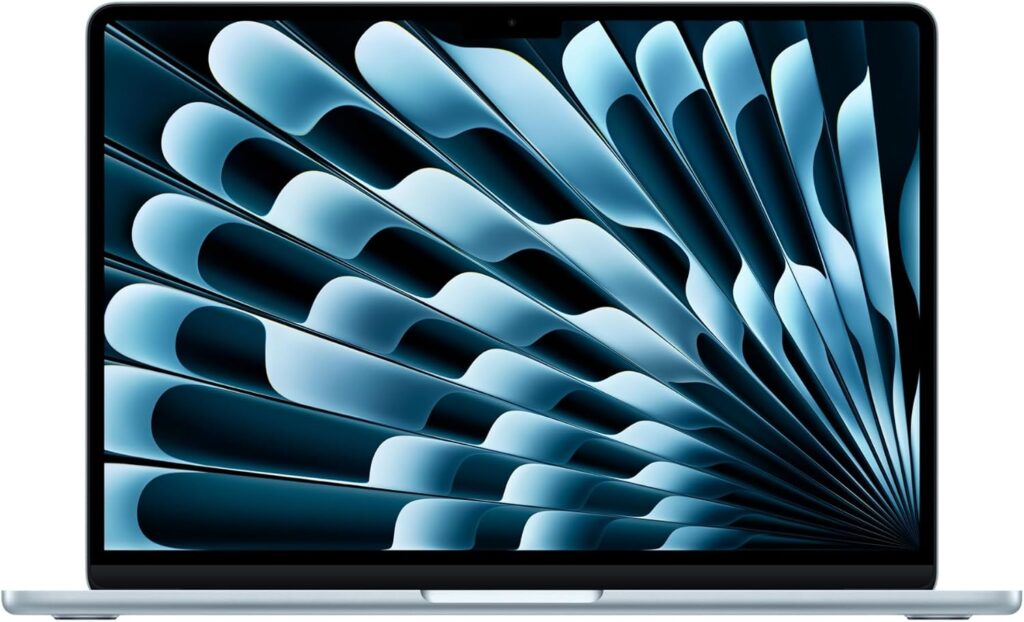
No fan. Nothing to configure. And a single-core score nothing else here gets close to.
If you’ve ever had Windows decide to install an update while you’re warming up, you already know why this is on the list.
The Air is fanless. Completely. There is no fan noise during a Zwift ride because there is no fan. And Zwift has been assigning Ultra profile to M4 Macs since February 2025, so you’re not trading visual detail for that silence.
The specs
- CPU/GPU: Apple M5, 10-core CPU, 8- or 10-core GPU
- Memory: 16 GB unified minimum · Storage: 512 GB base
- Display: 13.6-inch, 2560 × 1664 Liquid Retina, 60 Hz
- Battery: 53.8 Wh
- Ports: 2 × Thunderbolt, MagSafe, headphone jack — no USB-A
- Cooling: passive. No fan
- Pricing: Gizmodo notes a $100 increase over the M4 Air, with 16 GB and 512 GB now the base configuration
What the labs measured
- CPU: Tom’s Hardware recorded Geekbench 6 at 4,168 single-core / 17,067 multi-core. TechRadar got 4,190 / 17,073 and Cinebench 2026 scores of 729 single-core / 2,921 multi-core. Gizmodo landed at 4,172 / 17,157. Whichever number you take, that single-core figure is roughly 43% ahead of the fastest Windows machine on this page — and single-core is Zwift’s currency.
- Display: Tom’s Hardware measured 458.8 nits, with 83.1% DCI-P3 and 117.3% sRGB colour volume, which they rated on par with the M5 MacBook Pro’s mini-LED panel.
- Battery: Tom’s Hardware got 15 hours 28 minutes (web browsing, streaming and light OpenGL at 150 nits). Notebookcheck’s WLAN test at 150 nits gave 16 hours 11 minutes, dropping to 6 hours 39 minutes at full brightness. Notebookcheck also points out this is no better than the M4 Air, because both use the same 53.8 Wh cell.
- Storage: TechRadar measured 6,701.8 MB/s read and 6,459.2 MB/s write in BlackMagic Disk Speed Test. Tom’s Hardware’s 25 GB file transfer ran at 1,924.84 MBps.
- Thermals: despite having no fan, Tom’s Hardware found it never got uncomfortable during a Cinebench stress test. Their measurements: 105.1 °F at the keyboard centre, 107.9 °F at the hottest point underneath, with the M5 itself reading 63.24 °C.
- GPU: 3DMark Steel Nomad score of 1,005 (Tom’s Hardware).
- Notebookcheck’s overall verdict came in at 92% — “very good.”
Why it works for Zwift. Silence, and a processor that hammers the exact metric Zwift cares about. Zwift Insider’s assessment of the M4 in Mac Mini form was that performance is strong, holding 60 fps much of the time and dropping when it gets crowded — roughly comparable to a PC with a pre-12th-gen Intel chip. The M5 is a step up on that again.
Pros
- ✅ Truly silent. There is no fan
- ✅ Highest single-core score on this page by a wide margin
- ✅ 15h28m to 16h11m of measured battery life, and performance doesn’t drop on battery
- ✅ 458.8 measured nits with 117.3% sRGB coverage
- ✅ 6.7 GB/s storage read speeds
- ✅ Nothing to configure, no drivers, no surprise updates mid-ride
Cons
- ❌ No USB-A. ANT+ users need a hub or adapter. Budget for it
- ❌ 60 Hz panel with no adaptive sync, so frame rate dips show up as visible stutter
- ❌ 13.6 inches is small if the laptop is your display — you’ll want to run it to a TV
- ❌ Battery life is no better than the M4 Air, per Notebookcheck
- ❌ Fewer Zwifters on Mac means slower community help when something goes odd
- ❌ Zwift’s Ultra profile is confirmed for M4 Macs; the M5 is newer, and Zwift’s list has historically lagged new silicon by months. If that worries you, check TrainerDX for M5 logs before you buy
Who it’s for: anyone who wants Zwift to be as boring to operate as switching on a TV. Buy a USB-C hub with USB-A on it and forget the whole thing exists.
Everything measured, side by side
Same tests, same labs, no gaps. The source for each row is named underneath.
| Nitro V 16S AI | Legion Pro 5 (16″, Gen 10) | Aero X16 | Alienware 16 Aurora | MacBook Air 13 M5 | |
|---|---|---|---|---|---|
| CPU | Ryzen 7 260 | Ryzen 7 8745HX | Ryzen AI 7 350 | Core 7 240H | Apple M5 |
| Geekbench 6 single-core | 2,659 | 2,810 | 2,916 | 2,699 | 4,168 |
| Geekbench 6 multi-core | 12,837 | 13,846 | 14,074 | 13,815 | 17,067 |
| Cinebench | 4:32 Handbrake | 993 (CB 2024 multi) | 3:54 Handbrake | 3,415→2,300s (CB 2026 stress) | 729 / 2,921 (CB 2026) |
| GPU (power limit) | RTX 5060, 85 W | RTX 5060, 113 W sustained | RTX 5070, 85 W | RTX 5060, 80 W | M5 10-core |
| Zwift graphics profile | Ultra | Ultra | Ultra | Ultra | Ultra (M4 confirmed) |
| Display | 16″ 1920×1200 IPS 180 Hz matte | 16″ 2560×1600 OLED 165 Hz / IPS 240 Hz | 16″ 2560×1600 IPS 165 Hz matte | 16″ 2560×1600 IPS 120 Hz | 13.6″ 2560×1664 60 Hz |
| Measured brightness | 391.8 nits | 482 cd/m² | 369 nits | 312.2 nits | 458.8 nits |
| Measured colour | 77.4% DCI-P3 / 109.3% sRGB | 100% DCI-P3 / 100% sRGB | 78.5% DCI-P3 | 112% sRGB volume | 83.1% DCI-P3 / 117.3% sRGB |
| Sustained CPU (30 min) | 60 °C package (Metro stress) | 4,572 MHz @ 92 °C, 85 W | 3:54 Handbrake, no throttle reported | 2,699 GB6 sustained | 63.24 °C SoC, no fan |
| 1-hour GPU stability | 1.92 GHz @ 66.5 °C | 2,821 MHz @ 75 °C, 113 W | 85 W sustained TGP | 80 W sustained TGP | passive, 1,005 Steel Nomad |
| Storage — 25 GB copy | 1,838.88 MBps | 7.3 / 5.9 GB/s sequential | 1,480.57 MBps | 1,170.12 MBps | 1,924.84 MBps |
| Battery (lab test) | 10 h 17 m | 2 h 40 m | 9 h 13 m | 9 h 41 m | 15 h 28 m |
| Battery capacity | 76 Wh | 80 Wh | 76 Wh | 96 Wh | 53.8 Wh |
| USB-A ports | 3 | 3 | 3 | yes | none |
| Ethernet | Gigabit | Gigabit | Gigabit | Gigabit | none |
| Noise under load | “low” | silent to slightly audible at idle | quiet at light load | — see note | silent (fanless) |
| Weight | 4.55 lb | 5.07–5.29 lb | ~4.2 lb | 5.64 lb | 2.7 lb |
Sources: Acer Nitro V 16S AI, Gigabyte Aero X16, Alienware 16 Aurora and MacBook Air 13 M5 figures are Tom’s Hardware measurements. Lenovo Legion Pro 5 (16″, Gen 10) figures are LaptopMedia measurements on the Ryzen 7 8745HX / RTX 5060 / 165 Hz OLED configuration. MacBook Air Cinebench 2026, storage read/write and the alternate Geekbench run are TechRadar; the 16 h 11 m battery result and the 92% overall score are Notebookcheck. Zwift profile assignments come from Zwift Insider and Zwift’s official forums.
A note on the Alienware’s noise: Tom’s Hardware didn’t publish a noise verdict for the 16 Aurora, so I’m not going to invent one. What I can tell you is that it runs the lowest-power GPU in this group at 80 W, and lower sustained power almost always means less fan. Treat that as reasoning, not measurement.
What frame rate will you actually see?
This is where specs turn into something useful. At Ultra profile and 1440p game resolution, on any of these five machines, here’s the honest picture:
| Situation | What’s holding you back | What to expect |
|---|---|---|
| Solo, quiet Watopia route | Nothing | Locked 60 fps, fans barely audible |
| Solo, Titans Grove or the jungle | GPU (dense foliage) | 60 fps, and your graphics card finally does some work |
| RoboPacer group, ~50 riders | CPU | Dips below 60. How far depends entirely on single-thread speed |
| Race pen, 300+ riders | CPU, badly | Everybody drops here. Budget for a rough 60 seconds |
| Neokyo, solo | CPU, always | Lower than you’d expect. This is normal and documented |
| Sitting in a dust cloud behind a big group | GPU | Zwift Insider notes this brings even top-end cards to their knees |
Two things I want to be honest about.
Every one of these laptops will dip in a race pen. Zwift Insider is unambiguous that this happens on every system, and that how bad it gets tracks CPU strength, not GPU. If someone tells you their machine holds a locked 60 through a Tour de Zwift start, ask to see the log.
Which is exactly why the screen matters more than the frame rate. A machine that dips to 45 fps with adaptive sync feels smoother than one that dips to 52 fps without it. If you only take one thing from this section, take that.
Setting it up properly
Free performance, about ten minutes of work. Most of this comes straight from Zwift Insider’s PC guide.
In the NVIDIA Control Panel:
- Turn on triple buffering. It’s off by default. Without it, Zwift’s V-Sync makes your frame rate drop hard to half your refresh rate — usually 30 fps — and sometimes stick there. Biggest free win available.
- Turn on threaded optimisation, or leave it on Auto. Zwift’s engine was changed back in April 2022 to benefit from it. Anything you read about disabling it is years out of date.
- Leave V-Sync on. Switching it off gives you tearing. Triple buffering is the fix.
In Zwift’s own settings:
- Turn off video screenshots. Zwift Insider recommends this specifically — it adds constant CPU load and the clips aren’t great anyway. Use OBS if you actually want footage.
- Set game resolution to 1440p, not 4K. Resolution only affects sharpness, not detail. 1440p on a 1080p or 1200p panel looks better than native, at almost no cost. 4K asks a lot more of the GPU for very little back.
Everywhere else:
- Use Ethernet if you can. All four Windows picks here have a Gigabit port. Dropouts are almost always the network, not the hardware.
- ANT+ dongle on an extension cable, sitting near the trainer. Over 3 metres, make it a powered active extension.
- Keep the machine lean. Zwift Insider’s advice for dedicated builds — clean install, minimal extra software, no third-party antivirus — applies just as well to a laptop. Fewer background processes means more CPU for the thing that’s already your bottleneck.
- Hard surface, feet clear. No towels underneath.
Who shouldn’t buy a laptop at all
I’d rather tell you the truth than sell you something.
If Zwift is genuinely the only thing you’ll run, don’t buy a laptop. Zwift Insider says it directly: mobile components are universally weaker than the desktop parts they share names with, sometimes dramatically, and buying a gaming laptop purely for Zwift is poor value. A modest desktop or a Mac Mini will beat every machine here per dollar.
If you already own something decent, test it before you spend a penny. Run the protocol above. Upload your log to TrainerDX. If you’re already on Ultra profile and holding 60 fps outside of race starts, a new laptop will change literally nothing about how Zwift looks. The profile is identical whether you own an RTX 5050 or an RTX 5090.
If you want a big TV picture and no fuss, an Apple TV 4K is still a legitimate answer. It’s Basic profile and it looks it, but plenty of very quick riders use one and never think about it again.
And if you’re tempted by a gorgeous slim ultrabook with a fast integrated GPU — please go back and read the profile section. As of early 2026, riders on Zwift’s own forums were confirming that even the Radeon 890M and Arc 140T were still landing on Basic. Beautiful laptop. Phone-tier Zwift.
Questions I get asked a lot
Not to run it — Zwift will run on almost anything. But to get the Ultra profile on Windows, in practice yes. Zwift assigns the profile based on your exact GPU model, and rider reports on Zwift’s official forums in December 2025 and February 2026 both showed current top-end integrated graphics still being assigned Basic.
Zwift Insider’s testing found the game typically uses under 3 GB during a ride, with 8 GB as the practical floor, and notes that adding more doesn’t improve Zwift performance at all. Buy 16 GB anyway — you’ll want it for everything else, and with 2026 memory prices you really don’t want to be adding it later.
Honestly, it’s a coin flip. Night rides on OLED look spectacular and the Legion Pro 5’s panel measures 482 cd/m² with 100% DCI-P3 coverage, which is superb. But LaptopMedia measured its reflectance at 151 gloss units and rates anything over 70 as high gloss. In a garage with a light overhead, a bright matte IPS panel is the safer buy. I’d take the 240 Hz IPS version.
Where I’d land
Buy for the CPU, not the badge on the graphics card. Get any modern RTX chip to clear the Ultra profile gate — an 80 W RTX 5060 is plenty — and put the money you saved into a bright panel with adaptive sync, a chassis that stays quiet, and a USB-A port for your ANT+ stick.
For most people, that’s the Acer Nitro V 16S AI, and I don’t think it’s close. If you race, the Lenovo Legion Pro 5 buys you the highest floor when things get chaotic. If it doubles as your work machine, the Gigabyte Aero X16. If there’s no socket near your trainer, the Alienware 16 Aurora. And if you want it silent and thoughtless, the MacBook Air M5.
Whichever one you land on, do me a favour: run the log through TrainerDX after your first ride. Data from your own pain cave beats any spec sheet, including this one.
Ride on.
Sources
Zwift technical guidance: Zwift Insider — “Zwift on PC: The Ultimate Guide to Running Zwift at Its Very Best” (Dave Higgins) and “Recommended ANT+ Sticks for Zwift” (Eric Schlange). Graphics profile assignment reports: Zwift official forums, December 2025 and February 2026 threads on integrated GPU profile assignment. Laptop measurements: Tom’s Hardware (Acer Nitro V 16S AI, Gigabyte Aero X16, Alienware 16 Aurora, MacBook Air 13 M5), LaptopMedia (Lenovo Legion Pro 5 16″ Gen 10), Notebookcheck (MacBook Air 13 M5 battery and overall rating, Radeon 890M performance), TechRadar and Gizmodo (MacBook Air 13 M5). Real-world ride telemetry: TrainerDX, formerly Zwiftalizer.
I don’t run a laboratory, and every measurement above is credited to the test house that produced it. My contribution is the weighting, the interpretation and the Zwift-specific reasoning — all of which is laid out in full in the methodology section so you can disagree with it if you want to.

Hi, my name is Burak. I am a mechanical engineer. I have been writing laptop reviews for the Engineering Laptops website since 2020. Please feel free to contact me if you have any questions.