Last updated: September 18, 2026
Table of contents
- My Quick Picks
- The Comparison Table (every number is a real published lab measurement)
- How I Gathered This Data (my methodology)
- Read This First: The Compatibility Trap Nobody Warns You About
- The Best Laptop for a Crafting Business in 2026: 5 Picks I’d Actually Stake My Reputation On
- 1. ASUS Zenbook 14 OLED (UM3406GA, AMD Ryzen AI 7 445) — Best Overall
- 2. Apple MacBook Air M5 (13-inch) — Best for Apple Households and Screen Polish
- 3. Lenovo Yoga 9i 2-in-1 Aura Edition Gen 11 (Core Ultra 7 355) — Best 2-in-1 with Pen
- 4. HP OmniBook Ultra 14 (Snapdragon X2 Elite) — Best Battery, With a Big Caveat
- 5. Acer Aspire 14 AI (Core Ultra 9 386H, Panther Lake) — Best on a Budget
- My “Crafter Workflow Score” (1–5) — My Judgment, Not a Lab Test
- Color-Matching for Sublimation and Print (the part beginners get wrong)
- Buying Guide: How to Choose (in the right order)
- The Tax Angle (general information — I’m not a tax professional)
- FAQ
- The Bottom Line
- Sources
If you just want the short version: for most people running a Cricut, Silhouette, sublimation, or small laser side-hustle, the ASUS Zenbook 14 OLED (UM3406GA, AMD Ryzen AI 7 445) is the laptop I’d hand you first. It runs every piece of craft software without drama, has a genuinely color-accurate OLED screen for matching sublimation and print work, weighs almost nothing, and — when it’s on one of its frequent sales — it doesn’t empty your bank account. If you live in Apple’s world, the MacBook Air M5 is the more polished machine; if you want a pen-friendly 2-in-1, the Lenovo Yoga 9i Gen 11 is gorgeous; if battery life is everything, the HP OmniBook Ultra 14 goes and goes; and if you’re watching every dollar, the Acer Aspire 14 AI does the job for a lot less.
I’ve been buying, using, and writing about laptops for crafters for years, and the thing I’ve learned the hard way is this: the spec sheet almost never tells you whether a laptop will actually cut, print, and press the way you need it to. Compatibility comes first. Color accuracy comes second. Everything else — speed, looks, battery — comes after that. So that’s exactly the order I’ve built this guide around.
Quick note on honesty, because it matters: I did not run these machines through my own lab. I don’t own calibrated colorimeters and thermal cameras. What I have done is read the full test reports from the labs that do this for a living — Notebookcheck, Tom’s Hardware, PCWorld, LaptopMedia, Windows Central, Macworld, Expert Reviews, and others — and pulled their real measured numbers into one place. Every benchmark below is credited to the lab that measured it. The opinions, the rankings, and the “who should buy this” calls are all mine.
My Quick Picks
- Best overall for crafters: ASUS Zenbook 14 OLED (UM3406GA, Ryzen AI 7 445) — best mix of compatibility, color, weight, and price.
- Best for Apple households (and the best screen-to-color polish): Apple MacBook Air M5 (13-inch).
- Best 2-in-1 with pen for design work: Lenovo Yoga 9i 2-in-1 Aura Edition Gen 11 (Core Ultra 7 355).
- Best battery life / all-day at craft fairs: HP OmniBook Ultra 14 (Snapdragon X2 Elite) — with one big compatibility caveat for laser owners.
- Best on a budget: Acer Aspire 14 AI (Core Ultra 9 386H, Panther Lake).
One per brand, five laptops, no Framework, all current 2026 models. Where a newer generation existed, I swapped it in — that’s why the Acer here is the new Panther Lake “Core Ultra Series 3” model, not last year’s Lunar Lake version, and why the ASUS is the AMD Ryzen AI 7 445 refresh.
The Comparison Table (every number is a real published lab measurement)
| ASUS Zenbook 14 OLED (Ryzen AI 7 445) | Apple MacBook Air M5 13″ | Lenovo Yoga 9i Gen 11 (Ultra 7 355) | HP OmniBook Ultra 14 (Snapdragon X2 Elite) | Acer Aspire 14 AI (Ultra 9 386H) | |
|---|---|---|---|---|---|
| Geekbench 6 (single / multi) | 2,509 / 7,716 (Gizmochina) | 4,168 / 17,067 (Tom’s Hardware) | 2,716 / 11,607 (LaptopMedia) | 3,942 / 20,075 (Tom’s Hardware) | Not lab-published; see Cinebench (Geektopia) |
| Cinebench (lab, version noted) | R23: 1,725 / 6,944 (Gizmochina) | 2024 multi 957 (LaptopMedia) | 2024 multi 623 (LaptopMedia) | 2026: 632 / 4,646 (Windows Central) | 2024: 124 / 1,049 (Geektopia) |
| Battery (lab runtime) | ≈12 h real-world (Pinoy Metro Geek); ASUS lab video up to 25 h | 18 h 24 m video (Macworld); 16 h 11 m Wi-Fi (Notebookcheck) | 15 h 39 m video (LaptopMedia) | 13 h 27 m mixed (Tom’s Hardware) | ≈14 h video (Geektopia) |
| SSD read / write | 6,978 / 6,130 MB/s (Gizmochina) | 1,924.84 MB/s 25 GB file copy (Tom’s Hardware) | 7.0 / 5.9 GB/s (LaptopMedia) | 10,407 / 7,225 MB/s (Windows Central) | 6,612 / 5,857 MB/s (Geektopia) |
| Display brightness (SDR) | 400 nits (ASUS rating) | 458.8 nits (Tom’s Hardware) | 503 nits SDR / 1,020 nits HDR (LaptopMedia) | 498 nits (Windows Central) | 310 nits (Geektopia) |
| Color gamut | 100% DCI-P3 (ASUS) | 117.3% sRGB / 83.1% DCI-P3 volume (Tom’s Hardware) | 100% sRGB & 100% DCI-P3 (LaptopMedia) | 122% sRGB / 87% DCI-P3 (Tom’s Hardware) | 100% sRGB / 99.9% DCI-P3 / 93% Adobe RGB (Geektopia) |
| Color accuracy (Delta E) | <1 factory-calibrated, Pantone Validated (ASUS) | 0.8 sRGB (Expert Reviews) | 1.2 sRGB / 1.9 P3 (LaptopMedia) | <1 (HP rating) | Calibration changed little (Geektopia) |
| Weight | 2.85 lbs touch / 2.65 lbs non-touch | 2.7 lbs | 2.84 lbs | 2.81 lbs | ~3.09 lbs |
| Price | $1,499.99 list on ASUS’s US store (32GB/1TB); street deals seen at $799–$999 | from $1,099 | ~$1,400–$1,550 | ~$1,999 and up | Panther Lake arriving Q3 2026, US price not yet published (Lunar Lake models $460–$750) |
A word on that Acer Geekbench cell: the only independent lab that has fully tested the new Panther Lake Aspire 14 AI (Spain’s Geektopia) uses Cinebench, Blender, and 7-Zip rather than Geekbench 6, so I’m not going to fabricate a Geekbench number for it. Its measured Cinebench figures are right there in the row.
How I Gathered This Data (my methodology)
I started from the jobs crafters actually do — cutting, sublimation and print color-matching, light photo and video editing for social posts, and bookkeeping — and worked backward to the hardware that matters for each. Then I pulled measured results from independent test labs rather than trusting manufacturer marketing.
- Performance numbers come from Geekbench 6, Cinebench (R23, 2024, and 2026), and 3DMark runs published by Tom’s Hardware, LaptopMedia, Windows Central, Gizmochina, and Spain’s Geektopia.
- Battery figures are lab video-playback or mixed-use rundowns from Macworld, Notebookcheck, LaptopMedia, Tom’s Hardware, and Geektopia — not the manufacturers’ optimistic “up to” claims (though I note those where useful).
- Display measurements (nits, gamut, Delta E) come from Tom’s Hardware, LaptopMedia, Windows Central, and Expert Reviews, with colorimeters. Where a specific model hasn’t been independently measured for a metric, I say so and use the manufacturer’s published spec, clearly labeled.
- Compatibility facts come straight from Cricut’s and Silhouette’s own support pages, LightBurn’s documentation, and hardware advisories.
I weighted compatibility and color accuracy most heavily, because a fast laptop that can’t talk to your cutter or can’t show you true color is useless in a craft room.
Read This First: The Compatibility Trap Nobody Warns You About
This is the section that will save you from an expensive mistake, so please don’t skip it.
Cricut Design Space runs on Windows and Mac only. Cricut’s own system-requirements page is blunt about it: “Design Space is not supported on Chromebooks, or Unix / Linux Computers.” All five laptops in this guide run Windows or macOS, so you’re fine — but if you were tempted by a cheap Chromebook, don’t. Design Space is now a downloadable app, and Chromebook support is effectively gone. Your Cricut machine connects over Bluetooth or USB, and both work on all five picks.
Silhouette Studio and Apple Silicon — read the timeline. Silhouette Studio still does not have a native Apple Silicon build. On the MacBook Air M5, it runs through Apple’s Rosetta 2 translation layer. Here’s the part that matters in 2026: as MacRumors reported on June 10, 2026, “macOS 27 Golden Gate is the final version of macOS to feature full Rosetta 2 support, meaning the translation layer that keeps Intel-built apps running on Apple silicon Macs is set to disappear entirely with next year’s major macOS release.” Silhouette America’s own support team says they expect a native Apple Silicon version “before any changes to Rosetta 2 support would impact customers.” Translation: if you’re a heavy Silhouette user, a Mac is fine today, but keep an eye on that transition and don’t jump to macOS 28 the day it lands until Silhouette ships its native app.
The big one — Windows-on-ARM and your laser or cutter. This is the caveat that keeps the otherwise-brilliant HP OmniBook Ultra 14 out of my top spot for some crafters. The OmniBook uses a Qualcomm Snapdragon X2 Elite, which is an ARM chip. Windows-on-ARM can translate and run 64-bit apps like LightBurn just fine — but it cannot translate hardware drivers. Because most laser and cutter USB drivers were written for Intel and AMD, Windows on ARM blocks them. As one laser vendor’s advisory puts it plainly: “You can install the laser software on a Snapdragon/ARM laptop, but the laptop will not be able to ‘see’ or communicate with the laser via a direct USB cable link.” A LightBurn community moderator is even blunter: “I would encourage everyone to stay away from any Snapdragon processors for now.” There are workarounds (a USB-over-IP network print server, or keeping a second Intel/AMD “control” PC by the machine), but if you run a USB-connected laser or older cutter, buy an Intel or AMD laptop. Bluetooth and network connections are unaffected, so a Bluetooth Cricut is generally okay even on ARM.
Bottom line on compatibility: Cricut-only and print/sublimation crafters can pick any of the five. Silhouette users should lean Windows or plan around the Rosetta timeline on Mac. USB-laser owners should avoid the Snapdragon OmniBook and choose the Zenbook, Yoga, MacBook, or Acer.
The Best Laptop for a Crafting Business in 2026: 5 Picks I’d Actually Stake My Reputation On
1. ASUS Zenbook 14 OLED (UM3406GA, AMD Ryzen AI 7 445) — Best Overall
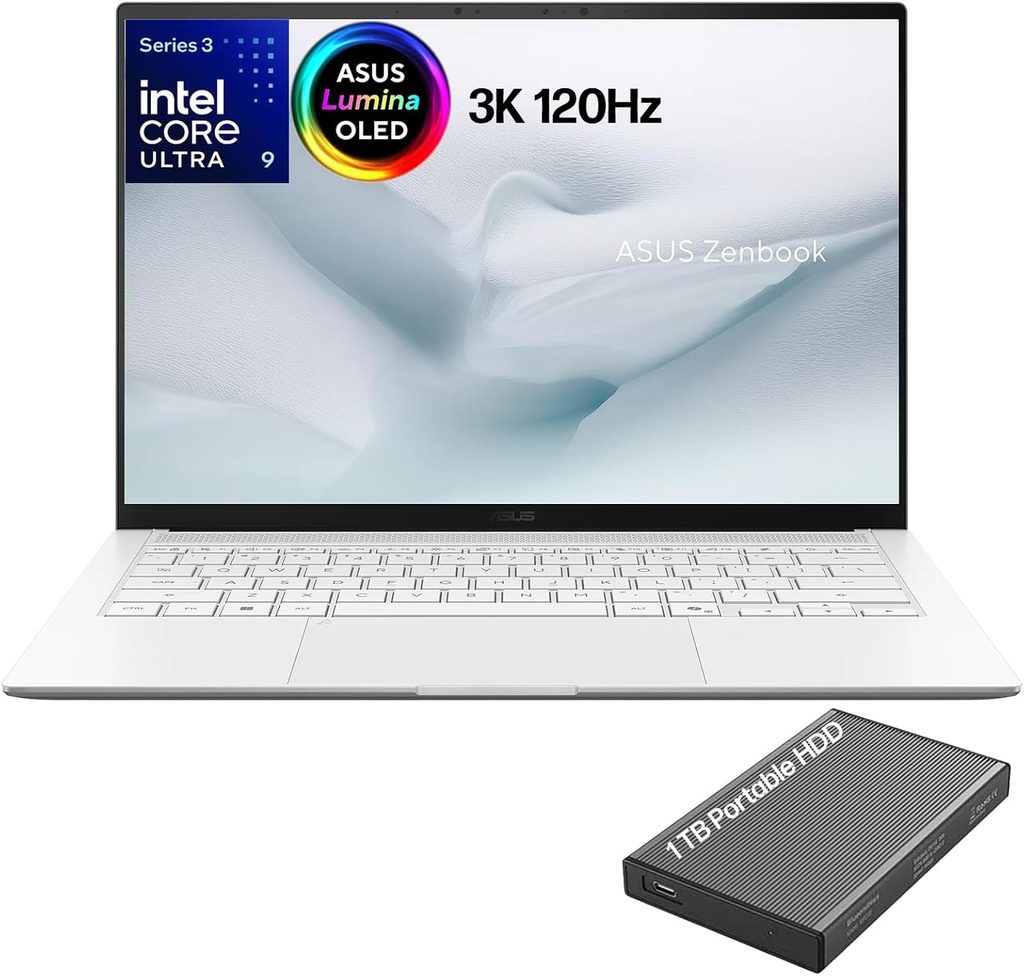
This is the one I keep coming back to. It nails the crafter checklist: works with everything, shows accurate color, and weighs almost nothing. On price, be a smart shopper: ASUS’s US store lists the top 32GB/1TB configuration (UM3406GA-XS79) at $1,499.99, but this laptop is discounted constantly — retailers have run the Ryzen AI 7 445 model as low as $799, and reviewers priced their units around $999. Buy it on sale and it’s the value champion of this group; pay full sticker and the math gets closer to the MacBook.
Specs
- CPU: AMD Ryzen AI 7 445 (Gorgon Point), 6 cores / 12 threads, up to 4.6 GHz, 50 TOPS NPU
- Graphics: AMD Radeon 840M (integrated)
- Display: 14″ OLED, 1920×1200, 60 Hz, glossy touch, 100% DCI-P3, VESA DisplayHDR True Black 500, Pantone Validated
- Memory: up to 32 GB LPDDR5x-7500 (soldered)
- Storage: up to 1 TB PCIe 4.0 SSD (single M.2 2280 slot)
- Ports: 2× USB-C (one USB4), 1× USB-A, HDMI 2.1, 3.5 mm combo
- Wireless: Wi-Fi 6E, Bluetooth 5.4
- Battery: 75 Wh, 65 W USB-C charger
- Weight: 2.85 lbs (touch) / 2.65 lbs (non-touch); 180° hinge
What the labs measured
- Gizmochina measured Cinebench R23 at 1,725 single / 6,944 multi, Geekbench 6 at 2,509 single / 7,716 multi, 3DMark Time Spy at 1,650, and CrystalDiskMark SSD speeds of 6,978 MB/s read / 6,130 MB/s write.
- On the display, ASUS rates the panel at 400 nits SDR (600 nits HDR peak), 100% DCI-P3, with factory Delta E <1 via Pantone validation; Gizmochina and Pinoy Metro Geek both independently confirmed the panel covers 100% DCI-P3 and looks superb for editing.
- For battery, Pinoy Metro Geek got around 12 hours in real-world daily use; ASUS’s own lab video-playback figure is up to 25 hours. Reviewers universally praise its efficiency and mostly-fanless quiet operation.
One honest caveat: Notebookcheck’s data shows the Ryzen AI 7 445 is a modest performer — its aggregate CPU rating (61.2) sits only a hair above Intel’s older Core Ultra 7 256V and actually below the cheaper Ryzen AI 5 340. This is a chip tuned for efficiency and quiet, not raw grunt. For crafting workloads, that’s absolutely fine.
Pros
- Excellent, genuinely color-accurate OLED for sublimation and print matching
- Light, well-built all-metal chassis; 180° hinge for sharing designs
- Runs cool and mostly silent; big 75 Wh battery
- Full HDMI and USB-A — no dongles to connect cutters and drives
- The value pick of the group when bought on sale
Cons
- Only Wi-Fi 6E (not Wi-Fi 7), and no Thunderbolt
- Black finish is a fingerprint magnet
- Modest CPU muscle for heavy video work
- Most ports are on one side
Who it’s for: Nearly every crafter. If you cut with Cricut or Silhouette, do sublimation color work, and want one dependable machine that won’t fight you, start here.
2. Apple MacBook Air M5 (13-inch) — Best for Apple Households and Screen Polish
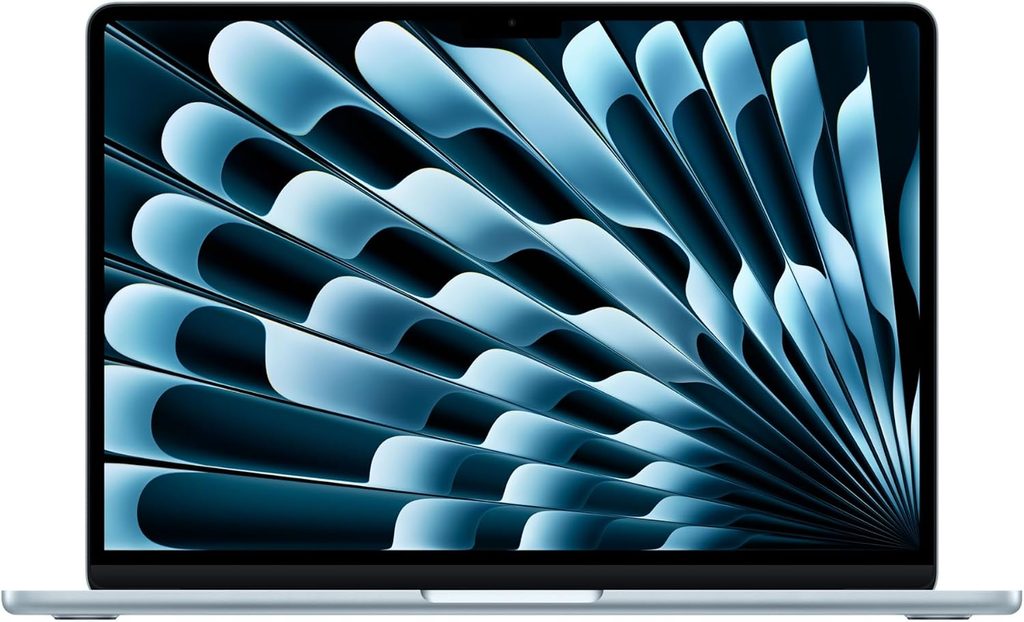
If you already live in Apple’s ecosystem — iPhone, iPad, AirDrop-ing photos from your product shoots — the MacBook Air M5 is the smoothest experience here, with a fantastic screen and silent, fanless operation. Apple’s newsroom confirms it launched March 11, 2026 (announced March 3), starting at $1,099.
Specs
- CPU: Apple M5, 10-core (4 performance + 6 efficiency)
- Graphics: 10-core GPU (8-core on base model)
- Display: 13.6″ Liquid Retina IPS, 2560×1664, 60 Hz, True Tone
- Memory: 16 GB unified (up to 32 GB)
- Storage: 512 GB base (up to 2 TB)
- Ports: 2× Thunderbolt 4, MagSafe 3, 3.5 mm
- Wireless: Apple N1 — Wi-Fi 7, Bluetooth 6
- Battery: 53.8 Wh; 2.7 lbs
- From $1,099
What the labs measured
- Tom’s Hardware clocked Geekbench 6 at 4,168 single / 17,067 multi — the fastest single-core score in this whole roundup — and noted the M5 is the fastest single-core chip you can buy in a laptop.
- LaptopMedia recorded Cinebench 2024 multi at 957 and Geekbench 6 at 4,185 / 17,072.
- Macworld ran the battery flat in 18 hours 24 minutes of video playback; Notebookcheck got 16 hours 11 minutes in its Wi-Fi test at 150 nits.
- SSD storage roughly doubled versus last year — Tom’s Hardware measured a 25 GB file copy at 1,924.84 MB/s.
- Display: Tom’s Hardware measured 458.8 nits, 117.3% sRGB and 83.1% DCI-P3 color volume; Expert Reviews measured a superb Delta E of 0.8 in sRGB.
- Thermals (fanless): Tom’s Hardware measured the keyboard center at 105.1 °F, the hottest underside point at 107.9 °F, and the M5 SoC at 63.24 °C. Because there’s no fan, the chip does throttle under sustained load — its Cinebench 2026 stress run started at 3,415 and settled in the low 2,300s.
Pros
- Class-leading single-core speed and near-silent, fanless design
- Excellent, color-accurate screen (Delta E 0.8)
- Genuinely all-day-plus battery
- Superb build, keyboard, and trackpad
Cons
- Silhouette Studio only runs via Rosetta 2 — mind the macOS 27 sunset
- Only two ports, both USB-C/Thunderbolt; you’ll need adapters for USB cutters, SD cards, and HDMI
- 60 Hz IPS panel (not OLED); notch remains
- No touchscreen for those who like to tap through designs
Who it’s for: Apple users doing Cricut, sublimation, and social-media content who want the nicest overall computer and don’t rely on a USB laser or Silhouette-heavy workflow.
3. Lenovo Yoga 9i 2-in-1 Aura Edition Gen 11 (Core Ultra 7 355) — Best 2-in-1 with Pen
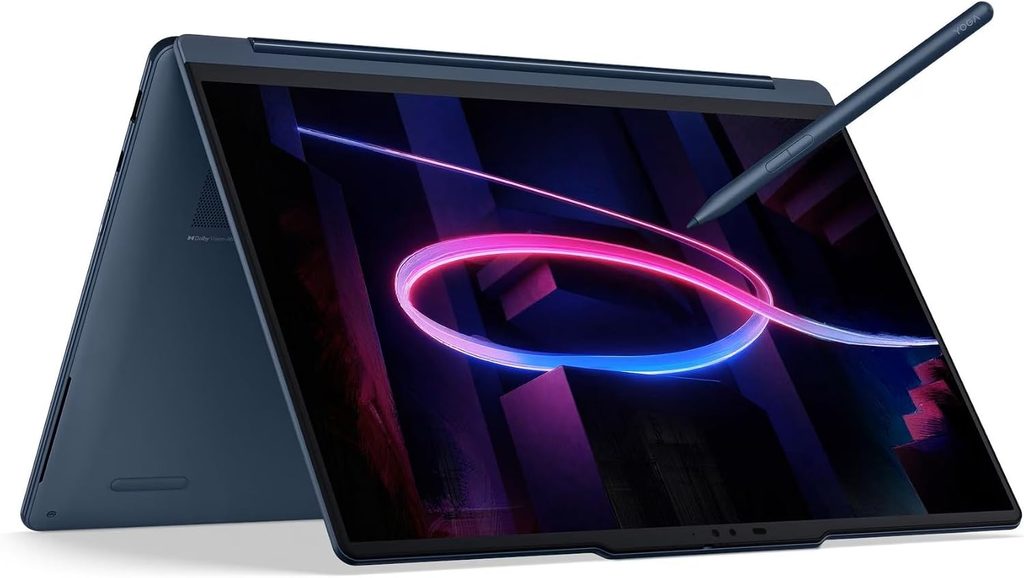
For crafters who like to draw their designs — hand-lettering, sketching SVGs, marking up a photo before it goes to the press — a convertible with a good pen is a joy, and the Yoga 9i is the most beautiful one here.
Specs
- CPU: Intel Core Ultra 7 355 (Panther Lake), 49 TOPS NPU
- Graphics: Intel Graphics (4-core)
- Display: 14″ OLED, 2880×1800, 120 Hz, glossy touch; Yoga Pen Gen 2 included
- Memory: up to 32 GB LPDDR5x-7467 (soldered)
- Storage: up to 2 TB PCIe 4.0 (single M.2 2242)
- Ports: 2× Thunderbolt 4, 1× USB-A, HDMI 2.1, 3.5 mm
- Wireless: Wi-Fi 7, Bluetooth 5.4
- Battery: 70 Wh; 2.84 lbs; 360° hinge; MIL-STD-810H tested
What the labs measured (all LaptopMedia)
- Geekbench 6: 2,716 single / 11,607 multi; Cinebench 2024 multi: 623
- SSD: 7.0 GB/s read / 5.9 GB/s write
- Display: 1,020 nits HDR peak / 503 nits SDR, 100% sRGB and 100% DCI-P3, factory Delta E 1.2 (sRGB) and 1.9 (P3) via X-Rite calibration
- Battery: 15 hours 39 minutes of video playback
- Thermals: fast in short bursts (3,950 MHz, 83 °C, 29 W over a 10-second load) but throttles to 28 W / 3,560 MHz under sustained 30-minute loads — it’s a thin convertible, not a workstation
- 3DMark Time Spy: 3,014; Wild Life Extreme: 5,772
Pros
- Stunning 120 Hz OLED with full sRGB and DCI-P3 coverage and factory color calibration
- Pen included; 360° hinge for tent/tablet design work
- Excellent battery and standout rotating-soundbar speakers
- Two Thunderbolt 4 ports plus HDMI and USB-A; Wi-Fi 7
Cons
- Pricey for the performance you get
- Soldered RAM and a single short M.2 2242 slot limit upgrades
- Glossy OLED is very reflective in bright craft rooms
- Not built for long sustained rendering
Who it’s for: Designers and hand-letterers who want to draw directly on a top-tier OLED, and anyone who values a premium, do-it-all convertible.
4. HP OmniBook Ultra 14 (Snapdragon X2 Elite) — Best Battery, With a Big Caveat
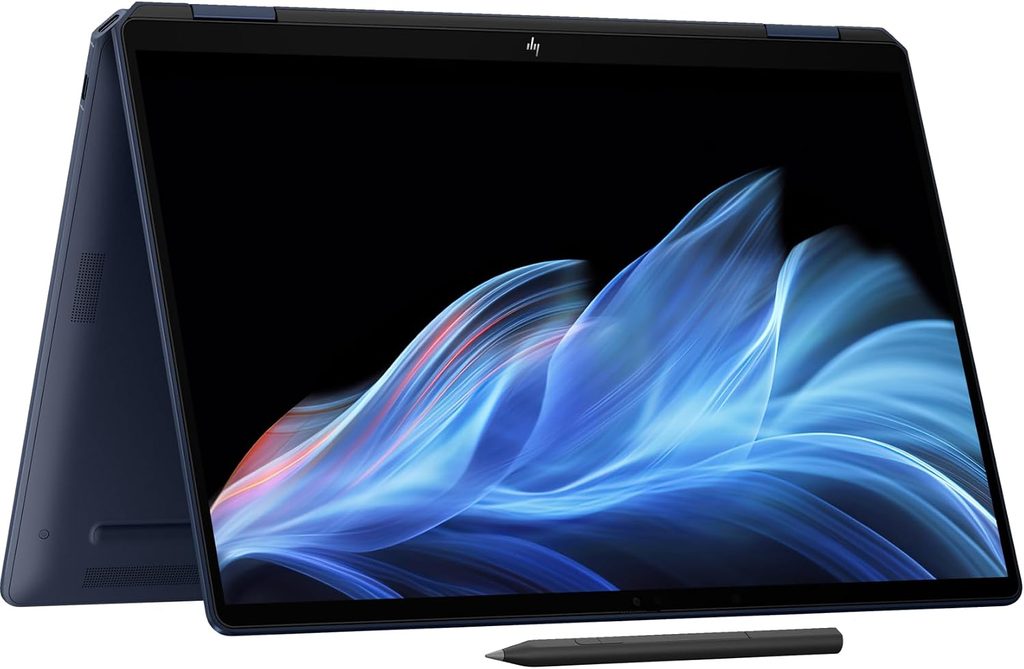
This is the endurance and horsepower champion — and the prettiest Windows laptop here — but its ARM chip makes it a poor match for USB laser and cutter owners. Read the compatibility section above before you buy.
Specs
- CPU: Qualcomm Snapdragon X2 Elite (X2E-90-100), 18 cores, up to 5.0 GHz, 85 TOPS NPU
- Display: 14″ OLED, 2880×1800, 120 Hz VRR, touch (base option: 1920×1200 60 Hz)
- Memory: up to 64 GB LPDDR5x-9523
- Storage: PCIe Gen 5, up to 2 TB
- Ports: 3× USB-C, 3.5 mm (no USB-A, no SD reader)
- Wireless: Wi-Fi 7
- Battery: 70 Wh, 65 W GaN charger; 2.81 lbs
What the labs measured
- Windows Central measured Cinebench 2026 at 632 single / 4,646 multi, Geekbench 6 at 3,687 / 20,448, GPU 39,738, and CrystalDiskMark SSD speeds of 10,407 MB/s read / 7,225 MB/s write — the fastest storage in this group.
- Tom’s Hardware measured Geekbench 6 at 3,942 / 20,075, a battery runtime of 13 hours 27 minutes, and a Handbrake 4K-to-1080p transcode in 2:11.
- Display: Tom’s Hardware measured 414 nits, 122% sRGB and 87% DCI-P3; Windows Central measured peak brightness at 498 nits and confirmed 100% DCI-P3 coverage. HP rates the panel at Delta E <1 “for creative professionals.”
Pros
- Superb multi-core performance and the fastest SSD here
- Excellent battery and a beautiful, bright OLED touchscreen
- Gorgeous build, keyboard, and haptic trackpad
- 85 TOPS NPU for on-device AI tools
Cons
- ARM chip blocks most USB laser/cutter drivers — a dealbreaker for laser owners
- Expensive (review-unit configs climb well past $2,700)
- No USB-A and no SD card reader
- Some legacy craft software may need translation
Who it’s for: Cricut-and-sublimation crafters who travel to fairs and markets, want epic battery, and do not rely on a USB-connected laser or older cutter.
5. Acer Aspire 14 AI (Core Ultra 9 386H, Panther Lake) — Best on a Budget
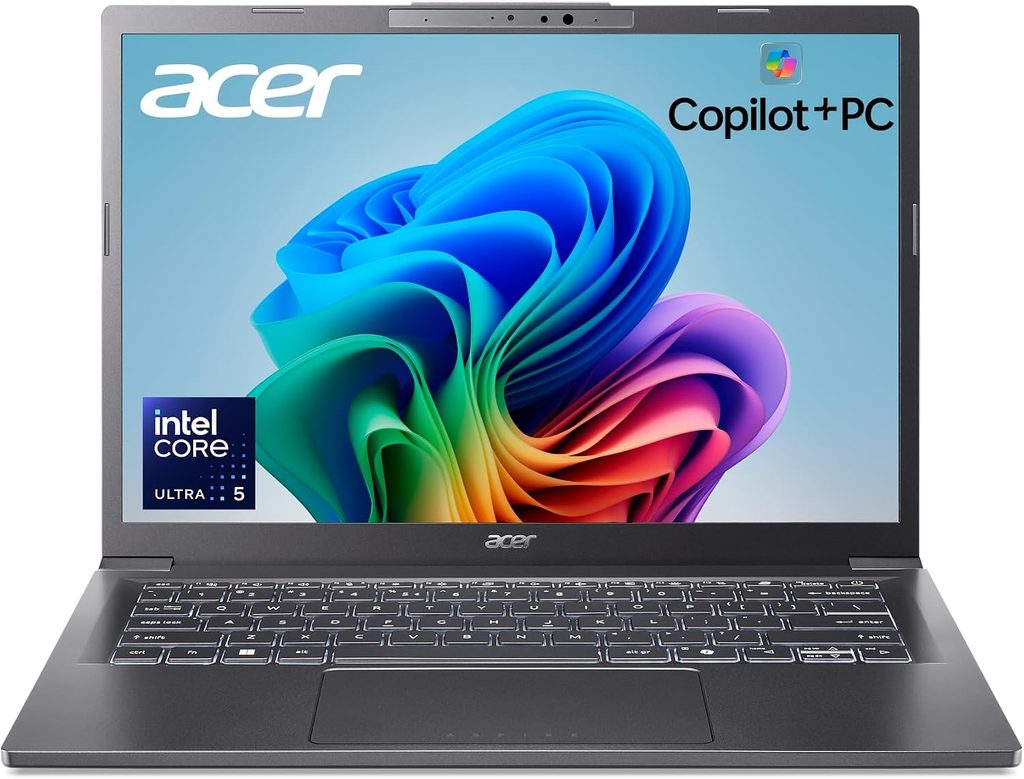
The newest Aspire 14 AI moved up to Intel’s Panther Lake “Core Ultra Series 3,” and it roughly doubles the CPU power of last year’s Lunar Lake version while keeping the Aspire’s whole appeal intact: it just works, it lasts all day, and it’s cheap.
Specs
- CPU: Intel Core Ultra 9 386H (Panther Lake), 16 cores / 16 threads, 50 TOPS NPU
- Graphics: Intel Graphics 4 (Xe3)
- Display: 14″ 1920×1200, 60 Hz (OLED or IPS options), 180° hinge
- Memory: up to 32 GB LPDDR5x-7467
- Storage: up to 2 TB PCIe 4.0
- Ports: 2× Thunderbolt 4, 2× USB-A, HDMI 2.1
- Wireless: Wi-Fi 6E, Bluetooth 5.4
- Battery: 65 Wh, 100 W USB-C charger; ~3.09 lbs
What the labs measured (Geektopia, the one full independent review of this Panther Lake model)
- Cinebench R23: 2,048 single / 17,203 multi; Cinebench 2024: 124 single / 1,049 multi — Geektopia noted it’s roughly twice as powerful as the previous-generation Core Ultra 258V.
- Battery: around 14 hours of internet video playback, 10–12 hours of web browsing.
- SSD: 6,612 MB/s read / 5,857 MB/s write (CrystalDiskMark).
- Display (OLED option): 310 nits peak, 100% sRGB, 99.9% DCI-P3, 93% Adobe RGB — but no HDR, and Geektopia found calibration “made little difference.”
- Thermals: in Performance mode, sustained 38 W at 93 °C and 46 dB; quiet mode holds 73 °C at 30 dB. Cooling is “modest but effective.”
Two honest notes: this newest 386H model reached North America in Q3 2026 and Acer hasn’t published a US price for it yet, so treat the $460–$750 figures you’ll see online as the older Lunar Lake Aspire 14 AI models, not this one. And those older Lunar Lake versions (Core Ultra 5 226V) were widely praised for battery — CNET measured 18 hours 56 minutes of YouTube streaming — but criticized for a dull screen, which the new OLED option finally addresses.
Pros
- Big CPU jump over last year for likely-low money
- Two USB-A ports plus Thunderbolt 4 and HDMI — great for connecting cutters and drives
- Long battery life; 180° hinge
- OLED option now available with full sRGB/DCI-P3 coverage
Cons
- Screen is dim (310 nits) and doesn’t do HDR
- Plastic-feeling, basic design
- Only one full independent lab review exists so far
- Fan spins up easily, even if quietly
Who it’s for: Budget-conscious crafters, students, and anyone who wants a no-drama Windows machine with real ports and doesn’t need a premium screen.
My “Crafter Workflow Score” (1–5) — My Judgment, Not a Lab Test
This matrix is my own opinion, built from the compatibility facts and lab numbers above. It’s how I’d rank each machine for the specific jobs a crafting business does day to day. Higher is better.
| Task | Zenbook | MacBook Air | Yoga 9i | OmniBook | Aspire 14 AI |
|---|---|---|---|---|---|
| Cutting design (Cricut/Silhouette) | 5 | 4 | 5 | 4 | 4 |
| Sublimation color matching | 4 | 5 | 5 | 4 | 3 |
| Photo editing | 4 | 5 | 5 | 4 | 3 |
| Social video clips | 4 | 5 | 4 | 4 | 3 |
| Bookkeeping / admin | 5 | 4 | 4 | 5 | 5 |
| USB laser / cutter control | 5 | 3 | 5 | 2 | 5 |
The OmniBook’s 2/5 for USB laser control is entirely because of the Windows-on-ARM driver problem — not its power. The MacBook’s 3/5 there reflects the Rosetta timeline and dongle-only ports. The Acer scores lower on color because its screen is dim and doesn’t do HDR.
Color-Matching for Sublimation and Print (the part beginners get wrong)
If sublimation is part of your business, the single most common heartbreak is pulling a mug or shirt out of the press and finding the reds went orange or the blues went purple. Here’s the honest truth about why, and how a good laptop screen helps.
Your screen and your printer speak different languages. Screens make color with light (RGB) and can show a wider range of color than the four inks (CMYK) in a sublimation printer can reproduce. So what looks vivid on-screen may be physically impossible for the inks to hit. That’s why a color-accurate screen matters — it lets you see honestly what you’re working with — but it’s only half the puzzle.
The fixes that actually work:
- Use an ICC profile. This is the translation layer between what your screen shows and what your printer and blank produce. Your ink supplier usually provides one; install it and let only one component manage color. Running two color-managers at once (say, Photoshop and the printer driver) double-corrects and makes things worse than no profile at all.
- Design in RGB, not CMYK, for sublimation. Counterintuitive, but true: sublimation workflows expect RGB input (sRGB or Adobe RGB) and convert at print time. Feeding a CMYK file often prints dark and muddy.
- Soft-proof in your editor to preview the conversion before you commit ink and a blank.
- Always run a test print and press on the actual blank before a full batch. Compare it to your file under consistent lighting.
For this workflow, the color-accurate OLED panels on the Zenbook (Pantone-validated), Yoga 9i (Delta E 1.2 sRGB), and MacBook Air (Delta E 0.8) give you a real advantage. The Acer’s dim panel is the weakest here.
Buying Guide: How to Choose (in the right order)
- OS and chip first. Confirm your software and machines are compatible before anything else. Cricut and most tools want Windows or Mac. USB lasers/cutters want Intel or AMD — avoid Snapdragon/ARM. Silhouette on Mac means the Rosetta clock is ticking.
- Color-accurate screen. For sublimation and print, look for full sRGB/DCI-P3 coverage and a low Delta E. An OLED or a good calibrated panel pays for itself.
- 16 GB RAM minimum, 32 GB if you edit. All these are soldered, so buy the memory you’ll need up front — you can’t add it later.
- Real ports. USB-A and an SD reader save you a bag of dongles when connecting cutters, cameras, and drives. HDMI helps for teaching or markets.
- Touch + pen if you draw your own designs.
- Solid build. A metal chassis and, ideally, MIL-STD-810H testing (like the Yoga 9i) survive a busy craft room better. Keep a microfiber cloth handy for glossy OLED lids and screens, and keep the machine away from vinyl dust, glitter, and heat-press steam.
The Tax Angle (general information — I’m not a tax professional)
Here’s something a lot of crafters miss: if you use a laptop more than 50% for your business, the US tax code may let you deduct much of its cost the year you buy it. This is general information, not tax advice — talk to a qualified professional about your situation.
- Section 179 lets a business expense qualifying equipment (including computers and off-the-shelf software) in the year it’s placed in service. For tax years beginning in 2026, the maximum deduction is $2,560,000, with the benefit beginning to phase out dollar-for-dollar once total qualifying purchases pass $4,090,000, and disappearing entirely at $6,650,000 (per Rev. Proc. 2025-32). For a small crafting business buying one laptop, you’re nowhere near those caps — the point is simply that the full cost can typically be written off.
- 100% bonus depreciation was made permanent by the One Big Beautiful Bill Act for qualifying property acquired and placed in service after January 19, 2025. Unlike Section 179, bonus depreciation has no annual dollar cap and can create a net operating loss.
- The order of operations: businesses generally apply Section 179 first, then bonus depreciation on any remaining basis. Section 179 can’t exceed your business’s taxable income for the year (it can’t create a loss); bonus depreciation can.
- The catch: you can only deduct the business-use percentage, and if business use later drops to 50% or below, you may have to recapture part of the deduction as income. Keep a simple usage log for anything that doubles as personal gear.
A ~$1,000 laptop bought and used mostly for your crafting business could, in many cases, be fully deductible in 2026 — which quietly narrows the price gap between my budget and premium picks. Again: confirm the specifics with your accountant.
FAQ
Can I use a Chromebook for my Cricut to save money? No. Cricut’s own site states Design Space “is not supported on Chromebooks, or Unix / Linux Computers.” It’s a downloadable Windows/Mac (or mobile) app now. Buy a Windows or Mac laptop.
Will Silhouette Studio work on a new MacBook? Yes, for now — it runs through Rosetta 2. But macOS 27 (fall 2026) is the last version to fully support Rosetta 2, and Silhouette hasn’t shipped a native Apple Silicon build yet. Use the Mac happily today, but hold off on jumping to a Rosetta-free macOS until Silhouette’s native app arrives.
Why shouldn’t I buy the powerful HP OmniBook for my laser? Its Snapdragon X2 is an ARM chip, and Windows on ARM blocks the Intel/AMD USB drivers most lasers and cutters rely on. The software will install, but the laptop won’t “see” the machine over USB. Choose an Intel or AMD laptop for USB laser work.
Which of these has the best screen for color-matching sublimation? The MacBook Air M5 (measured Delta E 0.8 by Expert Reviews) and the Zenbook (Pantone-validated, factory Delta E under 1) are the standouts, with the Yoga 9i close behind. Remember: an ICC profile and test prints matter as much as the screen.
How much RAM do I really need? 16 GB is the sensible floor for Design Space, Silhouette Studio, and browser-heavy work. Get 32 GB if you edit photos or video. All five laptops solder their RAM, so decide before you buy.
Is the cheapest Acer good enough to run a real business? Yes, for cutting, printing, bookkeeping, and light editing. Its screen is dim and skips HDR, but the new Panther Lake chip is genuinely capable and the ports are excellent. It’s the value play.
Do I need a touchscreen and pen? Only if you draw or hand-letter your own designs. If so, the Yoga 9i’s pen-friendly OLED is the best of the bunch. If you mostly import and cut existing files, you can skip it.
The Bottom Line
For most people building a crafting business in 2026, buy the ASUS Zenbook 14 OLED (Ryzen AI 7 445) — it’s compatible with everything that matters, its color is trustworthy, it’s light, and (on sale) it’s sensibly priced. Choose the MacBook Air M5 if you’re an Apple person who doesn’t lean on Silhouette or a USB laser, the Lenovo Yoga 9i if you want a pen and the prettiest OLED, the HP OmniBook Ultra 14 if battery life rules your day and you have no USB laser, and the Acer Aspire 14 AI if you need to spend as little as possible without crippling your workflow.
Whatever you pick, get the compatibility right first, buy enough RAM up front, and keep that laptop out of the glitter. Happy making.
Sources
- Cricut Help Center — System Requirements (Design Space): https://help.cricut.com/hc/en-us/articles/360009556033-System-Requirements-Design-Space
- Cricut Help Center — Design Space FAQ: https://help.cricut.com/hc/en-us/articles/360009503353-Design-Space-FAQ
- Silhouette America Support — Studio Download & Installation Troubleshooting (Rosetta 2): https://silhouetteamerica.freshdesk.com/support/solutions/articles/35000273906-silhouette-studio-download-installation-troubleshooting
- MacRumors — macOS 27 Golden Gate Is the Last to Support Intel Apps via Rosetta 2: https://www.macrumors.com/2026/06/10/macos-golden-gate-last-to-support-intel-apps/
- Perfect Laser — Laser Compatibility Advisory (Windows on ARM): https://www.perfectlaser.co.za/laser-compatibility-advisory/
- LightBurn Software Forum — Stay away from Snapdragon processors: https://forum.lightburnsoftware.com/t/stay-away-from-snapdragon-processors/191260
- LightBurn Documentation — Drivers: https://docs.lightburnsoftware.com/2.1/Troubleshooting/DriverProblems/
- UltrabookReview — ASUS Zenbook 14 UM3406GA (2026, Ryzen AI 7 445, OLED) review: https://www.ultrabookreview.com/75348-asus-zenbook-14-gorgon-review/
- Gizmochina — ASUS Zenbook 14 OLED (UM3406G) review: https://www.gizmochina.com/2026/03/28/asus-zenbook-14-oled-um3406g-full-review/
- Pinoy Metro Geek — ASUS Zenbook 14 OLED 2026 (UM3406GA) review: https://www.pinoymetrogeek.com/2026/04/asus-zenbook-14-oled-2026-review.html
- ASUS — Zenbook 14 OLED (UM3406) product & tech-spec pages: https://www.asus.com/laptops/for-home/zenbook/asus-zenbook-14-oled-um3406/
- Notebookcheck — AMD Ryzen AI 7 445 benchmarks and specs: https://www.notebookcheck.net/AMD-Ryzen-AI-7-445-Processor-Benchmarks-and-Specs.1197764.0.html
- Tom’s Hardware — Apple MacBook Air (13-inch, M5) review: https://www.tomshardware.com/laptops/macbooks/apple-macbook-air-13-inch-m5-review
- Macworld — 13-inch MacBook Air (M5) review: https://www.macworld.com/article/3086162/13-inch-macbook-air-m5-review.html
- Notebookcheck — Apple MacBook Air 13 M5 entry review & battery comparison: https://www.notebookcheck.net/Insane-performance-and-efficiency-without-fans-Apple-MacBook-Air-13-M5-Entry-Review.1242707.0.html
- LaptopMedia — Lenovo Yoga 9i 2-in-1 Aura Edition (14″, Gen 11) review: https://laptopmedia.com/review/lenovo-yoga-9i-2-in-1-aura-edition-14-gen-11-review-2-8k-oled-great-speakers-and-15-hours-of-battery/
- Tom’s Hardware — HP OmniBook Ultra 14 (Snapdragon X2 Elite) review: https://www.tomshardware.com/laptops/hp-omnibook-ultra-14-snapdragon-x2-elite-2026-review
- Windows Central — HP OmniBook Ultra 14 (2026) Snapdragon X2 review: https://www.windowscentral.com/hardware/laptops/hp-omnibook-ultra-14-2026-snapdragon-x2-review
- Engadget — HP OmniBook Ultra 14 review: https://www.engadget.com/2211901/hp-omnibook-ultra-14-review/
- Acer — Aspire AI Copilot+ PCs with Intel Core Ultra Series 3 (press release): https://news.acer.com/acer-introduces-aspire-ai-copilot-pcs-featuring-intel-core-ultra-series-3-processors
- Notebookcheck — Acer Aspire 14 AI A14-I71M (Core Ultra 9 386H): https://www.notebookcheck.net/Acer-Aspire-14-AI-A14-I71M.1256212.0.html
- AllReviews — Acer Aspire 14 AI review (CNET/PCMag battery figures): https://allreviews.news/laptops/5210
- Hey Let’s Make Stuff — Sublimation ICC Profiles & Color Management for Beginners: https://heyletsmakestuff.com/sublimation-icc-profiles-beginners/
- GRAPHICS PRO — Why Color Profiles Matter in Sublimation: https://graphics-pro.com/education/why-color-profiles-matter-in-sublimation/
- Section179.org — Section 179 vs Bonus Depreciation (2026): https://www.section179.org/section_179_vs_bonus_depreciation/
- K&R Strategic Partners — Section 179 Deduction 2026: Limits and How to Claim It: https://krtaxes.com/news/section-179-deduction-2026
- Apple Newsroom — Apple introduces the new MacBook Air with M5: https://www.apple.com/newsroom/
- Acer — Military Grade Reliability (MIL-STD-810H): https://www.acer.com/us-en/military-standards

Hi, my name is Burak. I am a mechanical engineer. I have been writing laptop reviews for the Engineering Laptops website since 2020. Please feel free to contact me if you have any questions.