Estimated reading time: 17 minutes
Key Takeaways
- This guide highlights the best laptops for Quantity Surveyors in 2026, focusing on practical use over typical specs.
- Key picks include the Lenovo ThinkPad P14s Gen 6 for most QSs, and the HP ZBook Ultra G1a for heavy BIM users.
- The guide emphasizes the need for 32GB RAM, a strong CPU, and a balance of weight and battery life for on-site work.
- Mac users should ensure their software compatibility before choosing Apple devices for QS tasks.
- The budget-friendly ASUS Vivobook 16 is ideal for students and graduates starting their careers.
Table of contents
- Quick Comparison: Best Laptops for Quantity Surveyors 2026
- What a Quantity Surveyor Actually Needs in a Laptop (The Honest Version)
- 5 Machines That Can Actually Handle CostX, Bluebeam, and Your 40-Tab Excel Habit
- 1. Lenovo ThinkPad P14s Gen 6 (AMD) — Best Laptop for Quantity Surveyors Overall
- 2. HP ZBook Ultra G1a — The Compact Powerhouse for Serious BIM Work
- 3. Lenovo ThinkPad P1 Gen 8 — Best for BIM-Heavy Workflows on a Bigger Screen
- 4. Apple MacBook Pro 14 (M5) — Best for Mac Users (Read the Caveats First)
- 5. ASUS Vivobook 16 (M1605) — Best Budget Laptop for QS Students and Graduates
- How to Choose: Match the Laptop to Your Actual Workflow
- Frequently Asked Questions
- Final Verdict
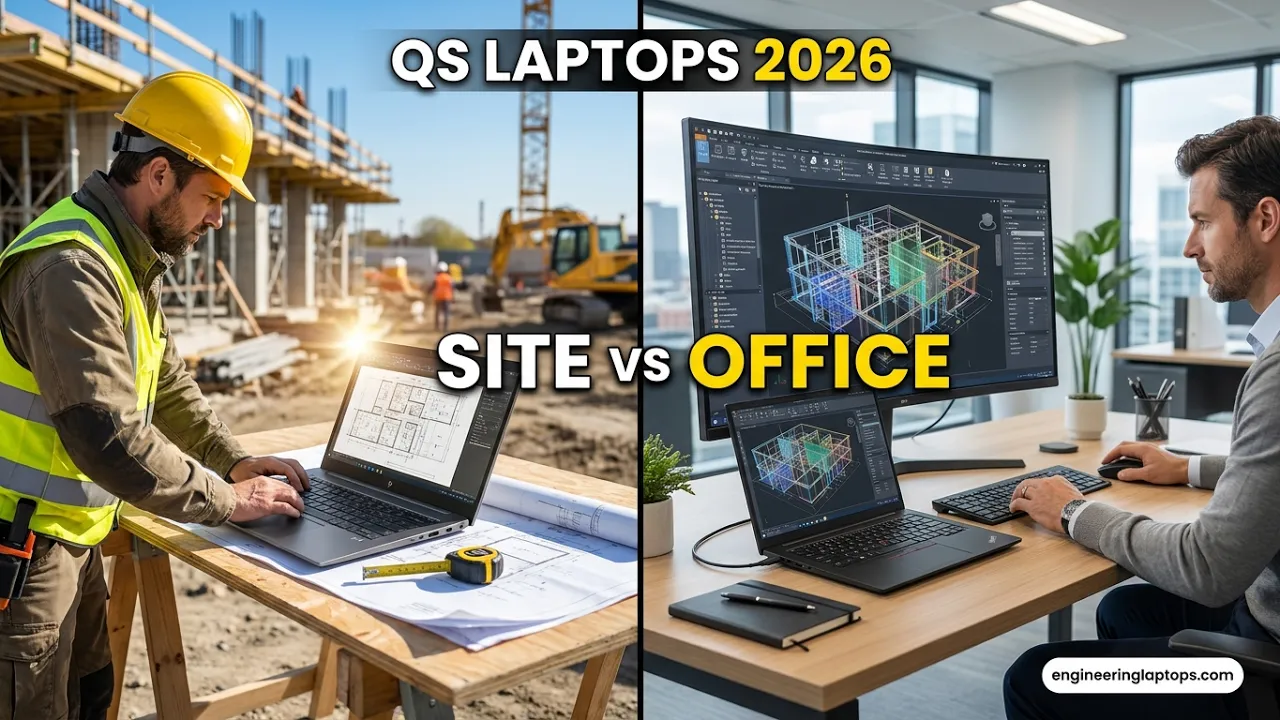
If you’ve ever watched CostX chug through a 300-sheet drawing set on a laptop that “the IT guy said would be fine,” you already know why this guide for the Best laptops for Quantity Surveyors exists. Quantity surveying sits in a weird hardware middle ground. You’re not rendering feature films, but you’re also not just answering emails. You’re running takeoff software, juggling BIM models one week and scanned PDFs the next, keeping a cost plan open in Excel with more linked sheets than you’d care to admit, and doing half of it from a site cabin with dodgy power.
Most laptop buying guides ignore this completely. They’ll point QSs toward either a bargain-bin machine that chokes on a Bluebeam session with 200 markups, or a 3.5kg gaming brick with RGB lighting that looks ridiculous in a client meeting.
So this guide does something different. I’ve picked five laptops for 2026 that map to how quantity surveyors actually work — from graduate QSs doing mostly 2D takeoff, right up to senior cost consultants pulling quantities straight out of Revit models. Every pick is a current-generation machine you can buy right now, and I’ll be honest about where each one falls short, because every laptop falls short somewhere.
Let’s get into it.
Quick Comparison: Best Laptops for Quantity Surveyors 2026
| Laptop | Best For | CPU | RAM | GPU | Weight | Approx. Price (US) |
|---|---|---|---|---|---|---|
| Lenovo ThinkPad P14s Gen 6 (AMD) | Best overall for most QSs | AMD Ryzen AI 9 HX Pro 370 | 32–64GB | Radeon 890M (integrated) | ~1.5 kg | from ~$1,600 |
| HP ZBook Ultra G1a | Power users who travel | AMD Ryzen AI Max+ Pro 395 | 32–128GB | Radeon 8060S (integrated) | ~1.5 kg | from ~$2,500 |
| Lenovo ThinkPad P1 Gen 8 | BIM-heavy / 5D workflows | Intel Core Ultra 7 255H | 32–64GB | NVIDIA RTX Pro 2000 | ~1.8 kg | from ~$2,200 |
| Apple MacBook Pro 14 (M5) | Mac loyalists (with caveats) | Apple M5 | 16–32GB | Integrated (M5) | ~1.55 kg | from ~$1,599 |
| ASUS Vivobook 16 | Students & graduate QSs | AMD Ryzen 7 7730U | 16GB | Radeon (integrated) | ~1.9 kg | ~$700 |
Prices move around constantly, so treat these as ballpark figures at the time of writing rather than gospel.
What a Quantity Surveyor Actually Needs in a Laptop (The Honest Version)
Before the reviews, a quick reality check on specs — because the software vendors’ “minimum requirements” pages are borderline fiction. Bluebeam will technically run on 8GB of RAM. It will also make you want to throw the laptop into a foundation pour.
Here’s what actually matters for QS work in 2026:
RAM is the single biggest bottleneck. 16GB is the absolute floor. 32GB is what I’d genuinely recommend for anyone running CostX or Cubit alongside Excel, Teams, and a browser full of tender portals. If you’re doing BIM takeoff from IFC or Revit files, 32GB stops being a luxury and starts being a requirement. Large federated models eat memory for breakfast.
CPU matters more than GPU for most QS software. CostX, PlanSwift, Bluebeam Revu, CATO, Candy — these are mostly CPU-and-RAM applications. A strong modern processor (Intel Core Ultra 7/9, AMD Ryzen AI 7/9, Apple M-series Pro-class) will do more for your day-to-day speed than a flashy graphics card. The exception is 3D/BIM work, where a decent GPU makes navigating big models noticeably smoother.
Screen size and resolution are quietly critical. You spend your life reading drawings. Dimension strings, drainage invert levels, tiny GA notes at 1:100. A sharp 14-inch panel is workable; a sharp 16-inch panel is lovely. Anything below full HD is a hard no. Brightness matters too if you ever work near a window or, heaven forbid, outdoors on site.
Battery and weight matter because QSs move. Office, site, client office, train, home. A desktop-replacement monster is fine if you never leave your desk, but most of us do. There’s a reason three of my five picks weigh around 1.5 kg.
Storage: 1TB if you can. Drawing sets, tender packages, photos from site walks, that folder of superseded revisions you’re keeping “just in case.” 512GB fills up faster than you’d think. And it must be an NVMe SSD — opening a 500MB PDF bid set off a slow drive is misery.
One more thing worth saying plainly: most core QS software is Windows-only. CostX, Cubit, PlanSwift, Candy, CATO — Windows, Windows, Windows. Keep that in mind when we get to the MacBook, because I’m going to be more honest about it than most guides are.
Right. The laptops.
5 Machines That Can Actually Handle CostX, Bluebeam, and Your 40-Tab Excel Habit
1. Lenovo ThinkPad P14s Gen 6 (AMD) — Best Laptop for Quantity Surveyors Overall
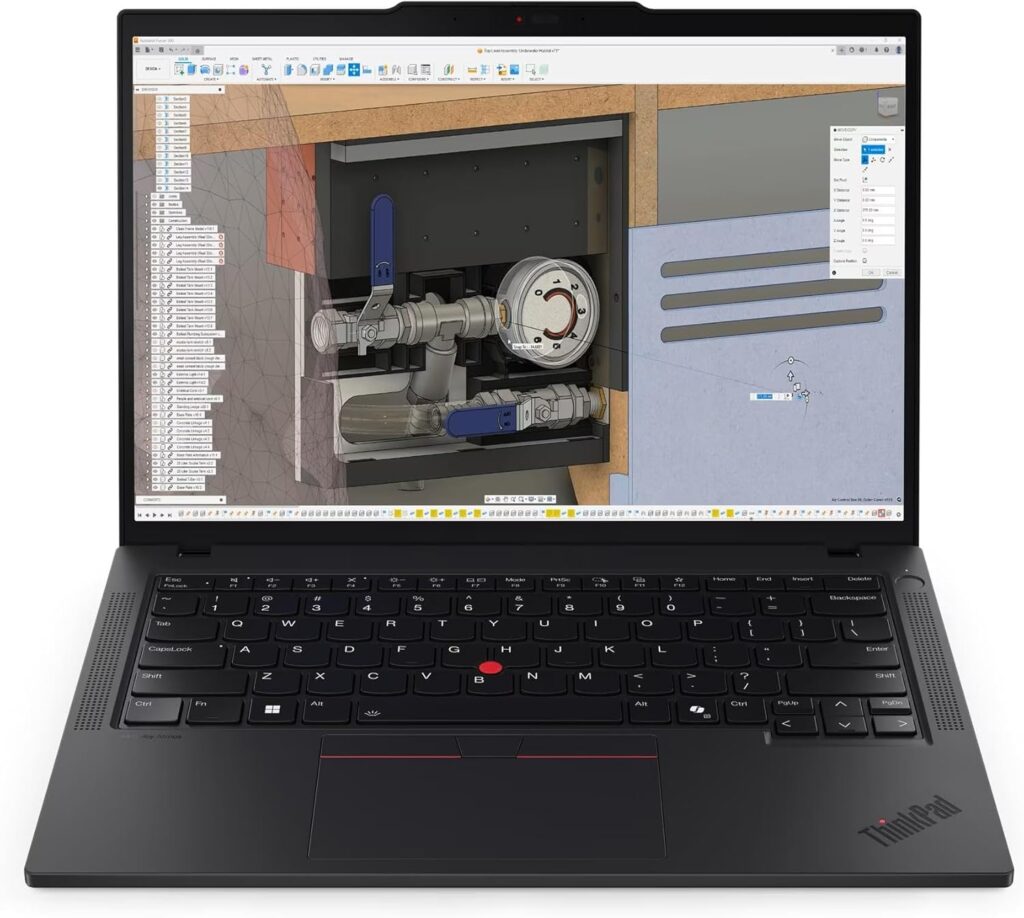
If you asked me to pick one laptop for a working QS in 2026 and gave me no other information, this is it. The P14s Gen 6 is a proper ISV-certified mobile workstation that weighs about the same as an ultrabook, and the AMD “Strix Point” version is the one to get.
Here’s the thing about this machine: it’s boring in the best possible way. It doesn’t look exciting. It’s a black ThinkPad. But it runs CostX with a heavy BIM model loaded without breaking a sweat, the keyboard is the best in the business for long BoQ sessions, and it’ll survive being shoved into a site bag next to a hi-vis and a half-eaten sandwich.
The Ryzen AI 9 HX Pro 370 chip is genuinely quick for the CPU-bound work QSs do all day, and the integrated Radeon 890M graphics are strong enough to spin around mid-sized Revit and IFC models comfortably. For typical CAD and BIM assemblies — which is what QS takeoff work actually involves — the difference between this and a bigger discrete-GPU workstation is negligible. That’s not me being generous; that’s the honest performance picture for this class of machine in 2026.
Key Specifications
- CPU: AMD Ryzen AI 9 HX Pro 370 (12 cores)
- GPU: AMD Radeon 890M (integrated)
- RAM: 32GB or 64GB
- Storage: 512GB–2TB NVMe SSD
- Display: 14.5″ up to 3K, OLED option available
- Weight: approx. 1.5 kg
- Battery: comfortably a full working day of mixed use
- Extras: ISV certifications, MIL-SPEC durability testing, excellent keyboard
Pros
- Workstation-grade reliability and ISV certification at ultrabook weight
- Handles CostX, Bluebeam, and mid-size BIM models with ease
- Best-in-class keyboard — genuinely matters when you type BoQs all day
- Tough enough for site life; ThinkPads take abuse gracefully
- Sensible pricing for what it is, and Lenovo discounts constantly
Cons
- Design is functional rather than pretty — clients won’t be wowed
- Integrated graphics hit a ceiling with very large federated models
- Speakers are mediocre (fine for Teams, rubbish for anything else)
- OLED option nibbles at battery life
Who should buy it: Any QS or cost consultant who wants one machine that does everything well — office, site, and everywhere in between. If you’re not sure which laptop on this list is for you, it’s this one.
2. HP ZBook Ultra G1a — The Compact Powerhouse for Serious BIM Work

This one is honestly a bit of an engineering flex from HP, and it’s the most interesting laptop on this list. The ZBook Ultra G1a takes AMD’s “Strix Halo” Ryzen AI Max+ Pro 395 chip — 16 full-fat Zen 5 cores paired with an integrated GPU that punches like a discrete card — and stuffs it into a 14-inch body that weighs about 1.5 kg.
The party trick is the unified memory. Instead of a graphics card with fixed VRAM, this machine can hand up to 96GB of system memory to the GPU. If you’ve ever had a big federated model bring a laptop to its knees — the fan screaming, the viewport stuttering, the eventual crash — you’ll understand why that matters. Memory bottlenecks are what kill laptops on large BIM datasets, and this design essentially deletes the problem.
For a senior QS or cost manager pulling quantities from hefty Revit and IFC models, doing 5D work, or bouncing between multiple live projects, this is about as much capability as currently fits in a bag this small. Software support for AMD graphics has also caught up meaningfully — the gap that used to make people default to NVIDIA has narrowed a lot.
Key Specifications
- CPU: AMD Ryzen AI Max+ Pro 395 (16 Zen 5 cores)
- GPU: AMD Radeon 8060S (integrated, up to 96GB allocatable memory)
- RAM: 32GB–128GB unified
- Storage: up to 4TB NVMe SSD
- Display: 14″ up to 2.8K OLED
- Weight: approx. 1.5 kg
- Build: ZBook workstation-grade chassis, ISV certified
Pros
- Desktop-class performance in a genuinely portable 14-inch body
- Unified memory architecture crushes large-model bottlenecks
- Superb for BIM takeoff, 5D workflows, and multitasking across big projects
- Beautiful OLED display option for drawing review
- Quiet under load compared to discrete-GPU machines of similar power
Cons
- Expensive — you’re paying a premium for the miniaturisation
- 14-inch screen is tight for all-day drawing work (you’ll want a monitor at your desk)
- AMD GPU support in a few niche visualisation tools still trails NVIDIA slightly
- Overkill if your work is mostly 2D takeoff and cost planning
Who should buy it: Senior QSs, cost managers, and consultants doing genuinely heavy BIM/5D work who refuse to carry a 2.5 kg brick. If your models regularly crash lesser machines, this is your answer.
3. Lenovo ThinkPad P1 Gen 8 — Best for BIM-Heavy Workflows on a Bigger Screen
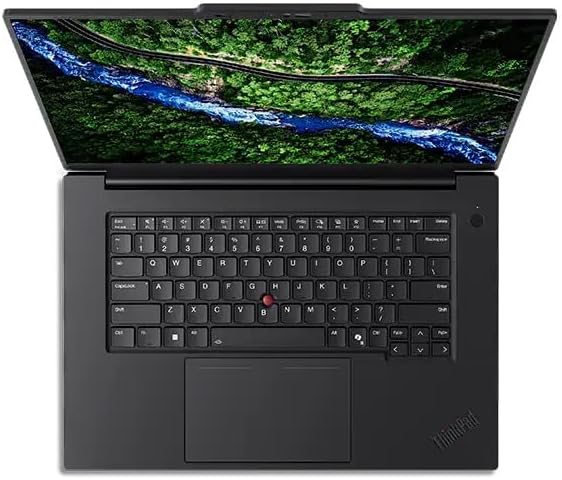
Yes, two ThinkPads on one list. I don’t love it either, but Lenovo has the mobile workstation market in a headlock right now and pretending otherwise would be doing you a disservice.
The P1 Gen 8 is the step up for QSs whose work leans hard into 3D. It pairs an Intel Core Ultra 7 255H with a dedicated NVIDIA RTX Pro 2000 Blackwell GPU — a proper certified professional graphics card — in a chassis that’s still thin and light enough to commute with. The 16-inch Tandem OLED display is a standout at this price, and for a job that’s fundamentally about reading drawings accurately, a gorgeous, sharp, colour-accurate panel isn’t a vanity feature.
Where this machine earns its keep over the P14s is sustained 3D performance and NVIDIA-specific software optimisation. If your practice lives inside Revit, Navisworks, and Solibri alongside your cost tools, the dedicated RTX Pro GPU gives you smoother viewports, faster model processing, and full ISV-certified driver support that the software vendors actually test against. That certification stuff sounds like marketing fluff until a driver bug corrupts your session at 4pm on tender day.
Key Specifications
- CPU: Intel Core Ultra 7 255H
- GPU: NVIDIA RTX Pro 2000 Blackwell (dedicated)
- RAM: 32GB–64GB
- Storage: up to 4TB NVMe SSD
- Display: 16″ Tandem OLED — one of the best screens in any workstation
- Weight: approx. 1.8 kg
- Extras: Full ISV certifications, excellent keyboard and trackpad
Pros
- Dedicated NVIDIA professional GPU with certified drivers for AEC software
- That 16-inch Tandem OLED screen is a joy for drawing review
- Real workstation performance without the traditional workstation bulk
- Very competitive starting price for a certified machine of this class
- 16-inch screen means less squinting at dimension strings
Cons
- Heavier and larger than the 14-inch picks — you’ll notice it in a bag
- Battery life is good, not great, when the GPU wakes up
- Base configs skimp on RAM; budget for 32GB minimum
- More machine than a 2D-focused QS needs
Who should buy it: QSs and estimators in BIM-mature practices who want a bigger screen and certified NVIDIA graphics, but still need to actually carry the thing to meetings.
4. Apple MacBook Pro 14 (M5) — Best for Mac Users (Read the Caveats First)

Let me save some of you a very expensive mistake: CostX doesn’t run natively on macOS. Neither does Cubit, PlanSwift, Candy, or most of the estimating software the industry runs on. Any guide that recommends a MacBook to quantity surveyors without saying that in bold letters is a guide written by someone who has never met a quantity surveyor.
So why is it on the list? Because the reality on the ground is messier than the software compatibility matrix. Plenty of QSs — particularly independent consultants and those in cost-planning-heavy or client-side roles — spend most of their week in Excel, PDF review, reports, and Teams calls. All of that runs beautifully on a Mac. Bluebeam has cloud-based options, plenty of takeoff now happens in browser-based tools, and for the stubborn Windows-only holdouts there’s Parallels, which runs Windows apps on Apple Silicon surprisingly well (budget the extra RAM for it — get 32GB, not 16GB).
And if your workflow does fit, the M5 MacBook Pro is a phenomenal machine. The performance-per-watt is untouchable, the battery genuinely lasts a full working day and then some, the Liquid Retina XDR screen is superb for drawing review, and the build quality embarrasses most Windows laptops. It’s also the machine that looks most at home on a boardroom table, which — let’s be honest — is a consideration in client-facing roles.
Key Specifications
- CPU/GPU: Apple M5 chip (unified architecture)
- RAM: 16GB–32GB unified memory (get 32GB if you’ll run Parallels)
- Storage: 512GB–2TB SSD
- Display: 14.2″ Liquid Retina XDR, mini-LED, 120Hz ProMotion
- Weight: approx. 1.55 kg
- Battery: the best on this list, comfortably
Pros
- Class-leading battery life and completely silent under typical loads
- Gorgeous, bright, colour-accurate display for drawing and document review
- Superb build quality and resale value
- Handles massive Excel workbooks and PDF sets effortlessly
- Windows apps via Parallels work better than sceptics expect
Cons
- Core QS software (CostX, Cubit, Candy, PlanSwift) is not native — this is the big one
- Parallels adds cost, complexity, and a RAM tax
- Fewer ports than the Windows workstations here
- 16GB base config is not enough for serious virtualised Windows work
Who should buy it: Client-side QSs, cost consultants, and PQS professionals whose week is dominated by Excel, reporting, and review rather than heavy native-Windows takeoff. If CostX is your daily driver eight hours a day, buy the ThinkPad instead — I mean it.
5. ASUS Vivobook 16 (M1605) — Best Budget Laptop for QS Students and Graduates
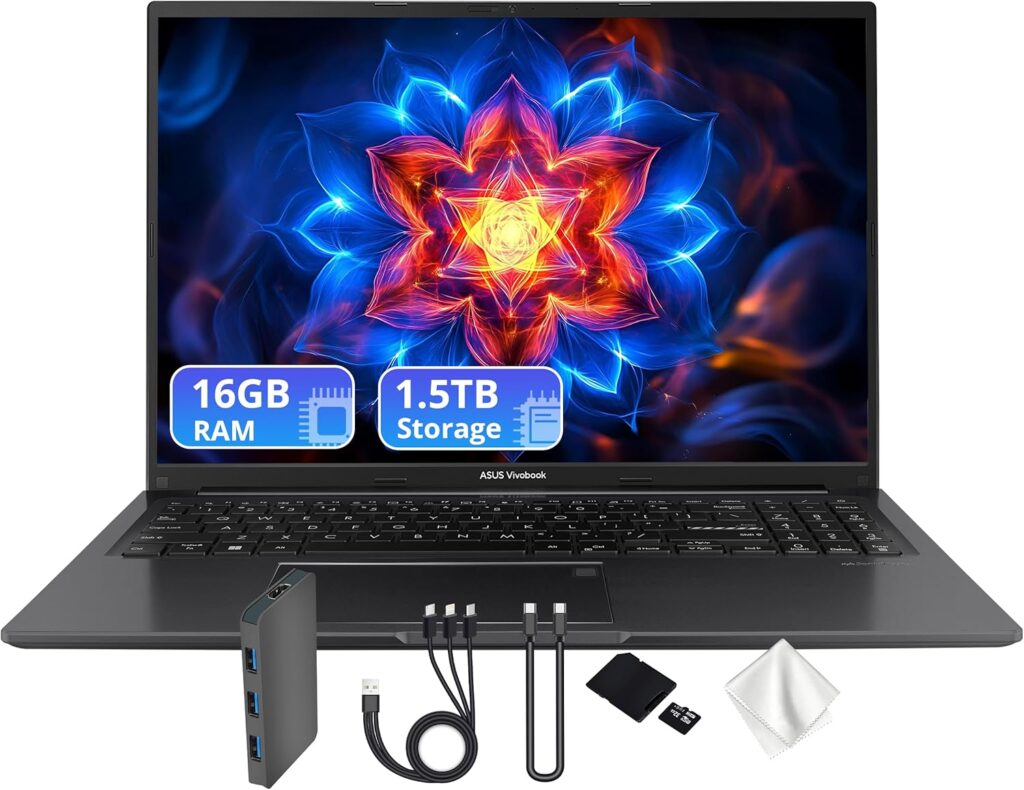
Not everyone reading this is a senior cost manager with a company purchasing card. If you’re a quantity surveying student, a fresh graduate, or a junior whose firm expects you to bring your own machine for the first year, spending $2,000+ isn’t realistic — and honestly, you don’t need to.
The Vivobook 16 is my pick at the budget end because it nails the two things cheap laptops usually get wrong for QS work: the screen and the keyboard. You get a spacious 16-inch display — a real advantage when you’re learning to read drawings and constantly zooming around PDFs — and a comfortable, full-size keyboard with a number pad, which anyone who enters quantities all day will appreciate more than any other feature on this list.
The Ryzen 7 7730U isn’t a cutting-edge chip, but it’s a proven, efficient 8-core processor that handles Bluebeam sessions, PlanSwift takeoffs, university BIM coursework, and heavy Excel without drama. Word of warning though: the 8GB RAM base config is a trap. Pay the small premium for 16GB or upgrade it yourself, because 8GB in 2026 is a bad time waiting to happen.
Key Specifications
- CPU: AMD Ryzen 7 7730U (8 cores)
- GPU: AMD Radeon integrated graphics
- RAM: 8GB base — get 16GB, seriously
- Storage: 512GB NVMe SSD
- Display: 16″ Full HD+ with slim bezels
- Weight: approx. 1.9 kg
- Price: typically around $700
Pros
- Big 16-inch screen at a genuinely budget price — rare and valuable for drawing work
- Full-size keyboard with number pad for quantity entry
- Proven, efficient Ryzen chip handles 2D takeoff and Excel comfortably
- Light enough to carry to lectures or site
- Leaves budget left over for a second monitor, which will improve your life more than a pricier laptop would
Cons
- Base 8GB RAM config should be avoided entirely
- Plastic build won’t take site abuse like a ThinkPad will
- Integrated graphics will struggle with large BIM models
- Display is functional rather than beautiful; middling brightness
- You’ll outgrow it if your career moves into heavy 3D/5D work
Who should buy it: QS students, graduates, and juniors doing predominantly 2D takeoff, measurement coursework, and Excel-based cost planning. It’s the sensible starting point — upgrade when the work demands it, not before.
How to Choose: Match the Laptop to Your Actual Workflow
Strip away the specs and the decision comes down to one question: what does your typical Tuesday look like?
Mostly 2D takeoff, cost plans, and Excel? You don’t need a discrete GPU, and anyone telling you otherwise is selling something. The ThinkPad P14s covers you with room to spare; the Vivobook covers you on a budget.
Regular BIM takeoff from Revit/IFC models? Now RAM and graphics matter. 32GB minimum, and either the ZBook Ultra’s unified memory approach or the P1’s dedicated RTX Pro GPU will keep big models responsive. Which one? ZBook if portability wins, P1 if screen size wins.
On site half the week? Prioritise weight, battery, and build toughness. The two 14-inch workstations and the MacBook are your shortlist. A laptop that dies at 2pm in a site cabin with no free sockets is a very expensive clipboard.
Client-facing, report-heavy role? The MacBook makes a strong case — as long as you’ve audited your software list first. Check every single application your firm requires before you buy, not after.
And a tip that applies to everyone: whatever you buy, put the savings toward a decent external monitor for your desk. A 27-inch screen next to any of these laptops will do more for your takeoff speed and your neck than any spec bump ever will.
Frequently Asked Questions
How much RAM does a quantity surveyor need in 2026?
16GB is the working minimum for 2D takeoff and Excel-based cost planning. 32GB is the right answer for anyone running CostX or Cubit regularly, and it becomes essential for BIM takeoff from Revit or IFC models. If you’re choosing between a faster CPU and more RAM, take the RAM.
Do quantity surveyors need a dedicated graphics card?
For 2D takeoff, PDF markup, and estimating — no, modern integrated graphics are plenty. For frequent work with large 3D/BIM models, a dedicated professional GPU (or a strong unified-memory design like the ZBook Ultra’s) makes a real difference in viewport smoothness and stability.
Can I use a MacBook for quantity surveying?
It depends entirely on your software stack. Excel, PDF review, cloud-based takeoff tools, and reporting all run brilliantly on macOS. But CostX, Cubit, PlanSwift, and Candy are Windows-only, so you’d need Parallels (and 32GB of RAM) to run them. If a Windows-only application is your primary daily tool, buy a Windows machine.
Is a gaming laptop good for quantity surveying?
It’ll run the software, sure. But gaming laptops trade battery life, weight, and build discretion for peak performance you mostly won’t use, and many throttle under sustained professional workloads. A mobile workstation gives you certified drivers, better batteries, and a chassis that doesn’t glow in client meetings. For the same money, it’s the better tool.
What’s the best budget laptop for a quantity surveying student?
The ASUS Vivobook 16 with 16GB of RAM is my current pick — a big screen, a number pad, and enough performance for coursework and 2D takeoff at around $700. Avoid any 8GB configuration in 2026 regardless of brand.
Final Verdict
If I had to hand out one recommendation per reader:
- Most working QSs: Lenovo ThinkPad P14s Gen 6 (AMD). The complete package — power, portability, toughness, price. This is the default answer for good reason.
- Heavy BIM/5D users who travel: HP ZBook Ultra G1a. Absurd capability in a 14-inch body.
- BIM users who want a bigger screen: Lenovo ThinkPad P1 Gen 8. Certified NVIDIA graphics and a stunning OLED panel.
- Excel-and-reports professionals: Apple MacBook Pro 14 (M5) — after you’ve checked your software list twice.
- Students and graduates: ASUS Vivobook 16 with the 16GB upgrade. Sensible money, sensible machine.
The construction industry finally went properly digital, and your laptop is now as much a professional instrument as your scale rule ever was. Buy the one that matches your workflow, spec the RAM generously, and it’ll quietly earn its keep on every tender for the next four or five years.
Got a machine you swear by for takeoff work that I’ve missed? Drop it in the comments — this list gets revisited as new hardware lands.

Hi, my name is Burak. I am a mechanical engineer. I have been writing laptop reviews for the Engineering Laptops website since 2020. Please feel free to contact me if you have any questions.





