Last updated: September 20, 2026
Key Takeaways
- Choosing the best laptop for Xactimate involves understanding Verisk’s requirements and current models available in September 2026.
- The top five laptops include the Dell XPS 14, Lenovo ThinkPad X1 Carbon Gen 14, ASUS Zenbook Duo, HP ZBook Ultra G1a, and Acer Swift Air 14.
- Each laptop meets specific needs, from overall performance to budget-friendly options, ensuring reliability in estimate writing.
- Buyers should avoid laptops with ARM processors and Apple silicon, as they do not support Xactimate.
- Check for at least 16 GB of RAM, an Intel or AMD processor, and Windows 10/11 for optimal performance with Xactimate.
Table of contents
- Quick Picks
- What Xactimate Actually Needs in 2026
- How I Picked These Laptops (and Where the Numbers Come From)
- The Numbers Side by Side
- Best Laptops for Xactimate in 2026: 5 Lab-Tested Picks
- 1. Dell XPS 14 (2026) : Best Overall Laptop for Xactimate
- 2. Lenovo ThinkPad X1 Carbon Gen 14 : Best for Field Adjusters
- 3. ASUS Zenbook Duo (2026) : Best for Desk Adjusters and Reviewers
- 4. HP ZBook Ultra G1a 14 : Best for Heavy Sketch Work and Big Files
- 5. Acer Swift Air 14 : Best Budget Laptop for Xactimate
- Which Configuration Should You Buy?
- Laptops I Deliberately Left Out
- Frequently Asked Questions
- Final Verdict
- Sources
If you write estimates for a living, you already know the worst time to find out your laptop can’t handle Xactimate is on a Monday during a CAT deployment with 40 claims in the queue. So I skipped the usual “top 10 laptops” filler and started where every Xactimate buyer should start: Verisk’s own system requirements. Then I matched those requirements, line by line, against published lab results for the newest laptops on the market as of September 2026.
The result is five picks from five different brands. Every one runs the full Windows version of Xactimate, every one is a current model, and every benchmark number here comes from a named, independent test lab.
Quick Picks
| Award | Laptop | Why it wins | Starting price |
|---|---|---|---|
| Best overall | Dell XPS 14 (2026) | Fast Panther Lake chip, strong integrated graphics, great OLED | $1,599 |
| Best for field adjusters | Lenovo ThinkPad X1 Carbon Gen 14 | Class-leading battery, HDMI + USB-A, optional 5G | $2,249 |
| Best for desk adjusters | ASUS Zenbook Duo (2026) | Two 14-inch OLED screens in one laptop | $2,099 |
| Best for heavy Sketch and big files | HP ZBook Ultra G1a 14 | Workstation-class chip with memory you can hand to the GPU | $2,299 |
| Best budget pick | Acer Swift Air 14 | Under $1,000, Thunderbolt 4, nearly 17-hour battery | $699 |
What Xactimate Actually Needs in 2026
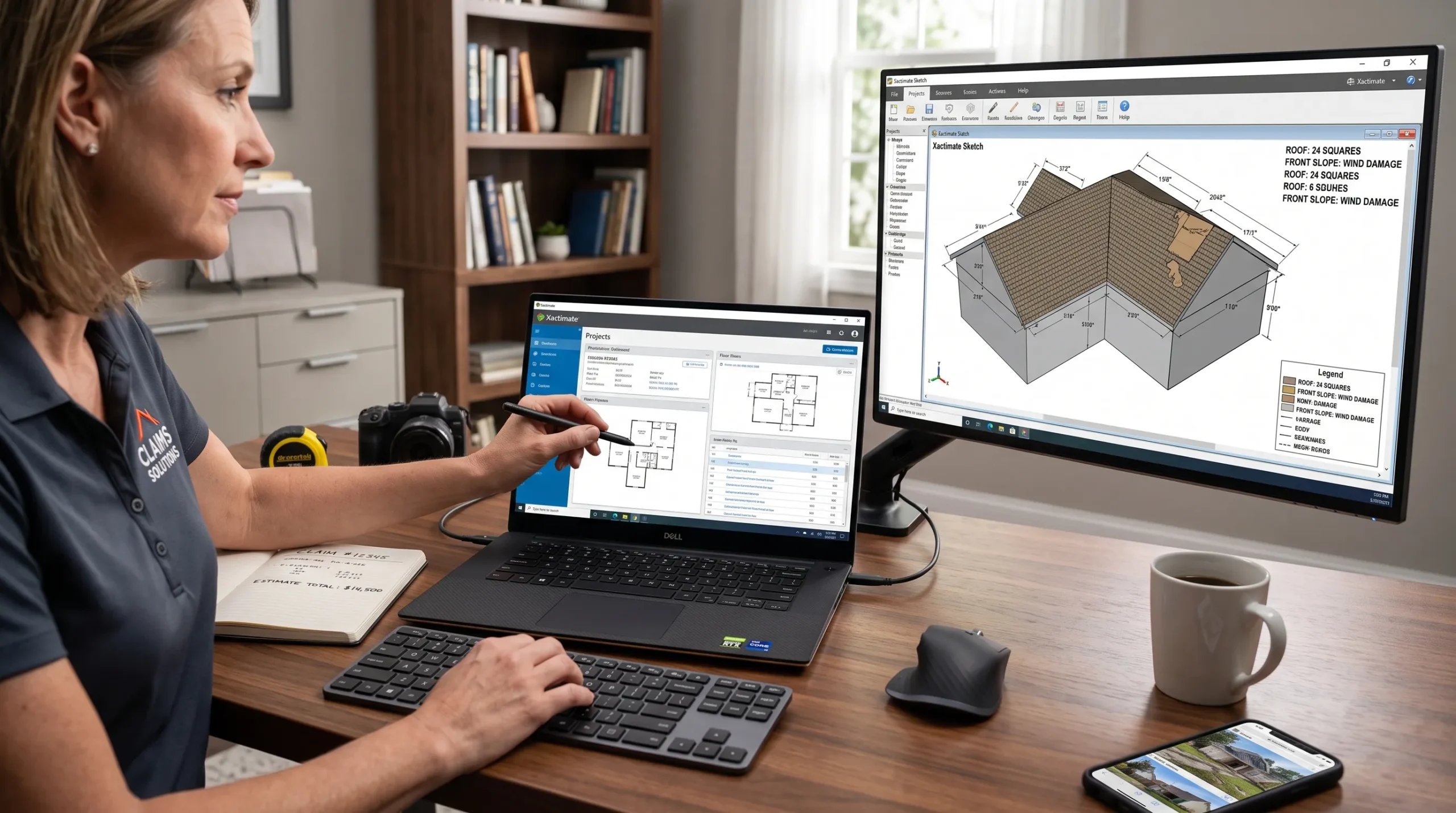
A lot of the advice floating around online is outdated, so here’s what Verisk currently lists. For desktop and online, Verisk recommends a quad-core x64 processor, OpenGL 4.1-compatible graphics with 4 GB of VRAM, 16 GB of RAM or more, 30 GB of free space on a solid-state drive, and a display set to 1920×1080 at 100% scaling (or similar or higher quality), running 64-bit Windows 10 or 11.
| Spec | Verisk recommendation | What I’d actually buy |
|---|---|---|
| Processor | Quad-core x64 (Intel or AMD) | Intel Core Ultra Series 3 or AMD Ryzen AI |
| Memory | 16 GB or more | 32 GB (integrated GPUs share it) |
| Graphics | OpenGL 4.1, 4 GB VRAM | Arc B390, Radeon 8050S/8060S, or better |
| Storage | 30 GB free, SSD | 1 TB NVMe (photos pile up fast) |
| Display | 1920×1080 at 100% scaling | 1920×1200 or higher, plus a desk monitor |
| OS | Windows 10/11, 64-bit | Windows 11 Pro |
The five traps I see buyers fall into
Trap 1: Buying a Snapdragon (ARM) laptop. This is the big one in 2026, because many of the thinnest Copilot+ PCs use Qualcomm chips. Verisk states plainly that an x64 processor is required and that Xactimate is not compatible with the Surface Pro X or other ARM-based processors. Every laptop on my list uses an Intel or AMD x86 chip.
Trap 2: Buying a MacBook. Xactimate and Verisk’s other estimating products aren’t supported on macOS, and machines using Apple silicon are not supported at all. Verisk’s help docs also confirm that using all the tools in Xactimate online requires Windows.
Trap 3: Misreading the “4 GB VRAM” line. None of the thin laptops below has a separate graphics card with its own 4 GB of video memory. Their integrated GPUs borrow from system RAM instead. That’s exactly why I recommend 32 GB configurations: the GPU gets breathing room and Chrome, Outlook, and your photo folders still have plenty left.
Trap 4: Ignoring your laser measurer. Verisk requires Bluetooth 4.0 on the Windows machine for DISTO devices such as the E7100i, D1, D2, E7500i, D810, and S910. All five picks have Bluetooth 5.2 or newer, so you’re covered.
Trap 5: Forgetting about your phone. If your field workflow runs through an Android phone or tablet, plan now. Verisk says Xactimate mobile for Android will be discontinued in Q2 2027, with limited functionality starting in January 2027. For Sketch AR with LiDAR, Verisk lists the iPhone 17 Pro/Pro Max and the M5 iPad Pro as the best-performing devices. Your laptop choice doesn’t change with this, but your mobile pairing might.
The scaling detail nobody talks about
Verisk’s display guidance is written around a 1080p screen at 100% scaling. On any 14-inch laptop, Windows will default to a higher scaling level to keep text readable. That’s normal, but if Sketch’s toolbars or dialog boxes ever look cramped or clipped, the fix is simple: plug into a 24-inch 1080p monitor at your desk and set that screen to 100%. That’s why I weight HDMI ports and Thunderbolt display output more heavily than most reviewers do.
How I Picked These Laptops (and Where the Numbers Come From)
I want to be upfront about the method. I didn’t pull these rankings out of thin air, and I didn’t copy spec sheets. Here’s the process:
- Compatibility first. Anything ARM-based or Apple silicon was cut immediately, per Verisk’s requirements.
- Current models only. Every laptop here is the latest version its maker sells. No outgoing generation where a newer one exists.
- One laptop per brand. Five brands, five picks, so you get real variety.
- Independent lab data only. CPU, GPU, battery, display, SSD, and thermal numbers come from Notebookcheck, Tom’s Hardware, and other named outlets, all listed in the Sources section.
- Honest comparisons. Battery tests differ between labs (brightness, workload, power mode), so I always tell you which test a number comes from. Please don’t compare a Notebookcheck Wi-Fi runtime directly against a Tom’s Hardware runtime as if they were the same test.
The Numbers Side by Side
CPU performance: Geekbench 6 (all five laptops)
| Laptop (tested chip) | Single-core | Multi-core | Lab |
|---|---|---|---|
| Dell XPS 14 (Core Ultra X7 358H) | 2,927 | 17,121 | Notebookcheck |
| ThinkPad X1 Carbon Gen 14 (Core Ultra 5 325) | 2,620 | 11,038 | Notebookcheck |
| Zenbook Duo (Core Ultra X9 388H) | 3,031 | 17,283 | Tom’s Hardware |
| ZBook Ultra G1a (Ryzen AI Max PRO 390) | 2,774 | 15,649 | Notebookcheck |
| Acer Swift Air 14 (Core 5 320) | 2,613 | 7,977 | Tom’s Hardware |
CPU performance: Cinebench R23 (Notebookcheck-tested units)
| Laptop | Single-core | Multi-core |
|---|---|---|
| HP ZBook Ultra G1a (Ryzen AI Max+ PRO 395) | 2,003 | 30,706 |
| HP ZBook Ultra G1a (Ryzen AI Max PRO 390) | 1,976 | 24,828 |
| ASUS Zenbook Duo (Core Ultra X9 388H) | 2,188 | 20,159 |
| Dell XPS 14 (Core Ultra X7 358H) | 2,086 | 18,932 |
| ThinkPad X1 Carbon Gen 14 (Core Ultra 5 325) | 1,892 | 10,980 |
Here’s what those numbers mean for an estimator: Xactimate itself leans on single-core responsiveness far more than multi-core muscle. All five machines have single-core scores bunched closely together, which is why even the budget Acer feels fine for writing line items. Multi-core power matters when you’re exporting big PDF reports, compressing photo sets, or running Xactimate next to a pile of browser tabs and Teams.
Graphics: 3DMark Time Spy (Notebookcheck)
| Laptop | Time Spy score |
|---|---|
| ASUS Zenbook Duo (Arc B390) | 7,807 |
| Dell XPS 14 (Arc B390) | 7,546 |
| ThinkPad X1 Carbon Gen 14 (4-core Intel Graphics) | 3,208 |
This is the number that matters most for Sketch and 3D views. Notebookcheck found the Arc B390 in the XPS 14 scores roughly double the previous Arc 140T in 3DMark and 25 to 40 percent higher than the GeForce RTX 4050 in the 2024 XPS 14. In plain English: integrated graphics are finally good enough that most estimators don’t need a gaming laptop anymore.
Battery life (test method matters, so it’s listed)
| Laptop | Result | Test |
|---|---|---|
| ThinkPad X1 Carbon Gen 14 (IPS) | 23 h 13 min | Notebookcheck Wi-Fi, 150 nits |
| Acer Swift Air 14 | 16 h 52 min | Tom’s Hardware mixed use, 150 nits |
| ASUS Zenbook Duo (one screen) | 14 h 23 min | Tom’s Hardware mixed use, 150 nits |
| ThinkPad X1 Carbon Gen 14 (OLED) | about 13.5 h | Notebookcheck Wi-Fi, 150 nits |
| Dell XPS 14 | 12 h 29 min | xpertpick mixed office, Performance mode |
| ASUS Zenbook Duo (both screens) | 11 h 05 min | Tom’s Hardware, screens mirrored |
| HP ZBook Ultra G1a | about 6.25 h | Forbes video loop |
Display lab measurements
| Laptop (panel tested) | Brightness | Color | Notes |
|---|---|---|---|
| Dell XPS 14 (2.8K OLED) | 389 nits avg | 99.7% DCI-P3, Delta E 1.27 | PWM at 240 Hz |
| ThinkPad X1 Carbon Gen 14 (FHD+ IPS) | 524 nits avg | 99.1% sRGB | Poor factory calibration, no PWM |
| ASUS Zenbook Duo (2x 3K OLED) | 435 / 456 nits | 123.1% sRGB volume | Top / bottom screen |
| HP ZBook Ultra G1a (WUXGA IPS) | 379 nits avg | 97.4% sRGB, Delta E 3.3 | No PWM, matte |
| Acer Swift Air 14 (FHD+ IPS) | 350 nits (Acer spec) | 107% sRGB | Tom’s Hardware called it dim |
Xactimate Readiness Check
I built this table straight from Verisk’s requirements plus the ports I think matter most for real claim work.
| Laptop | x64 CPU | RAM options | Bluetooth (DISTO needs 4.0+) | HDMI | USB-A |
|---|---|---|---|---|---|
| Dell XPS 14 | Yes | 16 to 64 GB | 6.0 | No | No |
| ThinkPad X1 Carbon Gen 14 | Yes | 32 to 64 GB | 5.4 | Yes | Yes |
| ASUS Zenbook Duo | Yes | 32 GB | 5.4 | Yes | Yes |
| HP ZBook Ultra G1a | Yes | 32 to 128 GB | 5.2 | Yes | Yes |
| Acer Swift Air 14 | Yes | 8 to 16 GB | 5.3 | No | Yes |
Best Laptops for Xactimate in 2026: 5 Lab-Tested Picks
1. Dell XPS 14 (2026): Best Overall Laptop for Xactimate
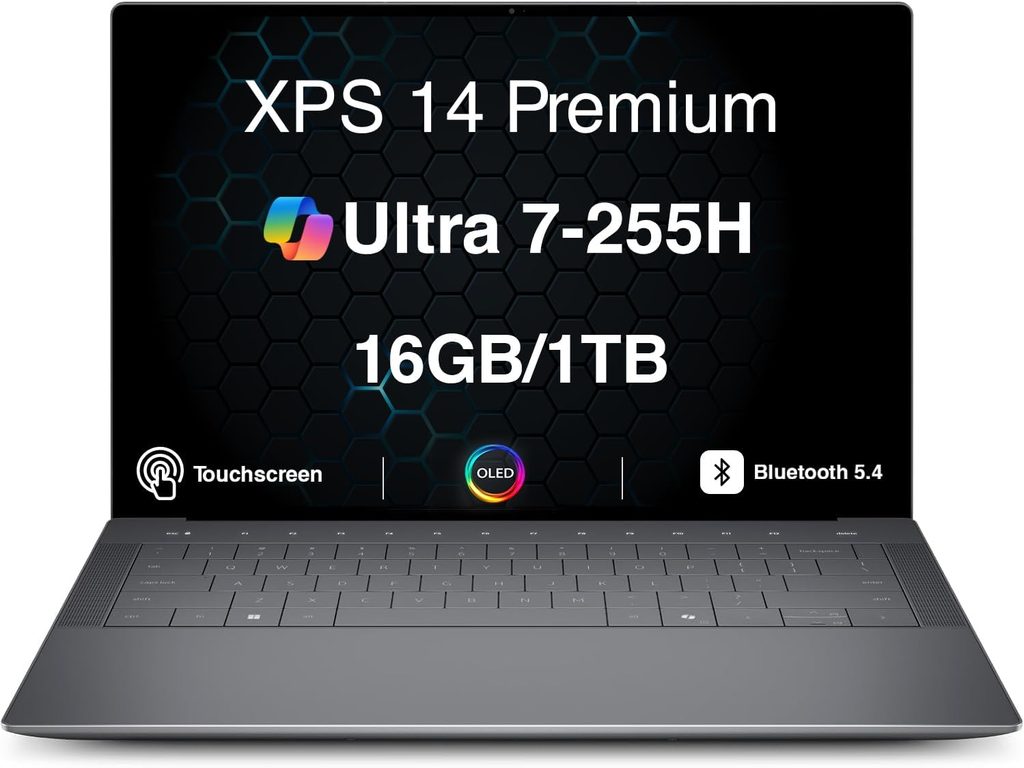
The XPS name is back, and honestly, this is the laptop I’d point most estimators to first. It’s fast where Xactimate cares, it has the strongest integrated graphics in its class, and it’s still thin enough to live in a field bag.
Specs (as tested by Notebookcheck)
- CPU: Intel Core Ultra X7 358H (16 cores, Panther Lake)
- GPU: Intel Arc B390 (12 Xe3 cores, integrated)
- RAM: 32 GB LPDDR5x-9600 (up to 64 GB available)
- Storage: 1 TB Samsung PCIe 4.0 NVMe
- Display: 14-inch 2880×1800 OLED touch, 120 Hz (a 1920×1200 non-touch panel is also offered)
- Battery: 70 Wh
- Ports: 3x Thunderbolt 4 / USB4, 3.5 mm headphone jack
- Wireless: Wi-Fi 7, Bluetooth 6.0
- Weight: 3.18 lb (measured)
- Price: from $1,599; tested configuration about $2,200
Pros
- Arc B390 graphics make Sketch and 3D views feel effortless
- Excellent out-of-the-box color accuracy on the OLED
- Loud, clear 10 W speakers for Teams calls with insureds
- Strong battery life for a laptop with this much graphics power
Cons
- No HDMI, no USB-A, and the microSD slot is gone, so you’ll want a small dock
- Multi-core performance throttles under long, heavy loads
- OLED uses low-frequency PWM dimming, which can bother sensitive eyes
- No webcam privacy shutter
What the lab data says. Notebookcheck measured 18,932 points in Cinebench R23 multi-core, 17,121 in Geekbench 6.7 multi-core, and a PCMark 10 score of 9,880, which they called among the highest of any integrated-graphics subnotebook. The one knock: multi-thread performance dropped by as much as 25 percent when Cinebench R15 ran in a loop. For Xactimate, that basically never matters. It would matter if you batch-export dozens of reports while doing something else.
Storage and display. The Samsung PM9C1b drive sustained about 7,000 MB/s without throttling, and the OLED averaged 389 nits with a Delta E of 1.27 before any calibration. That brightness is fine indoors, but Notebookcheck found outdoor visibility decent in the shade and too dim and reflective in brighter conditions. If you write estimates in a truck cab at noon, the ThinkPad below is the better screen for you.
Battery. In xpertpick’s mixed office, browsing, and streaming test in Performance mode, the XPS 14 ran 12 hours and 29 minutes.
Who should buy it: Independent adjusters and restoration estimators who split time between the desk and the field and want one machine that does everything well. Get the X7 358H with 32 GB. The base model ships with a Core Ultra 5 325 and a 2K non-touch display, and I’d skip it if you do much Sketch work, because the big graphics upgrade only comes with the X-series chips.
2. Lenovo ThinkPad X1 Carbon Gen 14: Best for Field Adjusters
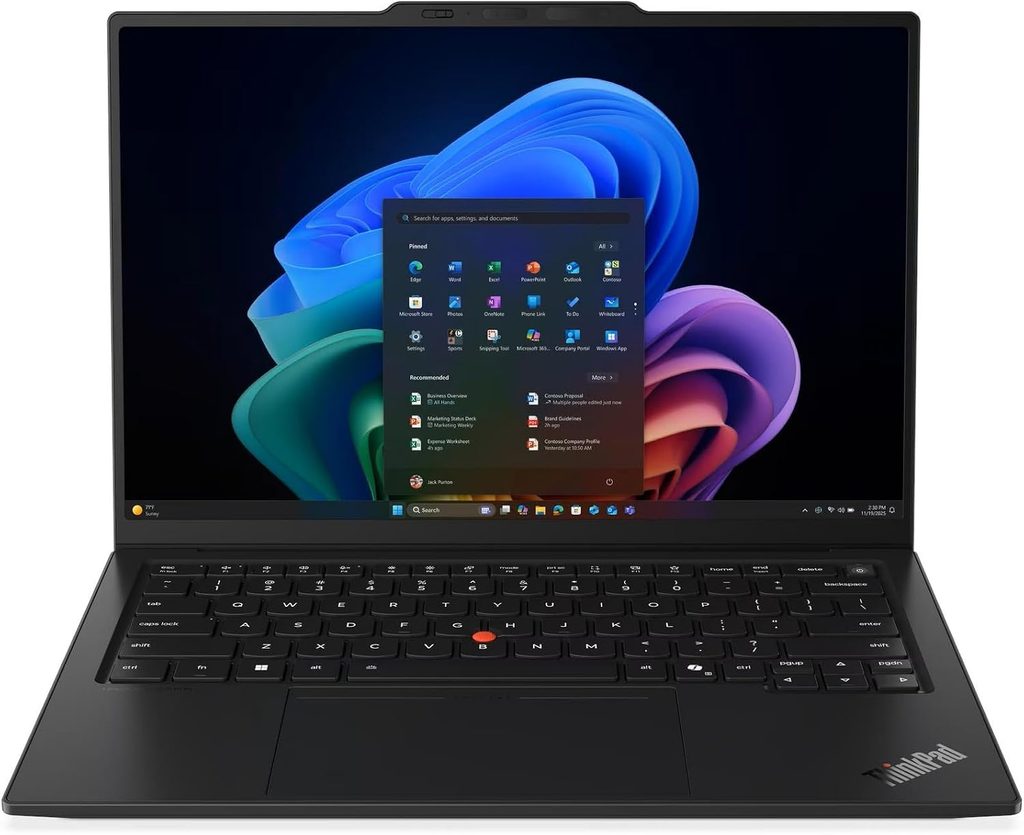
If your “office” is a rental car, a hotel desk, and somebody’s water-damaged kitchen, this is the one. The ThinkPad isn’t the fastest laptop here, but it is the one I’d trust to last a full CAT day without hunting for an outlet.
Specs (as tested by Notebookcheck)
- CPU: Intel Core Ultra 5 325 (Core Ultra 7 355 and Core Ultra X7 options available)
- GPU: Intel Graphics, 4 Xe3 cores (Arc B390 with Core Ultra X chips)
- RAM: 32 GB LPDDR5x-7467 (32 GB minimum, up to 64 GB)
- Storage: 512 GB Samsung PCIe 4.0 (slot supports PCIe 5.0)
- Display: 14-inch 1920×1200 IPS touch, 60 Hz (2.8K OLED 120 Hz optional)
- Battery: 58 Wh
- Ports: 3x Thunderbolt 4, HDMI 2.1, USB-A, headphone jack, nano-SIM slot
- Wireless: Wi-Fi 7, Bluetooth 5.4, optional 4G/5G
- Weight: 2.51 lb (IPS), about 2.18 lb (OLED)
- Price: from $2,249 configured on Lenovo’s site
Pros
- Battery life that beats everything else on this list
- HDMI and USB-A built in, so no dongles for projectors or camera cables
- Optional 5G means you can upload estimates from a driveway with no Wi-Fi
- Excellent keyboard for long days of typing line-item notes
- Stays cool and quiet under load
Cons
- Expensive for the performance you get at the base level
- The IPS panel’s factory color calibration is poor
- Base graphics are well below the Arc B390 laptops
- RAM is soldered, so buy the right amount up front
Battery is the headline. Notebookcheck measured more than 23 hours in its Wi-Fi test at 150 nits with the IPS touchscreen, and still more than 14 hours at full brightness, despite the small 58 Wh battery. One important warning: the OLED version managed only around 13.5 hours in the same test and roughly 7.5 hours at maximum brightness. For field work, I’d pick the IPS panel without a second thought.
Outdoors and ports. The IPS screen averaged 524 nits with a 1800:1 contrast ratio and no PWM flicker. That’s the brightest screen on this list, which is a genuine advantage when you’re working on a porch. On the left side you get HDMI 2.1, two Thunderbolt 4 ports, and a headphone jack, while the right side adds a nano-SIM slot, a third Thunderbolt 4 port, and an always-on USB-A port.
Performance and thermals. The Core Ultra 5 325 scored 10,980 in Cinebench R23 multi-core and 11,038 in Geekbench 6.7 multi-core, and the fan topped out around 39 dB(A) in Best Performance mode. On battery, the chip is limited to 25 watts, which cuts multi-core performance by about 16 percent. Xactimate won’t notice. Big PDF exports will, a little.
Who should buy it: Staff and independent field adjusters, CAT deployment crews, and anyone who wants the most dependable all-day machine. Choose the IPS screen and, if you draw a lot of Sketch floor plans, pay for a Core Ultra X7 chip to get the Arc B390 graphics.
3. ASUS Zenbook Duo (2026): Best for Desk Adjusters and Reviewers
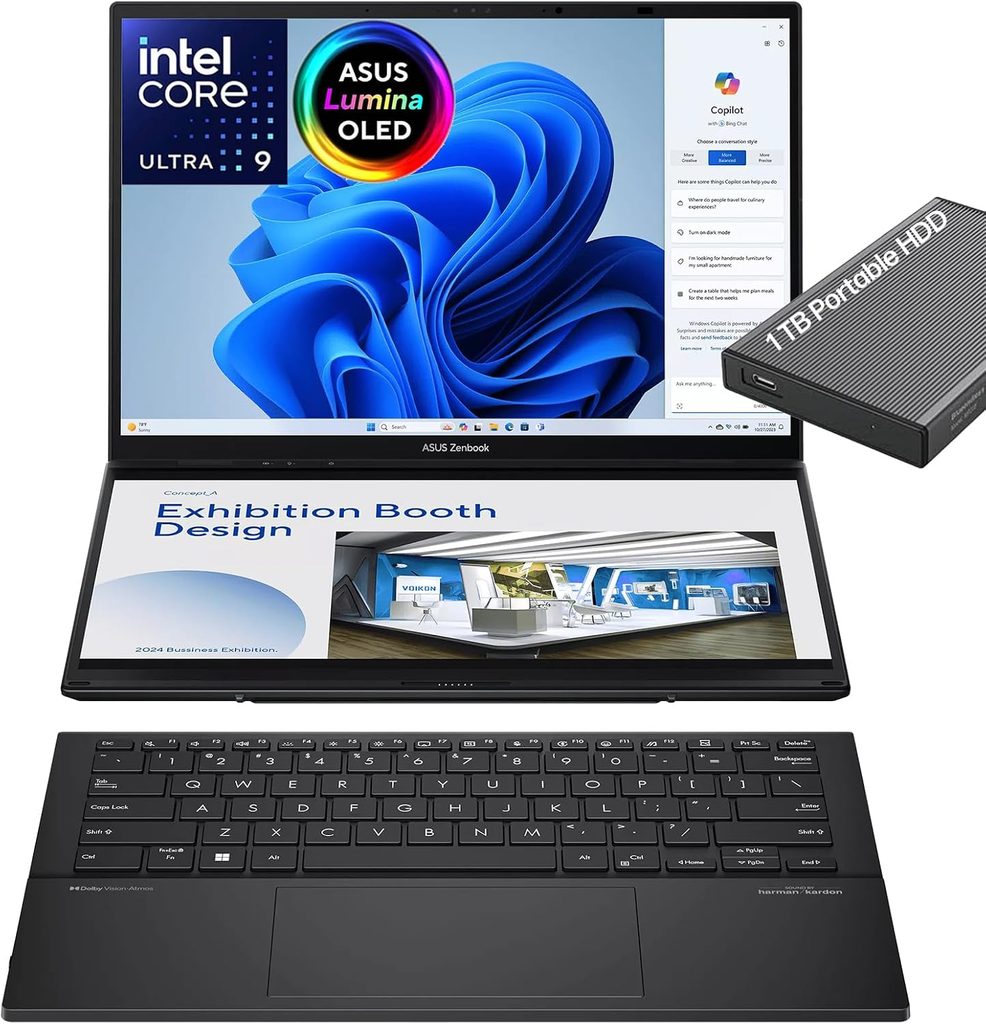
Every desk adjuster I know works with at least two windows open: the estimate on one side, and photos, the policy, or a contractor’s bid on the other. The Zenbook Duo puts two full 14-inch OLED screens in a laptop, which means you get a dual-monitor setup in a hotel room.
Specs (as tested by Tom’s Hardware)
- CPU: Intel Core Ultra X9 388H (16 cores)
- GPU: Intel Arc B390 (integrated)
- RAM: 32 GB LPDDR5x-9600
- Storage: 1 TB PCIe Gen 4
- Display: Two 14-inch 2880×1800 OLED touchscreens, 48 to 144 Hz
- Battery: 99 Wh
- Ports: 2x Thunderbolt 4, USB-A 3.2 Gen 2, HDMI 2.1, headphone jack
- Wireless: Wi-Fi 7, Bluetooth 5.4
- Weight: 3.64 lb with keyboard (2.98 lb without)
- Price: $2,299.99 (X9 388H); $2,099.99 (Core Ultra 9 386H)
Pros
- Two big screens without carrying a portable monitor
- Top-tier integrated graphics for Sketch and 3D
- Surprisingly long battery life, even with both screens on
- HDMI and USB-A included
- The SSD sits behind an easy-access panel
Cons
- Heavier and thicker than a normal 14-inch laptop
- The detachable keyboard feels a bit mushy
- Lots of preinstalled bloatware to clean up
- Glossy screens reflect in bright rooms
Performance. Tom’s Hardware recorded a Geekbench single-core score of 3,031 and a multi-core score of 17,283, and in a ten-run Cinebench 2026 stress test the system held in the mid-3,800s with no obvious throttling. Its 3DMark Fire Strike score of 13,581 easily beat the rival ultrabooks tested alongside it.
Battery with two screens. This surprised me most. With one screen active and the other covered by the keyboard, the Duo lasted 14 hours and 23 minutes, and with both screens mirrored it still ran 11 hours and 5 minutes. The huge 99 Wh battery deserves a lot of the credit.
Heat. Under a stress test, the hottest point hit 104°F under the kickstand, and the CPU package averaged about 74°C. That’s comfortable for a machine you’ll mostly use propped on a desk.
One configuration trap to avoid. Notebookcheck notes that only the top SKU with the Core Ultra X9 388H comes with the fast Arc B390 graphics. The cheaper $2,099.99 model with the Core Ultra 9 386H uses standard Intel graphics. For Xactimate, spend the extra $200.
Who should buy it: Desk adjusters, file reviewers, and restoration estimators who compare documents all day and travel often enough that a separate monitor is a hassle.
4. HP ZBook Ultra G1a 14: Best for Heavy Sketch Work and Big Files
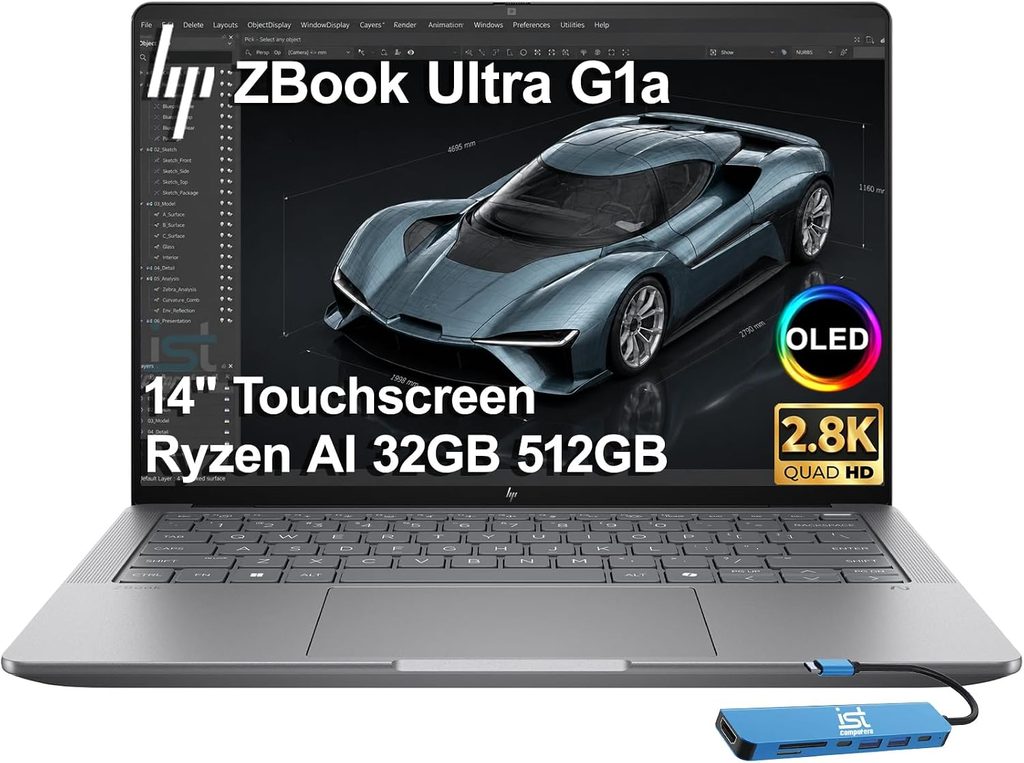
This is the power pick. If you build big commercial sketches, juggle huge photo sets, or run other heavy software next to Xactimate, the ZBook Ultra G1a is the most capable 14-inch laptop I found. It’s still HP’s current flagship 14-inch ZBook Ultra at the time of writing.
What makes it special for Xactimate is the “unified memory” design. Instead of a GPU stuck with a fixed amount of video memory, you can give it a large slice of system RAM. In AEC Magazine’s test unit with 128 GB of RAM, 64 GB was allocated to the Radeon 8060S GPU. That’s many times Verisk’s 4 GB VRAM recommendation.
Specs (Notebookcheck’s WUXGA test unit)
- CPU: AMD Ryzen AI Max PRO 390 (12 cores); Ryzen AI Max+ PRO 395 (16 cores) available
- GPU: AMD Radeon 8050S (8060S with the 395)
- RAM: 32 GB LPDDR5X-8533 unified memory (up to 128 GB)
- Storage: 1 TB PCIe 4.0 NVMe
- Display: 14-inch 1920×1200 matte IPS, 60 Hz (2.8K OLED 120 Hz optional)
- Battery: 74.5 Wh
- Ports: 2x Thunderbolt 4, USB-C 3.2 Gen 2, USB-A 3.2 Gen 2, HDMI 2.1, headphone jack
- Wireless: Wi-Fi 7, Bluetooth 5.2
- Weight: 3.43 lb
- Price: $2,299 for the tested configuration at HP’s US store
Pros
- Workstation-level CPU and GPU in a 14-inch body
- Memory can be shared generously with the GPU
- Full port selection, including HDMI and USB-A, with USB-C charging on both sides
- Great keyboard, 5 MP webcam with privacy shutter
- Runs cool
Cons
- Shortest battery life on this list
- Screens top out around 400 nits
- RAM is soldered, and 32 GB configurations don’t unlock the concept’s full potential
- No WWAN option
Performance. Notebookcheck measured 24,828 points in Cinebench R23 multi-core for the Ryzen AI Max PRO 390 and 30,706 for the Max+ PRO 395 version. The 395 model held an average of 4,735 points in the Cinebench R15 loop, barely dipping from its peak. In graphics-heavy pro software, Wccftech found the Ryzen AI Max+ 395 far ahead of Intel’s Core Ultra X9 388H in SPECviewperf content creation and rendering tests.
Display. The matte WUXGA panel averaged 379 nits, covered 97.4 percent of sRGB, and showed no PWM flicker, while the OLED option does use PWM.
Battery reality. Forbes measured about 6.25 hours in a local video loop. Under full load it’s much shorter: AEC Magazine got 95 minutes in Twinmotion with the GPU maxed out. Keep the charger in your bag. CPU performance also drops by about 25 percent on battery.
My configuration advice. Notebookcheck recommends staying away from low-end configurations and says the concept only makes sense at 64 GB and up. I agree. If you’re buying the ZBook for heavy Sketch work, 64 GB is the sweet spot.
Who should buy it: Large-loss and commercial estimators, restoration companies that run Xactimate alongside CAD or 3D scanning tools, and anyone who wants maximum headroom for the next five years.
5. Acer Swift Air 14: Best Budget Laptop for Xactimate
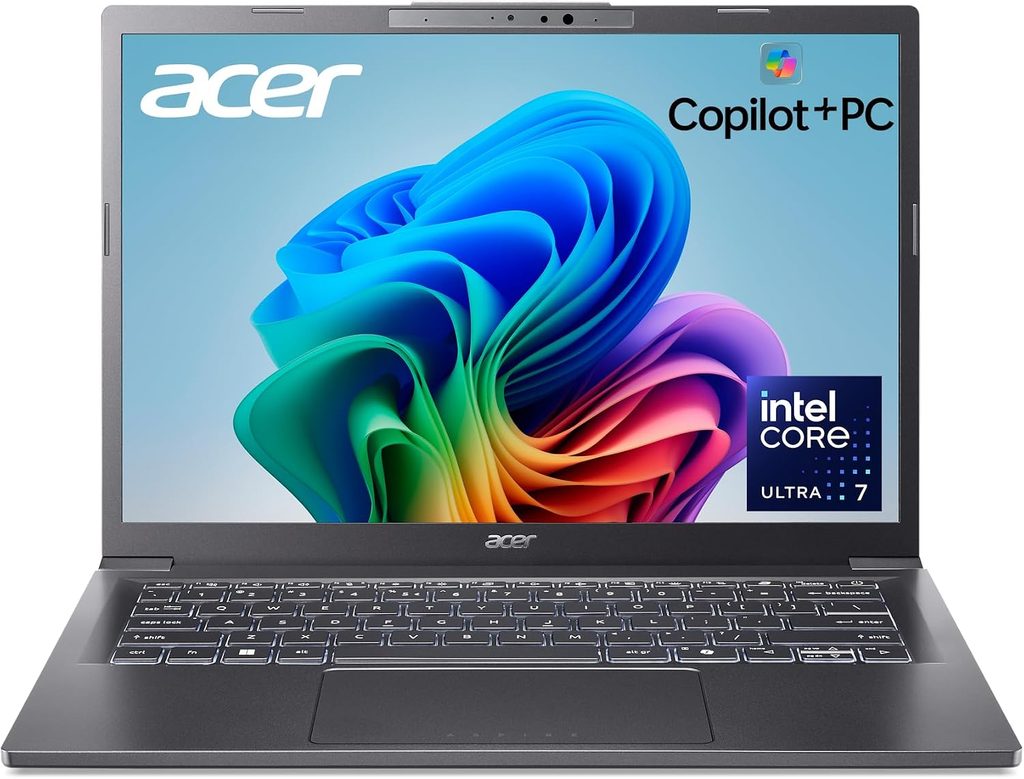
Not everyone needs to spend $2,000. If you’re a new adjuster just getting licensed, or a small restoration shop outfitting a second estimator, the Swift Air 14 is the most sensible cheap Xactimate laptop I found. It uses Intel’s new budget “Wildcat Lake” chip, which is a real x86 processor, not ARM.
Specs (as tested by Tom’s Hardware)
- CPU: Intel Core 5 320 (Core 7 350 available)
- GPU: Intel Graphics (integrated)
- RAM: 8 GB LPDDR5-7467 single-channel (16 GB configurations available)
- Storage: 512 GB PCIe Gen 3 NVMe
- Display: 14-inch 1920×1200 IPS, up to 120 Hz VRR
- Battery: 70 Wh
- Ports: 2x Thunderbolt 4, USB-A, headphone jack
- Wireless: Wi-Fi 6E, Bluetooth 5.3
- Weight: 2.62 lb
- Price: $699.99 (tested)
Pros
- Nearly 17 hours of battery life in testing
- Two full Thunderbolt 4 ports at this price is rare
- Light aluminum body with a USB-A port for card readers and dongles
- The SSD is replaceable
Cons
- The 8 GB base model falls below Verisk’s 16 GB recommendation
- Weak graphics for heavy 3D Sketch work
- Dim screen and some chassis flex
- A lot of bloatware out of the box
Battery and performance. Tom’s Hardware got 16 hours and 52 minutes in its battery test, more than two hours longer than any competitor in the group. It scored 2,613 single-core and 7,977 multi-core in Geekbench 6. That single-core number is right in line with laptops costing three times as much, which is why estimate writing feels snappy.
The honest caveat. The $699.99 unit Tom’s Hardware tested had just 8 GB of single-channel memory and a PCIe Gen 3 SSD. Verisk recommends 16 GB, and with integrated graphics borrowing from that same memory, 8 GB is simply too tight for comfortable Xactimate work. The Swift Air 14 uses soldered LPDDR5 that can’t be upgraded later, though the M.2 SSD slot is user-replaceable. So buy a 16 GB configuration from day one.
Who should buy it: New adjusters, trainees going through Xactimate certification, and small shops that need a reliable second machine for estimate writing and reporting. If you plan to live in 3D Sketch all day, save up for the Dell instead.
Which Configuration Should You Buy?
| Your situation | My pick | Configuration I’d order |
|---|---|---|
| Independent adjuster, mixed desk and field | Dell XPS 14 | Core Ultra X7 358H, 32 GB, 1 TB |
| CAT deployments, lots of driving | ThinkPad X1 Carbon Gen 14 | IPS display, 32 GB, 5G if you need it |
| Desk adjuster or file reviewer | ASUS Zenbook Duo | Core Ultra X9 388H, 32 GB |
| Large-loss, commercial, heavy Sketch | HP ZBook Ultra G1a | Ryzen AI Max+ PRO 395, 64 GB |
| New adjuster on a budget | Acer Swift Air 14 | 16 GB configuration |
Laptops I Deliberately Left Out
- MacBook Air and MacBook Pro: Great laptops, but Verisk doesn’t support Apple silicon for Xactimate.
- Snapdragon Copilot+ PCs: Many of 2026’s thinnest Windows laptops use Qualcomm chips. They fail Verisk’s x64 requirement, so double-check the processor before you buy any “AI PC.”
- 8 GB bargain laptops: They’ll open Xactimate, but they’ll struggle once Chrome, Outlook, and a big photo set are open too.
- Chromebooks: No Windows means no full Xactimate.
Frequently Asked Questions
Can I run Xactimate on a Mac with Parallels?
Not on Apple silicon Macs. Verisk says machines using Apple silicon aren’t supported. The only Mac route Verisk mentions is dual-booting on older Intel-based Macs, running one supported OS at a time.
Do I need a gaming laptop with an NVIDIA graphics card for Xactimate?
Not anymore for most people. Intel’s Arc B390 and AMD’s Radeon 8050S/8060S integrated graphics handle Sketch and 3D views very well, and they give you far better battery life than a gaming laptop.
How much RAM do I need for Xactimate in 2026?
Verisk recommends at least 16 GB. I’d buy 32 GB, because integrated graphics share system memory. If you do heavy commercial sketches on the HP ZBook, go to 64 GB.
Will my Leica DISTO work with these laptops?
Yes. Verisk requires Bluetooth 4.0 for DISTO connections, and all five laptops have Bluetooth 5.2 or newer. Some models, like the E7500i, D810, and S910, also need the Leica DISTO plugin.
Does Xactimate online work on any laptop with a browser?
No. Xactimate online still requires 64-bit Windows, an x64 processor, and the ClickOnce browser extension, plus third-party cookies enabled.
Is a Snapdragon laptop okay if I only use Xactimate online?
No. Verisk lists the same x64 requirement for Xactimate online and specifically says ARM-based processors aren’t compatible.
Final Verdict
If you want one answer, buy the Dell XPS 14 (2026) with the Core Ultra X7 358H and 32 GB of RAM. It’s the best balance of speed, graphics, screen quality, and portability for Xactimate right now.
If you spend most of your life on the road, the ThinkPad X1 Carbon Gen 14 with the IPS screen is the smartest field tool on this list. Desk-bound estimators will love the ASUS Zenbook Duo, heavy-duty commercial estimators should look at the HP ZBook Ultra G1a with 64 GB, and anyone starting out on a tight budget can get into the game with a 16 GB Acer Swift Air 14.
Whatever you buy, check three things before you check out: an Intel or AMD processor, at least 16 GB of RAM, and a real Windows license. Get those right and Xactimate will be the easy part of your day.
Sources
- Verisk – Xactimate System Requirements
- Xactware Help – FAQs about Xactimate online
- Notebookcheck – Dell XPS 14 2026 review
- xpertpick – Dell XPS 14 (2026) review
- Notebookcheck – Lenovo ThinkPad X1 Carbon Gen 14 review
- The Gadgeteer – ThinkPad X1 Carbon Gen 14 review
- Tom’s Hardware – Asus Zenbook Duo (2026) review
- Notebookcheck – Asus ZenBook Duo UX8407 review
- Notebookcheck – HP ZBook Ultra G1a review
- AEC Magazine – HP ZBook Ultra G1a review
- Forbes – HP ZBook Ultra and AMD Ryzen AI Max
- Wccftech – HP ZBook Ultra G1a vs. Panther Lake review
- Tom’s Hardware – Acer Swift Air 14 review
- Liliputing – Acer Swift Air 14 announcement

Hi, my name is Burak. I am a mechanical engineer. I have been writing laptop reviews for the Engineering Laptops website since 2020. Please feel free to contact me if you have any questions.