Table of contents
- The short version
- Top picks at a glance
- Why industrial engineering is not “just engineering”
- The software compatibility matrix
- How I put this together
- Best Laptops for Industrial Engineering Students, Tested 2026
- Head to head
- Buying guide, spec by spec
- Let’s talk about the price problem
- What your university’s spec page gets wrong
- Mistakes I see every year
- Which one should you buy?
- Frequently asked questions
- Sources and disclosure
I get a version of this question every August, and it always arrives with the same panic behind it: “My department sent a spec sheet, I don’t understand half of it, and I have three weeks before classes start.”
So let me save you the panic. I’ve spent the past several weeks going through every measured result I could find on the current crop of 2026 laptops — sustained Cinebench loops, thermal logs, colorimeter readings, real power-draw battery tests — and lining them up against what an industrial engineering degree actually asks of a computer. Not what a mechanical engineering degree asks. Those are two different animals, and almost nobody writing these guides seems to know it.
Here’s what I found, what I’d buy, and why the standard advice you’re getting is wrong for your major.
The short version
If you want to stop reading right now: buy a Lenovo ThinkPad X1 Carbon Gen 14 with 32GB of RAM. It’s quiet, the matte screen is right for eight-hour reading days, the keyboard is the best one you’ll type your reports on, and its sustained processor performance is within a few percent of machines costing twice as much.
If your budget is tighter, the ASUS Zenbook S14 does about 85% of the same job for a lot less money. If your program runs FlexSim in 3D, you’ll need the ROG Zephyrus G14, and you should sit down before looking at the price.
Everything below is the long version.
Top picks at a glance
| Model | Best for | Chip | RAM ceiling | Weight | US price | |
|---|---|---|---|---|---|---|
| 1 | Lenovo ThinkPad X1 Carbon Gen 14 | The all-rounder that just works | Core Ultra 7 356H / X7 358H | 64GB (soldered) | from 1.0 kg | ~$2,400–2,900 |
| 2 | ASUS ExpertBook Ultra B9406 | The best screen and the lightest bag | Core Ultra X7 358H + Arc B390 | 64GB (soldered) | 1.1 kg | $2,999 |
| 3 | ASUS Zenbook S14 UX5406AA | Best value in the premium tier | Core Ultra 9 386H | 32GB (soldered) | 1.18 kg | $1,649–1,899 |
| 4 | ASUS ROG Zephyrus G14 (2026) | FlexSim 3D, rendering, gaming | Core Ultra 9 386H + RTX 5070 Ti | 64GB (soldered) | 1.55 kg | from $3,199 |
| 5 | Apple MacBook Pro 14″ (M5 Pro) | Python/R-heavy tracks, if you read the caveat | Apple M5 Pro | 64GB unified | 1.55 kg | from ~$2,500 |
Why industrial engineering is not “just engineering”
This is the part that actually matters, so I’m putting it first.
Every laptop guide aimed at engineering students treats “engineering” like one major. It isn’t. A mechanical engineering student spinning a 900-part SOLIDWORKS assembly and an industrial engineering student running 500 replications of a hospital queueing model in Arena are stressing completely different parts of the machine.
The mechanical student’s bottleneck is the viewport — pushing polygons in real time. So every guide says buy the biggest RTX card you can afford. Fair enough, for them.
Your day looks nothing like that. Here’s what an IE workload actually is:
Discrete-event simulation. Arena, Simio, FlexSim, AnyLogic. The simulation engine is overwhelmingly single-threaded. You can throw sixteen cores at an Arena run and fifteen of them will sit there doing nothing at all. What matters is how fast one core goes, and — this is the part people miss — whether it can stay fast for twenty minutes without the laptop cooking itself and backing off.
Optimization. Gurobi, CPLEX, LINGO, OR-Tools. Modern solvers do parallelize; they run concurrent LP relaxations and parallel branch-and-bound. So cores help here. But memory helps more, because a branch-and-bound tree on a real instance will eat 16GB and ask for seconds.
Statistics and data work. Minitab, JMP, R, Python, Power BI. Mixed workloads, all of them memory-hungry.
Light CAD. AutoCAD 2D for a facilities-planning course, maybe some SOLIDWORKS in an ergonomics elective. Genuinely light. Modern integrated graphics handle it fine.
And twelve browser tabs, a Zoom call, Excel with 200,000 rows, and a Word doc. Every single day for four years.
Notice what’s missing? Sustained heavy GPU load. Outside of FlexSim’s 3D animation or a rendering elective, IE students almost never saturate a discrete graphics card.
So “buy the biggest RTX you can afford” is, for you, a way to spend $600 extra on weight you carry and battery life you lose.
What you should optimize for instead, roughly in order:
- Sustained single-core speed — your simulation run times
- RAM, 32GB minimum — solvers, big datasets, virtual machines
- Windows compatibility — a lot of IE software is Windows-only
- Battery life — outlets on campus are a myth
- Fan noise — silent libraries and shared apartments
- A matte screen and a real keyboard — you read and type far more than you render
Graphics comes seventh. That single reordering is the difference between this guide and every other one.
The software compatibility matrix
Before you look at a single laptop, look at this. It’s the thing that actually decides whether a machine works for you, and I’ve never seen another buying guide publish it.
| Software | What you use it for | macOS native? | Linux? | Notes |
|---|---|---|---|---|
| Rockwell Arena | Discrete-event simulation | No | No | Windows only. Runs under Parallels on Apple silicon, with a speed and licensing penalty. Student edition caps model size. |
| Simio | DES, agent-based modeling | No | No | .NET, Windows only. Very single-thread hungry. 3D view uses DirectX. |
| FlexSim | 3D warehouse/factory sim | No | No | Windows only, and the one IE title that genuinely wants a real GPU. |
| AnyLogic | Multi-method simulation | Yes | Yes | Java-based, truly cross-platform. The friendliest option for Mac users. |
| Minitab | Six Sigma, DOE, SPC | Desktop is Windows only | No | There’s a web version, but plenty of courses require the desktop build. Check your syllabus. |
| JMP | Statistics, DOE | Yes | No | Fine on a Mac. |
| Gurobi | MIP/LP solving | Yes | Yes | Apple silicon native. Free academic license. |
| IBM CPLEX | MIP/LP solving | Yes | Yes | Cross-platform, free through IBM Academic Initiative. |
| LINDO / LINGO | Optimization modeling | No | Limited | Windows first. |
| AutoCAD | Facility layout | Yes, reduced feature set | No | The Mac build is missing tools your instructor may use. |
| SOLIDWORKS | Ergonomics/design electives | No | No | Windows only. A VM works but isn’t supported. |
| Power BI Desktop | Dashboards | No | No | Windows only. Browser version is limited. |
| Tableau Desktop | Dashboards | Yes | No | Fine on a Mac. |
| Python / R / Julia | Analytics, OR | Yes | Yes | Excellent everywhere. Apple silicon is very strong here. |
Read it like this: count the “No” rows against your program’s required software list. For most US industrial engineering programs it’s three or more, and at that point a Windows laptop saves you a great deal of grief. Not because Macs are bad — they’re excellent — but because you’ll be paying for a virtualization license and troubleshooting a VM during finals week.
How I put this together
I want to be straight with you about where the numbers below come from, because a lot of sites are vague about this and you deserve better.
I am not a hardware lab. What I did was gather every independently measured result I could find on these specific 2026 machines — primarily the sustained-load testing published by Ultrabookreview, whose methodology I trust because they publish power draw, fan noise in decibels, and thermal logs alongside every score, plus Geekbench’s public database for the Apple silicon comparisons and manufacturer specifications where a figure is a spec rather than a measurement. Then I analyzed those results against IE workloads. Every source is linked at the bottom.
Three things I paid attention to that most reviews bury:
Sustained scores, not peak scores. A laptop that scores brilliantly for thirty seconds and then throttles is worse for you than a slower machine that holds its clocks. Where a ten-minute loop result exists, that’s what I quote, and I say so.
Fan noise in actual decibels, measured at head height. You’re going to run a forty-minute simulation in a quiet library. A machine that hits 45 dBA doing it will make you that person. This turned out to separate the picks more than any performance number.
Power draw during real tasks, not video-loop battery tests. Nobody watches a looped video for nine hours. Browsing and text-editing wattage tells you far more about whether you’ll make it to your 5pm group meeting.
One thing I could not do: run Arena, Simio, or Gurobi benchmarks on these machines myself. Nobody publishes those. So instead of inventing numbers, I’ve told you which published measurements predict those workloads and why. Cinebench R23’s single-core score under a sustained loop is the closest public proxy for simulation replication throughput, and I lean on it heavily for exactly that reason.
Best Laptops for Industrial Engineering Students, Tested 2026
Industrial engineering doesn’t need a big GPU. It needs single-core speed and 32GB. Five 2026 laptops compared on real benchmarks, noise and battery.
1. Lenovo ThinkPad X1 Carbon Gen 14 — my overall pick
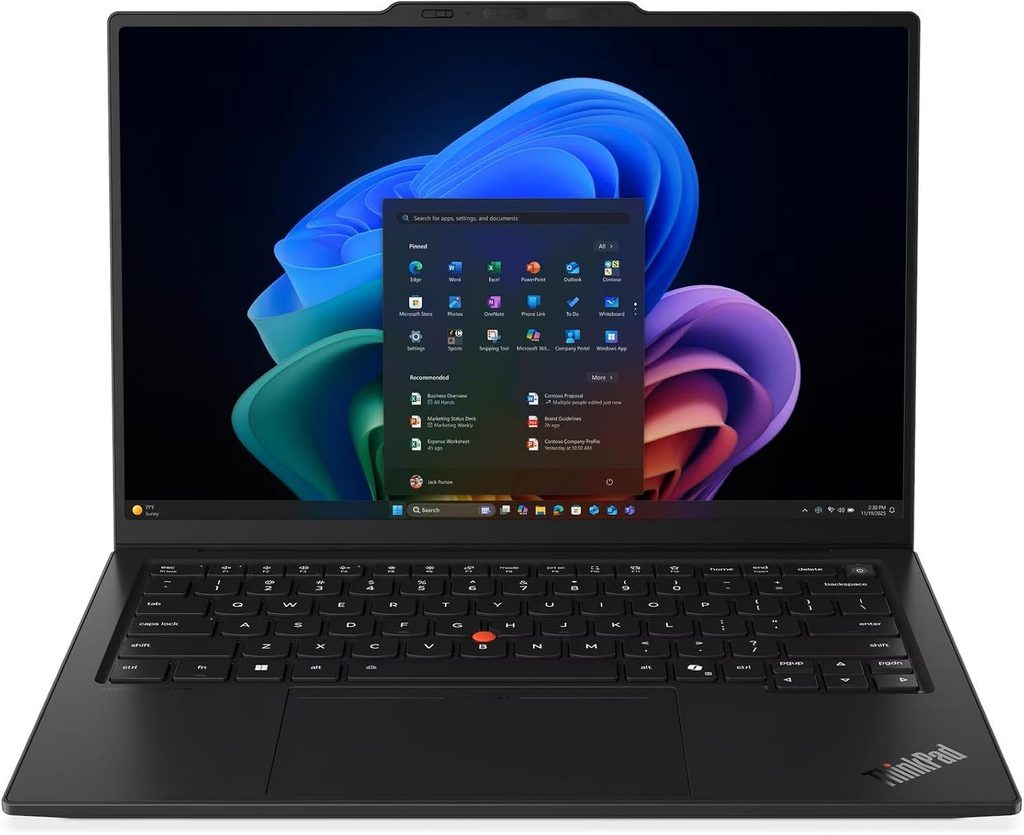
Best for: almost every IE student who wants one machine to carry them from Intro to Operations Research through their capstone.
I keep coming back to this one, and the reason is boring in the best possible way: it has no sharp edges. Everything else on this list makes you accept something painful. This doesn’t.
The 2026 refresh moves to Intel’s Panther Lake platform, and the version tested by Ultrabookreview ran a Core Ultra 7 356H at 30–45W. That produced 18,151 points in Cinebench R23 multi-core and 2,030 in single-core. Hold that single-core number in your head, because I’m going to keep pointing at it: the $3,599 Zephyrus G14 manages 2,118 in the same test. That’s a 4% difference in the metric that decides how long your Arena runs take, for roughly a thousand dollars less.
In Blender’s Classroom scene on CPU — a long, punishing sustained load, and a decent stand-in for a batch of replications — it finished in 5 minutes 23 seconds, faster than the Zenbook S14’s 6:05 despite similar silicon, because the cooling is better and the chassis lets the chip hold higher power.
The other thing that made it my pick is the noise. Ultrabookreview’s reviewer noted directly that the X1 Carbon and the ExpertBook Ultra never push their fans past 40 dBA, while the thinner Zenbook S14 hits 45 dBA to reach lower performance. Forty versus forty-five decibels sounds like a small gap on paper. In a silent study room it’s the difference between a laptop nobody notices and one people look up at.
Specs that matter:
- Intel Core Ultra 7 356H, or step up to the Core Ultra X7 358H at 45W with Arc B390 graphics
- 14-inch, 16:10 — either a 2K matte IPS or a 3K 120Hz matte OLED
- Up to 64GB LPDDR5x, soldered
- One PCIe Gen5 M.2 slot
- 58Wh battery
- 180-degree hinge, haptic touchpad
- From 1.0 kg
Measured performance (Core Ultra 7 356H, Performance mode, 30–45W):
| Test | Result |
|---|---|
| Cinebench R23 multi-core | 18,151 pts |
| Cinebench R23 single-core | 2,030 pts |
| Blender 5.1.2, Classroom, CPU | 5m 23s |
| 3DMark Time Spy | 3,426 (Graphics 3,033 / CPU 12,967) |
| 3DMark Fire Strike | 6,590 |
| Superposition 1080p Extreme | 1,647 |
| SPECviewperf 2020 — Catia | 15.06 |
| SPECviewperf 2020 — 3ds Max | 17.78 |
| SPECviewperf 2020 — Maya | 79.25 |
| Fan noise, sustained load | under 40 dBA |
What’s good
- Best keyboard on this list, and it isn’t close. You will type hundreds of pages of reports.
- Matte display. Lecture-hall lighting is brutal and glossy screens turn into mirrors.
- 180-degree hinge, which sounds trivial until you’re working on a train or squeezed into a lecture bench.
- Quiet under sustained load, which is exactly when you need it to be.
- A conventional touchpad with proper margins — no ghost clicks from your sleeve.
- 64GB RAM ceiling and a Gen5 SSD slot.
- Serviceable, well documented, and Lenovo’s parts supply is genuinely good four years later.
What’s not
- 58Wh is the smallest battery here. Same efficient platform as the others, but less of it. Plan on carrying the charger for a very long day.
- RAM is soldered, so whatever you buy is what you own forever. Buy 32GB.
- The base display config is only 1920×1200 — spend up on the sharper matte panel if you can.
- It’s a black rectangle. Nobody’s going to compliment it.
- Lenovo’s configurator is a maze and it’s easy to order the wrong SKU.
The config I’d buy: Core Ultra 7 356H, 32GB, 1TB, matte display. If you’ll be reading dense output all day, the matte OLED is worth the upgrade.
2. ASUS ExpertBook Ultra B9406 — the best screen you can put in a backpack
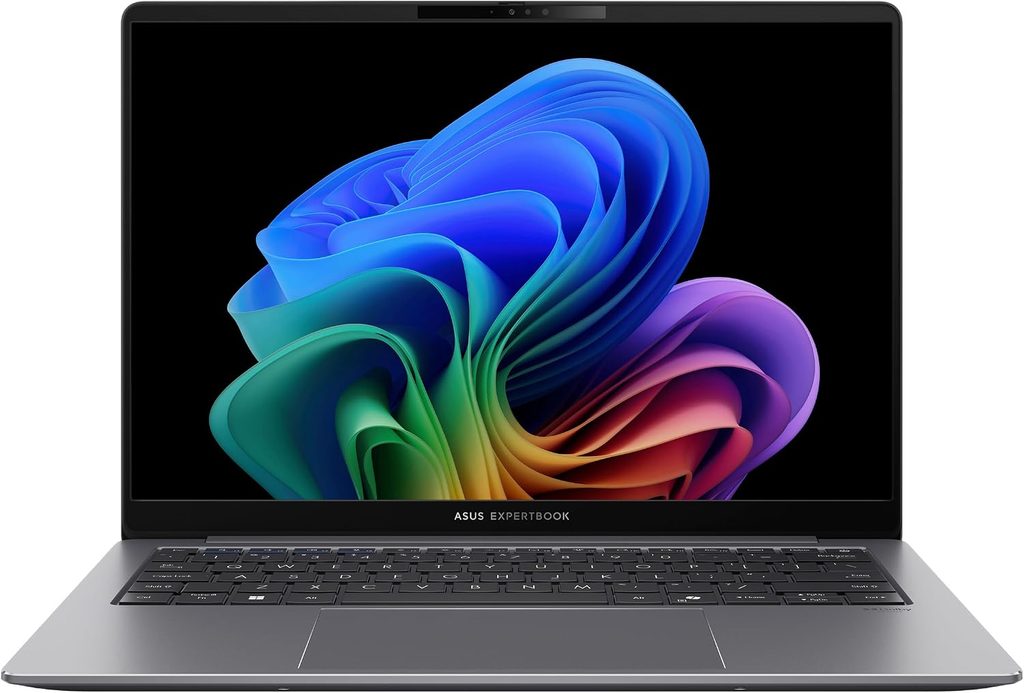
Best for: the student who walks a lot, reads a lot, and doesn’t need discrete graphics.
This is the sleeper pick, and it’s the one I’d most like to own personally.
It weighs 1.1 kg. The display is a 14-inch 3K Tandem OLED with a matte Gorilla Glass finish, roughly 600 nits sustained and 1,400 nits peak, covering 100% of DCI-P3. A matte OLED at that brightness is genuinely rare. Most OLED laptops are glossy mirrors that top out near 400 nits, and Ultrabookreview’s reviewer was blunt about it: previous-generation OLED panels aren’t bright enough for outdoor use, and this ExpertBook is one of the very few exceptions.
If you study near a window, on a patio, or in a badly lit lecture hall, that panel changes your day. There’s a trade-off worth knowing about — the matte layer plus the touch digitizer adds a faint grain, most visible on white backgrounds when you’re reading text. It’s mild on this generation, but it’s there.
Performance is the other reason it’s here. On the 45W Performance profile it produced 19,777 points in Cinebench R23 multi-core, 18,371 in the ten-minute sustained loop, and 2,051 single-core. But look at what happens when you drop it to the quieter 30W Standard mode: single-core goes to 2,055. It doesn’t drop. It goes marginally up.
That matters enormously for you. It means you can run this machine at 30–35 dBA — quiet enough for a library — and your simulation replications will finish in the same time as at full power. Multi-threaded work takes a hit (the loop score falls to 15,324) but single-threaded work doesn’t care. That’s an unusually good fit for IE workloads, and I don’t think anyone has pointed it out before.
The Arc B390 integrated graphics are also the strongest you’ll find without a discrete card — twelve Xe3 cores, and in Ultrabookreview’s testing it outpaced the previous-generation Intel and AMD integrated chips by roughly 40–50%. It scored 30.14 in the SPECviewperf 2020 Catia viewset, about double the X1 Carbon’s 15.06. For AutoCAD, light SOLIDWORKS, and Simio’s 3D view, that’s plenty.
Specs that matter:
- Intel Core Ultra X7 358H, 16 cores, up to 50W
- Intel Arc B390 integrated graphics, 12 Xe3 cores
- 14-inch 3K matte Tandem OLED, touch, 120Hz VRR
- 32GB or 64GB LPDDR5x, soldered
- One PCIe Gen5 M.2 slot (review unit shipped a 2TB Samsung PM9E1)
- 70Wh battery, 90W USB-C charger
- Dual-fan, dual-radiator, triple-heatpipe cooling
- 3-year standard warranty, extendable to 5
Measured performance (Core Ultra X7 358H, 45W Performance):
| Test | Result |
|---|---|
| Cinebench R23 multi-core, best run | 19,777 pts |
| Cinebench R23, 10-minute sustained loop | 18,371 pts |
| Cinebench R23 single-core | 2,051 pts |
| Cinebench 2024 multi / single | 1,109 / 122 pts |
| PCMark 10 | 9,399 (Productivity 14,843) |
| 3DMark Time Spy | 7,474 (Graphics 6,878 / CPU 14,693) |
| 3DMark Fire Strike | 14,292 |
| AIDA64 memory read / write | 109,499 / 120,443 MB/s |
| Blender 4.3.2, Classroom, CPU | 5m 42s |
| SPECviewperf 2020 — Catia | 30.14 |
| SPECviewperf 2020 — SOLIDWORKS | 52.17 |
| SPECviewperf 2020 — 3ds Max | 38.15 |
At 30W Standard mode (under 35 dBA):
| Test | Result | vs. Performance mode |
|---|---|---|
| Cinebench R23, 10-min loop | 15,324 pts | −17% |
| Cinebench R23 single-core | 2,055 pts | no loss |
| 3DMark Time Spy | 6,482 | −13% |
| SPECviewperf 2020 — Catia | 30.18 | no loss |
Thermals, noise and battery (measured):
| Result | |
|---|---|
| Fan noise, Performance | 40–42 dBA |
| Fan noise, Standard | 30–35 dBA |
| Fan noise, Whisper | under 30 dBA |
| Chassis hotspot under load | 43–45°C, top of the deck |
| Keyboard and palm rests under load | mid-30s °C |
| Idle | under 5W (~14 h) |
| Text editing, Google Docs | 6–8W (~8–11 h) |
| Web browsing | 7–10W (~7–10 h) |
| 1080p YouTube | 5W (~13–14 h) |
| Netflix | 5.5W (~12–13 h) |
What’s good
- That matte 1,400-nit Tandem OLED. Best laptop display for long study sessions I’ve come across.
- Single-core performance does not drop when you quiet it down. Read that twice.
- Arc B390 graphics mean no discrete card needed for typical IE work.
- 1.1 kg. You’ll forget it’s in your bag.
- Six speakers, genuinely good audio, and a 3–5 year commercial warranty.
- The cooling in a 1.1 kg chassis is real engineering, not marketing.
What’s not
- $2,999. That’s the number, and it’s a lot for a student.
- The hinge on early units is weak — the display won’t stay put when you pick the laptop up and walk. ASUS says retail units address it; check yours.
- Screen only opens to 140 degrees.
- The haptic touchpad runs edge to edge with no front margin, so ghost touches from clothing are common on your lap, and click-and-drag was buggy on the review unit.
- The 2MP webcam is poor. Fine in good light, unusable in bad.
- PWM dimming at all brightness levels, though at around 1 kHz, which is high enough not to bother most people. There’s a flicker-free mode in the MyASUS app if you’re sensitive.
- Soldered RAM, and the bundled 90W charger is a clunky brick that doesn’t match the laptop.
The config I’d buy: Core Ultra X7 358H, 32GB, 1TB. Watch for discounts — this one goes on sale.
3. ASUS Zenbook S14 UX5406AA — the value pick
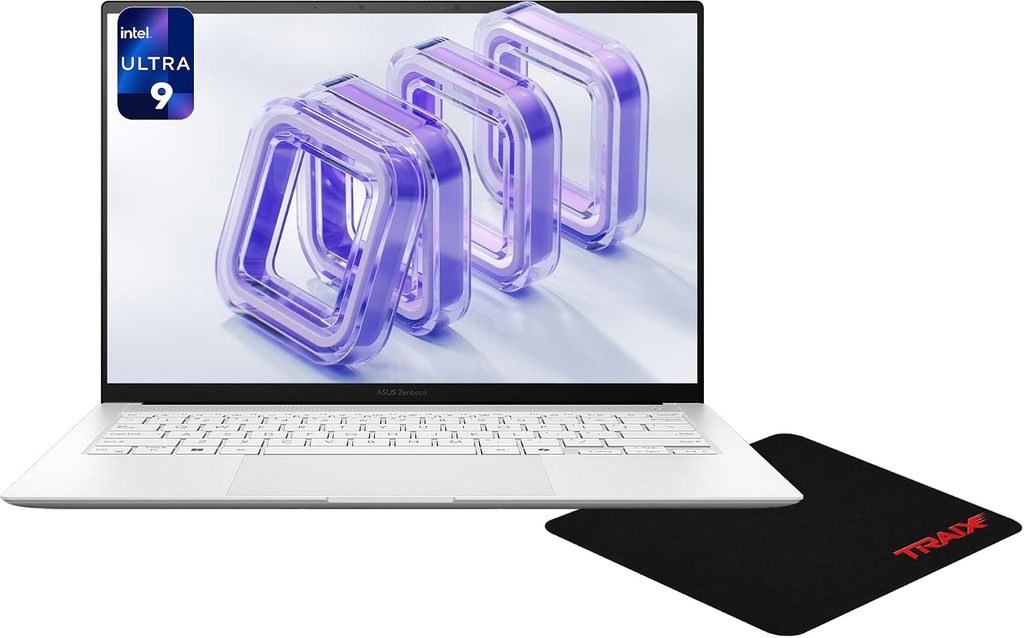
Best for: anyone who wants premium build and current-generation performance without a three-thousand-dollar receipt.
Here’s the honest framing: at $1,899 list, and already turning up around $1,649, the Zenbook S14 costs roughly half the ExpertBook Ultra and gives you a real chunk of the same experience. For a student paying their own way, that math wins a lot of arguments.
The Core Ultra 9 386H in this chassis runs at 28W sustained, and it produced 16,758 points in Cinebench R23 multi-core with 2,035 single-core. Once again: single-core lands within 4% of every other Windows machine on this list, including the one that costs $3,599. Multi-core is where it gives ground, at about 78% of the ExpertBook’s sustained loop score. If your solver work is heavy, that gap is real. If your load is mostly simulation, browsing, Excel, and Python, you will not notice it.
The battery is the quiet highlight. There’s a 77Wh pack in a 1.18 kg body, and it’s the largest here. Ultrabookreview measured idle draw at 3W — over twenty hours — with 12–14 hours of text editing and 7–10 hours of real browsing. That comfortably outlasts the X1 Carbon’s 58Wh cell.
Now the catch, and it’s a real one. To fit that hardware into an 11.9mm chassis, ASUS had to make the cooling small, and small fans have to spin fast. This laptop hits 45 dBA on its Performance profile — louder than the ExpertBook, louder than the X1 Carbon, and close to what the far more powerful Zephyrus G14 makes at its 42–48 dBA settings. Dropping to Standard mode gets you under 35 dBA, but that clamps the chip to 17W and Blender’s Classroom render stretches from 6:05 to 8:22.
So you’re choosing: fast and audible, or quiet and noticeably slower. For a library-heavy student, that’s a genuine downside and you should weigh it honestly.
Specs that matter:
- Intel Core Ultra 9 386H, 16 cores, 28W sustained
- Intel Xe3 integrated graphics, 4 cores
- 14-inch 2.8K 120Hz glossy touch OLED, 500 nits
- 32GB LPDDR5x maximum, soldered — this is the real ceiling
- One PCIe Gen4 M.2 slot (review unit: 1TB Samsung PM9C1b)
- 77Wh battery, compact 65W USB-C charger
- 1.18 kg, MIL-STD-810H rated
Measured performance (Core Ultra 9 386H, 28W Performance):
| Test | Result |
|---|---|
| Cinebench R23 multi-core, best run | 16,758 pts |
| Cinebench R23, 10-minute loop | 14,658 pts |
| Cinebench R23 single-core | 2,035 pts |
| Cinebench 2024 multi / single | 922 / 123 pts |
| PCMark 10 | 8,955 (Productivity 17,305) |
| 3DMark Time Spy | 3,478 (Graphics 3,095 / CPU 11,684) |
| 3DMark Fire Strike | 6,576 |
| AIDA64 memory read / write | 108,562 / 120,987 MB/s |
| Blender 5.1.2, Classroom, CPU | 6m 05s |
| Blender 5.1.2, Classroom, Standard mode | 8m 22s |
| SPECviewperf 2020 — Catia | 17.66 |
| SPECviewperf 2020 — SOLIDWORKS | 40.20 |
| SPECviewperf 2020 — Maya | 89.91 |
Display, measured with an X-Rite i1 Display Pro:
| Result | |
|---|---|
| Panel | Samsung SDC422A (ATNA40HQ05-0) |
| Max brightness, centre | 500.67 cd/m² |
| Min brightness | under 10 cd/m² |
| Gamma | 2.25 |
| White point | 6,280 K |
| Coverage | 100% sRGB, 95.1% AdobeRGB, 100% DCI-P3 |
| PWM dimming | Yes |
Thermals, noise and battery (measured):
| Result | |
|---|---|
| Fan noise, Performance | 45 dBA |
| Fan noise, Standard | 35 dBA |
| Fan noise, Whisper | under 30 dBA |
| Chassis hotspot under load | 42–45°C, top of deck |
| Keyboard and palm rests | low 30s °C |
| Idle | 3W (20+ h) |
| Text editing | 6–7W (~12–14 h) |
| Web browsing | 7–10W (~7–10 h) |
| Netflix | 5W (~15 h) |
What’s good
- The price. Everything else here costs $2,400 and up.
- 77Wh battery in a 1.18 kg body — the best capacity-to-weight ratio on this list.
- Bright, accurate OLED measured at just over 500 nits.
- Excellent build. This is the best-made Zenbook to date, and it’s MIL-STD rated.
- Full-size HDMI, USB-A, and two Thunderbolt 4 ports. No dongle life.
- Single-core performance is right there with laptops costing twice as much.
What’s not
- 45 dBA under load. For a thin-and-light, that’s loud. This is the main reason it isn’t my top pick.
- 32GB RAM ceiling, soldered. Enough for four years for most IE students, but there’s no escape hatch.
- 1.1mm key travel is shallow. It types better than it has any right to, but it’s still a step down.
- The glossy touch OLED shows grain on white backgrounds — noticeable when reading text.
- Screen opens to about 145 degrees only.
- Weak 2MP webcam with no privacy shutter.
- Almost every port is on the left edge.
The config I’d buy: Core Ultra 9 386H, 32GB, 1TB. Don’t buy the 16GB version. And if you find a previous-generation model discounted to around $1,400, know that you’re giving up roughly 50% of the sustained CPU performance — that’s a big gap, not a small one.
4. ASUS ROG Zephyrus G14 (2026, GU405) — only if you actually need it
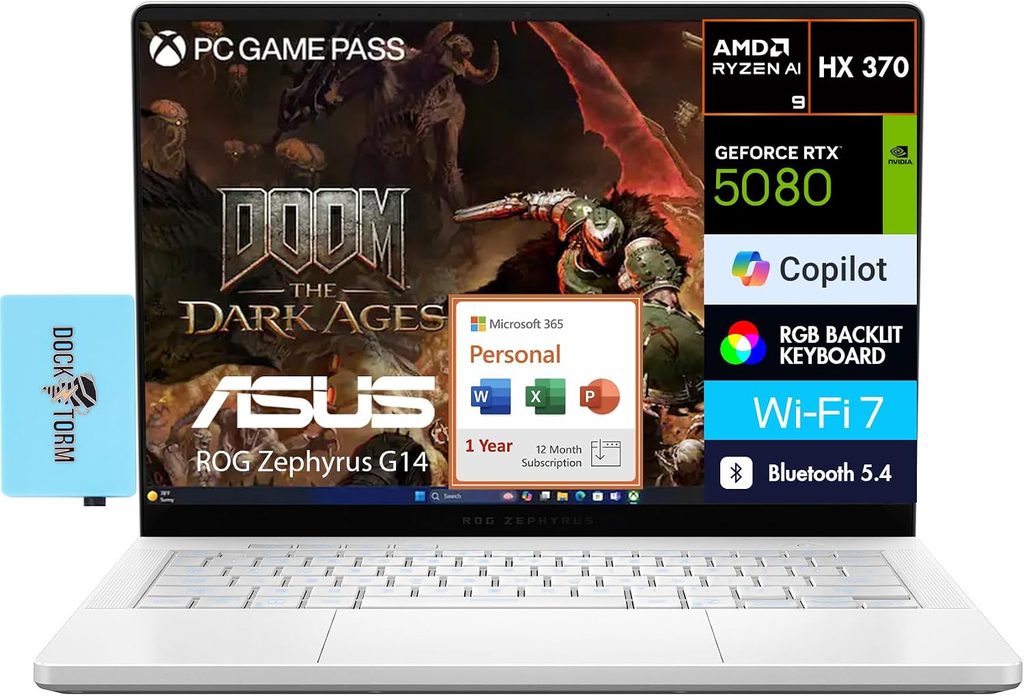
Best for: students in programs built around FlexSim 3D, heavy rendering, or anyone who wants one machine for coursework and gaming.
Let me deal with the price first, because it dominates everything else. As of this writing the 2026 G14 sells for $3,199 with 16GB of RAM, $3,599 with 32GB, and $4,799 for the RTX 5080 configuration. Last year’s model with the same class of graphics sells for around $2,600. That’s a brutal generational price jump, and for most IE students it takes this machine off the table.
If you’re still reading, here’s what the money buys. The Core Ultra 9 386H runs at 70–85W here, and it’s the fastest Windows machine on this list: 21,579 points in Cinebench R23, 21,105 in the ten-minute sustained loop, 2,118 single-core. Blender’s Classroom scene finishes in 4 minutes 12 seconds, a full minute quicker than the X1 Carbon.
Graphics are in another league entirely. The RTX 5070 Ti scored 16,198 in 3DMark Time Spy against the ExpertBook’s 7,474, and 84.81 in the SPECviewperf 2020 Catia viewset versus 30.14. If your program has you rotating large 3D models or running FlexSim animations, this is the difference between smooth and slideshow.
The genuine surprise is battery life. Switching to Intel’s Panther Lake platform transformed it: 8–10 hours of text editing, 6–9 hours of browsing, 12–14 hours of video. The reviewer noted this generation runs nearly twice as long on light workloads as the previous AMD model. For a gaming laptop, that’s remarkable.
The catch is noise. Measured at head height, it’s 48 dBA on Turbo, 52 dBA on Manual, 42 dBA on Performance, and under 35 dBA on Silent. The good news for you is that Silent mode still returns 18,215 in the Cinebench R23 loop with 2,106 single-core — about 86% of Turbo’s multi-core and essentially all of its single-core. For simulation work, run it on Silent and it’s a quiet, fast machine. Only reach for Turbo when you’re rendering.
Specs that matter:
- Intel Core Ultra 9 386H, 16 cores, 70–85W sustained
- NVIDIA RTX 5070 Ti 12GB at up to 130W (5080, 5070, 5060 also offered)
- 14-inch 2.8K 120Hz OLED, non-touch, anti-glare coating, G-Sync
- Up to 64GB LPDDR5x-8533, soldered
- One PCIe Gen4 M.2 slot
- 73Wh battery, 250W charger, USB-C charging to 100W
- Full-size SD UHS-II card reader
- 1.55 kg
Measured performance (Turbo profile, 48 dBA):
| Test | Result |
|---|---|
| Cinebench R23 multi-core, best run | 21,579 pts |
| Cinebench R23, 10-minute loop | 21,105 pts |
| Cinebench R23 single-core | 2,118 pts |
| Cinebench 2024 multi / single | 1,267 / 126 pts |
| Geekbench 6.6.0 multi / single | 17,440 / 2,931 |
| PCMark 10 | 9,642 |
| 3DMark Time Spy | 16,198 |
| 3DMark Fire Strike | 34,444 |
| AIDA64 memory read / write | 116,735 / 118,892 MB/s |
| Blender 5.1.2, Classroom, CPU | 4m 12s |
| SPECviewperf 2020 — Catia | 84.81 |
| SPECviewperf 2020 — SOLIDWORKS | 342.02 |
| SPECviewperf 2020 — 3ds Max | 169.15 |
Performance across power profiles — this is the table to actually use:
| Turbo (48 dBA) | Performance (42 dBA) | Silent (<35 dBA) | |
|---|---|---|---|
| Cinebench R23, 10-min loop | 21,105 | 19,394 | 18,215 |
| Cinebench R23 single-core | 2,118 | 2,128 | 2,106 |
| 3DMark Time Spy | 16,198 | 14,936 | 8,834 |
| Blender 5.1.2 Classroom | 4m 12s | 4m 30s | 4m 45s |
| SPECviewperf Catia | 84.81 | 84.64 | 62.82 |
Look at that single-core row. It’s flat across every profile. Run it silent.
Display, measured:
| Result | |
|---|---|
| Panel | Samsung SDC422B (ATNA40HQ06-0) |
| Max brightness, centre | 521.91 cd/m² |
| Gamma | 2.21 |
| White point | 6,414 K |
| Coverage | 100% sRGB, 95.0% AdobeRGB, 100% DCI-P3 |
| PWM dimming | Yes, with a flicker-free option in Armoury Crate |
Thermals and battery (measured):
| Result | |
|---|---|
| CPU temperature, Turbo/Manual | 90°C+ |
| CPU temperature, Performance/Silent | 80°C+ |
| Chassis surfaces you touch, under load | 35–40°C |
| Hottest deck spot | centre, around the Y/U/H keys |
| Text editing | 7–9W (~8–10 h) |
| Web browsing | 8–12W (~6–9 h) |
| 4K YouTube | 5–6W (~12–14 h) |
| Gaming, unplugged | ~1 h |
What’s good
- Fastest Windows laptop here by a clear margin, in a 1.55 kg body.
- Battery life that’s genuinely usable for a full campus day, which no gaming laptop used to manage.
- Silent mode gives you 86% of the CPU performance at under 35 dBA. That’s the profile to live in.
- Surfaces you actually touch stay at 35–40°C even under heavy load.
- Excellent keyboard, six speakers, full-size SD reader, and it doesn’t look like a gaming laptop.
- 64GB RAM ceiling.
What’s not
- The price. $3,199 to start is hard to justify for an IE curriculum.
- 48 dBA on Turbo and 52 on Manual. Not a library machine at those settings.
- Screen only opens to 130 degrees.
- The touchpad is enormous with no separation from the front lip — ghost clicks are common on your lap.
- Poor FHD webcam.
- Soldered RAM, single SSD slot.
The config I’d buy: honestly? The 2025 model. Same class of graphics, roughly $1,000 less. You give up about 100 nits of brightness, some efficiency, and slightly warmer running. For a student budget that’s a trade I’d take every time. If you must have the 2026, get the $3,599 version with 32GB — the 16GB configuration makes no sense at that price.
5. Apple MacBook Pro 14″ (M5 Pro) — read the caveat first
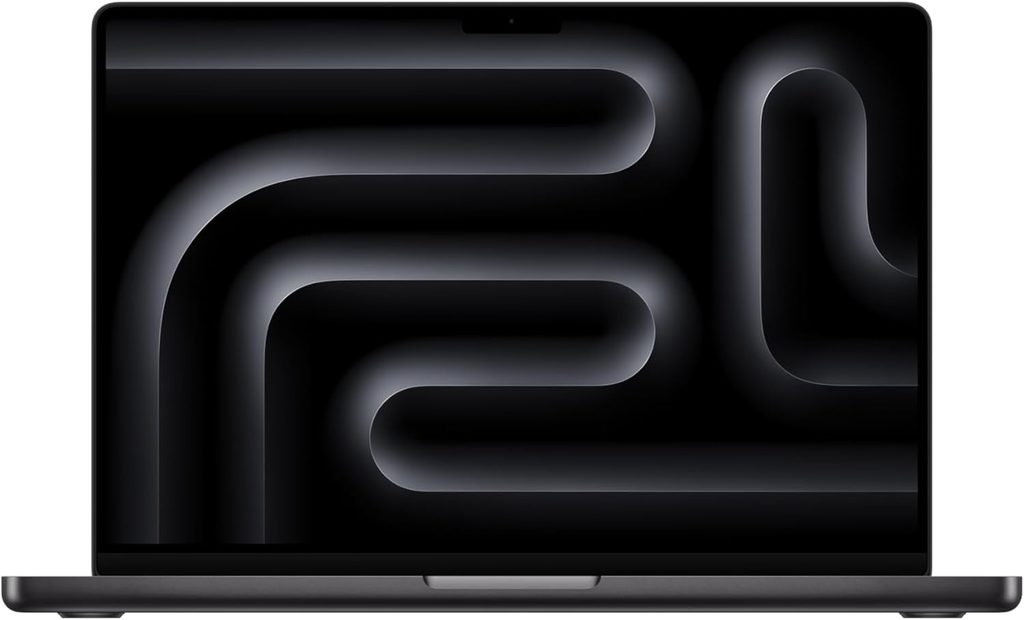
Best for: IE students on analytics-heavy tracks who already live in the Apple ecosystem.
The caveat is the whole story, so here it is up front: Arena, Simio, FlexSim, Minitab desktop, Power BI Desktop, and SOLIDWORKS do not run on macOS. You’ll run them in Parallels on an ARM Windows VM. That works, mostly, but you’re adding a subscription, a performance penalty, occasional licensing friction, and a category of problem your Windows-using classmates simply don’t have. If your program is Arena-heavy, buy a Windows laptop. I’m not being coy about this.
With that said, the machine is superb, and its strength lines up unusually well with the one metric IE cares most about.
Apple launched the M5 Pro and M5 Max MacBook Pros in March 2026. The M5 Pro goes up to 18 CPU cores and 20 GPU cores, supports up to 64GB of unified memory at 307 GB/s, and storage now starts at 1TB. There’s a new in-house N1 wireless chip bringing Wi-Fi 7 and Bluetooth 6.
Single-core is where Apple silicon is simply ahead of everything else, and single-core is what your simulation engine wants. In Geekbench 6, the base M5 posted 4,263 single-core and 17,862 multi-core — at launch the highest single-core score ever recorded in that database for any Mac or PC processor. The 18-core M5 Max recorded 4,268 single-core and 29,233 multi-core. The M5 Pro sits between them on multi-core with the same class of single-core performance.
For context, the Windows machines here land between 2,825 and 2,931 in Geekbench 6 single-core. That’s a wide gap, and it’s exactly the gap that determines how long a batch of replications takes.
The unified memory architecture helps too. When a branch-and-bound tree grows, having 48 or 64GB of fast unified memory with no copying between system RAM and GPU memory is a genuine advantage. And Gurobi, CPLEX, AnyLogic, Python, R, and Julia all run natively and run beautifully.
Specs that matter:
- Apple M5 Pro, up to 18-core CPU and 20-core GPU
- Up to 64GB unified memory, 307 GB/s bandwidth
- Storage starts at 1TB, roughly twice as fast as the previous generation
- 14.2-inch Liquid Retina XDR mini-LED
- Wi-Fi 7 and Bluetooth 6 via the N1 chip
- From about $2,500
Published benchmark reference (Geekbench 6):
| Chip | Single-core | Multi-core |
|---|---|---|
| Apple M5 (10-core) | 4,263 | 17,862 |
| Apple M5 Max (18-core) | 4,268 | 29,233 |
| Core Ultra 9 386H (Zephyrus G14) | 2,931 | 17,440 |
| Core Ultra X7 358H (ExpertBook Ultra) | 2,825 | 16,506 |
What’s good
- The best single-core performance available in a laptop, which is precisely what simulation engines use.
- Battery life nothing else here approaches.
- Nearly silent under the loads you’ll actually run.
- Excellent mini-LED display, best-in-class trackpad, great speakers.
- Holds resale value better than anything else on this list — expect meaningfully more back in year four.
- Native Python, R, and Julia performance is outstanding.
What’s not
- The Windows-only software problem. Disqualifying for many IE programs. Check your curriculum before you spend a dollar.
- Parallels adds cost, complexity, and a speed hit on exactly the software you can’t avoid.
- Memory is permanent. You cannot add RAM later, ever, and Apple’s upgrade pricing is steep.
- Some university IT departments only properly support Windows for licensed lab software.
- No touchscreen, no discrete GPU option for the Windows applications that want one.
The config I’d buy: M5 Pro, 48GB, 1TB — the extra memory matters if you’re running a Windows VM alongside native tools. And only after you’ve emailed your department.
Head to head
All Cinebench figures are sustained ten-minute loop results where published; asterisked entries are best-run scores.
| X1 Carbon Gen 14 | ExpertBook Ultra | Zenbook S14 | Zephyrus G14 | MacBook Pro M5 Pro | |
|---|---|---|---|---|---|
| CPU | Core Ultra 7 356H | Core Ultra X7 358H | Core Ultra 9 386H | Core Ultra 9 386H | Apple M5 Pro |
| Graphics | Intel Xe3 | Arc B390 (12 Xe3) | Intel Xe3 (4 core) | RTX 5070 Ti 12GB | 20-core integrated |
| Sustained power | 30–45W | 45W | 28W | 70–85W | — |
| Cinebench R23 multi | 18,151* | 18,371 | 14,658 | 21,105 | n/a |
| Cinebench R23 single | 2,030 | 2,051 | 2,035 | 2,118 | n/a |
| Blender Classroom, CPU | 5m 23s | 5m 42s | 6m 05s | 4m 12s | n/a |
| SPECviewperf Catia | 15.06 | 30.14 | 17.66 | 84.81 | n/a |
| Memory read (AIDA64) | n/a | 109,499 MB/s | 108,562 MB/s | 116,735 MB/s | 307 GB/s (spec) |
| Fan noise, top profile | under 40 dBA | 40–42 dBA | 45 dBA | 48 dBA | very quiet, no published figure |
| Fan noise, quiet profile | — | 30–35 dBA | 35 dBA | under 35 dBA | — |
| Battery capacity | 58Wh | 70Wh | 77Wh | 73Wh | — |
| Browsing runtime | not published | 7–10 h | 7–10 h | 6–9 h | best in class |
| Display | matte IPS or OLED | 3K matte OLED, 600 nits | 2.8K glossy OLED, 501 nits | 2.8K OLED, 522 nits | mini-LED XDR |
| RAM ceiling | 64GB | 64GB | 32GB | 64GB | 64GB |
| Upgradeable RAM | No | No | No | No | No |
| Weight | from 1.0 kg | 1.1 kg | 1.18 kg | 1.55 kg | 1.55 kg |
| Price | ~$2,400–2,900 | $2,999 | $1,649–1,899 | from $3,199 | from ~$2,500 |
Which one wins at what
| Simulation speed | Solver throughput | Memory headroom | All-day battery | Library quiet | Long-session screen | Value | |
|---|---|---|---|---|---|---|---|
| X1 Carbon Gen 14 | ★★★★☆ | ★★★★☆ | ★★★★☆ | ★★★☆☆ | ★★★★★ | ★★★★★ | ★★★☆☆ |
| ExpertBook Ultra | ★★★★☆ | ★★★★☆ | ★★★★☆ | ★★★★☆ | ★★★★★ | ★★★★★ | ★★☆☆☆ |
| Zenbook S14 | ★★★★☆ | ★★★☆☆ | ★★★☆☆ | ★★★★★ | ★★☆☆☆ | ★★★★☆ | ★★★★★ |
| Zephyrus G14 | ★★★★★ | ★★★★★ | ★★★★☆ | ★★★☆☆ | ★★★☆☆ | ★★★★☆ | ★☆☆☆☆ |
| MacBook Pro M5 Pro | ★★★★★ | ★★★★★ | ★★★★☆ | ★★★★★ | ★★★★★ | ★★★★★ | ★★★☆☆ |
The MacBook’s row looks like a clean sweep, and on hardware it is. The software column, which no star rating captures, is where it loses for most IE students. Read the compatibility table again before you let those stars talk you into it.
Buying guide, spec by spec
RAM — the one that will actually bite you
32GB. Not 16GB. I’ll die on this hill.
Your first two years, 16GB is fine. Your last two years, it isn’t. The moment you’re running a solver alongside Excel alongside a browser alongside a simulation, 16GB starts paging to disk and the machine feels broken. And it’s not a gentle slope — you don’t gradually notice slowdown. Your MIP solves fine at 40,000 variables, you add a scenario dimension, it hits 400,000, memory runs out and your four-minute solve becomes forty. You fall off a cliff.
Here’s the uncomfortable part for 2026: almost nothing on this list has upgradeable memory. All four Windows picks solder their LPDDR5x to the board, and Apple’s unified memory is part of the chip. Whatever you buy on day one is what you own on graduation day.
If upgradeability is your priority, look at Lenovo’s Legion 5i and LOQ 15 lines, which still use two standard SO-DIMM slots and two M.2 slots and take up to 96GB. They’re heavier and louder and the screens are a step down, but you can buy 16GB now and add more for the price of a textbook. For a genuinely tight budget, that flexibility is worth more than any benchmark on this page.
CPU — single-thread first, cores second
The hierarchy for IE is:
- Sustained single-core clock, which sets your simulation run times
- Core count, which sets your solver times
- Everything else
The remarkable thing in the numbers above is how little single-core performance varies across the Windows machines: 2,030, 2,035, 2,051, 2,118. That’s a 4% spread between a $1,649 laptop and a $3,599 one. Multi-core is where you’re actually paying — 14,658 to 21,105, a 44% spread.
So the practical rule: if your coursework is simulation-led, buy the cheap one and spend the savings on RAM. If it’s optimization-led with large models, the multi-core gap is worth paying for.
Graphics — buy less than you think
One question decides this: does my program require FlexSim, or a 3D-heavy CAD elective?
No — integrated graphics are fine, and the Arc B390 in the X7/X9 chips is genuinely capable. Save the money and gain the battery life.
Yes — an RTX 5060 or 5070-class card covers you completely. You do not need an RTX 5080. Nothing in an IE curriculum will touch it.
The SPECviewperf Catia numbers show the ladder clearly: 15.06 on basic integrated graphics, 30.14 on the Arc B390, 84.81 on the RTX 5070 Ti. Doubling from the first to the second costs you nothing extra in weight or battery. Tripling again to the third costs you both, plus a thousand dollars.
Display — matte over bright, 16:10 over 16:9
You’ll read spreadsheets, simulation output, and PDFs for four years. Priorities:
- Matte or anti-glare finish. Lecture halls have terrible overhead lighting and glossy panels turn into mirrors. The ExpertBook and X1 Carbon both offer matte; the Zenbook and Zephyrus don’t.
- 16:10 aspect ratio. More rows of a spreadsheet, less scrolling. All five here are 16:10.
- 14 to 16 inches. Under 14 is cramped for spreadsheets, over 16 stops coming to campus by week three.
- Brightness above 400 nits. The measured figures here — 501, 522, roughly 600 sustained on the ExpertBook — are all comfortably above the old OLED norm.
- Check the flicker. All the OLEDs here use PWM dimming. If that gives you headaches, look for a high-frequency implementation or an IPS panel. Both ASUS models offer a flicker-free dimming setting in software.
Storage — 1TB, and know which generation
512GB fills faster than you’d think once you’ve installed a CAD suite, a simulation package, a Python environment and four years of projects. 1TB is the right target.
Worth knowing: the ExpertBook Ultra’s Gen5 slot shipped with a Samsung PM9E1 in review units, while the Zenbook S14 uses a mid-range Gen4 PM9C1b. For your workload the difference is mostly irrelevant — model files are small and solvers live in RAM — but if you routinely move large datasets, it’s a real gap. Every machine here has a replaceable M.2 slot, so a bigger drive later is a cheap fix.
Ports and docking
Look for at least one USB-A (lab equipment, presentation clickers, your department’s ancient projector), HDMI, and Thunderbolt for docking. Both ASUS models and the X1 Carbon carry all three. When you land an internship, a single-cable dock with two external monitors changes your working life.
Keyboard
You’ll type hundreds of pages of reports. Test one in person if you possibly can. The X1 Carbon is the standout. The Zenbook S14’s 1.1mm travel is shallow, and while it types better than the spec suggests, it’s a compromise you’ll feel on a long night. If you do heavy numeric entry, a number pad genuinely helps — which is an argument for a 16-inch chassis none of these offer.
Let’s talk about the price problem
I can’t write this guide honestly without addressing it: 2026 laptops are expensive in a way that 2024 laptops weren’t.
The Zephyrus G14 costs about a thousand dollars more than the equivalent 2025 model. The ExpertBook Ultra lists at $2,999. The Zenbook S14 is significantly dearer than its own predecessor. Part of this is memory pricing, which has been unusually volatile and shows up directly in what a 32GB configuration costs.
Three practical consequences:
Last year’s model is unusually good value right now. The 2025 Zephyrus G14 with comparable graphics sells for around $2,600. The previous Zenbook S14 goes for about $1,400. You give up efficiency, some brightness, and — importantly — a real chunk of CPU performance, since the previous Lunar Lake generation is roughly 50% slower in sustained CPU work than the current Panther Lake chips. Whether that trade is worth $1,000 depends on how simulation-heavy your program is. For a first- or second-year student, I’d take the discount.
Because RAM is soldered, buy your final capacity on day one. You can’t wait for prices to fall and upgrade later. That door is closed on every machine here.
MacBooks are, strangely, competitive on price this year. A MacBook Pro 14 with M5 Pro starts around $2,500, which undercuts the ExpertBook Ultra and massively undercuts the Zephyrus. That’s a genuinely odd thing to write about Apple, but it’s where the market is. The software problem is still the software problem.
What your university’s spec page gets wrong
Almost every engineering department publishes a recommended-specs page. Most of them are wrong in the same three ways.
They say 16GB. They’ve said 16GB for about six years. Software hasn’t stood still.
They over-specify graphics and under-specify the processor. The page is usually written by someone thinking about SOLIDWORKS, because mechanical engineering is the loudest department in the building. For IE, that’s backwards.
They don’t distinguish between disciplines. One page for the whole College of Engineering means the IE recommendation is a mechanical engineering recommendation with the serial numbers filed off.
What to do instead: email your simulation and operations research instructors directly and ask two questions. Which software will I need on my own machine rather than in the lab? And what’s the largest model you’ve seen a student’s laptop choke on? You’ll get a better answer in one email than from any spec page.
Mistakes I see every year
Buying a gaming laptop for the graphics when the problem was memory. An RTX 5080 with 16GB will be slower on your senior project than integrated graphics with 32GB.
Buying 16GB because the department page said so. See above.
Buying a Mac without checking the software list. It’s fine if you check first. It’s a nightmare if you don’t.
Ignoring fan noise. You’ll run a forty-minute simulation in a silent library and become the person everyone glances at. The 45 dBA versus 35 dBA gap in this article is real, measured, and matters more than a 5% benchmark difference.
Buying a 17-inch desktop replacement. You’ll stop bringing it to campus by week three and do group projects on your phone.
Buying at the wrong moment. Late-August back-to-school sales and Black Friday are genuinely the best windows. A discounted current-generation machine beats a full-price one, and this year the discounts are unusually deep.
Skipping accidental damage coverage. Four years, a backpack, and coffee. Do the math.
Which one should you buy?
“My program is Arena and Simio heavy and I’m on a budget.” Zenbook S14, 32GB, and live on the Standard power profile. Your simulations won’t slow down, and the fans will stay reasonable.
“I want one machine that just works for four years.” ThinkPad X1 Carbon Gen 14, 32GB, matte display.
“I walk across campus every day and my back hurts.” ExpertBook Ultra. 1.1 kg, and that matte screen is worth the money if you have it.
“My program uses FlexSim in 3D.” Zephyrus G14 — or last year’s model to save a thousand dollars.
“I’m on the analytics track and already own an iPhone and iPad.” MacBook Pro 14 with M5 Pro, 48GB. Email your department first.
“I’m a freshman with no idea what my program needs.” Zenbook S14 with 32GB. It’s the safest money on this list, and you’ll know a lot more by sophomore year.
“I need to spend under $1,200.” Look at the Lenovo LOQ 15 or Legion 5i. Not on my main list because the build and screen are a clear step down, but they keep two SO-DIMM slots and two M.2 slots. Buy the cheapest RAM configuration and add a matching stick the day it arrives. Upgradeability beats specs at this budget.
Frequently asked questions
32GB. 16GB works for your first two years but becomes a bottleneck during optimization and simulation coursework, particularly when a mixed-integer program’s branch-and-bound tree exceeds available memory and the system starts paging to disk. Since nearly every premium 2026 laptop solders its memory, buy 32GB up front — you won’t be able to add it later.
Usually not. Unlike mechanical or civil engineering, IE workloads are dominated by discrete-event simulation and optimization, which are limited by processor and memory rather than graphics. A dedicated card only becomes necessary if your program uses FlexSim’s 3D environment or a graphics-heavy CAD elective. Intel’s Arc B390 integrated graphics scored 30.14 in the SPECviewperf 2020 Catia viewset, roughly double a standard integrated chip, and that’s ample for 2D CAD and basic 3D simulation views.
Yes, with a significant caveat. Arena, Simio, FlexSim, Minitab desktop, Power BI Desktop and SOLIDWORKS are Windows-only and need a virtual machine such as Parallels. Cross-platform tools including AnyLogic, Gurobi, CPLEX, JMP, Tableau, Python and R all run natively and run very well. Check your specific curriculum before committing.
Sources and disclosure
Every measured figure in this article comes from published independent testing, and I’ve named the source rather than implying I ran the tests myself.
- Sustained performance, thermal, acoustic, display and battery measurements for the ASUS ExpertBook Ultra B9406, Zenbook S14 UX5406AA, ROG Zephyrus G14 GU405 and Lenovo ThinkPad X1 Carbon Gen 14: Ultrabookreview.com — ExpertBook Ultra review, Zenbook S14 review, Zephyrus G14 review, and the Panther Lake platform overview. Display readings were taken with an X-Rite i1 Display Pro; noise was measured at head height.
- Apple M5 series Geekbench 6 results: the public Geekbench Browser, with launch-window figures reported by MacRumors.
- MacBook Pro M5 Pro and M5 Max specifications and launch details: Apple Newsroom and Macworld.
- Intel Core Ultra Series 3 platform details: Intel Newsroom.
- ThinkPad P16s Gen 5 specifications: manufacturer announcements from NVIDIA GTC 2026.
Where a number is a manufacturer claim rather than an independent measurement — peak brightness figures, memory bandwidth specifications, sustained power ratings — I’ve said so in the text.
Benchmark results on new platforms move with firmware and driver revisions. The ASUS figures were recorded between April and August 2026 on the BIOS and driver versions each review documents. Treat them as accurate for that software state, not as permanent.
Prices are US retail as of August 2026 and change constantly, particularly right now. Verify before you buy.
Some links on this page may earn a commission. They do not influence which laptops appear here or how they’re ranked.
If you spot an error, tell me and I’ll correct it with a dated note.

Hi, my name is Burak. I am a mechanical engineer. I have been writing laptop reviews for the Engineering Laptops website since 2020. Please feel free to contact me if you have any questions.





