
Table of contents
- Quick Answer: My Top 5 for Twinmotion in 2026
- How I Put This List Together
- What Twinmotion Actually Does to Your Hardware
- The Thing Nobody Tells You: TGP Beats GPU Tier
- How Long Do Twinmotion Renders Actually Take?
- Best Laptops for Twinmotion in 2026 (Real Benchmarks)
- The Laptop I’d Actively Avoid
- What About a MacBook Pro?
- Twinmotion 2026: What Changed
- A Few Things Worth Knowing Before You Buy
- My Recommendations by Situation
- Frequently Asked Questions
- Where I’d Put My Own Money
- Sources and Methodology
I’ve lost count of how many times somebody has emailed me the same question: “I just bought an RTX 5090 laptop, why does Twinmotion still stutter when I turn on the Path Tracer?”
The answer is almost always the same, and it’s not what people expect. It’s rarely the GPU model. It’s the wattage that GPU is allowed to pull, and whether the scene fits in VRAM. Two laptops can carry the exact same “RTX 5090” sticker and one of them will be 30% slower than the other. That gap is bigger than the gap between generations.
So this guide is built differently from most. Instead of listing five expensive laptops and calling it a day, I want to walk you through how Twinmotion actually uses your hardware, then show you which machines respect that. Every benchmark number below comes from a published independent test, and I’ve named the outlet that ran it. Where a number is a GPU-class median from a public database rather than a measurement of that exact chassis, I say so. No hand-waving.
Let’s get into it.
Quick Answer: My Top 5 for Twinmotion in 2026
| # | Laptop | GPU (VRAM) | Best For | Approx. US Price |
|---|---|---|---|---|
| 1 | ASUS ProArt P16 (H7606) | RTX 5090 Laptop (24 GB) | Best overall — client-facing work | ~$4,000 |
| 2 | MSI Titan 18 HX AI | RTX 5090 Laptop @ 175 W (24 GB) | Heavy path-traced renders | $5,000–6,300 |
| 3 | Razer Blade 16 (2025/2026) | RTX 5090 Laptop (24 GB) | Portability without giving up power | ~$4,900 |
| 4 | Dell Pro Max 16 Plus | RTX PRO 5000 Blackwell (24 GB) | Certified workstation, upgradeable | from $2,779 |
| 5 | Lenovo Legion Pro 7i Gen 10 | RTX 5080 Laptop (16 GB) | Best value that doesn’t compromise | $2,600–3,200 |
If you want the one-line version: get 24 GB of VRAM if your scenes are big, get 16 GB if they’re normal, and whatever you get, make sure the manufacturer lets that GPU run at 150 W or higher.
How I Put This List Together
I want to be upfront about where the numbers come from, because I think that matters more than a slick verdict.
What I did: I pulled Epic’s official Twinmotion documentation for hardware requirements and the Path Tracer’s hard limits. I then cross-referenced published lab measurements from Notebookcheck, HotHardware, StorageReview, Windows Central, TechRadar, and Fstoppers against public benchmark databases (Blender Open Data, OctaneBench, Geekbench, 3DMark) to work out which laptops sustain performance rather than just spiking on a 30-second run.
What I didn’t do: I didn’t invent numbers. There is no laboratory anywhere publishing controlled, apples-to-apples Twinmotion Path Tracer timings across laptops. Nobody has that dataset. So where I use a proxy — Blender’s OptiX benchmark, mostly — I explain why it’s a fair proxy and I label it clearly.
Why Blender OptiX is the right proxy: OptiX is NVIDIA’s hardware ray-tracing path, running on the same RT cores that Twinmotion’s Path Tracer uses. Notebookcheck’s lab measured an RTX 5070 Ti Laptop rendering Blender 3.3’s Classroom scene in a median of 15 seconds under OptiX versus 24.5 seconds under CUDA. That roughly 40% gap is exactly the hardware acceleration Twinmotion leans on. If a laptop is fast in OptiX, it will be fast in Twinmotion’s Path Tracer. The relationship isn’t perfectly linear, but the ranking holds.
One more honest caveat: Blender Open Data medians come from thousands of user submissions across many different laptops with different cooling. Treat them as relative rankings, not guarantees for a specific machine.
What Twinmotion Actually Does to Your Hardware
This section is the one I’d read even if you skip everything else. It’ll save you money.
Twinmotion is a GPU application. Full stop.
The real-time viewport, Lumen global illumination, hardware ray tracing, and the Path Tracer all live on the graphics card. Your CPU handles importing, scene management, and background housekeeping. Once you’re past the modeling stage, the CPU is very rarely your bottleneck.
This means the classic mistake — spending an extra $600 on a faster CPU while dropping from a 16 GB GPU to a 12 GB one — is exactly backwards.
There is one place the CPU genuinely matters: importing large BIM models. Bringing a heavy Revit, Rhino, or SketchUp file in through Datasmith is largely a single-threaded job. That means clock speed beats core count. A high-boosting chip like the Intel Core Ultra 9 285HX or AMD Ryzen AI 9 HX 370 will chew through a big import noticeably faster than a lower-clocked chip with more cores. But that’s a one-time cost per import, not something you feel every second like GPU performance.
Practical tip while we’re here: use Datasmith Direct Link instead of exporting FBX files back and forth. You keep a live connection to your CAD app, and iterating gets dramatically less painful.
The Path Tracer has hard requirements. There’s no working around them.
Epic’s documentation is unambiguous on this. To use Twinmotion’s Path Tracer you need:
- DirectX 12 with DXR support
- At least 8 GB of dedicated VRAM
- Any NVIDIA RTX graphics card (the T1000 is specifically excluded), or an AMD RX 6000-series or newer
Intel Arc GPUs are not on the supported list. Neither is any GTX card. If photorealistic path-traced output is part of your deliverable, that narrows the field before you even look at prices.
VRAM is where projects actually die
This is the failure mode I hear about most, and it’s worth understanding properly.
When your scene — geometry, textures, vegetation, lightmaps — exceeds your GPU’s VRAM, the system starts spilling data into regular system RAM. System RAM is vastly slower than GDDR7. What you experience is stutter, exports that crawl, memory warnings, and eventually crashes. It’s not a bug. It’s physics.
Here’s how I’d map VRAM to real project types:
| VRAM | What it realistically handles | My take |
|---|---|---|
| 6 GB | Basic presentations, 1080p video, simple stills | Epic’s stated minimum. Below the Path Tracer’s floor. |
| 8 GB | Path Tracer works, small-to-moderate scenes | The absolute entry point. You will hit walls. |
| 12 GB | Epic’s official “high-end” recommendation | Fine for typical single-building projects |
| 16 GB | Detailed scenes, heavy vegetation, 4K textures | The comfortable sweet spot for most pros |
| 24 GB | Large sites, urban context, VR, dense foliage | Buy this if scenes over 1 GB are normal for you |
Epic defines “high-end” projects as anything over 1 GB of geometry and data — think large buildings, city blocks, or full landscapes. Once you’re regularly there, 16 GB starts feeling tight and 24 GB starts looking like insurance rather than luxury.
RAM: 32 GB is the real minimum
Epic says 16 GB minimum and 64 GB for high-end work. In practice, 32 GB is where I’d start for anyone doing this professionally, and 64 GB if you keep Revit or SketchUp open alongside Twinmotion, which basically everyone does.
The Thing Nobody Tells You: TGP Beats GPU Tier
Alright, this is the section that separates a good purchase from an expensive regret.
Laptop GPUs are configurable. NVIDIA gives manufacturers a wattage range, and each manufacturer picks a number based on how much cooling they’ve engineered into the chassis. Here’s the official range for the current generation:
| GPU | CUDA Cores | VRAM | TGP Range |
|---|---|---|---|
| RTX 5090 Laptop | 10,496 | 24 GB GDDR7 | 95–150 W (up to ~175 W with Dynamic Boost) |
| RTX 5080 Laptop | 7,680 | 16 GB GDDR7 | 80–150 W |
| RTX 5070 Ti Laptop | 5,888 | 12 GB GDDR7 | 60–115 W |
| RTX 5070 Laptop | 4,608 | 8 GB GDDR7 | 50–100 W |
| RTX PRO 5000 Blackwell | — | 24 GB GDDR7 | up to 175 W |
Look at that RTX 5090 row. A manufacturer can ship it at 95 W or at 175 W and legally call both “RTX 5090 Laptop.”
Notebookcheck tested exactly this. They measured the 120 W RTX 5090 in the ASUS ROG Zephyrus G16 as 25 to 30 percent slower than the 175 W RTX 5090 in the Schenker Neo 16. Their conclusion was blunt: even the average RTX 4090 laptop in their database could outperform the Zephyrus by up to 10 percent. A previous-generation flagship beating a current-generation flagship, purely because of power limits.
When somebody applied a shunt mod to push an RTX 5090 Laptop to 250 W, Notebookcheck recorded up to 41 percent more performance. These chips are power-starved, not silicon-starved.
So here’s my rule: before you buy anything, find the “Maximum Graphics Power” or “Total Graphics Power” figure on the manufacturer’s spec sheet. If it’s below 140 W, keep looking, no matter what the GPU is called. Every serious brand publishes this now. If a listing hides it, that’s usually because the number is embarrassing.
While we’re managing expectations: the 5090 isn’t a miracle
Jarrod’sTech’s multi-game testing found the RTX 5090 Laptop beat the RTX 4090 Laptop by just 1.23% at 4K and 0.02% at 1440p. Notebookcheck put the mobile 5090 roughly 15 to 30 percent ahead of the mobile RTX 4080, attributing the modest jump to the ~150 W ceiling most laptops impose.
In render workloads specifically, the picture is a bit better. Blender Open Data medians (crowd-sourced, checked August 2026):
| GPU | Blender median score | Type |
|---|---|---|
| RTX 5090 Laptop | ~8,002 | OptiX |
| RTX 4090 Laptop (reference) | ~6,800–6,863 | OptiX |
| RTX 5080 Laptop | ~6,625 | OptiX |
| Apple M4 Max (40-core) | ~5,208 | Metal |
| RTX 5070 Ti Laptop | ~4,994 | OptiX |
And OctaneBench 2025.2 puts the RTX 5090 Laptop at an average of ~886 across 120 submissions, versus roughly 1,755 for the desktop RTX 5090. A laptop 5090 is, in raw render throughput, about half a desktop 5090. That’s not a criticism — it’s a 175 W part versus a 575 W part — but it’s worth knowing before you set deadline expectations.
The real reason to buy the 5090 Laptop over the 5080 isn’t raw speed. It’s the 24 GB of VRAM and much better behavior on battery.
How Long Do Twinmotion Renders Actually Take?
Nobody publishes proper laptop-by-laptop Path Tracer timings, so I’ll give you the closest real data I could find and be honest about its limits.
iRender measured a full 1080p, 30 fps Path Tracer video export at 32 minutes 50 seconds on a desktop RTX 4090, versus 58 minutes 54 seconds on an RTX 3090. RadarRender estimates a 2-minute 4K path-traced walkthrough at 25–50 minutes on a desktop RTX 4090, dropping to 8–18 minutes in Lumen mode instead — and ballooning to 3–8 hours on a weak GTX 1650 laptop.
Two caveats. First, these are desktop cards; a laptop 5090 sits roughly at half a desktop 5090’s throughput, so scale accordingly. Second, both sources are render-farm companies who have a commercial reason to emphasize slow local rendering. I’d read them as directional, not gospel.
One thing that isn’t debatable: consumer RTX 40 and 50 cards have no NVLink or SLI. Your laptop renders each frame on one GPU, sequentially. There is no multi-GPU trick hiding inside a laptop chassis.
Best Laptops for Twinmotion in 2026 (Real Benchmarks)
1. ASUS ProArt P16 (H7606) — Best Overall
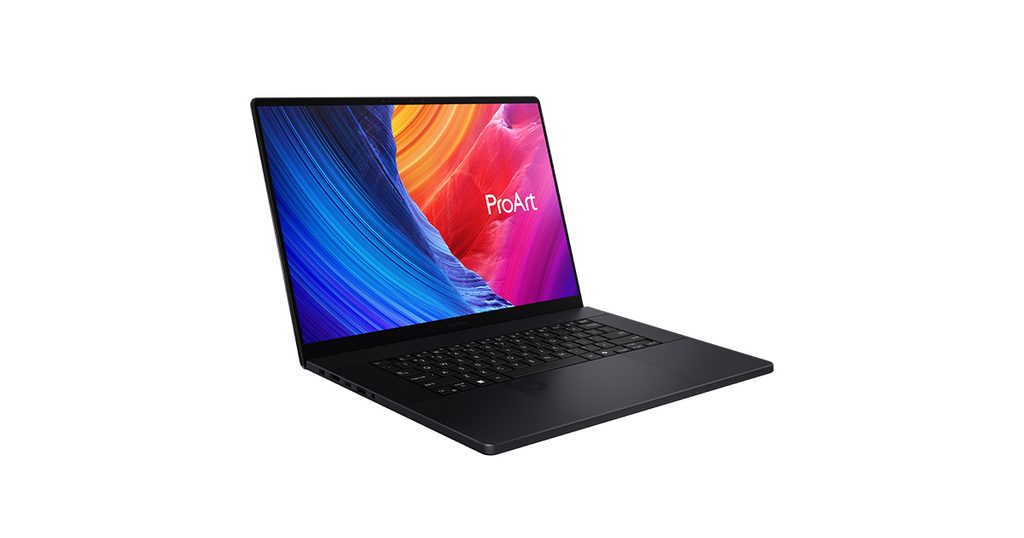
If somebody handed me a budget and said “one laptop for architectural visualization, and you’ll be presenting to clients on it,” this is the one I’d pick. Not because it’s the fastest — it isn’t — but because of the display.
Specifications
- CPU: AMD Ryzen AI 9 HX 370 (12 cores / 24 threads, boost to 5.1 GHz)
- GPU: NVIDIA RTX 5090 Laptop, 24 GB GDDR7, ~130 W maximum in this chassis
- RAM: Up to 64 GB LPDDR5X-7500 (soldered, not upgradeable)
- Storage: Dual PCIe 4.0 M.2 slots
- Display: 16″ 3840 × 2400 Tandem OLED, 120 Hz
- Battery: 90 Wh
- Power: 240 W proprietary adapter, plus USB-C PD support
- Weight: ~1.95 kg / 4.3 lb
Measured display performance (NoobFeed lab): 691 nits peak SDR brightness, over 1,600 nits HDR on a 10% window, 100% DCI-P3 coverage, VESA DisplayHDR True Black 1000 certification, Pantone validation with factory Delta-E below 1. Superfashion separately measured approximately 96% AdobeRGB coverage.
That Delta-E under 1 figure is the one that matters for our work. It means what you see in the viewport is what the client sees in the final render. I’ve watched people lose revision cycles because their laptop panel was pushing saturation and the printed board came back looking flat.
Measured performance
| Test | Result | Source |
|---|---|---|
| Geekbench 6 single-core | 2,930 | Fstoppers |
| Geekbench 6 multi-core | 15,540 | Fstoppers |
| Geekbench 6 OpenCL (GPU) | 197,112 | Fstoppers |
| Geekbench 6 single-core (corroborating) | 2,970 | Superfashion |
| Geekbench 6 multi-core (corroborating) | 15,040 | Superfashion |
| Blender OptiX (RTX 5090 Laptop class median) | ~8,002 | Blender Open Data |
Pros
- The best laptop display I’m aware of, full stop. Factory-calibrated, HDR-capable, 4K.
- 24 GB VRAM in a machine you can carry to a site meeting
- Genuinely portable at 4.3 lb for this class of hardware
- Dual SSD slots, USB-C PD charging as a backup
- Excellent single-core speed for Datasmith imports
Cons
- GPU capped around 130 W, so it loses roughly 25–30% to a full 175 W 5090 in sustained work
- Fans get loud under load, and CPU temperatures run high
- RAM is soldered — you must buy 64 GB up front, no upgrade later
- Expensive. UK RRP was £4,799.99 at launch (Trusted Reviews); US configs land around $4,000+
- 4K OLED plus heavy rendering is rough on battery
Who it’s for: Architects and visualization artists who present work in person, need color accuracy they can trust, and want one machine that handles both the render and the meeting.
2. MSI Titan 18 HX AI — Best for Heavy Path-Traced Work
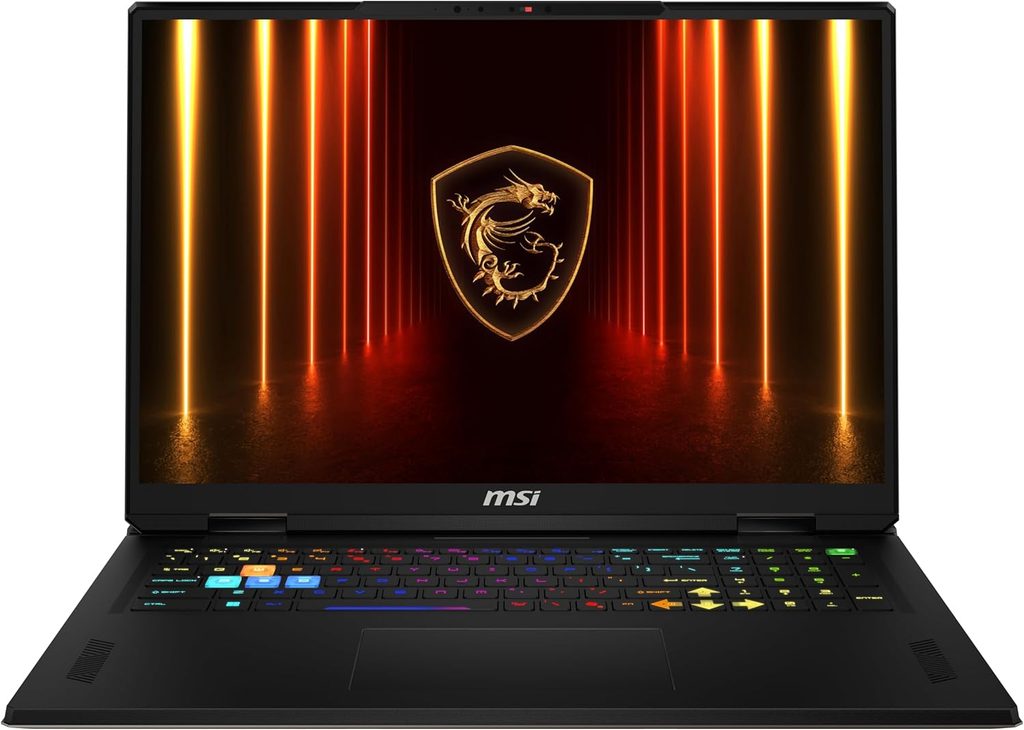
If you render overnight and you want the machine that finishes first, this is it. It’s absurd, it’s heavy, and it doesn’t apologize for either.
Specifications
- CPU: Intel Core Ultra 9 285HX (24 cores)
- GPU: NVIDIA RTX 5090 Laptop, 24 GB GDDR7, up to 175 W in Extreme Performance mode
- RAM: Up to 64 GB DDR5 (socketed)
- Storage: Multiple M.2 slots
- Display: 18″ 4K mini-LED
- Connectivity: Thunderbolt 5
Measured performance
| Test | Result | Source |
|---|---|---|
| Cinebench R24 multi-core | ~2,140 | 91mobiles |
| 3DMark Time Spy | ~22,823 | 91mobiles |
| 3DMark Speed Way | Within 9.2% of a desktop RTX 4080 | Wccftech |
| Blender benchmark | ~8,000 | Skynexttech |
| Blender BMW render | ~8 seconds | Skynexttech |
Measured thermals and acoustics
| Metric | Result | Source |
|---|---|---|
| CPU peak temperature | 90–96 °C | HotHardware |
| GPU temperature during Time Spy | Stayed under 75 °C | HotHardware |
| Fan noise, sustained Cinebench | ~48 dB(A) | LapZenLab |
That GPU temperature figure is the headline for our purposes. A 175 W RTX 5090 staying below 75 °C through a full benchmark run means the cooling is genuinely oversized, and that’s exactly what you want when a Path Tracer export is going to hammer the GPU for forty minutes straight. Thermal throttling doesn’t just slow a render — it makes render times unpredictable, which is worse when you’re quoting deadlines.
Measured battery: Under three hours of video playback, roughly 90 minutes under PCMark’s gaming load. This is a desktop replacement. Plan around the outlet.
Pros
- Full 175 W RTX 5090 — the fastest sustained Twinmotion performance you can get in a laptop
- Best-in-class GPU cooling for long render sessions
- 18″ 4K mini-LED gives you real screen area for the Twinmotion interface
- Thunderbolt 5 for fast external storage and multi-monitor setups
- Socketed DDR5 RAM you can upgrade later
Cons
- Very heavy and very large. This is not a laptop you take to a site visit.
- Loud. 48 dB(A) is conversation-interrupting.
- CPU running into the mid-90s under load
- Poor battery life
- $5,000–6,300 depending on configuration
Who it’s for: Full-time archviz artists whose income depends on render throughput, and studios that need a portable render node rather than a portable computer.
3. Razer Blade 16 (2025/2026) — Best Balance of Power and Portability
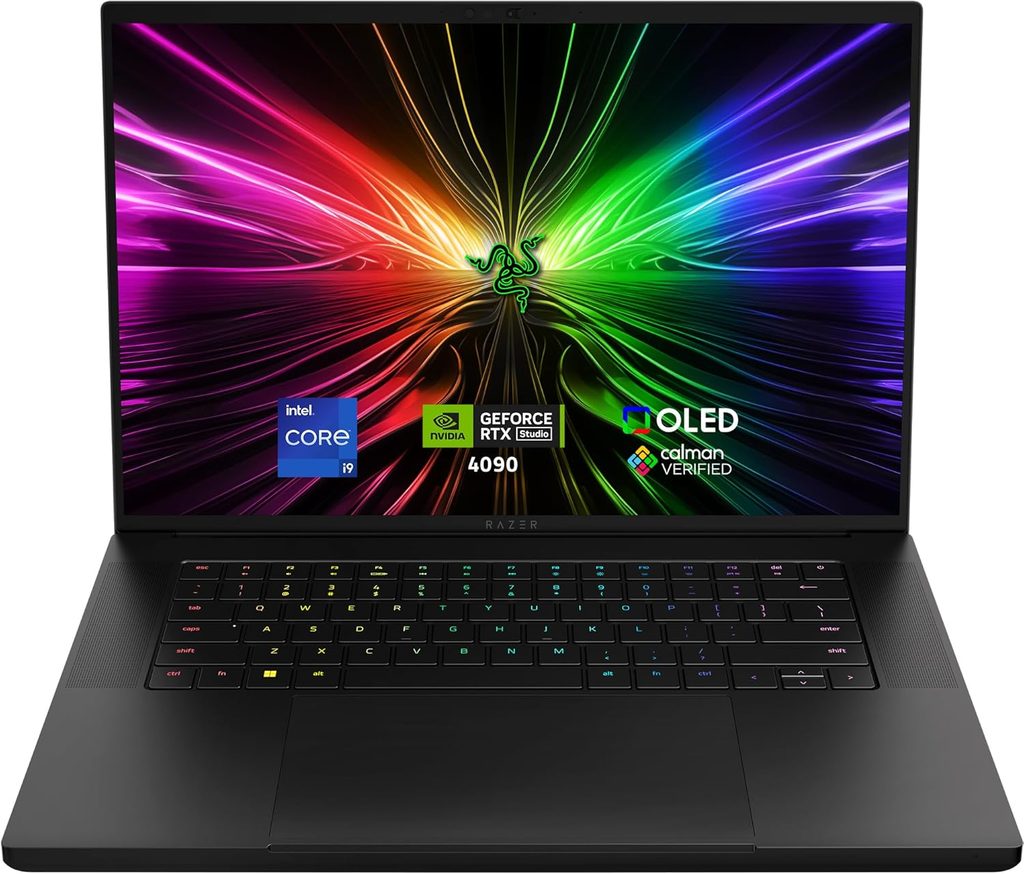
Razer did something impressive here: they got an RTX 5090 into a 19.9 mm chassis without it melting or throttling into uselessness. The measured consistency data is what sold me.
Specifications
- CPU: AMD Ryzen AI 9 HX 370
- GPU: NVIDIA RTX 5090 Laptop, 24 GB GDDR7, up to ~155–175 W
- RAM: Up to 64 GB LPDDR5X-8000 (soldered)
- Storage: Dual M.2, up to 8 TB
- Display: 16″ 2560 × 1600 OLED, 240 Hz
- Battery: 90 Wh
- Thickness: 19.9 mm
Measured performance
| Test | Result | Source |
|---|---|---|
| Cinebench R23 multi-core (sustained loop) | ~3,300–3,400 | GAMES.GG |
| 3DMark Time Spy stability, 25 consecutive runs | 98.1% | Windows Central |
| Keyboard surface temperature under load | ~58 °C | Reviewer measurement |
| Rear vent temperature under load | ~64 °C | Reviewer measurement |
| Blender OptiX (RTX 5090 Laptop class median) | ~8,002 | Blender Open Data |
98.1% stability across 25 runs. That’s the number I care about. It means run 25 is essentially as fast as run 1 — no thermal decay. For a machine this thin, that’s genuinely surprising engineering, and it translates directly to consistent render times.
Measured battery behavior: PC Gamer recorded over two hours of on-battery gaming, compared against 41 minutes on an older RTX 4090 Lenovo machine. Blackwell’s efficiency gains are real, and the practical upshot is that you can do actual viewport work unplugged. Just don’t expect full performance — see the battery section below.
Pros
- Best build quality in this list. CNC aluminum, no flex.
- Remarkable sustained performance consistency for the thickness
- Genuinely portable with a 24 GB GPU
- Beautiful 240 Hz OLED
- Up to 8 TB of storage across two slots
- Strong on-battery endurance for the class
Cons
- No 4K display option this generation, which stings on a machine this expensive
- Soldered RAM
- Surface temperatures get uncomfortable — you’ll want an external keyboard for long sessions
- Razer’s price premium is real. Base models start at $2,999; the RTX 5090 configuration lands around $4,900.
Who it’s for: Freelancers and consultants who move between offices, sites, and home, and refuse to choose between capability and carrying it.
4. Dell Pro Max 16 Plus — Best Professional Workstation
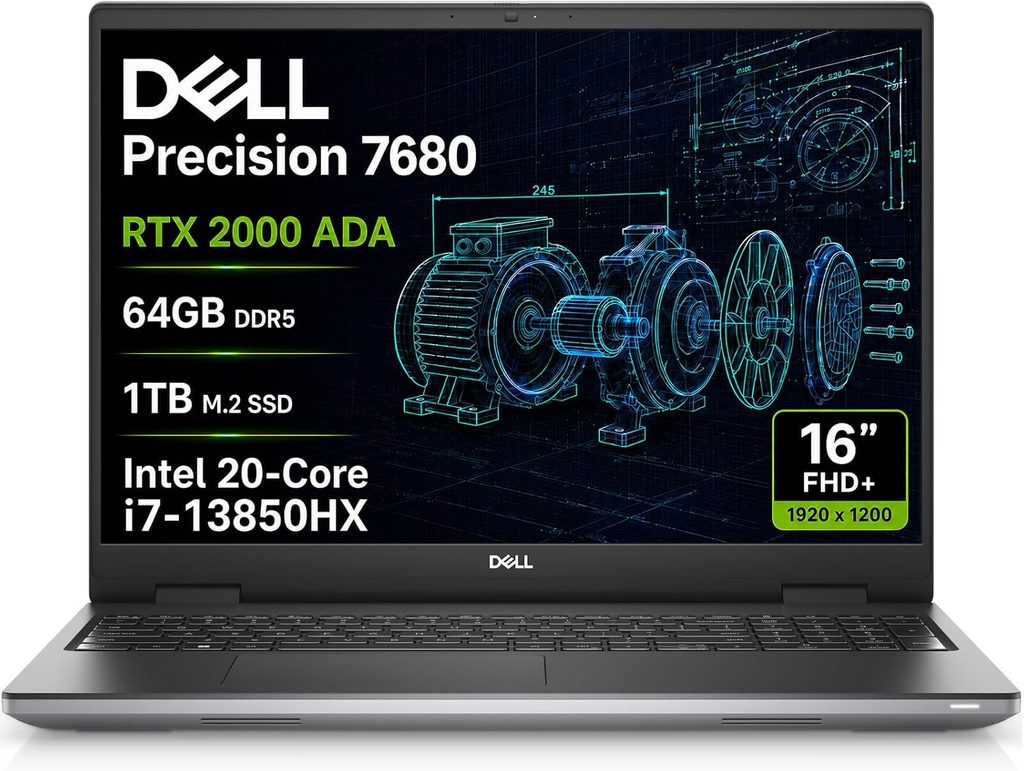
This is the “I need this to still be working in four years and I need someone to answer the phone when it isn’t” option. It’s also the only laptop here with a genuinely replaceable GPU.
Specifications
- CPU: Intel Core Ultra 9 285HX
- GPU: NVIDIA RTX PRO 5000 Blackwell, 24 GB GDDR7, on Dell’s replaceable DGF module
- RAM: Up to 128 GB CAMM2 (upgradeable)
- Storage: Triple PCIe Gen5 M.2 slots
- Display: 4K Tandem OLED, 120 Hz, touch
- Connectivity: Thunderbolt 5
Measured performance (Notebookcheck lab)
| Test | Result | Notes |
|---|---|---|
| 3DMark composite score | 98.3 | Matches the Blackwell laptop average; within 1% of an Alienware RTX 5090 machine |
| Productivity score | 84.1 | ~16% behind the RTX 5090 Alienware, but ahead of every prior RTX Ada workstation |
| Cyberpunk 2077, 4K | ~51 fps (vs ~68 fps for RTX 5090 laptops) | TechRadar |
| Sustained GPU power | Stabilizes around 125 W | 16″ chassis limit |
| CPU peak temperature | ~105 °C | Under full load |
| Total system draw | Up to 280 W | Under full load |
Note that the RTX PRO 5000 is rated for up to 175 W but settles around 125 W in this 16-inch body. The 18-inch Pro Max 18 Plus sustains it better, so if you want this platform at full power, size up.
Pros
- 24 GB VRAM with professional drivers and ISV certification
- Replaceable GPU module — genuinely unusual and genuinely valuable
- Up to 128 GB CAMM2 memory, upgradeable
- Three Gen5 SSD slots
- Excellent 4K Tandem OLED
- Enterprise warranty and support options
- Starts at $2,779, which is competitive for a certified workstation
Cons
- GPU throttles to ~125 W in the 16″ chassis, so it trails a full-power 5090
- CPU peaks around 105 °C, which is hot even by workstation standards
- ISV certification matters for Revit but Twinmotion doesn’t require it, so you may be paying for something you don’t use
- Reliability watch: at least one reviewer reported repeated motherboard and GPU RMAs on an earlier Dell Pro Max unit. Read Dell’s warranty terms carefully before committing at this price.
Who it’s for: Architecture firms with IT departments, procurement processes, and a need for Revit certification alongside Twinmotion. Also anyone who values the ability to upgrade the GPU in two years rather than replace the laptop.
5. Lenovo Legion Pro 7i Gen 10 — Best Value
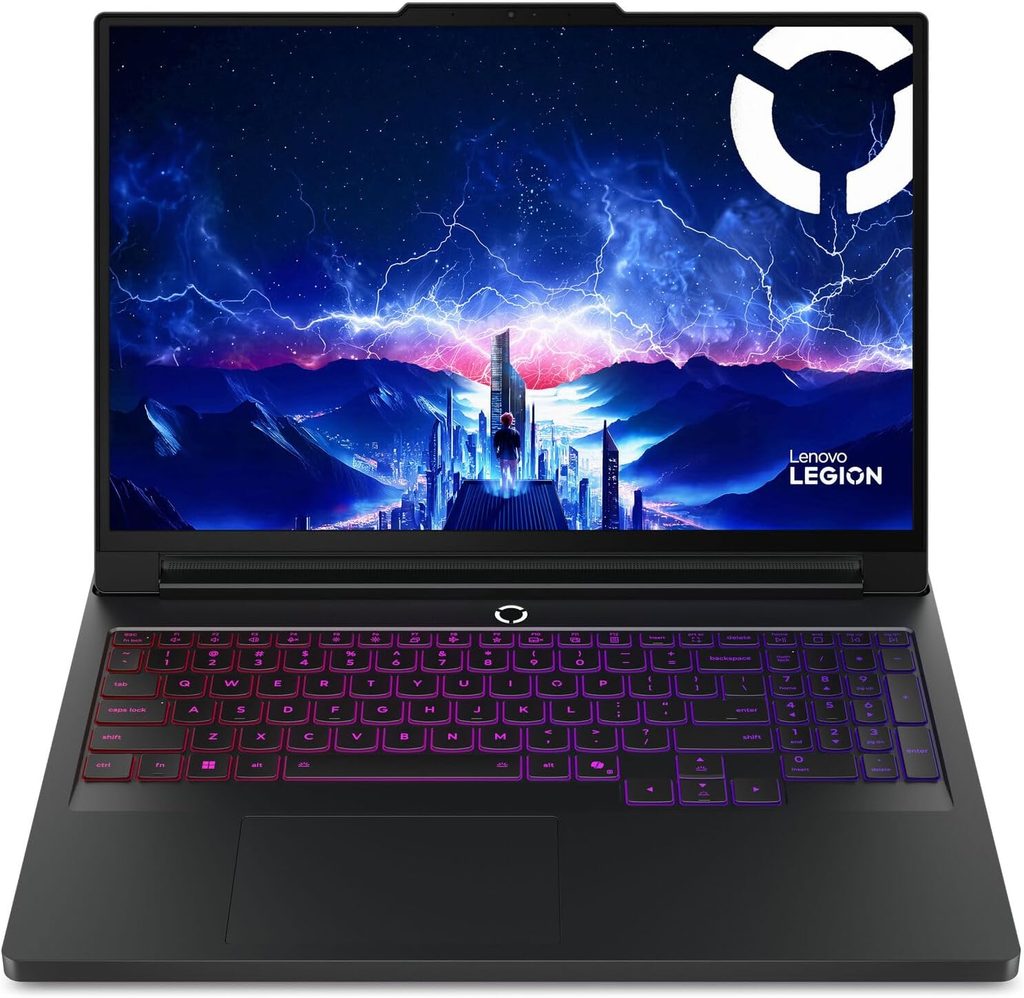
Not everybody needs 24 GB. If your projects are single buildings rather than city blocks, a full-power RTX 5080 gets you roughly 83% of the render performance for substantially less money.
Specifications
- CPU: Intel Core Ultra 9 275HX
- GPU: NVIDIA RTX 5080 Laptop, 16 GB GDDR7 — Lenovo rates this chassis for the top of the TGP range, but verify the Maximum Graphics Power figure on the exact SKU you’re buying, since it varies by configuration
- RAM: Up to 64 GB DDR5 (socketed, upgradeable)
- Storage: Dual M.2 slots
- Display: 16″ 2560 × 1600 OLED, 240 Hz option
- Battery: ~99.9 Wh
Performance — RTX 5080 Laptop class figures
I want to be transparent here: these are GPU-class measurements from public benchmark databases and other RTX 5080 machines, not measurements of this exact chassis. I couldn’t find a full independent lab teardown of this specific SKU that I’d stand behind.
| Test | Result | Source / Type |
|---|---|---|
| Blender OptiX median | ~6,625 | Blender Open Data, crowd-sourced |
| 3DMark Time Spy Graphics | ~21,948 (~16% over RTX 4080 Laptop) | Crowd-sourced |
| Geekbench 6 OpenCL | 190,326 | Crowd-sourced, measured on Alienware 18 |
Compare that ~6,625 Blender median to the RTX 5090 Laptop’s ~8,002. You’re giving up about 17% of render throughput and 8 GB of VRAM, and saving well over a thousand dollars.
Pros
- Substantially cheaper than the 24 GB options
- Socketed RAM and dual SSD slots — upgrade it yourself over time
- Large battery for the class
- 16 GB VRAM handles the great majority of architectural scenes comfortably
- Legion’s cooling has a good track record for sustained loads
Cons
- 16 GB VRAM will become a limit on dense urban scenes, heavy vegetation, or VR
- 1600p rather than 4K — fine for working, less impressive for client presentations
- Gaming-oriented design and RGB lighting, which not everyone wants in a client meeting
- TGP varies between SKUs, so you have to actually check before you buy
Who it’s for: Students, small practices, and anyone whose Twinmotion work is mostly single-building presentations. This is the sensible purchase, and I’d recommend it to more people than the top of this list.
The Laptop I’d Actively Avoid
I don’t usually name and shame, but this one is instructive.
The ASUS ROG Zephyrus G16 with the RTX 5090 caps that GPU at 120 W. Notebookcheck measured it as 25–30% slower than a 175 W 5090, and noted that the average RTX 4090 laptop in their database beats it by up to 10 percent.
It’s a beautiful, thin machine and probably a lovely laptop for other purposes. But if you’re paying RTX 5090 money for Twinmotion work, you should be getting RTX 5090 performance. This is the clearest possible illustration of why you check TGP before you check the GPU name.
What About a MacBook Pro?
I get asked constantly, so let me give you the direct answer: Twinmotion runs on Apple Silicon, and it runs well in real time, but it cannot do path tracing on macOS at all.
This isn’t a performance limitation. It’s architectural. Epic’s own documentation states that Twinmotion is based on Unreal Engine, which does not yet support path tracing on macOS, and that they’ll add it to Twinmotion once Unreal supports it. On top of that, VR mode is unsupported on macOS, and Lumen only runs in software ray-tracing mode, which means lower-quality reflections and global illumination than you’d get on a Windows machine with hardware RT.
The raw silicon is fine. The M4 Max (40-core GPU) posts a Blender Metal median of ~5,208 in the Open Data database, which places it between an RTX 4070 and RTX 4080 Laptop. The M5 Max, announced March 2 2026 and available from March 11 (from $3,899 for the 16-inch, $3,599 for the 14-inch), scores approximately 232,718 in Geekbench 6 Metal — around 21% ahead of the M4 Max, per Notebookcheck.
Also worth knowing: Twinmotion 2026.1 requires Xcode to be installed to run on macOS. Minor, but it catches people out.
My honest verdict: if you’re already deep in the Apple ecosystem and your Twinmotion work is real-time walkthroughs and Lumen-quality output, a MacBook Pro is a lovely machine with an unbeatable display and battery. If path-traced stills or animations are what your clients pay for, you need Windows and an NVIDIA RTX card. There’s no clever workaround, though offloading final renders to Twinmotion Cloud or a service like Vagon or iRender is a legitimate hybrid approach.
Twinmotion 2026: What Changed
Twinmotion 2026.1 landed in April 2026. It’s free for individuals and organizations under $1 million in annual revenue; paid seats run $445 per year and include Twinmotion Cloud.
The additions worth knowing about:
Match Perspective. This one is genuinely useful for site-context work. Per Epic, it identifies the vanishing points in a backplate photograph and adjusts your 3D camera’s position and focal length to match, then projects shadows onto the ground plane. If you’ve ever hand-matched a render to a site photo, you’ll appreciate how much time this saves.
Auto-focus depth of field with anamorphic and Petzval bokeh options.
Autosoft Edges.
Full Lumen support following the migration to Unreal Engine’s native landscape system.
Twinmotion 2026.2 is currently in Preview. It overhauls the night sky with physically accurate moon positioning and aurora borealis, and — important warning — removes the legacy import pipeline, which drops support for some older file formats. If you maintain an archive of older project files, test before you upgrade.
A driver bug you should know about
Twinmotion 2026.2’s release notes document issue TM-23370: on systems running an RTX 5090 with NVIDIA drivers released in January, Twinmotion may randomly display a black screen. Epic’s stated workaround is to install Studio Drivers instead of Game Ready Drivers.
Honestly, that’s my standing advice regardless. Studio Drivers are validated against creative applications and get fewer breaking changes. Game Ready Drivers optimize for game launches and occasionally break professional software. Install Studio, and turn off automatic driver updates during a project deadline.
A Few Things Worth Knowing Before You Buy
Your GPU is throttled on battery. Significantly.
StorageReview measured an RTX 5090 Mobile scoring 208,451 in Geekbench 6 OpenCL while plugged in, dropping to 174,725 on battery. That’s roughly a 16% loss, and gaming performance is frame-capped besides.
Practical translation: viewport navigation on battery is fine. Never start a Path Tracer export unplugged. It will be slower and it will not finish before the battery dies.
RTX 50 is the current generation, and it’s staying that way for a while
If you’re wondering whether to wait, here’s the situation as I understand it. The RTX 50 Super refresh — which would bring 24 GB and 18 GB variants to the mid-range using 3 GB GDDR7 modules — is reportedly complete but on hold. The reason is memory pricing: a 3 GB GDDR7 module currently costs $60–70 against roughly $20 for a standard 2 GB module. Triple the cost for 50% more capacity.
BenchLife’s reporting suggests the most realistic launch window is early 2027, around CES. Meanwhile SK hynix has warned that 2027 will be the worst year of the memory shortage, with effects lasting until 2030.
My read: buy now. Prices are more likely to rise than fall, and there’s no imminent product that makes today’s RTX 5090 Laptop obsolete. The only reason to wait is if you specifically want a mid-range card with 24 GB, and that’s a 2027 conversation at best.
Settings that actually help
A few things I’d set up on day one:
- Install NVIDIA Studio Drivers, not Game Ready
- Use Datasmith Direct Link rather than FBX round-trips
- Keep an eye on VRAM usage in Task Manager while you work; if you’re consistently near the ceiling, start optimizing textures before the crashes start
- Render plugged in, on the highest performance profile
- If your laptop has a MUX switch or Advanced Optimus, make sure the discrete GPU is actually driving the display
My Recommendations by Situation
If you’re a student or hobbyist: Get an RTX 5070 Ti (12 GB) or RTX 5080 (16 GB) at the highest TGP you can afford, with at least 32 GB of RAM and a 1 TB SSD. Avoid the 8 GB RTX 5070 for anything beyond occasional Path Tracer use — you’ll hit the wall fast. For the occasional heavy render, use Twinmotion Cloud or a render service instead of buying more GPU than you need day to day. Upgrade when you’re regularly seeing memory warnings.
If you run a small architecture practice: The ASUS ProArt P16 is my pick, mainly for the display. When you’re presenting to a client, color accuracy is part of the product. If you need ISV certification for Revit alongside Twinmotion, go with the Dell Pro Max 16 Plus or a Lenovo ThinkPad P16 instead. Either way, 64 GB of RAM.
If you’re a full-time archviz professional: Go 18-inch, full 175 W RTX 5090, 24 GB VRAM, 64 GB+ RAM, dual SSDs. The MSI Titan 18 HX AI is the pick, and its sub-75 °C GPU temperatures under load are exactly why. Pair it with a color-accurate external monitor for final grading.
If you’re committed to macOS: The MacBook Pro 16 with M4 or M5 Max is excellent for real-time and Lumen work, and unbeatable for battery and display quality. Accept that path tracing and VR aren’t available, and plan to offload final path-traced output to the cloud.
Frequently Asked Questions
It’s the minimum for the Path Tracer to run at all, per Epic’s requirements. It works for small scenes. It will not comfortably handle a detailed building with high-resolution textures and vegetation. I’d treat 8 GB as a starting point, not a target.
Less than people assume. The CPU matters most during imports of large BIM files, which are largely single-threaded, so clock speed beats core count. Everything else — viewport, Lumen, ray tracing, Path Tracer — runs on the GPU.
Yes. Epic supports RX 6000-series and newer for the Path Tracer. In practice, though, NVIDIA’s ecosystem is better supported in this space, and NVIDIA cards benefit from hardware ray-tracing acceleration that measurably speeds up render work. Notebookcheck measured OptiX rendering roughly 40% faster than CUDA on the same card, which gives you a sense of how much hardware RT contributes.
Where I’d Put My Own Money
If I could only pick one: the ASUS ProArt P16. The 130 W GPU cap costs it some raw speed, and I feel that in the render times. But the display is the best I’ve seen on a laptop, it has the full 24 GB of VRAM, and it weighs 4.3 pounds. For work that ends in a room with a client, that combination is hard to beat.
If render throughput is the whole job, the MSI Titan 18 HX AI is the machine, and it isn’t close. If you want to spend sensibly, the Lenovo Legion Pro 7i Gen 10 with a full-power RTX 5080 does most of what the expensive machines do.
But whatever you end up choosing, do the one thing this whole guide has been building toward: find the Maximum Graphics Power figure before you pay. It’s the single number that most reliably predicts whether you’ll be happy, and it’s the one most listings would rather you didn’t notice.
Sources and Methodology
Hardware requirements and Path Tracer specifications are from Epic Games’ official Twinmotion documentation. Display, thermal, acoustic, and battery measurements are credited inline to the laboratories that performed them: Notebookcheck, HotHardware, StorageReview, Windows Central, TechRadar, Fstoppers, NoobFeed, PC Gamer, Wccftech, LapZenLab, 91mobiles, Skynexttech, and Superfashion. GPU-class render figures are medians from the Blender Open Data and OctaneBench public databases, accessed August 2026, and are labeled as crowd-sourced where used.
Prices are US retail approximations as of August 2026 and are volatile due to ongoing memory market conditions. Verify current configurations and TGP specifications before purchase.
No controlled, laboratory-measured Twinmotion Path Tracer timings exist across laptop hardware. Where render performance is discussed, Blender OptiX is used as a proxy because it exercises the same NVIDIA RT cores, and this substitution is stated explicitly wherever it appears. Path-trace timings cited from iRender and RadarRender are desktop-GPU measurements published by render-farm providers and should be read as directional.

Hi, my name is Burak. I am a mechanical engineer. I have been writing laptop reviews for the Engineering Laptops website since 2020. Please feel free to contact me if you have any questions.