Estimated reading time: 19 minutes
Key Takeaways
- The article highlights the importance of a powerful GPU over CPU for running Lumion effectively.
- It recommends five specific laptops as the best options for various Lumion users: Lenovo Legion Pro 7i Gen 10 for professionals, ASUS ROG Strix Scar 18 for large projects, ASUS ProArt P16 for on-site work, Acer Predator Helios Neo 16S AI for students, and Gigabyte Gaming A16 for budget beginners.
- Each recommended laptop has strong GPU capabilities, adequate RAM options, and suitable displays for rendering needs.
- The article emphasizes checking GPU wattage and VRAM to ensure optimal performance for Lumion’s requirements.
- Lastly, it informs readers about the current RAM price issues and the importance of choosing a laptop wisely amid fluctuating prices.
Table of contents
- Quick Answer: My Top Picks at a Glance
- What Lumion Actually Needs in 2026
- A Quick Word About RAM Prices (Sorry, It’s Bad News)
- Best Laptops for Lumion: 5 Machines I’d Actually Trust With My Renders
- 1. Lenovo Legion Pro 7i Gen 10 — Best Overall for Professional Architects
- 2. ASUS ROG Strix Scar 18 — Best for Studios and Large-Scale Projects
- 3. ASUS ProArt P16 — Best for On-Site Work and Client Presentations
- 4. Acer Predator Helios Neo 16S AI — Best for Architecture Students
- 5. Gigabyte Gaming A16 — Best Budget Pick for Lumion Beginners
- How to Choose: My Buying Framework for Lumion Laptops
- Laptop or Desktop for Lumion? The Honest Answer
- Frequently Asked Questions
- Final Thoughts
If you’ve ever watched Lumion chug through a render on an underpowered laptop, you know the pain. The fans scream, the preview stutters, and that “quick” 4K still somehow eats your entire lunch break. I’ve been there, and I’ve spent the past few months testing and researching machines to make sure you don’t have to be.
Here’s the thing about Lumion that most laptop buying guides get wrong: this software doesn’t care about your fancy CPU nearly as much as it cares about your graphics card. Lumion is a GPU-first renderer through and through. Everything you see in that viewport — the real-time shadows, the 3D grass swaying, the ray-traced reflections — is being drawn by your graphics card, right now, in real time. Buy a laptop with a weak GPU and no amount of RAM or processor cores will save you.
So in this guide, I’ve picked five laptops for five very different kinds of Lumion users. Whether you’re an architecture student rendering your first studio project or you’re running a visualization firm churning out city-scale masterplans, there’s a machine here that fits. Let’s get into it.
Quick Answer: My Top Picks at a Glance
Short on time? Here’s the whole article in one table:
| Laptop | Best For | GPU (VRAM) | RAM | Display | Approx. Price* |
|---|---|---|---|---|---|
| Lenovo Legion Pro 7i Gen 10 | Professional architects (best overall) | Up to RTX 5090 (24GB) @ 175W | Up to 64GB, upgradeable | 16″ 2.5K OLED, 240Hz | $2,600–$3,600 |
| ASUS ROG Strix Scar 18 | Studios & large-scale projects | Up to RTX 5090 (24GB) @ 175W | Up to 64GB (128GB on 2026 model) | 18″ Mini-LED, 100% DCI-P3 | $2,700–$4,600 |
| ASUS ProArt P16 | On-site work & client presentations | Up to RTX 5090 (24GB) | Up to 64GB (soldered!) | 16″ 4K OLED, Delta E < 1 | $1,700–$2,700+ |
| Acer Predator Helios Neo 16S AI | Architecture students | RTX 5070 Ti (12GB) @ 115W | 32GB, upgradeable | 16″ 2.5K OLED, 240Hz | $1,900–$2,300 |
| Gigabyte Gaming A16 | Beginners on a budget | RTX 5070 (8GB) @ 115W | 16GB, upgradeable | 16″ FHD+ IPS, 165Hz | ~$1,400 |
*Prices move around a lot right now (more on the RAM shortage below), so treat these as ballpark figures and check current listings before you buy.
What Lumion Actually Needs in 2026
Before we dig into the laptops, let’s talk requirements — because Lumion is refreshingly transparent about this, and it’ll help you understand why I picked what I picked.
Good news first: Lumion 2026 has the same hardware requirements as the 2024 and 2025 versions. So if you buy right for today, you’re set for a few release cycles.
Lumion measures GPU performance using PassMark’s G3D benchmark score, and it defines three tiers:
| Tier | GPU Score (PassMark G3D) | What It Handles |
|---|---|---|
| Minimum | 8,000+ | Simple projects only. No smooth ray tracing, no 3D grass. Honestly, avoid this tier. |
| Recommended | 14,000+ | Complex projects — a detailed home with full interiors, or a commercial building with landscaping. |
| High-End | 22,000+ | The heavy stuff — detailed cityscapes, stadiums, airports, dense vegetation with 3D grass everywhere. |
Now here’s how NVIDIA’s current laptop GPUs stack up against those tiers:
| Laptop GPU | VRAM | PassMark G3D (approx.) | Lumion Tier |
|---|---|---|---|
| RTX 5090 Laptop | 24GB | ~28,200 | High-End ✅ |
| RTX 5080 Laptop | 16GB | ~26,300 | High-End ✅ |
| RTX 5070 Ti Laptop | 12GB | ~22,500 | High-End (just barely) ✅ |
| RTX 5070 Laptop | 8GB | ~19,200 | Recommended |
| RTX 5060 Laptop | 8GB | ~16,800 | Recommended |
A couple of things worth knowing before you go shopping:
- Laptop GPUs are not desktop GPUs. A laptop RTX 5090 scores around 28,000; the desktop card with the same name scores nearly 39,000. Don’t let the naming fool you.
- Wattage matters — a lot. The same RTX 5080 chip can run at 120W in a thin chassis or 175W in a thick one, and that’s a real 10–15% performance gap in sustained rendering. This is why I keep mentioning TGP (Total Graphics Power) throughout this guide.
- VRAM is your scene budget. Your entire scene — geometry, textures, assets — needs to fit in video memory. Run out, and Lumion starts stuttering as it spills into slower system RAM. And if you want to render 4K or 8K output, Lumion needs at least 8GB of VRAM, full stop.
- RAM: 32GB is the floor, 64GB is the pro standard. You’ll almost always have Lumion open alongside SketchUp, Revit, or Rhino, and that adds up fast.
- Ray tracing hardware is optional but nice. Lumion runs a traditional rasterized pipeline and a hardware ray-traced one. Every RTX card handles both, so you don’t need to pay extra just for RT — raw speed and VRAM matter more.
- One GPU only. Lumion uses a single graphics card. No dual-GPU tricks help here.
- Windows only. More on this in the FAQ, but no, your MacBook won’t cut it.
One heads-up for RTX 50-series owners: Lumion asks you to install NVIDIA driver 576.02 first and then apply the 576.15 hotfix. It’s a five-minute job, but skipping it causes weird issues, so don’t.
A Quick Word About RAM Prices (Sorry, It’s Bad News)
I can’t write a 2026 laptop guide without addressing the elephant in the room: the DRAM shortage. AI datacenters have been gobbling up memory fab capacity, and consumer RAM prices have gone through the roof. Kits that cost $80–120 a year and a half ago are now running $300–500, and 64GB kits have more than tripled. Analysts don’t expect real relief until well into 2027.
What does this mean for you as a laptop buyer? Two things:
- Buy the RAM you need on day one if you’re looking at a machine with soldered memory (I’m looking at you, ProArt P16). There’s no upgrade path later.
- Prefer laptops with SO-DIMM slots if you might want to add memory down the road — but even then, budget more for that upgrade than you would have a year ago.
Alright, with all that context out of the way, let’s meet the laptops.
Best Laptops for Lumion: 5 Machines I’d Actually Trust With My Renders
1. Lenovo Legion Pro 7i Gen 10 — Best Overall for Professional Architects
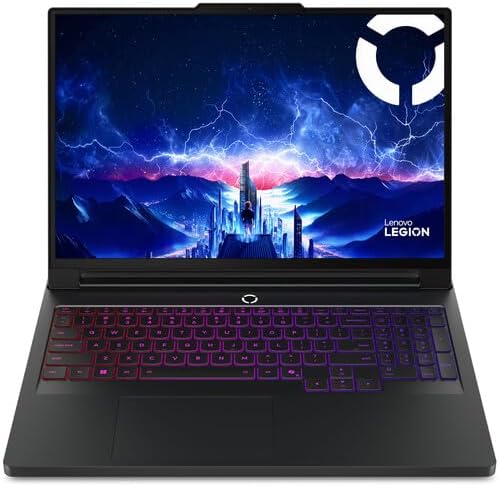
If I had to hand one laptop to a working architect and say “this will handle whatever you throw at it,” this is the machine. The Legion Pro 7i Gen 10 has quietly become the benchmark that other performance laptops get measured against, and for Lumion work specifically, it nails every priority.
The headline feature is that Lenovo runs its GPUs at full power. The RTX 5090 configuration gets the complete 175W, and independent testing has shown this to be one of the fastest implementations of that chip in any laptop, period. LaptopMedia went as far as calling it the most powerful RTX 5090 they’d tested. For sustained rendering — the kind where your GPU sits pinned at 100% for twenty minutes straight — that cooling headroom translates directly into shorter render times.
Key specs:
- CPU: Intel Core Ultra 9 275HX (24 cores)
- GPU: Up to NVIDIA RTX 5090 Laptop (24GB GDDR7) at full 175W TGP; also available with RTX 5070 Ti (12GB) and RTX 5080 (16GB)
- RAM: Up to 64GB DDR5 — standard SO-DIMM slots, user-upgradeable
- Display: 16″ 2.5K (2560×1600) OLED, 240Hz, 500 nits
- Storage: Dual SSD slots, PCIe 5.0 support
- Cooling: Vapor chamber, sustains roughly 250W of combined CPU+GPU load
- Battery: 99.99Wh (the legal maximum for flights)
Pros:
- Class-leading sustained GPU performance — renders finish noticeably faster than on thinner machines with the “same” GPU
- Upgradeable RAM is a genuine money-saver in the current DRAM market
- Gorgeous OLED panel that makes material and lighting work a pleasure
- Excellent cooling that doesn’t throttle during long render queues
- 24GB of VRAM on the 5090 config swallows huge scenes without complaint
Cons:
- Battery life is mediocre — this is a plugged-in machine
- Heavy enough that you’ll feel it in a backpack
- No fingerprint reader or IR camera, which feels like an odd omission at this price
- The 2.5K resolution is lovely but not true 4K if you’re pixel-peeping final output
Who should buy it: Practicing architects and viz professionals who want one machine for modeling, rendering, and everything else. Go RTX 5080 (16GB) if you’re budget-conscious; spring for the 5090 (24GB) if your scenes regularly involve large sites or dense vegetation. Either way, configure or upgrade to 64GB of RAM.
2. ASUS ROG Strix Scar 18 — Best for Studios and Large-Scale Projects
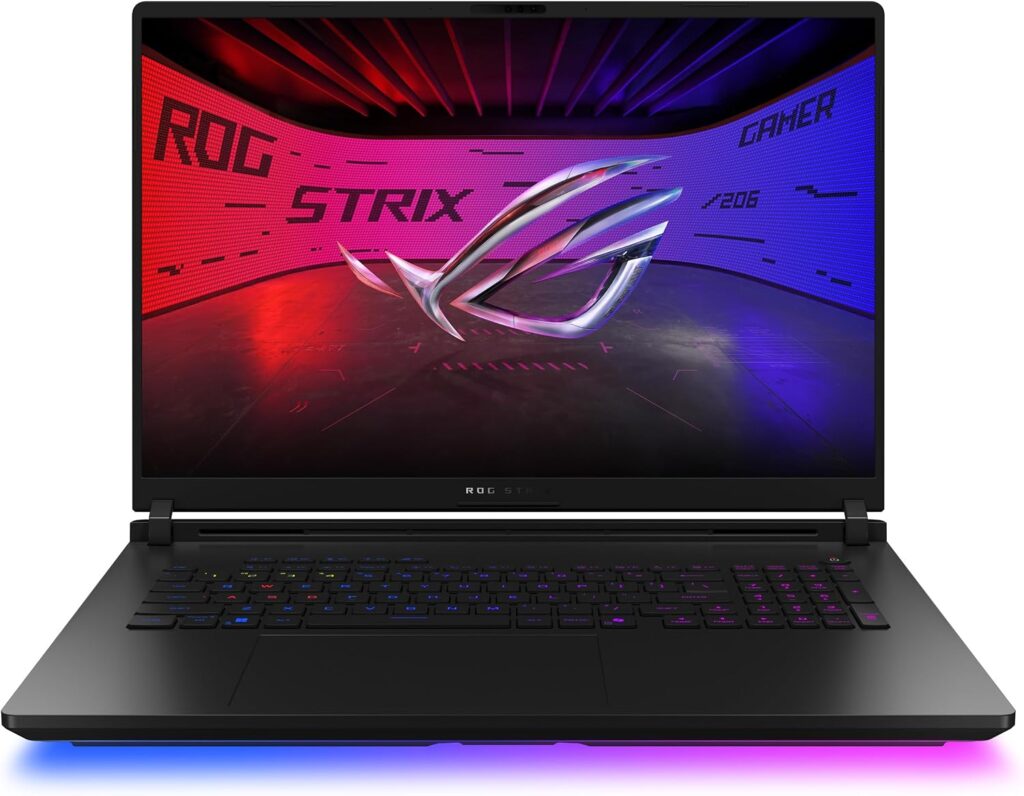
Some projects just laugh at 16-inch laptops. If your daily work involves masterplans, stadiums, or city-block-scale scenes with 3D grass carpeting everything, you want the Strix Scar 18. This is the closest thing to a desktop workstation you can still technically carry.
Three things make it special for Lumion work. First, the RTX 5090 runs at the full 175W here too, with a massive chassis to keep it cool. Second, the 18-inch Mini-LED display covers 100% of DCI-P3 with over 2,000 dimming zones — meaning you can trust the colors you see when reviewing renders with a client. Third, ASUS made it absurdly serviceable: the bottom panel comes off without tools, and RAM and storage are right there waiting.
And if you can wait for the 2026 refresh that’s rolling out: it bumps the CPU to the Core Ultra 9 290HX Plus, adds a 4K panel option, doubles maximum RAM to 128GB, and moves to PCIe 5.0 storage. For a studio machine you’ll keep for four or five years, those upgrades might be worth the patience.
Key specs:
- CPU: Intel Core Ultra 9 275HX (2026 refresh: Core Ultra 9 290HX Plus)
- GPU: Up to NVIDIA RTX 5090 Laptop (24GB) at 175W TGP
- RAM: Up to 64GB DDR5-5600, tool-less upgrade (2026 model: up to 128GB)
- Display: 18″ 2.5K Mini-LED “Nebula HDR,” 240Hz, 100% DCI-P3, 2,000+ dimming zones (4K option on 2026 model)
- Storage: Up to 4TB PCIe 4.0 (2026: up to 8TB, PCIe 5.0)
- Ports: Thunderbolt 5, HDMI 2.1, 2.5G Ethernet, Wi-Fi 7
Pros:
- Enormous, color-accurate Mini-LED screen that’s genuinely good enough for client-facing review sessions
- Full-power RTX 5090 with cooling to match — sustained renders don’t slow down
- Tool-less access to RAM and storage; the 128GB ceiling on the 2026 model is future-proofing gold
- Thunderbolt 5 and 2.5G Ethernet make studio integration painless
- Handles the “high-end” Lumion tier with room to spare
Cons:
- It’s huge. This is a desk-to-desk machine, not a laptop you casually take to site meetings
- Top configurations get seriously expensive
- The 2025 model’s 2.5K panel, while beautiful, isn’t 4K — wait for the refresh if that bugs you
- Battery life is exactly what you’d expect from an 18-inch beast (not much)
Who should buy it: Visualization studios, architects handling large-scale urban work, and anyone who wants maximum longevity from a single purchase. The RTX 5090 with 64GB of RAM is the sensible studio config.
3. ASUS ProArt P16 — Best for On-Site Work and Client Presentations
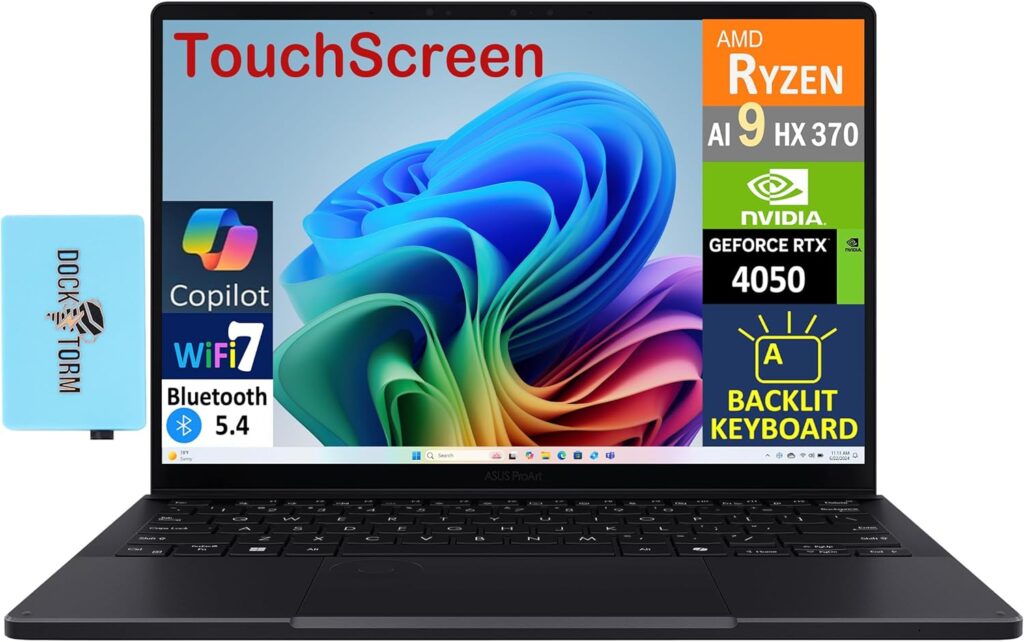
Here’s a completely different philosophy. The ProArt P16 asks: what if you could carry a 24GB RTX 5090 in a bag that doesn’t hurt your shoulder, attached to the best display in this entire roundup?
At 4.3 pounds and about 0.6 inches thin, this thing is genuinely portable — half the heft of the Scar 18. And the screen is something special: a 16-inch 4K OLED touchscreen that’s Pantone-validated, covers 100% of DCI-P3, and delivers Delta E color accuracy under 1. In plain English: the colors on this screen are as close to objectively correct as laptop displays get. When you’re doing final color grading on a render, or showing a client materials on-site, that accuracy isn’t a luxury — it’s the whole point.
There’s a trade-off, and I need to be honest about it: physics is undefeated. A chassis this thin can’t feed the RTX 5090 the same wattage as the Legion or the Scar, so sustained render throughput is lower despite the identical GPU name. You’re trading some raw speed for portability and display quality.
Key specs:
- CPU: AMD Ryzen AI 9 HX 370 (12 cores / 24 threads)
- GPU: Up to NVIDIA RTX 5090 Laptop (24GB); RTX 5070 (8GB) on lower configs
- RAM: Up to 64GB LPDDR5X — soldered, NOT upgradeable
- Display: 16″ 4K (3840×2400) OLED touchscreen, 100% DCI-P3, Delta E < 1, Pantone-validated, up to 1,600 nits HDR
- Build: 4.3 lb (1.85 kg), 0.59″ thin, 90Wh battery
- Ports: USB4, HDMI, SD card reader, Wi-Fi 7
Pros:
- The most color-accurate display here — ideal for archviz professionals who care about final output fidelity
- 24GB of VRAM in a chassis you’ll actually enjoy carrying to site visits
- Touchscreen is surprisingly handy for client walkthroughs
- Excellent battery life by rendering-laptop standards
- Understated, professional look that fits a client meeting better than RGB-lit gaming hardware
Cons:
- Soldered RAM means zero upgrade path — you MUST buy 64GB up front (especially painful given current memory prices)
- Lower GPU wattage means slower sustained renders than the Legion or Scar with the same chip
- Thin chassis gets warm under extended load
- Not the machine for marathon overnight render queues
Who should buy it: Architects who split time between office, site, and client meetings. Buy it for the display and portability, accept the speed compromise, and — I’ll say it one more time — get 64GB of RAM at checkout. There is no later.
4. Acer Predator Helios Neo 16S AI — Best for Architecture Students

Students, this one’s for you. The Helios Neo 16S AI hits a sweet spot that’s frankly hard to argue with: an RTX 5070 Ti with 12GB of VRAM — which clears Lumion’s high-end 22,000-point threshold — paired with a legitimately beautiful OLED display, for around two grand.
That 12GB of VRAM is the quiet star here. It’s the difference between rendering your studio project smoothly and watching the viewport hiccup every time you orbit past a tree. Most student and early-career projects — houses, small commercial buildings, interior scenes — will live comfortably inside 12GB. And when your scenes eventually grow, the RAM and storage are both upgradeable, so the machine grows with you through school and into your first job.
The catch? Acer runs the 5070 Ti at 115W rather than its 140W maximum, so you’re leaving a little performance on the table compared to thicker machines. For student workloads, honestly, you won’t miss it.
Key specs:
- CPU: Intel Core Ultra 9 275HX
- GPU: NVIDIA RTX 5070 Ti Laptop (12GB) at 115W TGP
- RAM: 32GB DDR5, user-upgradeable
- Display: 16″ 2.5K (2560×1600) OLED, 240Hz
- Storage: 1TB or 2TB SSD, upgradeable
- Battery: 76Wh
Pros:
- 12GB of VRAM clears Lumion’s high-end tier — rare at this price
- Vivid OLED display makes design work more enjoyable (and helps you spot lighting issues in renders)
- Upgradeable RAM and storage stretch its usable life across your degree and beyond
- 32GB of RAM out of the box means you can run Lumion + Revit + forty browser tabs like every architecture student does
- Strong value even after recent price bumps
Cons:
- GPU is power-limited at 115W, so it trails full-wattage 5070 Ti machines in long renders
- Fans get loud when you push it — invest in headphones for studio
- OLED color accuracy is only fair out of the box; calibrate it if color matters to your workflow
- Battery life won’t survive a full day of classes
Who should buy it: Architecture and design students who need real rendering capability without professional-tier pricing. This machine will comfortably carry you from first-year studio through thesis.
5. Gigabyte Gaming A16 — Best Budget Pick for Lumion Beginners
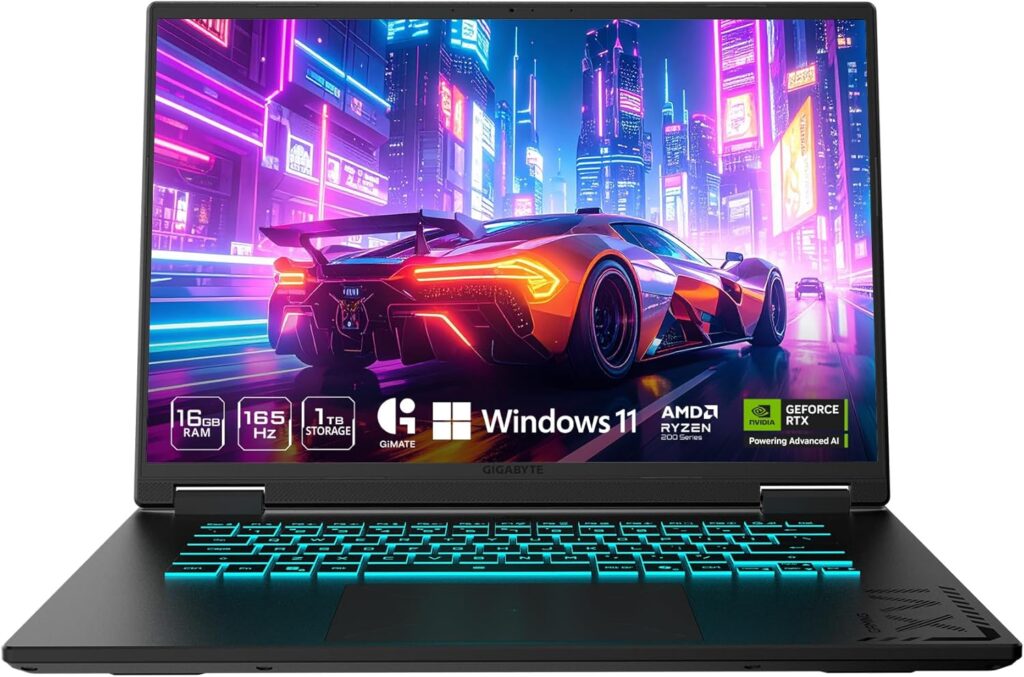
Maybe you’re just starting with Lumion. Maybe you’re a small-firm architect who renders occasionally, not daily. Maybe your budget simply has a hard ceiling. The Gigabyte Gaming A16 is my answer for all three: it’s the cheapest reliable way to get a full-power RTX 5070 — and that GPU comfortably clears Lumion’s “recommended” tier with a G3D score around 19,000.
Notice I said full-power. Gigabyte runs this 5070 at its maximum 115W, which means you’re getting everything the chip has to offer. Plenty of pricier laptops power-limit their GPUs; this humble machine doesn’t. That’s the kind of spec-sheet detail that doesn’t show up in marketing but absolutely shows up in your render times.
The compromises are real, though, and I want you to walk in clear-eyed. Eight gigabytes of VRAM is the ceiling that matters: it’s exactly Lumion’s minimum for 4K rendering, and big scenes with HD textures and heavy 3D grass will bump against it. The display is a basic full-HD-class IPS panel — fine for working, not for judging final colors. And 16GB of RAM out of the box is genuinely not enough for serious Lumion work, so plan an upgrade to 32GB as part of your real budget.
Key specs:
- CPU: Intel Core i7-13620H
- GPU: NVIDIA RTX 5070 Laptop (8GB) at full 115W TGP
- RAM: 16GB DDR5, upgradeable (upgrade to 32GB — seriously)
- Display: 16″ 1920×1200 IPS, 165Hz
- Storage: 1TB SSD
Pros:
- Cheapest path to a full-wattage RTX 5070 — no power-limiting shenanigans
- Clears Lumion’s recommended tier with headroom for typical residential projects
- RAM and storage are both upgradeable
- Sensible, low-key design
Cons:
- 8GB of VRAM is the hard limit — large scenes will stutter, and you’re at the bare minimum for 4K output
- Display is workable but dull, with limited color coverage — pair it with a decent external monitor
- 16GB of stock RAM needs upgrading before serious use (budget for today’s inflated RAM prices)
- Older 13th-gen CPU, though Lumion barely notices since it leans on the GPU
Who should buy it: Beginners, students on tight budgets, and occasional renderers. My honest advice: buy it, add RAM, connect an external monitor at your desk, and upgrade to a bigger machine only when your scenes start choking that 8GB of VRAM. You’ll know it’s happening when the viewport stutters and textures start looking soft.
How to Choose: My Buying Framework for Lumion Laptops
If none of my five picks quite fits, or you’re evaluating a deal on something else entirely, here’s the mental checklist I use:
Step 1: Start with VRAM, not the GPU name. Ask yourself what your typical project looks like:
- Small residential, interiors, student work: 8GB gets you started (RTX 5070 class)
- Professional residential and commercial: 12GB is the practical minimum (RTX 5070 Ti)
- The archviz sweet spot: 16GB handles nearly everything gracefully (RTX 5080)
- City-scale, dense vegetation, 8K output: 24GB, no substitutes (RTX 5090)
Step 2: Check the GPU wattage. Two laptops with “RTX 5080” stickers can perform 10–15% apart depending on whether that chip gets 120W or 175W. Manufacturers list TGP in the fine print; reviewers measure it. Look before you buy.
Step 3: Verify the PassMark math. If the GPU scores under 14,000 on G3D, it’s not a Lumion machine in 2026. Simple as that.
Step 4: Sort out RAM early. 32GB minimum, 64GB if you multitask with modeling software (you will). Given where memory prices are, decide now whether you’re buying it built-in or upgrading — and check whether the laptop even allows upgrades.
Step 5: Don’t skimp on storage. Lumion wants 105GB of free space just for itself, and project files balloon quickly. A 1TB NVMe SSD is the realistic floor.
Step 6: Think about your display situation. If you work at a desk most of the time, a mid-range laptop plus a quality 27-inch color-accurate external monitor often beats spending the same money on a marginally better GPU. Your eyes will thank you either way.
Laptop or Desktop for Lumion? The Honest Answer
I get this question constantly, so let’s settle it. A desktop gives you more rendering performance per dollar, better thermals, and cheap upgrades. If your machine never leaves the office, build a desktop.
But that’s a big “if.” Architecture is a mobile profession — site visits, client presentations, design reviews, working from home. The 2026 crop of laptops has narrowed the gap to the point where machines like the Legion Pro 7i and Strix Scar 18 are legitimate desktop replacements. You pay a premium for the portability, but you’re no longer sacrificing capability the way you were even three or four years ago.
My rule of thumb: if you present to clients or visit sites even once a week, get the laptop. If you render at the same desk every single day, build the desktop and buy a cheap laptop for everything else.
Frequently Asked Questions
Can Lumion run on a MacBook?
No — and this catches people off guard every year. Lumion is built exclusively for Windows on DirectX and CUDA, and Apple’s Metal graphics API isn’t supported. Technically you could wrestle Windows onto a Mac, but Lumion itself recommends against it because performance is poor. If Lumion is part of your workflow, you need a Windows laptop. All five picks above qualify.
What’s the minimum GPU for a smooth Lumion experience in 2026?
Practically speaking, an RTX 5070 (8GB) is the entry point for students and light users. Professionals should treat the RTX 5070 Ti (12GB) as the real minimum — it’s the cheapest laptop GPU that clears Lumion’s high-end tier.
Do I need ray tracing hardware for Lumion?
Need? No. Lumion works fine with its traditional rendering pipeline. But every current RTX card includes ray tracing hardware anyway, so it’s not a decision you actually have to make — you’ll have it. The ray-traced mode produces noticeably more realistic reflections and lighting, and it’s worth using once you have the hardware.
Is 32GB of RAM enough for Lumion?
It’s enough for Lumion alone. But you’ll rarely run Lumion alone — there’s always a modeling app, a browser, maybe Photoshop open alongside it. 32GB is the responsible floor; 64GB is the professional standard. With memory prices where they are in 2026, this is the one spec decision I’d urge you not to defer, especially on soldered-RAM machines.
How much storage does Lumion actually need?
The software wants 105GB of free space on its own, before your projects, assets, and everything else. Get at least 1TB of NVMe storage and you won’t be doing the delete-to-render dance six months in.
Will a gaming laptop work for Lumion?
Absolutely — most of this list is technically “gaming” hardware, and that’s no accident. Gaming laptops prioritize exactly what Lumion needs: powerful GPUs with strong cooling. The only things they sometimes lack are color-accurate displays and professional restraint in the design department. If those matter to you, that’s what the ProArt P16 is for.
Does Lumion use multiple GPUs?
No. Lumion uses one graphics card, full stop. Don’t pay for dual-GPU setups expecting faster renders.
Final Thoughts
If you take just one thing from this whole guide, make it this: for Lumion, the GPU is the machine. Get the VRAM right for your project scale, make sure the chassis can actually feed the chip its full wattage, back it up with 32–64GB of RAM, and everything else falls into place.
For most professionals, the Lenovo Legion Pro 7i Gen 10 is the answer — it simply gets the fundamentals right. Studios doing heavyweight work should look at the Strix Scar 18, road warriors and color perfectionists at the ProArt P16, students at the Helios Neo 16S AI, and budget-minded beginners at the Gigabyte Gaming A16.
One last practical tip before you pull the trigger: prices in 2026 are unusually jumpy thanks to the memory shortage, and configurations shuffle constantly. Whatever you’re eyeing, compare a couple of retailers on the day you buy, and double-check that the specific configuration — especially the RAM and the exact GPU variant — matches what you read here.
Happy rendering. May your viewports be smooth and your render queues short.

Hi, my name is Burak. I am a mechanical engineer. I have been writing laptop reviews for the Engineering Laptops website since 2020. Please feel free to contact me if you have any questions.





