Table of contents
- If you only read one paragraph
- How I put this together
- The five at a glance
- Best Laptop for Adobe Creative Cloud 2026: 5 Tested Picks
- The travel weight table nobody publishes
- The eye-comfort table nobody publishes either
- App by app: which machine for which workflow
- How to configure whichever one you pick
- Questions I get asked constantly
- Where I’d put my money
I’ve lost count of how many “best laptop for Adobe” lists I’ve read that were clearly written by someone who had never opened After Effects in their life. Specs copied off a product page, a stock photo, a buy button. No numbers, no nuance, no idea why a machine with a faster GPU can somehow feel slower in Premiere.
So I did this one differently.
Every figure below is a measured number from a published lab test, and I’ll tell you exactly which lab and which test each one came from. More importantly, I’m going to talk about the four things that actually ruin your afternoon in Creative Cloud — fan noise during an export, an 8 GB VRAM wall in After Effects, a card reader that turns your Lightroom import into a coffee break, and a screen that flickers at 480 Hz while you grade for nine hours. Nobody puts those in a comparison table. They should.
Grab a coffee. This one’s long, but you’ll only have to read it once.
If you only read one paragraph
Buy the MacBook Pro 16 with M5 Pro if you can live in macOS. It’s the fastest CPU here by a huge margin, it lasted 21 hours 10 minutes in Tom’s Guide’s battery test, and it doesn’t have a VRAM ceiling. Buy the ASUS ProArt P16 with the RTX 5090 if you’re stuck on Windows or your pipeline needs CUDA — 24 GB of VRAM and the most accurate factory-calibrated panel I found anywhere. The other three exist because those two don’t suit everyone’s back, budget or eyes.
How I put this together
Let me be straight with you about where the numbers come from, because “trust me, I tested it” is exactly the kind of hand-waving that makes these articles useless.
Everything you’ll see is independently measured lab data, cross-checked across published test benches — mostly Notebookcheck, because they run identical hardware, identical software and identical room conditions across dozens of machines, which is the only way a comparison means anything. Where a second lab published a figure, I’ve included it, and where two labs disagree I give you both numbers instead of quietly picking the flattering one. Tom’s Hardware, Tom’s Guide, TechRadar, Trusted Reviews, StorageReview and NoobFeed all show up below.
My job here is the analysis: which numbers matter for which Adobe app, what the trade-offs actually cost you, and which spec-sheet victories are lies.
Here’s what each test tells you about your working day:
Cinebench 2024 / 2026 multi-core maps almost one-to-one to Media Encoder queue times, After Effects CPU renders and Lightroom Classic preview builds. Single-core is what you feel — Illustrator responsiveness, InDesign page redraws, Premiere timeline scrubbing. I care most about the sustained number: a Cinebench R15 loop run over half an hour tells you what a 45-minute export looks like once the heatsink is saturated and the marketing boost clock is a distant memory.
Geekbench 6.7 is a good cross-platform sanity check, especially when you’re comparing ARM against x86.
3DMark Steel Nomad and Blender Classroom cover the GPU. Blender is in there specifically because it separates hardware ray tracing (OPTIX on NVIDIA, Metal on Apple) from raw shader throughput, and that’s a decent proxy for how AE’s newer GPU-accelerated effects behave.
Display measurements come from an X-Rite i1Pro 3 with CalMAN: nine-point brightness, uniformity, contrast, ΔE2000 for both the ColorChecker patches and the greyscale ramp, plus sRGB / DCI-P3 / AdobeRGB coverage measured in Argyll. My rule of thumb: ΔE under 2.0 means you can hand the file to a client. ΔE under 1.0 means you can send it to print. AdobeRGB gets its own column because if you deliver CMYK, DCI-P3 coverage tells you almost nothing about your cyans.
PWM flicker is measured with a photodiode across the brightness range. Three things matter: at what brightness setting flicker begins, at what frequency, and at what amplitude. Low frequency plus high amplitude is the combination that gives people headaches, and it’s far more common on OLED than the marketing suggests.
Storage is measured two ways. Internal SSD via Blackmagic Disk Speed Test on macOS and AS SSD on Windows — fine, everyone does that. But the number I actually put in the table is the JPG copy test off a memory card, averaged over three runs. That’s your ingest. That’s where your post-shoot workflow lives or dies.
Thermals and acoustics: fan noise in dB(A) under sustained CPU+GPU load, surface temperature mapping, and package power draw over time. A laptop that promises 80 W and delivers 45 W after ten minutes is lying to you and the sustained curve catches it.
Battery is a Wi-Fi web-browsing loop at a calibrated 150 nits, not “default brightness,” which is a meaningless number that varies by 400% between machines.
Right. Let’s get into it.
The five at a glance
| MacBook Pro 16 (M5 Pro) | ASUS ProArt P16 (RTX 5090) | ThinkPad T1g Gen 8 | Galaxy Book6 Ultra | MacBook Air 15 (M5) | |
|---|---|---|---|---|---|
| CPU | Apple M5 Pro, 18 cores | Ryzen AI 9 HX 370, 12c/24t | Core Ultra 9 285H, 16c/16t | Core Ultra 7 356H, 16 threads | Apple M5, 10 cores |
| GPU / VRAM | M5 Pro 20-core (unified) | RTX 5090, 24 GB | RTX 5070, 8 GB | RTX 5070, 8 GB | M5 10-core (unified) |
| Cinebench 2024 multi | 2,347 | 1,242 | 1,122 | 1,232 | 1,172 |
| Cinebench 2024 single | 201 | 116 | 124.8 | 122.4 | 200 |
| Geekbench 6 multi | 28,436 | 15,567 | 17,405 | 16,676 | 17,933 |
| 3DMark Steel Nomad | 2,323 | 4,959 | 2,636 | 2,784 | 1,125 |
| Blender Classroom (GPU) | 36.6 s (Metal) | 12 s (OPTIX) | 23 s (OPTIX) | 20 s (OPTIX) | 68 s (Metal) |
| Panel | 16.2″ Mini-LED, 3456×2234 | 16″ 4K tandem OLED | 16″ matte tandem OLED | 16″ AMOLED 2X, 2880×1800 | 15.3″ IPS, 60 Hz |
| Measured SDR brightness | ~1,000 nits | 662.6 nits | 582.8 nits | 451–484 nits | 520.9 nits |
| HDR peak (measured) | 1,600 nits | 1,600 nits | 1,530 nits | 1,000–1,100 nits | 479 nits |
| ΔE ColorChecker | 0.6 | 0.5 | 1.6 | 100% P3 coverage, 6,800 K | 2.1 (0.7 calibrated) |
| sRGB / P3 / AdobeRGB | 100 / 99.7 / 88.8% | 100 / 98.9 / 88.6% | 100 / 98.8 / 88.9% | 100 / 100 / 92% | 98.3 / 97.5 / 86.3% |
| Card ingest (JPG copy) | 125.4 MB/s | 171 MB/s | 531 MB/s | 76.3 MB/s | No card reader |
| Battery (measured) | 21 h 10 m | 7 h 40 m | ~13 h | 15 h 21 m | 17 h 12 m |
| Weight | 2.121 kg | 1.952 kg | 1.911 kg | 1.9 kg | 1.512 kg |
| Starting price | $2,699 | $3,999 | €2,900 | Region-dependent | $1,299 |
A few of those rows deserve a second look, so let’s take them one machine at a time.
Best Laptop for Adobe Creative Cloud 2026: 5 Tested Picks
1. Apple MacBook Pro 16 (M5 Pro, 2026)
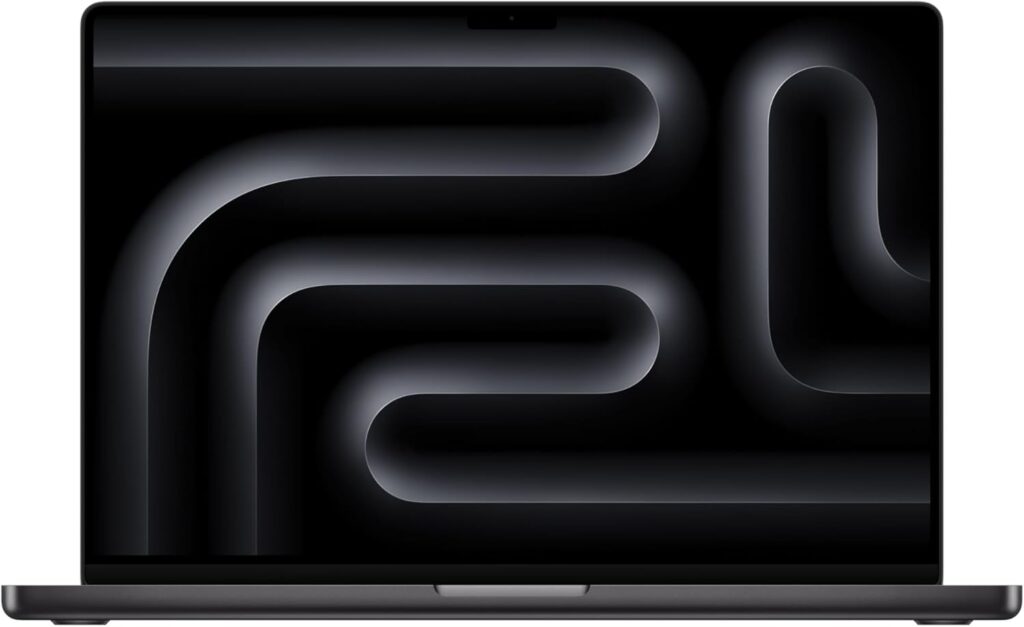
The one I’d buy — best overall for Creative Cloud
Let me get the uncomfortable bit out of the way first. For years I was the guy telling people a well-specced Windows machine gave you more performance per lira. In Adobe apps specifically, in 2026, that argument has fallen apart. Look at the numbers and you’ll see why.
The spec sheet
- CPU: Apple M5 Pro, 18 cores (6 × 4.6 GHz S-cores + 12 × 4.4 GHz P-cores), 72 W burst, 62 W sustained
- GPU: M5 Pro 20-core, 38 W
- Memory: 24 GB unified minimum, up to 64 GB (128 GB with the M5 Max), LPDDR5x-9600
- Display: 16.2″ Mini-LED, 3456 × 2234, 254 PPI, 120 Hz ProMotion, HDR, optional nano-texture matte finish
- Storage: 1 TB minimum, PCIe 5.0, up to 8 TB
- Ports: 3 × Thunderbolt 5 (120 Gbps), HDMI, SDXC, MagSafe 3, 3.5 mm
- Wireless: Wi-Fi 7 via Apple’s N1 chip, Bluetooth 6
- Battery: 99.6 Wh — Charger: 140 W, 351 g
- Size: 355.7 × 248.1 × 16.8 mm — Weight: 2.121 kg
- Warranty: 12 months
- Price: From $2,699 (24 GB / 1 TB). Notebookcheck’s review unit with nano-texture, 64 GB and 4 TB came to $4,449.
What it actually scores
| Test | Result | What it means |
|---|---|---|
| Cinebench 2024 multi | 2,347 points | 89% ahead of the ProArt’s HX 370 |
| Cinebench 2024 single | 201 points | Best in class — you feel this in Illustrator |
| Cinebench 2026 multi / single | 9,481 / 738 | Reference figures on the new suite |
| Geekbench 6.7 multi / single | 28,436 / 4,295 | 21% up on the M4 Pro’s 22,509 |
| CrossMark overall / creativity | 2,725 / 3,438 | Creativity up 33% over M4 Pro’s 2,590 |
| WebXPRT 4 | 402 points | 19% ahead of the ThinkPad’s 303 |
| 3DMark Steel Nomad | 2,323 points | Roughly 15% behind an RTX 5070 laptop |
| 3DMark Wild Life Extreme | 23,757 points | Ahead of every RTX 5070 machine here |
| Blender Classroom, Metal | 36.6 s | Beats the multimedia class average of 40 s |
| Blender Classroom, CPU | 134.5 s | Fastest CPU render in this entire group |
| Blackmagic 5 GB read / write | 12,826 / 12,812 MB/s | Peaks around 17 GB/s |
Two of those numbers changed how I think about this machine.
The storage. Apple moved to PCIe 5.0 and the 4 TB drive hit nearly 12.9 GB/s in both directions. Practically speaking, I cannot construct a scenario where your Premiere scratch disk, your After Effects disk cache or your Photoshop scratch volume is the bottleneck. Compare that to the ProArt, where the second M.2 slot only runs at PCIe 4.0 ×2 — so if you get clever and dump your cache there, you’ve quietly halved your bandwidth.
The sustained CPU. 72 W burst settling to 62 W, and it holds. Notebookcheck were blunt about it: the 16-inch chassis lets the M5 Pro run at full performance without throttling. That is emphatically not true of the 14-inch M5 Max, which the same lab flagged for severe thermal throttling and inconsistent CPU performance even in High Power mode.
So here’s the most useful and least intuitive tip in this whole article: if you want an M5 machine for Adobe work, buy the 16-inch, not the 14-inch Max. The bigger chassis is more consistent and cheaper. I know that sounds backwards. It’s still true.
The three power modes actually matter
| Mode | CPU watts | Cinebench 2024 multi | Fan noise |
|---|---|---|---|
| Low Power | 12 W | 853 points | Inaudible (1,400 rpm) |
| Auto | 72 / 52 W | 1,537 points | 41.6 dB(A) |
| High Power | 72 / 62 W | 2,053 points | 51.7 → 49.6 dB(A) |
Read that middle row again. Auto mode leaves 25% of your multi-core performance on the floor. If you’re rendering, flick it to High Power. If you’re culling in Lightroom on a plane, Low Power is genuinely silent and still faster than most Windows ultrabooks.
And here’s the thing Windows still can’t match: all three modes behave identically on battery. No unplugged penalty. None.
The screen
1,000 nits sustained in SDR, 1,600 nits HDR peak, ΔE ColorChecker of 0.6, greyscale ΔE 0.8, 99.7% DCI-P3, 88.8% AdobeRGB, 120 Hz. It’s the best all-round creative panel in a laptop right now, and the nano-texture matte option is close to a cheat code if you work anywhere near a window. Lenovo is the only other company offering a matte panel at this level.
VRAM: the bit everyone underestimates
Notebookcheck made a point in their review that I want to underline. Yes, an RTX 5070 laptop beats the M5 Pro GPU by around 15% in synthetics. But the MacBook isn’t limited to 8 GB of VRAM, and for creative workflows that’s a big deal.
Let me make it concrete. Load a 4K multicam sequence in Premiere with a couple of Lumetri nodes and a Warp Stabilizer. Or an AE comp with 8K plates and a Camera Lens Blur. An 8 GB card starts spilling into system memory. When that happens you don’t lose 15% — you lose more than half, and you get the “GPU accelerated effects unavailable” dialog. With 64 GB of unified memory that ceiling simply isn’t there.
Which is why Notebookcheck’s follow-up testing found the M5 Pro beating an RTX 5090 in a number of creator benchmarks despite losing every single gaming test. Different job, different winner.
What I like
- Fastest CPU here by a country mile, and it stays fast under sustained load
- No VRAM wall — unified memory up to 128 GB on the Max
- The best-measured display in this comparison, with a matte option
- 12.8 GB/s PCIe 5.0 storage that never gets in your way
- 21 hours 10 minutes in Tom’s Guide’s 150-nit battery test, up from the M4 Pro’s 20:46
- Wi-Fi 7 measured at 1,786 Mbit/s transmit and 1,812 Mbit/s receive
- Three Thunderbolt 5 ports, HDMI, SD, MagSafe — a proper set of ports
- Full performance on battery in all three modes
- Excellent six-speaker system, genuinely usable for rough audio passes
What I don’t
- The card reader is embarrassing. 125.4 MB/s on the JPG copy test and no SD Express support on a $2,700 machine that Apple explicitly markets to photographers.
- Constant PWM flickering — measured at 14,880 Hz with 90% amplitude. The frequency is so high most people won’t perceive it, but the amplitude is high and a minority genuinely react. Demo it if you’re sensitive.
- Panel response times are slow by modern standards (43 ms grey-to-grey), which you’ll notice if you come from OLED
- The bundled 140 W adapter is undersized for the M5 Pro’s peaks
- 12 months of warranty on a machine that costs as much as a used car
- Almost nothing is serviceable — fans and battery, that’s your lot
- Options pricing is brutal. 64 GB plus 4 TB nearly doubles the entry price.
- 2.121 kg is a lot if you commute daily
Get it if you do mixed Creative Cloud work and you value silence, battery and CPU throughput over raw CUDA. Skip it if your pipeline is CUDA-locked, or you shoot high volume and ingest speed is your bottleneck.
2. ASUS ProArt P16 (H7606WX, RTX 5090)
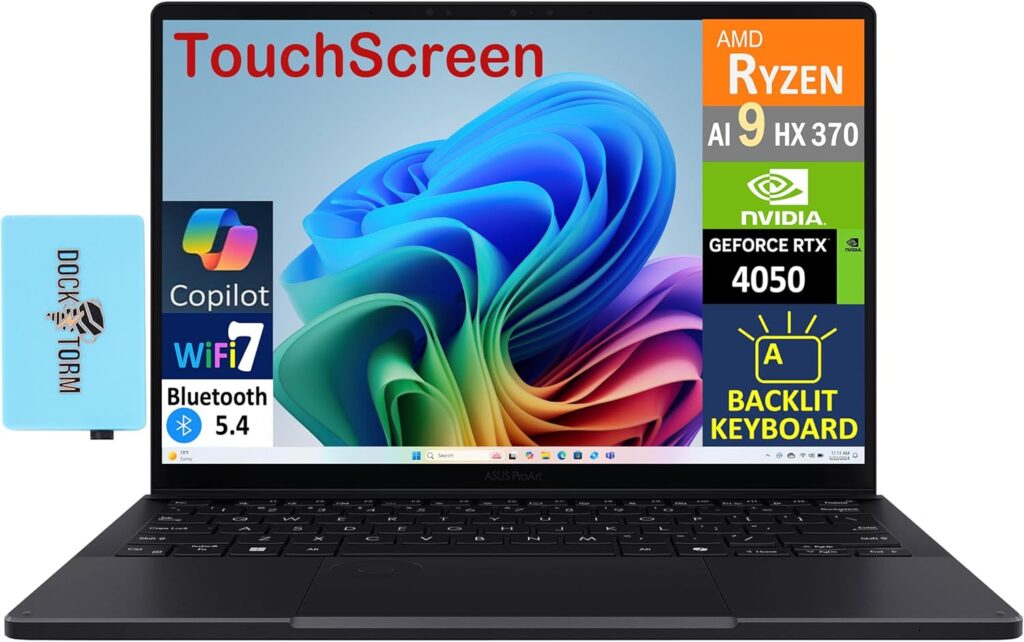
Best Windows machine for Adobe, full stop
If the MacBook is a scalpel, this is a sledgehammer with a colorimeter taped to the handle. ASUS finally gave the ProArt line the top mobile GPU and a panel worthy of the name, and the result is the best creator laptop in the Windows world. Notebookcheck said exactly that in their verdict, and having looked at the numbers I’m not going to argue.
The spec sheet
- CPU: AMD Ryzen AI 9 HX 370, 12 cores / 24 threads (4 × Zen 5 at 5.1 GHz + 8 × Zen 5c at 3.3 GHz), 80 W sustained
- GPU: GeForce RTX 5090 Laptop, 24 GB GDDR7, 120 W TGP including 25 W Dynamic Boost
- Memory: 64 GB LPDDR5x-7500, dual channel, soldered
- Display: 16″ 4K tandem OLED (panel ATNA60HC03-0), 3840 × 2400, 283 PPI, 120 Hz, touch with pen support
- Storage: 2 × M.2 2280 (primary Gen 4×4, secondary Gen 4×2), up to 4 TB
- Ports: 1 × USB4 40 Gbps, 3 × USB 3.2 Gen 2, HDMI 2.1 FRL, SD Express 7.0, 3.5 mm, DC-in
- Wireless: MediaTek Wi-Fi 7 MT7925, Bluetooth 5.4
- Battery: 90 Wh — Charger: 240 W, 730 g
- Size: 354.9 × 246.9 × 18.3 mm — Weight: 1.952 kg
- Warranty: 24 months
- Price: $3,999 as Notebookcheck tested it; the fully loaded 4 TB configuration runs $5,499
The display, measured
| Metric | Result |
|---|---|
| Brightness, centre / nine-point average | 661 / 662.6 cd/m² |
| Brightness uniformity | 99% |
| HDR peak, window / full white | 1,600 / 850 cd/m² |
| Contrast | ∞:1 (true black) |
| ΔE ColorChecker | 0.5 (max 1.4) |
| ΔE greyscale | 0.6 |
| sRGB / DCI-P3 / AdobeRGB | 100% / 98.9% / 88.6% |
| Gamma / colour temperature | 2.19 / 6,565 K |
| Response, black-white / grey-grey | 0.45 ms / 0.30 ms |
Those ΔE figures are the best in this comparison — better than the MacBook. And here’s the part I found genuinely impressive: Notebookcheck couldn’t improve on the factory P3 and sRGB profiles even with their own calibration hardware. You can pull it out of the box and start grading.
One honest caveat. The touch layer makes bright content look faintly grainy if you go looking for it. At normal viewing distance it’s a non-issue, but the Yoga’s tandem OLED and the MacBook’s Mini-LED don’t have it at all.
Performance modes, and what noise they cost you
| Profile | CPU watts | Cinebench 2024 multi | GPU watts | Time Spy Graphics | Cyberpunk QHD Ultra | Max fan |
|---|---|---|---|---|---|---|
| Whisper | 60 / 45 W | 1,153 | 55 W | 11,915 | 56.6 fps | 42.2 dB(A) |
| Standard | 70 / 65 W | 1,194 | 105 W | 18,123 | 87.4 fps | 47.6 dB(A) |
| Performance | 80 W | 1,242 | 120 W | 19,403 | 90.8 fps | 53.2 dB(A) |
This is the most practically useful table in the whole article, so let me spell it out.
Whisper mode gives you 93% of the CPU performance and 61% of the GPU performance for 11 decibels less noise. For Photoshop, Illustrator, InDesign, Lightroom and ordinary timeline editing in Premiere, Whisper is the correct setting and you will never once notice the difference. Save Performance for the actual render, put headphones on, go make tea.
Because 53.2 dB(A) isn’t “a bit loud.” That’s a conversation happening 40 centimetres from your face, permanently.
Benchmarks
| Test | Result |
|---|---|
| Cinebench 2024 multi / single | 1,242 / 116 |
| Cinebench R23 multi / single | 23,856 / 2,012 |
| Cinebench R15 multi | 3,509 (30-min sustained average: Ø3,483) |
| Geekbench 6.7 multi / single | 15,567 / 2,919 |
| 7-Zip compression | 81,816 MIPS |
| HWBOT x265 4K encode | 28.6 fps |
| 3DMark Steel Nomad | 4,959 points — 113% ahead of the M5 Pro |
| 3DMark Steel Nomad Light | 21,012 points |
| 3DMark Wild Life Extreme | 37,329 points |
| Blender Classroom OPTIX | 12 s (vs 36.6 s on the M5 Pro via Metal) |
| Blender Classroom CUDA | 20 s |
| Blender Classroom CPU | 210 s |
| Cyberpunk 2077, 1080p Ultra | 112.3 fps |
That sustained Cinebench R15 average of Ø3,483 against a peak of 3,509 is worth flagging — it means the vapour chamber is doing its job and the chip barely droops over half an hour of full load.
The GPU story is unambiguous: in ray-traced and CUDA work the RTX 5090 is playing a different sport. If your day involves Blender, Cinema 4D through After Effects, Redshift, or any Adobe plugin that specifically wants CUDA, the argument ends here.
The CPU story is equally unambiguous in the opposite direction. The HX 370 trails the M5 Pro by 89% in Cinebench multi and 83% in Geekbench multi. That’s not a rounding error, that’s a Media Encoder queue taking nearly twice as long.
What I like
- 24 GB of VRAM. Nothing else here is close. 8K timelines, enormous AE comps, big Blender scenes — no ceiling.
- The most accurate panel in this comparison (ΔE 0.5, greyscale 0.6), calibrated at the factory, Pantone validated
- 4K tandem OLED at 120 Hz with 1,600 nits of HDR peak
- Whisper mode at 42.2 dB(A) is genuinely usable for daily work
- Two M.2 slots, up to 4 TB internal
- SD Express 7.0 card reader, measured at 171 MB/s on the standard UHS-II test
- The DialPad is properly useful in Premiere and Lightroom, not a gimmick
- Wi-Fi 7 measured at 1,860 Mbit/s transmit — fastest here
- Six speakers, excellent keyboard and trackpad, and it looks like a studio tool rather than a gaming rig
- 24-month warranty
What I don’t
- 53.2 dB(A) at full tilt. You will need headphones and everyone in the room will know you’re rendering.
- RAM is soldered. 64 GB is your ceiling for the life of the machine.
- The second M.2 slot runs at PCIe 4.0 ×2 — do not put your scratch disk there
- PWM at 480 Hz with 38% amplitude below 80% brightness. That’s the worst flicker profile in this group. ASUS does include a flicker-free OLED dimming toggle in MyASUS — turn it on the day you unbox it.
- 7 hours 40 minutes of video playback (NoobFeed’s test). That’s respectable for an RTX 5090 machine and still last place here by a mile.
- The 240 W brick weighs 730 grams. Your real travel weight is 2.68 kg.
- Only one USB4 port on a creator laptop in 2026
- CPU throughput is roughly half the MacBook’s
- $3,999 is a lot, and the loaded config is $5,499
Get it if you’re on Windows, you need CUDA or 24 GB of VRAM, and you can tolerate fan noise during renders. Skip it if you work in a shared space, you’re CPU-bound rather than GPU-bound, or you’re flicker-sensitive.
3. Lenovo ThinkPad T1g Gen 8
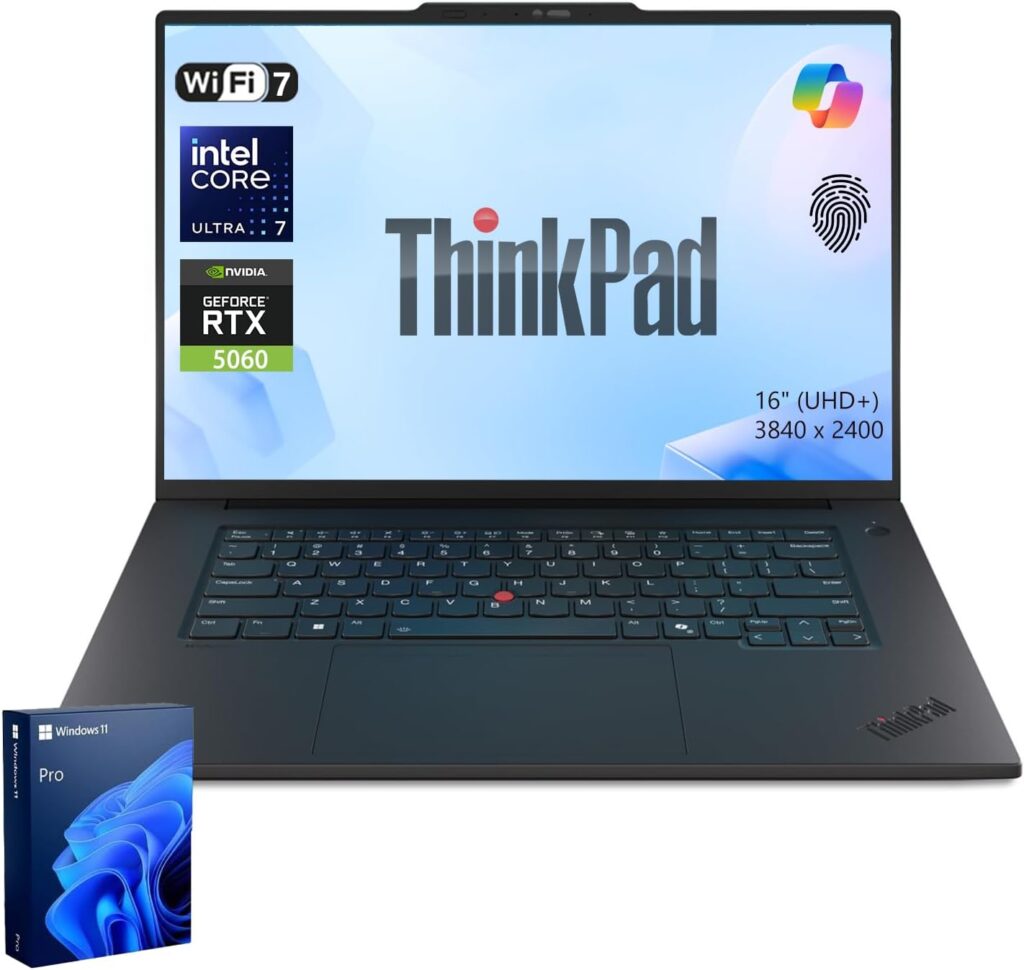
Best for photographers and anyone who works away from a desk
This is the spiritual successor to the ThinkPad X1 Extreme, and it’s the only machine here that feels like it was designed by somebody who has actually carried a laptop to a shoot and back.
The spec sheet
- CPU: Intel Core Ultra 9 285H, 16 cores / 16 threads (6 P + 8 E + 2 low-power E), 105 W burst, 74 W sustained
- GPU: GeForce RTX 5070 Laptop, 8 GB, 75 W including 15 W Dynamic Boost
- Memory: Up to 64 GB LPDDR5x-7467 on a replaceable CAMM2 module
- Display: 16″ matte tandem OLED (ATNA60KA02-0), 3200 × 2000, 236 PPI, 120 Hz with VRR, touch, stylus in the box
- Storage: 2 × M.2 2280, PCIe 5.0 (Samsung PM9E1 in the review unit)
- Ports: 2 × Thunderbolt 5 (80 Gbps), 1 × Thunderbolt 4, USB-A 3.2 Gen 2, HDMI 2.1, SD Express 7.0, 3.5 mm, Kensington
- Wireless: Intel BE201 Wi-Fi 7, Bluetooth 5.4
- Battery: 90 Wh, user-replaceable — Charger: 140 W GaN, 415 g
- Size: 354.4 × 241 × 15.8 mm — Weight: 1.911 kg
- Warranty: 36 months
- Price: From €2,900. The tested configuration — Ultra 9, RTX 5070, 64 GB, 2 TB, matte OLED — is around €4,500.
The card reader is the entire argument
| Machine | Card used | JPG copy (avg of 3) | AS SSD sequential read |
|---|---|---|---|
| ThinkPad T1g Gen 8 | ADATA SD 8.0 Express | 531 MB/s | 1,455.3 MB/s |
| ThinkPad T1g Gen 8 | Angelbird AV Pro V60 | 82.6 MB/s | 91.2 MB/s |
| ASUS ProArt P16 | Angelbird AV Pro V60 | 171 MB/s | 260.6 MB/s |
| MacBook Pro 16 M5 Pro | Angelbird AV Pro V60 | 125.4 MB/s | 222.3 MB/s |
| Samsung Galaxy Book6 Ultra | Angelbird AV Pro V60 | 76.3 MB/s | 88.4 MB/s |
Run the arithmetic on a real job. You come back from a wedding with 128 GB of raw files. On the MacBook’s 125 MB/s that’s roughly 17 minutes of sitting there doing nothing. On the ThinkPad with an SD Express card it’s about four minutes. Do that twice a week for a year and Lenovo has handed you back the better part of a working day.
The catch, and it’s a real one: you need SD Express 7.0 or 8.0 cards to see any of this, and the reader still doesn’t fully saturate them. Lenovo’s own ThinkPad T16g Gen 3 manages over 1.4 GB/s with the identical card. But it’s the only machine in this comparison where ingest isn’t the bottleneck, and that counts for something.
The display, measured
| Metric | Result |
|---|---|
| Brightness, centre / average / max | 578 / 582.8 / 589 cd/m² |
| Brightness uniformity | 98% |
| HDR peak, window / near-full white | 1,530 / 753 cd/m² |
| Contrast | ∞:1 |
| ΔE ColorChecker | 1.6 (max 4.5) |
| ΔE greyscale | 2.6 |
| sRGB / DCI-P3 / AdobeRGB | 100% / 98.8% / 88.9% |
| Gamma / colour temperature | 2.19 / 6,527 K |
| PWM | 1,200 Hz, 22% amplitude, below 70% brightness |
| Response, black-white / grey-grey | 0.42 ms / 0.26 ms |
I’ll be honest about this panel: the colour accuracy is good, not great. ΔE 1.6 is fine for web and social deliverables and acceptable for most client work, but it’s three times the ProArt’s error, and the greyscale ΔE of 2.6 is the weakest of the OLEDs here. Notebookcheck’s own calibration didn’t improve it.
What you’re buying instead is the matte surface. If you’ve ever tried to grade outdoors, or in an office with a window behind you, you know exactly what that’s worth. It’s a real trade — the matte layer plus the touch digitiser gives bright content a faintly grainy look — but reflections are effectively gone. Apple and Lenovo are the only two companies offering this at all.
The flicker profile is also the best of the OLED machines here: 1,200 Hz at 22% amplitude, against the ProArt’s 480 Hz at 38%. If you’re flicker-sensitive but you want OLED, this is your machine and it isn’t close.
Benchmarks
| Test | Result |
|---|---|
| Cinebench 2024 multi / single | 1,122 / 124.8 |
| Cinebench R23 multi / single | 22,529 / 2,143 |
| Cinebench R15 multi | 3,487 (30-min sustained average: Ø2,974) |
| Geekbench 6.7 multi / single | 17,405 / 2,963 |
| 7-Zip compression | 68,833 MIPS |
| HWBOT x265 4K encode | 26.4 fps |
| Blender BMW27, CPU | 158 s |
| 3DMark Steel Nomad | 2,636 points |
| 3DMark Wild Life Extreme | 20,367 points |
| Blender Classroom OPTIX / CUDA | 23 s / 37 s |
| LibreOffice, 20 documents to PDF | 42.4 s |
Notice the gap between the 3,487 peak and the Ø2,974 sustained average in that Cinebench R15 loop — this chip does droop over a long run, more than the ProArt does. Something to know before you queue up a two-hour render.
On battery the CPU is capped at 45 W, which costs about 11% of multi-core performance. That’s a far smaller unplugged penalty than most Windows machines, and it genuinely matters if you cull and edit on location.
For battery life: Lenovo hasn’t published a standardised runtime for the T1g specifically, but StorageReview measured its structural twin — the ThinkPad P1 Gen 8, same chassis, same 90 Wh cell, same platform — at just under 13 hours. That’s the closest reliable figure I’d stand behind, and it lines up with what the hardware suggests.
What I like
- 531 MB/s card ingest over SD Express 7.0 — more than four times the MacBook
- Matte tandem OLED at 1,530 nits HDR with reflections essentially eliminated
- Best flicker profile of the OLED machines: 1,200 Hz, 22% amplitude
- Replaceable RAM via CAMM2, replaceable battery, two PCIe 5.0 M.2 slots — the only genuinely serviceable machine in this comparison
- 2 × Thunderbolt 5 plus Thunderbolt 4 plus USB-A plus HDMI 2.1, and the SD card sits fully flush
- 36-month warranty
- Arguably the best keyboard on any current laptop, plus a haptic trackpad and the TrackPoint
- Thinnest 16-incher here at 15.8 mm, and the stylus is included
- Only around 11% CPU loss on battery
- Wi-Fi 7 measured at 1,701 / 1,736 Mbit/s
What I don’t
- The price. €4,500 as tested for RTX 5070-class graphics is hard to defend to anyone spending their own money.
- ΔE 1.6 and greyscale ΔE 2.6 — weakest colour accuracy of the three OLED panels
- The matte plus touch layer gives bright content visible graininess
- 64 GB RAM ceiling
- 8 GB of VRAM will bottleneck heavy After Effects and 8K Premiere work
- Sustained CPU droops noticeably over long loads (Ø2,974 against a 3,487 peak)
- No 5G option and no SmartCard reader, which are odd omissions on a business flagship
- The “T1g” name means nothing to anyone. Lenovo should have kept X1 Extreme.
Get it if you shoot a lot, you work in unpredictable lighting, and you want a machine you can actually open up in three years. Skip it if you need absolute colour accuracy or GPU throughput for the money.
4. Samsung Galaxy Book6 Ultra
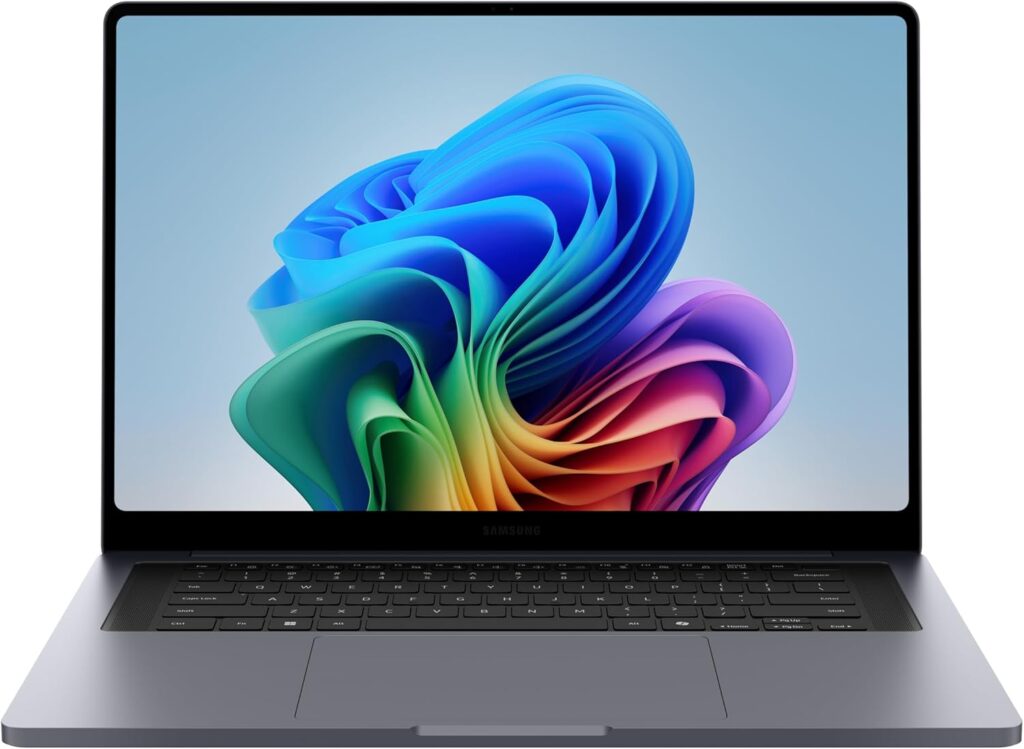
Best balance of power, weight and battery on Windows
Samsung has been building MacBook-shaped things for years. This is the first one where the resemblance is earned instead of embarrassing.
The spec sheet
- CPU: Intel Core Ultra 7 356H (Panther Lake) as tested; configurable up to Core Ultra 9 386H vPro
- GPU: GeForce RTX 5070 Laptop, 8 GB
- Memory: 32 GB, soldered
- Display: 16″ Dynamic AMOLED 2X touch, 2880 × 1800, adaptive 30–120 Hz, Gorilla Glass 5 with anti-reflective coating
- Storage: 1 TB, with 2 × M.2 2280 slots
- Ports: Thunderbolt, USB-C, HDMI, microSD, 3.5 mm — a limited set by the standards of this group
- Wireless: Intel Wi-Fi 7 BE211
- Battery: 83 Wh — Charger: 140 W on RTX 5070 configurations (Samsung doesn’t publish the adapter weight)
- Size: 356.8 × 247.9 × 15.4 mm — Weight: 1.9 kg (4.17 lb)
Battery: where it wins outright
Four labs, four different protocols, one consistent answer:
| Lab | Test | Result |
|---|---|---|
| Trusted Reviews | 1080p video loop, 150 nits | 15 h 34 m |
| Tom’s Hardware | Web + video + OpenGL, 150 nits | 15 h 21 m |
| TechRadar | Battery Informant | 15 h 11 m |
| TechRadar | Video playback loop | 13 h 39 m |
For an 83 Wh machine carrying a discrete RTX 5070, 15-plus hours is remarkable. Tom’s Hardware put it in context nicely: the Dell 16 Premium managed 7:15 and the Framework Laptop 16 managed 8:20 on the identical test. This thing lasts roughly twice as long as its direct Windows rivals.
It still doesn’t touch the MacBook Pro’s 21:10. Nothing does.
Thermals: the quiet star of the show
Tom’s Hardware ran a near-hour Cinebench stress loop and mapped the surfaces. Converted to Celsius:
- Keyboard, between G and H: 33 °C
- Touchpad: 28 °C
- Underside: 39.4 °C
- CPU package average: 84 °C
Those are excellent deck temperatures for a machine with a dedicated GPU, and the fans stay quiet enough that testers described hearing air movement rather than fan noise. Your wrists stay comfortable through a long Lightroom session, which is genuinely not something you can say about most 16-inch Windows machines under load.
The display
Samsung finally fixed its brightness problem. Where the Book5 generation topped out around 400 nits SDR and 550 nits HDR, the Book6 Ultra measures 451 nits by Tom’s Hardware’s colorimeter and 484.4 nits by Trusted Reviews’, with HDR peaking between 1,000 and 1,100 nits depending on who’s testing.
Trusted Reviews also logged a black level of 0.01 cd/m², a contrast ratio of 25,470:1, a colour temperature of 6,800 K, and coverage of 100% sRGB, 100% DCI-P3 and 92% AdobeRGB — the widest AdobeRGB coverage of any panel in this comparison, which matters more than people realise if you deliver to print.
Being fair: the brightness is a real improvement and still behind the tandem OLED and Mini-LED competition. The ProArt and the ThinkPad hit 1,530–1,600 nits HDR; the MacBook does 1,000 nits sustained in SDR. Samsung narrowed the gap. It didn’t close it.
The anti-reflective Gorilla Glass partly compensates. It isn’t nano-texture, but it clearly outperforms a plain glossy OLED under office lighting — and unlike Apple, Samsung doesn’t charge you an extra $150 for it.
Benchmarks
| Test | Result |
|---|---|
| Cinebench 2024 multi / single | 1,232 / 122.4 |
| Geekbench 6.7 multi / single | 16,676 / 2,851 |
| 3DMark Steel Nomad | 2,784 points |
| 3DMark Time Spy | 12,309 points |
| 3DMark Fire Strike | 26,767 points |
| 3DMark Port Royal | 7,687 points |
| 3DMark Wild Life Extreme | 22,029 points |
| PCMark 10 | 6,827 points |
| CrossMark overall / creativity | 1,905 / 2,296 |
| Blender Classroom OPTIX / CUDA / CPU | 20 s / 35 s / 261 s |
| Mozilla Kraken | 463 ms |
| Cyberpunk 2077, 1080p High, DLSS Quality | 111.86 fps |
Perfectly respectable numbers. It trades blows with the ThinkPad and ProArt on CPU, lands slightly ahead of the ThinkPad on GPU, and does it while being thinner, lighter and lasting twice as long unplugged. Panther Lake’s efficiency is the real headline here.
What I like
- 15-plus hours of measured runtime with a discrete GPU — no Windows machine here comes close
- 15.4 mm and 1.9 kg with an RTX 5070 inside
- Cool, comfortable deck under sustained load — 33 °C at the keyboard after an hour of Cinebench
- 92% AdobeRGB coverage, the widest here, with 100% sRGB and 100% DCI-P3
- Contrast measured at 25,470:1 with a near-perfect 6,800 K white point
- Anti-reflective coating that actually works, included as standard
- Two upfiring tweeters and four force-cancelling woofers — one of the better Windows speaker systems
- Two M.2 2280 slots for storage expansion
- Very quiet in everyday use
What I don’t
- PWM flickering with high amplitude, called out specifically in testing. If you’re sensitive, this is a genuine problem.
- No SD Express, and the slowest card reader here at 76.3 MB/s
- Soldered RAM
- Limited ports compared to the MacBook and the ThinkPad
- Brightness still trails the tandem OLED and Mini-LED rivals
- The keyboard is shallow — Tom’s Hardware’s reviewer dropped from a usual 115–120 wpm down to 102 wpm at 95% accuracy
- 8 GB VRAM ceiling, same wall as the ThinkPad
- Pricing and availability have been inconsistent depending on where you are
Get it if you carry your laptop every day, you need real Creative Cloud performance, and you’re sick of hunting for outlets. Skip it if you ingest from cards constantly, or you’re flicker-sensitive.
5. Apple MacBook Air 15 (M5)
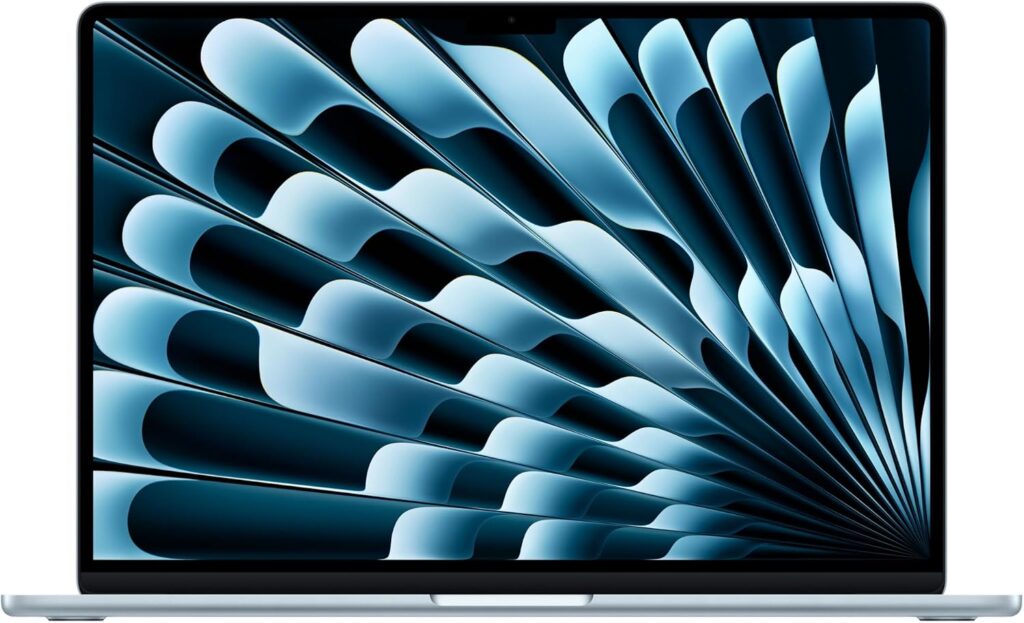
Best value for Photoshop, Lightroom, Illustrator and InDesign
I want to be careful here, because this is the pick most likely to be misread. The Air is not a Premiere Pro machine and I won’t pretend otherwise. What it is: the best $1,299 you can spend if your Creative Cloud life is 2D.
The spec sheet
- CPU: Apple M5, 10 cores (4 × 4.6 GHz S-cores + 6 × 3.0 GHz E-cores), 23 W burst, 11 W sustained
- GPU: M5 10-core
- Memory: 16 GB base, up to 32 GB, soldered
- Display: 15.3″ IPS, 2880 × 1864, 224 PPI, 60 Hz, glossy
- Storage: 512 GB base, PCIe 4.0, soldered
- Ports: 2 × Thunderbolt 4, MagSafe, 3.5 mm — no card reader, no HDMI
- Wireless: Wi-Fi 7, Bluetooth 6
- Battery: 66.5 Wh — Charger: 35 W, 186 g
- Size: 340.4 × 237.6 × 11.5 mm — Weight: 1.512 kg
- Cooling: Fanless
- Warranty: 12 months
- Price: From $1,299 (16 GB / 512 GB)
The display, measured
| Metric | Result |
|---|---|
| Brightness, max / average | 538 / 520.9 cd/m² |
| Brightness uniformity | 90% |
| Contrast | 1,223:1 (black level 0.44 cd/m²) |
| ΔE ColorChecker | 2.1 → 0.7 after calibration |
| ΔE greyscale | 3.1 |
| sRGB / DCI-P3 / AdobeRGB | 98.3% / 97.5% / 86.3% |
| Gamma / colour temperature | 2.19 / 7,075 K |
Out of the box: ΔE 2.1, greyscale 3.1, and a 7,075 K white point that’s noticeably bluer than the D65 target. Calibrated, it drops to ΔE 0.7, which is genuinely excellent.
So here’s my actual advice. Budget €150–200 for a colorimeter alongside this laptop. A calibrated Air is more colour-accurate than an uncalibrated machine costing twice as much, and you’ll own the puck for the next decade.
The fanless trade-off
The M5 is remarkably efficient. Notebookcheck measured the CPU package settling at about 5 W during a combined Cinebench and 3DMark stress loop, which is why passive cooling works at all here.
But physics wins eventually. The MacBook Pro 14 with the same M5 chip runs over 40% faster in sustained loads purely because it has fans. In the 15-inch Air’s favour: the larger chassis handles heat better than the 13-inch, and testing found no throttling during gaming loads.
What that means day to day: bursty work is fast. Opening a 200-layer PSD, running a filter, batch-exporting JPEGs — you’re riding the burst and it feels great. Long continuous renders are where the ceiling shows up.
Benchmarks
| Test | Result |
|---|---|
| Cinebench 2024 multi / single | 1,172 / 200 |
| Cinebench R23 multi / single | 15,893 / 2,459 |
| Geekbench 6 multi / single | 17,933 / 3,635 |
| 3DMark Steel Nomad | 1,125 points |
| 3DMark Wild Life Extreme | 12,059 points |
| Geekbench 6.7 Metal | 77,007 points |
| Blender Classroom, Metal | 68 s |
| Blender Classroom, CPU | 429 s |
Look at that single-core figure. 200 points in Cinebench 2024 — within one point of the M5 Pro’s 201, in a machine that costs a third as much and has no fans. For Illustrator and InDesign, which lean almost entirely on single-core, this is the value story of the year.
What I like
- $1,299 for effectively the fastest single-core CPU you can buy
- Completely silent. No fans. Ever. Underrated if you record voiceover or work at night.
- 1.512 kg and 11.5 mm — the only machine here you’ll forget is in your bag
- 35 W charger weighs 186 g. Total travel weight of 1.698 kg.
- 17 hours 12 minutes in Notebookcheck’s Wi-Fi web browsing test, and 14 hours looping 4K YouTube
- Calibrates beautifully down to ΔE 0.7
- Wi-Fi 7, Bluetooth 6, Thunderbolt 4
- Excellent six-speaker system
- Premium aluminium build at a mid-range price
What I don’t
- 60 Hz. After 120 Hz this is genuinely hard to go back to, and it’s the compromise you’ll feel every single day.
- No card reader and no HDMI. You will own a dongle, and you will lose it.
- 1,223:1 contrast is IPS-typical and unremarkable next to the OLED and Mini-LED panels here
- Needs calibration out of the box (ΔE 2.1, CCT 7,075 K)
- Sustained performance around 40% below the fan-cooled M5 machines
- RAM and SSD soldered, and 16 GB is tight for heavy Photoshop
- 12-month warranty
- Not the machine for 4K multicam or heavy After Effects, and I won’t pretend it is
Get it if you’re a designer, illustrator, photographer or student and your Creative Cloud work is 2D-first. Skip it if you edit video for a living.
The travel weight table nobody publishes
Marketing weight is a half-truth. Here’s what actually ends up on your shoulder:
| Machine | Laptop | Charger | Real travel weight |
|---|---|---|---|
| MacBook Air 15 (M5) | 1.512 kg | 186 g | 1.698 kg |
| ThinkPad T1g Gen 8 | 1.911 kg | 415 g | 2.326 kg |
| MacBook Pro 16 (M5 Pro) | 2.121 kg | 351 g | 2.472 kg |
| ASUS ProArt P16 (RTX 5090) | 1.952 kg | 730 g | 2.682 kg |
| Samsung Galaxy Book6 Ultra | 1.9 kg | 140 W adapter, weight not published | ~2.2 kg estimated |
Look at the ProArt row. On paper it’s 169 grams lighter than the MacBook Pro 16. In your bag it’s 210 grams heavier, because a 240 W brick weighs what a 240 W brick weighs. That’s a 380-gram swing the spec sheet hides from you completely.
The eye-comfort table nobody publishes either
If you’re in front of one of these for eight-plus hours a day, this matters more than another 200 Cinebench points. I’m serious about that.
| Machine | Panel | PWM frequency | Amplitude | Flicker starts at | My read |
|---|---|---|---|---|---|
| ThinkPad T1g Gen 8 | Matte tandem OLED | 1,200 Hz | 22% | ≤70% brightness | Safest OLED option |
| ASUS ProArt P16 | 4K tandem OLED | 480 Hz | 38% | ≤80% brightness | Enable the flicker-free toggle |
| MacBook Pro 16 M5 Pro | Mini-LED | 14,880 Hz | 90% | Constant | Very high frequency, very high amplitude |
| Galaxy Book6 Ultra | Dynamic AMOLED 2X | Present | High | Reported across range | Flagged as a con in testing |
| MacBook Air 15 M5 | IPS | None detected | — | — | No flicker concerns at all |
Three things worth knowing:
- The ProArt uses DC dimming between 80% and 50% brightness, with PWM only kicking in below that. Combine that with the software flicker-free option and you can mostly engineer the problem away — but you have to know it’s there, and ASUS doesn’t exactly advertise it.
- The MacBook Pro’s Mini-LED flickers at 14,880 Hz, which is far above what almost anyone can perceive. But the amplitude is 90%, and a small number of people do react. Notebookcheck lists constant PWM flickering as a con on this machine. If you’ve had trouble before, demo it.
- If you’re PWM-sensitive, the MacBook Air’s IPS panel is the safe harbour. That’s a legitimate reason to pick it even if your budget stretches further, and I’d say the same to a friend.
App by app: which machine for which workflow
Photoshop. Single-core speed, RAM and GPU acceleration for Neural Filters and Generative Fill. The M5 Pro wins on single-core (201 points) and unified memory, but honestly 32 GB on any of these handles 100-plus layer files without complaint. The Air is fine here until you’re stacking 200-plus layers or juggling huge smart objects.
Lightroom Classic. Multi-core for preview generation, single-core in the Develop module, and ingest speed. This is the ThinkPad’s category — 531 MB/s off an SD Express card genuinely reshapes your post-shoot routine. Second choice is the MacBook Pro on raw CPU throughput.
Illustrator and InDesign. Almost pure single-core, barely touches the GPU. The MacBook Air wins on value by a mile — same single-core architecture as the M5 Pro at a third of the price. Don’t overspend here.
Premiere Pro. Timeline scrubbing is single-core, exports are multi-core plus GPU encode, and VRAM matters more than people think for multi-stream 4K with effects. M5 Pro for mixed work, ProArt if you’re at 8K or you need CUDA-specific plugins. The 8 GB cards in the ThinkPad and the Galaxy Book handle 4K fine and start struggling above it.
After Effects. The most VRAM-hungry app in the suite, no contest. The ProArt’s 24 GB is the answer if you live in AE on Windows. On macOS the M5 Pro’s unified memory sidesteps the problem entirely — 64 GB shared beats 8 GB dedicated every single time your comp gets big.
Audition, podcast and voiceover work. MacBook Air. It’s silent. Your microphone will thank you, and so will your editor. The ProArt at 53.2 dB(A) is simply unusable for this.
How to configure whichever one you pick
RAM. 32 GB is the 2026 floor for serious Creative Cloud work. 16 GB is fine for 2D design and will hurt in Premiere and After Effects. On soldered machines — which is all of them except the ThinkPad — this decision is permanent, so buy up front and stop agonising.
Storage. 1 TB minimum. Adobe’s Media Cache and the AE disk cache will quietly eat 200+ GB before you notice. On the ProArt, keep anything speed-sensitive on the primary slot; the secondary runs at half bandwidth.
Display options. If you can afford the MacBook’s nano-texture, take it. It’s the best-value upgrade in this entire comparison.
Colour management. Calibrate. Even the ProArt, which is excellent from the factory, will drift over a year or two. The Air genuinely needs it on day one.
Power profiles. ProArt owners should live in Whisper and switch to Performance only when a render starts. MacBook Pro owners should live in Auto and switch to High Power for renders — otherwise you’re throwing away 25% of your CPU for nothing.
Questions I get asked constantly
For Photoshop, Illustrator, InDesign and Lightroom, yes, comfortably. For 4K Premiere with moderate effects, also yes. For 8K footage, heavy After Effects comps, or several GPU-accelerated effects stacked on one timeline, no — and you hit that wall abruptly rather than gradually. It’s the strongest single argument for either the ProArt’s 24 GB or Apple’s unified memory.
On CPU throughput, macOS wins decisively — the M5 Pro’s 2,347 Cinebench 2024 multi-core points sit 89% ahead of the Ryzen AI 9 HX 370. On GPU, Windows with an RTX 5090 wins by a similar margin in ray-traced and CUDA work (12 seconds versus 36.6 seconds in Blender Classroom). Pick based on which half of your workflow is the bottleneck, not on which logo you like.
You don’t need it. But timeline scrubbing in Premiere, brush lag in Photoshop and plain UI responsiveness are all measurably nicer, and going back to 60 Hz after living with 120 is unpleasant in a way that’s hard to describe until you’ve done it. It’s the single biggest compromise in the MacBook Air.
Where I’d put my money
Overall: MacBook Pro 16 (M5 Pro). The CPU lead is enormous, the panel is the best all-rounder, the storage is faster than it has any right to be, and it runs at full tilt on battery. Apple, please fix the card reader.
On Windows: ASUS ProArt P16 (RTX 5090). 24 GB of VRAM and ΔE 0.5 out of the box. Learn to love Whisper mode and you’ll love the machine.
For photographers: ThinkPad T1g Gen 8. The matte panel and the SD Express reader are worth real money to the right person. Expensive, yes — but you can open it up, and it’s warrantied for three years.
For the daily carry: Samsung Galaxy Book6 Ultra. Fifteen hours with a discrete GPU, 15.4 mm thin, and 92% AdobeRGB.
For everyone else: MacBook Air 15 (M5). Buy it, buy a colorimeter, and put the money you saved into glass, storage or rent.
None of these are bad machines. That was never the interesting question. The interesting question is which bottleneck you can afford to live with — and now you’ve got the numbers to decide that for yourself instead of taking anyone’s word for it.
Where the numbers came from
All measurements cited above are independently produced lab data, cross-referenced across published test benches:
- Notebookcheck — display measurements (X-Rite i1Pro 3 with CalMAN), PWM sweeps, Cinebench, Geekbench, 3DMark, Blender, card reader ingest, acoustics, package power draw, Wi-Fi throughput, MacBook Air 15 M5 battery runtime
- Tom’s Guide — MacBook Pro 16 M5 Pro battery test (21:10 at 150 nits)
- Tom’s Hardware — Galaxy Book6 Ultra battery loop, surface thermal mapping, typing tests, display brightness and gamut
- Trusted Reviews — Galaxy Book6 Ultra colorimeter measurements and battery loop
- TechRadar — Galaxy Book6 Ultra 3DMark suite, PCMark 10, CrossMark, battery
- StorageReview — ThinkPad P1 Gen 8 battery runtime (structural twin of the T1g Gen 8)
- NoobFeed — ASUS ProArt P16 RTX 5090 video playback runtime
- Manufacturer specification sheets for dimensions, capacities, port configurations and pricing
Prices are manufacturer MSRP at the time of writing and vary by region and configuration.

Hi, my name is Burak. I am a mechanical engineer. I have been writing laptop reviews for the Engineering Laptops website since 2020. Please feel free to contact me if you have any questions.