Estimated reading time: 0 minutes
Table of contents
- The quick version
- What EEE coursework actually does to a laptop
- The x86 problem: the table that decides whether a MacBook works for you
- How I judge these machines
- Best Laptop for EEE Students in 2026: 5 Machines That Survive Vivado, LTspice and a 9 A.M. Lab
- Side by side
- The lab bench port audit
- Where to spend, and where not to
- Mistakes I see every single year
- Questions I get asked a lot
- What I’d actually buy
I want to start by picking a fight with almost every “best laptop for engineering students” list on the internet.
Electrical and Electronics Engineering is not “engineering in general.” A mechanical student needs SOLIDWORKS to rotate an assembly without stuttering. A civil student needs Revit to not fall over. You need something stranger than either: a machine that can sit pinned at 100% CPU for forty minutes running FPGA place-and-route without cooking itself, that has enough USB-A ports for a JTAG programmer and a USB-Blaster and a logic analyzer, that runs Windows or Linux on x86 because half your toolchain refuses to exist anywhere else, and that still gets through a full day of lectures because the sockets in the back row have been broken since 2019.
That is a very specific shopping list, and it produces very different answers than “get a laptop with a good GPU.”
A note on where my numbers come from, because I think you deserve to know. I have not personally strapped a colorimeter to all five of these machines. What I have done is dig through the labs that did — Notebookcheck, Ultrabookreview, Tom’s Hardware, StorageReview, LaptopMedia — pull their measured figures, and translate them into the things you’ll actually be doing at 2 a.m. in week eleven. Every number below is attributed to whoever recorded it. Nothing is invented, and where a figure is a manufacturer claim rather than a measurement, I say so.
Right. Let’s get into it.
The quick version
| What you need | The machine | Why it wins | Price I’m seeing |
|---|---|---|---|
| Best overall for EEE | Asus ROG Zephyrus G14 (2026, GU405) | Full CUDA GPU and a 16-core Panther Lake chip in 1.55 kg — and it stays fast even in quiet mode | From $3,199 |
| Best for FPGA and EM simulation | Lenovo ThinkPad P16 Gen 3 | Four SO-DIMM slots, ECC option, three Gen 5 SSD slots, 2.5 GbE | From ~$3,500 |
| Best to carry around campus | Lenovo ThinkPad X1 Carbon Gen 14 | 990 grams, holds 45 W sustained, matte OLED | From ~$2,200 |
| Best battery and build | Apple MacBook Pro 14 (M5 / M5 Pro) | 18 hours measured — but read my warning first | From $1,599 |
| Best on a budget | Acer Nitro V 16S AI | RTX 5060, two RAM slots, two M.2 slots, 10-hour battery | $1,299 |
What EEE coursework actually does to a laptop
This is the section nobody writes, and it’s the one that changes what you should buy. Your degree isn’t one workload. It’s five very different ones fighting over the same silicon.
FPGA tools punish you for buying the wrong kind of CPU
Here’s the single most useful thing I can tell you, and it comes straight out of AMD’s own documentation rather than any marketing deck.
Vivado is multithreaded, but only barely, and with hard ceilings. From the Vivado Design Suite Tcl Command Reference (UG835), the general.maxThreads parameter takes an integer from 1 to 8, inclusive, and individual tasks have their own caps on top of that:
| Vivado task | Threads it will actually use |
|---|---|
synth_design (synthesis) | 4 |
place_design | 8 |
route_design | 8 |
phys_opt_design | 8 |
report_drc | 8 |
report_timing / report_timing_summary | 8 |
Read that again, because it quietly demolishes the way laptops get sold to engineering students.
That shiny 24-core HX processor? Vivado will touch eight of those cores at most, and four during synthesis. A 16-core chip with strong single-thread performance finishes your Basys 3 build in roughly the same time as a 24-core monster that costs $900 more and weighs an extra kilogram. What genuinely moves the needle is per-core speed, memory bandwidth, and whether the cooling can hold clocks for the whole run.
And here’s the free upgrade nobody mentions: the default thread limit depends on your operating system. On Windows the default is 2. On Linux it’s 8. If you run Vivado on Windows and never touch that setting — which is what basically every undergraduate does — you are running placement and routing on two threads on a machine with sixteen cores.
Fix it in the Tcl console before your run:
set_param general.maxThreads 8
Or drop it into your Vivado_init.tcl and forget about it. That one line will do more for your build times than most of the upgrades you’re about to be upsold. Intel’s Quartus Prime behaves similarly — parallel compilation helps, but it saturates long before your core count does.
SPICE is a single-thread machine and always has been
LTspice, PSpice, Multisim, Proteus. A transient analysis on a switching converter, or a Monte Carlo sweep across a filter’s tolerances, is fundamentally a sequential numerical integration. It leans on one core, hard, for a long time.
Which is why single-core scores matter far more to you than to a video editor. The good news for your wallet: the spread between the fastest and slowest machines in this article is much narrower on single-core than on multi-core. Geekbench 6 single-core runs from 2,659 on the cheapest machine here to 3,631 on the most expensive. That’s a 37% gap. On multi-core the same five span 12,837 to 18,212 — and against a desktop, they’re all miles behind anyway.
MATLAB and Simulink want bandwidth
Big matrices, long simulations, models with a hundred blocks. This is where memory bandwidth shows up. Ultrabookreview measured 116,735 MB/s read on the Zephyrus G14’s LPDDR5x-8533 and 117,562 MB/s on the X1 Carbon’s LPDDR5-8533 in AIDA64. That’s a meaningful lead over the DDR5-5600 SO-DIMM setups in the cheaper machines. If your coursework leans on Simulink or image processing, you’ll feel it.
PCB design is a 3D graphics workload wearing a disguise
Altium’s 3D board view, KiCad’s 3D viewer, mechanical fit checks against an enclosure — these hammer the GPU in a way that looks a lot like CAD. The right benchmark is SPECviewperf, and specifically the Siemens NX and SOLIDWORKS viewsets, which model exactly this kind of professional OpenGL load.
Ultrabookreview’s SPECviewperf 2020 results make the gap almost embarrassing:
| Viewset | Zephyrus G14 (RTX 5070 Ti) | X1 Carbon Gen 14 (Intel Graphics, 4 Xe) |
|---|---|---|
| SNX 04 | 32.07 | 6.60 |
| SolidWorks 07 | 342.02 | 38.36 |
| Catia 06 | 84.81 | 15.06 |
| 3DSMax 07 | 169.15 | 17.78 |
| Maya 06 | 518.71 | 79.25 |
That isn’t a 20% difference. It’s five to nine times. If you’re doing serious multilayer work with mechanical clearances, integrated graphics will make you miserable.
The machine learning elective nobody warned you about
Somewhere in third or fourth year a lecturer will assign something involving PyTorch, and at that moment CUDA stops being optional. Ultrabookreview’s V-Ray figures on the G14 — CPU 14,681, CUDA 2,133, RTX 3,062 — aren’t a deep learning benchmark as such, but they tell you the CUDA stack is present and healthy. On a Mac, or on an Intel-only iGPU machine, you’re renting Colab time instead.
The x86 problem: the table that decides whether a MacBook works for you
This has nothing to do with how fast the chip is, and everything to do with whether the software exists.
| Tool | Windows x86-64 | Linux x86-64 | macOS (Apple Silicon) | Windows on ARM |
|---|---|---|---|---|
| AMD Vivado / Vitis | Native | Native | No build — VM or emulation only | No |
| Intel Quartus Prime | Native | Native | No build | No |
| Altium Designer | Native | No | No build — Parallels VM | Unsupported |
| Cadence Virtuoso / Synopsys | No | Native | No | No |
| Ansys HFSS / Maxwell | Native | Native | No | No |
| MATLAB / Simulink | Native | Native | Native | Limited |
| LTspice | Native | Via Wine | Native | Limited |
| KiCad | Native | Native | Native | Native |
| Keil MDK | Native | No | No | Limited |
| STM32CubeIDE | Native | Native | Native | Limited |
Vendors change this, so glance at the official system requirements page before you spend money. But the pattern has been stable for years and it’s brutal: the tools your department actually licenses are x86-only. AMD ships Vivado for Windows and Linux, full stop. Altium has never shipped a native macOS build. Cadence and Synopsys assume Linux and mean it.
There are workarounds. UTM and Parallels will run an x86 Linux or Windows VM on Apple Silicon, and there are community scripts written specifically to get Vivado onto M-series Macs. People do it, it works, and it is slower than native — you’re emulating a 100 GB toolchain.
My honest read: if your programme is FPGA-heavy or Altium-based, buy x86 and don’t overthink it. If your programme is signals, control theory, embedded C, MATLAB and Python, a Mac is genuinely excellent and you’ll SSH into the department’s Linux boxes for the rest, exactly like most working engineers already do.
How I judge these machines
Since I’m asking you to trust numbers from other people’s labs, here’s what I look for and why.
Sustained CPU, not peak. A single benchmark run tells you nothing about a forty-minute synthesis. The number I care about is a looped Cinebench run over 10 to 30 minutes with power, clocks and temperature logged the whole way. Ultrabookreview runs exactly this on every power profile, plugged in and on battery, flat on a desk and raised on a stand — and that last distinction turns out to matter more than you’d think.
Thermals in two places. Internal package temperature under load, and external chassis surface temperature. A laptop that hits 95 °C inside but stays at 38 °C under your wrists is a completely different animal from one that does the reverse.
Noise in dBA at head level. This is the most under-reported spec in laptop reviews and the one that will get you glared at in a silent library.
Display measured with a colorimeter. Peak brightness in cd/m², gamut coverage, gamma, white point, and whether the panel uses PWM dimming.
Battery reported as watts, not marketing hours. Watt draw at a stated brightness is honest. “Up to 27 hours” is not.
Here’s how I read the benchmark results back into your coursework:
| Benchmark | What it predicts for you |
|---|---|
| Cinebench R23, 10-minute loop | Place and route, MATLAB parallel pools, long compiles |
| Cinebench or Geekbench single-core | LTspice transients, synthesis critical path |
| AIDA64 memory read | Large netlists, big MATLAB matrices, RTL elaboration |
| SPECviewperf SNX / SolidWorks | Altium 3D view, KiCad 3D, mechanical fit checks |
| V-Ray CUDA / OptiX | Whether your CUDA stack works at all |
| Watt draw at 120–150 nits | Whether you can compile in a lecture hall |
Best Laptop for EEE Students in 2026: 5 Machines That Survive Vivado, LTspice and a 9 A.M. Lab
1. Asus ROG Zephyrus G14 (2026, GU405) — best overall
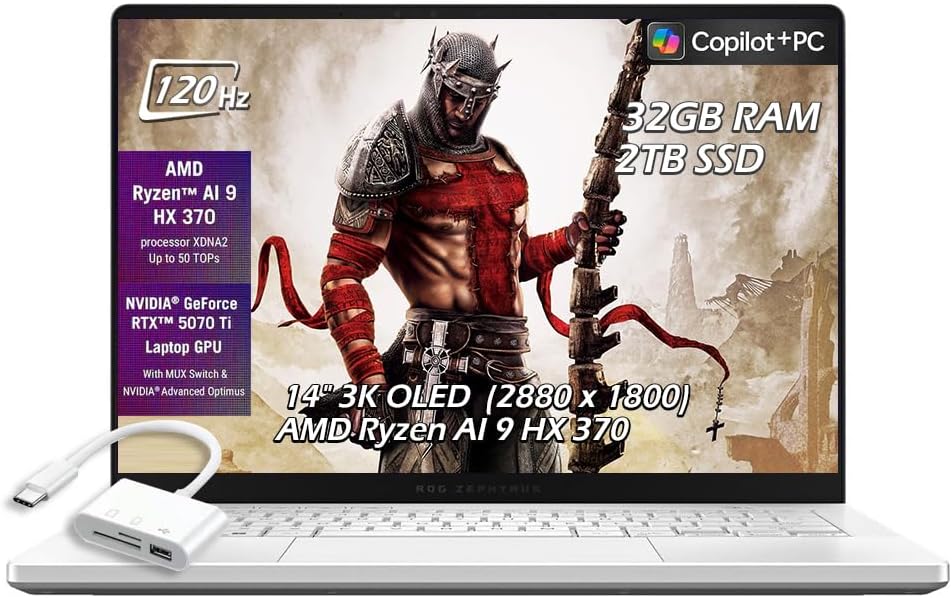
The pitch is simple: a 1.55 kg laptop with a 16-core Panther Lake CPU and a full 130 W RTX 5070 Ti, and — this is the part that sold me — it barely slows down when you tell it to shut up.
Specifications
- CPU: Intel Core Ultra 9 386H (Panther Lake), 16 cores / 16 threads — 4 P-cores, 8 E-cores, 4 low-power E-cores
- GPU: NVIDIA GeForce RTX 5070 Ti Laptop, 12 GB GDDR7, up to 130 W TGP, MUX switch and Advanced Optimus
- RAM: up to 64 GB LPDDR5x-8533, soldered
- Storage: one M.2 2280 slot, PCIe 4.0 (2 TB as tested)
- Display: 14-inch 16:10 OLED, 2880 × 1800, 120 Hz, glossy with anti-glare coating
- Battery: 73 Wh, 250 W barrel charger, 100 W USB-C PD
- Ports: HDMI 2.1, 1× Thunderbolt 4, 1× USB-C 3.2 with DisplayPort, 2× USB-A 3.2, full-size SD UHS-II reader, 3.5 mm
- Weight: 1.55 kg
What the meters said (Ultrabookreview, Core Ultra 9 386H + RTX 5070 Ti, Turbo profile)
| Metric | Result |
|---|---|
| Geekbench 6 | 2,931 single / 17,440 multi |
| Cinebench R23 | 21,579 best run, 21,105 sustained 10-minute loop, 2,118 single |
| Cinebench 2024 | 1,267 multi / 126 single |
| Cinebench 2026 | 5,084 multi-thread / 521 single-thread |
| PCMark 10 | 9,642 |
| Blender 5.1.2 Classroom (CPU) | 4 min 12 s |
| Blender 5.1.2 BMW (GPU, OptiX) | 6.80 s |
| AIDA64 memory read | 116,735 MB/s |
| SPECviewperf 2020 SNX 04 | 32.07 |
| V-Ray | CPU 14,681 / CUDA 2,133 / RTX 3,062 |
The number that actually convinced me for EEE work: in Silent mode, under 35 dBA, that same 10-minute Cinebench R23 loop still returned 18,215 points — around 86% of full Turbo, at roughly a third of the perceived noise. You can run a long synthesis in a shared study room without becoming the person everybody hates.
Thermals and noise. Ultrabookreview logged the CPU at over 90 °C in Turbo and Manual during the Cinebench loop, and above 80 °C in Performance and Silent. Under gaming load it measured 80–85 °C flat on a desk, dropping to 75–80 °C raised on a stand. That’s a 5 °C swing from airflow alone — buy a cheap laptop stand, it’s the best value upgrade you’ll ever make. The surfaces you actually touch stayed at a comfortable 35–40 °C, with the hotspot in the middle of the chassis around the Y-U-H keys. Measured noise at head level: 52 dBA in Manual, 48 in Turbo, 42 in Performance, under 35 in Silent.
Display. The panel is a Samsung SDC422B measuring 521.91 cd/m² in the centre, 100% sRGB, 95.0% AdobeRGB, 100% DCI-P3, gamma 2.21, white point 6414 K. It’s glossy with an anti-glare treatment that handles reflections better than you’d expect. It does use PWM dimming, so if flicker bothers you at low brightness, turn on the flicker-free setting in Armoury Crate.
Battery. Measured average draw at roughly 120 nits: 7–9 W text editing (8–10 hours), 5–6 W streaming 4K video (12–14 hours), 8–12 W browsing (6–9 hours), about an hour under heavy GPU load. Panther Lake is the story — the previous AMD-based G14 pulled 15 W doing the same text editing.
What I like
- The best sustained performance per kilogram in this entire article, by a wide margin
- 12 GB of VRAM, up from 8 GB last generation, which matters for larger models and dense board renders
- Silent mode that’s genuinely usable rather than a token gesture
- Two USB-A ports and a full-size SD reader
- Superb keyboard for long typing sessions
What I don’t
- The price is offensive. $3,199 for the 16 GB config, $3,599 for 32 GB. Last year’s model with comparable silicon sells for $1,000 to $1,500 less.
- The RAM is soldered. You get exactly one chance to choose, so choose 32 GB.
- One SSD slot, PCIe 4.0 only
- The lid opens to only about 130°, and the oversized touchpad picks up ghost touches on your lap
- Forgettable webcam
Buy it if you want one machine that does everything and you can absorb the cost. If you can’t — and I wouldn’t blame you — last year’s GA403 with similar silicon is honestly the smarter purchase right now.
2. Lenovo ThinkPad P16 Gen 3 — best for FPGA and electromagnetics
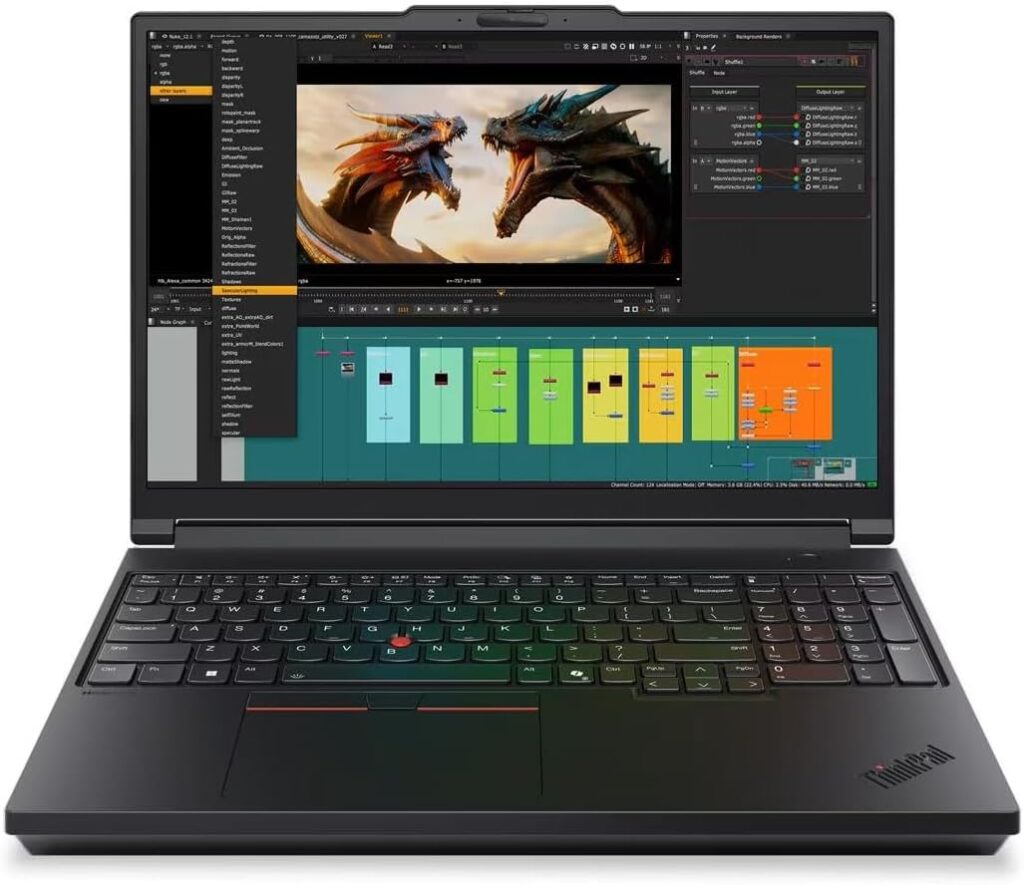
This is the only machine here that treats memory capacity as a first-class feature, which is exactly what large FPGA devices and 3D field solvers demand.
Specifications (Notebookcheck’s review unit)
- CPU: Intel Core Ultra 9 285HX, 24 cores / 24 threads — 8 Lion Cove P-cores to 5.5 GHz, 16 Skymont E-cores to 4.6 GHz, 160 W PL2 burst, 110 W PL1 sustained
- GPU: NVIDIA RTX PRO 3000 Blackwell, 12 GB GDDR7, capped at 105 W TDP (up to RTX PRO 5000 with 24 GB GDDR7 ECC available)
- RAM: 96 GB DDR5-5600 in the test unit; up to 192 GB across four SO-DIMM slots, ECC available
- Storage: Samsung PM9E1 2 TB PCIe 5.0; three M.2 2280 slots, up to 12 TB
- Display options: 1920 × 1200 IPS at 500 nits (tested), 3200 × 2000 Tandem OLED at 600 nits SDR, or 3840 × 2400 IPS at 800 nits
- Ports: 2× Thunderbolt 5 and HDMI at the rear, 2× USB-A 3.2 Gen 1, 1× Thunderbolt 4, SD Express 8.0, smartcard reader, nano-SIM, 3.5 mm, 2.5 GbE Ethernet
- Battery: 99.99 Wh, 180 W USB-C GaN charger
- Weight: 2.736 kg plus a 521 g power supply
What the meters said (Notebookcheck, Best Performance mode)
| Metric | Result |
|---|---|
| Cinebench R23 | 34,998 multi / 2,228 single |
| Cinebench R23 on battery | 27,728 multi — a 26% drop |
| Cinebench R15 multi, sustained loop | Ø 4,690 points (range 4,290–5,627) |
| Cinebench R20 | 13,152 multi / 857 single |
| Geekbench 6.7 | 18,212 multi / 2,989 single |
| Blender 2.79 BMW27 (CPU) | 103 seconds |
| 7-Zip | 99,260 MIPS multi, 6,422 MIPS single-thread |
| HWBOT x265 4K | 35.4 fps |
| Wi-Fi 7 (iperf3, 6 GHz) | 1,430 Mbit/s transmit, 1,729 receive |
That Cinebench R15 loop is the figure I’d point at. It sustains an average of 4,690 points over the run, and Notebookcheck measured the P16 Gen 3 as 43% faster than the Gen 2 on CPU work overall — while noting, fairly, that it still lands slightly below average for this particular chip.
Display. The tested WUXGA IPS panel measured 532 cd/m² in the centre and 497.4 average, with 1716:1 contrast, 95.2% sRGB, 66.6% AdobeRGB, 64.9% DCI-P3, gamma 2.6 and a 6284 K white point. ΔE ColorChecker came in at 4.4 out of the box and 1.1 after calibration. No PWM at any brightness level, which for a machine you’ll stare at during long solver runs is worth more than the gamut coverage. Colour-critical work isn’t its job; being readable under lab strip lighting is, and the matte finish plus 500+ nits does that well. If you want the good screen, the 800-nit 3840 × 2400 option is the one to specify.
Why the specification sheet is the review here. Vivado’s memory appetite scales with device family. A small Artix-7 part on a Basys 3 is fine in 8 GB. A large UltraScale+ design will eat 32 to 64 GB and then ask politely for more. Ansys HFSS solving a full 3D antenna or a PCB signal integrity model is worse. This is the only laptop in this article where you can fit 192 GB, with ECC, and where a memory-hungry solve doesn’t end in a swap-file death spiral. Three Gen 5 SSD slots let you split OS, tool installations and project scratch across separate drives, and the 2.5 GbE port pulls datasets off the department server faster than anything else here.
The honest criticism. Notebookcheck rated it 89%, “very good,” and their headline verdict was one step forward, two steps back. The specific complaints: a 105 W GPU TGP and a 180 W charger, both modest for a chassis whose entire reason to exist is uncompromised performance. Independent testing of a stress-mode load also recorded around 46 dBA, which is loud enough to be a problem in a quiet room. Their listed strengths were build quality, input devices, upgradeability, screen brightness, modern ports and — notably — good battery life for a workstation. Their listed weaknesses were exactly two: the underpowered charger and the low GPU TGP.
Worth knowing: PCWorld’s testing of the related P16v Gen 3 found an RTX PRO 2000 losing to a consumer RTX 5050 in 3DMark Time Spy. Professional RTX PRO cards buy you ISV certification, ECC VRAM and driver stability — they do not buy you speed per dollar.
What I like
- Four SO-DIMM slots, ECC option, 192 GB ceiling — genuinely unmatched here
- Three PCIe Gen 5 M.2 slots
- 2.5 GbE, Thunderbolt 5, and rear-mounted ports, which is a small joy at a desk
- ISV-certified drivers, which some departments’ licensed software genuinely wants
- No PWM, and a bright matte panel
What I don’t
- 2.736 kg plus a half-kilo charger. This is not a machine you carry casually.
- 105 W GPU cap and a 180 W charger in a performance-first workstation
- Around 46 dBA under full stress load
- Starts at roughly $3,500 direct from Lenovo, and the review configuration ran €4,000
- Only 95.2% sRGB and 64.9% DCI-P3 on the base panel
Buy it if you’re doing UltraScale+ FPGA work, HFSS or CST electromagnetics, or a thesis involving large local models, and your laptop lives on a desk most of the time. Watch for the discounted Ultra 7 255HX / RTX PRO 2000 / 32 GB configurations — I’ve seen them around $1,689, and that’s the sweet spot by a mile.
3. Lenovo ThinkPad X1 Carbon Gen 14 — best to actually carry
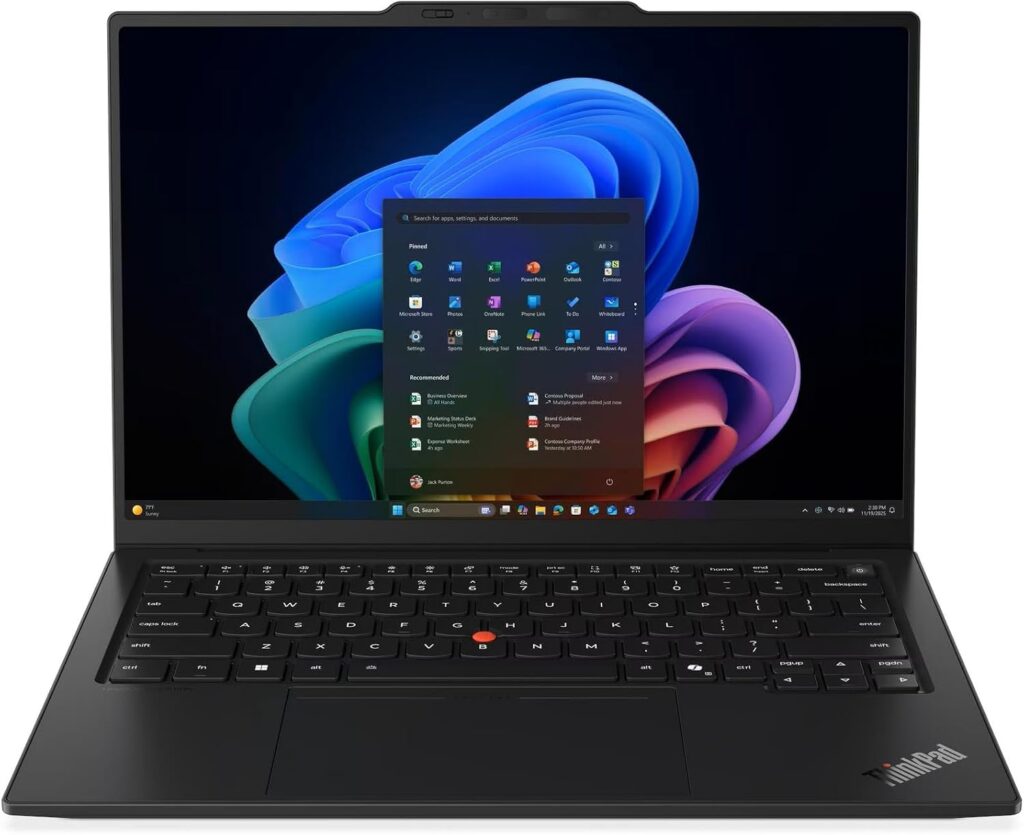
It weighs 990 grams and it holds 45 W sustained. Those two facts should not be true at the same time.
Specifications
- CPU: Intel Core Ultra 7 356H (Panther Lake), 16 cores / 16 threads — other options exist and they matter enormously, see below
- GPU: Intel Graphics, 4 Xe cores (or Arc B390 with 12 Xe cores on the Ultra X7 358H)
- RAM: 32 GB LPDDR5-8533 soldered; 64 GB LPDDR5X-9600 in some regions, X7 only
- Storage: one M.2 2280 slot, user-replaceable, takes up to 8 TB Gen 5
- Display: 14-inch 16:10 matte OLED 2880 × 1800 with 30–120 Hz VRR, or matte IPS 1920 × 1200
- Battery: 58 Wh, 65 W USB-C charger
- Ports: 3× USB-C, all Thunderbolt 4, 1× USB-A 3.2 Gen 1, HDMI 2.1, 3.5 mm, optional nano-SIM
- Weight: 0.99 kg for the OLED non-touch, up to 1.15 kg for IPS touch with 5G
What the meters said (Ultrabookreview, Best Performance mode)
| Metric | Result |
|---|---|
| Geekbench 6 | 2,762 single / 15,571 multi |
| Cinebench R23 | 18,151 best, 16,729 sustained 10-minute loop, 2,030 single |
| Cinebench 2024 | 1,012 multi / 119 single |
| Cinebench 2026 | 4,141 multi-thread / 497 single-thread |
| PCMark 10 | 8,619 |
| Blender 5.1.2 Classroom (CPU) | 5 min 23 s |
| AIDA64 memory read | 117,562 MB/s |
| SPECviewperf 2020 SNX 04 | 6.60 |
| SPECviewperf 2020 SolidWorks 07 | 38.36 |
Put that in context: a one-kilogram ultrabook landing within 80% of a full-power Core Ultra 9 386H in a gaming chassis. For a machine you forget is in your bag, that’s remarkable.
Thermals and noise. Lenovo drives 45 W sustained at under 33 dBA, but the internal temperature sits in the low 90s °C during sustained multi-thread loads, which Ultrabookreview called toasty and I’d agree. In mixed use it settles around 35 W and low 80s °C, which is the healthier place to live. Externally it behaves: roughly 35 °C in daily use, high 40s at the hotspot above the keyboard under load, with the palm rest and touchpad barely past 40 °C. One thing to check before you buy: on the review unit, Balanced mode was buggy, repeatedly clamping to 12 W instead of the intended 25 W. A BIOS update may have fixed it by now.
Display. The matte AGARAS OLED (Samsung ATNA40HQ09-0) measured 523.30 cd/m² in the centre, 100% sRGB, 92.9% AdobeRGB, 100% DCI-P3, gamma 2.21, white point 6254 K. The matte finish is the real feature. In a room lit by overhead fluorescents, a semi-gloss anti-glare panel beats another 200 nits every single time. PWM is present; the IPS option doesn’t flicker at all if that’s a concern for you.
Battery. 58 Wh, which is small — but the efficiency covers for it. Measured draw: under 3 W idle (about 20 hours), 6–7 W text editing (8–9 hours), 4–5 W streaming 1080p video (13 hours), 4 W on Netflix (15 hours), 8–10 W browsing (5–8 hours).
Read this before you order. The X1 Carbon Gen 14 ships with three genuinely different classes of silicon under confusingly similar names:
| Configuration | Cores | Graphics | My verdict |
|---|---|---|---|
| Core Ultra 5 335 / Ultra 7 355 | 8C/8T | Intel Graphics, 4 Xe | Avoid. About 60% of the multi-thread performance. Fine for notes, not for tools. |
| Core Ultra 7 356H / 366H | 16C/16T | Intel Graphics, 4 Xe | The sensible buy |
| Core Ultra X7 358H / 368H | 16C/16T | Arc B390, 12 Xe | Best here — over twice the graphics performance |
In the US, Lenovo has mostly offered the lower-tier Ultra 5 and Ultra 7 355 configurations, starting around $2,200. For an engineering student that’s a bad deal at a high price. In Europe the whole range is available: the 356H with 32 GB and 1 TB lands just under €3,000, and the 358H with 64 GB goes north of €3,500.
What I like
- 990 grams, a 180° hinge, the best keyboard in the business, and a 10 MP webcam
- 45 W sustained in a one-kilogram chassis at under 33 dBA
- The redesigned Space Frame chassis makes the ports, fans, speakers, battery and SSD serviceable — a first for the Carbon line in about a decade
- A matte OLED you can genuinely use in a bright room
- Efficiency that turns a small battery into a full day
What I don’t
- 58 Wh, unchanged for generations, in a chassis with visible empty space inside
- Integrated graphics on the mainstream configs are weak — SPECviewperf SNX of 6.60 against 32.07 on a dGPU machine
- One USB-A port and no card reader
- Soldered RAM, capped at 32 GB in most markets
- The good configurations aren’t sold everywhere
- Expensive
Buy it if you carry your laptop everywhere, you write a lot, and your heavy compute happens on a desktop or a department server. Do not buy the 8-core version.
4. Apple MacBook Pro 14 (M5 / M5 Pro) — best hardware, riskiest software
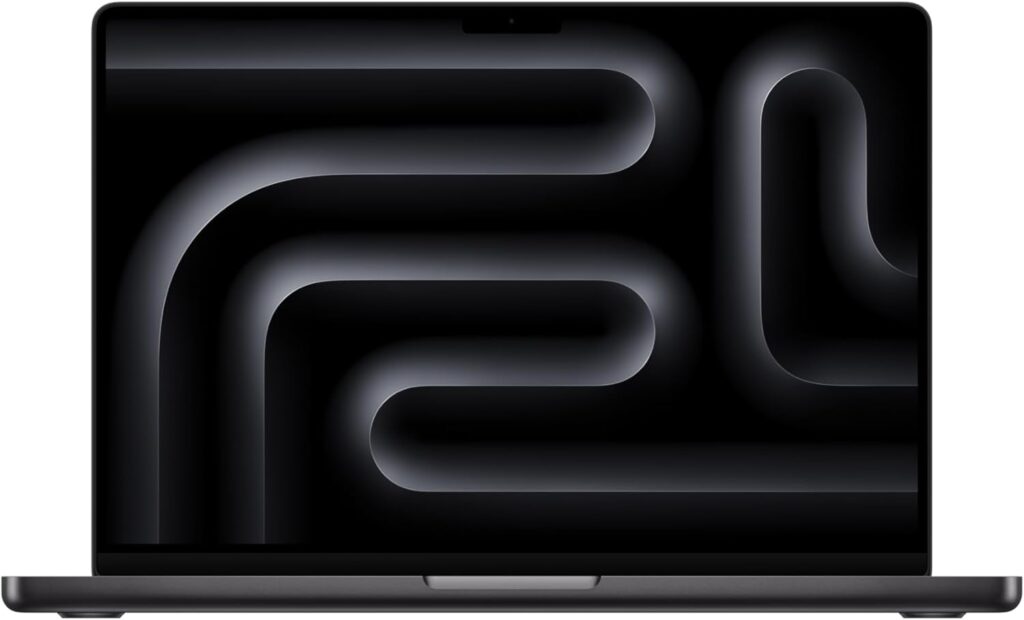
The best-engineered machine in this article, attached to the worst software compatibility for a hardware-focused EEE student. Both halves of that sentence are true and you need to weigh them yourself.
Specifications
- CPU: Apple M5 (10-core), M5 Pro (15 or 18-core), M5 Max (18-core). The Pro and Max use Apple’s Fusion Architecture, bonding two 3 nm dies into one chip
- GPU: 10-core (M5), 16 or 20-core (M5 Pro), 32 or 40-core (M5 Max), with neural accelerators in every core
- RAM: 16–32 GB on M5, from 24 GB on M5 Pro, up to 128 GB on M5 Max — unified, soldered
- Storage: from 512 GB on M5, from 1 TB on M5 Pro, from 2 TB on M5 Max, up to 8 TB
- Display: 14.2-inch Liquid Retina XDR mini-LED, 3024 × 1964, 10–120 Hz ProMotion, optional nano-texture finish
- Battery: 72.4 Wh
- Ports: 3× Thunderbolt (TB5 on Pro and Max), HDMI 2.1, SDXC, MagSafe 3, 3.5 mm. Zero USB-A.
- Wireless: Apple N1 chip, Wi-Fi 7, Bluetooth 6
- Price: M5 from $1,599, M5 Pro from $2,199, M5 Max from $3,599 for the 14-inch
What the meters said
Base M5: the Geekbench Browser aggregate across 558 uploaded results puts the 14-inch M5 at 3,631 single-core and 17,935 multi-core. ITPro’s own run recorded 4,248 and 17,600, up from 3,899 and 15,234 on the M4, with Cinebench 2024 at 1,179 multi and 201 single. Tom’s Hardware measured 18 hours 14 minutes on their battery test — web browsing, video streaming and OpenGL at 150 nits — which was 20 minutes short of the M4 but still 2.5 times what a Dell 16 Premium managed on a larger 99 Wh battery.
M5 Max in the 14-inch: Tom’s Hardware measured 4,338 single and 29,430 multi in Geekbench 6, 3,865 in 3DMark Steel Nomad (ahead of a Framework Laptop 16 with a discrete RTX 5070, at 3,009), a 25 GB file transfer at 3,835 MB/s, and 17 hours 58 minutes of battery.
Display, honestly. Apple specifies 1,000 nits sustained and 1,600 nits peak, but those figures apply to HDR content and to outdoor use with the ambient light sensor active. A measured SDR desktop test on a 14-inch M5 Max returned 529.4 nits — right in line with everything else in this article. It’s a superb panel with real HDR headroom, but you’re not editing a Verilog file at 1,000 nits.
Two findings that matter more than the headline scores.
First, the 14-inch chassis cannot feed the top chip. Notebookcheck tested the same 40-core M5 Max in both sizes and concluded plainly that the MacBook Pro 14 can’t handle it: Cinebench 2024 multi-core came out at 2,437 on the 16-inch against 2,073 on the 14-inch, an 18% gap between identical silicon. If you want an M5 Max, buy the 16-inch or don’t bother.
Second, and this one is aimed squarely at you: in Tom’s Hardware’s Xcode compile test, the M5 Max finished in 87 seconds — statistically level with an M3 Max at 85 seconds. Compilation is not where these chips’ gains live. If your workload is “build a large codebase over and over,” two generations of upgrades bought almost nothing.
Thermals. Tom’s Hardware measured skin temperatures during a Cinebench 2024 stress run on the M5: 108 °F (42 °C) near the left exhaust, 104 °F (40 °C) between the G and H keys, with the M5 itself at 87 °C and overall system temperature at 73 °C via TG Pro. The fans do spin up under that load, but under everything short of it the machine is effectively silent.
What I like
- Battery life nothing else here comes close to — over 18 hours measured
- A display that’s usable outdoors, which no Windows laptop in this article manages
- Silent under almost every workload
- Storage throughput in a class of its own
- Best build, speakers, trackpad and webcam here, and it isn’t close
What I don’t
- Your FPGA and PCB toolchain doesn’t run natively. That’s the whole ballgame.
- No USB-A, so every programmer and logic analyzer needs a dongle
- The 14-inch chassis throttles the M5 Max by 18%
- Compile performance has barely moved in two generations
- Soldered RAM and storage, at Apple’s upgrade prices
- In the EU the power adapter is now a separate purchase
Buy it if you sit on the signals, control and embedded-software side of EEE rather than the FPGA and PCB side, and you’re happy SSHing into a Linux box for the rest. Don’t buy it if your programme is built around Vivado, Quartus or Altium.
5. Acer Nitro V 16S AI — best on a budget
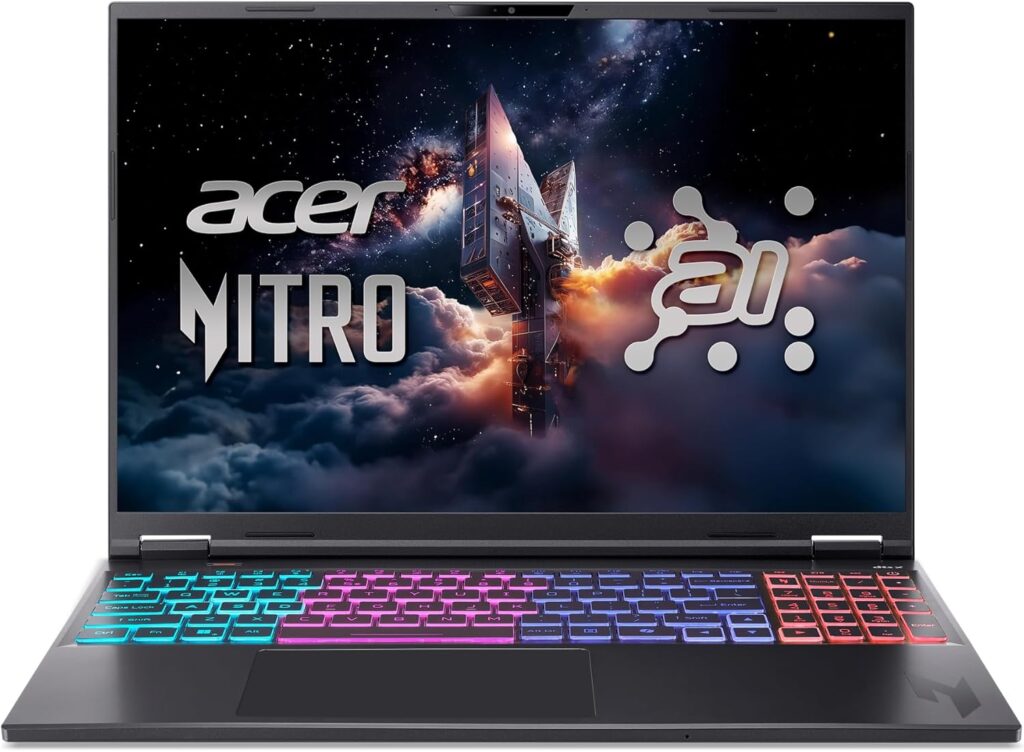
Around thirteen hundred dollars for a working CUDA GPU, sixteen inches of screen, and — crucially in 2026 — sockets you can still upgrade later.
Specifications (Tom’s Hardware review unit, ANV16S-41-R2AJ)
- CPU: AMD Ryzen 7 260, 8 cores / 16 threads, 3.8 GHz base to 5.1 GHz boost (Zen 4 “Hawk Point”, TSMC 4 nm)
- GPU: NVIDIA GeForce RTX 5060 Laptop, 8 GB GDDR7, 1,785 MHz max boost, 85 W max graphics power
- RAM: 32 GB DDR5-5600 as two 16 GB modules, two SO-DIMM slots
- Storage: 1 TB WD SN5000S PCIe 4.0, two M.2 2280 slots, one free
- Display: 16-inch 1920 × 1200 IPS, 180 Hz, matte
- Battery: 76 Wh, 135 W barrel charger
- Ports: 3× USB-A 3.2 Gen 2, 1× USB-C 3.2 Gen 2, HDMI 2.1, Gigabit Ethernet, microSD, 3.5 mm
- Wireless: Wi-Fi 6E (RZ616), Bluetooth 5.3
- Weight: 4.55 lb (2.06 kg)
What the meters said (Tom’s Hardware)
| Metric | Result |
|---|---|
| Geekbench 6 | 2,659 single / 12,837 multi |
| 25 GB mixed-file copy | 1,838.88 MB/s — fastest in its comparison group |
| Handbrake 4K to 1080p | 4 min 32 s |
| Measured max brightness | 391.8 nits |
| Colour coverage | 109.3% sRGB, 77.4% DCI-P3 |
| Battery test (browsing, video, OpenGL at 150 nits) | 10 h 17 min |
| Metro Exodus, 15-loop stress at 1600p | 76.01 fps average, CPU averaging 3.71 GHz |
| CPU package under stress | 60 °C |
| GPU under stress | 66.5 °C, averaging 1.92 GHz |
Gaming, which doubles as a proxy for sustained GPU load: Shadow of the Tomb Raider at Highest hit 98 fps at 1080p and 91 at 1200p; Cyberpunk 2077 at Medium managed 32 and 27; Far Cry 6 at Ultra hit 82 and 79; Red Dead Redemption 2 at Medium managed 69. Tom’s Hardware called it “value-priced, but outgunned in gaming,” and it did finish at or near the back of its group.
For our purposes that matters less than it sounds. You’re not chasing frame rates. You’re checking that CUDA exists and that Altium’s 3D view doesn’t stutter — and it does, and it doesn’t. What’s more relevant is that 10 hours 17 minutes of battery, which beat every other machine in its comparison group, and those surprisingly cool 60 °C CPU and 66.5 °C GPU temperatures under a fifteen-run stress test. Skin temperatures came in at 79 °F (26 °C) at the touchpad, 109 °F (43 °C) between the G and H keys, and 127 °F (53 °C) at the hotspot on the underside — so keep it off your lap during long runs.
Why the upgradeability matters so much right now. 2026 has been a rough year for memory prices, and it shows up everywhere in this article — the Zephyrus G14 costs $1,000 to $1,500 more than its 2025 equivalent for comparable silicon, and reviewers keep pointing at RAM and SSD costs as the reason. In that environment, two SO-DIMM slots and two M.2 slots are a strategic asset. Buy it with what you can afford now, and add 64 GB in year three when you hit UltraScale designs and prices have hopefully calmed down. On every soldered-RAM machine in this article, that option simply doesn’t exist.
What I like
- A working NVIDIA CUDA GPU for $1,299
- Two RAM slots and two M.2 slots, one of each still free
- Three USB-A ports plus Gigabit Ethernet — the best port selection here for a lab bench
- 16-inch 16:10 matte screen; real estate for schematic capture
- Genuinely good battery for a machine with a discrete GPU
- Aluminium lid and bottom panel, ten Phillips screws to get inside
What I don’t
- 8 GB of VRAM, which is the floor rather than the ceiling in 2026
- 391.8 nits and 77.4% DCI-P3 — fine indoors, not colour-critical
- 720p webcam, no IR, no fingerprint reader, so no biometric login at all
- Wi-Fi 6E rather than Wi-Fi 7
- A dozen preinstalled apps you’ll want to remove on first boot
- One-year warranty
- Slowest machine here, and it doesn’t pretend otherwise
Buy it if budget is the binding constraint. This is a completely reasonable four-year machine for an EEE degree, and the money you save buys an FPGA dev board, a decent multimeter and a USB oscilloscope — which will teach you more than four thousand extra Cinebench points ever will.
Worth cross-shopping: the Lenovo Legion 5i Gen 11 (2026) sits just above this bracket with Panther Lake silicon, an RTX 5060 or 5070, a 2560 × 1600 500-nit panel, an 80 Wh battery, and a PCIe Gen 5 primary M.2 slot alongside a Gen 4 secondary.
Side by side
| Zephyrus G14 2026 | ThinkPad P16 Gen 3 | X1 Carbon Gen 14 | MacBook Pro 14 M5 | Acer Nitro V 16S AI | |
|---|---|---|---|---|---|
| CPU | Core Ultra 9 386H, 16C | Core Ultra 9 285HX, 24C | Core Ultra 7 356H, 16C | Apple M5, 10C | Ryzen 7 260, 8C |
| GPU | RTX 5070 Ti 12 GB, 130 W | RTX PRO 3000 12 GB, 105 W | Intel Graphics, 4 Xe | M5 10-core GPU | RTX 5060 8 GB, 85 W |
| Geekbench 6 single | 2,931 | 2,989 | 2,762 | 3,631 | 2,659 |
| Geekbench 6 multi | 17,440 | 18,212 | 15,571 | 17,935 | 12,837 |
| Max RAM | 64 GB soldered | 192 GB, 4 slots, ECC | 32 GB soldered | 32 GB unified | 32 GB, 2 open slots |
| M.2 slots | 1 (Gen 4) | 3 (Gen 5) | 1 (Gen 5 capable) | 0, soldered | 2 (one free) |
| Measured brightness | 521.9 cd/m² | 532 cd/m² | 523.3 cd/m² | 529.4 cd/m² (SDR) | 391.8 cd/m² |
| Battery | 73 Wh | 99.99 Wh | 58 Wh | 72.4 Wh | 76 Wh |
| USB-A ports | 2 | 2 | 1 | 0 | 3 |
| Wired Ethernet | No | 2.5 GbE | No | No | 1 GbE |
| Weight | 1.55 kg | 2.74 kg | 0.99 kg | 1.55 kg | 2.06 kg |
| Runs Vivado / Quartus / Altium natively | Yes | Yes | Yes | No | Yes |
| Price | From $3,199 | From ~$3,500 | From ~$2,200 | From $1,599 | $1,299 |
Brightness figures are colorimeter measurements from Ultrabookreview (G14, X1 Carbon), Notebookcheck (P16 Gen 3, on the tested WUXGA IPS panel), Tom’s Hardware (Nitro V) and an SDR desktop measurement on a 14-inch M5 Max. Geekbench figures come from Ultrabookreview, Notebookcheck, the Geekbench Browser aggregate and Tom’s Hardware respectively — so treat small differences between them as noise, and large ones as real.
The lab bench port audit
Walk into an electronics lab and count what plugs into your laptop over four years:
- Digilent JTAG-HS3 or an AMD Platform Cable — USB-A
- Intel USB-Blaster II — USB-A
- ST-Link/V2 or V3, SEGGER J-Link, Keil ULINK2 — USB-A
- A Saleae logic analyzer — USB-C on the newest units, USB-A on the ones your lab actually owns
- A PicoScope or similar USB oscilloscope — USB-A
- FT232 and CP2102 serial adapters, for every UART assignment ever set — USB-A
- An Arduino, an ESP32, a Nucleo board, an FPGA dev board — mostly USB-A, or micro-B via A
Now count what’s on the machines above: MacBook Pro zero, X1 Carbon one, Zephyrus G14 and ThinkPad P16 two each, Acer Nitro V three.
My advice, learned the hard way: buy a powered USB 3.0 hub with at least four A ports and its own power supply on day one. Unpowered hubs cause intermittent JTAG disconnects, and you will spend an entire evening debugging a fault that was never in your design. Plenty of older programmers and bench instruments also expect a plain USB 2.0 host and behave badly through some USB4 docks — a cheap dedicated hub sidesteps that whole category of problem.
Where to spend, and where not to
Spend on RAM. 16 GB is the floor and it’s a real floor. 32 GB is the right target for anyone touching FPGA tools, Simulink or Ansys. On a soldered-RAM machine, you get exactly one chance to decide.
Spend on the display. You’ll stare at schematics for four years. A 16:10 aspect ratio isn’t negotiable, 1920 × 1200 is the minimum, and matte or semi-gloss beats glossy under strip lighting every time. The X1 Carbon’s matte AGARAS OLED and the P16’s matte IPS panels are the two best here for that specific room.
Spend on storage. Vivado alone can exceed 100 GB installed. Add Quartus, MATLAB, Altium, a Linux VM and four years of project files, and 512 GB evaporates. 1 TB minimum.
Ignore NPU TOPS. Every 2026 laptop advertises 50 TOPS of NPU. Nothing in your degree uses it — not Vivado, not LTspice, not MATLAB’s core solvers. It’s a number for Copilot features. Don’t pay extra for it.
Ignore core counts above 16. See the Vivado thread table. Eight threads maximum, four for synthesis. A 24-core HX chip buys you very little for FPGA work and costs you battery life and a kilogram.
Ignore “up to 27 hours.” Look for watt draw at a stated brightness instead. Seven watts in a text editor on a 73 Wh battery is about ten hours, and that’s a number you can check with arithmetic.
Think hard about upgradeability this year specifically. RAM and SSD prices have pushed laptop prices up sharply through 2026. If a machine has SO-DIMM slots, that isn’t a downgrade from soldered LPDDR5X — it’s an option on future prices.
Mistakes I see every single year
- Buying an 8-core “Ultra 7” thinking it’s the same as the 16-core “Ultra 7.” The Ultra 7 355 delivers roughly 60% of the multi-thread performance of the Ultra 7 356H. Same brand tier, wildly different chip. Check the exact model number, not the family name.
- Buying a MacBook first and discovering Vivado second. Ask your department which tools are mandatory before you buy, not during week three.
- Running Vivado on Windows without raising
general.maxThreads. Two threads by default. One line of Tcl for a fourfold improvement in placement and routing. - Leaving the laptop flat on the desk during long runs. Five degrees measured on the Zephyrus G14 from raising it alone. A stand costs less than a textbook.
- Saving $200 by taking 16 GB of soldered RAM. In year three you’ll want 32 and there will be absolutely nothing you can do about it.
- Assuming a colour-accurate glossy creator laptop is right for a lab. Reflections under overhead lighting will annoy you daily. A 2% Delta-E improvement never will.
Questions I get asked a lot
Through second year — LTspice, MATLAB basics, KiCad, small Artix-7 designs — yes. For large UltraScale+ designs, Ansys HFSS or multi-VM setups, no. If the RAM is soldered, buy 32 GB up front.
Not for circuit simulation or FPGA work, which are CPU-bound. Yes for Altium’s 3D view at a comfortable frame rate, and yes for any coursework that touches CUDA, PyTorch or TensorFlow. The SPECviewperf gap between integrated and discrete graphics runs five to nine times, so it isn’t marginal.
Yes for signals, control systems, embedded software, MATLAB and Python. No, or at least not comfortably, if your programme depends on Vivado, Quartus or Altium — none has a native macOS build, and Apple Silicon needs emulation rather than straightforward virtualization.
What I’d actually buy
If I were starting an EEE degree tomorrow with an open budget, I’d take the Zephyrus G14. It’s the only machine here that’s both genuinely portable and genuinely fast, and its Silent mode makes it usable in rooms a gaming laptop has no business being in. If the 2026 pricing puts you off — and it should — last year’s GA403 with comparable silicon is the smarter buy at a thousand-odd dollars less.
If my programme were FPGA- or electromagnetics-heavy and my laptop mostly lived on a desk, the ThinkPad P16 Gen 3 is the only one here with a memory architecture that matches the work. Hunt for the discounted mid-tier configurations rather than paying the $3,500 list.
If I carried it everywhere and did the heavy lifting elsewhere, the X1 Carbon Gen 14 with the 16-core Ultra 7 356H. Never the 8-core version.
If my degree leaned toward signals and embedded software rather than FPGAs and PCBs, the MacBook Pro 14 is the best laptop in this article, full stop — right up until someone hands me a Vivado project.
And if money is tight, which it is for most students, the Acer Nitro V 16S AI with two open RAM slots and three USB-A ports will get you through four years perfectly well, and leave enough over for the hardware you’ll actually learn from.
Buy the tool that fits the work. Everything else is someone else’s marketing budget.
Measurements throughout are attributed to the labs that recorded them: Ultrabookreview (Zephyrus G14 GU405, ThinkPad X1 Carbon Gen 14), Notebookcheck (ThinkPad P16 Gen 3, MacBook Pro 14-versus-16 M5 Max comparison), Tom’s Hardware (Acer Nitro V 16S AI, MacBook Pro 14 M5 and M5 Max), PCWorld (ThinkPad P16v Gen 3) and the Geekbench Browser aggregate (MacBook Pro 14 M5). Vivado threading limits come from AMD’s Vivado Design Suite Tcl Command Reference, UG835. Prices are those I could verify at the time of writing and move constantly, so check before you buy.

Hi, my name is Burak. I am a mechanical engineer. I have been writing laptop reviews for the Engineering Laptops website since 2020. Please feel free to contact me if you have any questions.