
Estimated reading time: 16 minutes
Key Takeaways
- Choosing the best laptop for Creo involves prioritizing single-core CPU speed over multiple cores, as Creo relies heavily on single-threaded performance.
- Professional GPUs, like NVIDIA RTX PRO, provide essential driver optimizations for CAD applications, enhancing viewport performance and stability.
- For most users, a minimum of 32GB of RAM is crucial, while 64GB is ideal for handling complex assemblies.
- The article reviews five top laptops for Creo in 2026, ranging from budget options to high-end workstations, tailored for different user needs.
- Consider factors like screen quality, cooling, and storage speed when selecting a laptop for Creo to ensure optimal performance.
Table of contents
- First, a quick reality check on what Creo actually wants
- A word on “ISV certification” — because it’s confusing in 2026
- The 5 best laptops for Creo in 2026
- 1. Acer Nitro V16 — the budget gateway into Creo
- 2. Lenovo Legion Pro 5i Gen 10 — the best bang for your buck
- 3. ASUS ProArt P16 — for the designers who care about the screen
- 4. Lenovo ThinkPad P16 Gen 3 — the do-everything workstation, and my overall pick
- 5. HP ZBook Fury G1i 16 — the sustained-power monster
- Two more worth a mention
- Quick comparison table
- So which one should you get?
- Frequently asked questions
Let me guess. You’ve got a Creo license, a pile of assemblies waiting to be modeled, and a laptop that either chokes the second you spin a complex part or sounds like a jet trying to take off your desk. Been there. Picking the right machine for Creo is weirdly tricky because Creo doesn’t behave like the games or video editors that most “best laptop” lists are built around. It cares about things those lists barely mention.
So I’m going to skip the fluff and tell you exactly what actually matters, then walk you through five laptops I’d genuinely put my own money on this year — from a budget pick a student can swing, all the way up to a certified workstation a senior mechanical engineer would be happy with. There’s a comparison table near the end if you just want the quick verdict.
Let’s get into it.
First, a quick reality check on what Creo actually wants
Here’s the thing most people get wrong: they buy a laptop with a monster GPU and a million cores, fire up Creo, and wonder why regenerating a big assembly is still sluggish. The reason is simple.
Creo lives and dies on single-core speed. When you’re modeling parts, regenerating assemblies, or building drawings, Creo’s modeling kernel mostly leans on one CPU core at a time. It’s not great at spreading that work across a bunch of cores. As the folks at Workstation Specialists put it bluntly, “the core modelling environment in Creo is predominantly single-threaded… Creo’s modelling kernel is not well-parallelised and adding cores beyond a certain point yields minimal benefit.” Translation: a chip that boosts to 5.4 GHz on one core will feel snappier in everyday Creo work than a 32-core beast that tops out lower. Chase clock speed first.
Cores matter only for the heavy stuff. Simulation (Creo Simulate, the Ansys-powered tools) and photorealistic rendering do scale across cores. So if you live in FEA or you’re cranking out renders all day, more cores help there. For pure modeling? Clock speed wins.
The GPU drives your viewport — and this is where “pro” cards earn their keep. A professional GPU (NVIDIA RTX PRO, which used to be called Quadro, or AMD Radeon Pro) ships with drivers that are specifically tuned for CAD apps. That’s not marketing. In real benchmarks, those pro drivers unlock viewport features — proper shaded modes, order-independent transparency, the smooth stuff — that gaming GeForce cards have deliberately held back. Dell’s own 2026 testing flat-out says their workstation card leads in CAD “due to ISV-certified driver optimization and OpenGL features.” A gaming card will absolutely run Creo and look fine on small and medium models. But on huge assemblies, or if you want rock-solid stability and that certified-driver peace of mind, a pro GPU is the real deal.
One more GPU note that bites people: Creo Simulation Live needs a CUDA GPU with at least 8GB of video memory. That’s straight from PTC’s hardware notes. If you plan to use it, don’t go below 8GB VRAM — and honestly, aim higher.
RAM is about how big your assemblies get. 32GB is the floor for moderate work. If you’re regularly opening complex multi-part assemblies, or running Creo next to a PDM system or a simulation tool, 64GB is the sweet spot in 2026. Thousands-of-parts monsters? You’ll want 128GB or more.
Storage: just get NVMe. A fast NVMe SSD makes a real, feel-it-in-your-hands difference when loading and saving big assemblies versus an old SATA drive. Non-negotiable at this point.
The screen matters more than you think. You stare at this thing all day. A 16-inch 16:10 panel gives you lovely vertical room for the model tree and drawings. Good color (100% sRGB or DCI-P3) helps with design review. OLED looks gorgeous; high-res IPS is the safe, reliable pick.
And don’t ignore cooling. That precious single-core boost? It only holds if the laptop can keep its temperature in check. Thin-and-lights look great but throttle sooner. Chunky workstations stay fast under sustained load. There’s no free lunch with physics.
A word on “ISV certification” — because it’s confusing in 2026
You’ll see laptops advertised as “ISV-certified for Creo.” Here’s what that really means, and where things stand right now.
PTC doesn’t certify a graphics card on its own. They certify a whole package — a specific laptop model, with a specific OS, a specific GPU, and a specific driver version, all tested together. When that combo passes, it’s “Certified.” When a slightly older tested combo is expected to keep working on a newer Creo release, PTC calls it “Supported.”
The catch for 2026: the brand-new Blackwell-generation RTX PRO mobile GPUs and the latest 2026 chassis aren’t fully published on PTC’s official Creo certification tables yet. The currently listed configs cover the previous “Ada” generation cards. The big makers — Lenovo, HP, Dell — and NVIDIA are all marketing their new machines as Creo-certified, and they almost certainly will be formally listed soon (PTC says certifications are “in progress”). But as I write this, that’s a vendor promise, not a PTC-published entry.
What does that mean for you? If you work somewhere with strict requirements — aerospace, automotive, anything regulated — check the live PTC Platform Support page for your exact Creo version and config before you buy, and run PTC’s Hardware Checker. For everyone else, the practical takeaway is simpler: a pro-GPU workstation from one of the big three is your safest bet for driver stability, and a gaming laptop is fine if you don’t need the formal paperwork.
Also worth knowing: the latest release is Creo 12, which landed June 4, 2025 with more than 250 updates across modeling, simulation, and manufacturing. Plenty of shops are still on Creo 11, and both run happily on Windows 11.
Right. On to the laptops.
The 5 best laptops for Creo in 2026
1. Acer Nitro V16 — the budget gateway into Creo

Roughly $900–$1,100
If you’re a student or you’re just getting your feet wet with Creo and you can’t drop two grand, this is where I’d point you. It’s a gaming laptop wearing a work hat, and that’s totally fine for learning and for small-to-medium parts.
Specs at a glance:
- CPU: Intel Core 7 240H (10 cores)
- GPU: NVIDIA GeForce RTX 5060 Laptop — 8GB GDDR7, current-gen Blackwell, 3,328 CUDA cores
- RAM: 32GB DDR5 (in SODIMM slots, so you can upgrade later)
- Storage: 512GB–1TB PCIe 4.0 NVMe
- Display: 16″ WUXGA (1920×1200) IPS, 180Hz
- Connectivity: Wi-Fi 6
What’s great:
- Honestly affordable, yet it packs a current-generation GPU and a healthy 32GB of RAM
- A real discrete GPU makes the viewport night-and-day better than any integrated-graphics ultrabook
- RAM and storage are upgradeable, so it grows with you
What’s not:
- The GeForce GPU isn’t PTC-certified and skips the workstation driver tuning (and ECC memory)
- That 1080p-class panel is fine, not fabulous — modest color and brightness
- Plastic build, as you’d expect at this price
- 8GB of VRAM is the bare minimum for Creo Simulation Live and will feel tight on really big assemblies
Buy it if: you’re a student, hobbyist, or budget-conscious freelancer learning Creo or working mostly on parts and small assemblies. The moment your viewport starts stuttering on bigger files, that’s your cue to move up.
2. Lenovo Legion Pro 5i Gen 10 — the best bang for your buck

Roughly $1,800–$2,100
This is the one I’d recommend to most freelancers who want serious performance without paying the “workstation tax.” It’s a gaming laptop, but the hardware inside is exactly what Creo loves.
Specs at a glance:
- CPU: Intel Core Ultra 9 275HX — 24 cores (8 performance + 16 efficient), up to 5.4 GHz boost
- GPU: NVIDIA GeForce RTX 5070 Ti Laptop — 12GB GDDR7
- RAM: 32GB DDR5-5600 (upgradeable to 64GB)
- Storage: 1–2TB PCIe Gen4
- Display: 16″ WQXGA (2560×1600) OLED, up to 240Hz, 100% DCI-P3, 500 nits
- Connectivity: Wi-Fi 7
What’s great:
- That Core Ultra 9 275HX has the high single-core clocks Creo modeling craves and enough cores to handle the odd simulation job — a genuinely brilliant all-rounder
- 12GB of VRAM is a meaningful step up; comfortable with larger assemblies and Creo Simulation Live
- The OLED screen is gorgeous for design work
- Strong cooling means it actually holds those clock speeds under load
What’s not:
- Still a consumer GeForce card — not PTC-certified
- OLED carries a small long-term burn-in risk
- Battery life under heavy load is, let’s say, optimistic
- It’s a fingerprint magnet
Buy it if: you’re a freelancer or value-minded pro who wants the most performance per dollar and doesn’t need a certification stamp. This is the smart-money pick.
3. ASUS ProArt P16 — for the designers who care about the screen

Roughly $2,400–$3,400
If your work is as much about how things look as how they’re engineered — industrial design, product design, lots of design reviews — the ProArt P16 is built for you. It’s thin, light, and that display is something special.
Specs at a glance:
- CPU: AMD Ryzen AI 9 HX 370 — 12 cores / 24 threads, up to 5.1 GHz
- GPU: NVIDIA GeForce RTX 5070 Laptop — 8GB GDDR7
- RAM: 32–64GB LPDDR5X-7500
- Storage: 1–4TB PCIe 4.0
- Display: 16″ 16:10 OLED, 2.8K/120Hz or 4K, 100% DCI-P3, Pantone-validated, touch + stylus
- Connectivity: USB4, SD Express 7.0
- Weight: about 1.85 kg
What’s great:
- A genuinely color-accurate, Pantone-validated OLED — the kind of panel designers fall in love with
- Thin and light for a 16-incher, with excellent build, speakers, and trackpad
- The 64GB option gives you real headroom for larger assemblies
- Strong CPU for both modeling and lighter multi-core work
What’s not:
- Consumer GeForce again — not certified
- 8GB of VRAM on the RTX 5070 is the weak link for very large models or heavy visualization
- The LPDDR5X memory is soldered — whatever you buy, that’s what you’ve got forever
- The 4K panel variant runs at 60Hz
- You’re paying a premium for a non-workstation
Buy it if: you’re a product or industrial designer (or a freelancer) who values a stunning display and portability, and your assemblies are small to medium.
4. Lenovo ThinkPad P16 Gen 3 — the do-everything workstation, and my overall pick

Roughly $2,500–$5,000+ (configs start around $1,699)
If I could only recommend one laptop on this list for a working professional engineer, this is it. The ThinkPad P16 is a proper mobile workstation — built around exactly the kind of platform that PTC and Lenovo design Creo certifications for.
Specs at a glance:
- CPU: Intel Core Ultra 9 275HX (24 cores, up to 5.4 GHz) or Ultra 7 255HX
- GPU: NVIDIA RTX PRO 2000 / 3000 / 4000 / 5000 Blackwell — 8 to 24GB GDDR7, with ECC memory on the 3000 and up
- RAM: up to a colossal 192GB DDR5 (regular SODIMMs)
- Storage: up to 12TB PCIe Gen5
- Display: 16″ 16:10, from WUXGA IPS up to a 3.2K (3200×2000) Tandem OLED touchscreen, 120Hz, 100% DCI-P3
- Connectivity: Thunderbolt 5, HDMI, 2.5GbE, SD Express 8.0
- Weight: about 2.5 kg
What’s great:
- A true desktop-replacement: professional RTX PRO GPU with proper workstation drivers and ECC VRAM — exactly what you want for a rock-stable Creo viewport and Creo Simulation Live
- Absurd RAM and storage ceilings for the biggest assemblies you’ll ever throw at it
- Serviceable and upgradeable, the way ThinkPads have always been
- This is the chassis class certifications get built around
What’s not:
- It’s heavy — this is a workstation, not an ultrabook
- The RTX PRO 5000 in this chassis runs toward the lower end of its power range, so it trails the higher-wattage versions in other machines
- Maxed-out configs get eye-wateringly expensive
Buy it if: you’re a professional mechanical, aerospace, or automotive engineer who needs certified-class reliability, big assemblies, and simulation muscle. Spec it with an RTX PRO 3000 or better, a Core Ultra 9, and 64GB of RAM and you’re set for years. In StorageReview’s testing, its CAD performance in Creo and similar apps sat right in the same tier as the competing Dell workstation — solidly excellent.
5. HP ZBook Fury G1i 16 — the sustained-power monster
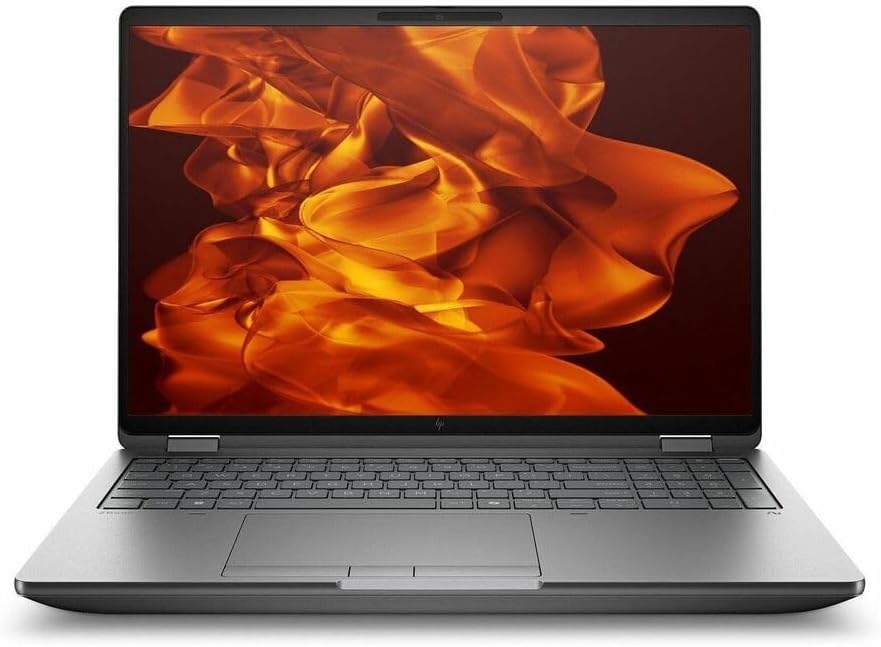
Roughly $3,000–$6,000+
When your day is heavy assemblies plus simulation plus rendering — hour after hour — you want the machine that won’t flinch. The ZBook Fury is that machine. It runs its pro GPU at a higher sustained power than most rivals and has the cooling to back it up.
Specs at a glance:
- CPU: Intel Core Ultra 9 285HX (24 cores, up to 5.5 GHz) or Ultra 7 options
- GPU: NVIDIA RTX PRO 1000–5000 Blackwell — up to 24GB GDDR7, ECC on the 3000 and up, with the 5000 running at a healthy 115W here
- RAM: up to 256GB DDR5
- Storage: up to 16TB NVMe
- Display: 16″ 16:10, WUXGA up to 4K (WQUXGA) IPS at 120Hz, 100% DCI-P3, 500 nits
- Connectivity: Thunderbolt 5, HDMI 2.1, SD Express
- Cooling: HP’s Vaporforce system
What’s great:
- The highest sustained GPU power on this list — ideal for long simulation and rendering sessions without throttling
- Certified-class ZBook reliability that HP has built a reputation on
- Enormous RAM and storage expansion
- Desktop-class CPU performance
What’s not:
- Big and heavy
- Expensive, and the top configs really climb
- The webcam on some models is merely okay
Buy it if: you’re a power user who runs heavy Creo work alongside Creo Simulation Live, Ansys, and rendering, and you want maximum sustained throughput in something you can still (technically) carry.
Two more worth a mention
Lenovo ThinkPad P1 Gen 8 — if weight is your top priority, this is the best thin-and-light certified-class option around. It’s roughly 1.84 kg with a beautiful 3.2K Tandem OLED, starting around $2,220. The trade-off: it tops out at an RTX PRO 2000 GPU and lower-wattage H-series CPUs, so it’s not for the heaviest assemblies.
Dell Pro Max 16 Plus — a SPECviewperf standout among the new Blackwell mobile workstations. Notebookcheck called it “the first workstation in our database with the RTX Pro 5000 Blackwell,” and found that GPU beating the outgoing RTX 5000 Ada “by about 35 to 50 percent.” It starts around $3,700, with a maxed config near $5,000. A genuinely strong alternative to the ThinkPad P16 if you prefer Dell.
Quick comparison table
| Laptop | CPU | GPU (VRAM) | RAM | Display | Weight | Price (USD) | Pro-grade / certified class? |
|---|---|---|---|---|---|---|---|
| Acer Nitro V16 | Intel Core 7 240H | GeForce RTX 5060 (8GB) | 32GB DDR5 | 16″ WUXGA IPS 180Hz | ~2.0 kg | ~$900–1,100 | No |
| Lenovo Legion Pro 5i Gen 10 | Core Ultra 9 275HX | GeForce RTX 5070 Ti (12GB) | 32GB → 64GB | 16″ 2.5K OLED 240Hz | ~2.7 kg | ~$1,800–2,100 | No |
| ASUS ProArt P16 | Ryzen AI 9 HX 370 | GeForce RTX 5070 (8GB) | 32–64GB LPDDR5X | 16″ OLED 2.8K/4K, Pantone | ~1.85 kg | ~$2,400–3,400 | No |
| Lenovo ThinkPad P16 Gen 3 | Core Ultra 9 275HX | RTX PRO 2000–5000 (8–24GB) | up to 192GB | 16″ 3.2K Tandem OLED touch | ~2.5 kg | ~$2,500–5,000+ | Yes |
| HP ZBook Fury G1i 16 | Core Ultra 9 285HX | RTX PRO 1000–5000 (8–24GB) | up to 256GB | 16″ up to 4K IPS 120Hz | ~2.6 kg | ~$3,000–6,000+ | Yes |
So which one should you get?
Let me make this dead simple based on who you are.
You’re a student or you’re on a tight budget (under $1,300). Get the Acer Nitro V16 or any solid RTX 5060 laptop with 32GB of RAM. It’ll handle parts and small assemblies just fine. When the viewport starts lagging or you get into Creo Simulation Live, that’s your signal to upgrade to 12GB+ of VRAM and 64GB of RAM.
You want the best value, full stop (~$1,800–2,100). The Lenovo Legion Pro 5i Gen 10 is the move. Top-tier CPU, 12GB VRAM, a screen that punches way above its price. Just accept it isn’t certified.
You’re a designer who travels and lives by your screen (~$2,400–3,400). The ASUS ProArt P16. Spec it with 64GB if your assemblies run large.
You’re a professional engineer, you’re in a regulated industry, or you wrestle with huge assemblies. This is the Lenovo ThinkPad P16 Gen 3 — my default pick for serious work. Configure it with an RTX PRO 3000 or better, a Core Ultra 9, and at least 64GB of RAM. Need maximum sustained simulation and rendering power? Step up to the HP ZBook Fury G1i 16. Want the lightest certified-class machine instead? The ThinkPad P1 Gen 8. Prefer Dell? The Dell Pro Max 16 Plus is a benchmark leader.
One last thing before you click “buy” — whatever you choose, hop onto PTC’s live Platform Support page and check your exact Creo version, laptop model, GPU, and driver. Run the Hardware Checker too. This matters most for the newest Blackwell machines, since their official certifications are still being finalized. Two minutes now saves you a real headache later.
Frequently asked questions
A good gaming laptop with a recent RTX 5060/5070-class GPU and 32GB+ of RAM runs Creo perfectly well for students, freelancers, and anyone working on parts and small-to-medium assemblies. You step up to a certified workstation (ThinkPad P-series, HP ZBook, Dell Pro Max) when you need driver stability, ECC memory, official certification for a regulated workplace, or you’re handling really large assemblies and heavy simulation.
32GB is the realistic minimum in 2026. 64GB is the comfortable standard for complex assemblies, or for running Creo alongside a PDM/PLM system or simulation tools. Go to 128GB+ only if you’re regularly opening assemblies with thousands of parts.
For Creo specifically, yes — the professional drivers measurably improve shaded and high-quality viewport modes, and you get ECC memory and certified stability. That said, a gaming GPU is genuinely fine for small and medium work; it just lacks the certified support and the driver tuning that pay off on big models.
Not for everyday modeling — that work is mostly single-threaded, so high clock speed (5.0 GHz and up) matters more than core count. Cores only really help with simulation/FEA and rendering. A fast Core Ultra 9 HX or Ryzen AI HX chip gives you the best of both.
Creo 12, released June 4, 2025, with over 250 updates. Many companies are still running Creo 11, and both work fine on Windows 11.

Hi, my name is Burak. I am a mechanical engineer. I have been writing laptop reviews for the Engineering Laptops website since 2020. Please feel free to contact me if you have any questions.