
Estimated reading time: 20 minutes
Key Takeaways
- The article discusses the best laptops for mechanical engineering students in 2026, emphasizing important specifications.
- Key recommendations include ASUS ProArt P16 for overall performance, Lenovo Legion Pro 5i Gen 10 for budget, and Lenovo ThinkPad P1 for serious CAD work.
- A dedicated GPU, high single-core CPU speed, and 32 GB of RAM are essential for smooth CAD operations.
- Students should buy enough RAM and storage upfront due to rising prices and avoid low-cost gaming laptops.
- MacBooks are great for coding but unsuitable for Windows-only engineering software, so check program requirements first.
Table of contents
- Quick Answer
- What Actually Matters in an Engineering Laptop (Don’t Skip This)
- Quick Comparison Table
- The 5 Best Laptops for Mechanical Engineering Students in 2026
- Windows vs. Mac for Engineering: The Honest Take
- Do You Need a “Pro” Workstation GPU? (Probably Not)
- A Real Talk About 2026 Prices
- So, Which One Should You Buy?
- Frequently Asked Questions
- How to Choose the Right Laptop for Mechanical Engineering
- Final Thoughts
So you got into a mechanical engineering program. Congratulations — and also, sorry, because now you have to figure out which laptop to buy before your first SolidWorks assignment quietly destroys whatever old machine you were planning to use.
I’ve been down this road, and I’ve watched a lot of friends make expensive mistakes. They either spend way too much on a giant desktop-replacement gaming brick they have to lug across campus, or they go too cheap and spend the whole semester staring at a spinning cursor while their assembly rebuilds. Neither is fun.
This guide is here to help you skip all that. I’m going to walk you through five laptops that actually make sense for an ME student in 2026, explain what specs really matter (and which ones are marketing fluff), and be honest about the trade-offs. No fluff, no “this laptop changed my life” nonsense. Just what works.
Let’s get into it.
Quick Answer
If you just want the short version, here it is:
- Best overall: ASUS ProArt P16 — fast CPU, RTX 50-series graphics, a gorgeous color-accurate screen, and it’s actually light enough to carry. Around $2,000–$4,500 depending on config.
- Best on a budget: Lenovo Legion Pro 5i Gen 10 — RTX 5070 power and upgradeable RAM for roughly $1,600–$1,800.
- Best for serious/pro CAD work: Lenovo ThinkPad P1 Gen 8 — a real certified mobile workstation if your program lives in SolidWorks or CATIA.
- Best for portability: ASUS ROG Zephyrus G14 — the lightest machine here that still has a proper gaming-grade GPU.
- Best Mac: MacBook Pro M5 Pro / M5 Max — incredible battery and build, but only if your required software runs on macOS or in the cloud (big caveat — more on that below).
Now, if you want to understand why these are the picks and not just take my word for it, keep reading.
What Actually Matters in an Engineering Laptop (Don’t Skip This)
Here’s the thing nobody tells you when you’re shopping: the specs that sell laptops aren’t always the specs that matter for engineering. Let me clear up the big myths so you don’t overpay for the wrong stuff.
The CPU: Speed beats core count (mostly)
You’ll see laptops bragging about 24 cores like it’s a contest. For a lot of engineering work, it kind of doesn’t matter.
Programs like SolidWorks, AutoCAD, Creo, and Revit do most of their modeling work on a single core. When you’re building a part feature by feature, the software calculates each step in your design tree one after another, in order. That means raw per-core speed — how fast a single core runs — matters way more than how many cores you have.
In plain English: a chip that boosts to 5.1 GHz on a single core will feel snappier in everyday modeling than a chip with a million cores running slower.
So when does core count matter? When you start running:
- Simulation (ANSYS, COMSOL, SolidWorks Simulation / FEA)
- CAM toolpaths
- CPU-based rendering
These actually use lots of cores. But even here, you hit diminishing returns — most FEA work stops scaling well past about 12–16 physical cores. So you don’t need to chase the absolute highest core count on the shelf.
Bottom line: Look for a high-end chip with strong single-core speed — an Intel Core Ultra 9, AMD Ryzen AI 9, or Ryzen 9 HX. Don’t get hypnotized by core counts alone.
The GPU: You need a dedicated one, but know what it does
Yes, you need a dedicated NVIDIA RTX graphics card. Integrated graphics will technically run CAD, but you’ll regret it the moment you rotate a big assembly and watch it stutter.
But here’s the misconception: the GPU doesn’t make your modeling faster. What it does is push the viewport (the smooth spinning and zooming of your 3D model) and accelerate rendering and some GPU-based simulation. So it makes the experience smooth and pretty — it doesn’t speed up the actual math of building features.
What to look for:
- 8 GB of VRAM is the realistic floor in 2026.
- 12–16 GB is much safer if you work with large assemblies, do FEA, or render.
- RTX 4050/5050 is the bare minimum; RTX 5070-class is the sweet spot for most students.
RAM: 32 GB is the new normal
This one’s easy. 16 GB is the absolute minimum, and honestly it’s already too tight for serious CAD in 2026. Get 32 GB. SolidWorks itself recommends 16 GB, but every pro will tell you 32 GB is where you actually want to live, especially once you’ve got a browser with 40 tabs, your CAD software, and a simulation all running at once.
And here’s a 2026-specific warning that genuinely matters: buy the RAM you need up front. RAM prices have gone completely haywire this year (I’ll explain why later), so upgrading later could cost you a small fortune. Don’t plan to “add more RAM next year.”
The Display: Color accuracy is underrated
You’re going to be staring at this screen for hours, drawing precise things. A good panel matters more than you’d think.
- Resolution: Aim for at least 2.5K (2560×1600). 4K is lovely but eats battery.
- Color accuracy: Look for “100% DCI-P3” or “Pantone Validated” or a low “Delta E” number. OLED panels are fantastic here.
- Size: 16 inches is the comfy zone for CAD. 14 inches is more portable but gets cramped with multiple windows open.
Battery: Have realistic expectations
Real talk: every Windows laptop with a dedicated GPU has mediocre battery life when you’re actually working it hard. Expect 3–6 hours under real CAD or simulation load, and 8–11 hours only if you’re just browsing and typing notes. Carry your charger. That’s just how it is — except for one machine on this list (you can probably guess which).
Quick Comparison Table
Here’s everything side by side so you can eyeball it fast:
| Laptop | Best For | CPU | GPU | RAM | Display | Weight | Battery (light use) | Price (USD) |
|---|---|---|---|---|---|---|---|---|
| ASUS ProArt P16 | Overall pick | Ryzen AI 9 HX 370 | RTX 5070 (up to 5090) | 32–64 GB | 16″ 4K OLED | ~4.1 lb | ~8.5 hrs | $2,000–$4,500 |
| Lenovo Legion Pro 5i Gen 10 | Best value | Core Ultra 7/9 HX | RTX 5060–5070 Ti | 16–32 GB (upgradeable) | 16″ 2.5K OLED | ~5.3 lb | ~5–6 hrs | $1,200–$2,000 |
| Lenovo ThinkPad P1 Gen 8 | Pro / certified CAD | Core Ultra 7/9 H | RTX PRO 1000/2000 | 16–64 GB (upgradeable) | 16″ 3.2K OLED | ~4 lb | Solid | $3,200–$6,700 |
| ASUS ROG Zephyrus G14 | Portability | Core Ultra 9 / Ryzen AI 9 | RTX 5070–5080 | 32 GB (soldered) | 14″ 3K OLED | ~3.3 lb | ~9–10 hrs | $2,100–$3,600 |
| MacBook Pro M5 Pro/Max | Best Mac | Apple M5 Pro/Max | Integrated (up to 40-core) | 24–128 GB | 14″/16″ XDR | ~3.5–4.7 lb | ~21 hrs | $2,199+ |
The 5 Best Laptops for Mechanical Engineering Students in 2026
1. ASUS ProArt P16 — Best Overall

If I had to hand one laptop to a random ME student and say “this’ll do,” it’d be the ProArt P16. It’s basically the Windows answer to a MacBook Pro: seriously powerful, but thin and light enough that you won’t dread carrying it. ASUS built this thing for creators — designers, video editors, 3D artists — which happens to line up perfectly with what an engineering student needs.
The specs that matter:
- CPU: AMD Ryzen AI 9 HX 370 (12 cores / 24 threads, boosts up to 5.1 GHz). This chip has one of the best single-core scores of any Windows laptop, which — as we covered — is exactly what CAD modeling loves.
- GPU: NVIDIA RTX 5070 (8 GB) on the mainstream models, all the way up to a monstrous RTX 5090 (24 GB) on the flagship.
- RAM: 32 GB or 64 GB (soldered, so pick carefully at checkout).
- Storage: 1 TB or 2 TB fast NVMe SSD, with a spare slot you can use to add more later.
- Display: 16″ 4K OLED, Pantone Validated, 100% DCI-P3, Delta E under 1. Genuinely one of the best screens you can get for design work.
- Weight: About 4.1 lb and only ~15 mm thick.
- Battery: ~8.5 hours of browsing, but more like 5–6 under heavy load.
- Ports: USB4, USB-C, two USB-A, HDMI 2.1, a full-size SD Express card reader, headphone jack. Wi-Fi 7.
The good:
- Stunning, color-accurate OLED screen
- Fast single-core CPU that makes modeling feel snappy
- Surprisingly light for the power inside
- Great speakers and a huge, smooth touchpad
- Has an SD card reader (you’ll appreciate this more than you expect)
The not-so-good:
- It’s pricey
- RAM is soldered — no upgrading later
- The mainstream model’s screen is only 60 Hz (fine for CAD, less exciting for gaming)
- The 200W charger is a chunky thing to carry
Why it’s great for ME: It nails the balance. Fast CPU for modeling, RTX 50-series GPU for smooth viewports and rendering, a beautiful accurate screen, and a body you can actually carry to a 9 AM lecture. For most students, this is the one.
2. Lenovo Legion Pro 5i Gen 10 — Best Value
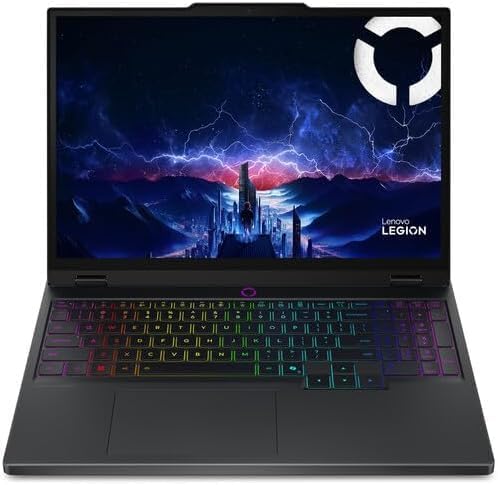
Not everyone has two grand to drop on a laptop, and you shouldn’t have to. The Legion Pro 5i is where smart, budget-conscious students go. It’s technically a gaming laptop, but that just means you’re getting a lot of GPU horsepower for the money — and a gaming GPU runs CAD just fine.
The best part? You can upgrade the RAM and add a second SSD yourself. In a year where memory prices are insane, that flexibility is gold.
The specs that matter:
- CPU: Ranges from a Core i7-14650HX up to a Core Ultra 9 275HX (24 cores, 5.4 GHz).
- GPU: RTX 5060 (8 GB), RTX 5070 (8 GB), or RTX 5070 Ti (12 GB).
- RAM: 16–32 GB DDR5, with two slots you can upgrade to 64 GB.
- Storage: 1–2 TB, with two M.2 slots (one is blazing-fast Gen5).
- Display: 16″ 2.5K OLED, 16:10, 500 nits, 100% DCI-P3. Beautiful and color-accurate.
- Weight: ~5.3 lb (the heaviest pick here).
- Battery: ~5–6 hours light use, but it charges 0→70% in 30 minutes.
- Ports: Thunderbolt 4, USB-C, three USB-A, HDMI 2.1, Ethernet, Wi-Fi 7.
The good:
- Incredible bang for your buck
- Upgradeable RAM and dual SSD slots (rare and valuable in 2026)
- Lovely 16:10 OLED screen
- Strong, reliable performance on the 5060/5070 models
- Solid workstation benchmark scores for the price
The not-so-good:
- 8 GB of VRAM on the 5060/5070 limits really big assemblies
- The 5070 Ti version runs hot in this chassis — I’d skip it
- No SD card reader
- It’s heavy, and battery is just okay
Heads up on the name: There’s a plain “Legion 5i Gen 10” sold in the US that’s a smaller 15-inch machine with notably worse battery. The one you want is the Legion Pro 5i Gen 10 (16-inch, 2.5K OLED). Double-check the exact model before you click buy.
Why it’s great for ME: You get genuine RTX 5070 CAD and rendering muscle, the ability to add RAM down the line, and a great screen — for roughly half what a certified workstation costs. For a student watching their wallet, this is the smart move.
3. Lenovo ThinkPad P1 Gen 8 — Best for Serious / Professional CAD
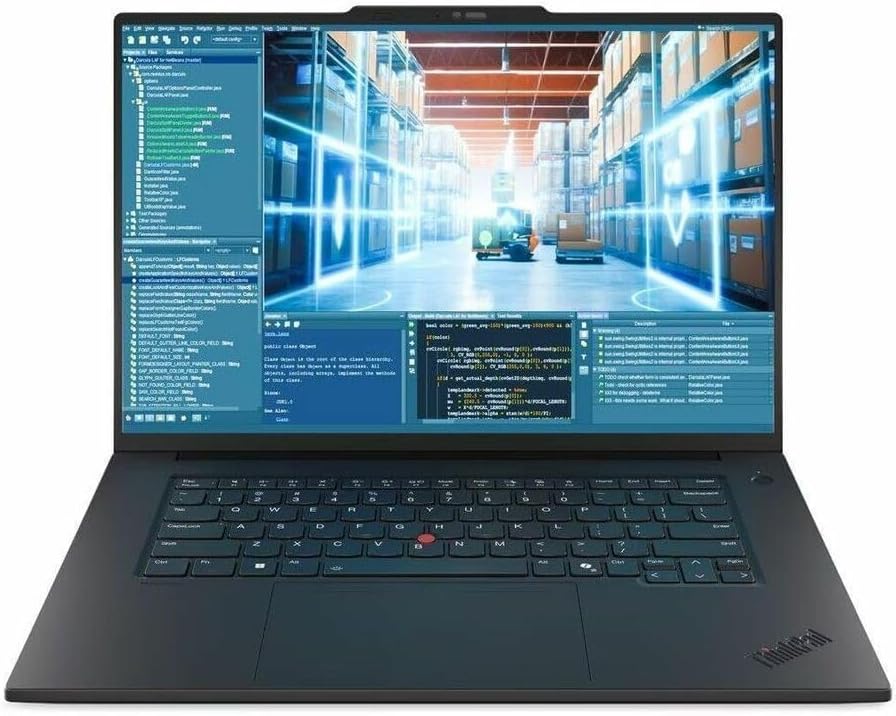
Okay, this one’s not for everybody, and that’s fine. The ThinkPad P1 is a true mobile workstation — meaning it uses professional, certified graphics cards and is built like a tank. If your program leans heavily on professional software, or you’ve landed a co-op where stability matters more than anything, this is your machine.
What’s “certification”? Companies like Dassault (SolidWorks) and others officially test and approve certain GPUs for their software. Certified cards get special drivers that make things like RealView graphics and giant assemblies way more stable. For a hobbyist it’s overkill. For someone doing real professional work, it’s peace of mind.
The specs that matter:
- CPU: Intel Core Ultra 7 or Ultra 9 (up to 16 cores, 5.1 GHz).
- GPU: NVIDIA RTX PRO 1000 or RTX PRO 2000 — these are the certified professional cards.
- RAM: 16–64 GB, and it’s user-upgradeable (using the newer CAMM2 modules) — a genuine rarity in a thin laptop.
- Storage: Up to 4 TB across two slots.
- Display: Up to a gorgeous 16″ 3.2K OLED, 120 Hz.
- Weight: ~4 lb, which is shockingly thin for a workstation.
- Ports: Thunderbolt 5, Thunderbolt 4, HDMI, SD Express, and it can drive up to four monitors.
The good:
- Officially certified for SolidWorks, CATIA, Creo, and more
- The legendary ThinkPad keyboard (genuinely the best on any laptop)
- Upgradeable RAM and dual SSD slots
- Beautiful OLED panel and rock-solid build
- Has Thunderbolt 5
The not-so-good:
- Expensive — like, really expensive
- Uses lower-power CPUs, so it loses to gaming laptops in raw multi-core grunt
- The RTX PRO 2000 is mid-range for heavy GPU rendering
- Definitely not a gaming machine
Why it’s great for ME: If your coursework or job uses certified professional software and you value bulletproof stability over flashy frame rates, this is the safe, grown-up choice. Most students don’t need it — but if you do, you’ll know.
4. ASUS ROG Zephyrus G14 — Best for Portability
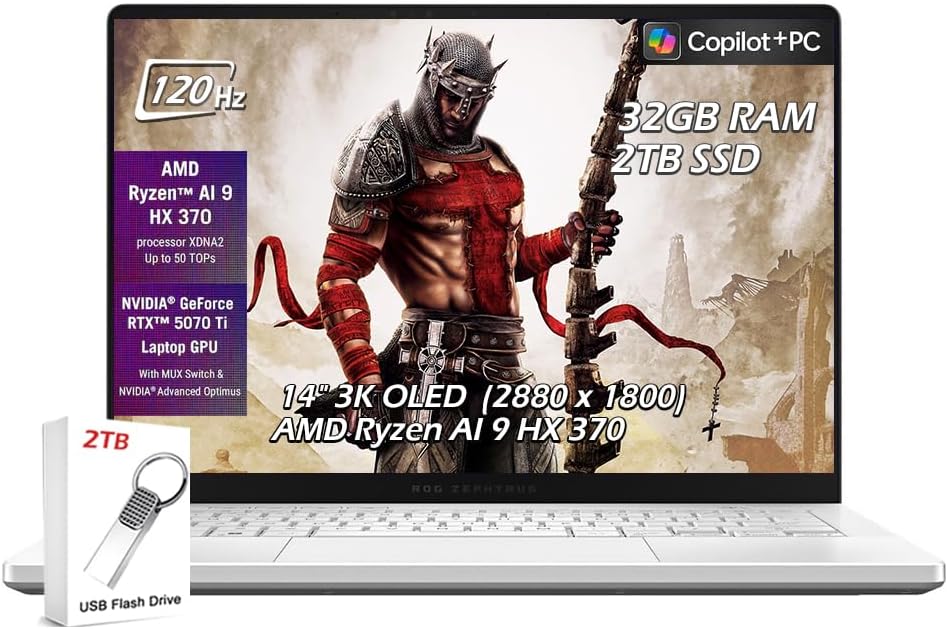
Some of you are going to be carrying this thing everywhere — between dorms, labs, the library, the coffee shop where you actually get work done. If that’s you, weight matters a lot, and the Zephyrus G14 is the answer. It’s the lightest laptop here that still packs a real, gaming-grade GPU. It’s a little engineering marvel in its own right.
The specs that matter:
- CPU: Intel Core Ultra 9 (16 cores), with AMD Ryzen AI 9 versions also available.
- GPU: RTX 5070 (8 GB), RTX 5070 Ti (12 GB), or RTX 5080 (16 GB).
- RAM: 32 GB (soldered — can’t upgrade, so this is your ceiling).
- Storage: 1–2 TB NVMe SSD.
- Display: 14″ 3K OLED, 120 Hz, super bright, Pantone Validated.
- Weight: ~3.3 lb. You’ll forget it’s in your bag.
- Battery: ~9–10 hours light use, ~3.5–4 hours under GPU load (the AMD version lasts longest).
- Ports: Thunderbolt 4, HDMI 2.1, USB-A, SD card reader, Wi-Fi 7.
The good:
- Genuinely portable and it has a real GPU — a rare combo
- Excellent bright 14″ OLED screen
- Good battery life for this class
- Stays surprisingly cool and quiet
The not-so-good:
- Pricey for what you get
- RAM capped at 32 GB forever
- The 14″ screen gets cramped when you’ve got CAD plus a browser plus notes open
- The GPU runs at lower power in the thin body, so it’s a touch slower than the same chip in a bigger laptop
Why it’s great for ME: If you commute, hop between buildings all day, and want the lightest machine that still runs SolidWorks and Fusion 360 without complaint, the G14 is the best weight-to-power balance you can buy. Just accept the smaller screen and the 32 GB ceiling going in.
5. Apple MacBook Pro (M5 Pro / M5 Max) — Best Mac
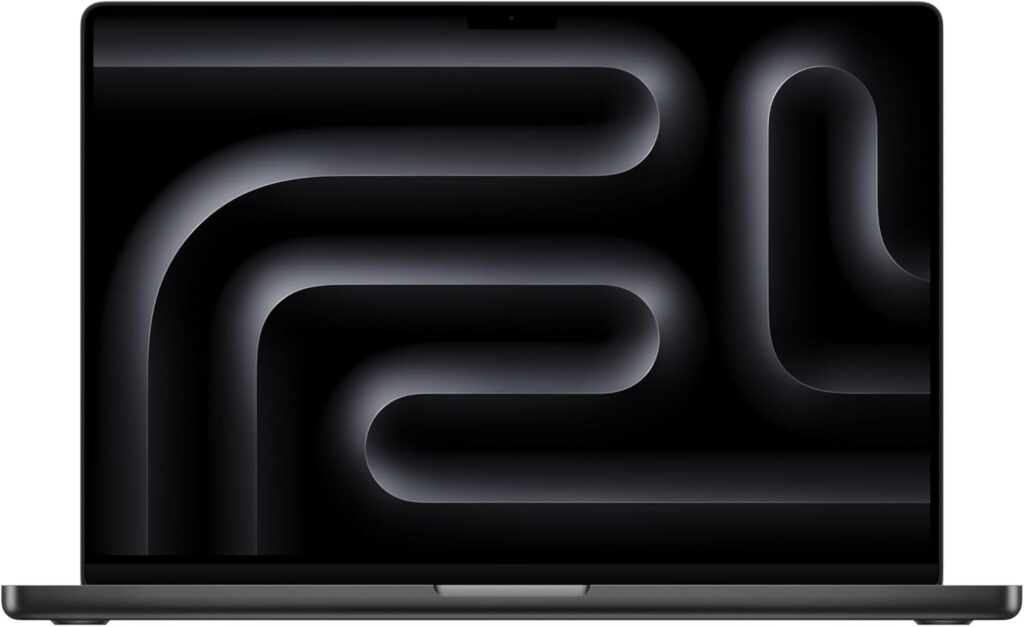
I have to be careful and honest here, because this is where students get burned. The MacBook Pro is, hands down, the best-built and longest-lasting laptop on this entire list. The battery life is absurd in the best way. But there’s a giant asterisk for engineering students, and I’m not going to bury it.
The catch: A huge chunk of core mechanical engineering software — SolidWorks, CATIA, most Autodesk apps, ANSYS — is Windows-only and does not run natively on a Mac. And unlike older Intel Macs, you cannot install Windows on these Apple chips with Boot Camp. Dassault has flat-out said Boot Camp Macs aren’t supported.
So if you buy a MacBook, you’ll be relying on cloud workstations (lots of universities provide these), virtualization, or a remote Windows machine to run that software. For some students that’s totally fine. For others it’s a dealbreaker. Check what your specific department requires before you buy this.
That said, if your program is flexible, or you lean toward coding, MATLAB, Python simulation, and CFD, the MacBook is spectacular.
The specs that matter:
- Chip: Apple M5 Pro or M5 Max — wildly fast and efficient, with the GPU built right in.
- RAM: 24–128 GB unified memory (can’t upgrade later).
- Storage: Starts at 1–2 TB, with super-fast SSDs.
- Display: 14″ or 16″ Liquid Retina XDR — bright, stunning, 120 Hz.
- Weight: ~3.5 lb (14″) to ~4.7 lb (16″).
- Battery: Apple says up to 24 hours, and reviewers actually measured the 16″ at over 21 hours of continuous web use. That’s not a typo. Nothing else here comes close.
- Ports: Three Thunderbolt 5 ports, HDMI, SD card slot, MagSafe charging, Wi-Fi 7.
The good:
- Battery life that genuinely lasts all day (and full speed even unplugged)
- Best-in-class display
- Brilliant for coding, MATLAB, Python, and rendering
- Runs cool and dead silent
- Holds its resale value really well
The not-so-good:
- Can’t natively run the Windows-only engineering staples (the big one)
- No Boot Camp on Apple chips
- Expensive
- Memory is locked in at purchase
Why it might be great for ME: Perfect if your program accepts macOS or cloud workflows, or if you lean toward the computational, code-heavy side of engineering. Just — and I can’t stress this enough — confirm your required software situation first.
Windows vs. Mac for Engineering: The Honest Take
Let me settle this simply, because it comes up constantly.
The core programs you’ll likely use — SolidWorks, AutoCAD, Inventor, Revit, ANSYS, CATIA, Creo, COMSOL — are built for Windows first, and many are Windows-only. Apple’s chips, as great as they are, can’t run these natively and can’t run Windows through Boot Camp anymore.
If you go Mac, your options for that software are:
- Your university’s cloud/virtual lab (many schools offer this — ask)
- Virtualization software (works for some apps, not all)
- Remoting into a Windows machine
For most engineering students, a Windows laptop is just the simpler, safer choice. You install your software, it works, done. The Mac is fantastic for coding, math, simulation in Python/MATLAB, and unbeatable battery — but only pick it if you’ve confirmed your required apps will actually work for you.
Do You Need a “Pro” Workstation GPU? (Probably Not)
You’ll see fancy “RTX PRO” (formerly Quadro) graphics cards advertised, and SolidWorks officially recommends them. So do you need one?
For a student? Almost certainly not. Those certified cards give you validated drivers, extra stability in massive assemblies, and a few special graphics features. They matter most in professional production settings where downtime costs real money.
For coursework, projects, and learning, a regular consumer GeForce RTX card does the job beautifully and costs a lot less. Save your money. You can always get a certified workstation later when (and if) a job actually requires it.
A Real Talk About 2026 Prices
One more thing you need to know, because it explains why everything feels expensive right now.
There’s a global shortage of memory chips (driven largely by the AI boom gobbling up supply), and it’s hammered laptop prices in 2026. MSI’s CEO openly confirmed price increases of 15 to 30 percent across their entire lineup this year. Analysts have projected PC prices climbing around 17% overall from the combined RAM and SSD price surge.
The RAM situation is genuinely wild. According to Newegg’s own reporting, a 32 GB DDR5 memory kit that cost around $80 in mid-2025 hit roughly $432 by early 2026 — that’s over a 400% jump in under a year. PC memory contract prices more than doubled in a single quarter.
What this means for you, practically:
- Buy the RAM and storage you need up front. Don’t plan to upgrade later — it could cost you a fortune.
- Prices and deals change daily. The number you see today might be different next week, in either direction.
- Don’t panic-wait for prices to crash. They might not for a while, and you have classes starting.
This is exactly why I keep pointing to the laptops with upgradeable RAM (the Legion Pro 5i and ThinkPad P1) as smart buys — but even then, getting enough memory at purchase is the safer play this year.
So, Which One Should You Buy?
Let me make this dead simple:
- Most students, just tell me what to get: ASUS ProArt P16 with the RTX 5070 and 32 GB. Best all-around blend of power, screen, and portability. Go 64 GB only if you do heavy simulation or huge assemblies.
- I’m on a tight budget: Lenovo Legion Pro 5i Gen 10 with the RTX 5070 and 32 GB. Skip the hot-running 5070 Ti version. Add RAM at checkout.
- My program is hardcore professional CAD: Lenovo ThinkPad P1 Gen 8. Only worth it if you specifically need that certified-software stability.
- I carry my laptop everywhere: ASUS ROG Zephyrus G14. Lightest real option. Accept the 14″ screen and 32 GB cap.
- I want a Mac and my software works with it: MacBook Pro M5 Pro. Confirm your software situation first, then enjoy that battery life.
And a couple of rules of thumb that override all of the above:
- If you need 16 GB+ of VRAM for big FEA or rendering, step up to an RTX 5070 Ti, 5080, or 5090.
- If you want 64 GB+ of RAM, prioritize the models you can upgrade (Legion Pro 5i, ThinkPad P1).
- If you mostly code and simulate in Python or MATLAB and crave all-day battery, the MacBook quietly becomes your best pick.
Frequently Asked Questions
Yes. CAD programs lean on the GPU to render and rotate your 3D models smoothly. Integrated graphics will technically launch the software, but you’ll fight lag constantly, especially on bigger assemblies. A dedicated NVIDIA RTX card is worth it.
It’s the bare minimum, and in 2026 it’s already tight. Go with 32 GB. You’ll be running CAD, a browser, and maybe a simulation all at once — 16 GB fills up fast. And because RAM prices are sky-high this year, buy enough up front rather than upgrading later.
You can, but with a serious catch: a lot of essential ME software (SolidWorks, CATIA, ANSYS, most Autodesk tools) is Windows-only and won’t run natively on a Mac, and you can’t install Windows via Boot Camp on Apple chips. If your school offers cloud labs or your work is more code- and math-heavy, a Mac is great. Otherwise, go Windows. Always check your department’s requirements first.
A solid, capable machine lands around $1,600–$2,400 in 2026. You can spend less (the Legion Pro 5i starts lower) or a lot more (workstations run $3,000+), but that mid-range zone gets most students everything they need.
Not as a student. A consumer GeForce RTX card handles coursework, projects, and learning perfectly and costs far less. Certified workstation cards matter mostly in professional settings with massive, mission-critical assemblies.
How to Choose the Right Laptop for Mechanical Engineering
Time needed: 5 minutes
Picking an engineering laptop doesn’t have to be stressful. Here’s the simple, three-step way I’d walk a friend through it — figure out your real needs, match the specs that actually matter, then pick the machine that fits your budget and software.
- Know what your program actually demands
Before anything else, check which software your courses require. Most ME staples like SolidWorks, AutoCAD, and ANSYS are Windows-first, so that usually points you toward a Windows laptop. If your program leans on cloud labs or code-heavy work, a Mac can work too — just confirm it first instead of guessing.
- Match the specs that genuinely matter
Don’t get hypnotized by core counts. For smooth CAD work you want a fast single-core CPU, a dedicated NVIDIA RTX graphics card (8 GB VRAM minimum, more is better), 32 GB of RAM, and a color-accurate screen. Get the RAM you need up front, since 2026 memory prices make upgrading later painful.
- Pick the laptop that fits your life and wallet
Now match all that to your budget and how you’ll carry it. The ASUS ProArt P16 is the best all-rounder, the Lenovo Legion Pro 5i is the value champ, and the ROG Zephyrus G14 wins if you’re hauling it everywhere. Buy the one that fits — then go build something cool.
Final Thoughts
Here’s the truth: any of these five laptops will get you through your degree. There’s no single “perfect” machine — there’s the one that fits your budget, your program’s software, and your daily life.
If you want my honest one-line advice: get the ASUS ProArt P16 if you can swing it, or the Lenovo Legion Pro 5i if money’s tight. Both will handle everything an undergrad ME program throws at them, and then some.
Don’t overthink it past that. Buy a machine with a real RTX GPU, 32 GB of RAM, and a screen you’ll enjoy looking at, and go build something cool. That’s what the degree is actually about — the laptop’s just the tool.
Good luck out there. You’ve got this.

Hi, my name is Burak. I am a mechanical engineer. I have been writing laptop reviews for the Engineering Laptops website since 2020. Please feel free to contact me if you have any questions.