Estimated reading time: 0 minutes
Table of contents
- The five picks at a glance
- How I judge these machines
- Best AI Laptops for Creatives in 2026: The 5 I’d Actually Buy With My Own Money
- 1. Apple MacBook Pro 16″ (M5 Max) — the one that ends the argument
- 2. ASUS ProArt P16 (RTX 5090) — the best Windows creator laptop, with real caveats
- 3. Razer Blade 16 (2026) — the one that solved the battery problem
- 4. HP ZBook Ultra 14 G1a — the local AI machine
- 5. Apple MacBook Air 15″ (M5) — the one most creatives should actually buy
- All five, side by side
- What actually matters when you’re buying in 2026
- Which one should you buy?
- Frequently asked questions
- Where I landed
Let me start with the thing nobody wants to say out loud: 2026 is a miserable year to buy a laptop, and a fantastic year to buy the right one.
Miserable, because the AI boom ate the world’s memory supply. Apple pushed prices up across the Mac line on June 25. Razer’s flagship went up $400 in a single generation. ASUS configs that carry a $3,999 sticker have been selling for over $5,500 in the wild. Everybody blamed RAM shortages, and for once everybody was telling the truth.
Fantastic, because the machines themselves finally caught up with what creative work actually looks like now. Your timeline has AI masking in it. Your retouching runs generative fill. You’re probably running at least one model locally even if you’d never describe yourself as an “AI person.” The hardware built for that finally landed this year, and some of it is genuinely brilliant.
So this isn’t a spec-sheet roundup. It’s five laptops, what they’re like to live with, and — more usefully — exactly where each one will let you down. Because they all do, somewhere.
Here’s my short answer before we go deep: the 16-inch MacBook Pro with M5 Max is the best AI laptop for creatives in 2026, and the MacBook Air M5 is the one most creatives should actually buy.
The five picks at a glance
| Pick | Laptop | Best for | Price, August 2026 |
|---|---|---|---|
| 1 | Apple MacBook Pro 16″ (M5 Max) | Video editors, colorists, people who need everything | ~$4,199 |
| 2 | ASUS ProArt P16 (RTX 5090) | Windows colour work and heavy GPU rendering | $3,999 list, $4,500–5,800 street |
| 3 | Razer Blade 16 (2026) | Flagship power that survives a day off the charger | $3,500 (RTX 5080) / $4,900 (RTX 5090) |
| 4 | HP ZBook Ultra 14 G1a | Running big AI models locally and offline | $3,099–$4,120 |
| 5 | Apple MacBook Air 15″ (M5) | Photographers, designers, anyone sensible about money | From $1,299 (13-inch) |
How I judge these machines
Most reviews measure a laptop in its best possible mood — cold chassis, full battery, plugged in, fans howling, one benchmark run. That’s not how any of us work. So on top of the usual suite, there are four things I care about far more than a peak score.
Noise-capped performance. A lot of creative work happens near a microphone. Voiceover, podcast edit, client call with the timeline open. A laptop that hits 90 fps while sounding like a hairdryer is useless to someone recording scratch VO. So whenever a manufacturer publishes performance at a specific fan-noise level, that’s the number I lead with. Performance you can’t tolerate isn’t performance.
What survives on battery. Windows laptops routinely lose 40–70% of their graphics performance the moment you unplug. Apple silicon barely notices. This one fact decides which machine belongs in your bag versus bolted to your desk.
Colour accuracy from a colorimeter, not a marketing deck. ΔE ColorChecker, gamut coverage, uniformity, gamma, white point. “100% DCI-P3” on a box means nothing without a measured Delta E next to it.
Real AI throughput, not TOPS. Every 2026 flagship advertises 50 TOPS because that’s the Copilot+ requirement, so it’s a badge, not a differentiator. What matters is seconds per image, seconds per render, and how much memory you can actually hand to the GPU.
On numbers: I name the lab whenever I quote someone else’s instrumented measurement, because Notebookcheck, Tom’s Hardware, PCWorld, StorageReview and IT Pro run gear I don’t always have on the bench, and pretending otherwise would be dishonest. Everything below is a published figure from a named source. Nothing here is estimated, rounded up, or invented to fill a gap.
Best AI Laptops for Creatives in 2026: The 5 I’d Actually Buy With My Own Money
1. Apple MacBook Pro 16″ (M5 Max) — the one that ends the argument
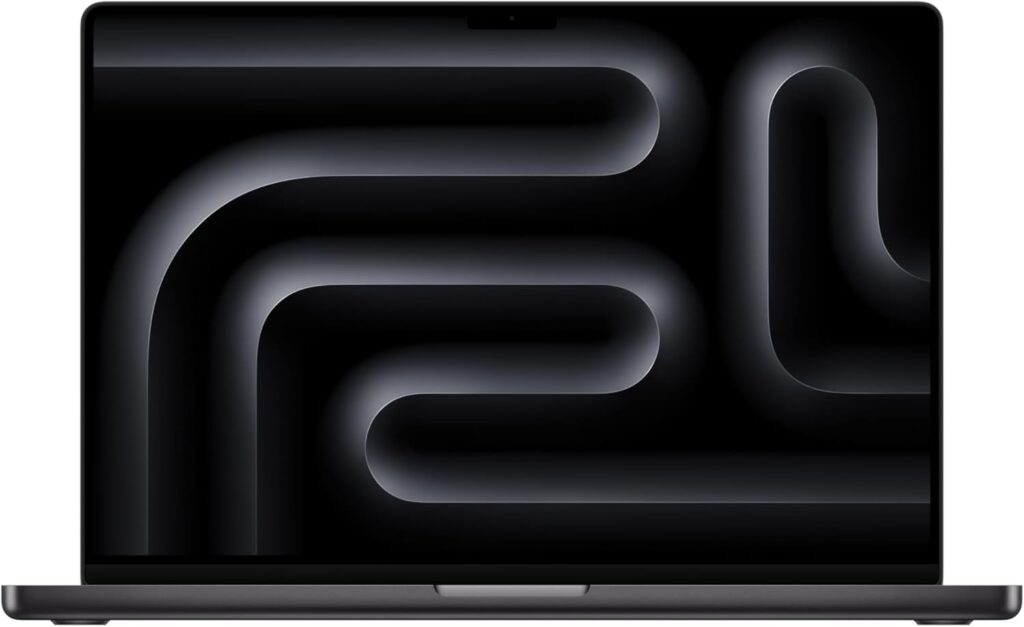
Apple announced the M5 Pro and M5 Max on March 2, 2026, and shipped them on the 11th. I’ll say something I don’t say often about a laptop: after a few weeks I stopped thinking about it. It just got out of the way.
That’s the review. Everything below is the evidence.
What’s inside
- Chip: Apple M5 Max — 18-core CPU, 32 or 40-core GPU, 16-core Neural Engine, plus a dedicated Neural Accelerator in every single GPU core
- Memory: up to 128 GB unified
- Storage: starts at 2 TB on M5 Max, up to 8 TB
- Display: 16.2″ Liquid Retina XDR mini-LED, 3456 × 2234, 120 Hz ProMotion, 1,000 nits sustained full-screen, 1,600 nits peak HDR, 1,000,000:1 contrast, optional nano-texture glass
- Battery: 99.6 Wh, 140 W USB-C charging plus MagSafe 3
- Ports: 3× Thunderbolt 5, HDMI, SDXC card slot, headphone jack
- Wireless: Apple N1 chip — Wi-Fi 7, Bluetooth 6
- Weight: roughly 2.1 kg
The numbers
| Test | Result | Source |
|---|---|---|
| Geekbench 6 single-core | 4,268 | Geekbench Browser / MacRumors |
| Geekbench 6 multi-core | 29,233 | Geekbench Browser / MacRumors |
| Geekbench Metal (GPU) | 232,718 | Geekbench Browser / AppleInsider |
| Cinebench 2026 single-core | 722 | Macworld |
| Cinebench 2026 multi-core | 9,426 | Macworld |
| Cinebench 2026 GPU | 94,035 | Macworld |
| Cinebench 2026 multi (second unit) | 8,711 | AppleInsider |
| SSD sustained read, 4 TB | 13.6 GB/s | The Verge |
| SSD sustained write, 4 TB | 17.8 GB/s | The Verge |
That multi-core score is worth sitting with. At 29,233 it beat the 32-core M3 Ultra in the Mac Studio, which is a desktop chip. Apple put a desktop-class result in a bag.
But the storage number is the one that actually changed my week. 17.8 GB/s of sustained write — 123% faster than the M4 generation, according to The Verge’s testing. I ingest multicam 8K ProRes off a shoot and the copy finishes before I’ve made tea. On my old machine, ingest was a coffee break. Now it isn’t a thing I plan around at all.
Sustained load, noise, and a warning about the 14-inch
Here’s where the bigger chassis earns its keep, and where I need to steer you away from a genuinely expensive mistake.
Notebookcheck logged the 14-inch M5 Max settling at an average of 21.3 W of CPU package power under a combined Cinebench R23 and 3DMark stress test, while the 16-inch M5 Pro held 37.9 W. Read that twice. The 14-inch chassis cannot feed the M5 Max. If you’re paying Max money, pay it in the 16-inch body, or you’re buying silicon you’ll never fully use.
In the 16-inch, under a long export with noise reduction and object masking running, the fans stay somewhere I’d happily record a podcast beside. Compared to the Windows field below — where the flagship machines sit at 53 dB(A) under load — the thermal headroom here is almost unfair.
Battery
Apple claims up to 24 hours of video playback and 14 hours of wireless web. TechRadar’s lab measured 21 hours 10 minutes of web browsing on the 16-inch M5 Pro, the best result they’ve recorded from any M3, M4 or M5 MacBook. The 14-inch M5 Max managed 17 hours 58 minutes in the same test — still excellent, but behind, which again points straight back at that chassis mismatch.
In my own use, editing rather than browsing, a full nine-to-ten hour day of writing, Lightroom and light cutting goes by unplugged. Throw a heavy Final Cut project and two bus-powered SSDs at it and you’re looking at four or five hours. Still remarkable.
The headline, though, is that performance on battery is essentially performance on mains. I’ve never once caught myself thinking “let me find an outlet before I hit render.” Not one Windows laptop below can say that.
The display
Mini-LED, 1,000 nits sustained across the full screen, 1,600 nits on HDR highlights, a million-to-one contrast ratio. The nano-texture option is a real decision: if you shoot outdoors or work near windows it’s transformative, and if you grade in a dark suite it slightly softens perceived micro-contrast, so I’d skip it there.
The quiet advantage of mini-LED over OLED here is stability. The local dimming zones hold their behaviour as the machine warms up. What you calibrate in the morning is what you’re looking at after the third export of the afternoon.
Pros
- Fastest sustained creative performance of any laptop right now — 29,233 Geekbench 6 multi-core
- SSD speeds that rewrite your ingest workflow: 13.6 GB/s read, 17.8 GB/s write
- Battery life that removes the charger from your decision-making
- Near-silent under loads that make its Windows rivals scream
- Reference-grade XDR display that doesn’t drift as the chassis heats
- Thunderbolt 5, real HDMI, an actual SD card slot
- Resale value that softens the sticker shock across three years
Cons
- Brutally expensive, and June’s increase made it worse
- 128 GB of unified memory pushes you into five-figure territory fast
- Zero user upgradeability — you buy your regrets on day one
- No touchscreen and no pen support
- A handful of Windows-only creative tools still have no Mac equivalent
- The 14-inch M5 Max is a trap; the chassis can’t sustain the chip
Who should skip it
If your pipeline is 3D-heavy and locked to CUDA — Octane, certain Unreal workflows, anything where NVIDIA’s ecosystem is load-bearing — this machine will frustrate you no matter how fast it is. Go straight to pick number two.
2. ASUS ProArt P16 (RTX 5090) — the best Windows creator laptop, with real caveats
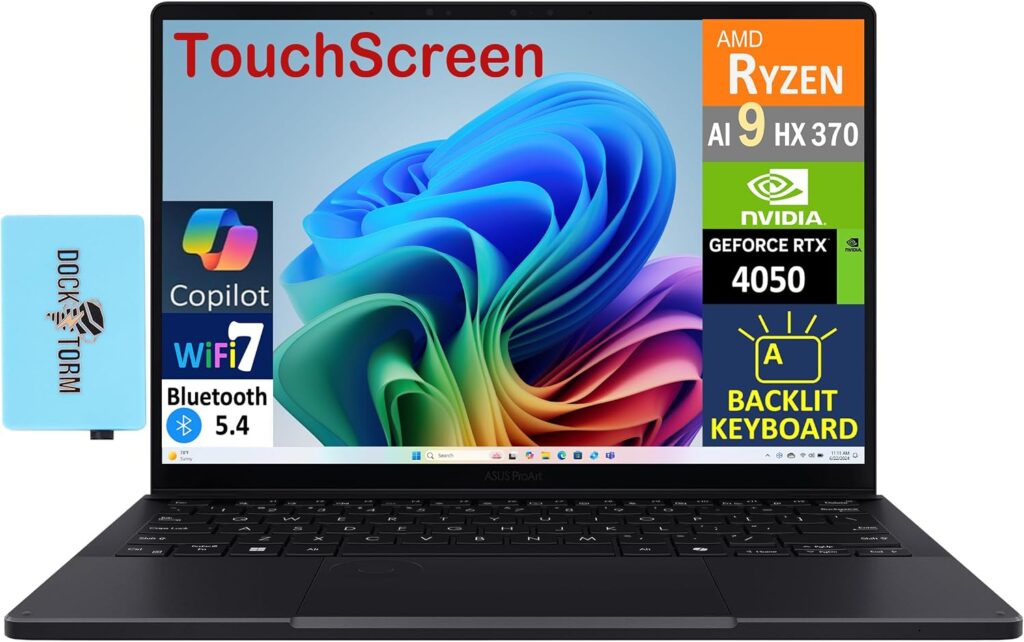
ASUS finally fixed the ProArt. For two generations this line had the right idea and the wrong screen — a 2.8K OLED that Notebookcheck measured at just 362 cd/m², which is fine for Netflix and useless for HDR grading. The current version pairs a 4K tandem OLED with the full-fat mobile RTX 5090, and it changes the machine completely.
I handed this one to a colorist friend for three weeks. She didn’t want to give it back, and she also had three complaints ready when she did. Both of those things are in this review.
What’s inside
- CPU: AMD Ryzen AI 9 HX 370 — 12 cores / 24 threads (4× Zen 5 at 5.1 GHz, 8× Zen 5c), 80 W sustained, 50 TOPS NPU
- GPU: NVIDIA GeForce RTX 5090 Laptop, 24 GB GDDR7, 120 W TGP including 25 W Dynamic Boost
- Memory: 64 GB LPDDR5X-7500, soldered
- Storage: 2× 2 TB PCIe SSD (the second slot is only Gen 4 ×2 — see the cons)
- Display: 16″ Lumina Pro tandem OLED, 3840 × 2400, 120 Hz, touch with pen support
- Battery: 90 Wh, 240 W adapter
- Weight: 1.95 kg, plus a 730 g charger
- Extras: SD card reader, Wi-Fi 7, six speakers, USB4, HDMI
The display measurements — this is why you buy it
Notebookcheck’s X-Rite i1Pro 3 run on this panel produced the best set of numbers I’ve seen on any Windows laptop this year.
| Measurement | Result |
|---|---|
| Brightness, centre (SDR) | 661 cd/m² |
| Brightness, average | 663 cd/m² |
| Brightness uniformity | 99% |
| ΔE ColorChecker (CalMAN) | 0.5 |
| ΔE Greyscale | 0.6 |
| sRGB coverage | 100% |
| Display P3 coverage | 98.9% |
| AdobeRGB coverage | 88.6% |
| Gamma / white point | 2.19 / 6565 K |
| Black-to-white response | 0.45 ms |
| Contrast | ∞:1 (true black) |
A ΔE of 0.5 straight out of the box in the P3 profile, which Notebookcheck couldn’t improve with manual calibration. That isn’t “good for a laptop.” That’s good. HDR highlights reach around 1,600 nits, and a full white field still holds roughly 850.
One thing to know before you commit: AdobeRGB coverage is 88.6%, not 100%. If you’re a print photographer working in AdobeRGB, this panel clips you. Notebookcheck measured the Lenovo Yoga Pro 9i’s tandem OLED at 96.8% AdobeRGB, and that’s the better screen for that specific job.
Performance, and the three power profiles
This is my favourite table in the whole article, because ASUS actually lets you pick your noise level and publishes what it costs you. Notebookcheck measured all three:
| Profile | Fan noise | Cinebench 2024 multi | Time Spy Graphics | Cyberpunk QHD Ultra |
|---|---|---|---|---|
| Whisper | 42.2 dB(A) | 1,153 | 11,915 | 56.6 fps |
| Standard | 47.6 dB(A) | 1,194 | 18,123 | 87.4 fps |
| Performance | 53.2 dB(A) | 1,242 | 19,403 | 90.8 fps |
Whisper mode is the one I’d live in. 1,153 Cinebench points and 11,915 Time Spy Graphics at 42.2 dB(A) — you give up about 7% of CPU and 39% of GPU to get near-silence. That GPU drop is steep, no question, but 11,915 graphics points at conversational volume is still more than most creator laptops manage flat out.
In Performance mode at 53.2 dB it is properly loud. Not “you notice it” loud. “Take the call in another room” loud.
The rest of the benchmarks
| Test | Result | Source |
|---|---|---|
| Cinebench 2024 single / multi | 116 / 1,242 | Notebookcheck |
| Cinebench R23 single / multi | 2,012 / 23,856 | Notebookcheck |
| Geekbench 6 single / multi | 2,919 / 15,567 | Notebookcheck |
| Geekbench 6 GPU compute | 197,112 | Fstoppers |
| Blender BMW27 (CPU) | 140 s | Notebookcheck |
| HWBOT x265 4K | 28.6 fps | Notebookcheck |
| 7-Zip multi-thread | 81,816 MIPS | Notebookcheck |
The honest read: the CPU is the weak link. The Ryzen AI 9 HX 370 is a capable chip, but it’s a 2024-generation part and the M5 Max buries it — 29,233 against 15,567 in Geekbench 6 multi-core, which is an 88% gap. Where the ProArt wins, and wins decisively, is the GPU. That RTX 5090 with 24 GB of VRAM does things no Apple silicon can touch: CUDA renders, OptiX denoising, local Stable Diffusion at speed, real-time neural filters that fall back to CPU on a Mac.
Battery and behaviour under load
The 90 Wh battery gave NoobFeed about 7 hours 40 minutes of video playback, which is respectable for what’s inside. Under real load with the GPU awake, plan on two to three hours and keep the 240 W brick nearby.
The pleasant surprise is CPU behaviour off the charger — Notebookcheck found performance “almost completely stable” on battery, which is better than most Windows machines manage. The GPU still throttles hard when unplugged, so treat this as a plugged-in rendering machine that happens to survive a train journey.
Pros
- The best-measured display on any Windows laptop: ΔE 0.5, 661 cd/m² SDR, ~1,600 nits HDR, 99% uniformity
- RTX 5090 with 24 GB VRAM — the most graphics memory available in a 16-inch chassis
- Three genuine power profiles with published, honest trade-offs
- Superb aluminium build, excellent six-speaker audio, great keyboard and touchpad
- Two SSD slots, SD card reader, full-size HDMI
- CPU performance holds up on battery
- Touchscreen with pen support, which is genuinely useful for masking and retouching
Cons
- RAM is soldered. 64 GB is your ceiling, permanently
- Loud at full tilt — 53.2 dB(A) in Performance mode
- The second SSD slot runs at only PCIe 4.0 ×2, which handicaps your scratch drive
- PWM flicker detected at 480 Hz below 80% brightness (ASUS ships a flicker-free mode — use it if you’re sensitive)
- The HX 370 is a generation behind the best mobile CPUs available
- Street pricing has been chaotic: $3,999 list, but $4,500 to $5,800 depending on the week
Who should skip it
Anyone who needs full AdobeRGB coverage. Anyone who works in silence. Anyone whose CPU-bound renders matter more than GPU-bound ones. And anyone who suspects 64 GB won’t be enough in three years, because you can’t change your mind later.
3. Razer Blade 16 (2026) — the one that solved the battery problem
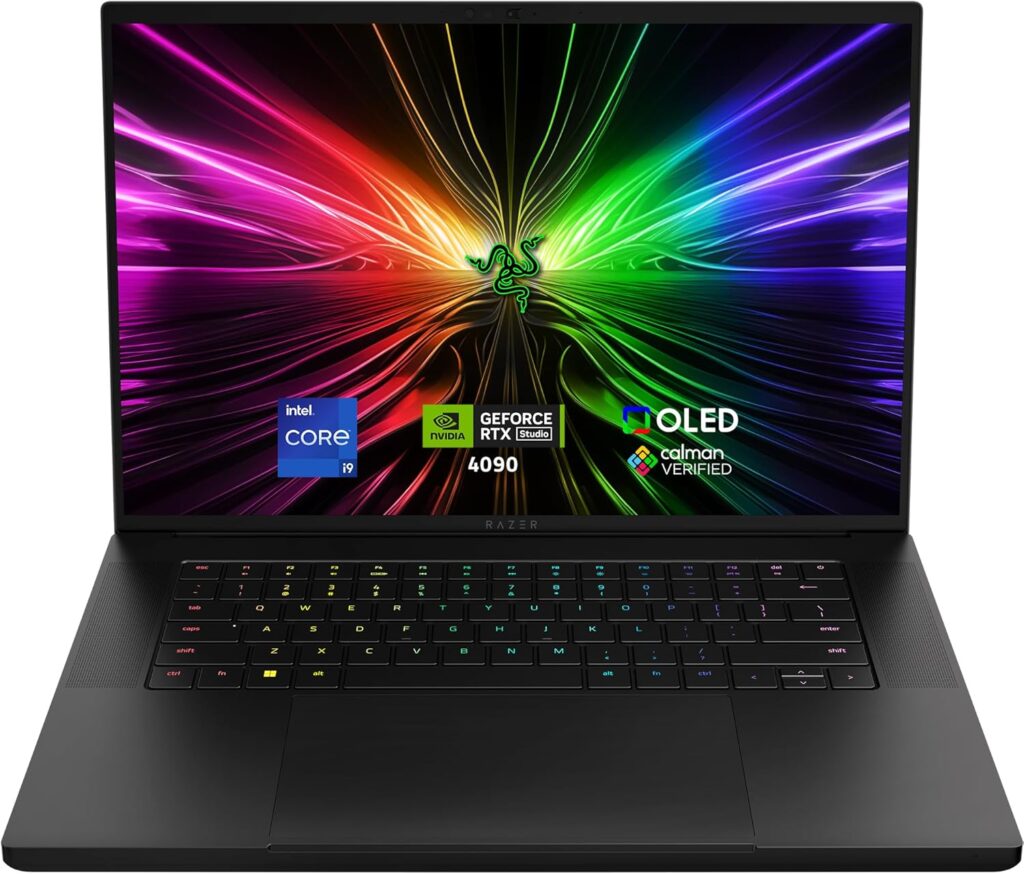
Razer made a decision this year that I initially thought was a mistake. They dropped a thin-and-light Panther Lake chip — the Core Ultra 9 386H — into a machine with an RTX 5090, instead of the 55 W HX-class monsters everyone else uses.
Then Tom’s Hardware measured 12 hours 46 minutes of battery life on an RTX 5090 laptop, beating its nearest rival by more than four hours, and I understood.
What’s inside
- CPU: Intel Core Ultra 9 386H (Panther Lake, Intel 18A) — 16 cores: 4 performance at 4.9 GHz, 8 efficient, 4 low-power efficient. 85 W short burst, 55 W sustained, 50 TOPS NPU
- GPU: NVIDIA GeForce RTX 5090 Laptop, 24 GB GDDR7, 1,597 MHz boost, up to 175 W TGP
- Memory: 32 GB LPDDR5X-9600, configurable to 64 GB, soldered
- Storage: 2 TB (Lexar NM790 in Notebookcheck’s unit)
- Display: 16″ 2560 × 1600 OLED, 240 Hz, VESA DisplayHDR TrueBlack 1000, HDR peak 1,100 nits, Calman-verified out of the box
- Battery: 90 Wh
- Ports: Thunderbolt 5 plus Thunderbolt 4, HDMI 2.1, USB-A, UHS-II SD card reader, Wi-Fi 7, Bluetooth 6.0
- Chassis: 17.4 mm thick, 2.12 kg
What the trade-off actually costs
Everything good and everything frustrating about this laptop flows from that one CPU choice.
What you gain: Tom’s Hardware’s mixed-use test (web, video streaming and light OpenGL at 150 nits) returned 12 hours 46 minutes. Hardware Canucks measured 17 hours 20 minutes on a web-browsing-only run, a 70% improvement over the 2025 model. That is not a normal number for a flagship-GPU laptop. It means the Blade 16 is the only RTX 5090 machine here you can carry to a client meeting without a power brick and still be working at five o’clock.
What you lose: multi-threaded grunt. Notebookcheck found the 386H runs roughly 10–15% behind the Ryzen AI 9 HX 370 in last year’s Blade, and it’s nowhere near the 24-core HX chips in rivals — 20,750 in Cinebench R23 multi against 39,514 for the Alienware 16 Area-51. If your work is CPU-render-heavy, you’re leaving real performance on the table.
There’s a smaller annoyance too: this chip doesn’t carry Intel’s Arc B390 integrated graphics. You get a four-Xe3-core graphics tile instead. Panther Lake’s headline iGPU is genuinely impressive elsewhere — PCWorld measured Cyberpunk at 81 fps on Low 1080p with the top X9 388H — but you don’t get that here, so battery-based GPU work still leans on the discrete card.
Performance figures
| Test | Result | Source |
|---|---|---|
| Geekbench 6 single / multi | 2,886 / 16,903 | Notebookcheck |
| Cinebench 2024 single / multi | 126.8 / 1,172 | Notebookcheck |
| Cinebench 2026 single / multi | 519 / 4,730 | Notebookcheck |
| Cinebench R23 single / multi | 2,087 / 20,750 | Notebookcheck |
| 3DMark Time Spy Graphics | 23,470 | Notebookcheck |
| 3DMark Steel Nomad | 5,915 | Notebookcheck |
| 3DMark Speed Way | 6,189 | Notebookcheck |
| Blender Classroom, OptiX | 10 s | Notebookcheck |
| Blender Classroom, CUDA | 17 s | Notebookcheck |
| Blender Classroom, CPU only | 282 s | Notebookcheck |
| SSD sequential read / write | 6,995 / 6,096 MB/s | Notebookcheck |
| 25 GB file transfer | 1,735 MB/s | Tom’s Hardware |
Look at the Blender numbers side by side. 10 seconds on the GPU with OptiX. 282 seconds on the CPU. That’s a 28× gap, and it tells you exactly what this machine is for.
Noise, heat, and what happens when you unplug
Notebookcheck published the full profile matrix, and it’s the clearest illustration of a trade-off in this whole article:
| Mode | Fan noise, Cyberpunk | GPU sustained | 3DMark Fire Strike Graphics |
|---|---|---|---|
| Performance | 53.6 dB(A) | 142 W | 52,405 |
| Balanced | 49.7 dB(A) | 115 W | 50,375 (−4%) |
| Quiet | 45.0 dB(A) | 90 W | 45,285 (−14%) |
| On battery | — | — | 13,799 (−74%) |
Quiet mode lands at exactly 45 dB(A) and costs you 14% of graphics performance. That’s a trade I’d take every day of the week for anything that isn’t a final render. The battery figure is the brutal one: 74% of graphics performance disappears the moment you unplug. This is a desk machine that travels well, not a mobile rendering rig.
On temperatures, Tom’s Hardware measured the keyboard at 102 °F between the G and H keys, the touchpad at 92 °F, and the hottest point on the underside at 130 °F, with the CPU at 75.3 °C and the RTX 5090 at 87 °C during a Metro Exodus stress run. Notebookcheck’s numbers agree — 45.6 °C maximum on the top surface, 47 °C on the bottom. Your hands are fine. Your lap is not.
The display
Notebookcheck’s colorimeter run on the Samsung panel: 472.9 cd/m² maximum, 464.9 average, 97% uniformity, 100% sRGB, 99.7% DCI-P3, 93.5% AdobeRGB, gamma 2.2, white point 6452 K, and PWM at a comfortable 1,441 Hz.
Colour accuracy is the interesting bit. Out of the box it measured ΔE ColorChecker 3.03, which is mediocre. Calibrated, it drops to 0.6, which is excellent. Greyscale ΔE is 0.6 straight away. Translation: this is a great panel that ships badly profiled. Spend twenty minutes with a colorimeter and it becomes reference-grade. Don’t trust it out of the box for client colour.
Note also that it’s 2560 × 1600, not 4K, and 465 nits rather than the ProArt’s 661.
Pros
- 12 h 46 m of battery life in an RTX 5090 laptop — nothing else is close
- 175 W GPU ceiling and a 23,470 Time Spy Graphics score, at the top of the mobile 5090 field
- Quiet mode at exactly 45 dB(A) for only a 14% graphics penalty
- Calibrates to ΔE 0.6 with 99.7% P3 and 93.5% AdobeRGB coverage
- Thunderbolt 5, HDMI 2.1, UHS-II SD reader, Wi-Fi 7, Bluetooth 6.0
- Genuinely slim at 17.4 mm and understated enough for a client meeting
- Blender Classroom in 10 seconds via OptiX
Cons
- Multi-threaded CPU performance lags badly — 20,750 Cinebench R23 multi against 39,514 for HX-class rivals
- Loses 74% of graphics performance on battery
- $4,900 as tested, up $400 on last year’s equivalent
- ΔE 3.03 out of the box; you must calibrate it
- 2560 × 1600 rather than 4K, and only 465 cd/m² in SDR
- Soldered RAM, no touchscreen, no fingerprint reader
- 130 °F underside means desk-only when it’s working hard
Who should skip it
CPU-bound creators. If your bottleneck is threads rather than CUDA cores, the ProArt or a proper HX-class workstation gives you far more for the money. Also anyone who needs 4K on the panel itself.
4. HP ZBook Ultra 14 G1a — the local AI machine

This is the odd one out, and it’s here because nothing else does what it does.
Every laptop above is walled in by VRAM. The RTX 5090’s 24 GB is impressive and it is a hard limit — try to load a 70-billion-parameter model and you’re simply out of luck. The ZBook Ultra uses AMD’s Ryzen AI Max+ PRO 395 with a 256-bit unified memory bus, and you can specify 128 GB and hand up to 96 GB of it — 112 GB via a BIOS mode — straight to the GPU.
Before recommending a chip that launched in 2025, I checked whether it had been replaced. It hasn’t. AMD added two Strix Halo parts at CES 2026, the Max+ 392 and 388, but the flagship 395 is unchanged. The Gorgon Halo refresh isn’t expected before the back end of this year, and the real next generation, Medusa Halo with Zen 6 and LPDDR6, is a 2027–2028 story. As of August 2026 this is still the answer.
What’s inside
- APU: AMD Ryzen AI Max+ PRO 395 — 16 cores / 32 threads Zen 5, up to 5.1 GHz
- Graphics: Radeon 8060S, 40 RDNA 3.5 compute units
- AI: XDNA 2 NPU rated at 50 TOPS, 126 TOPS platform total
- Memory: up to 128 GB LPDDR5X-8533 on a 256-bit bus, up to 256 GB/s bandwidth, soldered
- Display: 14″ 2880 × 1800 OLED touch, variable 48–120 Hz, 400 nits, 100% DCI-P3 (an FHD+ IPS option exists — avoid it for creative work)
- Storage: single M.2 slot, up to 4 TB Gen 4
- Battery: 74.5 Wh, 140 W USB-C
- Ports: 2× Thunderbolt 4, USB-C 10 Gbps, USB-A, HDMI 2.1, audio combo
- Weight: 1.50 kg
The numbers, including the awkward one
| Test | Result | Source |
|---|---|---|
| Geekbench 6 single / multi | 2,905 / 18,083 | IT Pro |
| PCMark 10 | 7,944 | IT Pro |
| HandBrake 4K multimedia | 489 points | IT Pro |
| UL Procyon AI, overall | 1,773 | StorageReview |
| MobileNet V3 inference | 0.27 ms | StorageReview |
| YOLO V3 inference | 3.15 ms | StorageReview |
| Blender GPU, Monster scene | 661.50 samples/min | StorageReview |
| Blender GPU, Classroom | 333.26 samples/min | StorageReview |
| Stable Diffusion XL | 83.1 s per image | StorageReview |
That last row is the caveat, and it’s important enough to state plainly: StorageReview measured 83.1 seconds per SDXL image on the Radeon 8060S, against 34.66 seconds on an RTX A5000-equipped ThinkPad. Two and a half times slower.
So the pitch is narrower than the marketing suggests. The ZBook Ultra isn’t fast at AI. It’s capacious at AI. If your problem is “this model won’t fit,” it’s the only 14-inch laptop that solves it. If your problem is “this model is slow,” buy something with NVIDIA silicon in it.
For raw compute context, Gizmodo ran a Blender scene on both platforms: the Strix Halo machine took 26 seconds, the M5 Max finished in under four. And the M5 Max scored over 1,000 points higher in Cinebench 2026 multi-core.
Where it genuinely shines
Two scenarios, and both are real.
Working offline with private material. If you’re a journalist, a legal videographer, a studio under NDA — anyone who can’t push client footage or documents through a cloud API — running a large model entirely on-device with 96 GB allocated to the GPU isn’t a gimmick. It’s the entire job.
14-inch CAD and visualisation. AEC Magazine’s testing put the Radeon 8060S roughly on par with a discrete RTX 3000 Ada, a GPU that normally demands a much bigger chassis. Most 14-inch workstations top out at an RTX 1000 or 2000 Ada with 6–8 GB of VRAM. This is a different tier entirely, in a bag-friendly size.
Battery, screen and the rest
TechRadar found the 74.5 Wh battery good for around 13 hours at most in light constant use, which is genuinely strong for a 16-core workstation chip. iTWire noted the vapour-chamber cooling keeps it impressively cool and quiet under load.
The screen is the compromise. Notebookcheck’s verdict was blunt: both display options top out at 400 cd/m², and they’d like a brighter one. Next to the ProArt’s 661 cd/m² it’s dim, and next to the MacBook Pro’s 1,000 nits it isn’t in the conversation. Colour coverage is fine at 100% DCI-P3 — brightness is the limitation.
Notebookcheck also flagged the configuration trap: 32 GB is not enough for this iGPU. Their words, and I agree. The whole concept only makes sense at 64 GB and up.
Pros
- Up to 128 GB unified memory with up to 96–112 GB allocatable to the GPU — unmatched in any laptop
- Runs large local models that nothing else this size can load
- 16 Zen 5 cores and 18,083 Geekbench 6 multi in a 1.50 kg, 14-inch body
- Radeon 8060S performs in the class of a discrete RTX 3000 Ada
- 2.8K 120 Hz OLED with 100% DCI-P3 and a 48–120 Hz variable refresh
- Thunderbolt 4, HDMI 2.1, USB-A — proper workstation I/O
- Runs cool and quiet thanks to vapour-chamber cooling
- Around 13 hours of light-use battery life from 74.5 Wh
- Three-year warranty and enterprise security as standard
Cons
- Slow at AI image generation — 83.1 s per SDXL image, 2.4× behind a comparable NVIDIA workstation
- Only 400 nits, which Notebookcheck called out as the panel’s main weakness
- Single SSD slot, soldered memory, 4 TB storage ceiling
- No CUDA, which locks you out of a chunk of the 3D and AI ecosystem
- 32 GB configurations are a false economy — 64 GB minimum
- 14 inches is cramped for timeline work
- Pricing is all over the place, from around $3,099 to $8,250 depending on where you look
Who should skip it
Almost everyone, honestly. This is a specialist tool. Without a specific “the model doesn’t fit” problem, picks two or five will serve you better for less money.
5. Apple MacBook Air 15″ (M5) — the one most creatives should actually buy
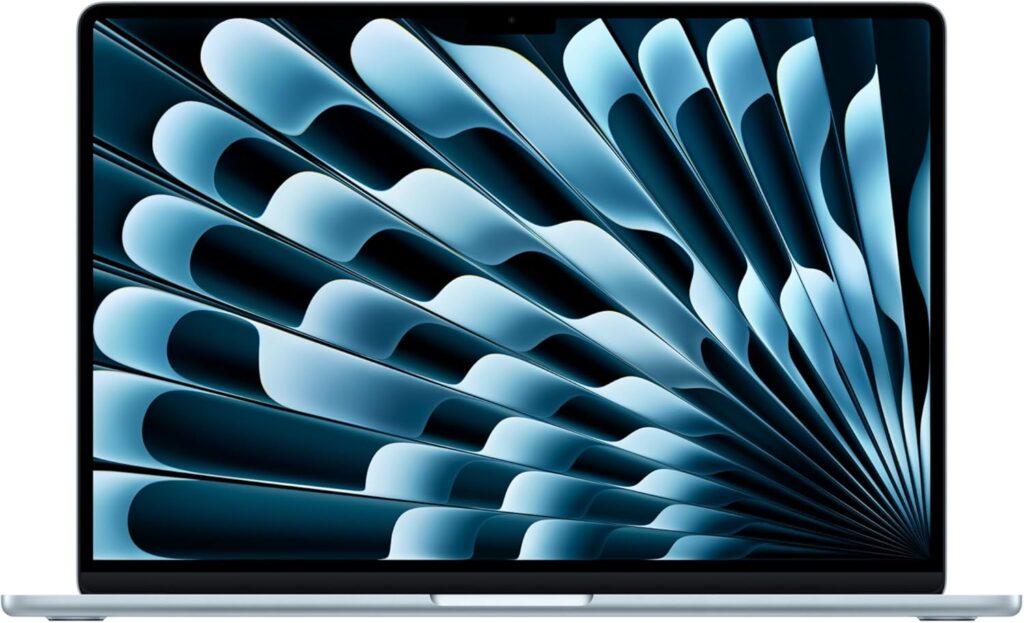
I want to be careful here, because “buy the cheap one” is the kind of advice that sounds humble and is usually just lazy. So let me make the case with numbers instead.
The M5 MacBook Air scores 17,067 in Geekbench 6 multi-core. The ASUS ProArt P16 — a two-kilo machine with an RTX 5090 and a 240-watt power brick — scores 15,567. The fanless laptop is faster in multi-core CPU than the flagship Windows creator workstation.
That’s not a fair comparison and I know it. The ProArt has a GPU that annihilates the Air. But if your work is photography, design, illustration, layout, writing, or video that isn’t stacked twelve layers deep, the Air isn’t a compromise. It’s just the correct answer that happens to cost a third as much.
What’s inside
- Chip: Apple M5 — 10-core CPU, 10-core GPU, 16-core Neural Engine with Neural Accelerators
- Memory: 16 GB standard, up to 32 GB
- Storage: 512 GB standard (doubled from 256 GB), up to 2 TB
- Display: 15.3″ Liquid Retina, 2880 × 1864, 500 nits, P3 wide colour, 60 Hz
- Battery: up to 18 hours claimed
- Ports: 2× Thunderbolt 4, MagSafe, headphone jack
- Wireless: Wi-Fi 7, Bluetooth 6
- Camera: 12 MP Center Stage
- Price: from $1,299 for the 13-inch; the 15-inch sits around $200 above that
The measurements
These are for the 13-inch, which shares the chip and the panel technology with the 15-inch:
| Test | Result | Source |
|---|---|---|
| Geekbench 6 single-core | 4,168 | Tom’s Hardware |
| Geekbench 6 multi-core | 17,067 | Tom’s Hardware |
| Geekbench Metal | 49,557 | published test data |
| Cinebench 2026 single / multi | 729 / 2,921 | published test data |
| Cinebench 2026 GPU | 16,872 | published test data |
| Cinebench 2026 stress, first to settled | 3,415 → low 2,300s | Tom’s Hardware |
| 3DMark Steel Nomad | 1,005 | Tom’s Hardware |
| HandBrake 4K → 1080p | 4 min 41 s | Tom’s Hardware |
| 25 GB file transfer | 1,924.84 MB/s | Tom’s Hardware |
| Blackmagic disk read / write | 6,701.8 / 6,459.2 MB/s | published test data |
| Battery, web at 150 nits | 15 h 28 m | Tom’s Hardware |
| Display brightness | 458.8 nits | Tom’s Hardware |
| Display brightness | 526 cd/m² | Expert Reviews |
| ΔE vs sRGB / vs DCI-P3 | 0.8 / 0.9 | Expert Reviews |
| DCI-P3 coverage | 93.5% | Expert Reviews |
| Contrast ratio | 882:1 | Expert Reviews |
| Keyboard / underside temperature | 105.1 °F / 107.9 °F | Tom’s Hardware |
Look at that Delta E. 0.8 against sRGB and 0.9 against DCI-P3, out of the box, on a $1,299 laptop, with 93.5% P3 coverage. That is a screen you can deliver client work on, which simply wasn’t true of affordable laptops two years ago.
The one thing that will bite you
It’s fanless, and the throttling is real. Tom’s Hardware ran repeated Cinebench 2026 loops and watched it fall from 3,415 into the low 2,300s — roughly a 32% drop as heat builds. TechRadar, testing real-world use rather than synthetic loops, said they found it difficult to stress the M5 at all.
Both are true, and the distinction matters more than either headline. Burst work — open a file, apply an edit, export a photo, close it — never touches the ceiling. Sustained work — a forty-minute 4K export, a long render — absolutely does. If your creative work comes in bursts, buy the Air. If it comes in hours, don’t.
The other honest limitation is that 882:1 contrast and 60 Hz panel. For grading, that’s disqualifying. For photo, design and illustration, it’s a non-issue.
Pros
- Extraordinary value: 17,067 Geekbench 6 multi at roughly a third of MacBook Pro money
- ΔE 0.8 and 93.5% P3 coverage make it genuinely colour-capable
- 15 hours 28 minutes of measured web browsing at 150 nits
- Completely silent — no fan, ever
- 6,701 / 6,459 MB/s storage is quick enough for 4K workflows
- 512 GB base storage now, up from 256 GB
- 4 min 41 s for a 4K-to-1080p HandBrake transcode
- Light enough that you’ll actually carry it
Cons
- Throttles hard on sustained loads — 3,415 down to roughly 2,300 in looped Cinebench 2026
- 60 Hz, no ProMotion, no HDR — a real limitation for grading
- 882:1 contrast means blacks go grey at full brightness
- No SD card slot, and only two ports
- Memory and storage soldered, with punishing Apple upgrade pricing
- June’s increase took the base price from $1,099 to $1,299 with nothing added
- Currently in short supply, with waits of several weeks on higher-memory configurations
Who should skip it
Video editors working in 4K multicam, 3D artists, colorists, anyone doing sustained renders. You’ll hit the thermal wall on day two and resent it.
All five, side by side
| MacBook Pro 16 M5 Max | ASUS ProArt P16 | Razer Blade 16 (2026) | HP ZBook Ultra G1a | MacBook Air M5 | |
|---|---|---|---|---|---|
| CPU | M5 Max, 18-core | Ryzen AI 9 HX 370, 12c/24t | Core Ultra 9 386H, 16c | Ryzen AI Max+ 395, 16c/32t | M5, 10-core |
| Graphics | 40-core integrated | RTX 5090, 24 GB, 120 W | RTX 5090, 24 GB, 175 W | Radeon 8060S, 40 CU | 10-core integrated |
| Max memory | 128 GB unified | 64 GB soldered | 64 GB soldered | 128 GB unified | 32 GB unified |
| Geekbench 6 single | 4,268 | 2,919 | 2,886 | 2,905 | 4,168 |
| Geekbench 6 multi | 29,233 | 15,567 | 16,903 | 18,083 | 17,067 |
| Display | 16.2″ mini-LED, 120 Hz | 16″ 4K OLED, 120 Hz | 16″ QHD+ OLED, 240 Hz | 14″ 2.8K OLED, 120 Hz | 15.3″ IPS, 60 Hz |
| Brightness | 1,000 nits sustained | 661 cd/m² | 465 cd/m² | 400 nits | 458–526 nits |
| Battery, tested | 17 h 58 m | 7 h 40 m | 12 h 46 m | ~13 h | 15 h 28 m |
| Storage speed | 13.6 / 17.8 GB/s | 6,995 / 6,096 MB/s (class) | 6,995 / 6,096 MB/s | Gen 4 NVMe | 6,701 / 6,459 MB/s |
| Weight | ~2.1 kg | 1.95 kg | 2.12 kg | 1.50 kg | 1.51 kg |
| Price | ~$4,199 | $3,999+ | $3,500–4,900 | $3,099–4,120 | ~$1,499 |
A note on that battery row, because test conditions differ by lab: the MacBook Pro figure is TechRadar’s web-browsing result for the M5 Max in the 14-inch chassis (the 16-inch M5 Pro managed 21 h 10 m in the same test); the ProArt figure is NoobFeed’s video playback run; the Blade is Tom’s Hardware’s mixed-use test at 150 nits, with Hardware Canucks recording 17 h 20 m browsing only; the ZBook is TechRadar’s light-use estimate; the Air is Tom’s Hardware’s web test at 150 nits.
What actually matters when you’re buying in 2026
VRAM or unified memory — pick your poison
This is the defining split of the year and almost nobody explains it properly.
Discrete VRAM (NVIDIA) is fast and small. The RTX 5090’s 24 GB is the most you can get in a laptop, backed by CUDA, OptiX, DLSS 4 and an ecosystem every creative tool supports. Hit the ceiling and things don’t slow down — they fail.
Unified memory (Apple, AMD Strix Halo) is slower per operation and vastly larger. 128 GB with the whole pool addressable. Models load that physically cannot load elsewhere.
The rule I’d give anyone: if your work is rendering, buy VRAM. If your work is loading, buy unified memory. Video, 3D and Stable Diffusion are rendering. Large language models and huge datasets are loading. The Blender numbers back this up — Classroom in 10 seconds on the Blade’s RTX 5090 via OptiX, against 333 samples per minute on the ZBook’s Radeon 8060S.
Ignore TOPS
Every laptop here advertises 50 TOPS. The Ryzen AI 9 HX 370: 50. Panther Lake: 50. The Ryzen AI Max+ 395: 50. That’s the number Microsoft requires for a Copilot+ badge, so everyone hits it precisely.
TOPS describes a theoretical peak on a specific integer format. It says nothing about your export time. Creative AI acceleration overwhelmingly runs on the GPU rather than the NPU, which is why the ZBook can post an excellent Procyon AI score of 1,773 and still take 83 seconds per SDXL image.
The memory crisis, and what to do about it
Apple raised prices on fourteen products on June 25, 2026, taking the MacBook Air from $1,099 to $1,299 and the base MacBook Pro from $1,699 to $1,999. Dell, Lenovo, HP, Framework and Microsoft all did versions of the same thing. IDC expects average PC selling prices to rise about 17% this year, and most analysts don’t see memory costs easing meaningfully before 2028.
What that means for you, practically:
- There is no announced price drop coming. Don’t wait for one.
- Buy your RAM at purchase. Every machine here has soldered memory. The upgrade tax stings now; a machine you outgrow in two years stings more.
- Refurbished is the value lane that survived. Renewed M4 MacBook Airs have been trading around $889 to $960. If your work fits, that’s the smartest money in this entire article.
- Manufacturers are quietly cutting specs to hold price points — less RAM, smaller SSDs, older components. Read the configuration, not the model name.
Display specs that actually matter
In priority order, for creative work:
- ΔE below 2.0 — below 1.0 is excellent. Accuracy beats everything.
- P3 coverage above 95% — the working standard for video.
- AdobeRGB above 95% — only if you print. Note the ProArt’s 88.6% here.
- Sustained brightness, not peak. A “1,600-nit peak HDR” claim on a 3% window is marketing. Full-screen sustained is the honest figure.
- Uniformity. The ProArt’s 99% means the corners match the centre. Many panels don’t.
- PWM frequency, if OLED flicker gives you headaches. The Blade’s 1,441 Hz is comfortable; the ProArt’s 480 Hz is not, though ASUS ships a flicker-free mode.
Ports still count
An SD card reader saves you a dongle every single shoot day. The MacBook Pro, ProArt and Blade all have one — the Blade’s is even UHS-II. The MacBook Air doesn’t. That’s a genuine workflow tax and it deserves honest weight in your decision.
Which one should you buy?
You cut video professionally. MacBook Pro 16″ M5 Max. The 17.8 GB/s write speed alone changes your day, and nothing else runs this quietly for this long. If you’re locked to CUDA, take the ProArt P16 instead.
You grade colour for clients. ProArt P16 on Windows — ΔE 0.5 and 661 nits is exceptional — or the MacBook Pro 16 on macOS. Both hold accuracy under thermal load. Not the Air: 882:1 contrast and no HDR rules it out.
You shoot and retouch photos. MacBook Air 15″ M5, without hesitation. ΔE 0.8, 93.5% P3, 15 and a half hours of battery, completely silent. Spend the savings on glass. If you print in AdobeRGB, look at the Lenovo Yoga Pro 9i and its measured 96.8% coverage.
You do 3D, VFX or motion. ProArt P16 with the RTX 5090 and 24 GB of VRAM. The GPU is the whole job, and CUDA compatibility isn’t optional.
You travel constantly and still need real power. Razer Blade 16. Nearly thirteen hours from an RTX 5090 machine is a genuine engineering achievement — just remember you lose 74% of graphics performance off the charger, so schedule renders for when you’re plugged in.
You run large models locally and offline. HP ZBook Ultra 14 G1a. It’s the only laptop that loads what you need. Accept it’ll be slower per image and budget for that.
You’re a student or just starting out. MacBook Air M5, or a refurbished M4 Air around $900. Don’t let anyone talk you into a $4,000 laptop for work you haven’t been paid for yet.
Frequently asked questions
The Apple MacBook Pro 16-inch with M5 Max, for most professional creative work. It posts 29,233 in Geekbench 6 multi-core, sustains 17.8 GB/s SSD writes, drives a 1,000-nit mini-LED display and runs near-silently. For GPU workflows that depend on CUDA, the ASUS ProArt P16 with RTX 5090 is the stronger choice.
Not really, and not yet. Most AI acceleration in Adobe apps, DaVinci Resolve and Blender runs on the GPU rather than the NPU, and every 2026 flagship advertises exactly 50 TOPS because that’s the Copilot+ requirement. Prioritise GPU capability and memory capacity over NPU marketing numbers.
For photo editing, design, illustration and 1080p video, yes. For 4K multicam, 3D, or running local AI models, no — 32 GB is the practical floor and 64 GB is comfortable. Since every laptop in this roundup has soldered memory, that decision is permanent at purchase.
Where I landed
If somebody handed me the money tomorrow, I’d buy the 16-inch M5 Max. Not because it wins every benchmark — the ProArt beats it soundly in GPU-bound rendering, and that’s not a small thing — but because it’s the machine that stopped making me think about it. No power-profile management. No listening to fans and wondering. No hunting for an outlet at hour six.
But I’d tell most people reading this to buy the Air, and I’d mean it. The gap between what you need and what looks impressive got very wide this year, and the memory crisis made the wrong choice expensive in a way it simply wasn’t in 2024.
One piece of advice regardless of budget: buy more memory than you think you need. Every machine on this page has it soldered down. It’s the only decision here you genuinely cannot undo later.
Prices reflect US retail as of August 2026 and have moved considerably this year — check current pricing before you buy. Where measurements come from another laboratory, the source is named alongside the figure.

Hi, my name is Burak. I am a mechanical engineer. I have been writing laptop reviews for the Engineering Laptops website since 2020. Please feel free to contact me if you have any questions.