Estimated reading time: 22 minutes
Key Takeaways
- Lumion 2026 requires a 64-bit Windows 10/11 PC with a dedicated GPU, 16GB RAM, and 105GB storage for basic use, but real production work demands much higher specs.
- The GPU is crucial; aim for an RTX 4070 or 5070 with 12-16GB VRAM for a comfortable experience, especially with detailed scenes.
- The minimum system specs are not recommended for actual projects, as they lead to performance issues and require optimization.
- Lumion is Windows-only; Macs, especially with Apple Silicon, cannot run the software, and older Intel Macs have limited compatibility.
- Prioritize high VRAM on your GPU, as it influences performance significantly during rendering and scene complexity.
Table of contents
- The Short Answer
- First, What Changed in Lumion 2026 (and Why Your Hardware Cares)
- Official Lumion 2026 System Requirements
- Ray Tracing: The Feature That Rewrote the Rules
- How the Requirements Have Grown Over the Versions
- The GPU: Where Lumion Lives or Dies
- How Long Do Renders Actually Take?
- The CPU: A Supporting Actor (Until It Isn’t)
- RAM and Storage: The Unsexy Essentials
- Laptop or Desktop? Read This Before You Order That Laptop
- Common Bottlenecks (and How to Actually Fix Them)
- Can You Run Lumion on a Mac? The Full, Honest Answer
- Don’t Forget: Internet and Licensing
- Three Builds I’d Actually Buy in 2026
- Frequently Asked Questions
- The Bottom Line
I’ve built and rebuilt more workstations for architectural visualization than I care to admit, and Lumion is the one program that exposes a weak PC faster than anything else I run. If you’re wondering whether your setup meets the Lumion System Requirements, you’ll find out fast—it doesn’t fail politely. It stutters, it swaps, and then — usually the night before a client presentation — it throws an “Out of Memory” error and leaves you staring at the ceiling.
So this guide is my attempt at the article I wish someone had handed me years ago. Not just the official Lumion system requirements for 2026 (though they’re all here, in full), but what those numbers actually feel like once you’re deep in a real project with five hundred trees, a pond, and a deadline.
Grab a coffee. This is a long one, on purpose.
The Short Answer
If you just need the headline: Lumion 2026 officially requires a 64-bit Windows 10/11 PC, a dedicated GPU scoring at least 8,000 in PassMark’s G3DMark with 6GB of VRAM, a CPU with a single-thread rating of 2,200+, 16GB of RAM, and 105GB of free storage.
But here’s my honest take after living with this software: that minimum spec answers the question “will Lumion launch?” — not “will Lumion be pleasant to use?” Those are very different questions.
For actual production work in 2026, aim for a graphics card in the RTX 4070 / RTX 5070 class or better with 12–16GB of VRAM, a modern CPU with strong single-core speed, 32GB of RAM (64GB if you build masterplans), and a fast NVMe SSD. And if you’re on a Mac — I’m sorry, but we need to talk. There’s a whole section on that below.
First, What Changed in Lumion 2026 (and Why Your Hardware Cares)
Lumion Pro 2026.0 arrived in late February 2026, with a small patch shortly after. The headline additions are genuinely useful: an Area Placement tool that can scatter up to 5,000 nature items in one pass, Fill-in Clipping Planes for cleaner sections, LiveSync that now updates PBR materials in real time, panorama slots jumping from 10 to 300 per project, and a beefed-up 4x AI Upscaler that can push output all the way to 16K. The asset library also grew again, with a fresh batch of photogrammetric trees and plants.
Now here’s the part that surprises people: the official hardware requirements did not change for 2026. Lumion says so itself — the published specs are identical to Lumion 2025, 2024, and 2023. Same GPU scores, same VRAM figures, same RAM tiers.
But don’t let that lull you. “The requirements didn’t change” is not the same as “the software got easier to run.” Those gorgeous photogrammetry trees are heavy on geometry and video memory. Sixteen-K upscaling eats VRAM for breakfast. Ray tracing — introduced back in Lumion 2023 and matured every year since — is the single biggest reason a card that felt fine on Lumion 11 feels gutless today. The paper floor stayed put; the practical floor has quietly crept upward.
One more thing before you upgrade: Lumion 2026 uses a new project file format that is not backward compatible. A scene saved in 2026 will not open in 2025 or earlier. If your office collaborates across versions, get everyone on the same release before someone saves over the master file. Ask me how I know.
Official Lumion 2026 System Requirements
Lumion publishes three tiers: minimum, recommended, and high-end. Here they are in full, and then I’ll translate them into plain language.
| Component | Minimum | Recommended | High-End |
|---|---|---|---|
| GPU (G3DMark score) | 8,000+ (e.g., GTX 1060, RX 580) | 14,000+ (e.g., RTX 3060, RX 6700 XT) | 22,000+ (e.g., RTX 3090, RX 6800 XT) |
| Video memory (VRAM) | 6GB | 10GB | 16GB or more |
| CPU (single-thread CPUMark) | 2,200+ | 2,600+ | 3,000+ |
| System RAM | 16GB | 32GB | 64GB |
| Storage | 105GB free (SSD strongly advised) | 105GB free, SATA3 SSD or NVMe | 105GB free, NVMe m.2 |
| Operating system | Windows 10 (64-bit, v2004+) or Windows 11 | Same | Same |
| Display | 1920×1080 | 1920×1080 | 1920×1080 |
| Internet connection | Required | Required | Required |
| Power supply | Quality 80+ Gold unit | Same | Same |
Three footnotes that matter more than the table itself:
The minimum tier is officially “not recommended.” That’s not me editorializing — Lumion’s own documentation says a minimum-spec machine is for small parks or a single house with basic library models, and won’t smoothly handle the high-end features. If you’re buying a new computer, do not shop to the minimum column.
4K rendering and 1080p ray-traced rendering both require at least 8GB of VRAM. Read that again. The 6GB minimum card literally cannot do two of the things most people buy Lumion for.
Your monitor resolution costs performance. The baseline is 1080p. You can absolutely run a 1440p or 4K display, but every extra pixel the viewport has to draw is work your GPU could have spent elsewhere.
Windows Only — and Windows 11 Preferred Now
Lumion 2026 runs on Windows 10 (version 2004 or newer) or Windows 11 (24H2 or newer). With Windows 10 having reached its end-of-life, Lumion’s advice is to move to Windows 11, and I’d agree. Preview and Insider builds are unsupported. There is no Linux version, and there is no macOS version — more on the Mac situation shortly, because it catches people out constantly.
Don’t Ignore GPU Drivers
Lumion is picky about drivers in a way most software isn’t. Each release specifies minimum driver versions for NVIDIA, AMD, and Intel Arc cards, and running something older is one of the most common causes of mystery crashes. My habit: NVIDIA’s Studio drivers rather than Game Ready, updated whenever Lumion updates. And if you’re on an RTX 50-series card, follow Lumion’s driver notes to the letter — there was a specific install-order quirk with early 50-series drivers that tripped up a lot of users.
Ray Tracing: The Feature That Rewrote the Rules
If you’re coming back to Lumion after a few years away, this is the biggest shift. Lumion added a path-traced ray tracing engine in the 2023 release, and every version since has pushed it further:
- 2023 brought the engine itself, alongside a rebuilt PBR material system.
- 2024 added a neural denoiser, fully ray-traced glass and vegetation, and much faster ray-traced movie rendering.
- 2025 introduced radiance caching for smoother real-time previews, plus ray-traced water and volumetric fog, and the first AI Upscaler.
- 2026 expands the upscaler to 4x (up to 16K output) and keeps converting more of the library to play nicely with ray tracing.
Here’s the good news: ray tracing is optional. The classic rasterization pipeline still exists, and a non-RT card can still run Lumion 2026 perfectly legally. But let’s be honest — the ray-traced output is why the software looks the way it does now, and clients have noticed. To use it, you need a GPU with hardware ray tracing: any NVIDIA RTX card, AMD’s RX 6000 series or newer, or the supported Intel Arc cards (A580/B580 and up). And you need that 8GB VRAM floor even at 1080p.
My advice: if ray tracing is the reason you’re upgrading Lumion, make it the reason you’re upgrading your GPU too. Don’t do one without the other.
How the Requirements Have Grown Over the Versions
Since a lot of firms still run older releases, here’s the longer view. On paper, 2023 through 2026 share the same tiers — but step back to Lumion 12 and the escalation is obvious:
| Lumion 12 | Lumion 2023 | Lumion 2024–2026 | |
|---|---|---|---|
| Minimum GPU class | ~7,000 G3DMark (GTX 1650 era) | 9,000 G3DMark | 8,000 G3DMark |
| Minimum VRAM | 6GB | 6GB | 6GB |
| High-end VRAM | — | 16GB | 16GB+ |
| Install footprint | 40GB | 75GB | 105GB |
| SSD | Nice to have | Recommended | Effectively essential |
| Ray tracing | Not available | Introduced | Matured |
Two trends jump out. The install size has nearly tripled — that’s the ever-growing asset library — and the combination of ray tracing plus richer default content has pushed everyone toward more VRAM and faster storage. Lumion 12 was genuinely happy on a 6GB GTX card and a basic SATA SSD. Lumion 2026 will launch on that hardware. You will not enjoy it.
Which leads to a piece of advice that sounds strange coming from someone writing an upgrade guide: if your GPU has less than 6GB of VRAM or your system has less than 16GB of RAM, staying on your current Lumion version is probably the better experience. A newer version on starved hardware is a downgrade in disguise.
The GPU: Where Lumion Lives or Dies
Let me be blunt about how Lumion allocates your money’s worth: the graphics card is something like 80% of the experience. Lumion behaves far more like a game engine than a traditional CPU renderer — every frame in the viewport is drawn live on the GPU, and final renders run on the GPU too.
Also worth knowing: Lumion uses exactly one graphics card. Dual-GPU setups, NVLink, all of it — ignored. One excellent card beats two decent ones every single time.
When you’re comparing cards for Lumion, only two numbers really matter: raw speed (the PassMark G3DMark score tracks viewport and render performance surprisingly well) and VRAM capacity. And of those two, I’d argue VRAM is the one that decides whether your week goes well.
VRAM: The Silent Project Killer
Here’s the mechanism, because once you understand it, half of Lumion’s mysterious behavior makes sense. Lumion wants your entire scene in video memory — geometry, textures, library assets, ray-tracing structures, all of it. While everything fits, life is good. The moment it doesn’t fit, Lumion starts spilling into system RAM, which is dramatically slower, and performance falls off a cliff.
The cruelest version of this: a scene that navigates fine in the editor but crashes the instant you press render. That happens because rendering — especially ray-traced rendering at high resolution — needs considerably more memory than the preview does. The viewport was writing checks the render couldn’t cash.
Some rough real-world appetites, from my own projects and plenty of community war stories:
- A simple interior with a couple thousand objects: comfortable on 8–10GB at 4K.
- A landscape with a few hundred trees and HD materials: 6–8GB gone before you’ve added the building.
- A complex exterior — 5,000+ objects, foliage, water: 14–20GB territory.
- A masterplan or urban scene with 10,000+ objects: spikes into the low-to-mid 20s, which is why even a 24GB card can hit the wall.
The takeaway: when choosing between a slightly faster GPU with less memory and a slightly slower one with more, take the VRAM. Speed makes renders finish sooner; memory decides whether they finish at all.
GPU Tiers at a Glance
| Tier | Example cards | VRAM | Honest expectation |
|---|---|---|---|
| Entry / learning | RTX 3060, RTX 4060 | 8–12GB | Fine for interiors and small houses at 1080p. The 8GB cards choke on heavy vegetation and 4K. |
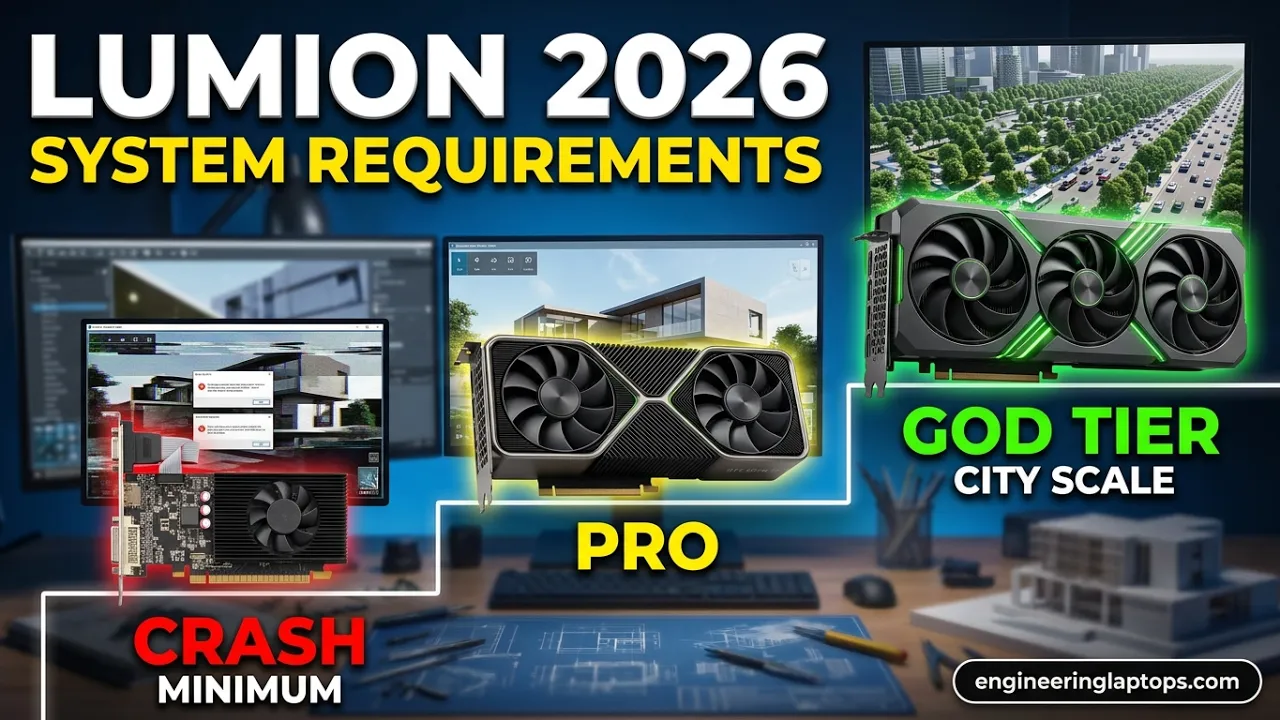
| The sweet spot | RTX 4060 Ti 16GB, RTX 4070, RTX 5070 | 12–16GB | Comfortable mid-size residential and commercial work with ray tracing. Best value for most architects. |
| Professional | RTX 4080, RTX 5070 Ti, RTX 5080 | 16GB | Smooth 4K, bigger scenes, noticeably faster ray tracing. Where serious daily-driver machines should sit. |
| Masterplan class | RTX 4090, RTX 5090 | 24–32GB | City-scale scenes and heavy animation. The 5090’s 32GB exists precisely to dodge the memory wall. |
What to Expect From an RTX 4060 With Medium-Sized Projects
This is the card half the emails I get are about, so let’s give it its own section. The RTX 4060 is where most students and beginners land, and truthfully it’s a fine place to start — with one asterisk the size of a billboard: 8GB of VRAM.
For a residential interior or a modest exterior at 1080p, a 4060 does the job. The viewport stays responsive, Medium and High quality ray-traced stills come out in reasonable time, and you can absolutely learn the entire software and deliver good-looking client images of a house on this card.
The pain starts when the project grows sideways. Add a proper landscape — hundreds of trees, 3D grass, large textures — or try to push output to 4K, and that 8GB fills up fast. First the textures quietly downsample, then the viewport starts hitching, and eventually the render button becomes a crash button.
If Lumion is going to be your main tool, the 16GB version of the RTX 4060 Ti is the smarter buy in this price bracket. It’s not much faster, but that doubled memory is the difference between “I need to optimize this scene” and “this scene is impossible on my machine.”
The 4070, 4080, 4090 — and the RTX 50 Series
RTX 4070 (12GB): The card I recommend most often. Twelve gigabytes handles scenes with hundreds of trees, layered PBR materials, and multi-story buildings without constant memory anxiety. A very sensible architect’s card.
RTX 4080 / RTX 5080 (16GB): The professional sweet spot. Sixteen gigabytes covers the vast majority of commercial work, 4K output is smooth, and ray-traced renders come back fast enough that you iterate more and compromise less. The 5080 adds the newer Blackwell ray-tracing cores on top.
RTX 4090 (24GB): Still a monster. Beyond the raw speed — roughly double what the previous flagship generation managed in rendering tests — the 24GB opens scenes that flatly crash smaller cards.
RTX 5090 (32GB): The current king, and for Lumion the story isn’t really speed. It’s that 32GB is the only consumer-card memory pool big enough that genuinely massive urban scenes never have to spill into system RAM. If masterplans are your bread and butter, this is the card that removes the ceiling.
A note on brands: both NVIDIA and AMD are fully supported, but the community consensus — and my own experience — is that Lumion runs a shade better on NVIDIA, typically in the 10–20% range for viewport work at equivalent VRAM, thanks to deeper optimization on that side. AMD’s RX 7900 XTX with its 24GB is a legitimate high-memory alternative if the price is right. Intel Arc support exists as of the recent releases but is the newest and least battle-tested of the three; I’d hesitate to build a business around it just yet.
How Long Do Renders Actually Take?
The question everyone actually wants answered. Fair warning: render time depends enormously on scene complexity, quality preset, and resolution, so treat these as honest ballparks rather than lab measurements.
Still images. A 4K exterior still at a High quality preset lands around 5–10 minutes on an RTX 4070-class card. Crank it to Ultra with maximum samples and the same image can take 20–40 minutes. On an RTX 4090, a heavy exterior with thousands of objects and full foliage renders a 4K still in roughly 8–15 minutes — the same frame on a decade-old GTX card would be an hour-long coffee break. Interiors generally come back quicker than exteriors.
Animations. This is where hardware tiers stop being a luxury. A 30-second clip at 25fps is 750 individual frames; a five-minute presentation film is around 9,000. A two-minute 4K walkthrough might take 20–40 minutes on a 4090 and several hours on mid-range hardware. And 4K animation runs roughly two to three times longer than 1080p, frame for frame.
The scaling rule of thumb: each GPU tier you climb buys you roughly 25–50% off your render time. A job that takes 20 minutes on a 4070 Ti finishes in 10–12 on a 4090; a budget card takes about twice as long as a flagship on identical scenes.
One genuinely practical tip: the AI Upscaler introduced in the 2025 release is a real time-saver, not a gimmick. Rendering stills at half resolution and upscaling cuts render time dramatically, and for most client deliverables the difference is invisible. In 2026 it goes up to 4x, which makes ultra-high-resolution prints achievable on hardware that could never brute-force them.
The CPU: A Supporting Actor (Until It Isn’t)
Because Lumion leans so hard on the GPU, the processor gets away with a lot. But it’s not a free pass, and it helps to know exactly where the CPU earns its keep:
- Importing and managing models from SketchUp, Revit, Rhino, and friends
- Running LiveSync, the real-time bridge to your modeling software
- Scene management and physics
- Compressing rendered frames during animation export — a bigger deal than it sounds when you’re exporting thousands of frames
The key insight, and it’s counterintuitive if you come from CPU-rendering land: Lumion cares about single-core speed, not core count. Its critical paths are essentially single-threaded, so a chip that boosts high on one core beats a many-core workstation monster. Past roughly eight performance cores, extra cores mostly help you keep Revit and Photoshop open alongside Lumion — worthwhile, but not Lumion itself getting faster.
For a 2026 build, any current high-clock mainstream chip is excellent: an AMD Ryzen 7 or 9 from the recent generations, or an Intel Core Ultra 7/9. If you’re pairing with a flagship GPU, aim for a strong single-thread score so the graphics card never sits waiting for the processor to feed it.
Where a weak CPU will genuinely bite you: sluggish imports of big BIM models, laggy LiveSync sessions, and animation exports that take longer than the rendering did. If your viewport stutters the moment you connect LiveSync to a heavy Revit file, that’s usually the processor talking, not the graphics card.
RAM and Storage: The Unsexy Essentials
Memory. Sixteen gigabytes is the official minimum, and it’s a genuine floor — Windows alone claims three or four of those gigabytes before Lumion loads a single tree. Thirty-two gigabytes is the real-world baseline for professional work. Sixty-four is the standard for masterplan-scale projects, and for anyone who keeps Lumion, a BIM package, and Photoshop open simultaneously — which, let’s face it, is all of us.
Can it run on 8GB? It might technically launch. It is not usable for actual work, and I’d talk you out of trying.
Storage. Lumion 2026 wants 105GB free, and here’s the detail people miss: that space needs to be on the drive holding your Windows user folder and Documents, because that’s where the massive content library lives. An SSD isn’t technically mandated at the minimum tier, but running Lumion from a mechanical hard drive in 2026 is self-punishment — load times alone will make you question your choices. For a new build, a 1TB NVMe drive is the sensible starting point; 512GB fills up alarmingly fast once Lumion, your projects, and a few other tools move in.
One tip straight from the trenches: if you work on large scenes, increase Windows virtual memory to the 100–150GB range. It acts as a safety net when VRAM and RAM both run dry, and it has saved more than one of my late-night renders from an abrupt end.
Laptop or Desktop? Read This Before You Order That Laptop
I get this question weekly, so here’s the unvarnished version: yes, a good laptop runs Lumion. No, a laptop RTX card is not the same as the desktop card with the same name.
The gap is real and measurable. A mobile RTX 4090, for instance, benchmarks dramatically below its desktop namesake — the difference ranges from about 20% at 1080p to nearly 40% at 4K, and Lumion’s own guidance warns that laptop GPUs can trail their desktop equivalents by around 40%. Mobile cards also usually ship with less VRAM than their desktop twins, which — as we’ve established — is the resource Lumion craves most.
Then there’s heat. A laptop render starts fast and slows down as the chassis warms up and the chips throttle to protect themselves. A twenty-minute desktop render can become a forty-minute laptop render for no reason other than thermodynamics.
My practical rules for a Lumion laptop in 2026:
- Buy one GPU tier higher than you would on desktop. Want desktop-4070 performance? Shop for a mobile 4080/5080.
- Treat a mobile RTX 4060 (8GB) as the absolute floor, suitable for learning and lighter projects only.
- Insist on 32GB of RAM (64 for heavy work) and a 1TB NVMe drive.
- Prioritize cooling over thinness. Workstation-class machines and thick gaming laptops with serious thermal design will outrun a slim ultrabook carrying the same chip, every time. A cooling pad and always-plugged-in charging help more than they should.
If you want specific model recommendations, I’ve covered those separately in my guide to the best laptops for Lumion in 2026 — the thermal and VRAM points above are exactly the lens I used there.
Common Bottlenecks (and How to Actually Fix Them)
A quick field guide to the problems that fill the Lumion forums:
“Out of Memory” when rendering, but the viewport was fine. The classic VRAM wall. Shrink oversized textures (nobody can see the difference between 8K and 2K on a distant wall), use Lumion’s own scattering tools instead of importing thousands of individual plants, purge unused assets, hide off-camera geometry with layers, and split truly enormous scenes into per-shot files. In my experience most “my PC can’t handle this” complaints are actually “this scene hasn’t been optimized” in disguise.
Viewport turns to slideshow after adding vegetation. Open Task Manager and watch VRAM usage. Above roughly 90%, Windows starts borrowing system RAM and everything tanks. Drop the editor quality a notch, reduce the number of unique tree species, or lower texture resolution on distant objects.
Laptop renders that start fast and finish slow. Thermal throttling. Cooling pad, high-performance power plan, charger in, and break marathon renders into chunks.
Random crashes after a Lumion update. Nine times out of ten it’s drivers. Update to at least the version Lumion specifies for your release, and prefer Studio drivers on NVIDIA.
PC reboots mid-render. Almost always the power supply. Render load spikes hard, and a cheap or undersized PSU folds under it. This is why Lumion specifically recommends quality 80+ Gold units — it’s the least glamorous component in the case and the one most people cheap out on.
Can You Run Lumion on a Mac? The Full, Honest Answer
Short version: no, and on a modern Mac, not even with tricks.
Apple Silicon Macs (M1 through M4): Incompatible, full stop. These chips can’t run Boot Camp — Apple removed it with the ARM transition — and virtualization tools like Parallels can’t provide the DirectX 12 GPU access Lumion demands. It will not launch. There is no workaround, no matter what a forum post from 2021 promises.
Older Intel Macs: Technically possible through Boot Camp with a proper Windows license and a capable GPU. But Apple hasn’t sold an Intel Mac in years, and even when this route worked, it ran hot, throttled early, and underperformed a Windows machine at half the price.
Virtual machines: Officially unsupported, and in practice a parade of crashes, visual glitches, and licensing headaches.
Lumion has been consistent on this for years: the engine is built on DirectX and hardware ray tracing that Apple’s graphics stack simply doesn’t offer, and there are no plans for a macOS port. The one genuine exception is Lumion View — the lightweight real-time visualization plugin for design tools — which does now have a Mac edition. But full Lumion Pro remains Windows-only.
If you’re a Mac-first studio, your realistic options are: a dedicated Windows box for rendering, a cloud GPU service where you remote into a Windows machine with a proper RTX card, or accepting a different renderer for the Mac side of the pipeline. I know that’s not what Mac users want to hear. It’s still the truth.
Don’t Forget: Internet and Licensing
Every Lumion seat requires an internet connection on the machine running it — this isn’t optional, it’s part of how licensing works. Recent versions moved toward named-user accounts alongside traditional keys, and Pro seats come in named-user and floating flavors, which matters if you’re managing licenses across a team. Cloud and remote-desktop setups are possible on some platforms, but check the actual GPU specs of whatever you’re renting; plenty of generic cloud desktops fall well short of the requirements above.
Three Builds I’d Actually Buy in 2026
Spec tables are fine, but here’s what I’d genuinely put my own money on at three levels:
The Student / Starter — for learning Lumion and small residential work: RTX 4060 Ti 16GB · a current Ryzen 7 or Core i5 with strong single-core boost · 32GB RAM · 1TB NVMe · a proper 80+ Gold power supply. The 16GB of VRAM is the whole point of this build; don’t trade it away for a slightly faster 8GB card.
The Working Architect — the sweet spot for daily professional work and 4K deliverables: RTX 5070 Ti or RTX 5080 (16GB) · Ryzen 9 or Core Ultra 7/9 · 64GB RAM · 2TB NVMe · quality Gold or Platinum PSU. This machine handles the overwhelming majority of commercial visualization without breaking a sweat, and it’ll age gracefully.
The Masterplan Machine — urban scale, heavy animation, no compromises: RTX 5090 (32GB) · flagship Ryzen 9 or Core Ultra 9 · 64–128GB RAM · 2TB+ fast NVMe · a Platinum PSU with real headroom. Expensive, yes. But the 32GB of VRAM is what turns “impossible scene” into “Tuesday.”
Frequently Asked Questions
Can Lumion run on 8GB of RAM? It may launch, but it isn’t usable for real projects. Windows consumes a third of that before Lumion opens. Sixteen gigabytes is the hard minimum; 32GB is what you actually want.
Is an RTX 4060 enough for Lumion? For learning and small residential projects at 1080p — yes, genuinely. For 4K output, heavy vegetation, or large scenes, its 8GB of VRAM becomes the bottleneck quickly. The 16GB RTX 4060 Ti is the better buy if Lumion is your main tool.
Does Lumion work on Mac? Not on any Apple Silicon Mac (M1–M4), and there’s no workaround. Only aging Intel Macs via Boot Camp ever qualified, and that path is effectively dead. There is no native macOS version and none planned. The lightweight Lumion View plugin has a Mac edition; full Lumion Pro does not.
How much VRAM do I need for Lumion? Six gigabytes is the bare minimum and can’t handle 4K or ray tracing. Eight is entry level. Twelve to sixteen is the practical professional range. Twenty-four to thirty-two is masterplan territory.
Do I need an RTX card specifically? Any dedicated GPU meeting the benchmark and VRAM floors runs the standard pipeline. But Lumion’s ray tracing requires hardware ray-tracing support: NVIDIA RTX, AMD RX 6000 or newer, or supported Intel Arc cards. Integrated laptop graphics are not supported at all.
Does Lumion need a powerful CPU? Less than you’d expect. It’s GPU-driven and favors single-core speed over core count. A modern Ryzen 7/9 or Core Ultra 7/9 is plenty; the CPU mainly matters for imports, LiveSync, and animation export.
Is a gaming laptop good enough for Lumion? It can be — with a strong RTX mobile GPU (8GB VRAM minimum), 32GB of RAM, and serious cooling. Just budget for 20–40% less performance than the equivalent desktop card, and buy one GPU tier higher than you would for a tower.
Should I upgrade my old PC to Lumion 2026? Check your hardware first. If you have under 6GB of VRAM or under 16GB of RAM, the newer version will likely run worse than what you have now. And remember: 2026 project files won’t open in older versions, so coordinate with your team before switching.
Will my Lumion 2025 hardware handle Lumion 2026? Yes — the official requirements are identical, so a machine that ran 2025 comfortably will run 2026 the same way. Just keep your GPU drivers current.
The Bottom Line
Lumion in 2026 rewards one thing above everything else: a strong GPU with generous VRAM. Get that right — an RTX 4070/5070-class card or better with 12–16GB, backed by 32GB of RAM, a fast NVMe drive, and a high-clocking CPU — and this software is an absolute joy: real-time, responsive, and capable of imagery that used to require an overnight render farm.
Shop to the official minimum, and you’ll spend your evenings fighting stutter instead of designing. Buy a Mac hoping for a workaround, and you’ll be shopping again within the month. Put the money in the graphics card, give it memory and cooling to breathe, and Lumion will repay you every single day you use it.

Hi, my name is Burak. I am a mechanical engineer. I have been writing laptop reviews for the Engineering Laptops website since 2020. Please feel free to contact me if you have any questions.