A practical, honest guide for dental professionals and CAD designers looking for the best laptops for ExoCAD.
Estimated reading time: 7 minutes
Key Takeaways
- Choosing the best laptops for ExoCAD requires understanding hardware needs, such as a strong CPU, dedicated GPU, and sufficient RAM.
- ExoCAD runs best on Windows 11 Pro, with a focus on single-core CPU performance and dedicated graphics cards for serious work.
- Recommended laptops include the Lenovo ThinkPad P1, Dell Precision 7670, and HP ZBook Studio for long-term reliability and stability.
- For raw power at a better price, consider ASUS ProArt or ROG laptops with a suitable configuration for dental work.
- Evaluate your daily workload to select the right laptop configuration for smooth, stable performance in ExoCAD.
Choosing a laptop for Exocad is not the same as choosing a regular office laptop. This software is used in real dental workflows — crowns, bridges, implant planning, and detailed 3D modeling where stability and precision matter more than flashy specs.
In 2026, hardware options are better than ever, but that also makes the decision harder. Some laptops look powerful on paper but struggle in long Exocad sessions. Others cost a fortune without offering real benefits.
This guide is written for dental technicians, dentists, and lab owners who want a laptop that simply works — day after day — without surprises.
Table of contents
What Exocad really needs (before we talk about laptops)
Before jumping into recommendations, it’s important to understand what actually affects Exocad performance in daily use.
Operating system
Exocad is designed for Windows. It runs best on Windows 11 Pro. macOS (including Apple Silicon) is not a reliable or supported environment for professional Exocad work.
Processor (CPU)
Exocad benefits from:
- Strong single-core performance (for modeling operations)
- Enough cores for multitasking and background processes
Modern Intel HX-series or AMD Ryzen 9 HX mobile CPUs are ideal.
Graphics card (GPU)
A dedicated GPU is essential. Integrated graphics are not suitable for serious work.
Recommended:
- NVIDIA RTX (Ada / 40-series / 50-series mobile)
- NVIDIA RTX A-series (workstation GPUs)
Memory (RAM)
- 32 GB RAM → comfortable and reliable
- 64 GB RAM → ideal for large cases and multi-unit designs
Storage
- NVMe SSD only
- 1 TB minimum, especially if you work with scans and large libraries
Quick comparison: Best laptops for Exocad
| Laptop Model | CPU Options | GPU Options | RAM | Best For |
|---|---|---|---|---|
| Lenovo ThinkPad P1 Gen 7 | Intel Core HX / Ultra | RTX Ada / RTX A | 32–64 GB | Stability & mobility |
| Dell Precision 7670 | Intel i7 / i9 HX | RTX A3000–A5000 | 32–64 GB | Heavy lab workloads |
| HP ZBook Studio 16 G11 | Intel Core Ultra / HX | RTX Ada / RTX 40 | 32–64 GB | Color accuracy |
| ASUS ProArt StudioBook 17 | Intel i9 / Ryzen 9 HX | RTX A-series | 32–64 GB | Visual detail |
| ASUS ROG Strix / Zephyrus | Intel / AMD HX | RTX 4080 / 4090 | 32–64 GB | Best price-performance |
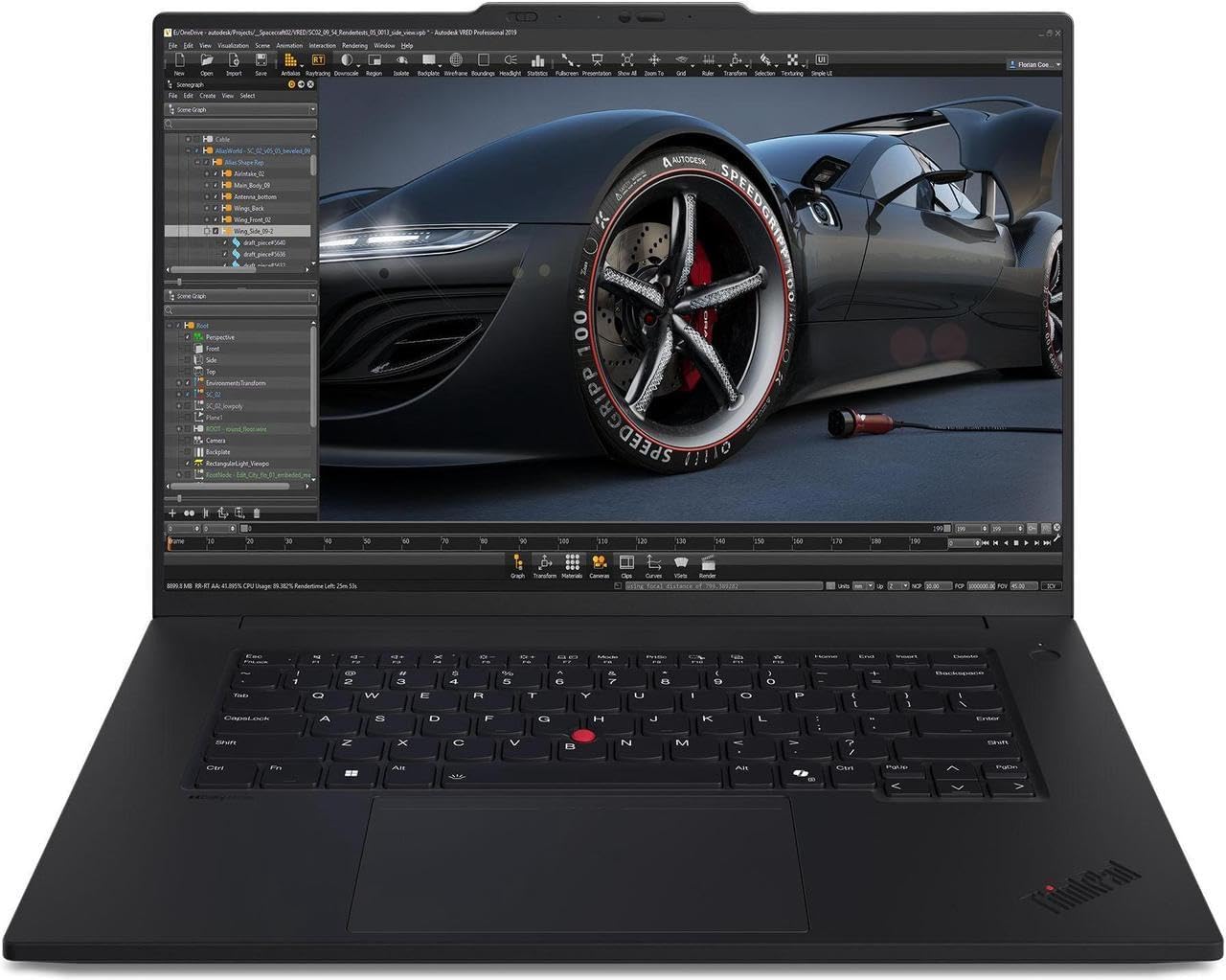
1. Lenovo ThinkPad P1 Gen 7
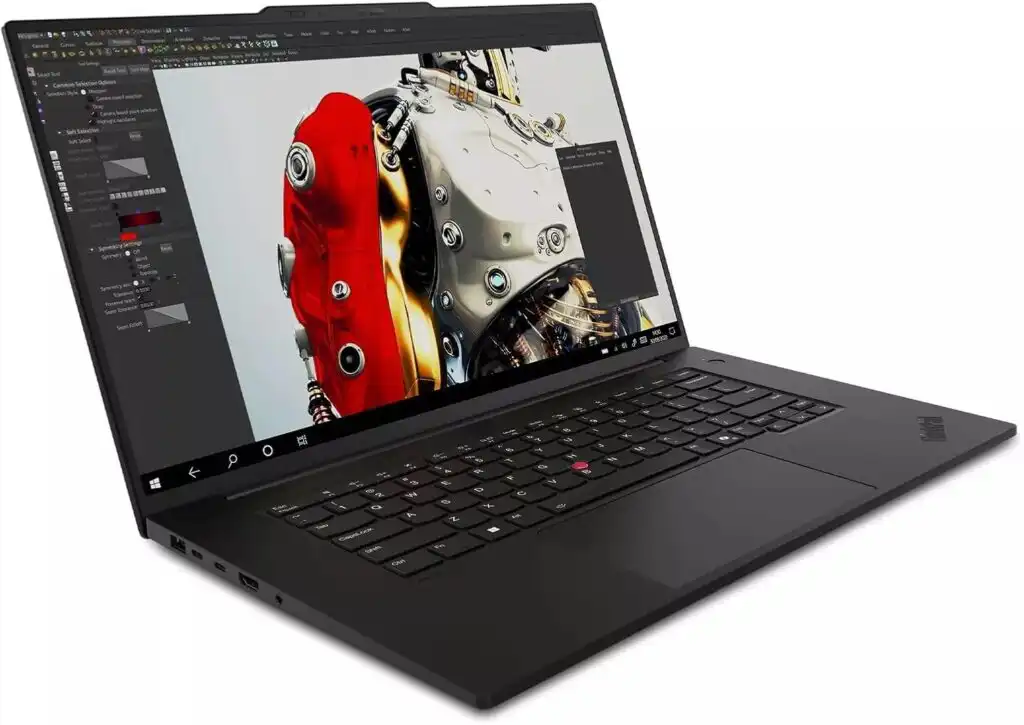
The safest long-term choice
The ThinkPad P1 Gen 7 is one of those laptops that doesn’t try to impress with gimmicks — and that’s exactly why professionals love it.
It’s powerful, quiet, well-cooled, and extremely stable. Exocad runs smoothly even during long sessions, and Lenovo’s workstation drivers make a real difference.
Recommended configuration
- Intel Core i7 or i9 HX
- NVIDIA RTX A3000 or higher
- 32–64 GB RAM
- 1 TB NVMe SSD
- 16″ QHD or 4K display
Pros
- Excellent thermal management
- Reliable keyboard and build quality
- Good battery life for a workstation
Cons
- High-end configurations are expensive
- Limited gaming-style GPU options
2. Dell Precision 7670
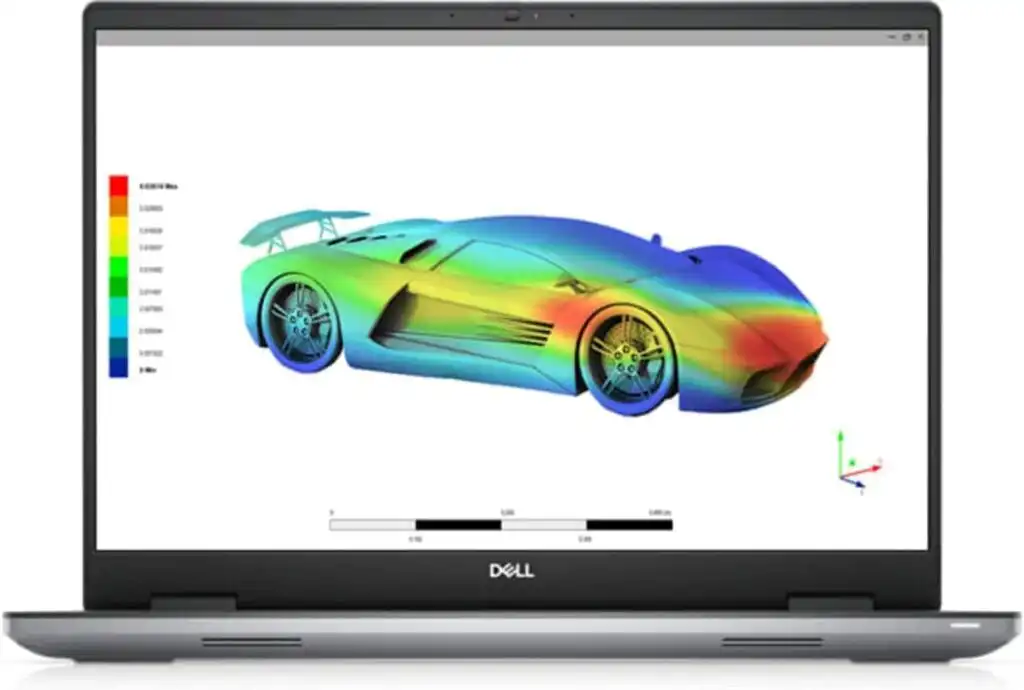
Built for labs that never stop
The Precision 7670 is a classic workstation laptop — big, powerful, and built for nonstop work.
If your lab handles multiple cases daily, large scans, and heavy designs, this machine won’t slow down.
Recommended configuration
- Intel i9 HX
- NVIDIA RTX A4000 or A5000
- 64 GB RAM
- 2 TB NVMe SSD
- 16″ high-resolution display
Pros
- Outstanding stability
- Professional GPU options
- Excellent port selection
Cons
- Heavy and bulky
- Battery life is average
3. HP ZBook Studio 16 G11
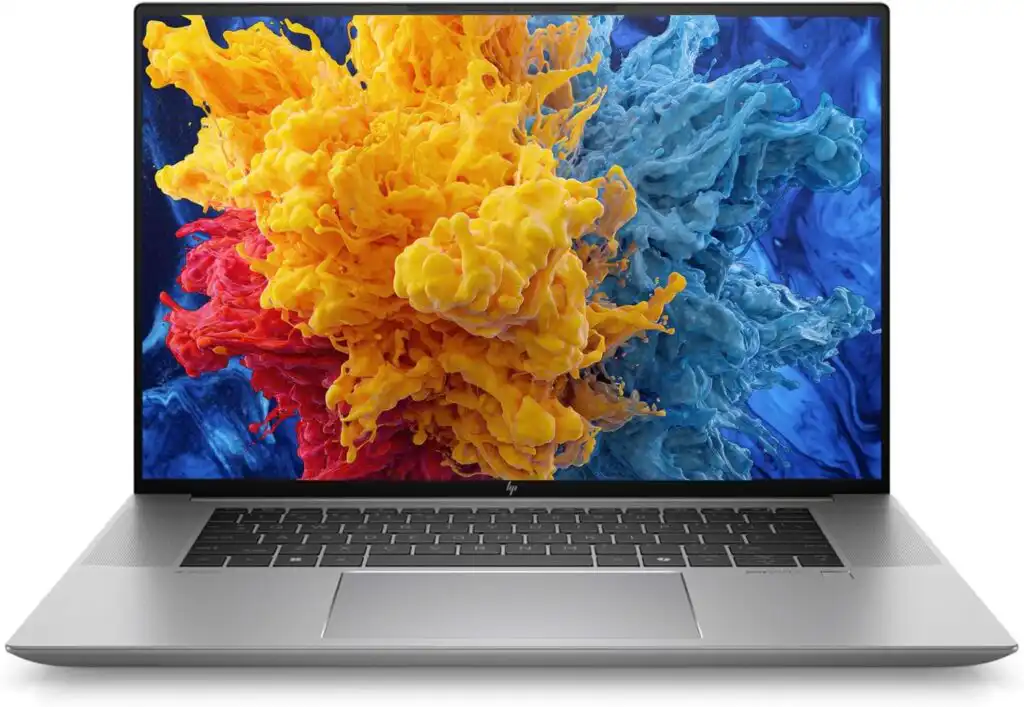
For those who care about visual precision
If you work closely with fine details and color accuracy, the ZBook Studio stands out. HP’s DreamColor display is one of the best laptop panels available.
Performance is strong, and the chassis feels premium without being too heavy.
Recommended configuration
- Intel Core Ultra or HX
- NVIDIA RTX 3000 Ada or RTX 4070+
- 32–64 GB RAM
- 1–2 TB NVMe SSD
Pros
- Excellent display quality
- Solid performance
- Professional design
Cons
- Price increases quickly with upgrades
- Fan noise under heavy load
4. ASUS ProArt StudioBook Pro 17
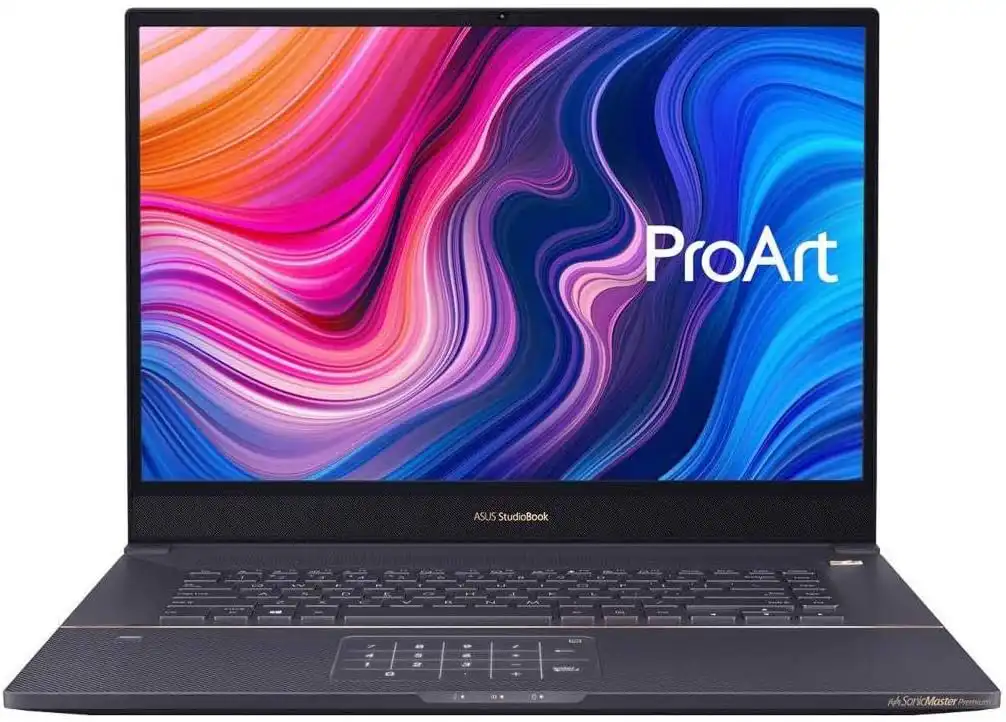
A creator’s workstation for dental CAD
ASUS designed the ProArt series for creators, and it shows. The 4K OLED display is stunning, and the laptop feels tuned for precision work.
This is a great choice for designers who want both performance and visual clarity.
Recommended configuration
- Intel Core i9 or Ryzen 9 HX
- NVIDIA RTX A3000 or higher
- 32–64 GB RAM
- 1–2 TB NVMe SSD
Pros
- Incredible OLED screen
- Strong CPU and GPU options
- Good port variety
Cons
- Can get warm under sustained load
- Premium pricing
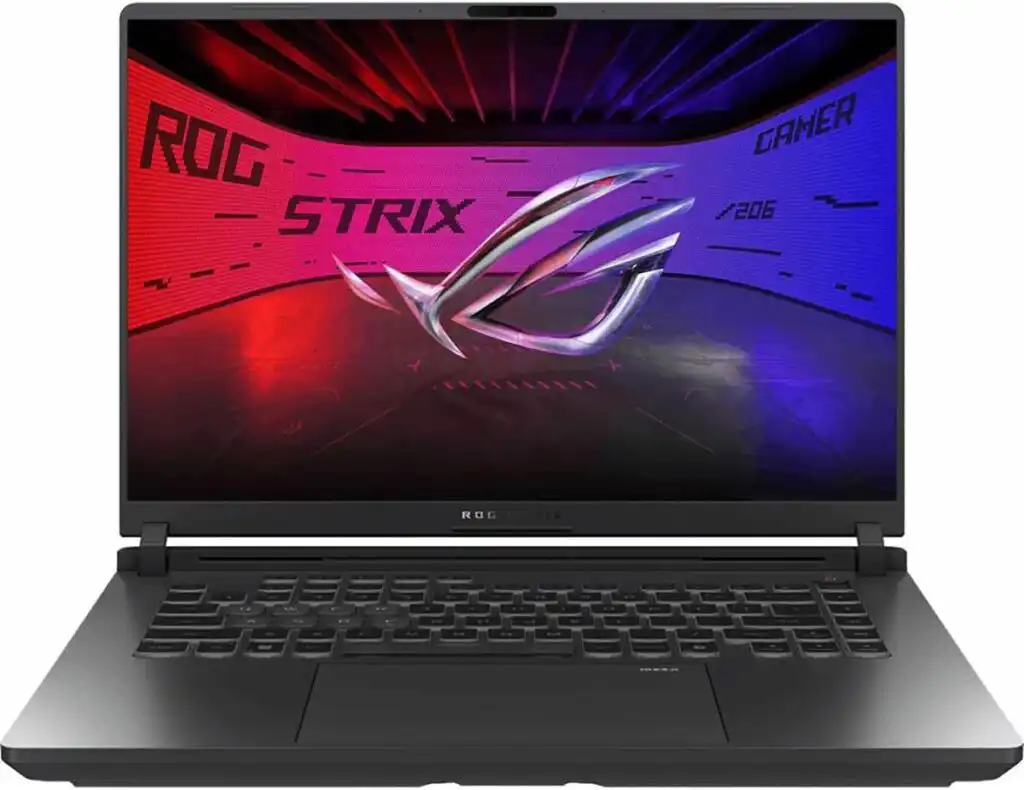
5. ASUS ROG Strix / Zephyrus
Maximum power for the money
Not everyone wants a workstation badge — and that’s okay. High-end gaming laptops often deliver more raw power for less money.
With the right configuration, these laptops handle Exocad very well.
Recommended configuration
- Intel or AMD HX CPU
- NVIDIA RTX 4080 or 4090
- 32–64 GB RAM
- 1–2 TB NVMe SSD
Pros
- Excellent price-to-performance ratio
- Extremely powerful GPUs
- Widely available
Cons
- Shorter battery life
- Less conservative design
Common questions, answered honestly
For professional use, no. Exocad is built for Windows, and macOS solutions are not reliable for daily production work.
Yes, for most users. If you work with very large cases or multitask heavily, 64 GB is worth it.
Not always. If stability and support matter most, choose a workstation. If budget and power matter more, a high-end creator or gaming laptop works well.
Final thoughts
The best laptop for Exocad in 2026 is the one that fits your workflow, not just the spec sheet.
If you want peace of mind and long-term reliability, go with a Lenovo ThinkPad P1, Dell Precision, or HP ZBook.
If you want raw performance at a better price, a well-configured ASUS ProArt or ROG laptop can be a smart choice.
Whichever route you choose, prioritize:
- A strong CPU
- A dedicated GPU
- At least 32 GB RAM
- Fast NVMe storage
Get those right, and Exocad will feel smooth, stable, and enjoyable — exactly how professional software should feel.
How to Choose the Best Laptop for Exocad in 2026
Time needed: 5 minutes
Selecting the right laptop for Exocad ensures smooth modeling, stable performance, and reliable daily dental CAD work. Follow these steps to make the right choice.
- Understand Exocad’s hardware needs
Start by focusing on the essentials: a Windows-based system, a strong processor, a dedicated graphics card, and enough memory to handle detailed dental designs without slowdowns.
- Compare workstation and high-performance laptops
Decide whether a professional workstation laptop or a powerful creator/gaming laptop fits your workflow better, considering stability, performance, portability, and budget.
- Choose a configuration that matches your daily workload
Select the right combination of CPU, GPU, RAM, storage, and display size based on how complex your Exocad projects are and how many hours you work each day.
Related links